Mail Campaigns
- mailing list
- mail campaigns
In this guide we will cover:
- What are Mail Campaigns?
- Enabling Mail Campaigns
- Creating a Campaign
- Blast and Nurture Campaigns
- Using Metrics
- History
- Allow Users to Unsubscribe from Mail Campaigns
- Cancelling/Completing Campaigns
- Sending Test Emails
- Example Nurture Campaign
- Creating a Mail Campaign from a ticket
- Campaign Approvals
What are Mail Campaigns?
Mail Campaigns in Halo allow you to send scheduled communications (emails) to users/contacts within your Halo, useful for marketing and improving customer relations. This could either be a one off communication, or a series of communications. Each campaign will be linked to a distribution list of users/contacts to automatically determine who the communications are sent to. Metrics for the campaign are also tracked, allowing you to track how users are interacting with the campaign, and the campaign's success.
Enabling Mail Campaigns
To create a Mail Campaign, first head to Configuration > Email and ensure you have turned on the "Mail Campaign" module (This module can also be called "Campaigns").
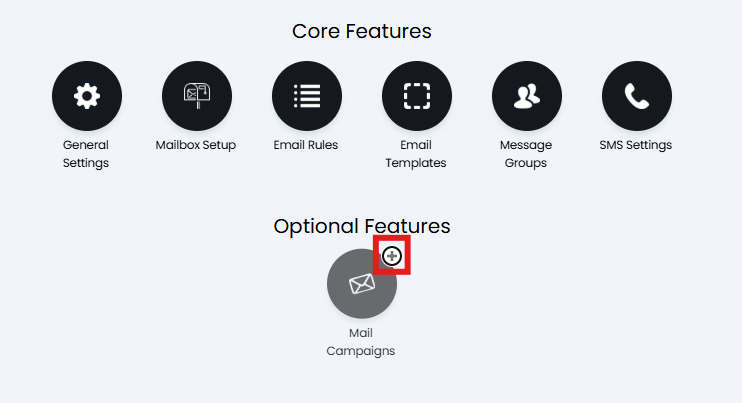
Fig 1a. Enable Mail Campaigns module
You will also need to enable the "Distribution Lists" module (this may be called "Segments"), which can be found in Configuration > Users.
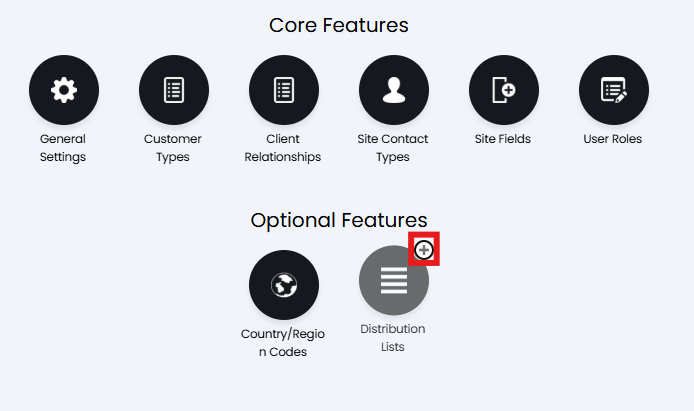
Fig 1b. Enable Distribution Lists Module
After the modules are enabled they should appear in your navigation menu (left hand side). If they do not you will need to log out and back in for the change to take effect. If they are still not visible you may need to add then into your screen layout profile. To see which screen layout profile you are using head to your profile (by selecting your icon in the top right) > preferences tab > screen layouts, under 'Navigation menu layout' you can see which layout you are using. To change the profile head to configuration > advanced settings > screen layout profiles > change entity to 'Navigation Menu' > select the layout you are using > button layout. Here you can see which modules are set to appear in the menu, if either distribution lists or mail campaigns are not visible here, add them in. If the button layout is set to 'default' both modules should appear.
Note: If you cannot see the module still, ensure your agent account has the permission "Mail Campaign Access Level" set accordingly.
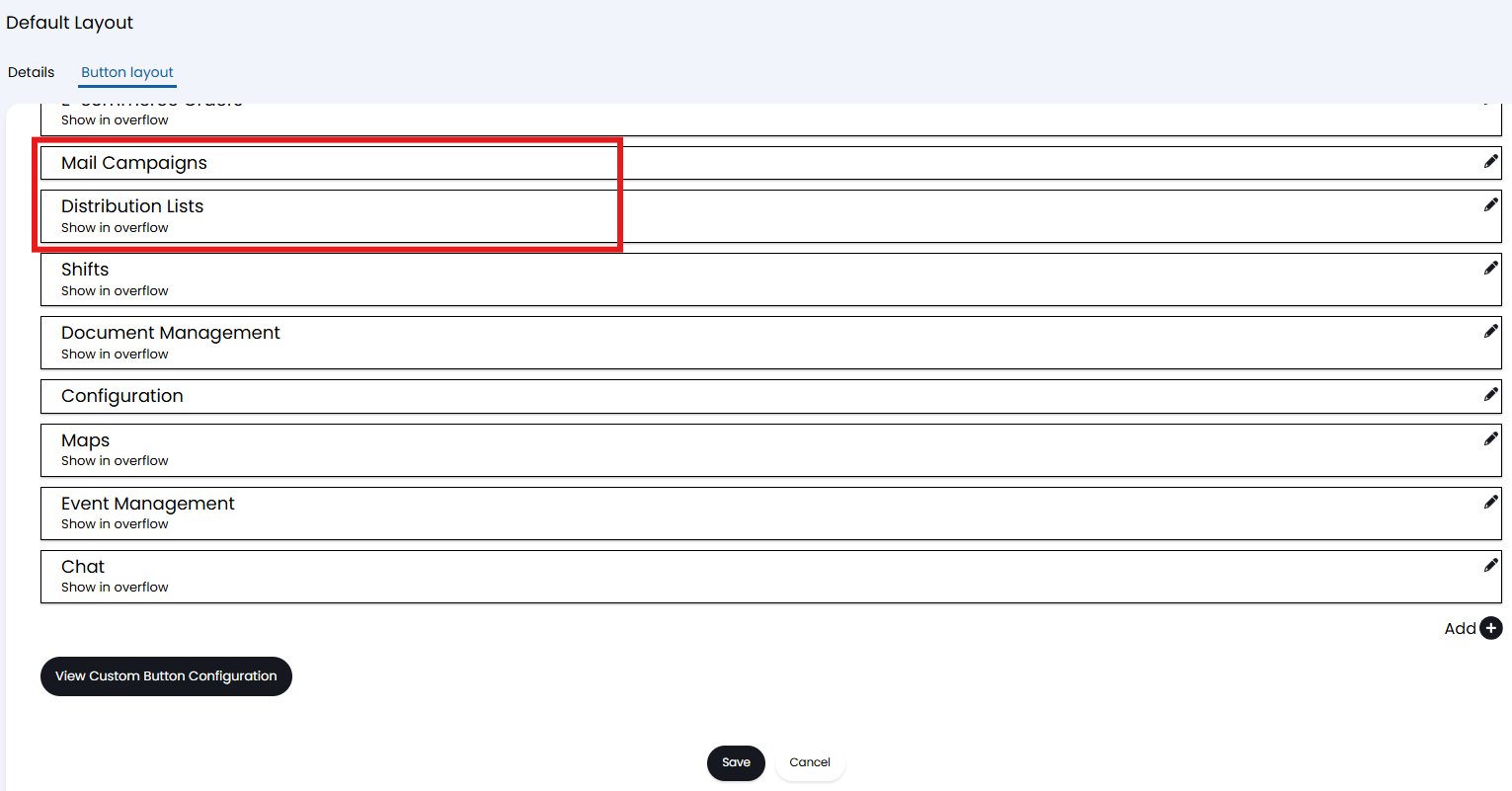
Fig 2. Navigation menu button layout
Ensure your agent account has the relevant permissions to create both entities, this will be inherited from a role or set within the agent profile. To check your permissions head to configuration > teams and agents > select your profile > permissions tab. Here the permissions highlighted in figure 4 will need to be set to 'Read and Modify'. If you have just changed your permissions settings you will need to log out and back in for them to take effect.
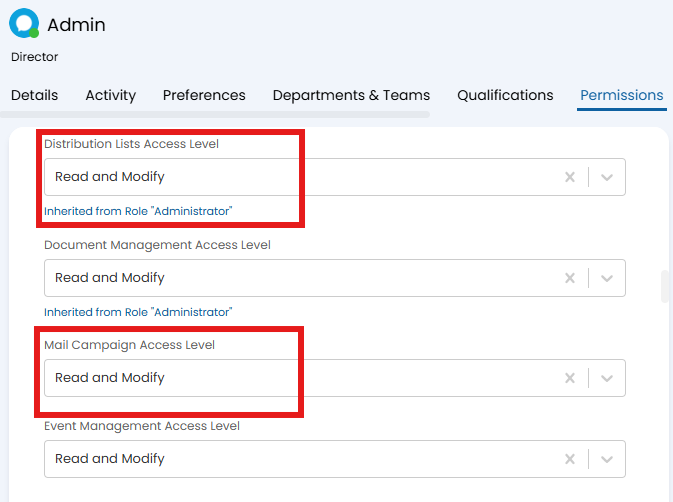
Fig 3. Required agent permissions
Now you are ready to set up a campaign.
Creating a Campaign
Go to the Mail Campaign module, and click new. Give your Campaign a name, and select create in Halo, if you are creating a Mailchimp Campaign see our guide on this here.
You will have the option to change the Configuration Style of your campaign This guide will cover use of the "Scheduled" type. If you would like to setup your campaign using a workflow style please see the guide linked here.
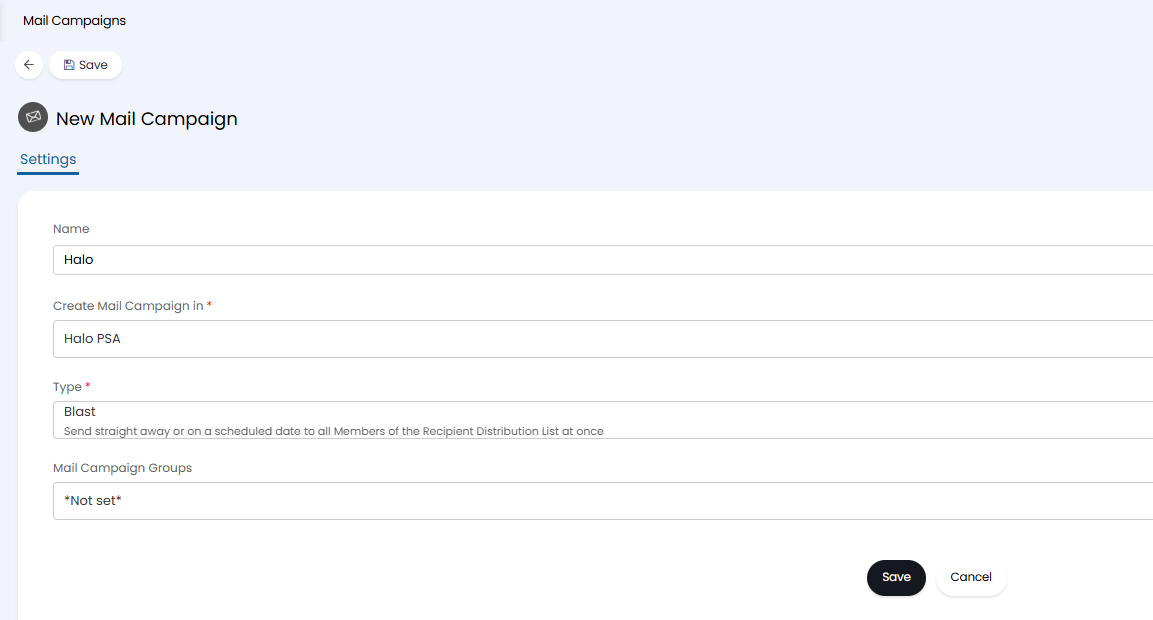
Fig 4. Setting up the Campaign
Blast Campaign- This type of campaign is used to send communications to a fixed distribution list right away or send communications at a set date/time. This type of campaign is usually a one-time, mass communication aimed at delivering the same message to a broad audience, often for promotions, announcements, or special offers.
Nurture Campaign-Triggered - This type of campaign is used to 'drip-send' communications to users in a distribution list. Unlike a blast campaign if a user if added to a distribution list after the campaign has begun they will receive communications from the start of the campaign in the campaign at the set intervals. Allowing you to have a single campaign and distribution list but have users each be in different stages of the campaign. These campaigns are more gradual and personalised, focusing on relationship building between you and your customers. If using a dynamic distribution list, if a user has properties that make them part of the list, the emails will be queued to them. If these properties change, the queued emails will be cancelled.
Nurture Campaign-Scheduled - This type of campaign is used to 'drip-send' communications to users in a distribution list. Unlike a blast campaign if a user if added to a distribution list after the campaign has begun they will receive communications from the start of the campaign in the campaign at the set intervals. Allowing you to have a single campaign and distribution list but have users each be in different stages of the campaign. These campaigns are more gradual and personalised, focusing on relationship building between you and your customers. If using a dynamic distribution list, users in the list will be checked on a scheduled basis. Any new users that have been added will be added to the campaign, any users that have been removed will be removed (cancelled) from the campaign. Users will not be removed/added instantly, only when the schedule runs.
The primary difference between the Nurture and Blast campaign types in Halo is how the communications (emails) are sent out. You will receive different 'send type' options for your campaign emails based on the campaign type you select. For Blast campaigns, users in the distribution list will only receive the current communications in the campaign, they will not receive any past communications. For Nurture campaigns, users in the distribution list will receive all communications in the campaign, if a user is added to a distribution list assigned to a campaign that has already started they will receive communications from the start of the campaign at the set intervals.
The primary difference between Nurture-scheduled and Nurture - Triggered campaigns is how and when users are removed from the campaign. Scheduled Nurture campaigns only remove/add users to the campaign on a scheduled basis, rather than as soon as they are no longer part of the distribution list. Only removing/adding users on a schedule protects campaign continuity. By only removing users on the last day of the month, for example, you can ensure users still receive the rest of the month's communications, rather than all communications suddenly ceasing. Preserving multi-step campaign flows.
Setting up a Blast Campaign
To add an email to the Campaign, go to the Email Setup tab, and add an email.
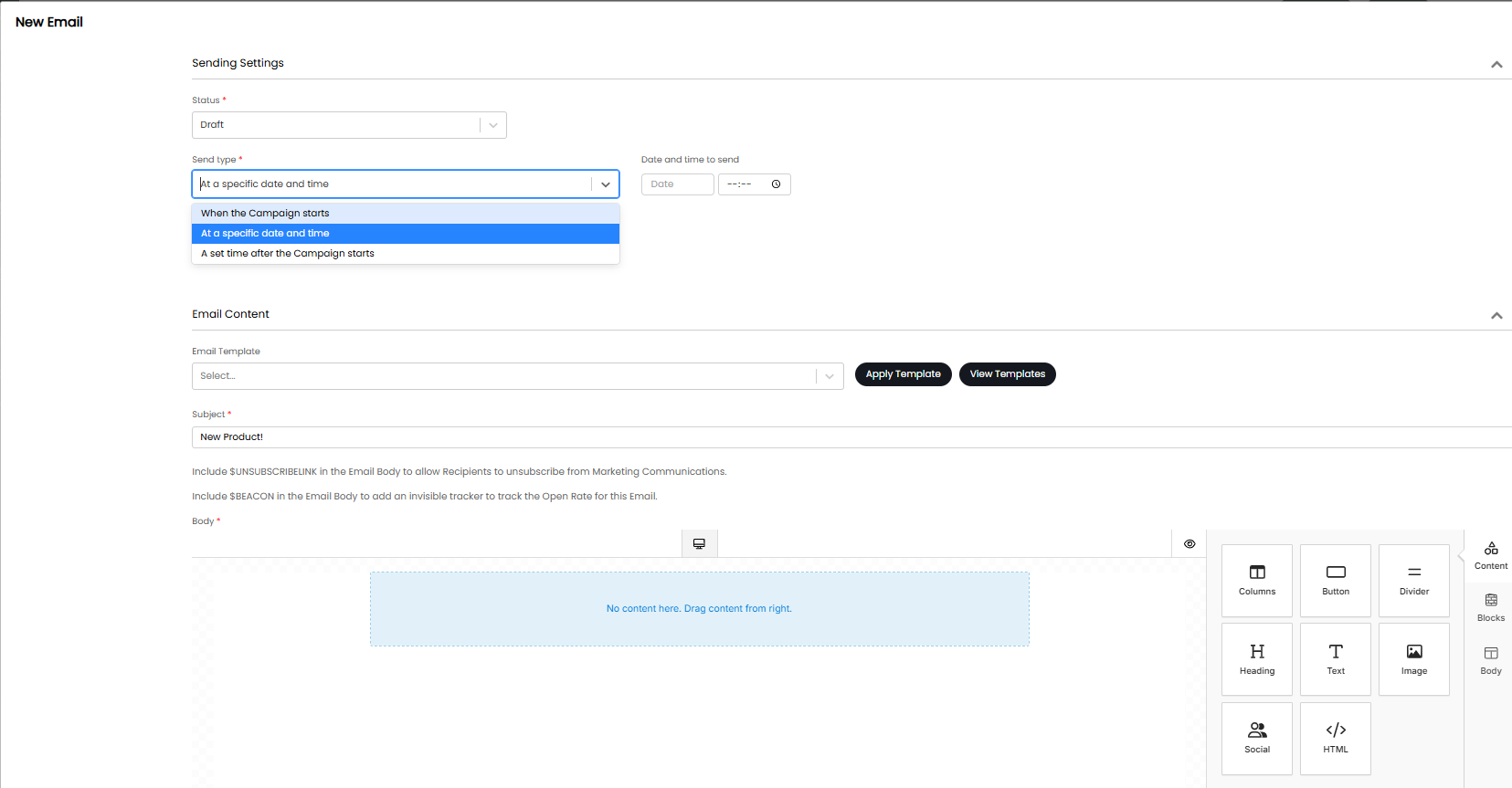
Fig 5. Email setup for campaign
Here you can design an email or apply a template for the email, set the subject and when it will send. The status of the email will determine whether or not it is ready to be sent. Use the "Draft" status when still editing emails. All emails must have the "Ready" status before the campaign can be started.
The 'Send type' field determines when the email is sent the options are as follows:
When the campaign starts - This will que the email to send out as soon as the campaign starts
At a specific date and time - This will allow you to choose a date and time to send the email. The email will be sent at this date/time after the campaign has started. This allows you to configure various emails to be sent at different times, on the same campaign, so you only need to start the campaign once.
A set time after the campaign starts - Allows you to set a countdown of days/hours/minutes for the email to be sent. This allows you to start the campaign in advance of the email being sent.
Note: If an email is set to send at a specific time and this time is in the past the email will send as soon as the campaign is started.
Setting up a Nurture Campaign
To add an email to the Campaign, go to the Email Setup tab, and add an email.
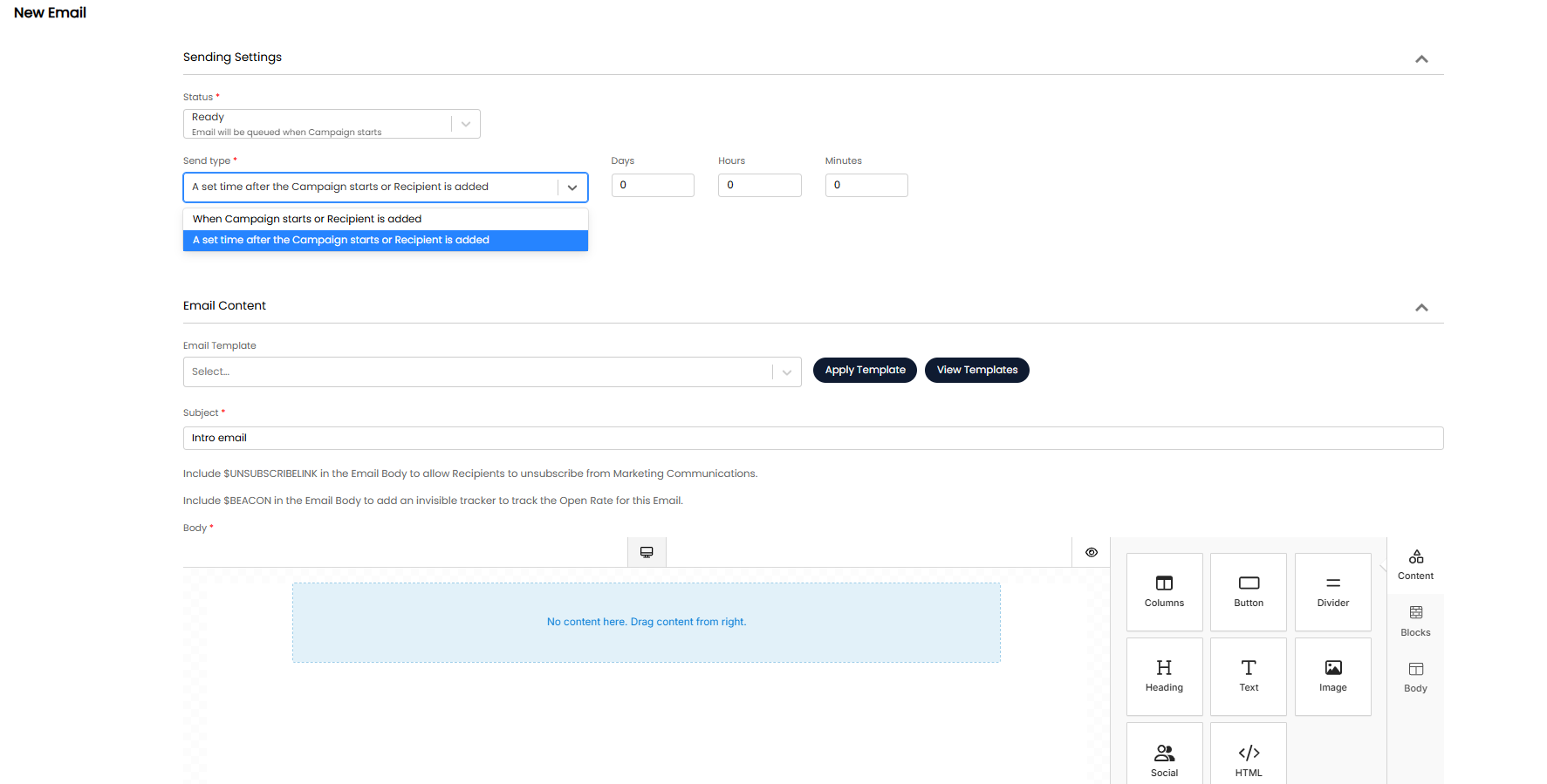
Fig 6. Email setup for nurture campaign
Here you can design an email or apply a template for the email, set the subject and when it will send. The status of the email will determine whether it sends or not when the campaign starts, any emails that have a 'draft' status will not send out even when the campaign is started. When the status of the email is 'Ready' the email configured here will be sent out when the campaign is started.
The 'Send type' field determines when the email is sent the options are as follows:
When campaign starts or recipient added - When chosen this email will be sent as soon as the campaign starts, or as soon as the user is added to the distribution list assigned to the campaign.
A set time after campaign starts or recipient added - This will allow you to set a time interval to send the email after. The email will be sent after this time has passed since the start of the campaign or since the user has been added to the distribution list.
Creating a Campaign Schedule (Nurture Campaign - Scheduled, only)
If you are creating a campaign of type "Nurture campaign - Scheduled" you will also need to configure a schedule for the campaign. The schedule will not determine when emails are sent out, but rather, when the users subscribed to the campaign are checked and evaluated.
Under the "Overview" tab of the campaign, head to the "Schedule" section and hit "Set Schedule".
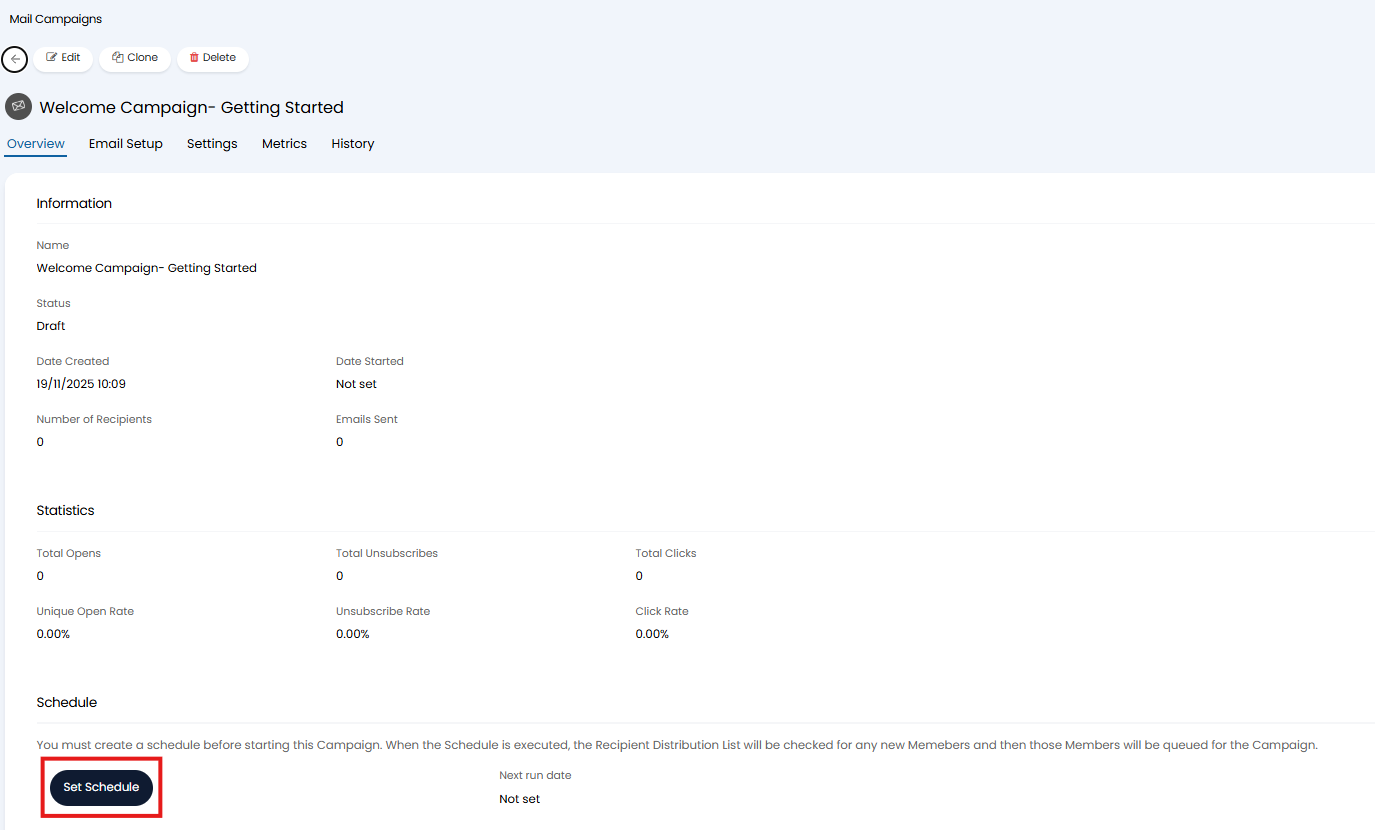
Fig 7. Set Schedule
Here, configure the schedule, in the figure 8 example the campaign is scheduled to check the users assigned to the campaign on a weekly basis, every Monday at 7am.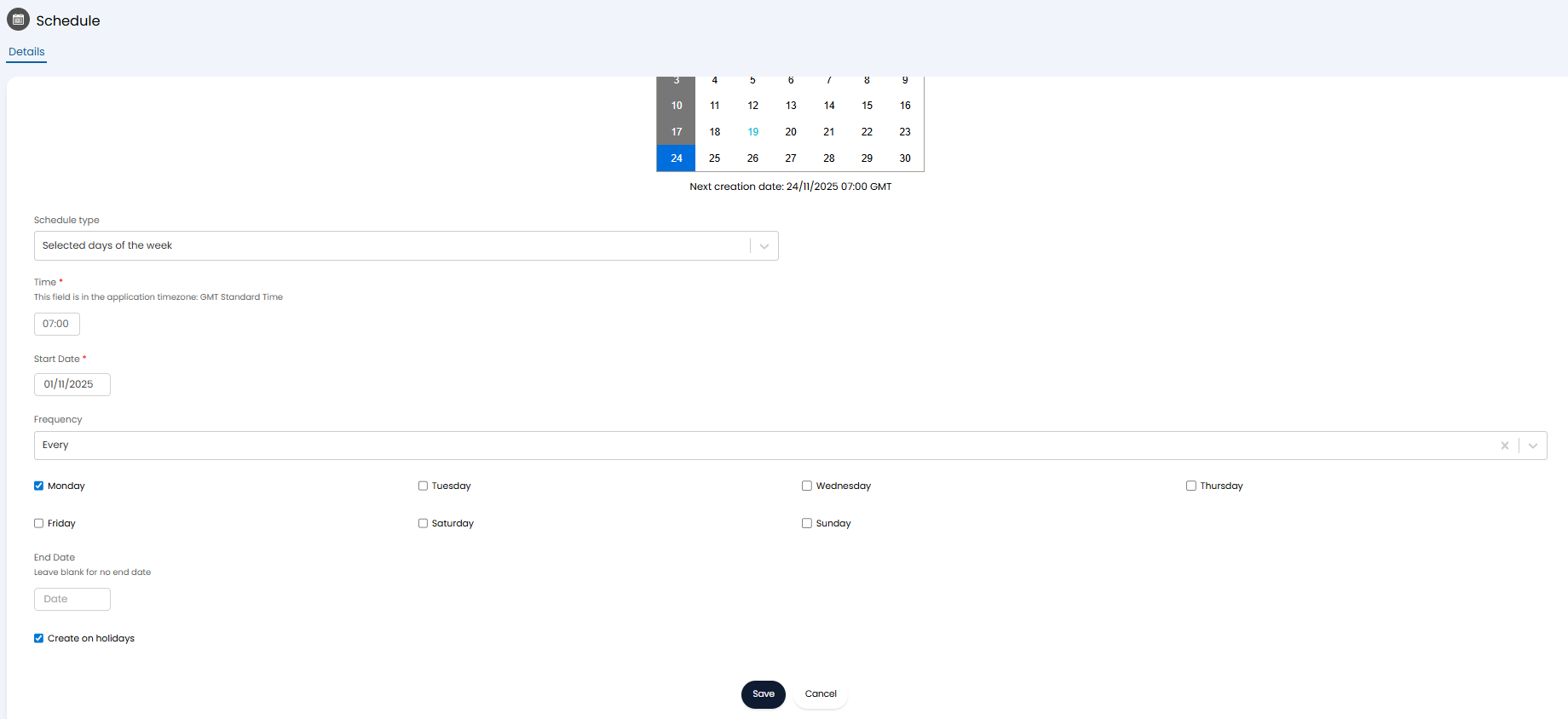
Fig 8. Campaign Schedule
This means, every Monday the users in the distribution list assigned to the campaign will be checked, if any users have been added/removed from the distribution list since the last check they will be added/removed from the campaign. If a user is added/removed before the scheduled check, they will remain on/off the campaign until the next schedule runs.
Once the schedule is set you can configure the rest of the campaign.
Configuring the Rest of the Campaign
The subject and body of the email can either be created within the email setup in the mail campaign, or can be determined by an email template. To use an email template choose which email template you would like to use in the 'email template' field, you will be able to choose from the custom email templates you have in your instance, standard email templates cannot be used here.
Dollar variables can be used in the email/template to have information pull in dynamically, useful for populating the email with the recipient's name. From v2.244+ custom field variables can also be used here.
To create a new email template to use head to Configuration > Email > Email Templates > change entity to Custom Templates > New. Here you can design the email that will be sent out. By default the rich text editor is used to design email templates, however we also have a HTML designer tool that can be used. To use the designer head to configuration > advanced settings, change 'HTML Template Editor Type' to 'HTML' designer.
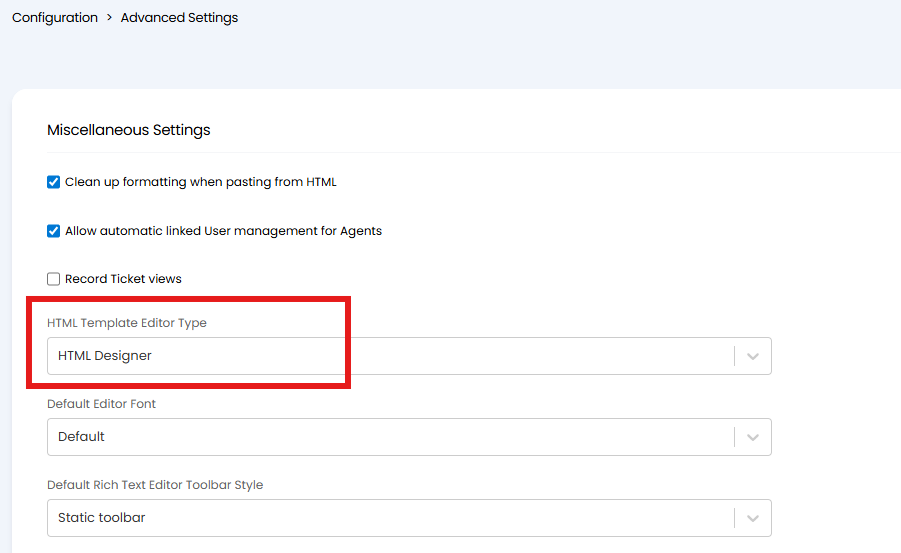
Fig 9. Enable HTML designer
Once enabled you will be able to toggle the editor on/off on email templates.
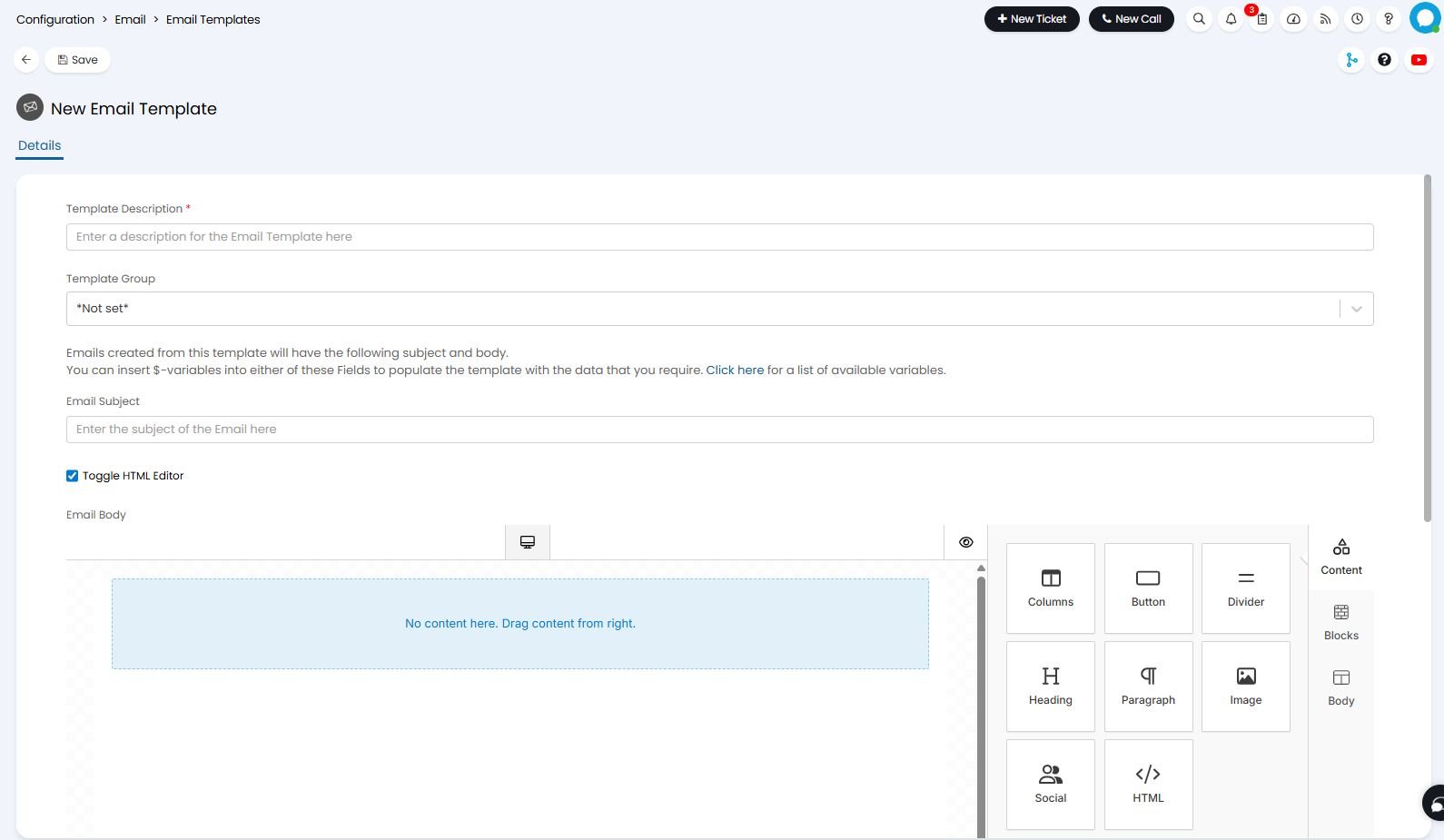
Fig 10. Email template using HTML designer
Once you have created the template you need, save it, head back into the campaign, choose a template and click 'apply template'. Once applied you will be able to see a preview of the template. If you are using the HTML designer you will have an additional option for how to preview the template (in the bottom left), this allows you to preview the template in desktop and mobile format.
If you are using a sales mailbox to send the campaign some additional variables are available to use in the email template to personalise the campaign. See the section 'Sending campaigns from sales mailboxes' for more information on this.
Once you are happy with the email, set the Status to 'Ready'. All emails must be set to 'Ready' before the Campaign can be started.
If you are creating your email templates from within the campaign itself, the HTML designer is used instead of a rich text editor. However, from version 2.251 you are able to toggle off the HTML designer.
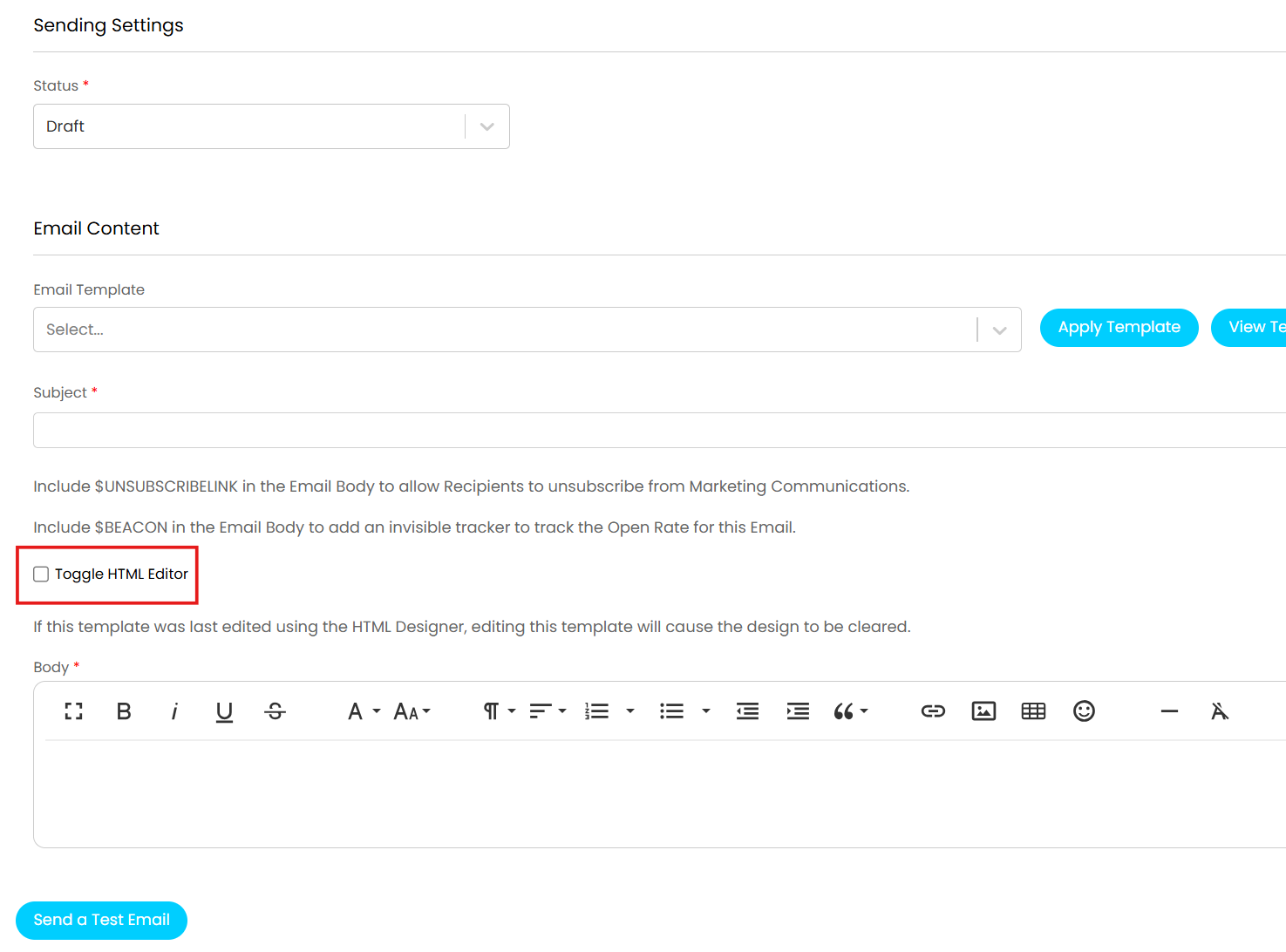
Fig 11. The ability to toggle off the HTML designer for mail campaign email templates (v2.251+)
Add Campaign Settings
Now head to the 'Settings' tab, here you need to select the distribution list that the campaign will be sent out to. For information on how to create/edit a distribution list see our guide here. You can also set the from and reply to address for the campaign.
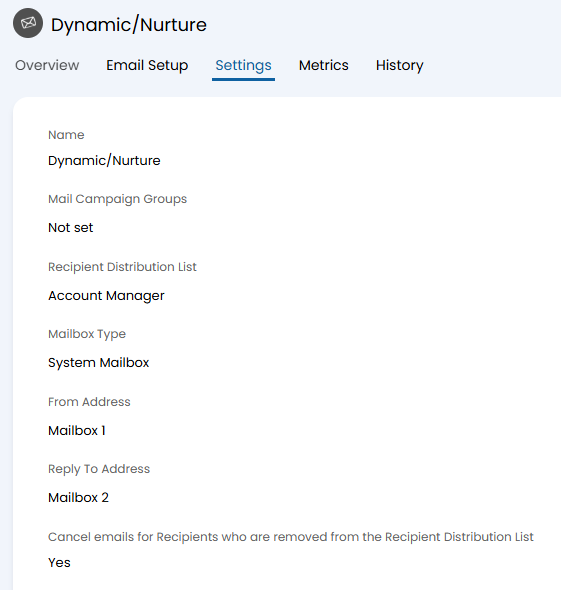
Fig 12. Campaign settings
- Name: Name of the campaign.
- Mail Campaign Groups: The group a mail campaign is assigned to, and will show on the list of mail campaigns for easy reference. These are created in Configuration > Advanced Settings > Lookup codes > change entity dropdown to "Mail Campaign Groups".
- Recipient Distribution List: The distribution list the campaign will be sent to.
- Mailbox Type: Allows selection of a "System Mailbox" or a "Sales Mailbox" to send the campaign from. Prior to this version, only system mailboxes can be used.
- From Address: The email address the campaign will be sent from. As of version 2.228.1, if the Mail Campaign is set to use the 'Distribution List Default' as the From Address, and the Distribution List is set to use a Sales Mailbox, the Mail Campaign will inherit the same Sales Mailbox. On versions earlier than 2.228.1 you cannot use a Sales Mailbox for a Distribution List, meaning any Sales Mailbox set on the Campaign will be overridden.
- Reply to Address: The mailbox any replies will be sent to.
- Cancel emails for Recipients who are removed from the Recipient Distribution List):When checked, any users who are removed from the distribution list associated with this campaign will no longer receive communications as part of the campaign. When disabled, emails will still be sent to a recipient even if they are removed from the recipient distribution list.
- Distribution list snapshot timing:Here, choose when the recipients for the Campaign are finalised.
- When the Campaign starts - Captures the recipients on the distribution list when the campaign is started.
- Shortly before the first email is sent - Captures the recipients on the distribution list just before the first email is sent. Useful when emails are scheduled to send at a specific time and you would like users that are added to the distribution list after the campaign was started but before the first email gets sent.
You can add multiple Distribution Lists to one Campaign. To do this first enable "Allow multiple distribution lists per campaign" in Configuration > Mail Campaigns. With this set you will see the option to set a Primary Distribution Lists and Other Distribution Lists. The Primary Distribution List configuration will be inherited unless overridden. Select any Distribution Lists you would like to receive the Mail Campaign in the "Distribution Lists" field (including the one you set as the Primary List). Duplicate Users across the lists will be registered only once. You will not be able to mix entity types here, for example you can not include both a 'Contacts' distribution list and a 'Opportunities' distribution list.
You can also use Distribution Lists to exclude members from a Campaign. To do this you will first need to enable "Allow multiple exclusion Distribution Lists per campaign" in Configuration > Mail Campaigns. Once enabled the Exclusion Distribution Lists filed will show in the Settings tab of your Campaign. Any Distribution Lists listed here will remove matching Users from the campaign. Exclusion lists take precedence over inclusion. Any user who appears in any exclusion segment will be removed from the campaign, even if they are also present in multiple inclusion segments. Nurture campaigns will automatically adjust membership when exclusion lists change. This is useful for targeting your Campaigns to Users with particular criteria. For example if you have pre-existing Distribution Lists for Users who have purchased each product you may wish to create a campaign to sell products they do not yet own. For example if I have a Distribution List for Users with the AI product, and a separate list for those with Cyber Security, I may create a campaign to encourage Users with the AI product to also purchase Cyber Security. However, any Users who already own both products can be excluded by using my Cyber Security Distribution List as an exclusion list.
Note: If any users in the distribution list have the setting 'Never send Marketing Emails (Unsubscribed from all)' enabled on their user profile, they will not receive emails from the campaign.
Now you are ready to start the campaign, go to the overview tab and click the 'Start Campaign' button. This will queue the emails to send. If the emails are set to send straight away, this cannot be undone. Emails set to send in the future can be cancelled using the 'Cancel Campaign' button.
Once a campaign has started, is complete or cancelled, some elements cannot be edited but details of the campaign can still be viewed. The following various elements can be edited, depending on the campaign type:
Nurture and Blast Campaign Types:
- Email Subject
- Email Body
- Remove Emails
- From Address
- Reply To Address
Blast Only
- Add new Emails
- Change send time in relation to original start of the Campaign
Please note, once a Campaign is cancelled, it cannot be re-started.
Templates and Copying
You can save any emails you have created for a Mail Campaign as an email template in your Halo. Allowing you to re-use this template for a future Campaign.
To do this you will need to ensure you have the permission 'Can Create Message Groups' set to yes. Now, when viewing the email setup for a campaign (regardless if the campaign has started/ended) you will have the option to save the email as a template.
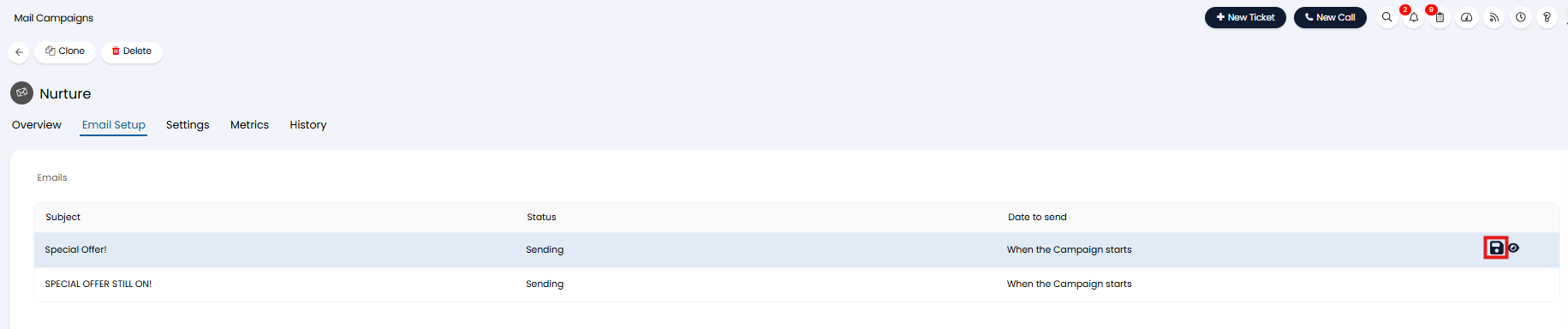
Fig 13. Save the email as a template
When the button highlighted in figure 9 is used you will have the option to name the template and edit the email before saving it as a template. Useful for removing any campaign specific information before saving this as a general template. This template will be saved as a custom email template, accessible for further editing from Configuration > Email > Email Template > Custom Templates. This template will also be available to choose from when creating a new Mail Campaign.
Entire mail campaigns can be cloned, using the "Clone" button at the top. From v2.244+, when Campaign Flows are cloned an option will show to clone the emails, and/or the steps.
Sending Campaigns from a Sales Mailbox
Campaigns can be sent from a sales mailbox. This is done by setting the 'Mailbox Type' to 'Sales Mailbox'. When set you will be able to choose a from address to send the campaign from, you will only be able to choose from addresses (mailboxes) associated with a sales mailbox connection.
When using a sales mailbox the following variables (without underscores) can be used in the email template for the campaign:
- $_AGENTFIRSTNAME
- $_AGENTLASTNAME
- $_AGENTJOBTITLE
- $_AGENTEMAILADDRESS
- $_AGENTPHONENUMBER
- $_SIGNATURE
These variables will be populated with the data of the agent associated with the from address of the campaign. Allowing the same email template to be used in various campaigns but be personalised to the agent the campaign is being sent from.
Adding Custom Fields, Tabs, Tables and Buttons to Campaigns
Custom objects (fields, tabs, tables and buttons) can be created for campaigns, allowing you to store additional information against a campaign. Useful for categorising/tracking campaigns and linking to external tools from the campaign.
To make a custom entity for campaigns head to Configuration > Custom Objects > select the object you would like to create > Change the entity to "Mail Campaigns" > New.

Fig 14. Custom Object (field) for mail campaigns
Objects for campaigns are created in the same way as they are for other entities. For information on the field/table/button/tab setup checkout
Once an object is created for Mail Campaigns, this will be added to all Campaigns automatically.
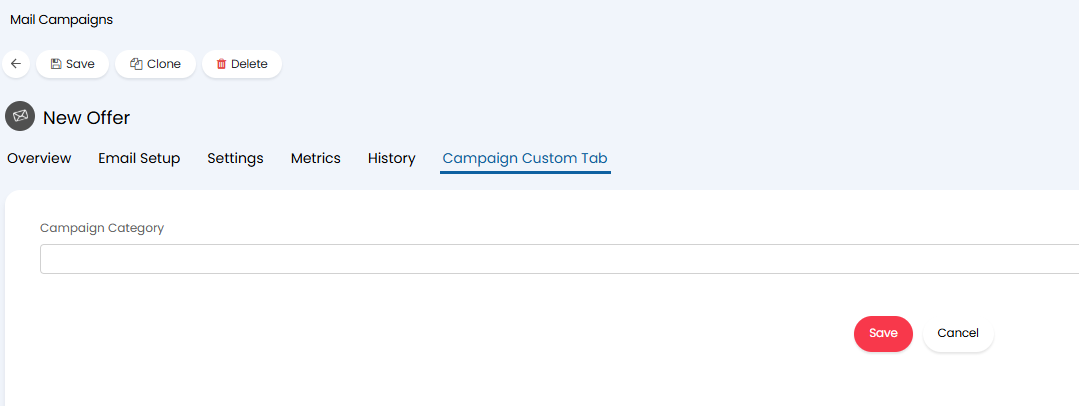
Fig 15. Campaign Custom Field within a Custom Tab
Customise Column Profile
You can also customise the columns that are shown when viewing Campaigns in the Campaign module. The default columns are shown in figure 16.
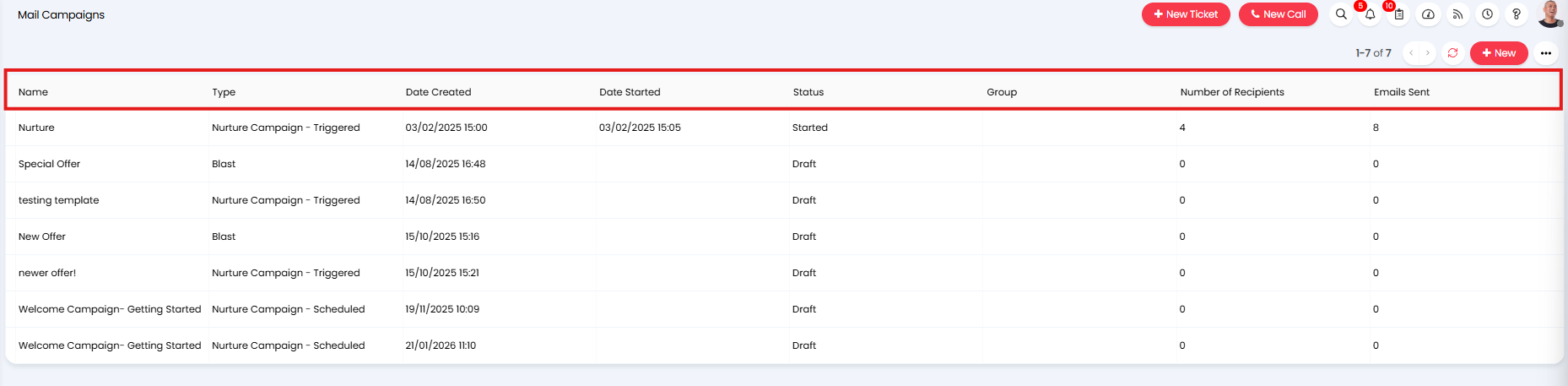
Fig 16. Columns in the Mail Campaigns module
Agents can create their own column profile by selecting the three dots in the top right hand corner > Edit Columns > New.
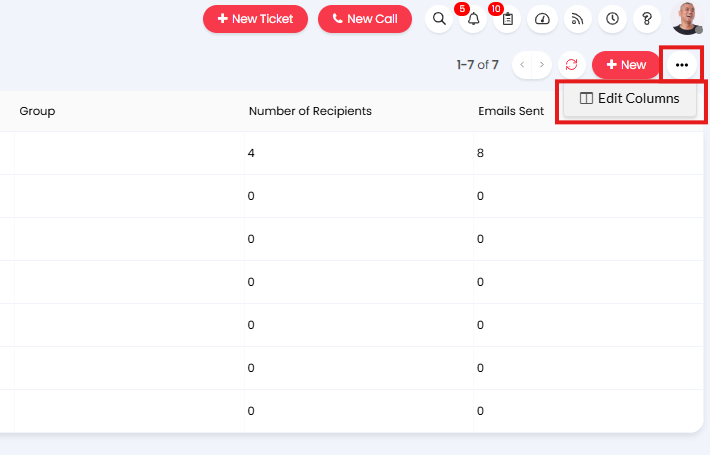
Fig 17. Edit/Create new Column Profile
A default column profile can be set under Configuration > Email > Mail Campaigns > "Mail Campaign Default Column Profile".
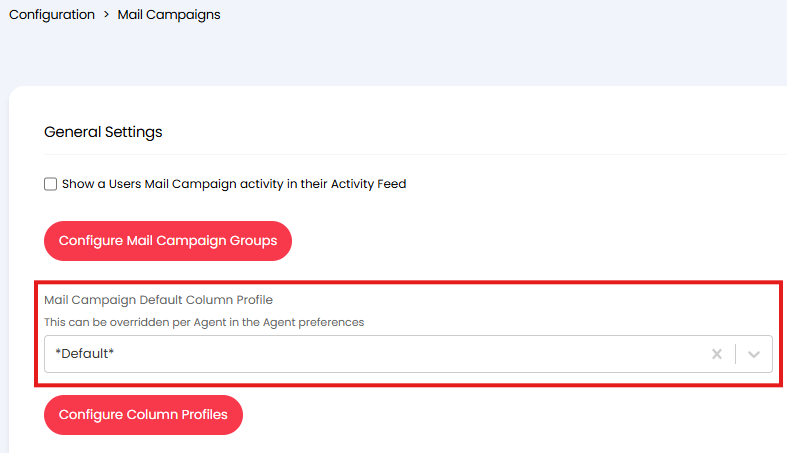
Fig 18. Mail Campaign Default Column Profile
New column profiles can also be created here using the button "Configure Column Profiles".
Using Metrics
You will notice in the 'Overview' tab of the campaign there are some statistics.
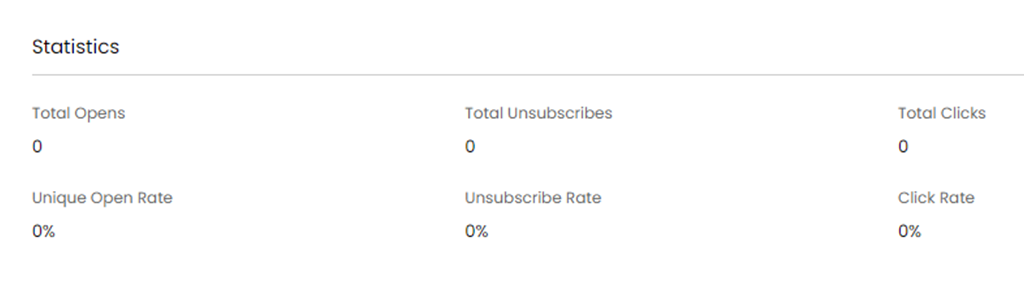
Fig 19. Statistics for the mail campaign
Total Opens- The number of times the email(s) in the campaign have been opened
Total Unsubscribers - The number of recipients who have unsubscribed from this mail campaign
Total Clicks - The number of times a link in an email body has been clicked
Unique open rate - The rate at which emails in the mail campaign have been opened, this excludes the same email being re-opened.
Unsubscribe Rate - Percentage of recipients who have unsubscribed to the email
Click rate- Percentage of users who have clicked a hyperlink in the email
In order to track the open rate of an email in a Mail Campaign, you must add the variable $-BEACON to the email body (without the hyphen). You can add this anywhere in the email body. It will not show anything to the recipient, but will allow you to know if they have opened the email or not. Please note that this relies on the recipient allowing images within their email client. This can be added to all Campaign emails by default, using the setting "Include tracking beacon by default" in Configuration>Mail Campaigns.
Any hyperlink added to the email body will also track whether the recipient has clicked on this specific link or not. If a recipient does not allow images in their email client, but clicks on a link, it is inferred that they have opened the email, making the open rate more accurate.
All information related to the tracking of 'Opens', 'Clicks' and 'Unsubscribes' has been added to a new "Metrics" tab for each Mail Campaign.
When a recipient opens or clicks a link, this can be added to their 'User Activity Feed', subject to the "Show a Users Mail Campaign activity in their Activity Feed" setting being enabled from within Configuration > Mail Campaigns, see figure 20 for this setting.
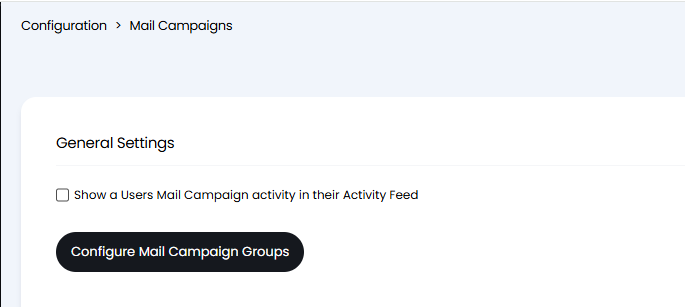
Fig 20. Show a Users Mail Campaign activity in their Activity Feed setting
The 'Metrics' tab under the mail campaign detail the metrics in more detail.
Open metrics - shows the detail of each user that has opened the email
Click metrics - Shows the number of times each URL has been clicked
All clicks - Shows each time a URL was clicked, when and who by
Unsubscribe metrics - Show each time a user unsubscribed from the campaign and when
These metrics allow you to track trends in your campaign, assisting you in improving the effectiveness future campaigns.
Improving the Accuracy of "Clicks" metrics (v2.244+)
From v2.244+ additional background checks can be enabled to verify if a click was carried out by a bot or user, improving the accuracy of the "Total Clicks" metric. To enable these additional checks, head to Configuration > Mail Campaigns > "Confirm mail campaign clicks using JavaScript".
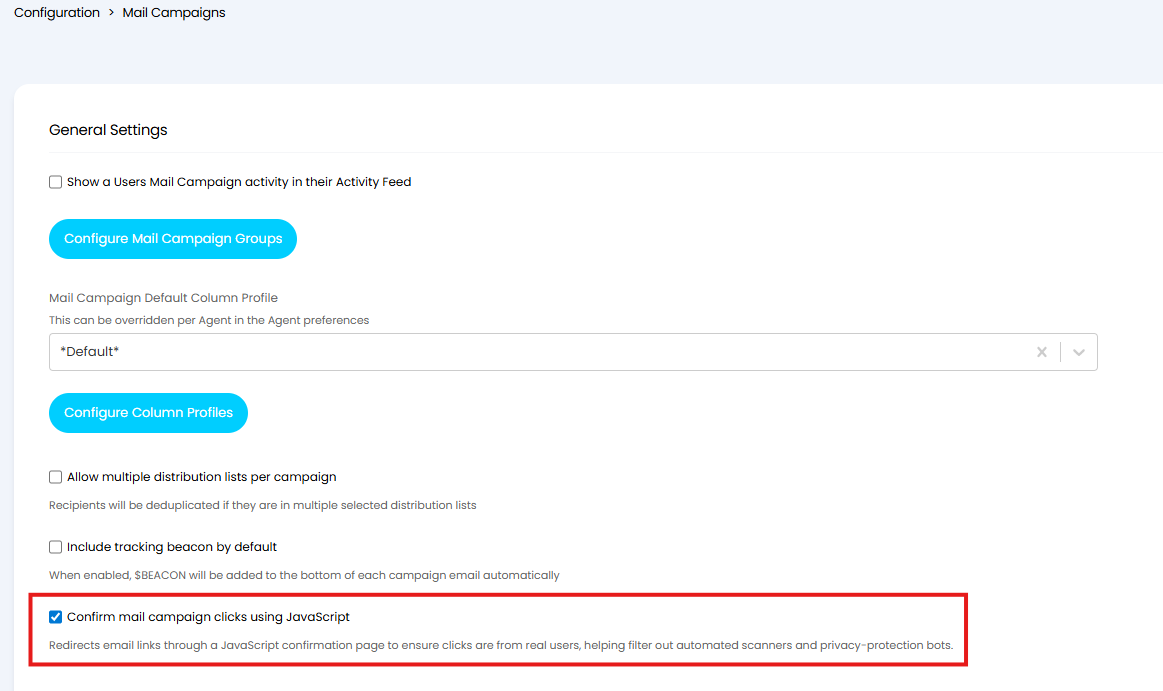
Fig 21. Confirm mail campaign clicks using JavaScript
When enabled, the user experience of mail campaigns will remain the same, but additional checks will run in the background. Bot filtering is already in place without this enabled, but this enforces additional verification.
It is recommended to enable this reduce the number of bots that trigger a click count. However, keep in mind enabling this after you have begun using campaigns will change how click rates are counted, impacting comparability of click counts.
Also consider, that strict email security policies at the recipient's organization may block click-verification checks (preventing a genuine click from being recorded) and/or block the link destination itself (preventing the user from accessing it).
History
The 'History' tab in the campaign shows when the campaign started/ended and each time an email was sent out.
Allow Users to Unsubscribe from Mail Campaigns
In a Mail Campaign email, include the dollar variable $-UNSUBSCRIBELINK to generate a personalised link to allow the user to unsubscribe themselves from that Mail Campaign or all marketing emails. A user can also do this from their settings page on the Self Service Portal. You can also manually unsubscribe users on their user account page, under the preferences tab.
You will be able to add additional Checkbox Custom Fields to the unsubscribe page. To do this head to Configuration > Custom Objects > Custom Fields. Switch the entity to "User" and create a new Custom Field. These must be created under the User entity, and have the field type "checkbox".
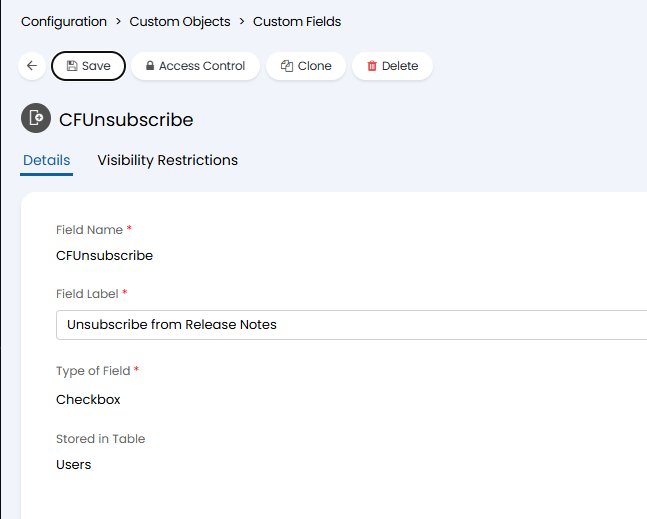
Fig 22. User Custom Field
Once you have created your Custom Fields head to Configuration > Mail Campaigns, and select the "On the Unsubscription page, show the User Custom Fields to manage email preferences rather than buttons to unsubscribe" checkbox. Now add your Custom Fields using the "Additional User Custom Fields to show on Unsubscription page" drop-down.
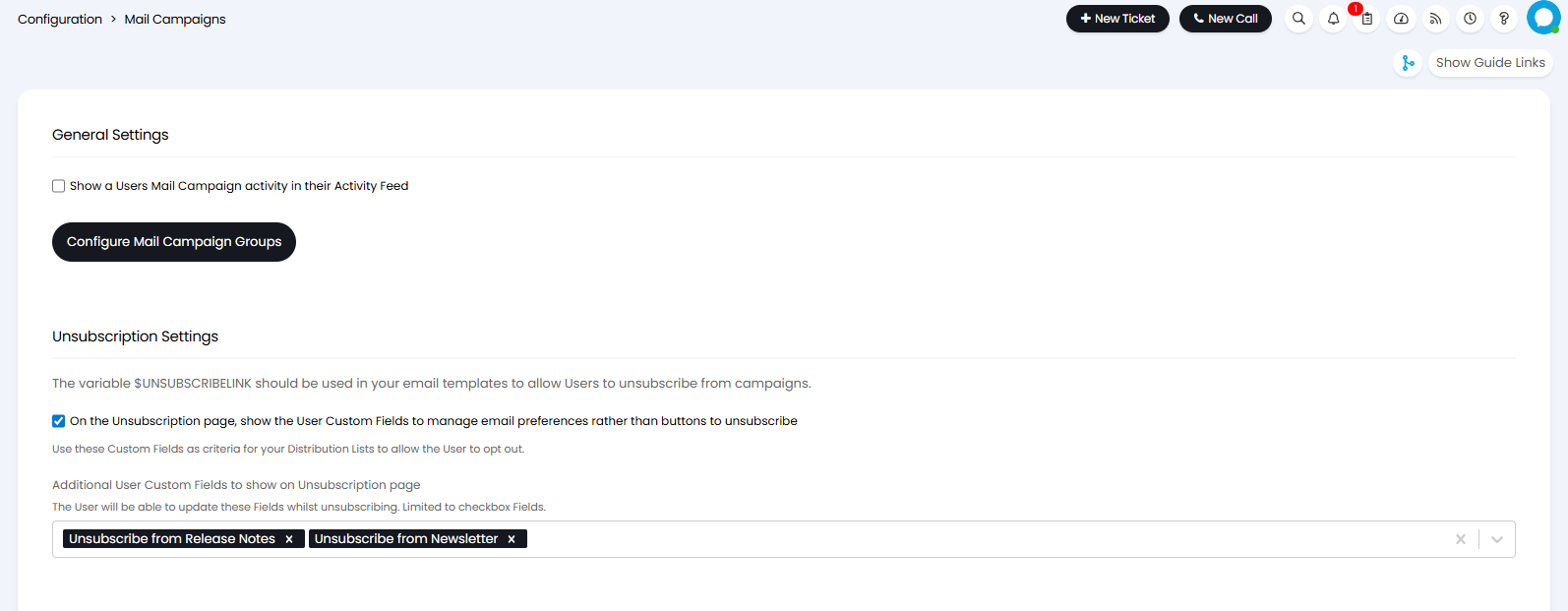
Fig 23. Adding User Custom Fields to the Unsubscription page
These fields can be added to Dynamic Distribution List filters to remove users from the mailing list.
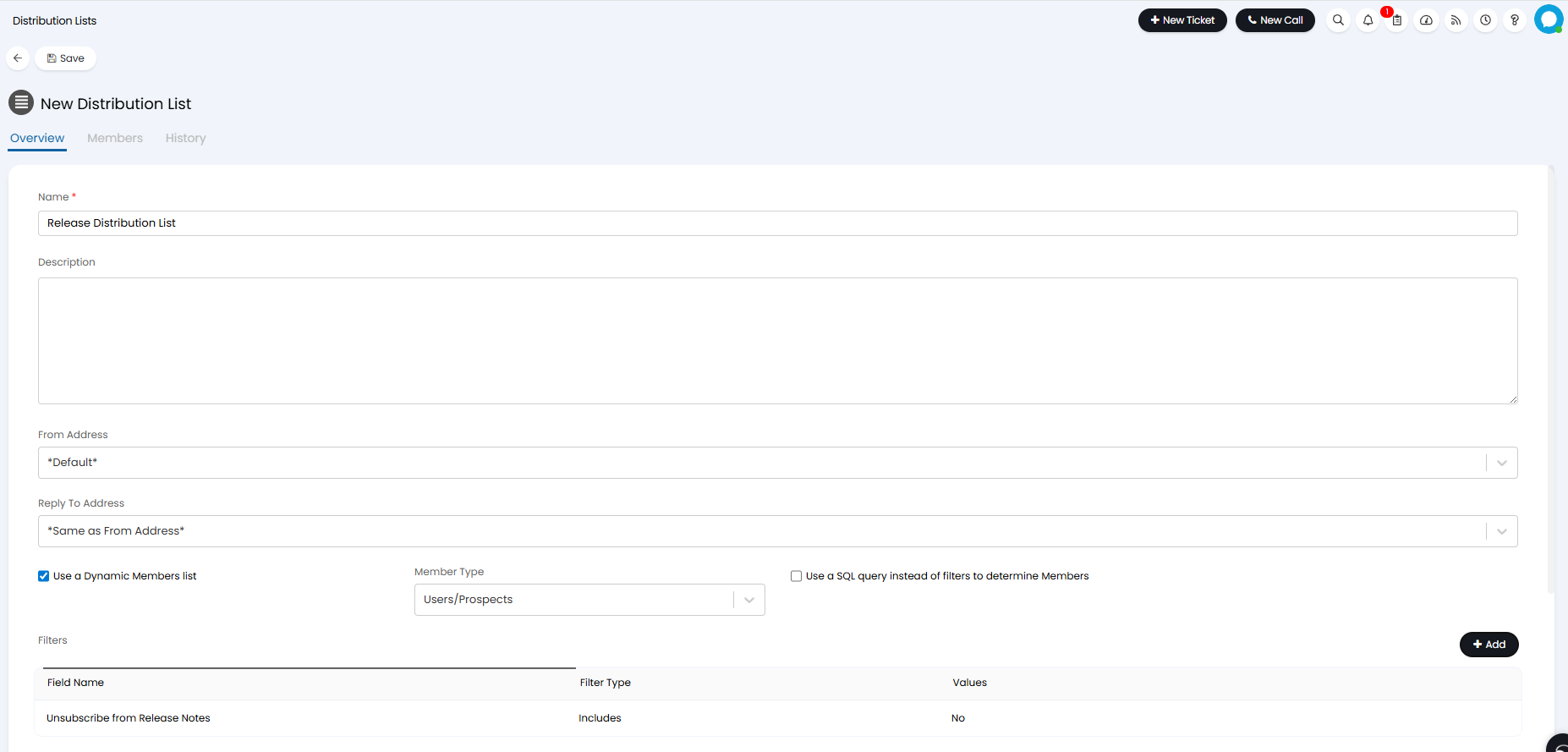
Fig 24. Adding User Custom field filters to a Dynamic Distribution List
Now if an email is sent to this distribution list containing the $-UNSUBSCRIBELINK variables Users will be able to click the link and select or deselect the checkbox Custom Field.
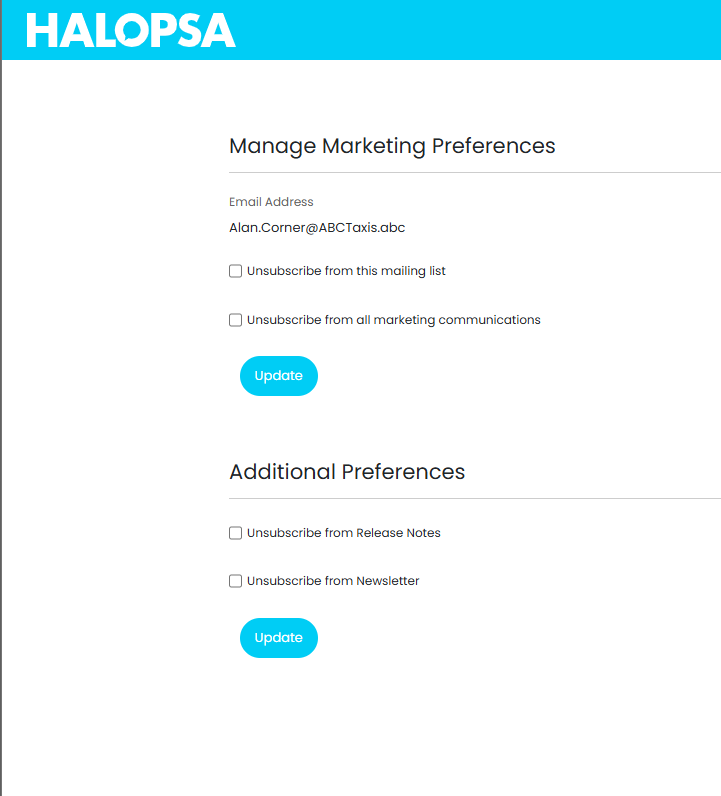
Fig 25. Unsubscription page
Cancelling/Completing Campaigns
If a campaign is started prematurely it can be cancelled using the 'Cancel campaign' button within the campaign. This will prevent any emails that are due to be sent out in the future from sending out, any emails that have been set to send 'When the campaign starts' will still send out as they will already be queued to send. Once a campaign is cancelled it cannot be edited but can still be viewed.
Similarly once a campaign is complete it cannot be edited but can still be viewed so you have access to the metrics. Any completed/cancelled campaigns will remain visible in the 'Mail Campaigns' module until they are deleted. To delete a campaign use the 'Delete' button in the top left corner of the campaign.
Nurture Campaigns have the additional option of to 'End Campaign'. If the campaign is ended, existing queued emails will still be sent, however no new emails will be queued. This allows the campaign to finish for users who have already started the campaign.
Sending Test Emails
Test emails can be sent from Mail Campaigns to ensure the email is formatted as expected. Choose an email, edit it, and click the "Send a Test Email" button in the bottom left corner.
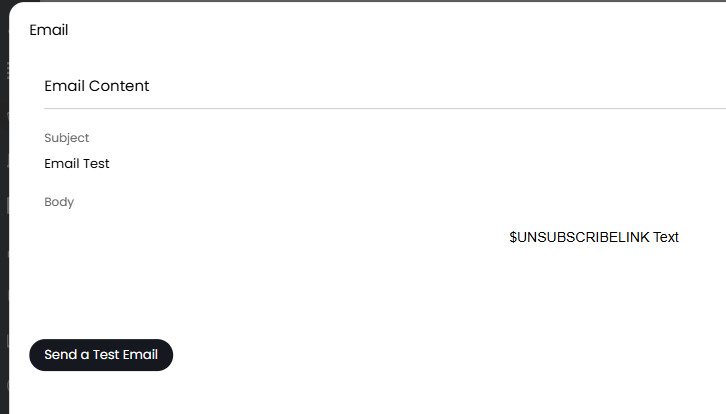 Fig 26. Test email button
A popup will show to enter an email to send the test to.
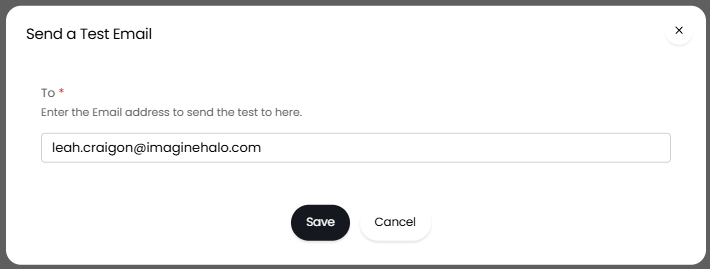
Fig 27. Choosing an email
Another popup will then show when the email is sent.
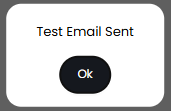
Fig 28. Test Email Sent popup
Example Nurture Campaign
In the below example I have created a nurture campaign for new leads, to assist in converting leads into customers.
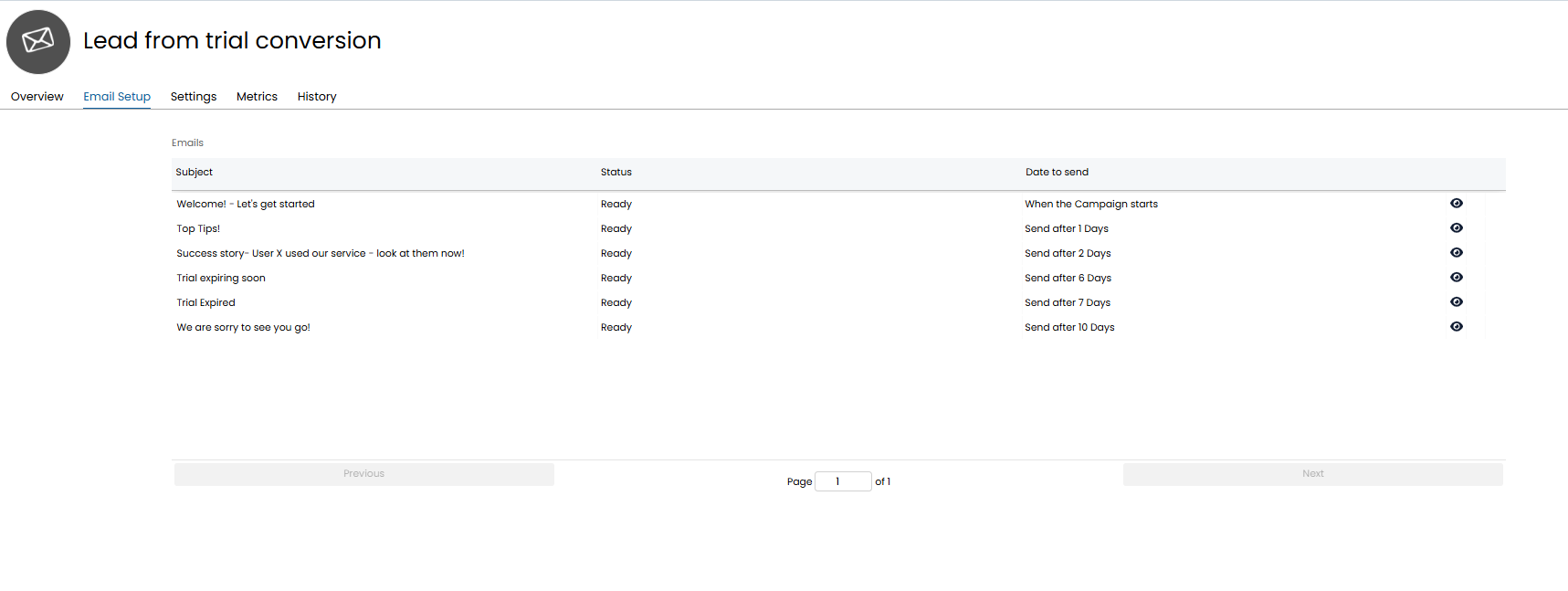
Fig 29. Nurture campaign example
Here users will be sent a welcome email when the campaign starts with follow up emails set to send as the campaign progresses.
I have assigned the distribution list 'Leads' to this campaign.
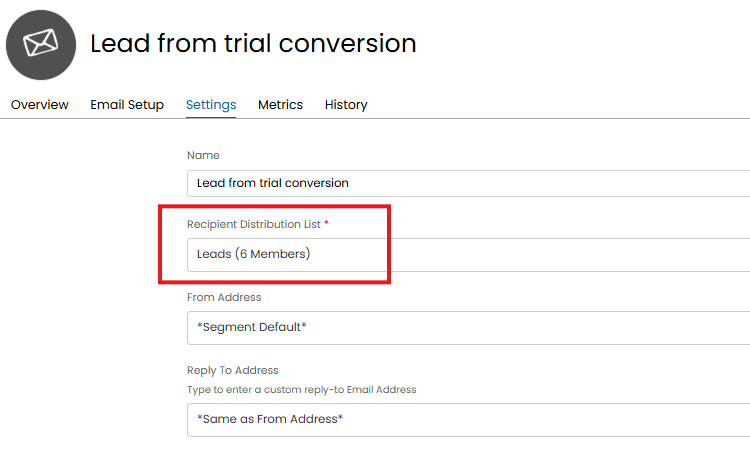
Fig 30. Distribution list assigned to campaign
I can add new users to this distribution list as required, when a new user is added they will receive all emails part of the campaign from start to finish. Nurture campaigns will run indefinitely allowing you to configure a campaign and just keep adding users to experience the campaign. If you no longer want to use the campaign you can use the 'end campaign' or 'cancel campaign' buttons against the campaign.
- End Campaign: When the Campaign is ended, existing queued emails will still be sent, however no new Emails will be queued. This allows the campaign to finish for users who have already started the campaign.
- Cancel Campaign: If the Campaign is cancelled, any queued Emails will not be sent. Users who have started the campaign will not finish it.
Creating a Mail Campaign from a ticket
Actions with a system use "Create Mail Campaign" can be used to create a campaign from a ticket. When used, this action will open the New Mail Campaign page.
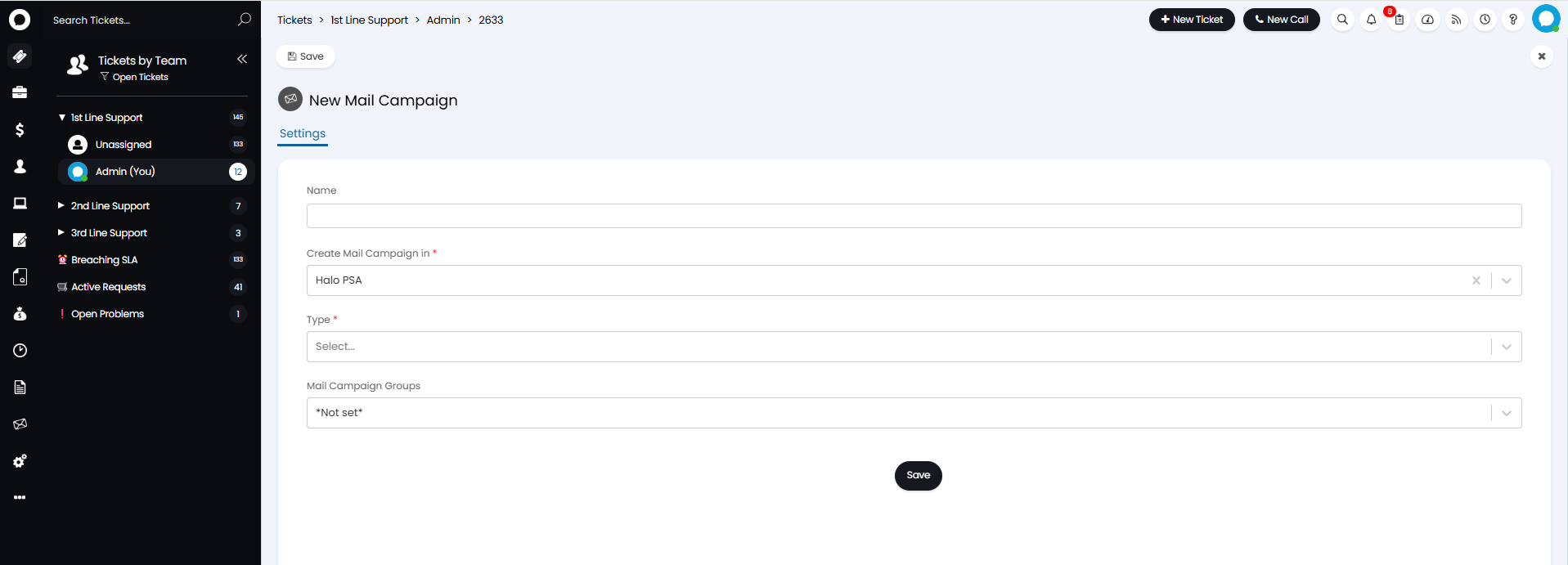
Fig 31. Create Campaign action
Once this Campaign has been saved it will show against the Ticket details.
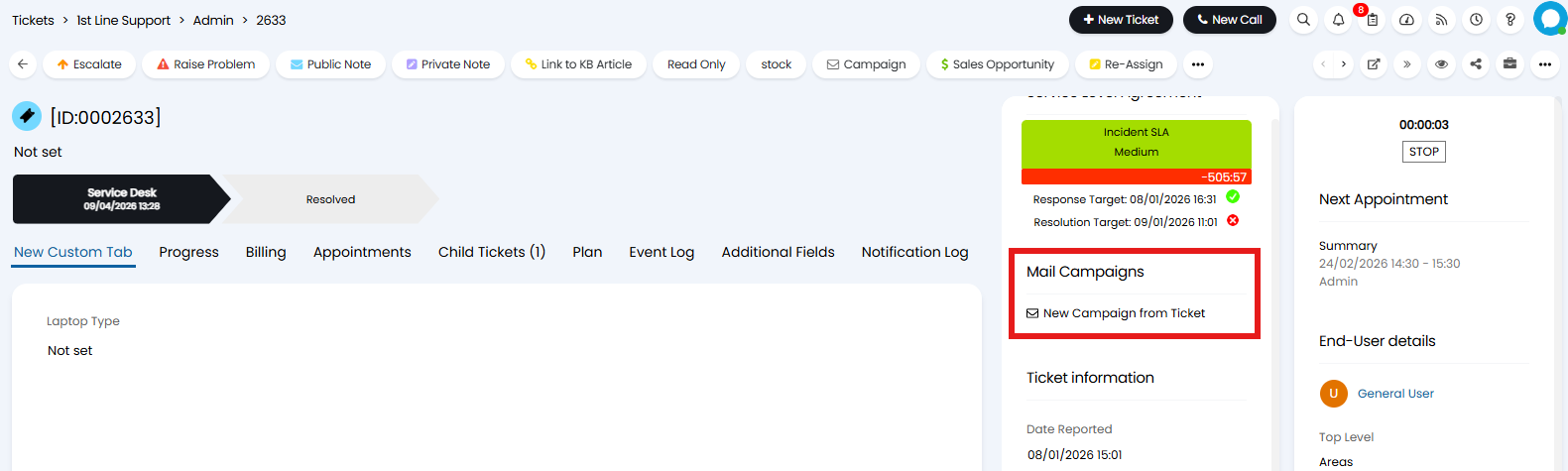
Fig 32. Campaigns linked to a ticket
The Campaign itself will have the ticket number set as the Linked Ticket.
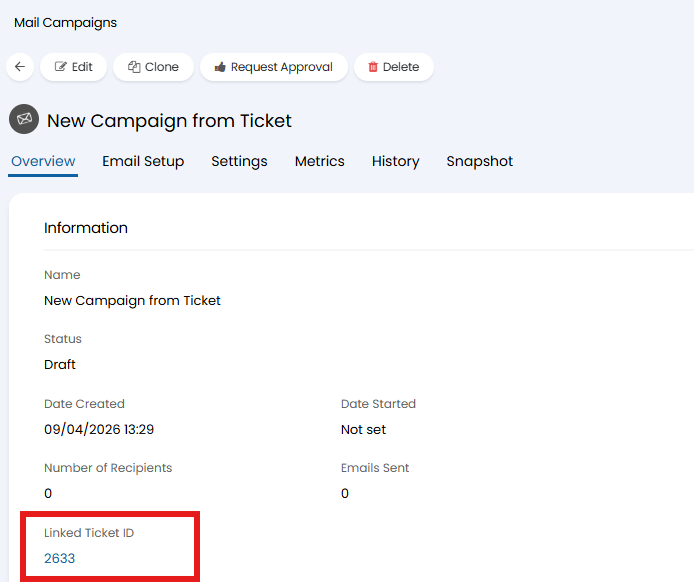
Fig 33. Linked Ticket
This is useful for managing scheduled marketing efforts. For example, I might have a scheduled ticket that is created around Christmas to remind the Marketing Team to create a Christmas Mail Campaign. With this feature Agents can create a campaign directly from the ticket with context readily available. This action can be set to change the status of the ticket to "Closed" once complete.
Campaign Approvals
Campaign Approvals can be enabled in Configuration > Mail Campaigns.
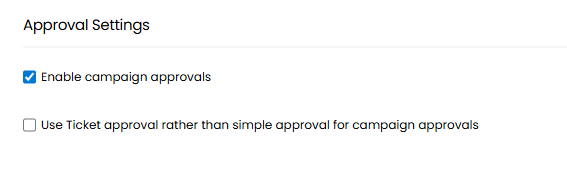
Fig 34. Enabling Campaign Approvals
This will show a "Request Approval" button on your Mail Campaigns, and will not allow you to start the campaign until approval has been granted.
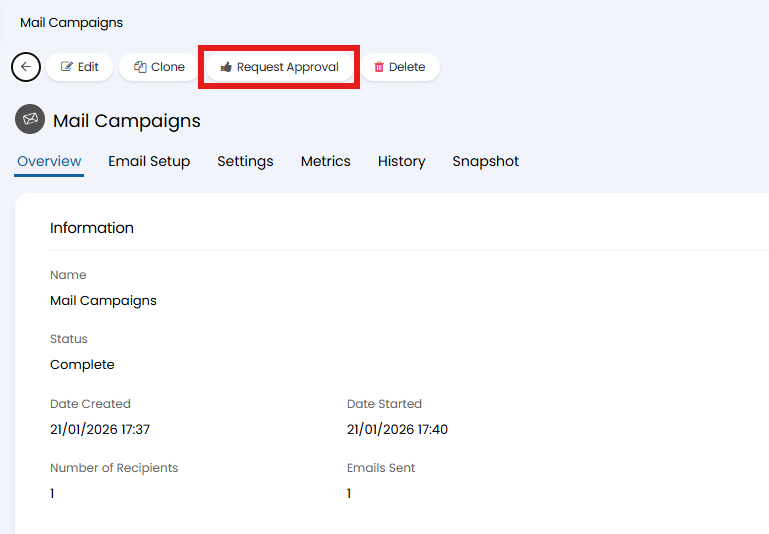
Fig 35. Request Approval button
When you click "Request Approval" you will be able to select an Agent to act as an approver.
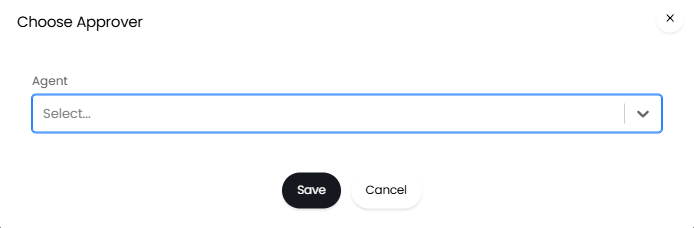
Fig 36. Choosing an Approver
The approving Agent will see the options to accept, reject or restart the approval process on the Mail Campaign. These options are also available in the "My Approvals" area.
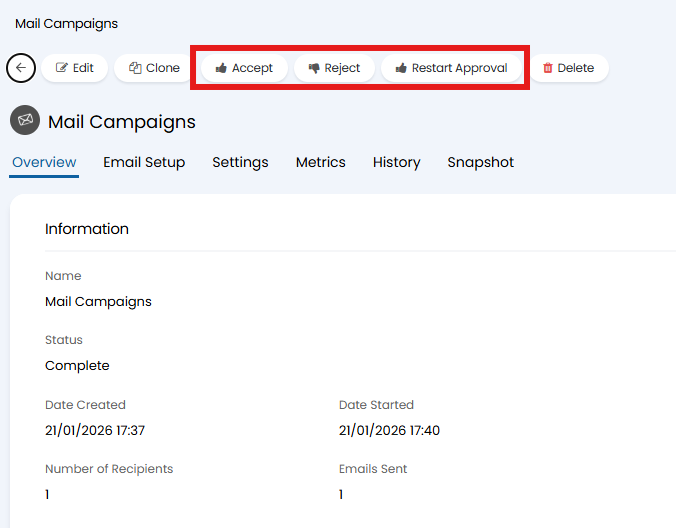
Fig 37. Accept, reject and restart approval options
Ticket Approvals
Mail Campaign approvals can be set to follow ticket approval processes. To do this enable "Use Ticket approval rather than simple approval for campaign approvals" in Configuration > Mail Campaigns. With this set you can specify an Approval process to follow, and a Ticket Type to create if the Campaign is not already associated to a ticket.
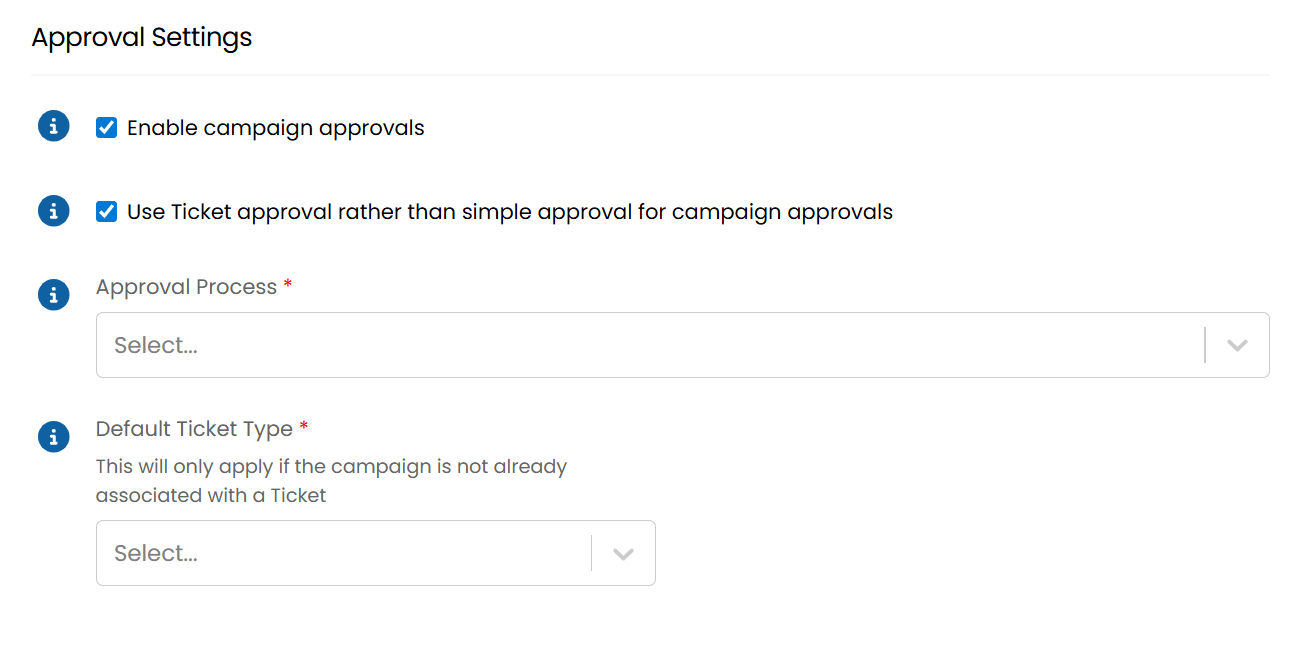
Fig 38. Ticket approvals
Once you request approval using the "Request Approval" button on the Mail Campaign (Figure 33) a ticket will be created and linked in the "Linked Ticket ID" field.
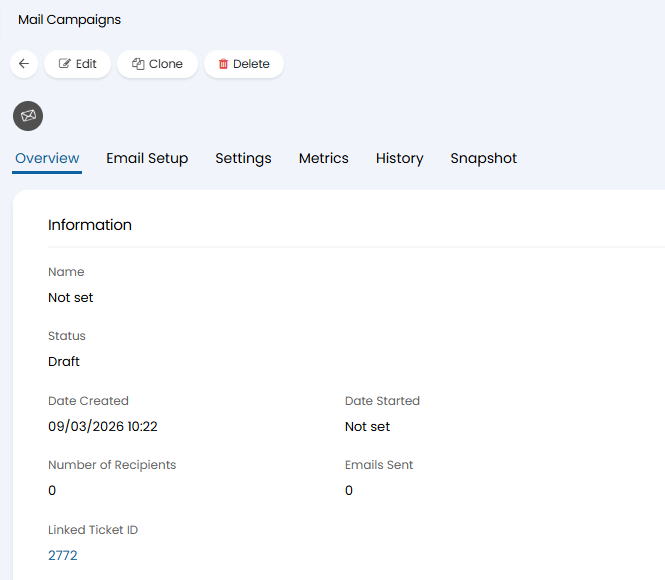
Fig 39. Linked Ticket on a Campaign
This ticket will follow the approval process selected and allow the approvers for the process selected to accept or reject.
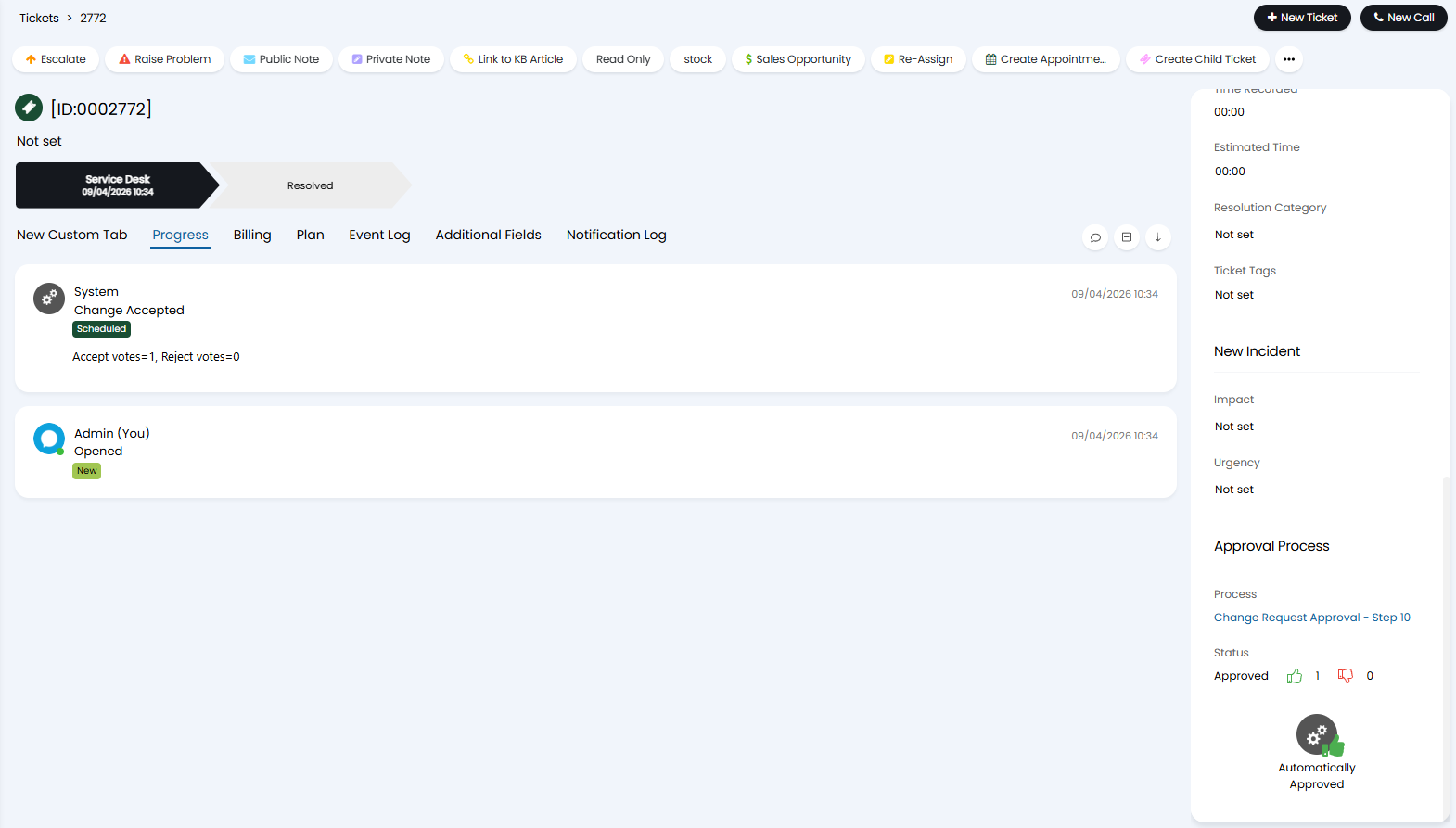
Fig 40. Linked Ticket