Segments (Distribution Lists)
Disclaimer: Distribution Lists may be called Segments, depending on which Halo product you are using (functionality is the same between products).
In this guide we will cover:
- Enabling Distribution Lists
- Permissions
- Creating Lists
- Adding Members
- Setting the Mailbox
- Sending Bulk Emails from a Distribution List
- Viewing Past Communications
- Bulk Add/Remove Users
- Dynamic Lists
- Snapshots
Related Guides:
Distribution Lists allow you to send communications to users in this list, useful for bulk communications and mail campaigns. These replace the deprecated bulk sending emails function. Mail campaigns work in tandem with distribution lists in order for emails to be sent on certain scheduled times after the campaign has been started.
Note: If using dynamic distribution lists for a mail campaign if a user has properties that make them part of the list, the emails will be queued to them. If these properties change, the queued emails will be cancelled.
Enabling Distribution Lists
You can decide the from address that the email comes from by deciding which mailbox to send from.
Enable "Show In From Address" in the "Outgoing" tab to use the mailbox of your choice.
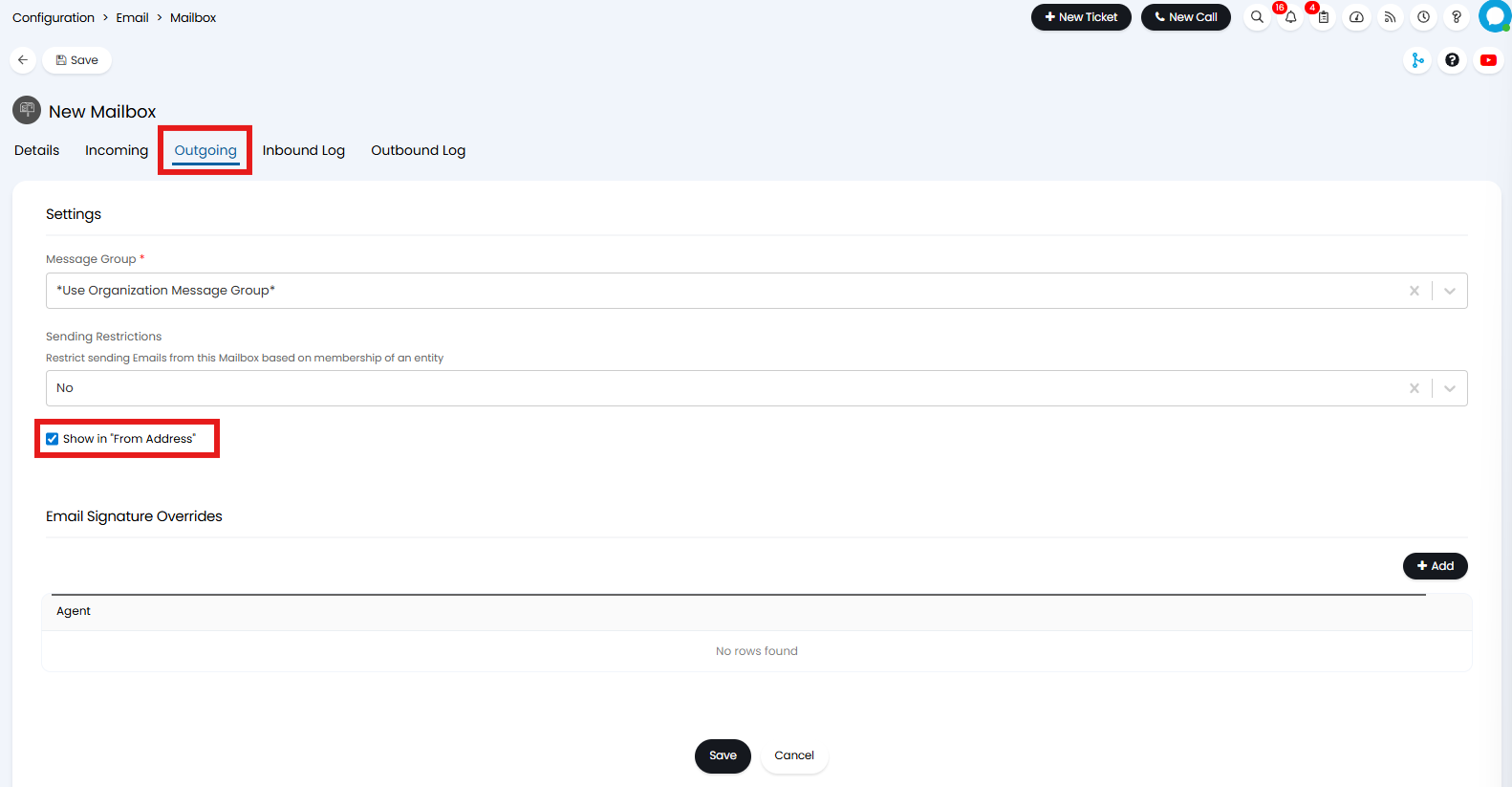
Fig 1. Show in "From Address" setting on a mailbox
In Configuration > Users, enable the module by hovering and clicking the '+' icon.
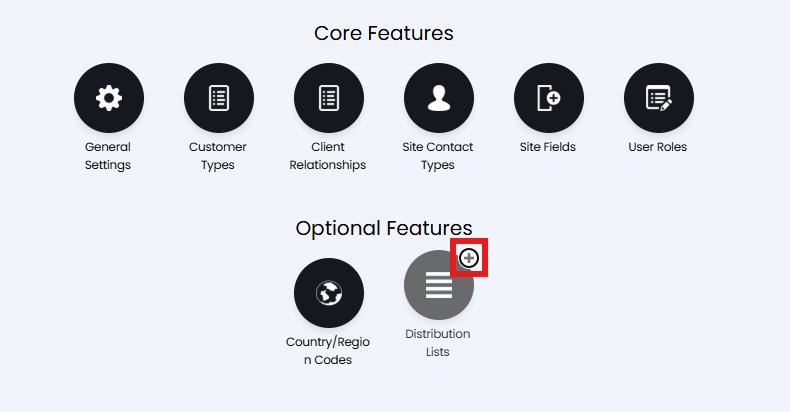 Fig 2. Enabling the Distribution List module
Permissions
Ensure agents have permission in their agent profile > Permissions tab > "Distribution Lists Access Level", or from a role assigned to them.
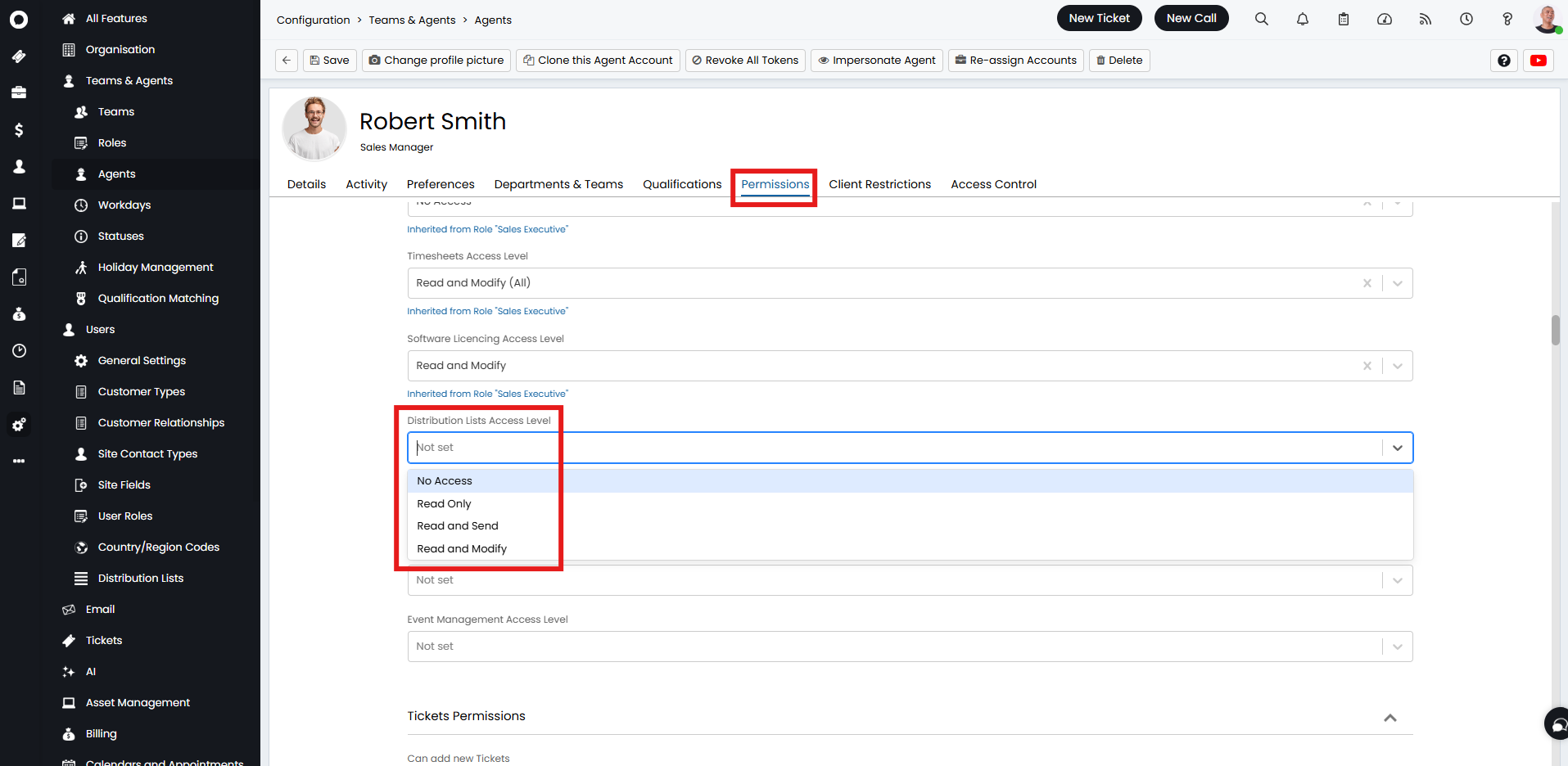
Fig 3. Distribution Lists Access Level permission
The permission option 'Read and Modify' will mean agents can look at distribution lists, send bulk emails via a distribution list and also edit the members of a distribution list. The option for 'Read and Send' will mean agents will not be able to edit the members of a distribution list, but they can send out emails to the distribution list members.
Note: If the agents role permission is a higher level of permission than what you are trying to manually set on the agent, the role will override due to inheritance. The highest level of access an agent has will always be granted, whether it be given manually or from the role.
Admins will have full access to distribution lists, meaning they are the only agents that can delete them.
Creating Lists
To begin configuring the lists, navigate to the distribution lists module found in the navigation area. This is likely to be found in the overflow menu (indicated by the three dots symbol in the left side navigation bar) by hovering over it.
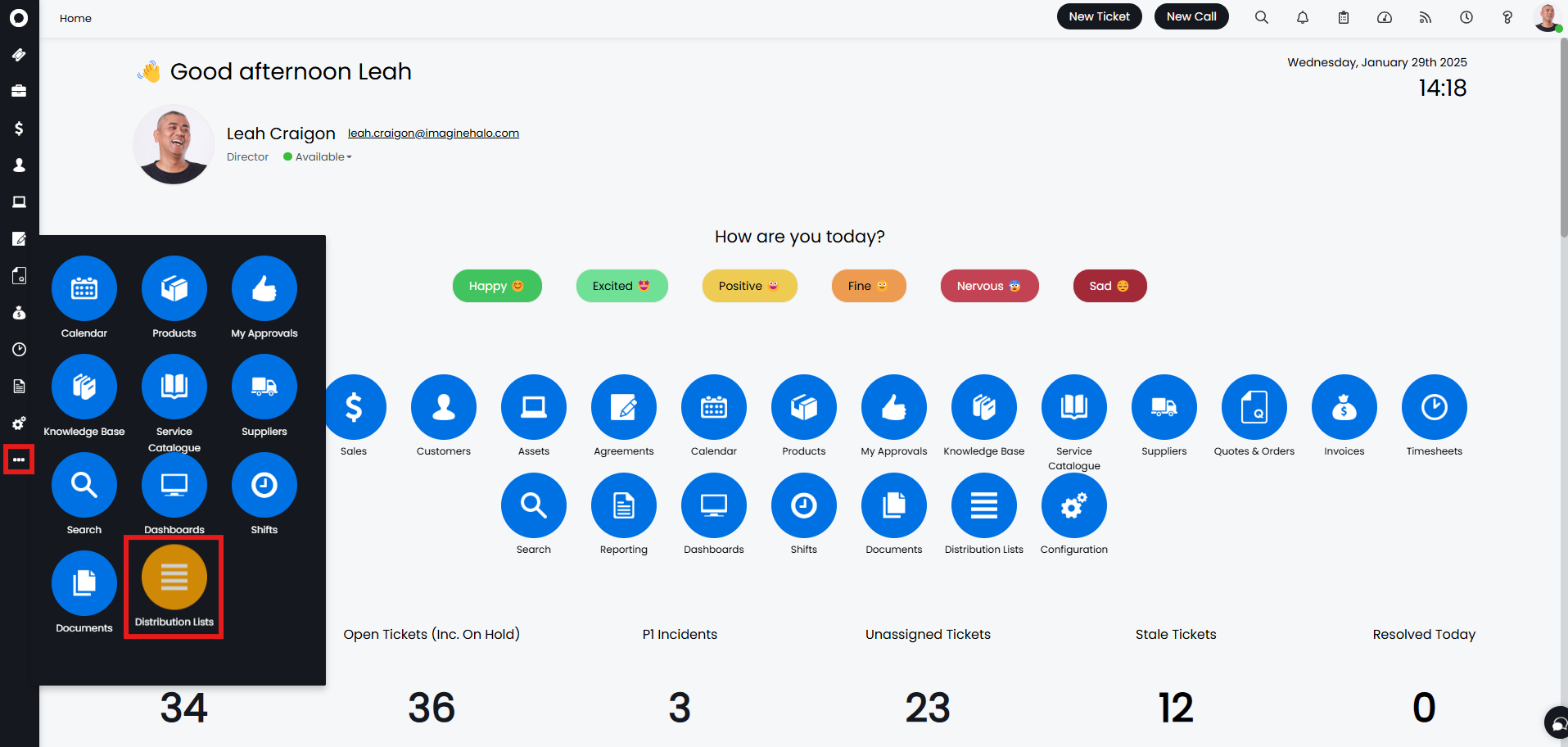
Fig 4. Distribution Lists module in navigation pane
Once in the distribution list area, you can click new in the top right to begin creating your first distribution list.
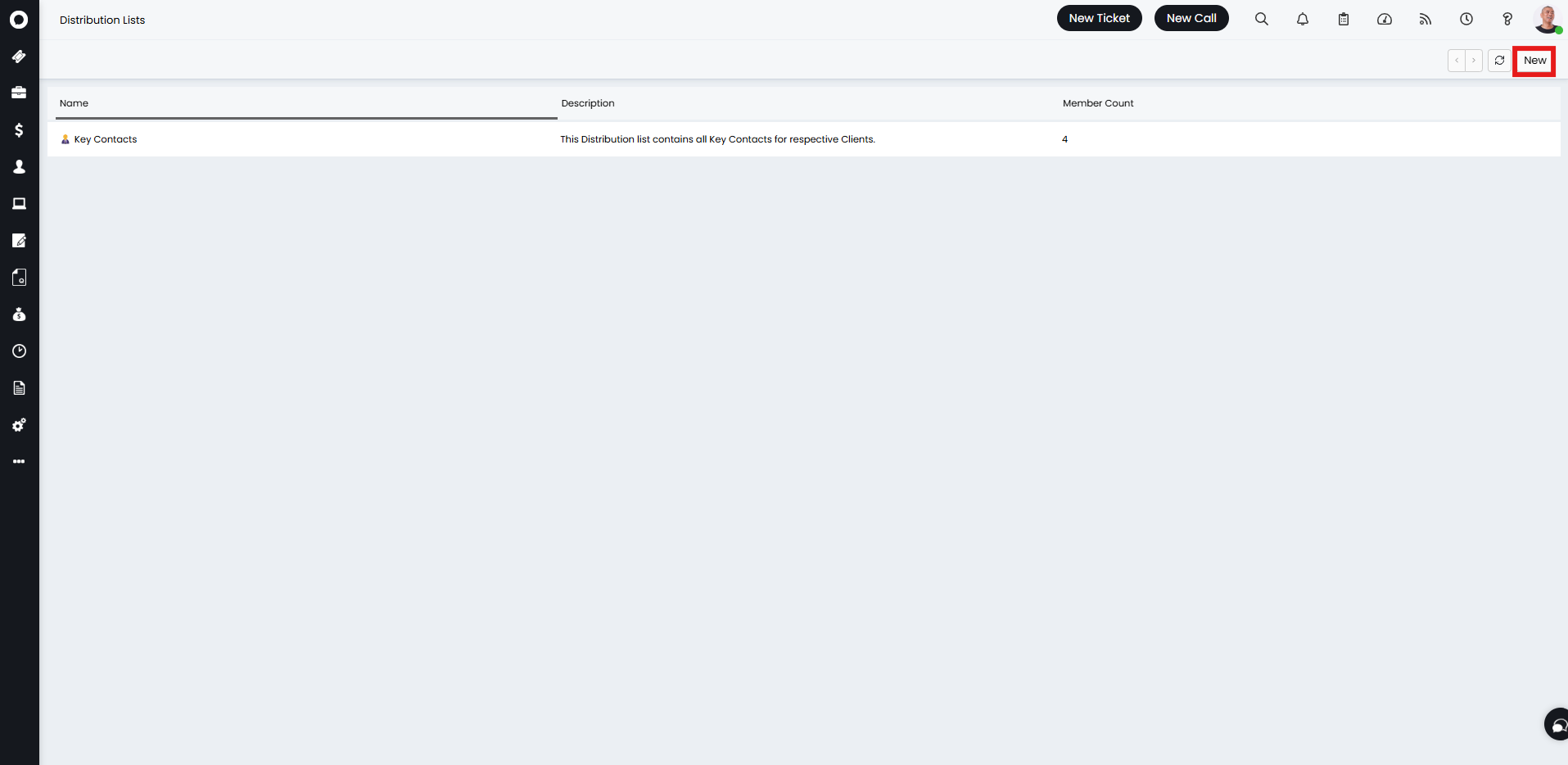
Fig 5. Creating a new distribution list
After giving your list a Name, From Address, Reply To Address, deciding whether it is dynamic or not, you can save the page. Dynamic lists are covered further on in this guide.
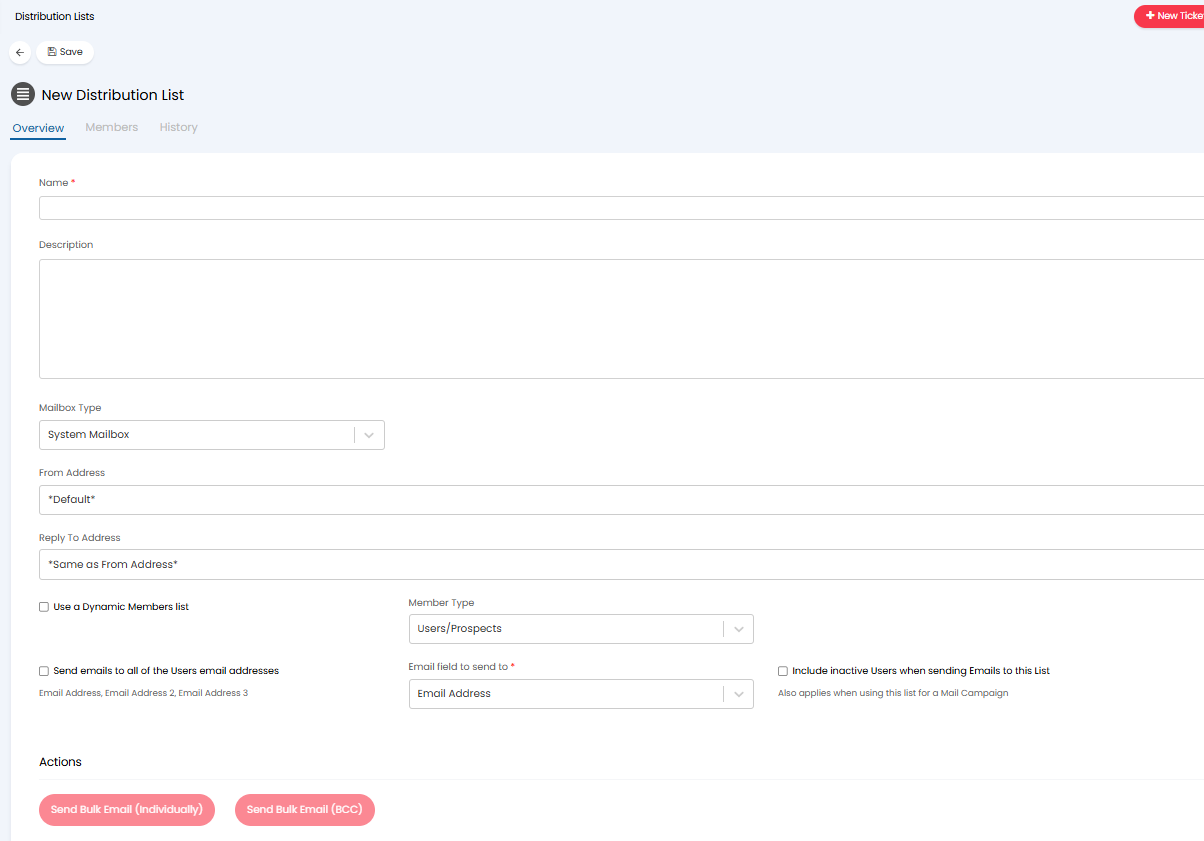
Fig 6. New Distribution List configuration
If your Halo is on version 2.228.1 or later, then you will have the option to choose between sending from a System Mailbox and sending from a Sales Mailbox for your Distribution List. As illustrated in Figure 7, if you choose to use a Sales Mailbox for the Mailbox Type, the From Address field below populates with the mailboxes within the Sales Mailbox.
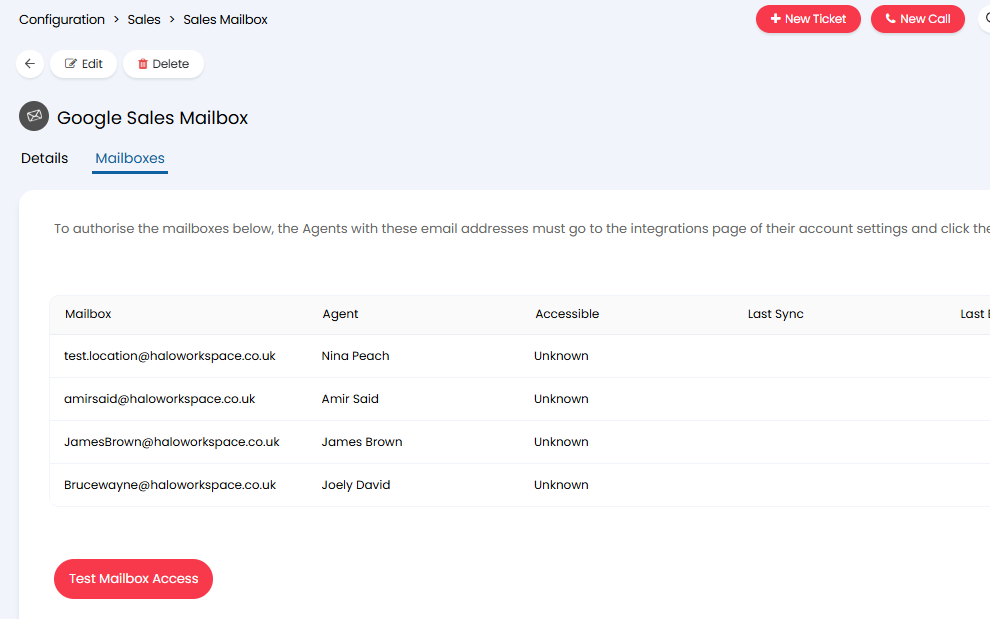
Fig 7a. Example Sales Mailbox within Halo
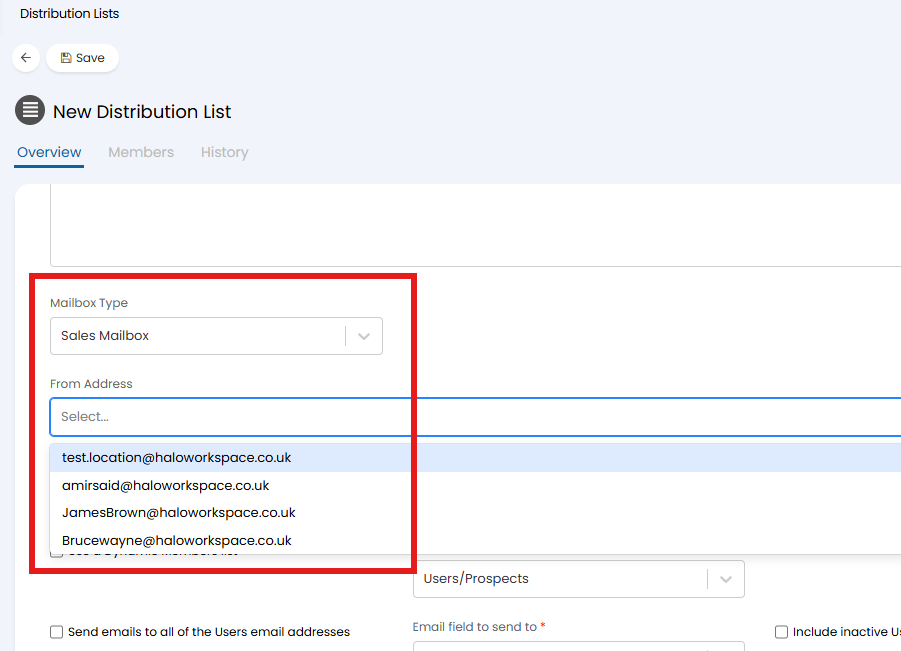
Fig 7b. The From Address field populated with the mailboxes show in Figure 7a
Note: Using the Sales Mailbox mailbox type is compatible with both the 'User/Prospects' member type and the 'Tickets/Sales' member type.
Send emails to all of the Users email addresses - When enabled an email will be sent to all of the email addresses for a user (a user can have up to three email addresses). Useful for marketing emails. When disabled, emails will only be sent to each user's primary email address.
Email field to send to - Here you can choose which email address to send emails to for users in this distribution list. Users can have multiple emails stored against them, therefore this is useful if you would like to send communications to secondary or tertiary email addresses.
Include inactive Users when sending Emails to this List - This will only show if "Use a Dynamic Members list" is disabled. This setting allows you to include/exclude inactive Users in your Distribution List.
Filters - If the "Use a Dynamic Members list" checkbox is selected, adding to this table allows you to include/exclude Users based on specific fields such as if a User is inactive.
Adding Members
Now that it has been saved, you can "Add Members" via the button in the "Members" tab.
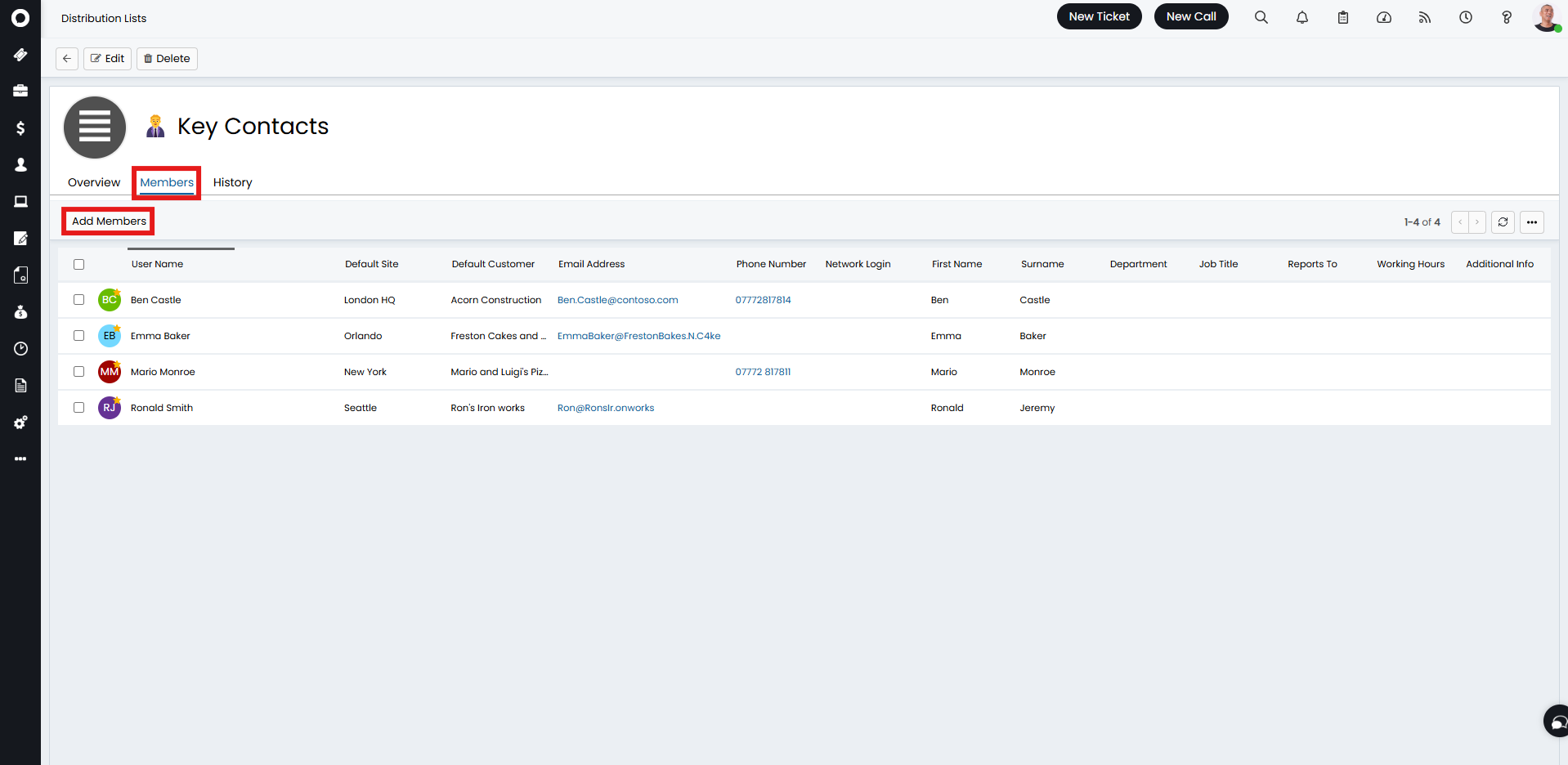
Fig 8. Members tab
You can add members based on a list of Tickets, and the End-Users against them. When sending emails to Ticket lists, if an Opportunity Email address is set, this will be used first. If not, it will check and use the Tickets' End User contact details.
This can be done with both static and dynamic lists, and is particularly useful as part of a sales process to reach out to a common group of prospects with a Mail Campaign.
Set the "Member Type" to "Tickets/Sales", and if using a dynamic list, you can then set filters based on Ticket Fields. If using a static list, save, then add the Ticket members manually.

Fig 9. Ticket distribution list
Setting the Mailbox
After configuring the mailbox, it will be an option in the following fields (From Address and Reply to Address).
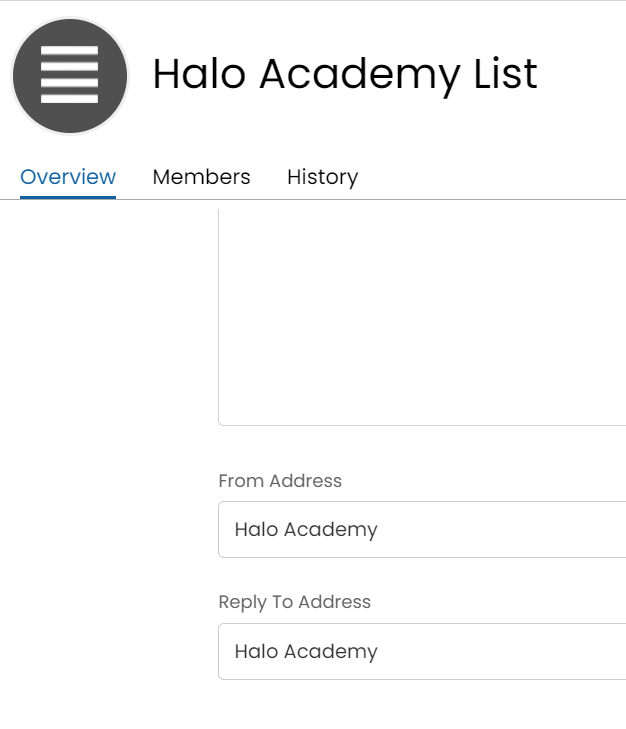
Fig 10. From and Reply address
Sending Bulk Emails from a Distribution List
Once your list is setup you can send a bulk communication to everyone in the list from the lists itself. Keep in mind distribution lists work in tandem with other functionality in Halo which allow you to send communications more seamlessly. Such as sending from an action or mail campaign.
To send an email from the list itself use the actions "Send Bulk Email (Individually)" or "Send Bulk Email (BCC)".
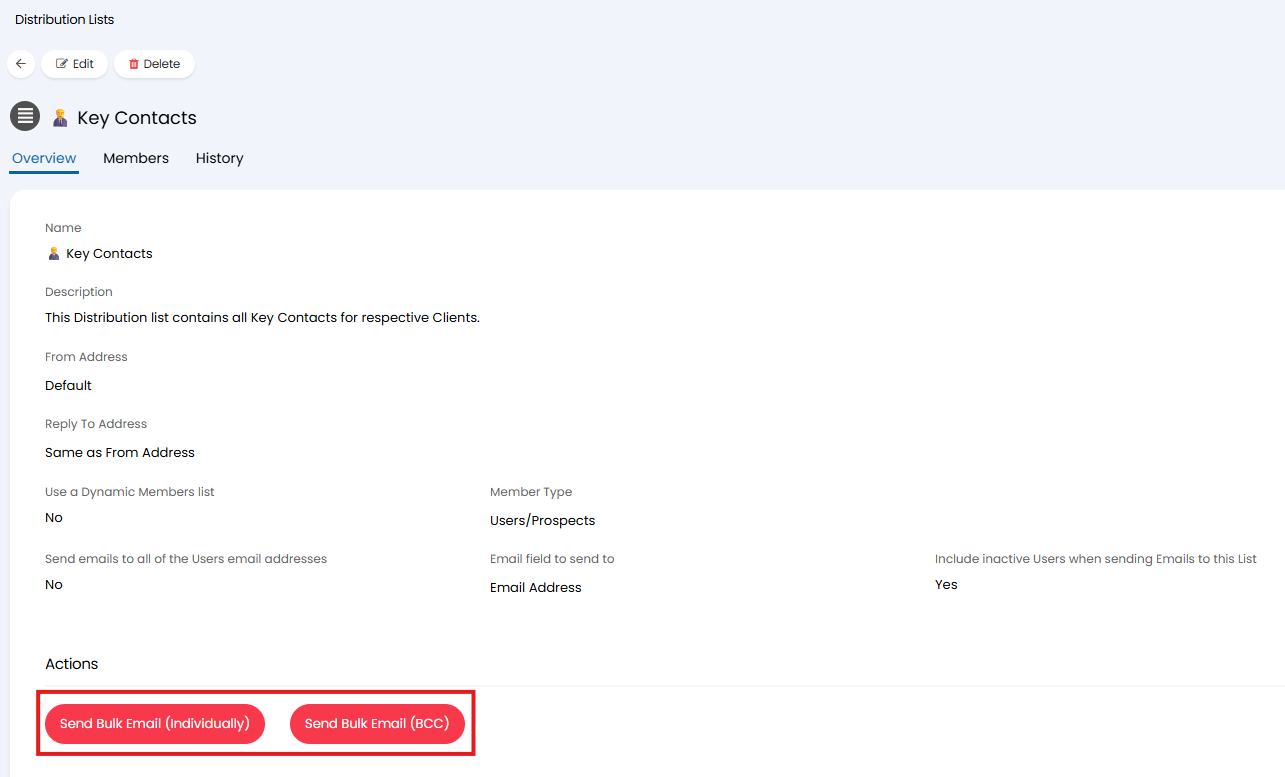
Fig 11. Actions to send bulk emails from a Distribution list
Send Bulk Email (Individually) - Will send an email to each user in the distribution list individually. Users will not be able to see who else the mail was sent to.
Send Bulk Email (BCC) - Will send a single email with all members f the distribution list BCCd. Users will not be able to see who else the mail was sent to. This is a more efficient way of sending the mail (less requests) but is more likely to trigger a spam filter.
When used you will be able to choose an email template to send or "Add" a new email template.
Once saved you will see a preview of the email that will be sent out to the members of the distribution list.
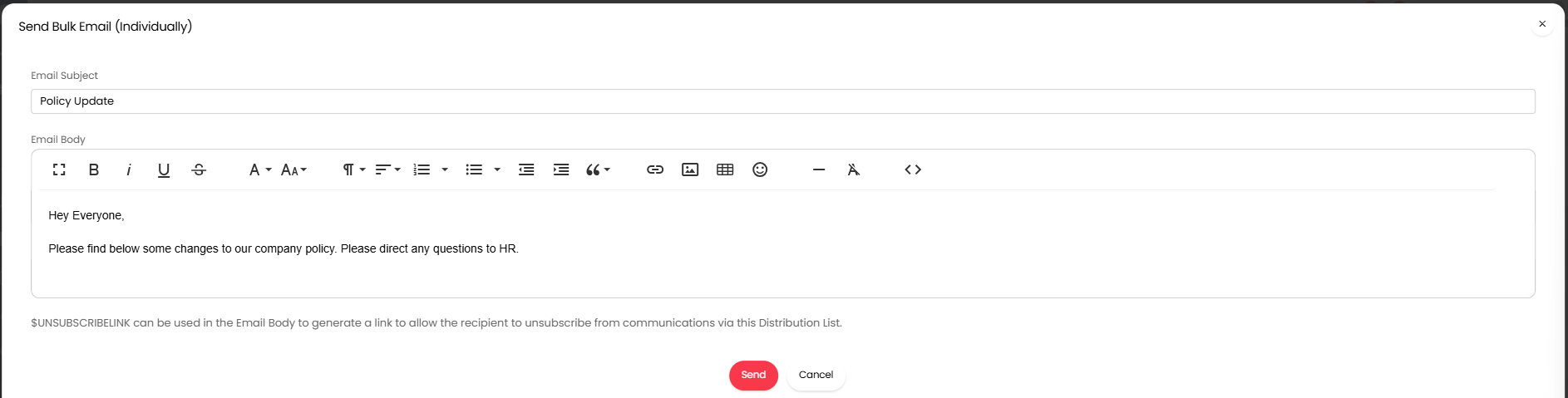
Fig 12. Preview of Individual bulk email
$-UNSUBSCRIBELINK can be used in the email body to provide recipients with a link to remove themselves from the distribution list. If used, the user will not be re-added to the distribution list when users are dynamically added.
Once you are happy with the email hit send to send it off.
Viewing Past Communications
Communications made to the Users on these lists are tracked and can be viewed in the History tab of the Distribution List, or from the Users activity feed if the "Show a Users Distribution List activity in their Activity Feed" setting in Configuration > Users > Distribution Lists is enabled.
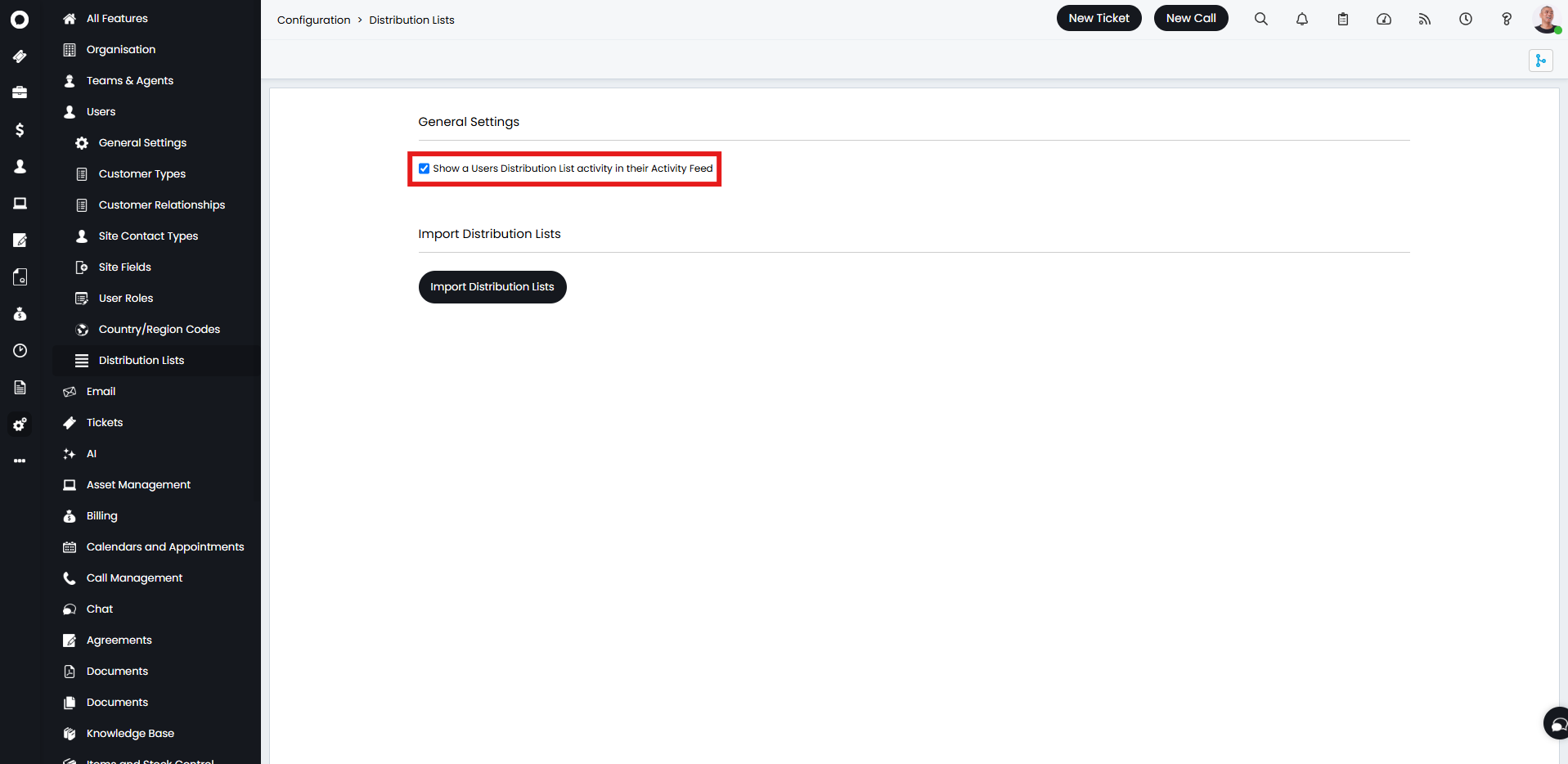 Fig 13. Show a Users Distribution List activity in their Activity Feed checkbox
Activity will show in the Overview > Recent Activity if enabled, and users can also be added to distribution lists from this page by the "Add to a Distribution List" button along the top.
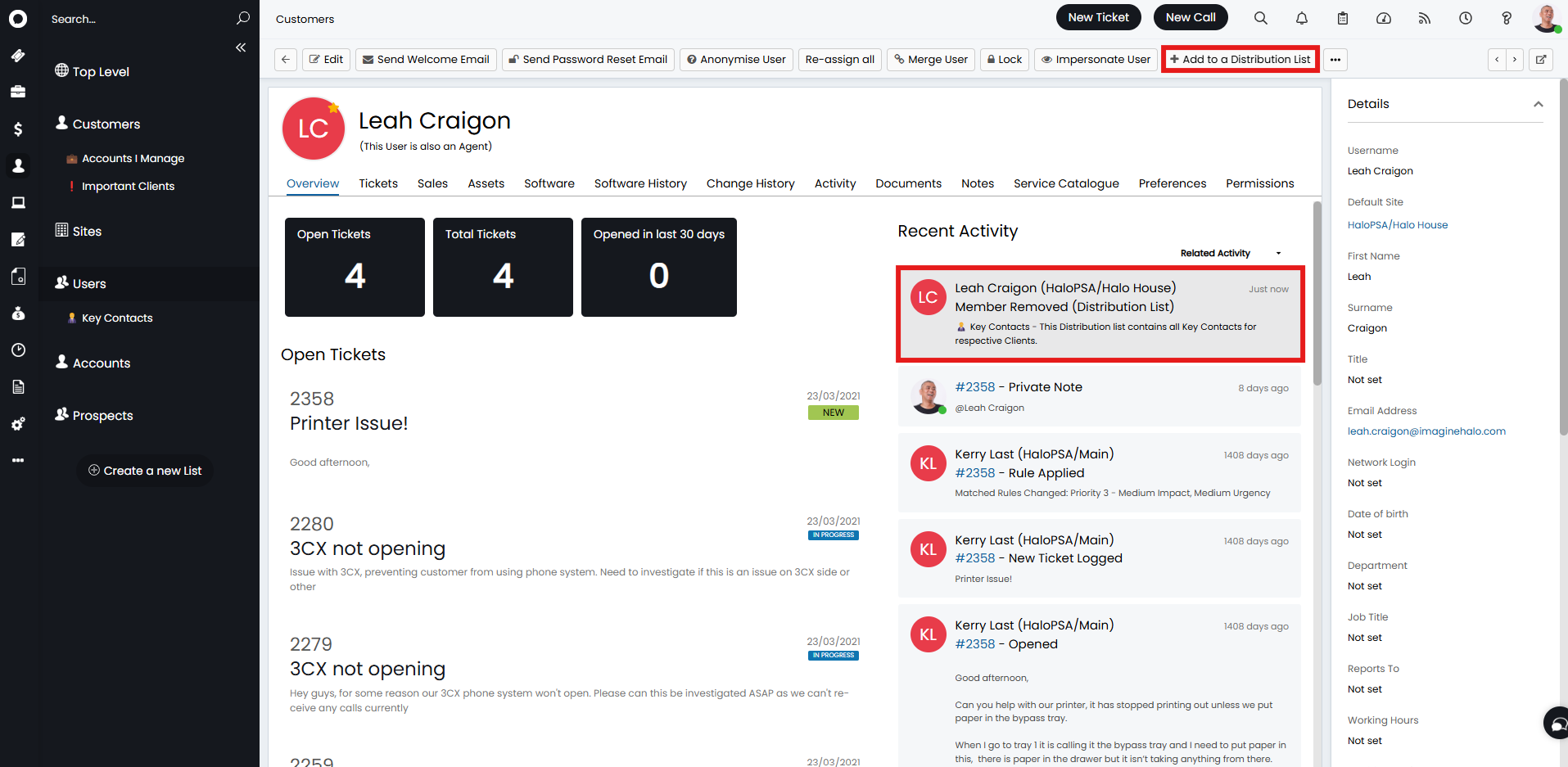
Fig 14. User activity feed
The From Address set on the Distribution List will override the from address set at client level.
Bulk Add/Remove Users
Users can also be added in bulk from existing User lists by selecting with the checkbox, hovering over "Edit" and clicking "Add to a Distribution List".
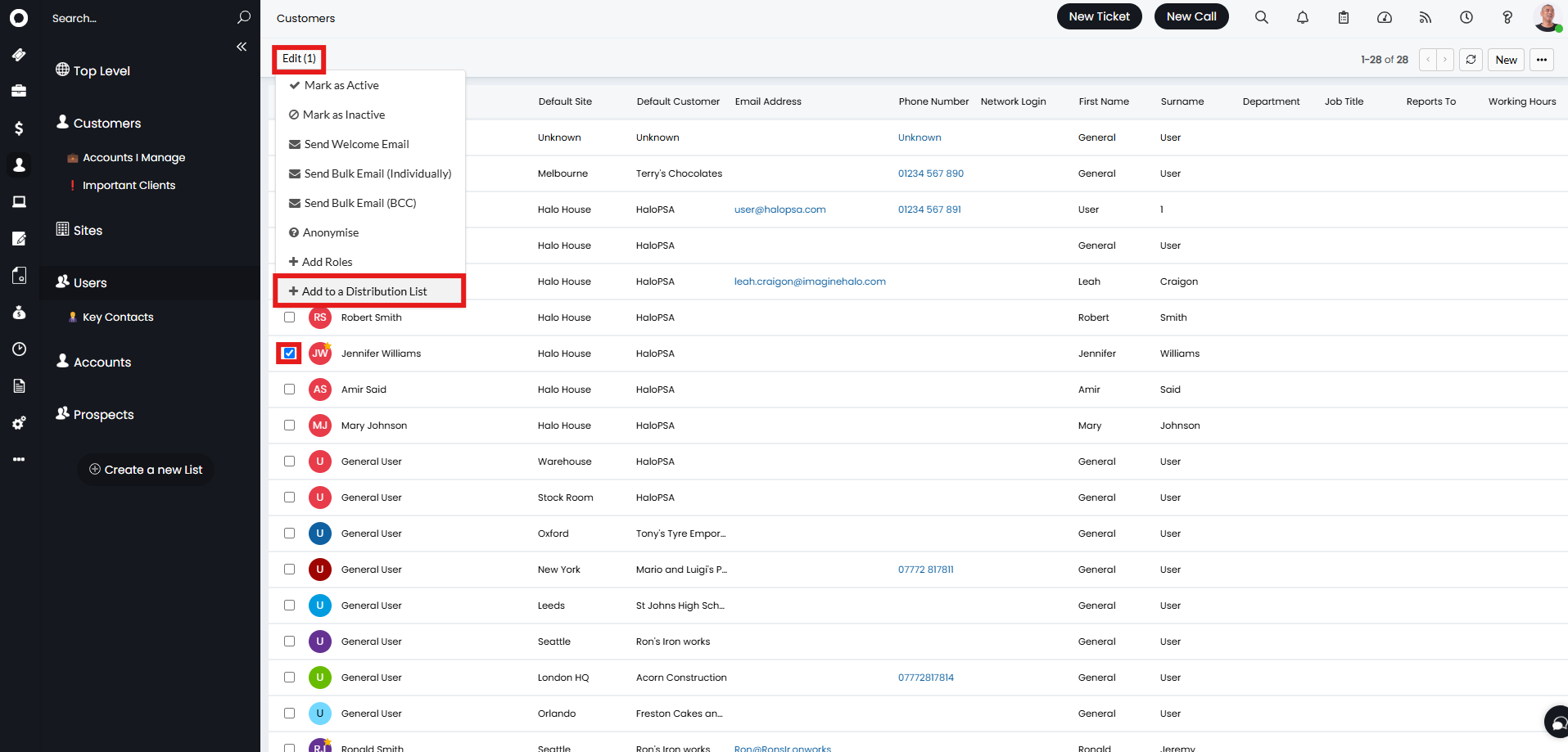
Fig 15. Add to a Distribution List action
This popup will then show with a dropdown to select a distribution list.
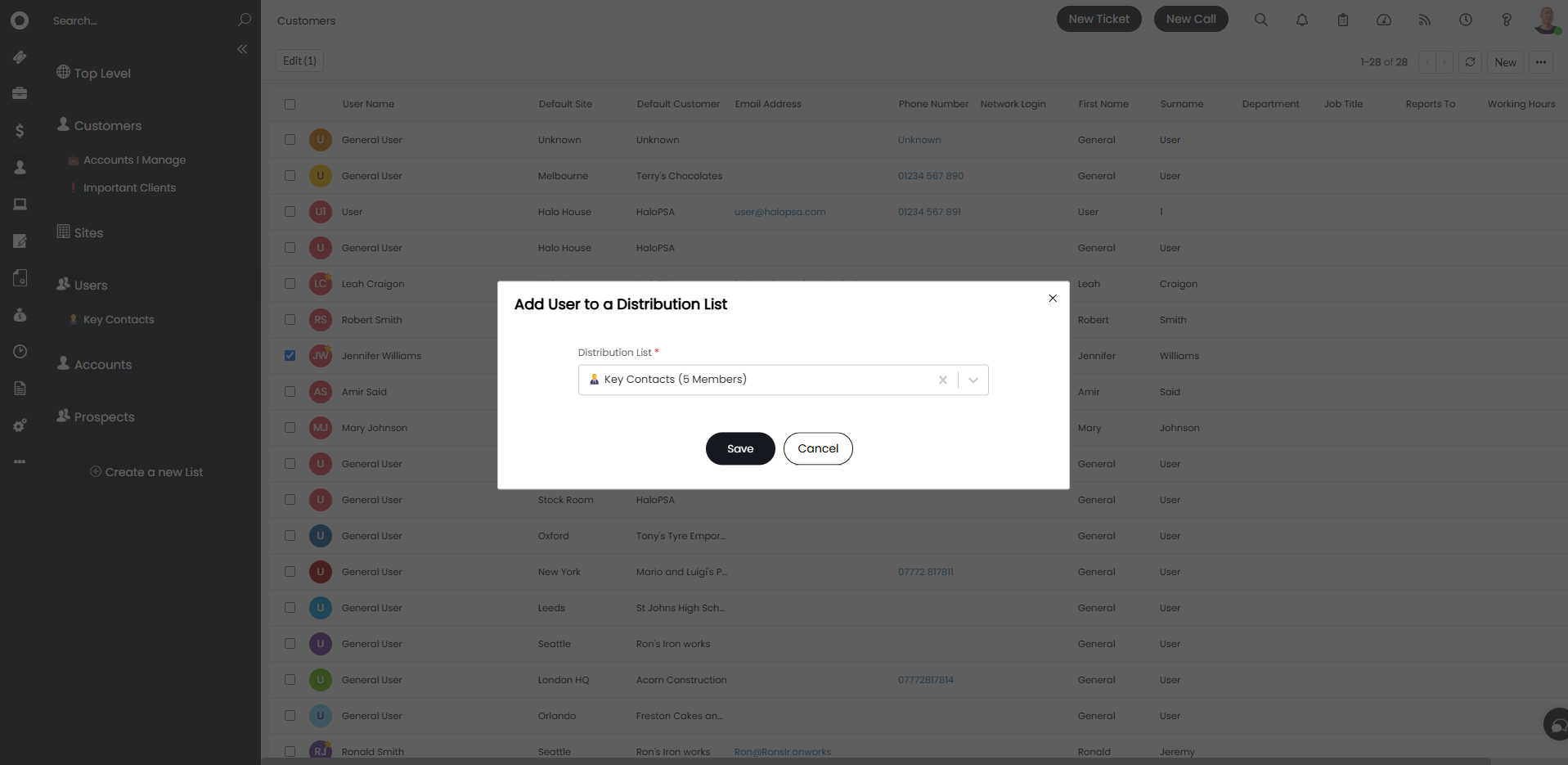
Fig 16. Add User to a Distribution List dropdown
As well as adding users to the Distribution List, you can then also bulk remove them via the Distribution List.
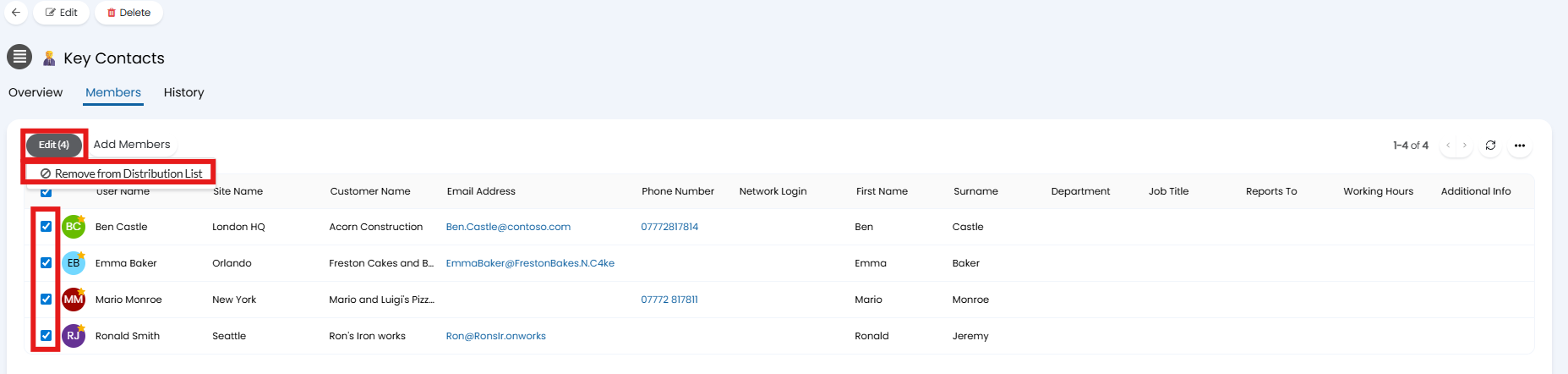
Fig 17. Bulk remove users from distribution list
Email templates are applied when bulk sending from anywhere in Halo, the templates must be custom made templates, you can't choose from the default options.
You can import users to distribution lists, this is achieved by using the following option in Configuration > Users > Distribution Lists.
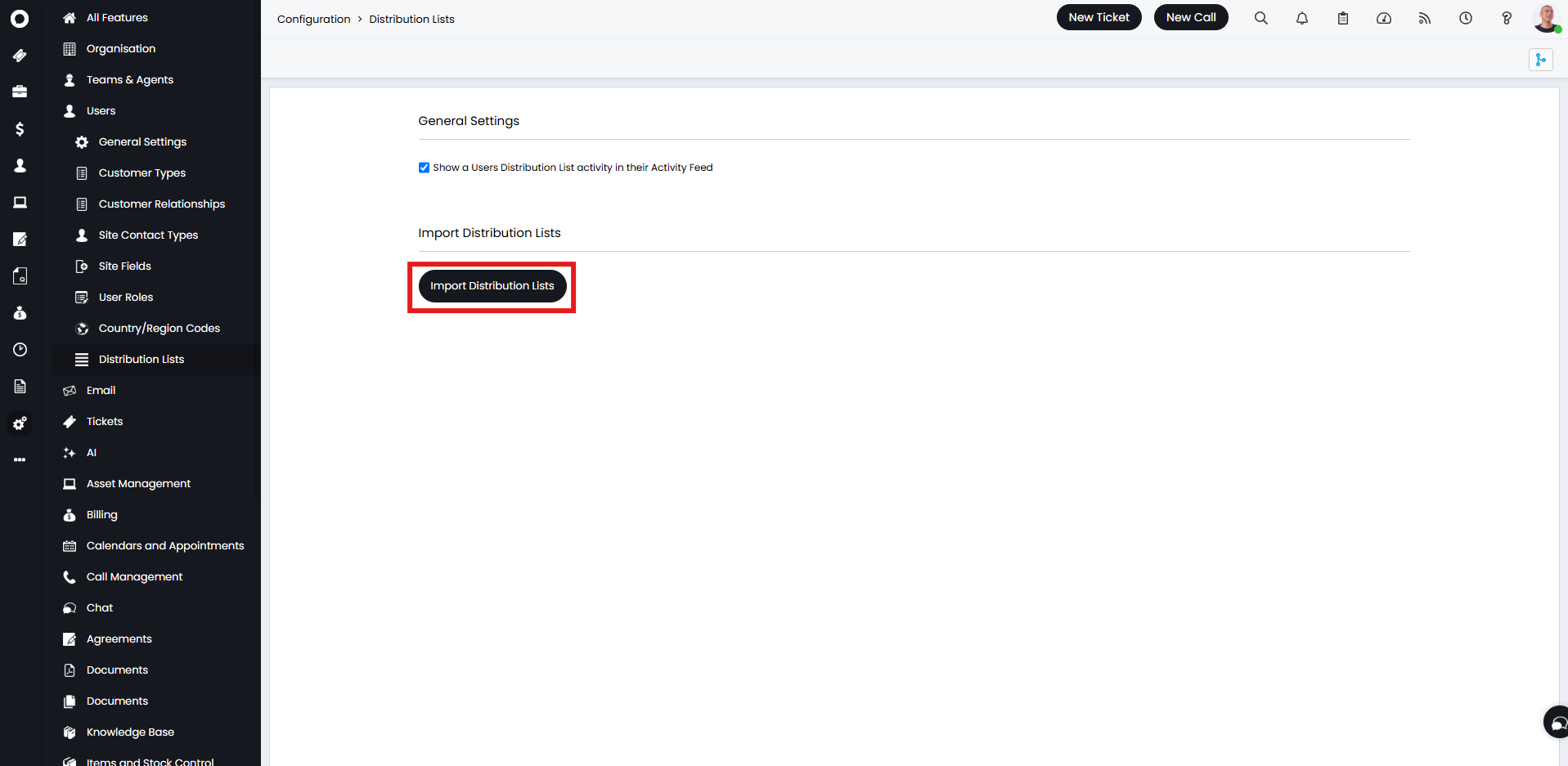
Fig 18. Import Distribution Lists button
The spreadsheet you will import with should have the following column headers: DistributionListName, UserID, UserEmail. The matching field used to match existing users in the system is the UserID field.

Fig 19. Spreadsheet import for distribution lists
Dynamic Lists
You can set Dynamic Distribution Lists, which will allow the option to pick multiple entities from the table.
The "Overview" tab of the Distribution List will contain the following option to create dynamic lists.
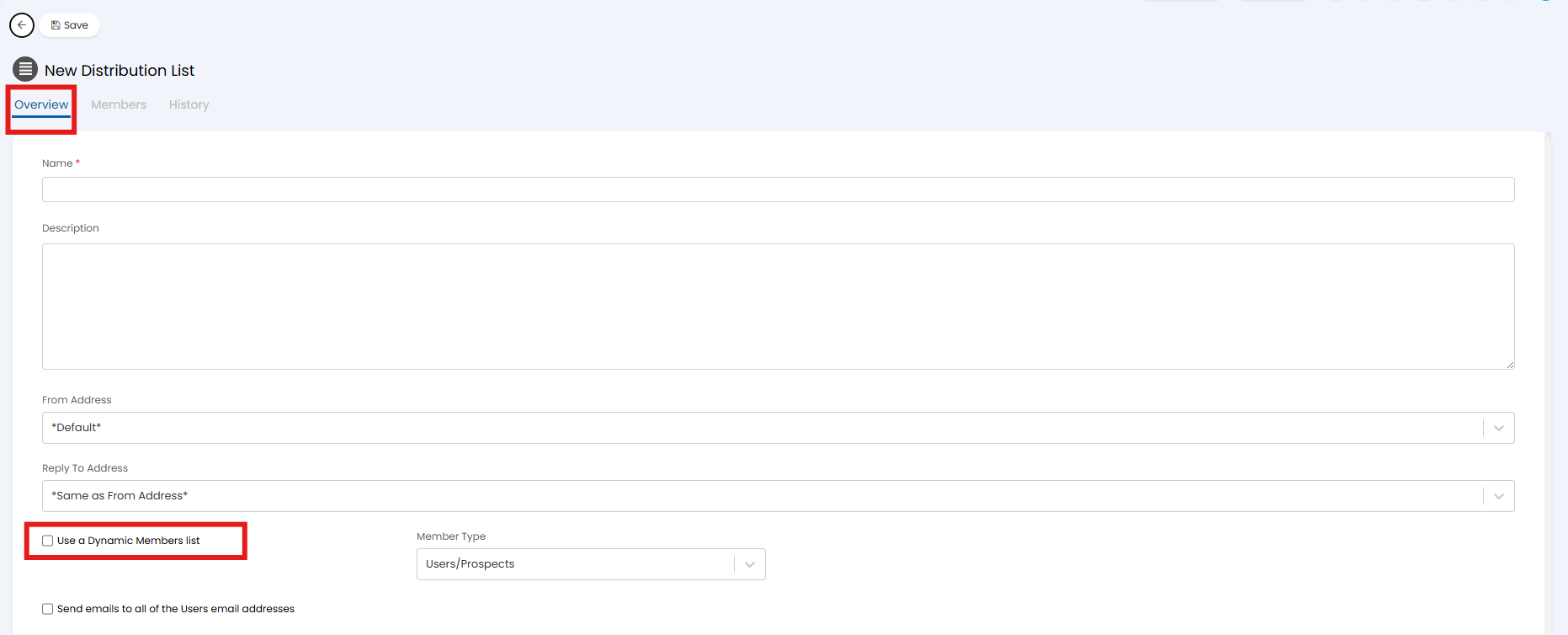
Fig 20. Use a Dynamic Members list checkbox
Upon enabling this, a Filter table will appear underneath. Clicking the "Add" button will allow you to set filters on what is included in the list.
If you would prefer to filter your members by SQL select"Use a SQL query instead of filters to determine Members". When selected the filter table will be replaced by a SQL script box.
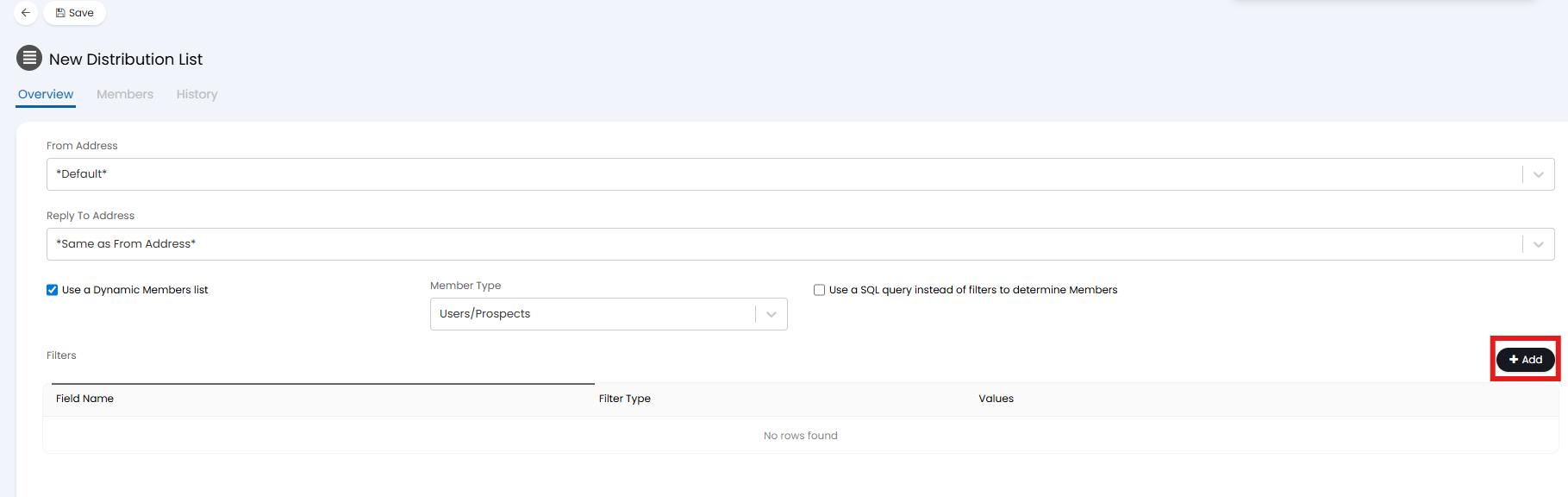
Fig 21. Filter table on a dynamic distribution list
A popup will then appear to set the criteria. Here we are filtering by account managers assigned to a user.
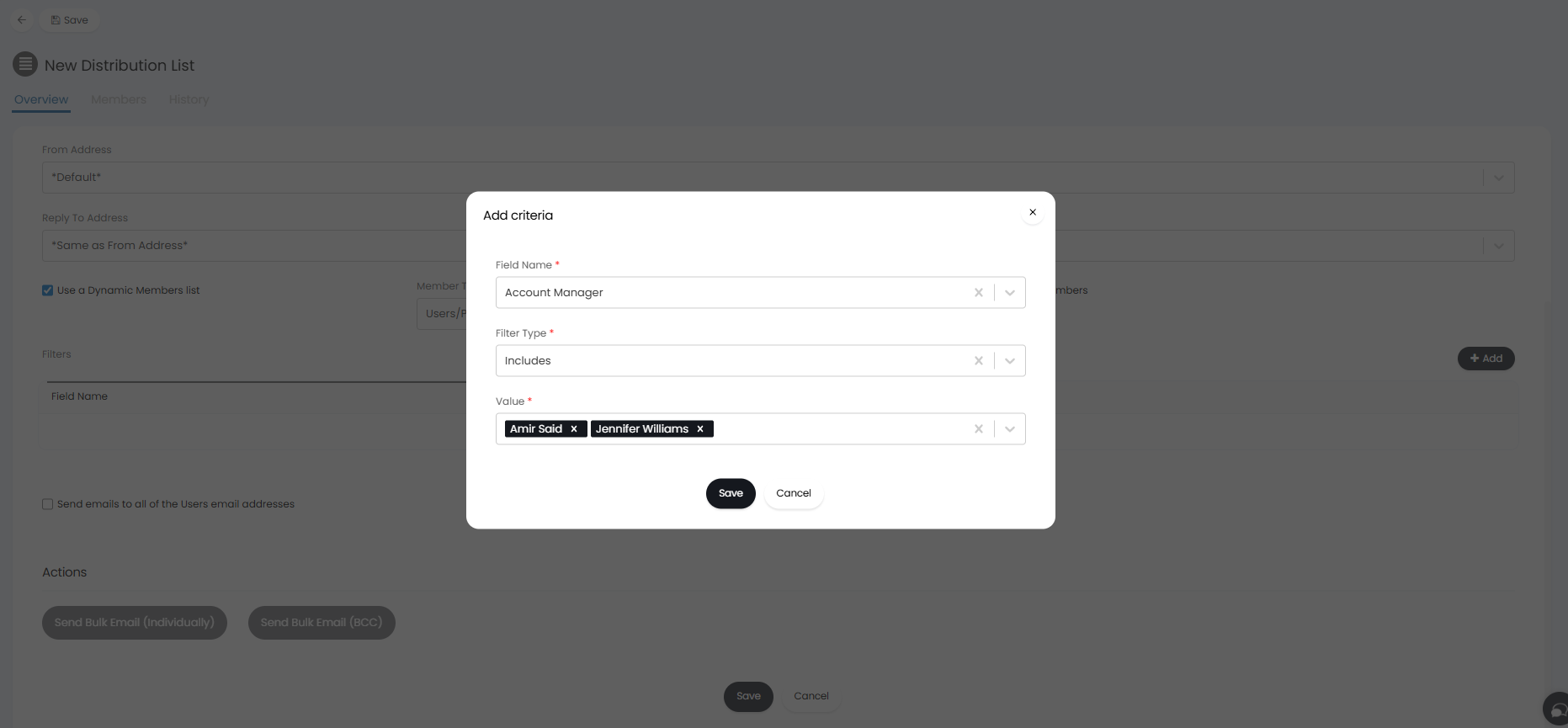 Fig 22. Add criteria popup on distribution list configuration
You will also be able to include columns from User linked Custom Tables as dynamic distribution list criteria. This will apply all the filters from the same custom table to check if a row exists for that user. The "Include columns from custom tables in criteria selection" checkbox must be enabled within Configuration > Distribution Lists in order for the Custom Table columns to appear when choosing criteria fields.
The option to filter for active/inactive Clients an Sites has been added, allowing you to prevent emails being sent to inactive entities. As of v2.244+, the filter options will also include Customer Type, and Customer Customer Fields.
After saving your list, you will not be able to make any changes to the Dynamic List checkbox.
The "Member Count" column of the Distribution List will also display as Dynamic.
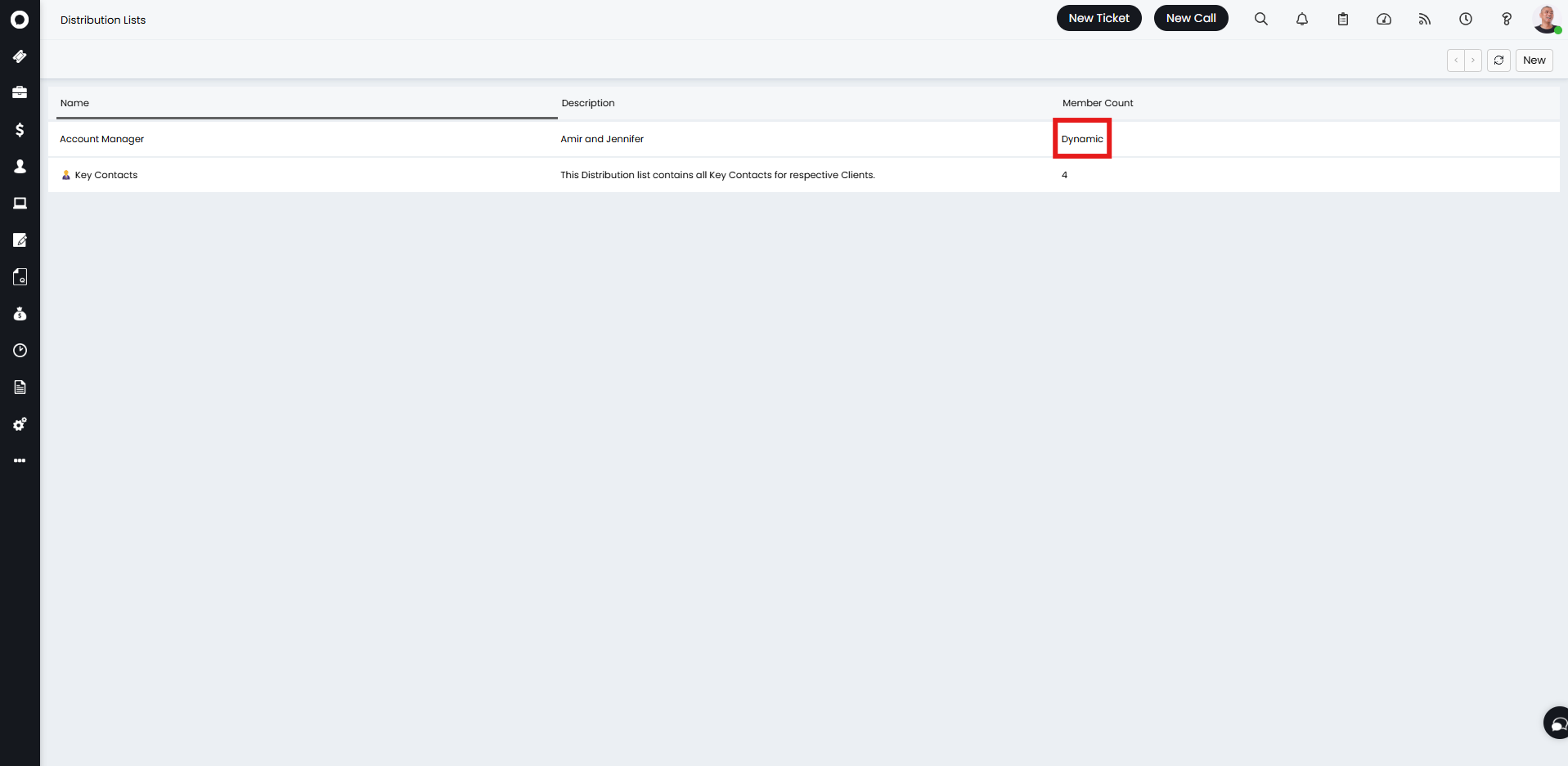
Fig 23. Member count displaying as dynamic if list is set to be dynamic
Snapshots
There is an option to take snapshots of your Distributions Lists. These Snapshots can be reported on, allowing you to compare previous and current member counts. This is useful for Dynamic Lists where members can change quickly.
To enable this functionality, head to Configuration > Distribution Lists, and select the "Enable snapshots" option. Snapshots can be taken manually or on a schedule. Once you have enabled Snapshots, you will see the option to "Set a default snapshot schedule for new distribution lists". If checked this option will show the "Schedule" button where you can determine how frequently Snapshots are taken by default. This can be overridden on each Distribution List.
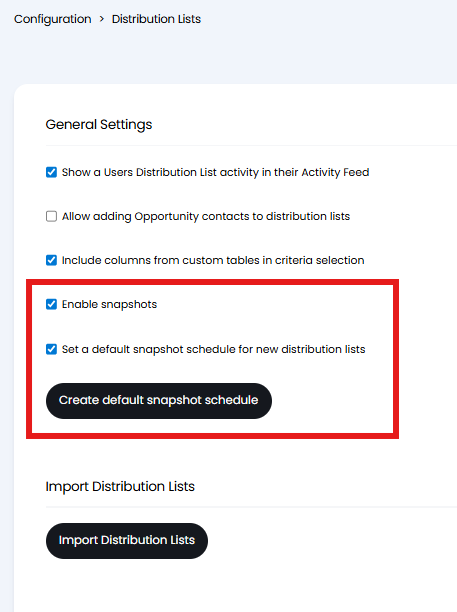
Fig 24. Snapshot settings
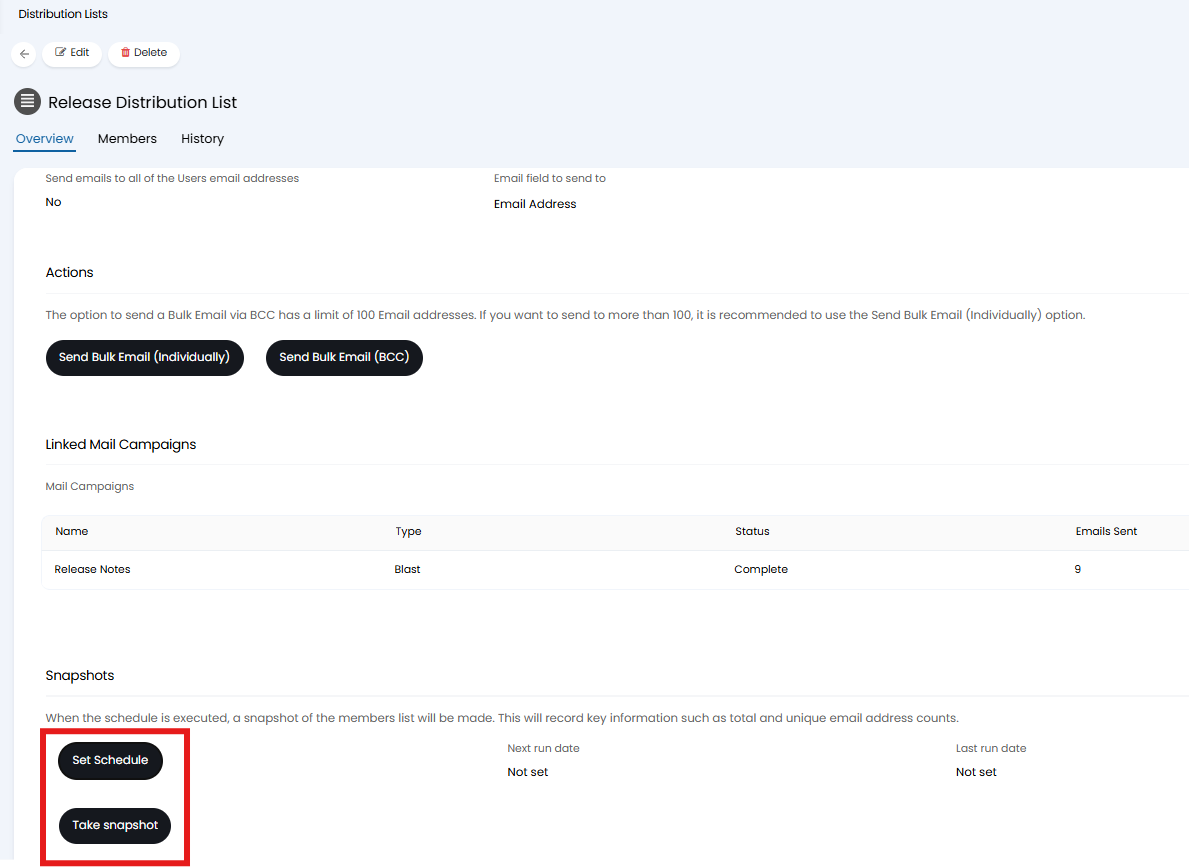
Fig 25. Taking Snapshots
The Snapshots taken are stored in the "DistributionListsSnapshot" table, and can be reported on to provide information on past and current member count. The report created can be placed on a Distribution List Dashboard Custom Tab, which can be displayed against each Distribution List to show the relevant information.