Bulk Sending Emails
In this guide we will cover:
- Bulk Email with the User List
- Bulk Email to Users subscribed to a Monitored Service
- Bulk Email from an Action
Related Guides:
Bulk Email with the User List - now Customer Segments (Distribution Lists)
Previously you could use the user list to send a bulk email to each individual user that you checkbox on in the list, or you can Bcc all of the checked on users in the list, as displayed in the below screenshot.
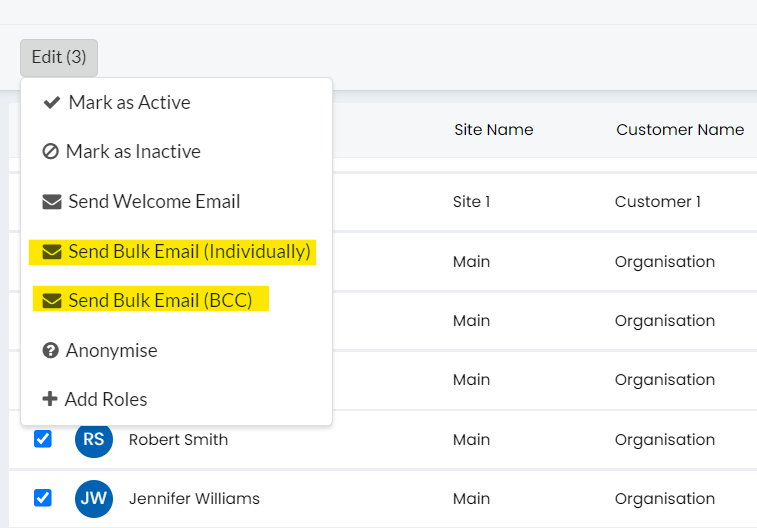
Fig 1. Bulk Emails Sent from the User List.
This functionality is now deprecated, instead the distribution lists (segments) feature can be used to send bulk emails. For information on how to use this feature see our guide here.
Bulk Email to Users subscribed to a Monitored Service
If the communication is in regards to a monitored service you can send a bulk email to the subscriber list for the service. This is achieved via a service on the service catalogue section:
You can set the service to be a monitored service.
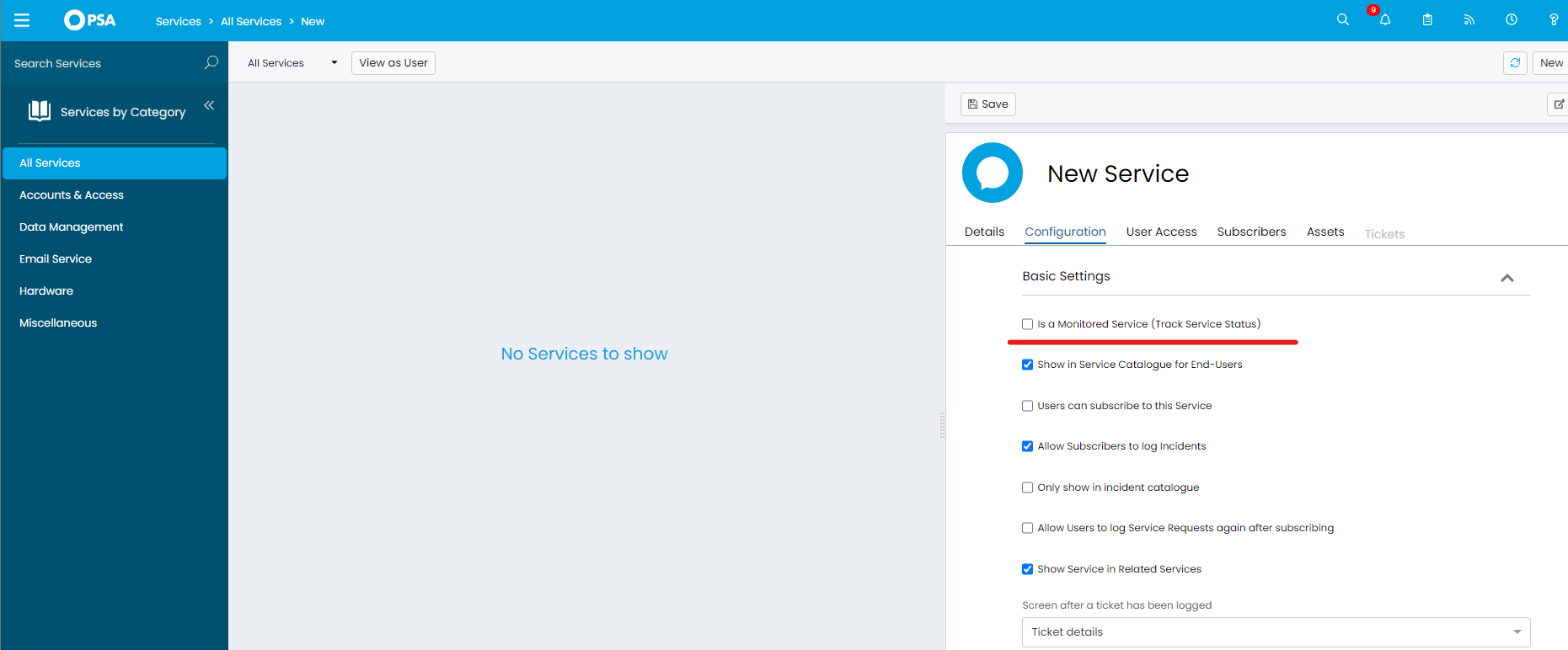
Fig 2. Creating a Monitored Service.
You can then select the subscribers you want to email.
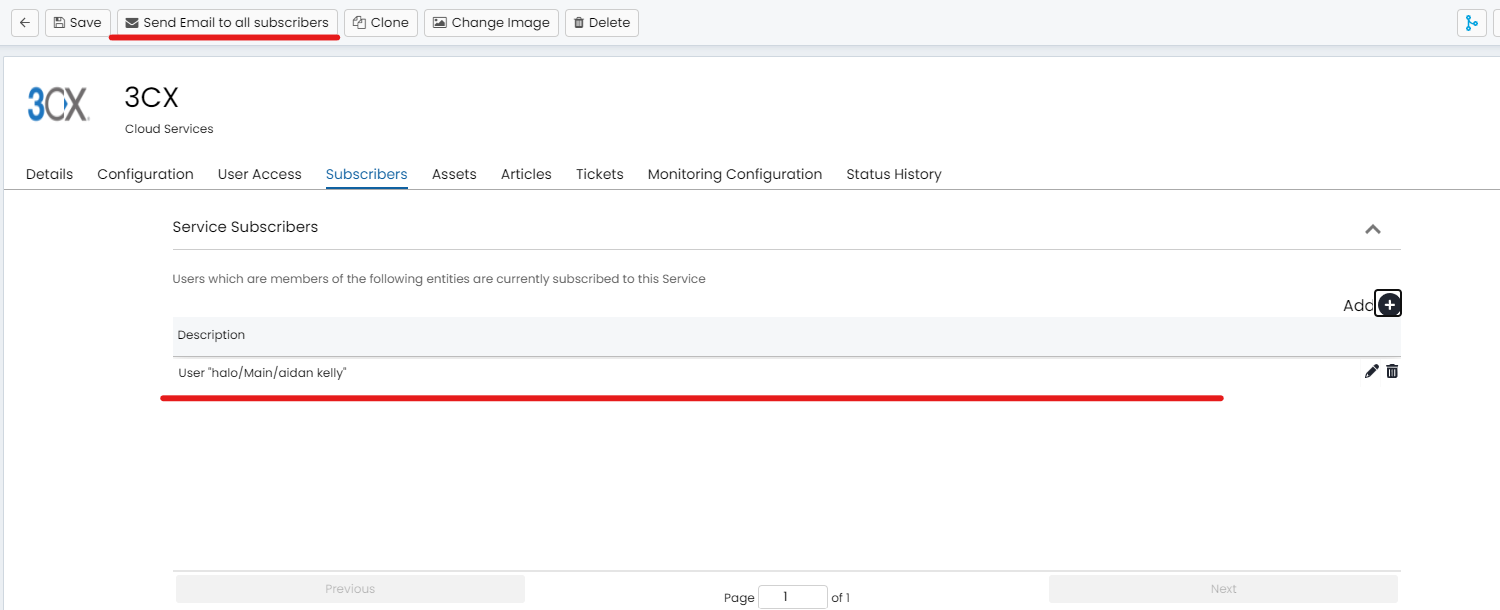
Fig 3. Subscribers Table of the Service.
You can filter for an entire site, department etc.
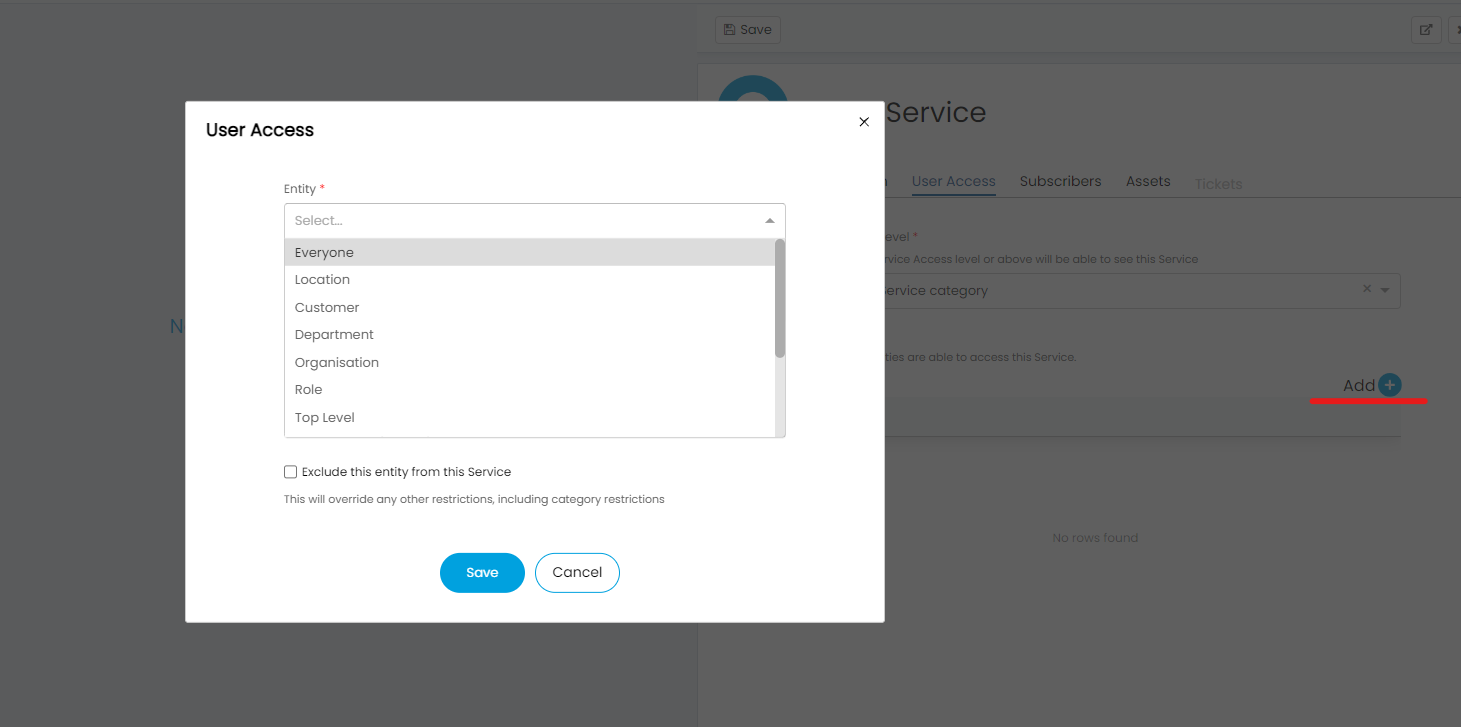
Fig 4. Subscription Options.
Then you can click the send email to all subscribers button and apply an email template of your choice.
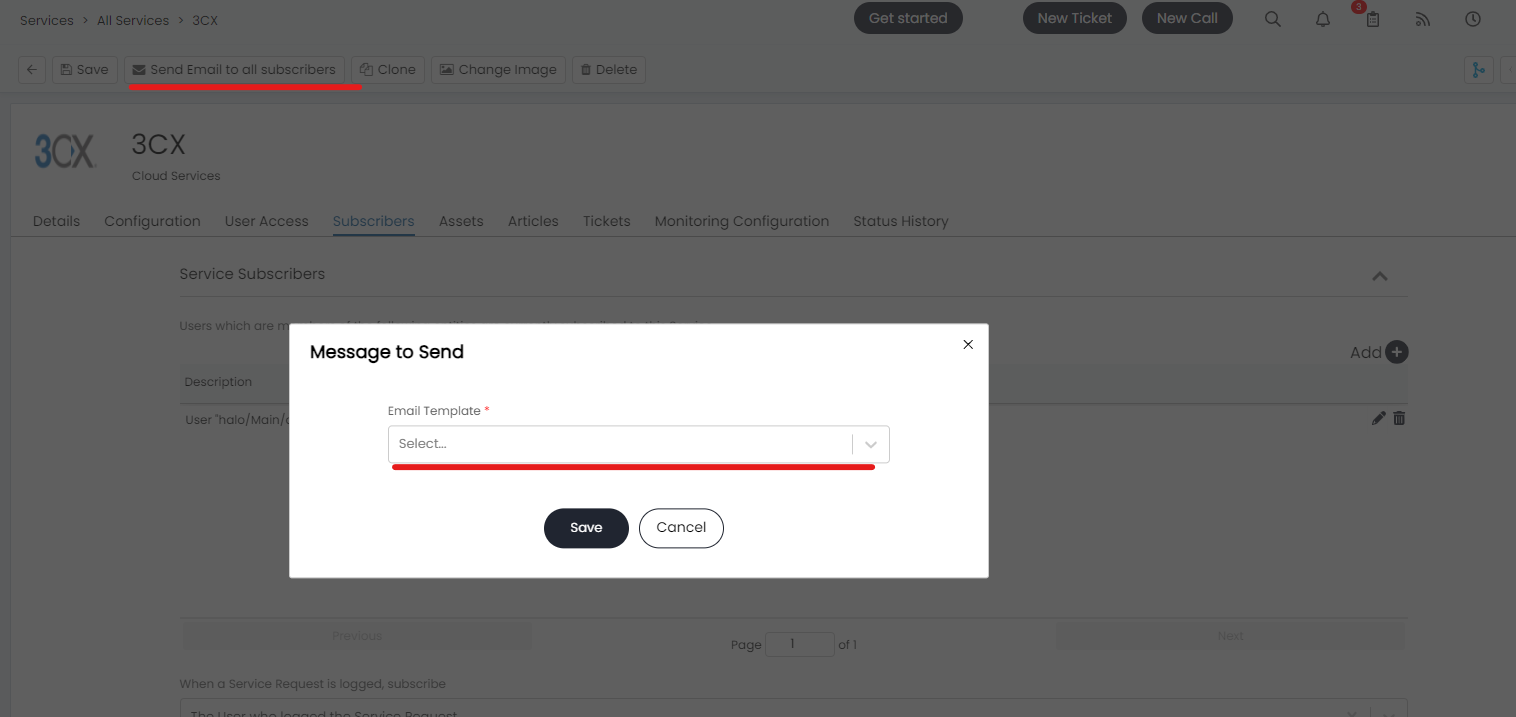
Fig 5. Applying an Email Template to the email.
This is how we would do news letters etc on masse. You will need to ensure you have the event and service enabled for this to work, this can be enabled in Configuration > Advanced Settings.
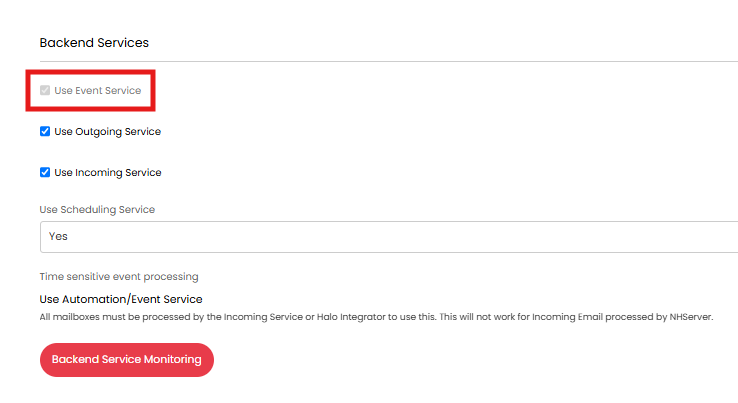
Fig 6. Event service setting.
As the list of users being emailed can belong to different clients, the default from address for these bulk emails will use the outgoing option set from within Configuration > Email > General Settings > Outgoing Email Defaults.
Fig 7. Outgoing Email Defaults.
Bulk Email from an Action
If a communication is related to a ticket, such as a problem ticket, you can send a bulk communication out using an action on the ticket.
The first option is to use an action on the ticket that is configured to send an email. When sending you can populate the 'Bcc' field with all the email addresses the communication needs to send to. The Bcc field character limit has been increased from previous versions to allow for this.
There is also another method of doing this. There are two system uses for bulk emailing, "Bulk email primary Service subscribers" and "Bulk email distribution list", that can be used on an action.
In Configuration > Tickets > Actions, create a new action or edit an existing one.
In the "Details" tab, set the system use to one of the two bulk email options, here I am demonstrating the distribution list.
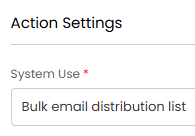
Fig 8. Bulk email system use.
In the "Defaults" tab, change "Send an Email" to "Yes".
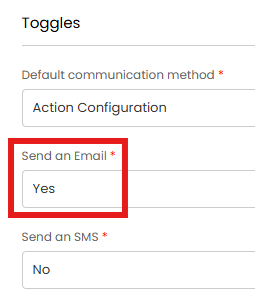
Fig 9. Send an Email toggle.
Then set the email template you wish to use in the same tab.
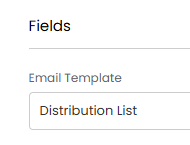
Fig 10. Email template set.
Scroll down some more, and you will see a dropdown called either "Default Segment" or "Default Distribution List" (depending on your system). Here, set the default list you are likely to use. This can still be changed on the action when sending off the email, but if you are likely to use the same one mostly, this will save time instead of manually selecting.
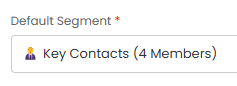
Fig 11. Set a default distribution list or default segment.
In the "Field List" tab, make sure you have the note and distribution list fields added.
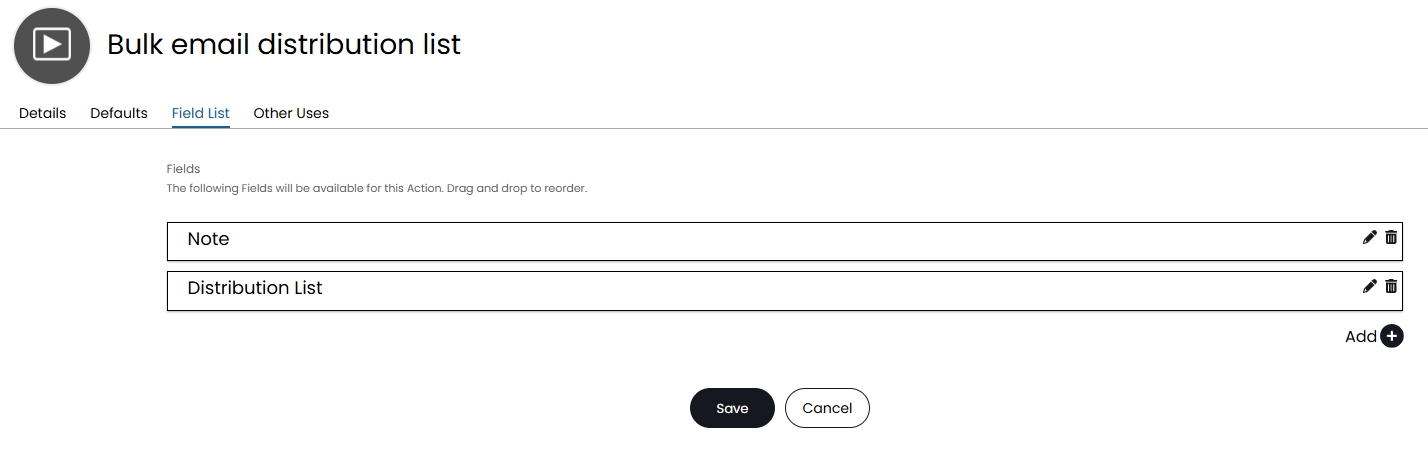
Fig 12. Field list of the action.
Add the action to your ticket type/workflow you wish to use it on. Click the action button.
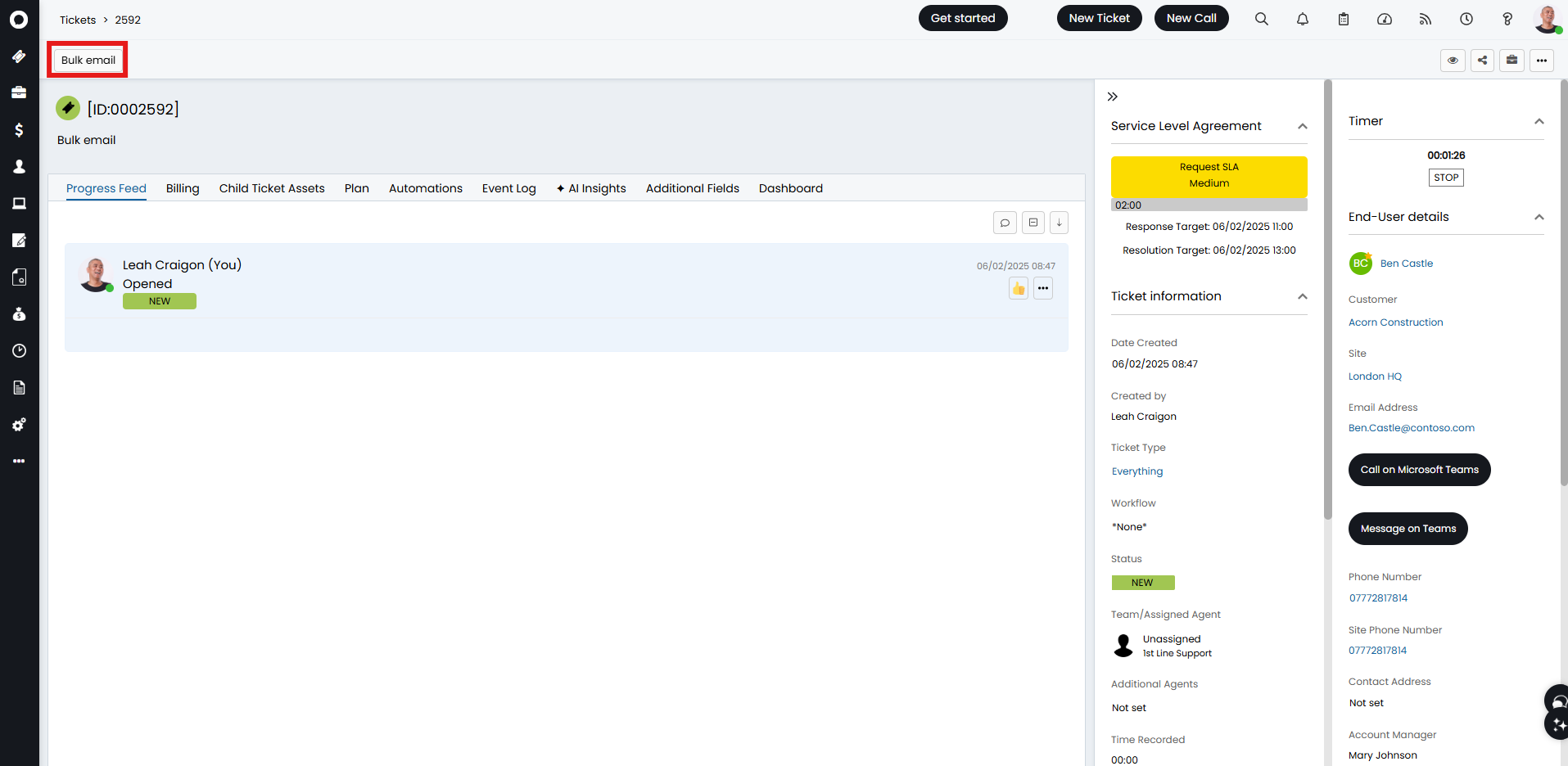
Fig 13. Action on a ticket.
The email contents can then be entered into the note field. The distribution list you wish to use can then be selected in the dropdown field underneath. Upon sending, the email will be sent to both the end-user and the distribution list members.
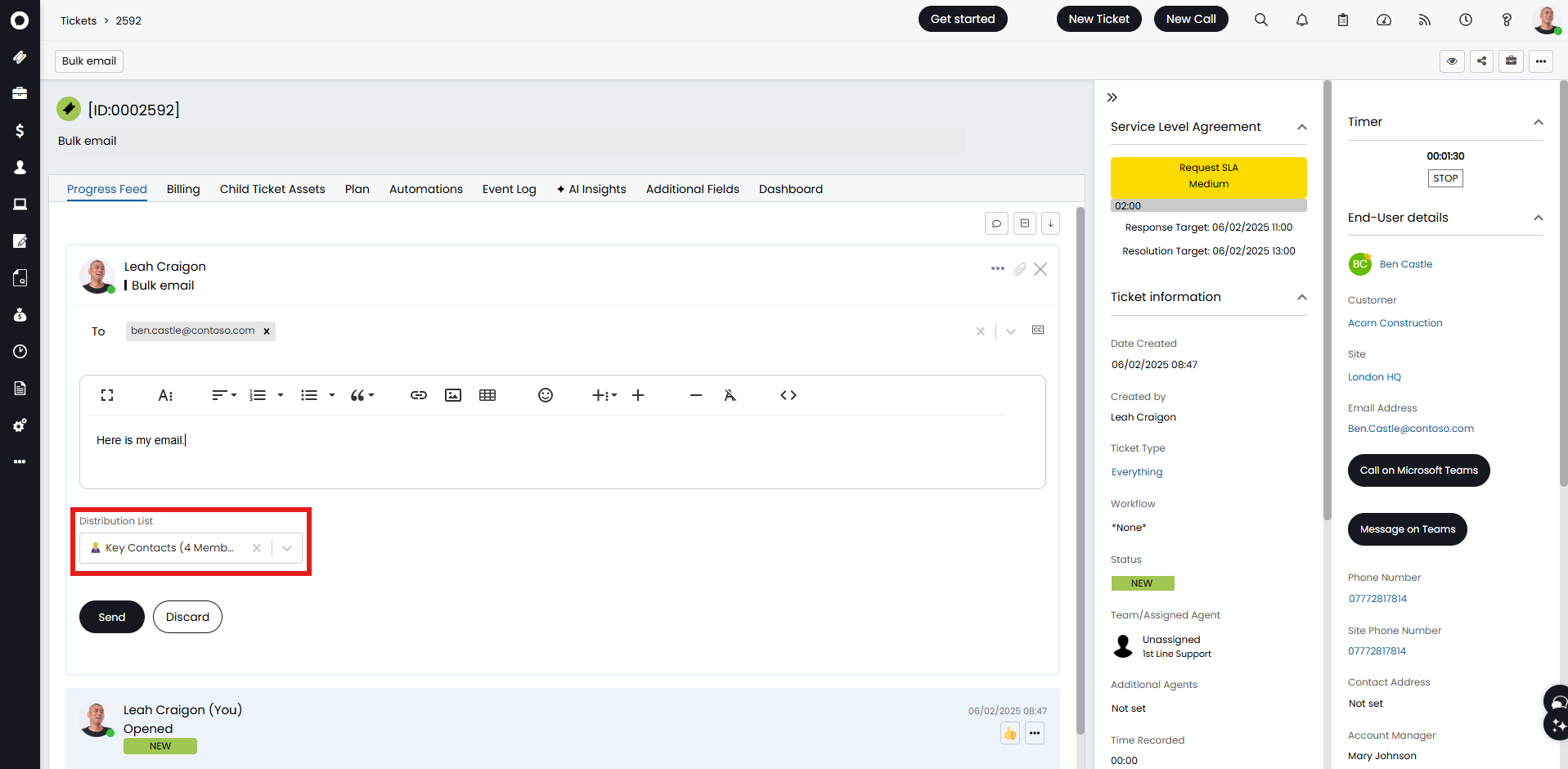
Fig 14. Setting the distribution list.
Distribution list members can also then reply to the email which will update the ticket (as the summary on the email sent will match).
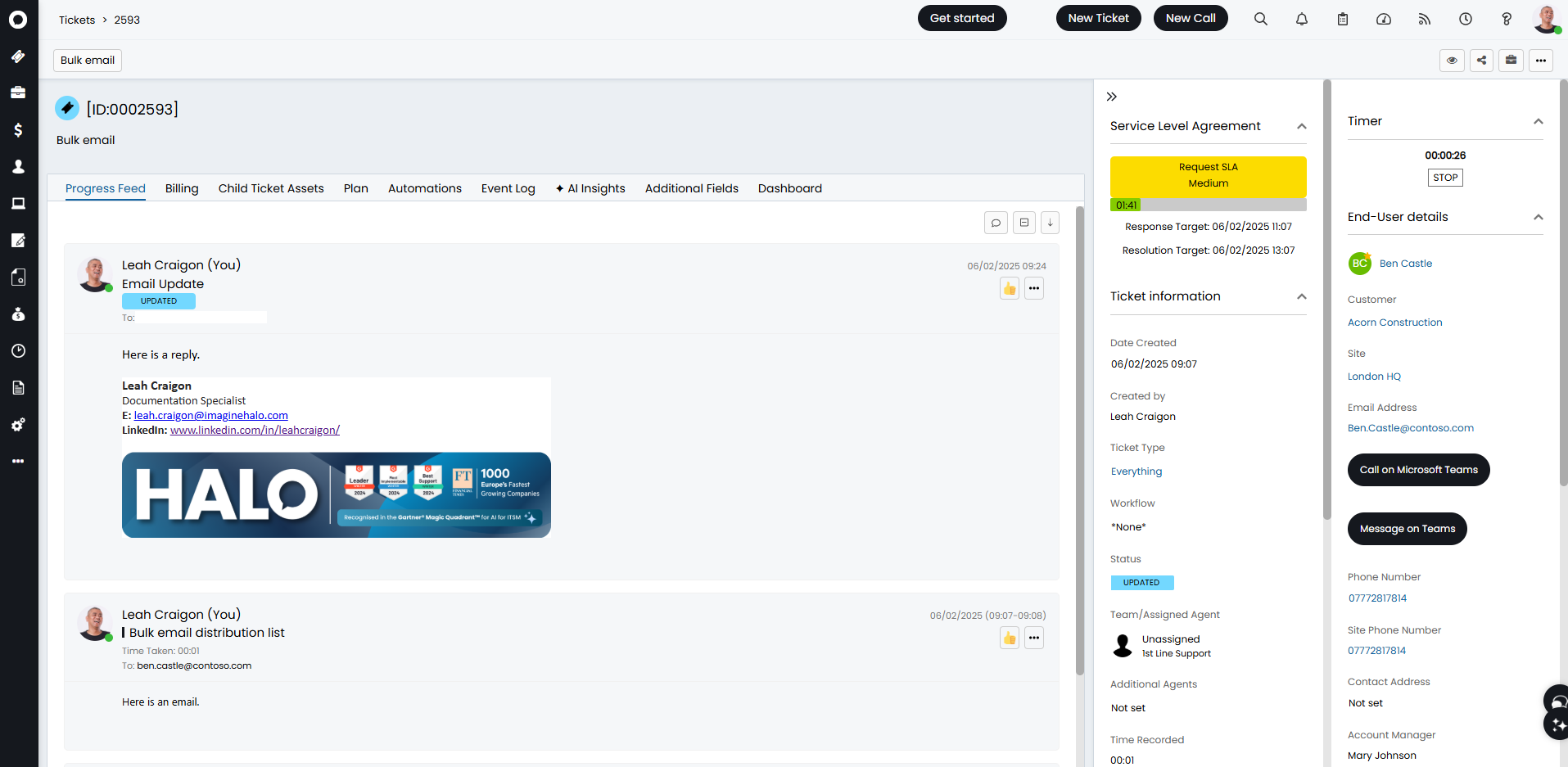
Fig 15. Distribution list member replying to the email.