Service Users
- Users
- Automated user creation
- service users
- automated billing
In this guide we will cover:
- What are Service Users?
- Bulk Updating Service Users
- Importing Service Users from CSP
- Excluding Service Users from Automatic Billing
- Service User Pop Ups
- Service User Ticket Rule Criteria
- Service User Dynamic Distribution List Criteria
What are Service Users?
Service users are a type of user account that excludes the user from lists and automated billing. This is most commonly used for alert integrations to log tickets against, keeping tickets separate from other users' accounts.
To mark a user as a service user, view their user account and enable the "Service User" checkbox within the "Details" area/tab.
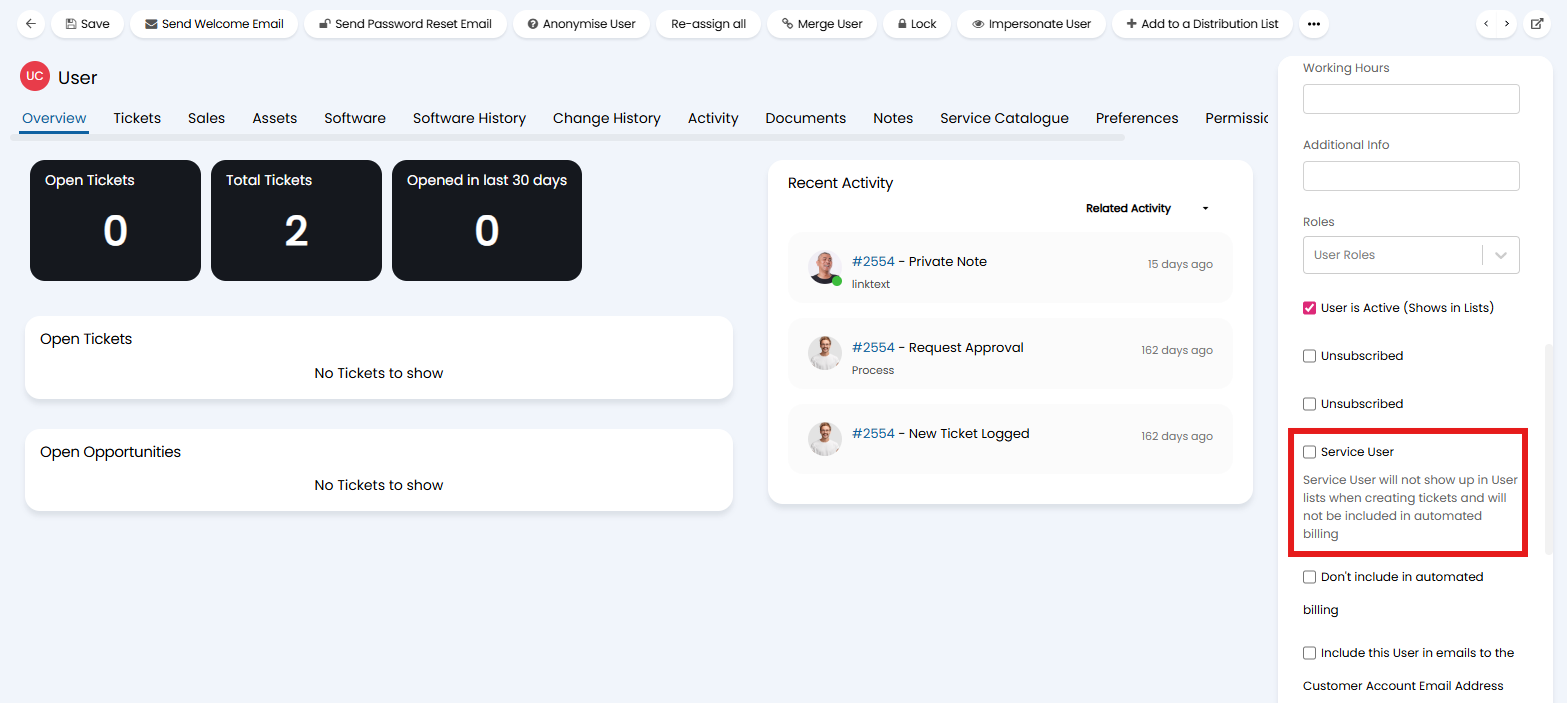
Fig 1. Creating a service user.
Service users will appear within the list of users within the "Customers" module, but can be hidden/shown again if needed. Hover over the "..." in the top right corner, and select "Show/Hide Service Users".
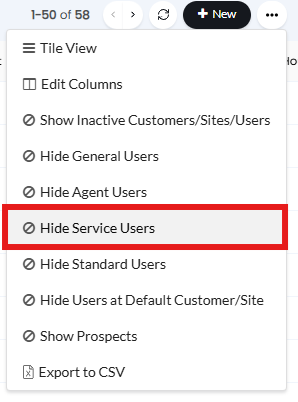
Fig 2. Hiding service users from the list.
Bulk Updating Service Users
Users can be bulk updated to be service users or non-service users. Within the user list, select the checkboxes next to a few, hover over the "Edit" button that appears, and select "Mark as (Non-)Service Users".
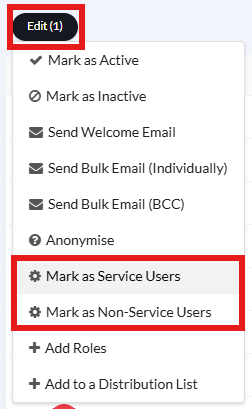
Fig 3. Bulk updating service users.
Importing Service Users from CSP
Within the Microsoft CSP integration, you can choose to import users as service users unless they are assigned a certain licence. Within the "Users" tab, enable the option shown below, and list the licence(s) you wish to base this on.
Users that have the "Service User" property changed manually in the UI will not be updated by the CSP integration, as this will override it.
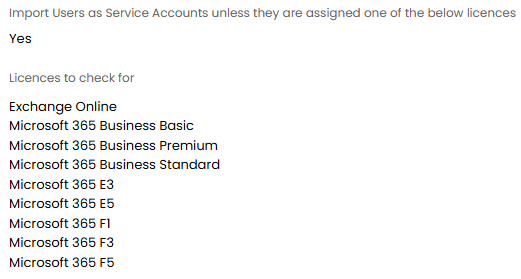
Fig 4. Service user management from CSP.
Excluding Service Users from Automatic Billing
Service users are excluded from automatic billing based on user count ("Calculate quantity from User count on creation"). For more information on configuring automated billing, check out the "Automating Quantities in Recurring Invoices" guide.
If you have selected the licence quantity to only include licences that are assigned to users this will include service users by default. If you would like service users to be excluded from this count head to Configuration > Billing > Recurring Invoices, enable "When calculating Assigned Licenses don't include Service Users".

Fig 5. Licence automatic billing option.
Service User Pop Ups
Service users can have popups show when viewing tickets assigned to them. Although service users do not appear in lists when logging tickets manually, they can create tickets through email, etc. which is what makes them useful for integrations.
To display the popup, go to Configuration > Tickets > General Settings and enable the below.

Fig 6. Enabling service user popup.
When viewing their tickets, the following will then show.
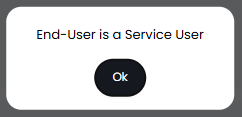
Fig 7. Service user popup.
Service User Ticket Rule Criteria
Service user can be used as a ticket rule criteria like the below. This can be useful to have a ticket use a certain workflow or be assigned to a certain team when logged, such as assigning to "3rd Line Support" if an alert comes in from a integration's service user.
For more information on configuring ticket rules, check out the "Ticket Rules" guide.

Fig 8. Ticket rule criteria.
Service User Dynamic Distribution List Criteria
Service users can be used as criteria for dynamic distribution lists, which can be useful to exclude them from newsletters for example, especially if the email is a no-reply address.
For more information on distribution lists, check out the "Segments (Distribution Lists)" guide.

Fig 9. Dynamic distribution list filter.