Automating Quantities in Recurring Invoices
- quantity based on licence count
- quantity based on user count
- quantity based on asset count
In this guide we will cover:
- How to enable Auto-Quantity Calculation Functionality
- Calculating Quantities from Licence Count
- Calculating Quantities from User Count
- Calculating Quantities from Asset Count
If your agreements include 'Per Device', 'Per User' or 'Per Licence' charges, you will want to make use of auto-quantity calculations of recurring invoice lines.
This feature can be enabled via heading to Configuration > Billing > Recurring Invoices and enabling the below option.

Fig 1. Enabling Auto-Quantity Calculation Functionality (Configuration > Billing > Recurring Invoices)
From v2.238+, in Configuration > Billing > Recurring Invoices, you can enable "Subscription/licence calculation uses the quantity up to the end of the recurring invoice period". This setting will cause the quantity used for Subscription/Licences to only include the quantity at the end of the Recurring Invoice period.
Note: Enabling this feature will remove the option to delete Users/Assets from the database. You will still be able remove Users/Assets from the lists in Halo by marking the respective User/ Asset as inactive.
Once this feature has been enabled, you will find that you can select the quantity calculation when editing lines on your Recurring Invoice (Figure 2).
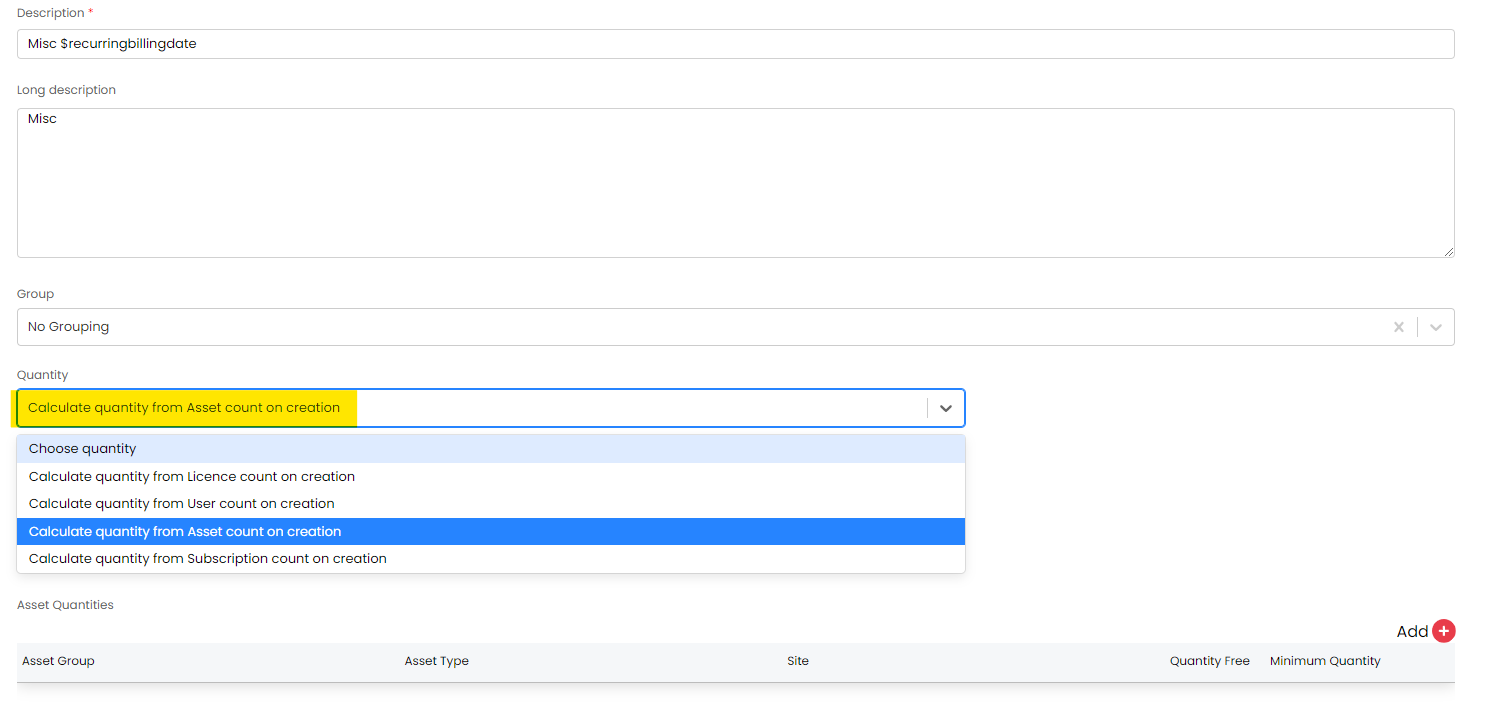
Fig 2. Quantity calculation selection when editing a line in a recurring invoice
Calculating Quantities from Licence Count
Software Licences can be added to client/site records, or allocated to individual users. You can enable Software Licencing functionality via heading to Configuration > Asset Management & enabling the below (once enabled, there will be a cross displayed when hovering over the module).
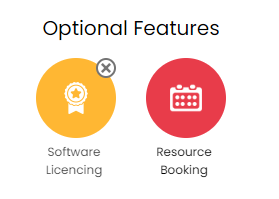
Fig 3. Enabling Software Licencing
Once this has been enabled, you will find a 'Software Licences' tab available within a client record. You can create software licenses and then give them to the user.

Fig 4. Client-Level Software Licences tab
And a 'Software' tab available within a user record.
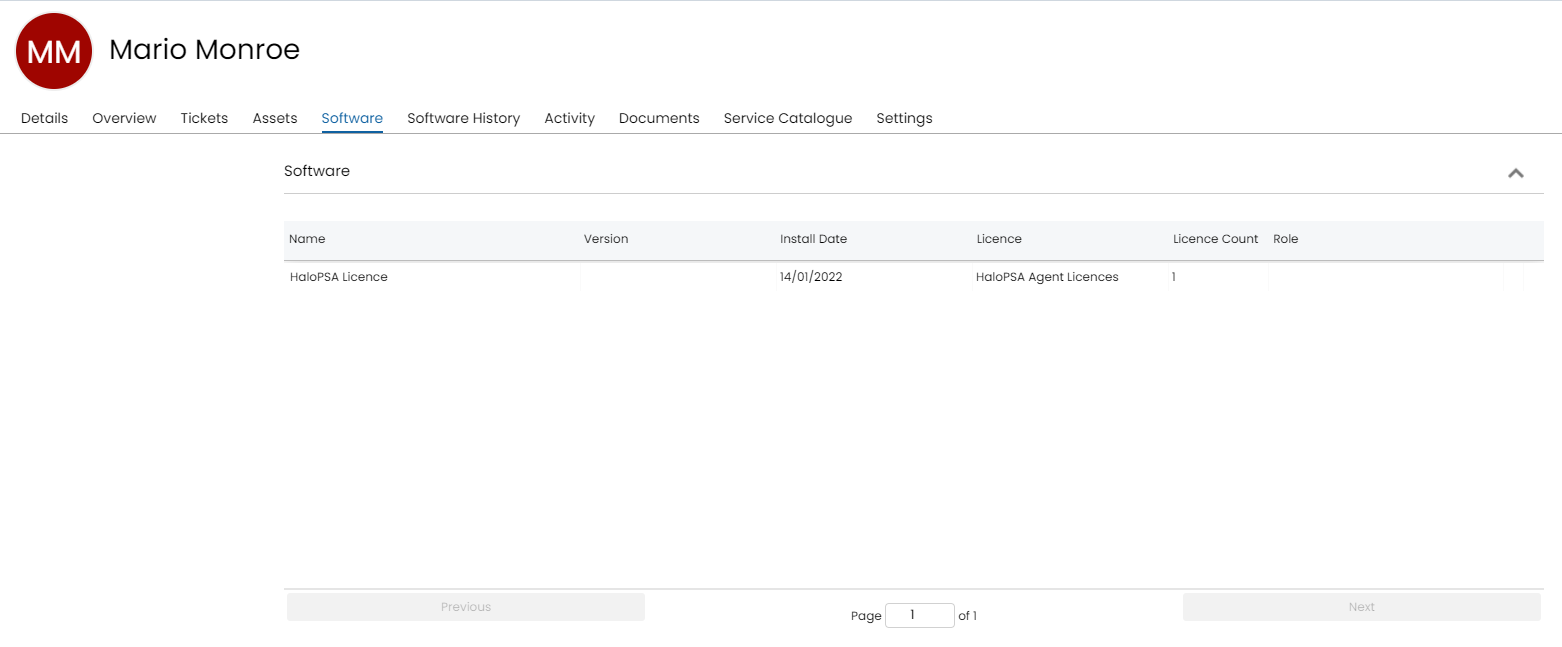
Fig 5. User-Level Software tab
Note: Halo's Microsoft CSP Integration allows for software licences to be automatically imported and allocated to users.
Once all of your licences have been added/imported, you can have recurring invoice line quantities calculated based on Software Licences within Halo (Figure 2.)
Upon selecting your quantity to be determined by Licence count, you will be presented with a table that will allow you to add additional criteria for quantity calculations (This below image is found on an invoice line where the quantity dropdown is Licence count on creation).
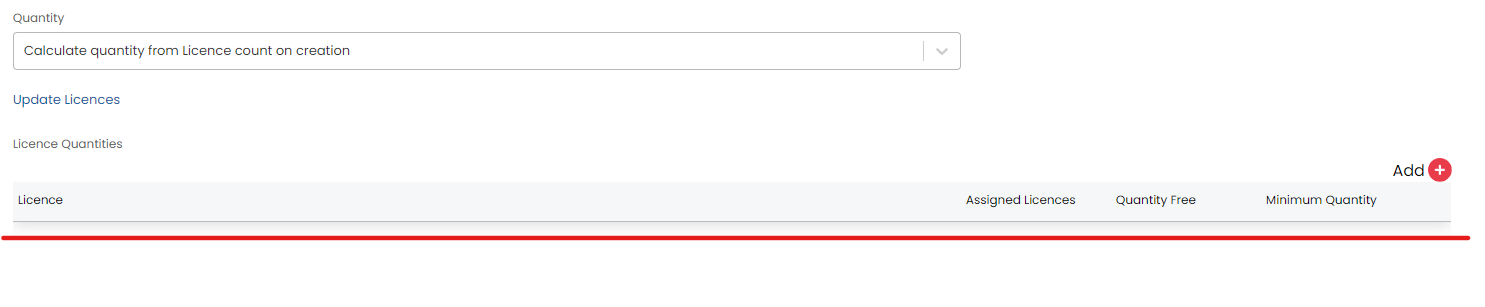
Fig 6. Additional criteria table
Adding to this table will allow you to (Figure 7):
- Specify a licence type.
- Exclude licences that are not assigned to users.
- Set a 'Quantity free of charge'.
- Determine how these lines are prorated.
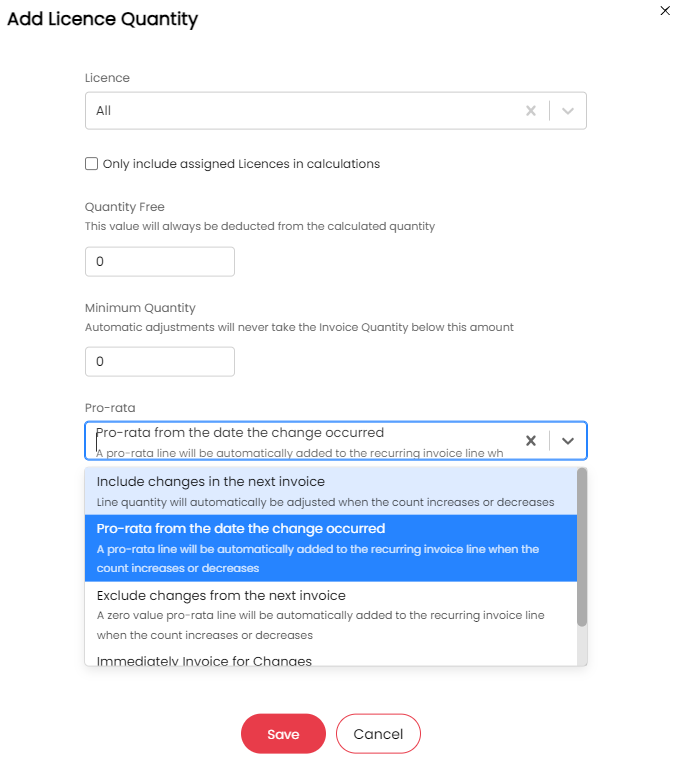
Fig 7. Options available when adding to additional criteria table
If you have selected the licence quantity to only include licences that are assigned to users this will include service users by default. If you would like service users to be excluded from this count head to Configuration > Billing > Recurring Invoices, enable 'When calculating Assigned Licenses don't include Service Users'.
From v2.242+, the option "Update Invoice unit price when the linked subscription price changes" will cause the price to be determined using the period of the Invoice and the period of the linked subscription/licence.
Calculating Quantities from User Count
Recurring invoice lines can also be determined by user counts, select the quantity option "Calculate quantity from User count on creation". Setting this follows the same logic as that presented in Figure 2 - however, the respective additional criteria table provides some slightly different options.
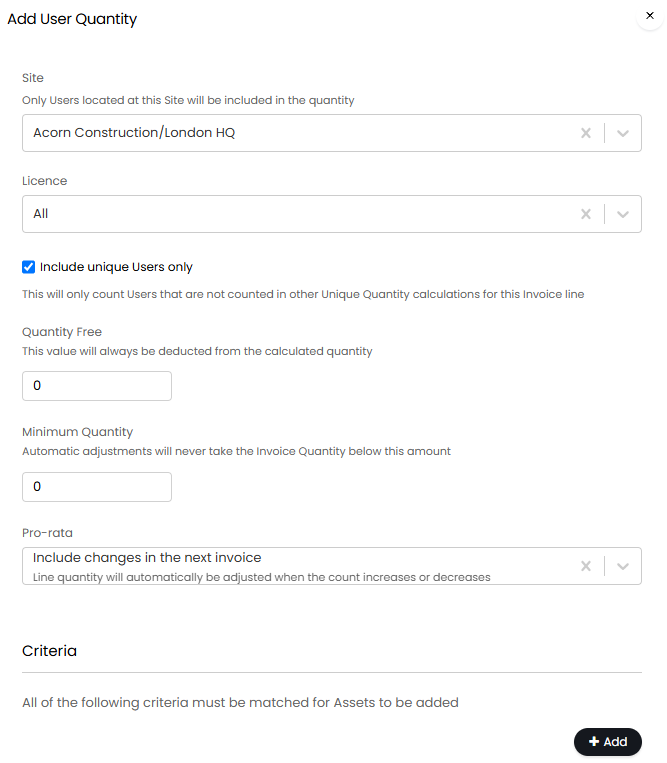
Fig 8. Additional criteria table when setting quantity calculations based on user counts
Figure 8 shows that, when user count determines recurring invoice line quantities, one has the option to specify users at a given site (Note that 'Quantity Free' & Pro-Rata behaviour are still configurable) There is also a minimum quantity field, and a table for criteria that needs to be met for Assets to be added.
You can choose to "Include unique Users only". This helps prevent double-billing your customers if you have two sets of criteria for the user count, as some users may meet both sets of criteria.
When are Users not invluded in Calculated Quantities
A user will not be included in billing counts when they have one of the following properties:
- Service User
- Don't include in automated billing
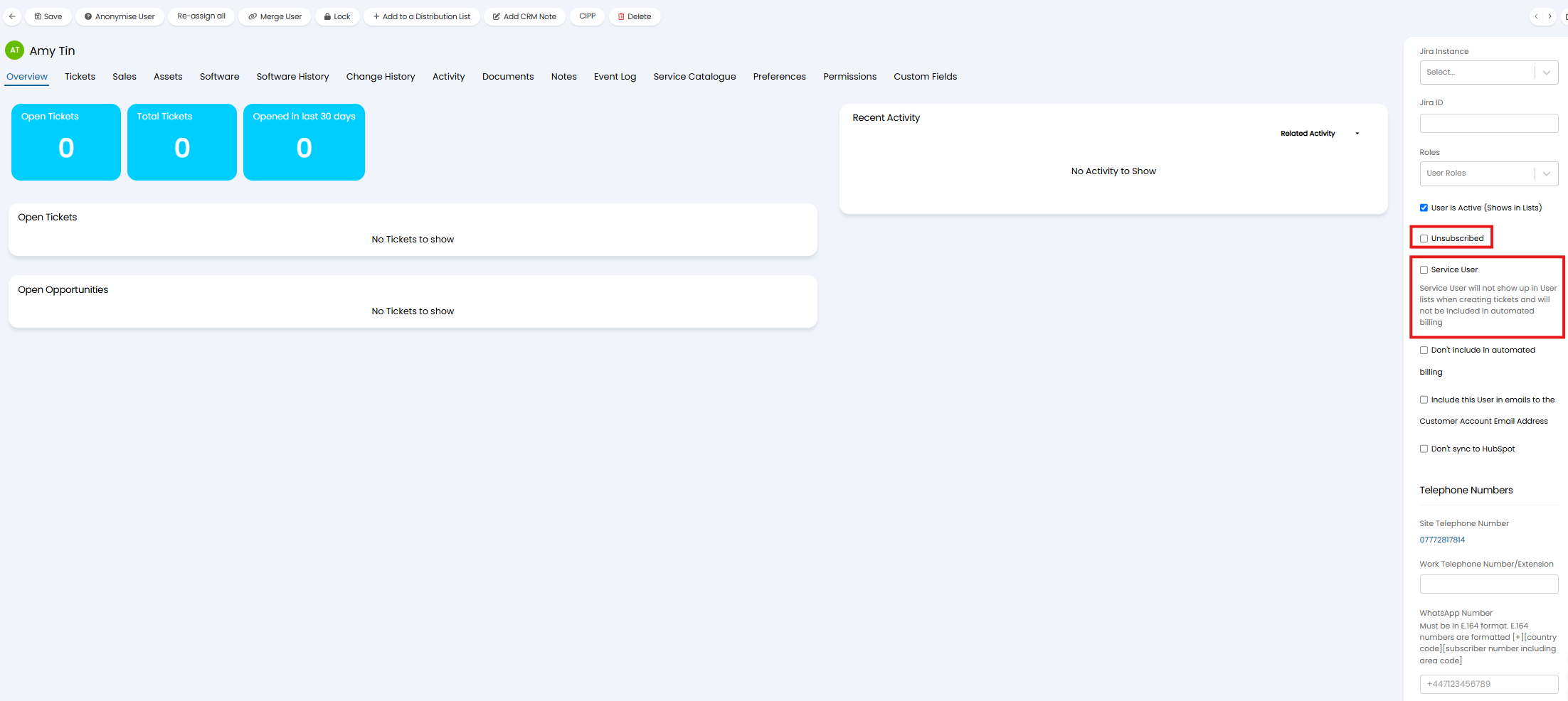
Fig 9. Properties to exlcude a User from billing counts
If importing users via an integration keep in mind this may also impact if they are included in billing counts. For example, users imported from Google Workspace will only be excluded from automated billing counts when they are 'Archived' in Google, not when they are "Suspended" (this is in line with Google's billing behaviour). Be sure to check the relevant integration setup guide for information on this.
Calculating Quantities from Asset Count
As with Software Licences & user counts, recurring invoice line quantities can be determined from Asset counts in Halo. The additional criteria that can be applied here includes:
- Selection of an Asset type.
- Specification of Assets at a given site.
- Set a 'Quantity free of charge'.
- Determine how these lines are prorated.
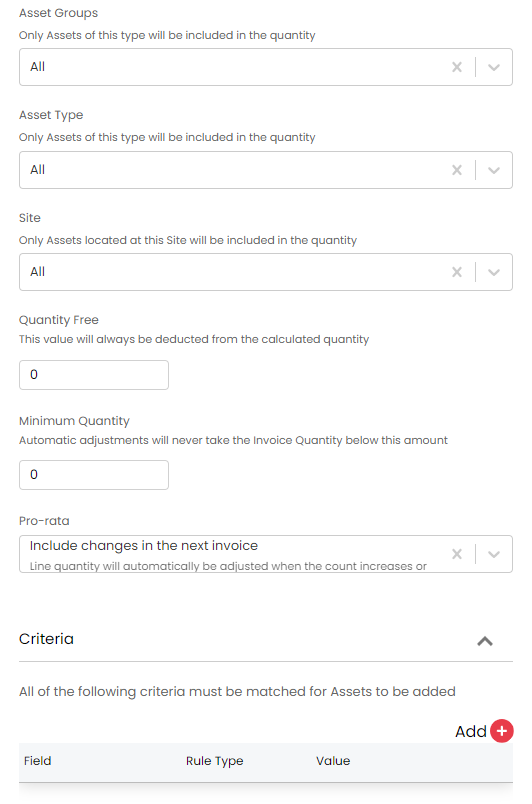
Fig 10. Additional criteria table when setting quantity calculations based on asset counts
Note: Integrate your RMM with Halo to have your asset counts based on devices within your monitoring tool.
Please note that the additional criteria tables allow you to add multiple rows in order to have quantities based on composite criteria.

Fig 11. Composite criteria for Auto Quantity Calculation
Figure 11 reads "have the quantity of this recurring invoice line determined by the number of Laptops that are located at the 'New York' site for Mario & Luigi's Pizza Place" and the number of workstations across all sites for the client "Mario & Luigi's Pizza Place".