Cove Usage Billing Sync
- integration
- usage billing
- Cove
In this guide we will cover:
- Downloading the Cove Usage Runbook
- Configuring the Runbook
An Integration is now available for enabling device-level usage invoiced in Cove to be synced directly into Halo. This data can then be used to update the quantity of Recurring Invoice lines automatically.
Downloading The Cove Usage Runbook
To be able to use the integration, it must be downloaded from Halo's Runbook Online Repository. To do this, navigate to Configuration > Integrations > Custom Integrations > Integration Runbooks. Once on this page, select the globe icon in the top right corner of the page to enter the Online Repository.
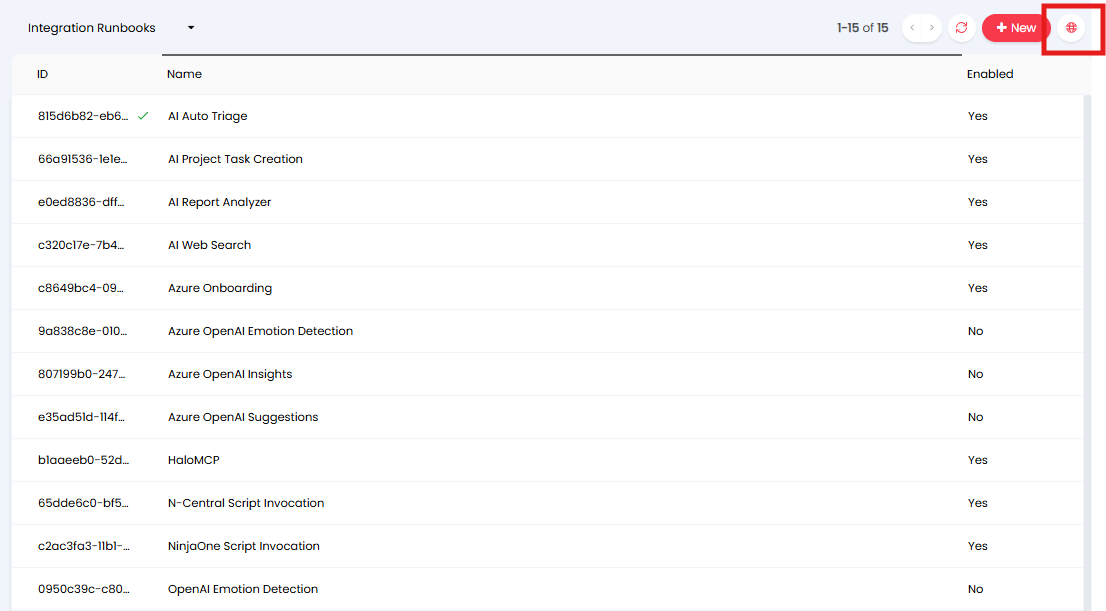
Fig 1. Entering the Runbook Online Repository in Halo
Once in the Online Repository, locate and select the "Cove Usage Billing Sync" Runbook (Figure 2a), and select the "Install to Halo" button (Figure 2b).
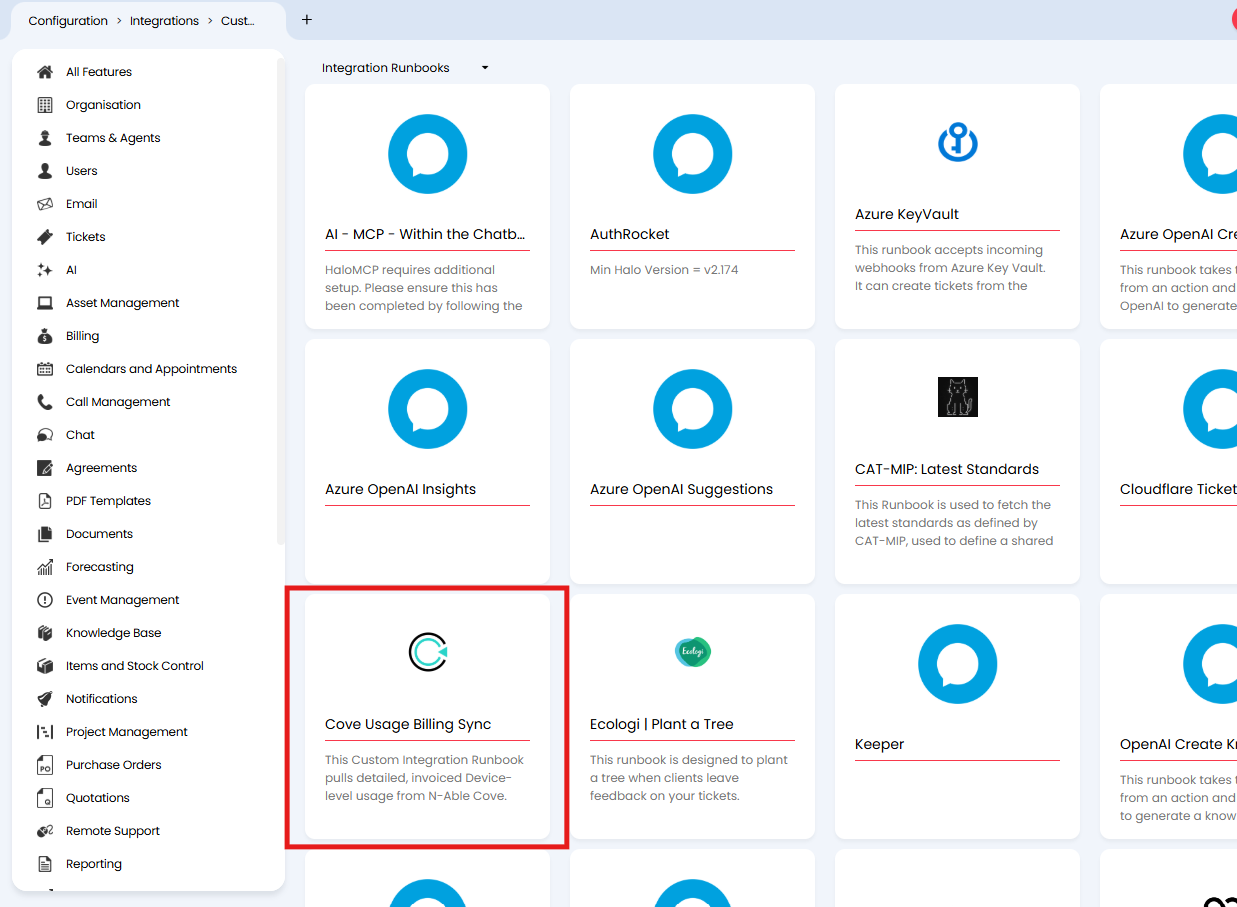
Fig 2a. The Cove Usage Billing Sync Runbook available in the Online Repository
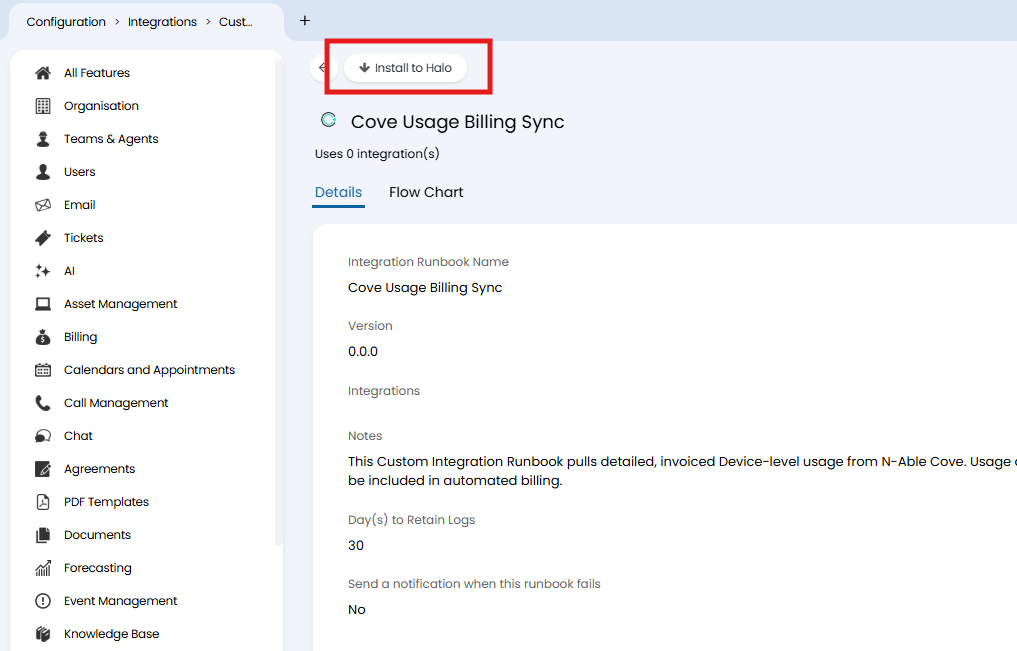
Fig 2b. Installing the Cove Usage Billing Sync Runbook
Once the Runbook has been installed locally onto your Halo, it can be found in Configuration > Integrations > Custom Integrations > Integration Runbooks.
Configuring The Runbook
Now that the Runbook has been downloaded, navigate to the Runbook and locate the "Runbook Level Variables" section in the Details tab.
There are two ID variables located here that you need to supply with your relevant IDs - the "sfdcid" variable (Salesforce Accounts ID) and the "ContractID" variable. To supply your IDs for each of the variables edit the Runbook, select the pencil icon on each variable to edit them (Figure 3a), and enter the relevant ID in the empty value field (Figure 3b).
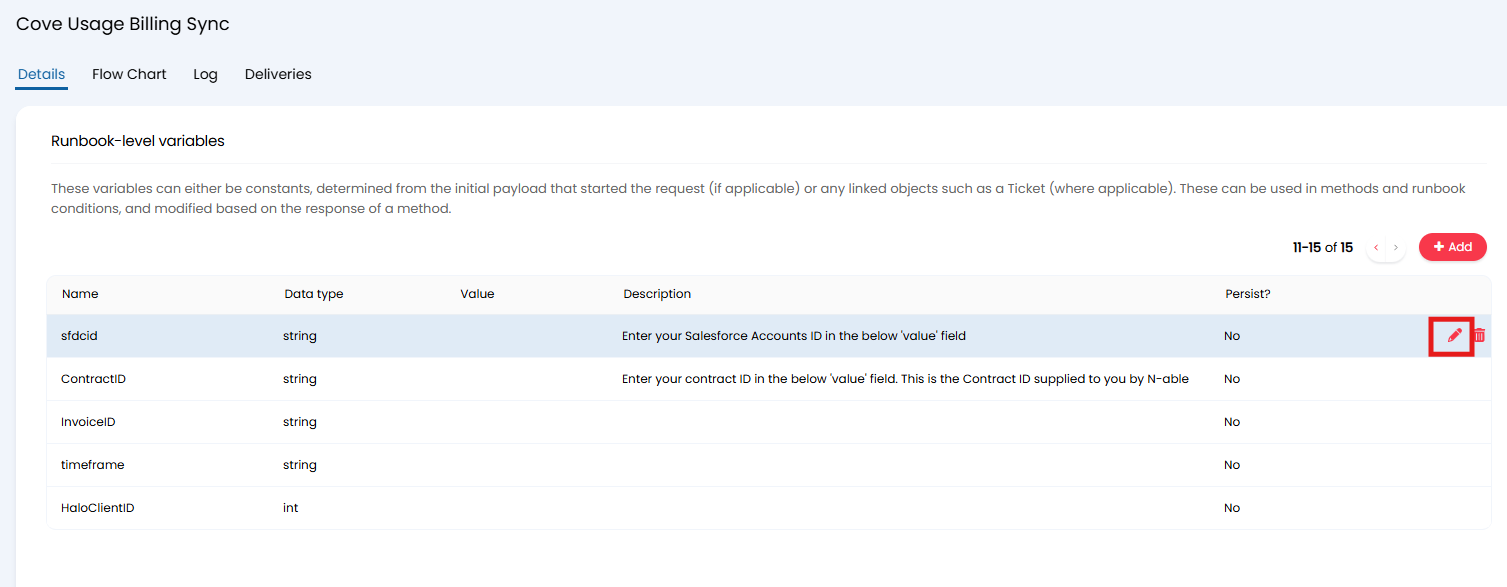
Fig 3a. Editing the Runbook variables
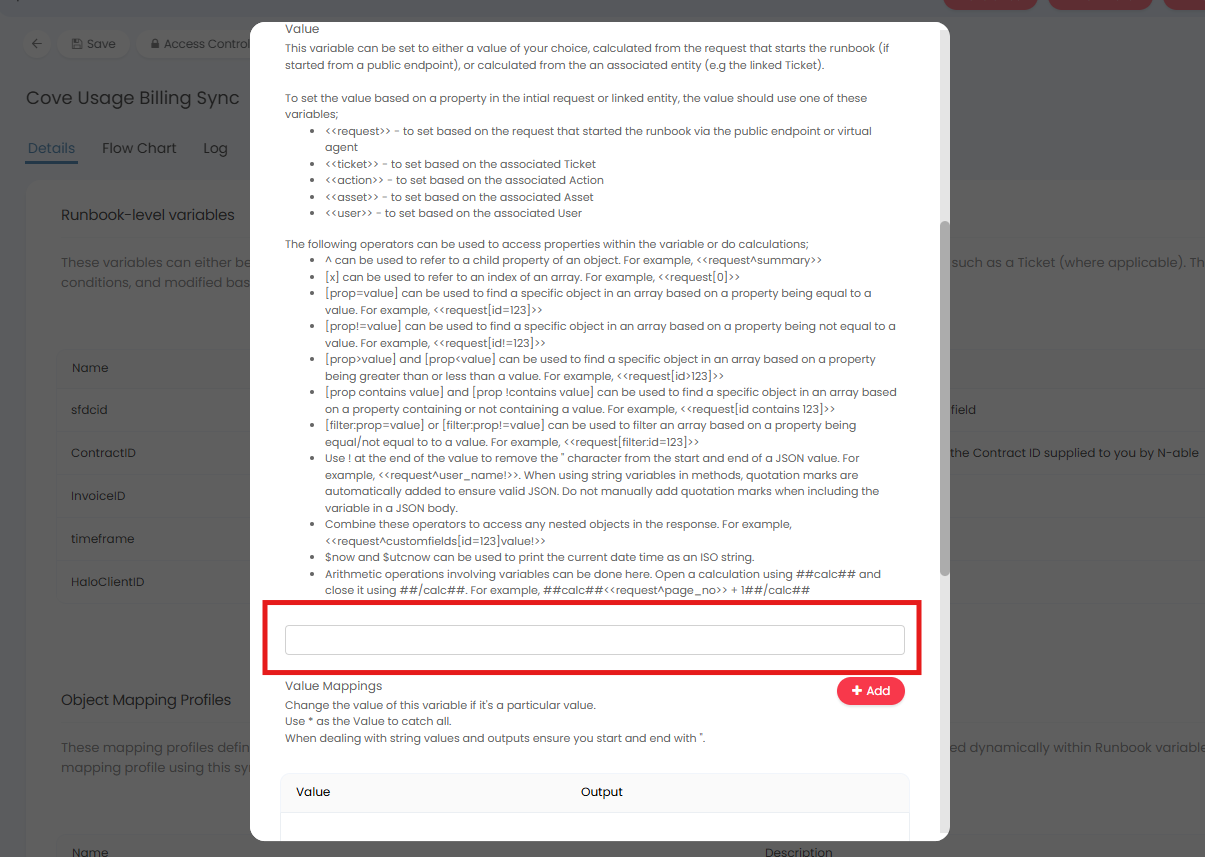
Fig 3b. The value field for the Runbook variables
Once the IDs are supplied for the two variables, save the Runbook and navigate to Configuration > Custom Objects > Custom Fields on a separate tab.
Create a new Customer-level Custom Field - this will be used for storing the Cove Customer ID. Set the type to "Text" and the Input Type to "integer", take note of the Custom Field's Field Name and save.
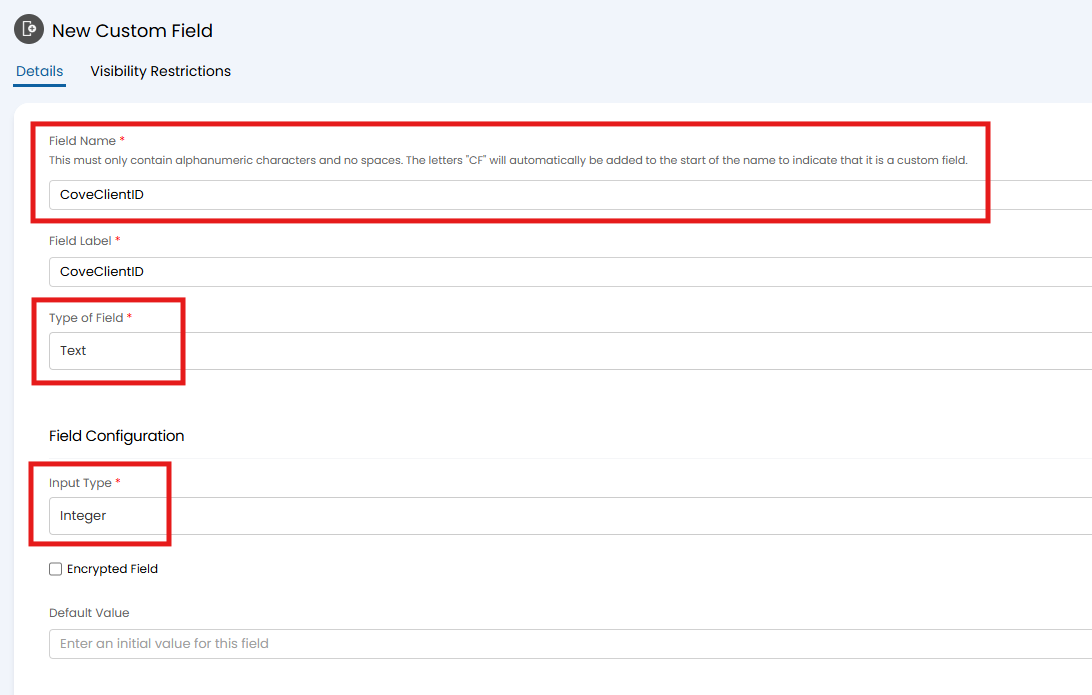
Fig 4. Creating the new Custom Field for the Cove Customer ID
Once created, this Custom Field will show against every Customer in the Custom Fields tab by default. You will need to ensure that this field is populated for all relevant Customers.
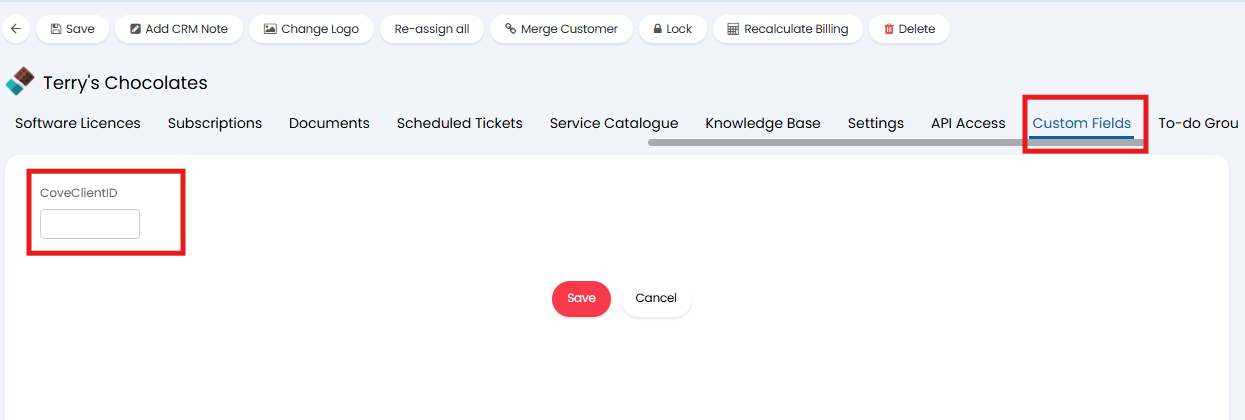
Fig 5. The new Customer level Custom Field will be visible by default against every Customer once created
Once this is done, navigate back to the Runbook and into the Flow Chart tab.
For each of the methods that point to N-Able Cove, you will need to add the authorisation.
Edit the Runbook, then edit the "Fetch Invoices" step (Figure 6), and select the "Edit Method" button.
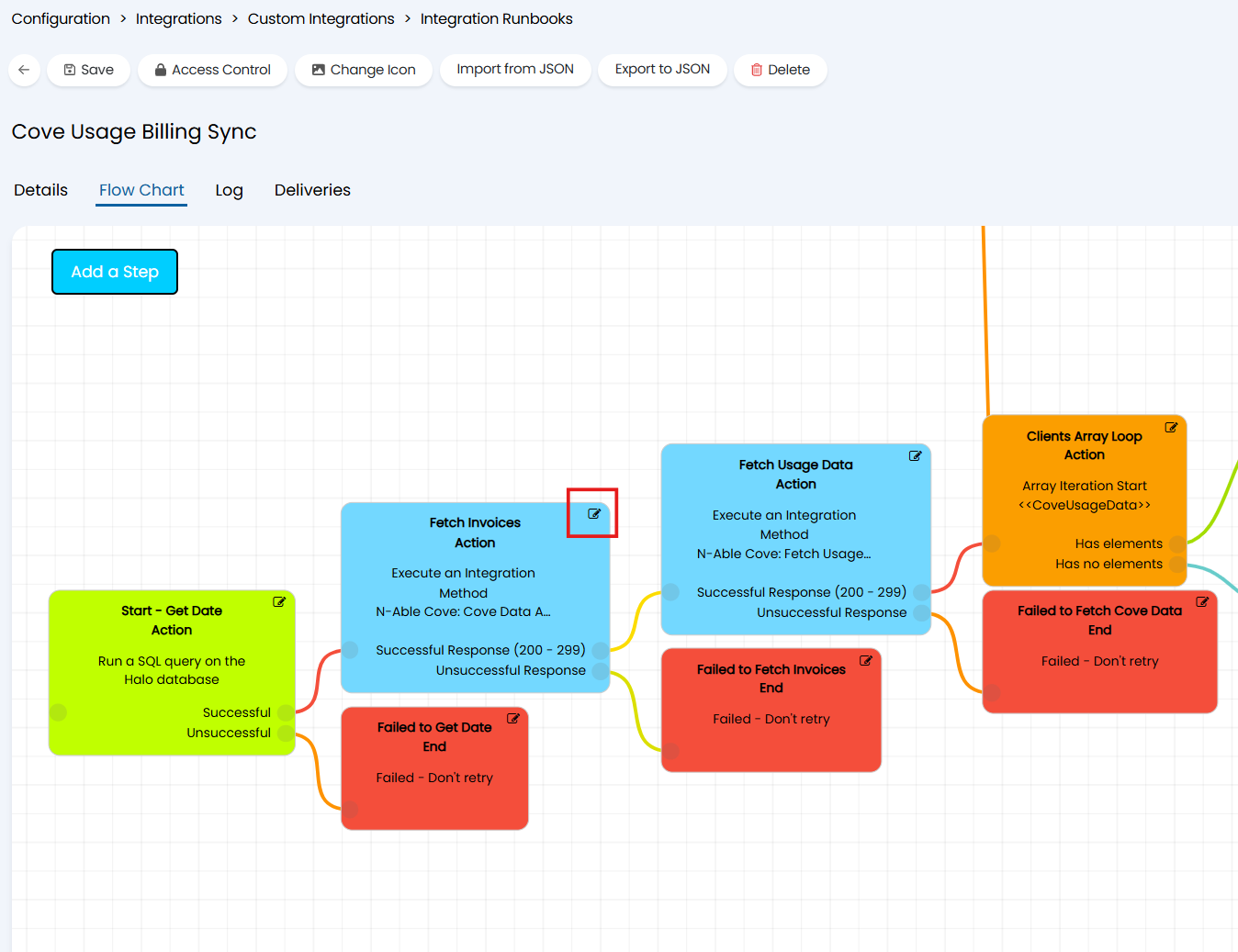
Fig 6. Editing the Fetch Invoices step
Once in the method, click into the "Headers" tab of the method and add two headers.
- Accept = application/json
- X-API-Key = {API Key from N-Able}
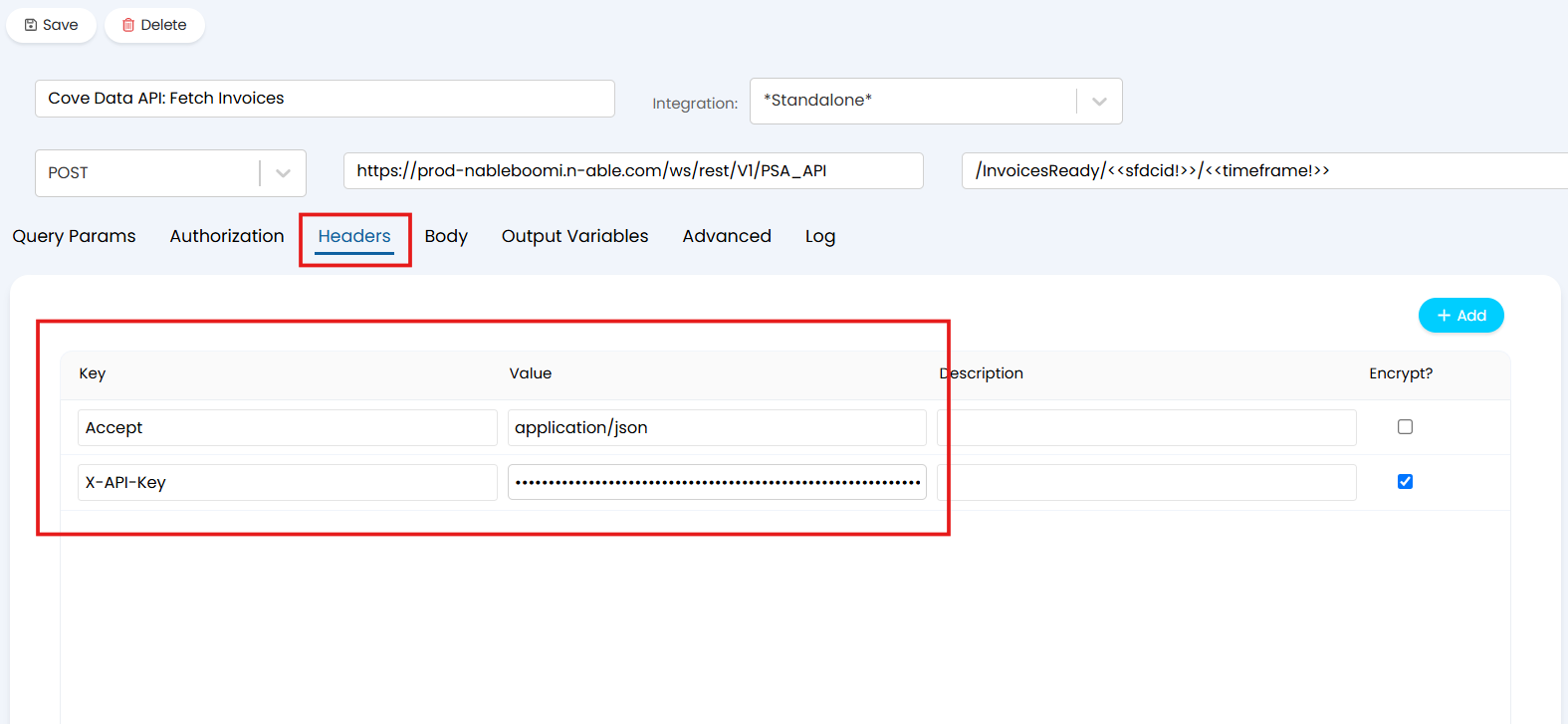
Fig 7. Adding the headers for the Fetch Invoices method
Save the method, save the step, then save the runbook.
Repeat this again for the "Fetch Usage Data" method.
Once your authorisation for Cove has been added, edit the Runbook, edit the "Search Halo Clients" step (Figure 8a), and enter the Field Name of the Custom Field you created earlier in the where clause of the SQL query (Figure 8b).
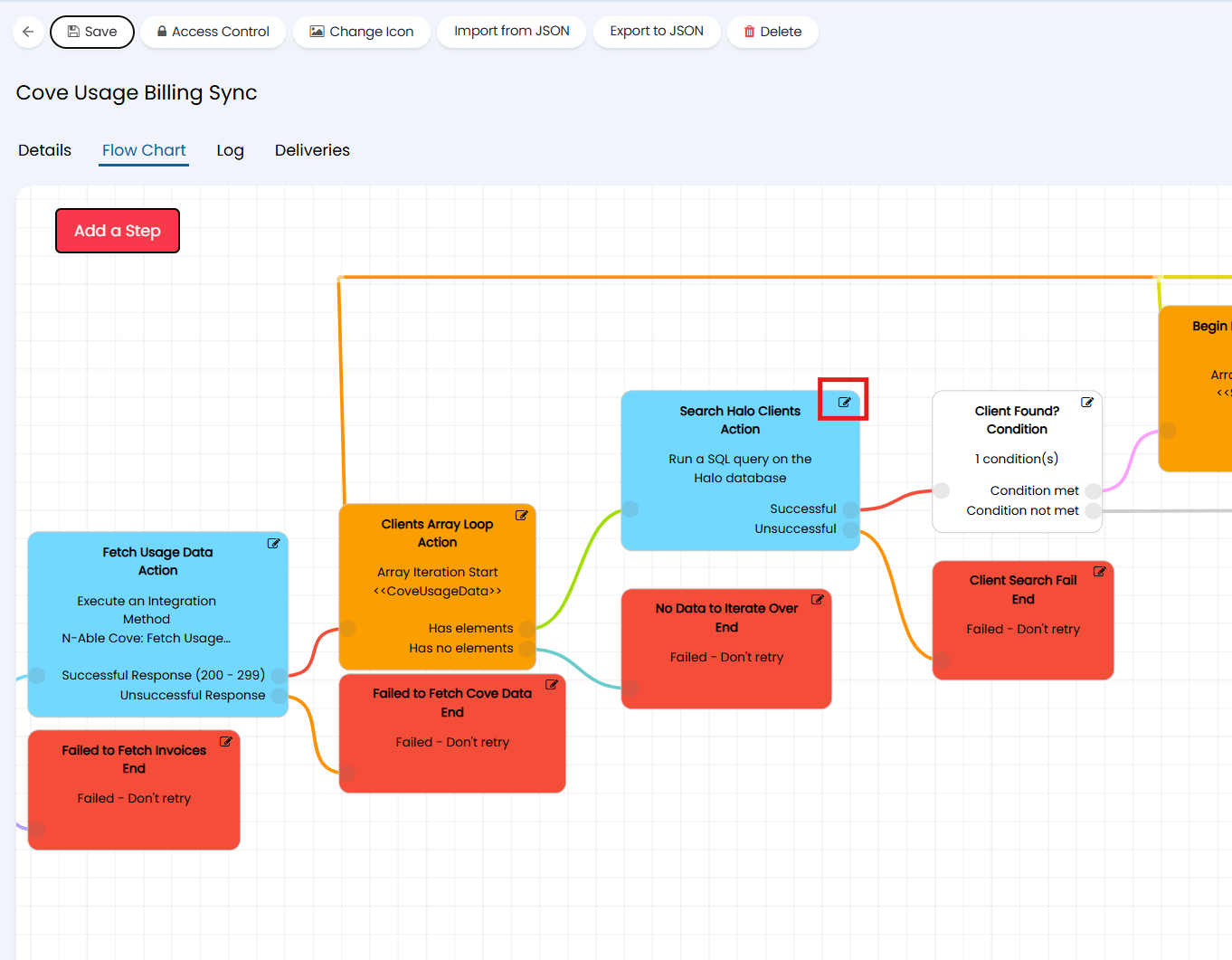
Fig 8a. Editing the Runbook step
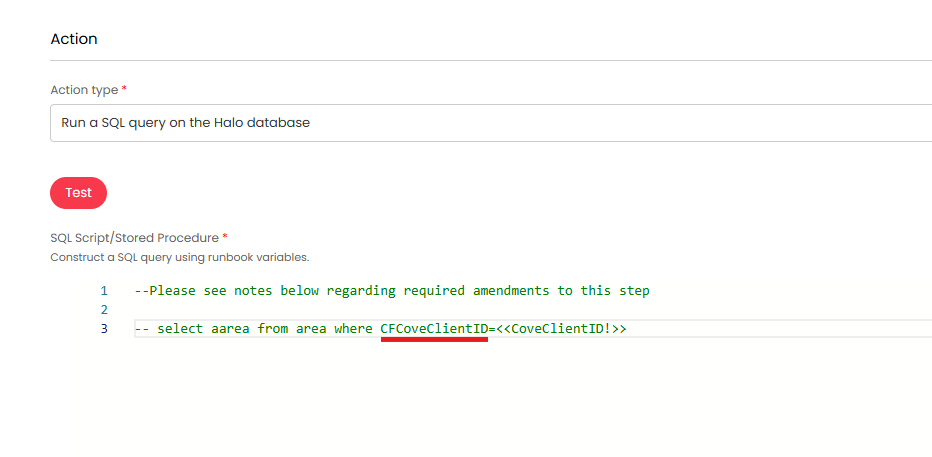
Fig 8b. Entering the new Custom Field Field Name into the SQL query
Note: Remember that the Custom Field's Field Name will have the letters "CF" prepended to it once saved in the system - ensure that these two letters are included when entering the Field Name into the SQL query, as illustrated in Figure 8b.
Once this is completed, save the step and then save the Runbook. You now need to create a Custom Integration for your Runbook with the correct permissions, this integration will be used for a Method in the Runbook that you will create later on.
Start by creating the API Application that the new Custom Integration will use.
In a new tab, navigate to Configuration > Integrations > HaloPSA API > View Applications and select the "+ New" button in the top right corner to create a new API Application.
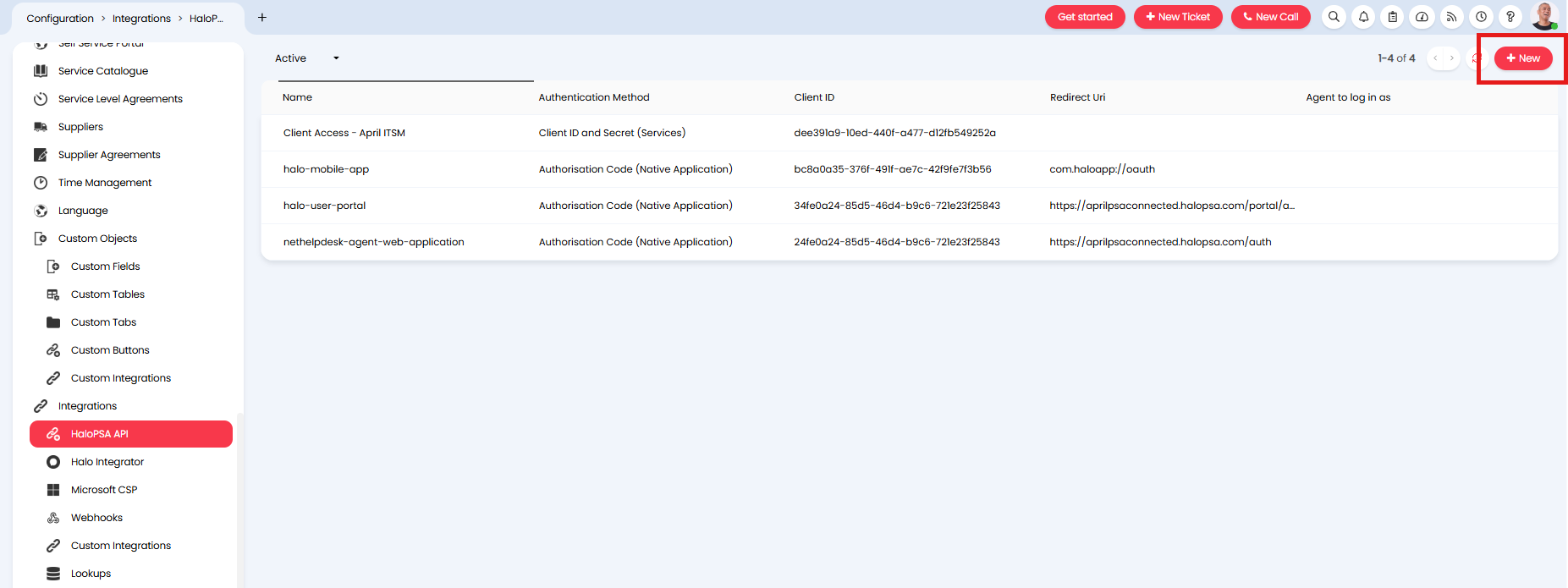
Fig 9. Creating a new API Application in Halo
Give the Application an appropriate name and set the Authentication Method to "Client ID and Secret". Select an appropriate administrator Agent profile for the "Agent to log in as" (Figure 10a). Then, in the Permissions tab of the Application, select the "all:standard" permission (Figure 10b).
Note: It is best practice to not use an actual Agent for the "Agent to log in as" and instead use an Application Identity and apply the relevant permissions via its role. For more information on this, please refer to the Creating API Applications guide.
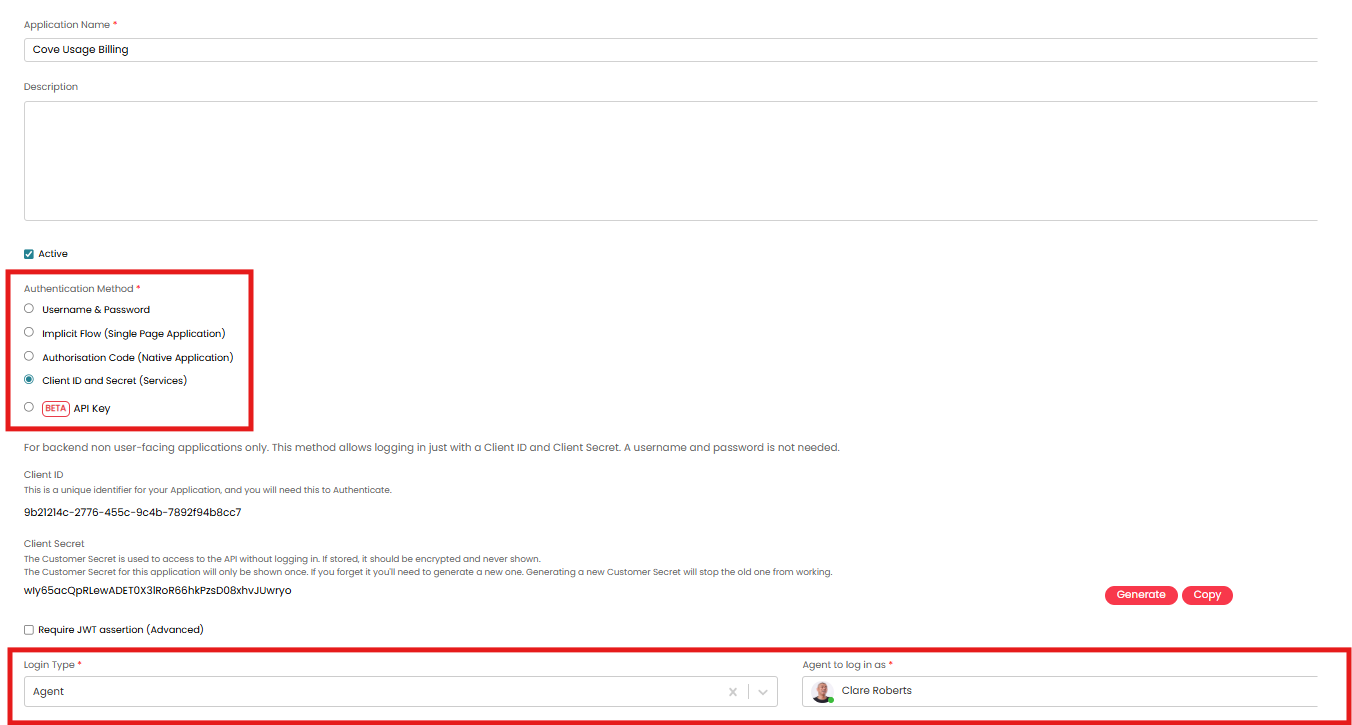
Fig 10a. Setting the Authentication Method and Agent for the API Application
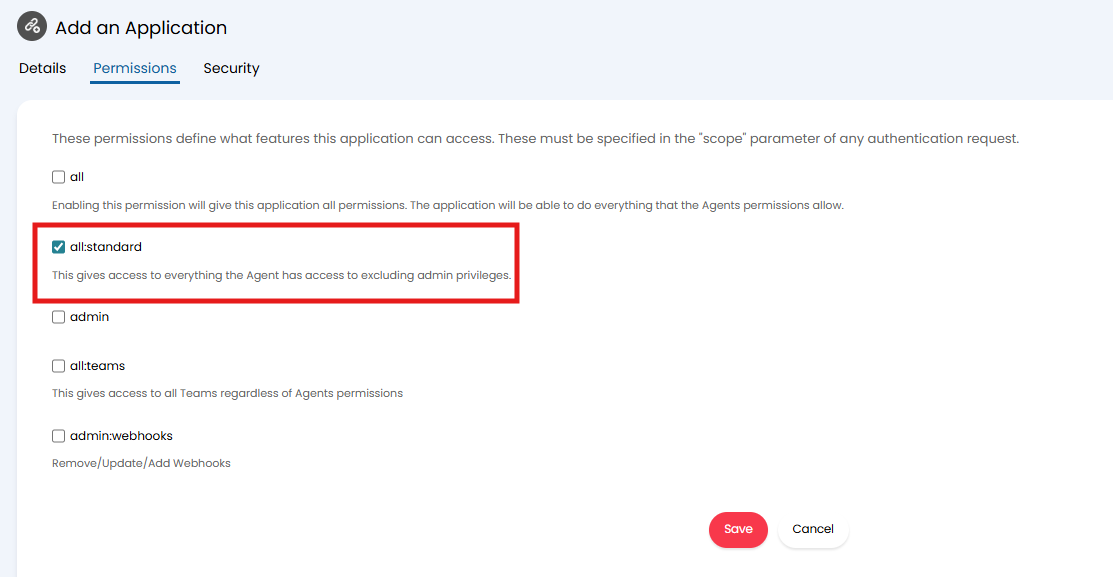
Fig 10b. The permission required for the API Application
Copy your secret before saving the application and also take note of the Client ID.
You can now create the Custom Integration. To do this, navigate to Configuration > Integrations > Custom Integrations > Custom Integrations. Create a new Custom Integration by selecting the "+ New" button in the top right corner.
Name the Integration "HaloPSA" and provide it with the following specifications:
- Base resource URL: https://YOURHALODOMAIN.com/api
- Authorization: OAuth 2.0
- Grant Type: Client Credentials
- Access Token URL: {Your HaloPSA URL}/auth/token
- Client ID and Secret: The values that you copied from the new API Application
- Scope: all
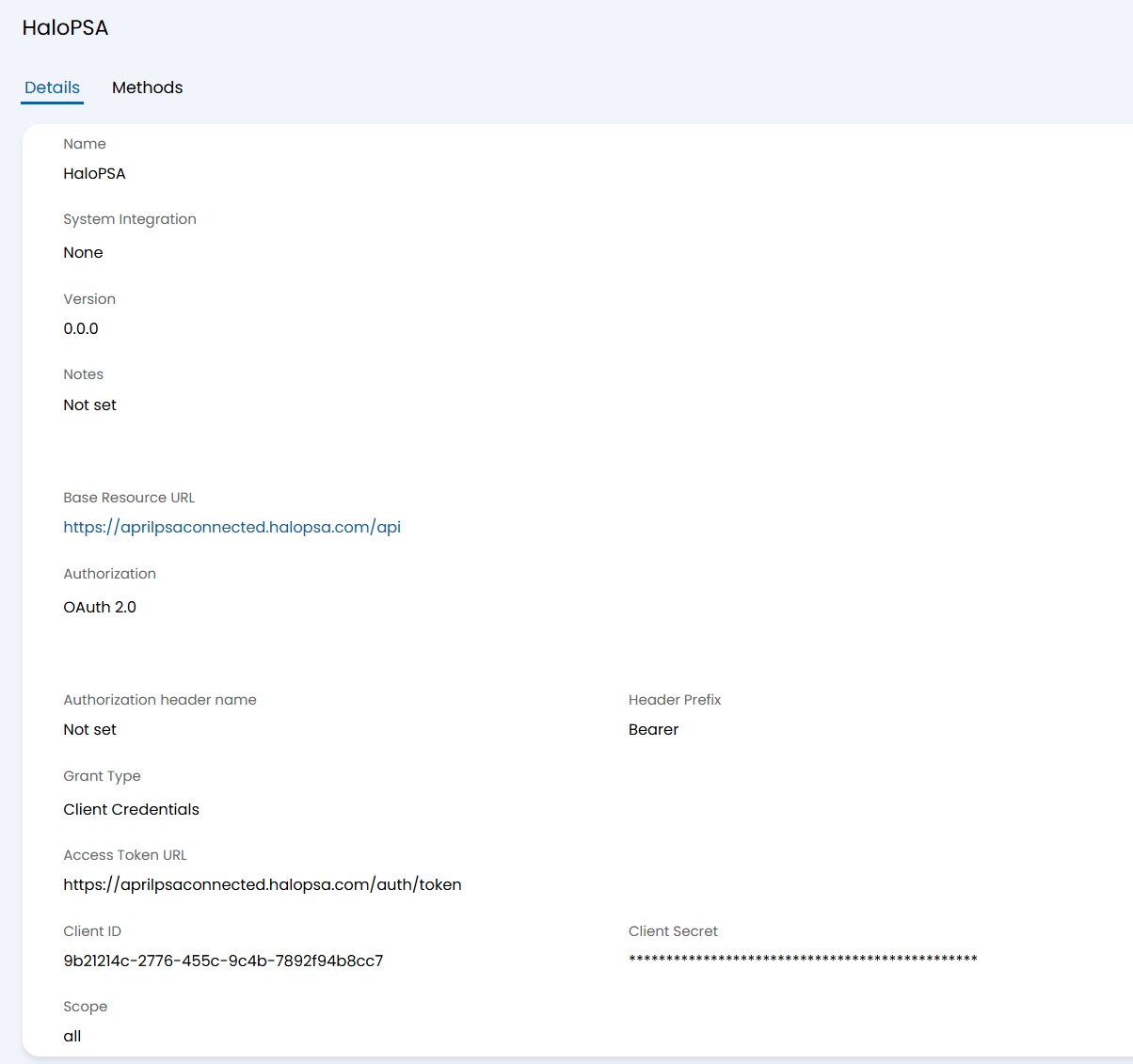
Fig 11. Custom Integration setup
Save the Custom Integration and return to the Runbook.
Edit the Runbook, navigate to the Flow Chart tab and edit the "POST Subscription" step. Change the Action Type of this step to "Execute an Integration Method" and create a new method by selecting the "New Method" button.
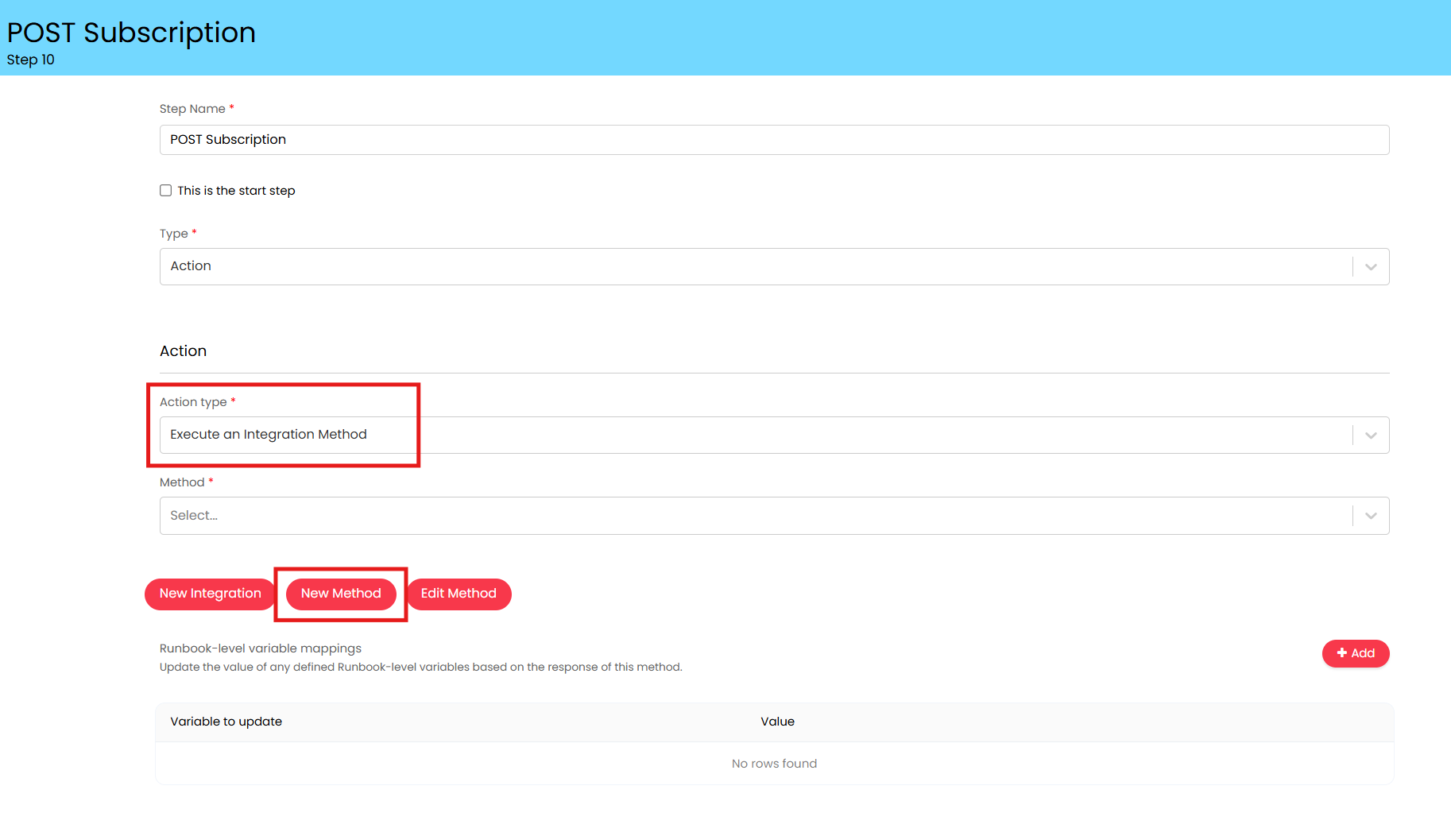 Fig 12. Editing the "POST Subscription" step of the Runbook
Give the method an appropriate name, change the Integration to "HaloPSA", change it to a POST step, and set the endpoint to "/softwarelicence".
In the Body tab, set the body type to JSON and enter the following JSON:
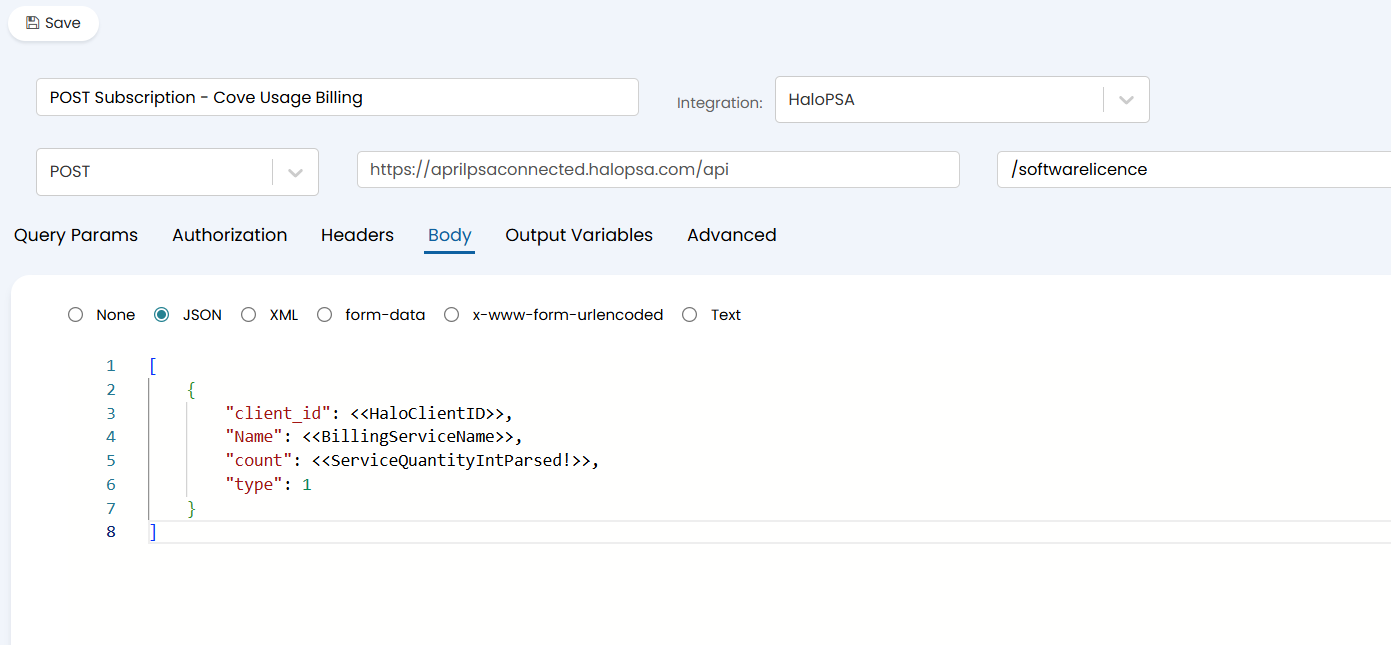
Fig 13. The new method setup for the "POST Subscription" step
Save the method, ensure the method is set for the Runbook step, then save the step and the Runbook and navigate back the Details tab.
Now that your Runbook has been configured, you need to set the schedule on which you want the Runbook to operate. To do this, scroll to the Schedule section of the Details tab and select "Set Schedule".
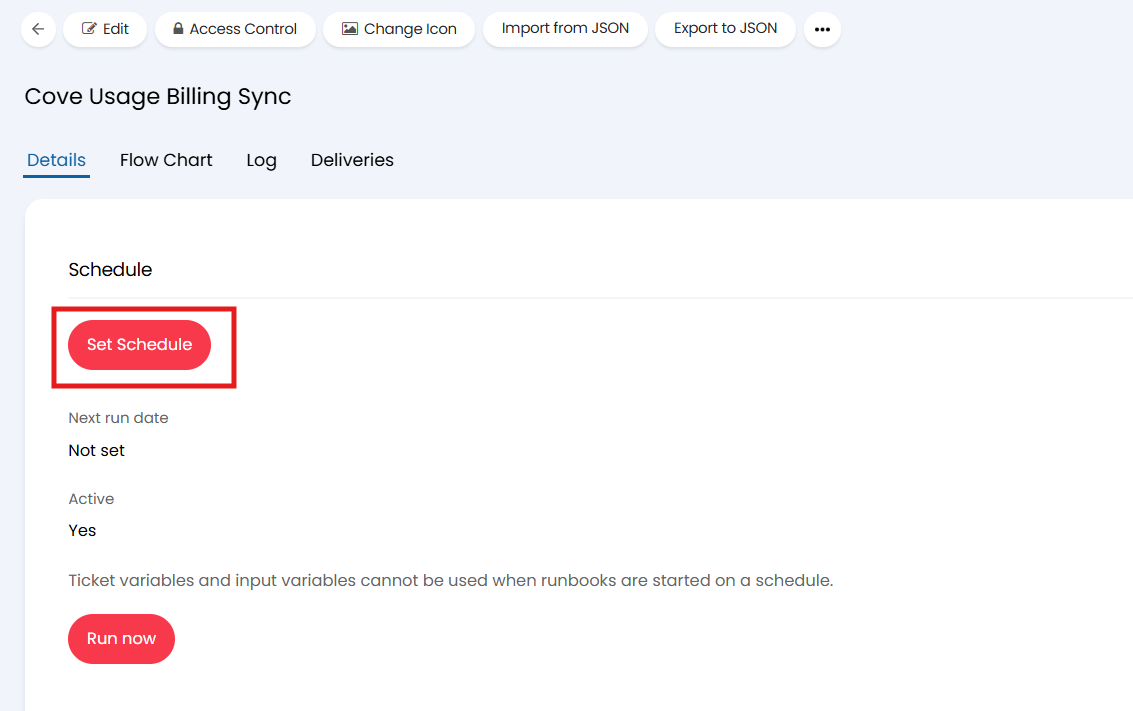
Fig 14. Setting the schedule for the Runbook - you can set whatever schedule you like here
Once the schedule is set, the configuration of your integration is complete.
Now, on your chosen schedule, the Runbook will fetch the usage data from the Cove API and, for each Subscription, iterate through to identify the Customer associated with the Subscription using the Customer ID Custom Field for matching. When it matches to a Customer it will create the Subscription under the "Subscriptions" tab of that Customer.
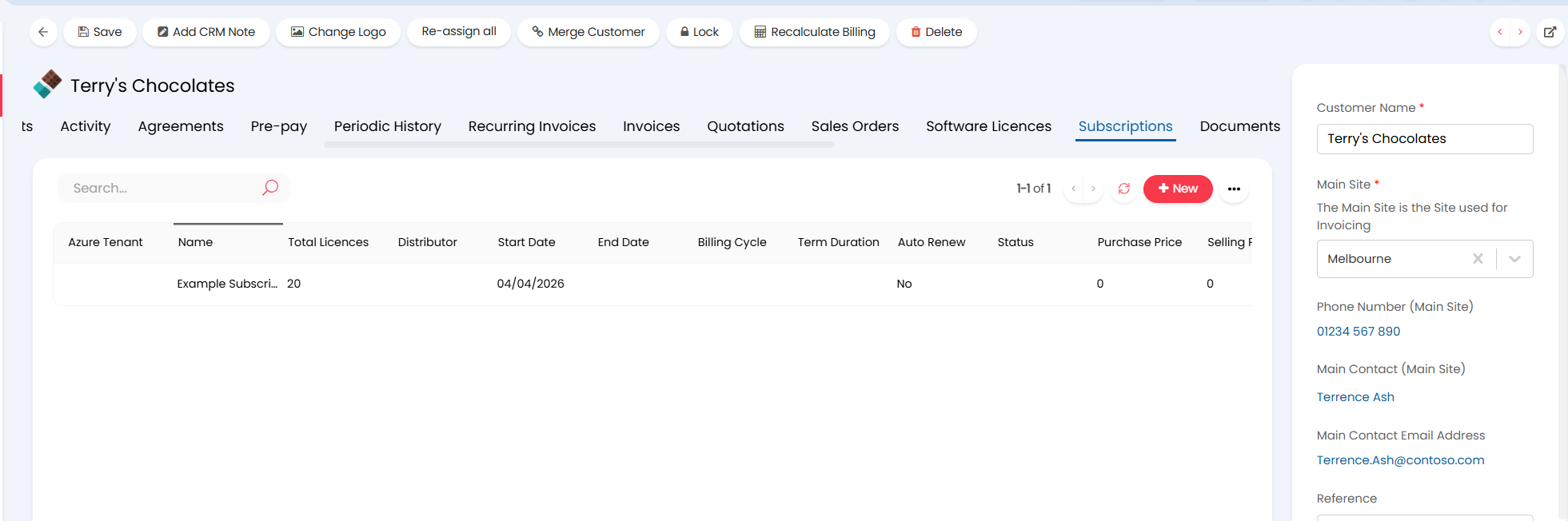
Fig 15. A Subscription added against a Customer by the Cove Usage Billing Sync Runbook
These Subscriptions can then be tied to a Recurring Invoice Quantity count for that Customer - for information on this functionality please refer to the this guide: Automating Quantities in Recurring Invoices.