Custom Fields
In this guide we will cover:
- What are custom fields?
- Creating a new Custom Field
- Displaying Custom Fields
- Setting Validation for Date fields
- Access Control
- Using Variables in Custom Fields
Admin Guides:
What are custom fields?
Custom fields can be used to collect and store additional information in any area of your Halo. In the client view specifically however they can add a great depth of extra information, whether it's the support supplied by their contract with you, the loyalty of that customer or something more specific to you.
Creating a new Custom Field
Head to the Configuration console and then navigate to "Custom Objects" under the Advanced heading. This takes you to the lists of custom fields in Halo. Select the client entity to display all of your current custom client fields.
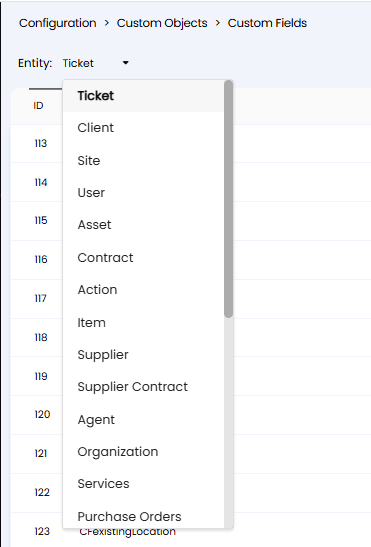
Fig 1. Change entity for custom field
Once selected you can see all existing Custom Fields of that Entity and add new Custom Fields.
Clicking "New" in the top right-hand corner will take you to the creation screen. Here you can configure different properties of the Custom Field and also choose the Type and Name.
Note: The Type and Name cannot be edited after the field is created so ensure these are correct.
Give the field a name and label. The "Name" is the name of the field in the database, this will contain no spaces but is a descriptor of the field itself and should reflect the field label. The "Label" is what will appear within Halo and is what your agents will see to fill in.
Note: The Name you choose is used as the SQL database name (with CF added to the start of the Name) and it is also referenced in the API when updating the Custom Field data i.e. a custom field named money, will appear on the API with name cfmoney.
Next is the field type, each type is described in the table below:
| Type of Field | Description |
| Text | Single line of plain text. |
| Memo | Multiple lines of plain text; longer descriptions or notes. |
| Single Selection | A single option to be picked from a drop down list. |
| Multiple Selection | Multiple options to be picked from a drop down list. |
| Date | This field type will prompt a date selection box when clicked. |
| Time | A specific time on a 24 hr clock, for clients this could be the office opening time in your time zone. |
| Checkbox | A binary selection of "Yes" or "No" in the form of a checkbox. |
| Table | This is used to refer to custom tables within your database such as external information. |
| Rich | A rich text box allowing a large number of formatting and editing styles. Including images, links, html code editor, emoji's. |
| Attachment | A drop zone area for adding attachments when creating a new ticket on the end-user portal. Allows for multiple attachments. |
Fig 2. Table to show each data type for a custom field
Note: To use the Attachment data type for a custom field, you must enable the "Client Side Uploads" setting (Configuration > Advanced Settings) and set the "Attachment Storage Location" to Amazon S3.
Fields using this data type are read-only in all areas except the new ticket screen on the Self-Service Portal. Uploaded files will also appear in the ticket’s Attachments tab, where agents can view and manage them.
The ways in which you can configure a field depend on which data type you have selected. The following field configuration methods are therefore split by data type.
Text Field Input Types
Anything - Any plain text input.
Integer - Whole number inputs e.g. 13.
Money - A number with two decimal places such as 42.21.
AlphaNumeric - Plain text letters and numbers with no punctuation.
Decimal - A number with more than two decimal places i.e. 12345.98765.
URL - A web address.
Password - The input type can be restricted, this could be set to i.e. “Password” which will be a field that when given inputs, the inputs will show as hidden characters. You can audit for the password custom fields which means you can see who has viewed the password by using the "eye" icon.
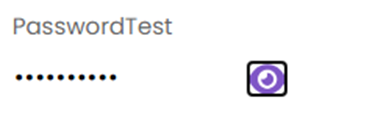 Fig 3. Eye Icon
The password can be unveiled by hitting the eye icon. By default the password field will not show the length of the password, unless clicking on the eye icon. The password can also be copied by clicking the copy icon. Password visibility(visibility of the eye icon) can be set on permissions tab of agents, options are “Not Visible” or “Visible”. More information on storing passwords can be found here: Storing Passwords For Customers
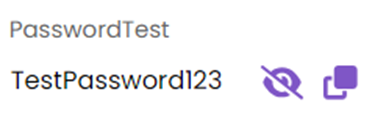 Fig 4. Hiding a Password or Copying it to Clipboard
Calculated - The last type of input is the calculated field. Calculated fields perform mathematical operations on other fields in halo that are numeric.
For example, if the dollar variable $CFIntegerField is entered into the calculated field as shown in Figure 5, this will run a calculation to divide the integer in CFIntegerField by two. When CFIntegerField is set to 5, the calculated field will be 2.5 on the ticket.
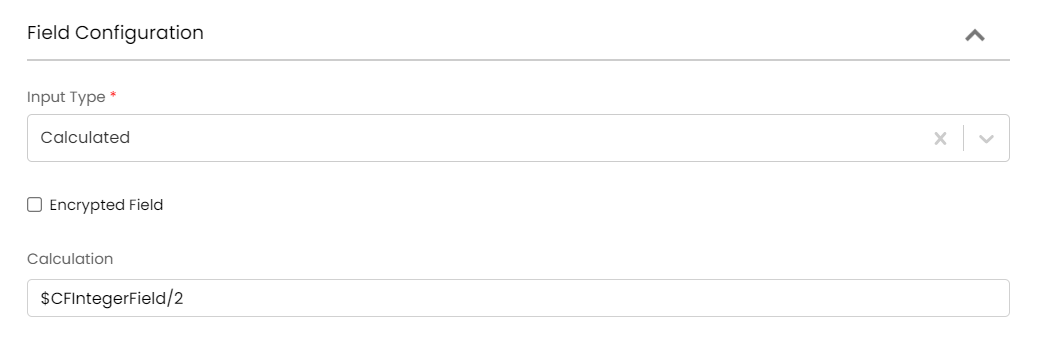 Fig 5. Field Configuration of a Calculated Field
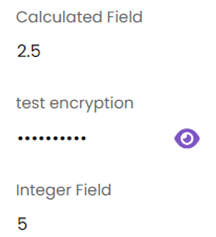 Fig 6. Example Calculated Field
Calculations will run after the ticket is logged. If changes are made to fields that a calculation is based on after the ticket is logged, the calculated field will update when the ticket refreshes. The ticket will refresh automatically each time fields are updated.
There are various uses for this, such as, you are topping up accounts via a ticket on Halo. On the ticket creation screen there would be the different accounts along with the amount to top up by. 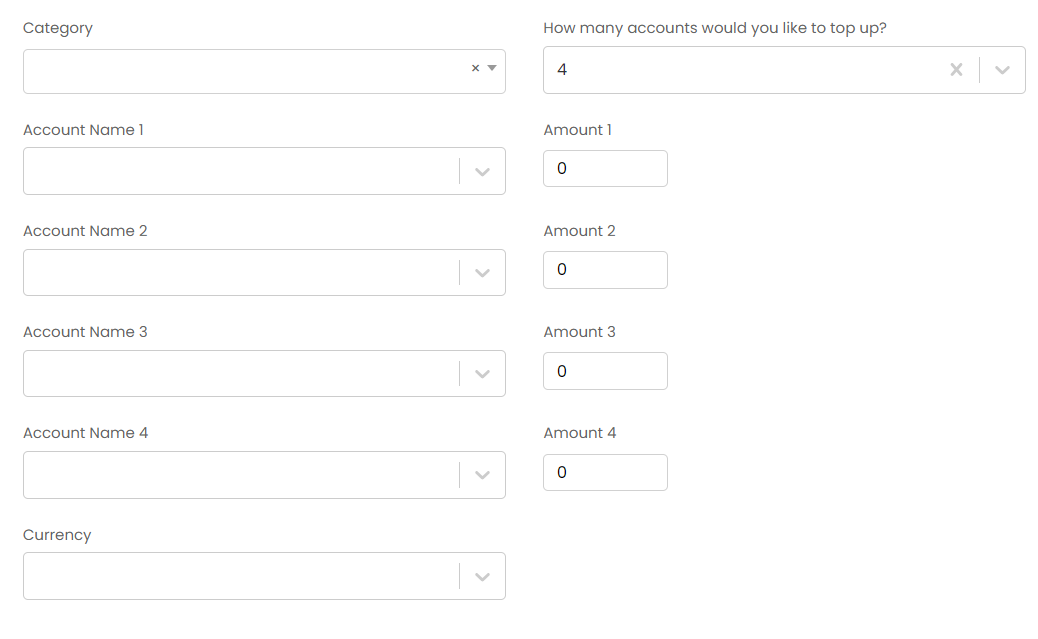 Fig 7. Use Case of a Calculated Field
Then to summarise the total amount to top up by across all of the accounts we can use a calculated field.
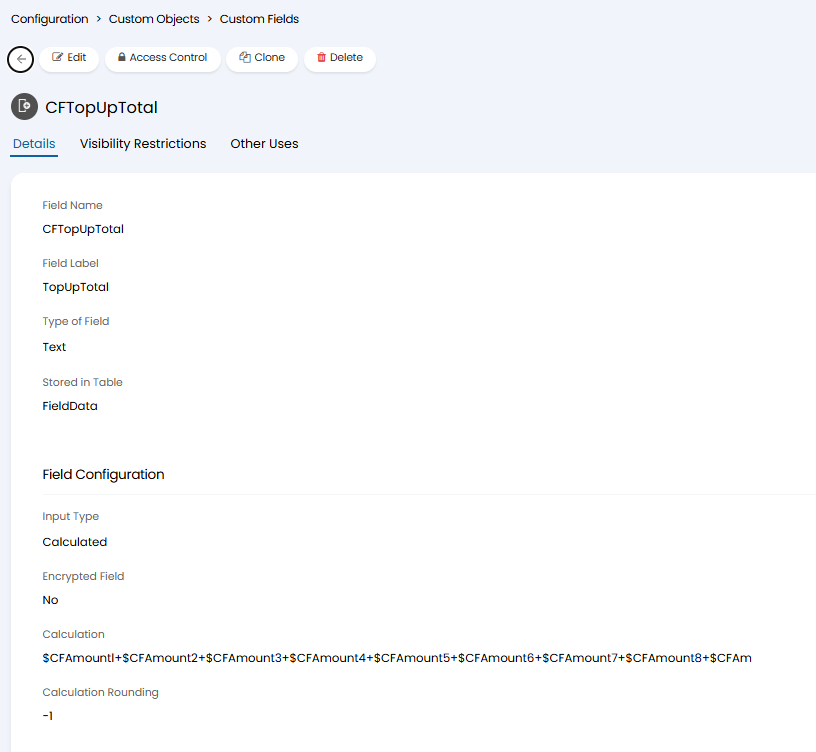 Fig 8. The Calculation on The Custom Field
Calculated custom fields can be created for the entities Clients, Sites, Users and custom tables, allowing you to have a field that stores a calculated value based on other information on the client/site/user/table.
When using the new value storage location "Store a row for each field value" you can use up to 1000 characters in a text custom field
Note: This new storage method needs to first be enabled in Configuration > Advanced Settings using the "Enable new custom field value storage method" checkbox.
Encryption
Text fields can also be encrypted via the checkbox 'Encrypted Field' , this is useful for fields that contain sensitive information. If this is enabled against a text field you will be able to choose the display type for the field as follows:
- Hide value - All the text will be hidden
- Show start of value - Only the starting characters will be visible, the number of characters that will be displayed can be set below.
- Show end of value- Only the ending characters will be visible, the number of characters that will be displayed can be set below.
Memo Field Input Types
The only option here is the default value.
Single Selection Input Types
A static list is a fixed set of options set in a comma separated string, e.g. Yes,No,Maybe. Radio selection can be used instead of a drop down list.
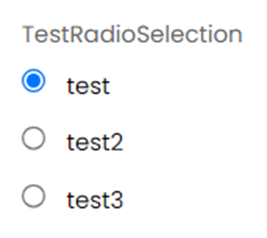 Fig 9. Radio Selection, this can be set to a horizontal layout (checkbox) which has the values go across the page instead of down the page.
A dynamic list (SQL) is a list which populates based on a SQL query input below. This can be used to pull information from the database to enable your agents to make a choice based on existing data. There is a separate Guide on dynamic SQL lookup fields here.
Multiple selection Field Input Types
Choose values for the selections here, these are static and cannot be pulled from another query.
Date, Time and Checkbox Field Input Types
These have no configuration settings. They are exactly what the names suggest.
Table
Similar to the Dynamic List, this will extract data from the database but this time from any custom tables you have attached. These will start CT.
You can display any combinations of the information stored in any custom table.
Settings
These are more general for the fields itself with summary being a description of the information contained in the field and the hint being shown in grey when the field is being updated.
From v2.244+, for Custom Fields of type Client, Site, User, Asset and Ticket, the option to "Exclude from Audit/Change History" is available. When selected any changes to the value of this Custom Field will not be visible in the Audit log/Change History. This is useful for any Custom Fields which update regularly or via automations to prevent overcrowding the Change History.
Copy values to Child Tickets - This setting decides whether the value of this field is copied to child tickets if this is present in a ticket type.
Tab - This setting determines the tab the field will be visible on.

Fig 10. Custom Tab Added to a Customer
Custom Tabs can be created in Configuration > Custom Objects > Custom Tabs. In the image above there has been a custom tab created for the customer entity with name "Custom Fields". Custom Tabs can be added to many areas, a notable one would be the tabs of the ticket details screen.
Visibility Restrictions
Here, you can set if this field is restricted to a particular client or organisation.
You can set the "does not include" criteria here in order to make the field visible to all customers except a select few. To do this, set "All Customers" to "Show" as "Yes", then add the customer(s) you wish to exclude and add them as "Show" as "No".
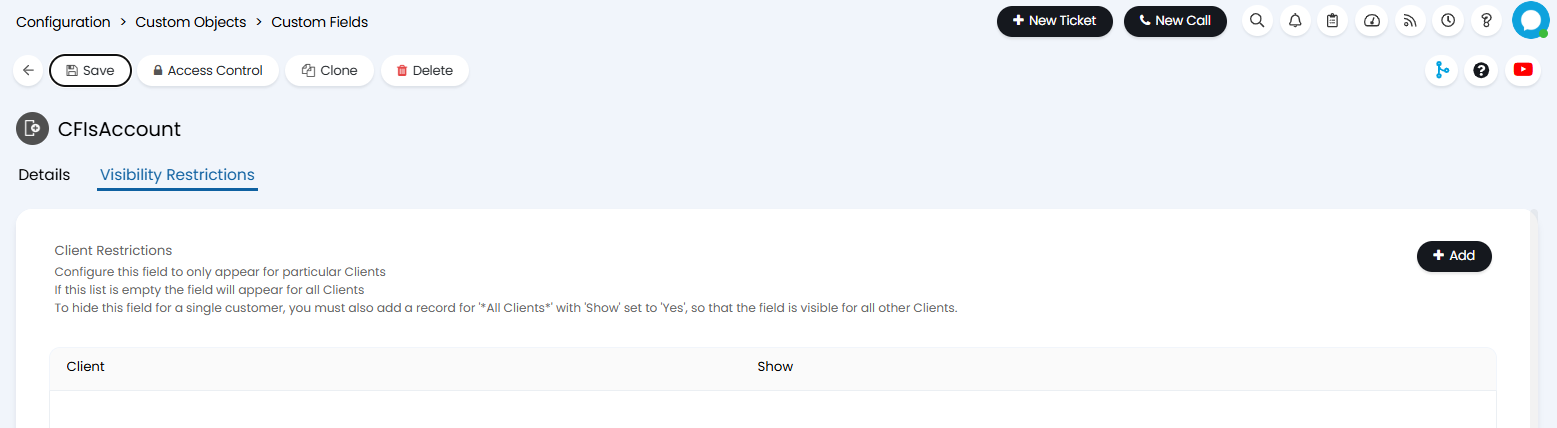 Fig 11. Adding Visibility Restrictions to Custom Fields
Cloning Custom Fields
You can clone custom fields, using a 'Clone' button in the custom field header.
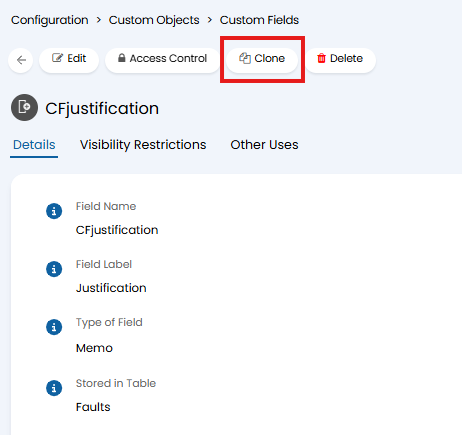
Fig 12. Button to clone a custom field
Cloning a field will copy all it's properties (including the entity the field is for), allowing you to give a new field name and label to the field.
In order to have the ability to clone custom fields an agent must:
- Have read and modify access to the field
- OR
- Have the permission 'Is a Halo Administrator'
Custom Field Hints
To add a hint to your Custom Field, head to the Settings section of the Details tab. Under this section you will find an option to provide a hint, and set how it will be displayed. The hint display type can be set to:
- Placeholder - Your hint will show greyed out, within the field itself as a placeholder. If the Custom Field type you are using is a checkbox this hint will show underneath instead.
- Underneath Label - This will show your hint under the field label.
- Hover Icon - When selected a question mark (?) will show next to the field label. When this icon is hovered over it will display the hint.
Displaying Custom Fields
For all entities other than Tickets/Projects/Opportunities/Actions you do not need to add the custom field anywhere to show on the entity, it will show automatically. The Custom Field will show up straight away on the Tab that was chosen during creation, if this was not changed then that will be the default tab called "Additional Fields".
For Tickets/Projects/Opportunities you need to go to Configuration > Tickets > Ticket Types > edit a Ticket Type and go to Field List. Here you can add the custom field to the specific ticket type, which will then make it visible on that ticket type, restriction settings can also be configured by editing the field item after adding it, as explained further down this guide.
Adding a Custom Field to a Ticket/Action
Once you have completed the creation of your custom field, if it is a ticket or action level field, don't forget to add this to it's respective field list in the relevant configuration area. For example if you had a custom field you wanted to apply to a ticket types field list, you would add it to the field list of the ticket type, shown in Figure 13.
Editing a custom field using the pencil icon on this page will allow you to override the field hint and display label. This allows you to have different hints and labels based on the action or ticket type.
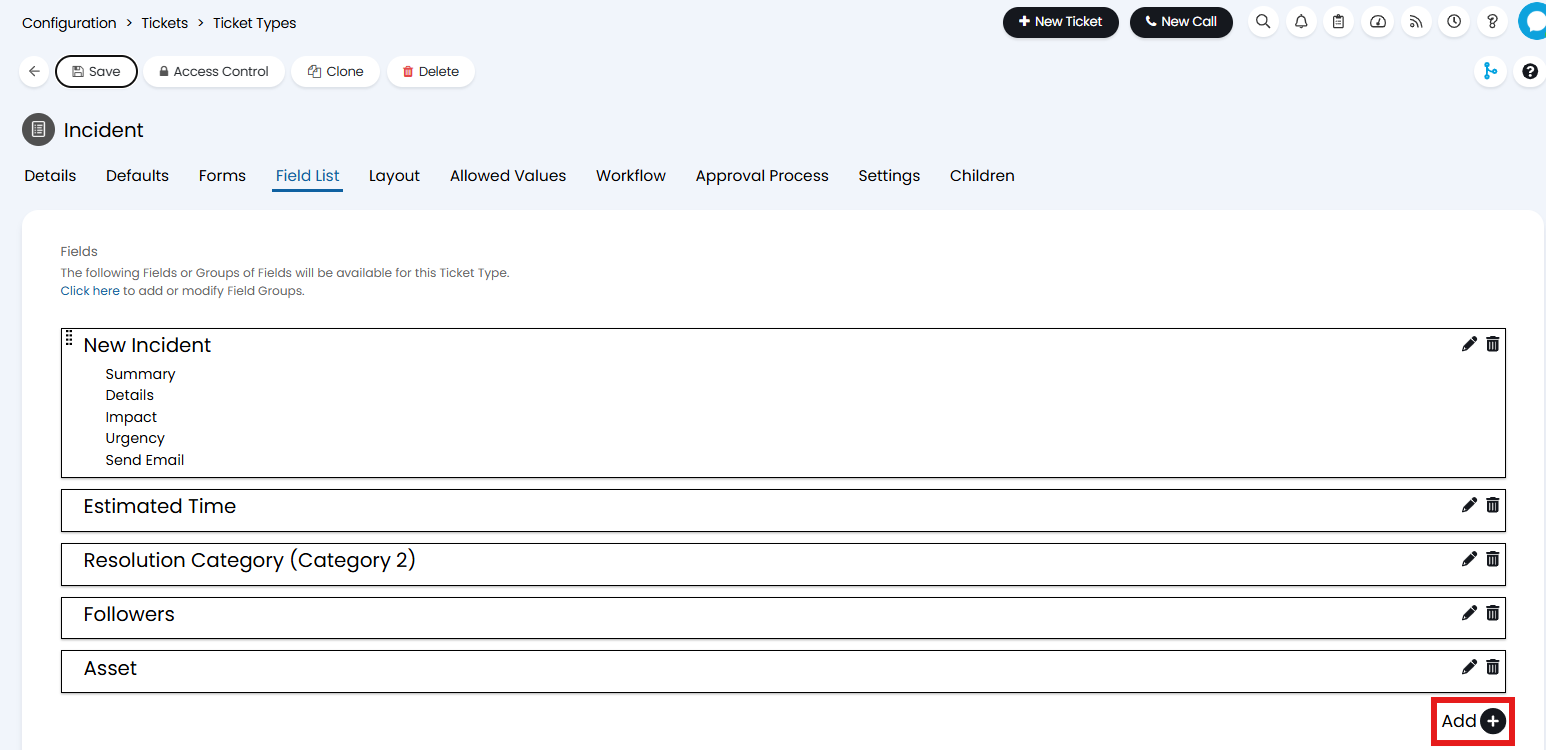 Fig 13a. Field List on a Ticket Type
Then add the field.
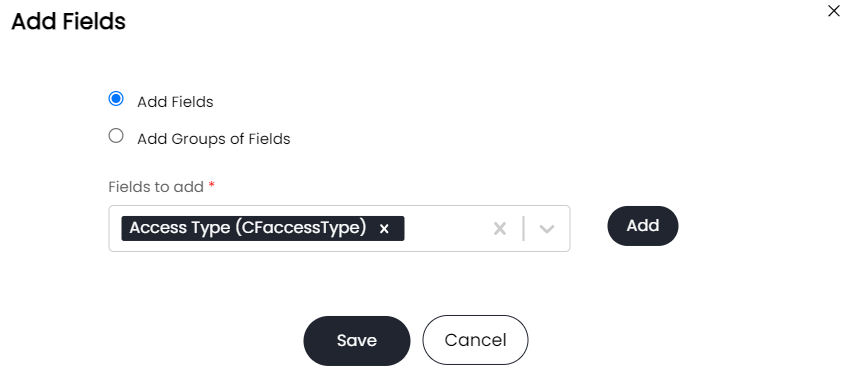 Fig 13b. The Add Fields Interface
Once added to the field list, dynamic visibility restrictions can be set by editing the field which will now be showing on the list. Dynamic visibility restrictions will ensure this field only shows if another field meets certain criteria, such as it contains a specified value, or it is empty.
After adding the field to the ticket you can control the visibility of the fields for the Agent New Ticket Screen and End User New Ticket Screen (Self Service Portal). There are some points to note when adding client/site/user fields to tickets:
- If you are logging the Ticket from the Agent application, the fields will be defaulted to the current value from the selected End User of the Ticket.
- Logged in Users logging a Ticket on the Self Service Portal will only be able to see the current value of User Custom Fields, but not Site or Client fields. They will also only be able to see the current value for the User Custom fields if they are logging the Ticket on behalf of themselves. Setting Site and Client Custom Fields will still update them.
- If a logged in User is logging a Ticket on behalf of another User, they will not be able to see the current value of the Custom Fields for that User, but they can still set/update them.
- Anonymous Users will not see any values for these Custom Fields, and setting them then logging the Ticket will not set the value anywhere.
Setting Validation for Date Fields
If creating a custom field in which users/agents enter a date you can set validation for this field. This allows you to restrict what users/agents can enter is this field based on another date field. For example, if the field is used to record the desired start date of a change you may want to require the date entered here to be after the date the ticket was logged. You can opt to only validate on creation of the entity by selecting the checkbox under the custom validation.
"Days before now" and "Days after now" are available as fields to validate against. The warning will then show in days instead of hours.
An additional field will show allowing you to set a custom "Validation Error Message" to display if the date field cannot be validated.
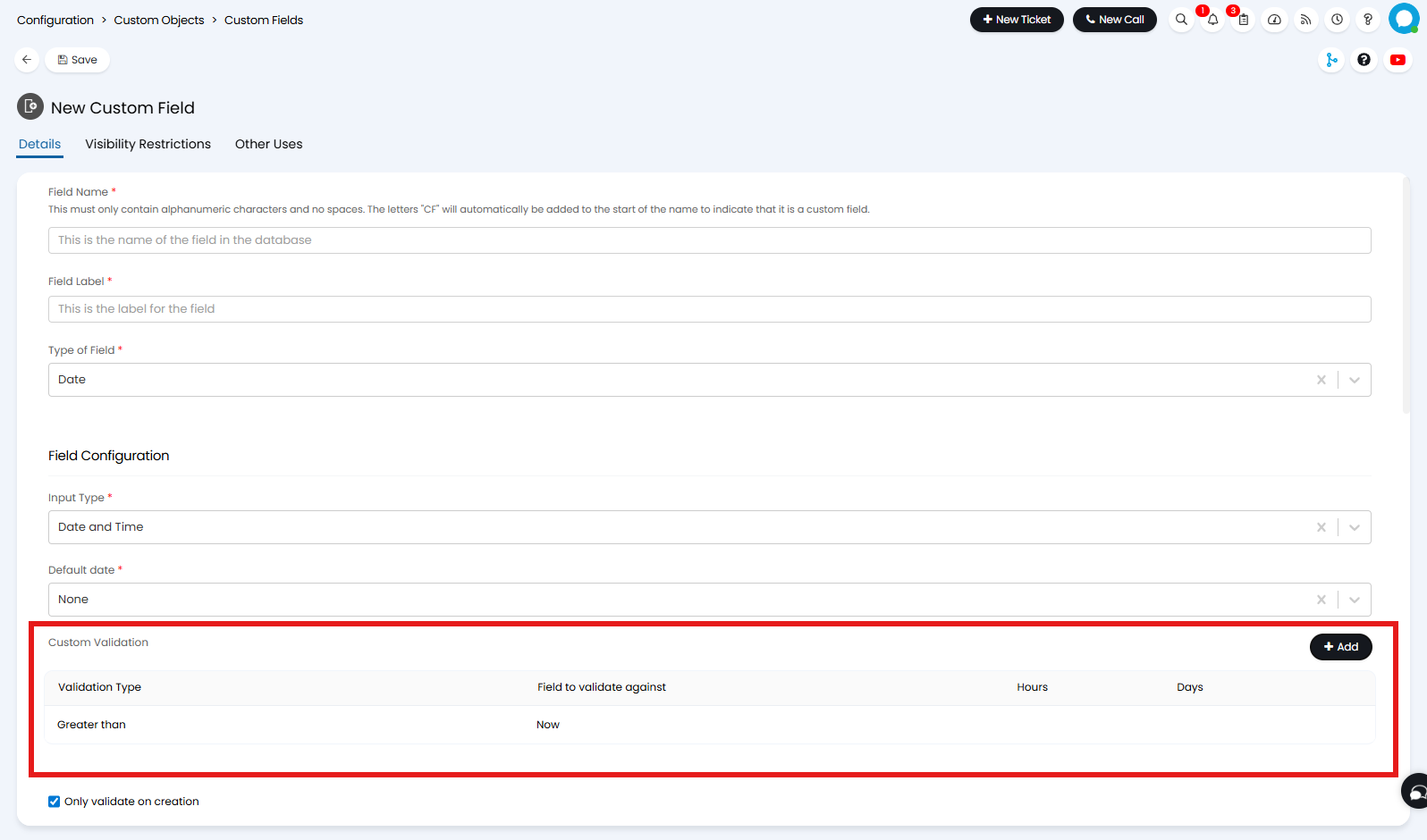
Fig 14. Field validation
There are various ways you can validate a field, in the Figure 14 example the date entered in the new field will need to be greater than the date/time of entry. However, you can also choose for the date to be dependent on another date field, useful if the date of a field should be earlier/later than the date in another field.
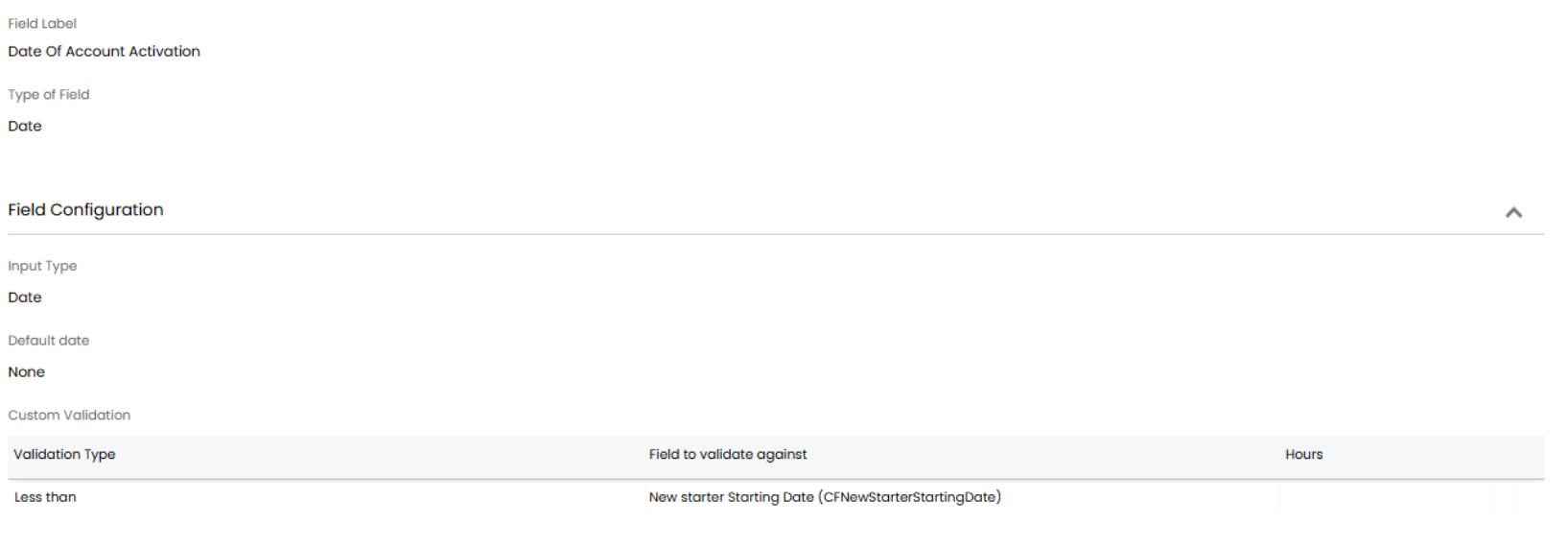
Fig 15. Example validation criteria
In the Figure 15 example only a date before the date entered in CFNewStarterStartingDate can be entered in CFCFDateOfAccountActivation. Useful for new starter tickets to ensure the scheduled date for new starter's account activation is before their scheduled start date.
Date Validation for Custom Table Fields
Date fields (columns) that sit within a custom table can also use validation. On versions prior to v2.234 date fields can only be validated against the current time, such as 'hours after now', 'hours before now'.
On versions v2.234+ date fields in custom tables can be validated relative to another field against the same entity. This means you can ensure the date entered into one field is earlier/later/the same/different to a date in another field. Keep in mind date fields can only be validated against fields that belong to the same entity the custom table is under. For example, if you create a custom table for suppliers, the date fields in this table can only be validated against other supplier date fields.
From v2.248+, these date fields can be validated against system ticket date fields.
For more information on custom tables and creating fields (columns) for tables, checkout our dedicated guide here.
Access Control
At the top of the page upon saving, the "Access Control" button will appear. This allows administrators to grant other agents access to edit that specific custom field. This is useful so that the agent does not have to ask the administrator to change it for them, especially if it is one that is being trialled and changed constantly.
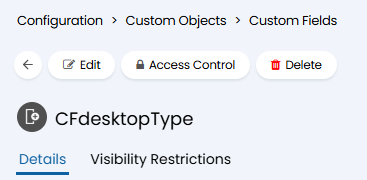
Fig 16. Access control on a custom field.
Using Variables in Custom Fields
Variables are used in Halo to automatically populate fields with data that already exists elsewhere in Halo. Variables entered into rich text custom fields can populate on the entity itself, not just the PDF. This allows agents to enter variables into fields when logging tickets, and then have the field populated with the variable data once the ticket is saved/logged. If you would like to be able to do this, this will need to be enabled against each custom field.
Head to configuration > custom objects > custom fields > select the custom field the variable will be entered into, enable 'Allow the use of dollar variables in the field value'.
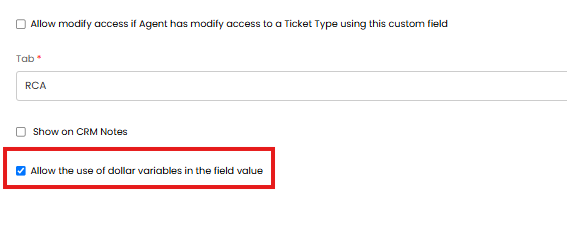
Fig 17. Enable use of dollar variables in the field value
Now when I enter a variable into this field.
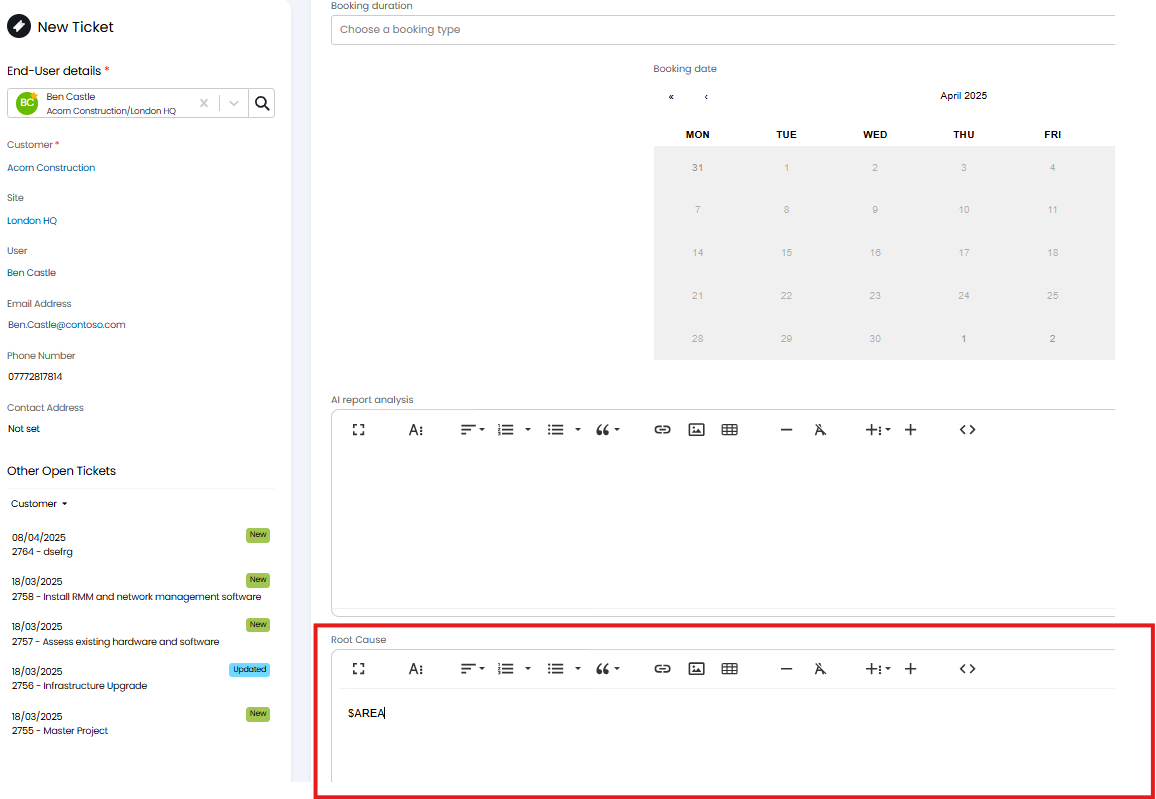
Fig 18. Variable in rich text custom field
Once the ticket is logged, I can see the data this variable pulls through is present against the ticket.
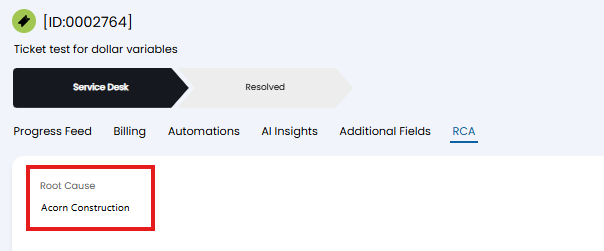
Fig 19. Variable populate on ticket
This is useful for fields storing information such as a statement of work or terms and conditions, as these fields will often contain content that benefits from dollar variables, such as a variable to pull through the customer or user name. Although these variables will populate on the PDF generated for the ticket, which is sent to the customer, it can be useful for agents to be able to see the completed field before generating/sending a PDF.
Restricting Agents from Modifying Custom Fields
Agents can be restricted on whether they can modify specific custom fields. These can be set at the Role or Agent level in the Permissions tab. Agent Custom Fields can also be restricted this way.
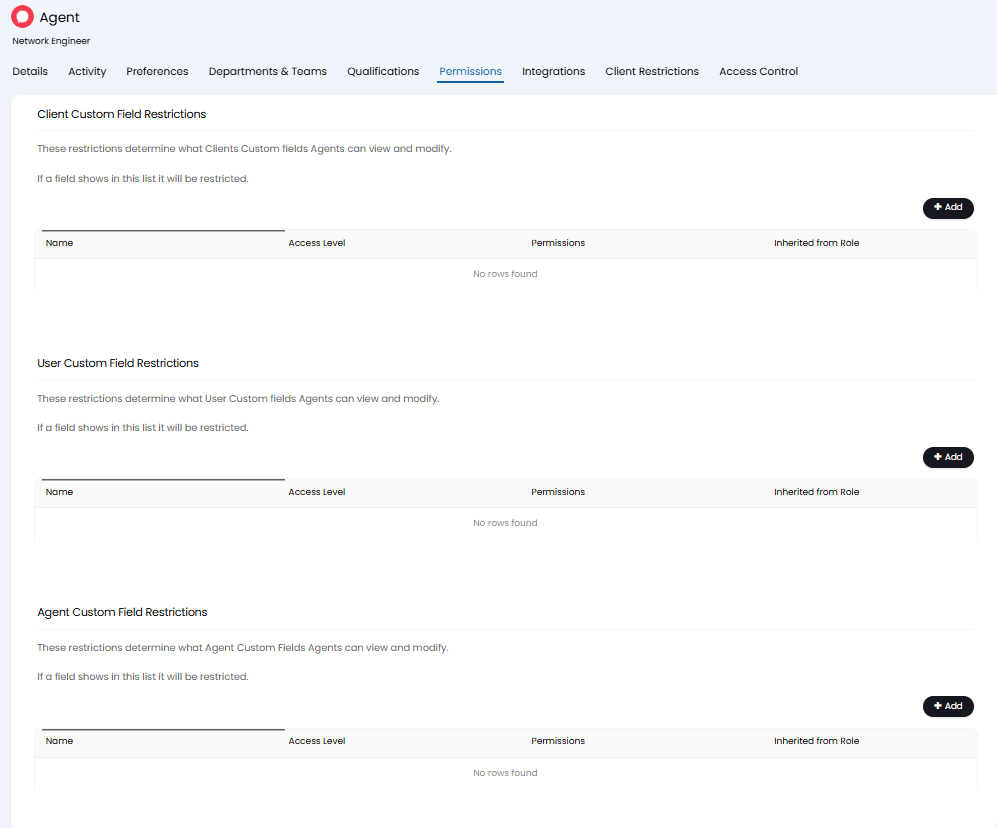
Fig 20. Custom Field Restrictions
When you add a field to the relevant table, you can select from the access levels seen below.
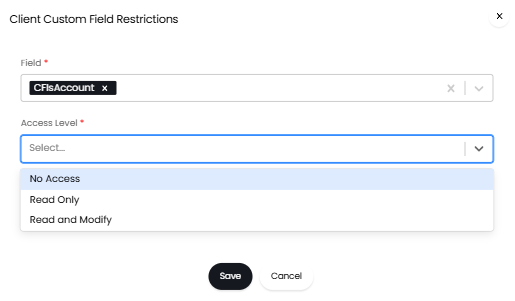
Fig 21. Setting Access Level