Start to Finish: Service Desk Basics
In this guide we will cover:
- What is the Service Desk Area?
- Creating a Ticket Area
- Creating Ticket Types
- Creating Statuses
- Setting SLAs and Workdays
- Creating Actions
- Creating a Workflow
- Logging a Ticket
Related Guides:
What is the Service Desk Area?
The Service Desk area is the primary way for Agents to action Tickets and provide support to your Users.
This guide will break down the main areas of the system that make up the service desk, followed by how Tickets can be logged.
- Creating a Ticket Area
- Creating Ticket Types
- Creating Statuses
- Setting SLAs and Workdays
- Creating Actions
- Creating a Workflow
Note: The steps in this guide will not go into full detail of each area, just the basic "must-set" options for each. For full run-throughs, please read the corresponding linked guide.
Creating a Ticket Area
The first step of creating Tickets is to create a Ticket Area to hold them, and for your Agents to work out of.
Should I use one Ticket Area or multiple?
A Ticket Area is the base configuration and is always required. Multiple Ticket Areas is an optional addition, providing enhanced organisation of your Tickets.
Use only one Ticket Area if you want:
- A simple Team setup that would prefer to see all Tickets in one Area without switching screens.
Use multiple Ticket Areas if you want:
- To split your Tickets out by Team, use, or general type by multiple screens, i.e. splitting incidents, projects or sales into different screens.
Navigate to Configuration > Tickets > Areas. Click the "New" button here, or click on an existing Area to edit it.
Let's start with the "Details" tab. Here is where you will set the basics of your Ticket Area.
- Area Name: The name of the Ticket Area. This will show under the Area icon in the navigation bar on the left of your screen.
- Sequence in lists: Sets the order in configuration. This does not set the order of the Ticket Areas in the navigation bar, this will come later.
- Entity name (Singular): Sets the name for singular mentions of the entity in this Area. For example, the "New Ticket" button.
- Entity name (Plural): Sets the name for plural mentions of the entity in this Area. For example, the "Tickets by Team" view.
- Use: Sets which Tickets can be shown in this Area. Set this to "Tickets".
- Button Icon: Sets the icon that is used for this Ticket Area in the navigation bar on the left side.
- Default View: Sets the default Ticket View that will be used when viewing this Ticket Area. This will override the defaults against the Agent profile or globally.
- Default Filter Profile: Sets the default Ticket Filter Profile that will be used when viewing this Ticket Area. This will override the defaults against the Agent profile or globally.
- Default Column Profile: Sets the default Ticket Column Profile that will be used when viewing this Ticket Area. This will override the defaults against the Agent profile or globally.
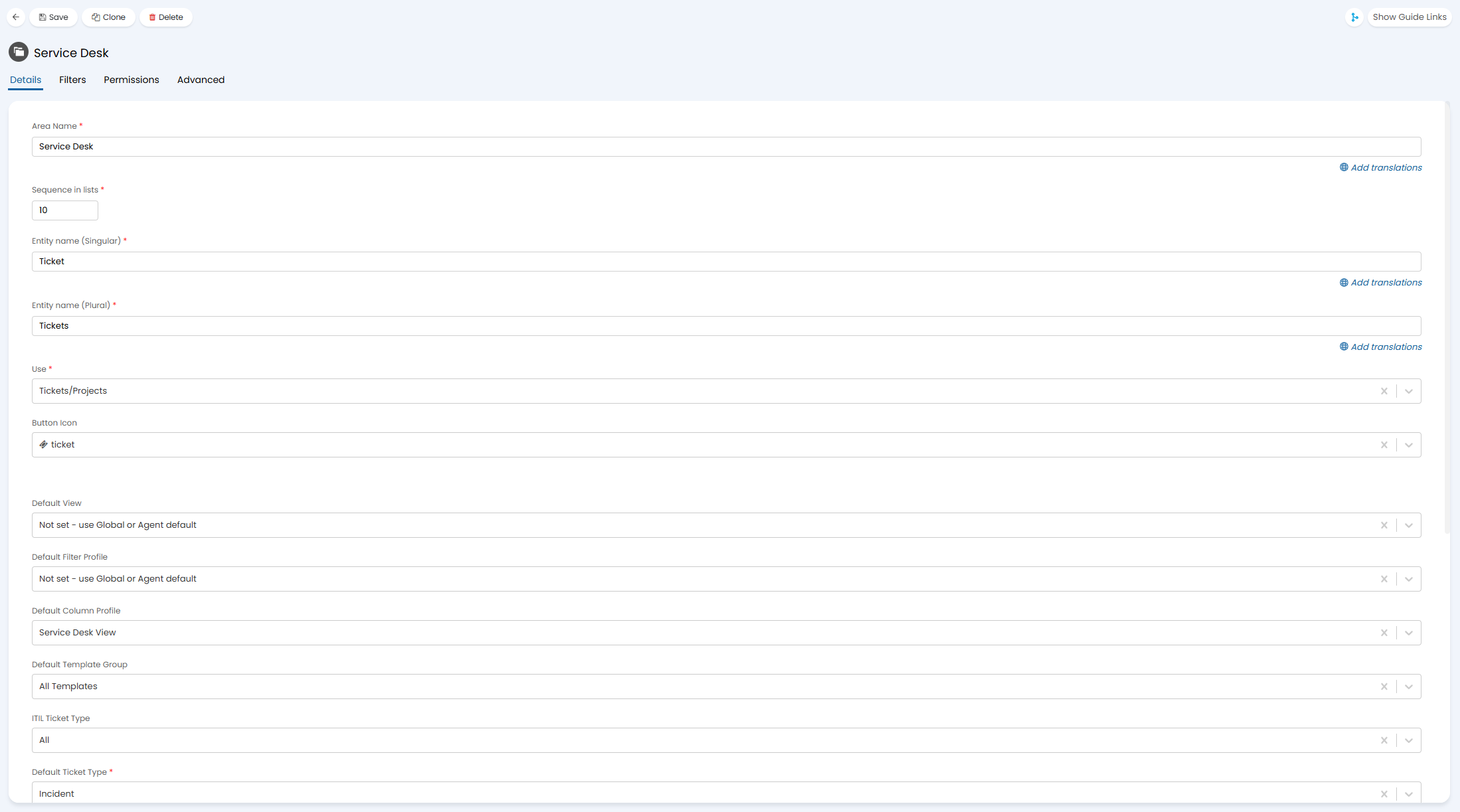
Fig 1. Setting the details of a Ticket Area
Switch to the "Filters" tab. The filters added here will be combined with any filters on your filter profiles to determine which Tickets will show.
For example, the "Service Desk" Ticket Area will show any Tickets that are any of the listed ITIL types, and assigned to one of the listed Teams.
If the filter profile used then only showed open tickets, you wouldn't see closed tickets in that Ticket Area as well.
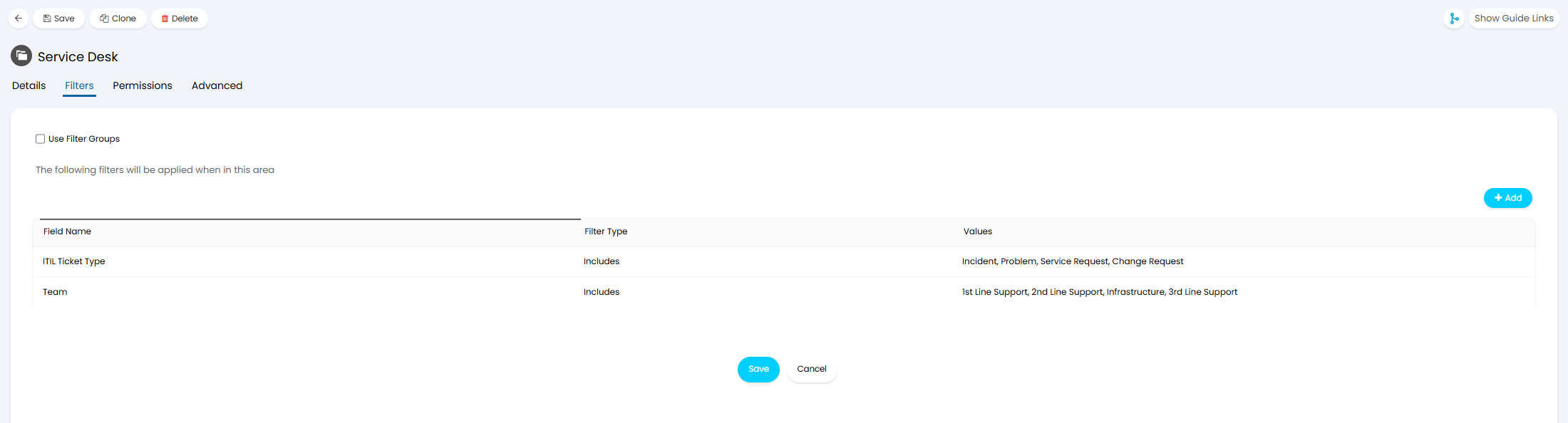 Fig 2. Filters on a Ticket Area
Creating Ticket Types
We can now create the Ticket Types to show in your Service Desk Ticket Area.
Navigate to Configuration > Tickets > Ticket Types. Click the "New" button here, or click on an existing Ticket Type to edit it.
Below is a basic Incident Ticket Type to start. In the "Details" tab, first set the below:
- Ticket Type Name: This is the name of the Ticket Type. This will show within the Ticket's details when logged.
- ITIL Ticket Type: This is the ITIL Type of the Ticket Type. If using the above mentioned filters for your Ticket Area, ensure the selected fits into one of them.
- Use: Ensure this matches the field of the same name on the Ticket Area (usually "Tickets").
- Visible in lists for Agents: When checked, this Ticket Type will be visible and selectable by Agents, assuming it is not restricted elsewhere. If unchecked, the Type will still exist, it will just need to be applied by the System, i.e. automatically, or by default.
- Agents can log new Tickets with this Ticket Type: When unchecked, Agents will not be able to log Tickets of this type from within the Agent application.
- End users can select this Ticket Type in Ticket Type dropdowns on the self service portal: When unchecked, Users will not be able to choose this Ticket Type from dropdowns (such as when logging a Ticket that allows selection of a Ticket Type). This is separate from being able to view Tickets of this type (below).
- End users can access this Ticket Type: When unchecked, End-Users will not be able to view Tickets of this Type (viewing is reliant on sufficient permissions to view their own/others' Tickets).
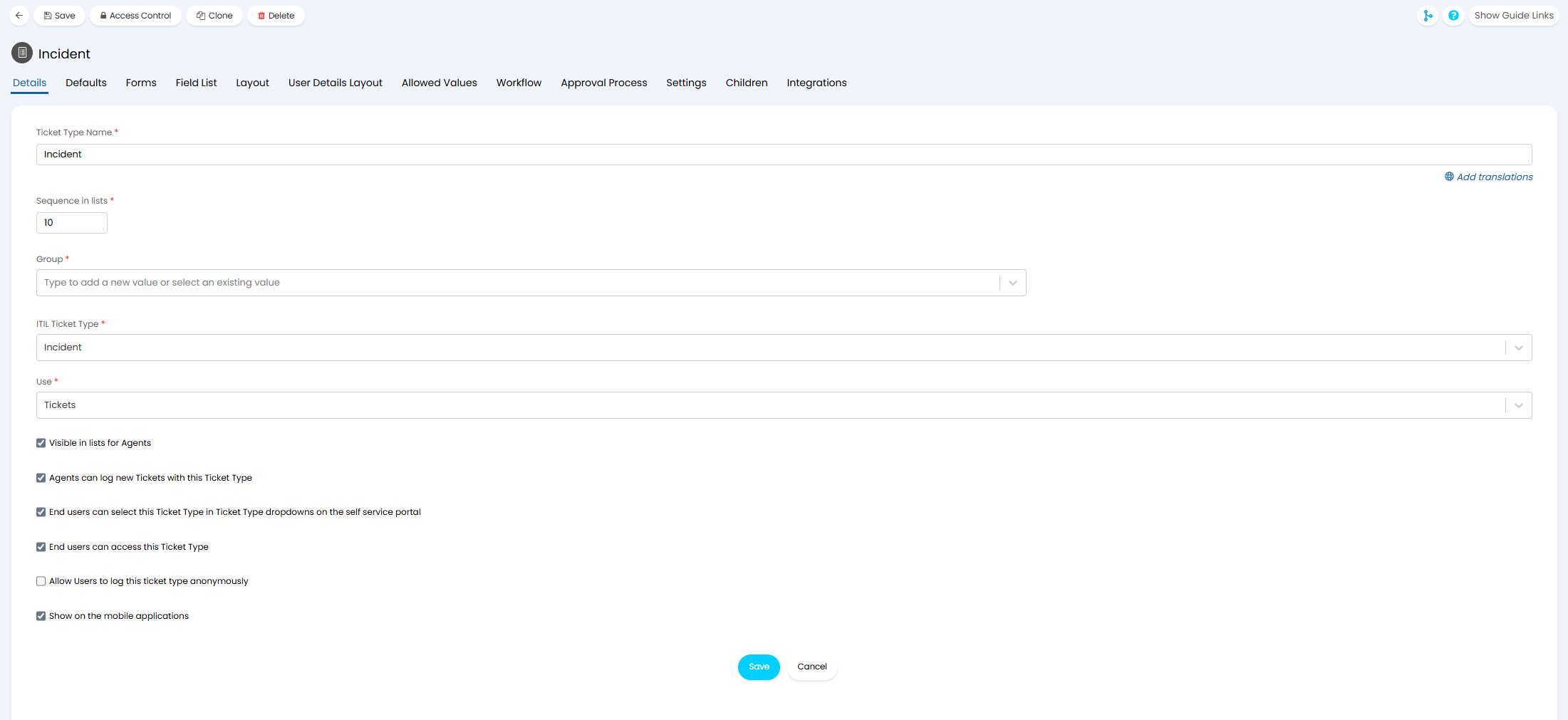 Fig 3. Setting the basic details of the Ticket Type
Switching to the "Defaults" tab, we can set the initial configuration of the Ticket Type, unless it is then overridden elsewhere afterwards - such as with a Ticket Rule.
- Initial Status: This is the Status the Ticket will be logged with.
- Team: This is the Team the Ticket will be assigned to.
- Agent: This is the Agent the Ticket will be assigned to. This will show a list of Agents within the selected Team, as well as the option to default to Load Balance/Round Robin.
Service Level Agreement: This is the SLA the Ticket will use, unless excluded or overridden elsewhere.
Priority Number: This is the priority number the Ticket will use by default. Ensure this matches a priority number on the SLA selected.
Exclude from SLA: This will exclude the Ticket from any SLA.
Category: This will set a default Category Value that is set upon logging.
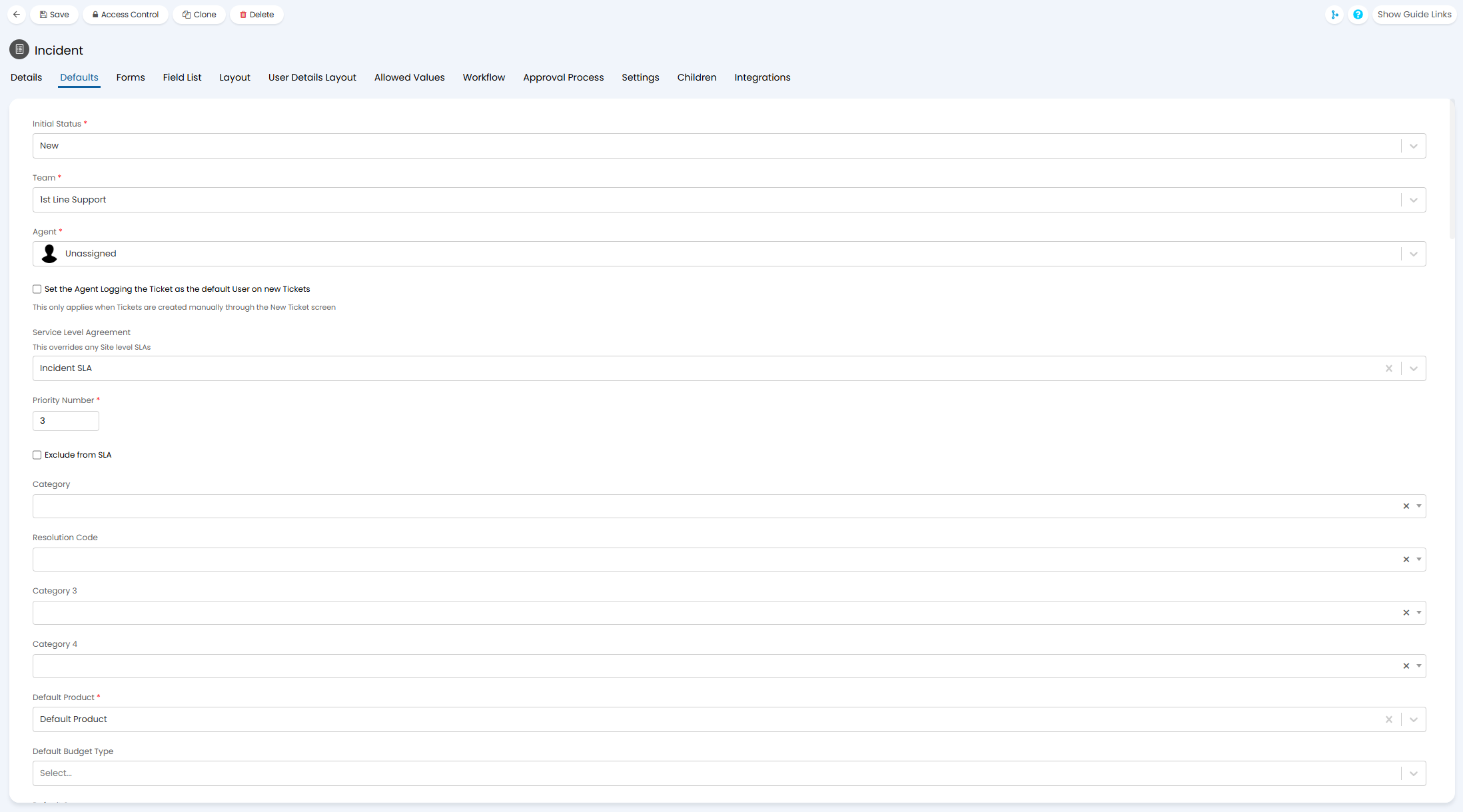 Fig 4. Setting the initial defaults for the Ticket Type
Switch to the "Field List" tab. This is where we will configure any Fields we want to show on the Ticket. "Summary" and "Details" are usually important ones to add, as they set the "title" and text within the first Action of the Ticket respectively.
When creating a Ticket Type, any details you would like your Agents or Users to fill in will need to be a Field on the Ticket Type. Each Ticket Type is a "form" your Agents or Users will need to complete to gather the relevant information. To compare, a "New Starter Request" would need to include fields for the employee's information, whereas an "Incident" would not need these.
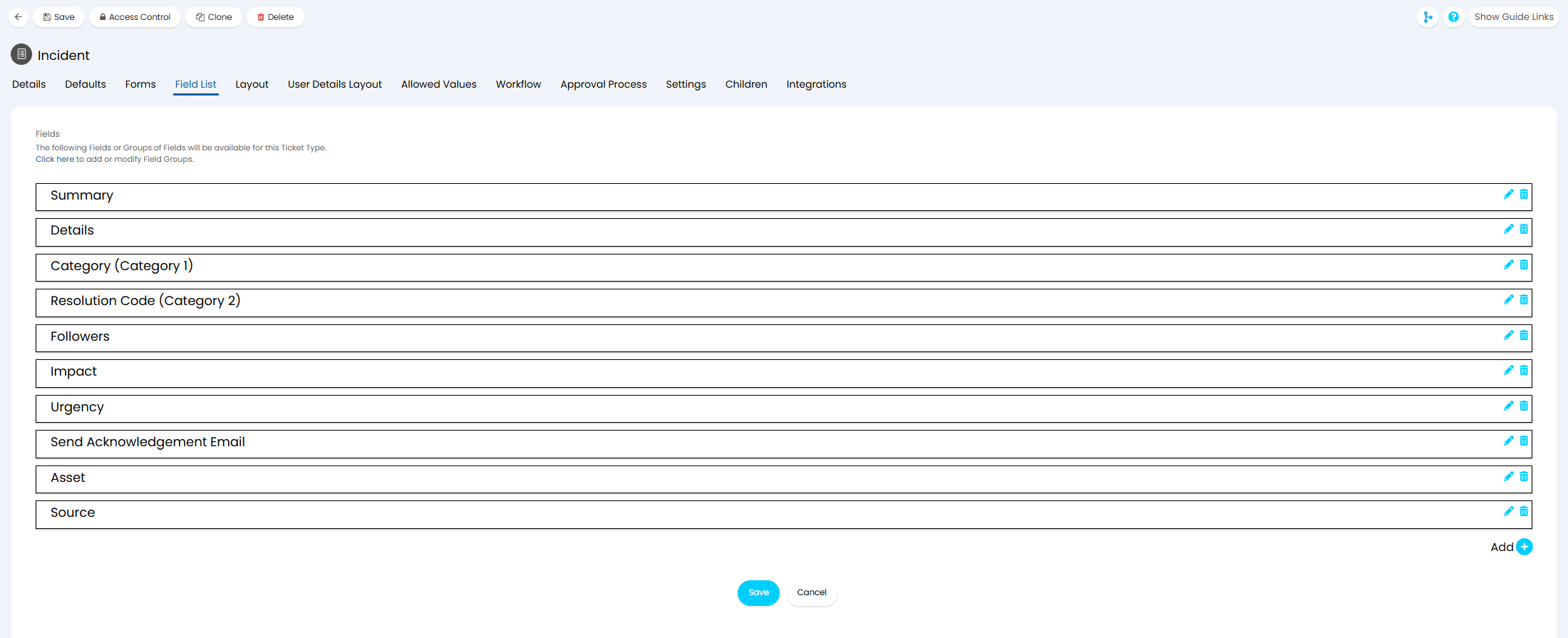
Fig 5. Adding Fields to the Ticket Type
For example, if you are creating a "Laptop Request" Ticket Type, you will likely want to ask the User if they need a standard laptop, or a more advanced one. You would need to create a Custom Field that asks for that information, such as the below. This is a Single-Selection Custom Field, where the Agent or User can select only one of the two options - "Standard Laptop" or "Developer Laptop".
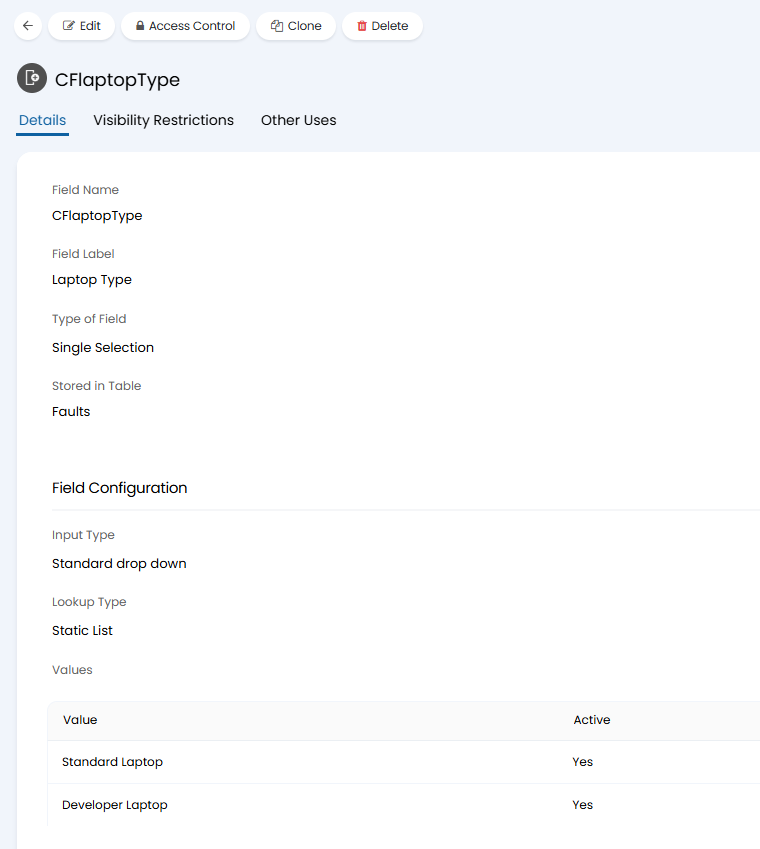 Fig 6. Custom Field example for a "Laptop Request" Ticket Type
One you have your list of Fields added to the Ticket Type, you can then click the pencil icon on the right side of the Field (shown in Figure 5). Here, you can edit who can see or fill in that Field.
- End-User New Ticket Screen Visibility: This determines if the User can see the Field when logging the Ticket in the Self-Service Portal.
- End User Ticket Details Screen Visibility: This determines if the User can see the Field after the Ticket is logged.
- Agent New Ticket Screen Visibility: This determines if the Agent can see the Field when logging the Ticket in the Agent Portal.
- Agent Ticket Details Screen Visibility: This determines if the Agent can see the Field after the Ticket is logged.
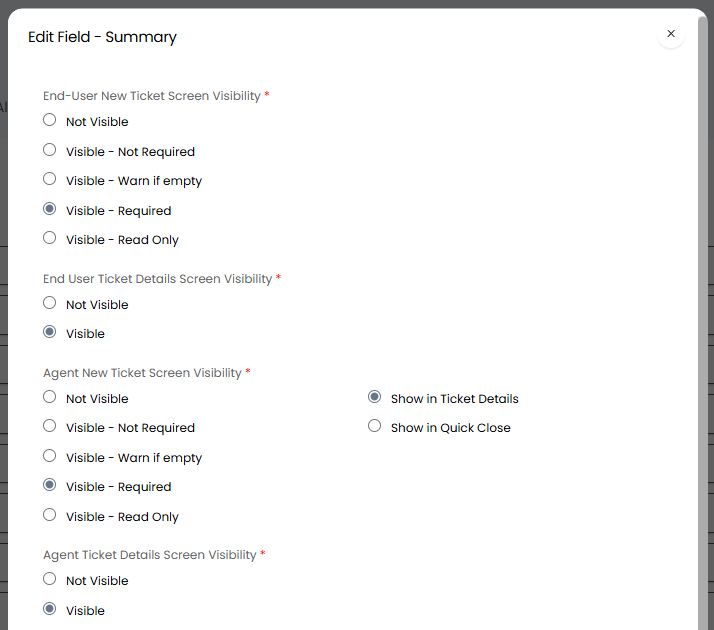 Fig 7. Setting visibility of Fields on the Ticket Type
Creating Statuses
Now that we have a Ticket Area, and a Ticket Type to be logged within it, we can configure some Statuses for those Tickets to use.
Navigate to Configuration > Tickets > Statuses. Click the "New" button here, or click on an existing Status to edit it.
- Status Name: This is the name that will appear in Status dropdowns and in the Details of the Ticket.
- Icon Text: This is a shortened version of the Status Name that will show on Actions within the Progress Feed.
- Sequence in lists: This is the order the Status will show in dropdowns and Configuration lists.
- Status Colour: This is the colour the box around the Status will be.
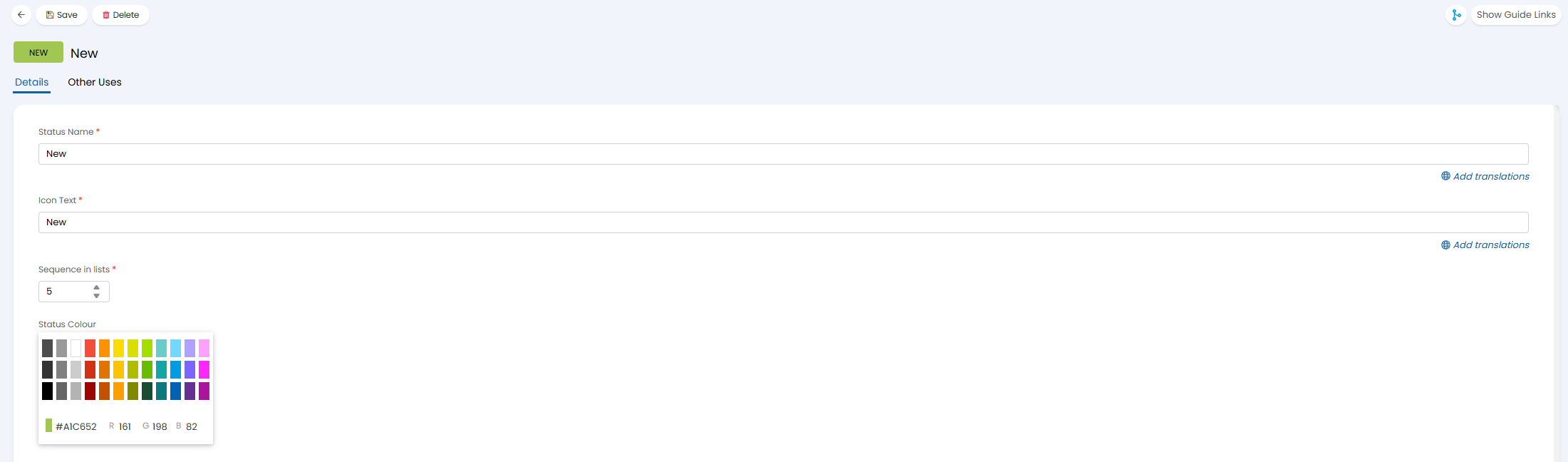 Fig 8. Setting the basic details of a Status
Underneath, you will then be able to configure the SLA behaviour the Status uses. Statuses are used to determine if a Ticket is on or off SLA hold, which will then determine how much of the SLA target time has passed.
- SLA Hold Action: This dropdown determines if the Status puts the Ticket on or off hold, or keeps what it was using before regardless.
- Enable sending of SLA hold reminders: This option should be enabled if you intend to use SLA hold reminders for this Status. It will also need to be enabled on the SLA used and the Ticket Type to send.
If creating new Statuses, you may want to go back to the Ticket Type at this stage to set the initial default Status.
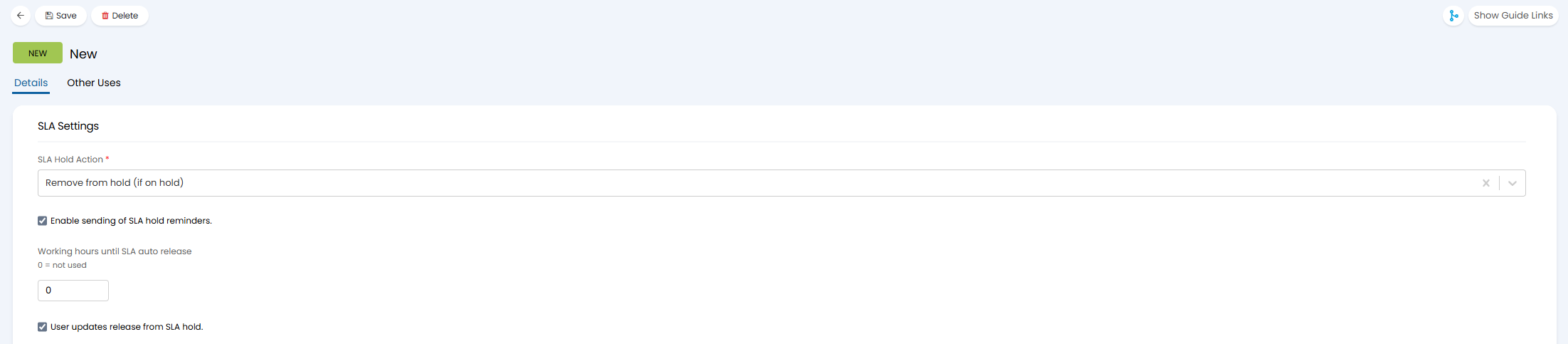
Fig 9. Setting SLA behaviour of the Status
Setting SLAs and Workdays
Now that you have Statuses that put the Ticket on and off hold, you will need to configure a Service Level Agreement (SLA), and a set of working hours for that SLA to use.
Let's make the Workday first. This is what determines the hours the SLA could count down if you never put the Ticket on hold, as you would only want it to count down whilst your Agents are awake and working.
Navigate to Configuration > Teams & Agents > Workdays. Click the "New" button here, or click on an existing Workday to edit it.
In the "Details" tab, you will need to give the Workday a name, then set the working hours for each day. If the hours do not differ for each working day, you can enable "The working hours are the same every day" to set these.
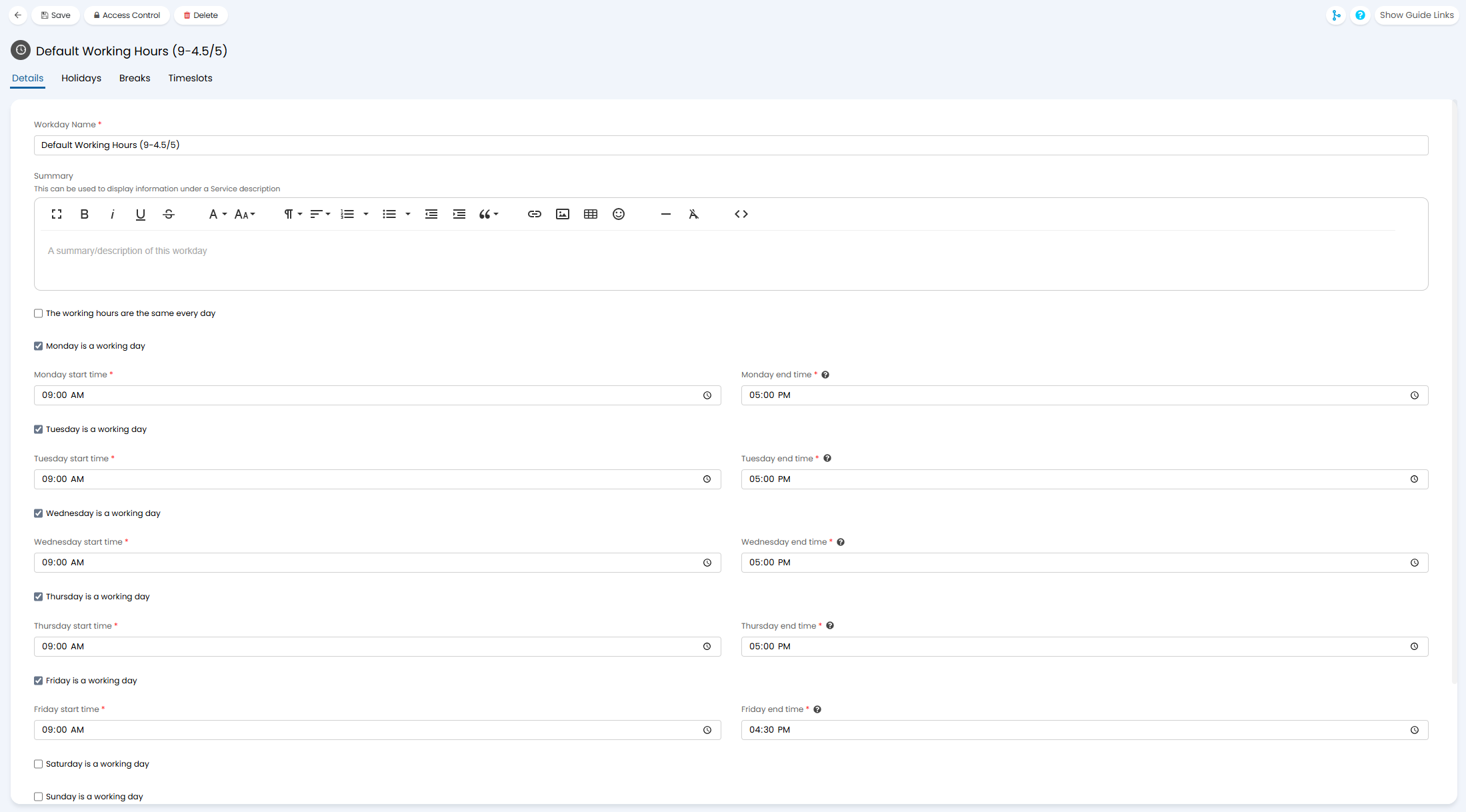 Fig 10. Setting work hours on a Workday
In the "Holidays" tab, you will then need to import the relevant public holidays for your location. Holidays added here differ from those added via holiday management, as they will pause the SLA for these days.
Click the "Import Holidays" button.
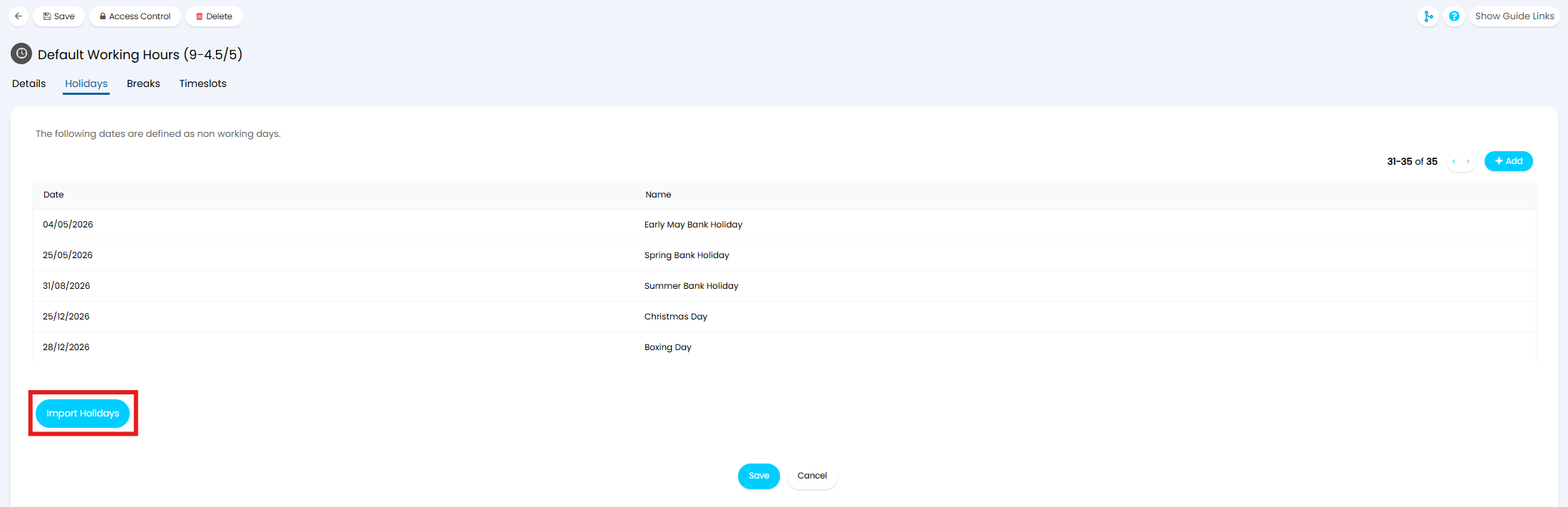 Fig 11. List of holidays against a Workday
Select the relevant country and region, and which year to import. Clicking "Save" will then automatically add any public holidays for that region.
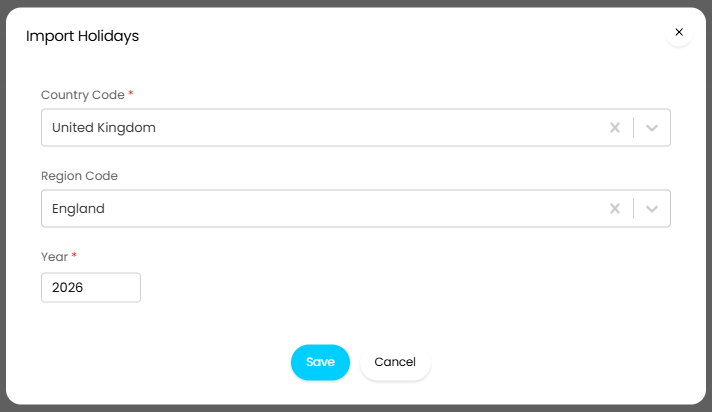 Fig 12. Importing holidays to a Workday
Now that we have a set of working hours, we can create an SLA to add this to. The SLA will count down during those working hours if the Ticket is not on hold.
Navigate to Configuration > Service Level Agreements > Service Level Agreements. Click the "New" button here, or click on an existing SLA to edit it.
- Service Level Agreement Name: This is the name of the SLA, and will show on the Ticket's SLA widget.
- Work Hours: Set the Workday you created here.
- Track SLA Response Times: Enable this to track the time taken to send the first response.
- Track SLA Fix-by Times: Enable this to track the time taken to complete the Ticket.
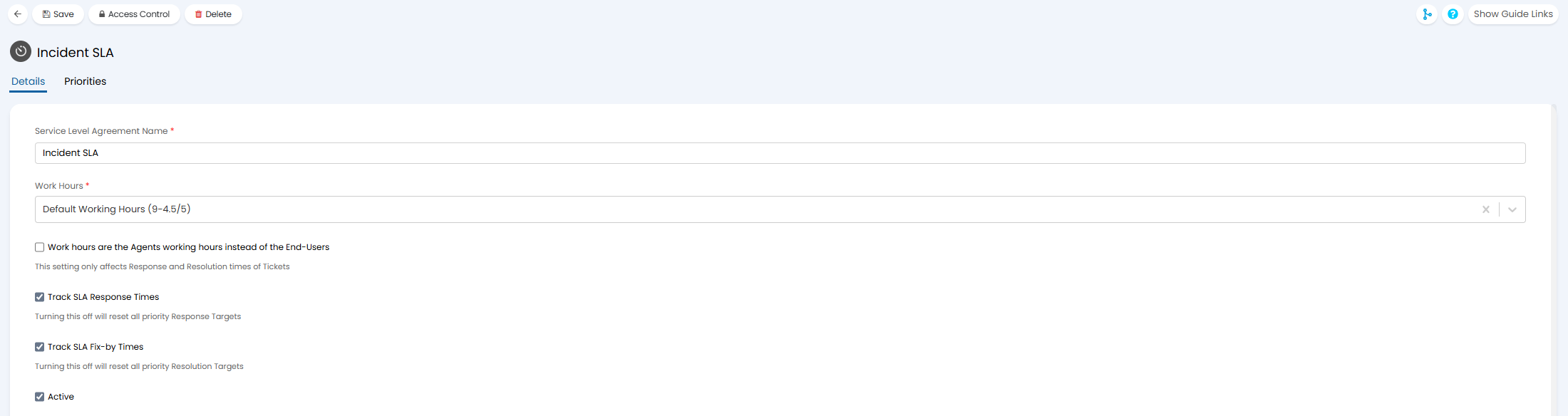 Fig 13. Setting the basic details of an SLA
In the "Priorities" tab, you can then set the priorities and associated targets that SLA uses. Click the "Add" button to add a priority level. Each priority level needs a number, description, and the target time for response and/or resolution.
This SLA will then need to be set as a default in the relevant area. For information on the places this can be set and the hierarchy it follows, take a look at this guide.
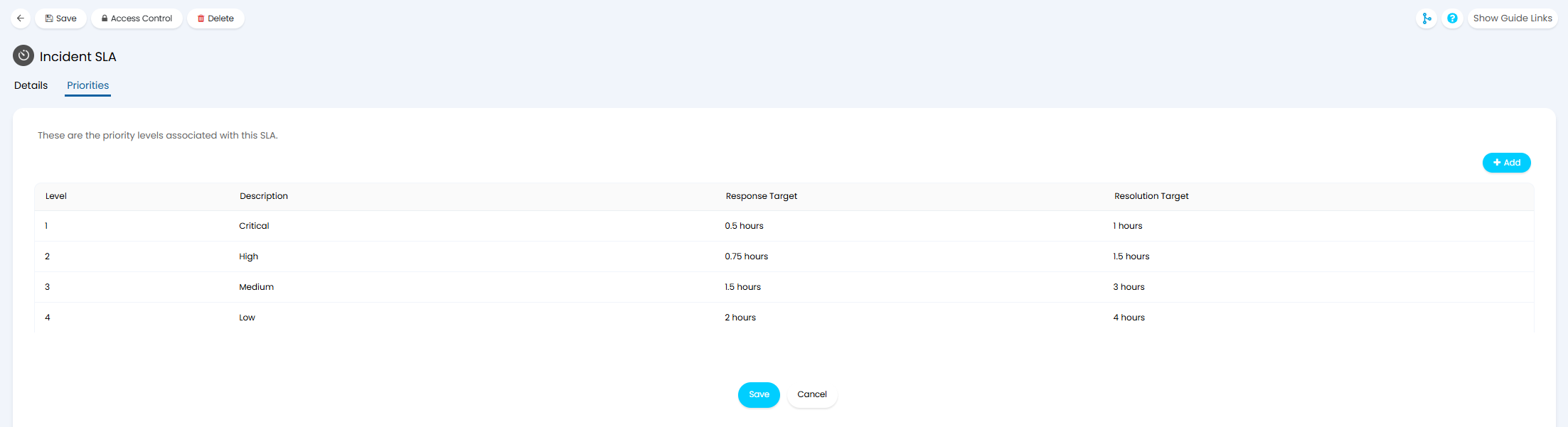 Fig 14. Adding priority levels to the SLA
Creating Actions
At this point you will have a Ticket Type in your Ticket Area, and the Status and SLA configuration to track its progress. Now, you need to add Actions so that you can work on these Tickets. Actions appear as buttons at the top of the ticket, and are what allow your Agents to work the Ticket.
Navigate to Configuration > Tickets > Actions. Click the "New" button here, or click on an existing Action to edit it.
In this example, we will make a "Private Note" Action, intended for Agents to leave themselves or other Agents notes that the End-User cannot see.
- Outcome Description/Name: This is the description that will show in the Progress Feed on the Ticket when the Action is used.
- Sequence in lists: Sets the order the Action buttons will appear on the Ticket, as well as lists in Configuration.
- Button Name: This is the description that will show on the Action button at the top of the Ticket.
- Button Icon: This is a picture that will show next to the Button Name at the top of the Ticket.
- Action Colour: This sets the colour the Button Icon uses, as well as an accent line next to the Name when used on a Ticket.
Scrolling down, you will see an option for "System Use". This is not needed for a note Action, but can be used to have the Action complete built-in functionality from other areas of the system, such as creating a Child Ticket or a Quotation. For a full list of these, check out this guide.
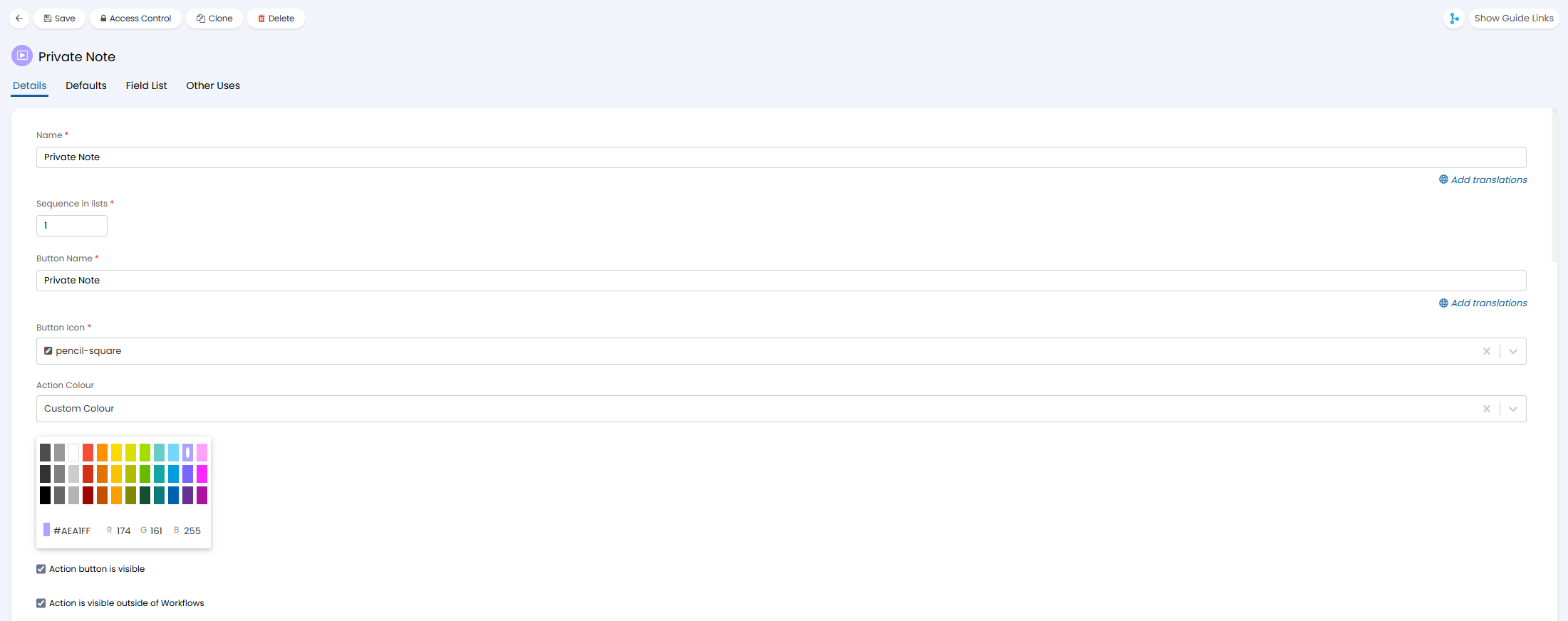 Fig 15. Setting basic details of an Action
Switching to the "Field List" tab, this is where we can set what fields show on the Action, in a similar way to the Ticket Type. We add the "Note" field to add text to the Action, as well as "Time Taken" and "Charge Type" if we want to track our Agent's time on the Ticket, especially if we plan to bill for labour down the line.
Note: If you want to create an Action to complete Custom Fields, it is important these Fields are also added to the Field List of the Ticket Type so the values can be saved there.
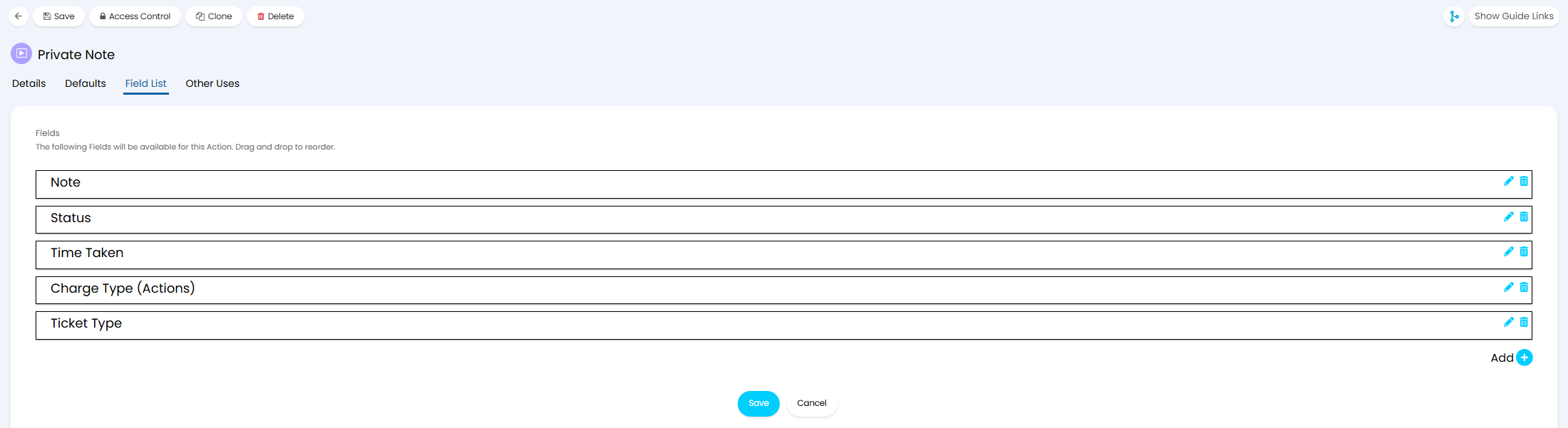 Fig 16. Adding Fields to an Action
Creating a Workflow
These Actions can then be added to a Workflow. Workflows are a way of determining the process of a Ticket, and what Actions can be completed in what order. For example, you would want to Triage the Ticket before completing other Actions.
Navigate to Configuration > Tickets > Workflows. Click the "New" button here, or click on an existing Workflow to edit it.
Note: It is recommended to use the "Clone" button to create a copy if editing an existing Workflow.
Click the pencil icon to edit a Step, or click "Add a Step" to create a new one.
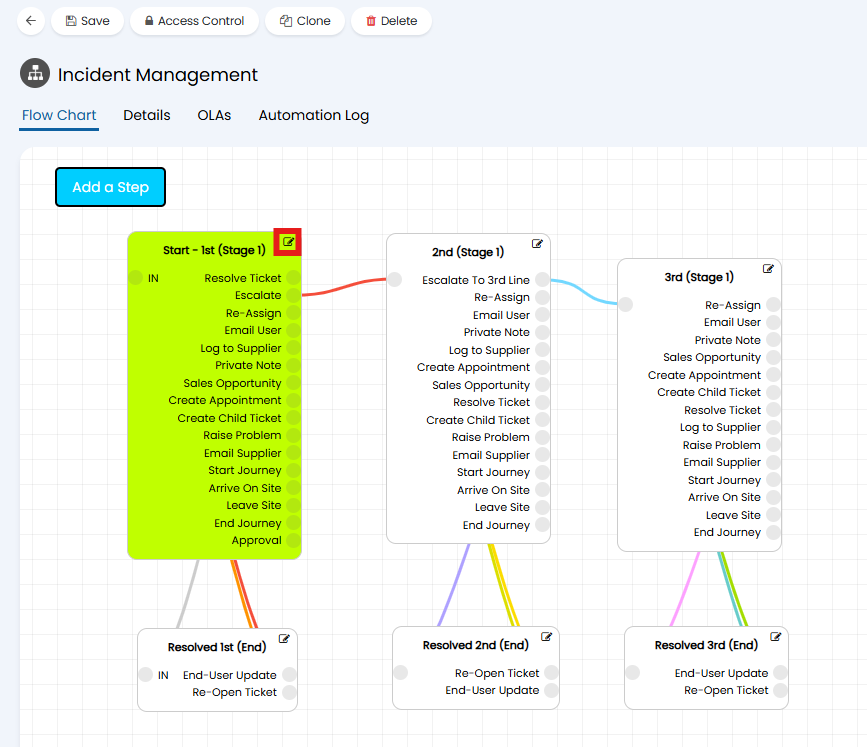 Fig 17. Editing a Workflow Step
The first step should have "This is the Start Step for this Workflow" enabled.
You can then set the "Type" of Step for this Workflow Step. In this example, set this to "Action". You will then be able to click the "Add" button on the table to choose the Actions.
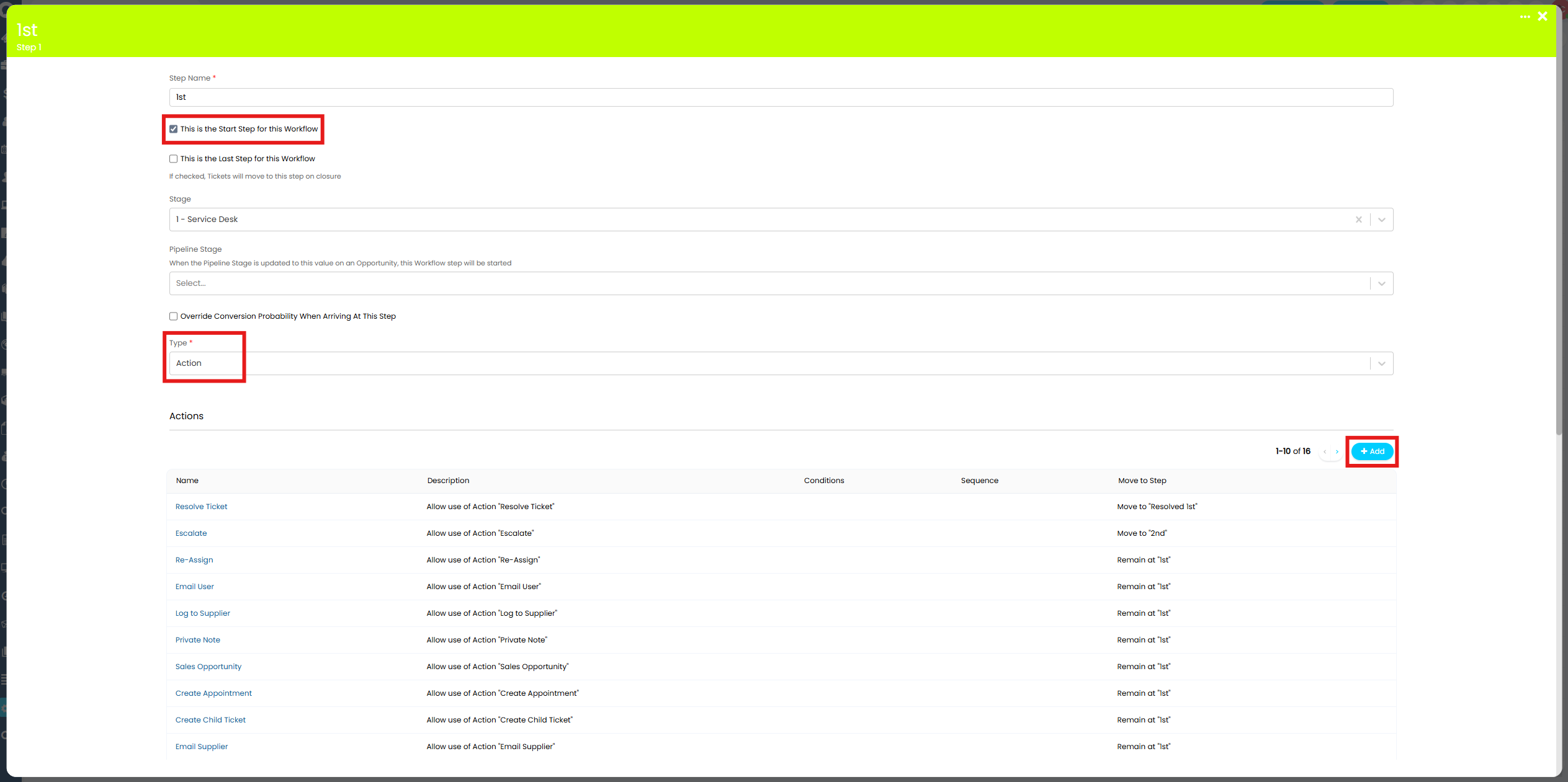 Fig 18. Configuring the Workflow Step
Set the "Action Type to Configure at this Step" to "Allow Actions".
Additional options will then show to choose the Actions that Agents can use at that Step of the Workflow.
You can also choose to "Restrict access to this Actions" by either the Agent/Team or based on a Ticket Field.
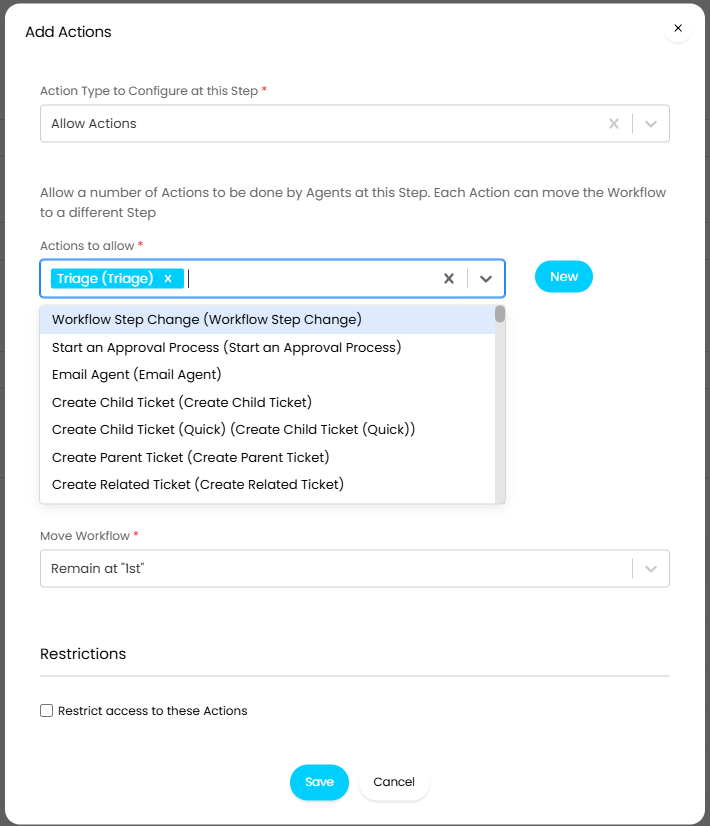
Fig 19. Adding Actions to a Workflow Step
Actions can also be allowed at any Step of the Workflow within the "Details" tab.
If an Action is not added to this Field, and the Ticket is not on a Step that allows it at that time, the Agent will not be able to see or use the Action. Actions can also additionally be restricted on the Ticket Type in the "Allowed Values" tab.
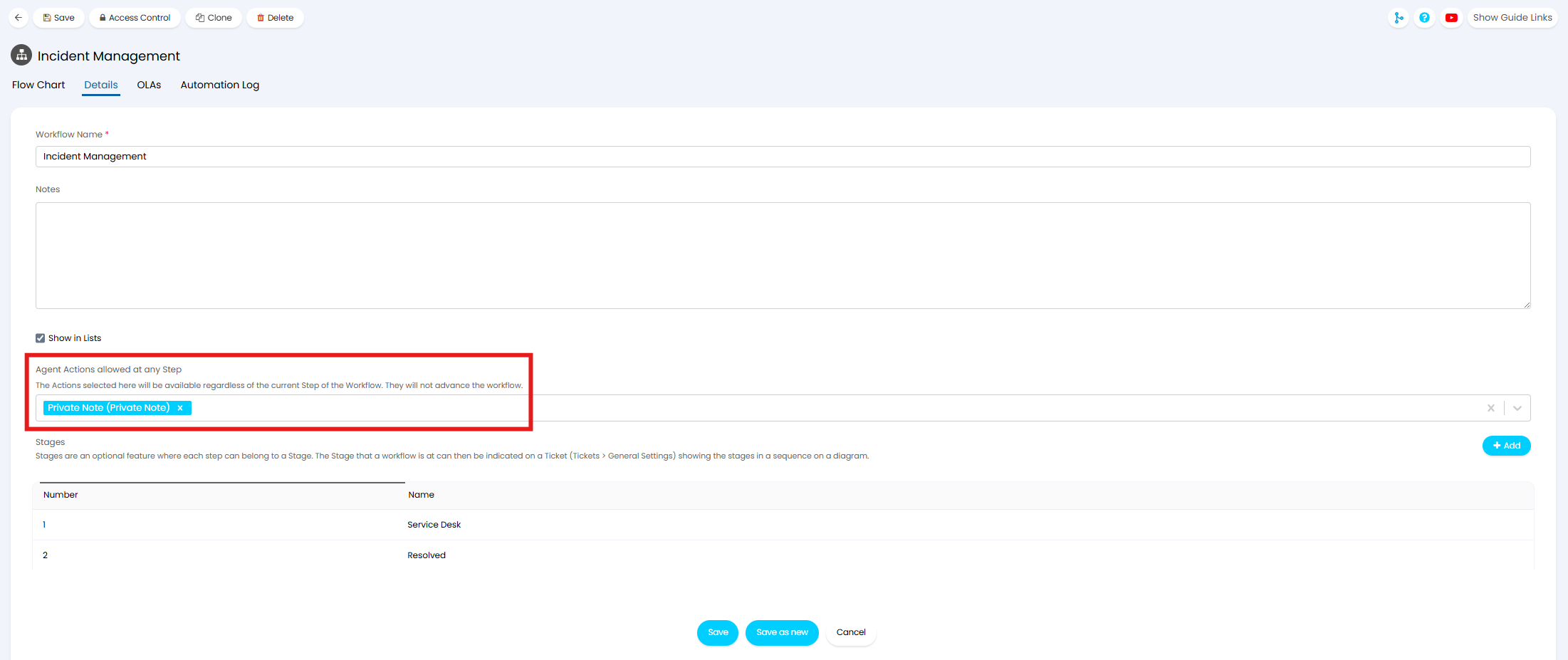 Fig 20. Adding Actions to every Step of the Workflow
The Workflow then needs to be added to the Ticket Type we created in the "Workflow" tab. A preview of the Workflow will show upon selection, to help ensure you are picking the correct one.
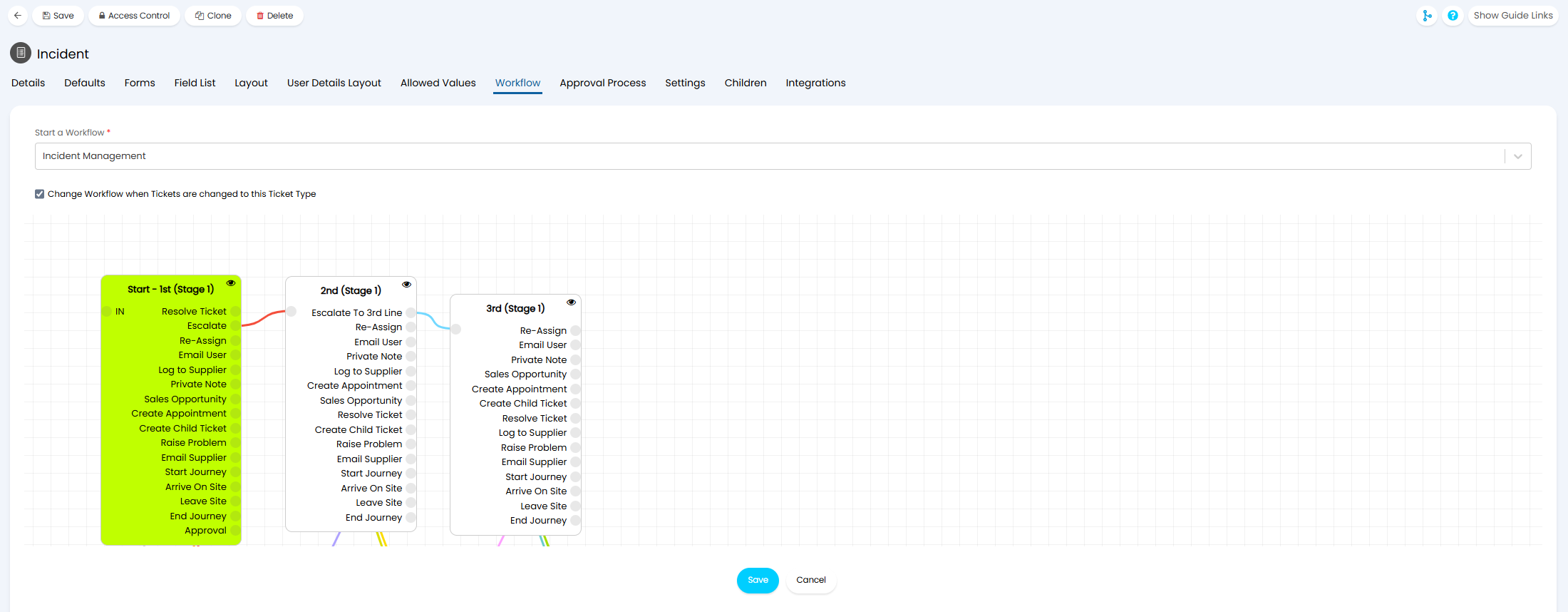 Fig 21. Setting the Workflow against the Ticket Type
Logging a Ticket
You now will have built out the very basis of a Service Desk. The above process can be repeated as many times as required to customise as many Ticket Types and Workflows as you need.
Navigating to the Ticket Area, you can create a Ticket. After setting the Ticket Type, you will see all of the Fields we added to it appear to fill in.
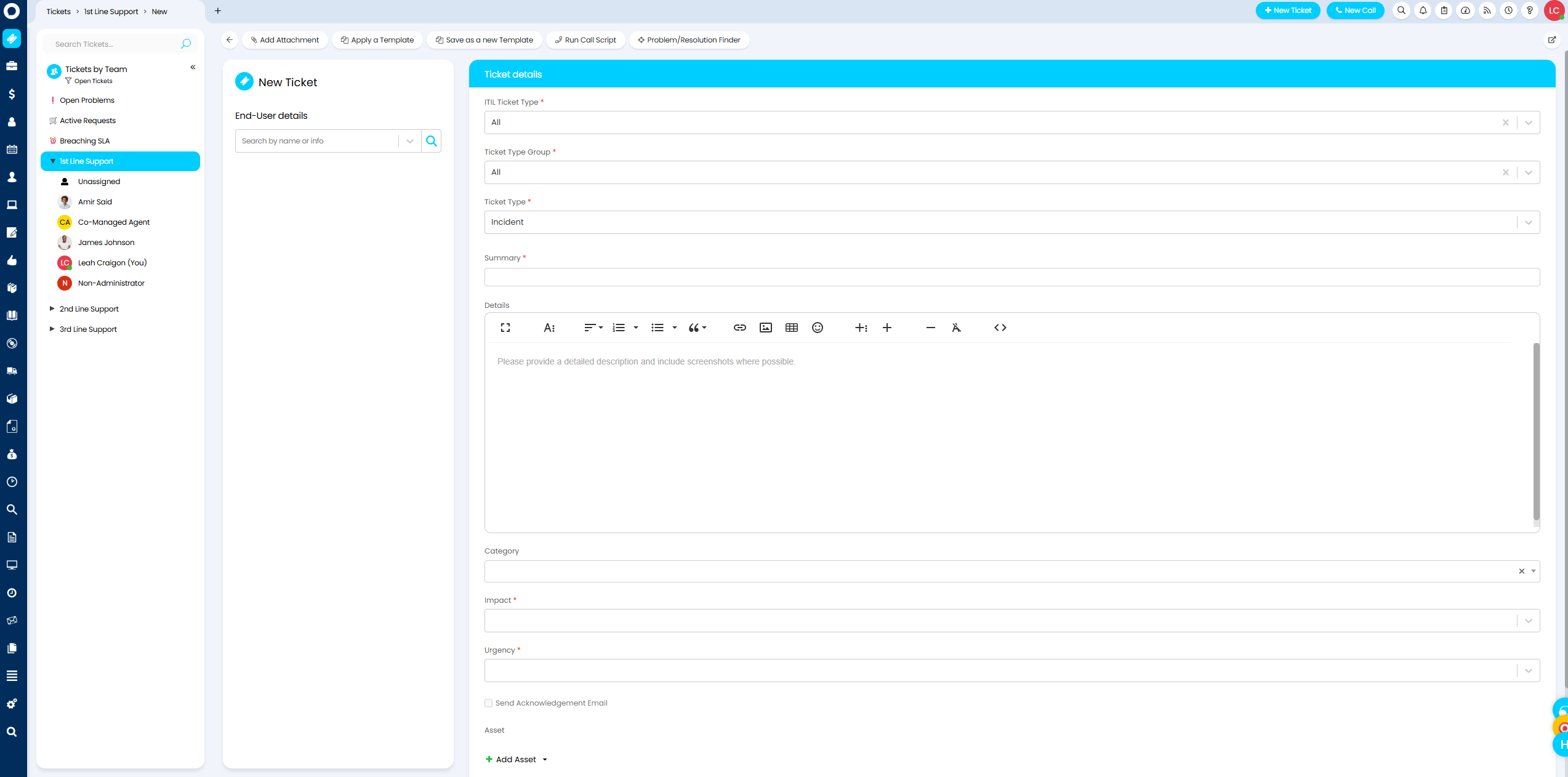
Fig 22. New Ticket Screen when logging a Ticket
Logging the Ticket will show the SLA we created start counting down, the Status we created within the details, and the Workflow we created determining the available Actions at the top of the page.
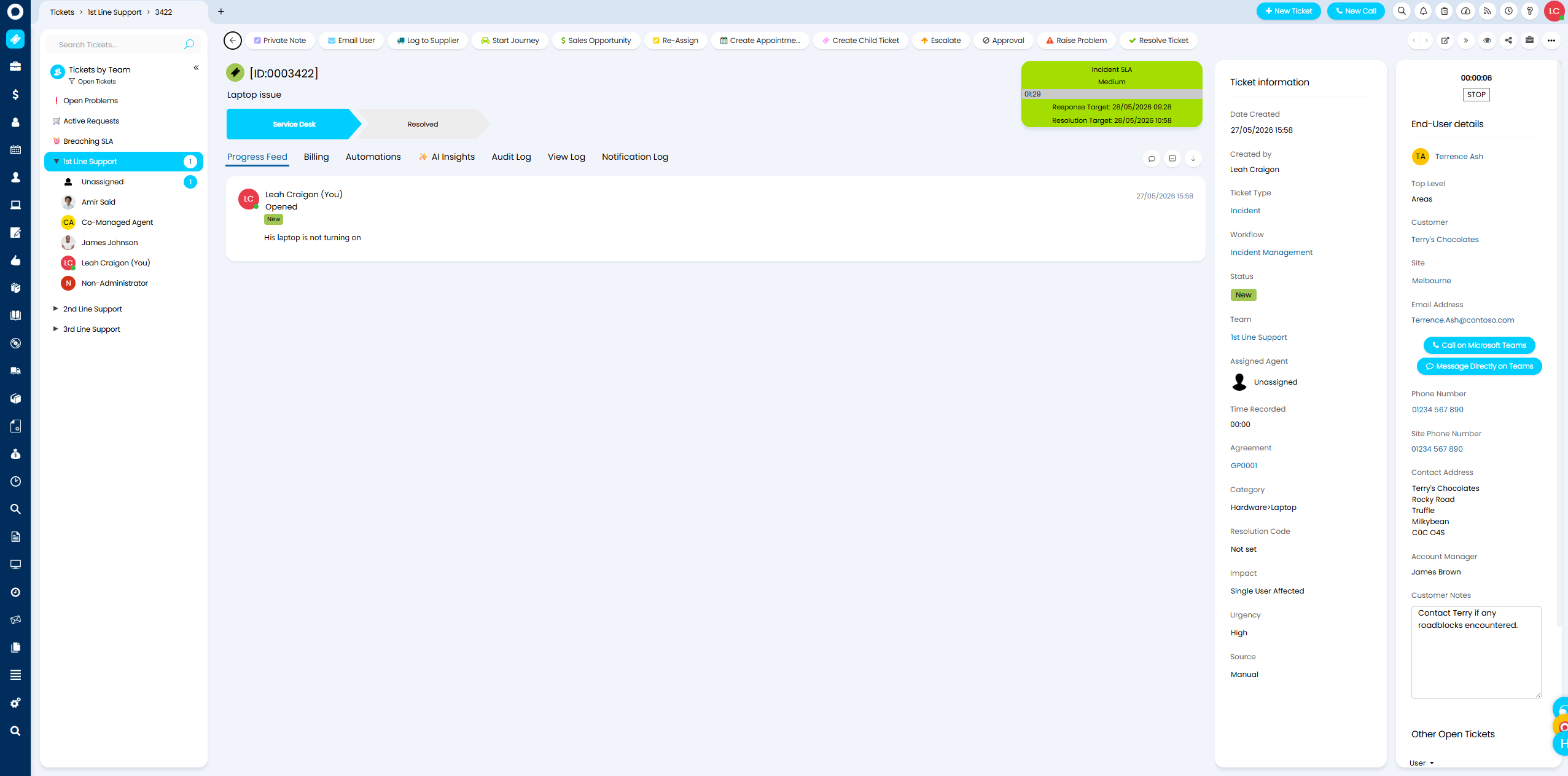
Fig 23. Ticket logged from the configuration throughout this guide
The Ticket will show as part of the list in the created Ticket Area as well.
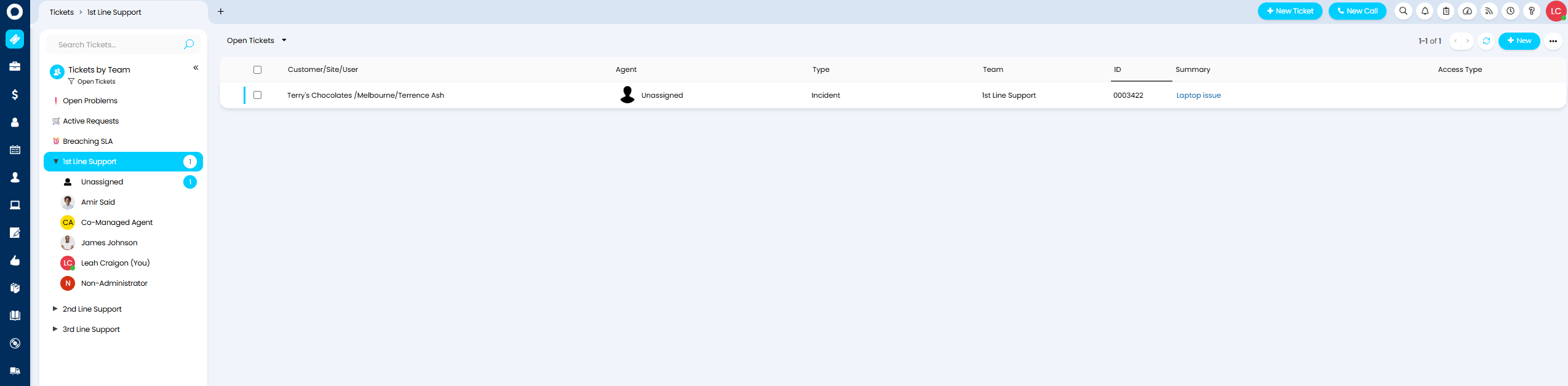
Fig 24. Ticket showing in a list within a Ticket Area