Actions: System Uses
In this guide we will cover:
- Setting a System Use
- System Uses and their Functions
Admin Guide:
Setting a System Use
System uses are configured functionality for certain actions within Halo. This system use can be set on an action in the "Details" tab on the "System Use" dropdown.
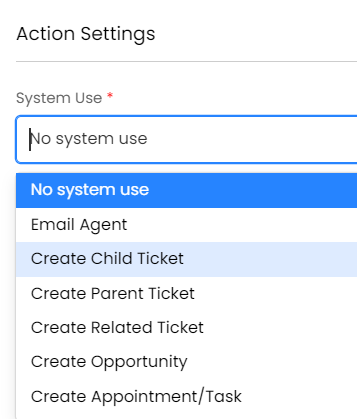
Fig 1. System Use dropdown
Email Agent
When selected, this system use will email the agent assigned on the ticket. Make sure to add the "Note", "Time Taken" and "Status" in the "Field List" tab of the action, and set "Send an Email" in the "Defaults" tab to "Yes".
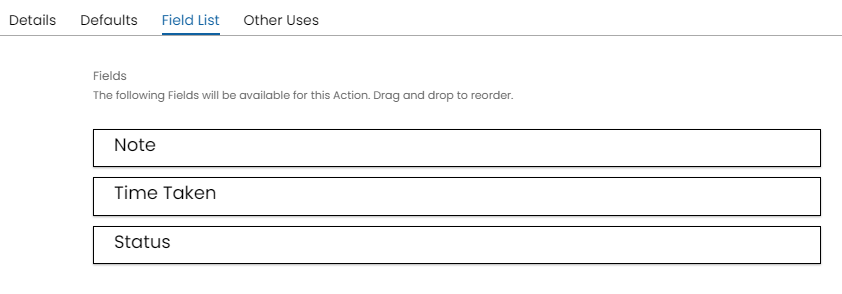
Fig 2. Action Field List
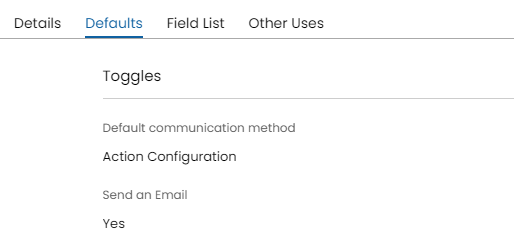
Fig 3. Send an Email set to Yes
Create Child Ticket
This system use will create a child ticket for the original ticket. When selected you will need to set:
- Whether the configuration of the child ticket is determined using a template or ticket type.
- Which ticket type/template the child ticket is created using.
- Who the end user of the child ticket will be.
When using on a ticket, the action will bring up a sidebar within the current ticket for the new ticket creation screen.
"Child" refers to a ticket created from another ticket, which becomes its "parent" — the parent ticket can have one or more child tickets linked beneath it. For example, if you're setting up a new laptop for a user, the parent ticket might be "New Laptop," with a child ticket created for the "Software Installation" procedure. Creating a "Parent Ticket" works the opposite way: the ticket you're creating the parent from becomes the child of the new ticket you've just created.
The settings tab of the ticket type will also have many settings related to child tickets, such as:
- When Actions are added to a Parent Ticket by an Agent, also add to all Child Tickets
- Parent Status after all Child Tickets are closed
- Automatically change the Parent Status after all Child Tickets are closed
- Add updates from Users to Child Tickets
- Show active statuses on the Child Kanban
- One the above setting is turned off, you can multi-select "Statuses to show on Child Kanban View"
Useful options on the Action:
- Ticket Type (Can set to inherit the ticket type of original ticket)
- Default summary on new Ticket is summary of source Ticket
- Default details on new Ticket is details of source Ticket
- Allow Users to use this action
- Add a To-Do list from a Template
- Visibility on Child Tickets (Actions visibility)
The use case of a child ticket may be for some kind of pre-sales check, maybe a child ticket is used to spin off a software install on a
laptop.
Create Parent Ticket
When selected, an option of either creating a specific ticket type or template will need to be selected. The ticket type can be pre-set, a popup showing options, or inherited from the ticket. The template can also be pre-set, or chosen when completing the action.
When using on a ticket, it will bring up a sidebar for the new ticket creation screen.
Create Related Ticket
When selected, an option of either creating a specific ticket type or template will need to be selected. The ticket type can be pre-set, a popup showing options, or inherited from the ticket. The template can also be pre-set, or chosen when completing the action.
When using on a ticket, it will bring up a sidebar for the new ticket creation screen.
The following option is available when configuring this action.
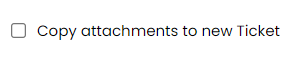
Fig 4. Copy attachments to new Ticket
This will add all attachments of the current ticket to the new ticket.
Create Opportunity
When selected, an option of either creating a specific ticket type or template will need to be selected. The ticket type can be pre-set, a popup showing options, or inherited from the ticket. The template can also be pre-set, or chosen when completing the action.
When using on a ticket, it will bring up a sidebar for the new ticket creation screen.
Create Appointment/Task
When using on a ticket, a sidebar will show to create either an appointment or a task. The subject of the event will pre-fill from the summary of the ticket, but this can be manually changed. It will also link the ticket to the event upon creation, and the end-user of the ticket will have their email pre-populated in the "Other Attendees" field.
For more information: "Appointments".
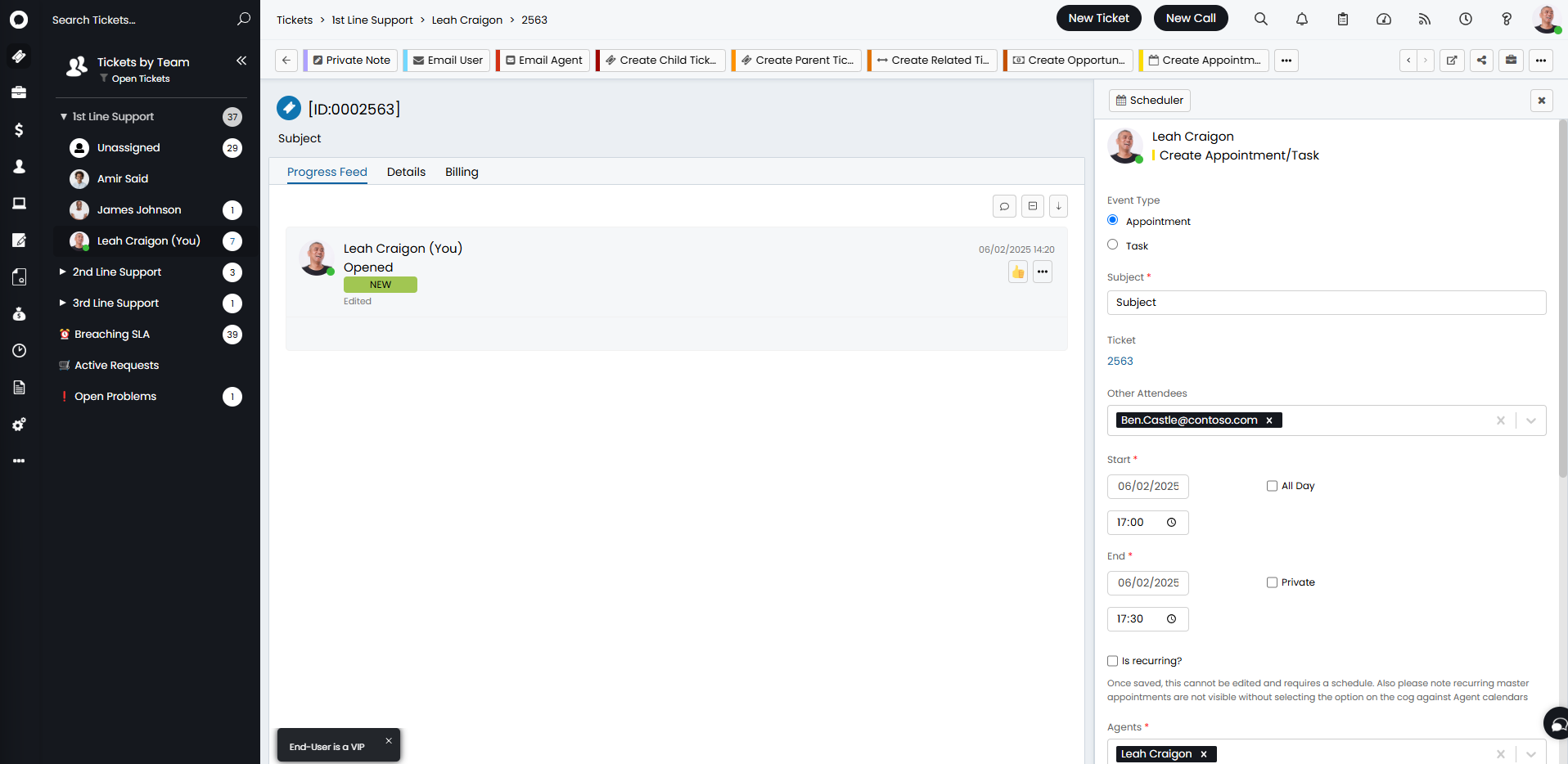
Fig 5. Create Appointment/Task system use
Complete Appointment/Task
Upon selection, the default completion status and default completion duration can be set in dropdowns underneath.
The action button will only show on a ticket after an appointment/task has been created, and upon selection will show a sidebar to mark as complete.
Complete all Appointments/Tasks
Upon selection, the default completion status and default completion duration can be set in dropdowns underneath.
When using on a ticket, an action will show in preview to save all as complete. If no note fields, etc. are needed, this can be used as a Quick Action.
Add note to Child Ticket(s)
Upon selection, "Child Status After Action" can be set if the status is wishing to be changed, or set to not change. The "Child Action visibility" can then also be set to whether the note should be visible to the end-user or not.
Note: If the "Add to Parent Ticket" checkbox is enabled, this system use will not be available.
The "Note" field will be needed to be added to the "Field List" of the action.
When using on a ticket, a note can be typed and the action will show on the parent, and be added to the child, with a hyperlinked ticket ID showing where it came from/went to.
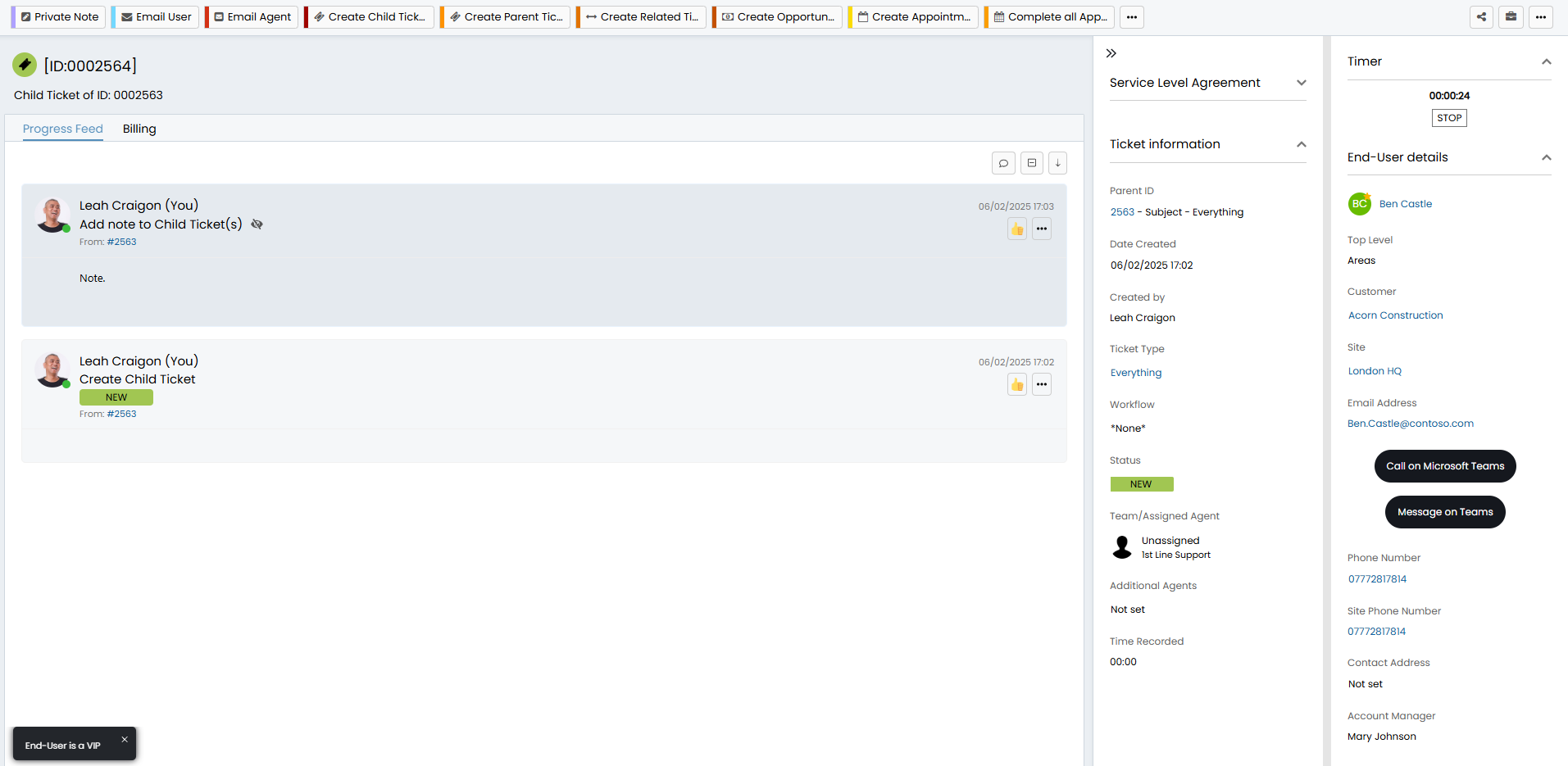
Fig 6. Add note to Child Ticket(s) system use
Email Child Ticket(s)
Upon selection, the "Email template for Child email" and "Child Status After Action" can be selected. The "Note" field should be added onto the "Field List" of the action.
Note: If the "Add to Parent Ticket" checkbox is enabled, this system use will not be available.
When using on a ticket, an email will be sent to the end-user of both the parent and child tickets.
Add note to Parent Ticket
Upon selection, the "Parent Status After Action", "Add attachments to Parent Ticket", and "Parent Action visibility" fields will show. Here it can be set if the status should be changed, whether attachments should be added to the parent, and whether the action is private.
Note: If the "Add to Parent Ticket" checkbox is enabled, this system use will not be available.
When using on a ticket, a note will be added on both the parent and child ticket with a hyperlinked ticket ID between them.
Update Original Ticket
Upon selection, the "Parent Action visibility" and "Status After Action" will appear.
This is used to add a note on a related ticket. This differs slightly from the "Add note to related ticket" system use which will update multiple if many-to-many relationships are used, whereas "Update Original Ticket" will only add the note to the first one.
Note: If the "Add to Parent Ticket" checkbox is enabled, this system use will not be available.
Create Quotation
Upon selection, the "Status After Action" can be set if a change in status is wanted.
Upon use on a ticket, the new quotation screen will appear.
Create Sales Order
Upon selection, the "Status After Action" can be set if a change in status is wanted.
Upon use on a ticket, the new sales order screen will appear.
Create Purchase Order
Upon selection, the "Status After Action" can be set if a change in status is wanted.
Upon use on a ticket, the new purchase order screen will appear.
Create Invoice
Upon selection, the "Status After Action" can be set if a change in status is wanted.
Upon use on a ticket, the new invoice screen will appear.
Re-assign
Upon selection, the "Status After Action" can be set if a change in status is wanted. Additionally, actions with this system use will be hidden from agents who do not have permission to reassign.
The "Re-assign" field should be added to the action's field list, and "Note", "Time Taken" and "Charge Type" are also beneficial to add.
Enabling "Allow this action to be used even when Ticket/Project is locked" will allow this action to be used even if locked by either a creation rule, or milestones.
Log to Supplier
Ensure the "Suppliers" module is enabled. You can check by hovering over the module in Configuration > Optional Features, and ensuring a "cross" (X) icon shows instead of a "plus" (+). If it shows a plus, click this to enable the module.
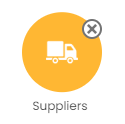
Fig 7. Enabled Supplier module
You will then see a pre-configured action with this system use within your action list. This action can be used to log a ticket to a different Halo instance if needed, but can be used to contact your suppliers by email as normal as well. Note: Any action with this system use can only be used once per ticket.
For more information, read the "Suppliers in Halo" guide or the "Sending Requests Across 2 Instances".
Email Supplier
This action is used to email the supplier associated with a ticket. An action using the "Log to Supplier" system must be used before an action with this system use will be available.
Supplier Response
This can be used to email the supplier when set to send an email. It will set the Supplier SLA response and change the Ticket status to what the Action is set to.
An action using the "Log to Supplier" system must be used before an action with this system use will be available.
Supplier Fixed
This can be used to email the supplier when set to send an email. It will set the Supplier SLA resolution and change the Ticket status to what the Action is set to.
An action using the "Log to Supplier" system must be used before an action with this system use will be available.
Supplier Recall
This can be used to email the supplier when set to send an email. It will set the Supplier SLA response/resolution and change the Ticket status to what the Action is set to.
An action using the "Log to Supplier" system must be used before an action with this system use will be available.
Create Bug/Issue/Work Item
This creates a ticket in Jira/Azure DevOps if those integrations are connected.
For more information on linking other ticketing systems: "ServiceNow Integration", "Jira Service Management Integration" and "Azure DevOps Integration".
Remote Session Invitation
This sends an email with the "Remote Support Invitation" email template. The links etc. for the variables on this template are configured in Configuration > Remote Support > General Settings.
When integrating with other software, the guides for these will also include built in system uses.
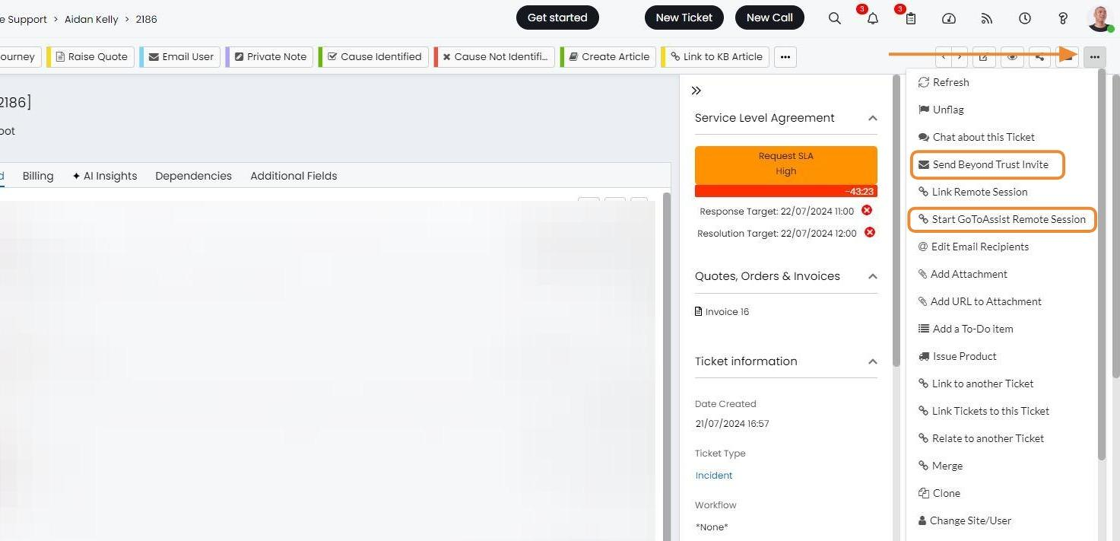
Fig 8. Example system uses from remote integrations
Create Knowledge Base Article
When using this system use, the "New Article" screen will show to create a new knowledge base article. It is recommended to set this as a "Quick Action" to go straight to this screen without saving.
Link To Knowledge Base Article
When using this system use, the "Link to a KB Article" screen will show to choose one from the list. It is recommended to set this as a "Quick Action" to go straight to this screen without saving.
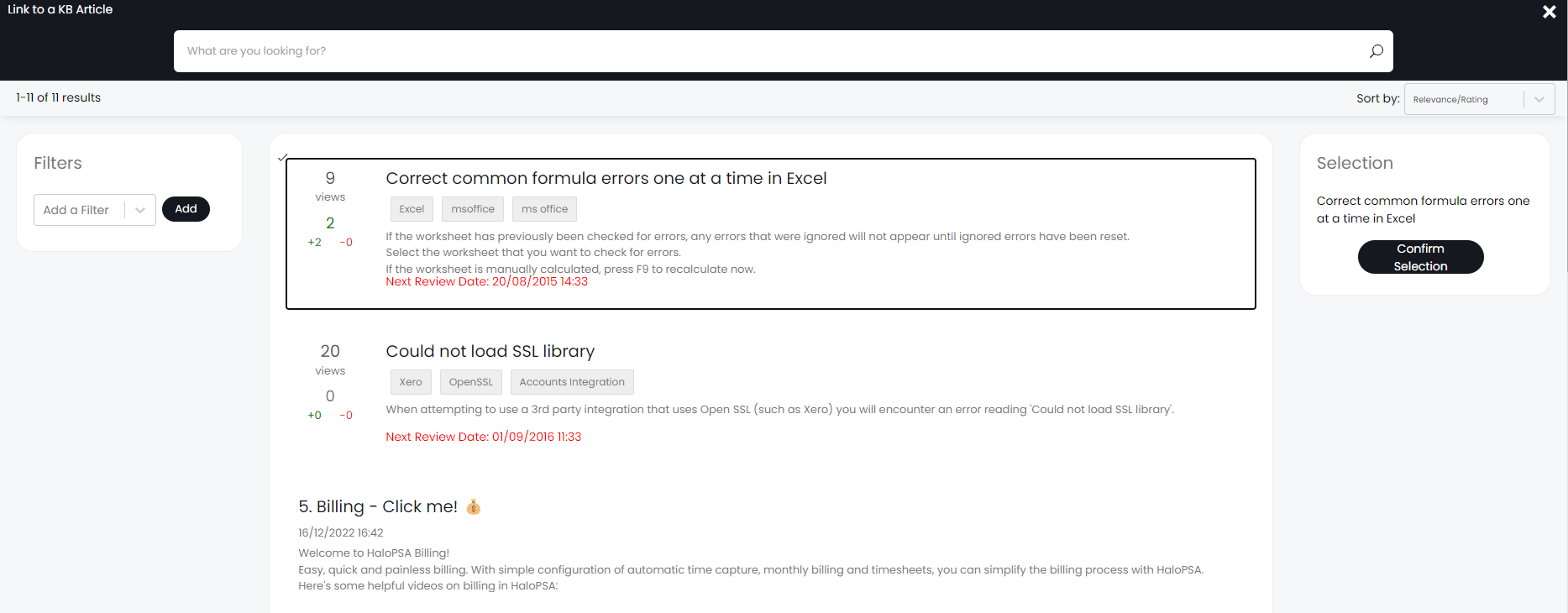
Fig 9. Link to a Knowledge Base Article system use
Cancel Approval Process
If an approval process is being carried out on the ticket, this system use will cancel and remove it from the ticket. It is recommended to set this as a "Quick Action".
Start Journey/ Arrive on Site/ Leave Site/ End Journey
For a detailed explanation of journeys and on-site system uses, please have a look at this guide on "Journeys".
Note: If the "Add to Parent Ticket" checkbox is enabled, the "Start Journey" system use will not be available.
Email Quotation
If there is a quote attached to the ticket (done by raising a quote via an action on the ticket, or manually adding the ticket link to the quote), the quote can be emailed to the end-user of the ticket. The action will only become available after a quote has been associated with the ticket.
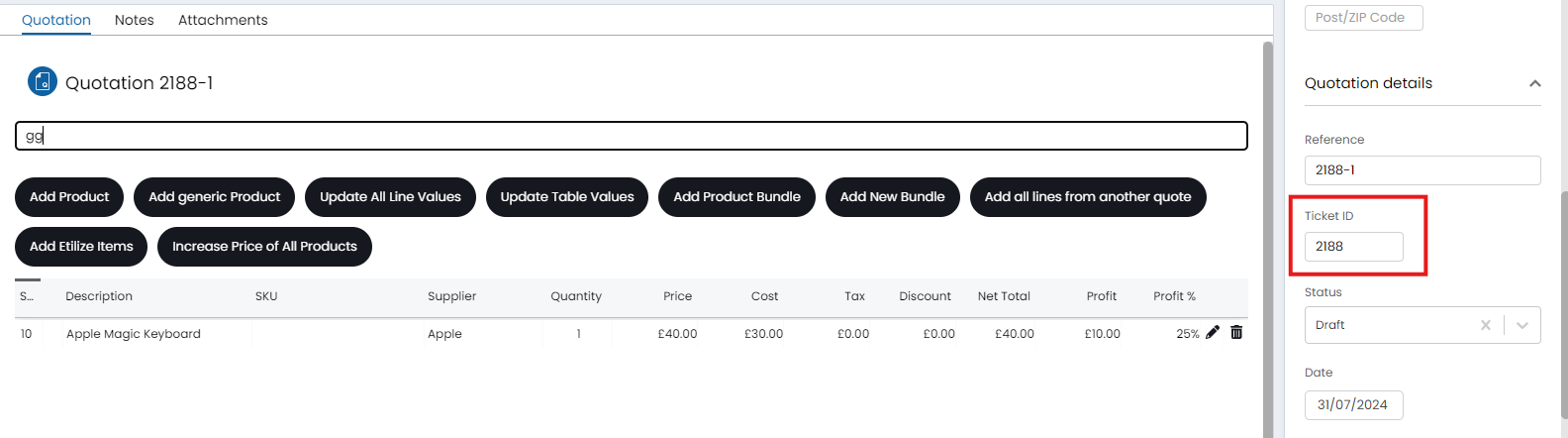
Fig 10. Ticket ID on a quotation
The quote will be sent out with the email template set within the "Print Options". The default refers to the "Quotation Message" email template (ID: 92).
The option "Attach quotation PDF when sending email" in Configuration > Quotations > General Settings will be followed when using this System Use. If disabled, the PDF will not be added whether sending from the Quotation directly, or through this System Use.
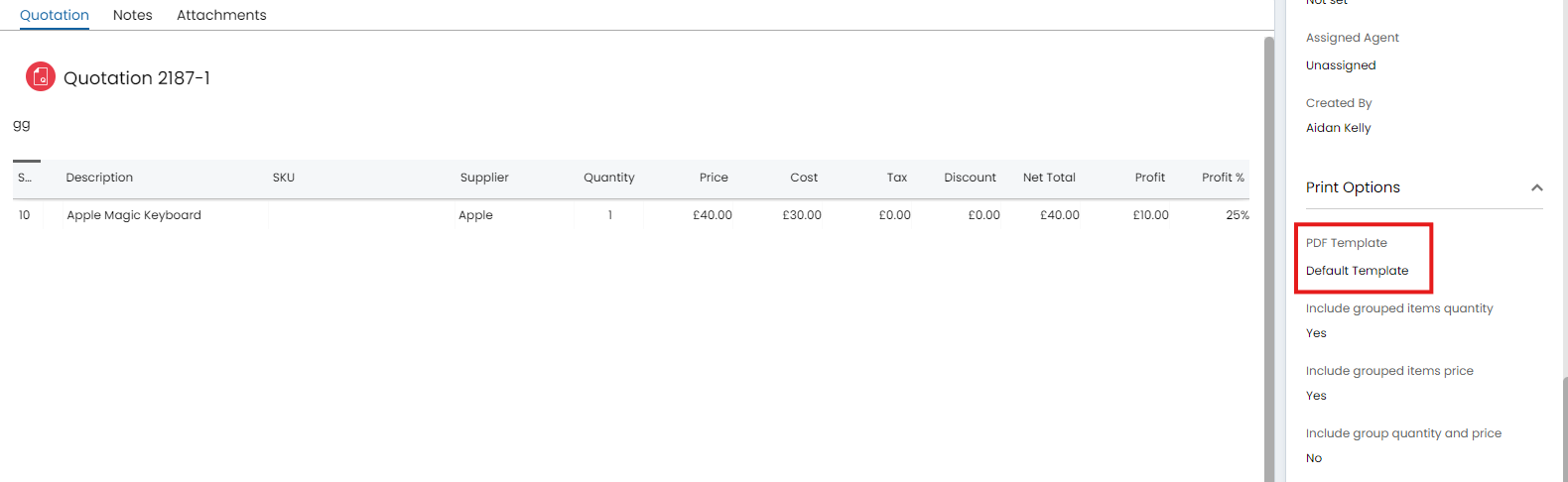 Fig 11. PDF Template on a quotation.
If you would rather append the email with the action note you have written (make sure the note field has been added to the email quote action), you can add this dollar variable to the email template. Now whatever is entered into the action note, will pull to the top of the email template.
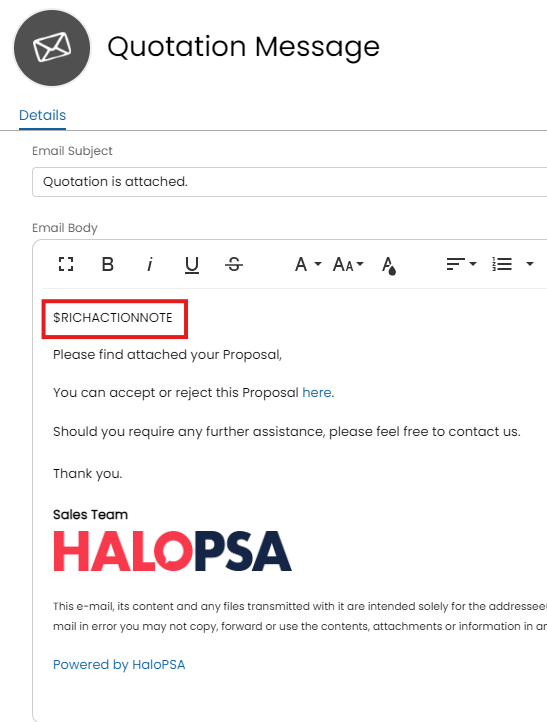
Fig 12. Adding the action variable into the Email Template
Email Accepted Approvers
Set "Send an Email" to "Yes" from within the "Defaults" tab. The approval process on the ticket must have more than one approver and the approval must have been triggered.
When using the action, the accepted approvers will have their email address populated on the action creation screen, and you can see the emails by enabling the checkbox "Show Email Fields" from within the "Details" tab of the action.
Email All Approvers
Set "Send an Email" to "Yes" from within the "Defaults" tab. The approval must have been triggered.
When using the action, the accepted approvers will have their email address populated on the action creation screen, and you can see the emails by enabling the checkbox "Show Email Fields" from within the "Details" tab of the action.
Open URL
The action must be configured to be a "Quick Action", and will open a pre-configured URL.
Actions with this system use can also be made available for use to users.
Note: Make sure your browser allows popups from your Halo URL.
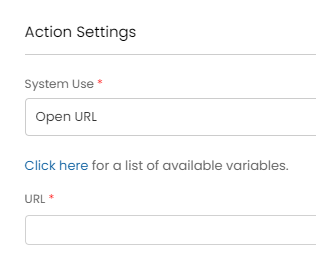
Fig 13. Open URL system use
Publish Article
This is the follow on for when article drafts are created with tickets, and will publish the draft created on the ticket.
Send Webhook/Queue Integration Runbook
This system use can trigger runbooks with the correct start access.
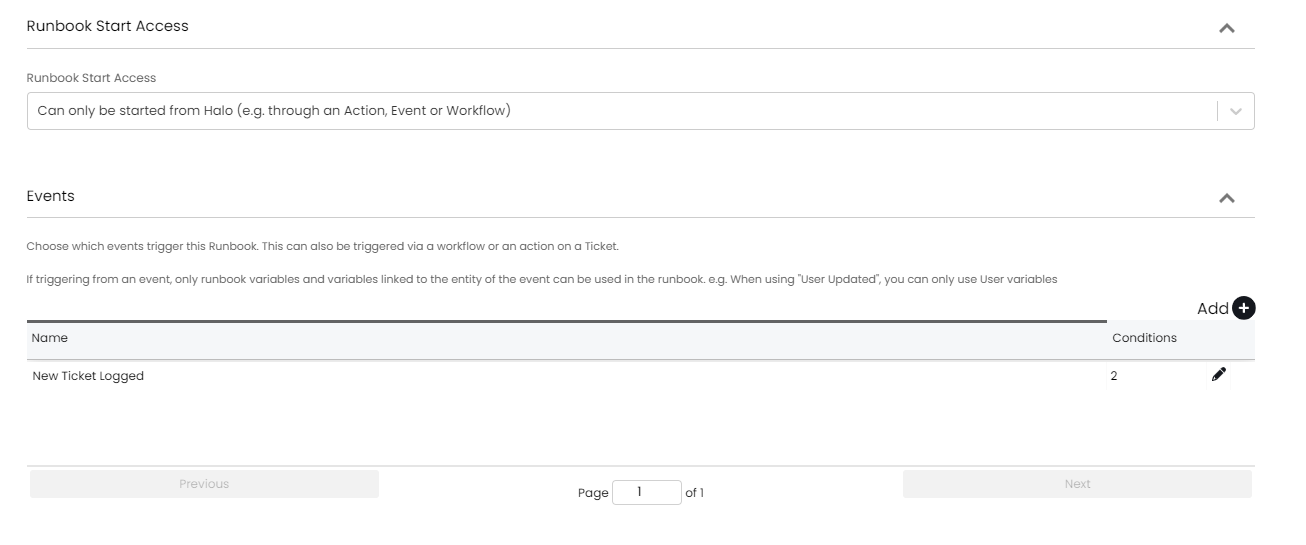
Fig 14. Runbook access
A runbook will not need an event trigger when triggering a runbook off of an action, allowing agents to choose when the runbook (automation is triggered). Once you have created the runbook and it is working correctly, you can trigger it off of any action in the system.
You can set this action to trigger a webhook (found in Configuration > Integrations > Webhooks), this will allow you to make a POST or a GET to the specified payloadurl of the webhook.
Send Webhook/Queue Integration Runbook (Send after Action is saved) (v2.246+)
This system use will result in a chosen webhook or integration runbook being run.
Note: Only runbooks that have their "Start Access" set to allow them to be started from Halo (shown in Figure 14) can be triggered from an action.
This should be used (over the system use "Send Webhook/Queue Integration Runbook") when the action contains fields/data that need to be used in the payload/request of the runbook/webhook you are triggering. As this system use allows for the webhook/runbook to be triggered after the action has saved, giving the action's field values time to save in the database.
Consign Items
Consignment refers to delivering the product to the correct place. There may be products in stock that you would like to issue and consign without having to go through the standard sales processes.
If products have been added to a ticket via the "Issue Products" button found in the ellipse on the far right of the ticket screen...
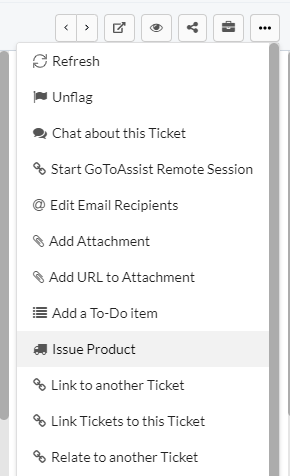
Fig 15. Issue Product system use
If the products have the checkbox "Consignable" turned on at product level...
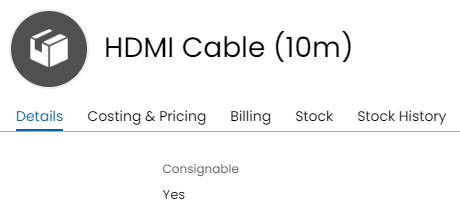
Fig 16. Setting a product as consignable
When viewing the Products tab of the ticket (visible if product have been issued on the ticket), you will notice the option "Consign Items". This consignment can also be done via an action by using the system use. After having the products issued on the ticket and setting up the consignment action, you can use the action and the choice of consignment can be made (based on the products that have been issued). There must be items in stock (stock can be added by clicking into a Product from the product list and then using the receive stock button found at the top of the product page.
Note: The consignment of products on sales orders or purchase orders is not possible when using this action system use, even if the ticket has been linked to the orders. The consignment system use is for products added to tickets on an ad-hoc basis.
Generate Report
The actions can also accommodate report generation, when enabled you will have the dropdown to select a report to run.
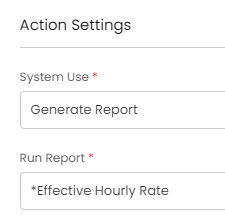
Fig 17. Generate Report system use
After configuring the action, the new action screen on the ticket will look like this below.
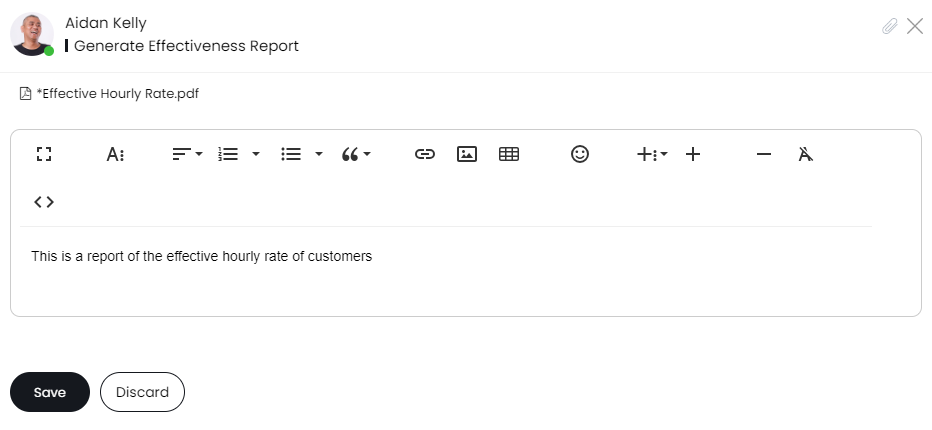
Fig 18. Sending report
Then click save on the action and it will generate.
Create a new Asset
When in use you can create a new asset from a ticket via a side bar asset creation screen.
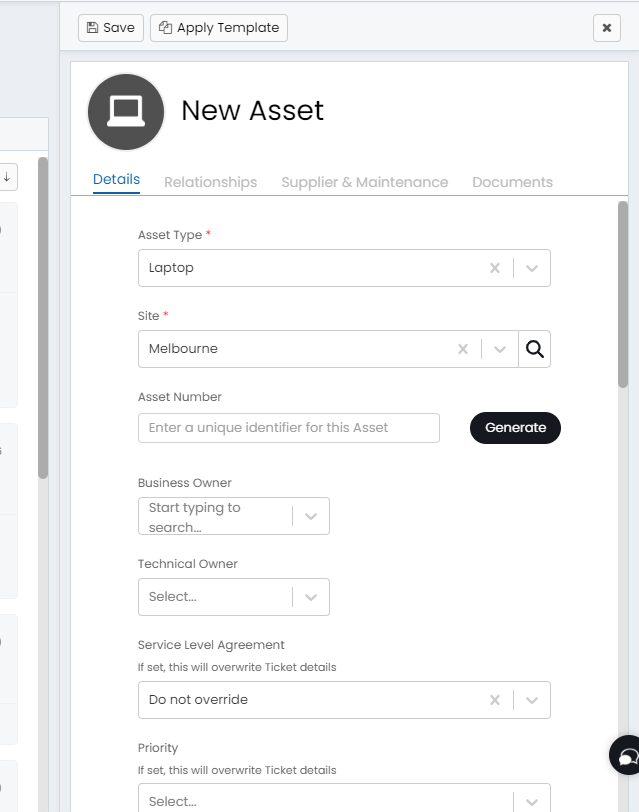
Fig 19. New asset sidebar
If this is set to a "Quick Action", it will automatically create the asset using the default type set on the action.
Link to another Ticket
Linking to another ticket can be achieved with this system use.
If another ticket is linked after the original, it will replace the previous ticket. Linked tickets will be parent tickets of the current and will be hyperlinked from within the "Details" tab.
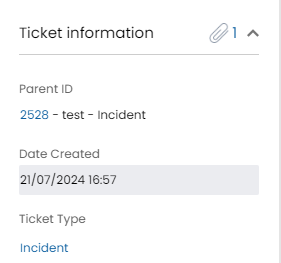
Fig 20. Parent ID on a ticket
Issue Products
The same way you can issue products by using the ellipse on the ticket screen, you can also do this via an action with this system use. Any notes added to the action will appear on a separate action.
You can choose whether a specific product is issued with this action, or if one is selected from the list.
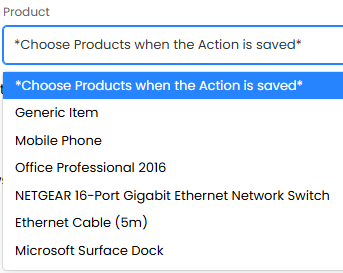 Fig 21. Selecting a product
Execute an Integration Method
A pre-configured custom integration method can be triggered using this system use.
Reclose
When used this will reclose a ticket that has already been closed (the action configured with this system use is only available when the ticket has been closed previously). The use case of having it reclose instead of just using another close action, is that the reclose will set the closure time of the ticket set to the date and time it was initially closed.
Delete my appointments
This will delete the agent's appointments on the ticket.
Delete all Appointments/Task (ignores completed)
This will delete the tasks and appointments on the ticket.
Add note to Related Ticket
The "Note" field should be added to this action, and whatever is entered there when using the action will also show on related tickets, dependant on the relationship set in Configuration > Tickets > General Settings.
Note: If the "Add to Parent Ticket" checkbox is enabled, this system use will not be available.
Email Unresponded Approvers
Enable "Send an Email" in the "Defaults" tab. When using the action, it will populate the email addresses of the unresponded approvers.
Renew Supplier Agreement
Ensure the "Supplier" field is added to the ticket type, and a supplier agreement is linked to it. The action will create a new agreement for that supplier starting from the .

Fig 22. Renewed supplier agreement
Add CRM Note
When using this system use, a "Satisfaction Level" and "Next Call Date" will be automatically added. It is also recommended to add a "Note" field to the field list so your own additional text can be added to the CRM note.
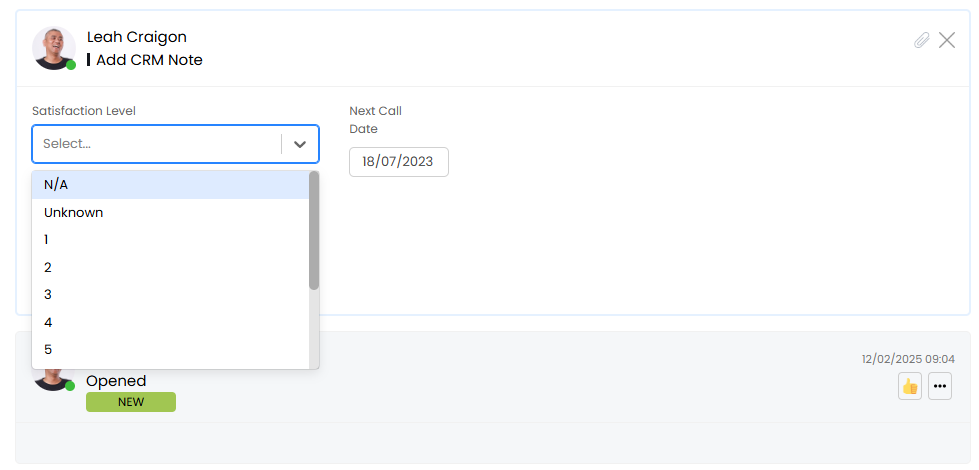
Fig 23. Add CRM Note system use
Save as a new Template
It is recommended to configure this as a "Quick Action". It will create a ticket template named with the summary of the ticket it is used on. The action will also show a template number, which corresponds to the ID of the template.

Fig 24. Save as a new Template system use
Bulk email primary Service subscribers
This will email any user subscribed to the primary service associated with the ticket, as well as the end-user. The primary service is associated via the "Primary Service" field added to the ticket type.
The action also needs to be configured for "Send an Email" to be "Yes".
Receive stock on Purchase Orders linked to the Ticket
This action will show all Purchase Order lines associated with the ticket that need ordering. You can serialize, select stock locations and change quantities as you normally would on a Purchase Order.
This also supports delivering stock directly to the end user. This functions the same way as consigning on the Purchase Order itself.
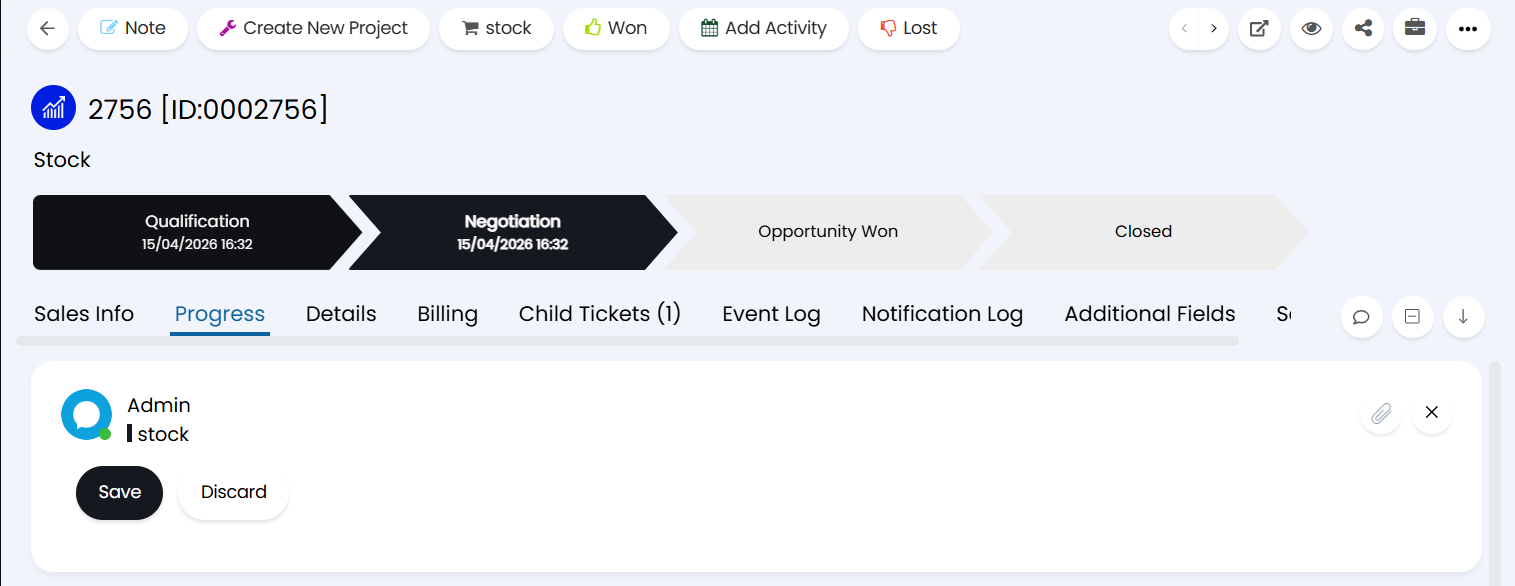
Fig 25. Receive stock action
Once you click "Save" on your action, you will be able to deliver items or receive stock accordingly. If the products being delivered to the user are serialised, once the quantity has been set a new modal window will show allowing you to set the serialisation fields.

Fig 26. Receiving stock
Forward
This will forward the email chain to another recipient, and will set the action to be hidden from the end-user. The action will additionally be excluded from email threading. This is useful for sending information to other member of your internal company.
Configure the action for "Send an Email" to be "Yes", and it is recommended to add a "Note" field for any additional information.
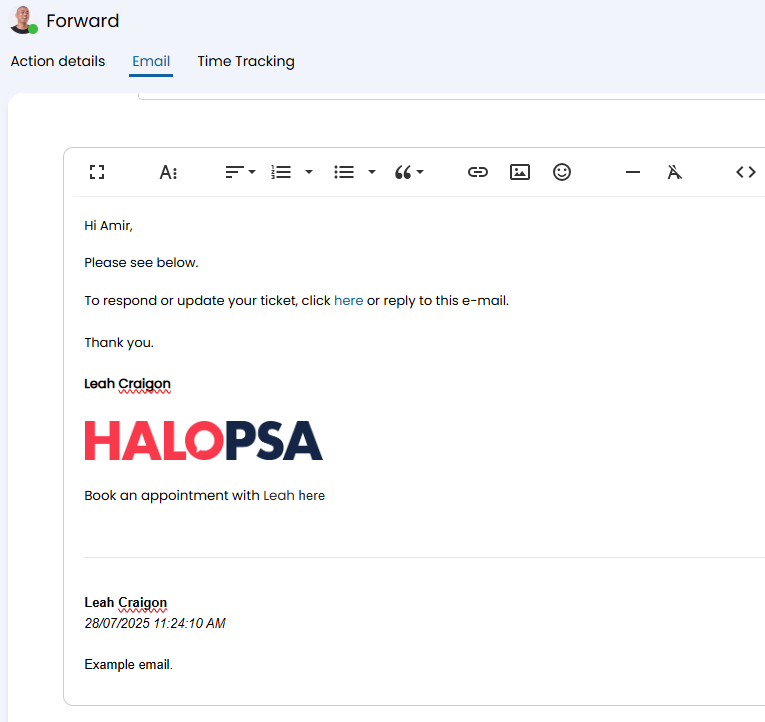
Fig 26. Forward action
Bulk email distribution list
Note: May be called "Segments" in some instances.
This will email any user within a distribution list, as well as the end-user. The "Distribution List" field should be added to the field list alongside the "Note" field. A default distribution list can be selected in the "Default Distribution List" dropdown in the "Defaults" tab, and this will be the one that shows in the dropdown unless manually changed by an agent.
The action also needs to be configured for "Send an Email" to be "Yes".
Start an Azure Runbook
Upon selection, you can choose which Azure runbook you would like this action to trigger when used on a ticket.
Call on Microsoft Teams
Upon using this action, a popup will appear to open Microsoft Teams if the integration is enabled.
A pre-configured button can also be added under the user's email address if "Show an option underneath a User's email address to call them directly via Microsoft Teams" is enabled in Configuration > Integrations > Microsoft Teams > Call Management tab.
Return Consigned Assets
For this system use to appear, "Track Stock Levels" must be enabled in Configuration > Items and Stock Control. This system use can be used to return assets that have been consigned on the ticket back into stock.
Choose Assets to Return (v2.256+)
For this system use to appear, "Track Stock Levels" must be enabled in Configuration > Items and Stock Control. In contrast to the 'return consigned assets' system use, which automatically returns all consigned assets on the ticket, this system use allows the option to choose which consigned assets on a ticket should be returned. When used, instead of saving immediately, a modal screen will appear showing the consigned on the ticket where you can pick the asset(s) to return.
Cancel Next Appointment
This will cancel the next upcoming appointment associated with the ticket. If no appointments are associated with the ticket this action will not appear.
Convert Prospect to Client
This option will unselect the "Is Account" checkbox on the Account associated to the ticket causing them to move from Accounts to Customers/Clients. This can be added to Opportunity ticket types to easily change a prospective Account to a Client. From more information on Accounts and Prospects see out guide on Managing Prospective Clients in Halo.
C reate Mail Campaign
This will open a new Mail Campaign screen where from your ticket, automatically linking the campaign to the ticket. Once saved any campaigns created will show against the side of the ticket.
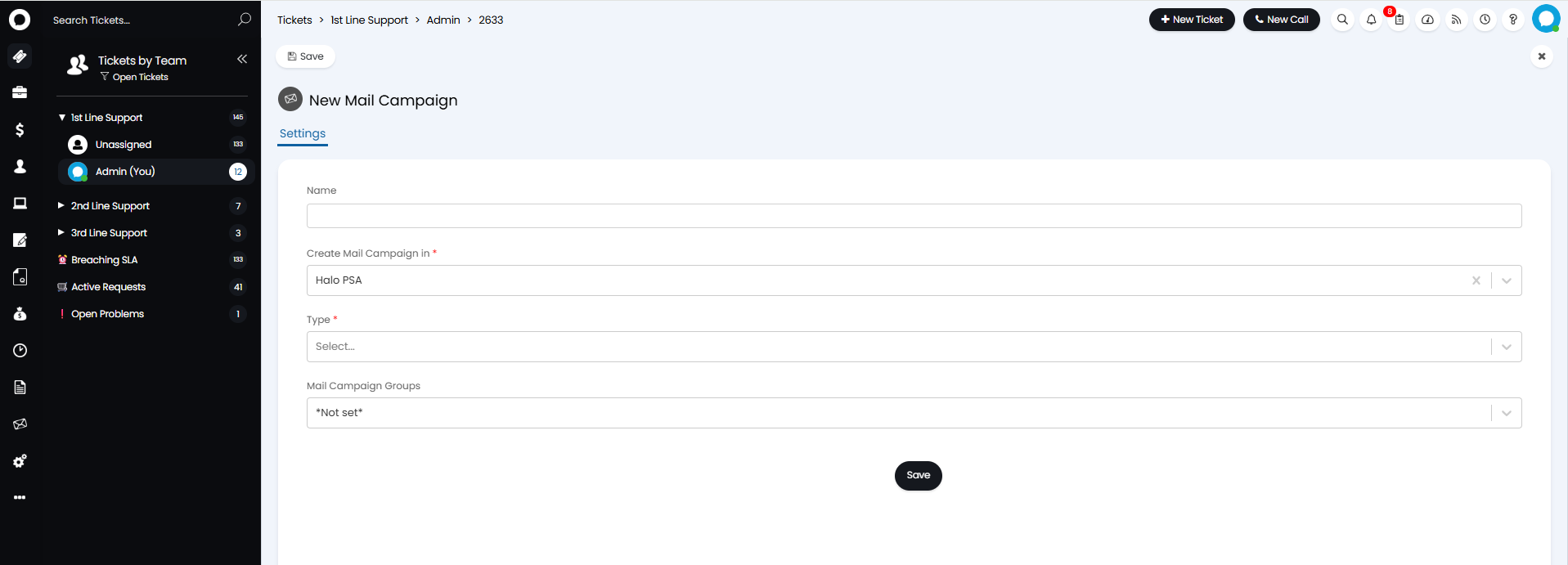
Fig 27. Mail Campaign action
Add to campaign (v2.248+)
This Action will add the End User of the Ticket to the members list of a chosen Event triggered Campaign which was started from events. This allows you to manually add Users directly to a campaign, without requiring a Distribution List.
Remove from campaign (v2.248+)
This Action will remove the End User of the Ticket from the members list of a chosen Event triggered Campaign. This allows you to manually remove Users from a campaign, without requiring a Distribution List. This will only show if the User is a member of an Event triggered campaign.
Pause campaign (v2.248+)
This Action will pause the Campaign for the End User of the Ticket for a chosen Event triggered Campaign. This allows you to pause the flow for specific Users on a campaign directly from a Ticket. This will only show when the User is active on an Event triggered campaign.
Restart campaign (v2.248+)
This Action will restart a chosen paused campaign for the End User of the Ticket. This allows you to restart the flow for specific Users directly from a Ticket. This will only show when the User is paused on an Event triggered campaign.
Countersign Quotation (v2.251+)
This Action will show to the Countersigning Agent when a Quote is awaiting countersign on the Ticket. When used, the Agent will be able to add their signature to countersign the Quote. Note: The Action will only show if the Ticket Type has countersigning enabled.
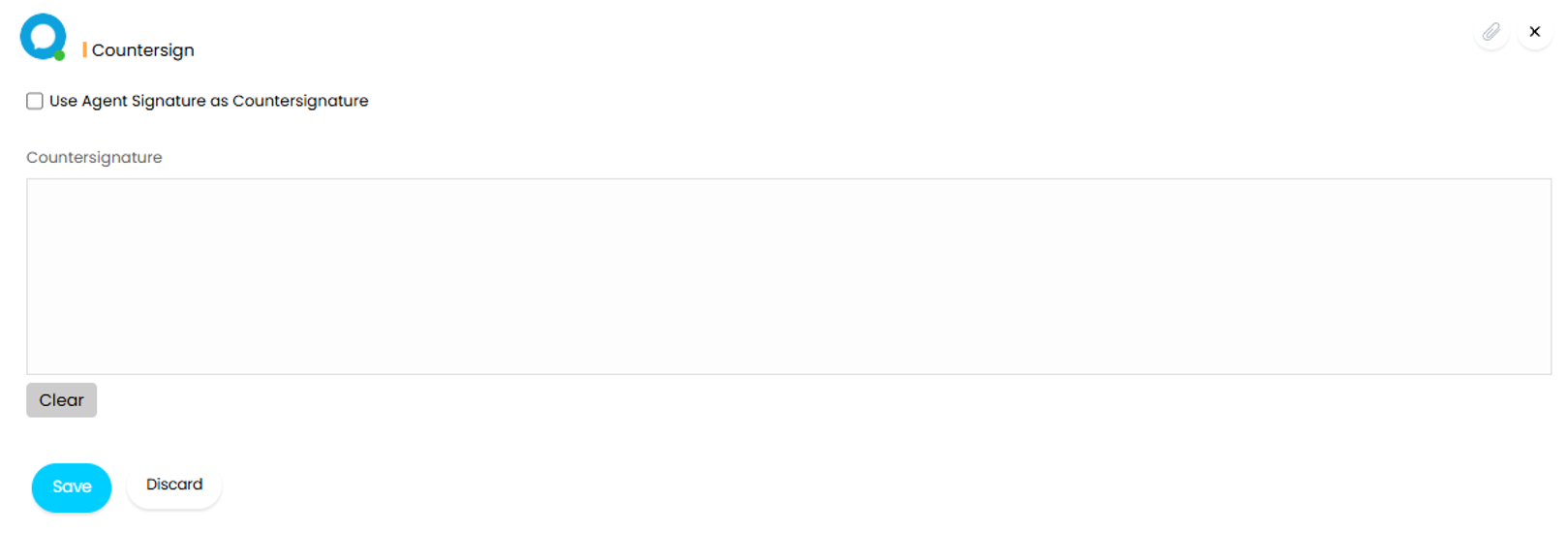
Fig 28. Countersign action