Approving Quotes Overview
In this guide we will cover:
- Sending a Quote for Approval
- Quote Approval via the User Portal
- Configuration Options for Quoting
- Internal Quote Approvals
- Creating a project off the back of a converted opportunity
- Closing the quote and raising the order
- Automatically create a Sales Order and Close the Quote when the Quote is Approved
Admin Guides:
Related Guides:
Quotes can be approved in two ways, either via following the link on the email template and approving the quote via the Self Service Portal, or via an email response back into Halo then an action to proceed the workflow. Approvals allow end users to sign off and and accept a quote, prompting processing. Or reject prompting revision. If optional items are included on the quote users can adjust the amount of optional items and approve based on the amount chosen. Optional item approval is covered in a separate guide here.
Note: It is recommended you always send a quote from an opportunity or a sales ticket. This is because the response will be mapped back to the opportunity if the user responds to the quote via email.
Sending a Quote for Approval
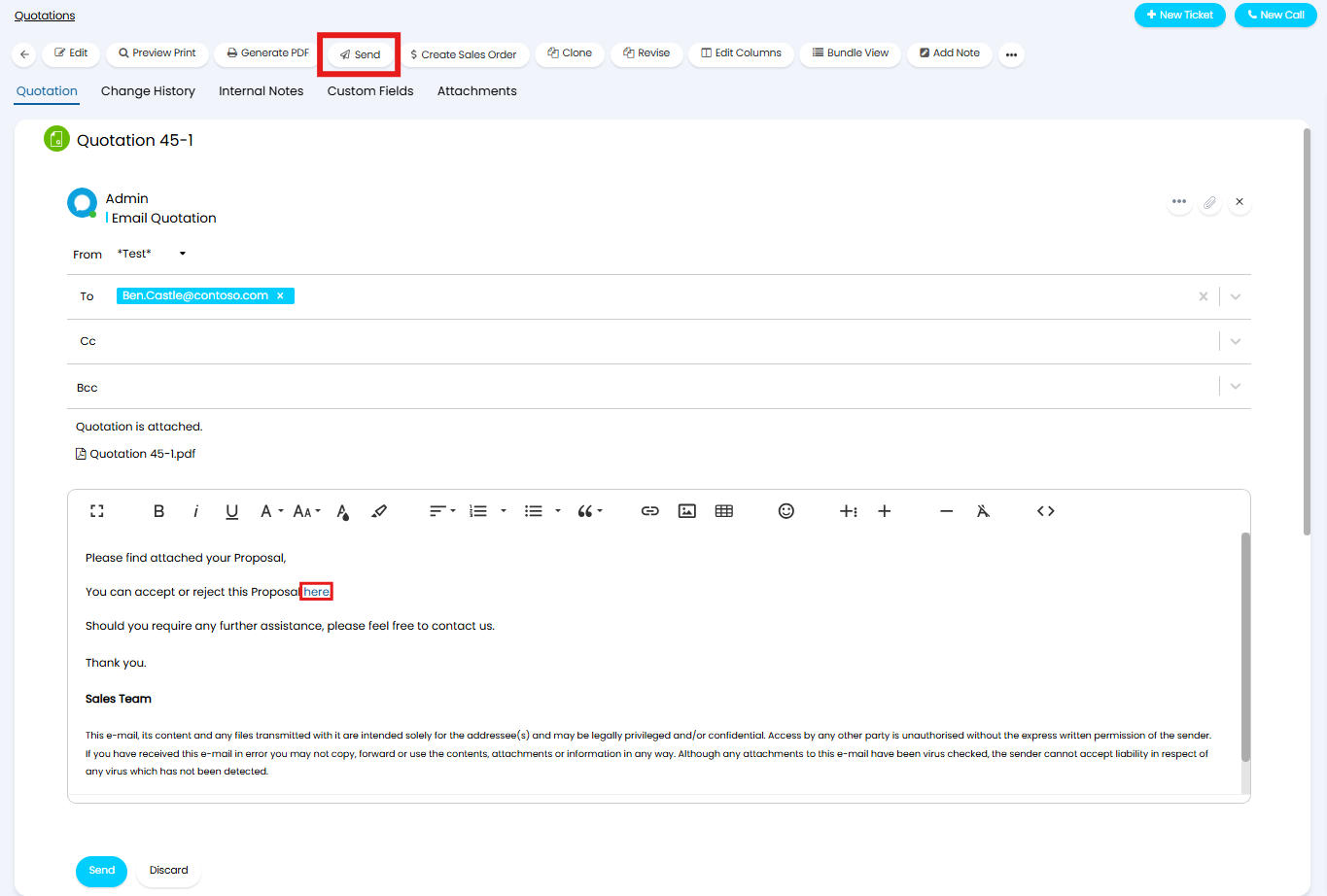
Fig 1. Sending a Quote from Halo - Quote Approval Link via the Portal is done from the link highlighted above
Dollar Variable
The $ variable used for the link on the word "here" in the above template is $-quoteapproval. Navigate to Configuration > Email > Email Templates > Filter the description for "Quotation Message".
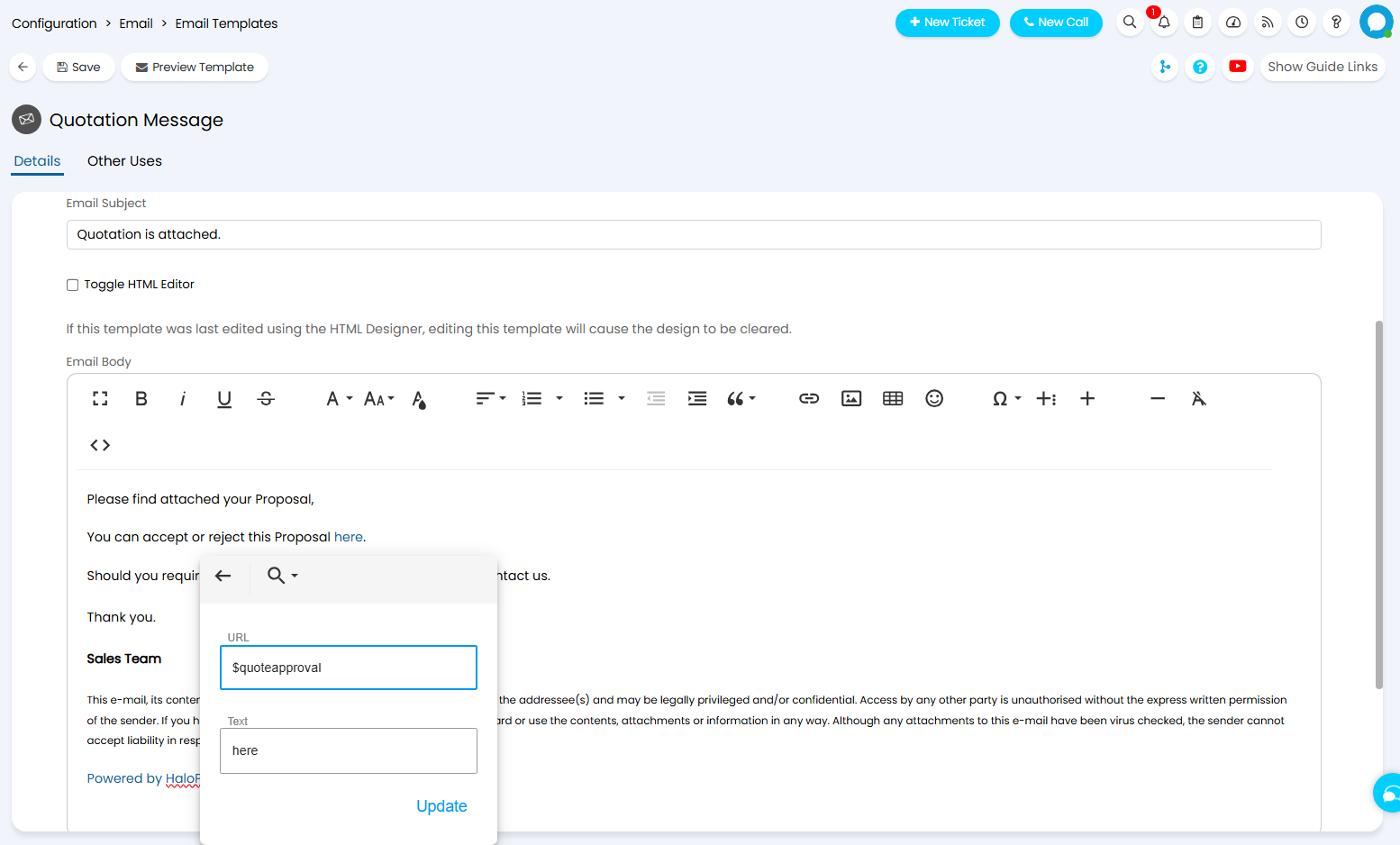
Fig 2. Quotation Message Email Template
The quotation message template can be edited to suit what you like, having the $-quoteapproval variable is important for getting the link to the quote. So it is important to include this in the template.
Quote Approval via the User Portal
After clicking the link to approve the quote via the portal, a new portal window is opened. From here you can choose to approve or reject the quote via the thumbs up or down icons.
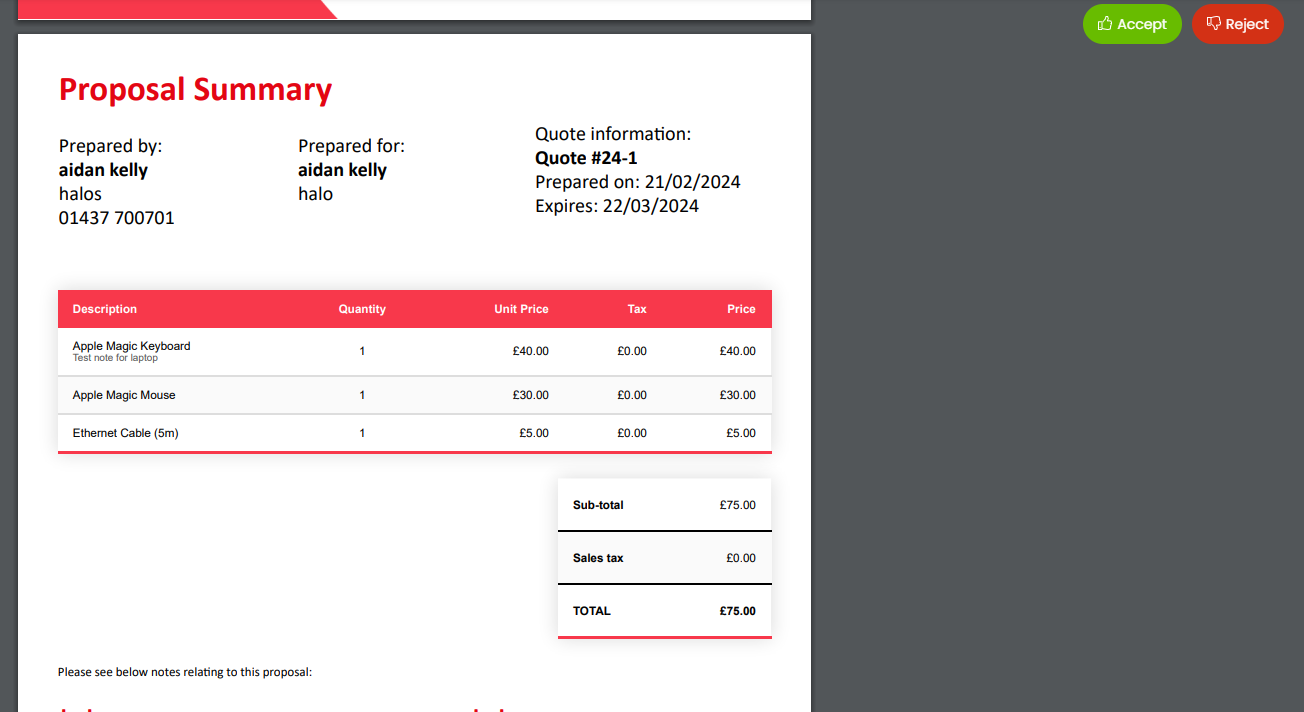
Fig 3. Approval via the portal
Quotations past the "Expiry Date" will not be available to approve.
Note: After clicking accept, the user will be able to add in their signature and can edit the optional items that were on the quote, they will then have to click accept again.
After acceptance, the IP address of the approver can be added to quotation templates. This will not populate with an address until the quote is signed, and will show "IP Address" as a placeholder until then. This helps ensure the approver is who they are supposed to be and reduce risk of fraud, as well as provide a trail for audits that may be required in certain industries.
Customise the Field List for Quote Approvals
Within Configuration > Quotations you can set the fields that will be shown on the quote approval screen in the portal:
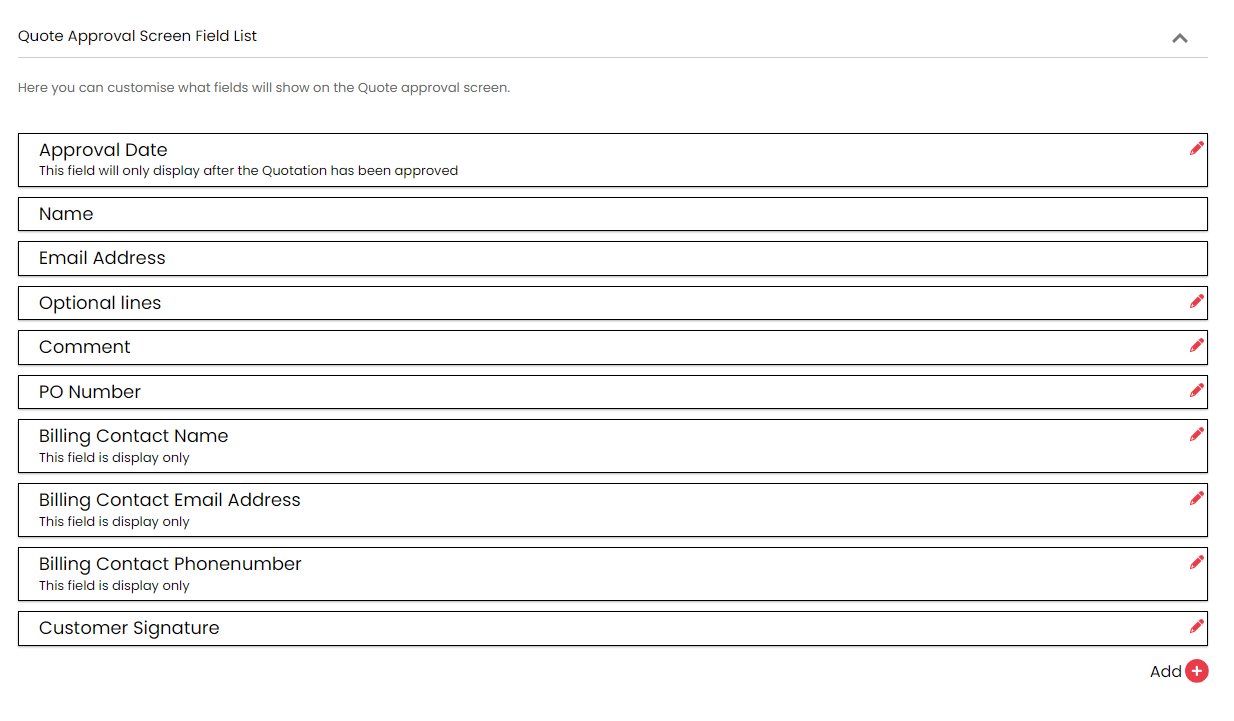
Fig 4. Field list for quote approvals
By using the pencil icons on the fields in the list, you can set field visibility i.e. required, not required, not visible, etc.
You can add ticket custom fields to this form. They can then pull from and transfer information to the same field added to the ticket that is linked to the quotation. This is a useful way of collecting extra information or having the acceptor tick a box for terms and conditions for instance.
Add the custom field the same way you do with the ones above, and make sure the same custom field is also added to the ticket type.
Note: If the quotation is raised separately without linking to a ticket, these fields will not show.
When accepting, the field will show on the form. If the custom field has already been populated on the ticket type that the quotation is raised from, it will pre-fill the same value here when submitting. If not, the box will be empty here.
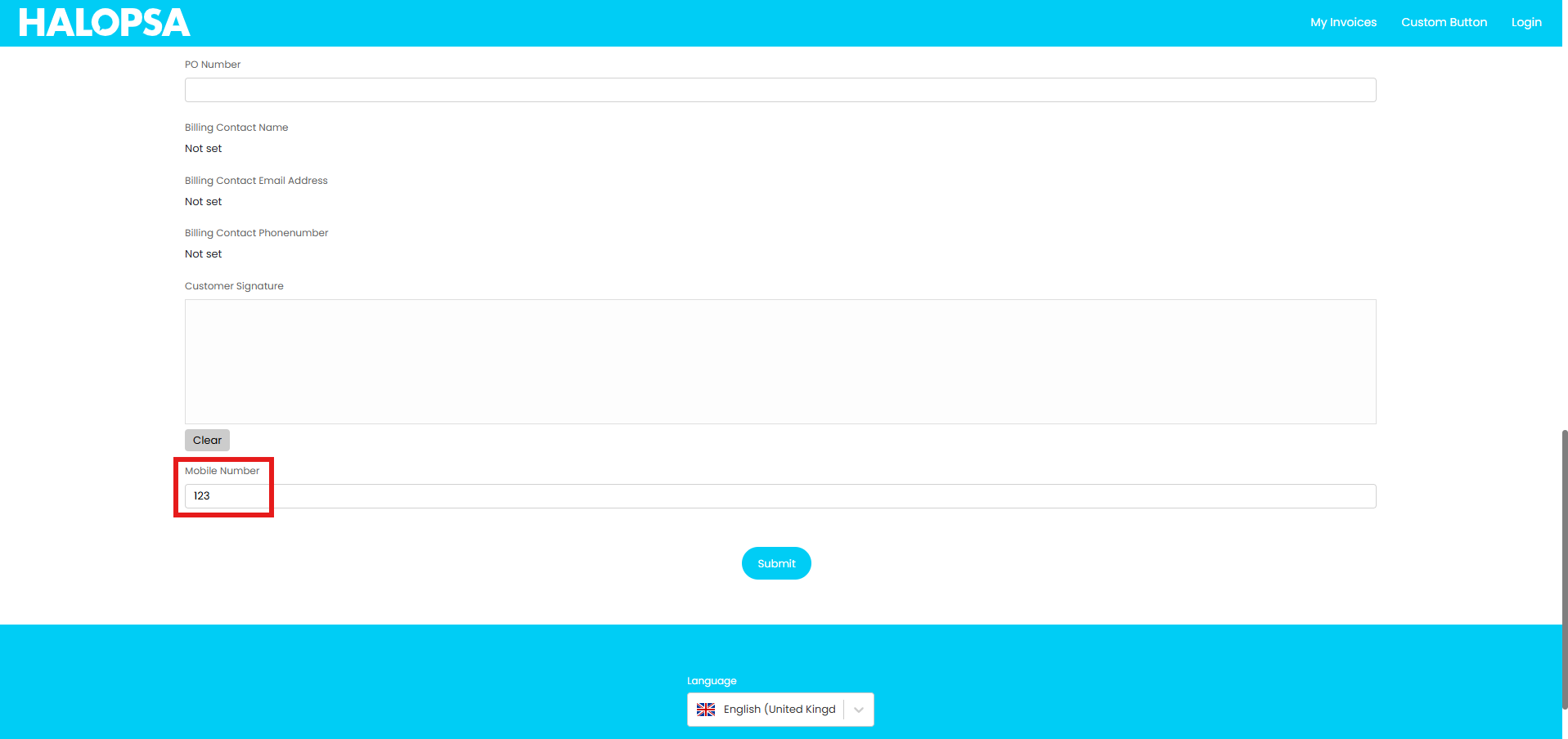
Fig 5. Custom field on the acceptance form.
You can add a custom hint/message above the signature field. To write this custom hint you can select the "Content to show above the signature input" button. This will open a text box where you can write your message.
Fig 6. Adding a custom hint for signatures
The message you provide in here will then display above the signature field.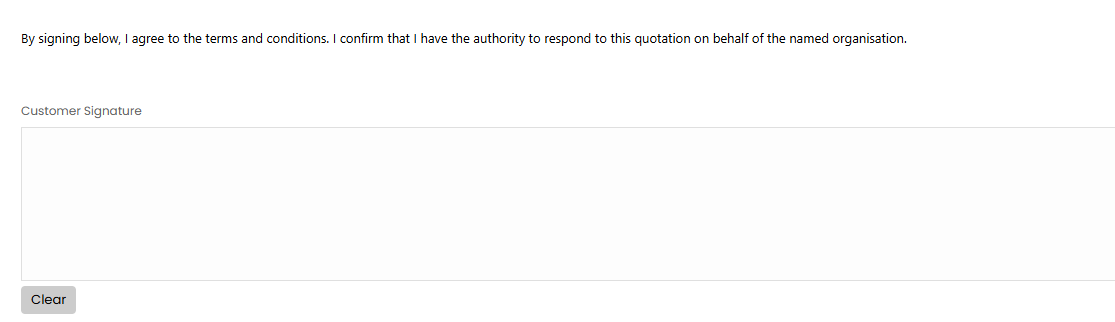 Fig 7. Adding a custom hint for signatures
If the user accepting decides to change it, it will overwrite the previous value on the ticket type.
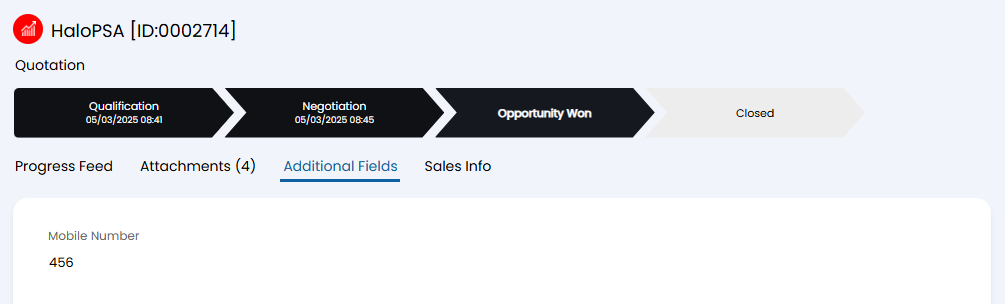 Fig 8. Custom field on the ticket type populated from the form
Portal Authentication
You can choose whether or not you want users to authenticate via the portal with the setting below. When checked, end-users must log in to access their approvals.
 Fig 9. Require Authentication for Approval Processes Setting
Email Templates
As explained above, the default template when sending quotes out from HaloPSA is the "Quotation Message" Email Template. This can be changed in the following location Configuration > Email > Email Templates.
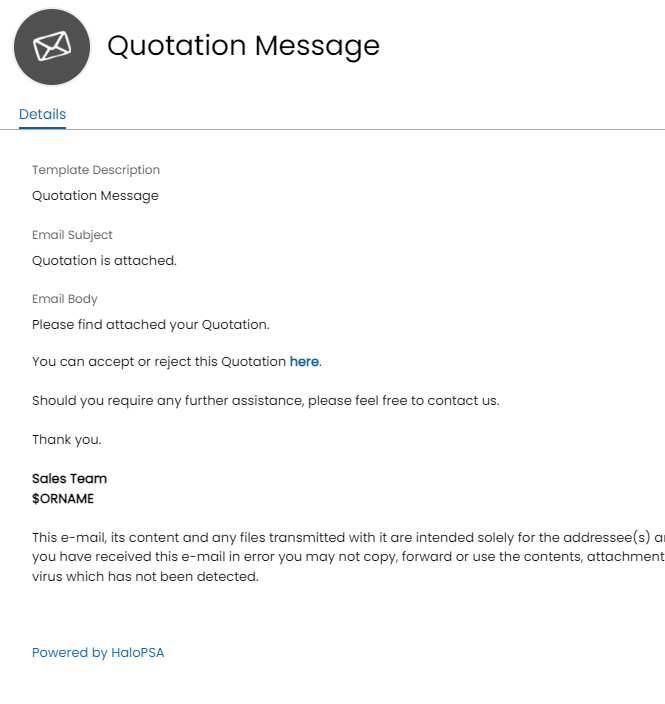
Fig 10. Quotation Message Email Template
Countersigning Quotes
The agent assigned to the quote can countersign the quote after it has been approved and signed by the user. The countersigned quote can then be sent off to the user/customer for their records.
This functionality is enabled per ticket type. Head to configuration > sales > opportunity types > select a opportunity type > settings tab > 'Enable Quote countersigning for Quotes linked to Tickets of this type'.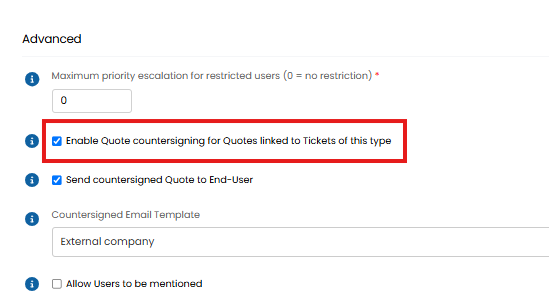
Fig 11. Enable quote countersigning against ticket type
Note: As this functionality is enabled per ticket type, countersigning is only available against quotes that are linked to a ticket. Standalone quotes cannot be countersigned.
To set the Ticket Status after a Quote has been signed head to Configuration > Quotations > Approvals, and choose the status using the "Ticket Status after Quote Countersigned" drop-down.
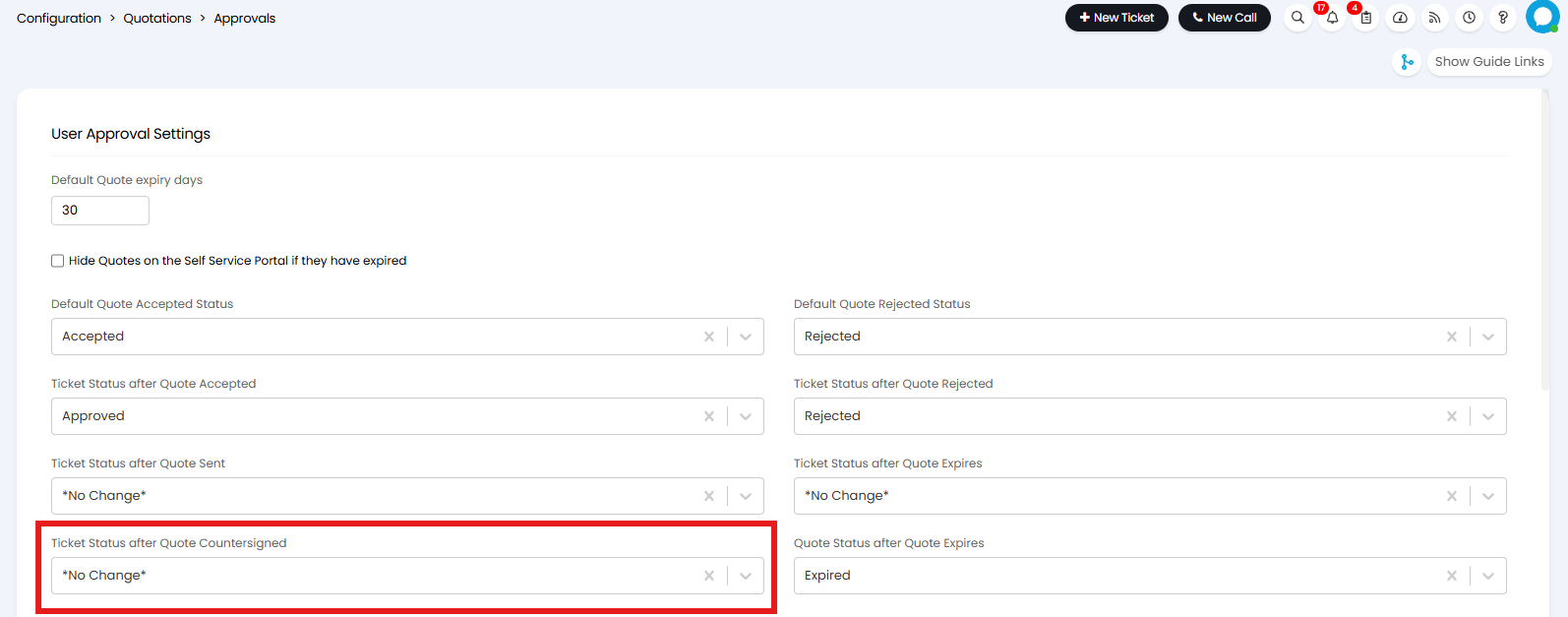
Fig 12. Setting the Ticket Status after a Quote has been Countersigned
Once Countersigning has been enabled, agents can raise and sent off quotes to users as normal. When the user has approved (and signed) the quote the agent will be given the action to 'Countersign' against a quote.
From v2.251+, Countersigning can be performed directly from the associated Ticket. To do this an Action with the system use "Countersign Quotation" will need to be created and added to the relevant workflow step. This Action will show to the agent when a Quote linked to the Ticket is awaiting countersign . When used, the Agent will be able to add their signature to countersign the Quote.
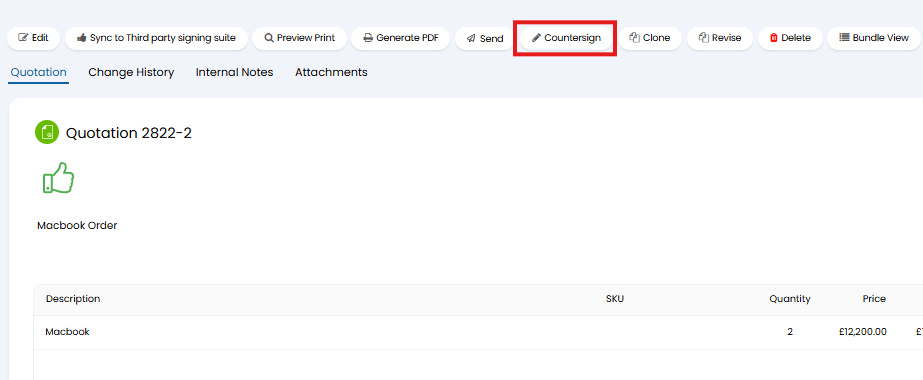
Fig 13. Countersign quote action
When this action is used the agent can either sign with a new signature or use their agent signature (set against their agent profile).
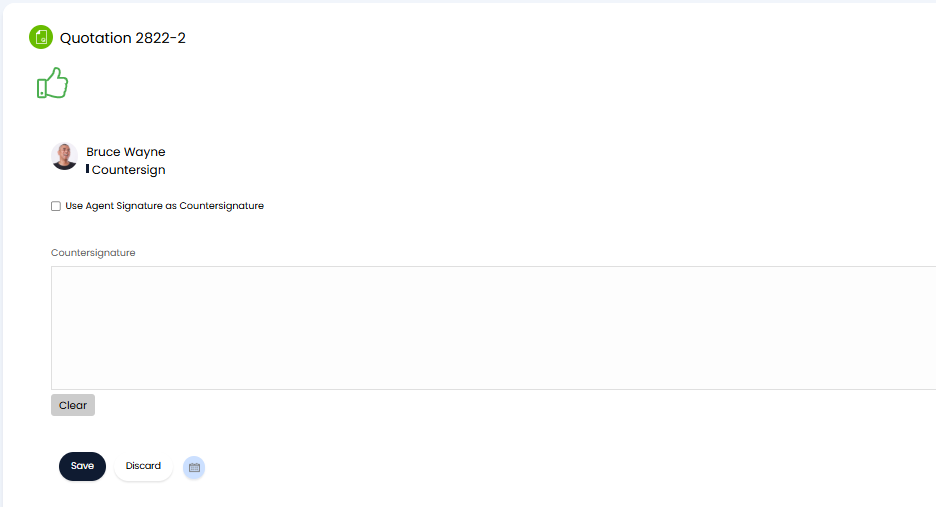
Fig 14. Countersign options
Once the agent has counter-signed their signature will be visible in the quote details.
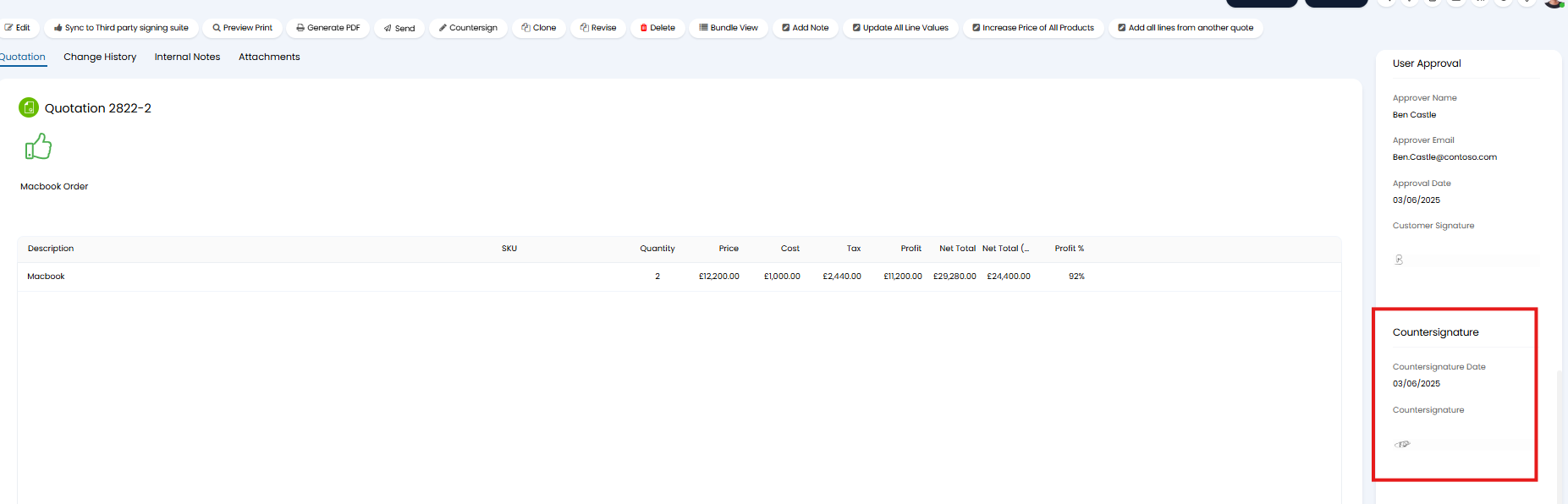
Fig 15. Counter signature in quote details
If you would like an updated version of the quotation, containing the counter-signature, sent out to the user following the agent countersigning, enable 'Send counter-signed quote to the end user' against the ticket type (shown in figure 9). This will automatically generate a new quote pdf and send this out to the end user of the quote. You will need to choose the email template that is used for this email against the ticket type too under 'Countersigned email template'.
In order to have the countersignature included in the quote PDF that is generated you will need to include the variable $-AGENTQUOTECOUNTERSIGNATURE in the PDF template used for the quotation. The variables $-QUOTECOUNTERSIGNDATETIME and $-QUOTECOUNTERSIGNDATE can also be used to pull through the date/time and date of the countersignature (respectively).
The countersign option will remain available for agents, allowing them to counter-sign multiple times. If you have enabled the functionality to automatically send emails to the user after each countersign, an email will be sent each time the agent re-signs the quote. Ensuring the user has the most up to date version of the quote.
Countersigning can be completed via emails. In Configuration > Tickets > Ticket Types > Settings tab. The below options are available.
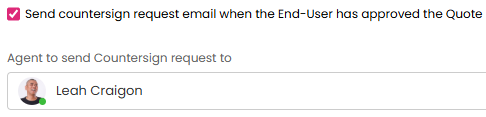
Fig 16. Enabling email countersigning.
Upon the user accepting the quote, the below email template (ID: 351) will be sent to the agent specified above. If no agent is set, the email will go to the agent assigned to the quotation. The variables "$-COUNTERSIGNAPPROVE" and "$-COUNTERSIGNREJECT" will populate with the acceptance and rejection links retrospectively.
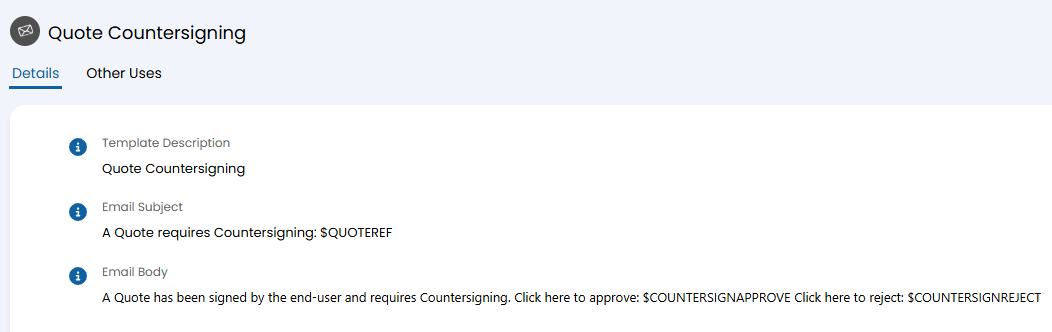
Fig 17. Email template for countersigning.
Upon opening the link to accept, the agent will have the option to add a comment.
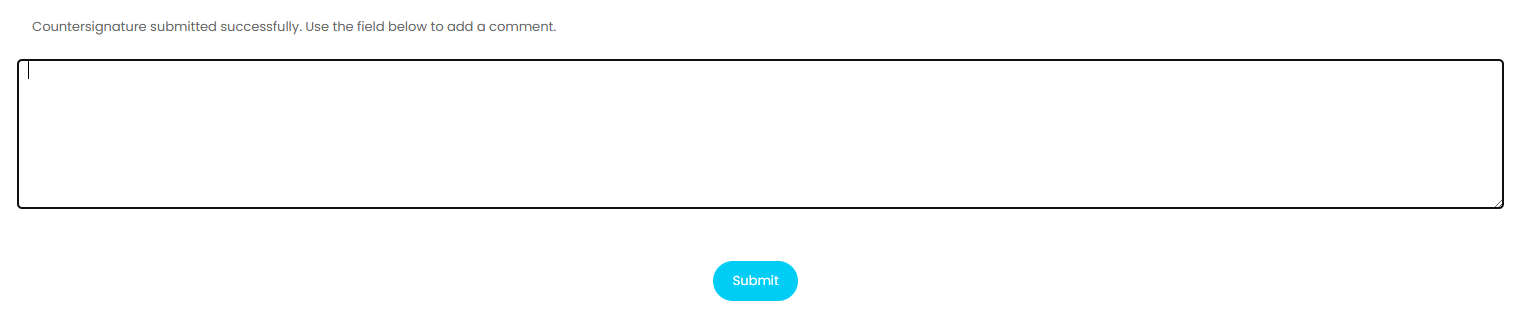
Fig 18. Portal when accepting.
When approving via email, the signature will auto-populate with the "Agent Signature" field from their agent profile.
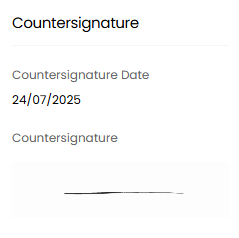
Fig 19. Countersignature added.
Note: If Countersigning is enabled Sales Orders will not be created for Approved Quotes until they have been Countersigned.
Configuration Options for Quoting
It is important to note there are useful configuration options for Quoting under Configuration > Quotations, in particular notifying user/agent on acceptance or approval of a quote, and setting ticket/opportunity statuses on quote acceptance.
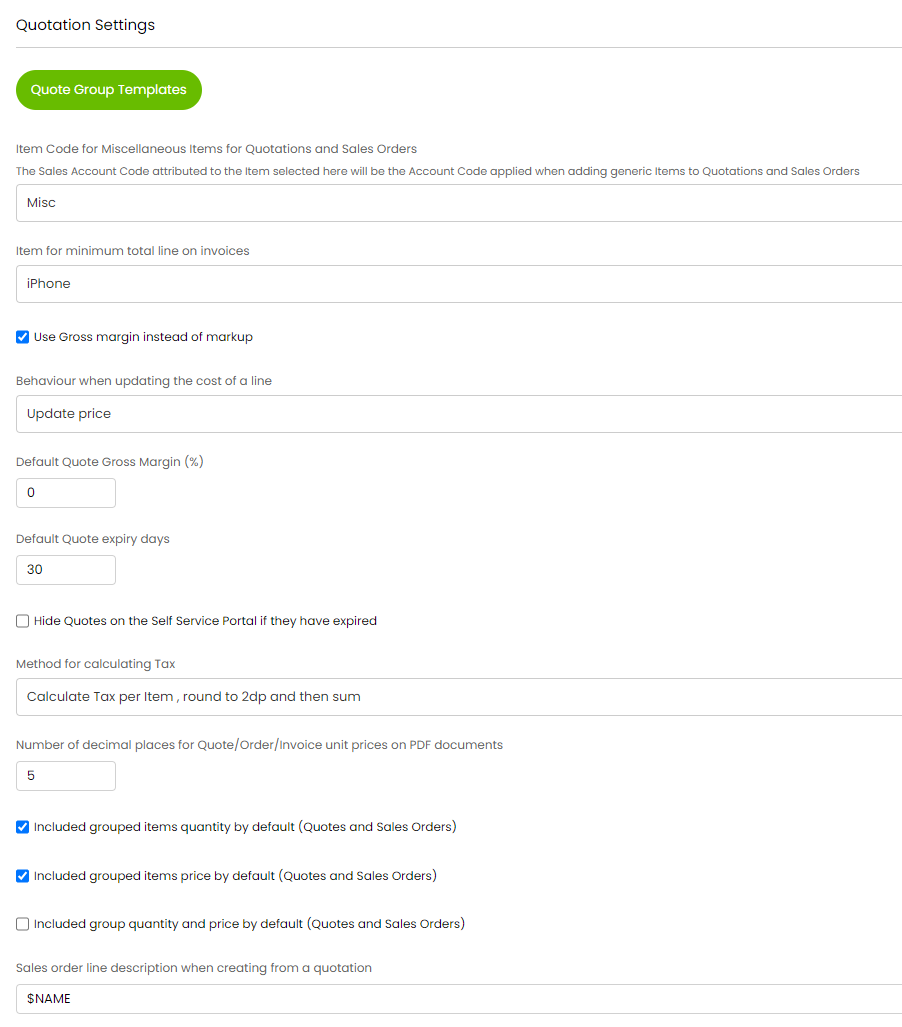
Fig 20. Config Options for Quotations
Internal Quote Approvals
Quotes can be configured to require internal approval prior to being sent to the end-user. This functionality is enabled under Configuration > Quotations > Approvals, see section 'Agent approval settings'. First enable "Allow Quotations to be approved before being sent or Sales Orders created".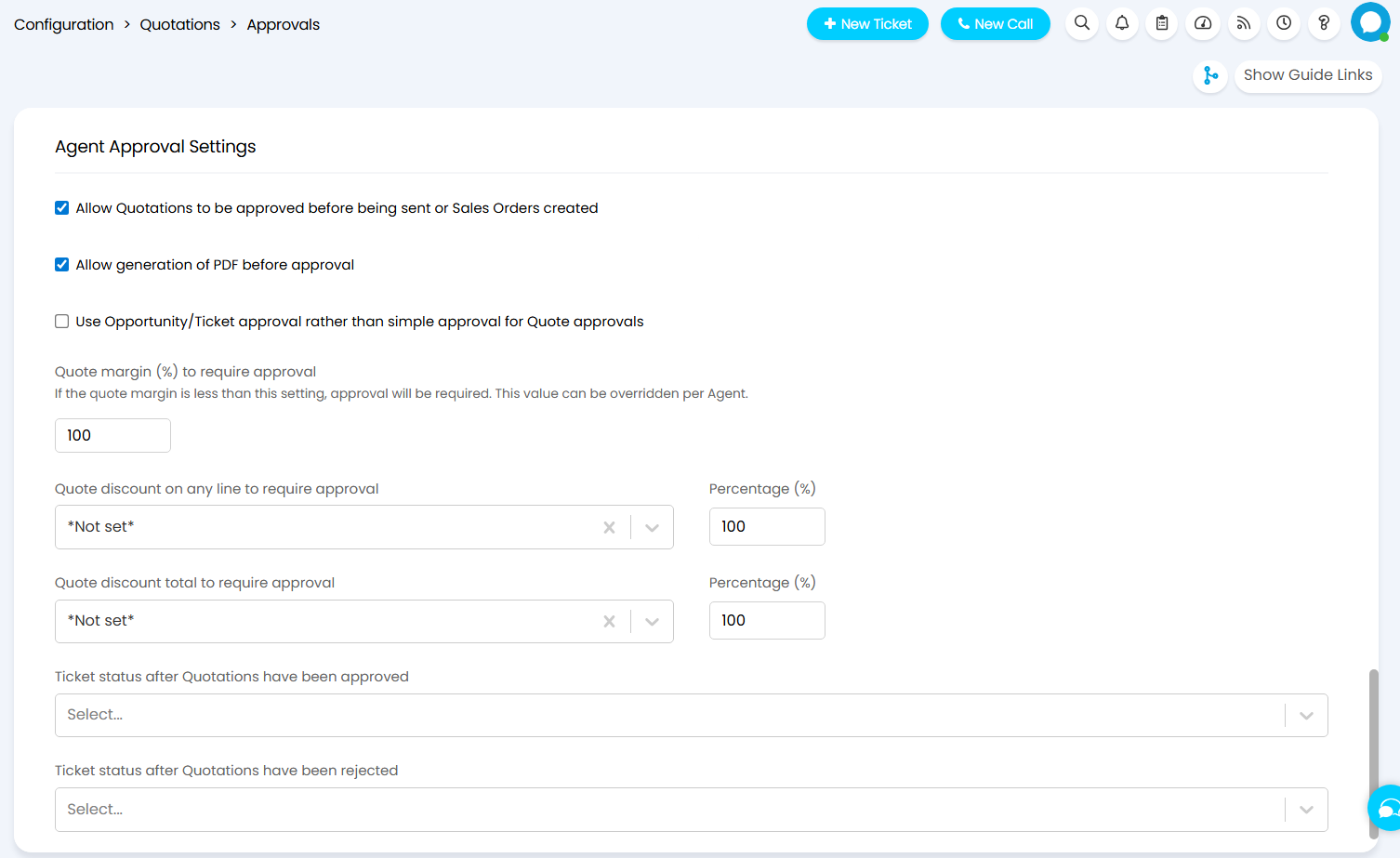
Fig 21. Agent Approval Settings
In order to set the agents that can approve quotations, give the agent permission to approve quotations either against their agent profile under Configuration > Teams & Agents > Agents > *Details Tab* > *Approval Settings Dropdown*.
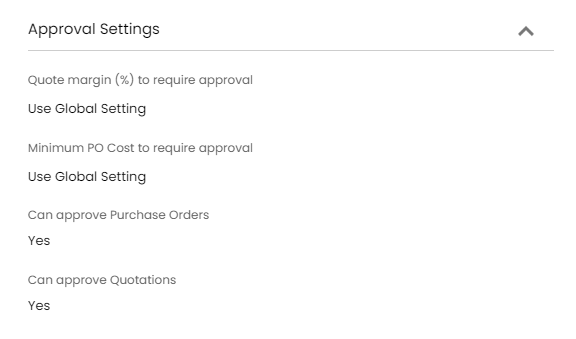
Fig 22. Approval Settings On The Agents Config
For more information on setting up and using internal quote approvals check out Internal Quote Approvals.
Creating a project off the back of a converted opportunity
Alternatively after marking the opportunity as won you can create a child project ticket to action whatever work is required to implement what has been sold (if applicable). This is managed in the workflow of the opportunity (Configuration > Sales > Workflows) by restricting the actions you want to have available at every step.

Fig 23. Creating a project off the back of a converted opportunity
Closing the quote and raising the order
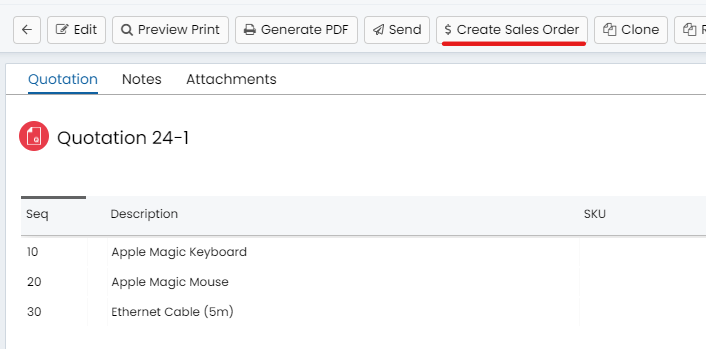
Fig 24. You can create the Sales order from the quote, then create the invoice from the sales order
Automatically create a Sales Order and Close the Quote when the Quote is Approved
You can also automatically create sales order if the quote is approved (Approved by the user via email or the self service portal) configured in Configuration > Quotations:

Fig 25. Automatically Create The Sales Order When The Quote Has Been Approved


Fig 26. Quotes Will Close Automatically When The Sales Order Is Created