Creating Quotations
In this guide we will cover:
- Raising a Quotation
- Raising from an Opportunity
- Raising Stand-Alone Quotations
- Cloning a Quotation
- Building the Quotation
- Product Bundles/Groups
- Adding Terms and Conditions based on Quote Lines
- Editing the Quotation
- Etilize Integration
- Sending the Quotation
Admin Guides:
Raising a Quotation
Quotations can either be raised as a stand-alone Quotation or as part of an existing Opportunity/Ticket/Project.
Note: Best practice is to always raise against an Opportunity/Ticket/Project so that you can easily track activity and any other data (such as Custom Fields or more complicated internal approvals).

Fig 1. Opportunities Area
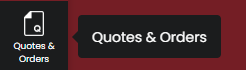
Fig 2. Quotes & Orders
Raising from an Opportunity
Once an Opportunity has progressed to satisfy any workflow requirements you have, you can use the "Raise Quote" action to create the Quotation.
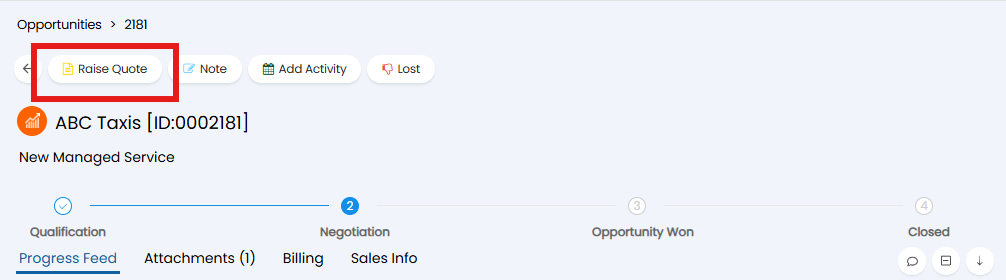
Fig 3. How to raise a Quotation from an existing Opportunity
The 'Raise Quote' Action is more generally an Action of system use 'Create Quotation':
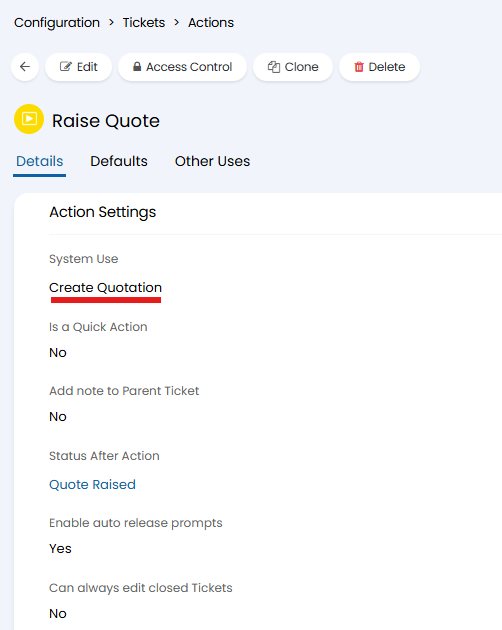
Fig 4. Configuration > Tickets > Actions > System Use
If a quotation is raised from an opportunity the quotation ID will follow the following format: OpportunityID - 2.
If another quote is raised from the same opportunity it will have the format OpportunityID - 2.
Each time the quote is revised they will be appended with a letter too. For example OpportunityID - 2 - A.
The status of the quotation will show in brackets next to the quotation number in the "Quotes, Orders & Invoices" section on the ticket.
Pulling Quote Details onto the Opportunity Ticket
If a quote is created using an action on the opportunity ticket, a link to the created quote will be available against the opportunity ticket.
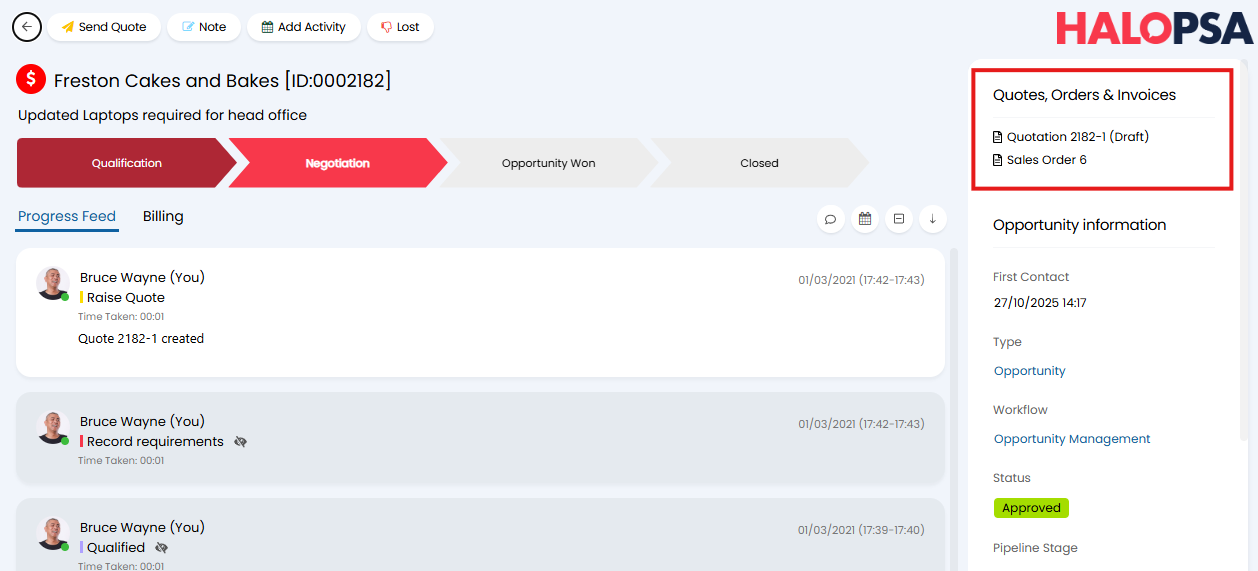
Fig 5. Link to quote against opportunity ticket
Quotation variables can be used on ticket actions. This means you can have the details of the quote be added to the ticket using an action automatically.
To set this up create a new action, head to Configuration > Tickets > Actions > New. The action will need the following configuration:
- System Use - No system use
- Is a Quick Action - Yes
Then under the "Defaults" tab of the action populate the "Default Private Note" field. This field should contain all the quote details you would like to print onto the ticket, variables can be used to pull in date from the quote linked to the opportunity ticket.
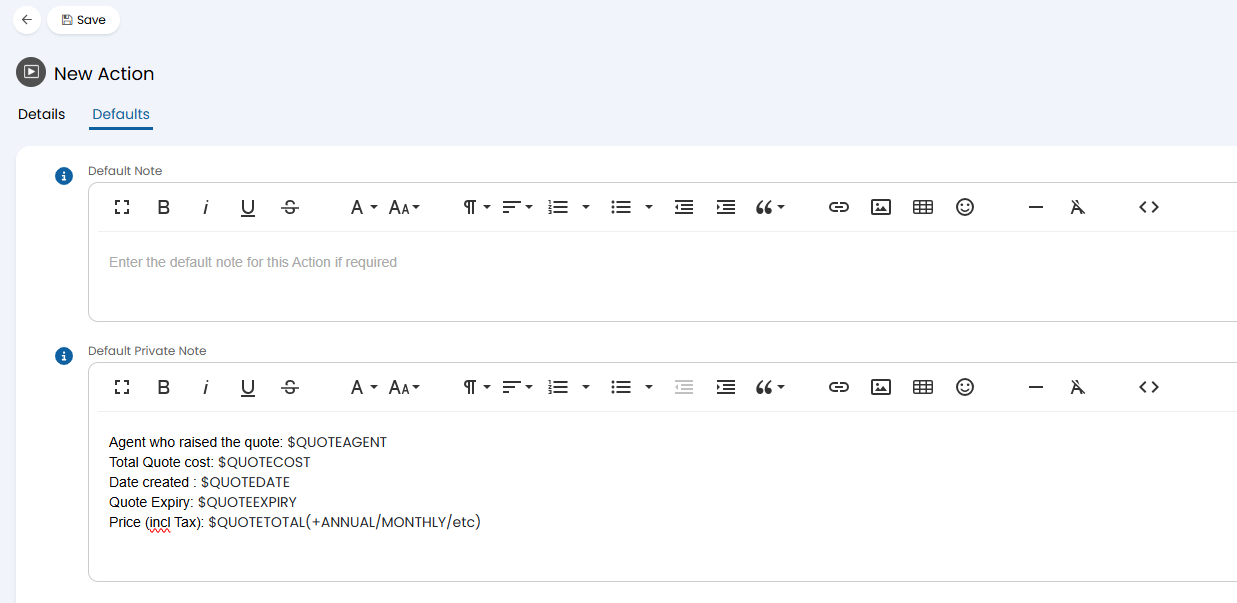
Fig 6. Action to print quote details
To see all the variables that are available to use head to https://YOURHALOINSTANCE/variablesand filter the "Type" of variables to "Quotations". Only variables with the "Type" "Quotations" will be able to be used in ticket actions.
When used, agents will simply have to select the "Quote Summary" action and the details will automatically be pulled in from the quote and added to the ticket.
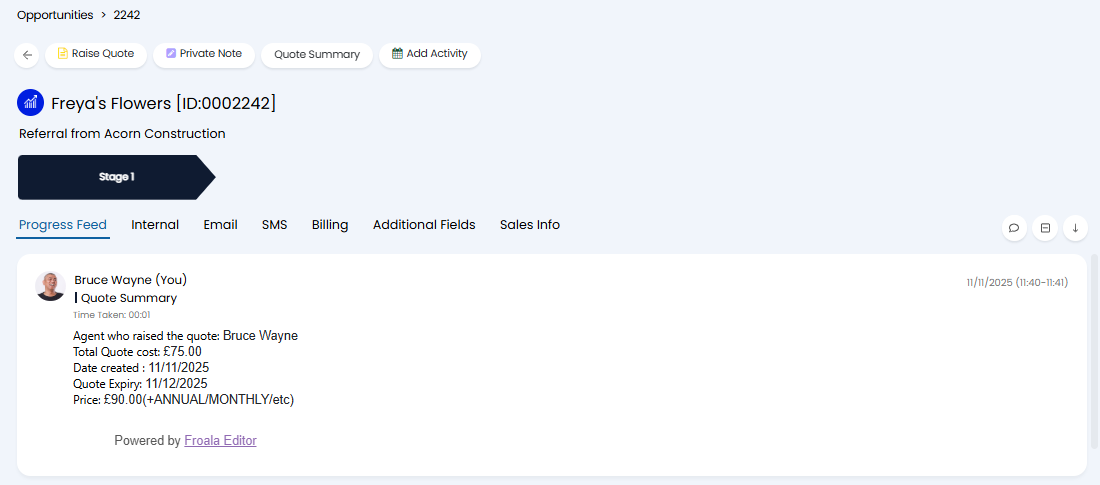
Fig 7. Quote details added to ticket as an action
Raising Stand-Alone Quotations
Navigate to "Quotes and Orders" > Select "Quotations" on the second navigation pane > Click "New" at the top-right of the list:

Fig 8. Raising Stand-Alone Quotations
Cloning a Quotation
Quotes can also be created by cloning an existing one. A "Clone" button will show in the action bar.
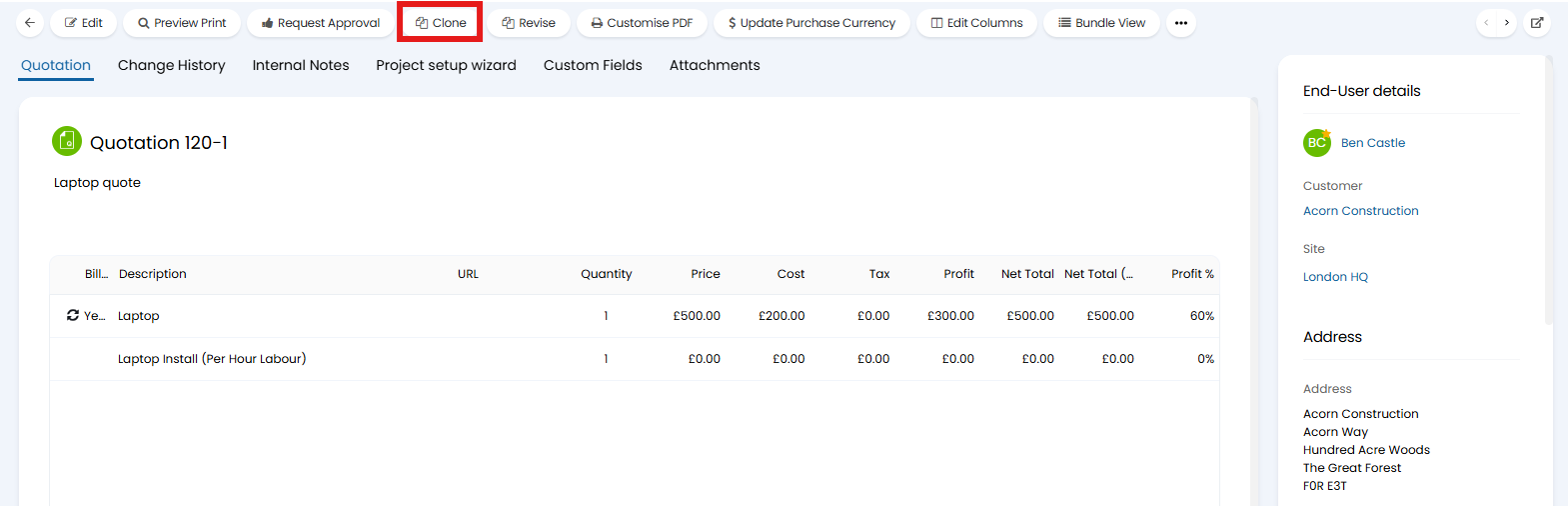 Fig 9. Clone button on a quotation.
A popup will show to select a ticket to link the cloned quotation to.
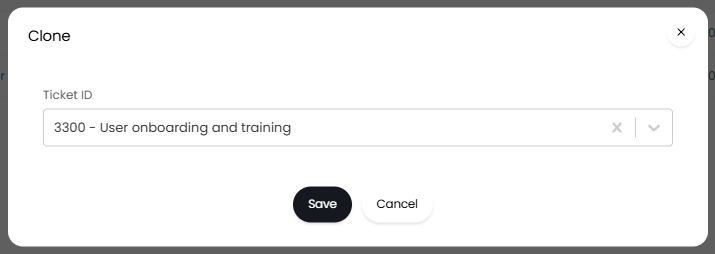
Fig 10. Linking the quotation to a ticket.
The cloned quotation will have the same details, and be linked to the selected ticket.
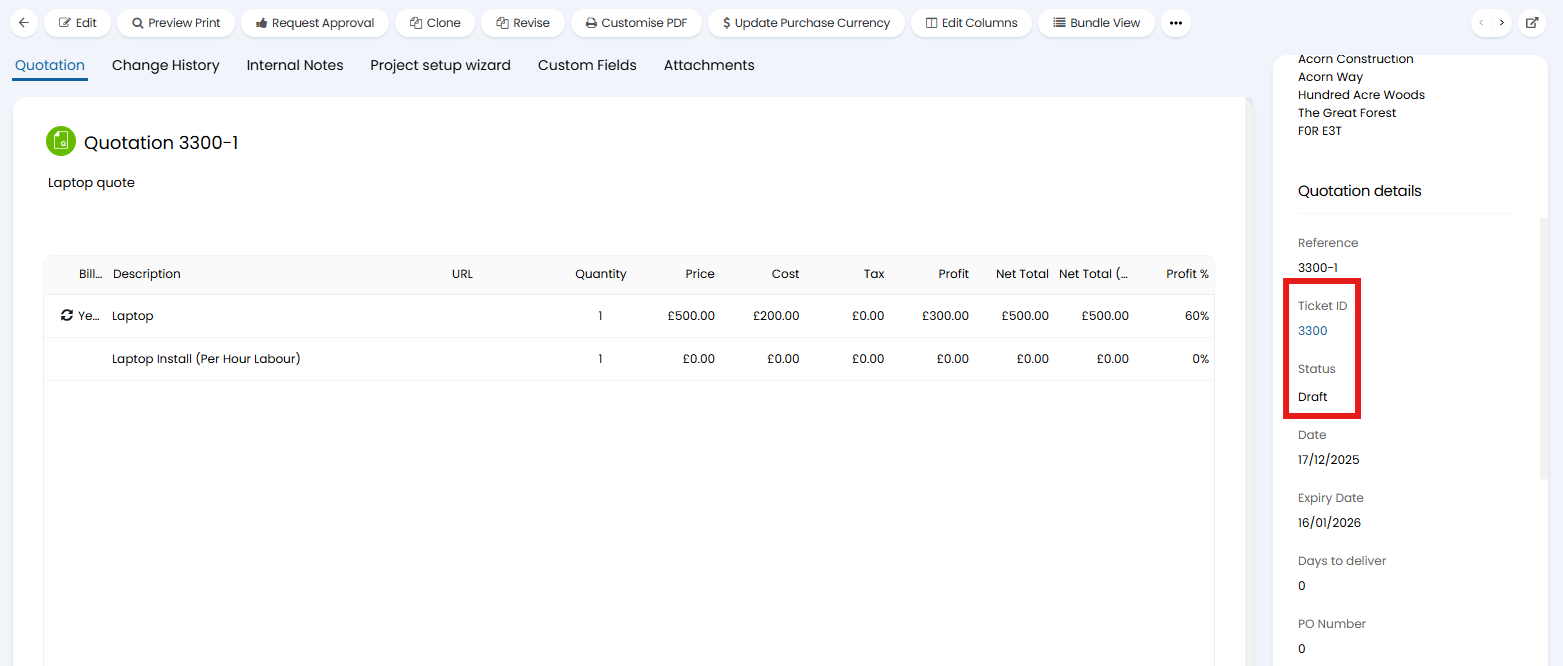 Fig 11. Cloned quotation linked to a ticket.
The default status of a cloned Quotation can be changed in Configuration > Quotations > General Settings.
- Use default Quote Status: Uses the status set in "Default Quote Status" in Configuration > Quotations > General Settings.
- Use current Quote Status: Uses the same status as the original quotation.
- Select the Quote Status when cloning a Quote: Selection of your own status each time.
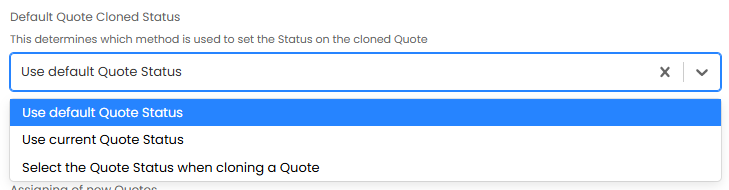 Fig 12. Default status when cloning a quotation.
Building the Quotation
Upon Clicking 'New' you will be presented with the following screen:
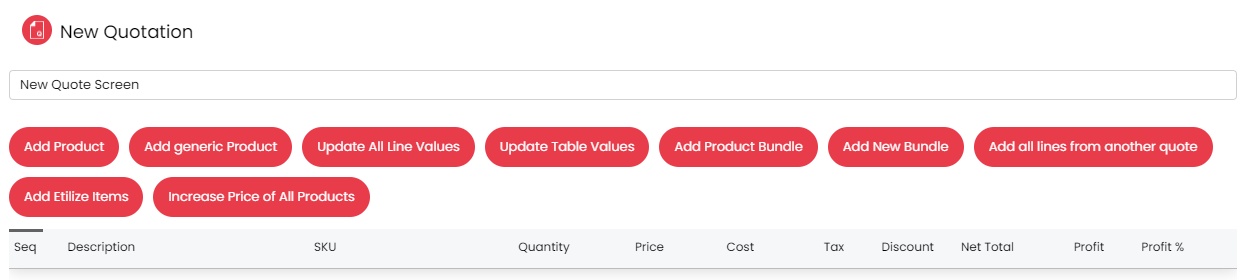
Fig 13. The New Quotation Screen
Adding lines to your Quotations can be done by using the buttons across the main section of the screen, their functions are as follows:
Add Product - Pick from your list of products and services.
Add generic Product - Enter details for a one-off product that isn't defined in your products lists (Guide: Ad-hoc Items on Quotes & Orders)
Update All Line Values - This will bulk update all rows with the same value i.e. if I selected cost and set it to 50 it would set all lines of the quote to cost 50. Quotation Line custom fields can also be updated via this method.
Update Table Values - When this button is selected, all editable values on the quote will become editable i.e. description, quantity, price, cost, discount etc.
Add Product Bundle - Product Bundles can be configured in Configuration > Quotations, they can also be categorised, categories can also be created from within Configuration > Quotations.
Add All Lines from Another Quote - When clicked, the option to select lines from another quote that is already in the system, will become available. You can then add all of the line items from that quote.
Add Etilize Items - Select products from the Etilize catalog (Guide: Etilize Integration).
Increase Price of All Products - This button allows the option to increase the price of all products by a certain percentage.
You can choose which of these buttons to show. To do this head to Configuration > Quotations > General Settings, and use the "Buttons to show on a Quotation's line edit menu" drop-down to choose the buttons to allow. As of this version you can also restrict which actions show at the top of the page. To do this navigate to the "Menu buttons to show on a Quotation" drop-down in Configuration > Quotations > General Settings.
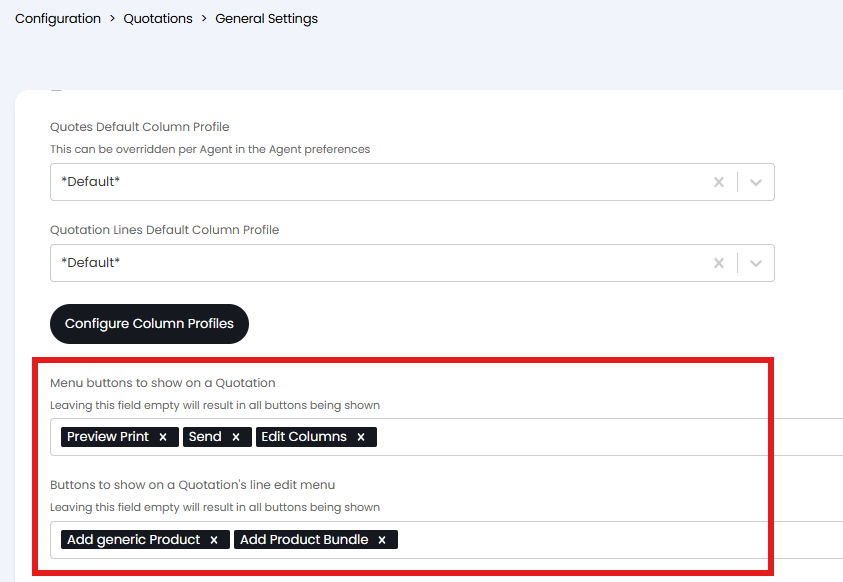
Fig 14. Editing buttons
In the example above the buttons will show against the quote.
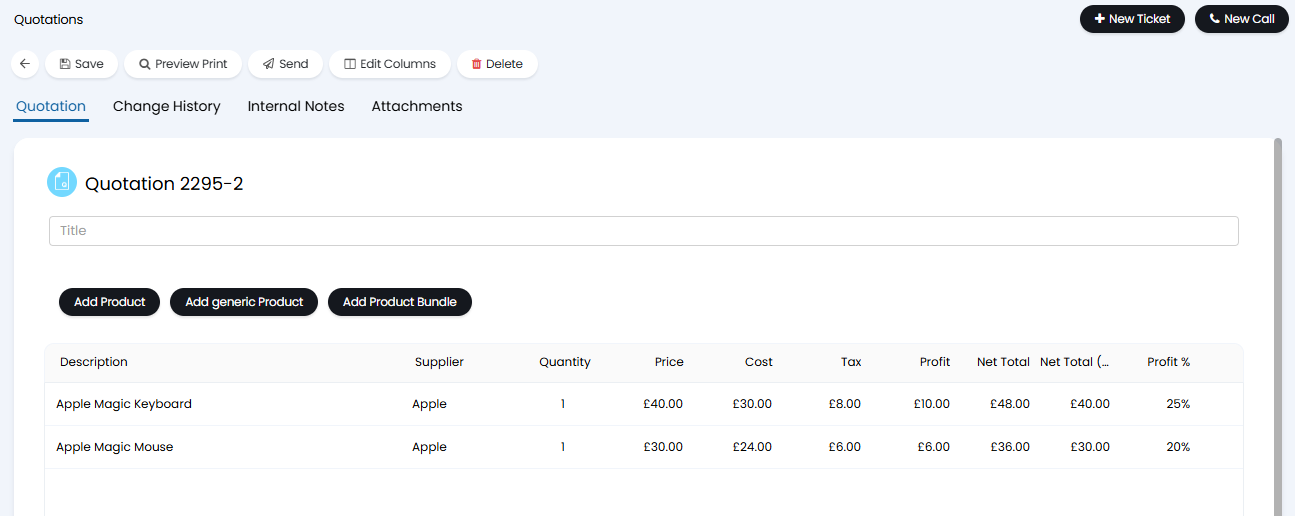
Fig 15. The Quotation screen with hidden buttons
When adding a product to a quote you will be able to search through products using the product ID, name, group, internal reference, supplier, SKU, and supplier SKU (which is useful when searching through Etilize items).
The supplier SKU will be shown here if set.
You can add negative quantities of an item to an quotation. A line must be added first, but upon editing the line the quantity can be changed to "-1" for example. This will show the net total columns as minus figures of their usual figures. This can be used to correct previous overbilling or as a way of demonstrating a discount for a trade-in.
 Fig 16. Negative item on a quotation
Product Bundles/Groups
One of the options mentioned above is 'Add Product Bundle'. Upon clicking this, you will be presented with the option to select from your existing Product Bundles:
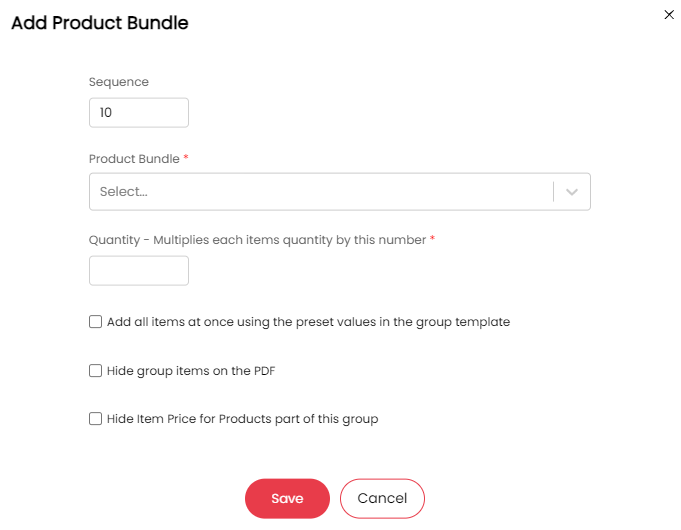
Fig 17. Product Bundle Selection
Product Bundles are created in Configuration > Quotations, via the 'Product Bundles' option at the top of the screen. When creating new Product Bundles, you will see a similar screen to the new Quotation screen:

Fig 18. Creating New Product Bundles
This is where you add the Products that will compose this group. You will also see a 'Settings' tab in the top left of Fig 18, where the options presented in (Fig 17) can be defaulted.
You can also set a product to only be available to add to a quote as part of a bundle, not on it's own. This is useful for items that will only ever be sold as a bundle and not sold separately. To do this head to Products > select a product, enable the setting 'Only show when adding the Product to Bundles'. Once checked this item will not be able to be added to a quote on its own, it will be able to be added to item bundles and this bundle can then be added to the quote.
You can also create ad-hoc bundles from the quotation screen using the 'Add New Bundle' button. This will allow you to create a bundle of items for this quote, this bundle will not be saved for future use as it is an 'ad hoc' bundle.
Group Items based on Item group
Items can be grouped (bundled) automatically based on the item group they belong to. When this functionality is enabled, when items in the same group are added to a quotation they will be grouped together on the quotation, with the group name used as a header for the items. This also allows you to use grouping functionality for the items, such as only showing the group level price, rather than item level price.
To enable this functionality head to configuration > quotations > general settings > enable 'Automatically add Product Groups as groups when adding Products to quotes'.
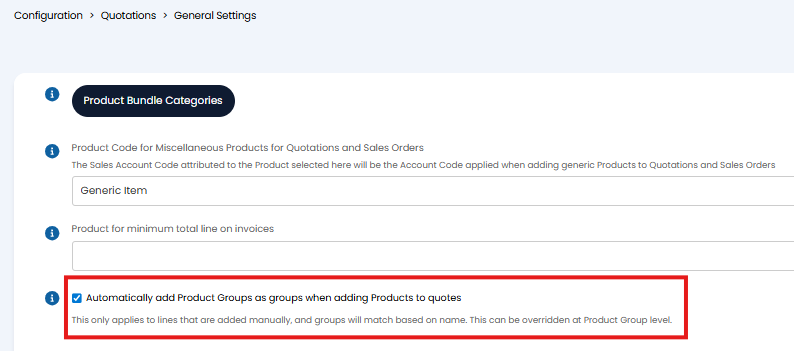
Fig 19. Automatically add Product Groups as groups when adding Products to quotes
Now when items that belong to the same group are added to a quotation, the group will automatically be added, as shown in figure 14.
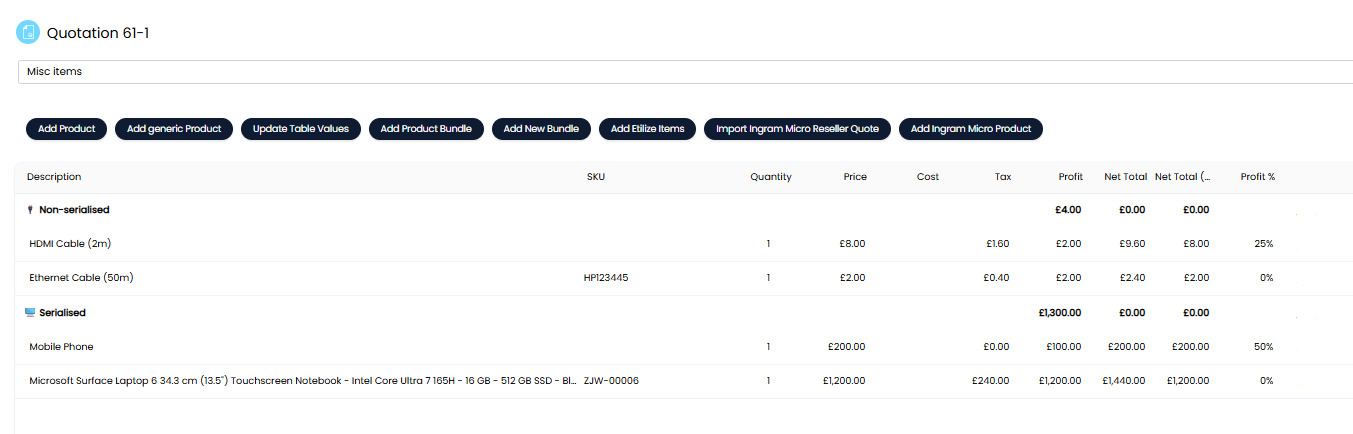
Fig 20. Quote with items grouped by item group
This functionality is enabled globally, but can be overridden per product group, useful if you would like some items to be grouped together on quotations, but not others.
To set this at group level head to configuration > items and stock control > product groups > select a group. Here, use the setting 'Automatically add this Product Group as a group when adding Products to quotes' to control if items in this group are grouped automatically when added to quotes.
Any groups created on a quote in this way will pull across to the sales order created from the quote too.
Leasing
When the 'Is Leased' field is checked on a Quote, the items will all become a recurring (regardless of if they are already recurring items).
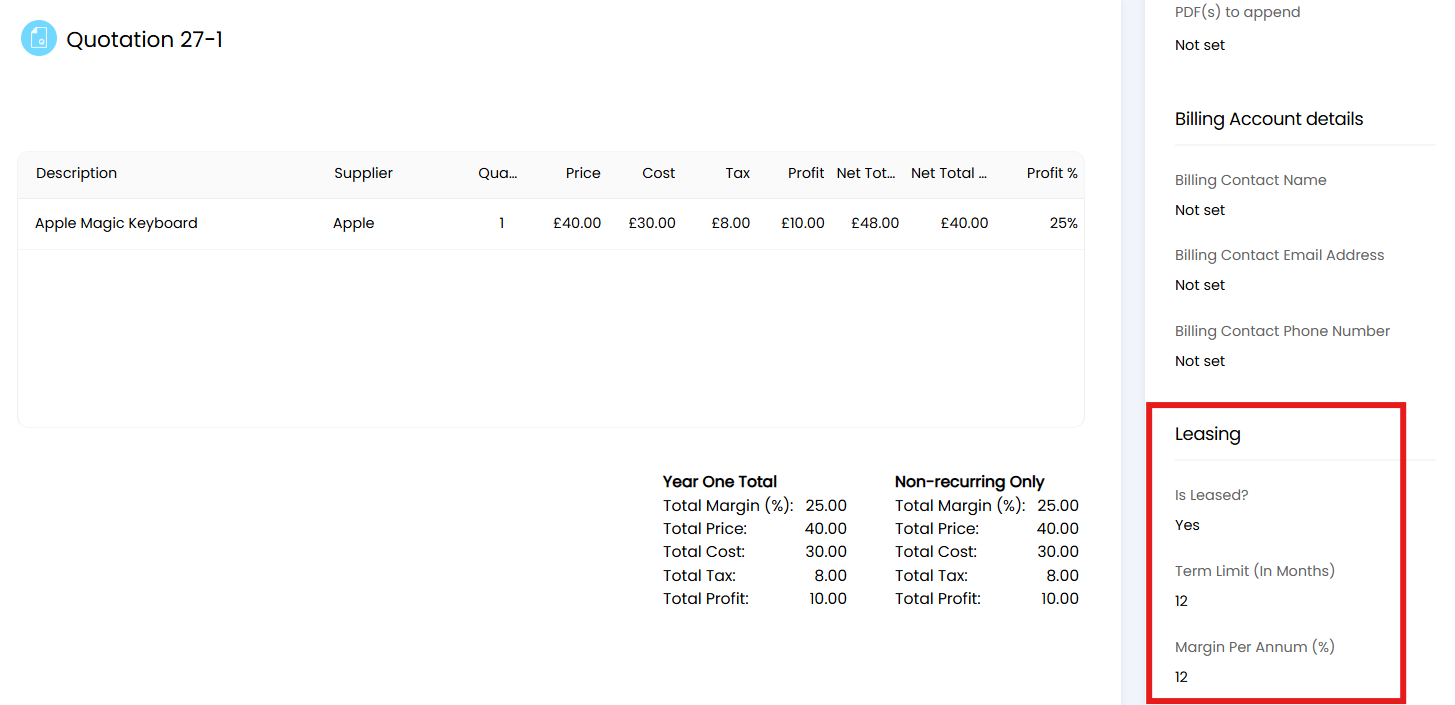
Fig 21. Leasing
Now when you create the sales order you will see the option to add a Recurring invoice. The average price for the item will be added to this Recurring Invoice. For more information see our guide on Recurring Invoices.
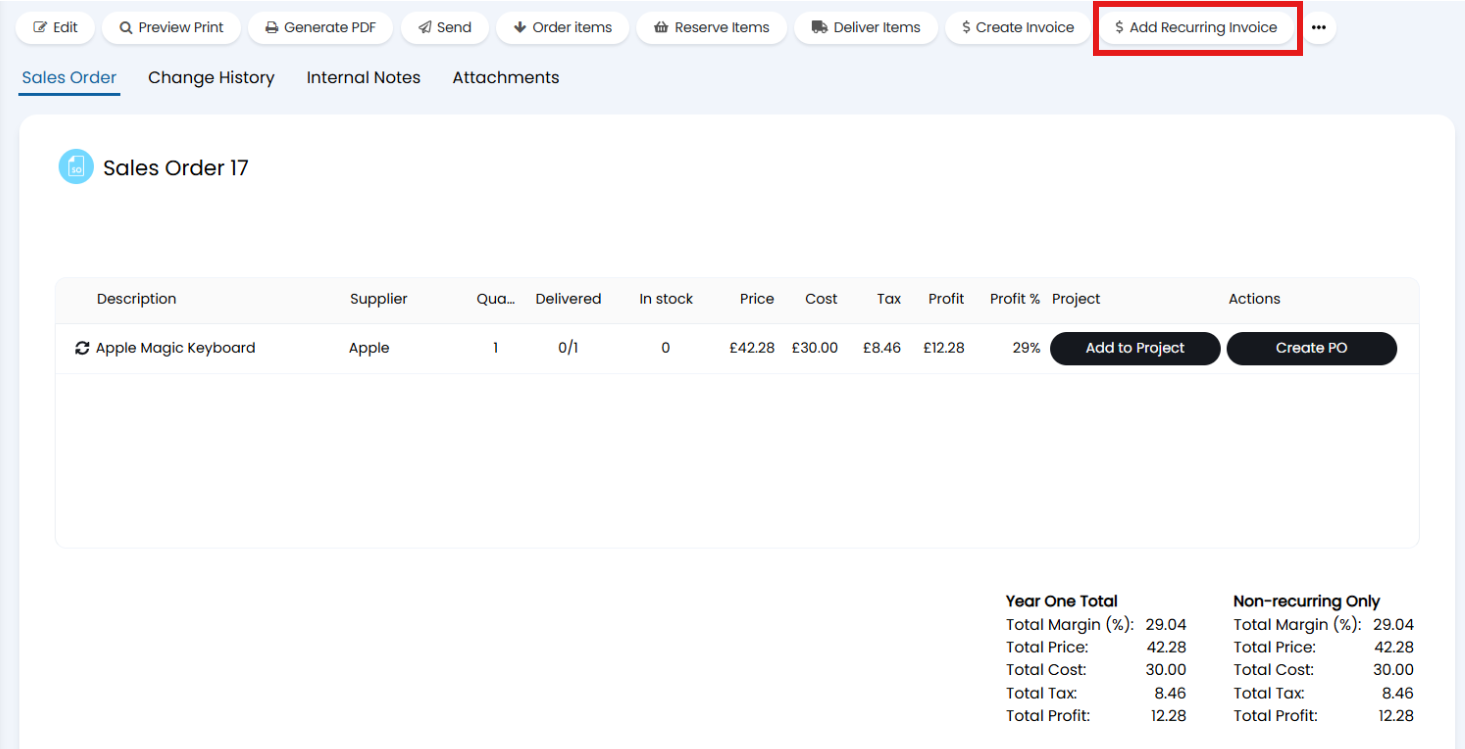
Fig 22. Adding Recurring Invoice
Adding Terms and Conditions based on Quote Lines
Terms and conditions can be added to quotations lines and displayed on the quote PDF. A single variable is used to pull each of the terms and conditions associated with each quote line into a single body of text on the quote PDF.
To add terms and conditions to a quote line edit the line and complete the "Terms and Conditions" field.
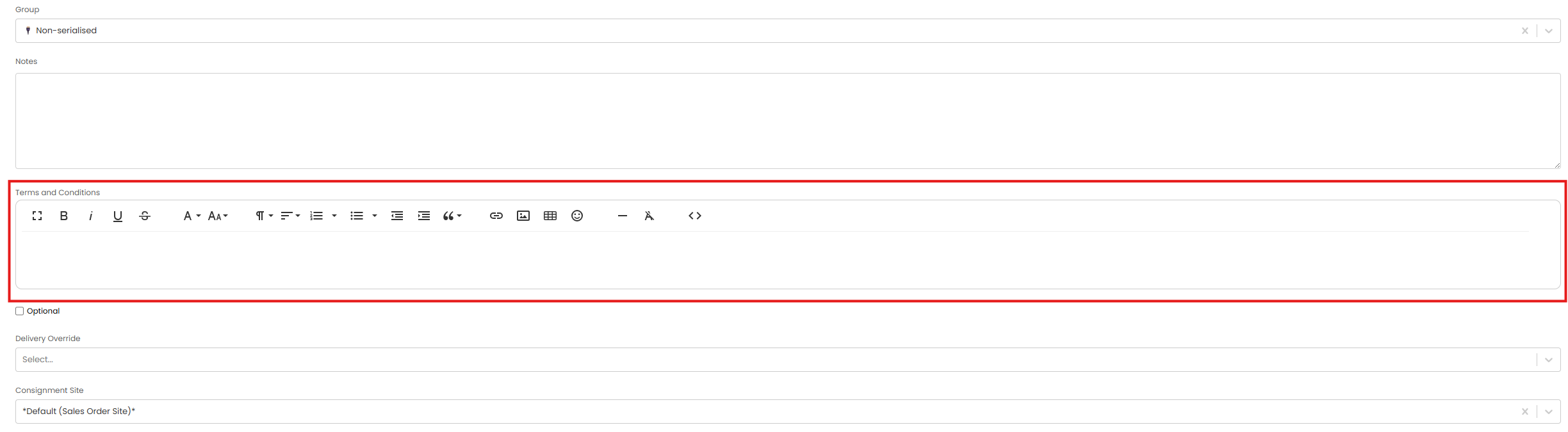
Fig 23. Terms and Conditions field
As this is a rich text box html can be used here to format the terms and conditions.
Terms and conditions can be defaulted based on the item that is being added to the quote.
Add Terms and Conditions To an Item
Add Terms and Conditions to an item under the "Details" tab of an item.
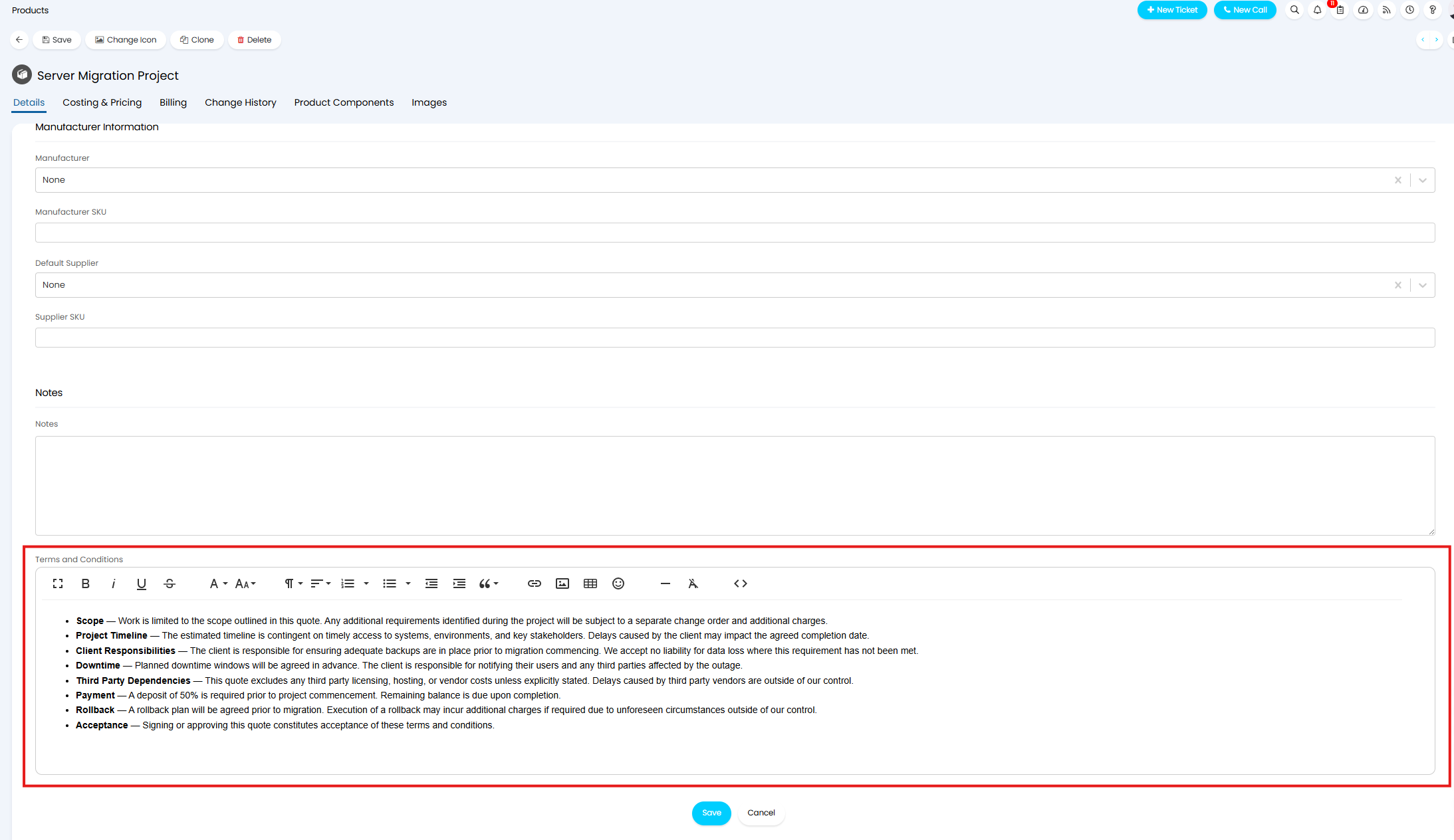
Fig 24. Terms and Conditions against an Item
Now, when this item is added to a quote it's terms and conditions will populate the quote line.
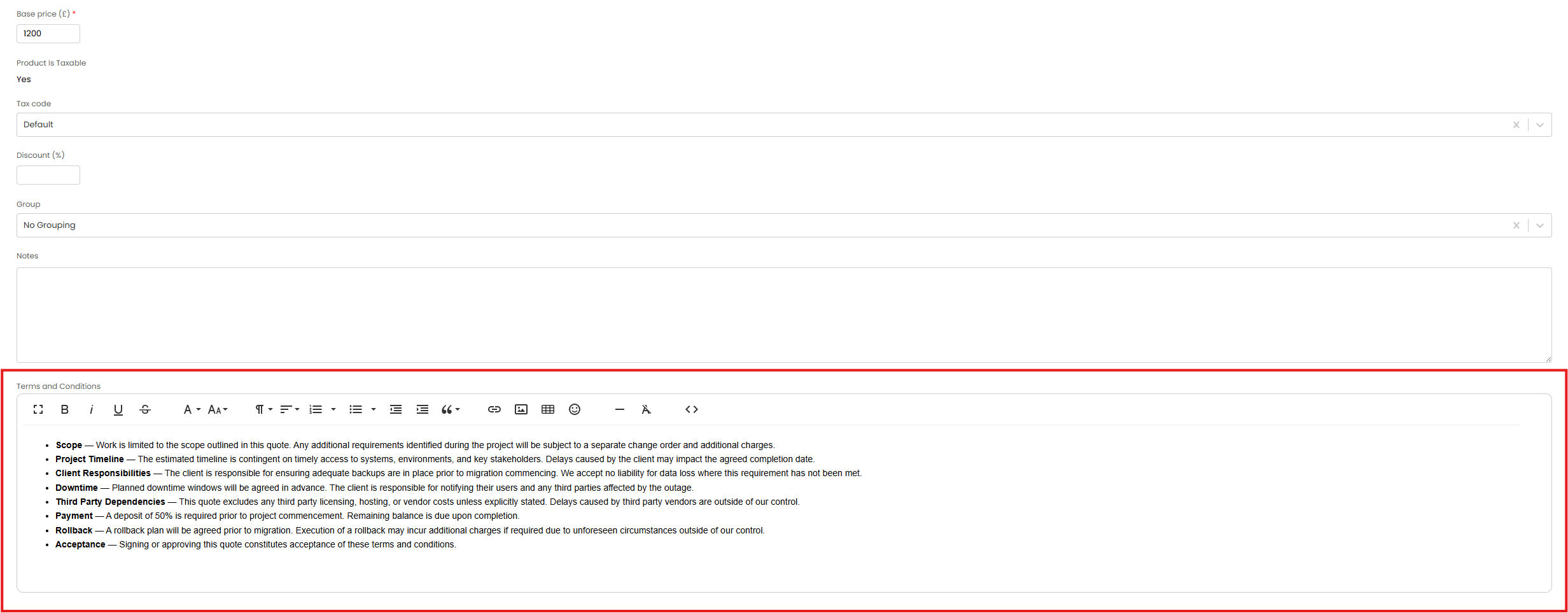
Fig 25. Item's Terms and Conditions on quote line
Show Terms and Conditions on quote PDF
The variable $QUOTETCS is used to pull the terms and conditions of quote lines onto the PDF for the quote. When this is included in your quote template, terms and conditions will be displayed as shown in Figure 26.
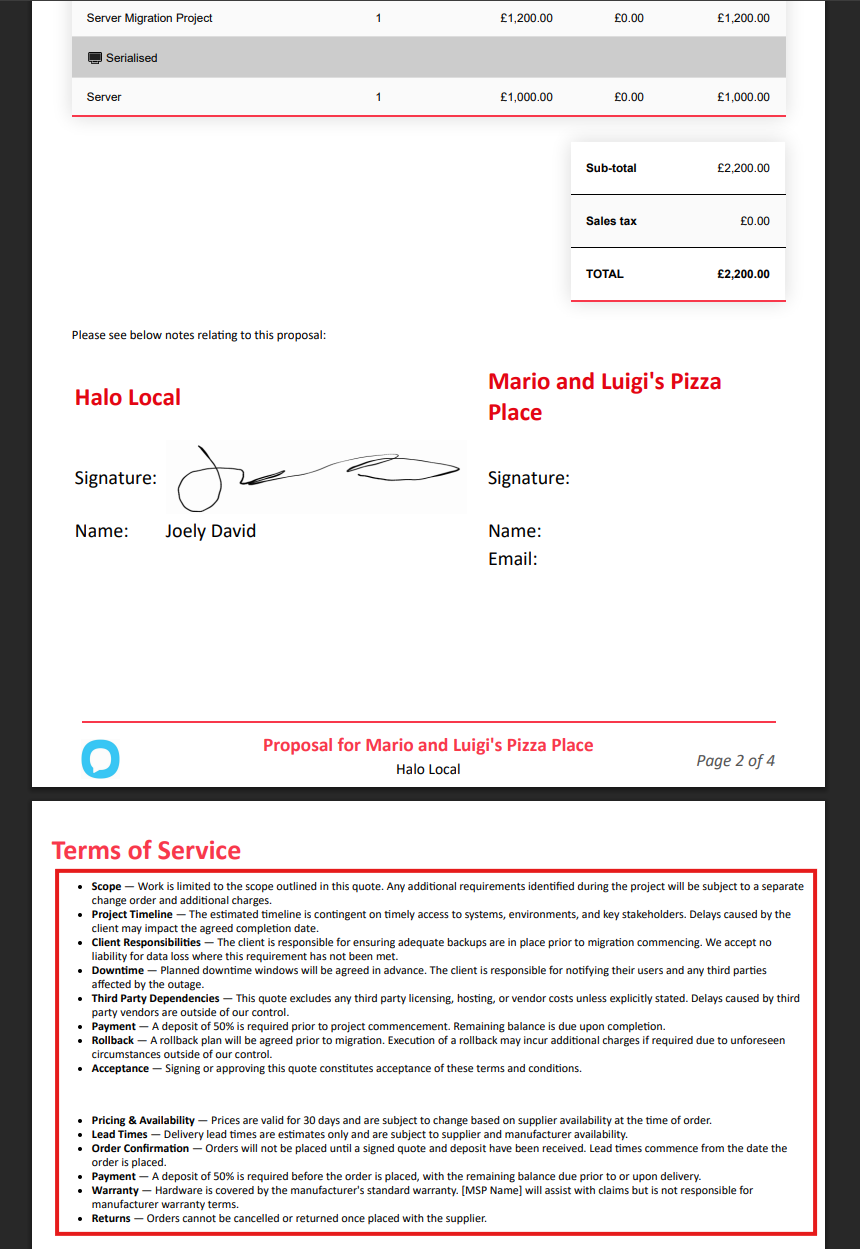
Fig 26. Terms and Conditions on Quote
As shown, the terms and conditions will be listed for each line of the quote, with spacing between the terms and conditions for each line item.
Editing the Quotation
The Quotation can be edited/updated until it is either accepted or the status is changed to a status that does not allow editing. Status of this nature are configured in Configuration > Advanced Settings > Lookup Codes > *Filter for Quote Statuses*.
Tracking Changes to the Quote
A 'Change History' tab will be available against quotations. This will show a breakdown of every change that has been made to the quote, useful for auditing.
Etilize Integration
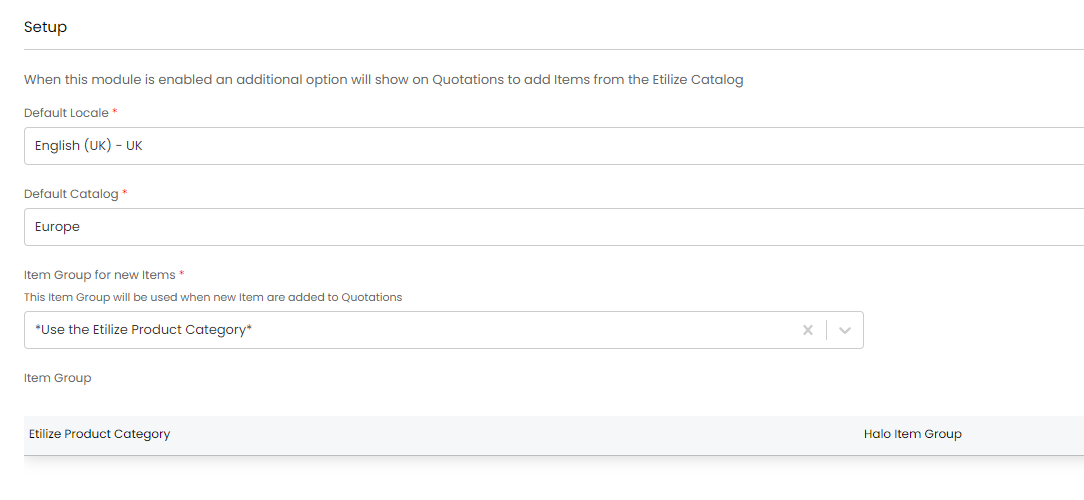
Fig 27. Etilize Integration Page
You can select Products using the Etilize Catalog, you just have to enable the module for Etilize in halo (Configuration > Integrations > Etilize) and then configure the above options, here is the Integration for Etilize Guide then when you go to a quote you have the "Add Etilize Items" option.
Sending the Quotation
Once the quotation has been built out you can send this out to the customer from Halo. There are a few ways to do this, this can be sent from the quote itself, or from the ticket linked to the quote.
Sending a Quote from a Ticket
If the quote has been raised from an opportunity ticket you can send the quote using an action on the ticket. Sending quotes this way is advised as then a record of when the quote was sent is easily accessible from the opportunity ticket. To send a Quote from the Opportunity Ticket it is associated with, you will need to use an Action with the System Use of "Email Quotation".
Using an Action with this System Use will follow the option "Attach quotation PDF when sending email" in Configuration > Quotations > General Settings. If disabled, the PDF will not be attached when sending both from the Quotation itself or the Ticket.
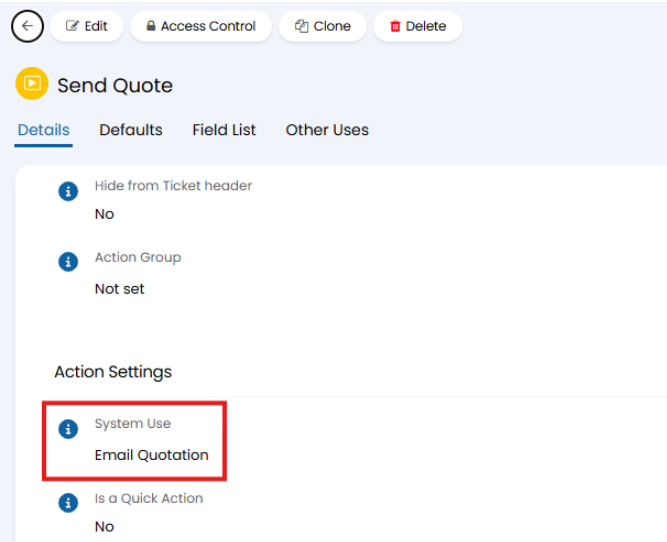
Fig 28. Action with system use email quotation
The Action will also need to be set to "Send an Email".
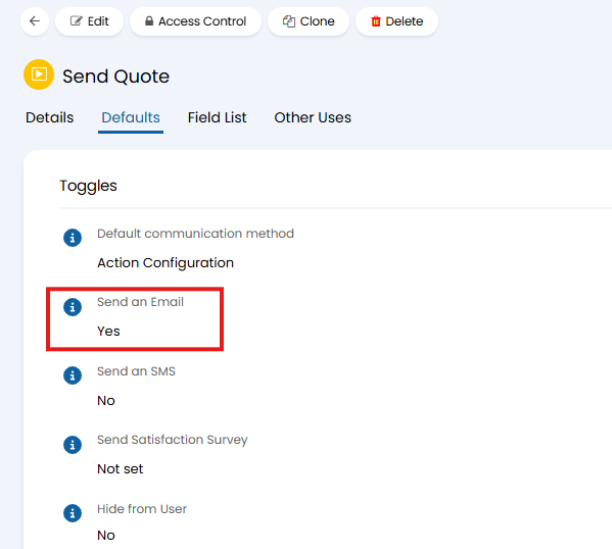
Fig 29. Action set to send an email
You can create your own action to do this, however, the action "Send Quote" is available out of the box to do this.
When this action is used on a ticket, a PDF version of the quote associated with the ticket will be generated and attached to the email being sent. The agent can then type out the body of the email before pressing send.
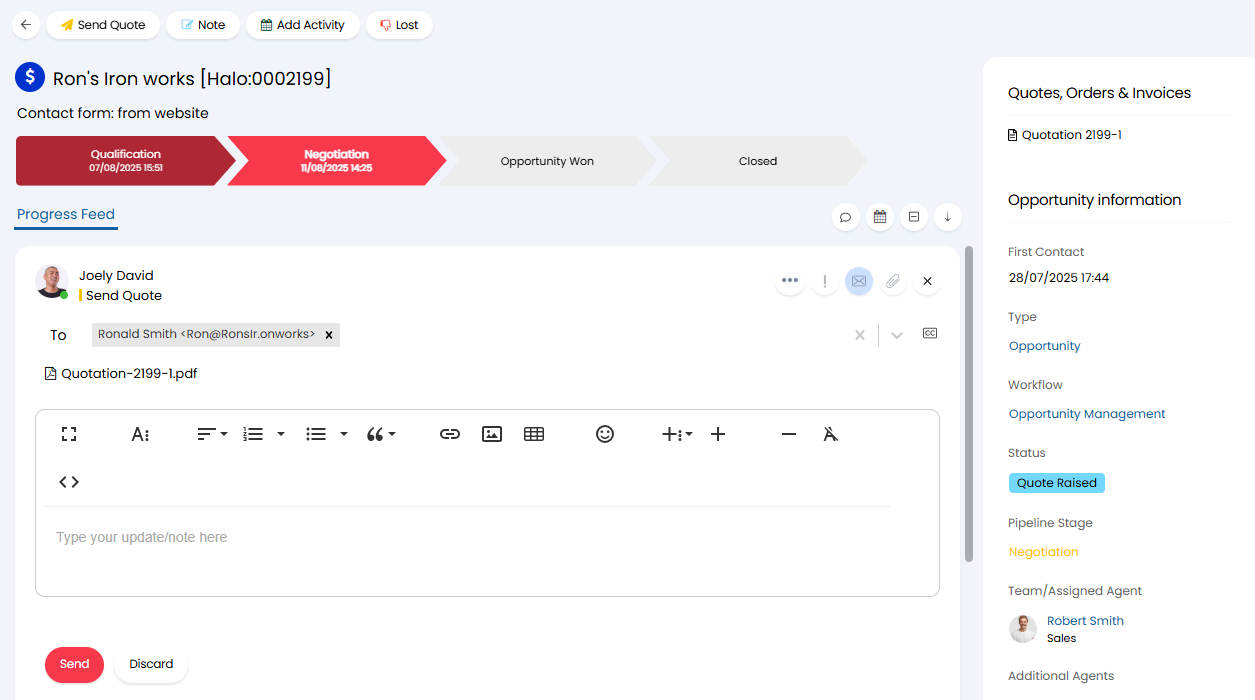
Fig 30. Send quotation from ticket
Sending direct from the Quote
If the quotation has not been raised from an opportunity ticket it can be sent out from the quote screen when viewing the quote in the Quotes and Orders module.
To do this head to the Quotes and Orders module > Quotations > select the Quote you would like to send, here use the 'Send' button.
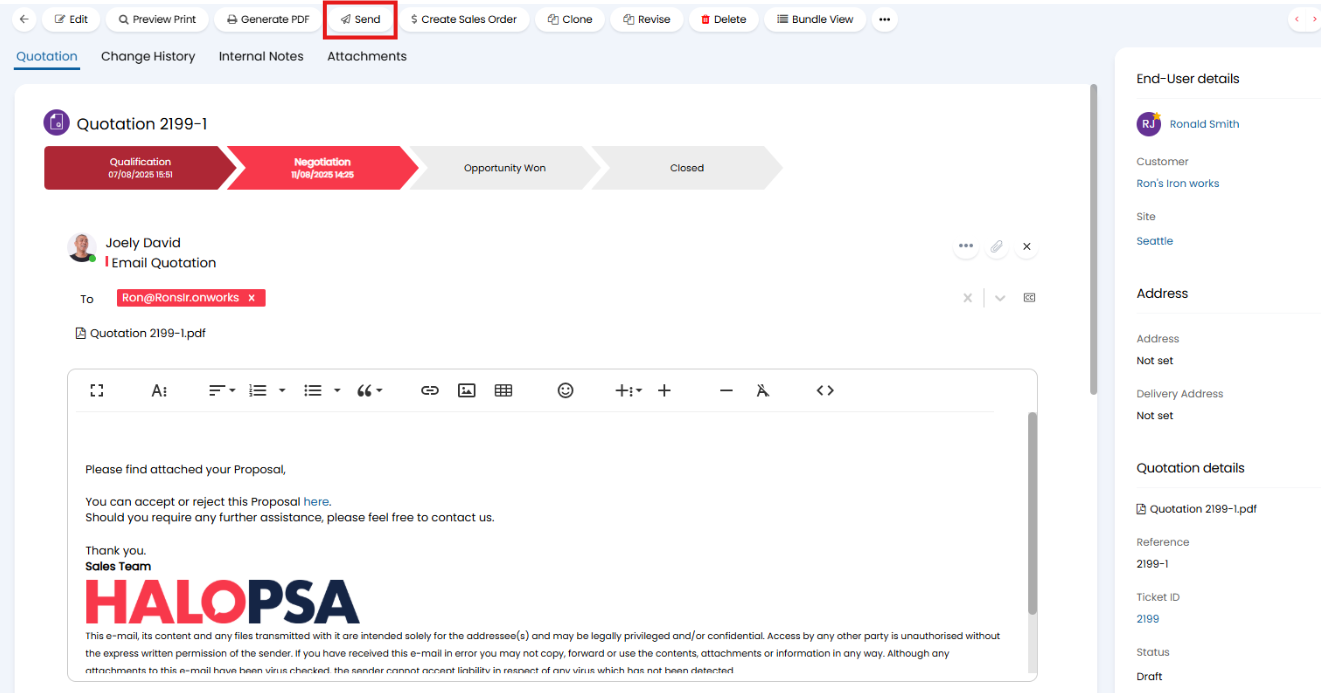
Fig 31. Button to send out quote from quotes and orders module
This will generate a PDF of the quote and attach it to a pre-drafted email. The agent can add additional information in the body of the email here if they wish, otherwise they can just hit send to send this out. The PDF of the quote will be determined by the PDF template assigned to the quote.
Disable The Option To Send Direct From Quote
From version 2.210 you can hide the 'Send' button against quotations that are linked to tickets to ensure agents can only send quotations out from tickets where possible.
This is disabled per ticket/opportunity type. To do this, head to Configuration > Sales > Opportunity Types > select a Type > Settings tab > enable 'Hide the 'Send' button on the Quotation'.
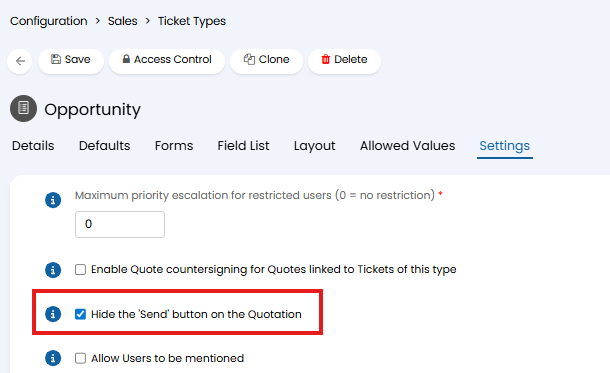
Fig 32. Setting to hide the send button on the quotation
When enabled, if the ticket is linked to a quotation, the 'Send' button on the quotation itself will no longer be visible. Ensuring agents can only send the quote from the linked ticket/opportunity. Useful when you would like quote sending to be restricted by the ticket/opportunity workflow or approval processes. Any quotes not linked to a ticket will not be affected.
Restrict the Option to Send Direct from Quote Based on Quote Status
From version 2.228.1, you have the option to hide the 'Send' button against quotations based on the status of the quote at the time.
If you navigate to Configuration > Quotations > Quote Statuses and click into a status, you will find a checkbox setting to "Hide the 'Send' button on Quotes when this status is selected".
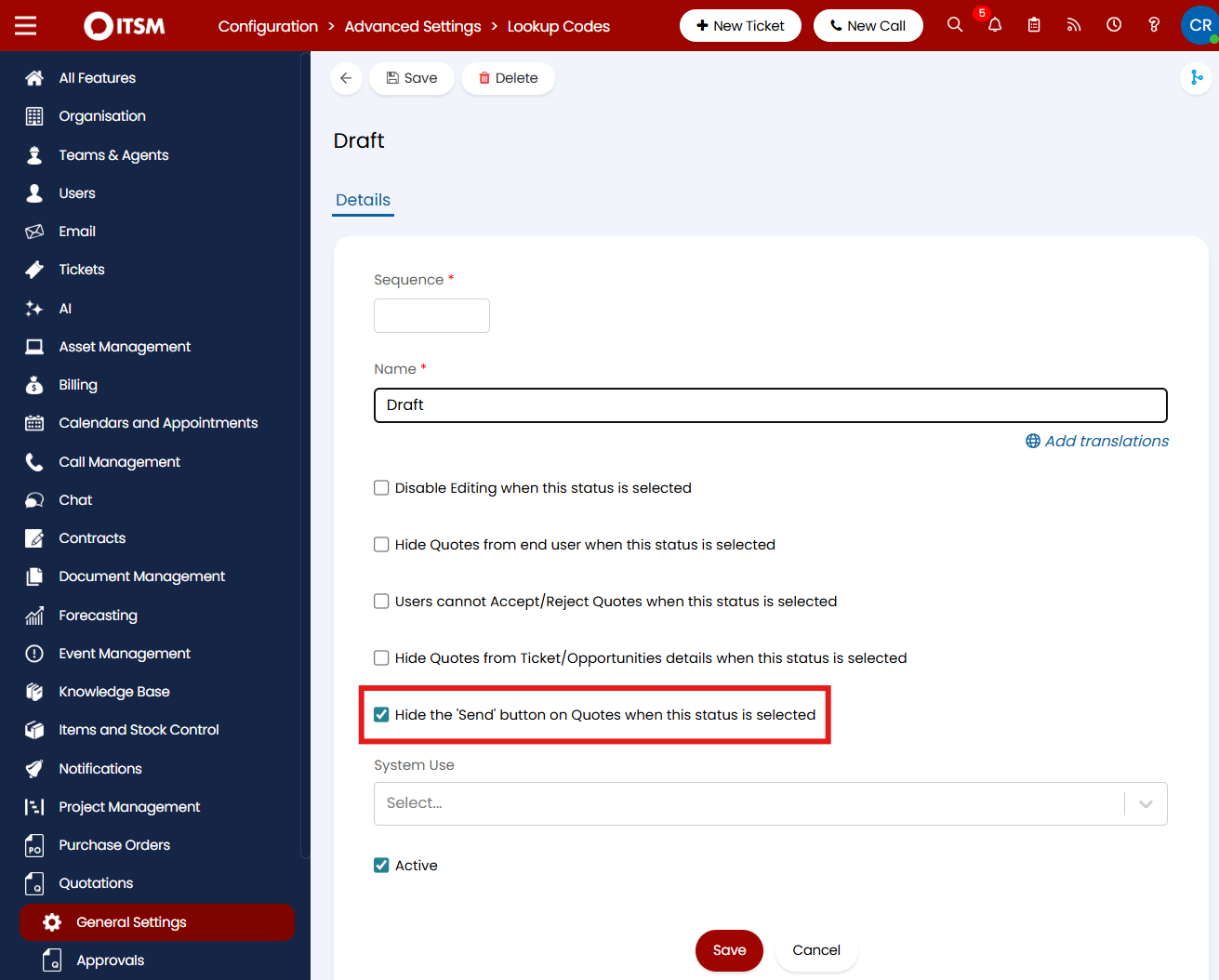
Fig 33. The setting against quote statuses to hide the 'Send' button on quotes when on that status
Note: It will still be possible to send the quotes from the related opportunities, separate steps will need to be taken to restrict this method of sending.
Quotation Email Templates
When sending out a quotation, the content and formatting of the email will be determined using the "Quotation Message" Email Template.
This email template is hard-coded to be used when sending a quote out to a user from the Quotes and Orders module. When sending using an action on a ticket this template will be used by default but can be overridden on the action. To customise the template, head to Configuration > Email > Email Templates > Quotation Message.
You will see in the email template there is a link Users can follow to accept or reject the quote. When followed, they will be taken to the Self-Service Portal where they can accept or reject the quote. For more information on this checkout Approving Quotes Overview.
Mailbox used for Quotation Sending
The mailbox the Quotation will be sent out from will be your organisation's outgoing email by default, but you can change this default for each customer. To do this head into a customer > Settings tab > Email Defaults, here you can choose which mailbox quotations are sent out from for this particular customer.
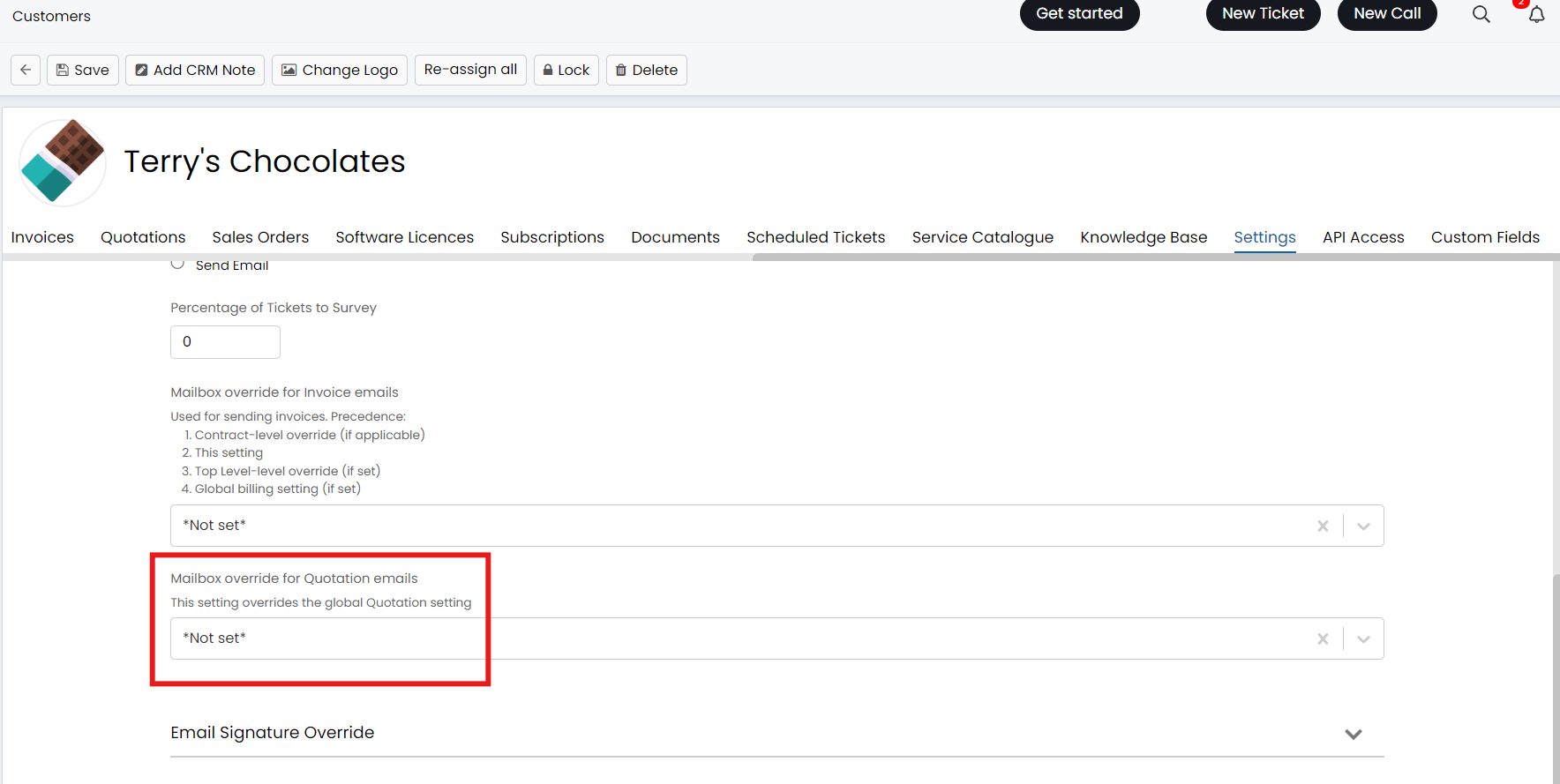 Fig 34. Mailbox override for Quotation email setting
A change history log is stored for when quotations are sent.
Note: This will only show if the quote is raised separately from an opportunity ticket due to the way the email is stored.
You can use this to monitor progress of the quotation, and whether it is likely to be accepted based on how long it has been since, in addition to showing changes that have been made such as status changes.

Fig 35. Change History tab on a quotation