Quotation PDFs
- quotation
- quote
- PDF templates
In this guide we will cover:
- Customising with HTML
- Customising without HTML
- Customising from a Quote
- Adding Columns to the Quote Table
- Setting a Default PDF Template for Quotes
- Formal Proposal Template
- Adding Approval Signatures
Admin Guides:
Related Guides:
You can customise and change PDF Templates in Configuration > Quotations > "Edit Quote Pdf Templates".
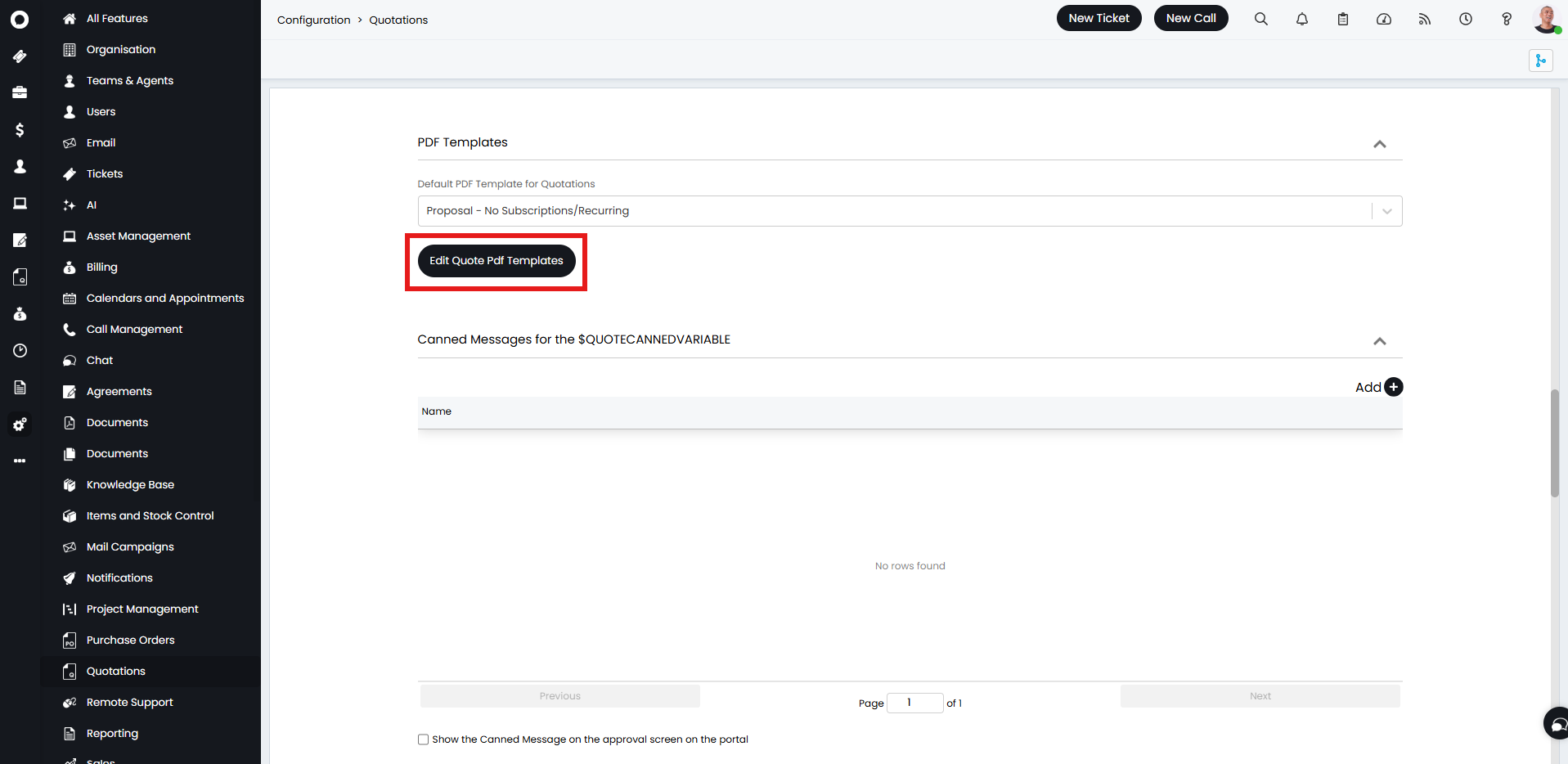
Fig 1. Edit Quote PDF Templates Button
Checkout the Viewing Quotes guide, for details on setting up the $QUOTECANNEDVARIABLE.
Customising with HTML
An example of a change you may want to make is adjusting "Sales Tax to "VAT" if you are based in the United Kingdom.
You can adjust the core template HTML to change the label for that element of the PDF Template.
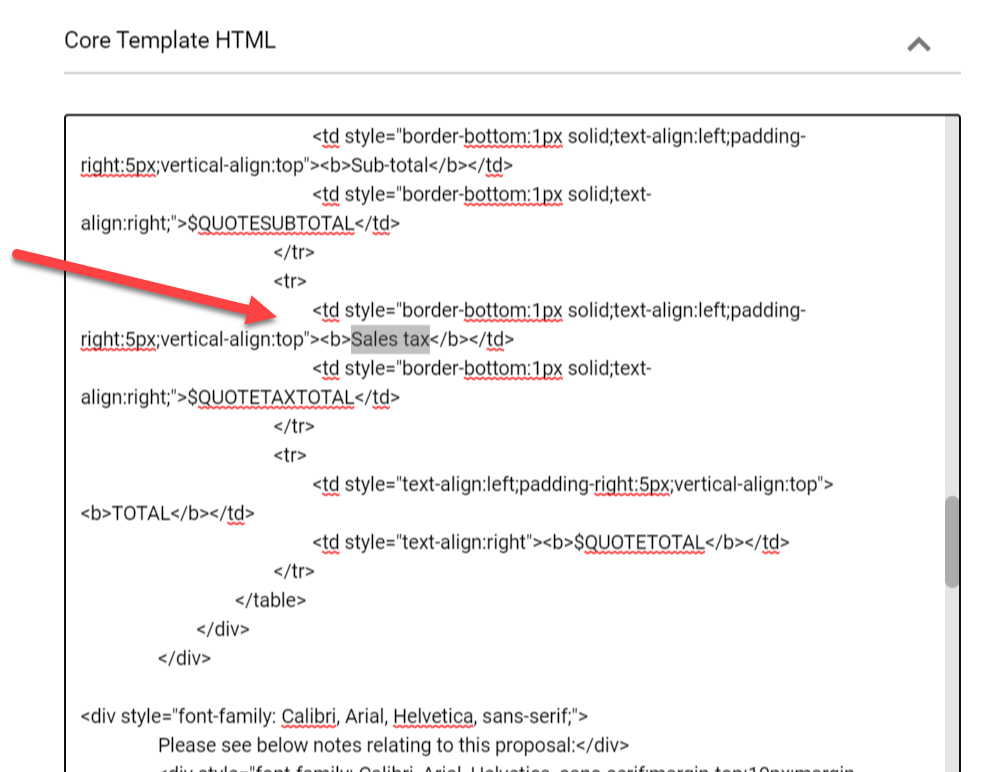
Fig 2. Making changes to the Default PDF Template
Variables can also be used within the HTML, a list of which can be viewed by clicking "View $-variables" at the top of the page. This opens a full list of the variables used for quotations, but a few useful ones are:
- $-AREA - Customer's name.
- $-ITEM_ID - Item's ID.
- $-PRICE - Price of a single item.
- $-TAX - Tax on a single item.
- $-NETAMOUNT - Price of a single item and it's tax.
- $-COSTPRICE - Cost of a single item.
- $-QUANTITY - Number of items on the line.
- $-PAGEBREAK - Forces a new page.
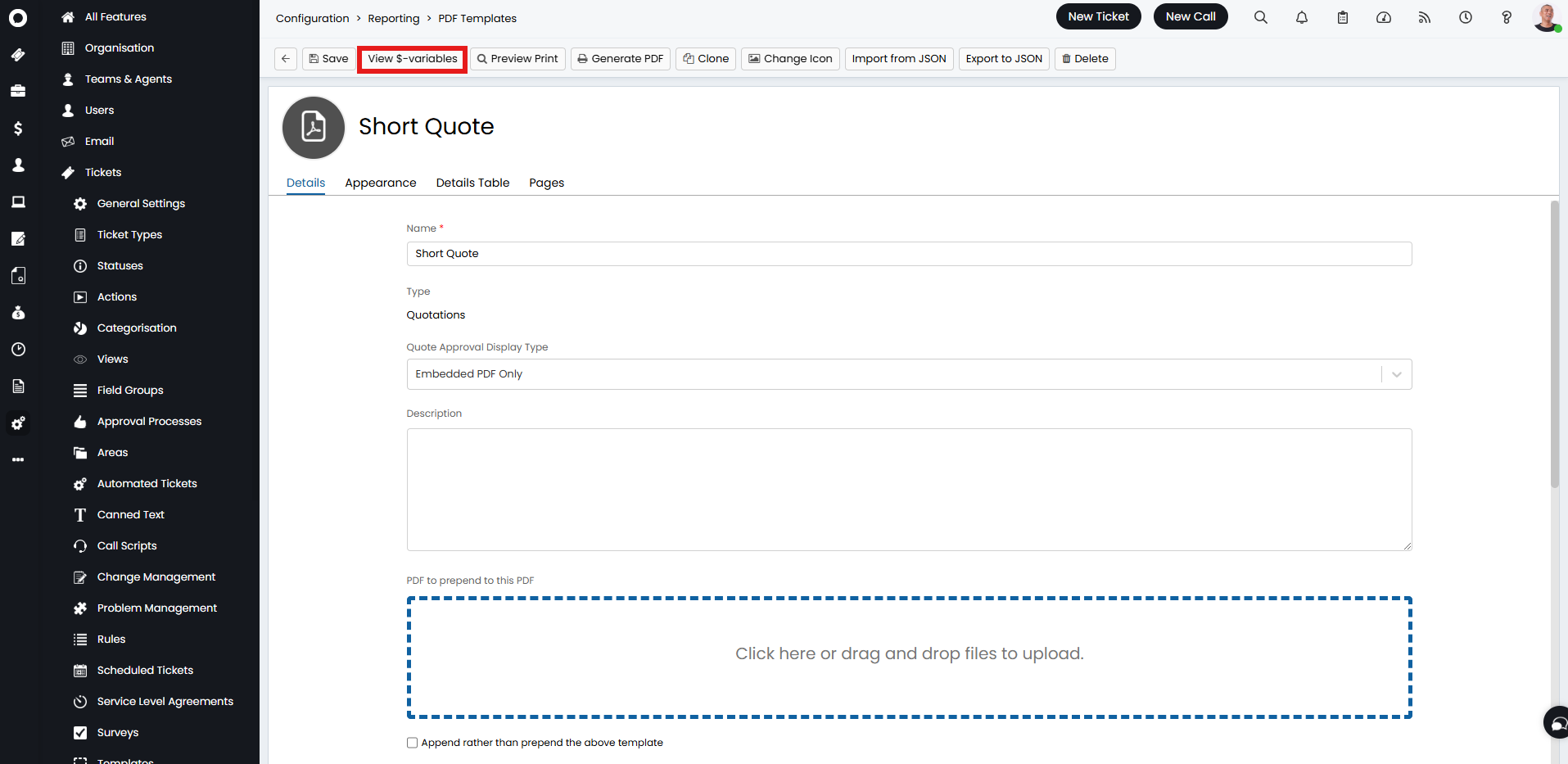
Fig 3. View $-variables button.
Multiple pages can be added to the template, and the order they appear is determined by their sequence number.
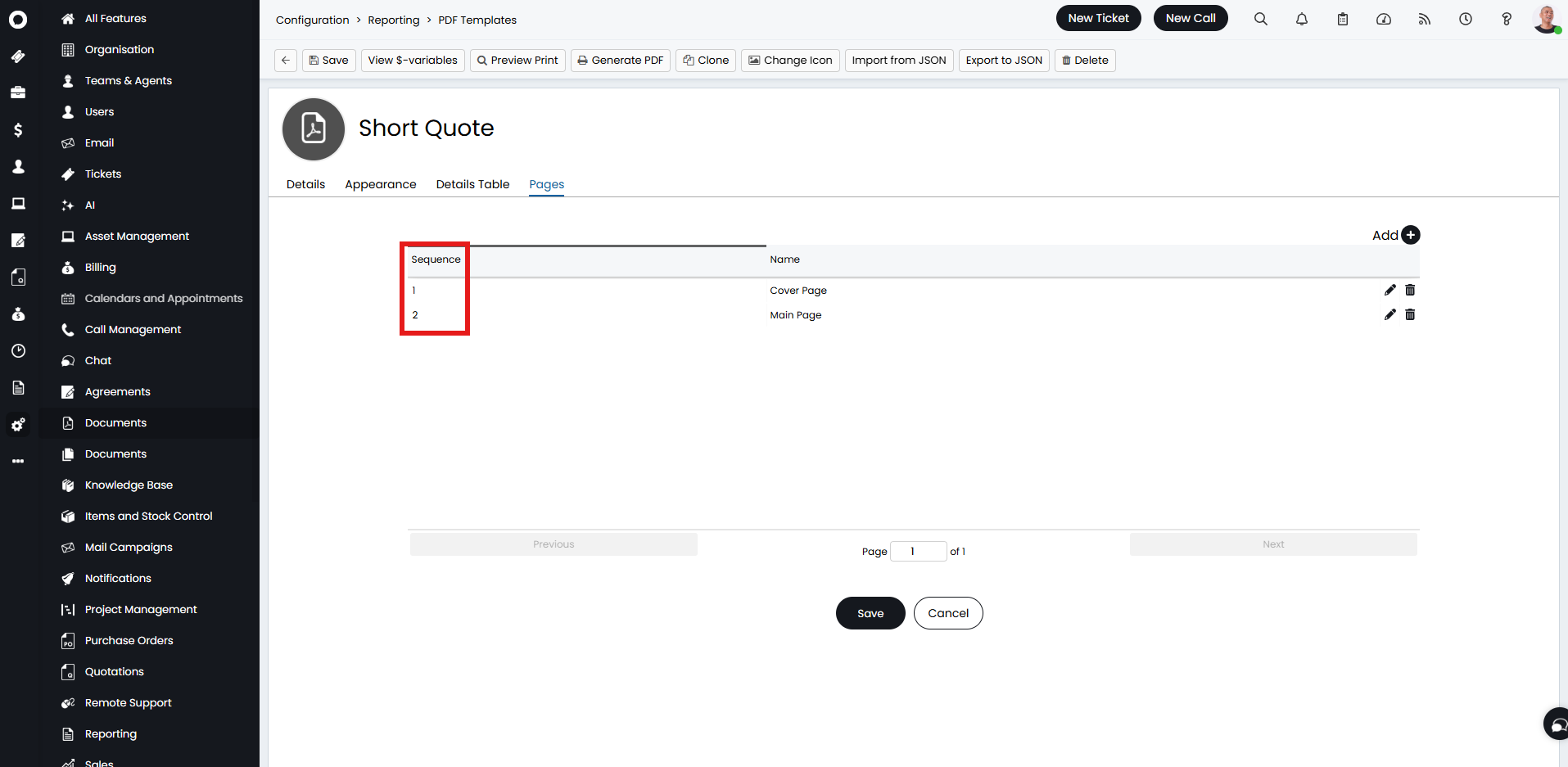
Fig 4. Setting a sequence of the pages.
Customising without HTML
You can make a range of other types of changes to templates without needing to tweak the HTML such as adjusting margins, adding footers and adding background images. This can be done in the "Appearance" tab.
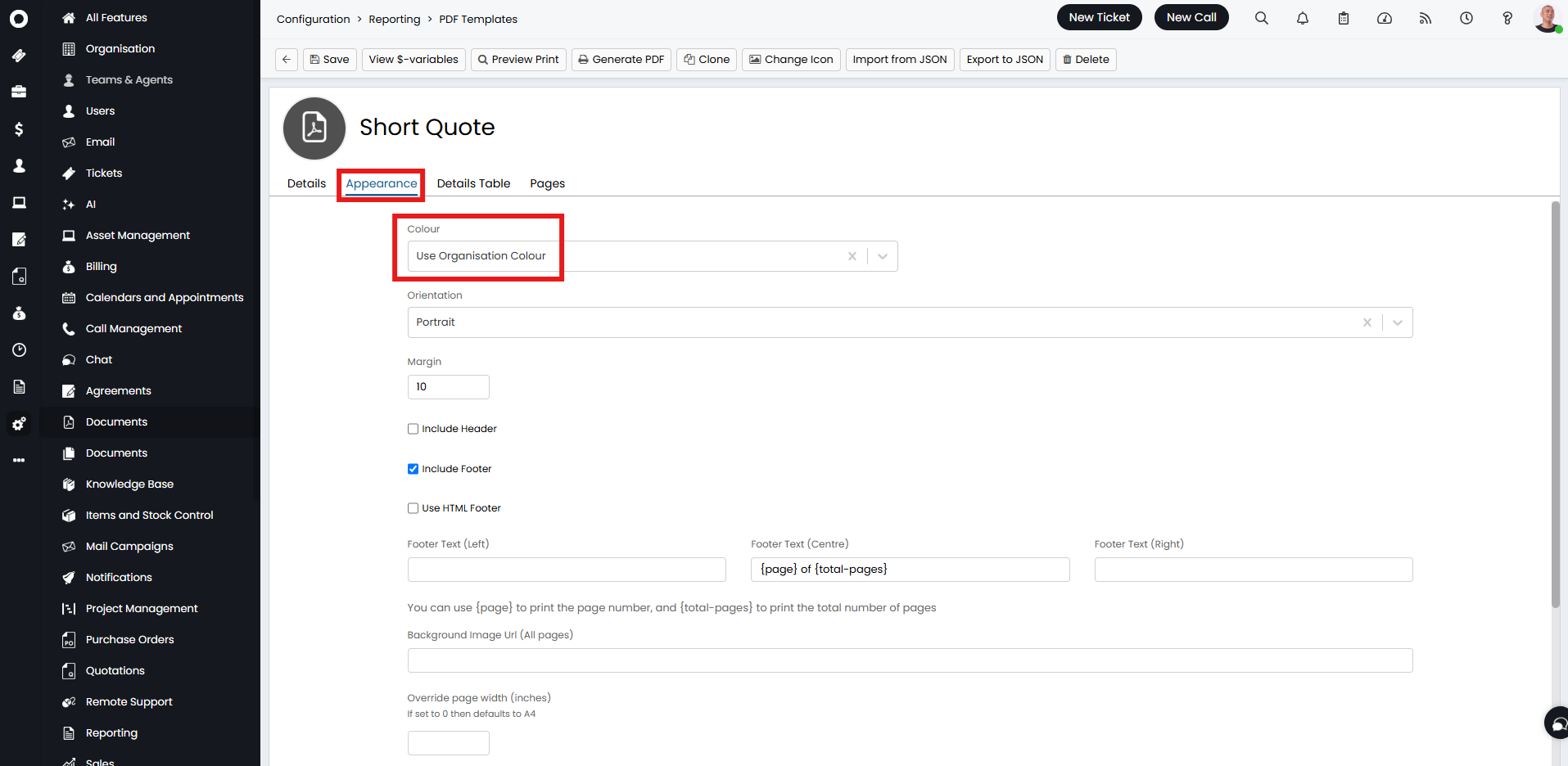
Fig 5. Changing the colour of the template, so that the colour of the details table etc are defaulted to this colour.
Customising from a Quote
To Customise a PDF Template directly from a Quote, you will first need to head to Configuration > Advanced Settings, and set the "HTML Template Editor Type" to "HTML Designer". Now in Quotations > General Settings, check the "Allow Quote-level PDF Customisation" checkbox. With this enabled, against a Quote you will find the "Customise PDF" button.
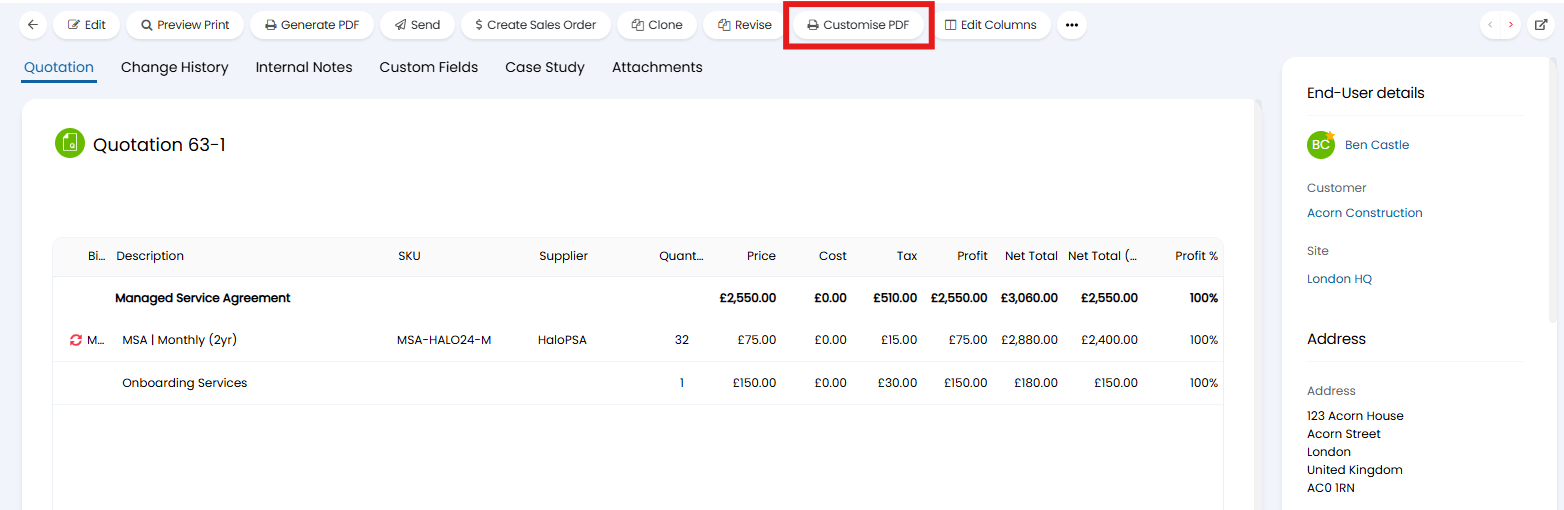
Fig 6. Customise PDF button
This will create a copy of your Quote PD in a new PDF Template tab.
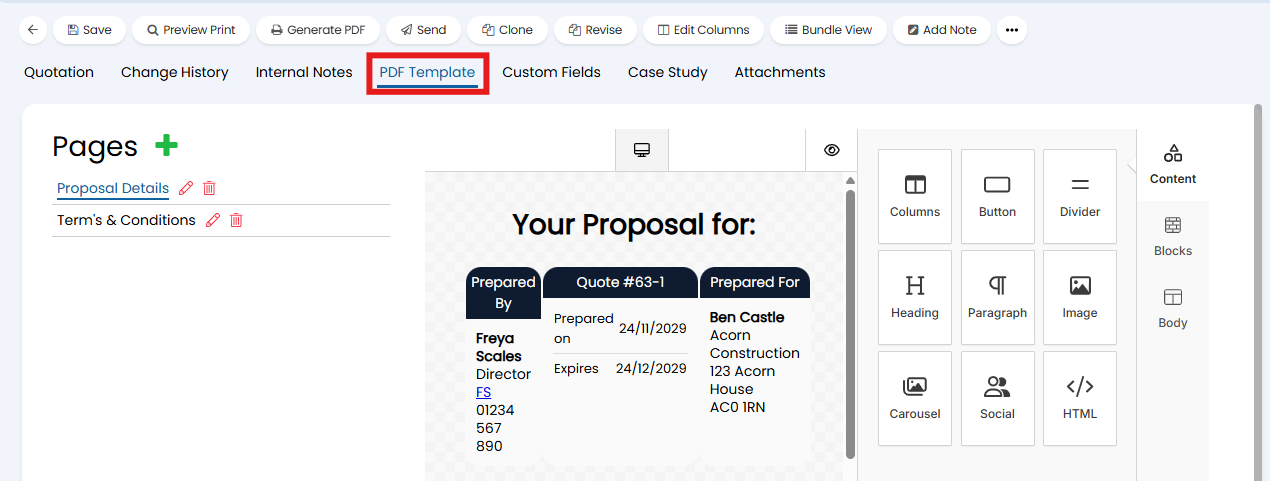
Fig 7. PDF Template tab
The plus icon at the top of the pages list can be used to create a new page for your template. Once created, these pages can then be renamed or deleted using the pencil or bin icon respectively. These pages can be reordered by dragging and dropping the pages into the correct order. Clicking on a page will open the page in the HTML designer where the page can be edited.
Note: Since this generates the Quote at the point the "Customise Quote" button is clicked, any changes to the Quote after this point will not be reflected on the PDF until a new Quote is generated using the customised Template.
Adding Columns to the Quote Table
The "Details Table" tab can be used to customise which fields appear in the table on your quotation. By default, these will have the ones below but these can be reordered by hovering over and then dragging and dropping. Pressing the Edit/pencil icon can be used to rename these column and change if the text alignment is left, centre, or right. New ones can be added with the "Add" button.
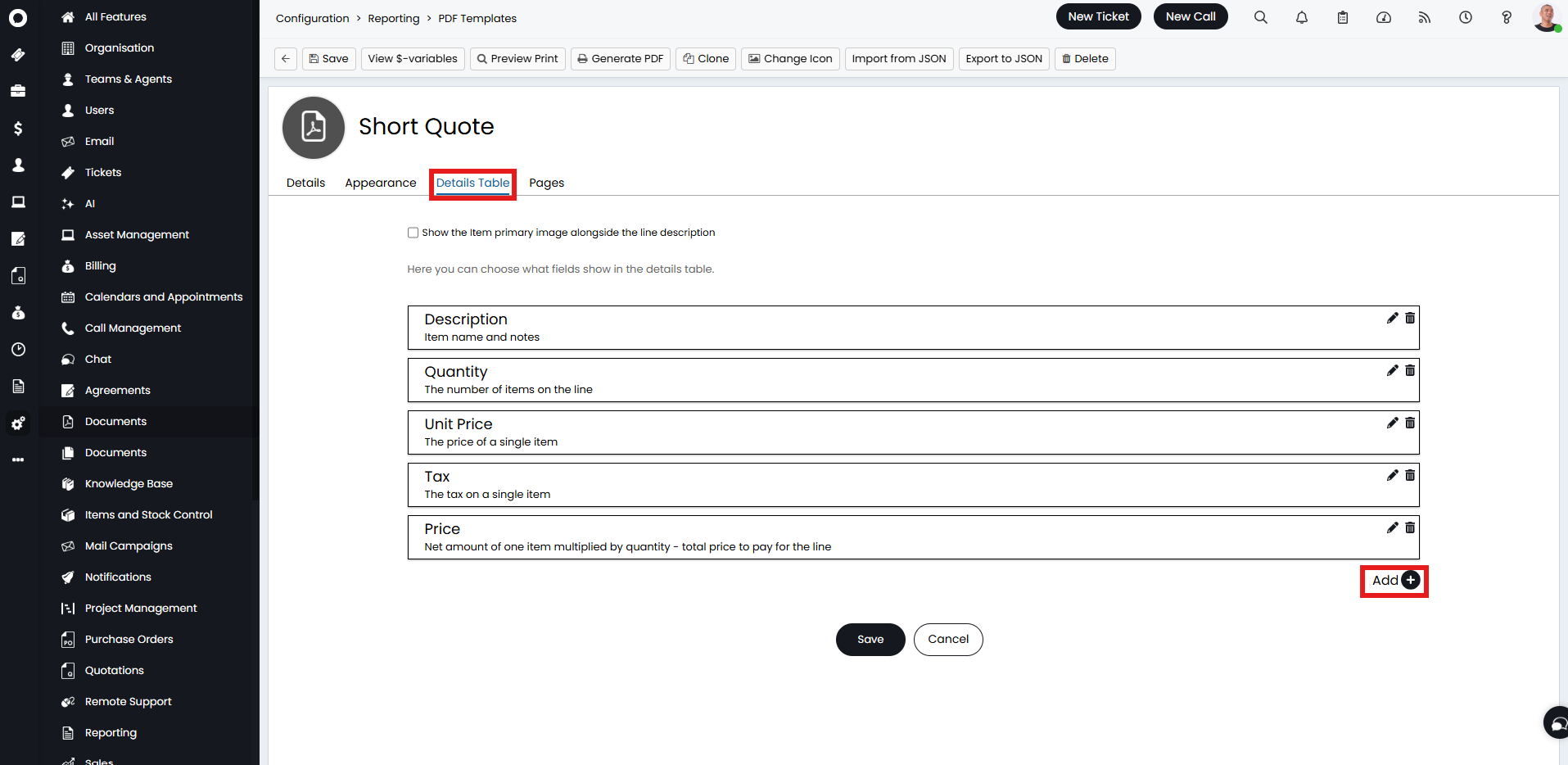
Fig 8. Details Table tab.
The dropdown will show numerous out-of-the-box columns, but there is also the option to customise your own with HTML and variables. This can be done by selecting "Add a Custom Column".
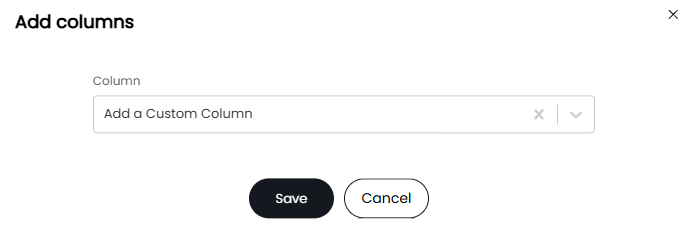
Fig 9. Add a Custom Column option.
You can then set the Column Title and enter HTML of what you wish to be included here.
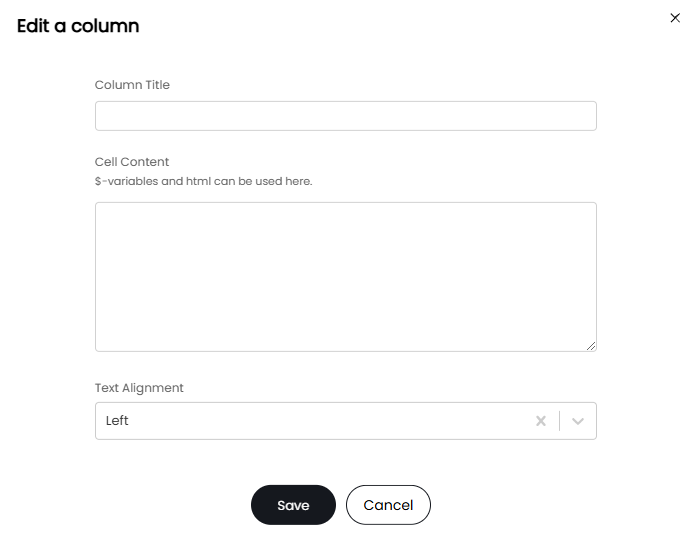
Fig 10. Adding HTML to a custom column.
Setting a Default PDF Template for Quotes
You can set your default PDF Template for Quoting in Configuration > Quotations, just above where the button to edit the templates is.
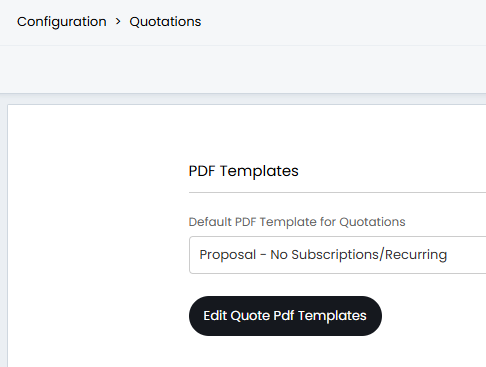
Fig 11. Default PDF Template used for New Quotes
Formal Proposal Template
The out-of-the-box template for formal proposals is more built out with more pages that can be customised. Each of these follow the same format, so let's look at the "Terms and Conditions" page here.
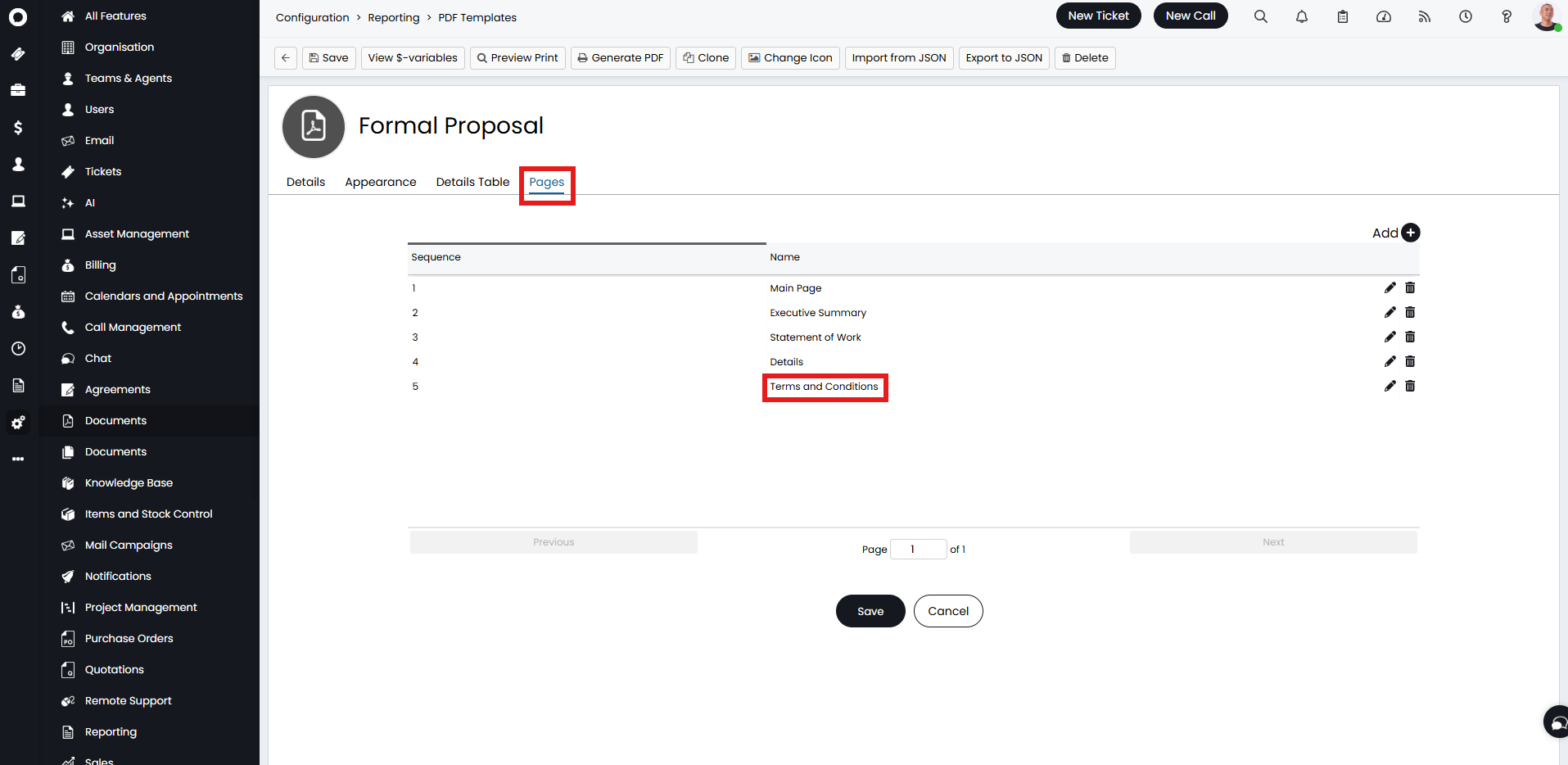
Fig 12. Pages on the Formal Proposal template.
The HTML includes reference to a custom field, here it is "CFProposalTermsAndConditions". This template often for larger or more formal proposals, so it is intended that quotations using this template are raised off of tickets instead of from the quotations area. If the ticket type has the custom field set in the field list, this can be filled in there, and transferred to the template that way.
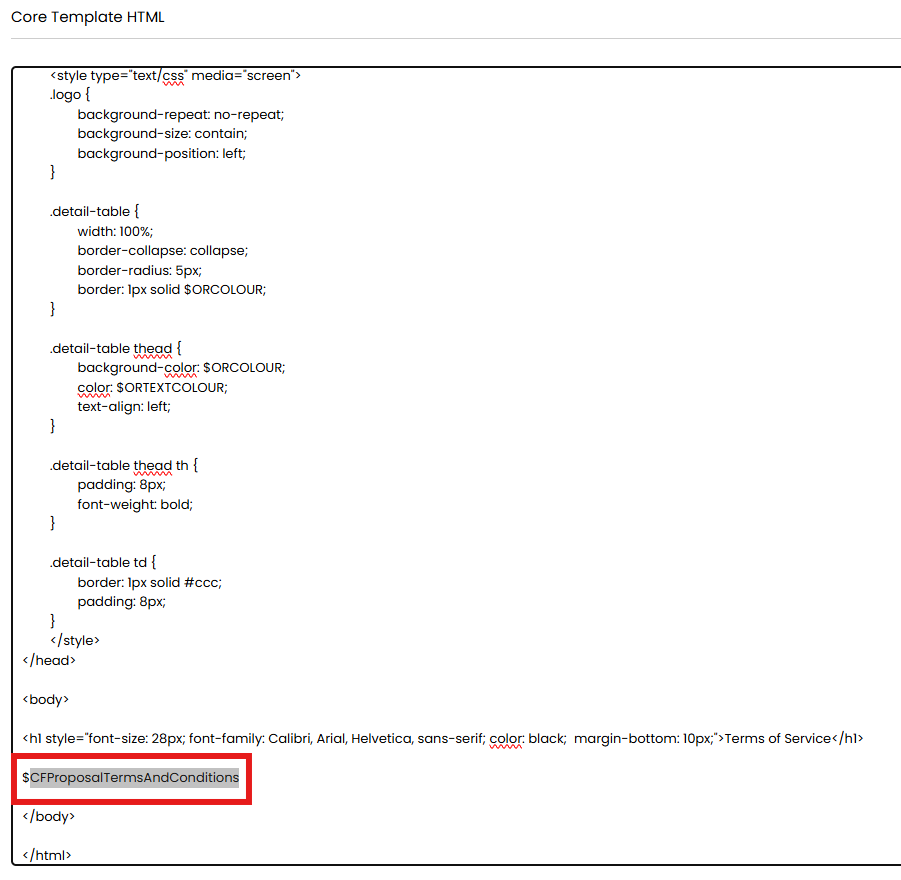
Fig 13. Custom field in the HTML.
Terms and Conditions is something that may not change between proposal-to-proposal however. If this is the case, the custom field here can be replaced with text instead that state your company terms and conditions. This will then populate the same on every quotation that uses this template without having to set it on the custom field.
Adding Approval Signatures
Approval signatures from both the agent and the user can be added to the PDF through variables.
$-AGENTQUOTESIGNATURE will print the agent's signature. The agent is set based on the assigned agent on the quote.
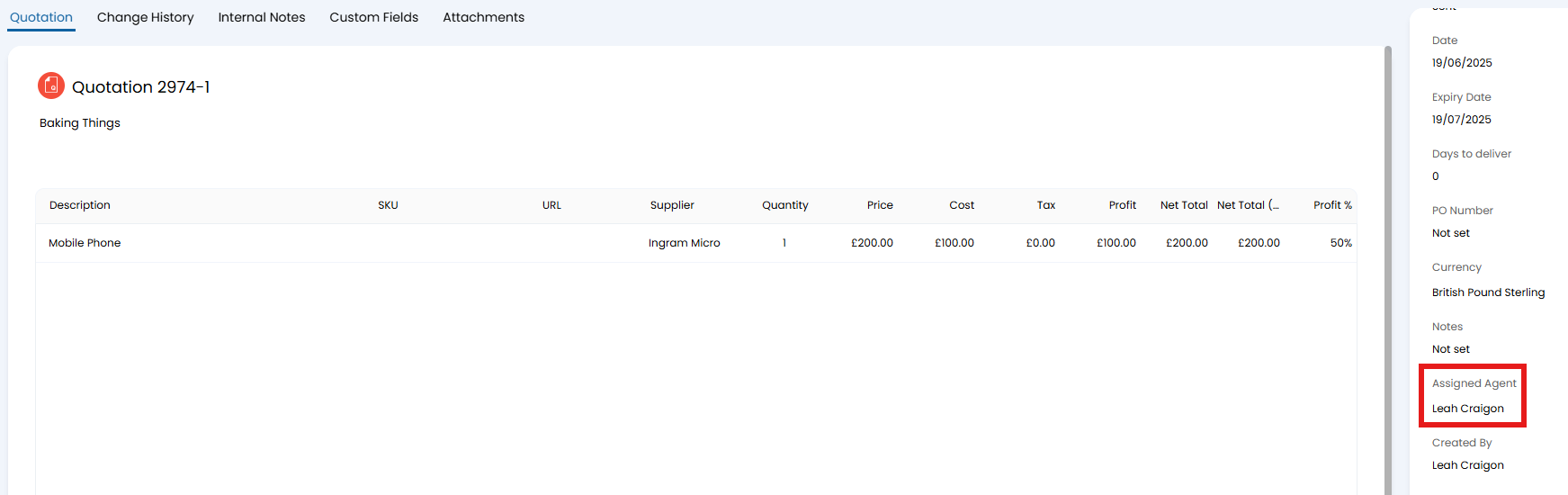
Fig 14. Assigned agent on a quotation.
This signature is set on the agent's profile > Preferences tab > Approval Processes dropdown.
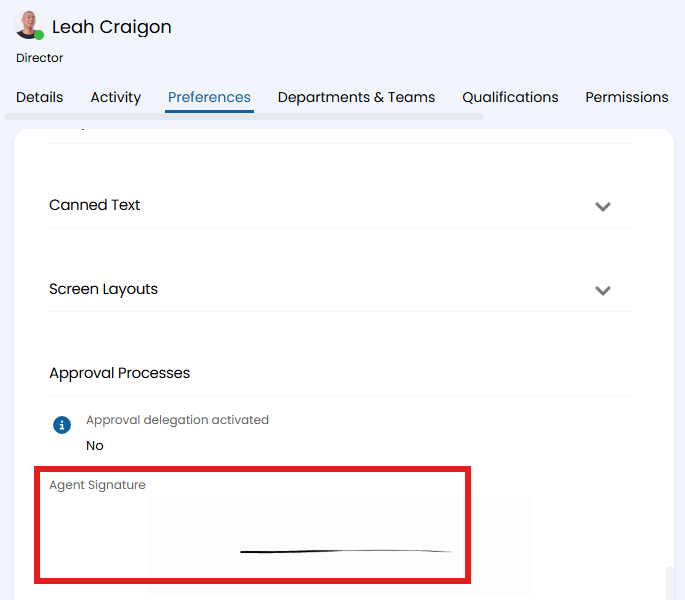
Fig 15. Agent signature set.
$-QUOTESIGNATURE will print the customer's signature. This signature is added when approving the quote when the "Customer Signature" field added to the approval screen fields in Configuration > Quotations > Approvals.
The PDF template will therefore show this section as blank until this is populated.
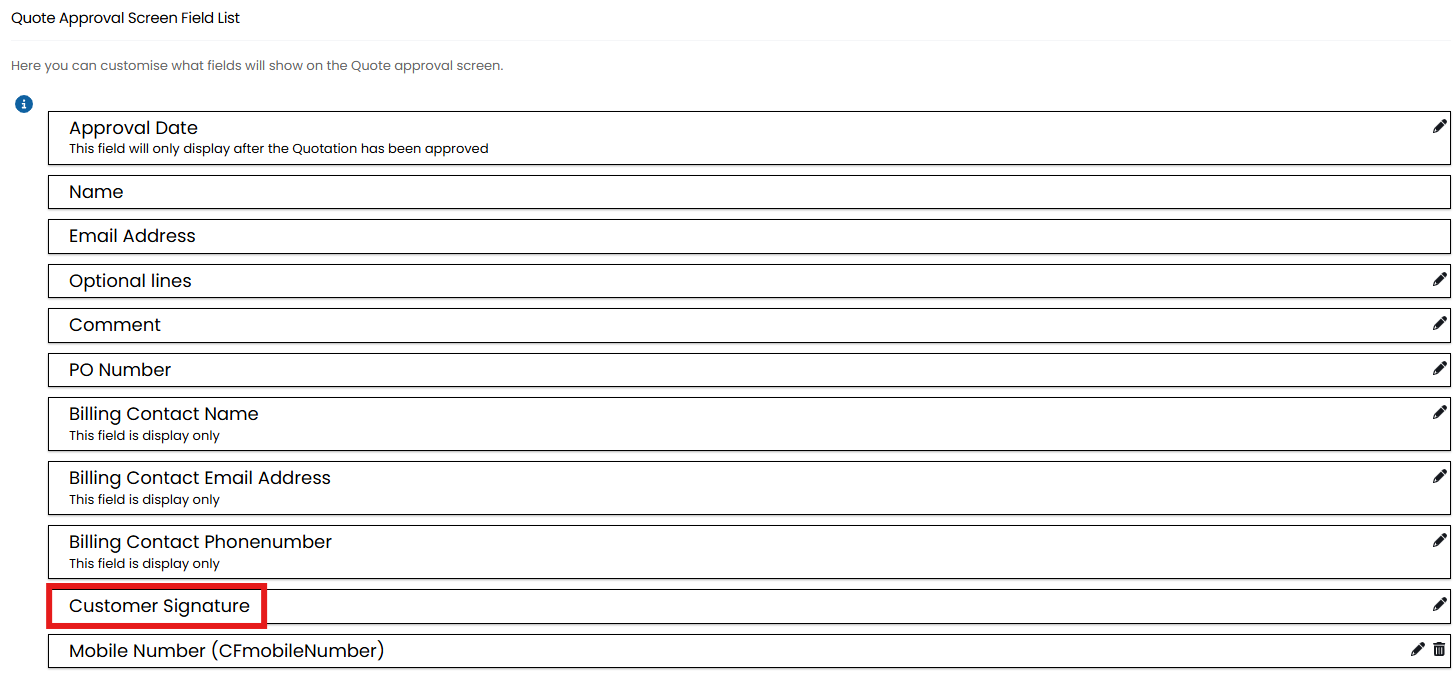
Fig 16. Customer signature field added to the approval screen.
From version 2.216 you can add a custom hint/message above the signature field. To write this custom hint you can select the "Content to show above the signature input" button in Configuration > Quotations > Approvals. This will open a text box where you can write your message.

Fig 17. Adding a custom hint for signatures
The message you provide in here will then display above the signature field.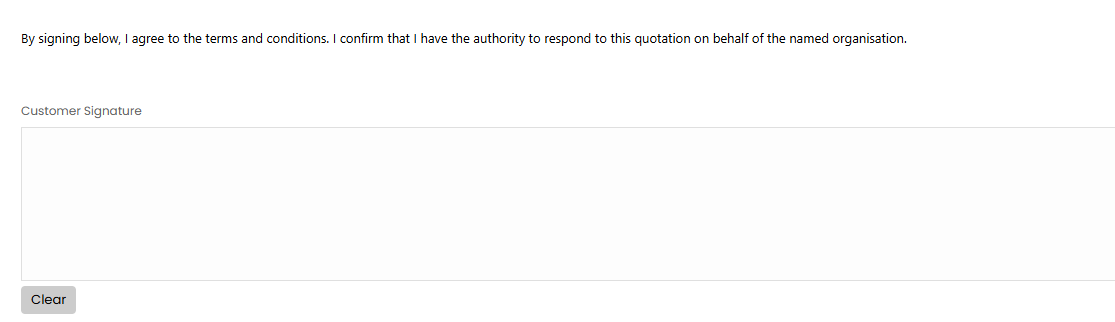 Fig 18. Adding a custom hint for signatures
The variables can then be added into the HTML of the PDF template, similar to the below examples.
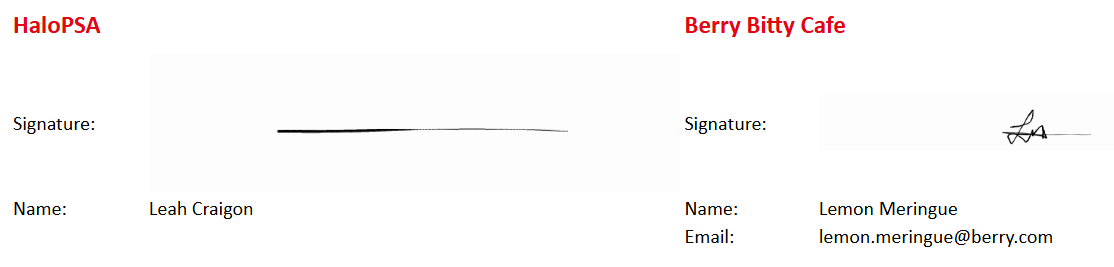
Fig 19. Signatures added to a PDF template.
You can remove the whitespace from around the customer's signature, by enabling the below in Configuration > Quotations > Approvals.

Fig 20. Remove whitespace option.
Any leftover space around the image will be removed when it is stored, appearing larger and cropped.
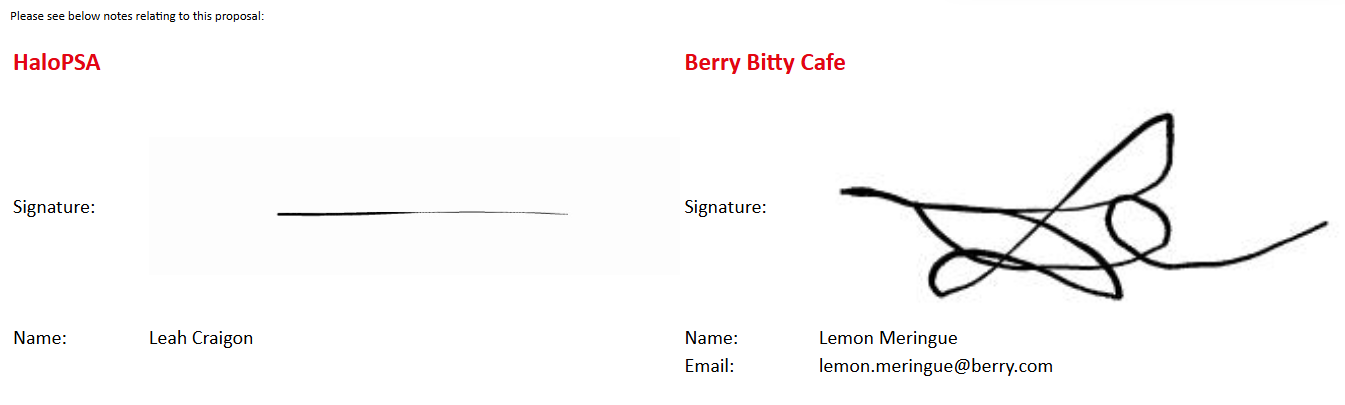
Fig 21. Signature with removed whitespace.