Viewing Quotes in the Portal
In this guide we will cover:
- Turning on the Modules
- Adding The Menu Button
- Accepting or Rejecting a Quote
- Adding a Video To a Quote
- Adding $QUOTECANNEDVARIABLE to the PDF Template
- User Authentication
- User Access
Admin Guides:
Quotations are the start of sales processing in Halo and allow you to quickly create, preview and send clear and highly customisable PDF quotation documents.
Turning on the Modules
To use quotations, make sure you have the sales module enabled in the configuration menu by clicking the + symbol to the top-right of the button.
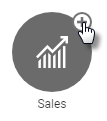
Fig 1. Sales Module
Then, within the sales features, make sure you have the quotation module enabled.
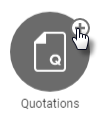
Fig 2. Quotations Module
Click on the module button itself to access the quotation settings. Here you will find these options can all be set at individual quote level but will use these as default selections (In the User Approval Settings Dropdown).
- Ticket Status after Quote Accepted
- Ticket Status after Quote Rejected
These allow you to set the status of a ticket based on the quote acceptance or rejection from the end user, for quote approval processes carried out on tickets that are linked to the quotation.
- Default PDF Template for Quotations. See our PDF template guide for more information on setting up templates.
Adding The Menu Button
You can view your Quotes in My Quotations tab, this can be configured in Configuration > Self Service Portal > *Add to Menu Buttons*.
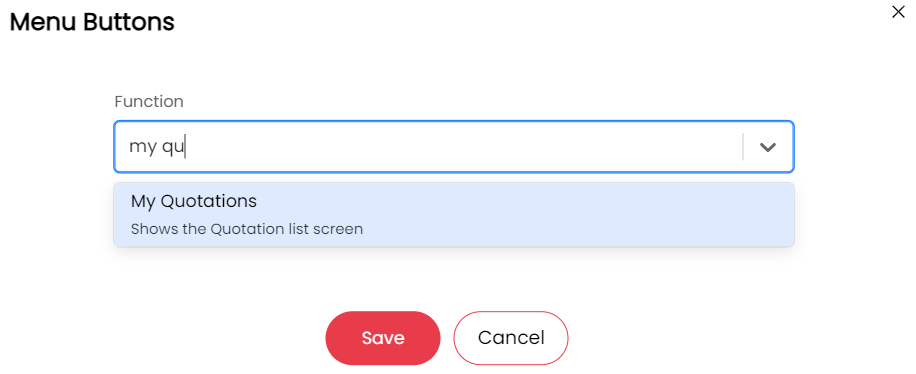
Fig 3. Adding The "My Quotations" Button
Accepting or Rejecting a Quote
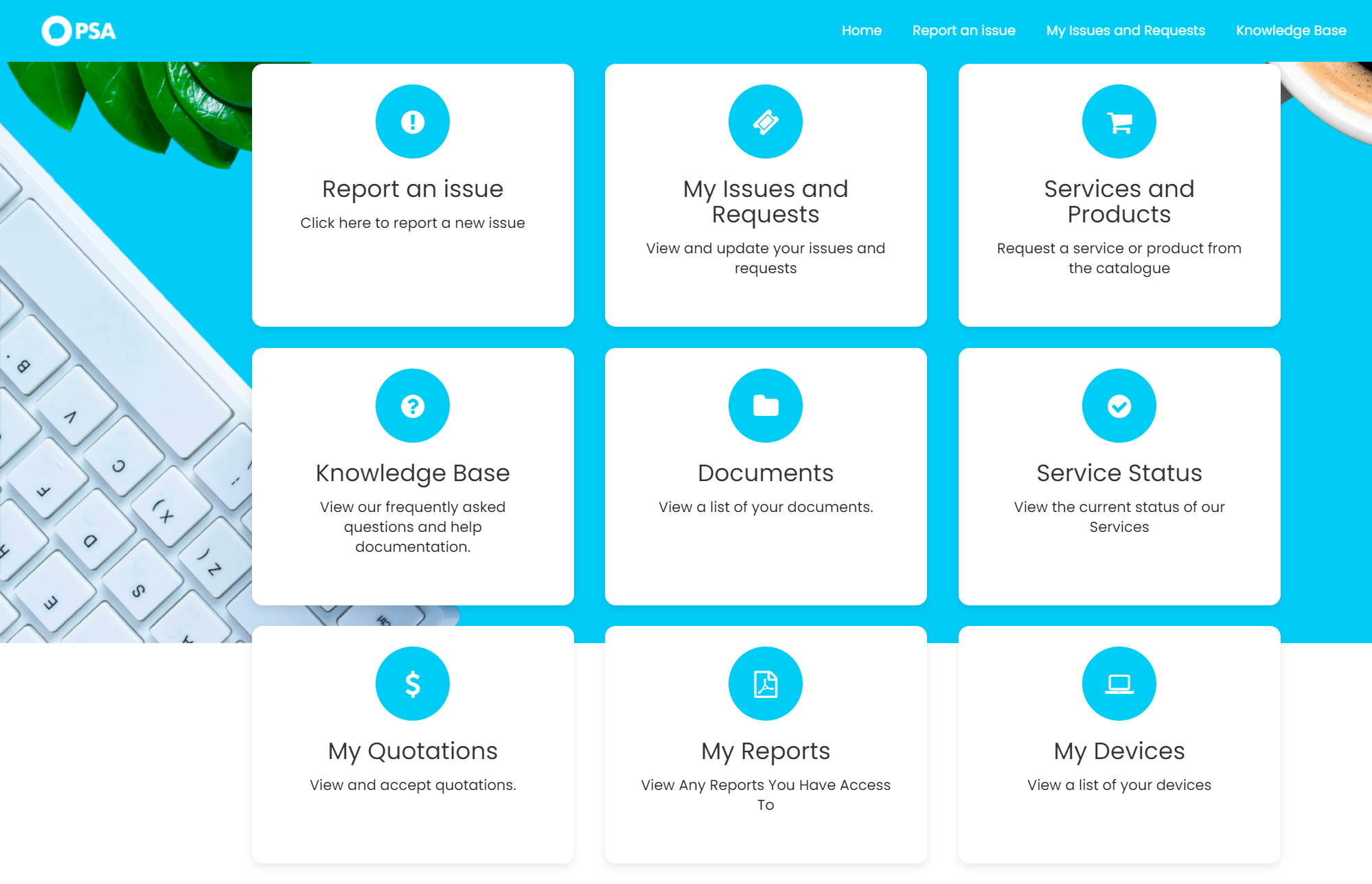
Fig 4. Viewing "My Quotations" From The Self Service Portal
Here, you can view it and either to Accept or Reject it.
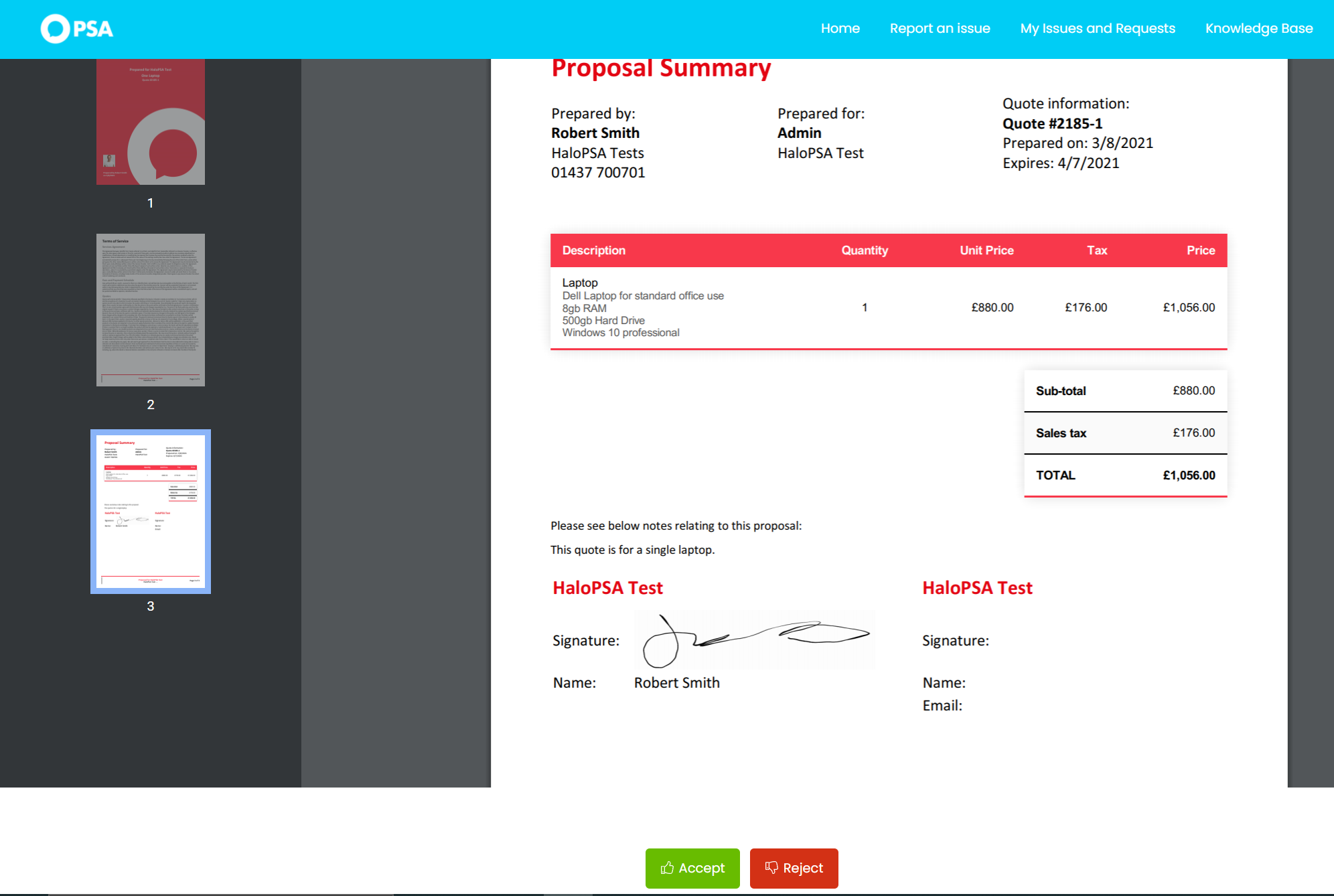
Fig 5. Accepting or Rejecting a Quote on The Self Service Portal
As shown above and below, after clicking the link to approve the quote via the portal, a new portal window is opened. From here you can choose to approve or reject the quote via the thumbs up or down icons.
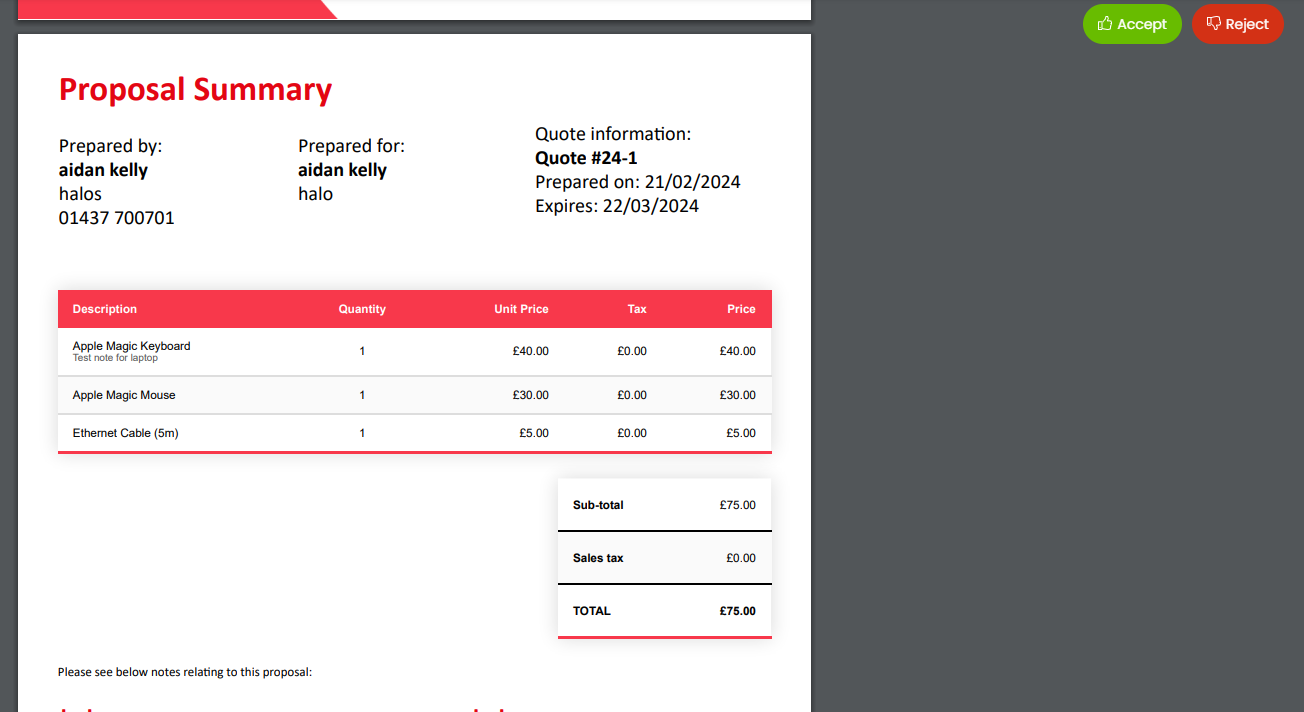
Fig 6. Approval via the portal
Note: After clicking accept, the user will be able to add in their signature and can edit the optional items that were on the quote, they will then have to click accept again.
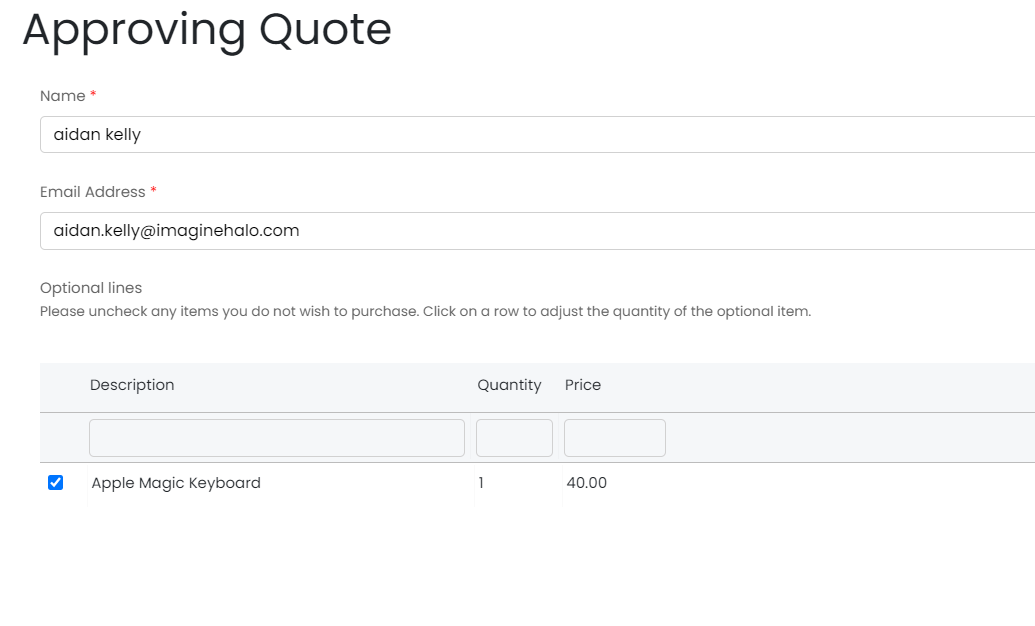
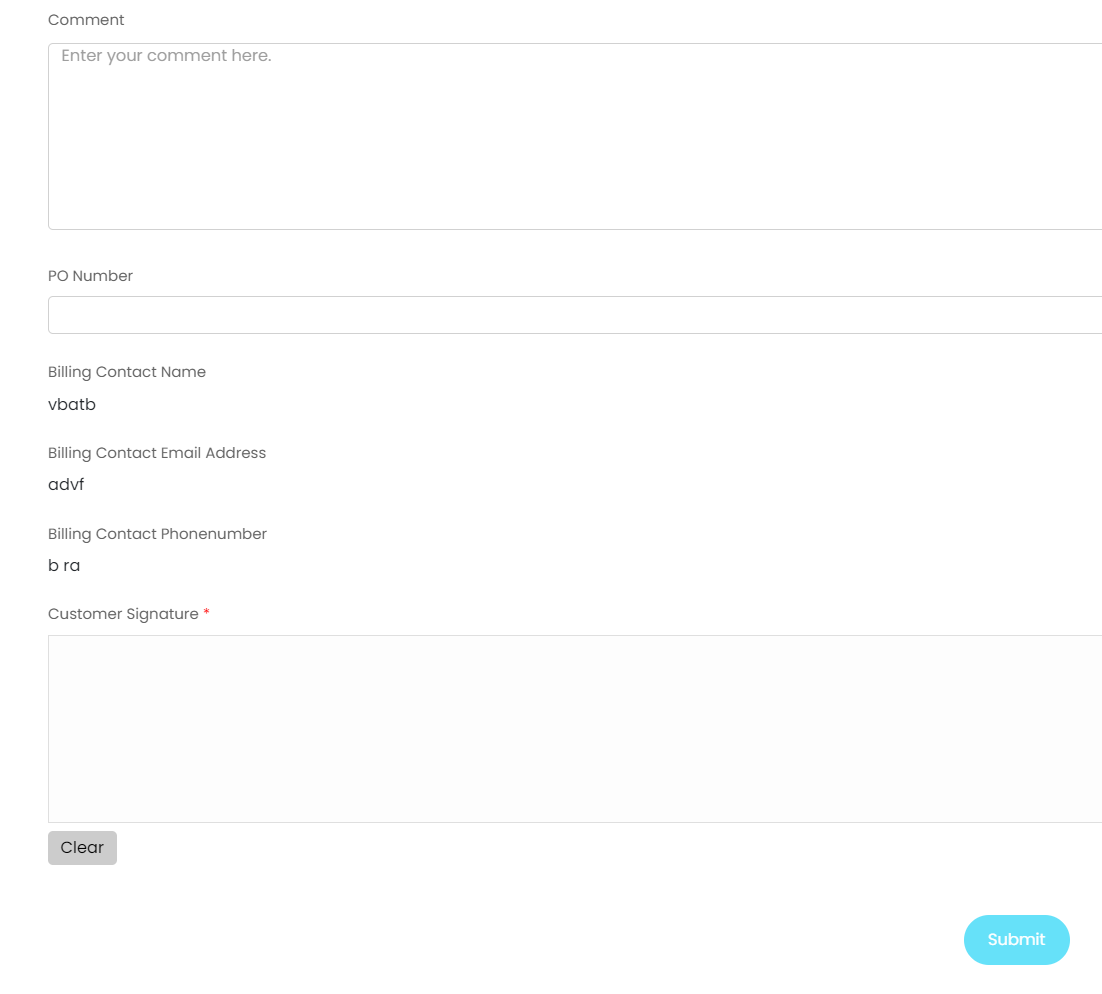
Fig 7. The Screen Shown After You Click "Accept"
You can turn off the signature option or you can add in canned texts with videos into your quotes, refer to the admin guides above for more information on configurable options in the "Quotation" section of Configuration.
Adding a Video To Your Quote
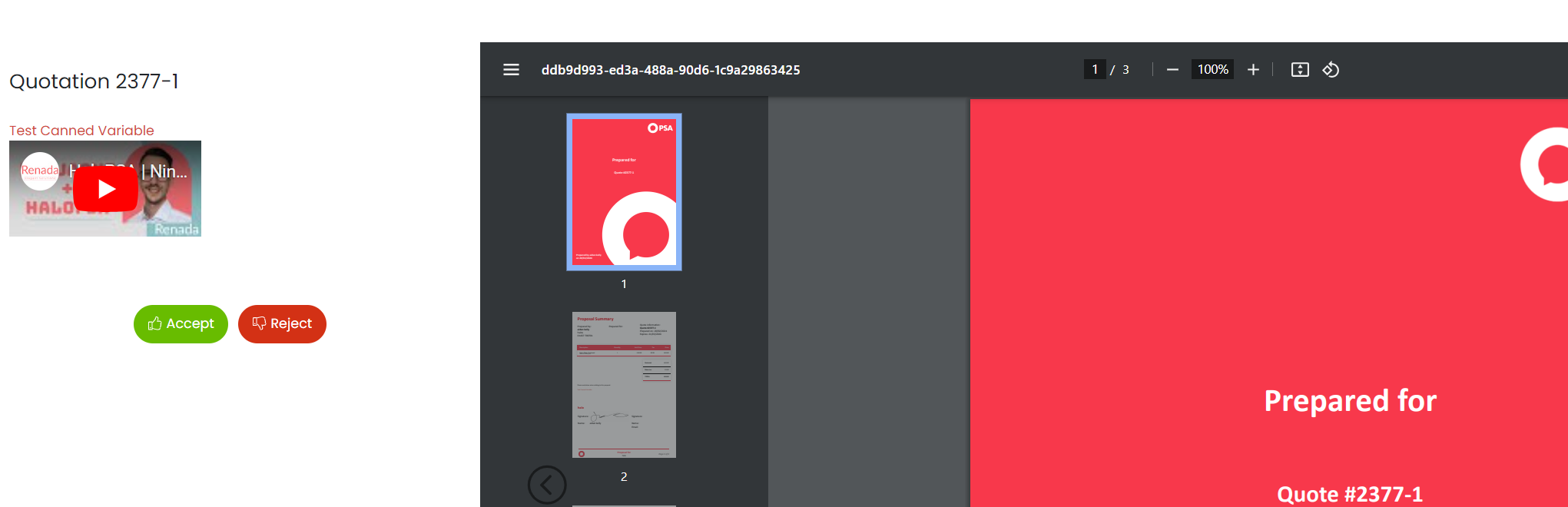 Fig 8. Adding a Video to your Quotation
To do this add in the following options in Configuration > Quotations:
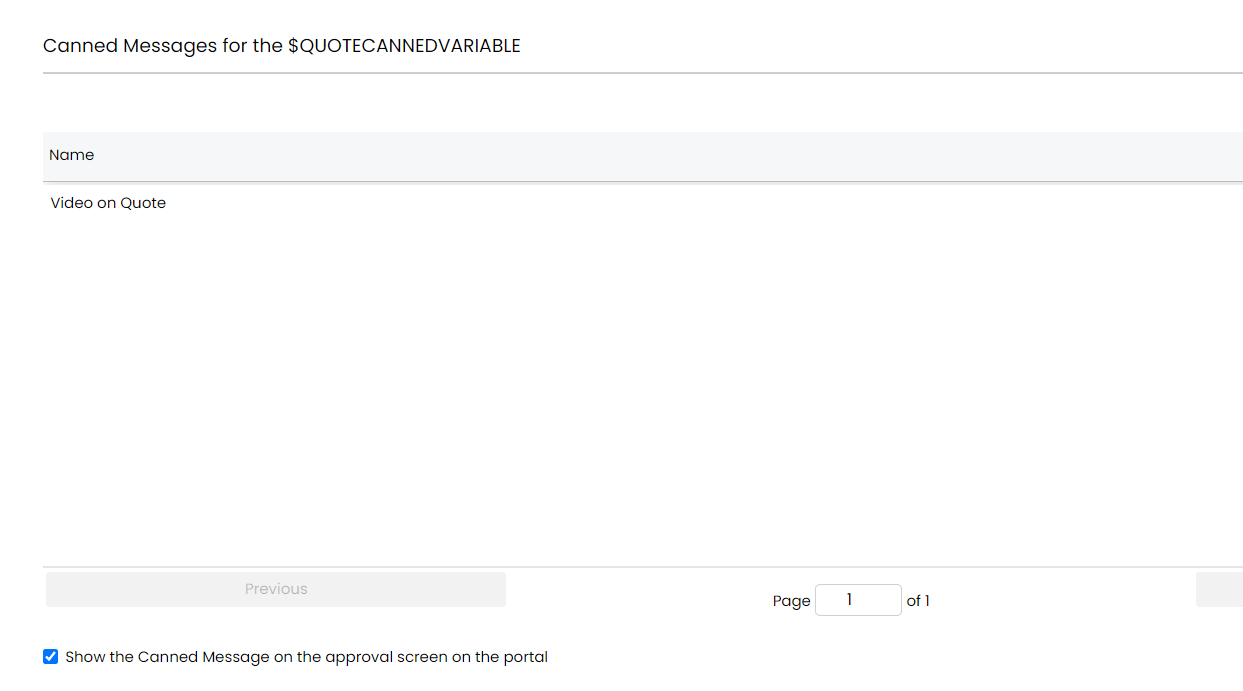
Fig 9. Options to Include canned text messages
I then added in some html to the template using the raw html editor option, highlighted in Fig 10.
<p><span style="color: rgb(209, 72, 65);">Test Canned Variable</span></p>
<p>
<embed width="200" height="100" src="https://www.youtube.com/embed/fHiy0UCbQ0Y?si=cKs5lxp9py8NLCzK" title="YouTube video player" frameborder="0" allowfullscreen="">
</p>
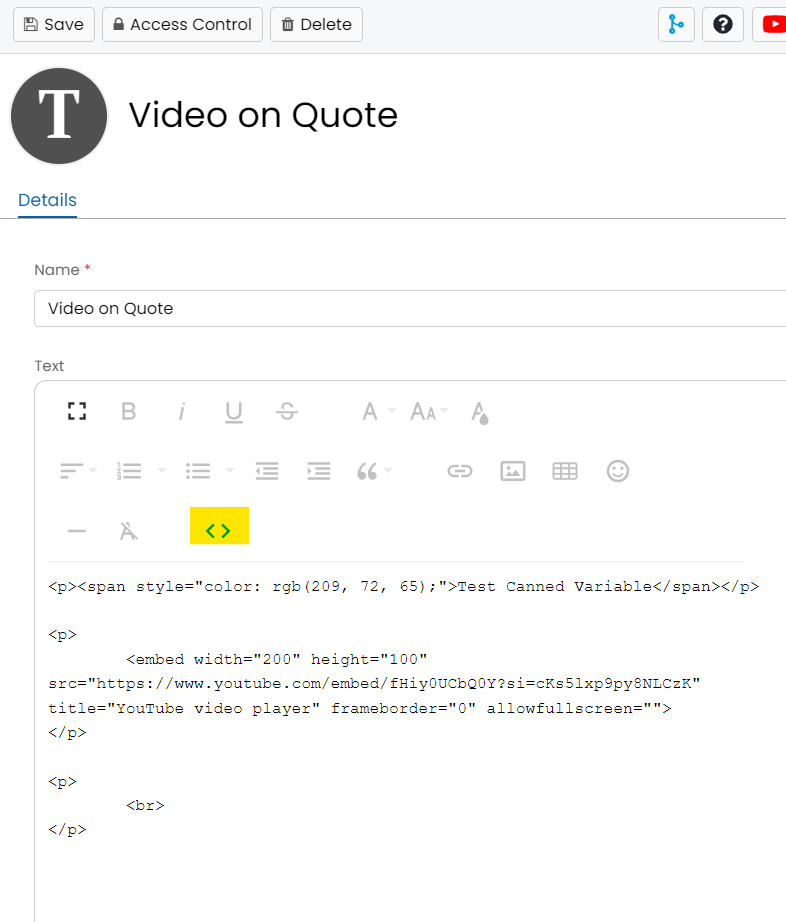
Fig 10. Raw HTML Editor
Adding $QUOTECANNEDVARIABLE to the PDF Template
Then add this to the PDF Template which you are going to apply on the Quote, this could be the default one set in Configuration > Quotations or the one you have configured on the quote within the sidebar displayed to the right of the quote.
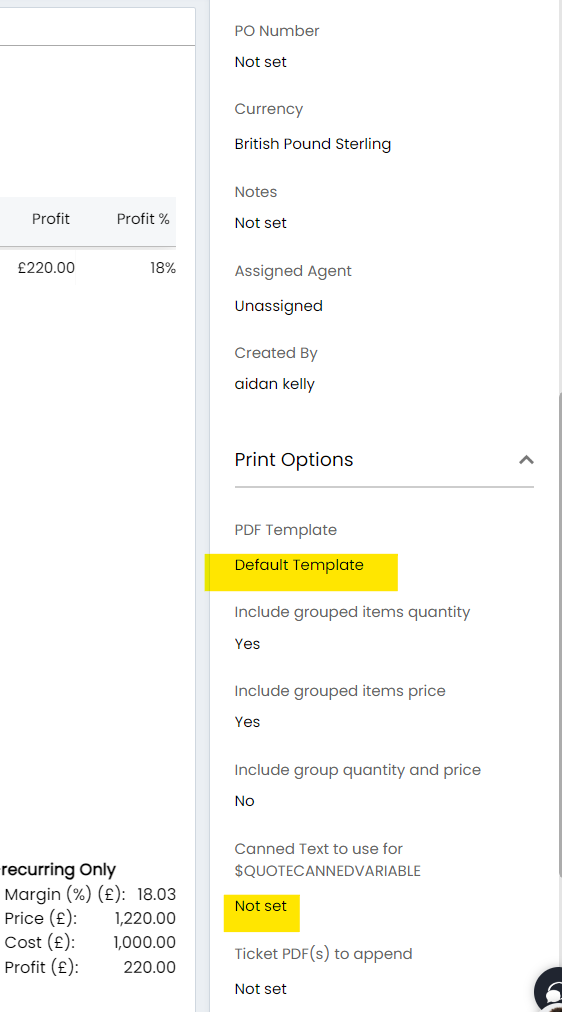
Fig 11. Adding In The QUOTECANNEDVARIABLE and the correct PDF Template Per Quote
The html to use on the PDF template (Configuration > Reporting > PDF Templates) of entity "Quotation" is <p>$QUOTECANNEDVARIABLE</p> as shown in the below snapshot of the html on the quotation template:

Fig 12. Adding "$QUOTECANNEDVARIABLE" into the PDF
User Authentication
You can choose whether or not you want users to authenticate via the portal with the setting below. When checked, end-users must log in to access their approvals.
 Fig 13. Require Authentication for Approval Processes Setting
User Access
In a user's profile > "Permissions" tab > General Permissions, you can find the "Quotation Access Level". This defaults to "This Users Quotations" to follow the same behaviour as previously, but it can be changed similar to other access levels.
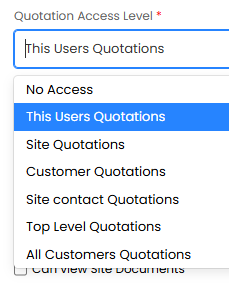
Fig 14. Changing quotation access level.
For example, if set to "Customer Quotations", the user will be able to see quotations assigned to any user at the same customer as them, including their own. Here, we have a "Laptop Bundle" quotation for Jennifer from HaloPSA.
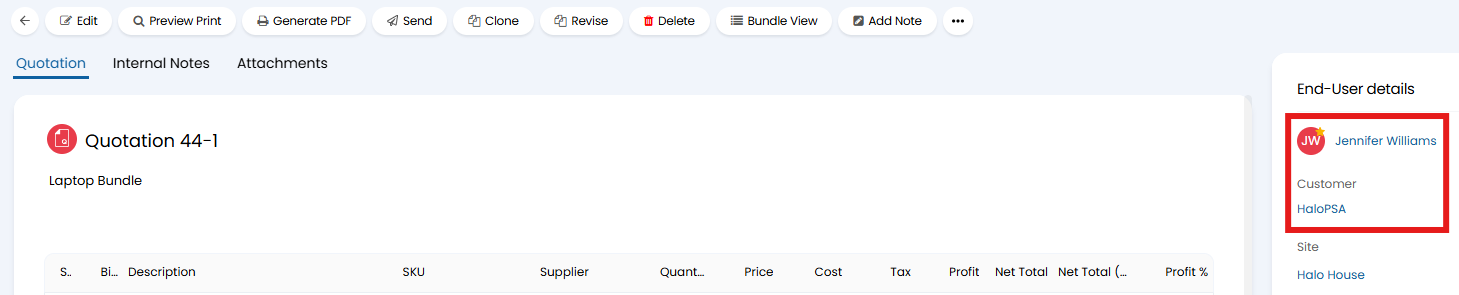
Fig 15. Quotation assigned to another user in the same customer.
When viewing the "My Quotations" button in the portal, the other quotations will also appear in the list. Here, I can see the "Laptop Bundle" quote, even though it is assigned to Jennifer.
 Fig 16. Quotations in the list.