Menu Buttons
In this guide we will cover:
- What are Menu Buttons?
- Menu Button Functions
- Customising Menu Buttons
Admin Guides:
What are Menu Buttons?
Menu buttons are areas within the Portal which Users can access. Different Menu Buttons have different functions and can be customised to suit the User's needs.
Creating Menu Buttons
To add a Menu Button to the Portal, head to Configuration > Self Service Portal and navigate to the "Menu Buttons" section. Here you can build out a 'Field List', to customise what features show in the menu and home page of the Portal.
Adding a new menu button is as simple as clicking 'New' at the bottom of this list and selecting the function you would like to add. Once added, Menu Buttons can be dragged and dropped to change the order of them on the list. To do this, simply hover over the Menu Button you would like to move, and drag using the six dots that show on the left. These buttons can also be edited or removed by using the pencil or bin icon respectively.
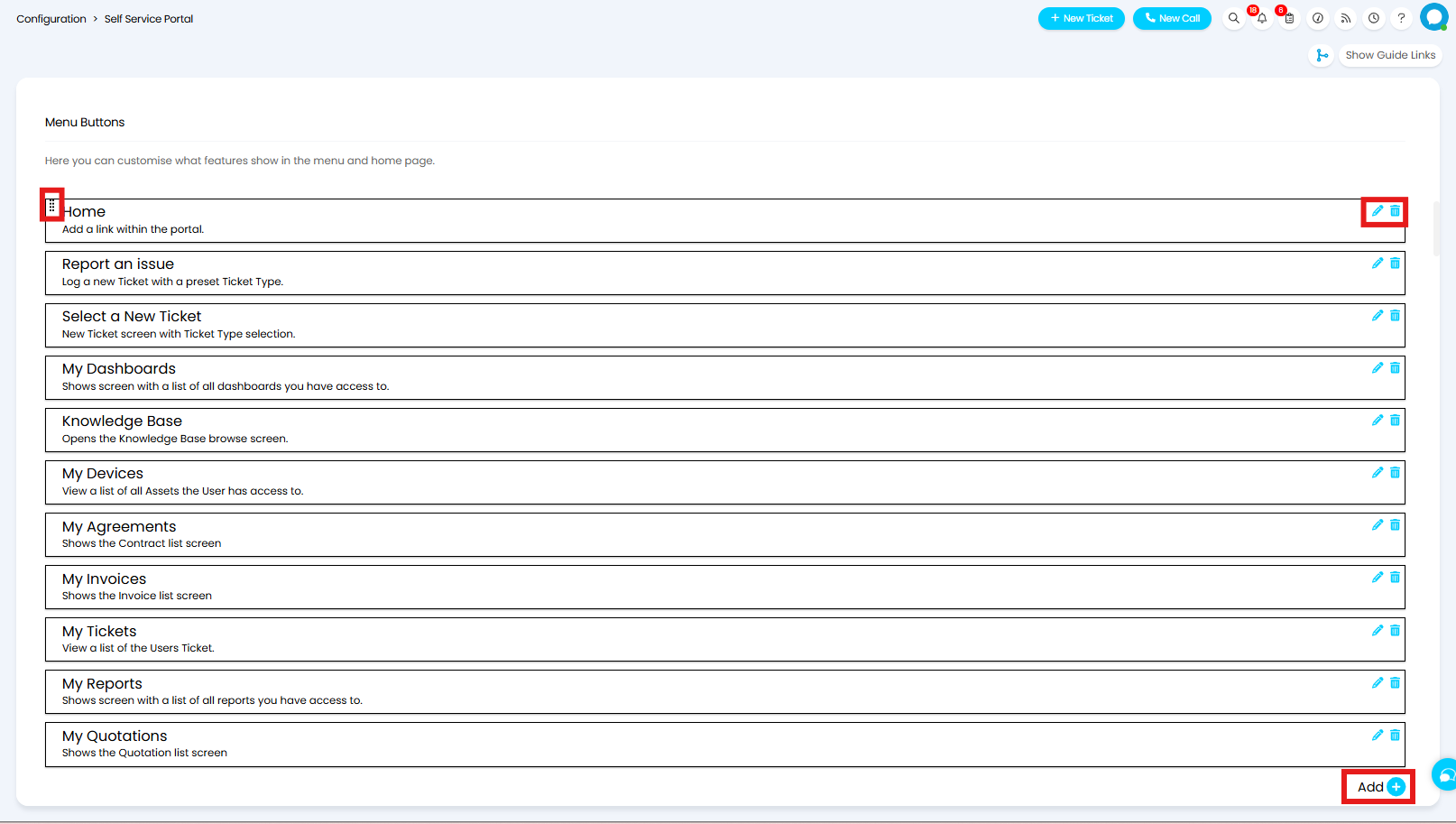
Fig 1. Editing Menu Button
Menu Button Functions
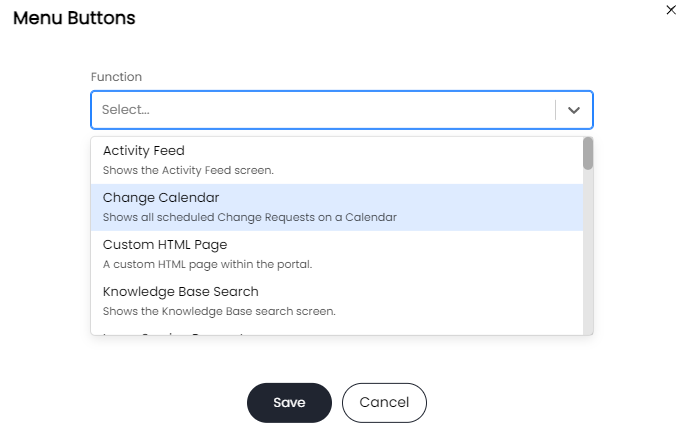
When you create a new, or edit an existing Menu Button, you will need to choose a function.
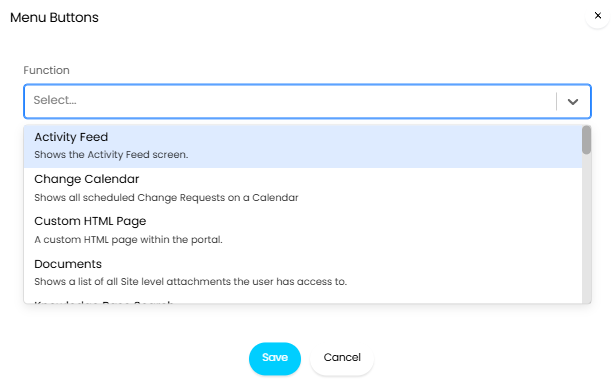
Fig 2. Menu Button Functions
Access to and visibility in each Menu Button will be influenced by a User's Role and permissions. For more information on User Role permissions please see the guide linked here. For information on how to restrict access to areas of the portal see the Self-Service Portal Restrictions guide.
The following Menu Button functions are available:
Activity Feed
When the Activity Feed is added as a Menu Button, Users will be able to see recent activity. More information on the Activity Feed can be found here.
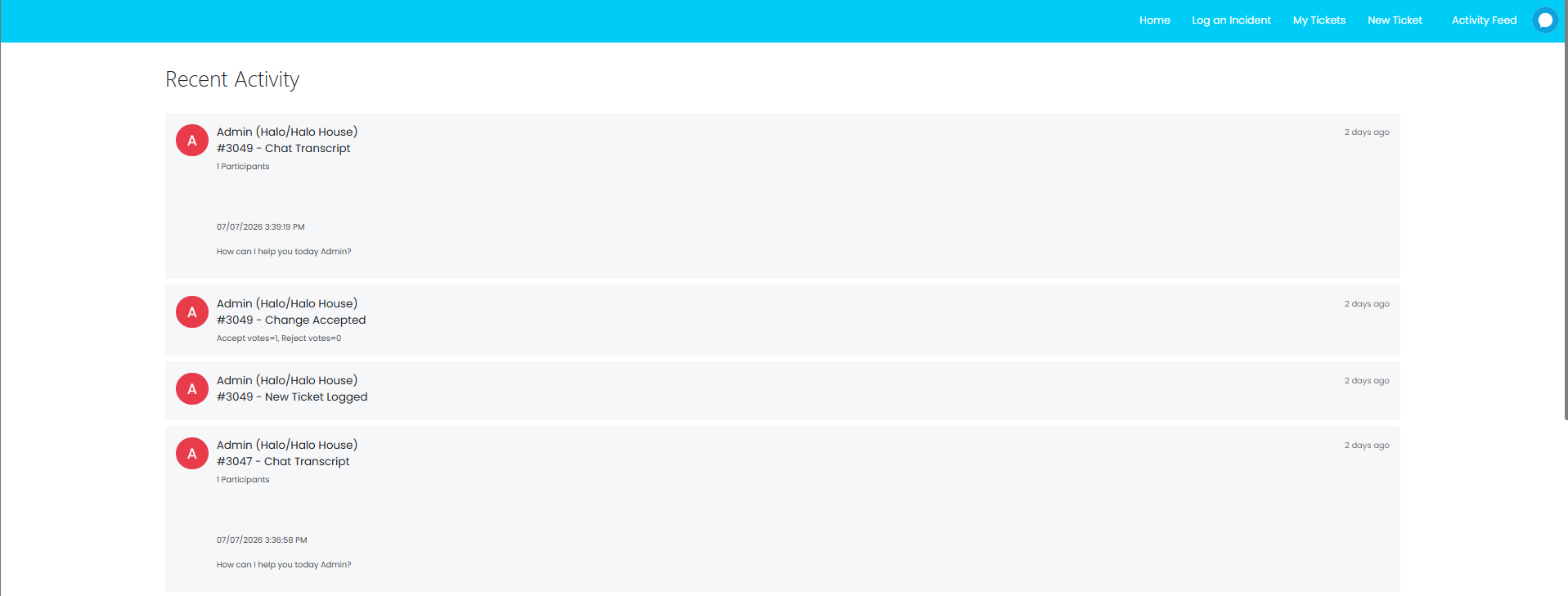
Fig 3. Recent Activity
Change Calendar
When the Change Calendar Menu Button is added to the Portal, Users will be able to see upcoming Change Requests on a calendar. You must also enable "Publish the change calendar to the Self-Service Portal" in Configuration > Tickets > Change Management for this to show in the Portal. More information on the Change Calendar Feed can be found here.
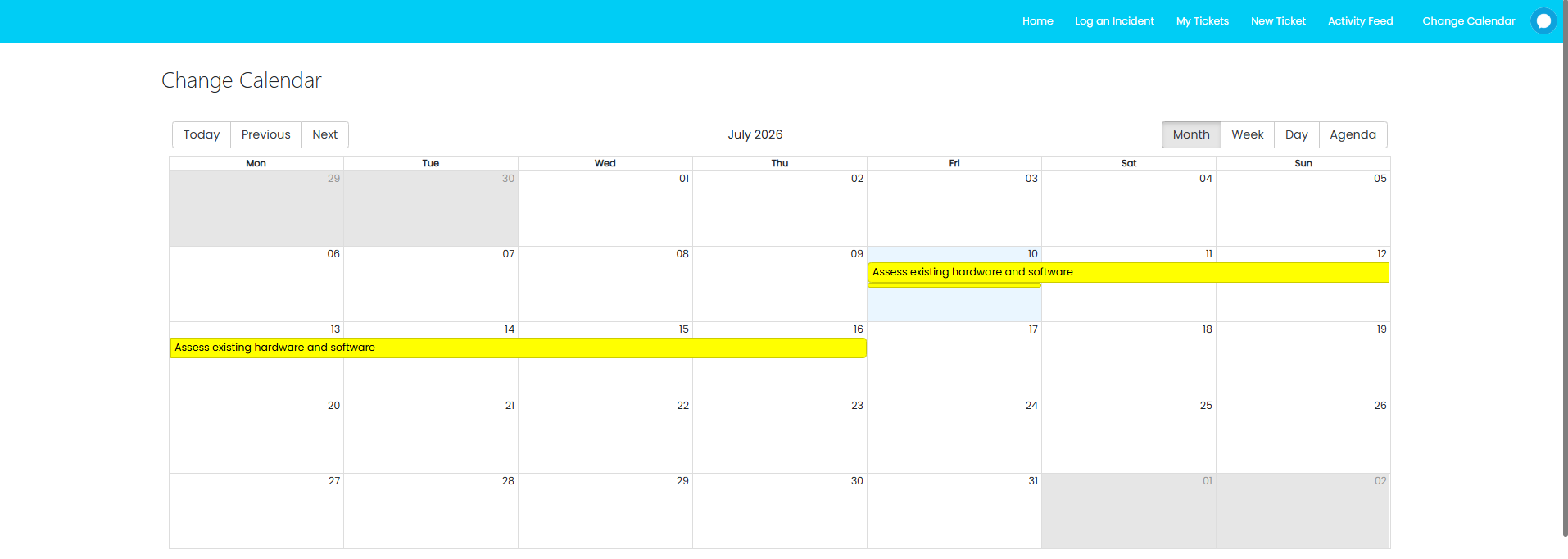
Fig 4. Change Calendar
Custom HTML Page
When added, you can add custom HTML to display when the Menu Button is clicked.
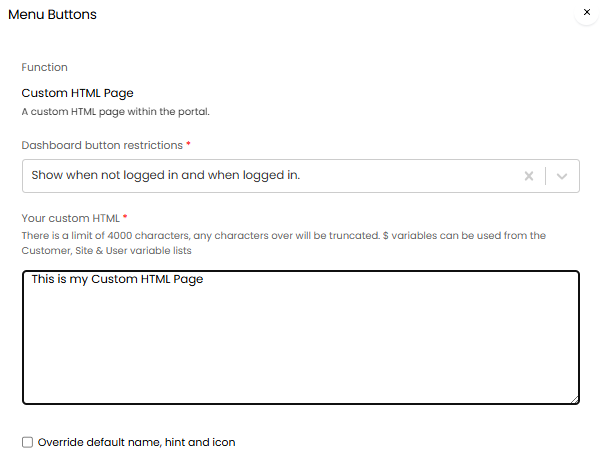
Fig 5. Custom HTML
Documents
The Documents Menu Button will display a list of all User and Site level attachments the User has access to. More information on Document Management can be found here.

Fig 6. My Documents
Knowledge Base ( Opens the Knowledge Base browse screen )
The Knowledge Base Menu Button will open the Knowledge Base for the User, allowing them to view any Articles they have access to. More information on Knowledge Base Articles in the Portal can be found here.
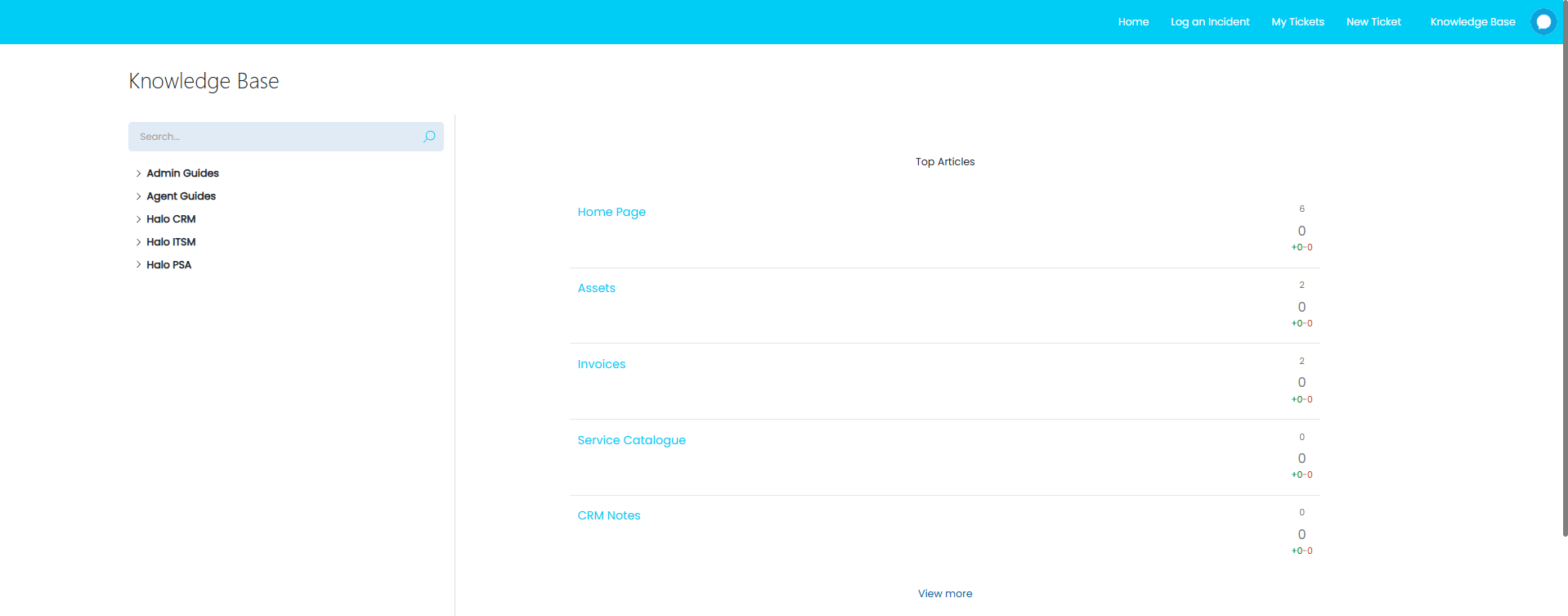
Fig 7. Knowledge Base
Knowledge Base (Opens the Knowledge Base browse screen in tile mode) (v2.246+)
Within the configuration for this button, you can restrict the root level FAQ list when accessing the Knowledge Base.
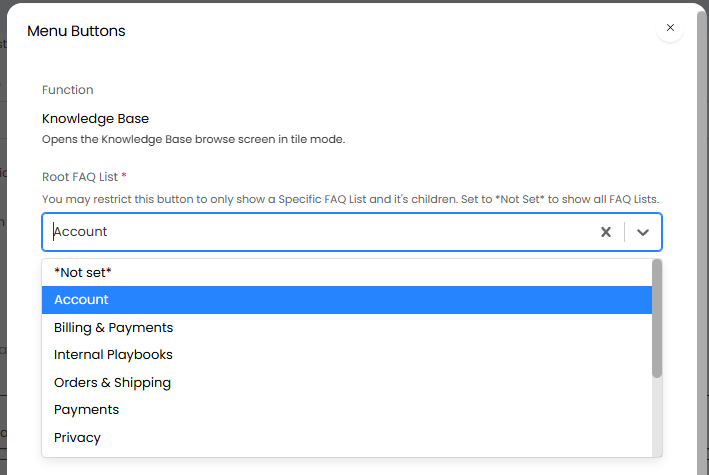
Fig 8. Root FAQ for Knowledge Base Tile mode
Each one of these tiles can have a customised icon, and up to three Articles to show as a quick access, useful to present your most visited Articles. To customise each tile, you can adjust the settings per FAQ List (Configuration > Knowledge Base > FAQ Lists).
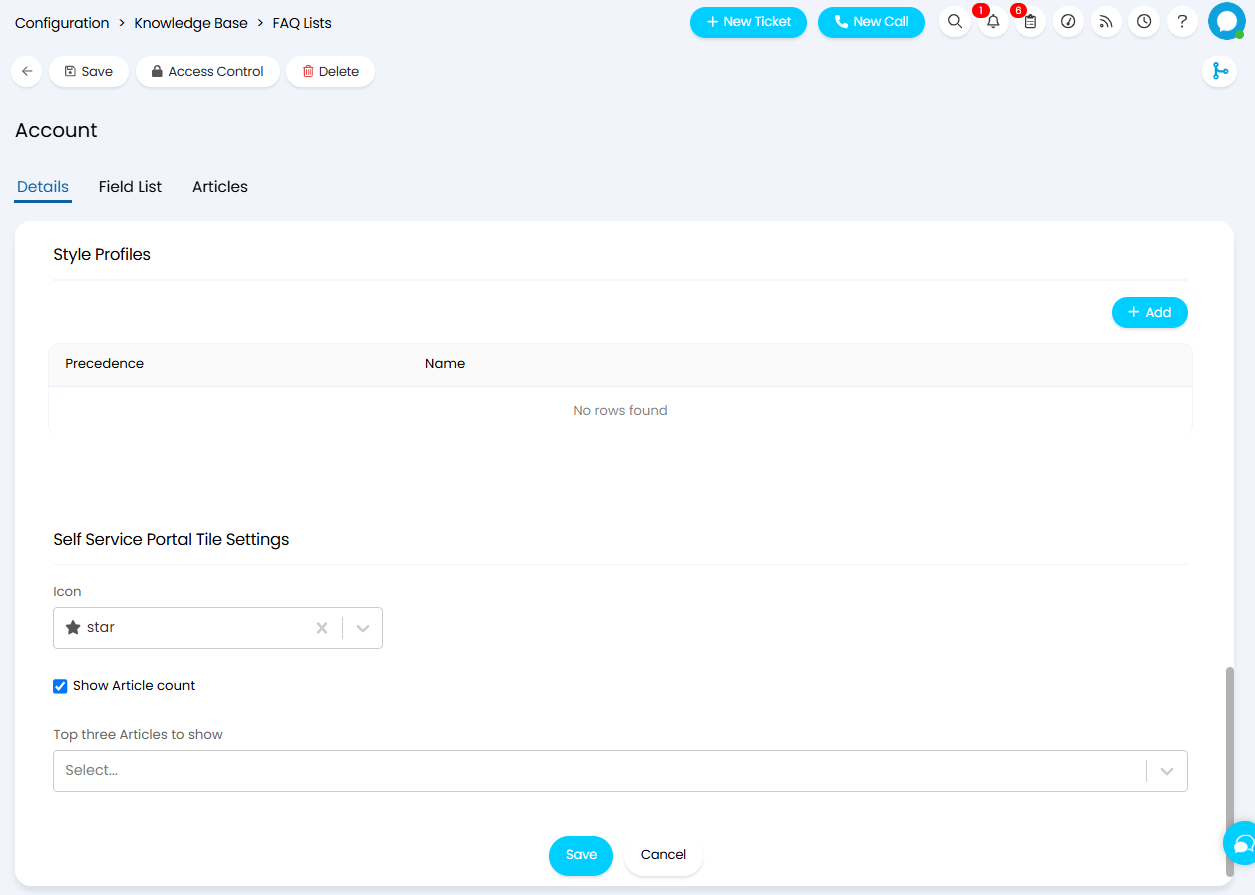
Fig 9. FAQ List Tile settings
When clicking the Menu Button in the Portal, the User is shown your FAQ Lists and a new search bar.
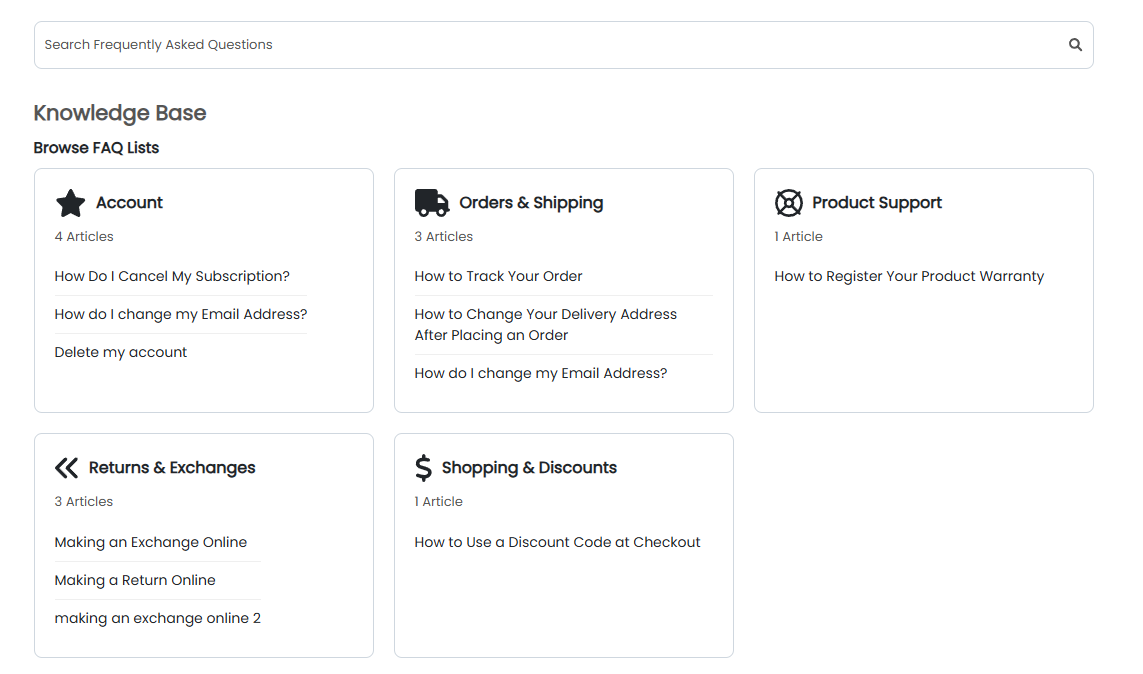
Fig 10. Knowledge Base Tile display
When clicking into an FAQ List tile, child FAQ Lists as well as Articles in the FAQ list are shown.
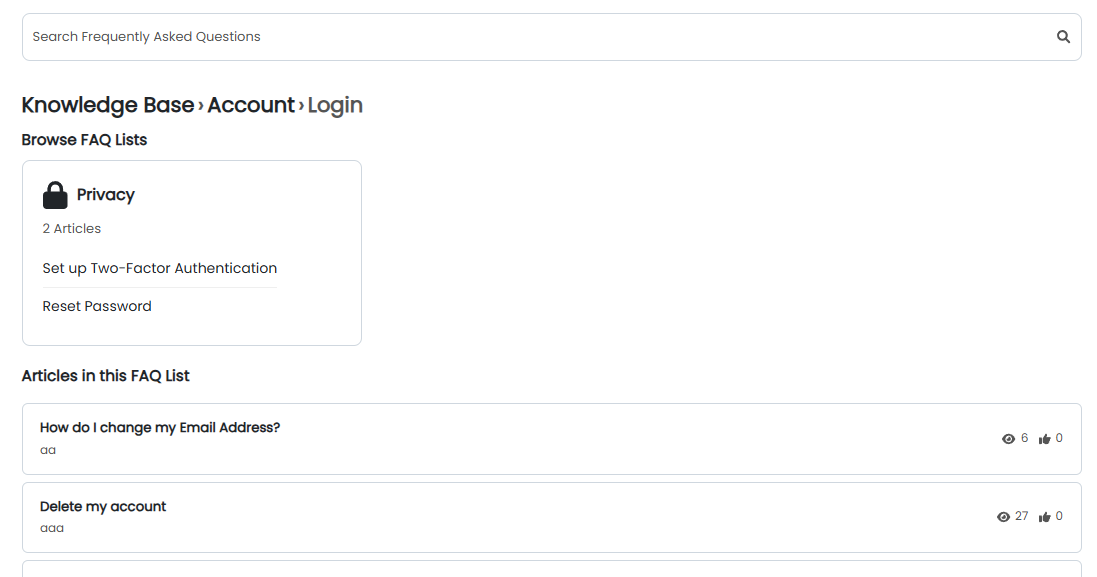
Fig 11. Child FAQ in Tile mode
Users will be able to navigate back to a previous area of the Knowledge Base by clicking on the Breadcrumb.
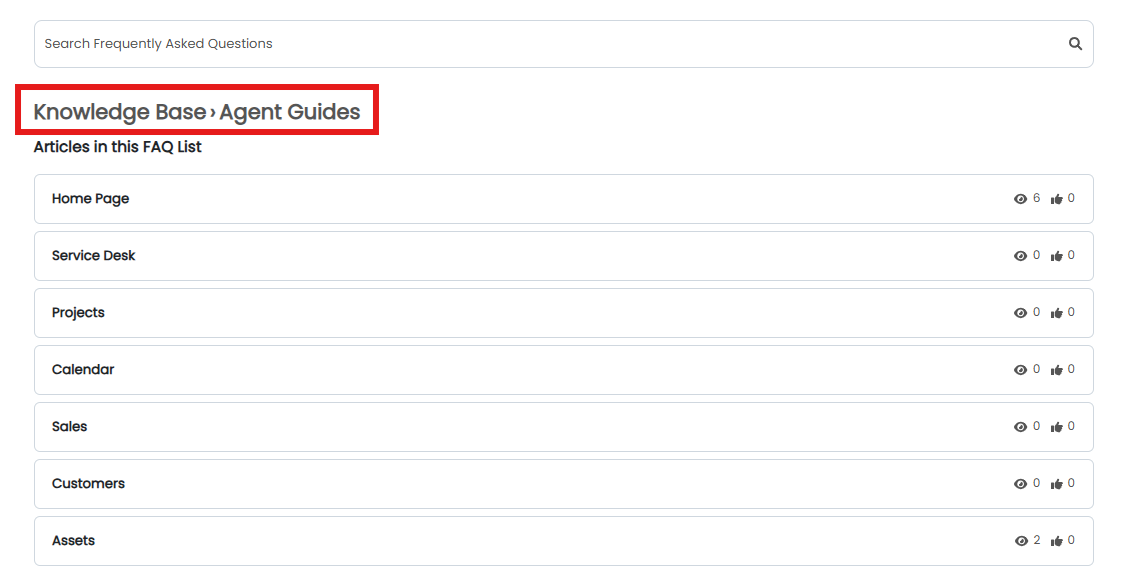
Fig 12. Knowledge Base breadcrumbs
To allow the home screen search bar to make use of the tile mode's searching functionality, head to Configuration > Self Service Portal, and enable "Use the Knowledge Base Tile Search for Article searching". This will also make clicking Top 5 Articles on the home screen take the User to the tile mode view.
Note: All HTML elements within the tile search have unique CSS classes to allow for full customisation of the tile mode view to suite your Organisations branding requirements.
Knowledge Base Search
This Menu Button opens the Knowledge Base Search page, where Users can search for Articles. More information on Knowledge Base Articles in the Portal can be found here.
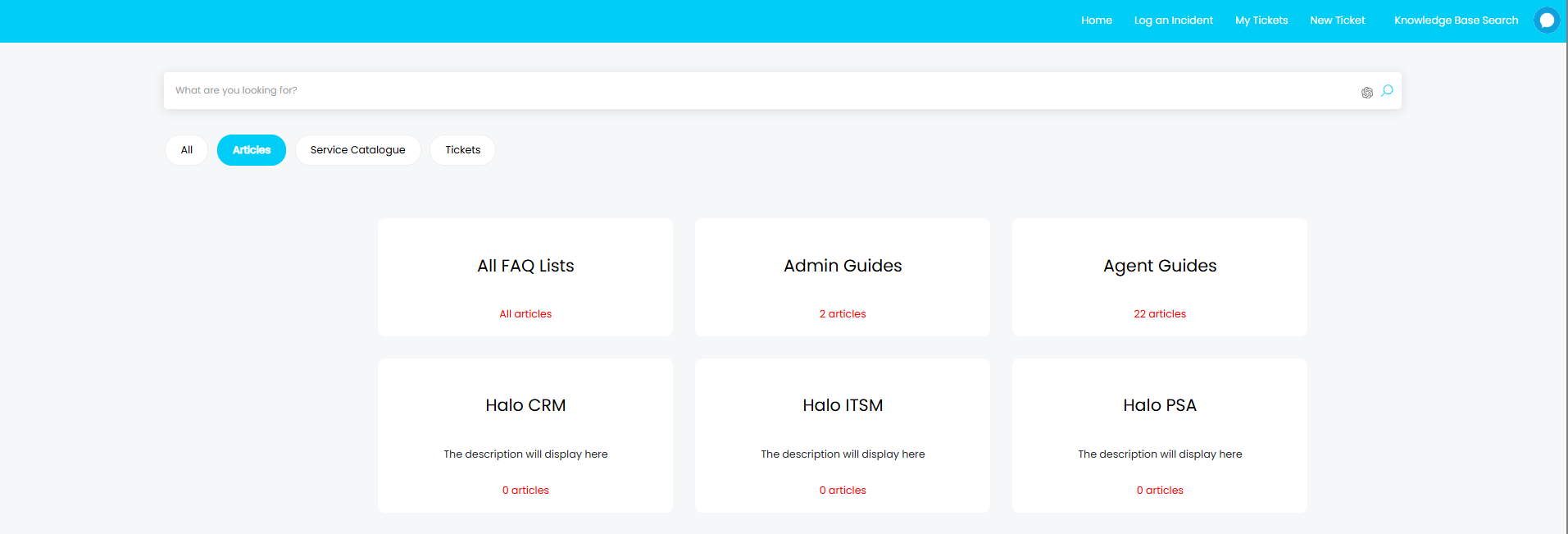 Fig 13. Knowledge Base search
Log a Service Request
This Menu Button will open the Service Catalogue showing only Service Catalogue where a Service Request can be logged. More information on the Service Catalogue can be found here.
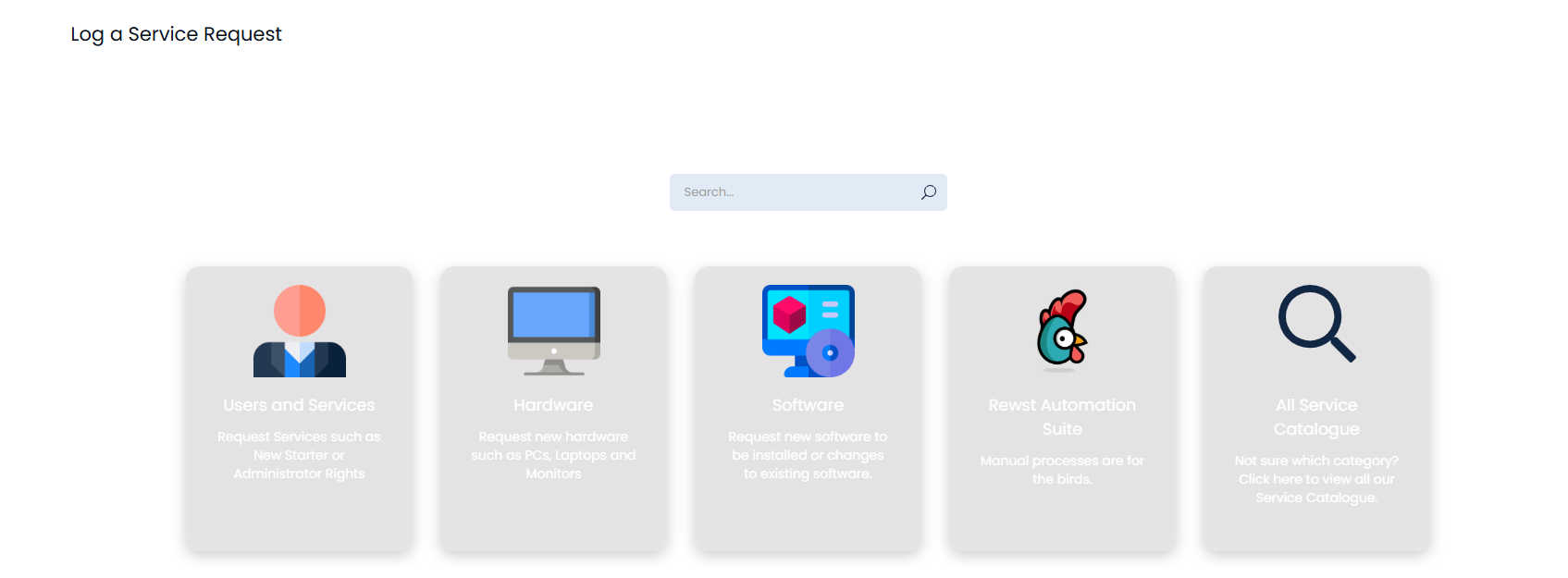
Fig 14. Services
Log an Incident
This Menu Button will open the Service Catalogue showing only Service Catalogue where an Incident can be logged. More information on the Incident Catalogue can be found here.
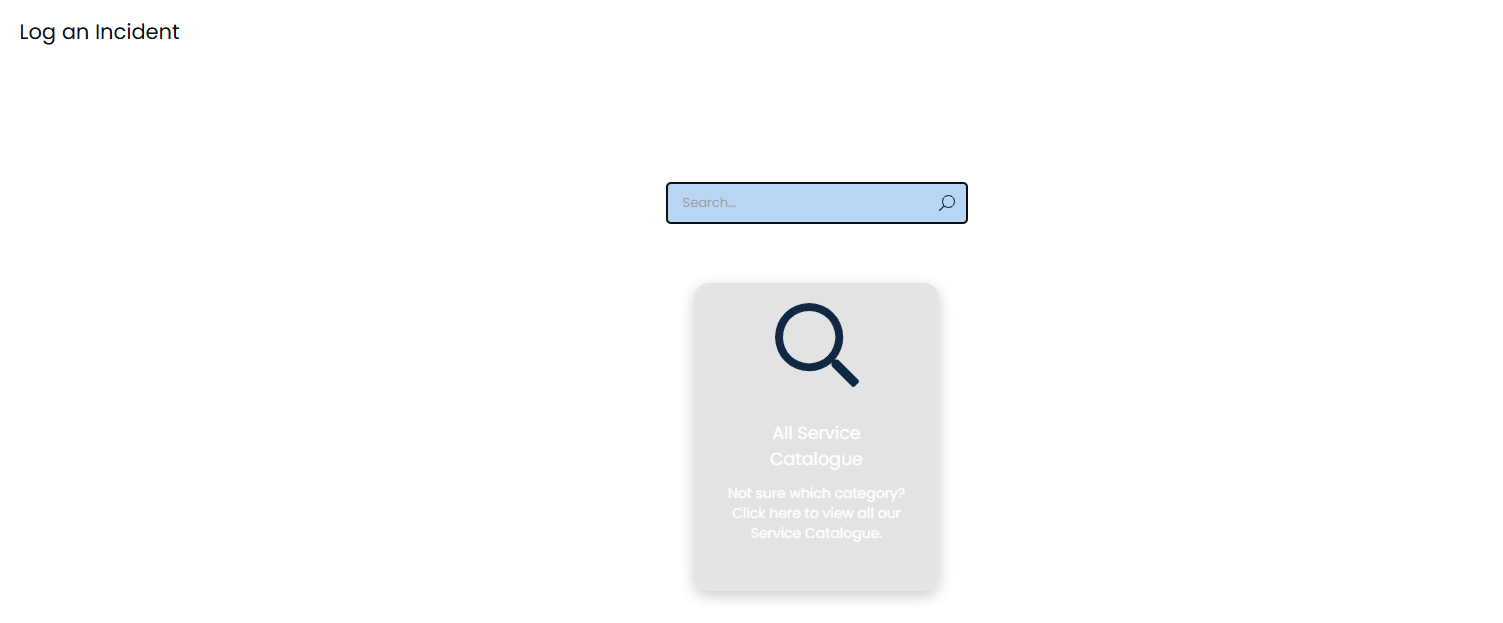
Fig 15. Incident Catalogue
My Approvals Page
This page shows a Users outstanding approvals, with the option to accept/reject each, or accept/reject all. More information on Approval Processes Catalogue can be found here.
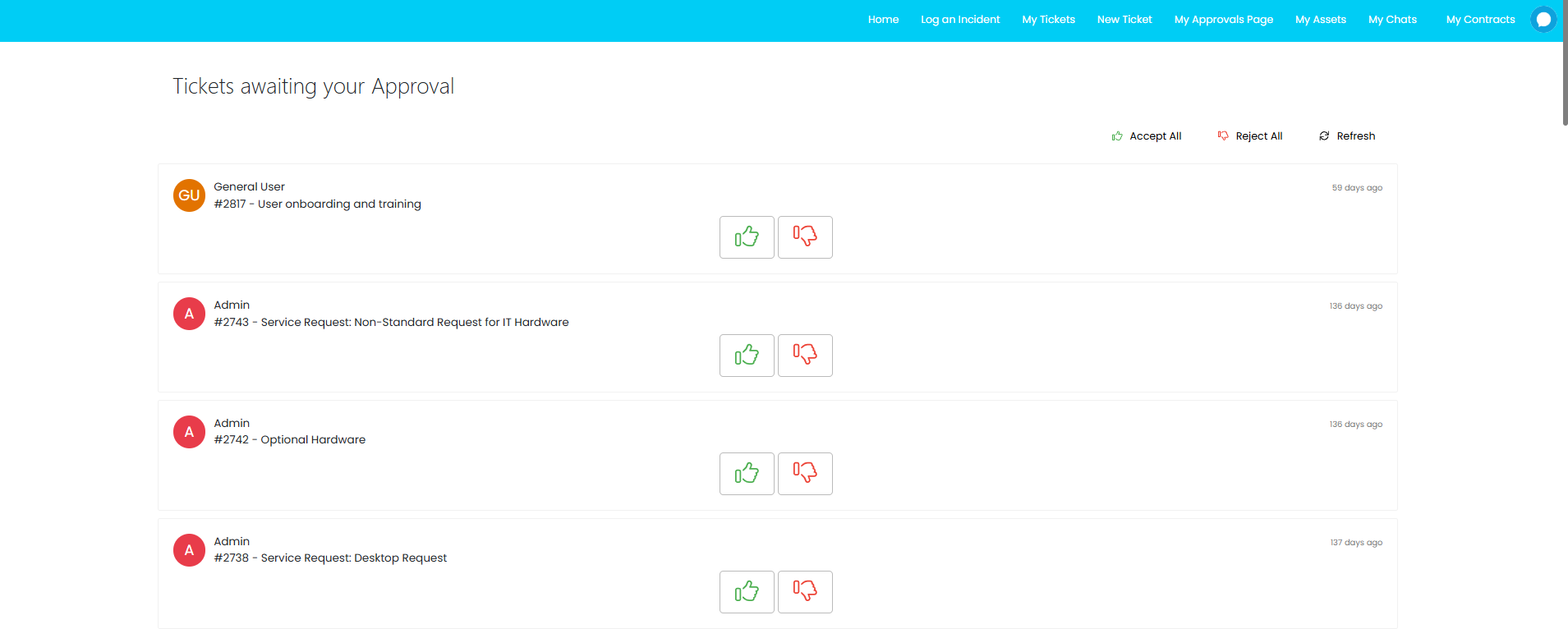
Fig 16. Approvals page
My Assets
The "My Assets" page shows a list of all Assets the Users has access to. Each Asset in the list can be selected to view the Asset information. More information on Asset relationships can be found here.
 Fig 17. Assets page
My Chats (v2.244+)
This page will show a User's recently closed chats, and an option to create a new chat. Each chat with a linked Ticket will show the hyperlinked Ticket ID on the right. More information on the Chatbot and Chat profiles can be found here.
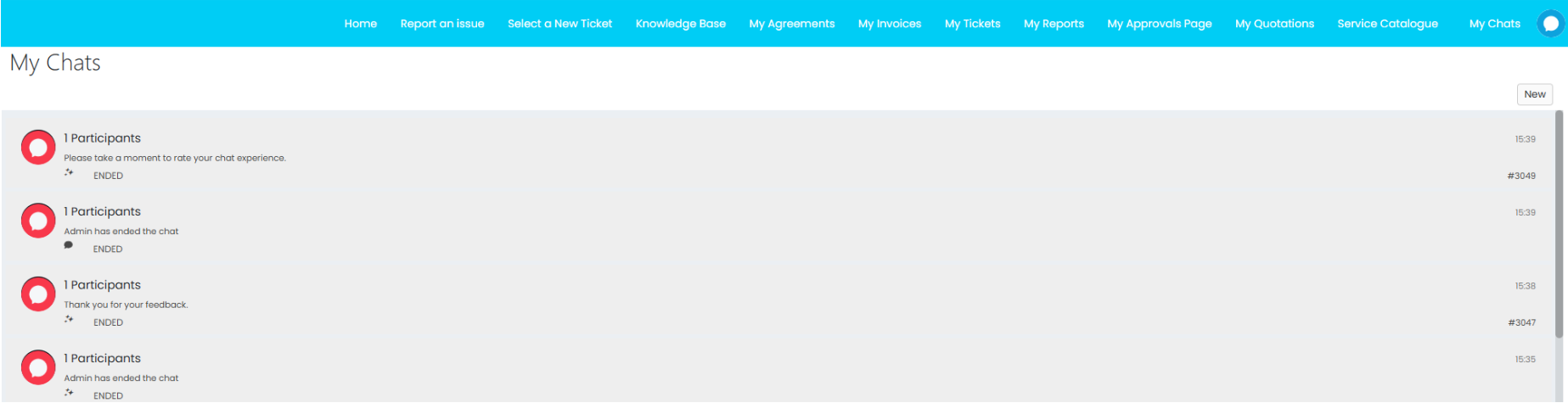
Fig 18. Chats page
My Contracts
This page will show all the Contracts this User has permission to see. Selecting a Contract will show the Contract details. More information on Contracts/Agreements can be found here.

Fig 19. Contracts page
My Dashboards
The Dashboards area shows a list of all the Dashboards a User has access to.

Fig 20. Dashboards list
When selected the Dashboard will open with any filter options displayed at the top.
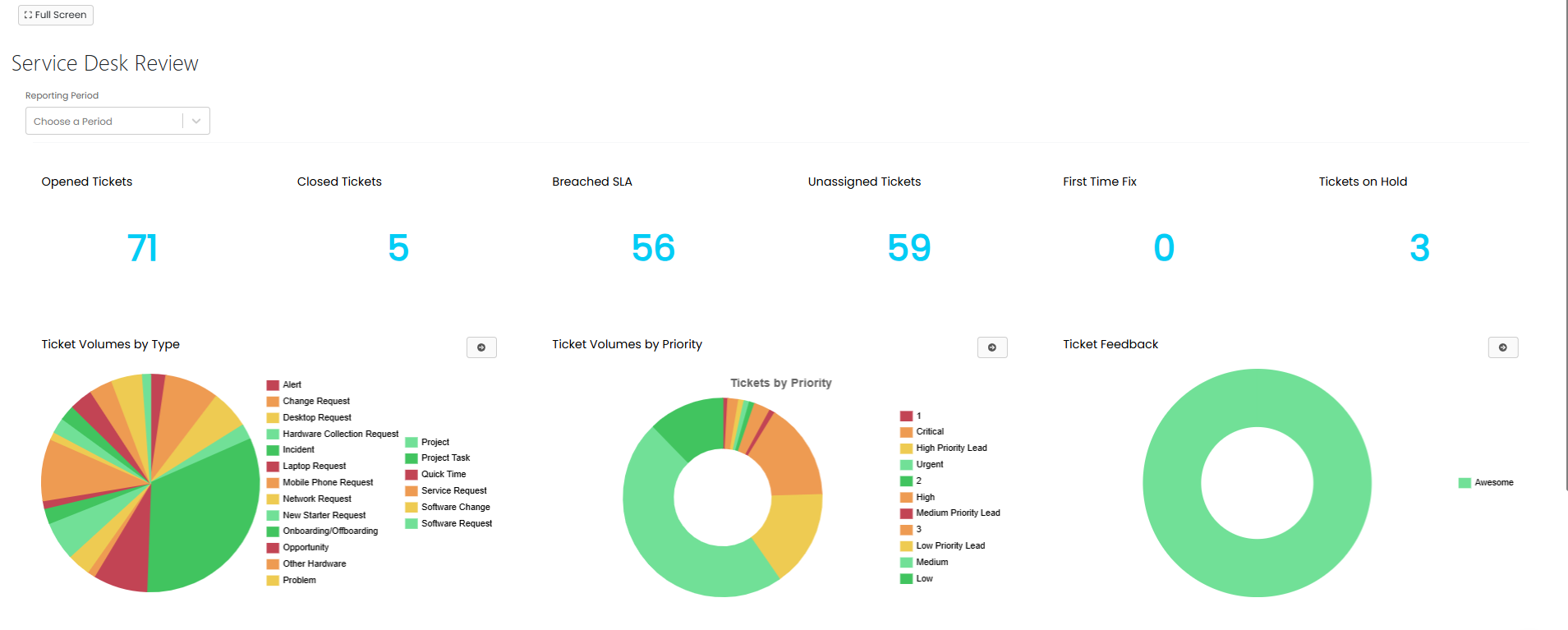
Fig 21. Dashboard in the Portal
My Invoices
When added, the "My Invoices" area will show any Invoices available to the User. Clicking into an Invoice will open the invoice, showing the Invoice lines and information. More information on Invoicing can be found here.
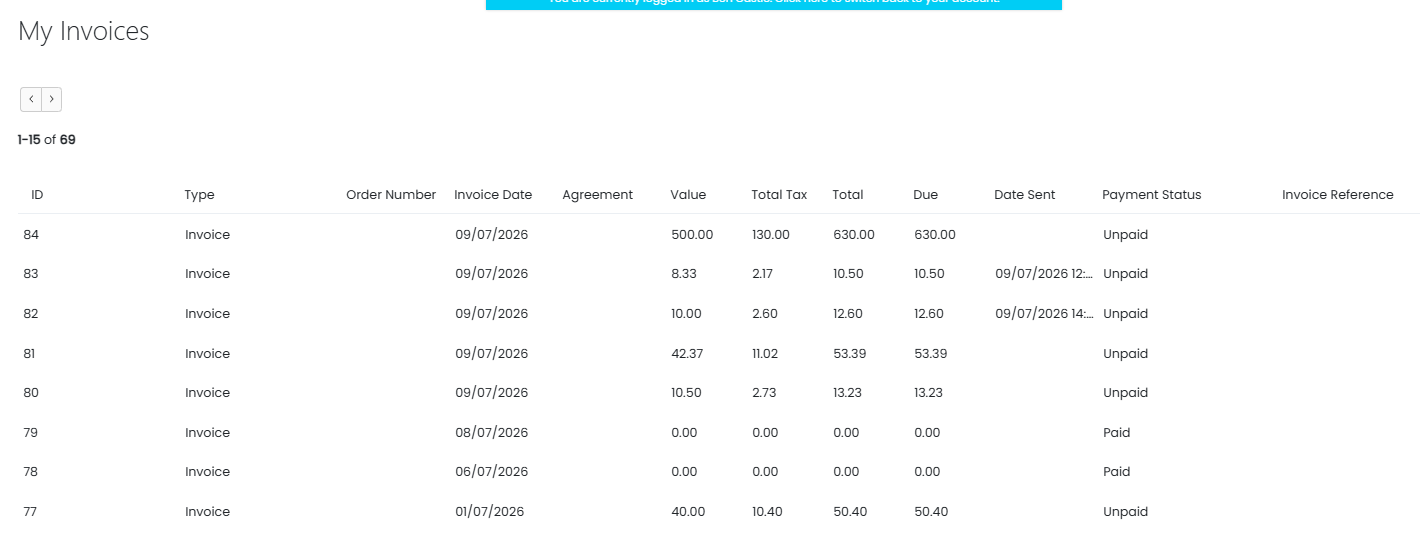 Fig 22. Invoices page
My Projects
This area will show a User's Project Tickets. More information on Projects can be found here.

Fig 23. Projects
My Quotations
When the Quotations Menu Button is added to the Portal, Users will be able to view any Quotations they have access to. For more information on viewing Quotes in the Portal see the gudie linked here.
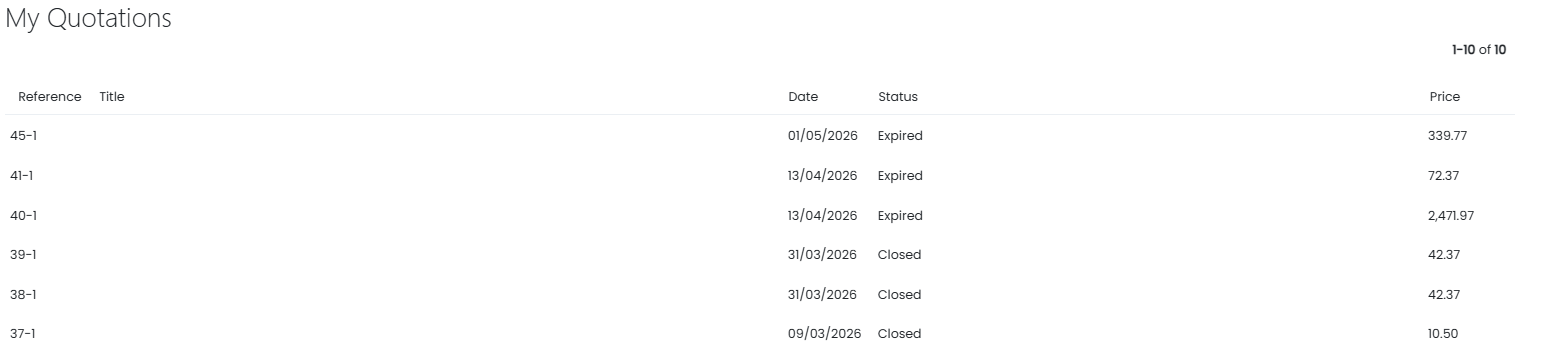 Fig 24. Quotes page
My Reports
The "My Reports" area will show a list of Reports available to the User. Each report can be clicked into and viewed in the Portal. Information on reporting, and granting User access scan be found here.
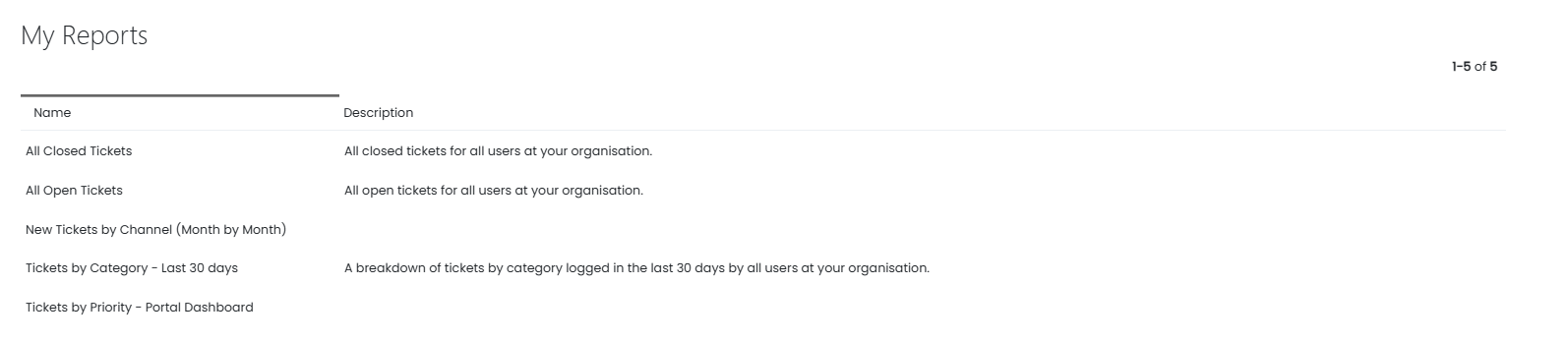
Fig 25. Menu Button Functions
My Sales
This area will show the User's Sales Tickets. Sales Tickets are explained in more detail here.

Fig 26. Menu Button Functions
My Tickets (excluding Projects)
This area shows all the User's Tickets (except project Tickets). For more information on Ticket Types, see the guide linked here.
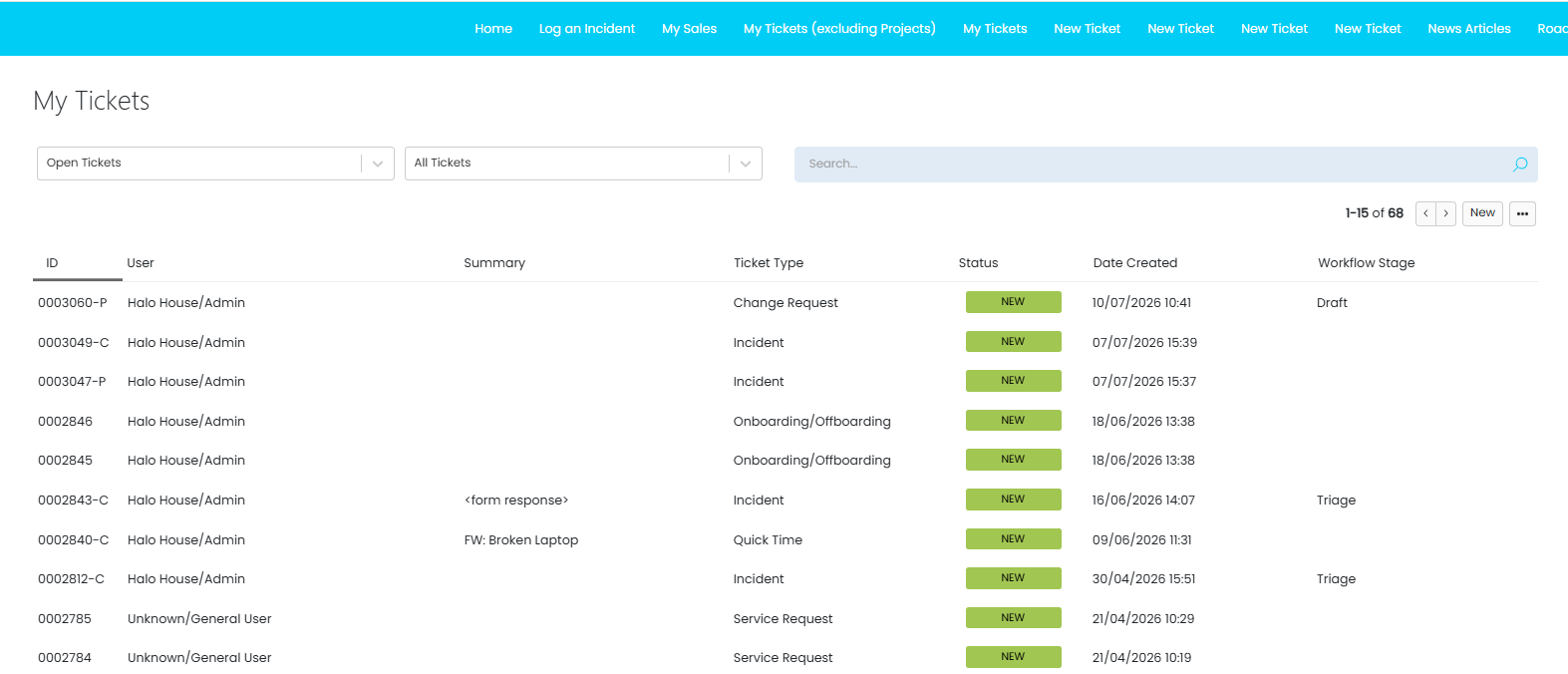
Fig 27. Tickets
New Ticket (New Ticket screen with Ticket Type selection)
This area allows Users to choose which Ticket Type to log using a drop-down. Tickets in the Portal are covered in more detail here.
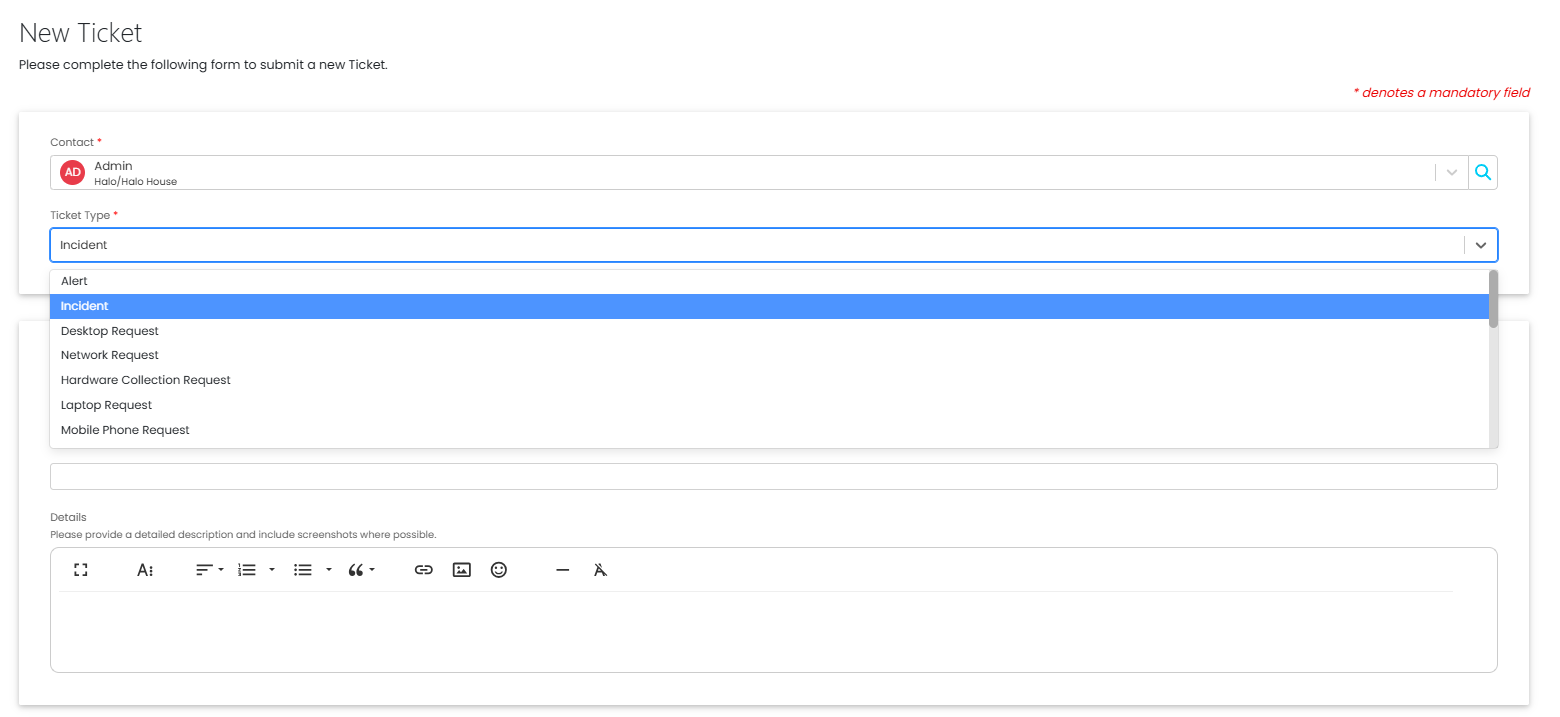
Fig 28. New Ticket selection from a dropdown
New Ticket (Log a new Ticket with a preset Ticket Type)
This area requires a specific Ticket Type to be selected. The Ticket Type set against the Menu Button will be the only Ticket Type which can be logged in this area. Tickets in the Portal are covered in more detail here.
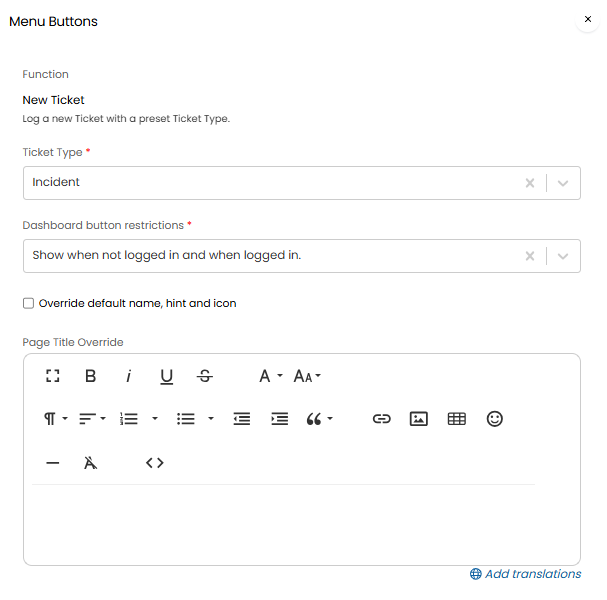
Fig 29. Specifying the Ticket Type to log
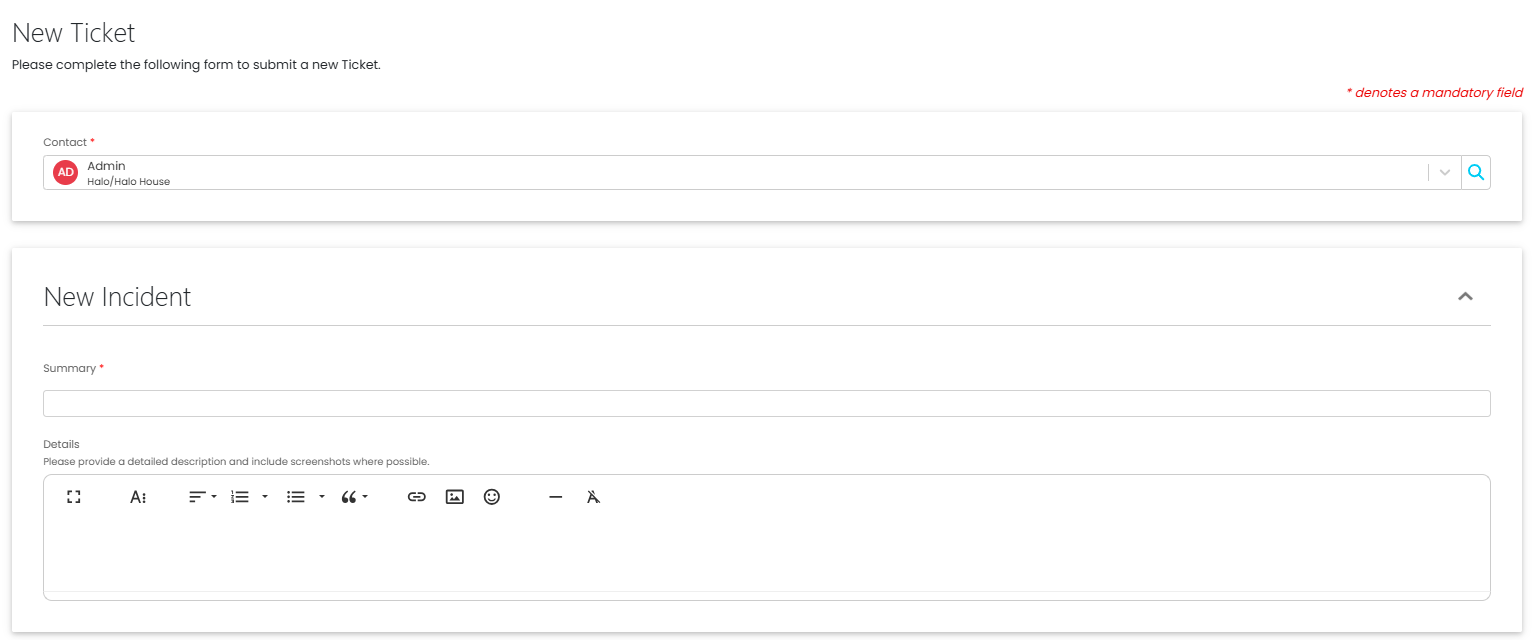
Fig 30. New Ticket of a present type
New Ticket (Log a new Ticket with a preset Template)
This area requires a specific Ticket Template to be selected. The Ticket Type set against the Menu Button will be the only Ticket Template which can be logged in this area. Tickets in the Portal are covered in more detail here.
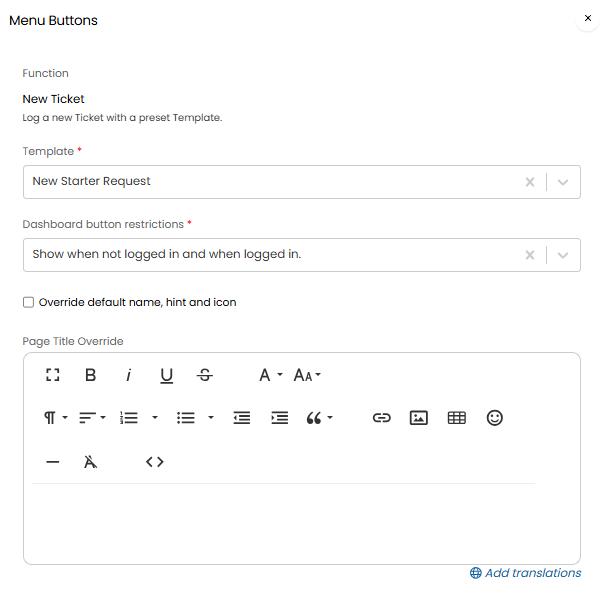
Fig 31. Specifying the Ticket Template to log
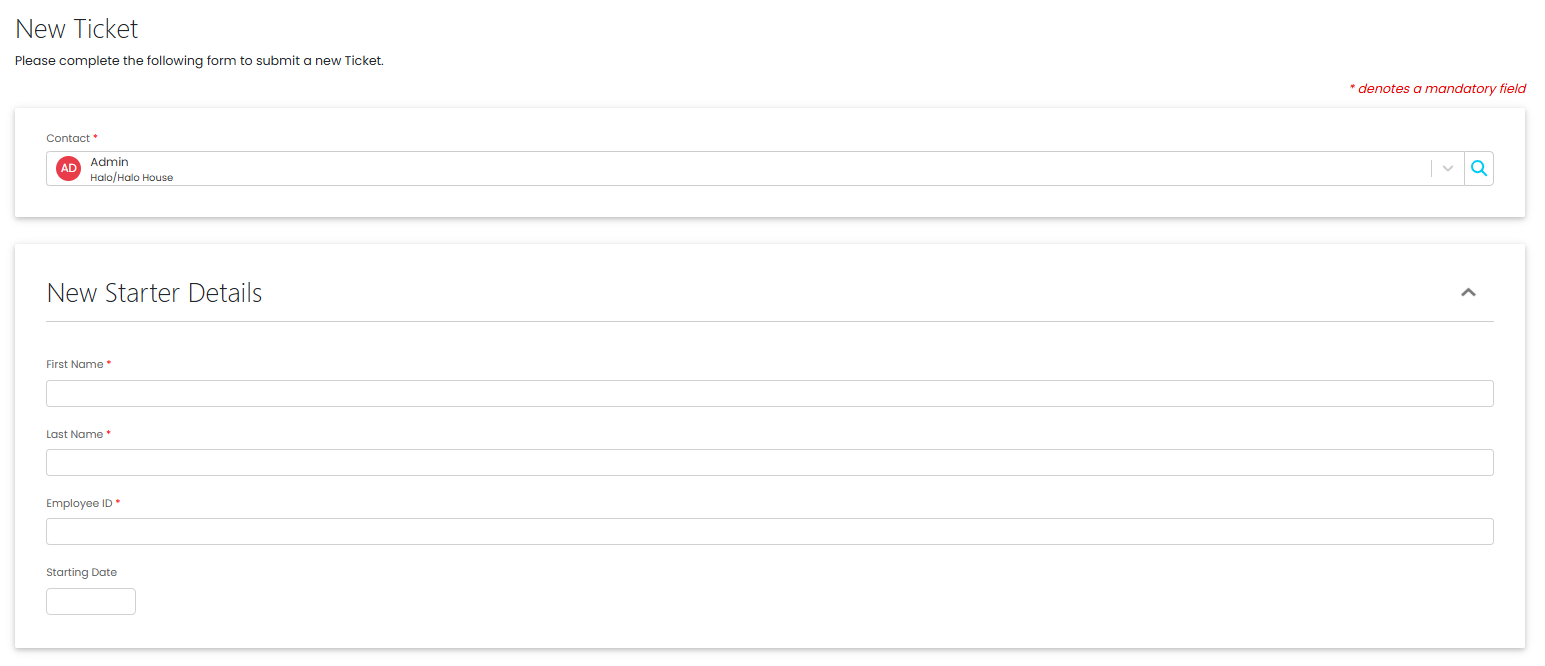
Fig 32. Menu Button Functions
New Ticket (Log a new Ticket with Ticket Type tile selection)
When this Menu Button is added, Users who click into this area will see a tile Screen, allowing the User to select the relevant Ticket Type from the tiles. Tickets in the Portal are covered in more detail here.
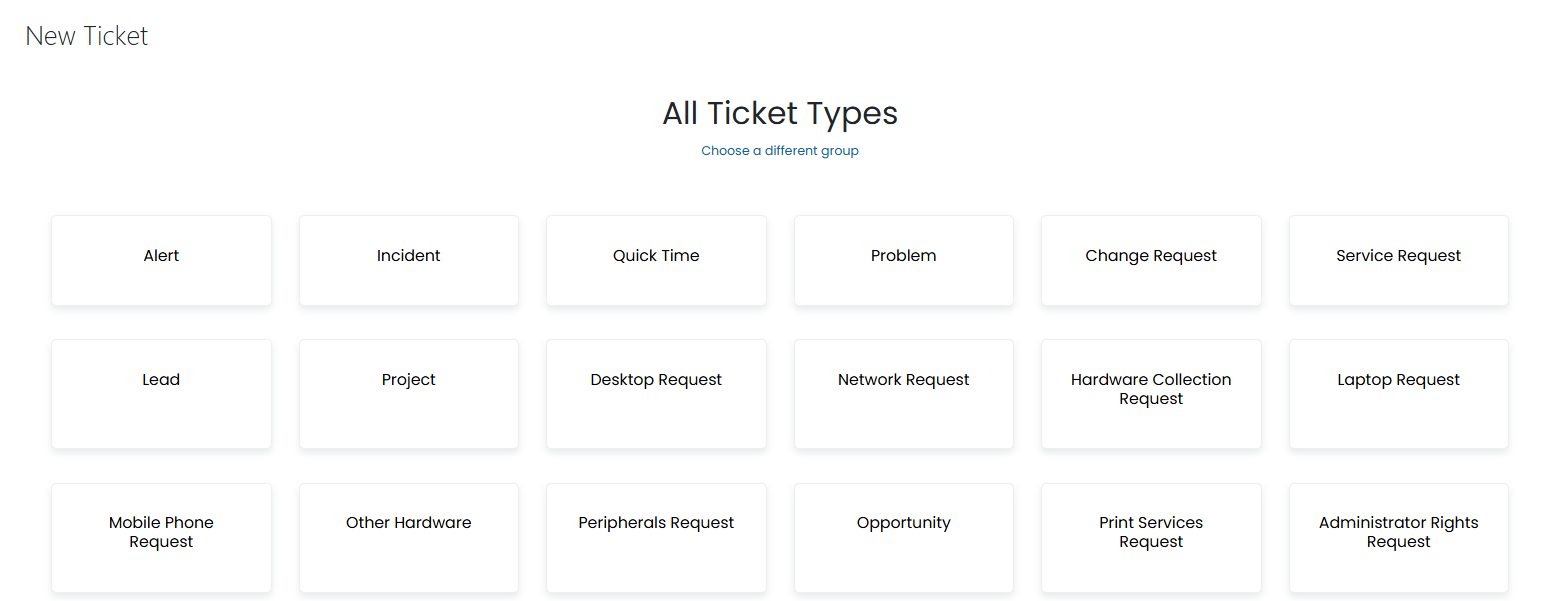
Fig 33. Ticket Type tile selection
News Articles
The News Articles Menu Button will show all the News Articles available to the User.
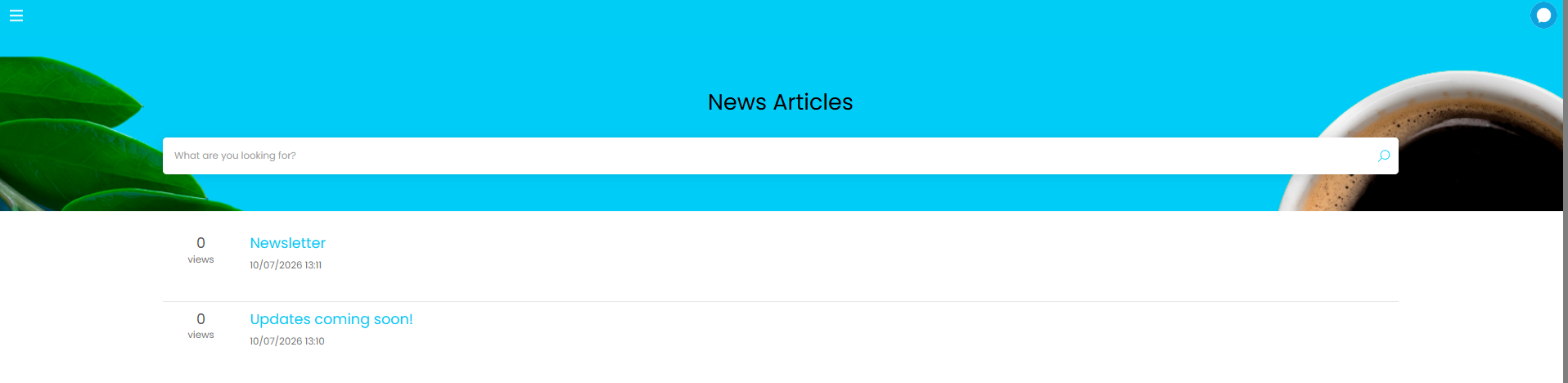
Fig 34. News Articles
Roadmap
Any changes added to the Road Map will show in this Area.
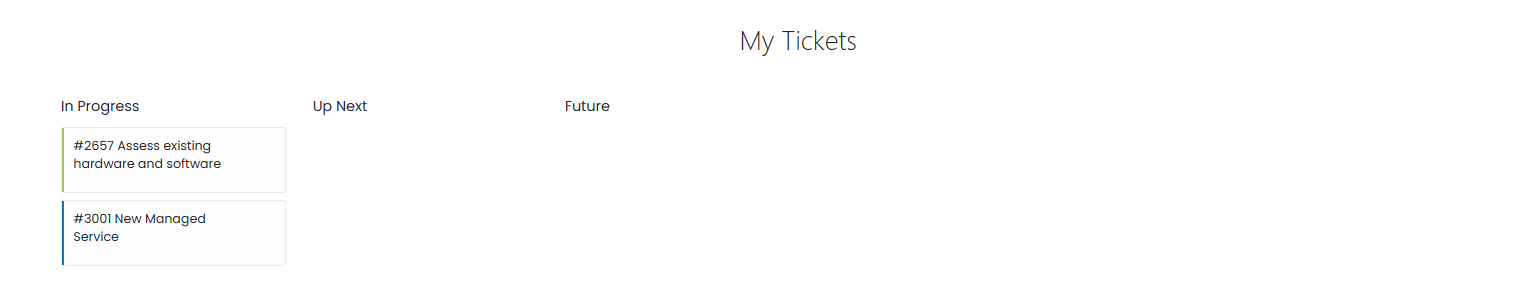
Fig 35. Roadmap
Search
This button will open the search page, where Users can search for entities.
 Fig 36. Search page
Service Catalogue
The Service Catalogue will show all the services available to the User. A User can select a Service to log a request/incident depending on your configuration. More information on the Service Catalogue can be found here.
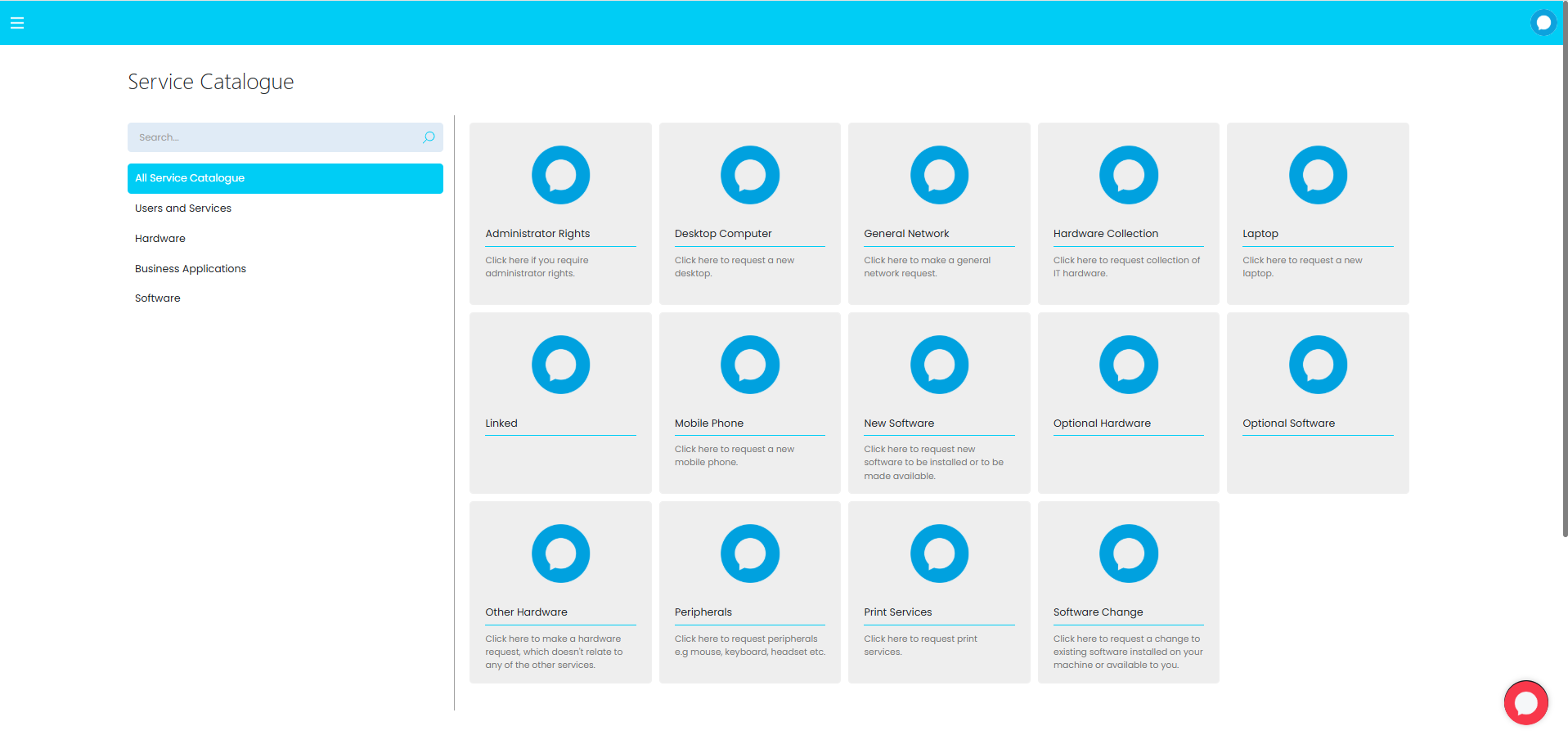 Fig 37. Service Catalogue
Service Status
The Service Status area will show a list of Monitored Services that the User is subscribed to. For more information on Service Status Monitoring see the guide linked here.
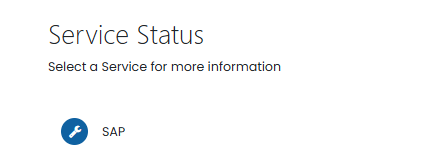
Fig 38. Services list
Clicking into a Service will show the Service's current status and any future status updates.
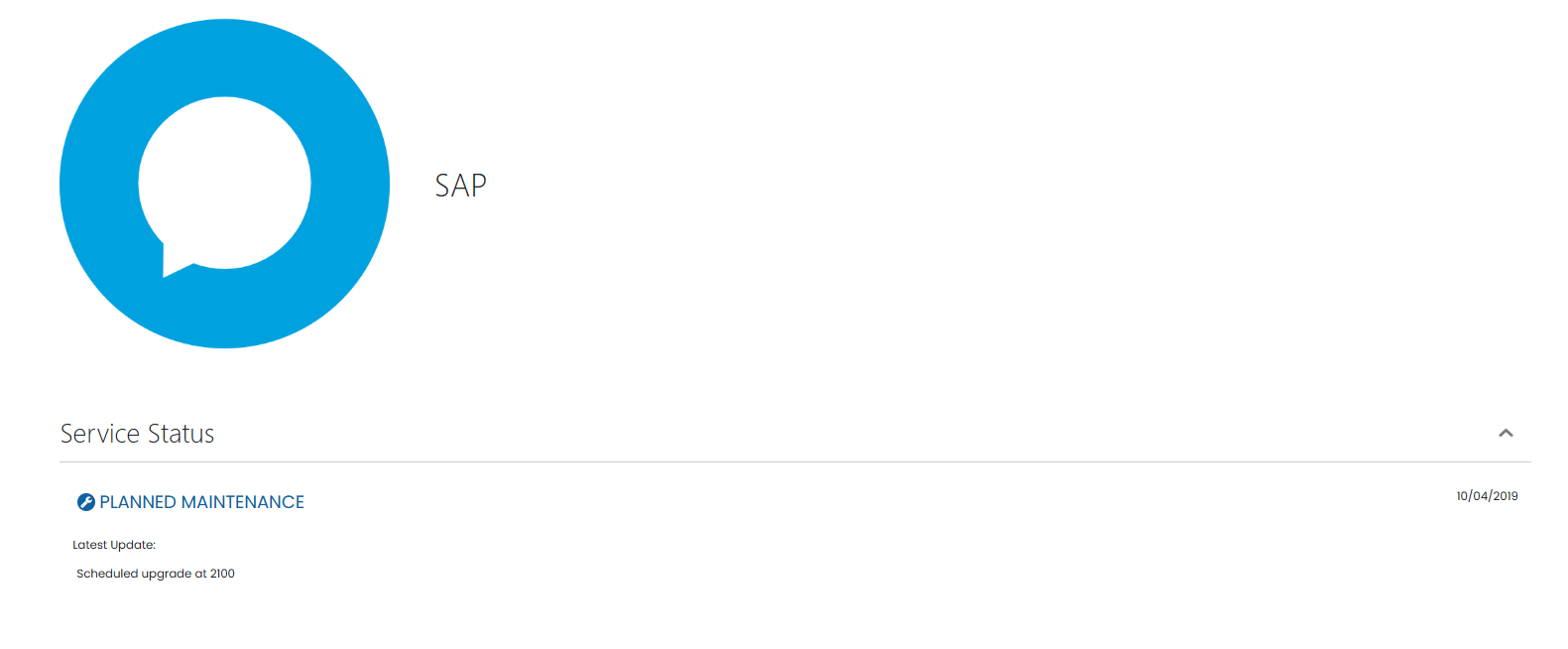
Fig 39. Service Status of a specific service
Settings
This button will open the User's settings, where they can control their preferences. 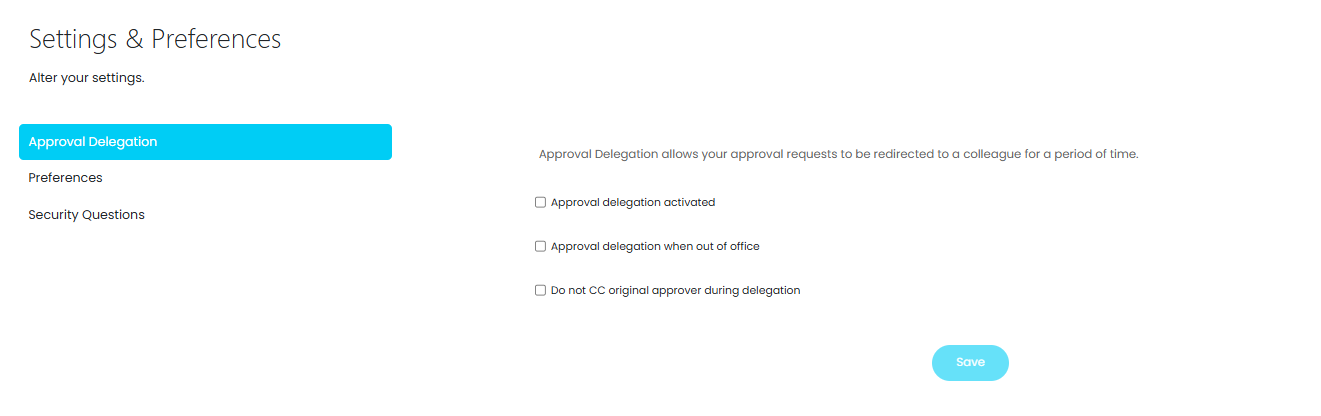 Fig 40. User Settings
Ticket Type List
This area will show all the User's Tickets of a specified type/types. When setting up this button you will need to set which Ticket Types can show in this area. For more information on Ticket Types, see the guide linked here.
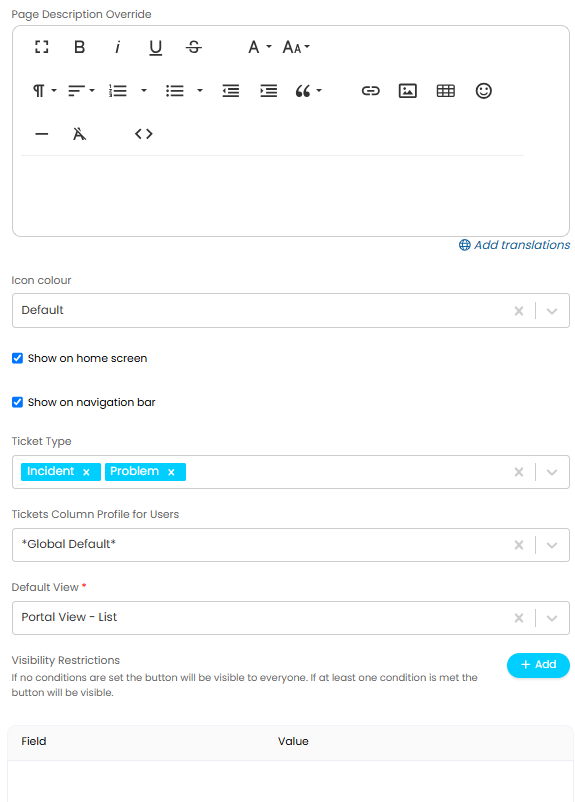
Fig 41. Specifying Ticket Types to show
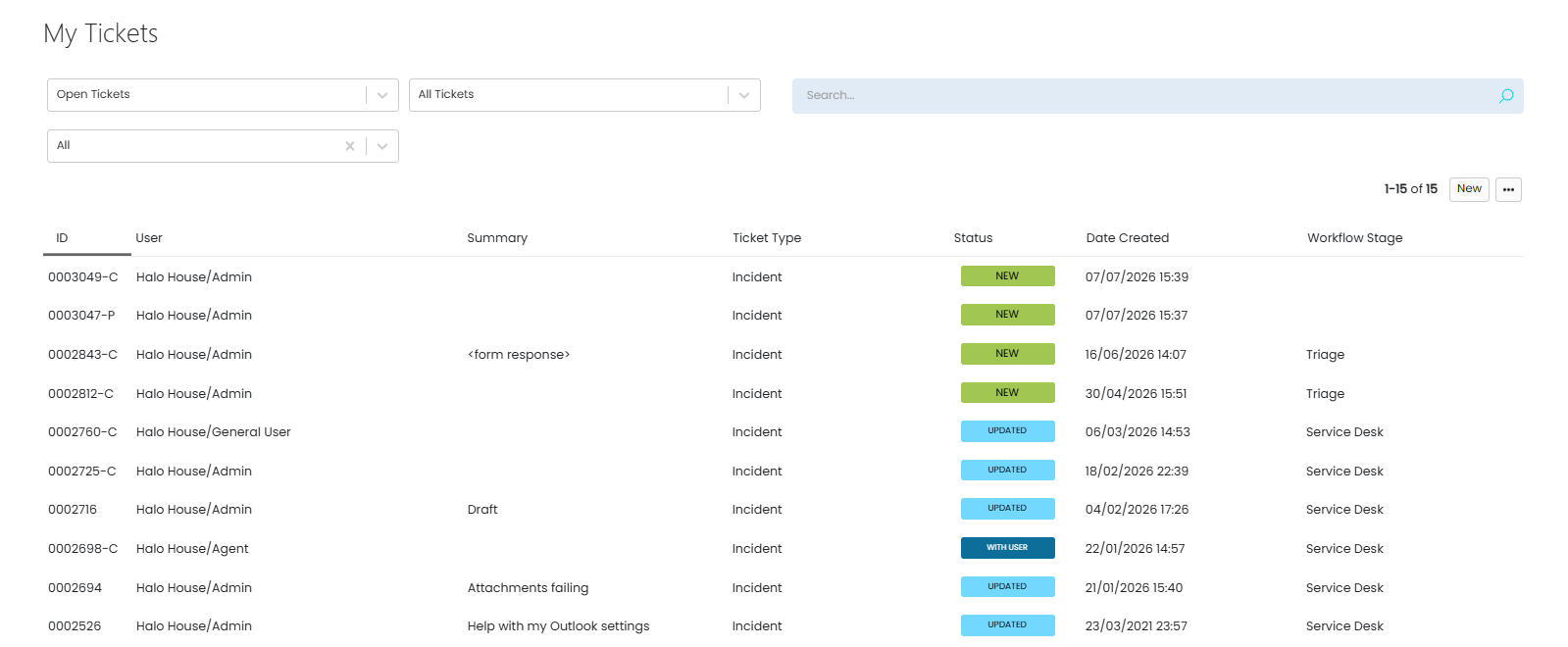
Fig 42. Tickets of the allowed types
Top 5 Articles
The Top 5 Articles menu Button will show the 5 highest rated Articles. If the User selects to "View more" they will be redirected to the Knowledge Base. News Articles are explained in the guide linked here.
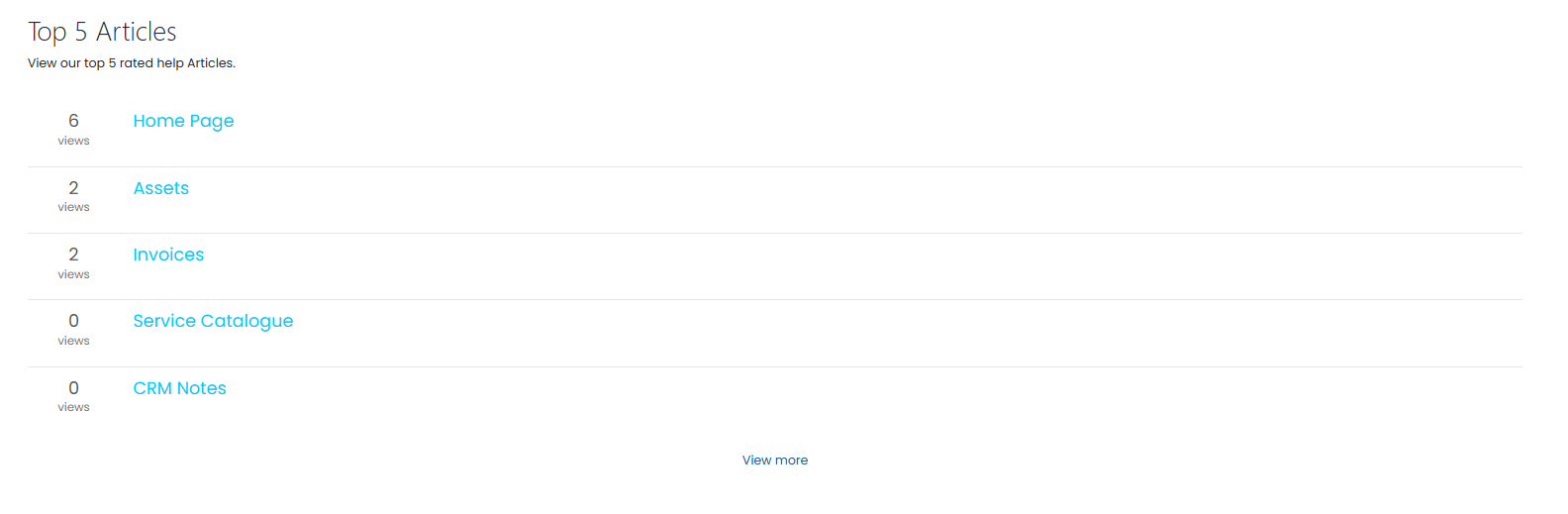 Fig 43. Top rated Articles
Custom Path
Custom Paths allow you to create a button which links to an area of the portal by adding the path to the end of the URL.
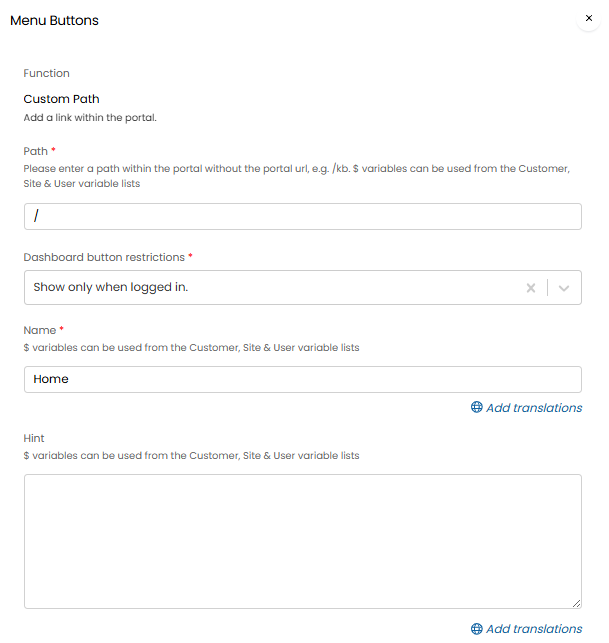 Fig 44. Custom paths
Custom URL
Custom URLs can be used to link to an external web-page. You will need to enter the URL to direct to when the button is clicked, and set a name for the button.
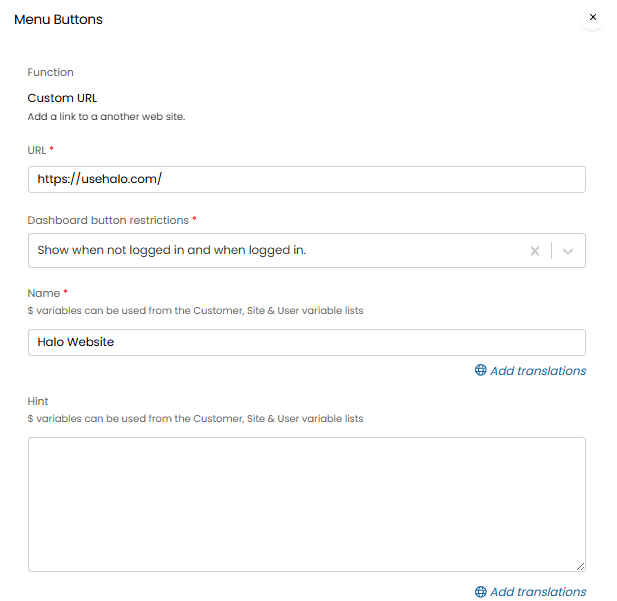
Fig 45. Custom URL
Customising Menu Buttons
When editing your Menu Buttons, you will be presented with the following options:
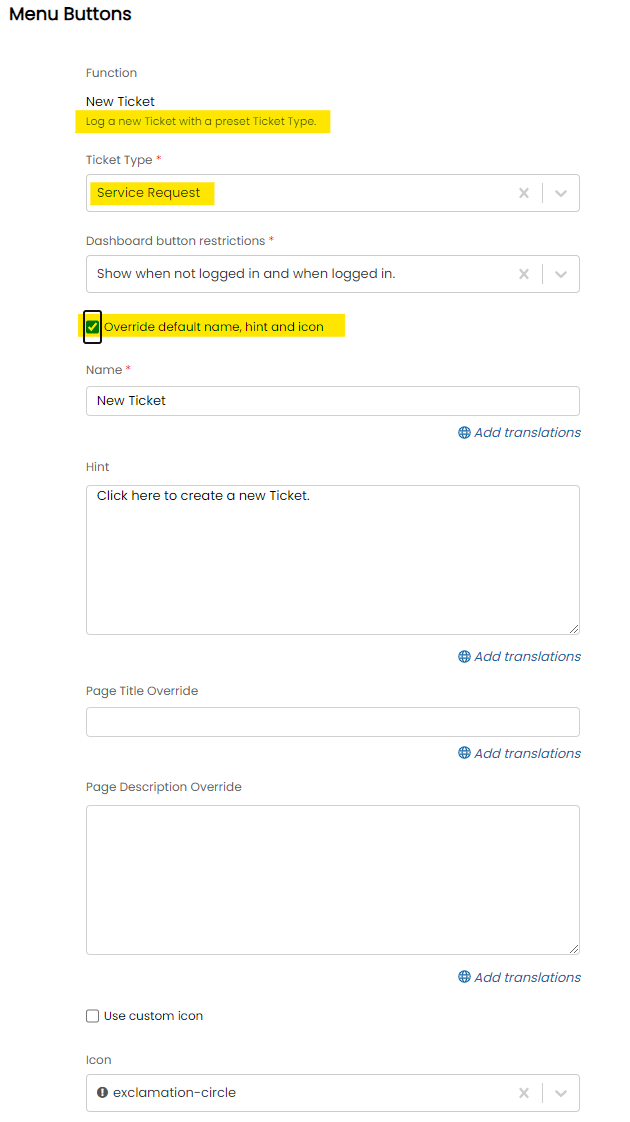
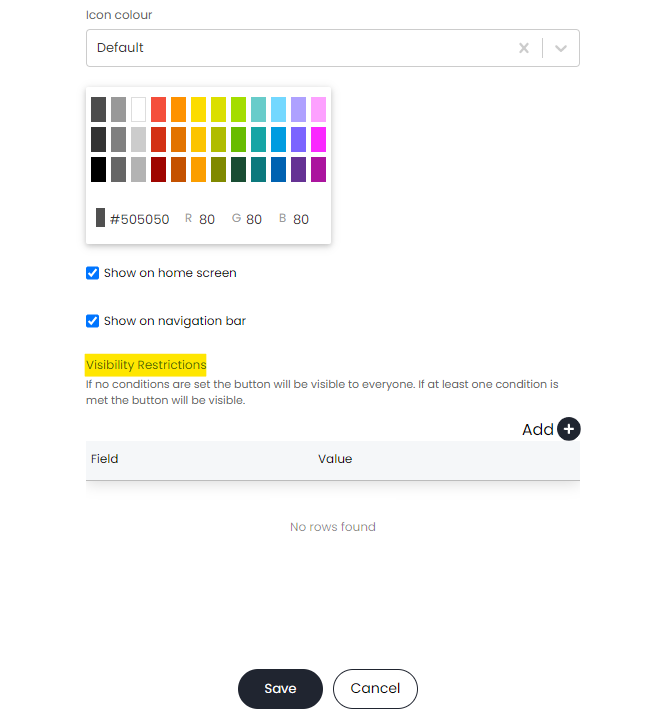
Fig 46. Menu button edit screen
- Dashboard button restriction - Allows you to set whether or not an end-user needs to log in to access this feature. If you were to disable 'Require Users to login to access the portal' then you could set modular access per menu button via this option.
- Override default name, hint and icon - Default options for these entities are provided but can be overridden via enabling this setting, you would then find the below options to input your own preferences.
- Icon Colour - Set the background colour for the icon displayed on your menu button:
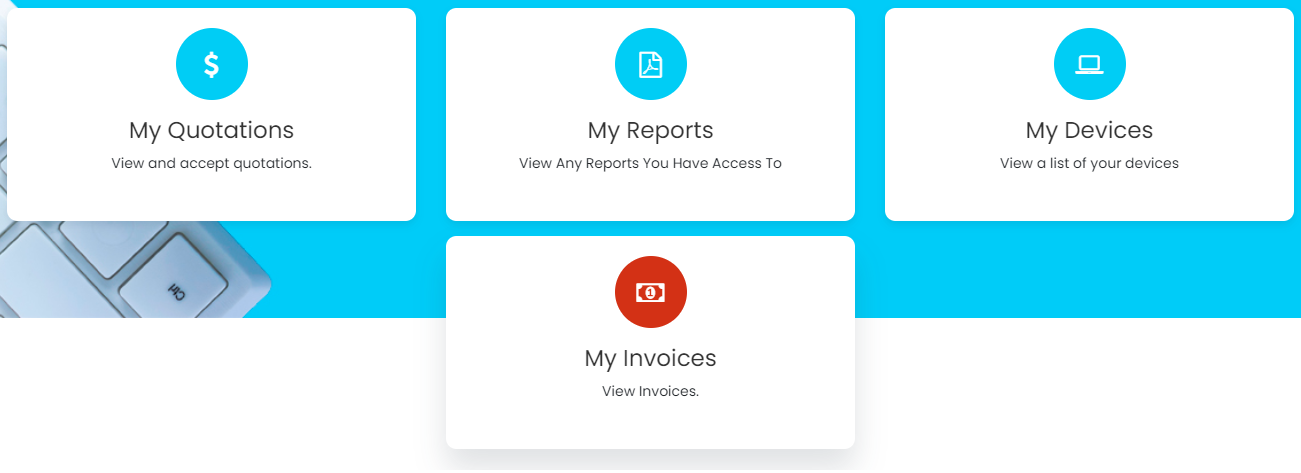 Fig 47. Example of modifying the 'My Invoices' menu button icon colour
Show on Navigation Bar Setting
- Show on Home Screen/Navigation Bar - Showing menu buttons on the home screen displays them as shown in Fig 4, while displaying menu buttons on the navigation bar display them along the top portion of the screen:


Fig 43. The Navigation Bar (Checkbox on for "Show on Navigation Bar")
The navigation bar will be available from any page within the Self-Service portal, so should only include options that you want your end-users to quickly access at any time.
- Preview screen when logging (Service catalogue button only) - When set to 'show' will show a preview screen with the service page description, 'request service' button must then be used before the user is prompted to complete the ticket fields. This can be set here globally for all services, but can be overridden for each service under the configuration for that service.