Tickets in the Self-Service Portal
In this guide we will cover:
- Allowing Tickets to be Logged in the Portal
- Enabling Menu Button
- Allowing anonymous Ticket logging
- Allow Ticket Logging Via Assets
- Enabling Ticket drafts
- Storing Drafts (v2.248+)
- Enabling Attachments
- Displaying User Information
Configuration Settings:
Related Guides:
- Self-Service Portal Restrictions
- Appearance/Home Screen
- Menu Buttons
- The Service Catalogue
- Start to Finish: Service Requests
Allowing Tickets to be Logged in the Portal
For Tickets to be logged via the Portal you will need to allow Users access to the Ticket Type being logged. In Configuration > Tickets > Ticket Types, select the Ticket Type you would like to make available in the Portal. Under the Details tab, select "End users can access this Ticket Type". If you would like Uses to be able to choose this Ticket Type from a list, also enable "End users can select this Ticket Type in Ticket Type dropdowns on the self service portal".
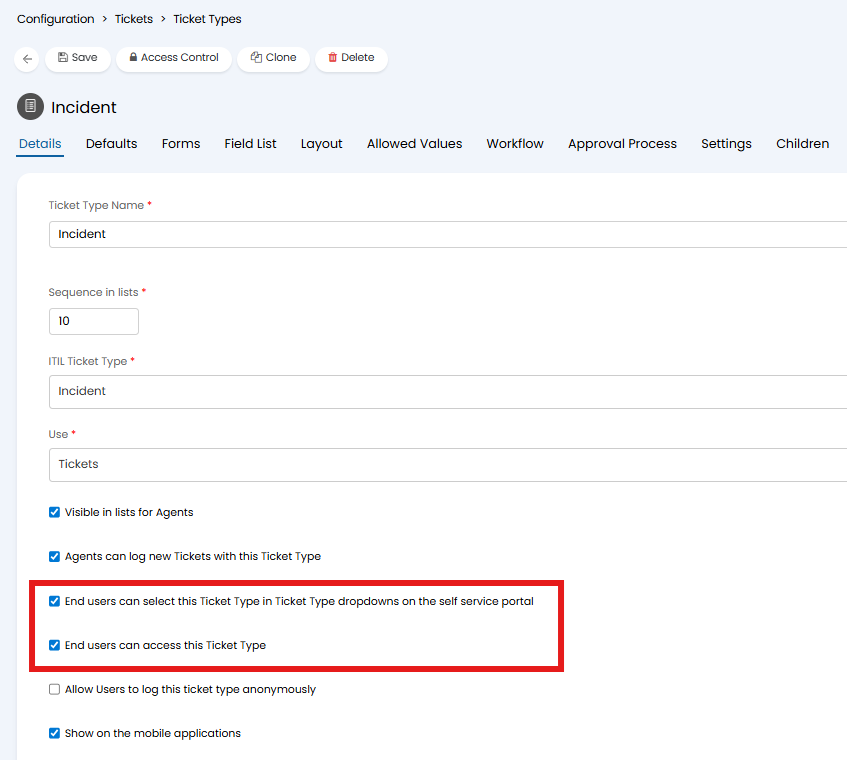
Fig 1. Allowing Users to access Ticket Types
Enablin g Menu Buttons
To enable Tickets to be logged in the Portal you must ensure a Menu Button with this function is available on the Portal. To do this head to Configuration > Self Service Portal, and under the Menu Buttons section, add a (or edit an existing) button. The button you add or edit will need to have a function that logs a Ticket. These are outlined under each subheading below.
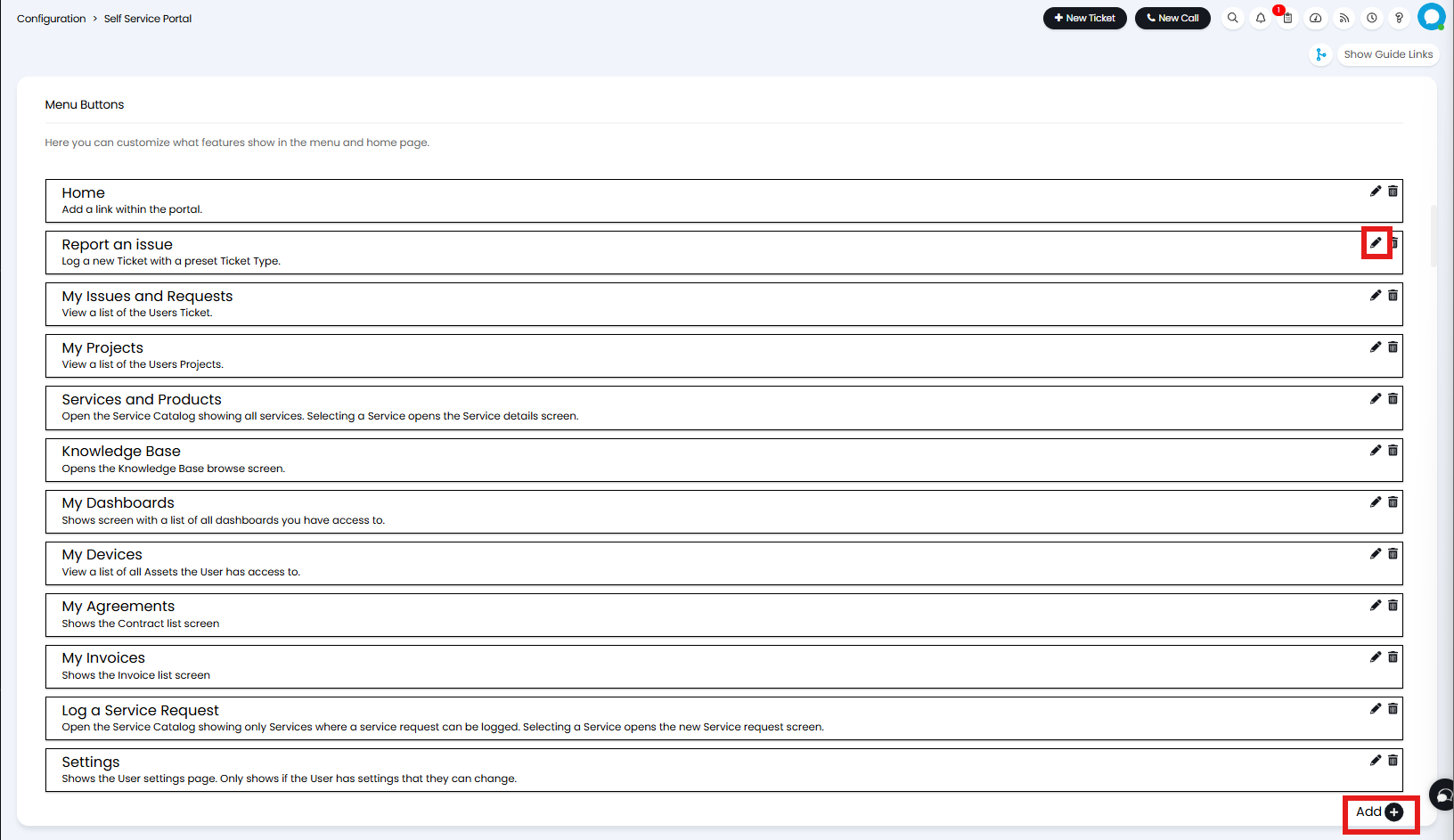
Fig 2. Menu Buttons
When editing a Ticket Menu Button you will see a modal screen similar to Fig 3. To change the text and icon that that will show on the button click the "Override default name, hint and icon". Once selected you will be able to set a name, hint and icon. Next you will be able to set an override for the page title and description. The text you input here will show on the New Ticket screen, once the button has been selected.
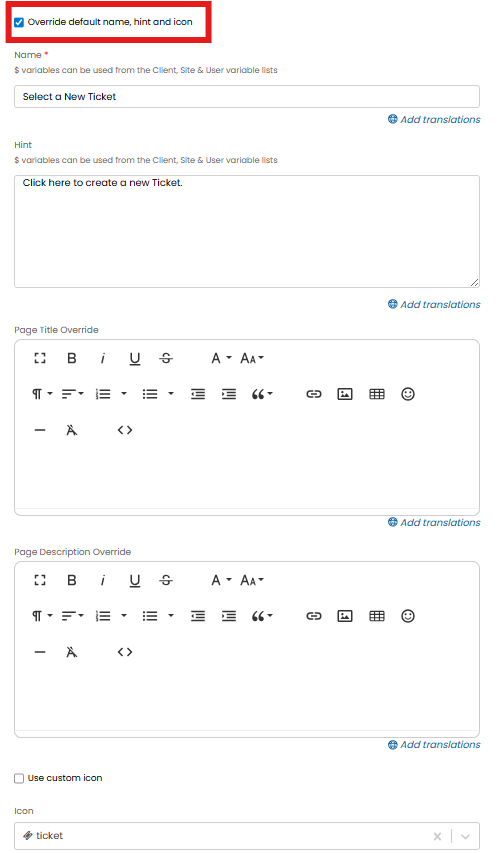
Fig 3. Editing a Menu Button
Finally, you can set the visibility for this button. This button can be displayed on the Home Screen, and/or the Navigation bar along the top of the Portal. Once you have determined where this will show, you can choose to set visibility restrictions which will allow or prevent visibility depending on the Fields specified.
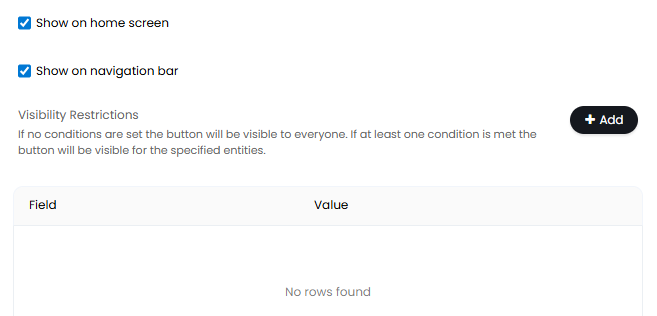
Fig 4. Menu Button visibility
New Ticket (Log a new Ticket with a preset Ticket Type)
When adding or editing a New Ticket Menu Button with the function 'Log a new Ticket with a preset Ticket Type', you will be able to specify which Ticket Type will be logged.
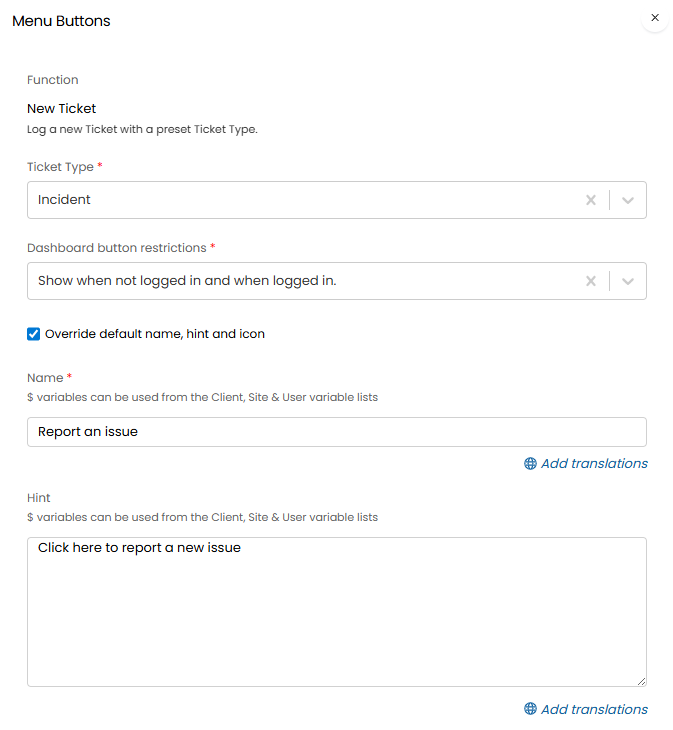
Fig 5. Preset Ticket Type Menu Button Setup
Once saves, on the Portal you will now see your Menu Button. This is called 'Report an issue' in the example below as this is the name provided in the Fig 5 override.
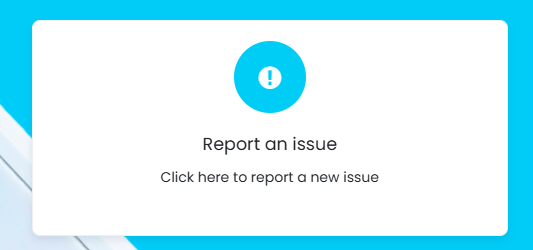
Fig 6. Example Preset Ticket Type Menu Button
Clicking this button opens your New Ticket Screen for the Ticket Type specified in the Setup. If you set an override for the page title or description this will show at the top of this page.
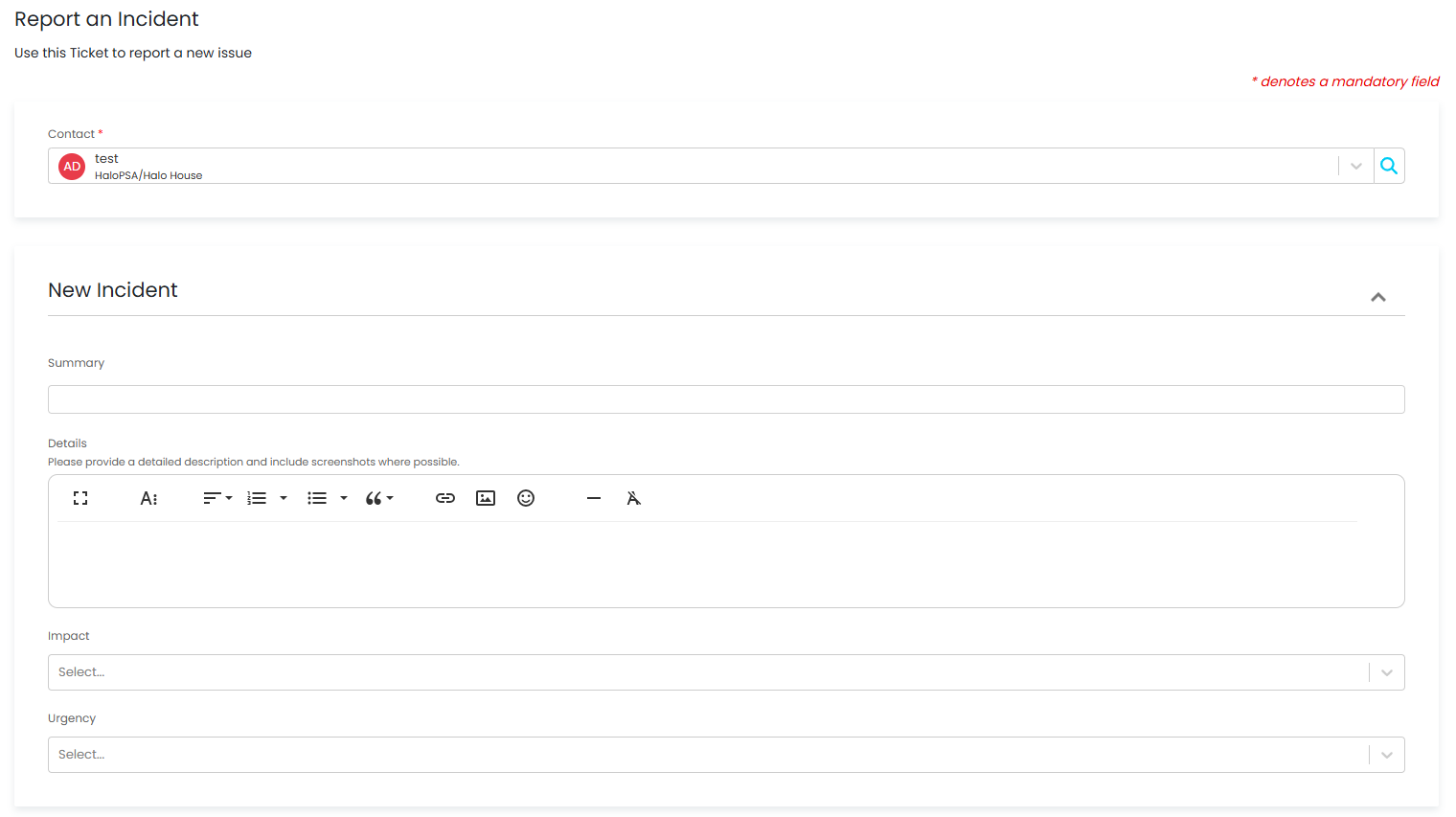
Fig 7. Logging a preset Ticket Type
New Ticket (Log a new Ticket with a preset Template)
Similarly you can configure Menu Buttons to show a Ticket Template. To do this you will need to add a Menu Button with the function 'Log a new Ticket with a preset Template'. When adding or editing a Menu Button with function, you will have the option to specify a Template to apply to the New Ticket.
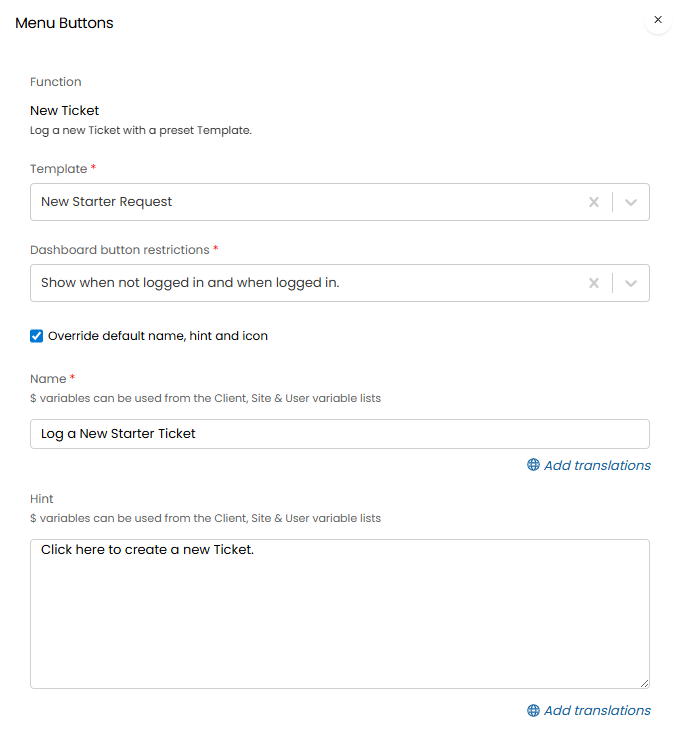
Fig 8. Preset Ticket Template Menu Button Setup
On the Portal you will now see your Menu Button. This is called 'Log a New Starter Request' in the example below as this is the name provided in the Fig 8 override.
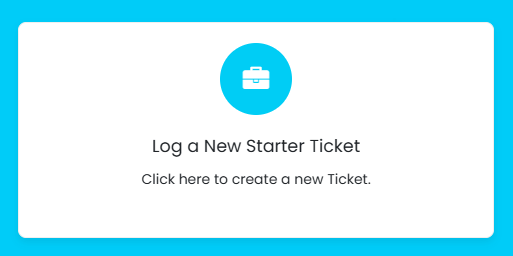
Fig 9. Example Preset Ticket Template Menu Button
Clicking this button opens your New Ticket Screen with the Ticket Template you selected. If you set an override for the page title or description this will show at the top of this page.
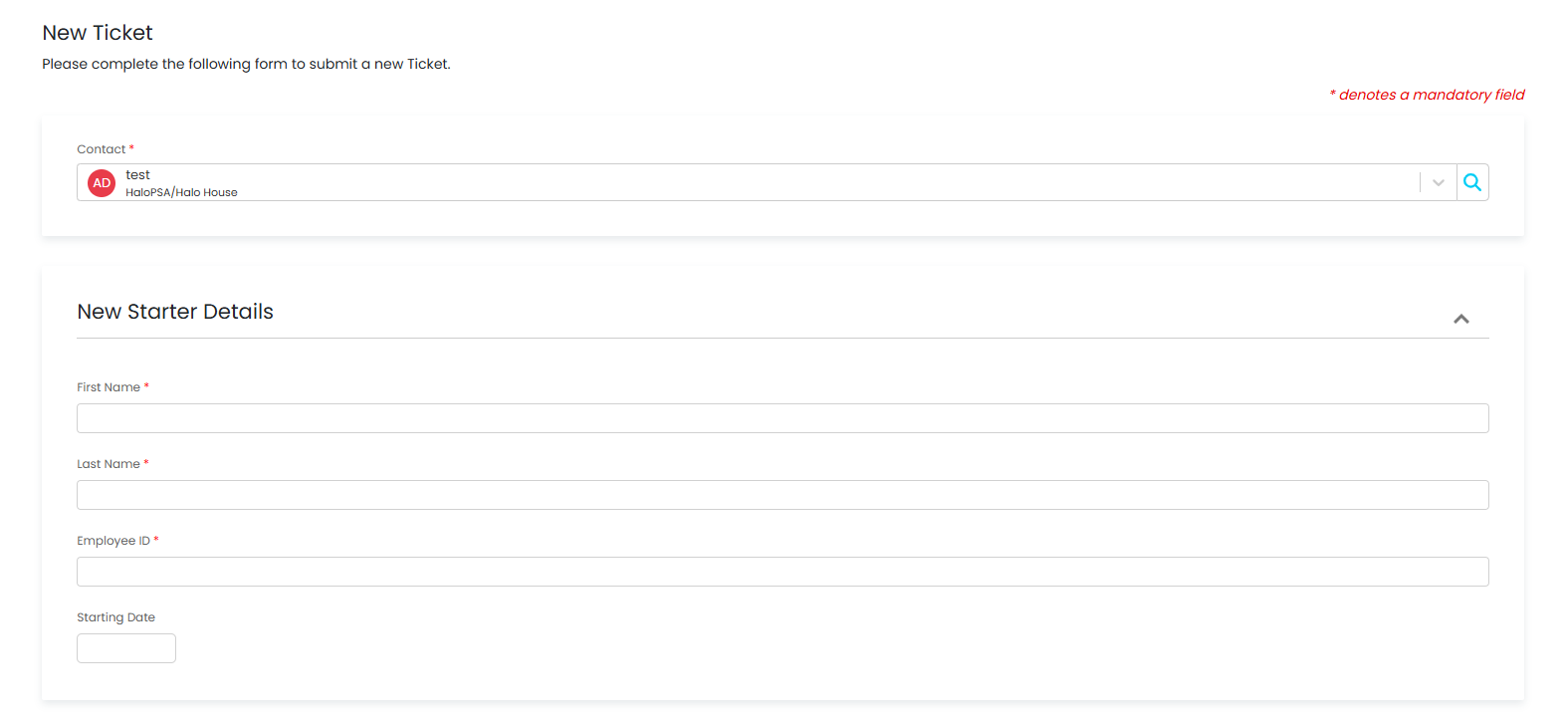
Fig 10. Logging a Ticket with a preset Template
New Ticket ( New Ticket screen with Ticket Type selection )
If you would rather allow Users to choose which Ticket Type to log using a drop-down, you can use the New Ticket Menu Button with the function 'New Ticket screen with Ticket Type selection'.
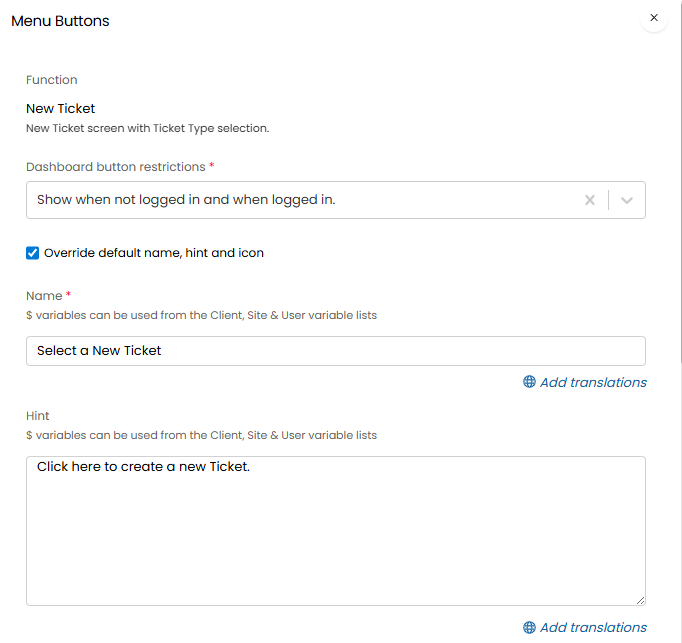
Fig 11. Ticket Type drop-down Menu Button Setup
This is called 'Select a New Ticket' in the example below as this is the name provided in the Fig 11 override.
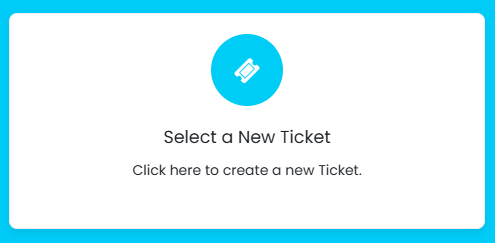
Fig 12. Example Ticket Type drop-down Menu Button
Clicking this button opens the New Ticket Screen. A Ticket Type drop-down will show below the User Field, allowing the User to select the relevant Ticket Type from the list. If you have set an override for the page title or description this will show at the top of this page. Only Ticket Types with the setting "End users can select this Ticket Type in Ticket Type dropdowns on the self service portal" (See Fig 1) enabled will show here.
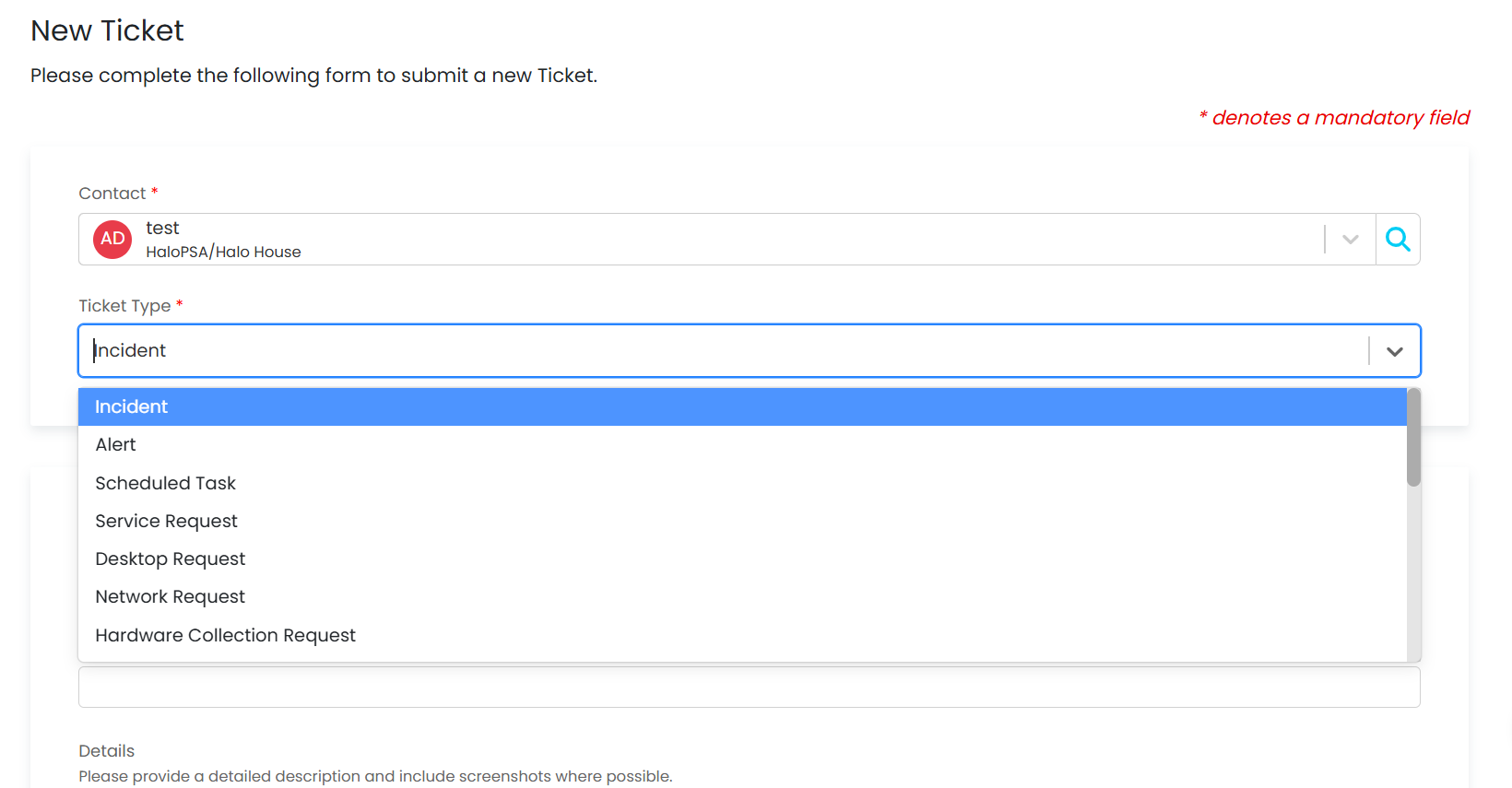
Fig 13. Choosing a Ticket Type from a drop-down
New Ticket (Log a new Ticket with Ticket Type tile selection)
If you would rather allow Users to choose which Ticket Type to log from a til view, you can use the New Ticket Menu Button with the function 'New Ticket screen with Ticket Type tile selection'.
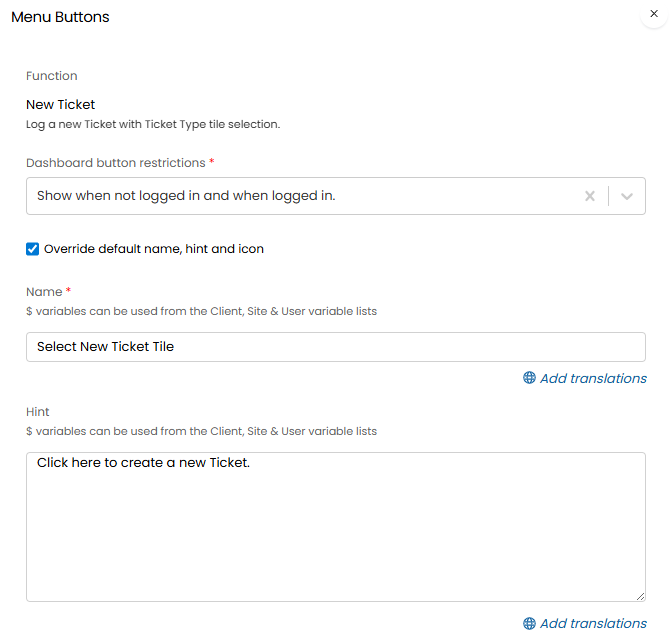
Fig 14. Ticket Type tile selection Menu Button Setup
This is called 'Select New Ticket Tile' in the example below as this is the name provided in the Fig 14 override.
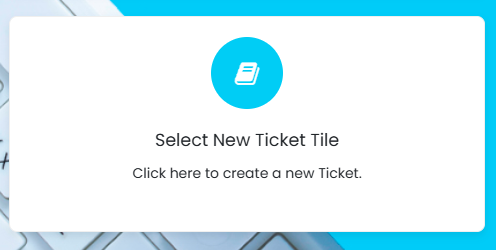
Fig 15. Example Ticket Type tile selection Menu Button
Clicking this button opens the Tile Screen, allowing the User to select the relevant Ticket Type from the tiles. If you have set an override for the page title or description this will show at the top of the page when a Ticket Type is selected. Only Ticket Types with the setting 'End users can select this Ticket Type in Ticket Type dropdowns on the self service portal'(See Fig 1) enabled will show here.
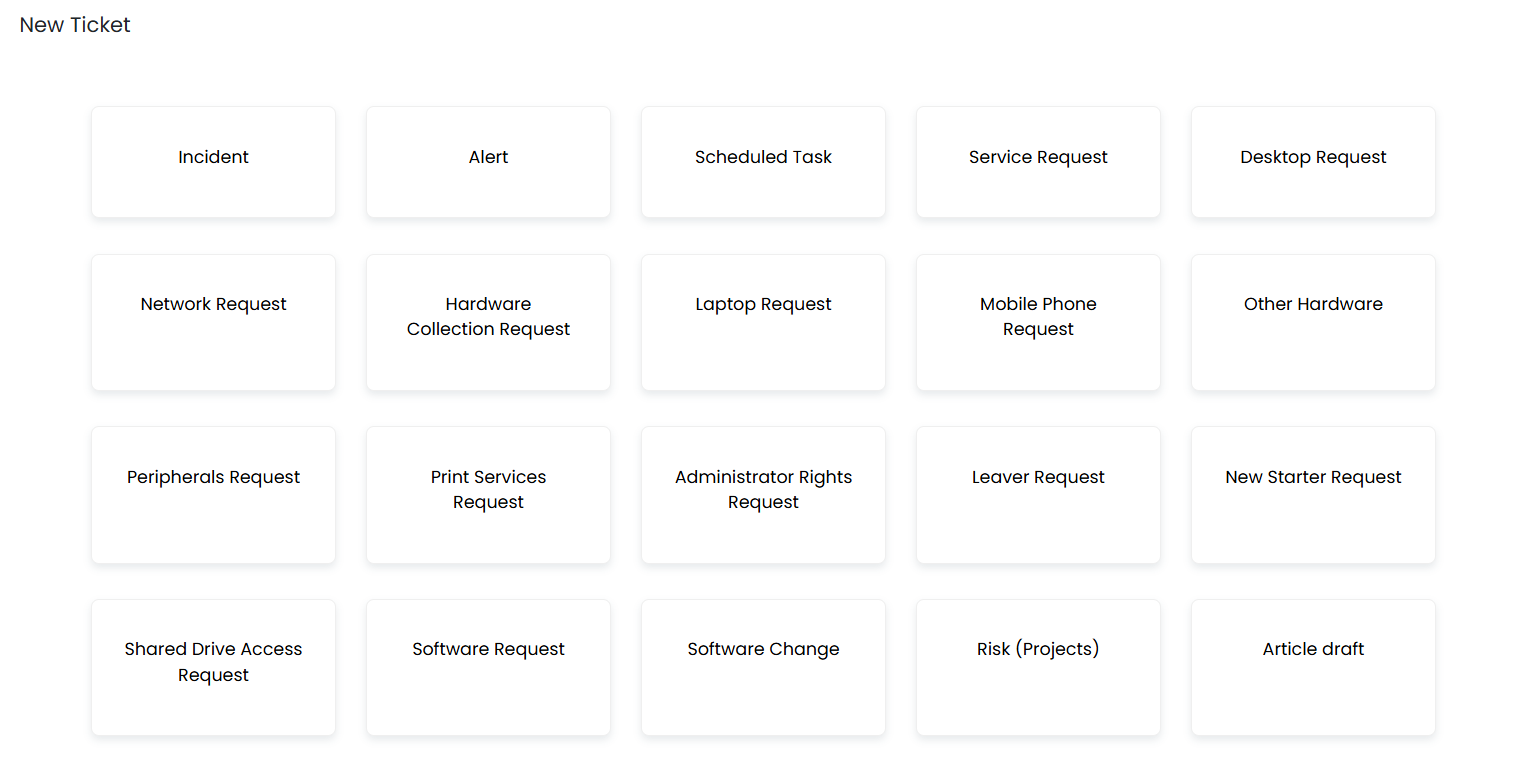
Fig 16. Choosing a Ticket Type from a tile selection
Allowing anonymous Ticket logging
In Order for Tickets to be logged anonymously you will first need to grant anonymous access to the Portal. To do this, head to Configuration > Self Service Portal and disable the setting "Require Users to login to access the Portal.
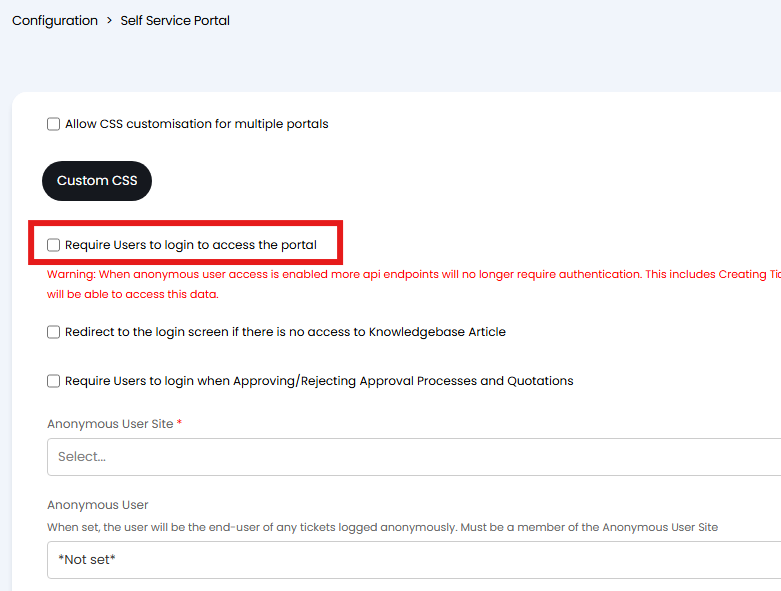
Fig 17. Allowing anonymous access to the Portal
With this set, you can allow different Ticket Types to be logged anonymously by enabling 'Anonymous users can access this Ticket Type' in the details tab of each Ticket Type (Configuration > Tickets > Ticket Types). To allow Users to select this Ticket Type from a list or tile view you will als need to select the "Anonymous users can select this Ticket Type in Ticket Type dropdowns on the self service portal" checkbox.
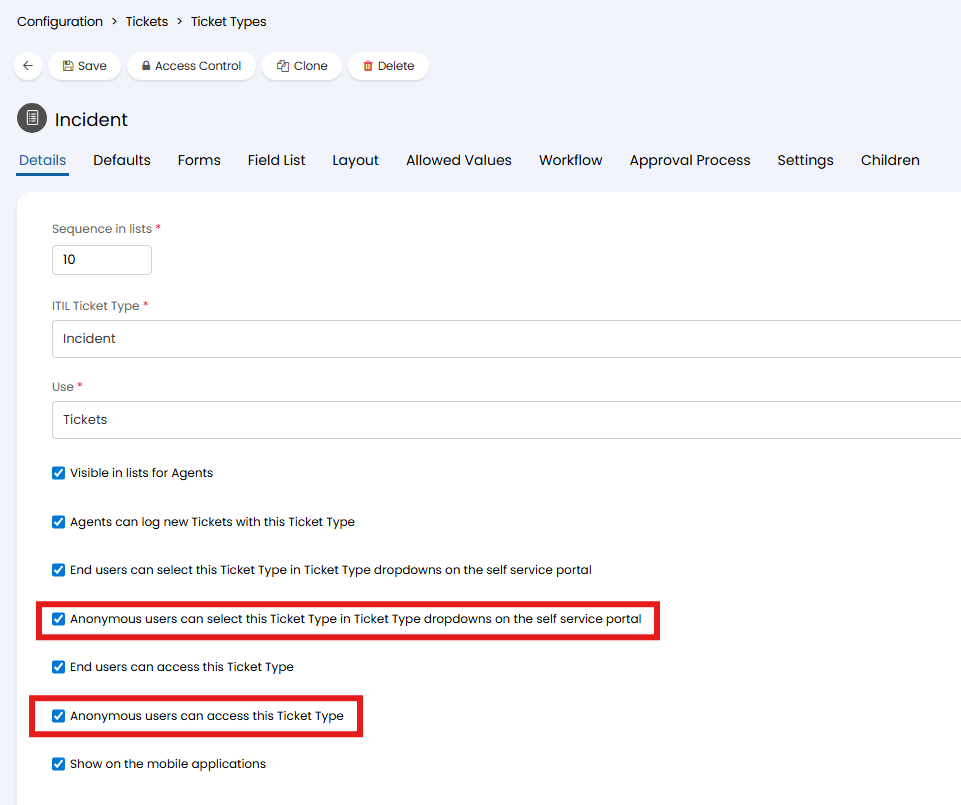
Fig 18. Allowing anonymous logging of a Ticket Type
Allow Ticket Logging Via Assets
Users can be allowed to log a new Ticket when viewing an Asset on the Self Service Portal.
In order to enable this, you first need to set the Ticket Type against the Asset Type. To do this, navigate to Configuration > Asset Management > Asset Types and click into a relevant Asset Type.
At the bottom of the Details tab of the Asset Type, there is the new setting to set the Default Ticket Type for the Tickets that will be logged from Assets of this type.
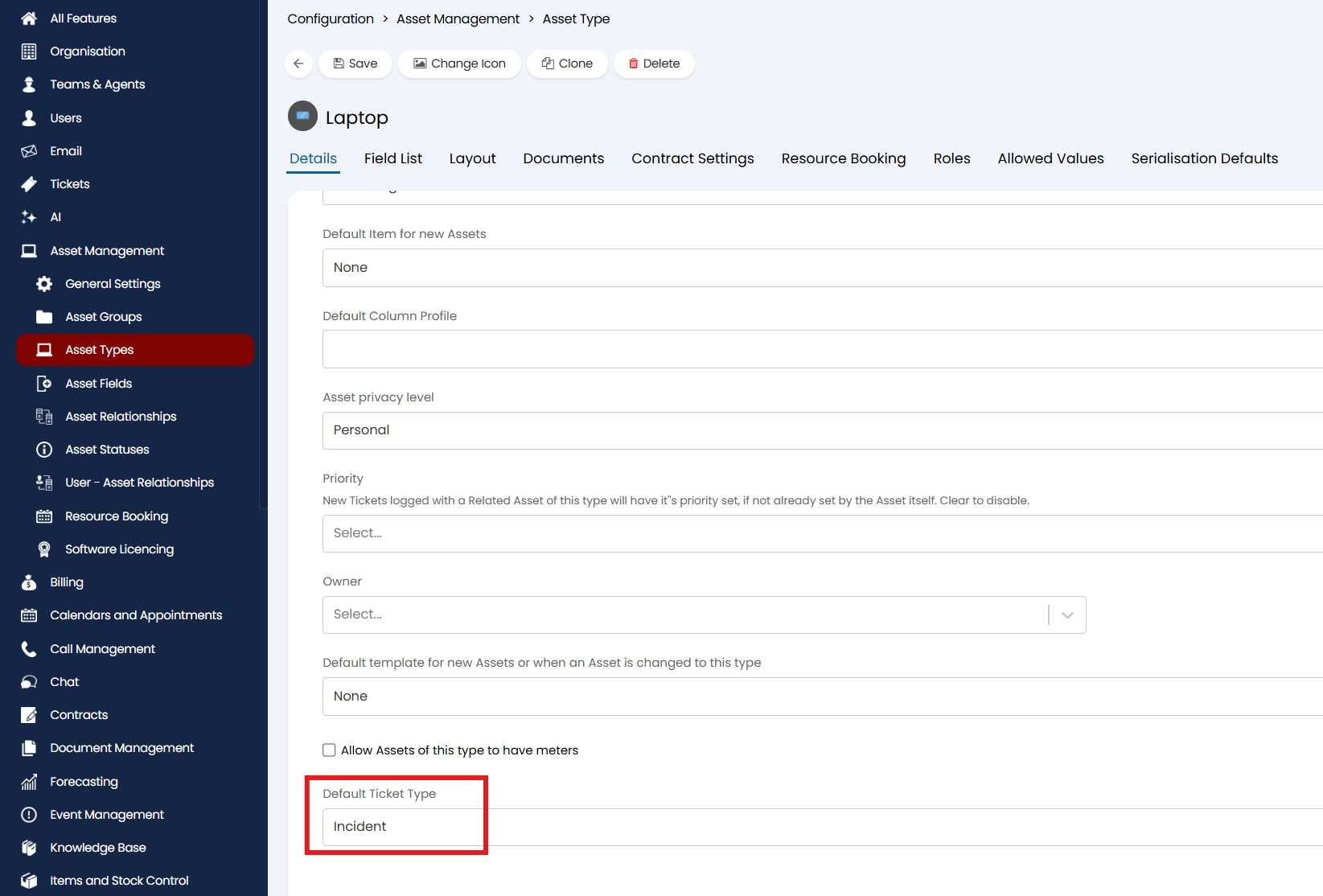
Fig 19. The new setting to enable Tickets to be logged from the Asset screen on the Self Service Portal
Setting a Ticket Type here enables a button to show on the Self Service Portal when viewing an Asset of that Asset Type.
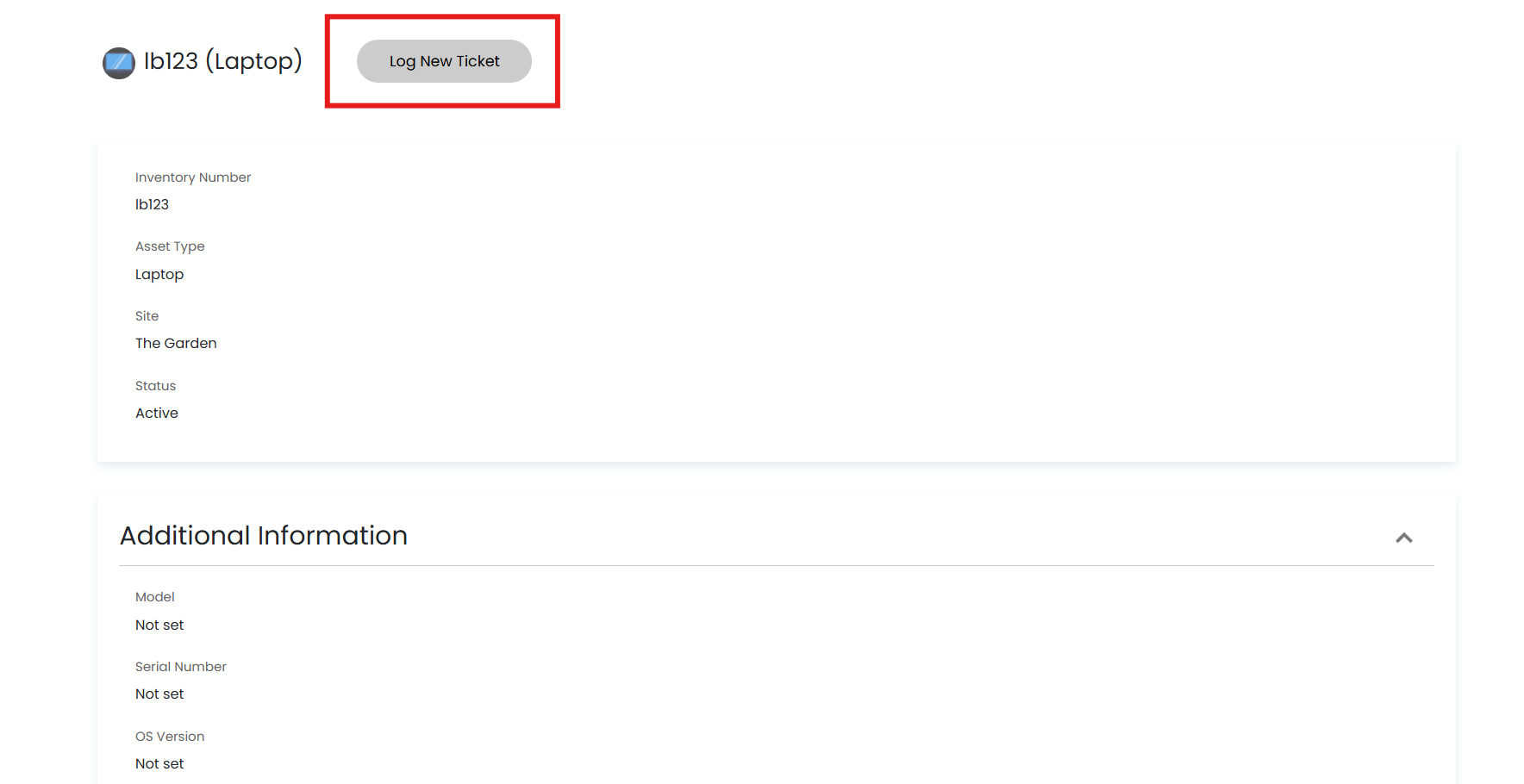
Fig 20. The button to log a new Ticket when viewing an Asset
Note: To disable this behaviour you need to set the Default Ticket Type against the Asset Type to "None", it will be set to "None" by default for all Asset Types.
Enabling Ticket drafts
Ticket drafts can be enabled to allow logged in Users to leave and return to the Ticket they are logging without loosing their progress. Within the Forms tab of your Ticket Type you will find the setting "Allow logged in Users to save drafts".
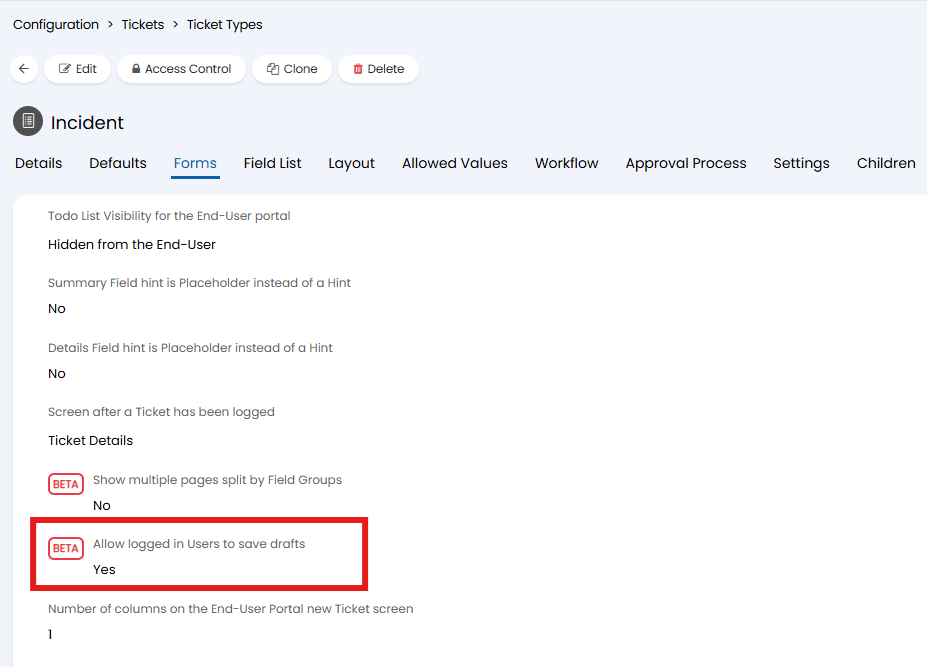
Fig 21. Enabling Ticket drafts
Enabling this setting will show the logged in User a 'Save draft' option when they are logging a Ticket of that type.
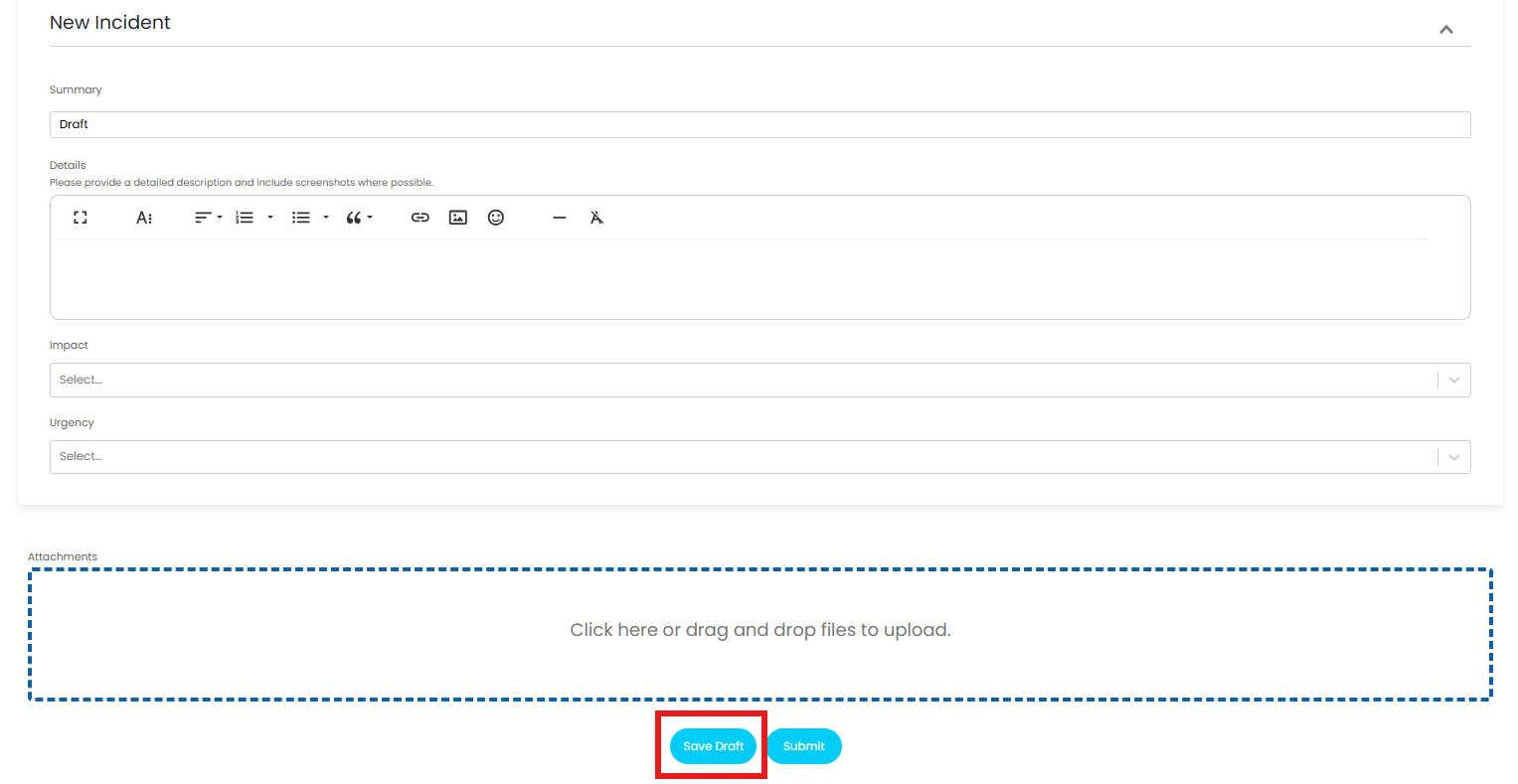
Fig 22. Save draft button
Once a draft is saved, the completed fields will populate automatically when the user returns to this page in the portal. Allowing them to pick up where they left off.
Storing Drafts (v2.248+)
From v2.248+ drafts can be stored as their own entity in your database, allowing users to access drafts from a dedicated area in the portal, making it easier for them to access and return to saved drafts. This also allows agents to be able to view draft tickets, useful when you would like to monitor open drafts and prompt users to complete these, helping prevent requests being submitted last minute or being forgotten.
How to Store Drafts
First , you will need to create a ticket status dedicated to draft tickets, this will denote which tickets are 'logged' and which are still 'drafts'.
Note: You can skip this step and use an existing status for drafts, however, to help differentiate it is recommended to have a dedicate draft status.
Head to Configuration > Tickets > Ticket Statuses > New. Name and choose a colour for the status, the rest of the status configuration, such as whether the status results in the ticket being on SLA hold, or reminder emails are sent, will be ignored as 'Draft' tickets have their own behaviour, the exact behaviour is covered later in this section. 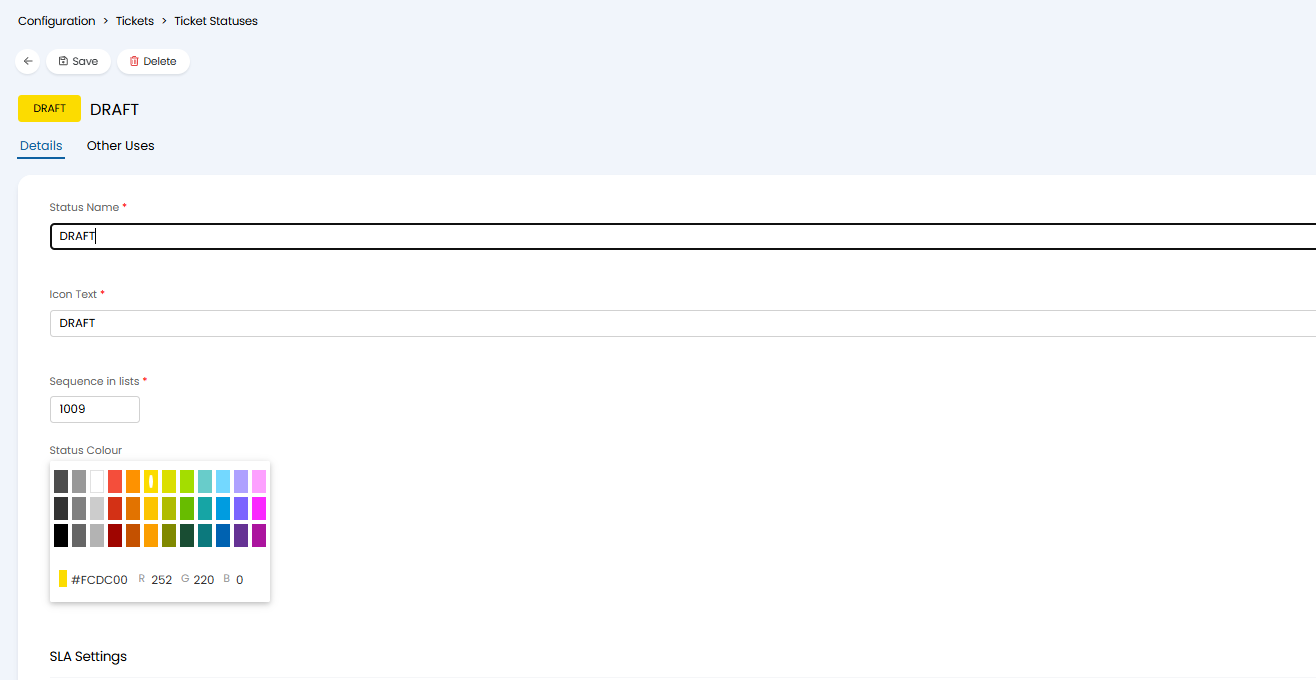
Fig 23. New Status for Drafts
Now, you will need to set which ticket types can have drafts saved/stored.
Head to Configuration > Tickets > Ticket Types > select a Ticket Type > Forms Tab > ensure "Allow logged in Users to save drafts" is enabled > set "Status for new draft Tickets" to be the new status you just created.
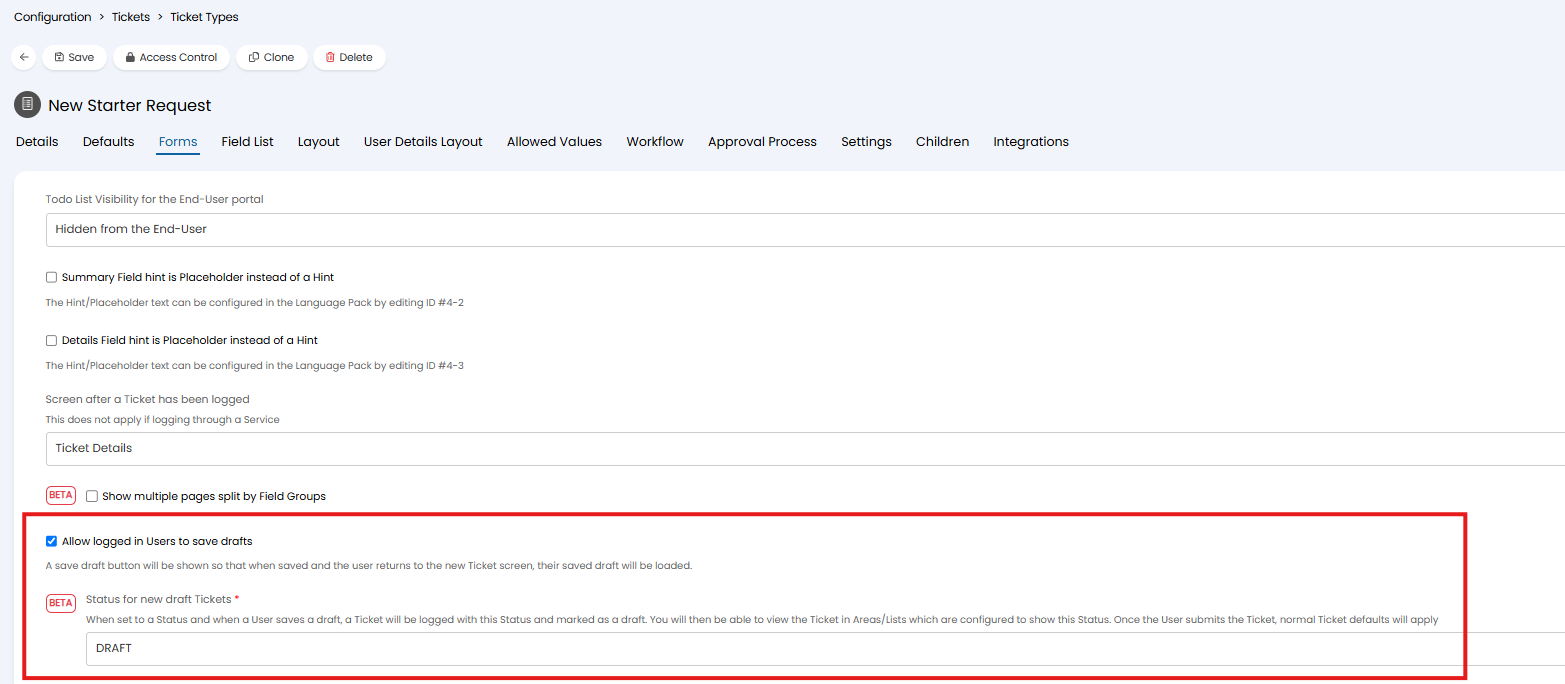
Fig 24. Settings to allow drafts to be saved for tickets of this type
Allow logged in Users to save drafts - Allows users to save drafts of this ticket type, but they will only be able to access the draft by navigating back to the same page in the portal. Agents will not be able to see any drafts.
Status for new draft Tickets - Allows drafts to be stored so users can access them from a dedicated area in the portal, agents will also be able to view drafts.
Add the 'Drafts' area to your Portal
A new Drafts area can be added to the end user portal that allows the logged in user to view all their current open drafts. If this area is not added to your portal users will still be able to access their drafts, they will just need to navigate back to the same page the draft was started/saved from.
To add this to your portal, head to Configuration > Self Service Portal > Menu Buttons section > add 'My Drafts'.
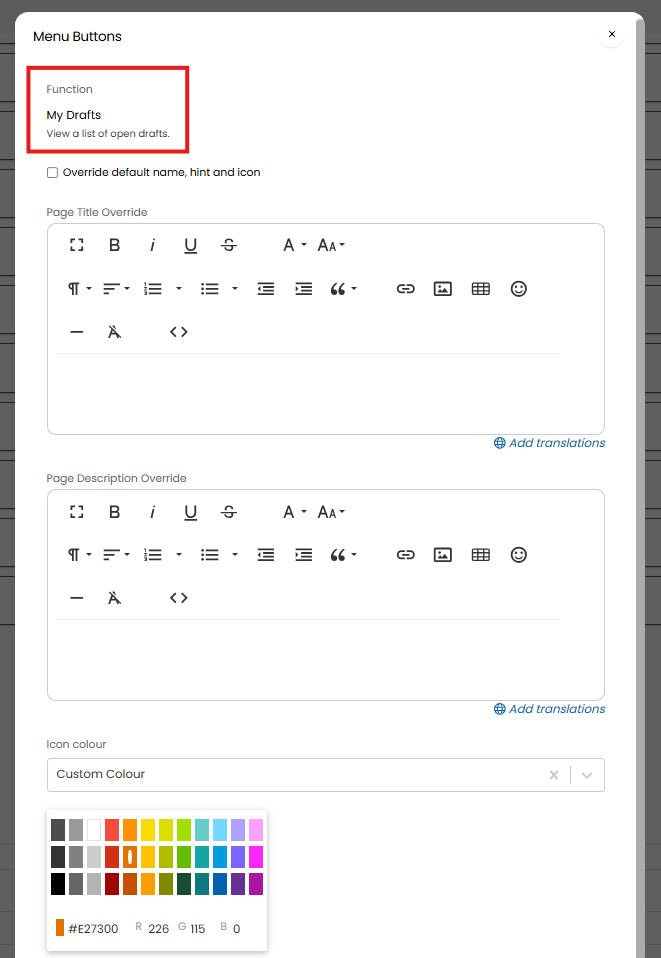
Fig 25. Add the My Drafts area to the portal
Similarly to other areas of the portal, visibility restrictions can be configured against the area to control who can access this area.
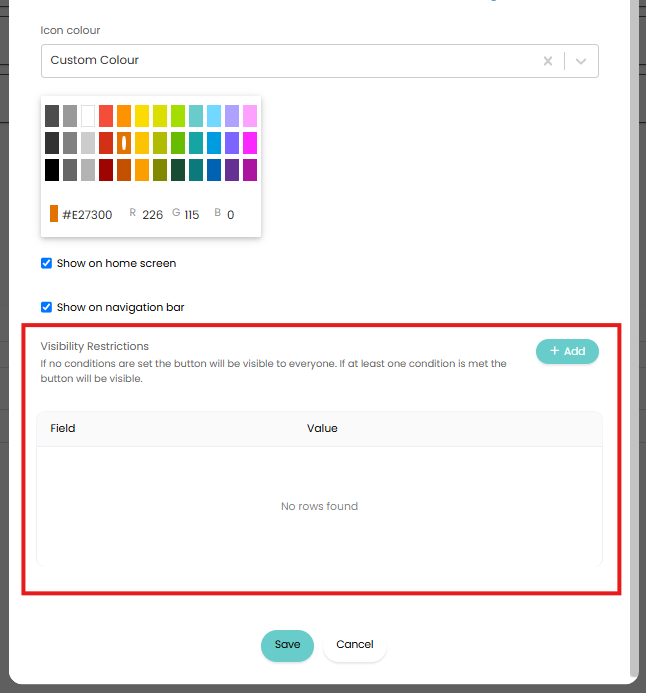
Fig 26. Visibility Restrictions for Portal Area
Now, when users are logging tickets of this type, they will have an option to save a draft.
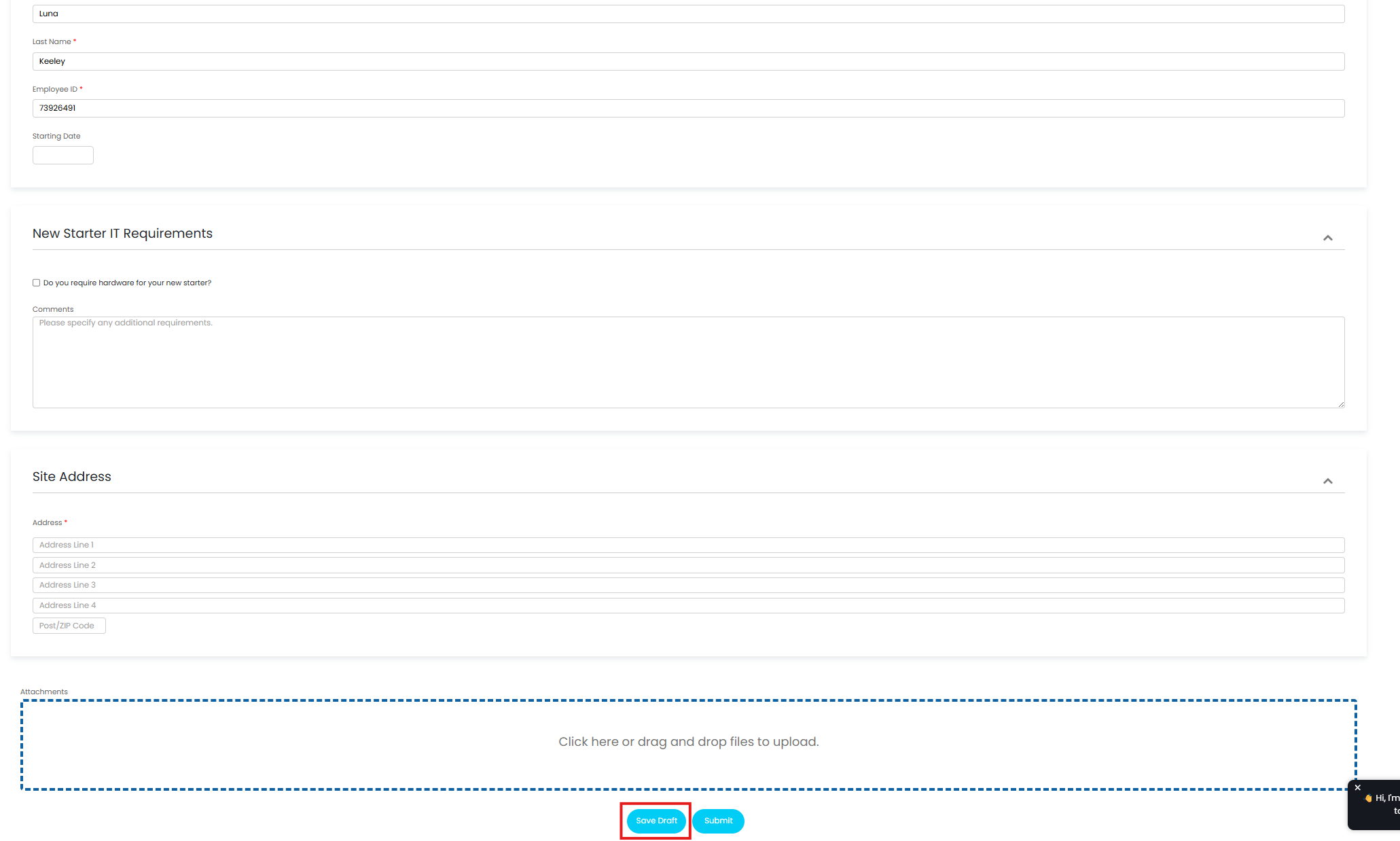
Fig 27. Save Draft of Ticket
When saved, the ticket form will be visible in the 'My Drafts' area of the portal to that user.

Fig 28. Draft in the My Drafts area
From here, the user can open the draft and continue completing the form/request.
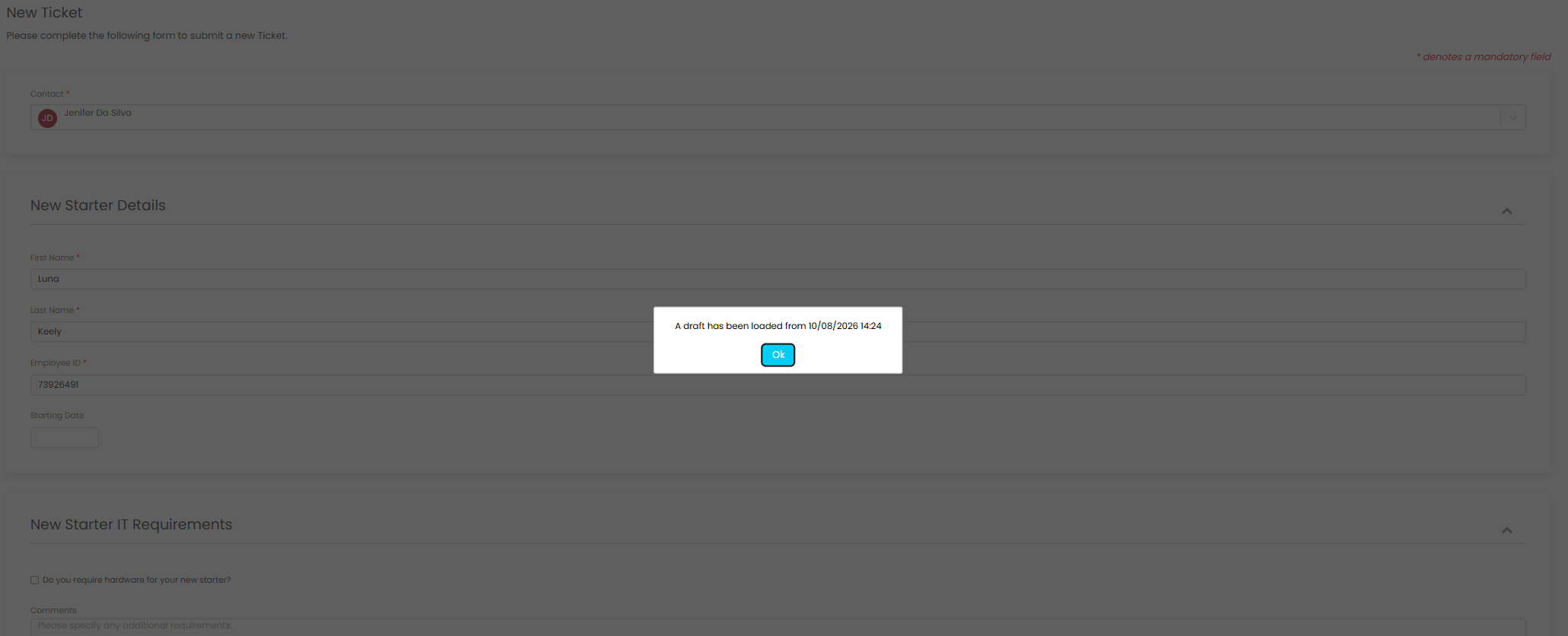
Fig 29. Draft Loaded
Once the user submits the draft, this will be removed from the My Drafts area and will appear alongside other tickets. The draft will be converted into a ticket, and it's status will be updated to the status new tickets of that type should have.
Keep in mind, only one draft can be saved per user for each ticket type. If an existing draft is loaded, changes made, and saved again, the existing draft ticket will be updated to reflect these changes.
View Drafts in the Agent App
When viewing tickets in the agent app, Drafts will show alongside other tickets, in line with the filters applied to your ticket area/view.
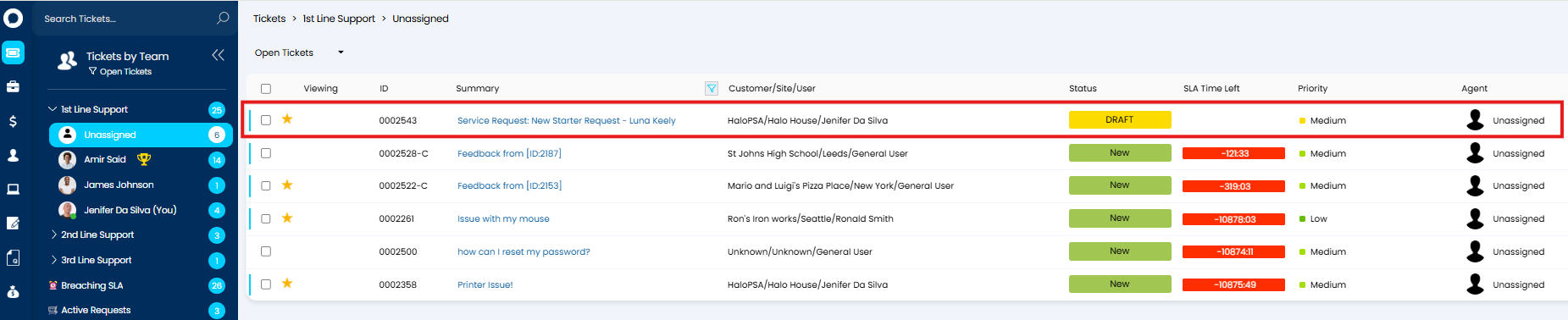
Fig 30. Draft Ticket in Agent App
To keep Drafts separate to open, actionable, tickets you can filter these out from your ticket view. The easiest way to do this is by adjusting your filter profiles.
Head to Configuration > Tickets > Views > Filter Profiles > select a filter profile > adjust the criteria to exclude tickets with your Draft status.
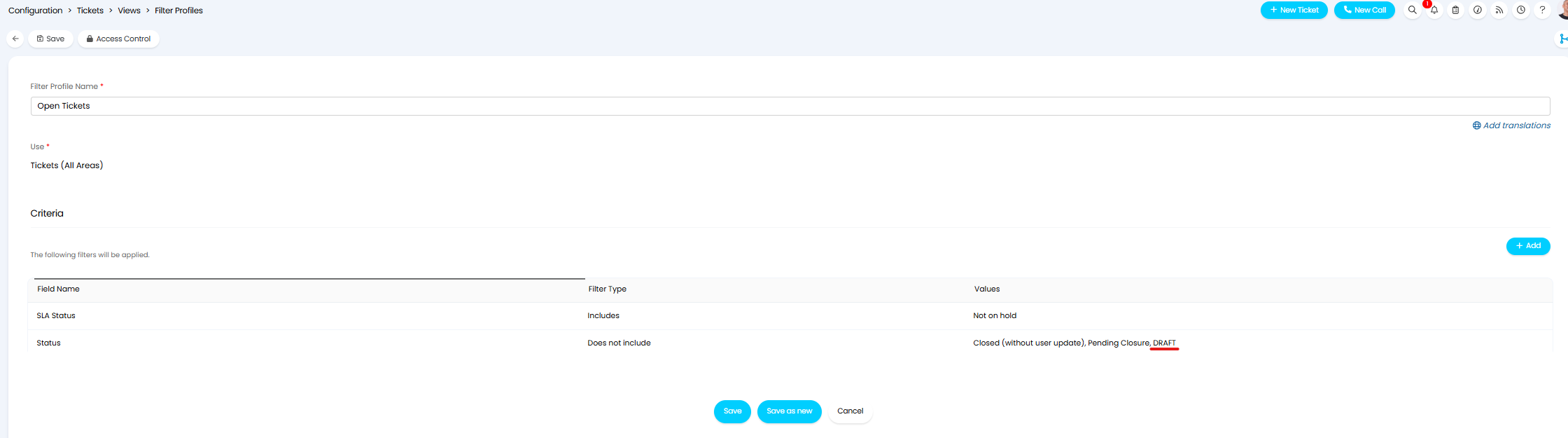
Fig 31. Filter Profile setup to exclude tickets that have the 'DRAFT' status
Now, when the 'Open Tickets' Filter profile is in use Draft tickets will not show.
You then may also want to create an additional filter profile, or custom list, to allow you to view draft tickets. This filter profile would need to only return tickets with your Draft status.
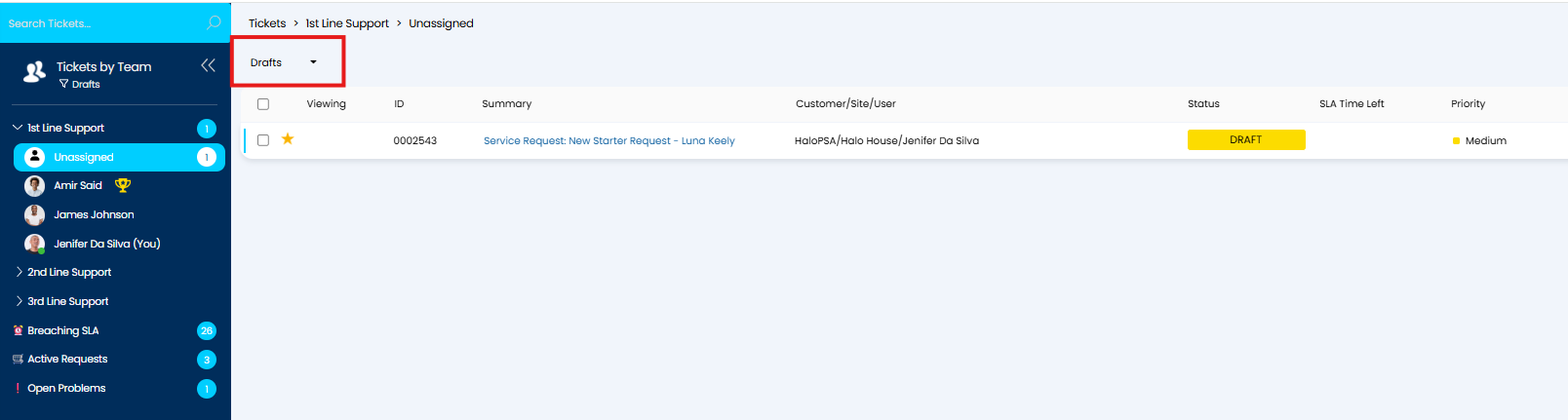
Fig 32. Filter Profile to only show Draft tickets
Behaviour of Draft Tickets
The following processes will be calculated/started on final submission instead of on draft submission:
- SLA Timers
- Rule matching
- Ticket Created Feed entry
- New Ticket Logged events
- Child Ticket creation
- Third party syncs
- Date Occurred field
In addition, Acknowledgement Emails will not be sent out on draft tickets.
Database Properties
All drafts are stored in the 'faultdraftmeta' table in the database however a record is also stored in the 'faults' table alongside submitted tickets.
A ticket is classed as a Draft (and therefore treated as such by the system) when a record is held for the ticket in the faultdraftmeta table, not when the status of the ticket uses the Draft status. The 'faultdraftmeta' table stores basic information about the Draft, including the id of the user who logged the draft and the id of the associated record in faults.
Records in faults can be identified as Drafts by their status, or by joining on the faultdraftmeta table. This is important to consider if introducing the use of Drafts as you may need to adjust any reports you have that return data on tickets to filter out/consider Draft tickets.
The following query can be used to obtain all your Drafts in your instance:
select * from faults
join faultdraftmeta on faultid=fdmfaultid
Enabling Attachments
In Order for Users to add an attachment to a Ticket the "Allow End-Users to upload attachments" checkbox in the must be selected in Configuration > Self Service Portal. With this enabled logged in Users will see an attachments field when logging a Ticket or completing an Action.
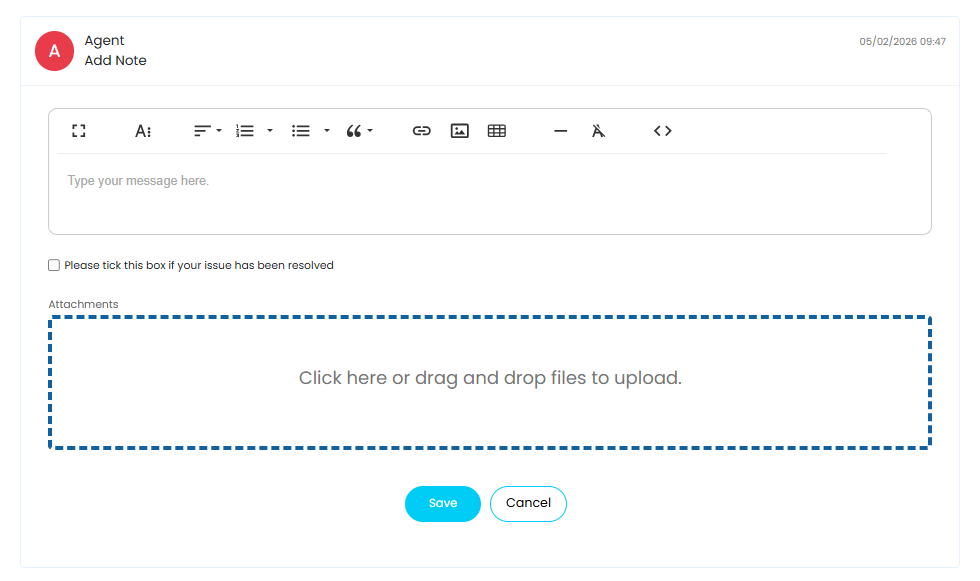
Fig 33. Adding an attachment to an Action in the Self-Service Portal
When an attachment has been added to an Action it will show against that Action in the chain. However, An Agent can add an attachment which is not tied to an Action. In the Agent App attachments can be added to the Ticket by using the "Add attachment" option found under the ellipsis (...) in the top right.
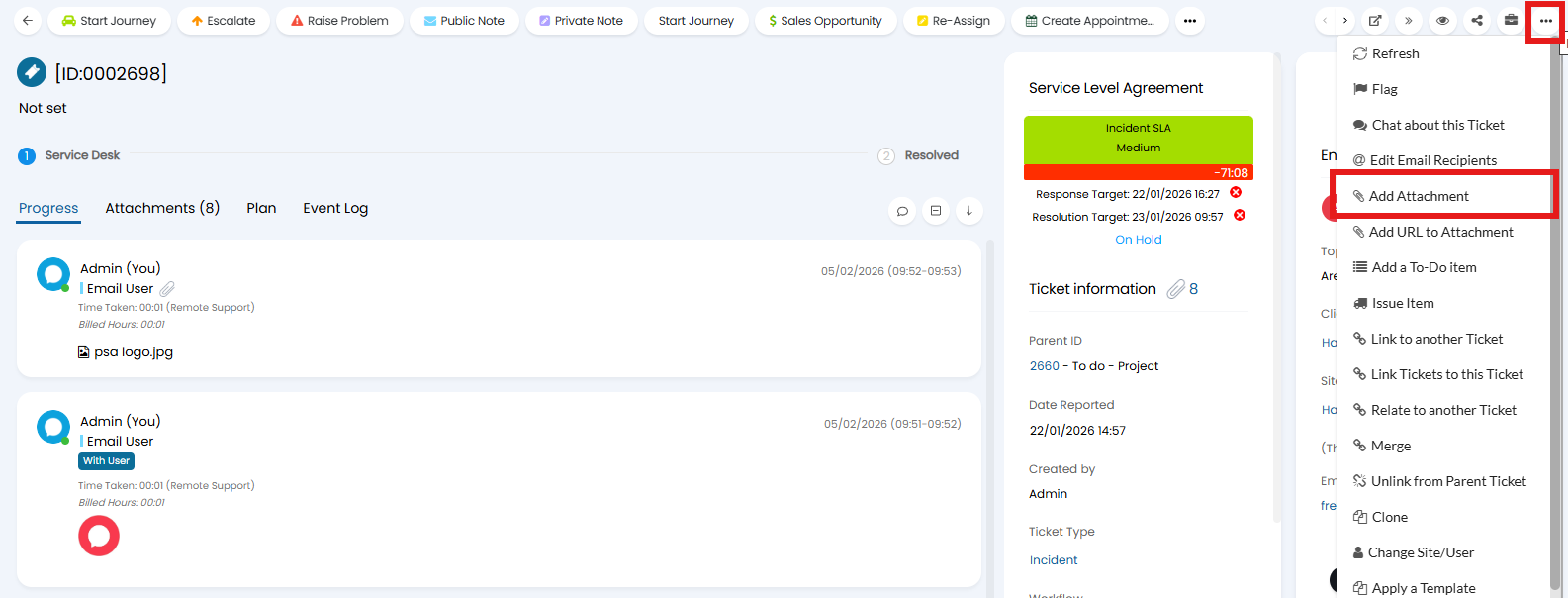
Fig 34. Adding an Attachment to a Ticket in the Agent Application
Once an attachment has been added to the Ticket it can be made visible to Users in the Portal by heading to the Attachment tab, selecting the relevant attachments, clicking "Edit", followed by "Toggle End-User Visibility On".
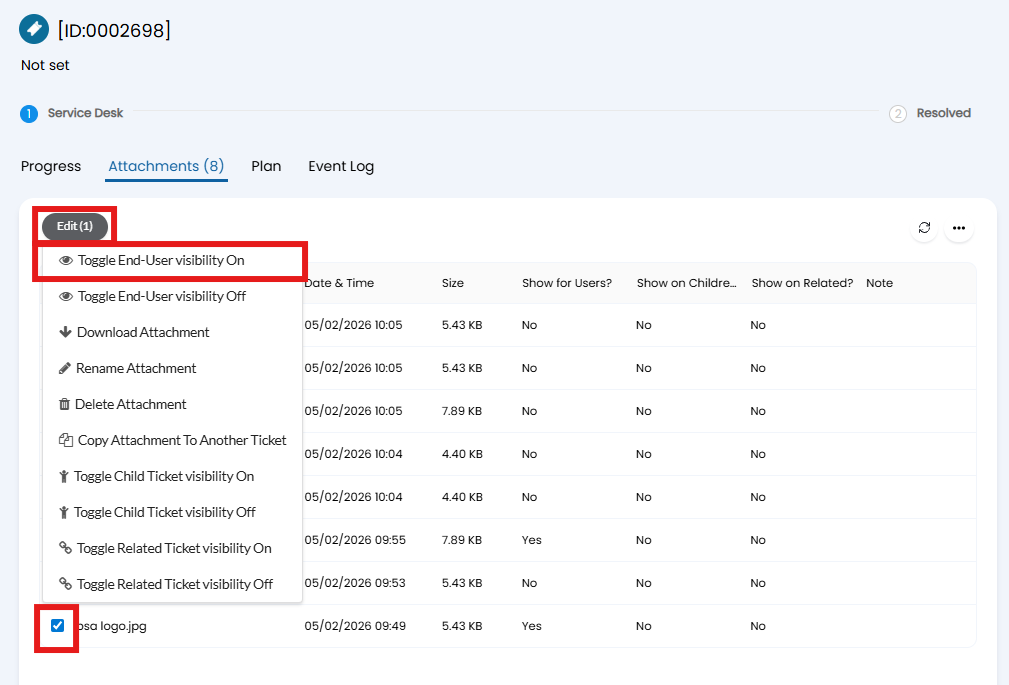
Fig 35. Making an attachment visible to Users
This attachment will then show on the Portal against the first Action on the Ticket.

Fig 36. Attachments on the first Action
These attachments can show on the Portal under a separate tab. To enable this head to Configuration > Self Service Portal, and select the "Show attachments on a separate tab when viewing a Ticket" option.
All the attachments will now show under this tab regardless of if they are also tied to an Action.
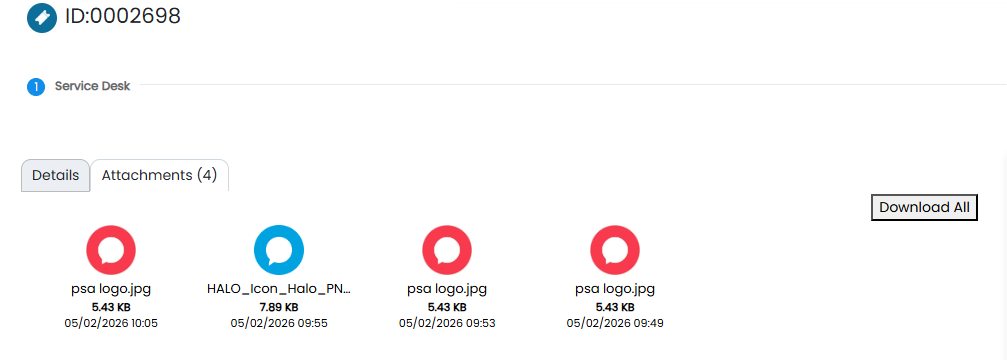
Fig 37. Attachments tab
Displaying User Information
User fields can be displayed at the top of a Ticket when it is being logged. To enable this head to Configuration > Tickets > Ticket Types, and select the relevant Ticket Type. Under the Forms tab, select the "Show additional User details when logging new Tickets" checkbox. When this is selected a table will show below the checkbox, allowing you to add User detail fields.
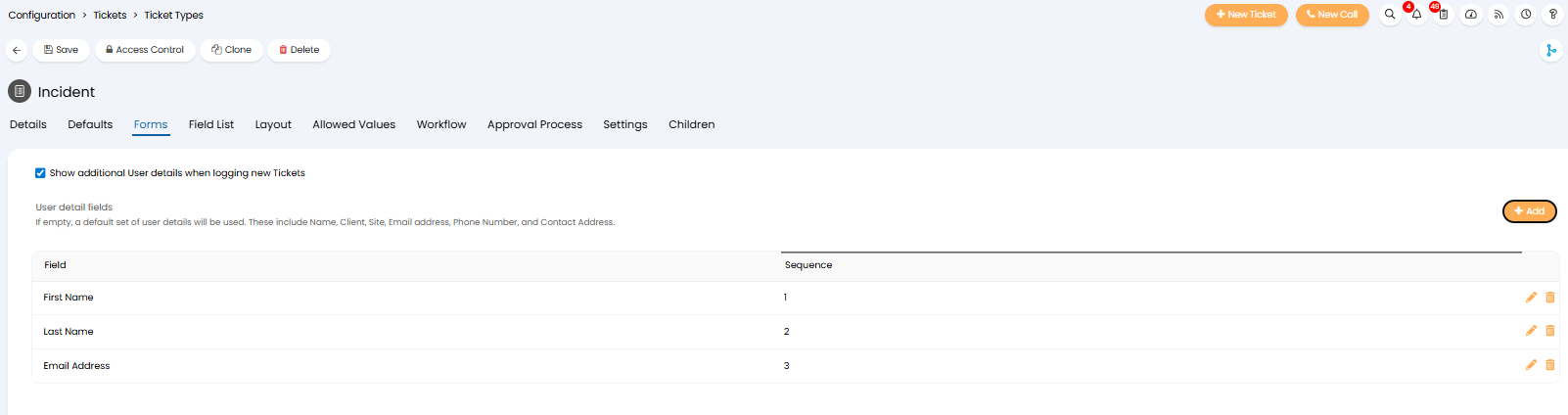
Fig 38. Showing additional User details when logging new Tickets
The fields added here will show when that Ticket Type is being logged in the Portal. This means anyone with the ability to log on behalf of other Users will be able to see the details associated to the chosen User.
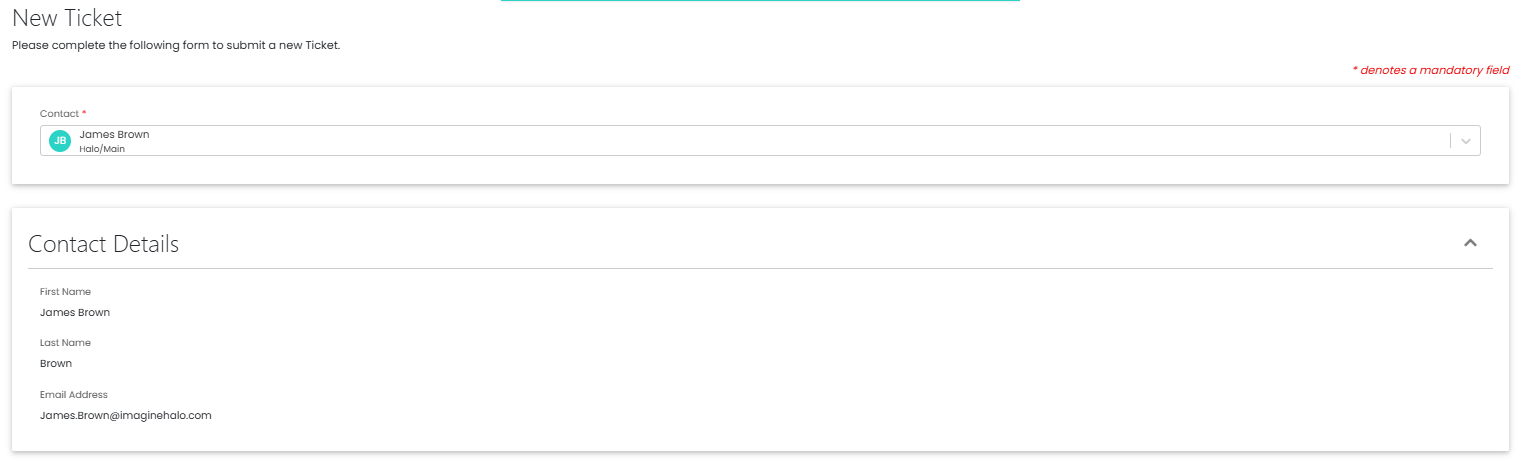
Fig 39. User details on a new Ticket