Appearance/Home Screen
In this guide we will cover:
- Basic Configuration Options
- Home Screen Configuration
Admin Guides:
Basic Configuration Options
The Self-Service portal can be personalised to give your end-users a unique experience when providing self-service.
All configuration options around customising your Self-Service portal can be found via heading to Configuration > Self-Service Portal
Fig 1. The Self-Service Portal configuration icon
Upon navigating to this icon, you will find the following configuration options:
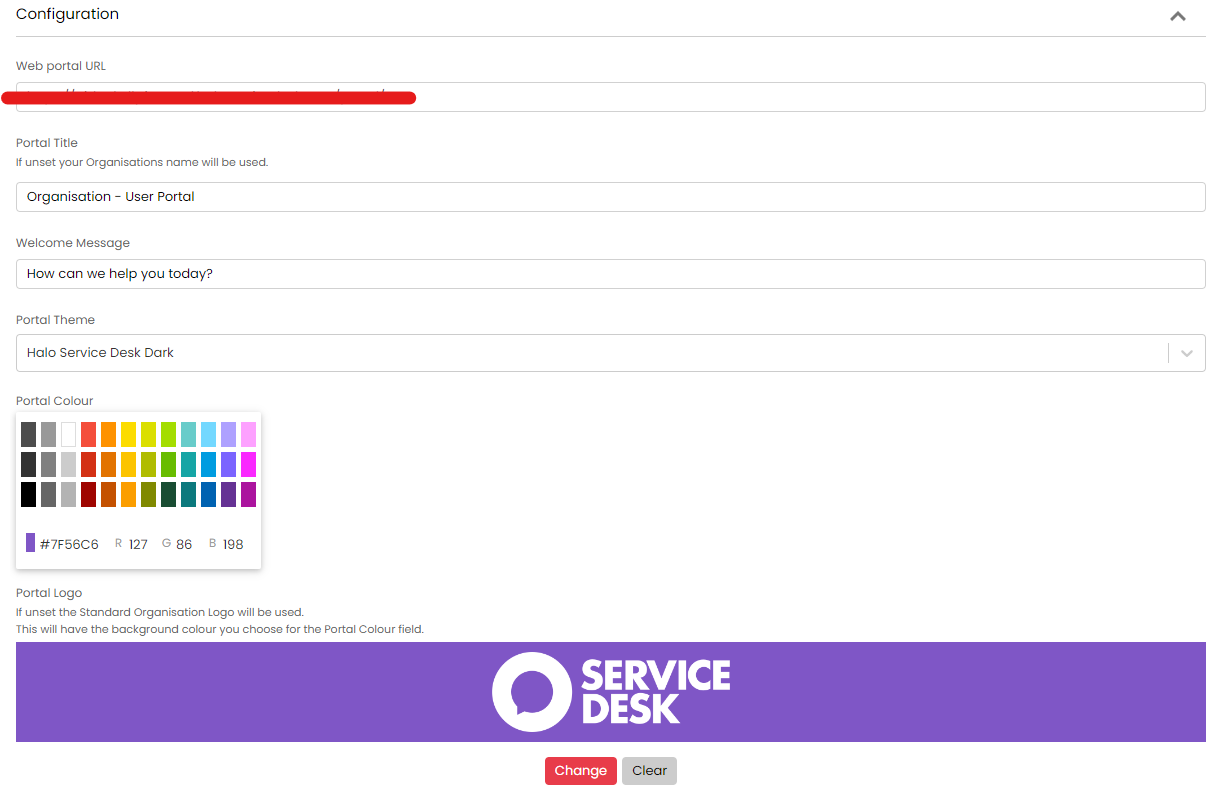
Fig 2. Self-Service Portal configuration screen
- Portal Title - This is the title of the browser tab:

Fig 3. Portal title displayed on the browser tab
Note: Within Configuration > Advanced Settings, make sure that the Advanced Setting Single Select Option - "Browser tab names" is set to "Rename tabs based on breadcrumb" this setting can be found in the Appearance section of Advanced settings (Near the top of the Page)
- Welcome Message - The message displayed on the home screen of your Self-Service Portal:
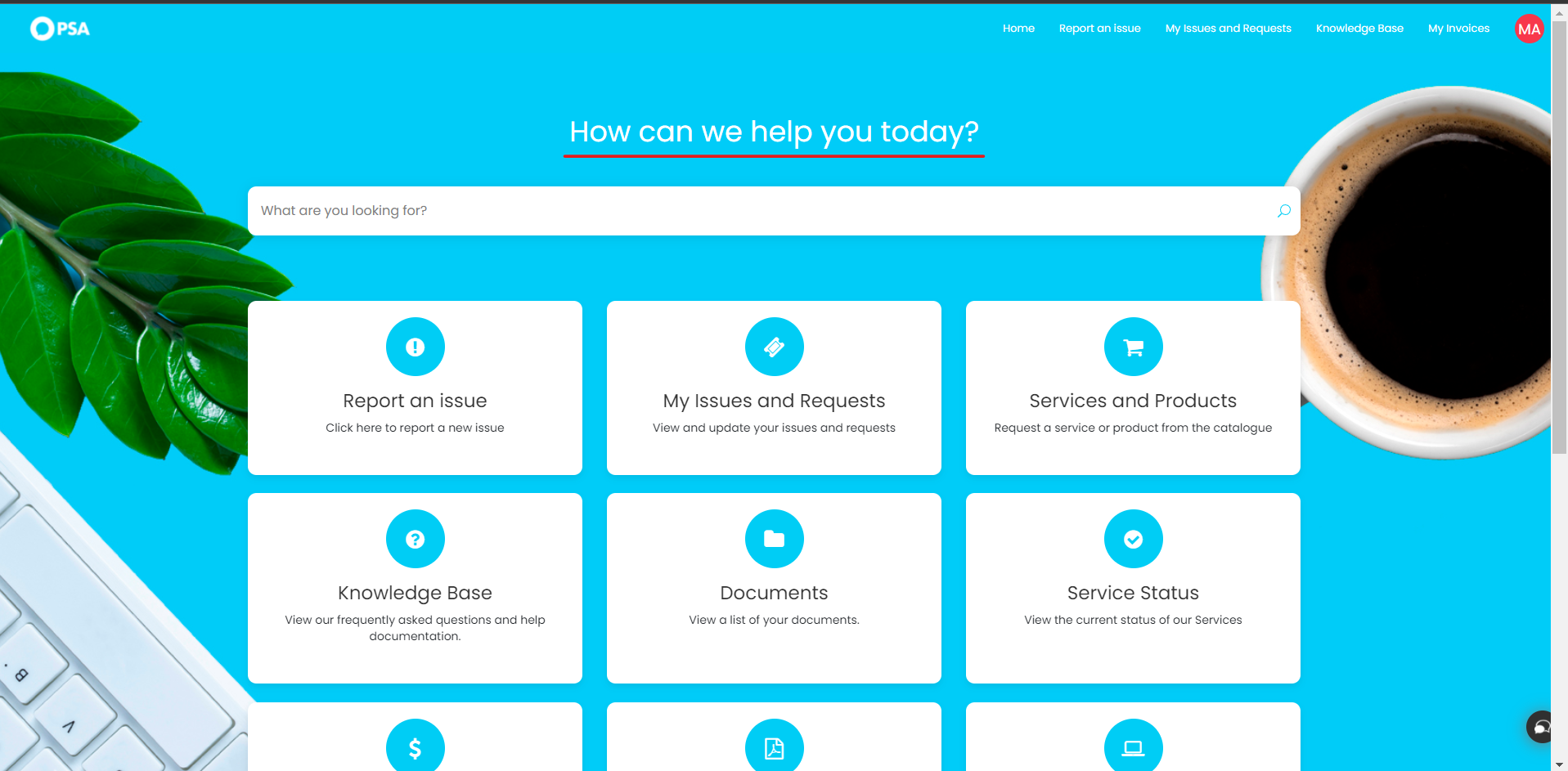
Fig 4. Portal home screen
- Portal Colour/Portal Logo - The colour theme (used throughout) and logo (top left of Fig 4) of your portal.
- Custom CSS - If you're really looking to personalise the feel of your Self-Service Portal, you can use your own custom CSS to modify each element as you see fit.
- Authentication Options - Here you can determine whether or not an end-user needs to log in to access your Self-Service Portal.
The portal can also be customised per customer and organisation.
Head to a customer profile > Settings tab > Self Service Portal section, here you will be be able to override the following for users under this customer that log in to the portal:
- Portal Title
- Portal Colour
- Portal Logo
- Portal Home screen background image
These fields can also be edited per organisation under Configuration > Organisations > select an organisation > Settings section (only applicable if you are using multi-tenancy).
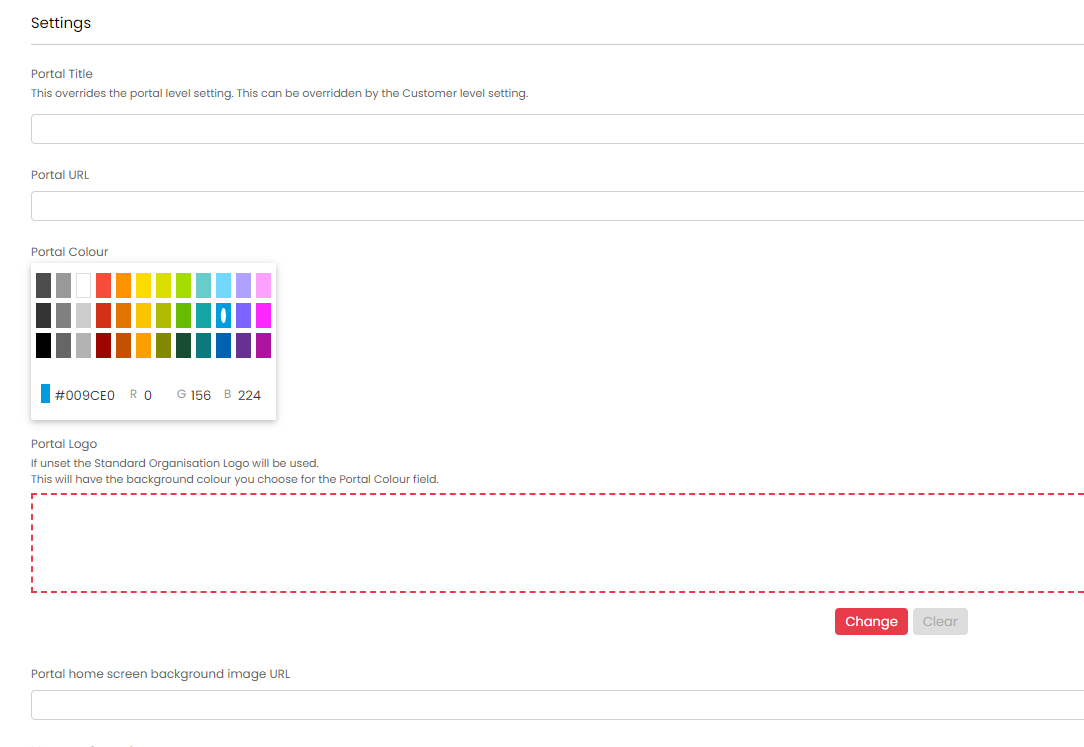
Fig 5. Portal customisation at organisation level
Your Self-Service Portal URL can also be modified; to action this please reach out to HaloPSA support for further details!
Home Screen Configuration
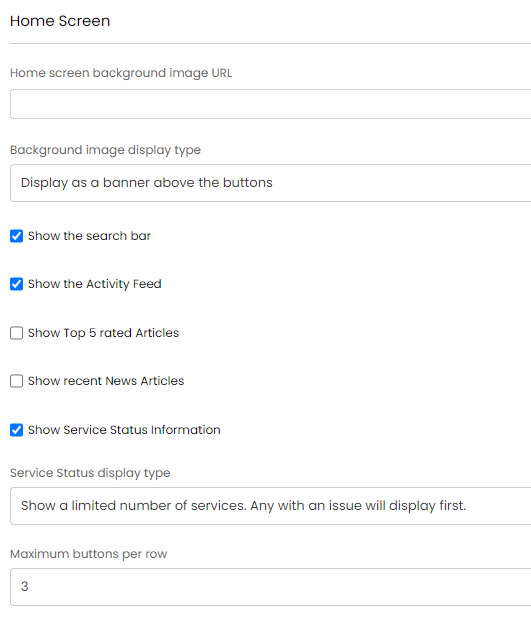
Fig 6. Home Screen Options
The Home Screen area of your Self-Service Portal configuration provides you with options to set a background image (supplied via publicly available URL) and display type, where you can decide whether you would like the background to cover the entire page or simply as a banner at the top of the page.
You also have a series of options that can be toggled to show additional information below your menu buttons including articles with the most end-user upvotes and the status of your monitored services. You'll also see an option to set the number of menu buttons per row.