Start to Finish: Self-Service Portal
In this guide we will cover:
- What is the Self-Service Portal?
- Changing your URL
- Adding Branding
- Customising Menu Buttons
- Linking the Service Catalogue
- Giving Users Permissions
Configuration Settings:
Related Guides:
What is the Self-Service Portal?
The Self-Service Portal is the portal for your End-Users, and a means of providing them with ways of viewing information, logging tickets or approving processes. The Self-Service Portal is grouped into "Menu Buttons" that can be customised to determine what your Users can do. They can have access restrictions added to ensure the right Users have access to the relevant options.
This guide will break down the customising your Self-Service Portal from start to finish in four key steps.
- Changing your URL
- Adding Branding
- Customising Menu Buttons
- Giving Users Permissions
Note: This guide will only cover the basics of setting up your portal start to finish. For more information on specific settings or more in-depth customisation, please refer to the relevant topic guide.
Changing your URL
When you first get deployed, your URL will be a subdomain of one of our core product domains, with your Self-Service Portal URL having an additional "/portal" parameter at the end. This can be changed to use your own domain should you wish.
You will need to add a CNAME record to your DNS listing. This record should point your desired URL to <Your Original Subdomain>-Portal.com. If you wanted to change your Self-Service Portal to portal.[COMPANY].com, you would need to add a CNAME pointing portal.[COMPANY].com at [COMPANY]-portal.Halo.com.
An SSL certificate would also need to be provided in order to secure this new address. If you are providing your own SSL certificate, please ensure this is sent to us in .PFX format (along with any password, if applicable).
We can also generate certificates in-house free of charge. If you would prefer we generated this certificate, please let our Support Team know. Our Infrastructure team would then provide you with an additional CNAME record to add to your DNS listing in order to verify the certificate.
Adding Branding
The first step after you have your portal URL is to add your branding.
Navigate to Configuration > Self Service Portal, where you will find the options to customise the portal appearance and behaviour.
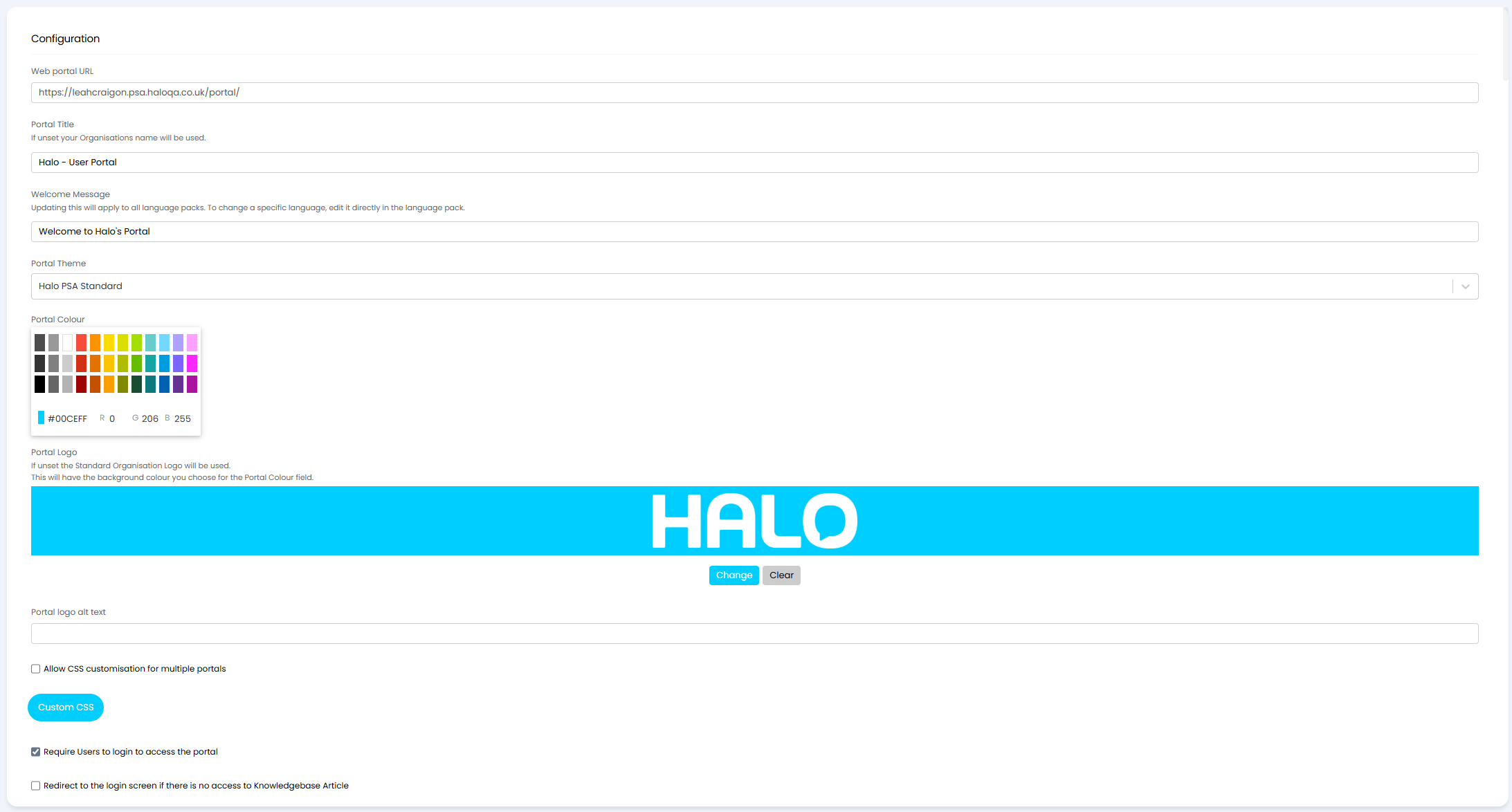
Fig 1. Branding options for the portal
Each of these are covered in the Configuration Settings guide linked at the top of this guide, but these are the most important ones to consider.
- Portal Title: Name of the browser tab.
- Welcome Message: Message that shows above the search bar/menu buttons
- Portal Colour: Colour of the navigation bar at the top and the menu button background.
- Portal Logo: Logo that shows in the top left of the screen.
- Home screen background image URL: Image that shows in the background of the home page.
- Background image display type: Determines if the background image set above covers the whole home background or as a banner near to the top.
- Display custom HTML: Allows the option to add a custom banner with HTML at the top and/or bottom of the page.
In this example portal, you can first see the "Portal Logo" in the top left, and underneath this navigation bar is the custom HTML banner. The "Welcome Message" shows above the search bar, and the menu buttons are listed underneath.
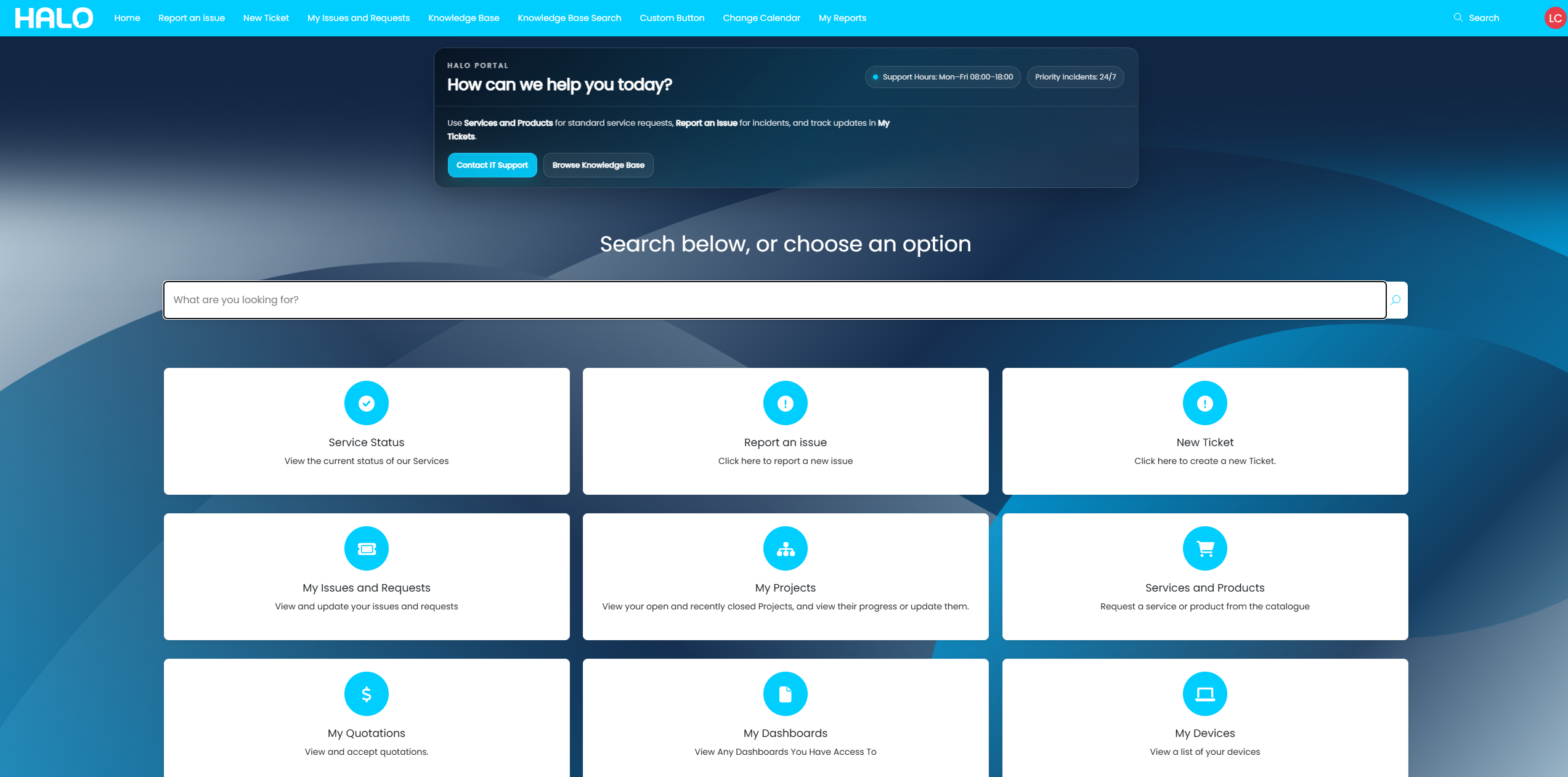
Fig 2. Example customised portal
Customising Menu Buttons
Now that the portal has your company's branding, the menu buttons can be added to configure what users can do on the portal. if you have built a service catalogue, you can also add this as a menu button to allow users to access it.
Scroll down to the "Menu Buttons" section.
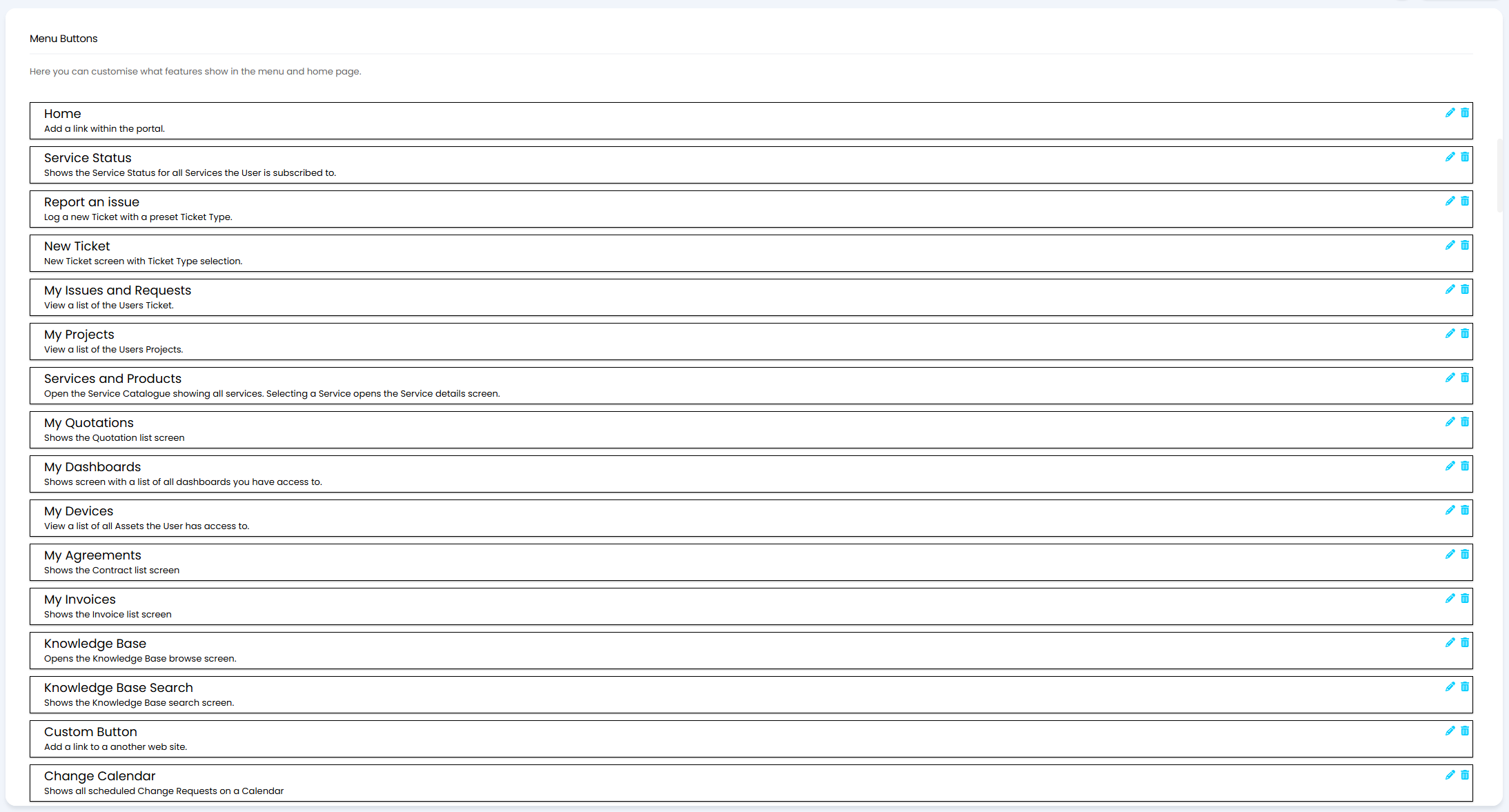
Fig 3. List of menu buttons
You can use the pencil icon to edit an existing one, the trash can to delete it, or add a new one with the "Add" button at the bottom of the list.
The order of buttons can be edited by hovering over the button, then drag-and-drop with the dots that appear on the left side.

Fig 4. Moving menu buttons around
When editing a button or adding a new one, you can customise how the button appears - such as the icon shown, or the name/description of the button.
- Name: Name/title of the menu button.
- Hint: Description that appears under the name.
- Icon: Icon logo that appears on the menu button.
- Show on home screen: Shows as an option on the home screen 'boxes', with the above customisation visible.
- Show on navigation bar: Shows as an option in the navigation bar at the top of the page, with only the name visible.
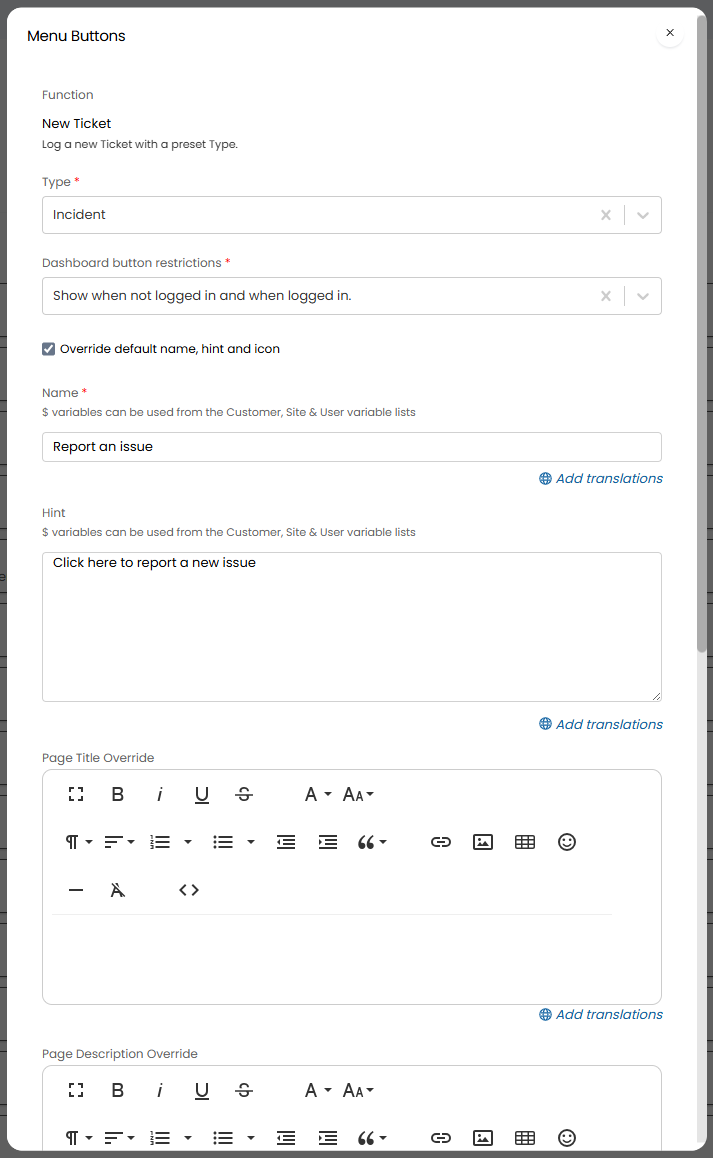
Fig 5. Customising the menu button appearance
Scrolling down on this popup will show the option to add visibility restrictions. Menu buttons can be shown or hidden based on attributes of the logged in user, such as a user role.
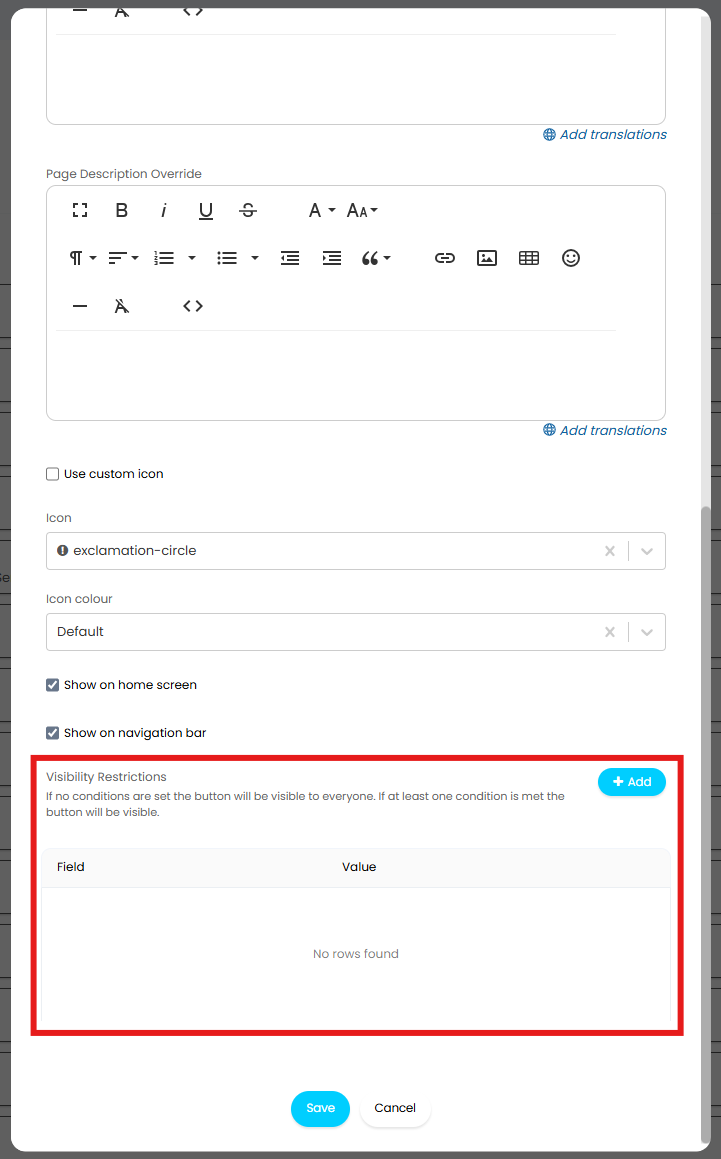
Fig 6. Adding visibility restrictions to the menu button
Repeat this process for anything you wish users to be able to access on the portal.
Giving Users Permissions
Permissions can be given to individual users via their user profile, or applied via a user role.
User Roles are roles that can set permissions and various settings against the user the role is assigned to. They can also be used to restrict or grant access across various parts of the system, such as the menu buttons mentioned above.
To create a user role, head to Configuration > Users > User Roles and click the “New” button.
The first tab you will see is to set the basic details of the user role, like the name. You can set notes to show what the user role is for if desired.
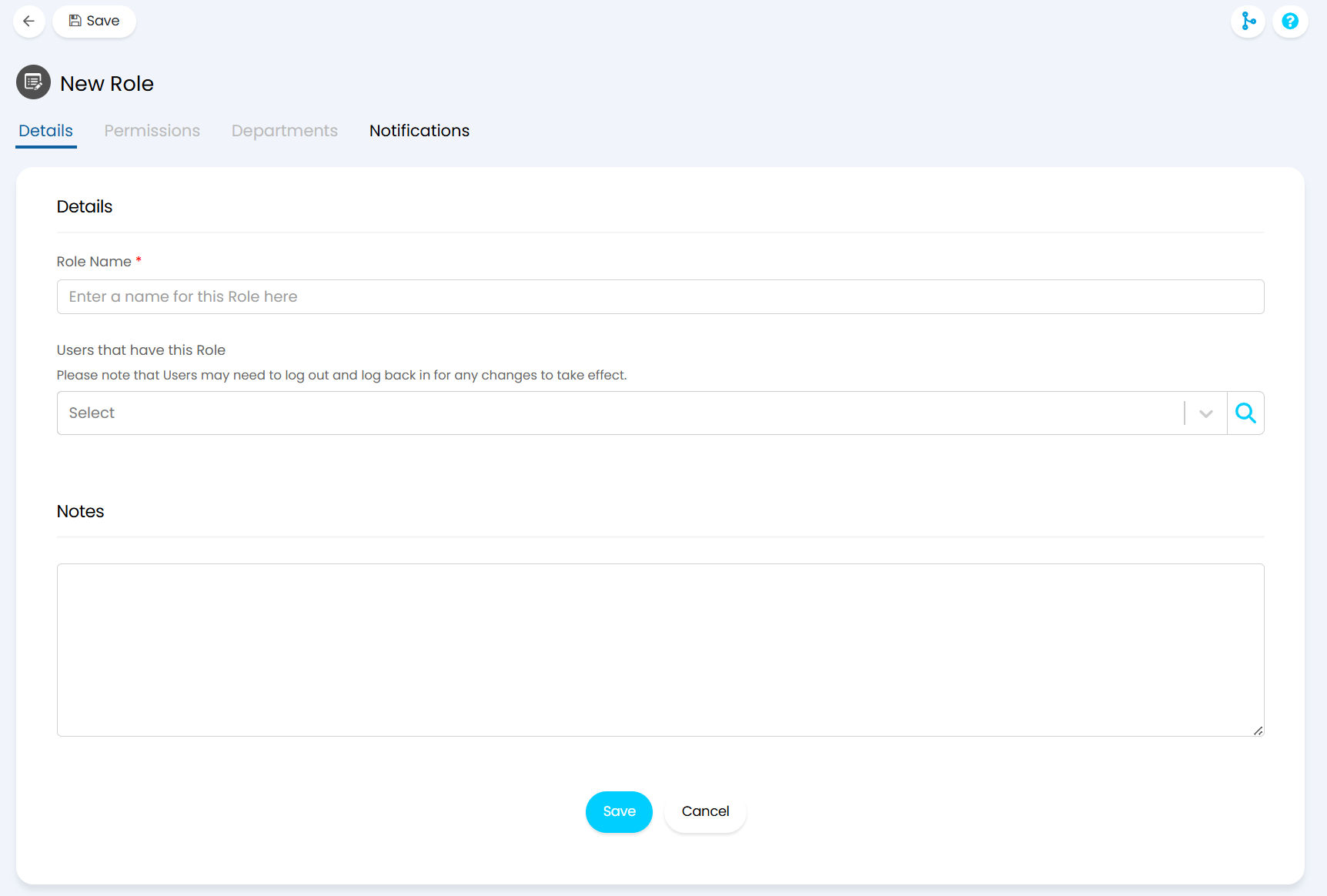
Fig 7. Creating a new user role
To set any further configuration for the user role, you must save the role first, then edit. This will then show the options to set the permissions and departments that role is associated with.
Switch to the “Permissions” tab first.
Here you will see the same permissions that are available on a user’s profile, so that they can be set through this user role. This works the same way as agent roles.
A description of each permission can be found in the “User Roles” configuration setting guide, linked at the top of this page.
When applying the role to a user, the highest level of permission will take precedent. For example looking at the "Web Access Level", if the role is set to "This Users Tickets", but that user already has access to "Site Tickets", the user will keep "Site Tickets".
Note: For the user to be able to access the portal, "Web Access Level" must be set to a minimum of "This Users Tickets". "No Access" will stop them from being able to login to the portal.
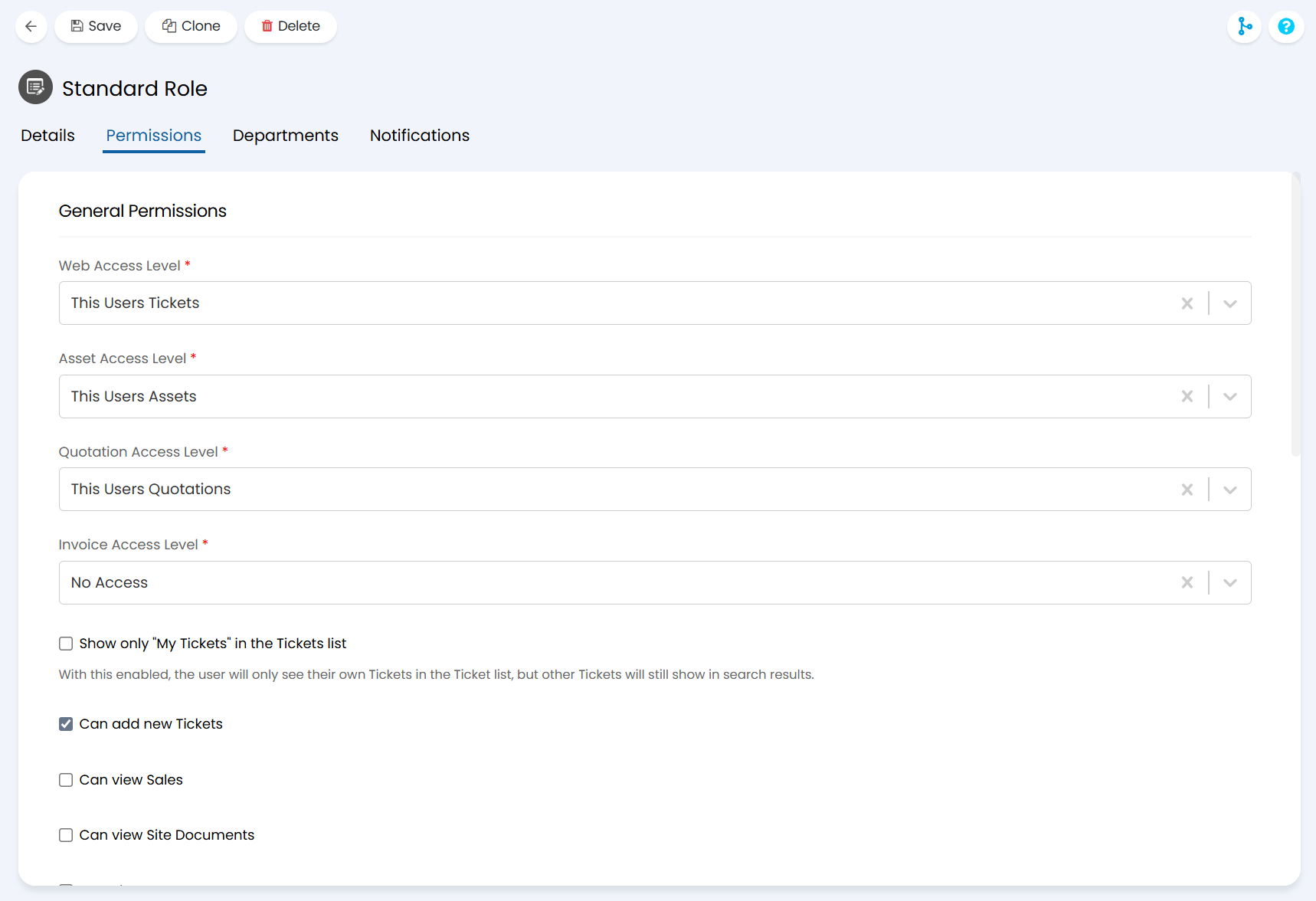
Fig 8. Adding permissions to the user role
Now that the role has been created, it can be assigned to users.
The first place this can be done is within the role configuration itself. In the “Details” tab, users can be added to the “Users that have this Role” field to give them access.
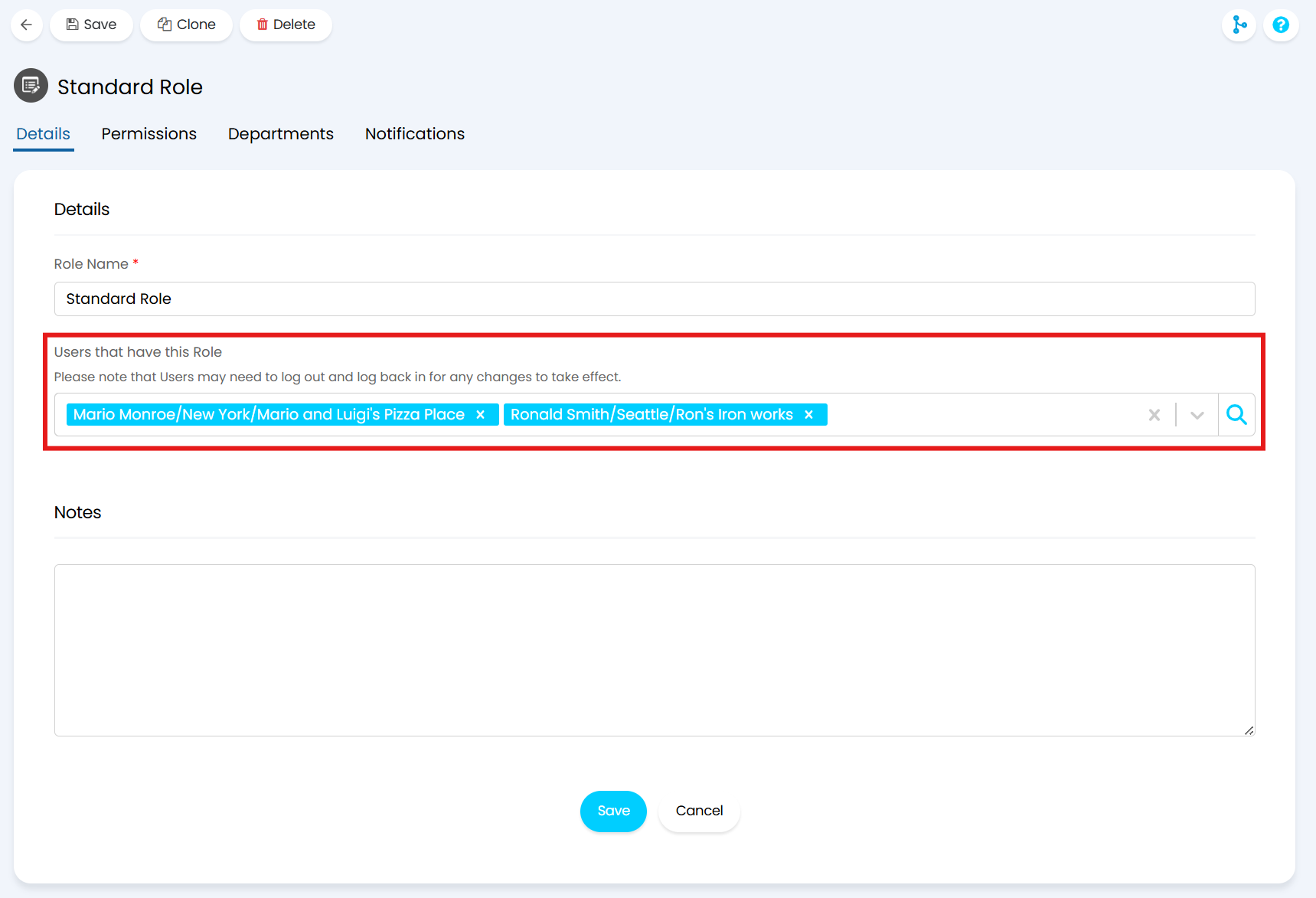
Fig 9. Adding users to the role via configuration
You can also bulk add users from a list, such as within a client profile. Click the check mark at the top to select all records, or choose only some from the list. Hover over the “Edit” button and select “Add Roles”.
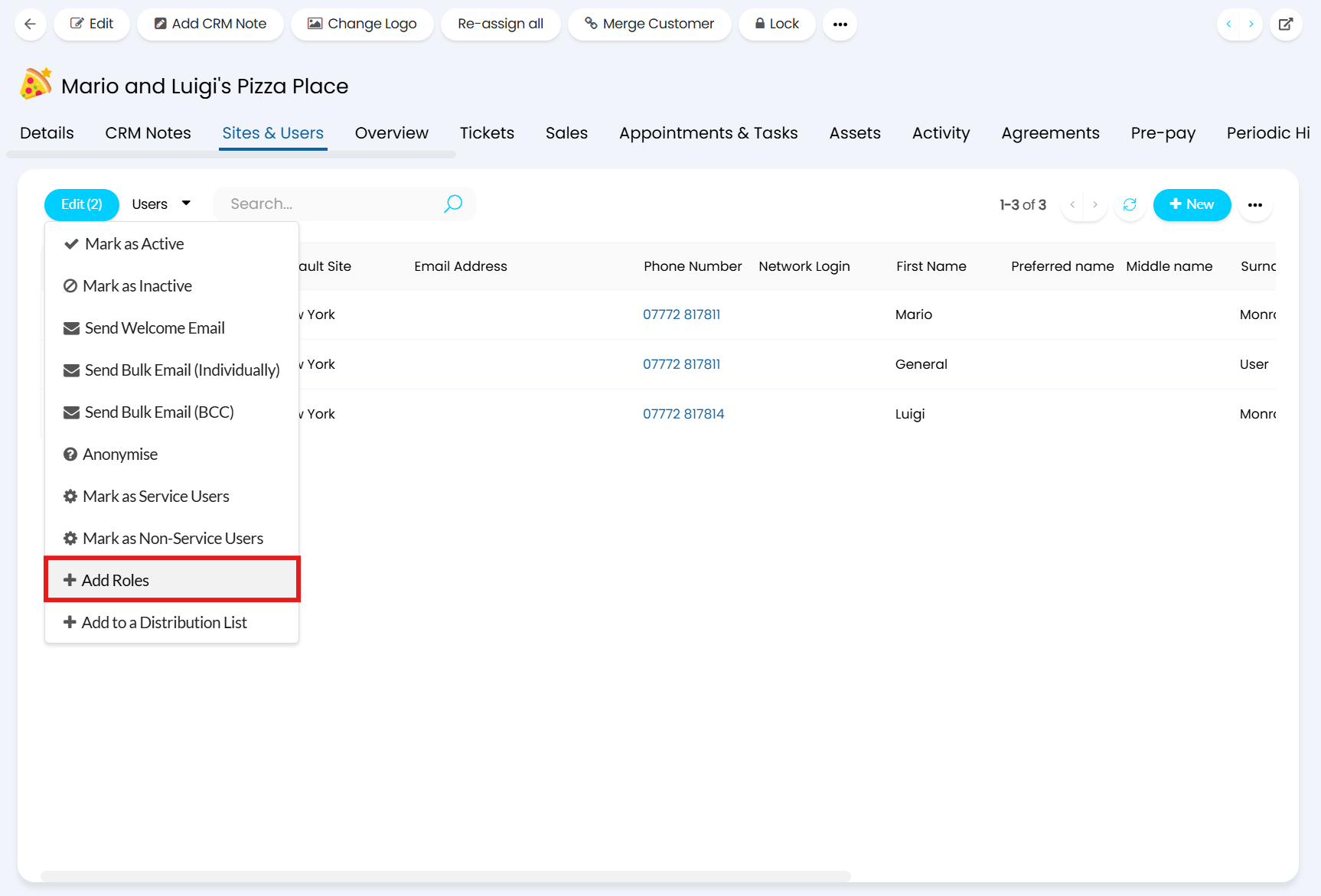
Fig 10. Adding users to the role via a list
You’ll see a pop up to select one or more roles, and a checkbox to determine if these will be added additionally, or replace any existing roles.
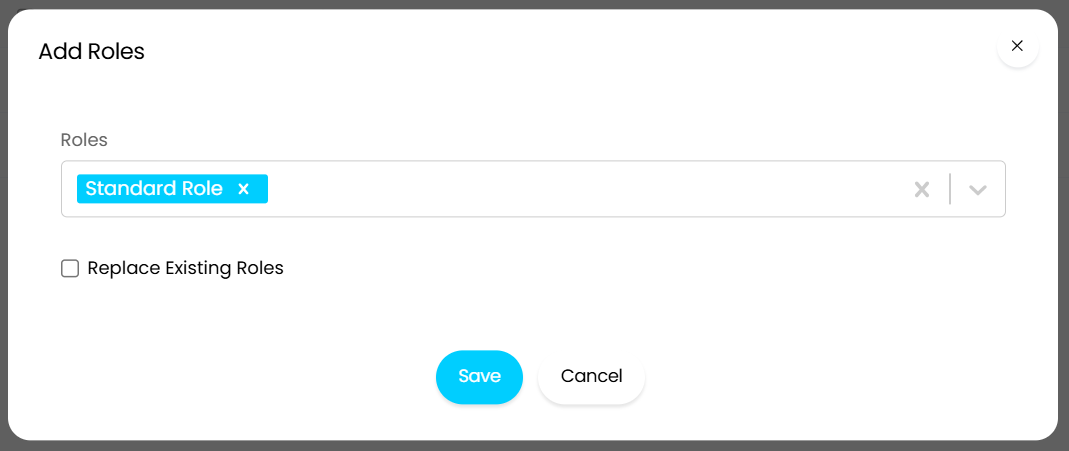
Fig 11. Choosing the roles
A default user role can be set in Configuration > Users > General Settings. Any newly created users after choosing an option here will be given that role. Pre-existing users will not be given this automatically.
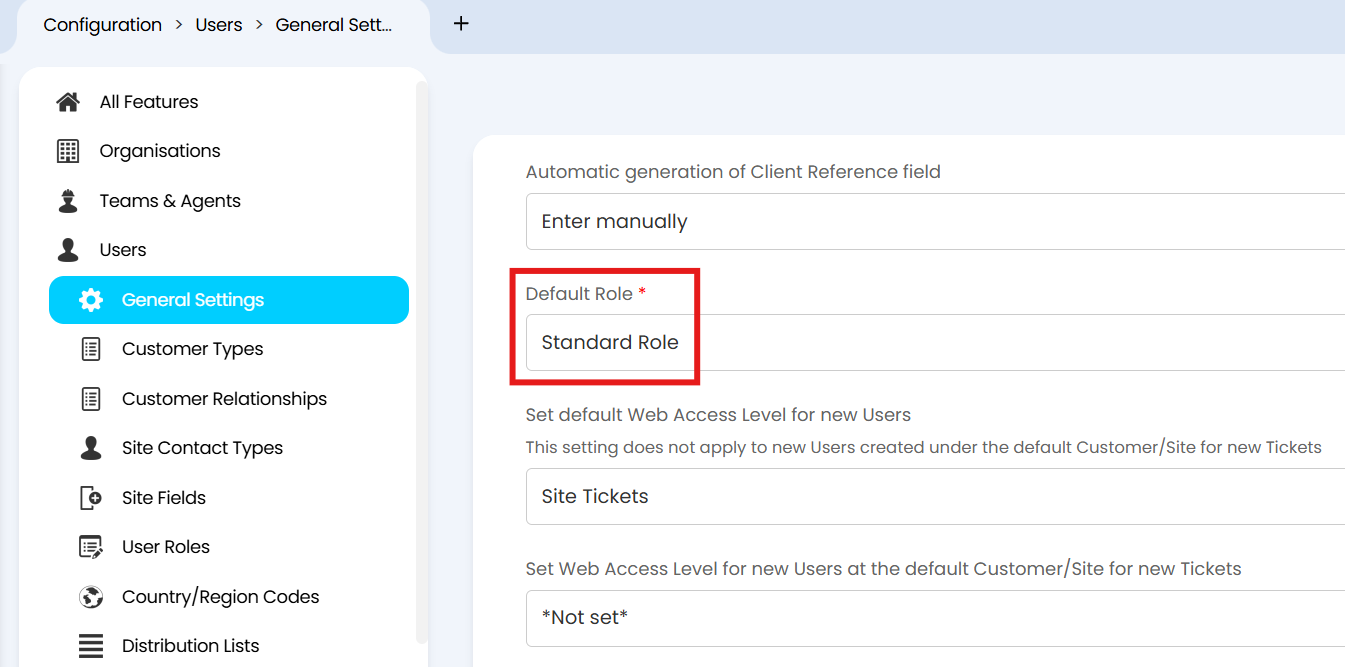
Fig 12. Adding users to the role via defaults
User roles can also be assigned by identity management integrations, and can be filtered to give certain users, certain roles. For example, the Google Workspace integration can map a Workspace group to a Halo user role.
Note: Roles given by identity management integrations will override manual selections.
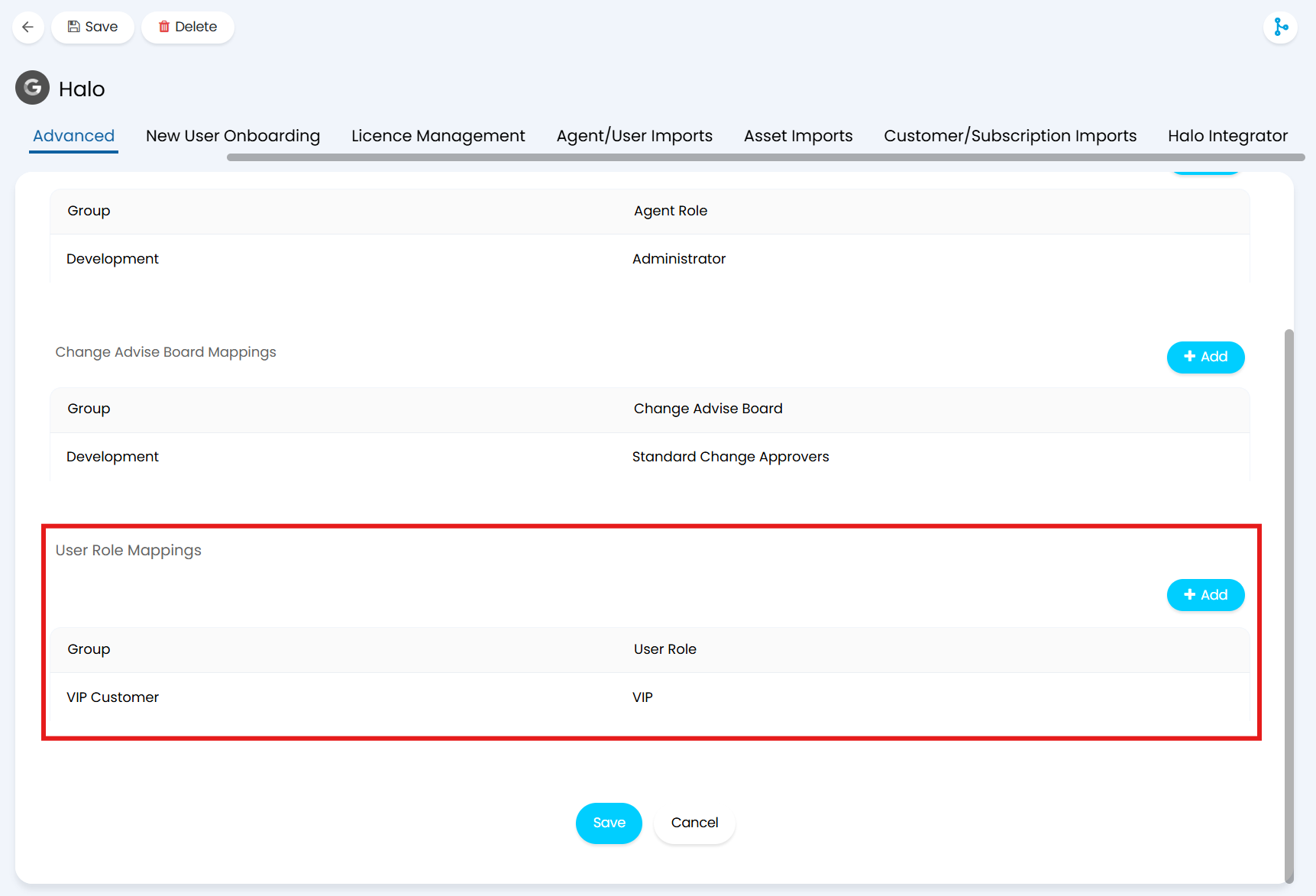
Fig 13. Adding users to the role via an integration