Navigating the Self-Service Portal (For End Users)
- self service portal
- Users
- End User Portal
- user training
In this guide we will cover:
- Home Page
- Customising User Preferences
- Logging Tickets
- Viewing Tickets
- Requesting Services
- Viewing and Approving Quotations
- Viewing Dashboards
- Viewing Assets
- Viewing Agreements/Contracts
- Viewing Invoices
- Navigating the Knowledge Base
This guide will cover an outline of how users can navigate different areas within the self-service portal and what you can do within each.
Note for Administrators: Each portal and its configuration/customisation will differ, and this will cover the out-of-the-box defaults. This can be used as a general outline for users, but you may wish to provide your own information to your users if your configuration is highly customised/differs from the below. For information on corresponding permissions/restrictions for each area, please look at the corresponding guide(s) for that entity.
Home Page
When logging into the self-service portal, you will see the below home screen. This will show an overview of the areas available, customised with the company's branding.
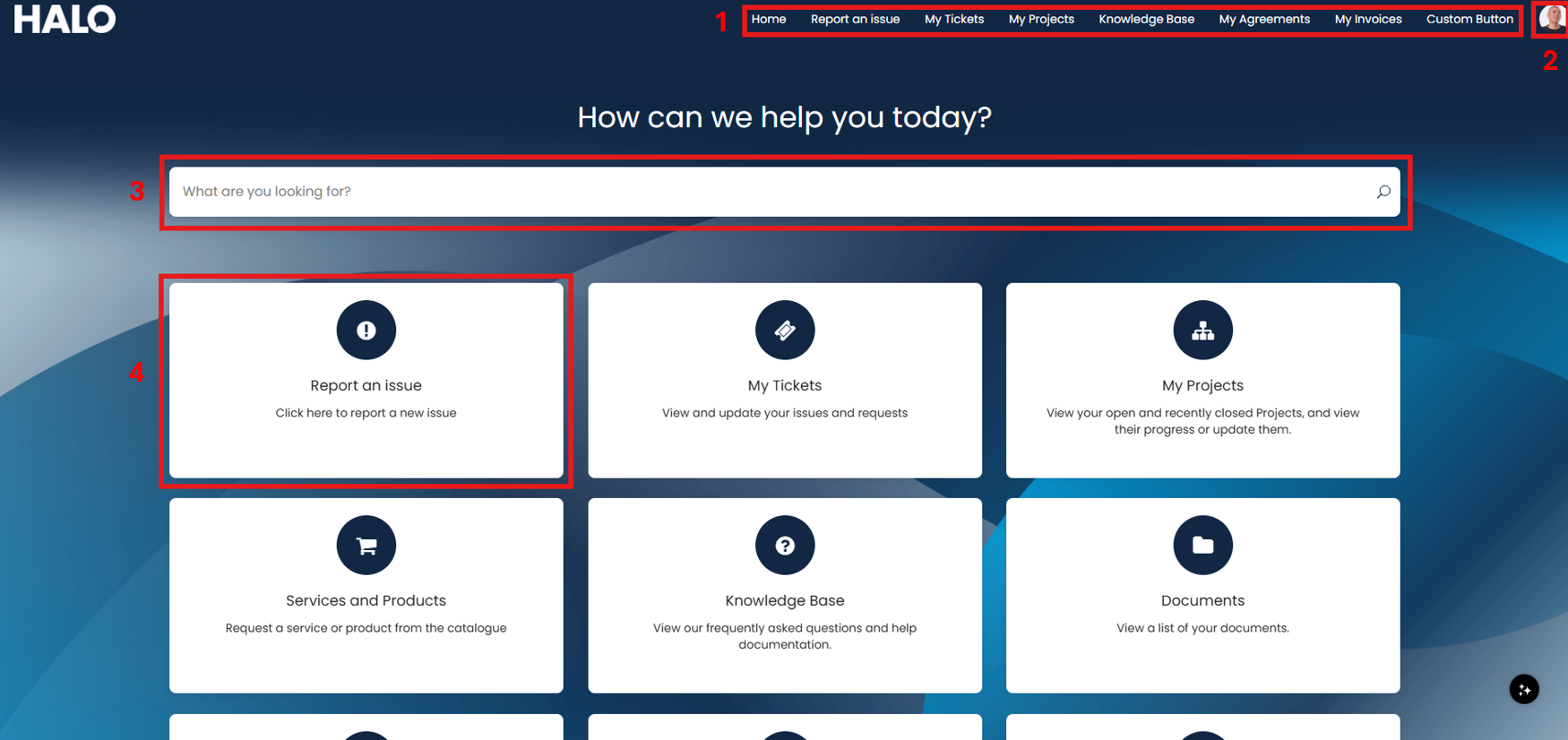
Fig 1. Home page of the self-service portal.
1) Navigation bar - This will appear at the top of the screen throughout the portal, for easy and quick navigation between areas.
2) User profile - You can set your preferences or change your password here.
3) Search bar - This is a global search bar that will search within all areas of the portal.
4) Menu button - Each of these tiles can take a user to a different area, i.e. to view tickets, approve quotations. We will cover the most common ones within this guide.
Customising User Preferences
After clicking the profile picture in the top right corner (label 2 in Fig 1), you can choose either "Settings" or "Password & Security".
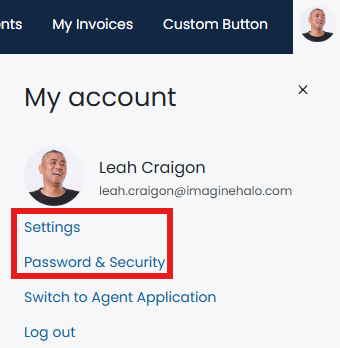
Fig 2. User setting options.
"Password & Security" will bring up a screen to change your password by entering the old and new version.
If "Settings" is selected, you will see the below screen. You can change between light and dark mode, and choose to opt out of marketing emails.
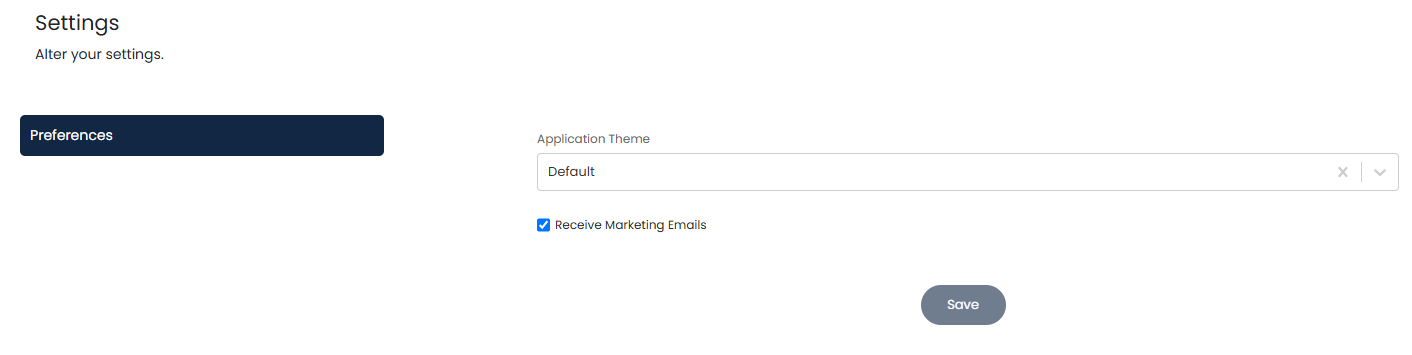
Fig 3. Setting options.
Logging Tickets
To log a ticket, you can click a menu button that will likely appear similar to the below.
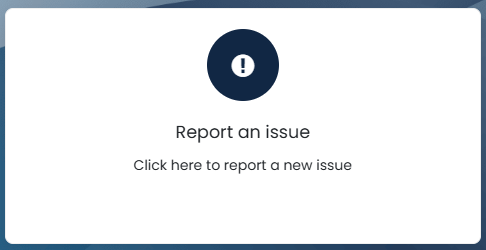
Fig 4. Menu button to log a ticket.
You can then fill in the information for your ticket. If the new ticket screen allows selection of ticket types, a dropdown will show to do so. Any mandatory field will be denoted with a red asterisk.
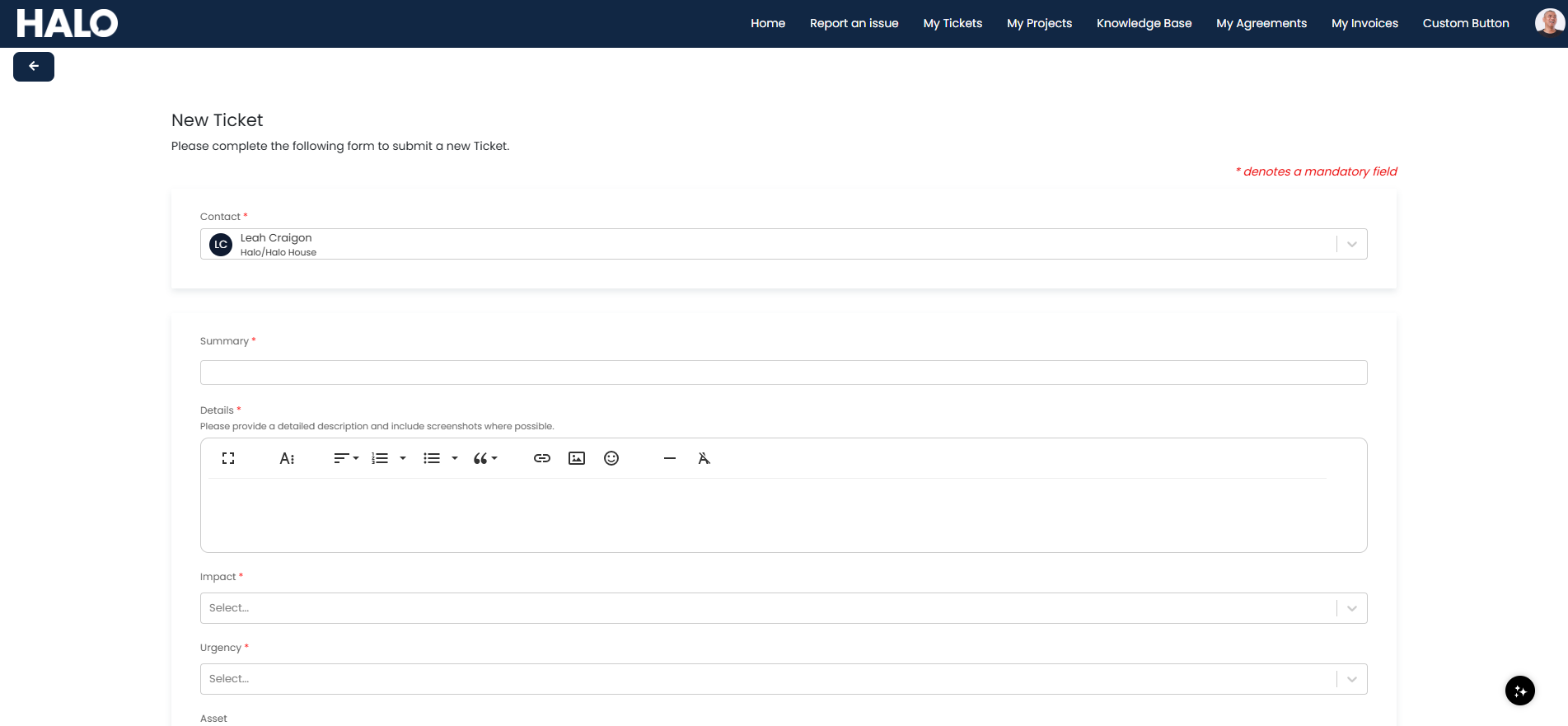
Fig 5. Ticket details screen.
Note: As of version 2.230.1, you can now also log Tickets when viewing an Asset in the Self Service Portal. To find out more information on this, please refer to this guide: Tickets in the Self-Service Portal.
Viewing Tickets
To view existing logged tickets, you can click the menu button similar to the below. The "My Projects" button will also work in the same way but with project tickets.
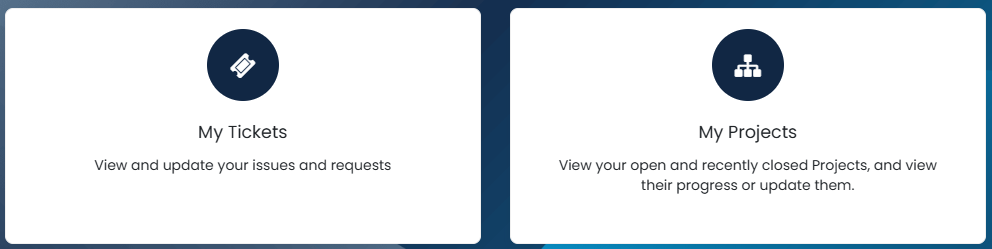
Fig 6. Menu button(s) to view tickets.
Clicking this menu button will open a list of tickets assigned to that yourself as the user. If your user account has access to other tickets within your site/customer, you will also see these here.
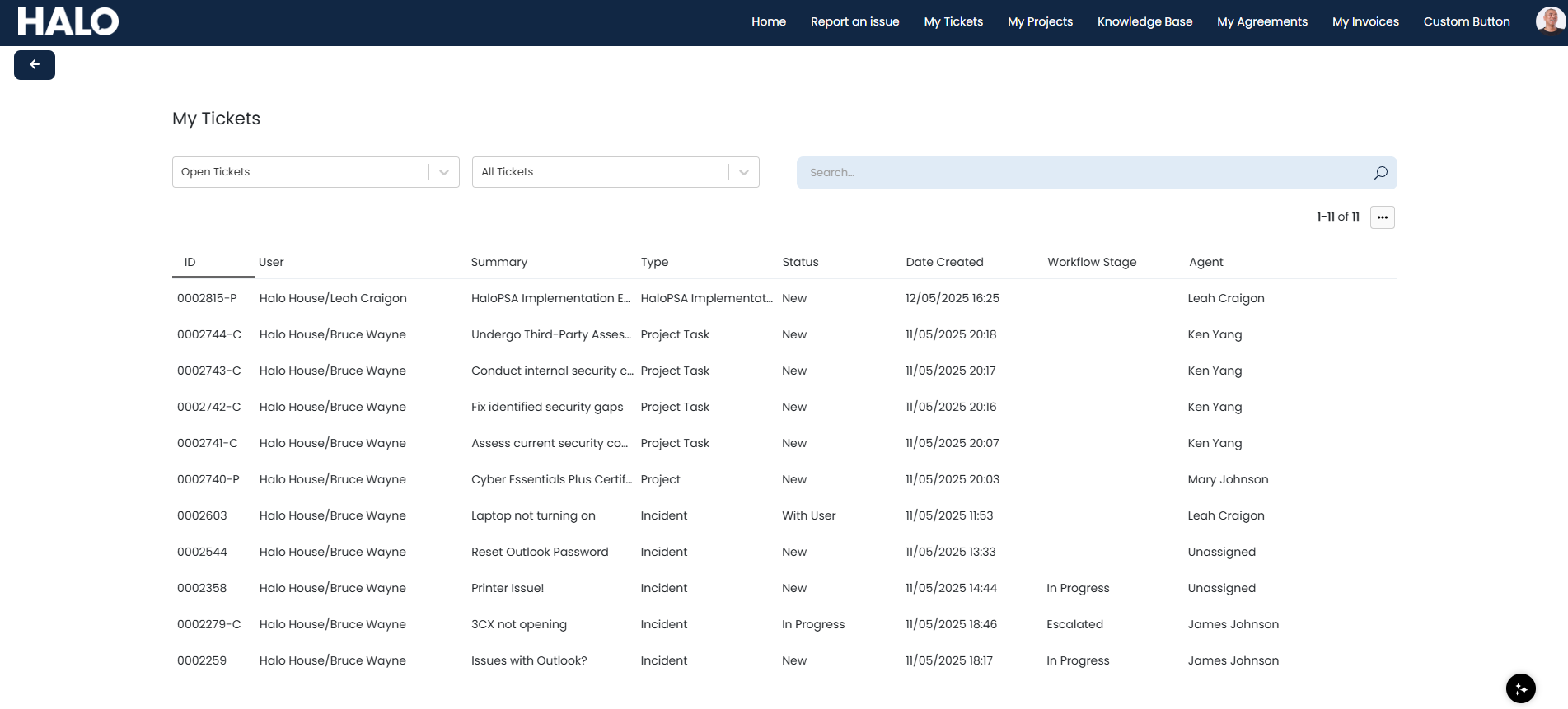
Fig 7. List of end-user's tickets.
Requesting Services
To view a list of services available from the service catalogue, you can click the menu button similar to the below.
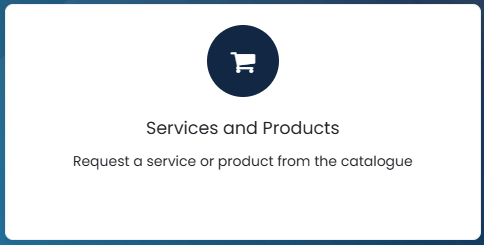
Fig 8. Service Catalogue menu button.
Clicking into this will show a list of service categories made accessible to you.
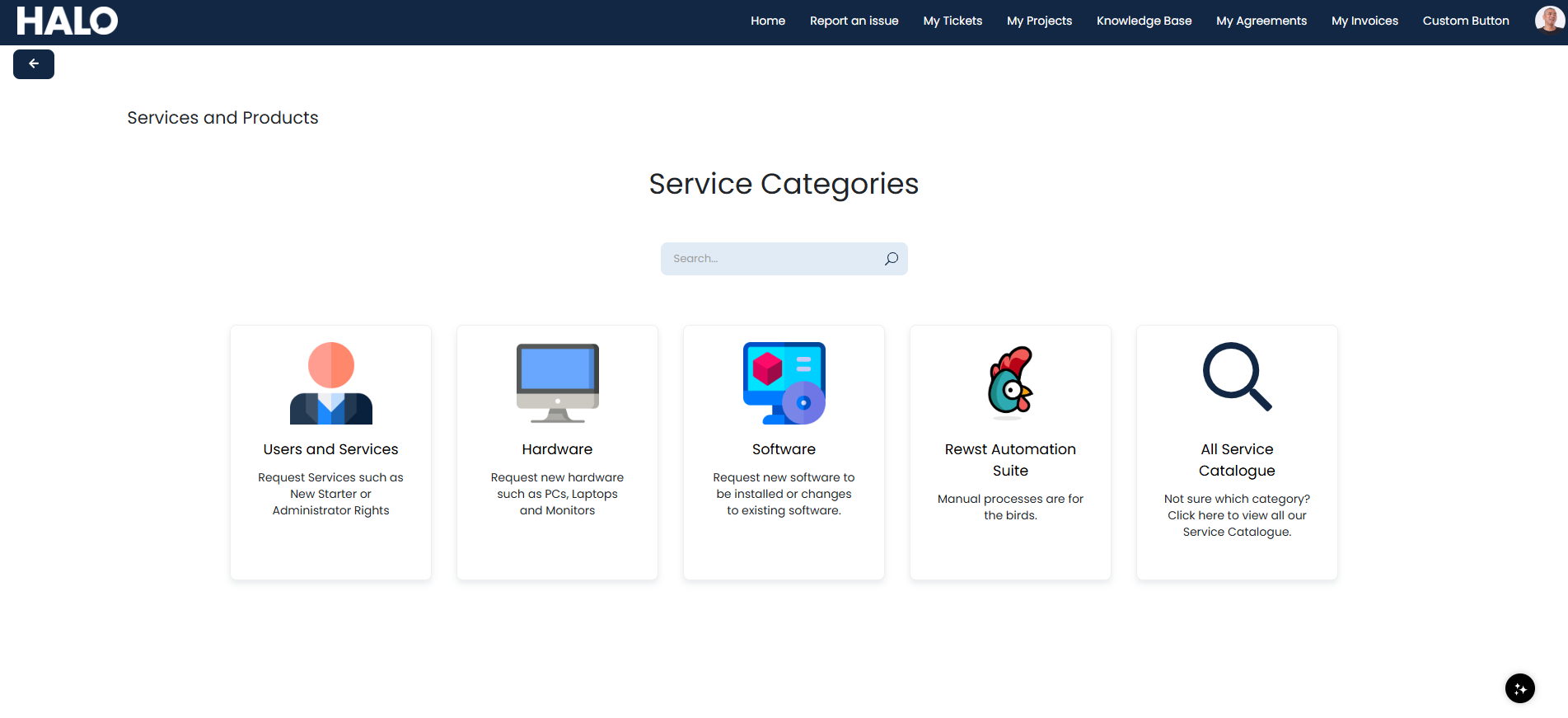
Fig 9. Service categories in the portal.
Clicking into a category will then show the services within it.
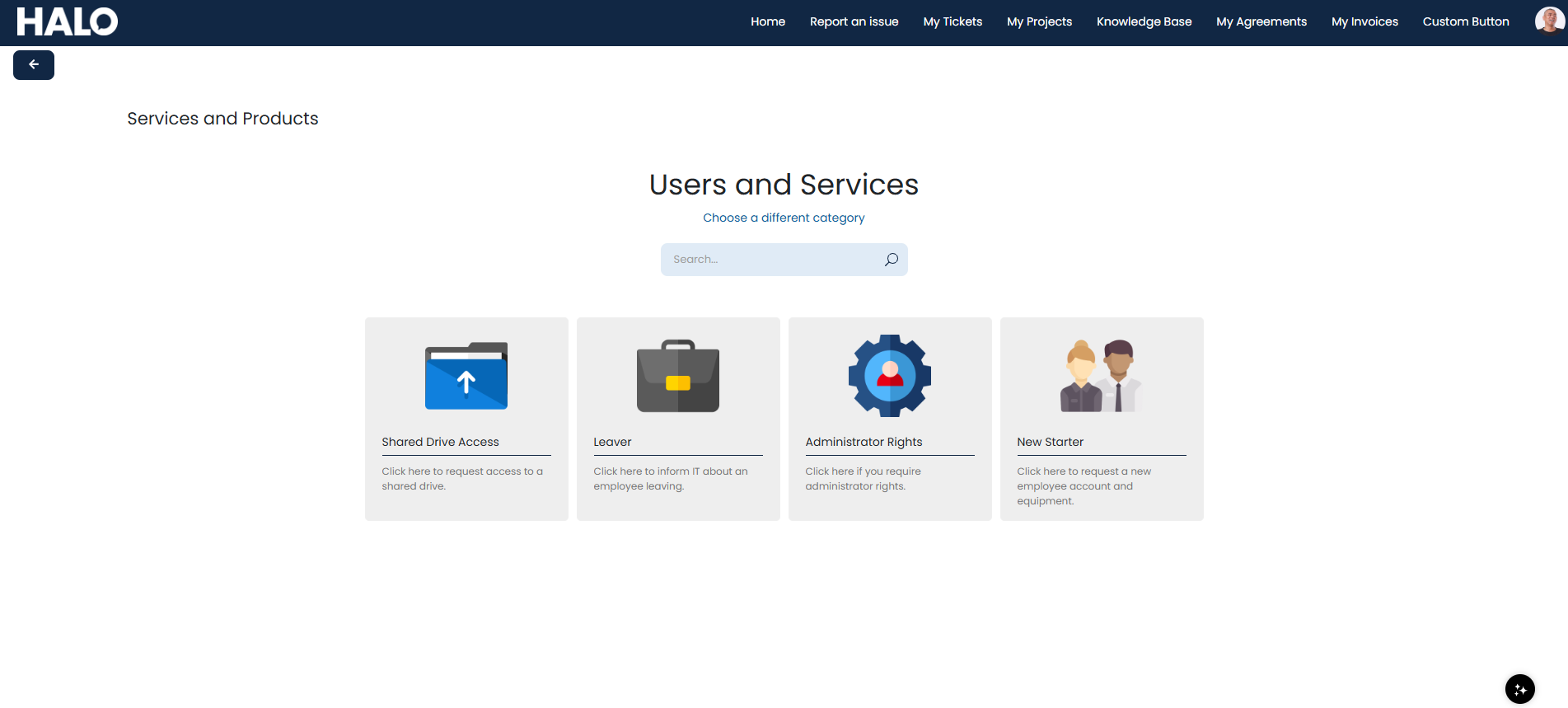
Fig 10. Services within a category.
Clicking into a service will allow you to log a request for the corresponding ticket type attached to the service. You can fill in the details form here like you would when logging an incident ticket.
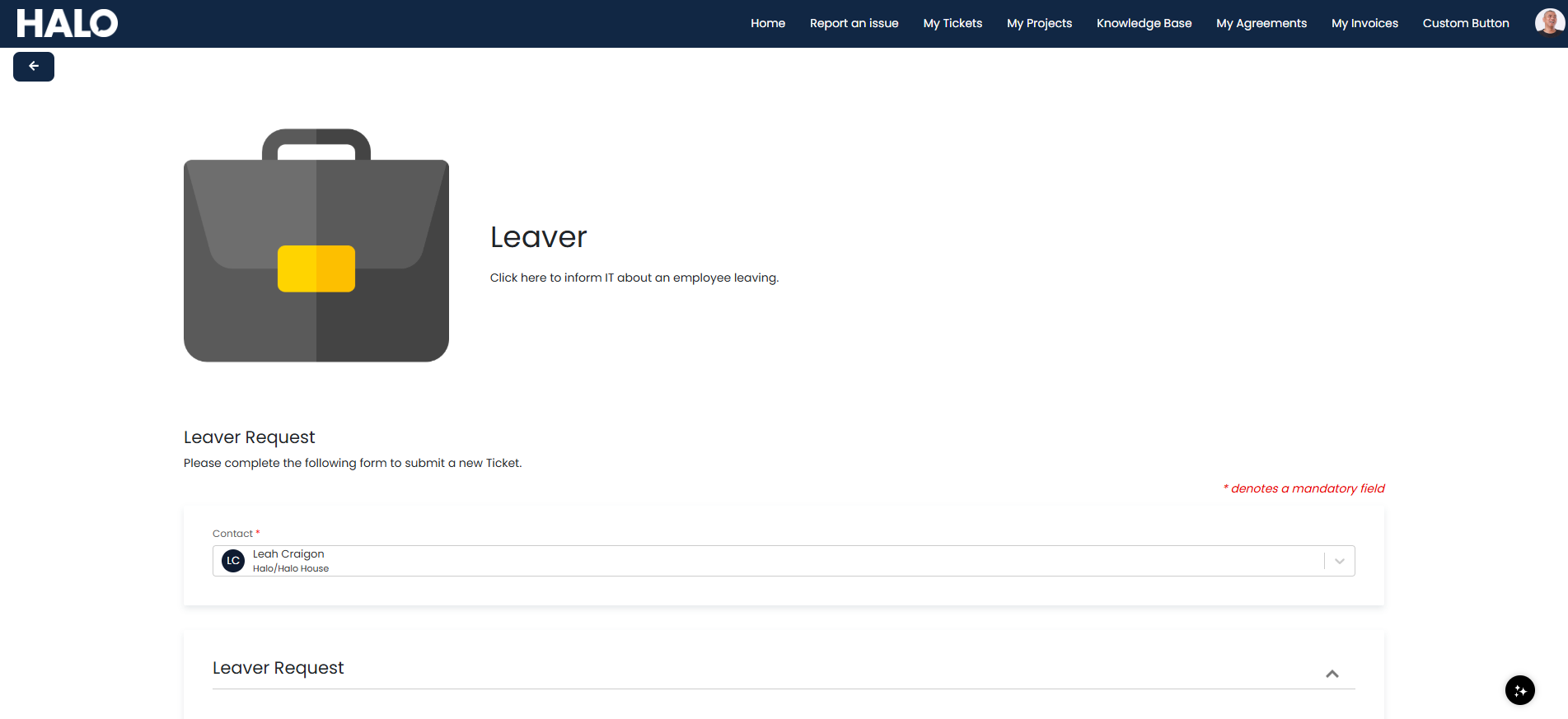
Fig 11. Logging a service request.
Viewing and Approving Quotations
If your company is utilising the billing features within Halo, you can view and approve quotations within the portal.
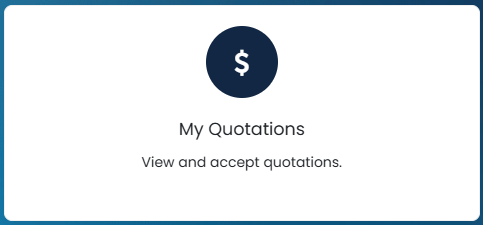
Fig 12. My Quotations menu button.
Clicking into this will bring up a list of quotations made available to you, as well as some details surrounding them. Quotations will be available within this list once sent to you.

Fig 13. List of quotations in the portal.
You can then accept or reject the quotation, and fill in the corresponding fields to do so.
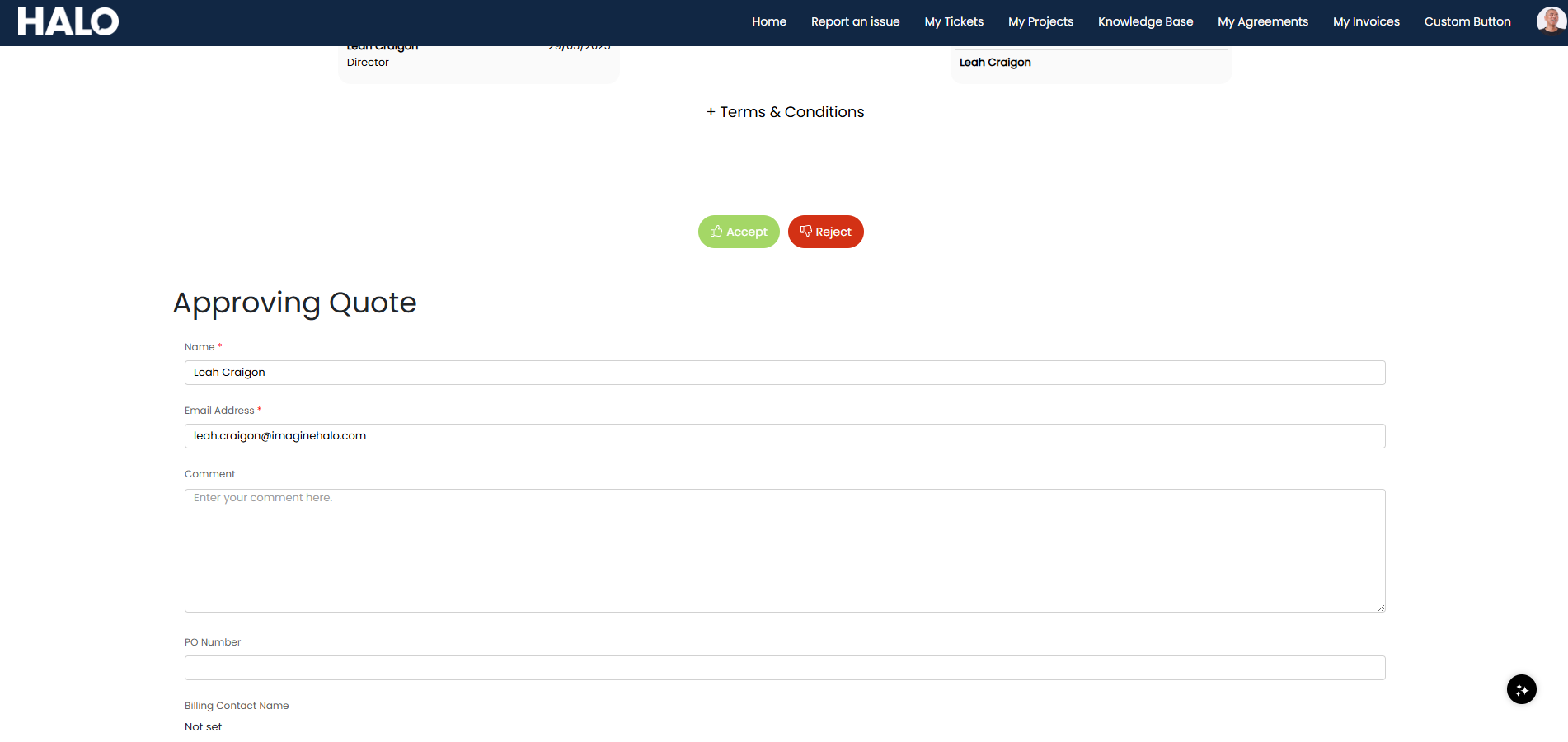
Fig 14. Approving a quotation in the portal.
Viewing Dashboards
Dashboards can be made available to you, and any which are will appear in the "My Dashboards" menu button.
Fig 15. My Dashboards menu button.
Clicking into this will bring up a list of available dashboards to choose from.

Fig 16. List of dashboards in the portal.
You can open one from the list which will show similar to the below.
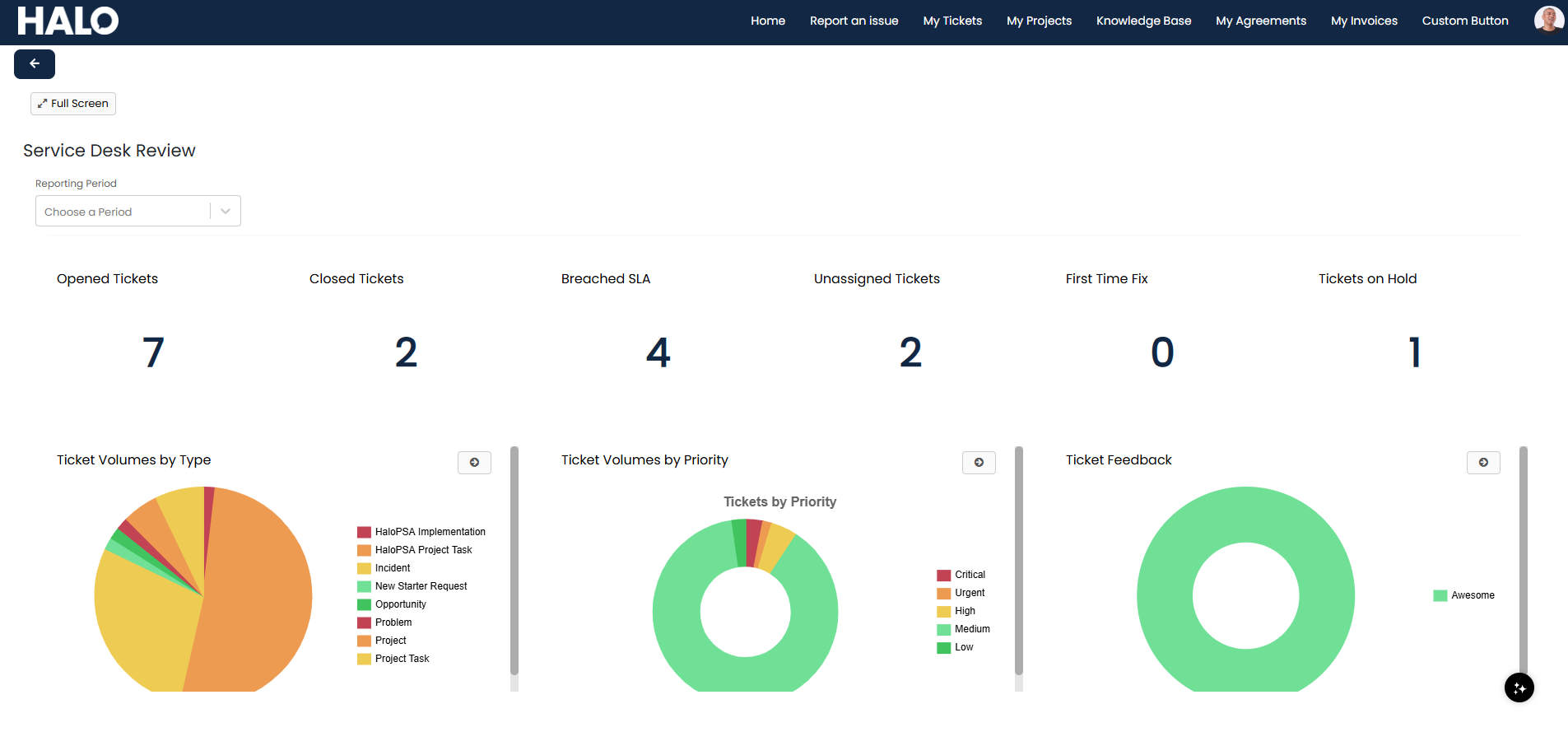
Fig 17. Dashboard in the portal.
Viewing Assets
You can view assets associated with them within the menu button similar to the below.
Fig 18. My Devices menu button.
Clicking here will show a list of assets you have been given access to. This can be set to a range of levels within your user permissions by your company. In this example, this user can view all assets within their site.

Fig 19. List of assets in the portal.
You can click into one of these to view details of the asset.
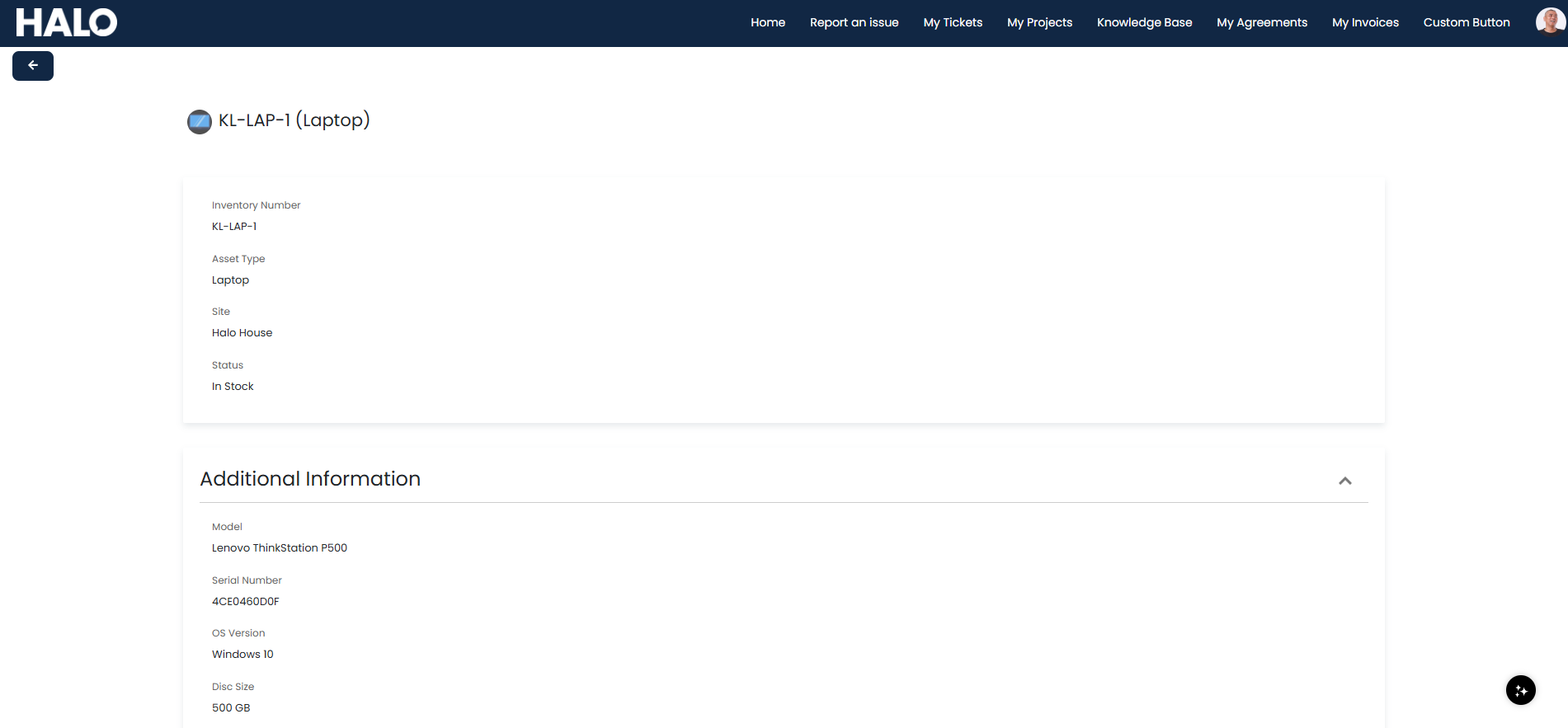
Fig 20. Asset in the portal.
Viewing Agreements/Contracts
You can view agreements/contracts within the portal that correspond with your customer account. Click the menu button similar to the below.
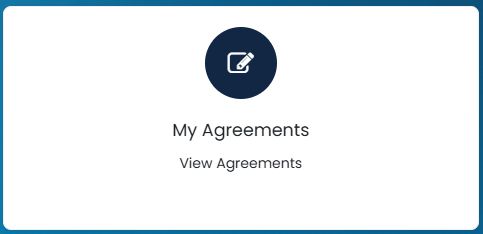
Fig 21. My Agreements menu button.
You will then see a list of agreements/contracts available to them.

Fig 22. List of agreements/contracts in the portal.
Clicking into one within the list will show details around it, as well as any corresponding documents attached to it.
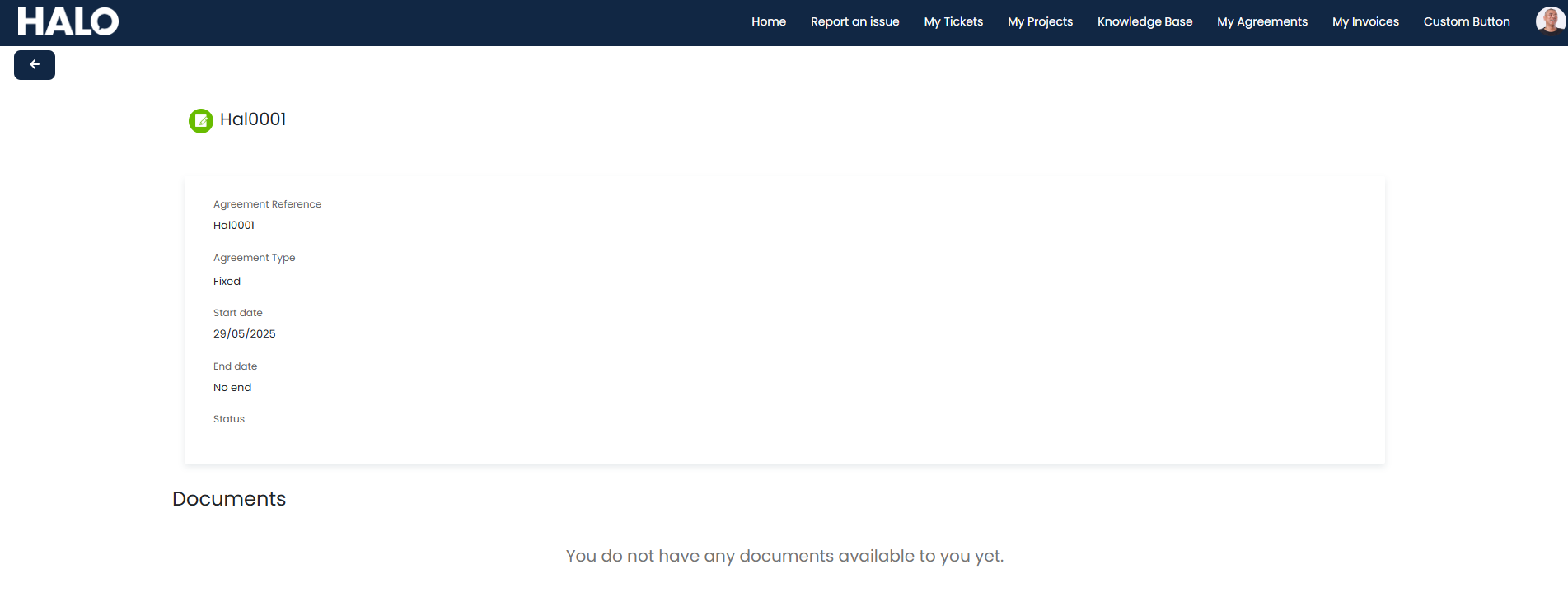
Fig 23. Agreement in the portal.
Viewing Invoices
If your company is using billing features within Halo, you can view your company's invoices within the portal. Click into the menu button similar to the below.
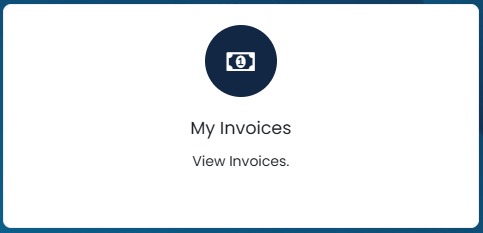
Fig 24. My Invoices menu button.
If given permission to view invoices, you can view a list of invoices from your assigned company.
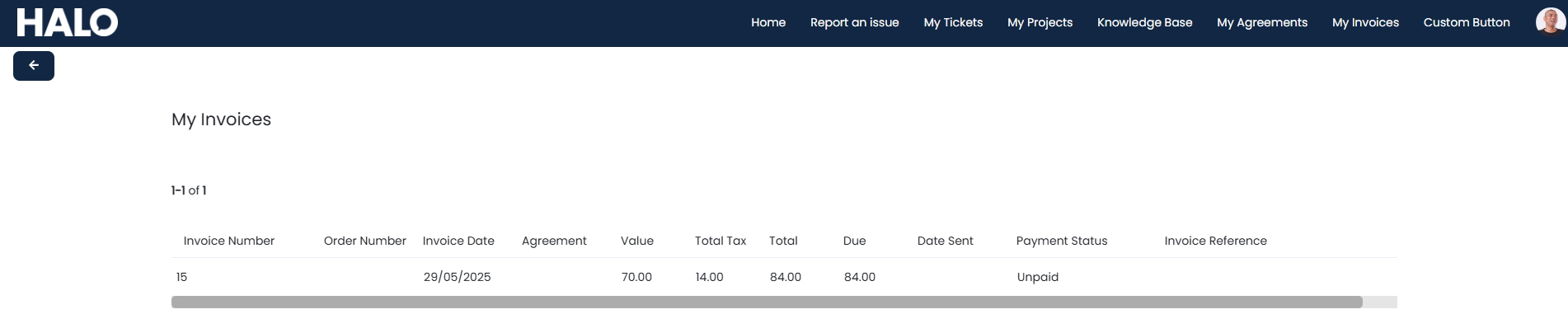
Fig 25. List of invoices in the portal.
Navigating the Knowledge Base
Knowledge base articles can be made available to you within the portal. Click the "Knowledge Base" menu button.
Fig 26. Knowledge Base menu button.
A view similar to the below will be shown.
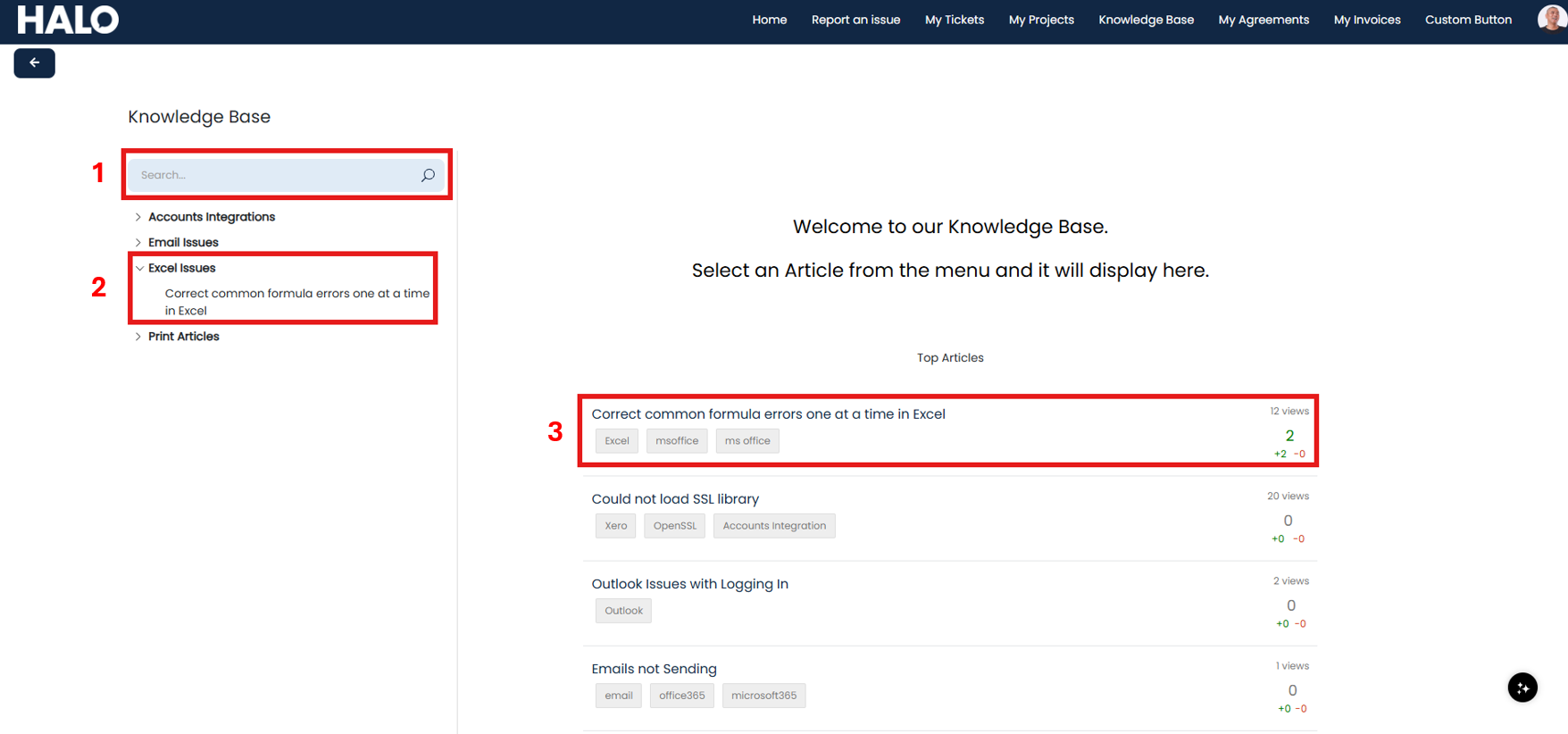
Fig 27. Knowledge Base screen in the portal.
1) Search bar - This will search all articles available to you.
2) FAQ Lists - This will show a list of FAQ lists that are available. Clicking one will expand its contents to show the articles contained within it.
3) Article - This is an article lists in the "Top Articles". This can be clicked into to view it.
Clicking into an article via label 2 or 3 will open the article like below. Here, you can read the article, as well as share the link or generate a PDF of it.
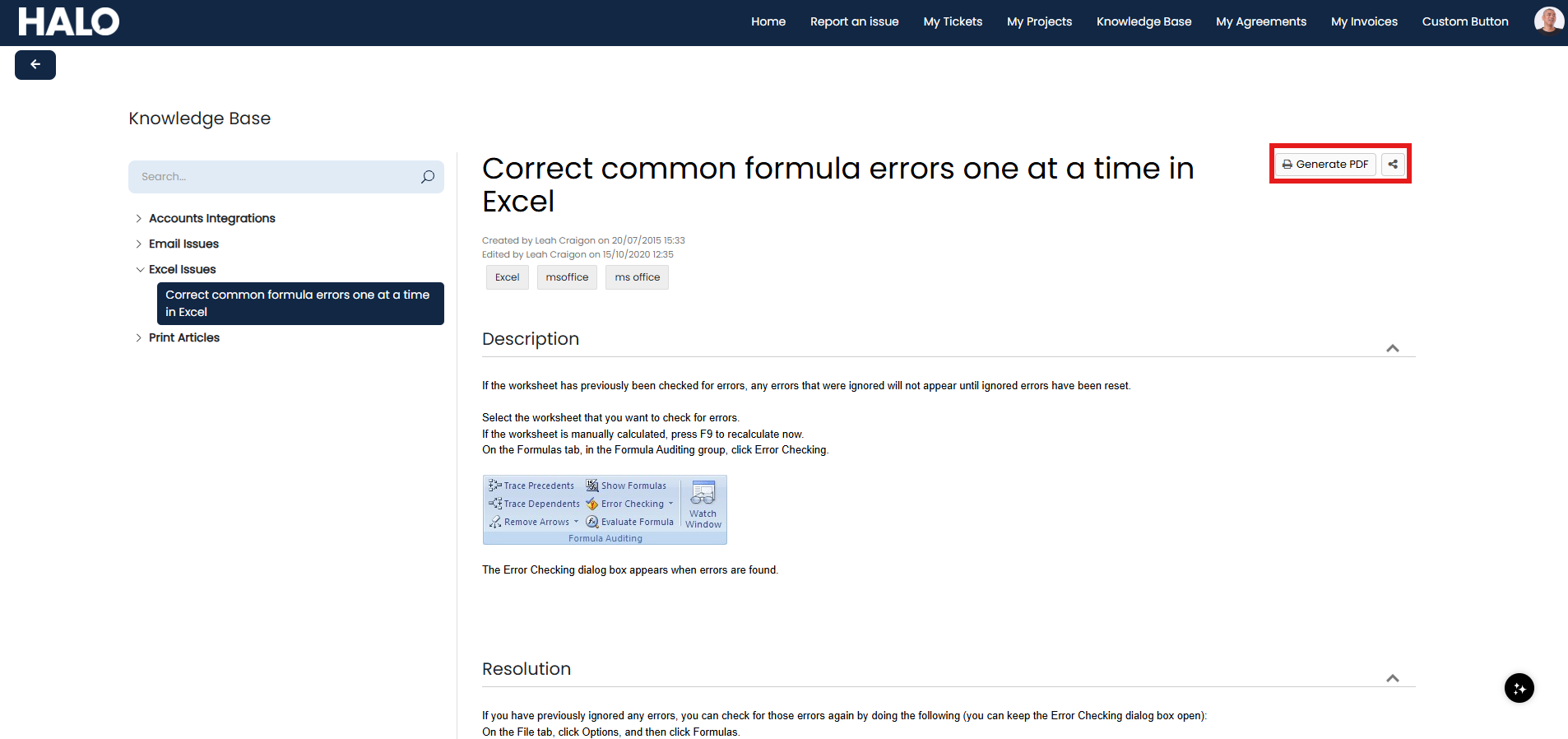
Fig 28. Viewing an article in the portal.