Custom HTML Banner on the Self-Service Portal
- html
- self service portal
- Custom
- End User Portal
- Portal Branding
In this guide we will cover:
- Adding a Custom Banner to the Self-Service Portal
- Using Sticky Banners
Adding a Custom Banner to the Self-Service Portal
In Configuration > Self-Service Portal, scroll to the "Home Screen" section and enable "Display custom HTML". Further options will then show underneath to choose the position(s) of the banner(s), which can be above, below, or both simultaneously.
Dependant on this selection, it will then show either one or two Fields to enter the HTML for the banner. The recommended height for this is 60px.
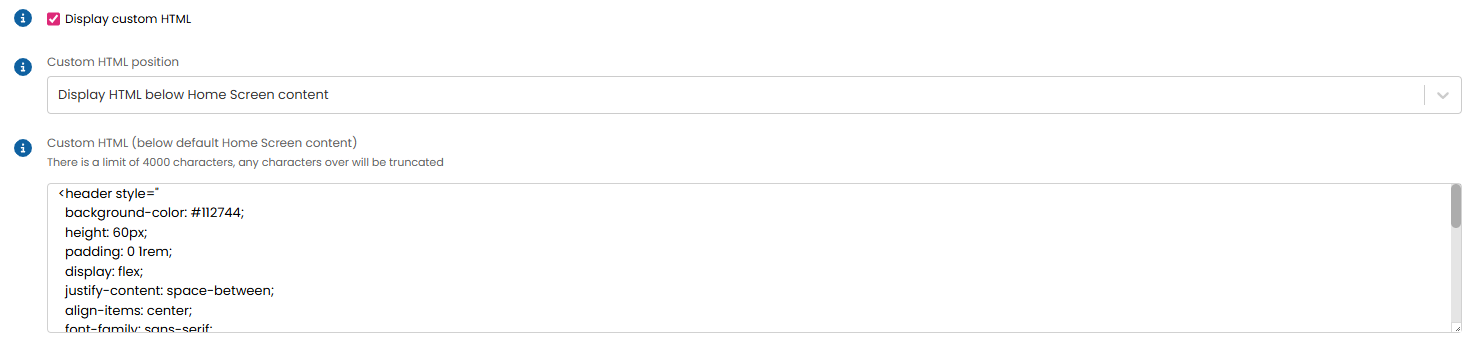
Fig 1. Enabling custom HTML and making a banner.
Organisation, Client/Customer, Site and User-level Variables can be used in this HTML, which is shown in this example.

Fig 2. Adding Organisation Variables to the banner.
If "Custom HTML position" is set to "Display HTML above Home Screen content", the banner will appear in this position.
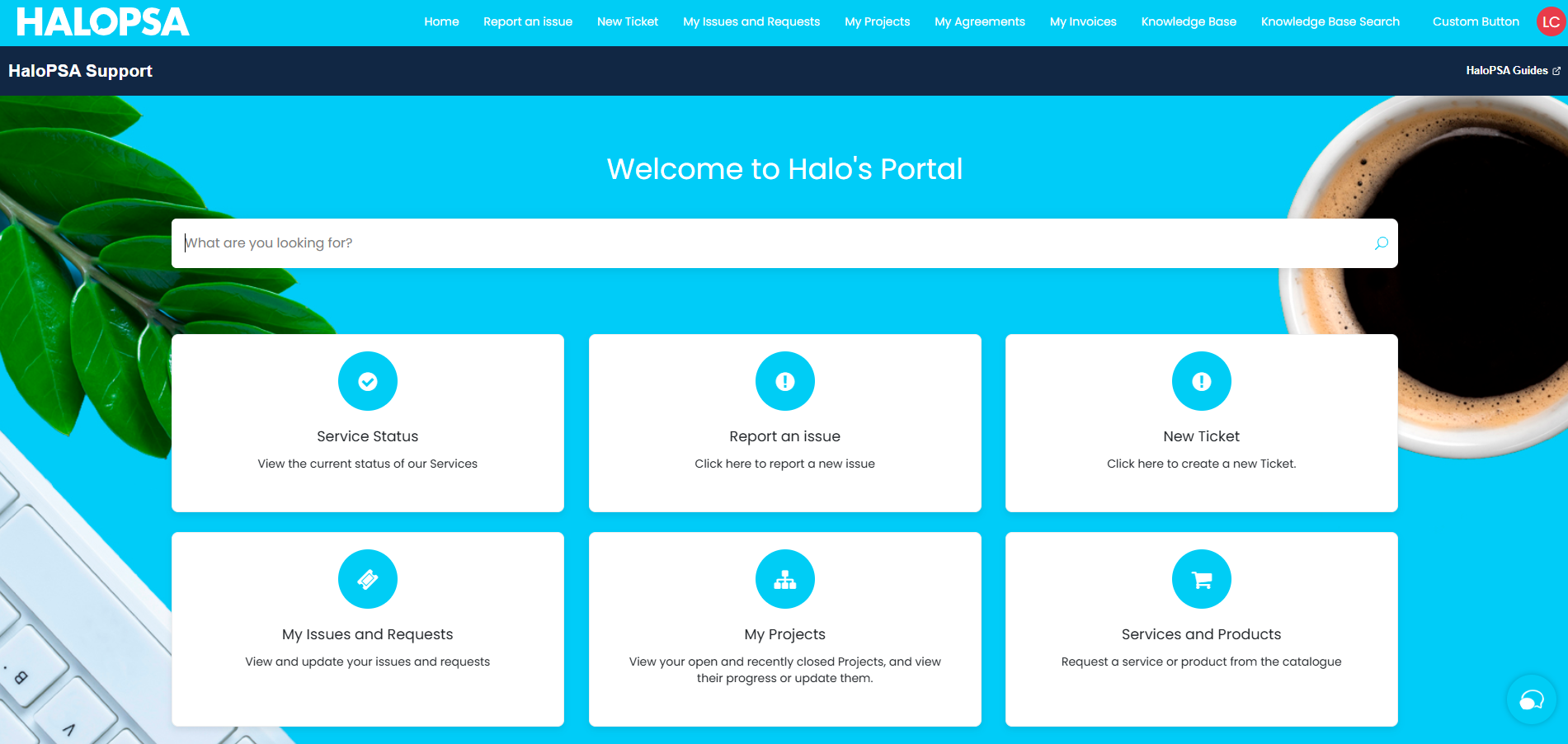
Fig 3. Top banner example.
If "Custom HTML position" is set to "Display HTML below Home Screen content", the banner will appear in this position.
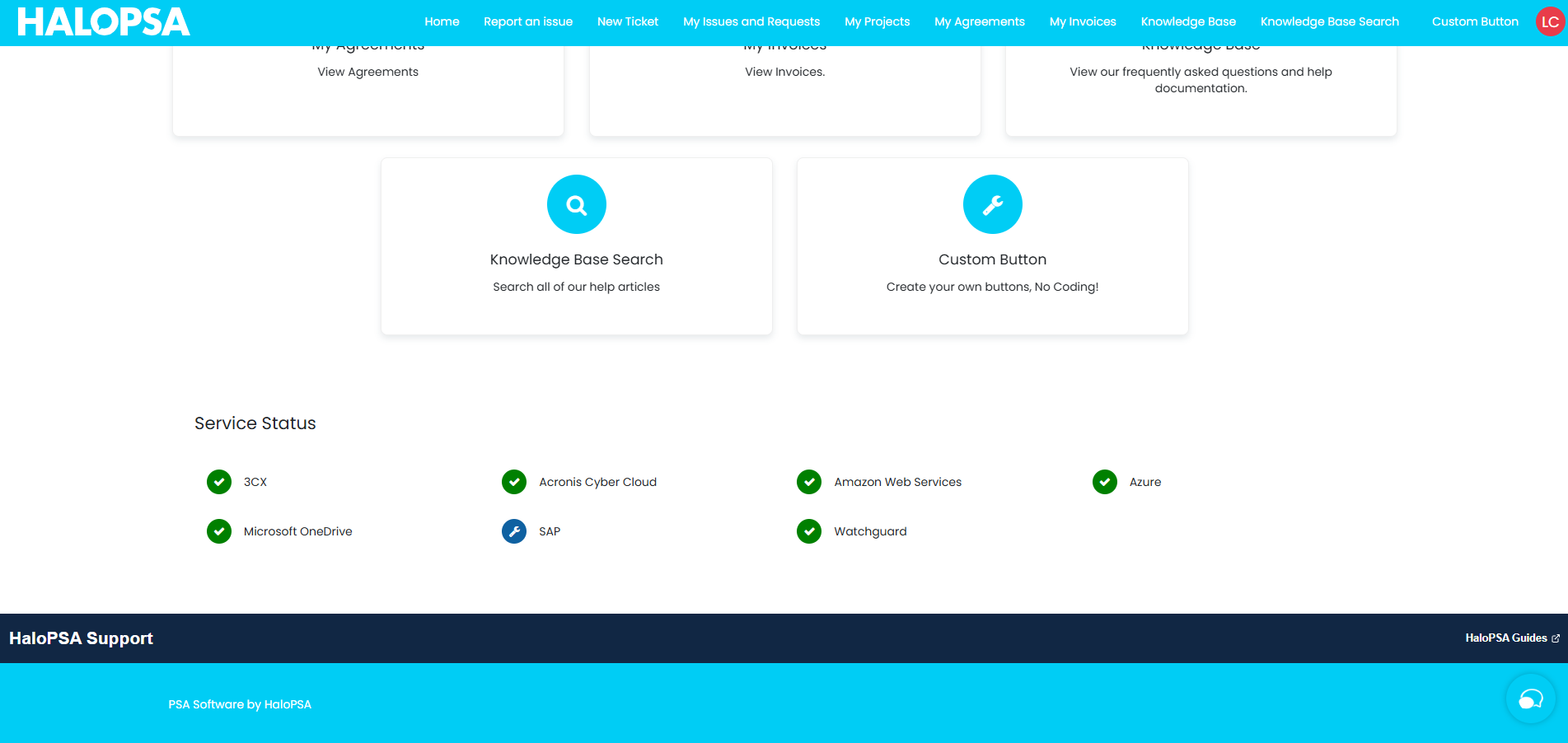
Fig 4. Bottom banner example.
If "Custom HTML position" is set to "Display HTML above and below Home Screen content", the banner will appear in both positions.
Using Sticky Banners
Enabling "Make custom HTML a sticker banner across all Portal Pages" will show the banner anywhere in the Self-Service Portal a User navigates to.
This option will only show if the "Custom HTML position" is set to "Display HTML above Home Screen content" or "Display HTML above and below Home Screen content", and will only apply to the top banner.
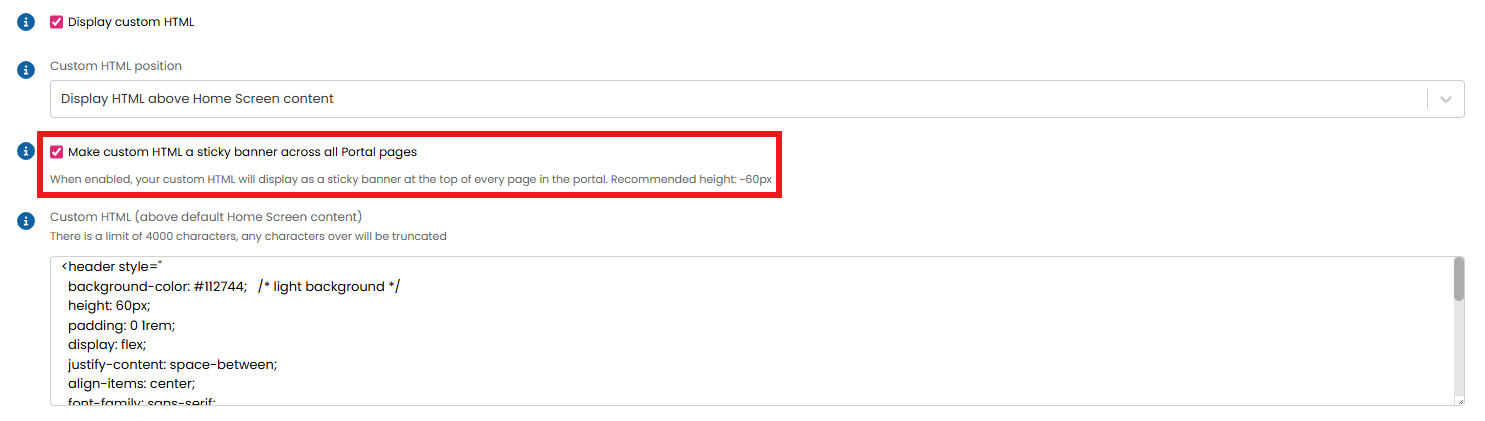
Fig 5. Enabling a sticky banner.
An example is shown below when logging a Ticket.
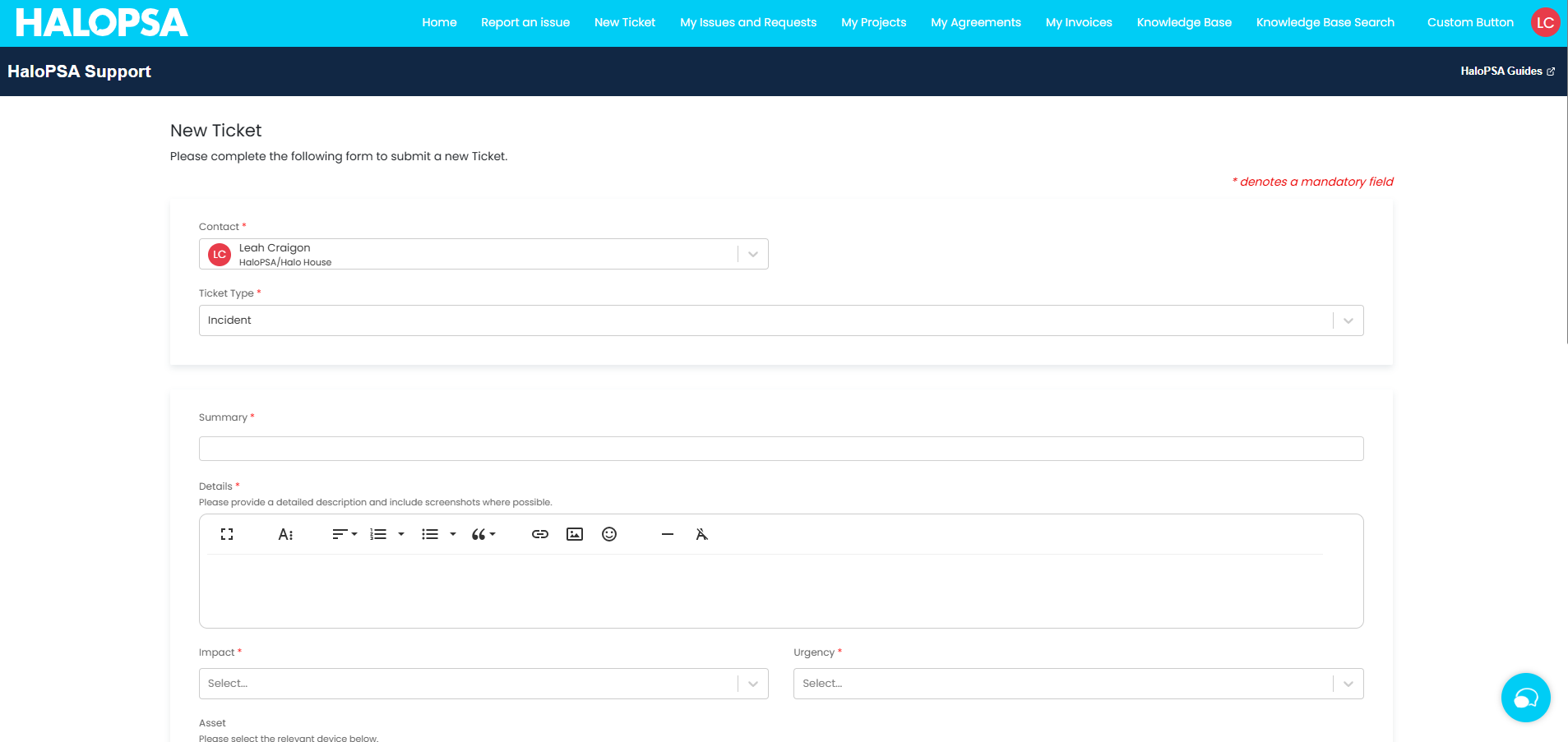
Fig 6. Sticky banner elsewhere in the Portal.