News Articles
- knowledge base
- News Articles
- announcement
- knowledge base
In this guide we will cover:
- Enabling and configuring News articles
- News Article Drafts
- Showing Recently Created Articles on the Self Service Portal
- Publishing Articles Using Unique Links
Enabling and configuring News articles
Within the knowledge base area of Halo you can create news articles. News articles can be limited by start and end date of access, you can display recently created news articles on the portal home page, and have a separate knowledge base area specifically for news article FAQ lists. The main areas of configuration which are mentioned in this article are: Knowledge Base, Self Service Portal, Ticket Types. It is also possible to send people (not users) links to specific news articles from within the portal, configuring your news articles in this way is detailed in the below guide.
To enable the news article functionality, navigate to Configuration > Knowledge Base and check on the setting "Enable News Articles":
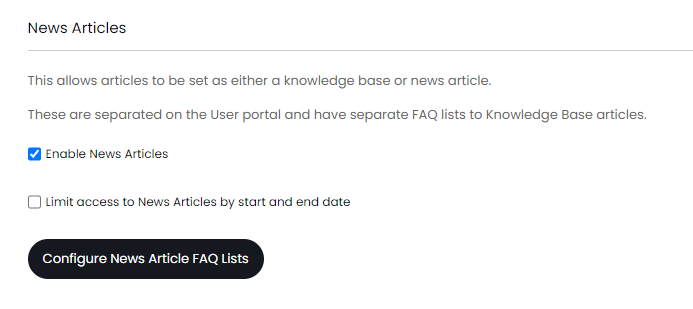
Fig 1. Enabling The News Article Functionality in Halo
Now when you create articles from the knowledge base area of Halo, there will be a new button for creating news articles:
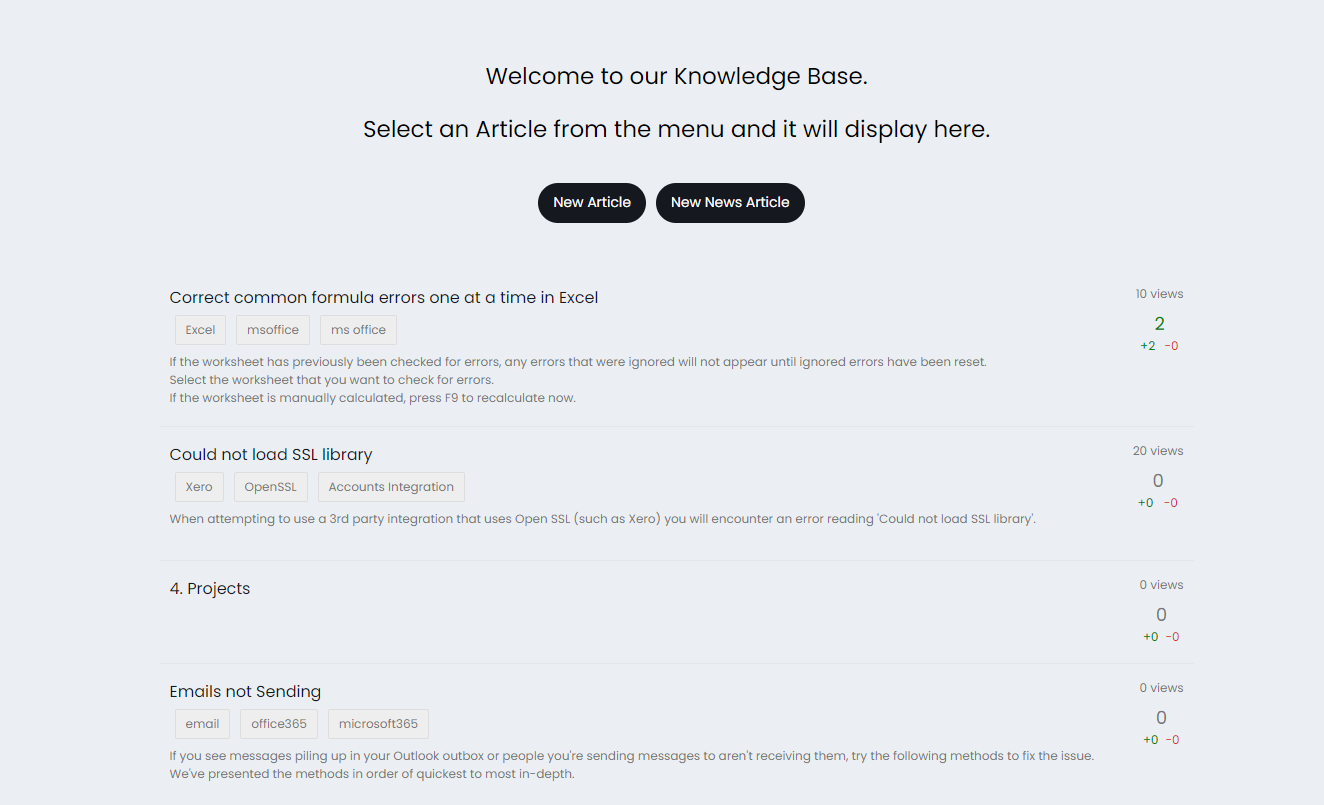
Fig 2. The Screen Displayed in the Knowledge Base area of Halo when the "Agent app KB area view" is set to: FAQ List Tree (This area view setting is found within Configuration > Knowledge Base)
Within Knowledge Base configuration, if your "Agent app KB area view" is set to "KB Search Screen" you will still have to select the article type to be "News Article" when creating news articles from the KB area of Halo.
Just like the FAQ lists that can be created for articles, you can also create news article FAQ lists which have the same abilities: FAQ groups, and user restrictions on news article access. The creation of news articles can be a ticket driven process, allowing input from multiple agents, etc, before being published to your portal. This can also be configured in the knowledge base module of configuration:
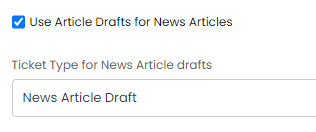
Fig 3. Setting a Ticket Type for News Article Drafts (This setting is only visible if news articles are enabled)
Adding Additional fields to news articles
When configuring news article FAQ lists or article FAQ lists, you can set additional fields against articles that exist under that FAQ list, for example you may want to link a website to the news article that exist under a certain FAQ list, this can be achieved through a custom field that is of Entity: Ticket and Input Type: URL
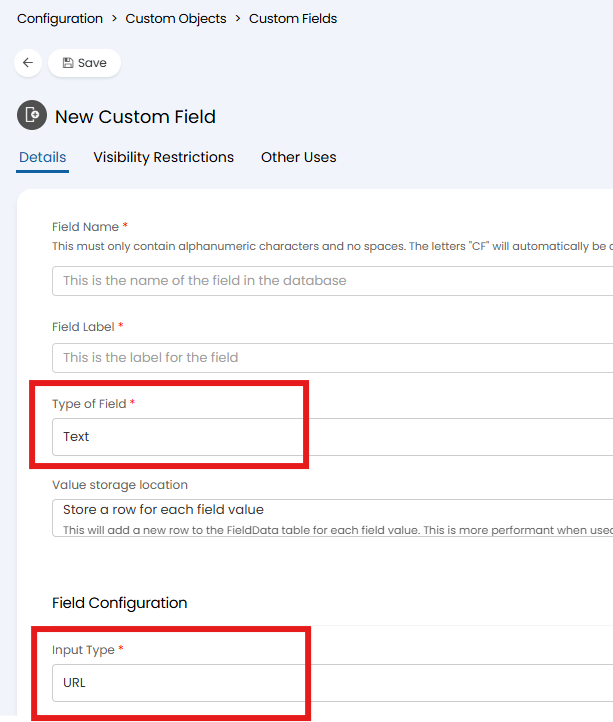
Fig 3. URL Custom Field
Then on the news article FAQ list, you can add this as an additional field, so that the news article existing under this FAQ list will have the link to the specified website:
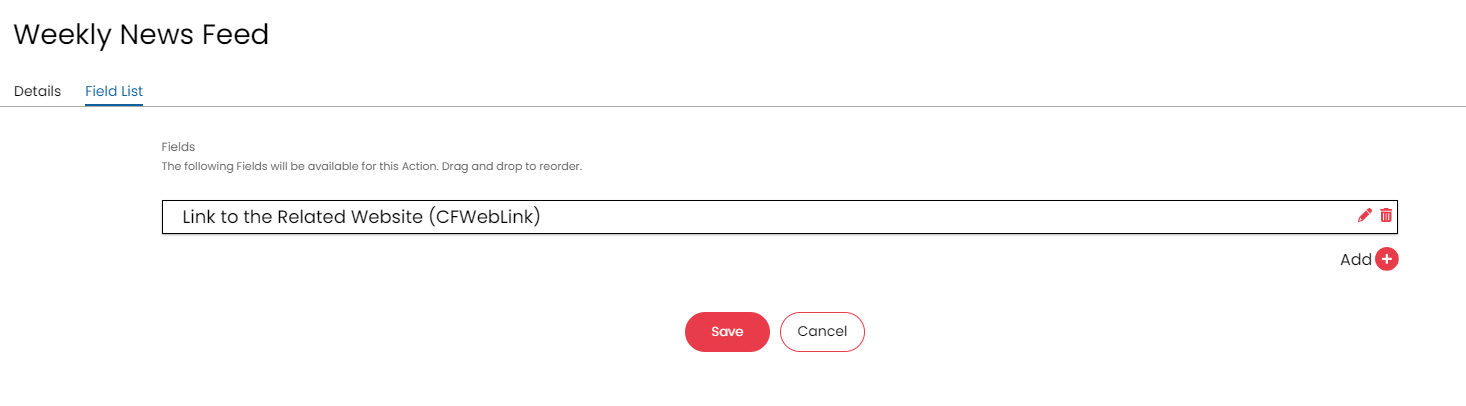
Fig 4. Adding Additional Fields onto the FAQ List
After adding this news article to the specified FAQ list, you will be able to input a URL to this additional field:
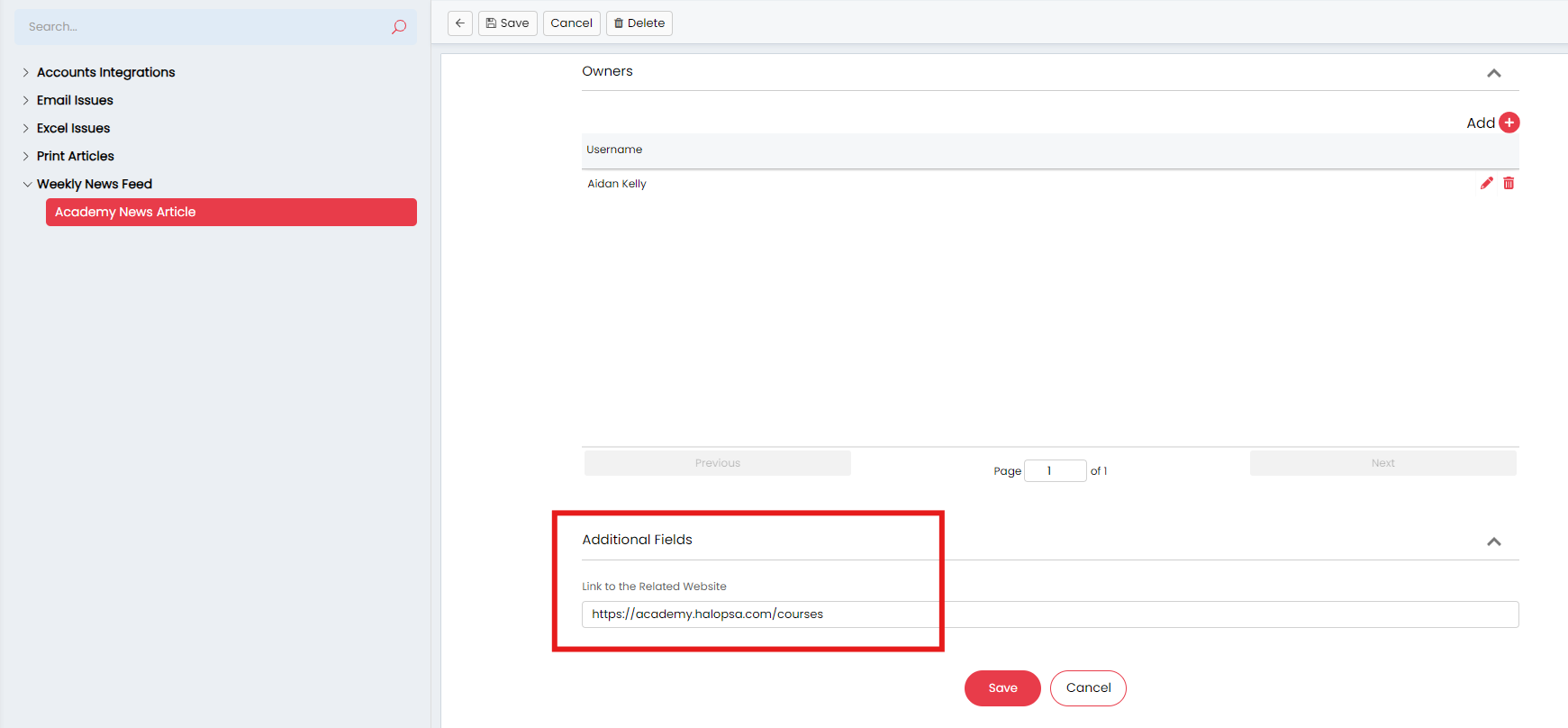
Fig 5. Populating the Additional Field
News Article Drafts
To implement a news article draft ticket type, you can create a new ticket type and include the following fields in the field list. The summary of the ticket will be the name of the article when you publish it (Refer to the Article Drafts guide for further information on configuration):
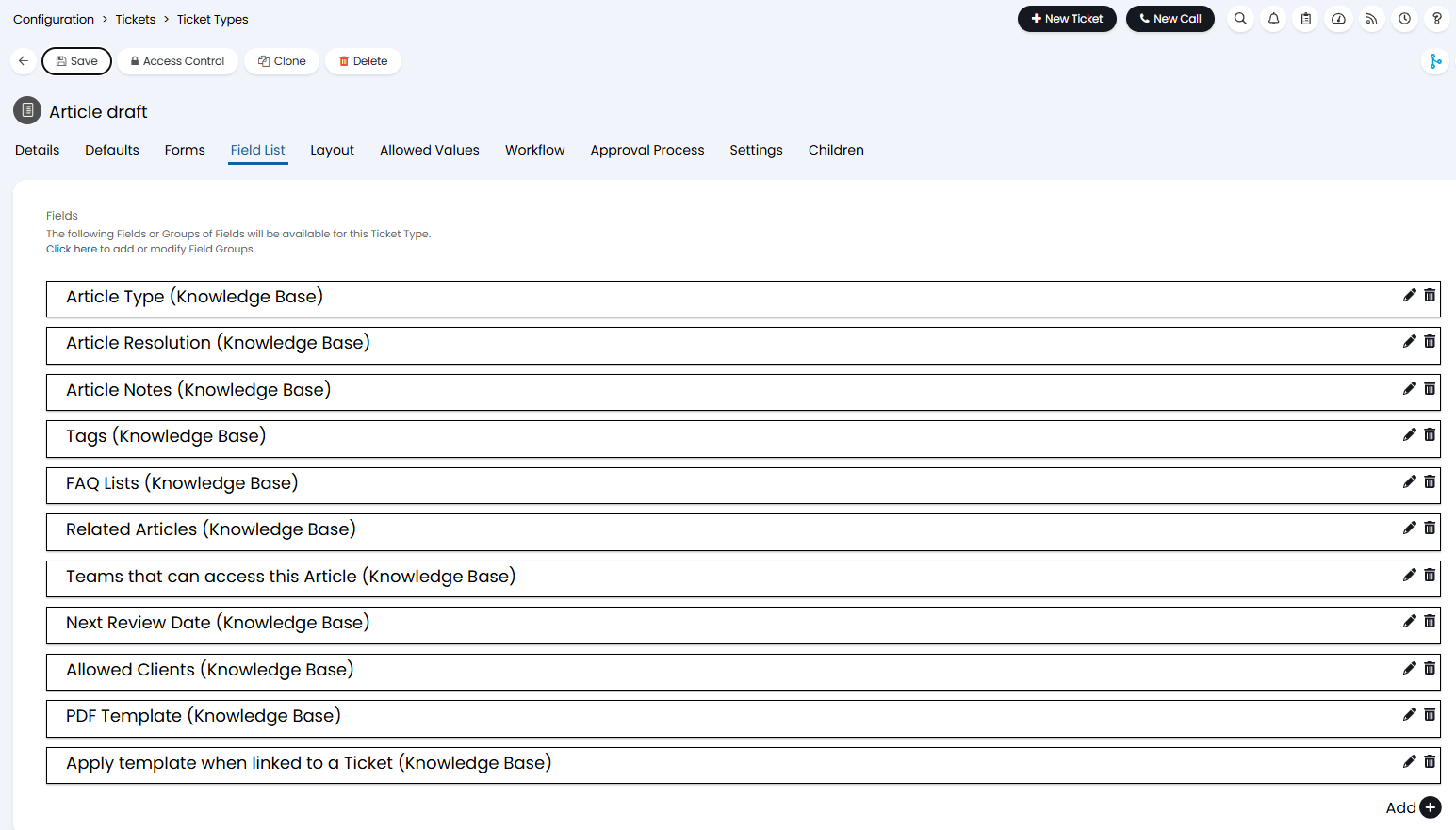
Fig 6. The Required Field List for News Article Drafts
It is recommended to split the news article drafts and article drafts into separate ticket types, so that there is a clear distinction between the two when viewing your ticket lists. It may be of use to create a list that is for the article and news article drafts, or configure your column profile to group by ticket type:
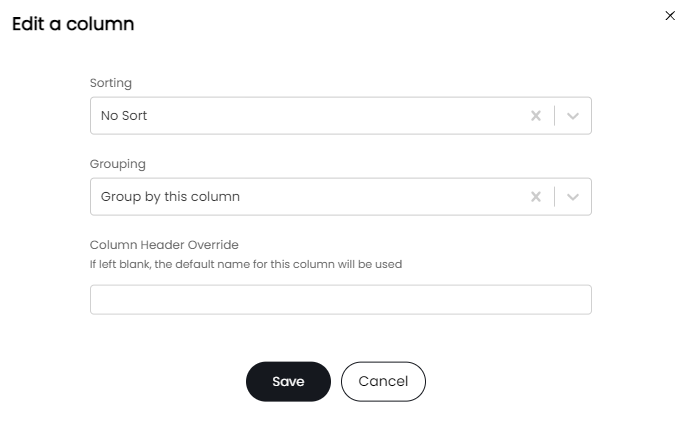
Fig 7. Grouping By Ticket Type
In order to enforce the article type being selected, it is important to set the "Agent New Ticket Screen Visibility" of the Article Type field to "Visible - Required" (The modal window shown below is found by clicking on the pencil icon of the article type field in the field list of the ticket type):
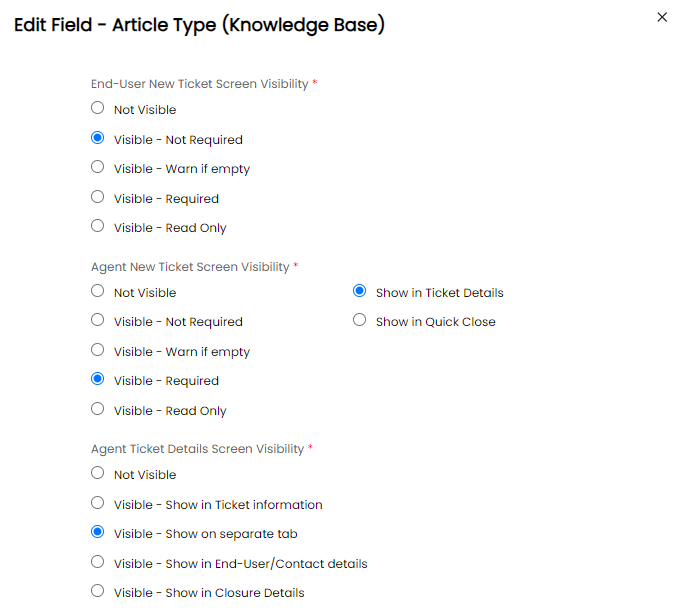
Fig 8. Field Visibility for the Article Type Field
Articles and news articles have the ability to be reviewed and there is also the option to enable article versioning. Navigating to Configuration > Self Service Portal, you will find more settings related to news articles.
Showing Recently Created Articles on the Self Service Portal
If there is a constant stream of news articles being created in your Halo instance, it will be worthwhile enabling the below setting so that users can view any recent news relevant to them:

Fig 9. Option for Showing Recently Created News Articles
If the above setting has been checked on, you will notice a section called "news" when you are on the self service portal home page. This section will contain the top 5 recently created news articles (This will take the top 5 news articles be based off of the 5 most recently created articles based off of the date the article was created):
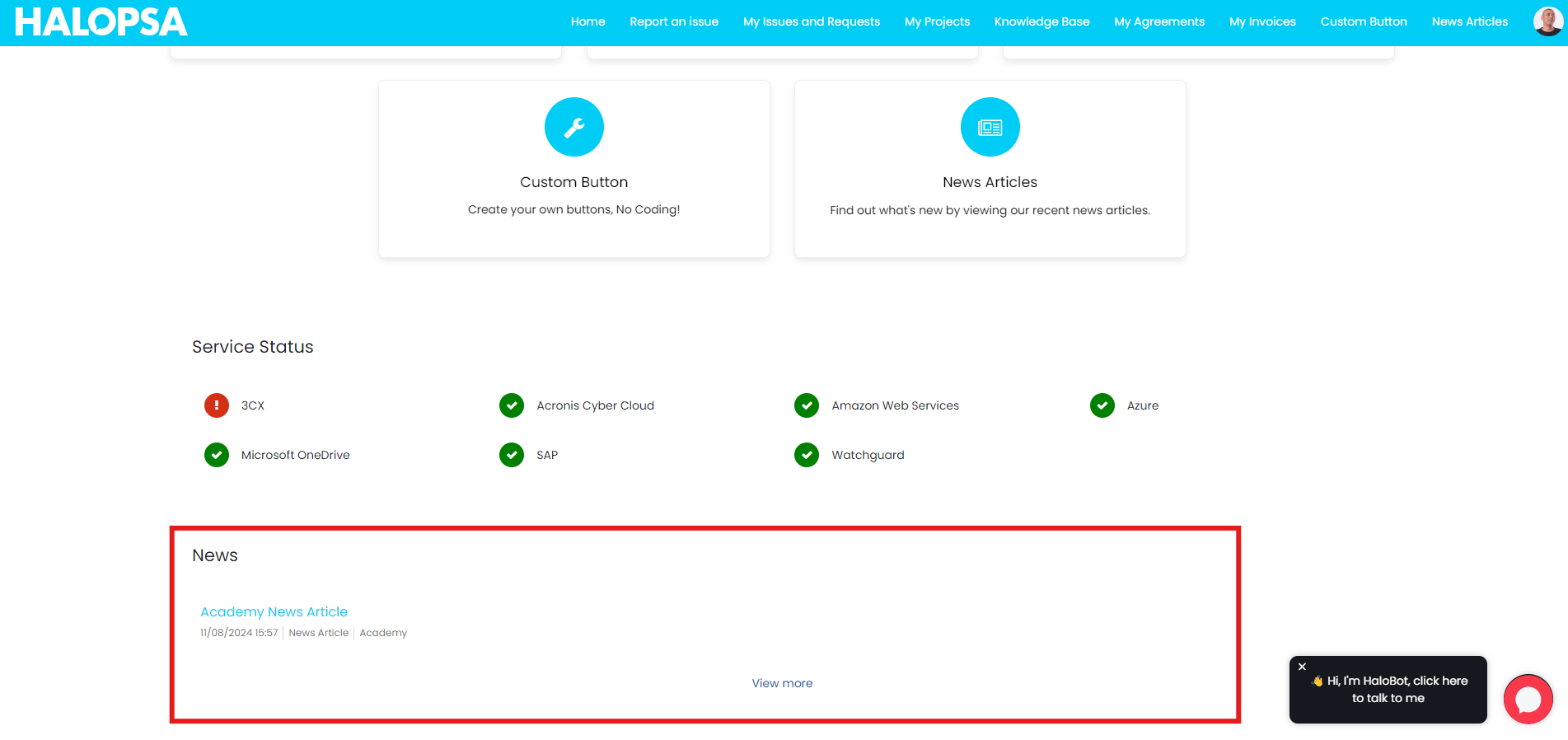
Fig 10. Recent News Articles Showing on Portal
You can also add a menu button (from within Configuration > Self Service Portal) specifically for the news articles in your Halo. News articles will be displayed by date, with the newest showing at the top of the list:
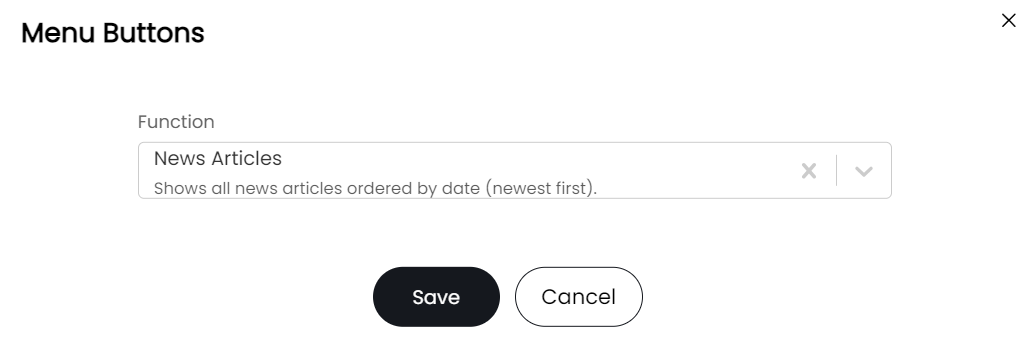
Fig 11. News Articles Menu Button
Accessing News Articles Without Sign In
In order to direct users to news article links without requiring sign in, you can send them to the desired ID from within the knowledge base area of the portal. The following option can be turned off, which will allow anyone to access your knowledge base in Halo:

Fig 12. Disabling Login Requirement for Knowledge Base on the Self Service Portal
It is NOT recommended to allow users to access the whole portal without login, instead only allow them to access the knowledge base without login, this is for the following reasons:
When anonymous user access is enabled more api endpoints will no longer require authentication. This includes Creating Tickets, listing Fields, Field Values, Categories, Services, Ticket Types and enabled Features. If the application is publicly accessible anyone will be able to access this data.
When directing people (not users) to news articles via links, you will NOT be able to send them to https://{\YOURHALODOMAIN}/portal/news as the access is restricted. Alternatively you can direct them to the knowledge base menu followed by the ID of the article (Article ID's are unique for both news articles and knowledge base articles). Article ID's can be found at the top of the article:
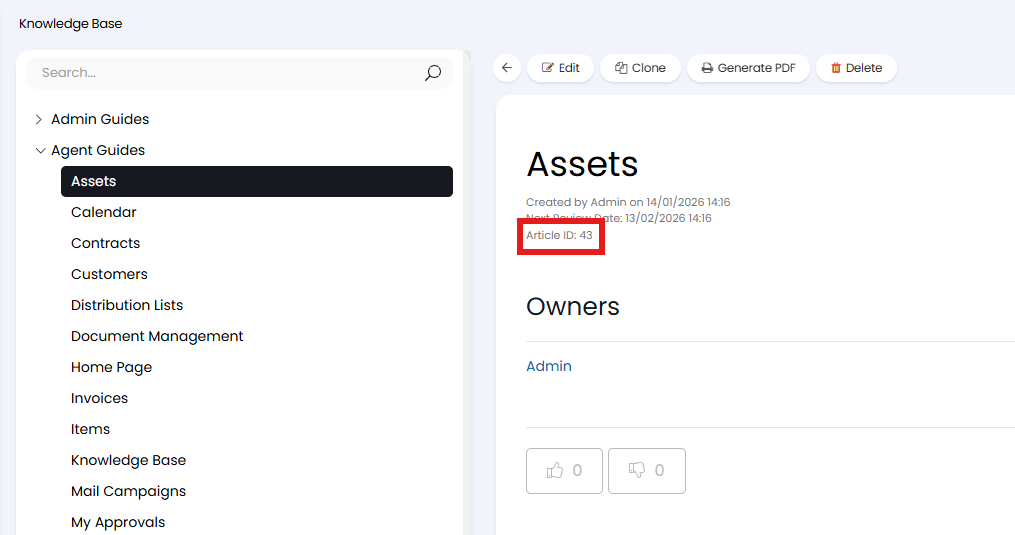
Fig 13. Finding The Article ID
The correct link to send non-users to would be https://{YOURHALODOMAIN}/portal/article?id={ID} (Or kb?id={ID} if you would like the FAQ list to appear down the side as shown in Fig 14.), this will allow them to view the news article from within the knowledge base area without logging in: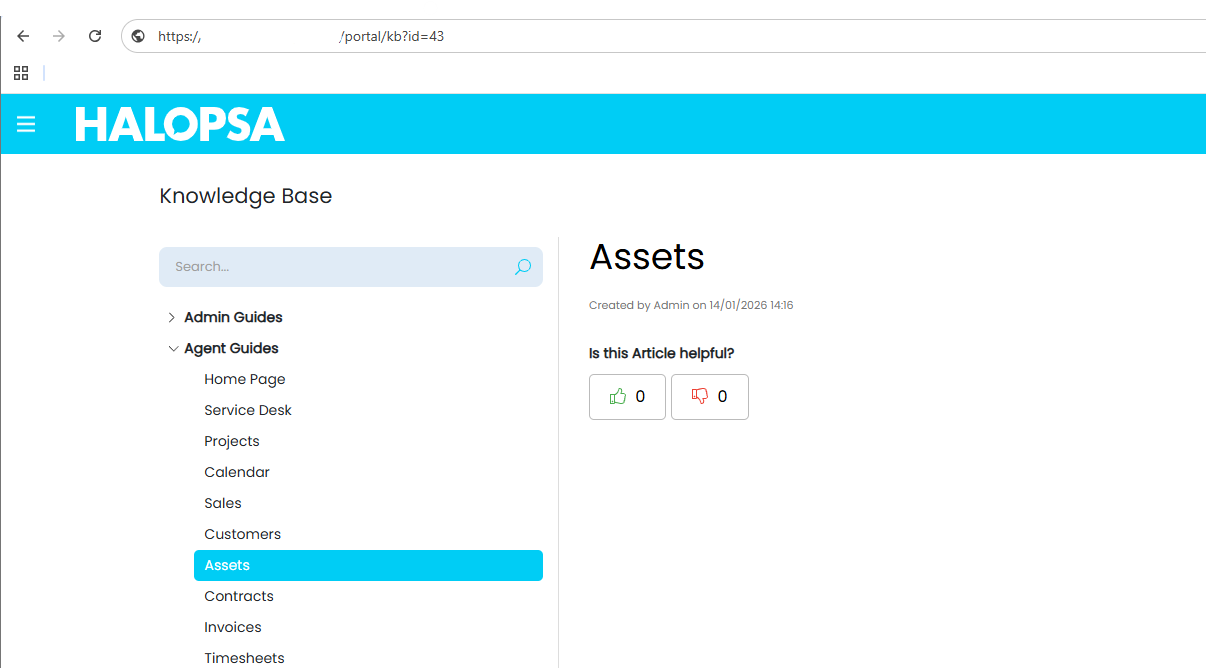
Fig 14. No Login Required to View the News Article
If dates are to be limited for news article visibility (Fig 1.), you will have the following fields when configuring news articles:

Fig 15. Start and End Date for Article Visibility
Publishing Articles Using Unique Links
This type of configuration is found per article when enabled. This is separate functionality from the system use: "Publish Article".
Within Configuration > Knowledge Base you can enable the publishing setting:

Fig 16. Enable article publishing
After enabling this setting and editing a knowledge base article you'll have a Publish Articles tab near the bottom of the page:
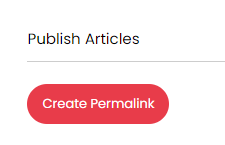
Fig 17. Create Permalink Button
clicking create permalink should display a confirmation text below and the table will be hidden. After saving, in the read mode there should be a 'Permalinks' tab which should display every current permalink for that article:
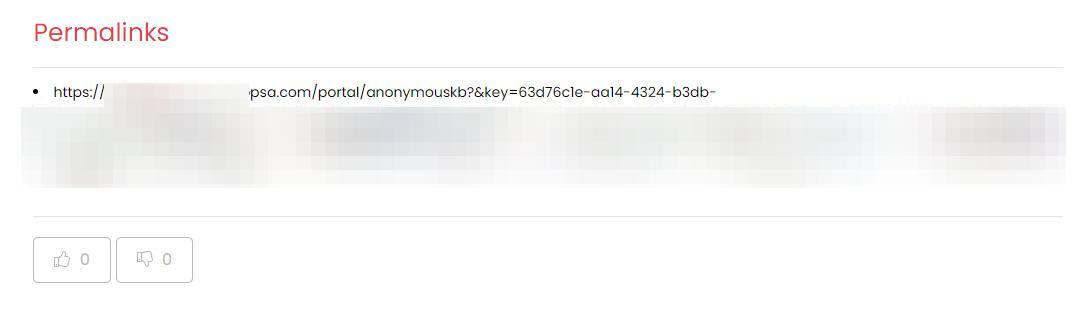
Fig 18. Permalinks
When creating a new version (Visible if "Enable Article versioning" is turned on) the link should essentially transfer over the links to the new one.
Without being logged into the portal and having the option "Require Users to Log in to Access the Knowledge Base" turned on, go to the generated link and you should be able to see the article. The articles will no longer be accessible for anonymous users, but if you send that link, they will be able to access specific articles without a login.