Creating Invoices
- billing
- recurring invoices
- invoice
- invoicing
In this guide we will cover:
- Ad-Hoc Invoicing
- Invoicing from an Opportunity/Ticket
- Invoicing from a Recurring Invoice
- Automated Quantity Billing
- Labour Billing
- Invoice to another Client
- Custom Invoice Statuses
There are multiple different methods to invoice customers within Halo, and this guide will walk-through how each works.
Ad-Hoc Invoicing
Note: This is the simplest method of doing so, but is not the recommended best practice. We recommend invoicing from an opportunity or ticket and following the order of Quotation > Sales Order/Purchase Order > Invoice.
Within the "Invoicing" area, you can create invoices and recurring invoices by hovering over the "New" button and selecting one of the two. This will create an invoice that is not linked to any ticket, but will show in the "Ready for Invoicing" area as well as the "Invoices" tab on the customer it is against.
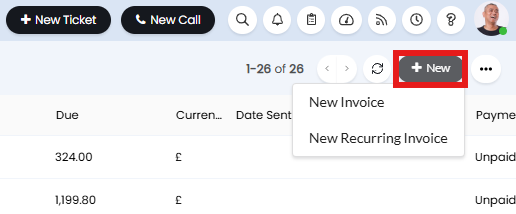
Fig 1. Creating an invoice not linked to a ticket.
Invoicing from an Opportunity/Ticket
This is the recommended way of invoicing a customer within Halo, and can be combined with the other methods within this guide such as labour billing.
Within a ticket or an opportunity, start the flow by using an action that has the "System Use" set to "Create Quotation".
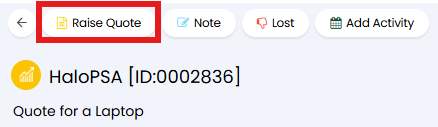
Fig 2. Raising a quotation from an opportunity.
Upon use of this action, a screen will show to create your quotation. Add your products with whichever method you wish to use - we will be using the the default "Add Product" in this example.

Fig 3. Add Product button on a quotation.
A screen will show with a list of available products. Find the relevant product(s), enter the quantity in the box on the far right of the line, then press "Select" at the bottom right once complete.

Fig 4. Choosing products.
Another screen will then show to confirm the details of the product such as its price, which can be manually edited here if you wish. Click "Save" and repeat this process for each product you are adding.

Fig 5. Confirming product details.
Upon saving the entire quotation, you can choose to generate a PDF, or send the quotation for customer approval.
Once happy, you can create a sales order from it. Click "Create Sales Order" in the top bar.
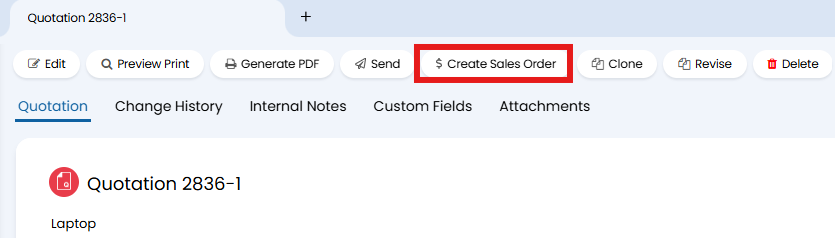
Fig 6. Create Sales Order button on a quotation.
A sales order will then be created with the details of that quotation. You can also send that sales order in the same way as the quotation if you wish.
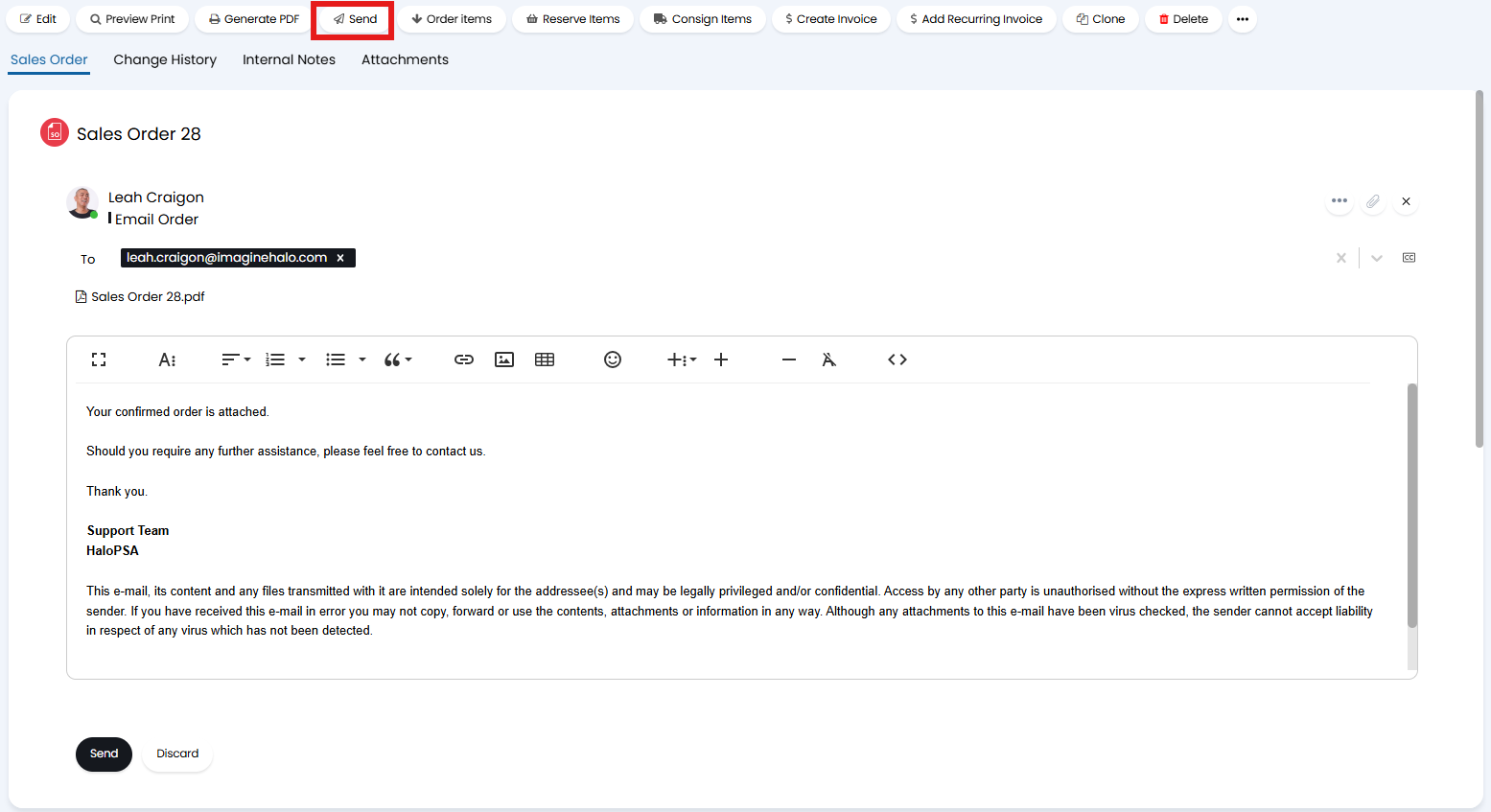
Fig 7. Sending a sales order confirmation email.
Now you can create the invoice from your sales order. Click the "Create Invoice" button in the top bar.

Fig 8. Create Invoice button on a sales order.
A pop-up will show to select the date invoiced, as well as which lines to invoice if not all.
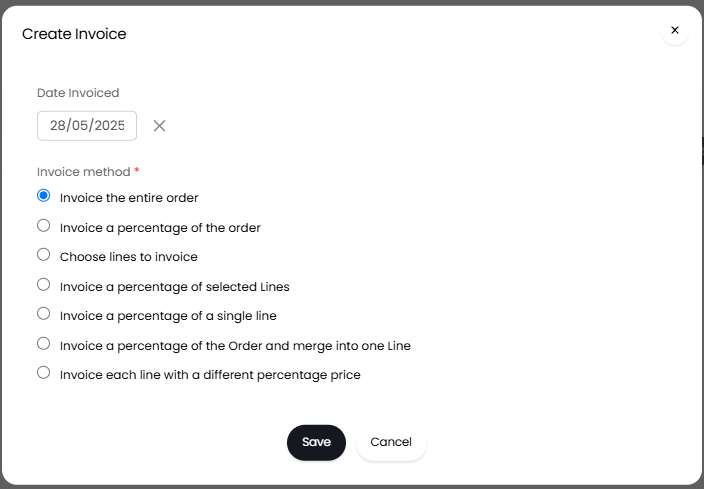
Fig 9. Choosing what to invoice.
The invoice will then be created, and linked to the sales order for easy access.

Fig 10. Invoice linked to the sales order.
If you have an agreement/contract linked to the sales order line, the invoice line will be linked to the same agreement. You can also edit this by editing the invoice line, scrolling to the bottom, and changing this dropdown.
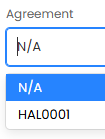
Fig 11. Agreement linked to an invoice line.
You can also choose to create a recurring invoice from the sales order. Click the "Add Recurring Invoice" button in the top bar.

Fig 12. Add Recurring Invoice button on a sales order.
This will then show a popup to either create a new recurring invoice, or link to an existing one.
"Date to Prorate from" can also be set when using this action on a sales order line.
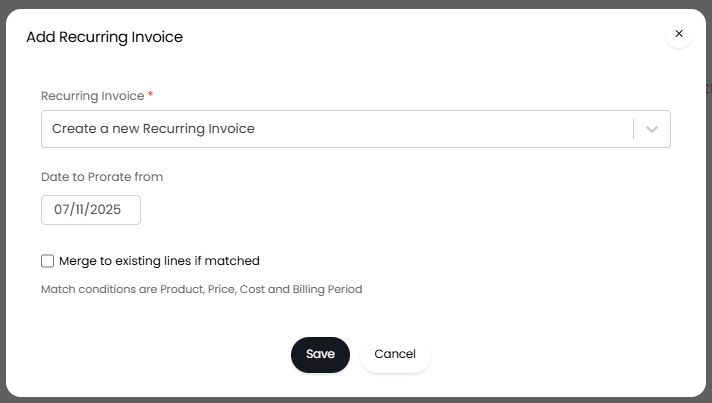
Fig 13. Choosing a recurring invoice.
This will add recurring products to that recurring invoice, and non-recurring products will not be added here.
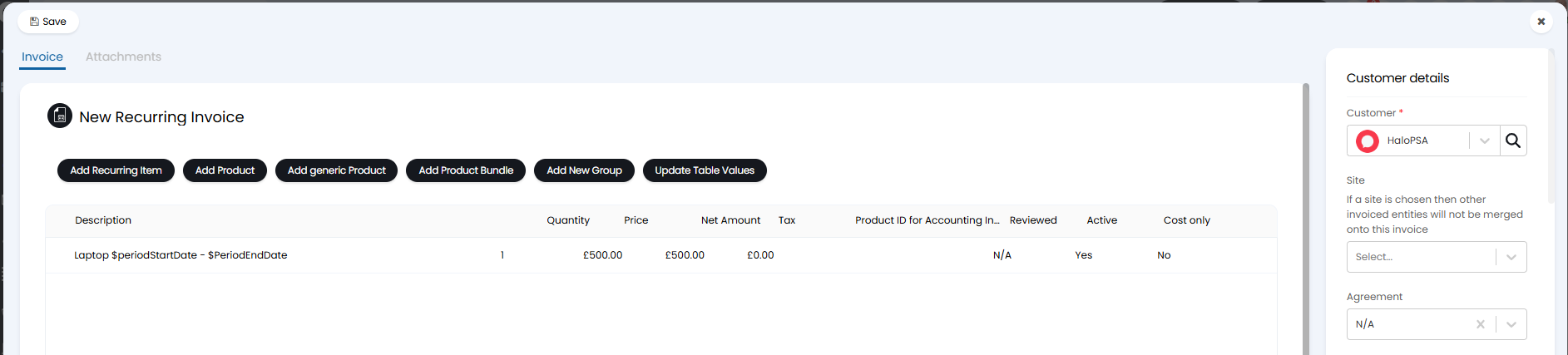
Fig 14. Recurring invoice from a sales order.
Invoicing from a Recurring Invoice
Invoices can be generated based on the schedule set against the recurring invoice.
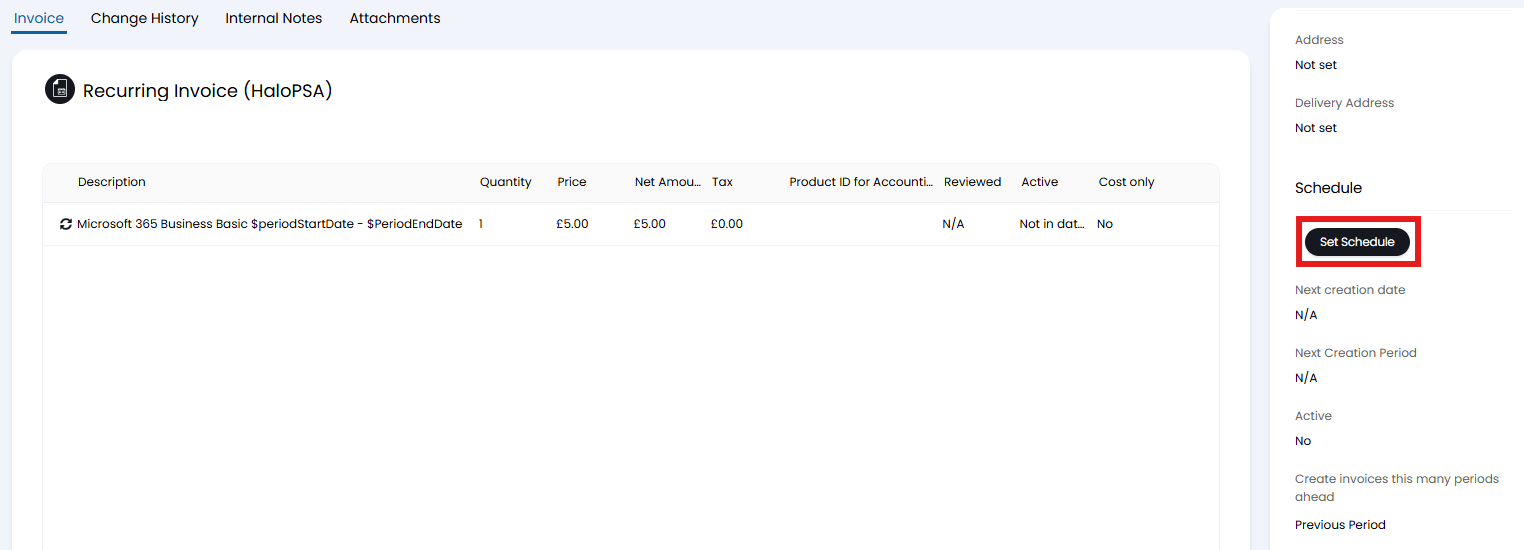
Fig 15. Recurring invoice schedule.
You can also set a "Due Date" on a Recurring Invoice within the section of the same name.
Within the "Ready for Invoicing" area (more information within this guide here), you can generate the invoice from a list of recurring invoices that are due based on the schedule against them.
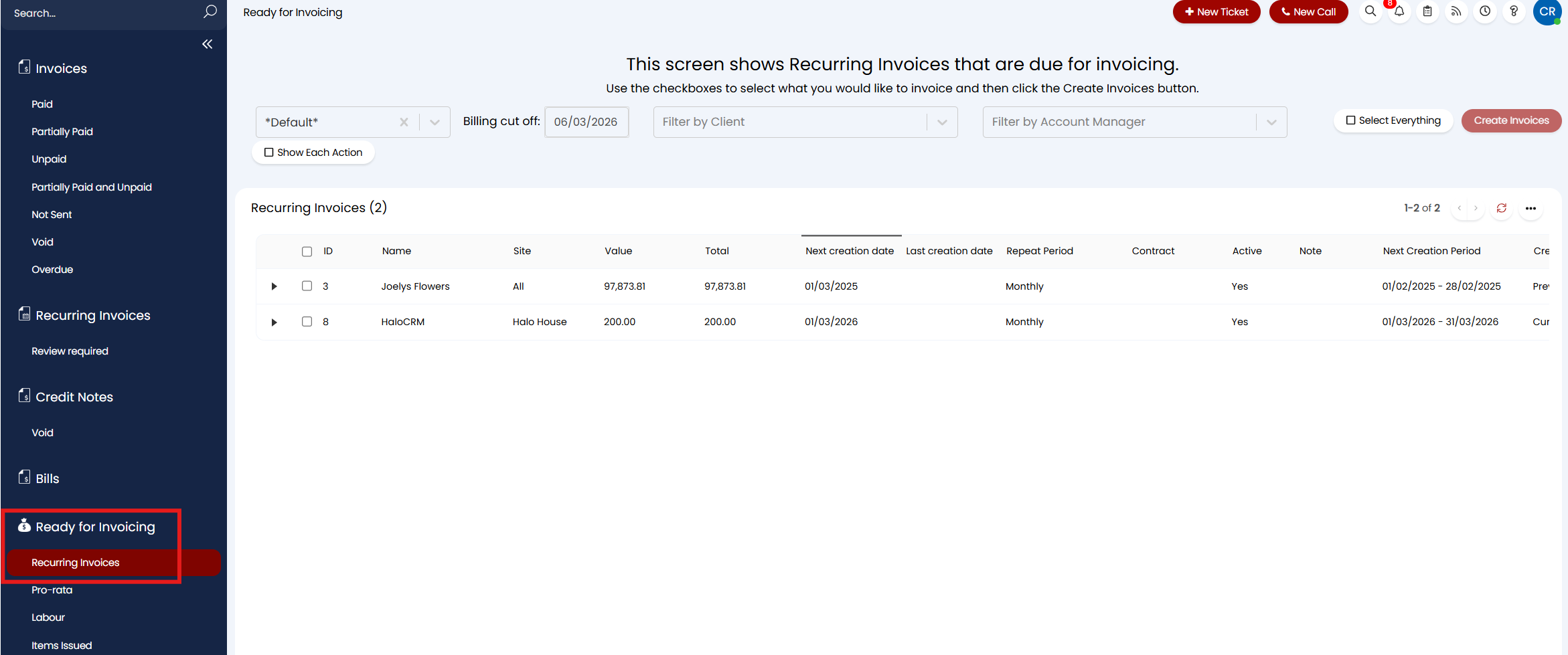
Fig 16. Ready for Invoicing area for recurring invoices.
Use the checkbox to select one, multiple or all of the recurring invoices that meet the criteria based on the "Billing cut off" date, then click "Create Invoices" in the top right corner.
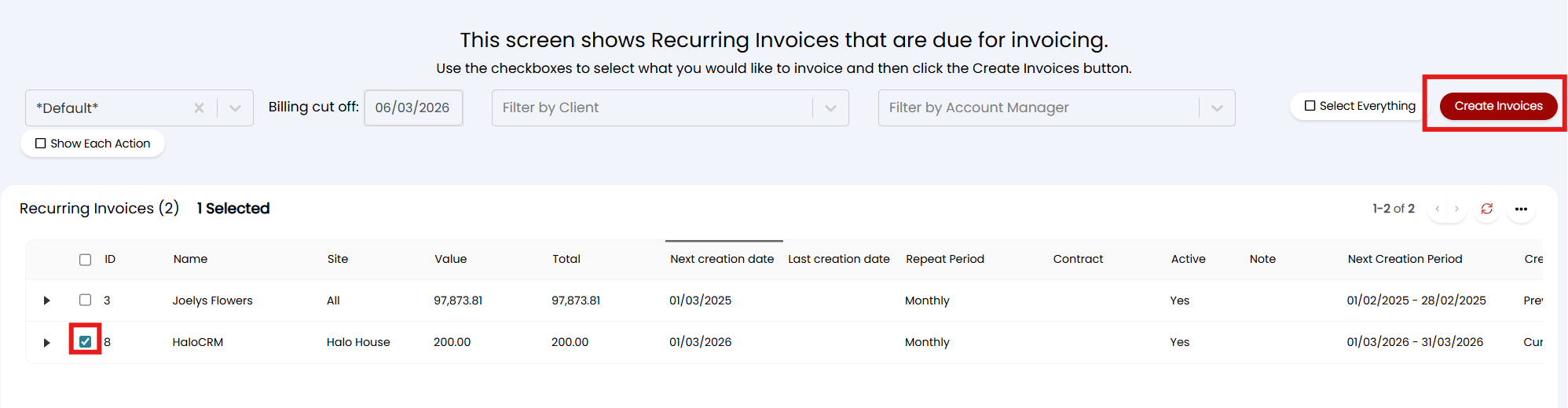
Fig 17. Choosing an recurring invoice to generate.
A popup will show to choose an invoice date, then save.
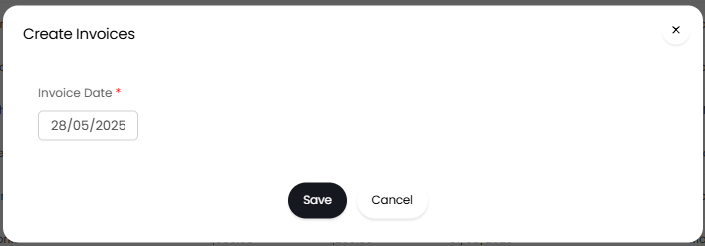
Fig 18. Invoice date selection.
The invoice(s) will then begin to generate, and upon completion will have a link to the side of each line that will take you to the created invoice.

Fig 19. Generating an invoice.
Clicking that link will then open the invoice in a new tab.
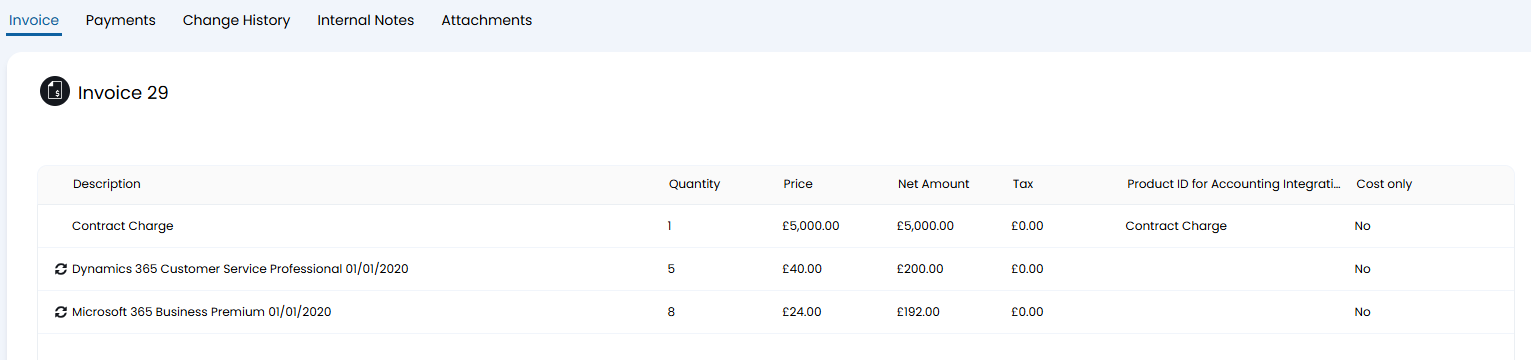
Fig 20. Generated invoice.
Automated Quantity Billing
The quantity of an product on an invoice can be automatically calculated by user, asset, licence or subscription count (or via a custom SQL query). In this example, we will look at licence count.
In Configuration > Billing > Recurring Invoices, you can enable the below checkbox.

Fig 21. Enabling quantity calculation.
When enabled, you can edit a line on a recurring invoice and choose what to calculate the quantity based on. Here, we will use licence count.
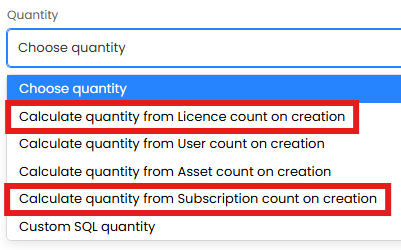
Fig 22. Calculate line quantity options.
In this example, if we select "Calculate quantity from Licence count on creation" a table will appear underneath to set the quantities.

Fig 23. Licence Quantities table.
Click "Add" on the right to add a quantity. In the popup, you can set a licence to link the quantity to. You can additionally set free or minimum quantities here.
From v2.242+, the option "Update Invoice unit price when the linked subscription price changes" will cause the price to be determined using the period of the Invoice and the period of the linked subscription/licence.
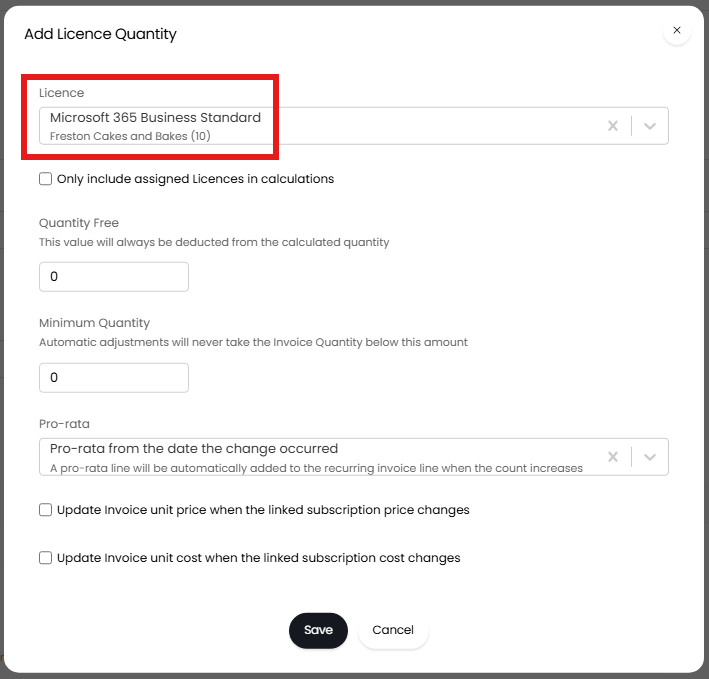
Fig 24. Setting a licence to base the quantity off.
Save the popup, save the line, and then save the recurring invoice.
Note: The quantity will show as "0" and/or not update until the recurring invoice is fully saved.
After saving, the quantity will calculate on the line.

Fig 25. Quantity automatically set on the recurring invoice.
The count on the recurring invoice will also update once the count is changed on the licence/subscription the line is calculating from. If the licence count against the customer is increased to 11, the line will automatically update.

Fig 26. Quantity updating when licence count is changed.
From v2.238+, in Configuration > Billing > Recurring Invoices, you can enable "Subscription/licence calculation uses the quantity up to the end of the recurring invoice period". This setting will cause the quantity used for Subscription/Licences to only include the quantity at the end of the Recurring Invoice period.
Labour Billing
You can invoice for time taken on actions within a ticket, which can be utilised for examples such as travel time.
To track time, ensure the "Time Management" module is enabled within Configuration, and that you have created a charge type with "Use" set to "Labour".
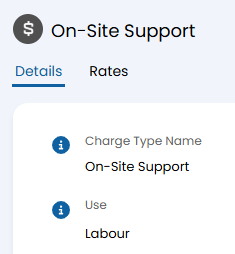
Fig 27. Labour charge type.
You can then configure an action with the "Time Taken" and "Charge Type" fields against it.
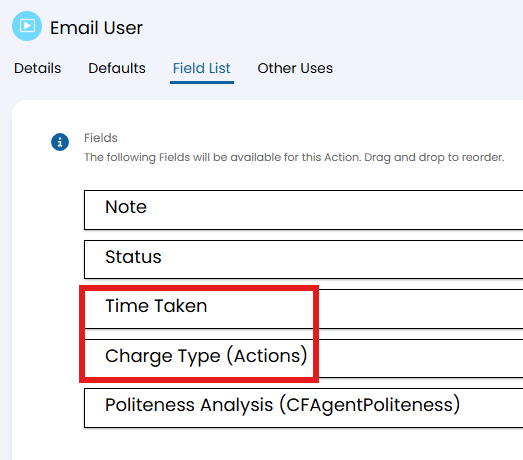
Fig 28. Action with billing fields added.
When using the action, the time taken will automatically count (but can be manually changed), and a charge type can be selected for the action.
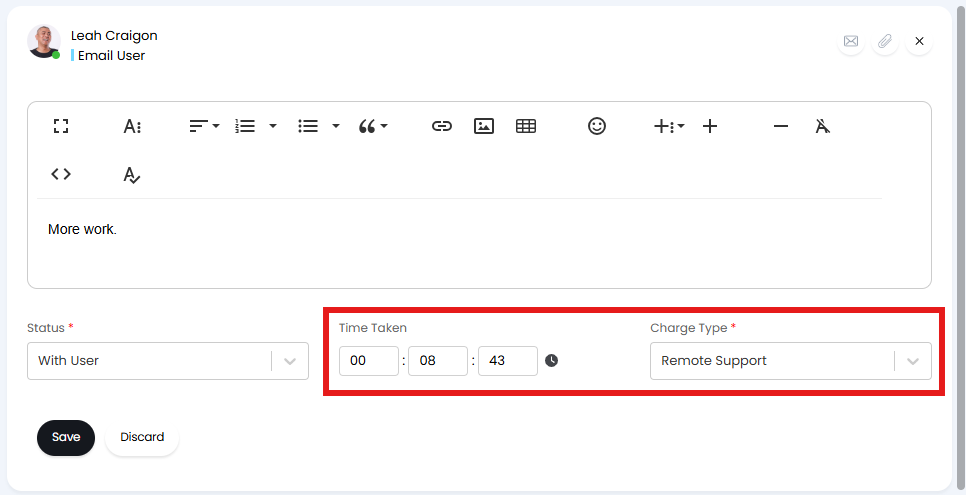
Fig 29. Using an action.
Once the ticket is ready to be invoiced, you can then view it in the "Labour" Ready For Invoicing screen and create the invoice as usual.
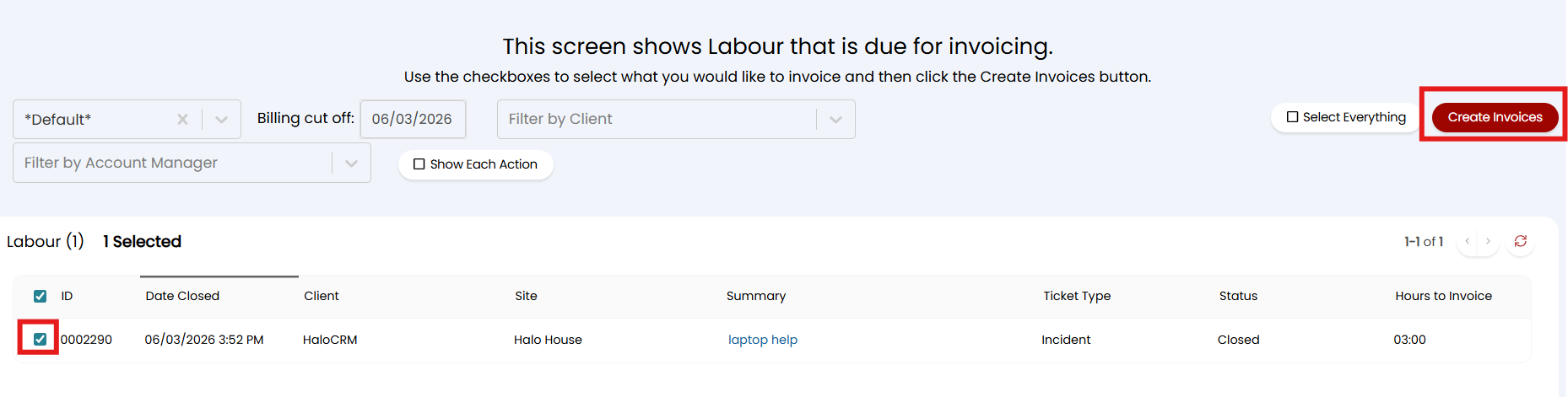
Fig 30. Creating the invoice for the labour.
What dictates if the ticket will show here to be invoiced is set in Configuration > Billing > Labour and Travel, within the "Charge Type Settings" dropdown.
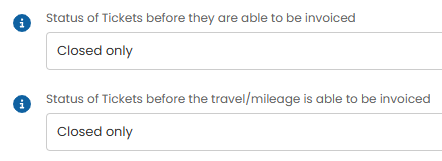
Fig 31. Status for invoicing tickets.
An additional field will show for the period of time that has been invoiced so far. This is useful if invoicing labour as you go, rather than upon ticket closure.
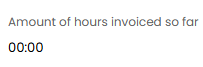
Fig 32. Invoiced hours count.
Invoice to another Client
Various options are available to have invoices created for quotes/labour completed for one customer/site actually be invoiced to another customer/site automatically.
To set this on a client level head to a customer profile > Billing tab > Invoice Settings section.
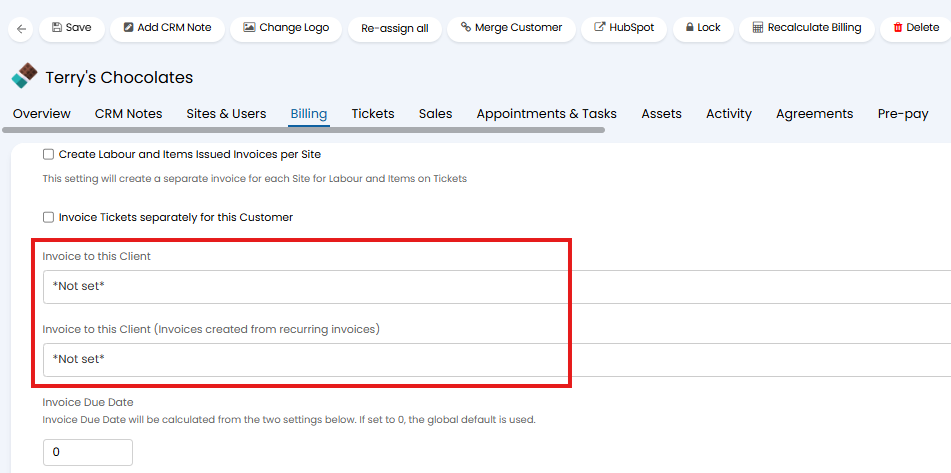
Fig 33. Invoice to this Client options
Invoice to this Client - Use this if you would like work/quotes raised for this customer to be invoiced to another client. Here, choose which customer this customer's work/quotes should be invoiced to. This excludes recurring invoices assigned to this customer.
Invoice to this Client (Invoices created from recurring invoices) - Use this option if you would like invoices created from recurring invoices for this customer to be invoiced to another client. This only applies to recurring invoices, any other invoices for this customer (from quotes/labour) will still be invoiced to the customer they originated from.
When invoices for the customer are created they will be created under the chosen customer but the invoice will hold a record of the customer the work/quote pertains to, the invoice will be visible when viewing invoices for either customer. In the figure 34 example the quote for this order was raised for Terry's Chocolates but the invoice is addressed to and saved under the customer Acorn Construction.
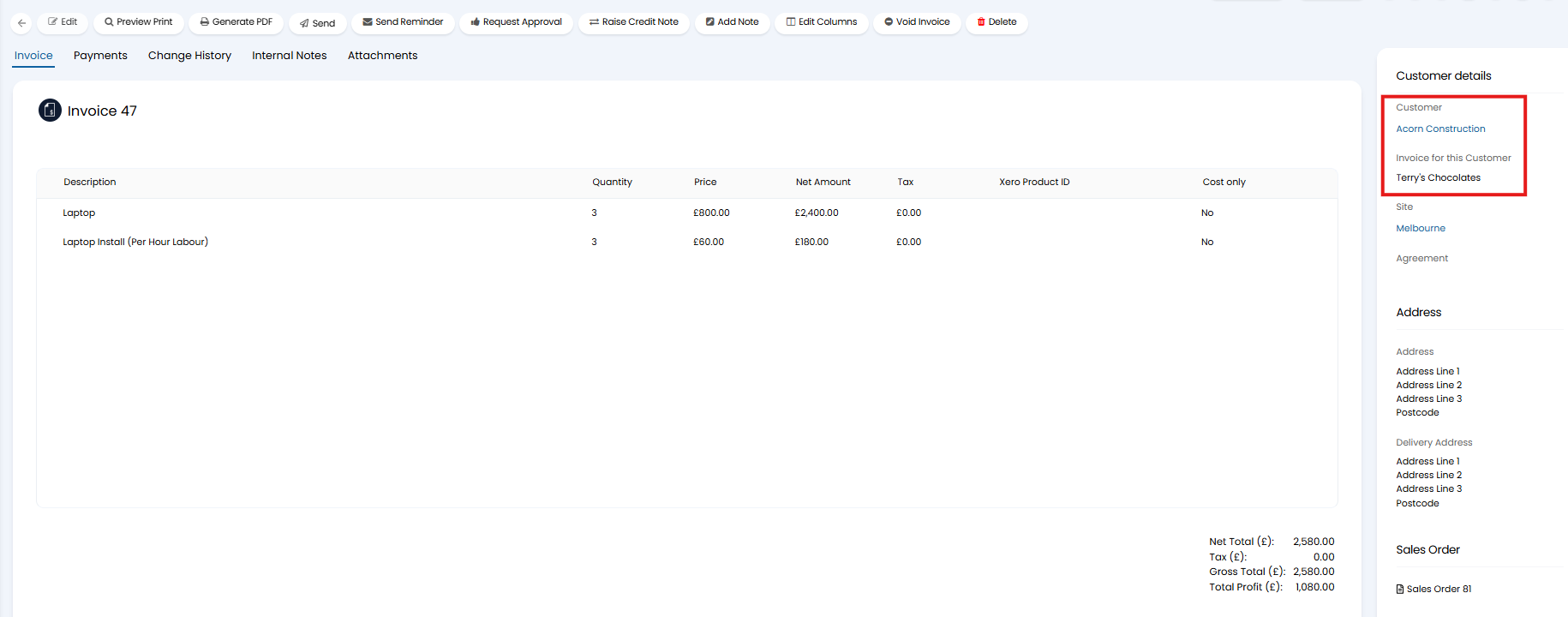
Fig 34. Invoice created set to be invoiced to another client
These same settings will be available at site level to allow you to have labour/quotes raised for a particular site be invoiced to another customer. Useful when you would like to track labour/orders at site level but invoice these all to the same customer.
To set this on a site level head to a site > Billing Tab.
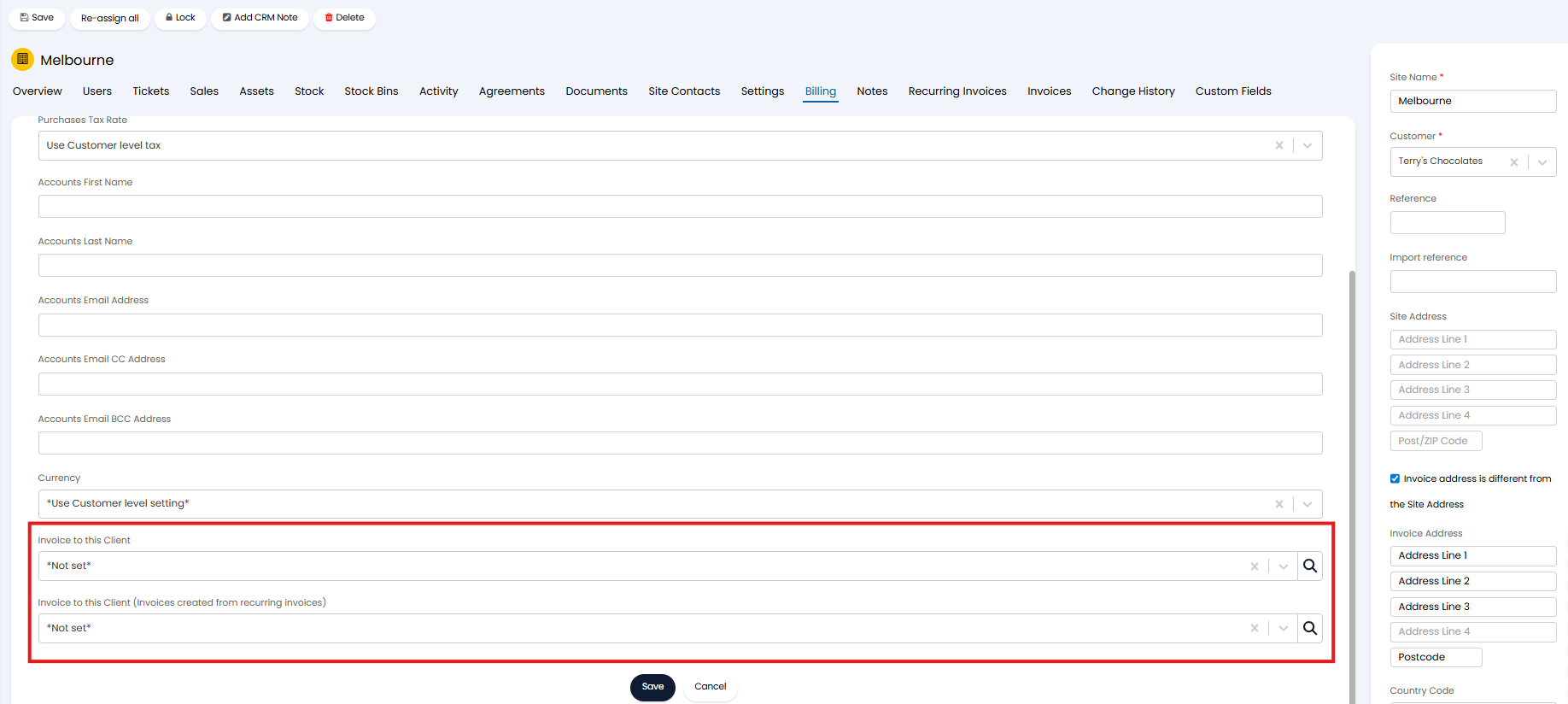
Fig 35. Invoice to this client at site level
Invoice to this Client - Use this option if you would like labour carried out at this site, and quotes/orders raised for this site, to be invoiced to another client. Choose the client you would like to be invoiced here. This will only apply when quotes/orders are raised for this specific site. This will override the setting of the same name at customer level when a quote/order is raised against a customer and assigned to a specific site. If not assigned to a specific site the customer level setting will apply. This excludes recurring invoices.
Invoice to this Client (Invoices created from recurring invoices) - Use this option if you would like invoices created from recurring invoices assigned to this site to be invoiced to another client. This only applies to recurring invoices, any other invoices for this site (from quotes/labour) will still be invoiced to the customer they originated from.
When using these settings the invoices created will contain a record of the customer they originated from and are visible when viewing invoices for either customer.
You have the option to clone lines across invoices. This allows you to use existing invoices to create an invoice for another customer.
To do this you can select either the "Clone Lines to another Invoice" (only shows when the invoice is saved), or "Clone Lines from another Invoice" (only shows when the invoice is being edited).
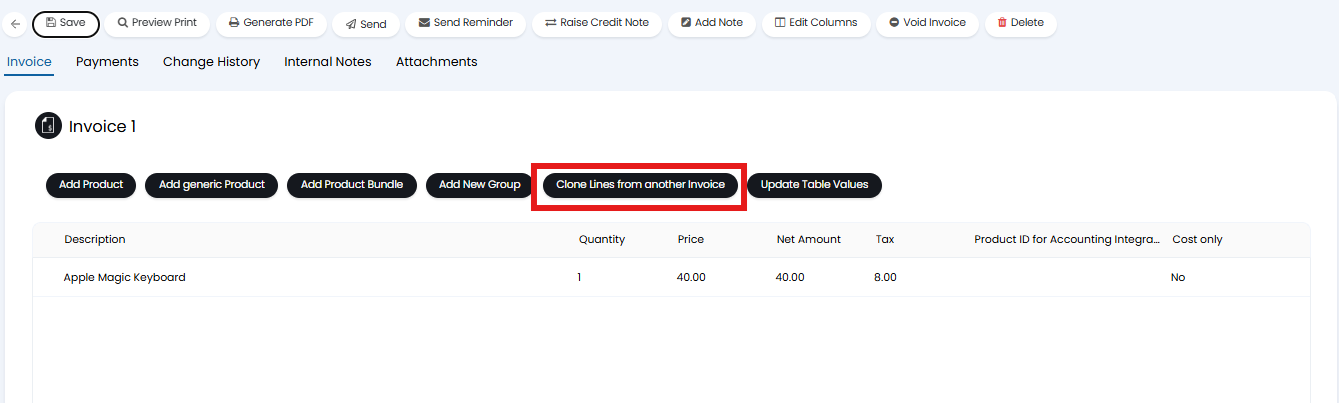
Fig 36. Cloning Lines to another Invoice from the current Invoice
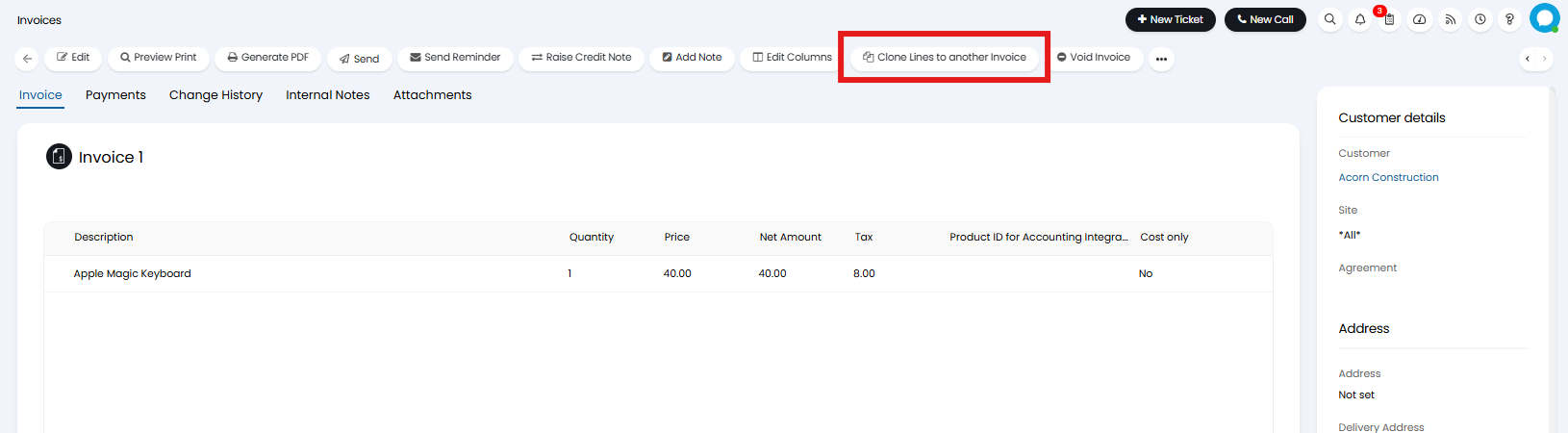
Fig 37. Cloning Lines from another Invoice onto the current Invoice.
Note: From v2.251+ 'original customer name' can be used in invoice column profiles. Useful if any of your invoices are invoiced to a different client than the one that incurred the charges as it allows you to see at a glance which client incurred the charges and which client is being invoiced.
Custom Invoice Statuses
You can set a customised status against your invoice, useful for categorising the state of each invoice. These can be configured under the "View Invoice Statuses" button in Configuration > Billing > General Settings.
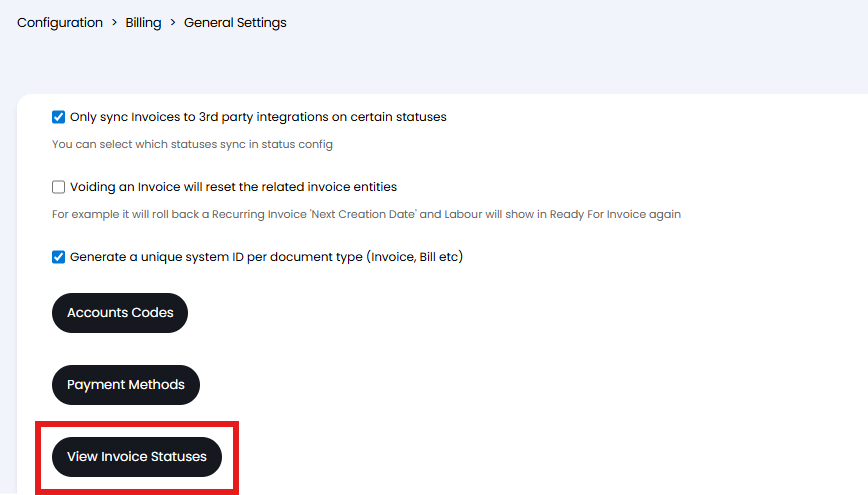
Fig 38. Invoice statuses
Your statuses can then be set against an Invoice under the Invoice details.
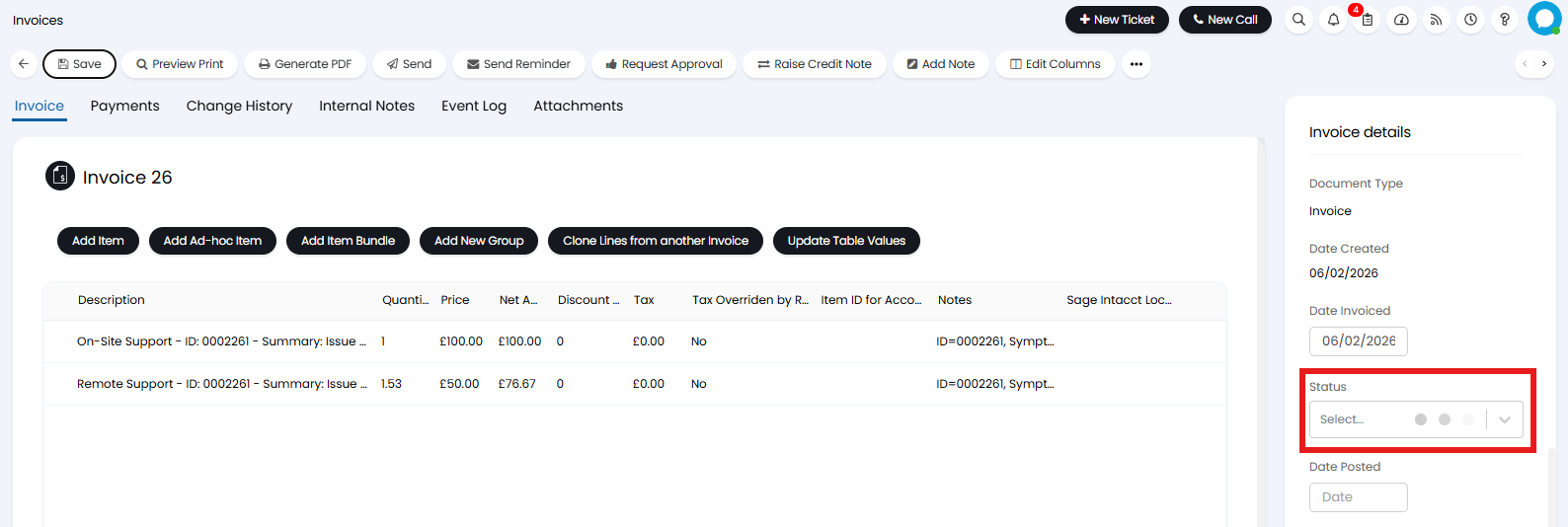
Fig 39. Setting an Invoices status
Prevent selected Statuses from Syncing to a 3rd Party Integration
These statuses can be used in determine whether the invoice is synced to a 3rd Party integration. To do this you will need to enable "Only sync Invoices to 3rd party integrations on certain statuses" (Configuration > Billing > General Settings), and head to your statuses, or , from v2.253+ choose "invoices" in the setting "Only sync selected entities to 3rd party integrations on certain statuses".
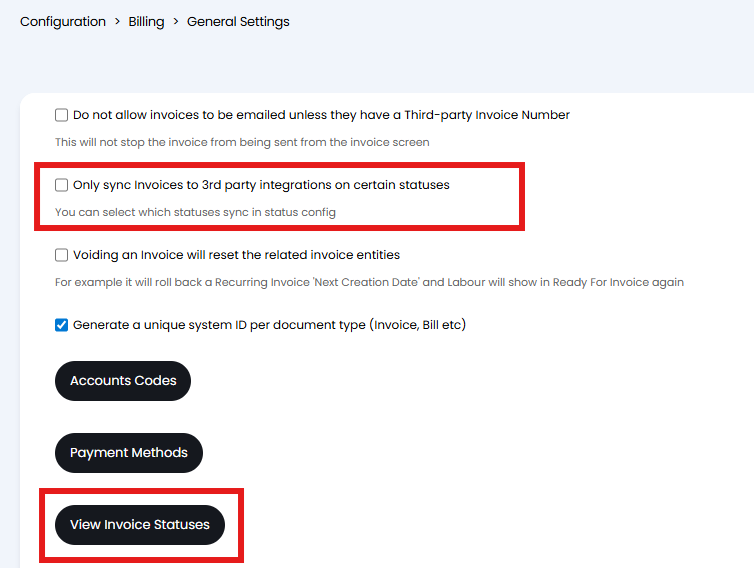
Fig 40. Setting to only sync Invoices to 3rd party integrations on certain statuses on versions prior to v2.253
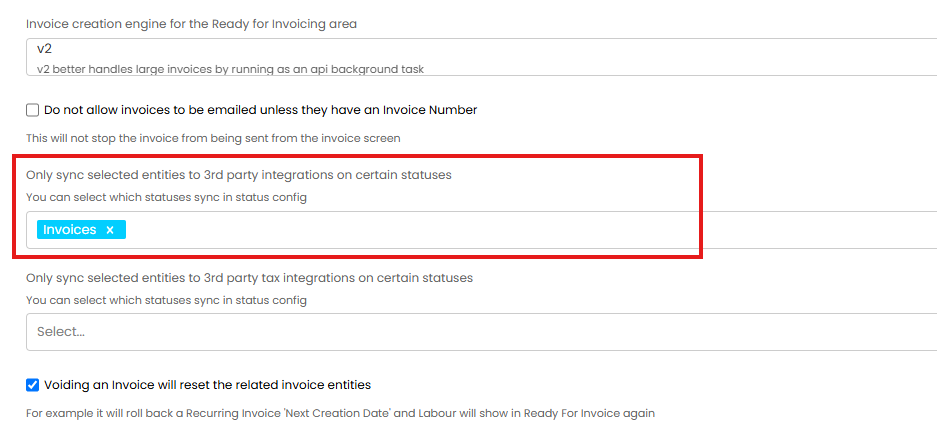
Fig 41. Setting to only sync Invoices to 3rd party integrations on certain statuses on versions v2.253+
Against each status you will now have the option to "Allow syncing to 3rd party integrations". This is used to control which statuses invoices can sync to third party integrations in.
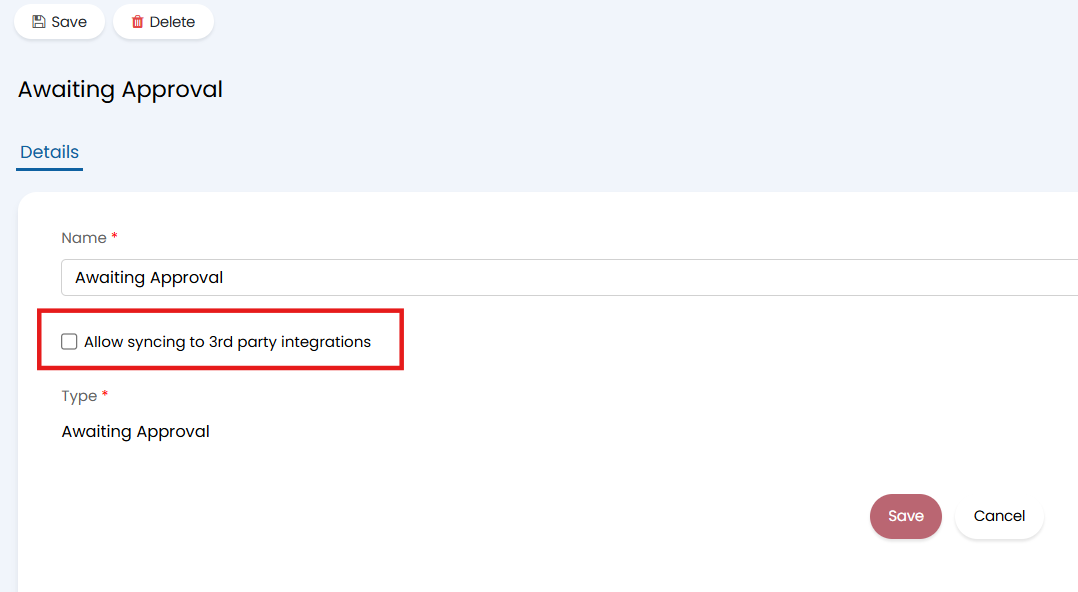
Fig 42. Allowing invoices in this status to sync to 3rd party integrations
Prevent Invoices in Selected Statuses from being Edited
You can also use invoice statuses to prevent an invoice from being edited. Useful if you would not like anyone to make changes to an invoice after it has been sent to the customer/paid.
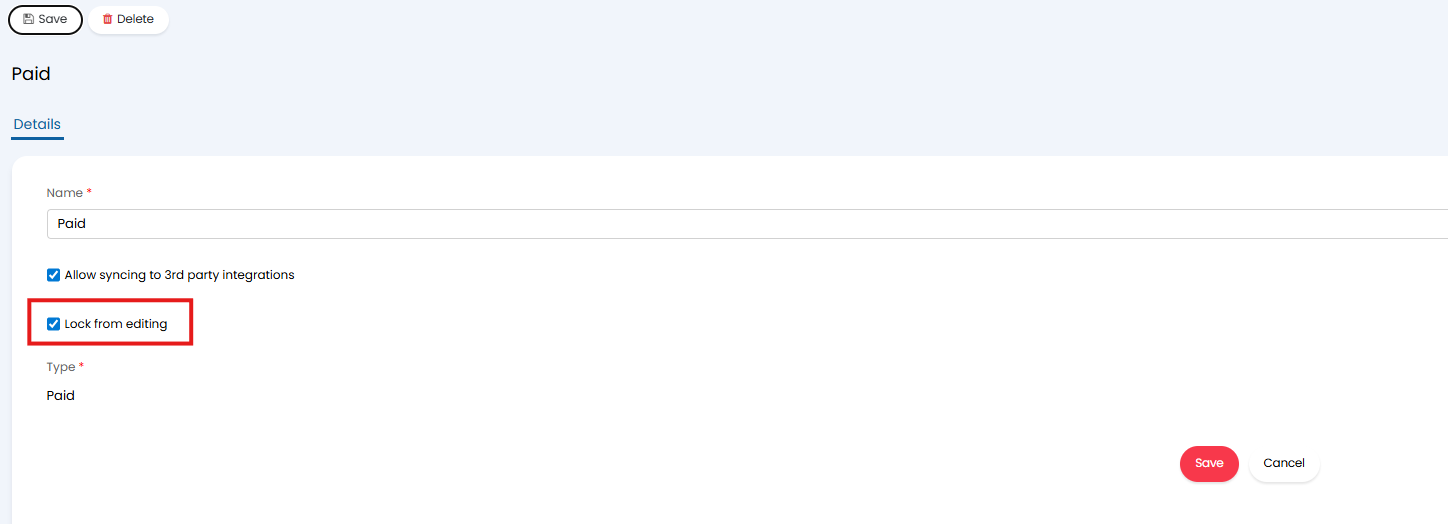
Fig 43. Prevent Invoices with the "Paid" status from being edited
This is done using the "Lock from editing" setting against each invoice status. If enabled, invoices that have this status will not be able to be edited, both in the UI and in the API. The status of the invoice will not be able to be changed in the UI, but it can be changed in the API.
Credit notes cannot be raised from invoices that are in a status that does not allow editing on versions prior to v2.248. On v2.248+ credit notes can still be raised from an invoice regardless of its status.
Now, invoices with this status cannot be edited, but they can still be voided, deleted and cloned.
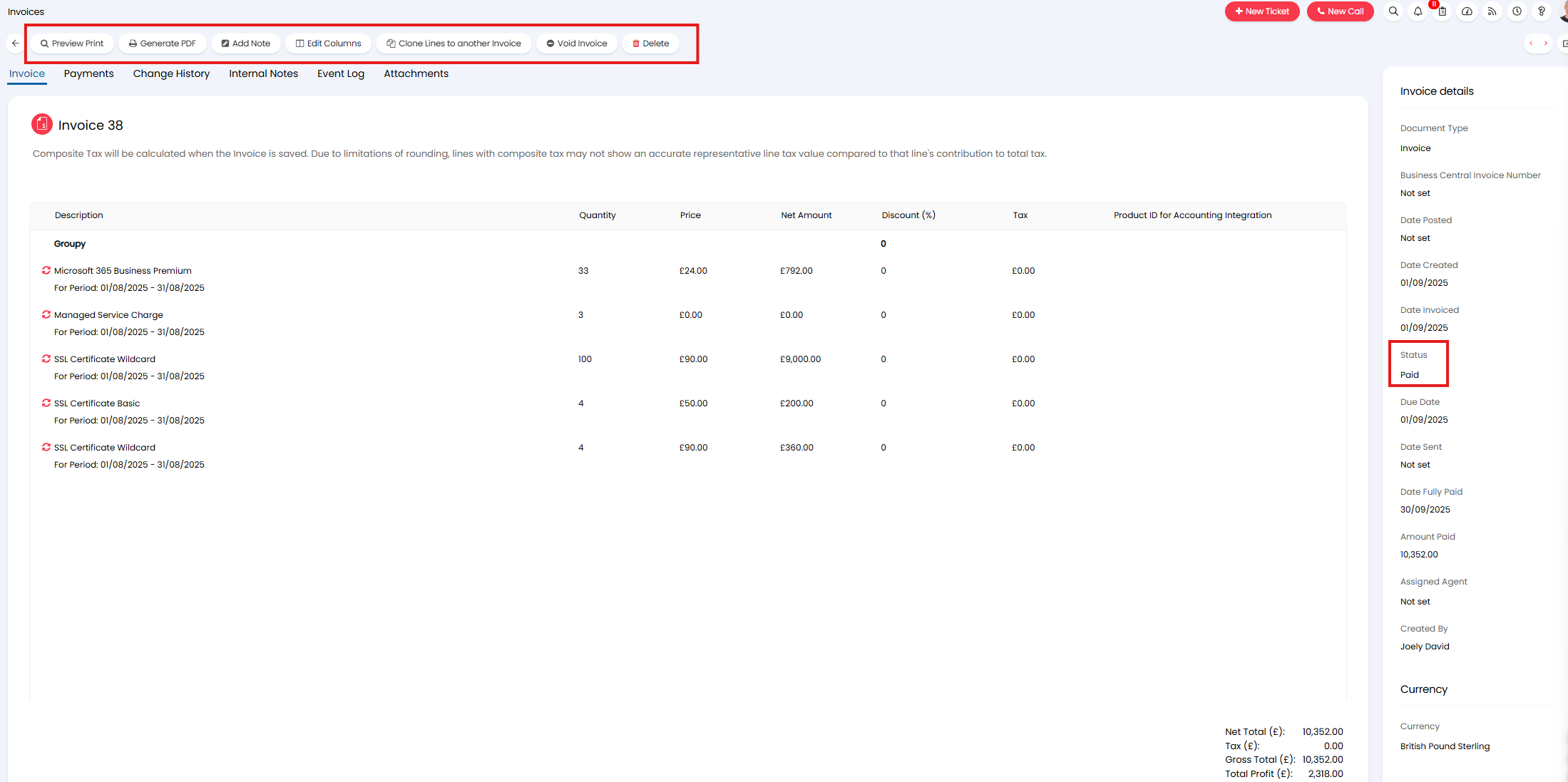
Fig 44. Actions available for locked Invoice