Tracking Travel Time and Time On-Site
- travel
- track travel
- distance travelled
- mileage
In this guide we will cover:
- Enable Tracking Travel and Distance
- Billing for Travel Time/Mileage
Halo allows for both Travel Time and Mileage to be tracked and billed for. In general, MSP's tend to track travel time or distance travelled, although it is possible in Halo, tracking both is uncommon.
Enabling Tracking Travel and Distance
The very first step is to enable the tracking of Travel Time or Distance Travelled in Configuration > Time Management.
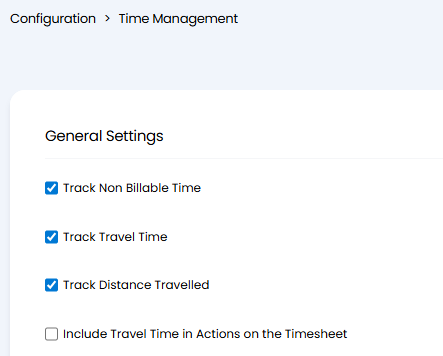
Fig 1. Travel Time & Distance Travelled (Configuration > Time Management)
By enabling these checkboxes, two new fields will be available to add to the Field List on your Actions: Travel Hours and Distance Travelled.
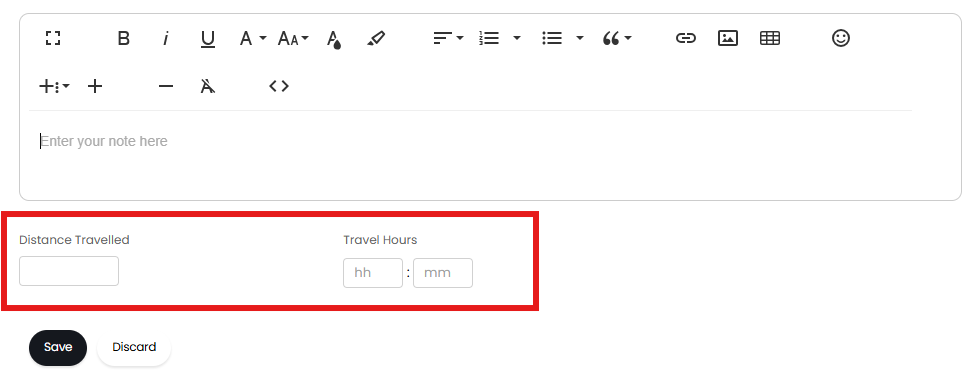
Fig 2. Travel Hours/Distance Travelled Fields on an Action
Travel hours/distance are logged separately to the conventional 'Time Taken' - effectively allowing you to track Travel Time, 'Work'/Labour Time & Distance Travelled, all within one Action.
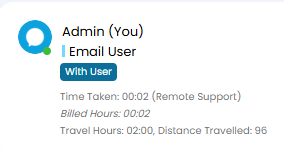
Fig 3. Labour Time (6 hours), Travel Hours (2 Hours) & Distance presented on a posted Action
Billing for Travel Time/Mileage
There are two methods by which Travel/Mileage can be billed for:
- Using a pre-defined rate for Travel Hours & Mileage.
- Using a selectable 'Travel Charge Rate'
Using Pre-Defined Charge Rates for Travel & Mileage
In Configuration > Billing > Labour and Travel, if 'Use Travel Charge Rates' is disabled then two fields will be presented below.
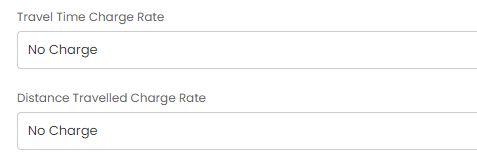
Fig 4. Defining Travel & Mileage Charge Rates
These two fields will establish the Charge Rates for Travel Hours & Mileage, respectively. It's worth noting that this method does not allow the selection of charge rates applied for Travel & Mileage on an Action-by-Action basis & will always use the rates selected (Fig 4).
A use case for this may be if you charge for both travel & Mileage at the same time.
It is worth noting that the rates selected in Fig 4 follow all of the conventional Charge Type behaviour (Billing Rules, overriding charge rates etc..)
Using 'Travel Charge Rates'
In Configuration > Billing > Labour and Travel, enable 'Use Travel Charge Rates'. Now the two fields previously mentioned in Fig 4 are replaced with a single 'Travel Time Charge Type'.

Fig 5. Default Travel Time Charge Type
You will also find that your Charge Types are now given a second Use of 'Travel'.
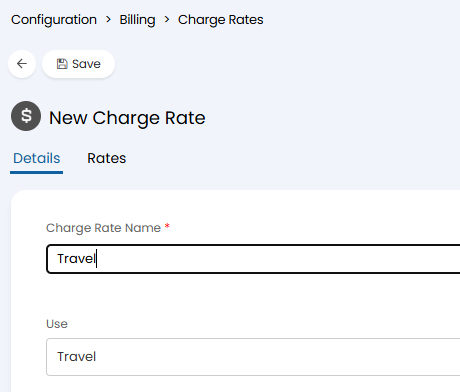
Fig 6. New 'Travel' Use on a Charge Type
When selecting 'Travel' as the Charge Type's use, you will see different options in the Rates tab.
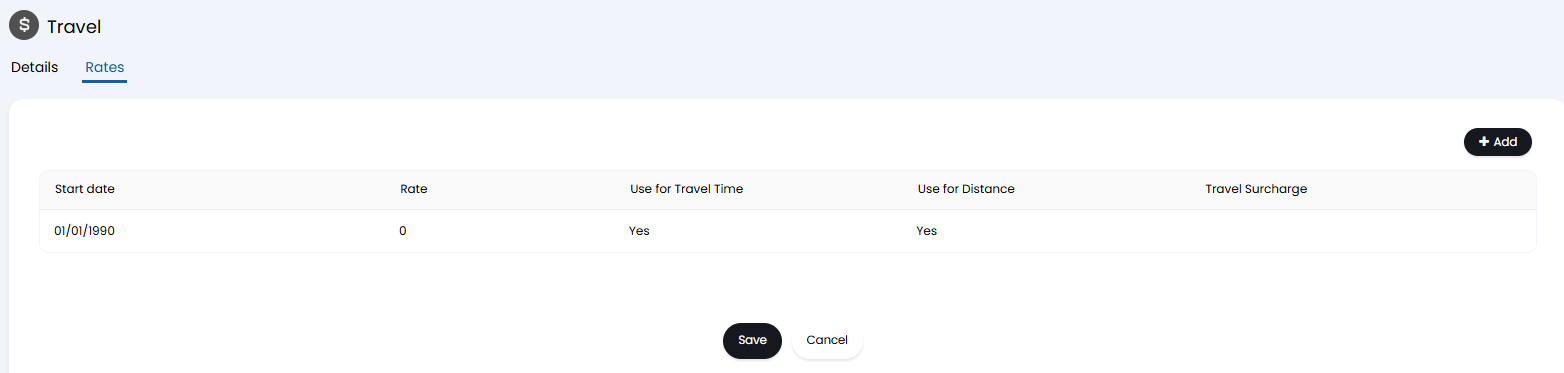
Fig 7. Options from the Rates tab for a Charge Type with use 'Travel'
You will see here that you have an option to use for Travel Time, Distance, or both. When using for both travel & distance, two invoice lines with the same description will be added to invoices with quantities equating to the travel time/distance.
The intention with this functionality is to create multiple Charge types of use 'Travel' & specify on each one whether to use Travel, or Distance. The surcharges module has to be enabled for the "Travel Surcharge" column to show (surcharges can be enabled in Configuration > Billing).
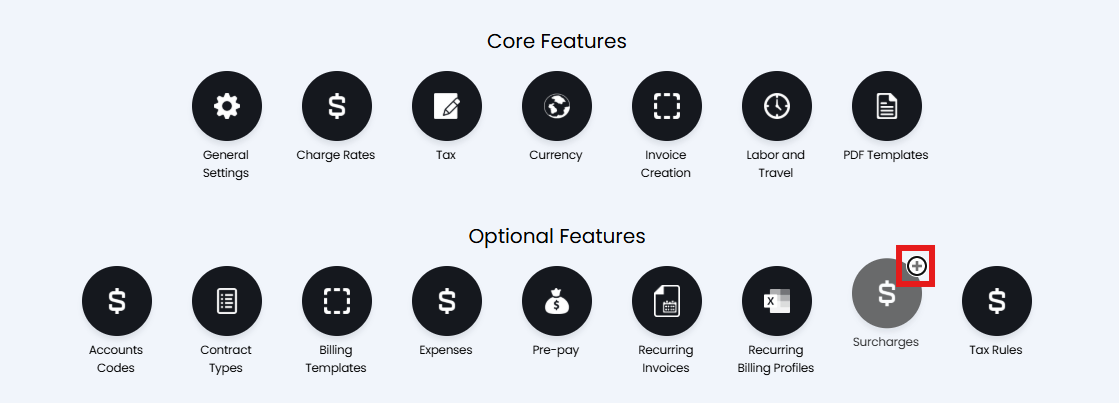
Fig 8. Surcharges Module
You can choose separate rates if using both travel time and distance. If both "Use for Travel Time" and "Use for Distance" are enabled, an extra box to specify the distance rate will appear. If only one of the above is enabled, the standard "Rate" field is used for either.
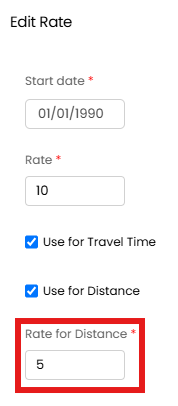
Fig 9. Distance rate.
Rates for distance can be set to 3 decimal places.
When Travel Charge rates are enabled, you will also find a new field available in the field list for actions - 'Travel Charge Rate'.
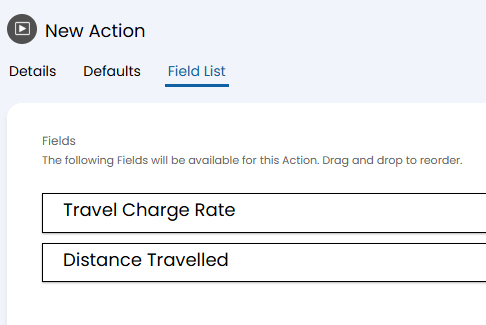
Fig 10. Travel Charge Rate field on an Action
As with other entities to invoice in Halo, you will find a Travel Hours & Distance Travelled section of Ready for Invoicing.
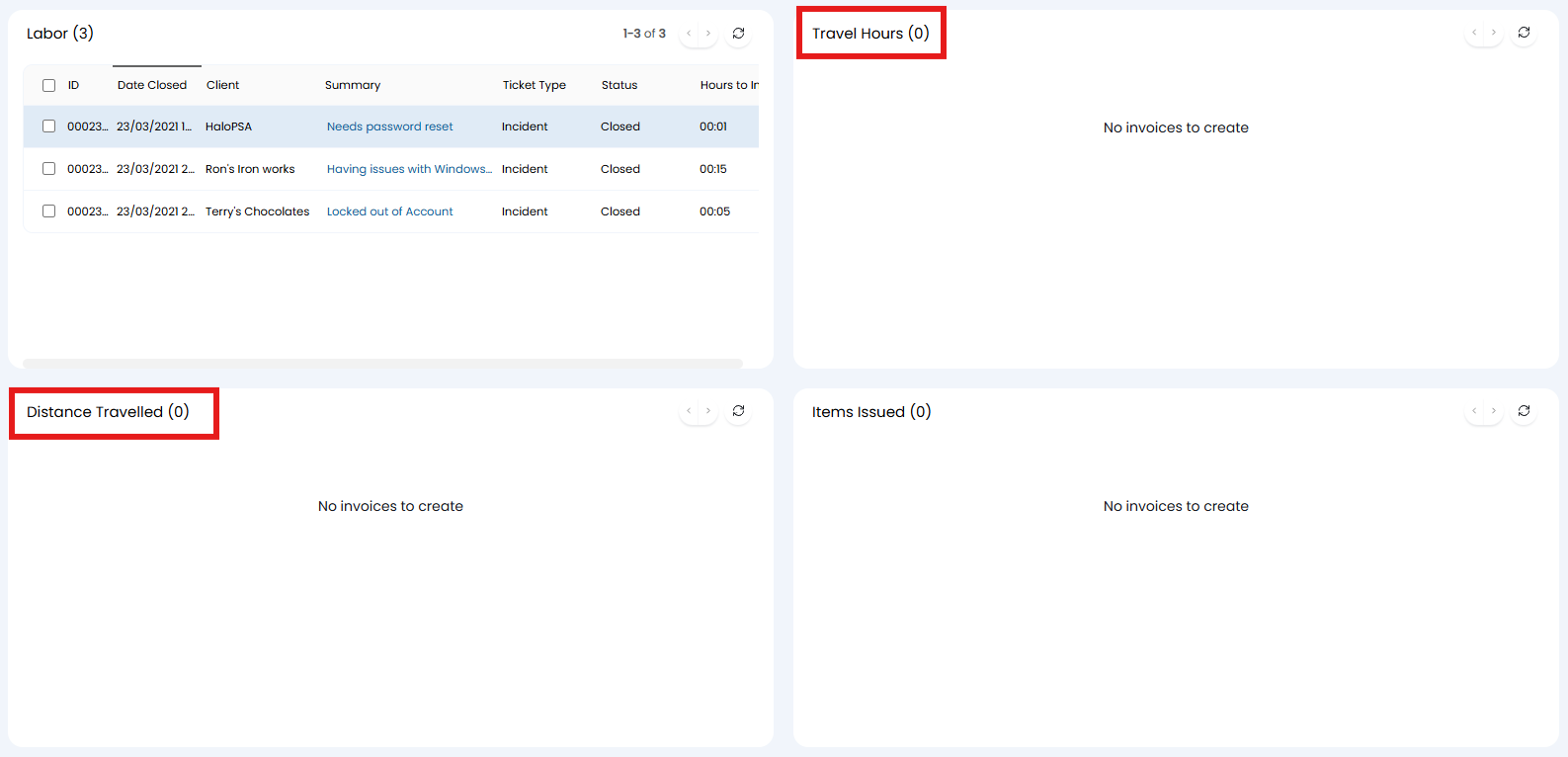
Fig 11. Travel Hours & Distance Travelled sections of Ready for Invoicing
You can also set/restrict when travel/mileage is able to be billed. Under Configuration > Billing > Labour and Travel, you will see the setting highlighted in Fig 12.
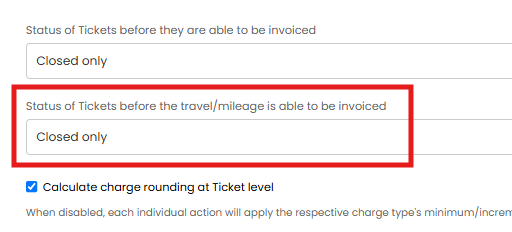
Fig 12. Status of Tickets before the travel/mileage is able to be invoiced
The ticket will need to be in the status chosen here before an invoice a can be created for the travel/mileage (appearing in the ready for invoicing area). This allows you to restrict ticket labour to only be billed when the ticket is closed, but have travel/mileage be billed when the ticket is still open.
Adding Travel rates to Billing Rules
Travel rates can now be used in Billing Plan Combinations on Clients and Contracts.
To allow this ensure the "Allow Travel Charge rates to be used on Billing Plan Combinations" checkbox is selected in Configuration > Billing > Labor and Travel.
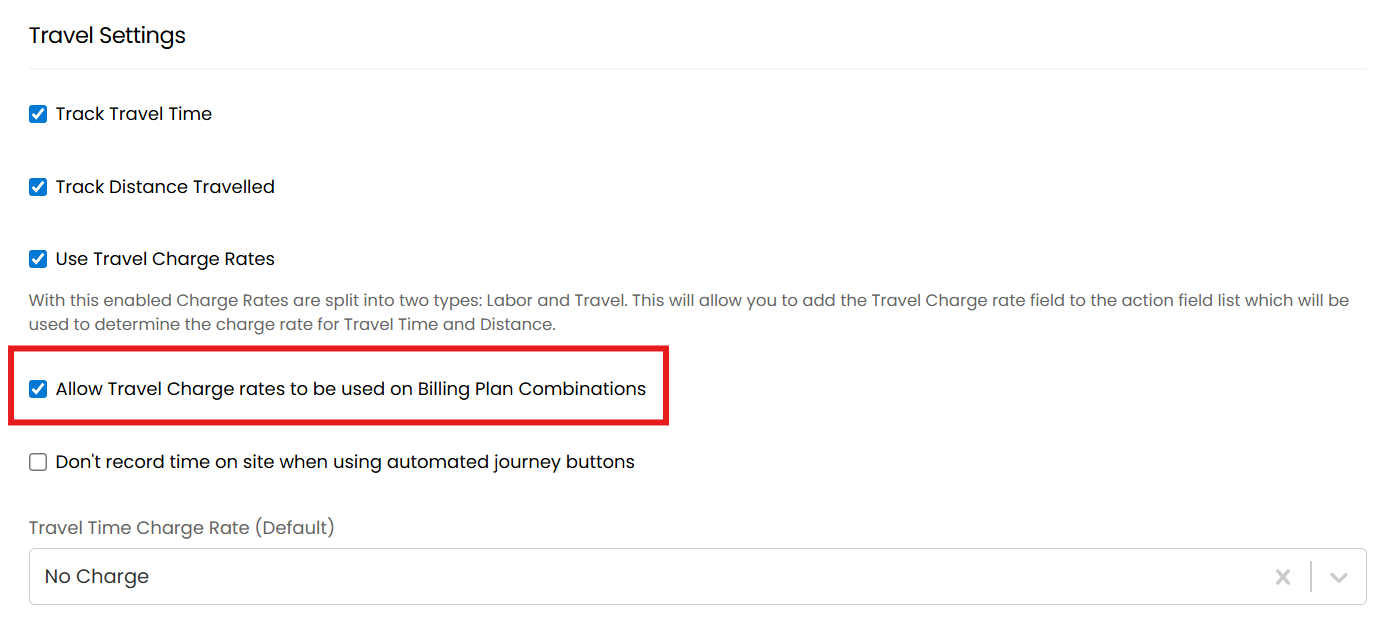
Fig 13. Allowing Travel rates in billing plan combinations
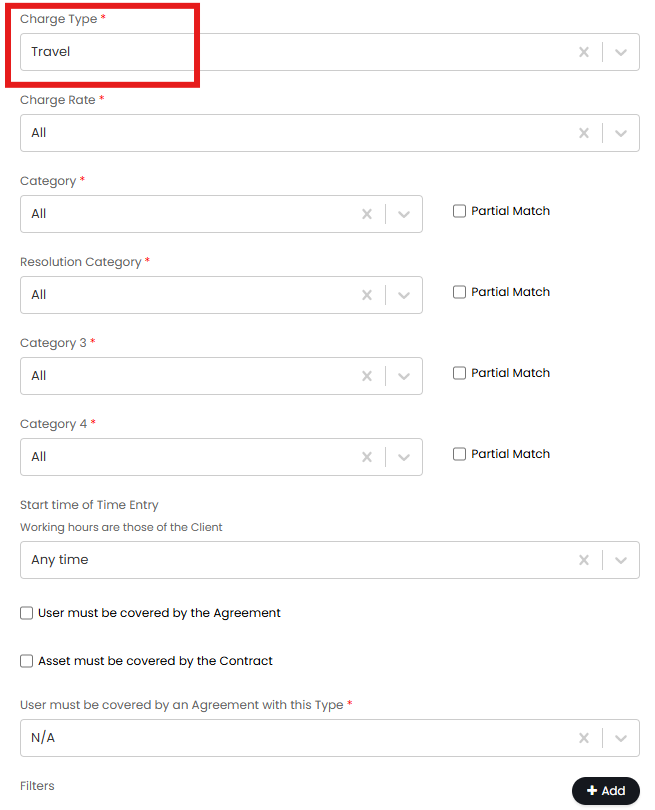
Fig 14. Travel rates in billing plan combinations
The travel rate billing plan can be set to 'Pay as you go', which will invoice as usual, 'Don't Invoice' which will remove billable travel time and prevent the travel time from showing the 'Travel' Ready for Invoice area, or 'Contract' which will match the contract to the action as a travel contract. Currently, any travel time that is matched to travel contracts won't be invoiced.