The Ready For Invoicing Area
- filtering invoices
- creating invoices
- generating invoices
- deleting invoices
In this guide we will cover:
- What is the Ready For Invoicing area?
- Subsections in the Ready for Invoicing Area
- Filtering Invoices
- Creating Invoices
- Deleting and Editing Invoices
What is the Ready for Invoicing area?
The Ready for Invoicing area is a subsection of the Invoices module. This area is used to create invoices for the various billable entities in Halo. This is where you will initiate the billing process, creating invoices that sync over to your third party accounts system.
The area is divided into multiple subsections, categorised by the entities that need billing.
The sections include:
- Recurring Invoices
- Pro-Rata
- Labour
- Items Issued
- Project
- Projects
- Milestones
- Sales Orders
- Pre-pay
- Expenses
- Deferred Revenue (if enabled)
- Travel Hours (if enabled)
- Distance Travelled (if enabled)
- Tickets (if enabled)
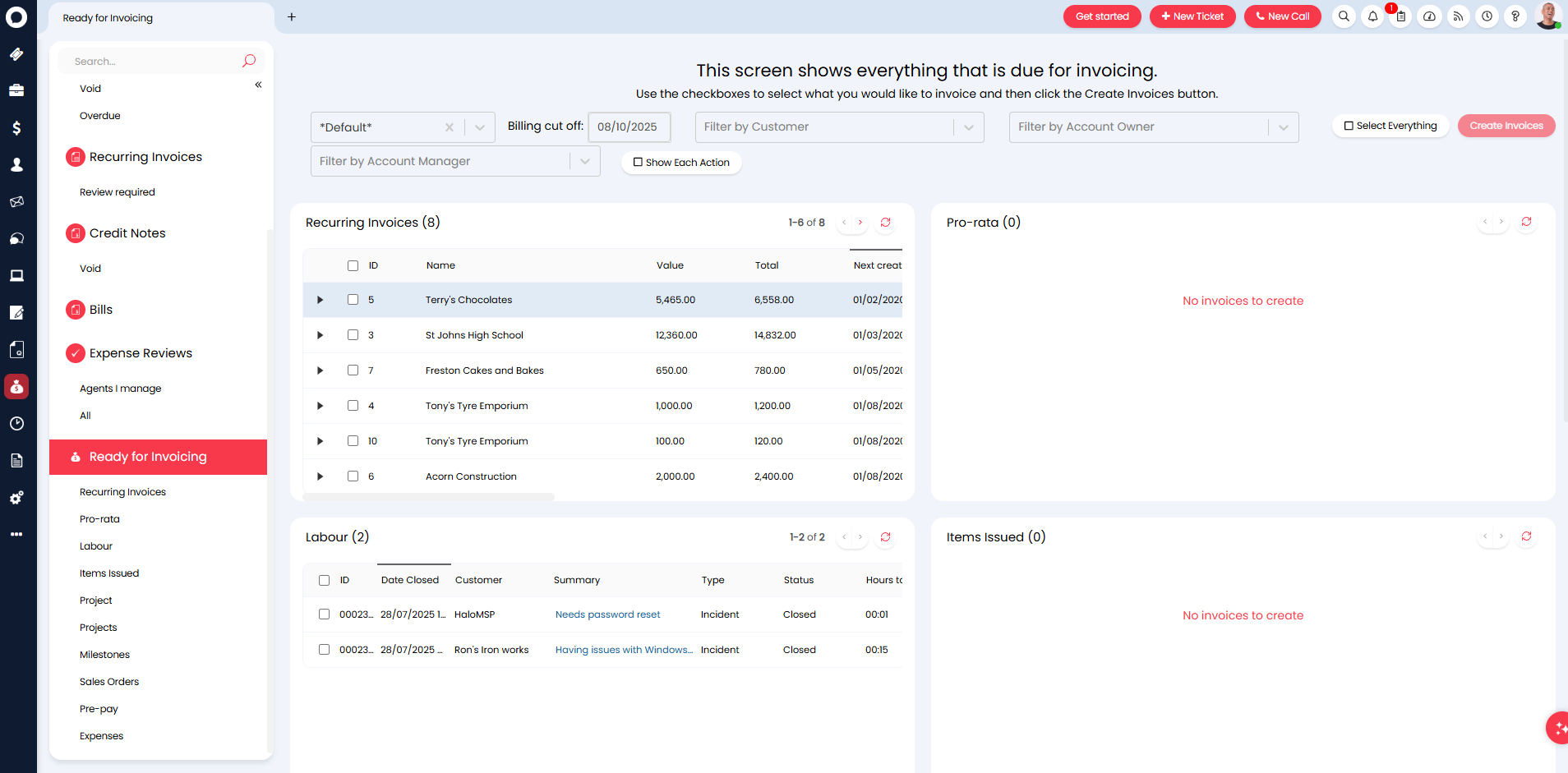
Fig 1. Ready for Invoicing page.
Subsections in the Ready for Invoicing Area
Main Page
The main Ready for Invoicing area will show all the entities that require billing. Entities are organised into tables, containing entries for each instance of the entity that needs billing. This section can be used to see how many entries need to be billed at a glance. It is also useful when checking for a specific entry when you are usure which subsection this may appear in.
Recurring Invoices
This subsection shows all recurring invoices that need to be billed.
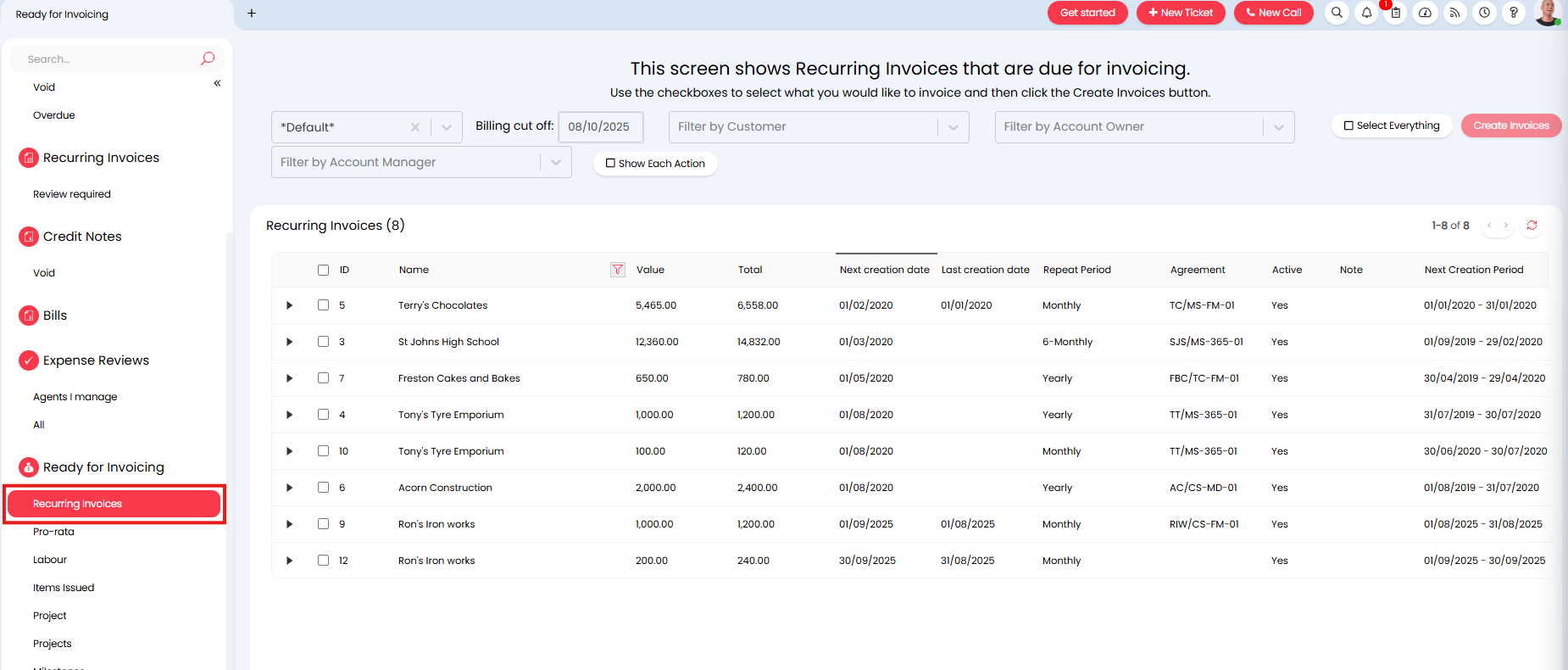
Fig 2. Recurring invoices subsection.
By default the recurring invoice details are collapsed but can be expanded using the arrow on the left hand side of the entry. Expanding this will show the details of the recurring invoice that will be used to create an invoice.
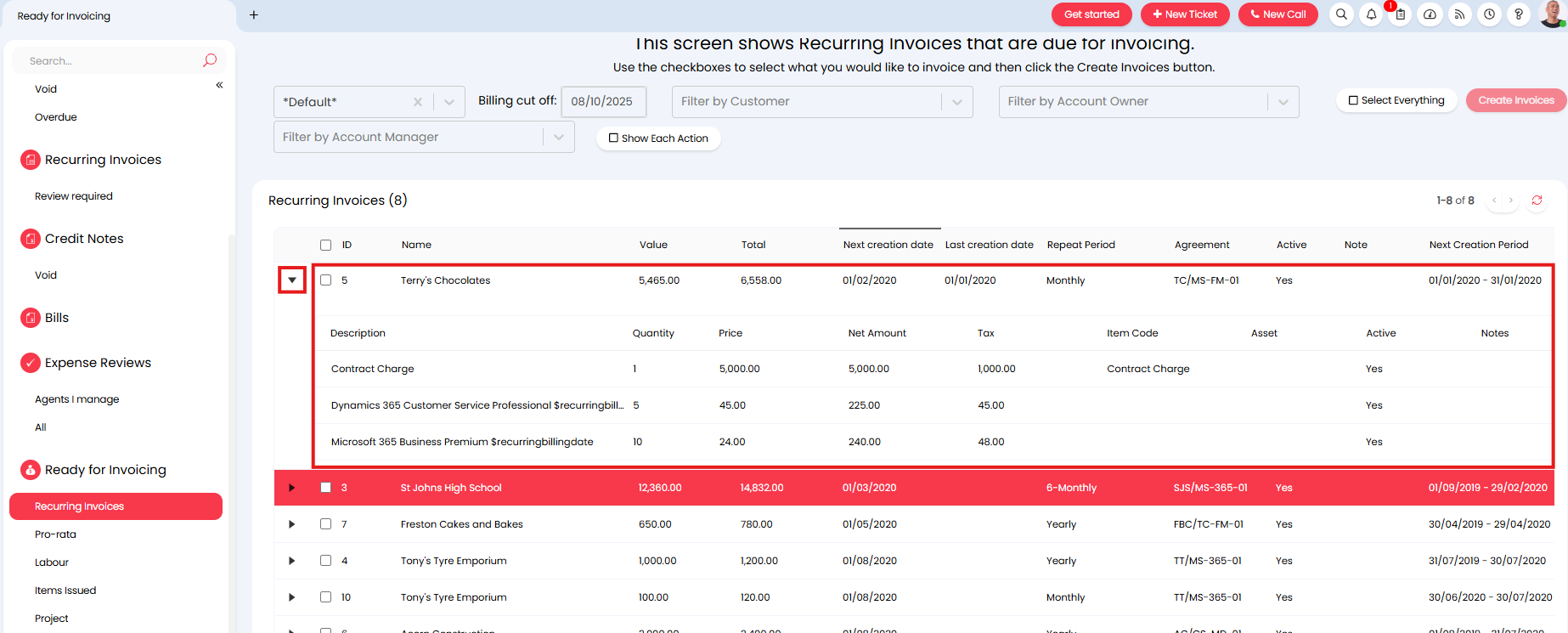
Fig 3. Expanded recurring invoice entry.
You can add an additional column to show here containing the value that was last invoiced for this recurring invoice (value for the last period). To add this head to Configuration > Billing > Recurring Invoices > enable "Show last invoice value on recurring invoice list in 'Ready for invoicing'".
Lines which fall outside of the date range can be excluded in the 'total' calculation. This can be set by enabling the "Exclude Recurring Invoice lines outside the Recurring Invoice date range from Ready for Invoicing totals" checkbox in Configuration > Billing > Recurring Invoices.
Pro-Rata
This subsection shows all pro-rata amounts that need to be invoiced. Pro-rata will only show here if it is added to a recurring invoice manually and 'Show this Pro-rata in Ready for Invoicing so it can be Invoiced immediately' is enabled against the pro-rata entry.
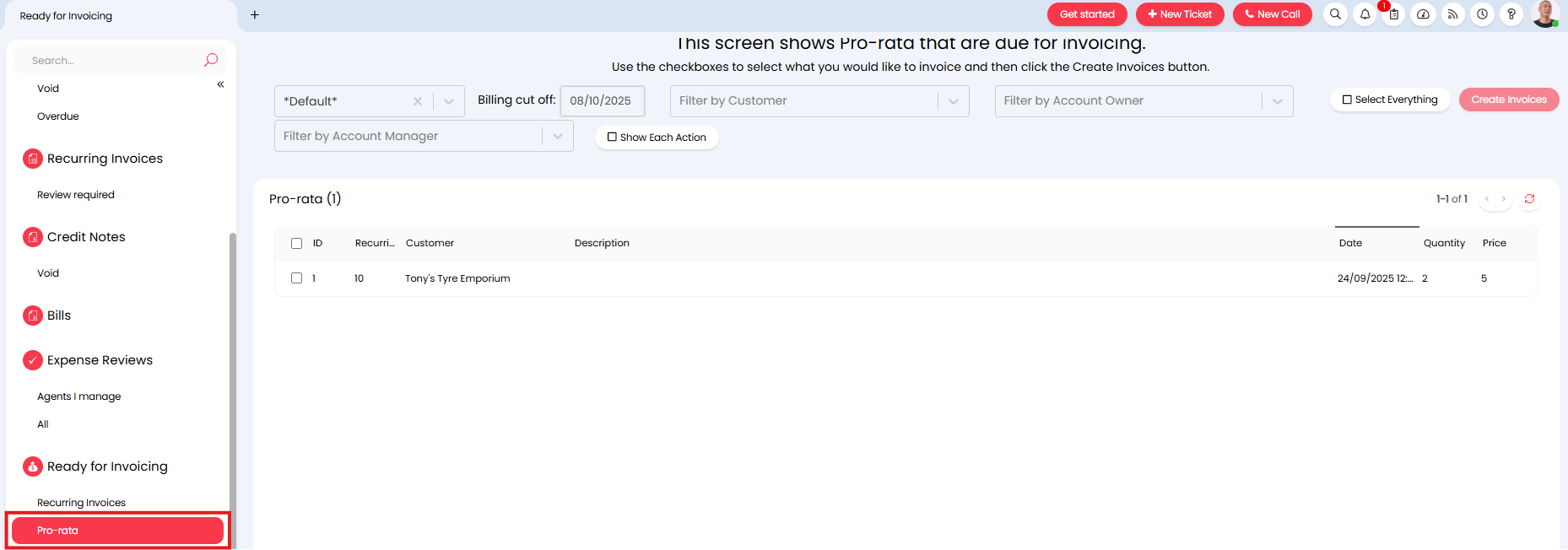
Fig 4. Pro-rata subsection.
Labour
This subsection shows all labour entries that need to be invoiced. An entry will show here for every ticket completed that contains chargeable time.
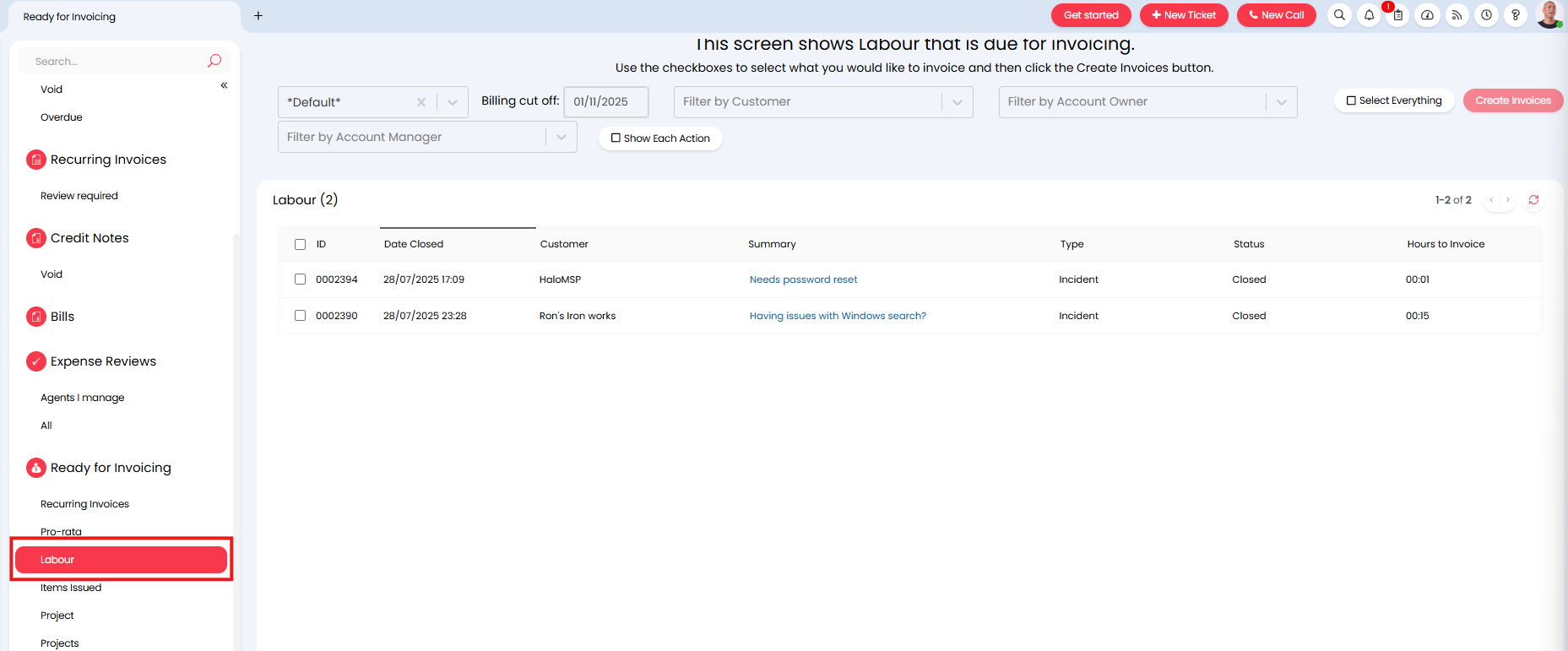
Fig 5. Labour subsection.
Project
This subsection shows all project tickets with the project hierarchy 'Project' that need invoicing. When invoices are created for these tickets the invoice will include all the billable time accumulated under the project ticket, including time logged on the project tasks under this project ticket. However, items issued as part of the project will not be added to the invoice when it is created from here. This can be used when projects are billed on a time and materials basis and you would like to bill the entirety of the project labour at once.
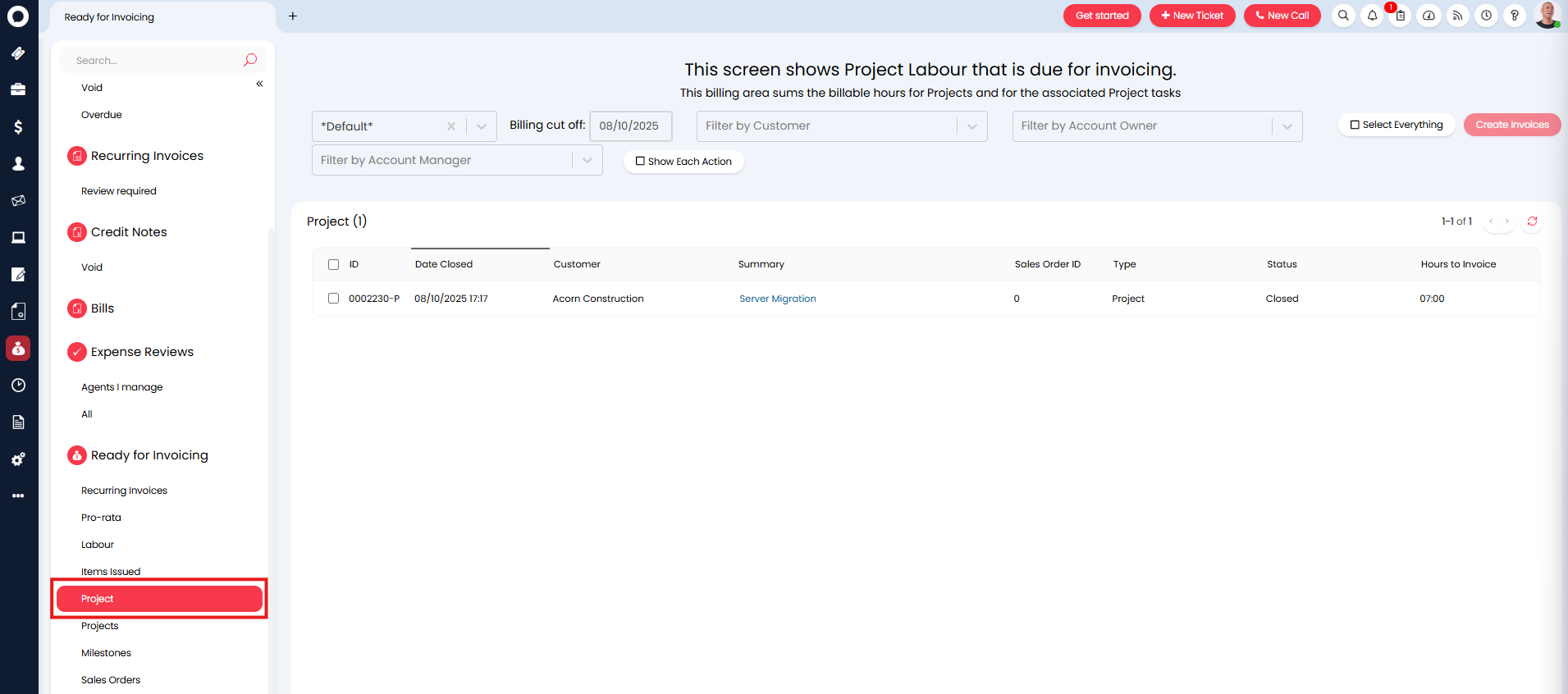
Fig 6. Project subsection.
Projects
This subsection shows all entries for each billable entity relating to projects. Essentially providing a breakdown of each element of projects that may need to be billed. This includes labour logged on project tickets/tasks, items issued as part of a project, project milestones and sales orders.
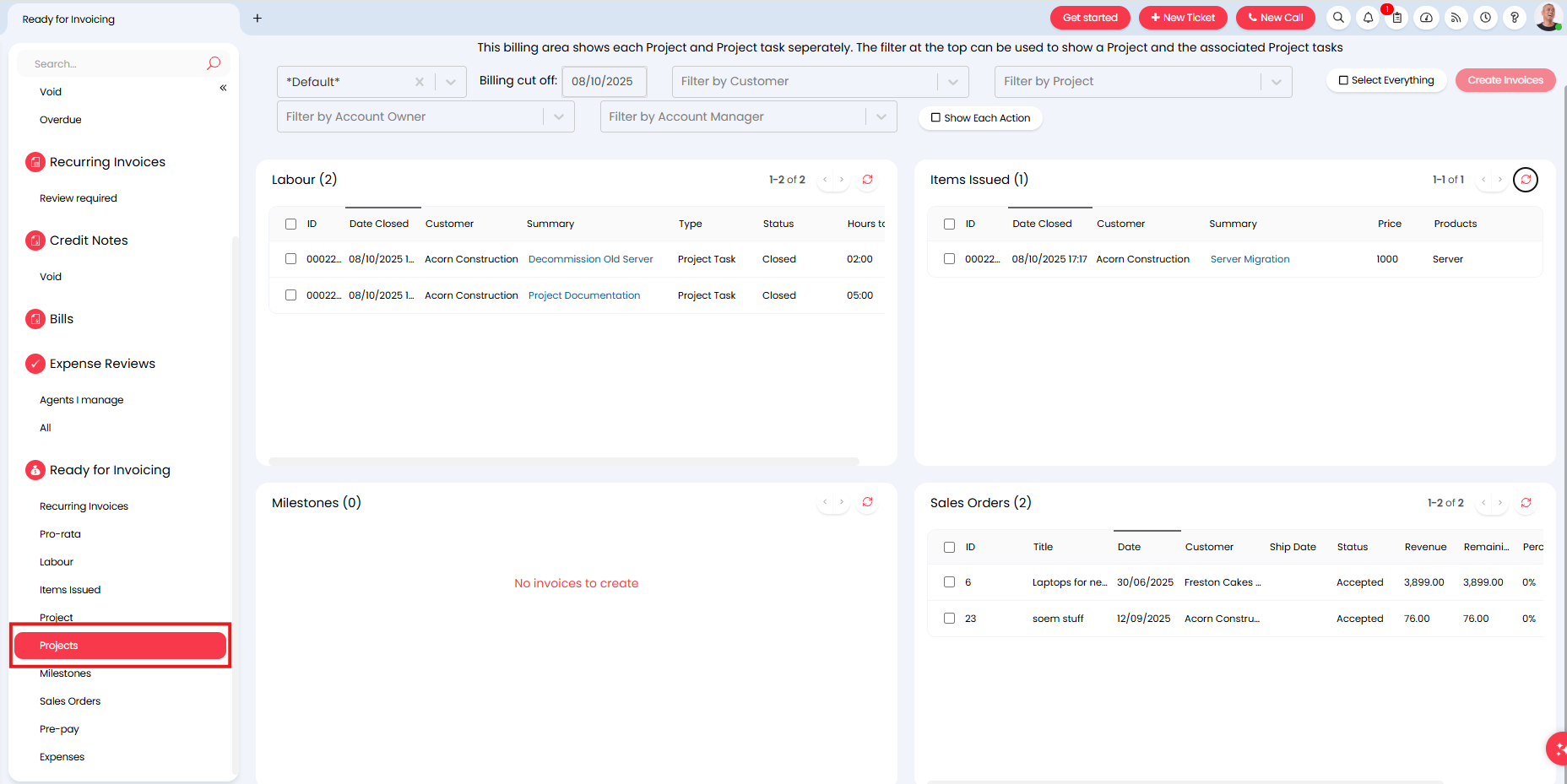
Fig 7. Projects subsection.
This area can be used to create invoices for specific elements of a project e.g. just bill a single task of a project, rather than billing the whole project.
The Sales Orders table here will show all sales orders, regardless of whether the sales order is linked to a project.
The Milestones table is only applicable when using milestone billing for projects.
Milestones
This subsection will show all project milestones that are ready to be billed. Only used if you are using milestone billing to bill for projects.
Sales Orders
This subsection will show all sales orders that are ready to be invoiced. Whether a sales order is deemed as ready to be invoiced will depend on its status.
Pre-Pay
This subsection will show all pre-pay records that require invoicing. This includes records that are added manually and automatically.
Expenses
This subsection will show all expense records that require invoicing.
Deferred Revenue
This subsection will only show if deferred revenue is enabled.
This subsection will show all records relating to deferred revenue that require invoices to be created. This section is used to create invoices to recognise revenue that has been deferred, rather than create invoices to bill customers. Entries will only show here for records that have had their revenue deferred. This includes pre-pay records, project labour, project milestones and down payments from sales orders. For more information on records in this area checkout Deferred Revenue for Pre-Pay.
Travel Hours
This subsection will only show if you are tracking travel time.
This subsection will show all travel time that needs to be invoiced. An entry will show for each ticket that has travel time logged against it.
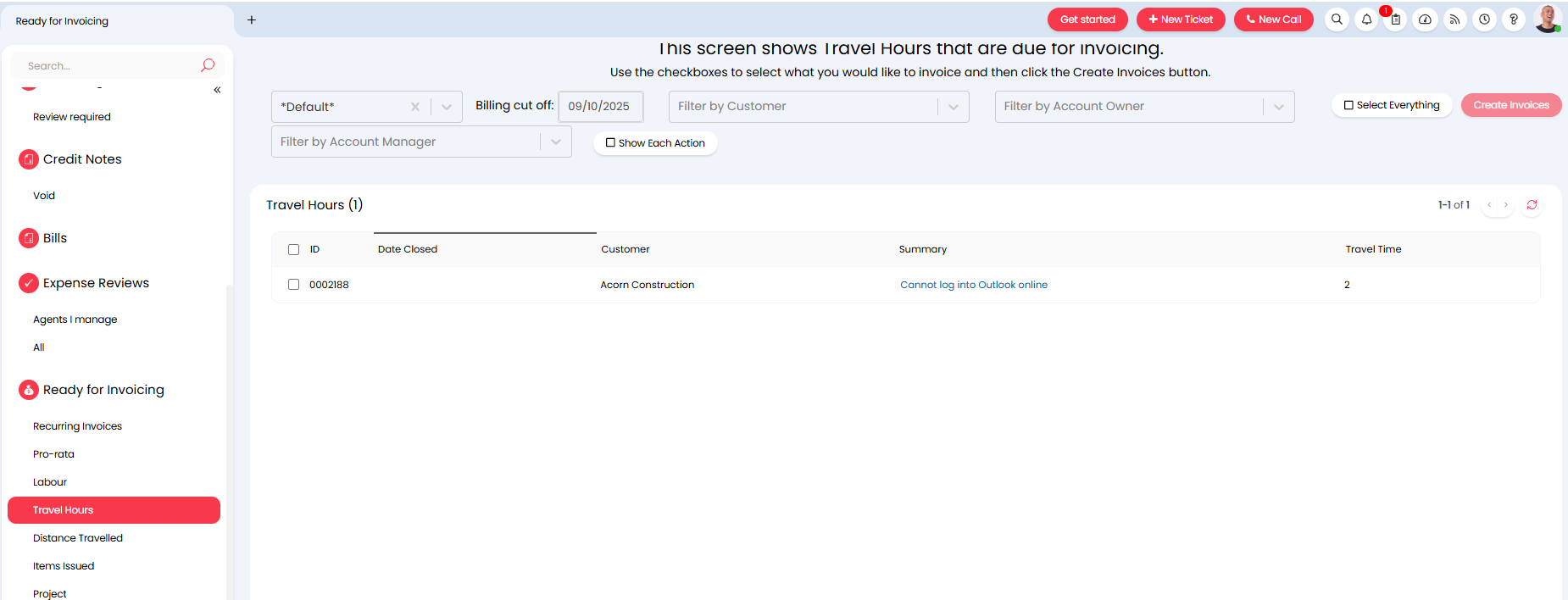
Fig 8. Travel Hours subsection.
Distance Travelled
This subsection will only show if you are tracking distance travelled.
This subsection will show all travel distance entries that need to be invoiced, mileage records for example. Used when creating invoices based on the distance the agent has travelled rather than the time spent travelling.
Tickets
This subsection shows all entries for all billable entities that relate to tickets. Including, labour time, travel hours, distance travelled, and items issued.
This section can be used to bill all entities relating to a ticket at once, or review how many billable entities a ticket has used.
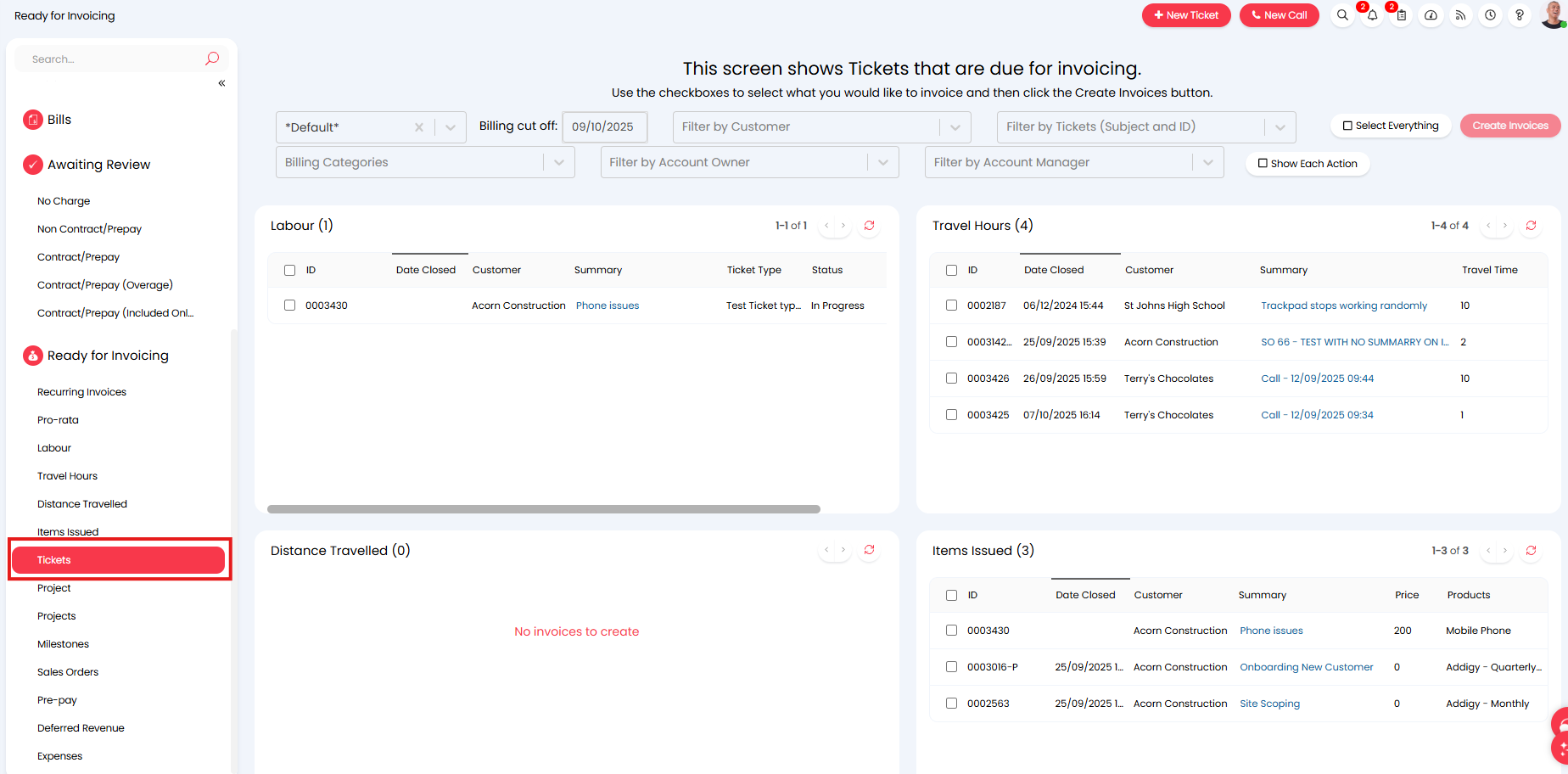
Fig 9. Tickets subsection.
This section has an additional ticket filter, which allows you to filter the entries that show on the page based on the ticket they relate to. In the figure x example, the page has been filtered to only show entries for the ticket 3430, once filtered we can see this ticket has one hour of labour time to invoice and an issued item to invoice.
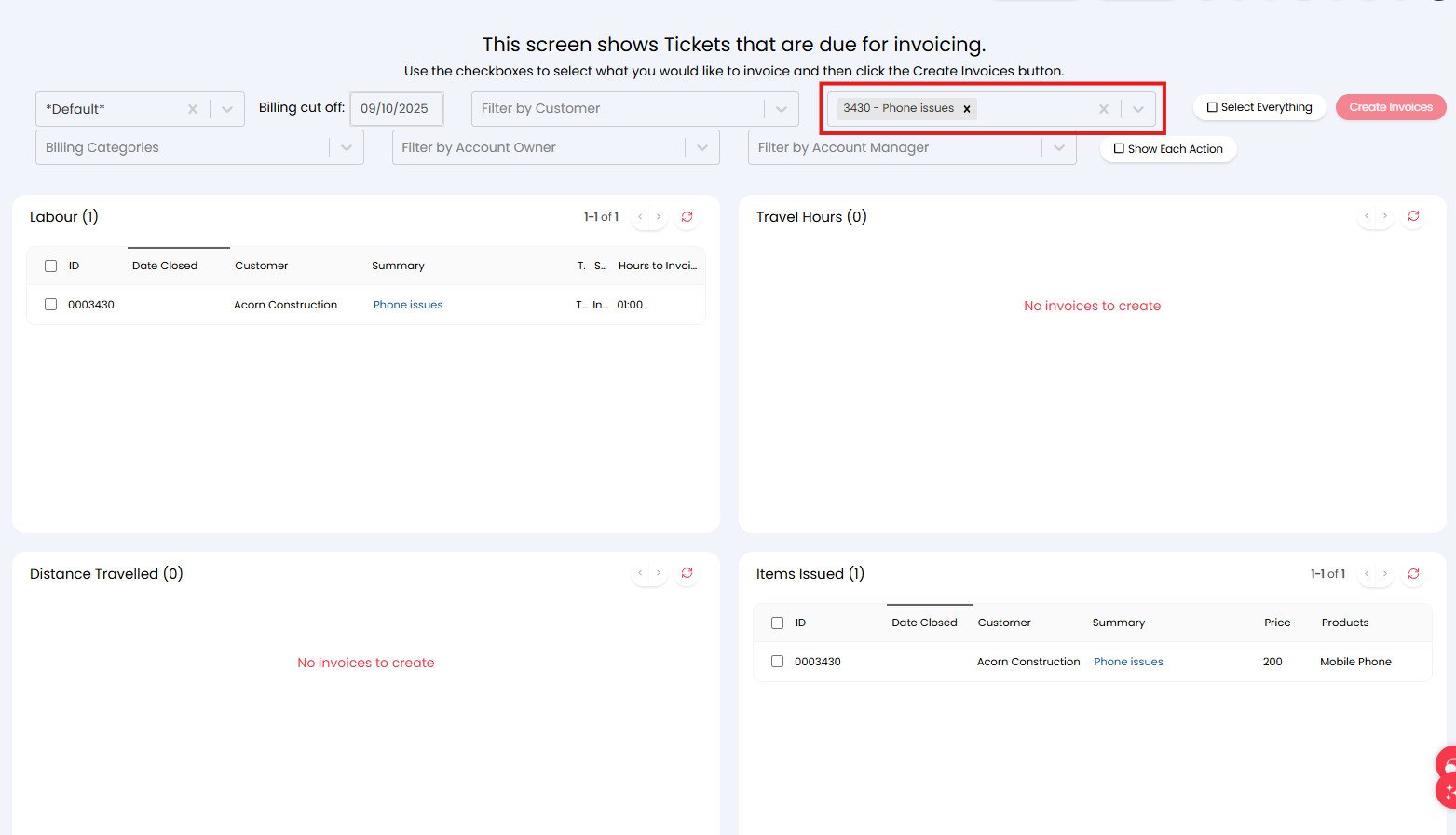
Fig 10. Filter tickets subsection by a specific ticket.
Filtering Invoices
Each section in the Ready for Invoicing area can be filtered to restrict the entries that show in each table. Filters are available at the top of the page to do this. Each subsection will be able to be filtered by customer, account owner, account manager and billing cut-off date; however, some subsections may have additional filters available.
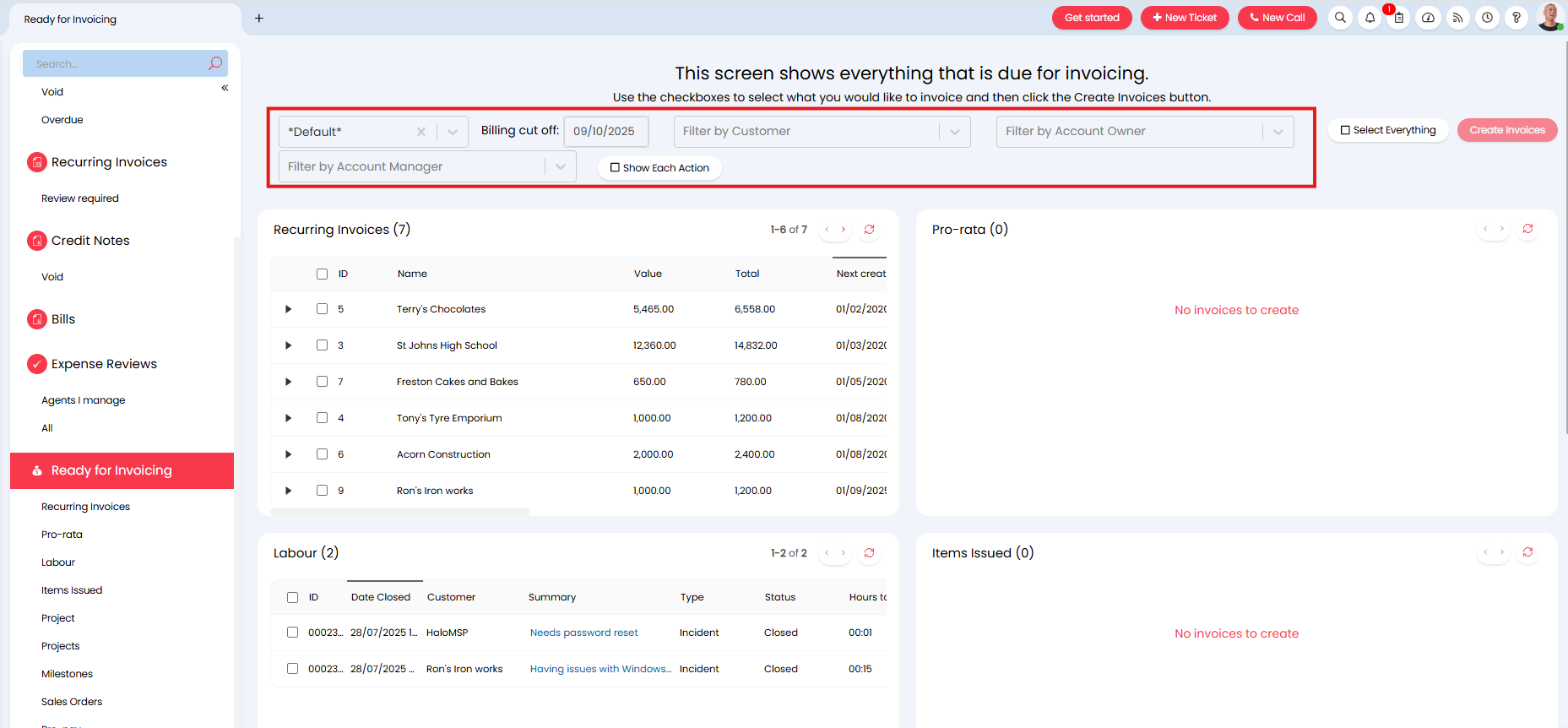
Fig 11. Filters in Ready for Invoicing.
Billing cut off - Here you can filter which entries show on the page based on the date they need to be invoiced. Moving this date forward will allow you to see entries that are due to be invoiced in the future, especially useful for reviewing recurring charges to a customer.
- This cut-off date can be set to include invoices from the entirety of the month chosen, rather than only showing invoices before the exact date chosen. In Configuration > Billing > Recurring Invoices, enable "Show Recurring Invoices in Ready for Invoicing for the entire selected month".
Customer - Filters entries based on the customer entries relates to. Useful if you would like to see/create all the invoices for a single customer.
Account Owner - Filters entries based on the account owner of the customer. When an agent is chosen, only entries for customers this agent is the account owner of will show. Useful when account owners would like to review entries for their customers.
Account Manager - Filters entries based on the account manager of the customer. When an agent is chosen, only entries for customers this agent is the account manager of will show. Useful when account managers would like to review entries for their customers.
Show each action - When enabled, labour entries will split out, so that rather than one entry showing per ticket, an entry will show per action. The action ID of the action the chargeable time was logged on will also show.
Column filtering
When viewing entries in subsections, you will also have the option to filter by columns in each of the tables.
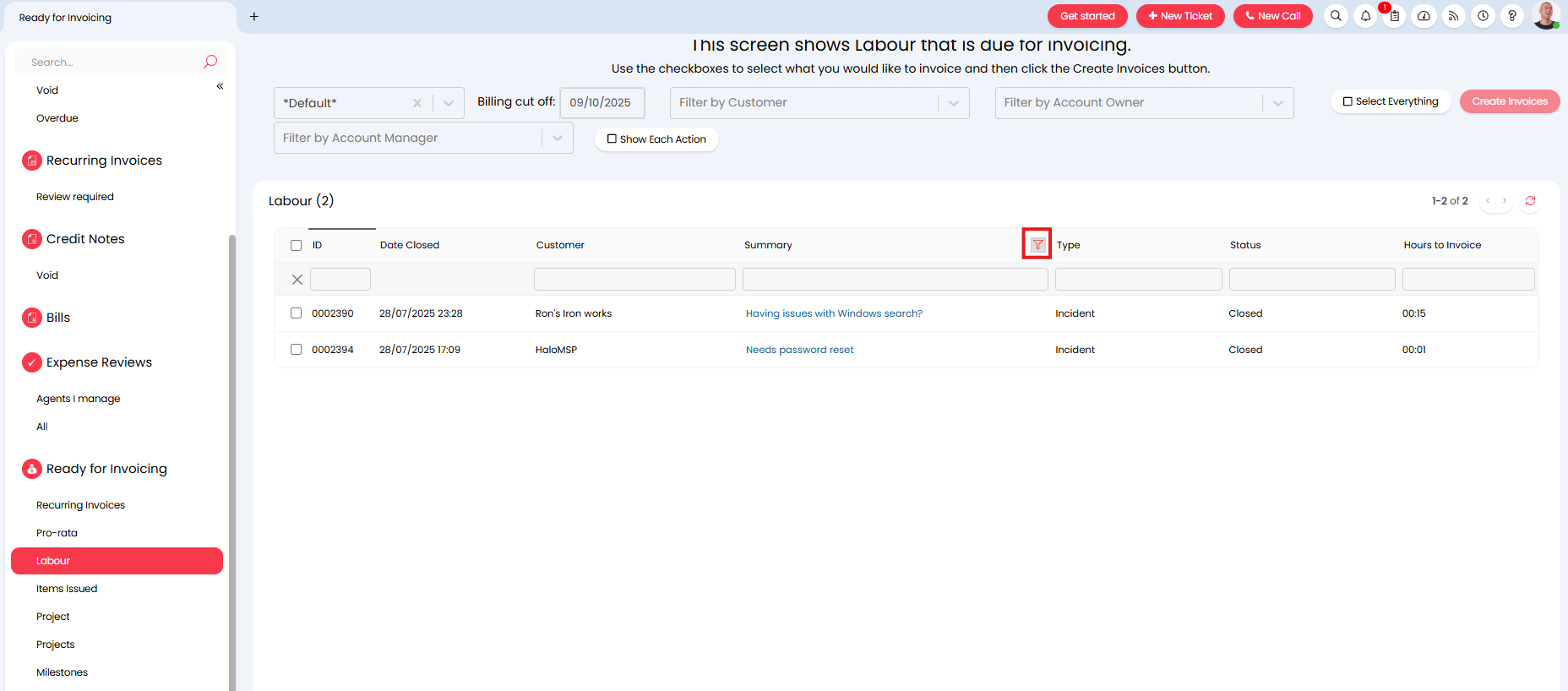 Fig 12. Ready for Invoice screen focussed on Recurring Invoices.
To see if you can filter by a column in ready for invoicing, hover over the column header and if the funnel symbol appears you can filter by this column. Select the funnel to filter. Columns with text values can be filtered by entering the name of the entity you want to filter by. Ticket ID can be filtered by typing in the ticket ID number.
The columns 'Hours to invoice' and 'Included hours' can be filtered using relational operators: ">,>=,<,<=,=,<> ". This means you can filter by invoices that have a certain number of hours to be invoiced or included hours. For example, if you would only like to create invoices that have more than 2 hours to be invoiced, enter >2 in the filter bar.
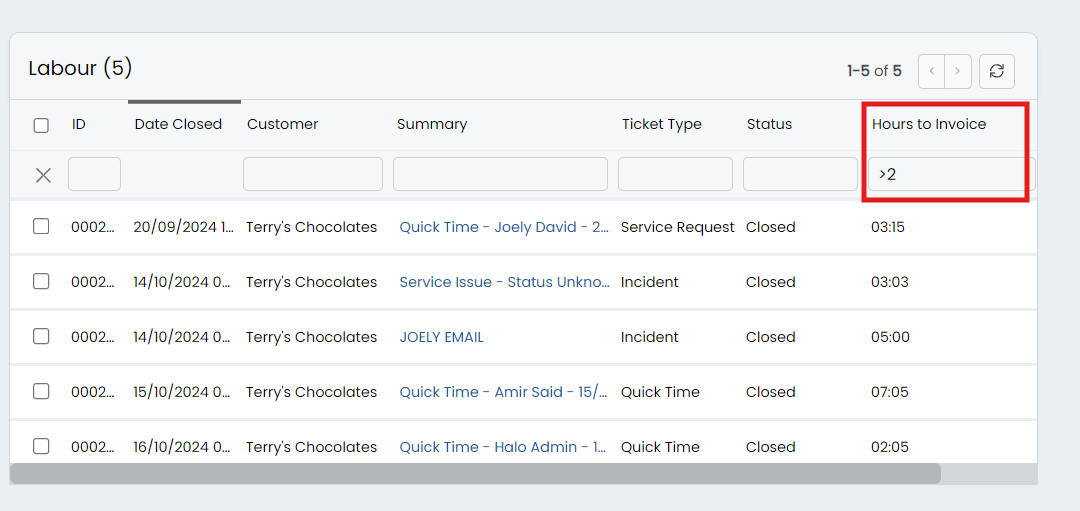
Fig 13. Hours to invoice filter.
Note that this filter works using hours, but the value displayed is shown in Hours: Minutes. This means that is you would like to filter by a certain number of minutes, you need to covert this to hours. For example, if I wanted to show tickets that only have 15 minutes or less time to be invoiced, I would need to enter the following in the filter: <=0.25.
To view the invoice information in depth, click the arrow on a line item. This will display each charge relating to that invoice along with the customer information.
Custom Filters
You can also create custom filters to filter all results shown on the Ready for Invoicing page. To do this, head to Configuration > Billing > Labour and Travel, click the "Awaiting Review/Invoice Filters" button > set the "Use" to "Awaiting Review". Any filters created with this use will be available to use one the Ready for Invoicing page and the Awaiting Review page. You can create filters based on a variety of system fields, including custom fields. Recurring Invoice custom fields will be available to use in filter criteria from v2.238+. In this example, we are creating a filter that only returns invoices due to be created for customers with the Top Level "Areas".
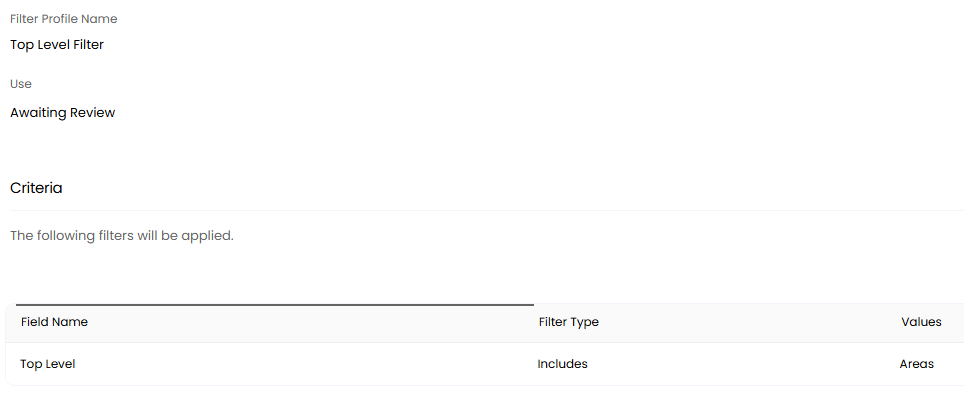
Fig 14. Creating a filter profile.
You can then choose the filter within the "Ready for Invoicing" screen.
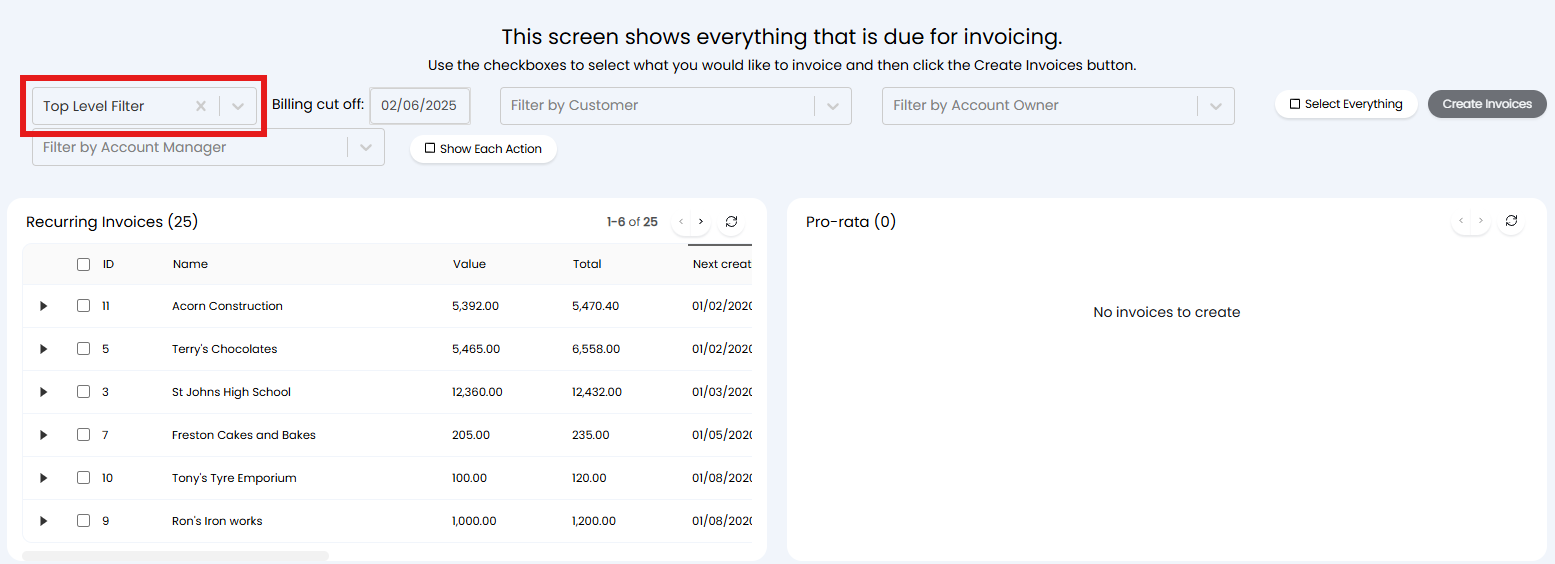
Fig 15. Adding a filter to the Ready for Invoicing screen.
Custom Filters for Recurring Invoices (v2.248+)
From v2.248+ custom filters can be created for the "Recurring Invoices" table on the Ready for Invoicing page. Allowing you to filter the recurring invoices that show on this page, without filtering other entities on the page.
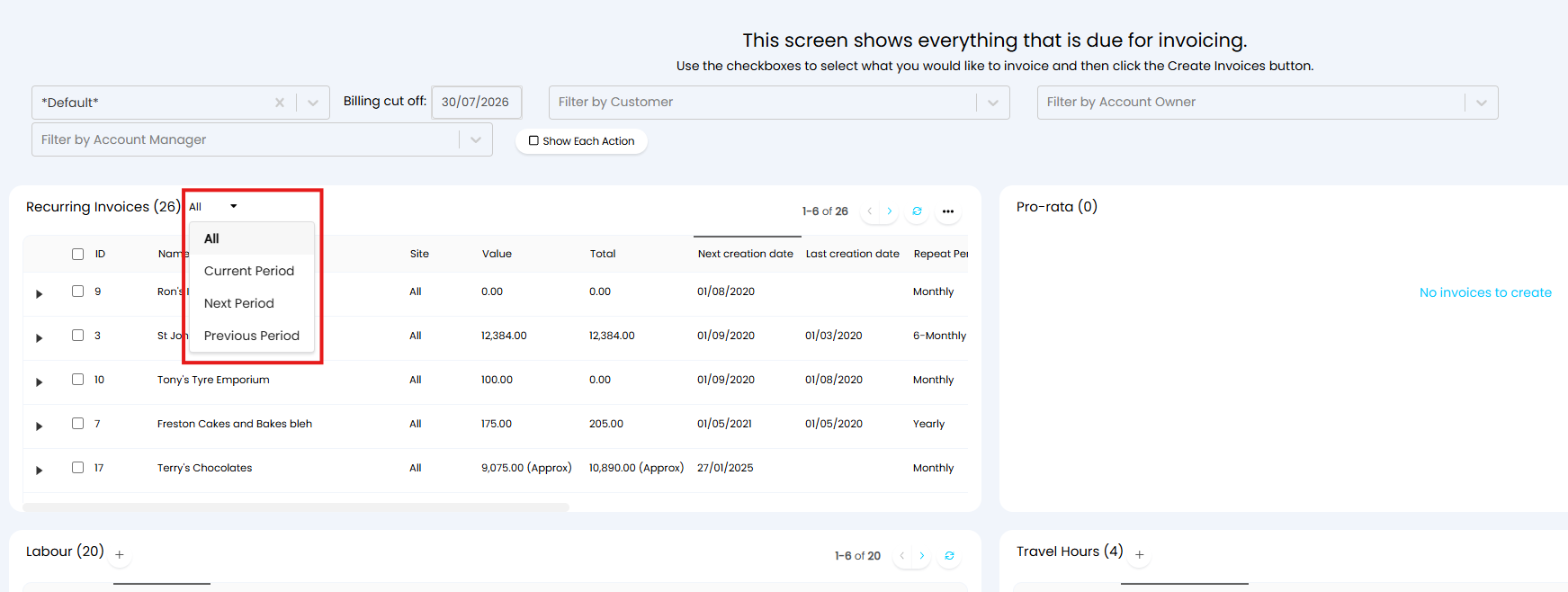
Fig 16. Filters for the recurring invoices table
To do this, head to Configuration > Billing > Labour and Travel, click the "Awaiting Review/Invoice Filters" button > New > name the filter and set the "Use" to "Recurring Invoices". Then use the criteria table to set what criteria a recurring invoice needs to meet to be returned when this filter is applied.
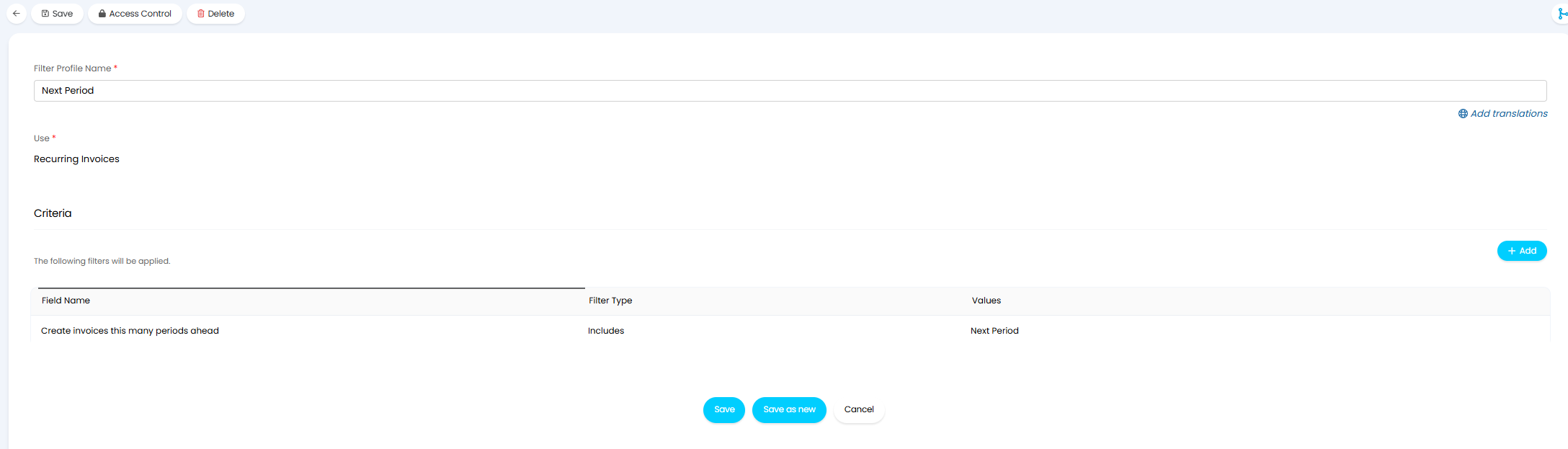
Fig 17. Recurring Invoices Filter profile to filter based on the creation period
Now, an additional filter option will show against the Recurring invoices table, as shown in Figure 16.
If a 'page level' custom filter is also applied on the page at the same time as a Recurring invoice filter both filters will apply, allowing much more granularity over filtering.
Creating Invoices
In order to create invoices in the Ready for Invoicing area simply select the entries you would like to create invoices for then use the 'Create Invoices' button in the top right of the page.
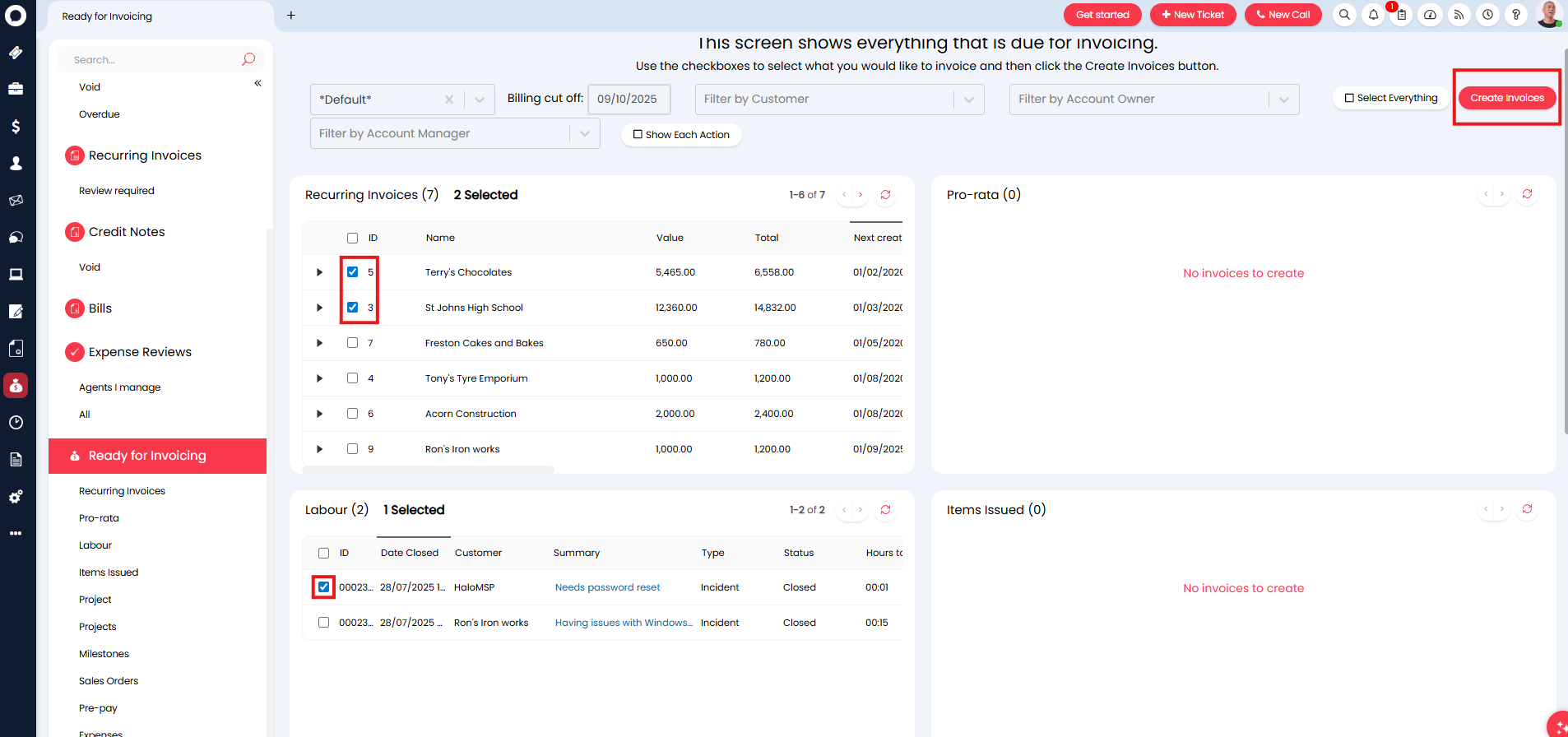
Fig 18. Selecting invoices for creation.
To select all the entries in a table, use the checkbox in the top left of the table.
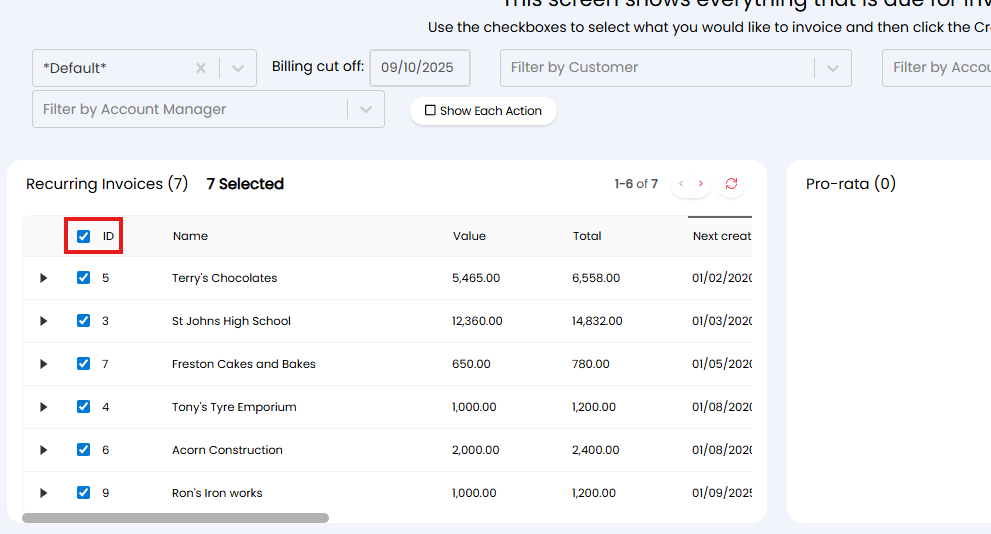
Fig 19. Select all entries in a table.
To select all entries on a page, use the 'Select Everything' button.
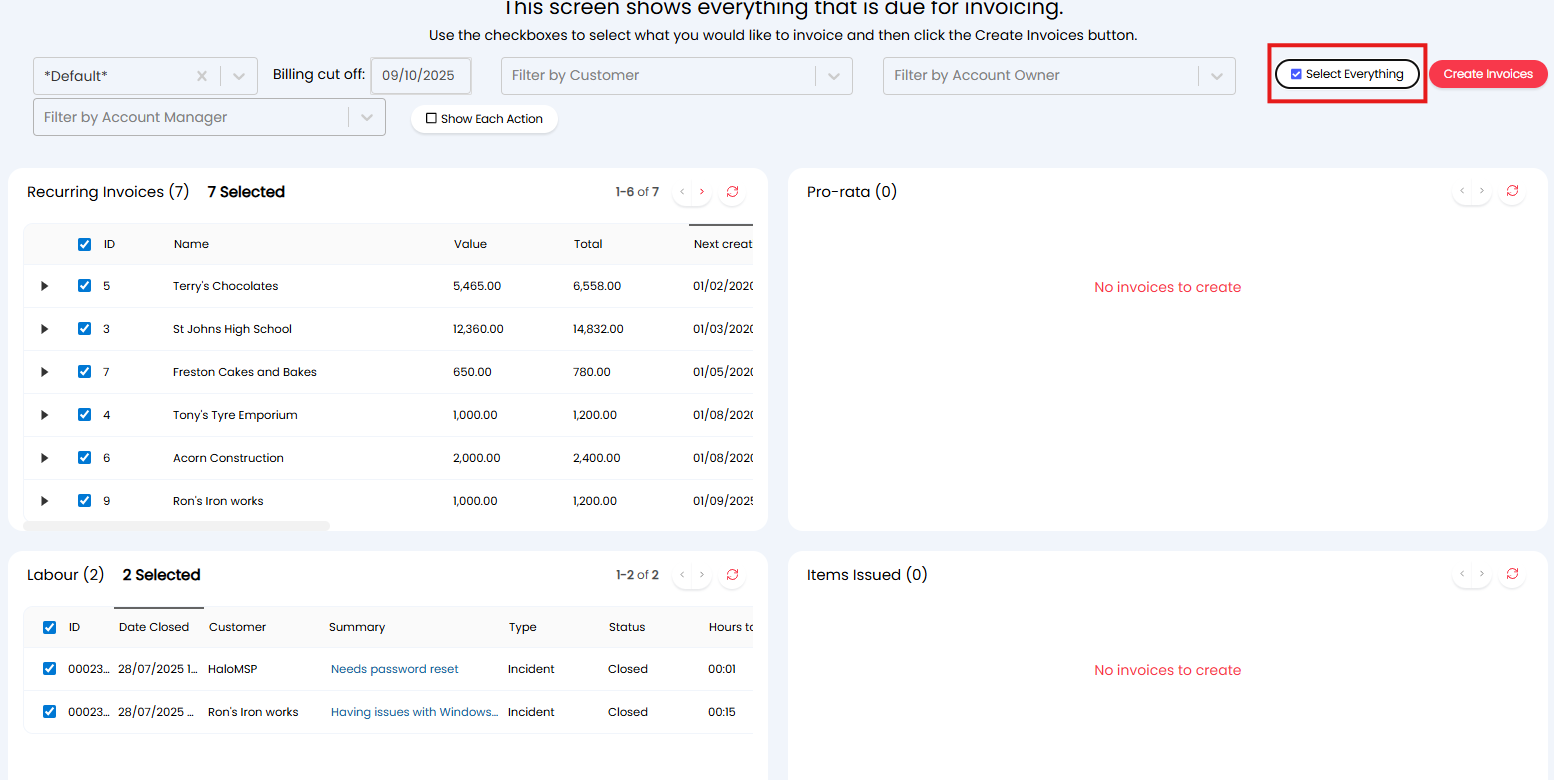
Fig 20. Select everything on page.
Only selected entries will have an invoice created, therefore if you would like multiple entries on the same invoice you will need to ensure these are both/all selected when creating the invoice. The number of invoices that are created will depend on various invoice creation settings, however, by default an invoice will be created per customer with all billable entities for the customer being added onto the same invoice. Various options are available to have invoices created per ticket, per contract, per site etc. If you would like a particular entry invoiced on its own, you can select this entry alone when creating the invoice.
Note: If you are working in an instance of Halo on version 2.230.1 or higher, there will be a "Site" column next to the Customer column for all entities in Ready For Invoicing.
Deleting and Editing Invoices
Sometimes you may wish to re-attempt the invoicing process if your invoices didn’t turn out quite how you expected. No problem, just delete those invoices! The handy thing about deleting an invoice in Halo is that doing so also marks all of the items on that invoice as unbilled again, easily reverting back to the state before the invoices were created. Halo will even delete those invoices from your third-party accounts system, if possible.
If its just a few small changes, you may decide to edit the invoices instead. You can simply click ‘Edit’ and add or remove items or edit other details on the invoice. Any items you remove from the invoice (that were added by the billing run) will be added back to the unbilled list, just like when deleting an invoice. Again, Halo will attempt to update the invoice in the third-party accounts as well, all in real time.