Expenses
- expenses
- travel expense
- reimbursement
- expense review
In this guide we will cover:
- What are expenses in Halo?
- Configuring Expenses
- Logging Expenses
- Invoicing Expenses
- Expense reviews
- Reimbursing Expenses
- Tracking Expenses
- Auditing Expenses
- Export Expenses to CSV
What are Expenses in Halo?
Expenses are used to track and/or invoice additional costs associated with a ticket. These costs are not typical charges, therefore the expenses functionality allows you to log an ad-hoc cost against a ticket, under a chosen expense type, and have this expense be added onto an invoice for the customer. Useful for expensing costs such as fuel or hotels when completing a site visit.
Configuring Expenses
To enable the expenses functionality head to Configuration > Billing > enable the 'Expenses' module using the '+' icon.

Fig 1. Enable expenses module
Once this is enabled click into the module to begin creating expense types.
An expense type is used to categorise expenses. An item will need to be linked to each expense type, this item will represent the expense on the invoice.
Select 'View/Edit Expense types' > 'New' to create a new expense type. Give the type a name and link an item. You may wish to create a new item for each expense type.
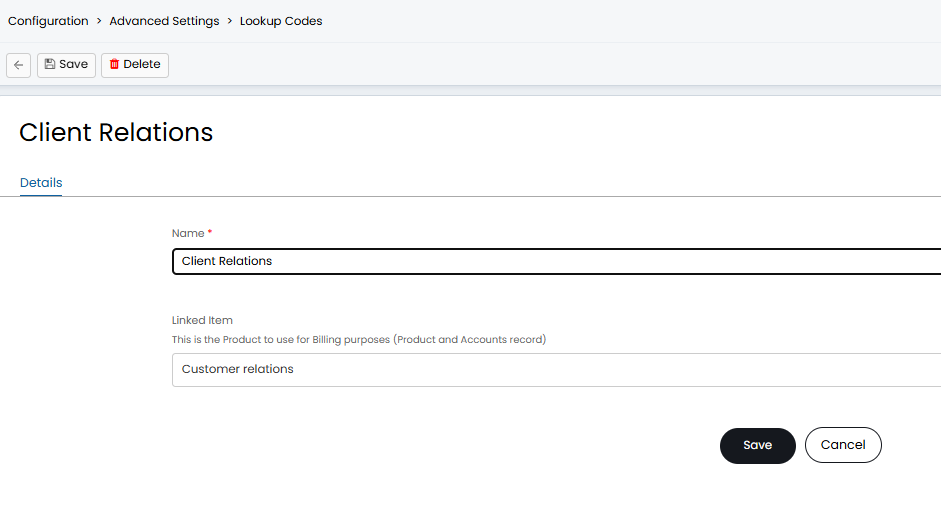
Fig 2. New expense type
The item description will be used to represent the expense on the invoice, the tax against the item will also be used to calculate tax for the expense.
Distance Expense Types
You can create expense types specifically for distance. Distance expense types allow agents to enter their distance travelled, rather than having to enter the total cost of the expense. Halo then will calculate the cost of the expense for you based on the distance entered and the rate you set.
To make a distance expense type set the "Type" field to be "Distance". Then set the rate at which this distance is reimbursed. In the Figure 3 example the 'Mileage' expense will be reimbursed at £0.45 per mile.
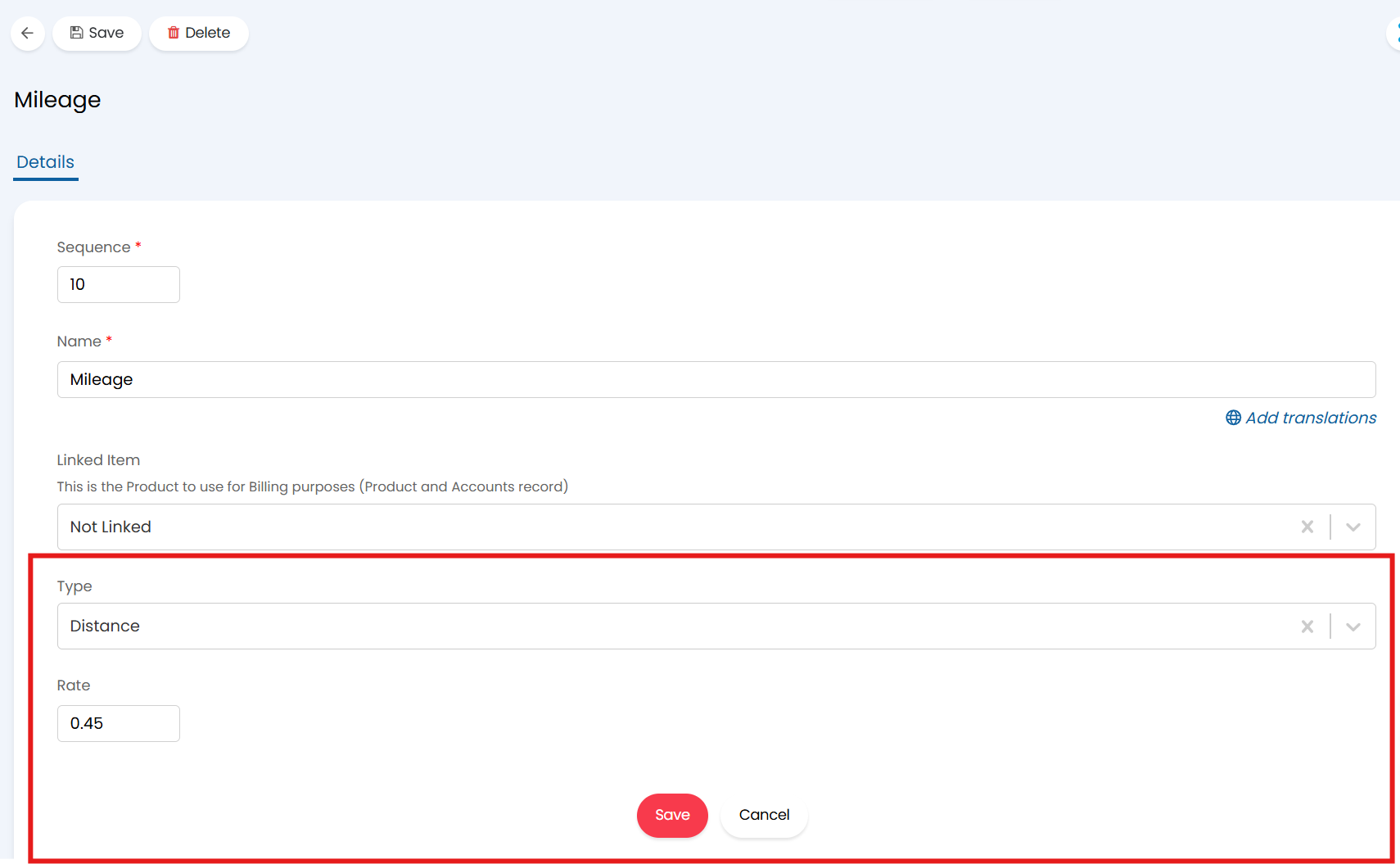
Fig 3. Distance Expense Type
Logging Expenses
Once the expense module is enabled an additional 'Expenses' table will appear against each of your tickets under the 'Billing' tab.
Note: Agents with restricted "Invoice Access Level" will not see this tab, unless the Expenses module is enabled which overrides this. Agents will then see the tab, with restricted access to actions on it.
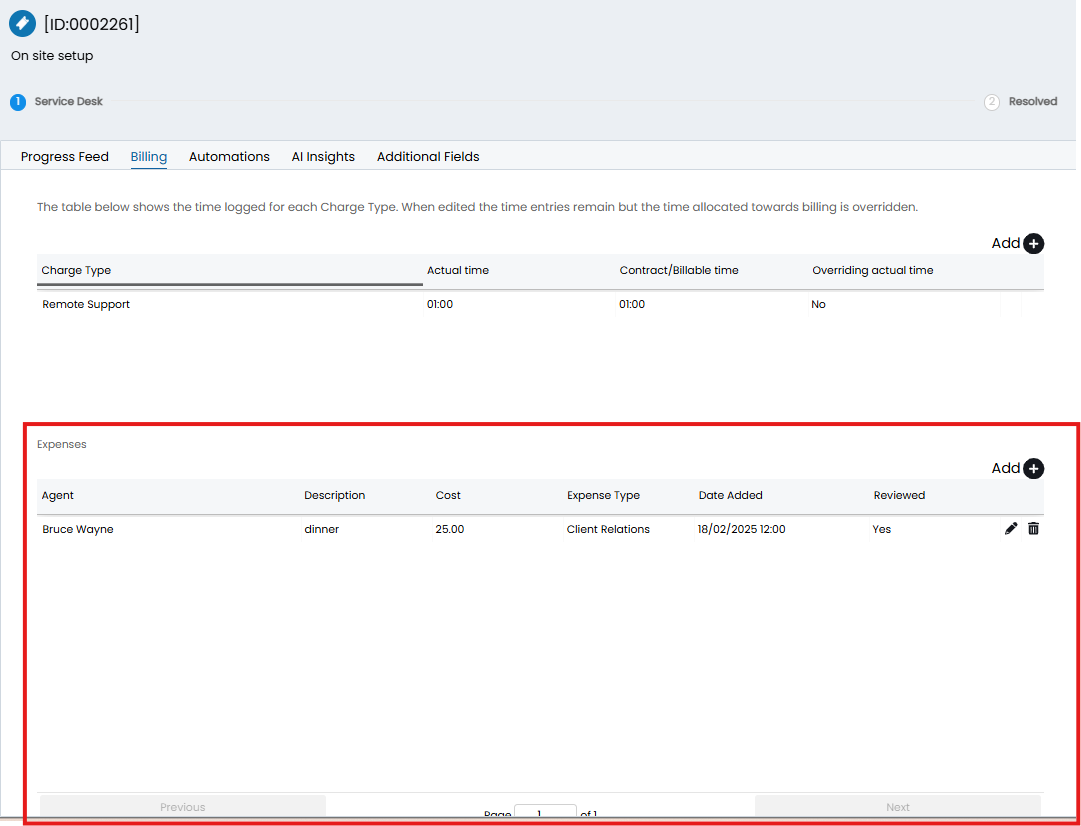
Fig 4. Expenses against ticket
Here, agents can log expenses against the customer assigned to the ticket. When adding a new expense agents will need to enter details of the expense, including the cost and type of expense.
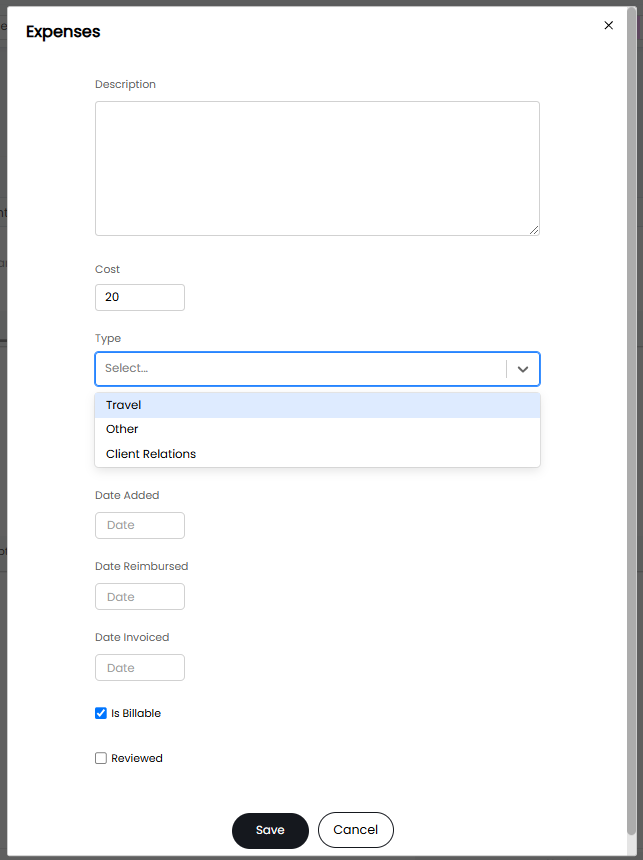
Fig 5. Logging an expense
If the type of expense is a 'Distance' expense, agents will just need to enter the distance they travelled and Halo will calculate the cost.
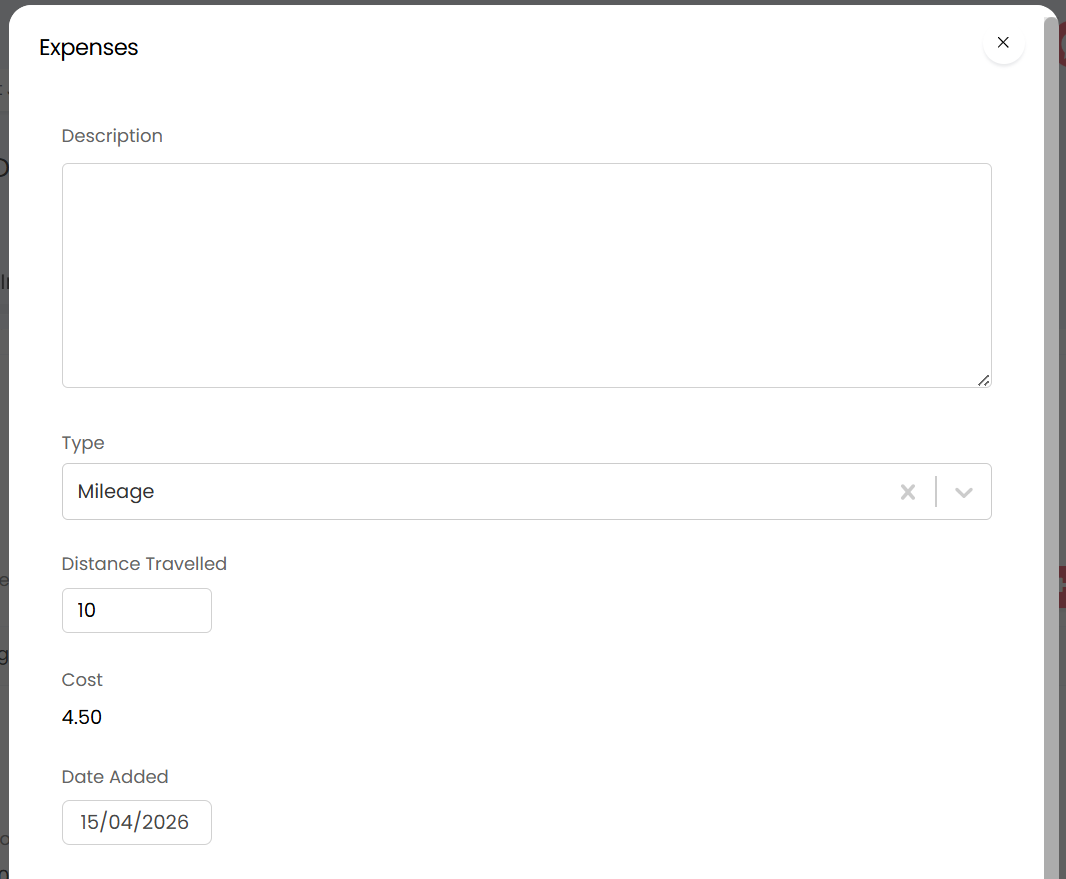
Fig 6. Logging a distance Expense
Note: From v2.256+, attachments can be added here. On versions prior to this, you will need to create the expense, then edit the expense again from the table on the ticket and the attachments box will appear where you can add in the attachment for the expense.
Is billable - If this is enabled an invoice can be created for this expense. If unchecked an invoice cannot be created. From v2.250+ this can be defaulted to be on/off per expense type using the setting "Billable by default".
Reviewed - Allows you to mark the expense as already being reviewed. We will cover expense reviews later in this guide.
An attachment can also be logged against the expense entry, useful for storing a record of receipts/proof of purchase against the expense.
Agents do not need access to invoicing to be able to log expenses against a ticket. If an agent does not have access to invoicing they will be able to see the 'Billing' tab against a ticket but they will not be able to see the charge types table here, they will only be able to see the expenses table.
Custom fields are available for expenses. When created for the "Expenses" entity in Configuration > Custom Objects > Custom Fields, the custom fields will appear at the bottom of the screen when logging an expense. This can be useful for the agent to be able to add any additional notes or justification that may be relevant.
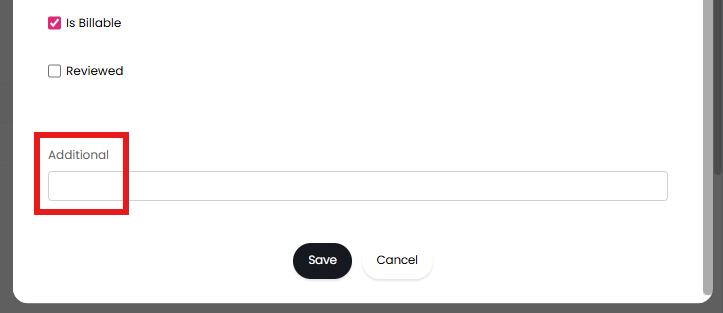
Fig 7. Custom field on expenses screen
Invoicing Expenses
Once an expense has been logged against a ticket you will be able to create an invoice for this from the 'Ready for invoicing' area.
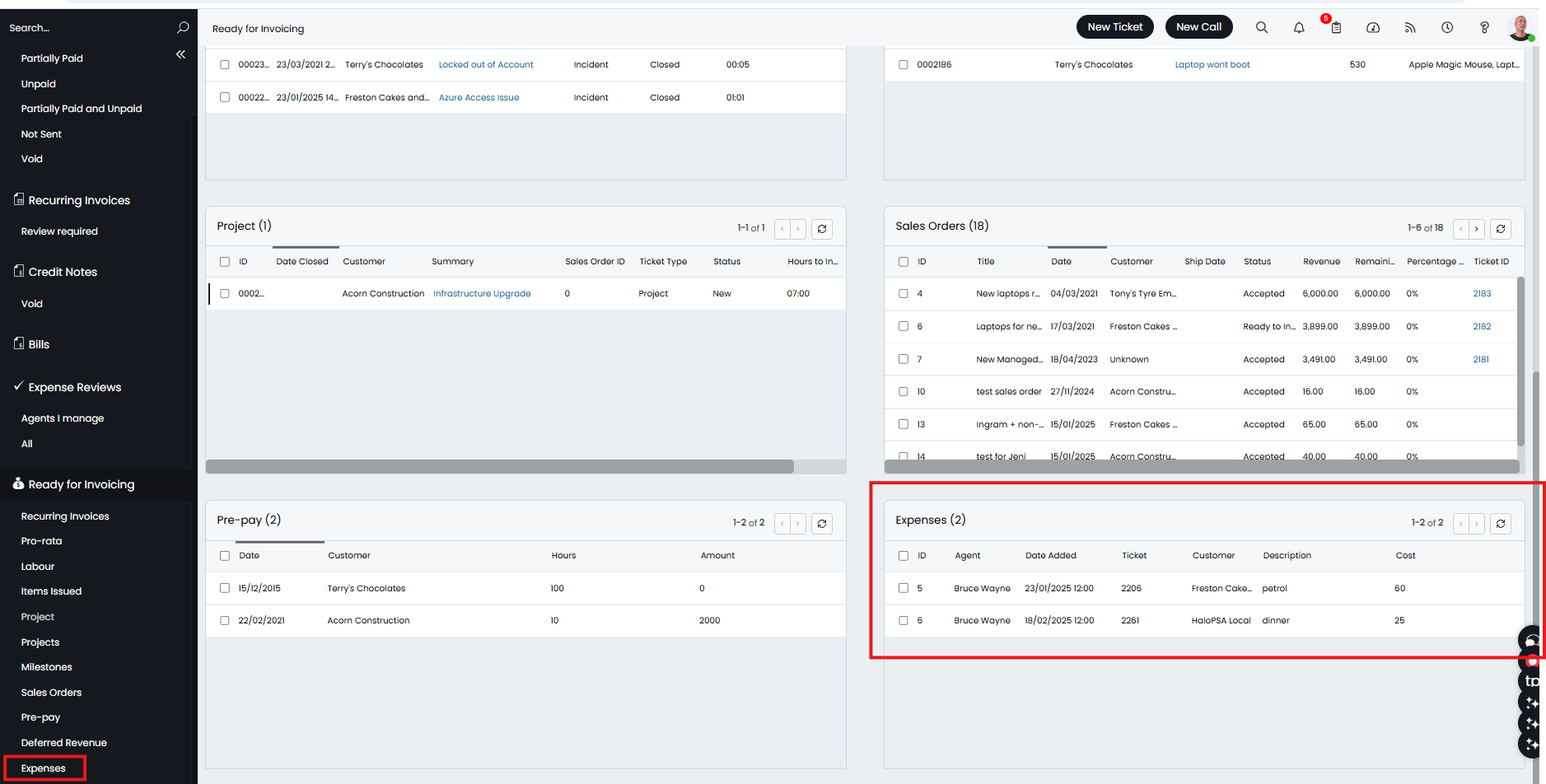
Fig 8. Expenses area in ready for invoicing
Note: The ticket does not need to be closed for the expense to be invoiced.
An invoice can be raised by selecting the expense entry and 'create invoice'.
Although the expense is logged against a ticket it does not come under the 'billable labour' for that ticket. Therefore will not appear on the invoice when creating labour invoices. If you would like the expense to be on a single invoice for a customer/ticket you will need to ensure the expense entry is selected at the same time as the labour/ticket entry when creating the invoice.
Once the invoice is created it will look similar to the example below.
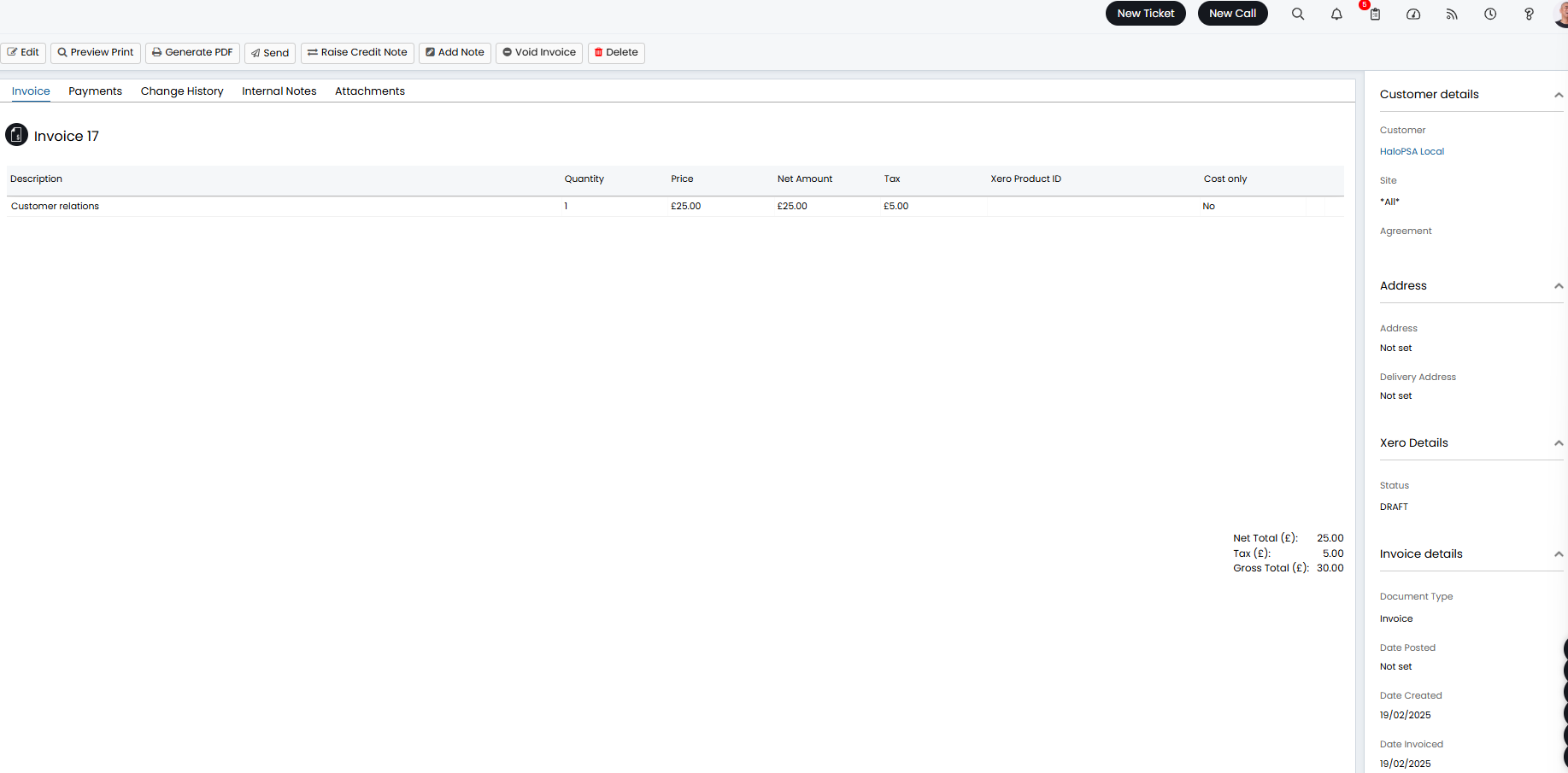
Fig 9. Expense invoice example
The item description will be taken from the item linked to the expense type.
The price of the line will be taken from the expense cost logged against the ticket, if the item has cost/pricing set against it this will be overridden. The tax will be calculated using the tax rate of the linked item and accounts codes will be taken from the linked item.
Once the invoice has been created the agent can navigate back to the ticket and log against the expense the date the invoice was created.
Expense reviews
Configuring Expense reviews
Similarly to labour expense entries can be reviewed before allowing an invoice to be raised for them. This is useful in monitoring the expenses your agents log.
To enable expense reviews head to Configuration > Billing > Expenses, enable 'Enable Expense Reviews'.
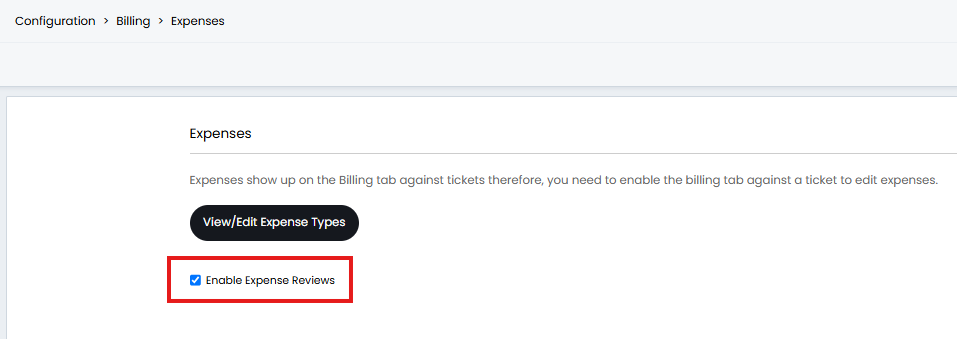
Fig 10. Enable expense reviews
Once enabled you will need to set who can review expenses, this is determined by agent permissions. Therefore an agent's ability to approve expenses can be set per agent or per role.
Head to Configuration > Teams and Agents > Roles > select a role > Permissions tab, see the permission 'Can review Expenses'.
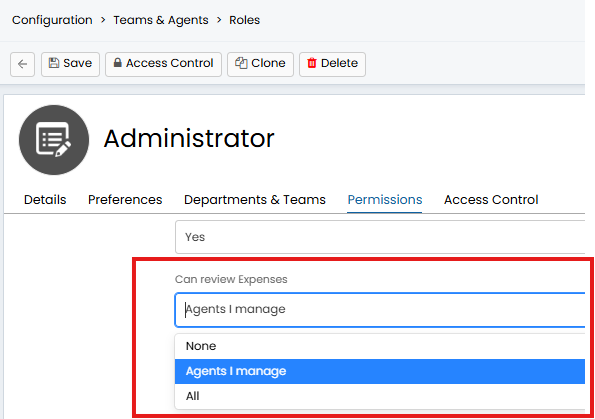
Fig 11. Permission to allow an agent to review expenses
None- Agents with this role will not be able to review expenses. The expenses they log will need to be reviewed by another agent.
Agents I manage - Agents with this role can review expenses for the agents they manage. An agent's manager is set against their agent profile using the 'Manager' field, this will be their timesheet manager as well: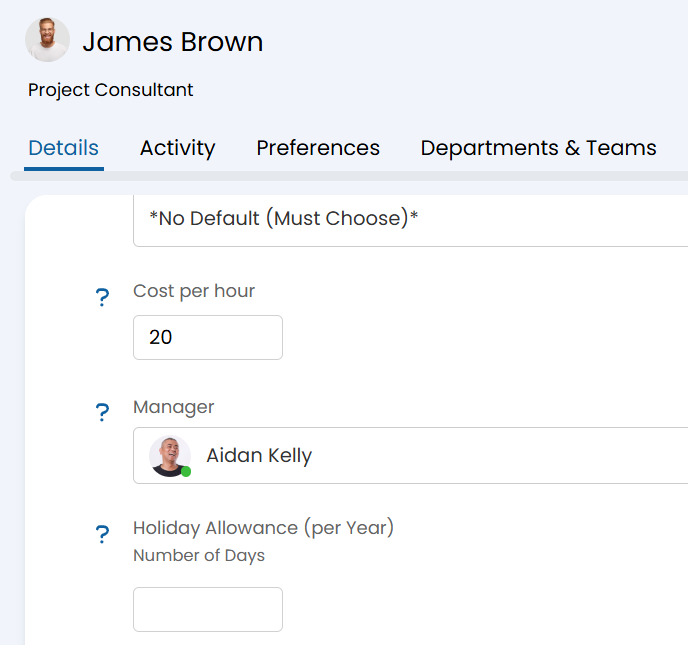
Fig 12. The Agents Manager Option (Found in Configuration > Teams & Agents > Agents)
All - Agents with this role can review expenses for any agent.
If an agent who has permission to review their own expenses (can review all or is their own team leader) logs an expense they will have an additional option against the expense entry to mark the entry as reviewed (see Figure 5). This bypasses the need for them/another agent to review the expense later.
The agent that reviewed an Expense is now stored and exposed in the API and can be seen on the Ticket Expense screen.
Now expense reviews are configured lets see them in action.
Reviewing Expenses
Any expenses that need reviewing will appear under the 'Expense Reviews' section of ready for invoicing. You will additionally be able to bulk update the "Date Reimbursed" from this screen using the checkbox next to each line > Edit > Mark Expense as Reimbursed.
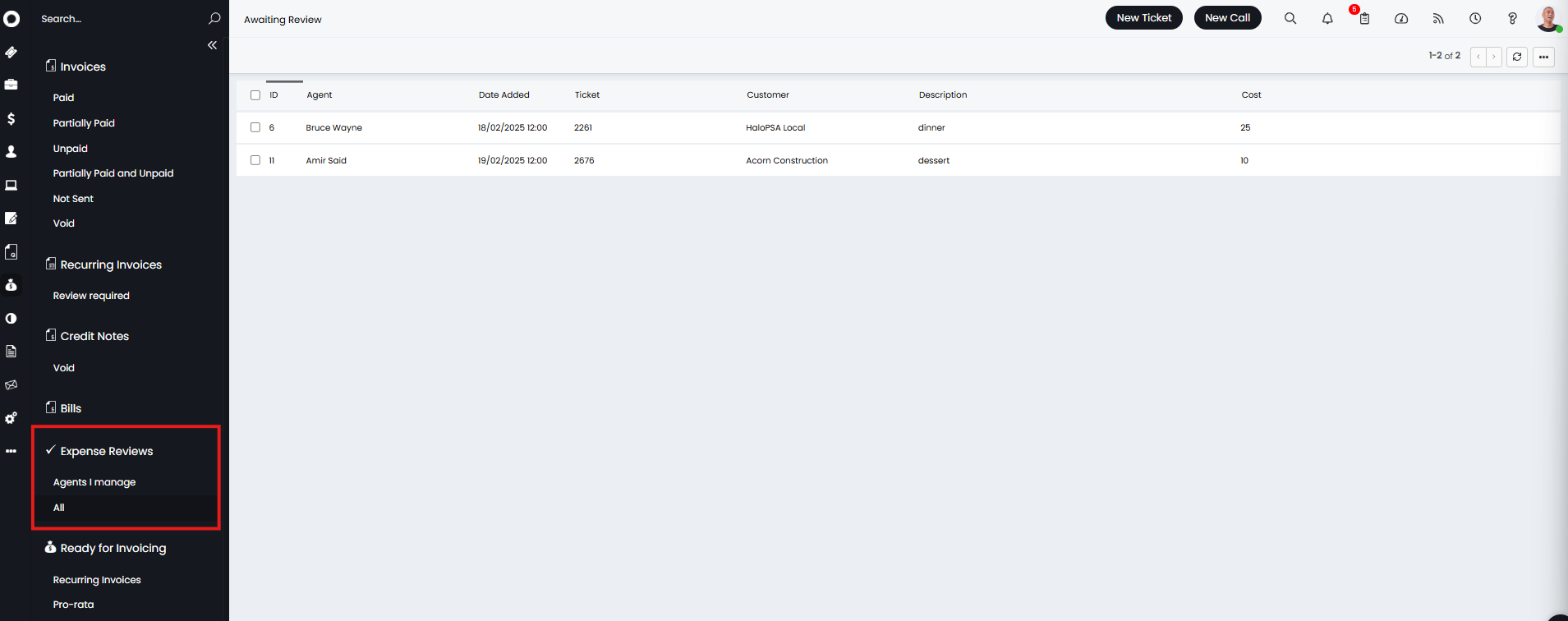
Fig 13. Expenses awaiting review
Agents can either view all expenses that need review or only see expenses for the agents that they manage. If the reviewing agent only has permission to review expenses for agents that they manage they will not be able to see expense entries for other agents.
Agents can filter this area by agent, allowing them to restrict results to a chosen agent's expenses if they wish. They will also be able to filter by the date the expense was added. This is done using the filter profiles highlighted in Figure 14.
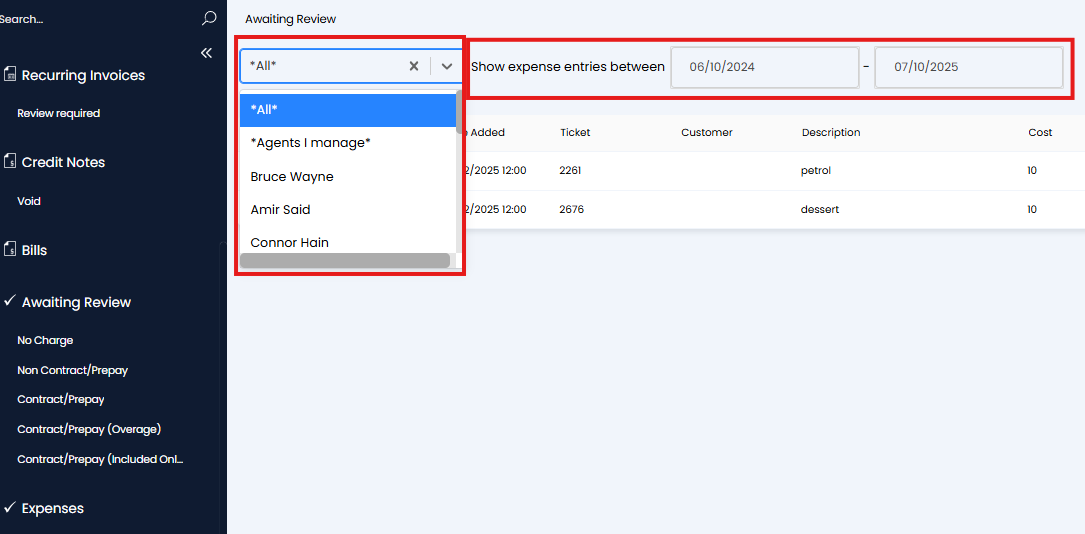
Fig 14. Filters for expense area
An expense entry can be selected to see more information on the expense, this will take you to the ticket the expense was logged against.
Expenses can be reviewed by selecting the checkbox against the entry > edit > review.
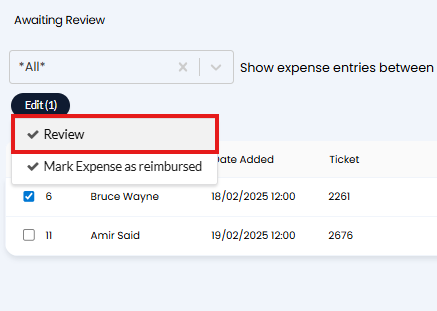
Fig 15. Review expense
Once the entry is reviewed this will appear in ready for invoicing and an invoice can then be created for this expense.
Edit/view expense details from review screen
Right clicking on an expense entry from the expense reviews area will allow you to easily edit and view the expense details from the expense review screen.
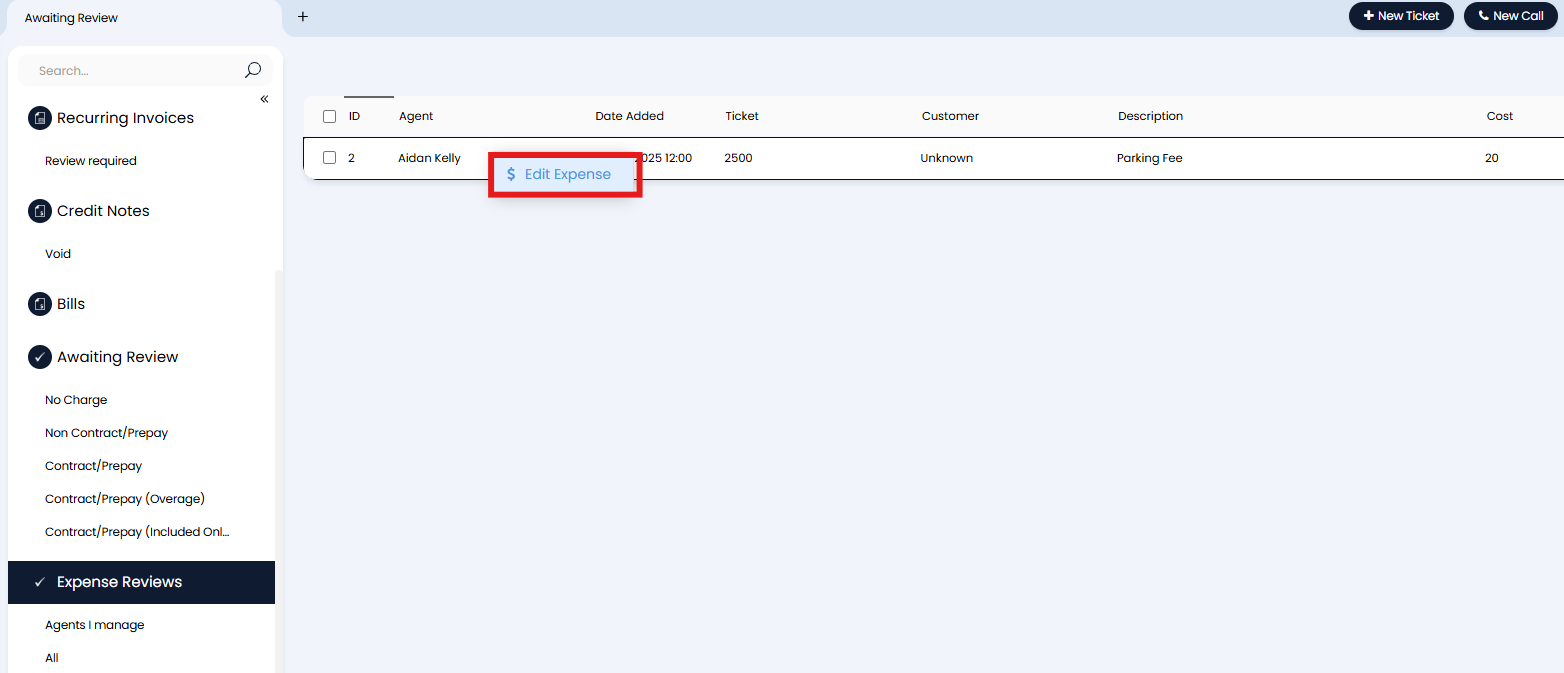
Fig 16. The Expenses Area in Awaiting Review
This right click action allows the editing of expenses, specifically you may want to check that the expense has an attachment associated with it. This shows on the edit expense modal window:
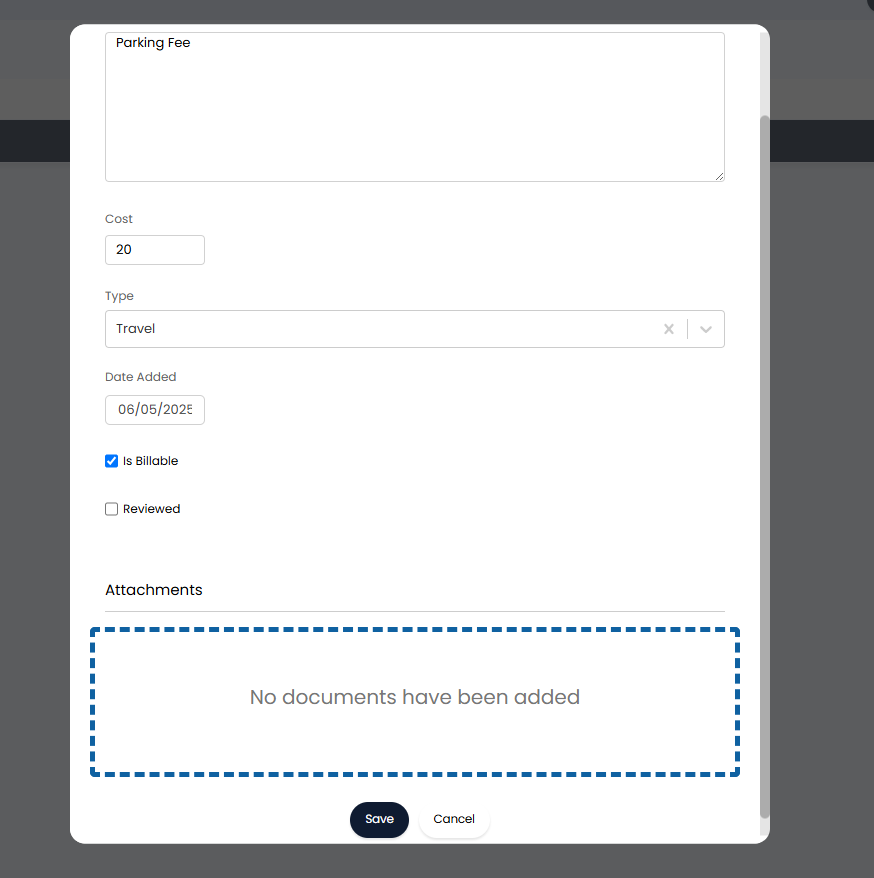
Fig 17. Adding an attachment to an expense from the awaiting review screen
Reimbursing Expenses
A sub list is available under the 'Expenses' section of Ready for Invoicing called 'Awaiting Reimbursement'. Here you can see all expenses that require reimbursement. On versions prior this the 'Date reimbursed' column in the 'Expenses' area can be used to see which expenses still require reimbursement.
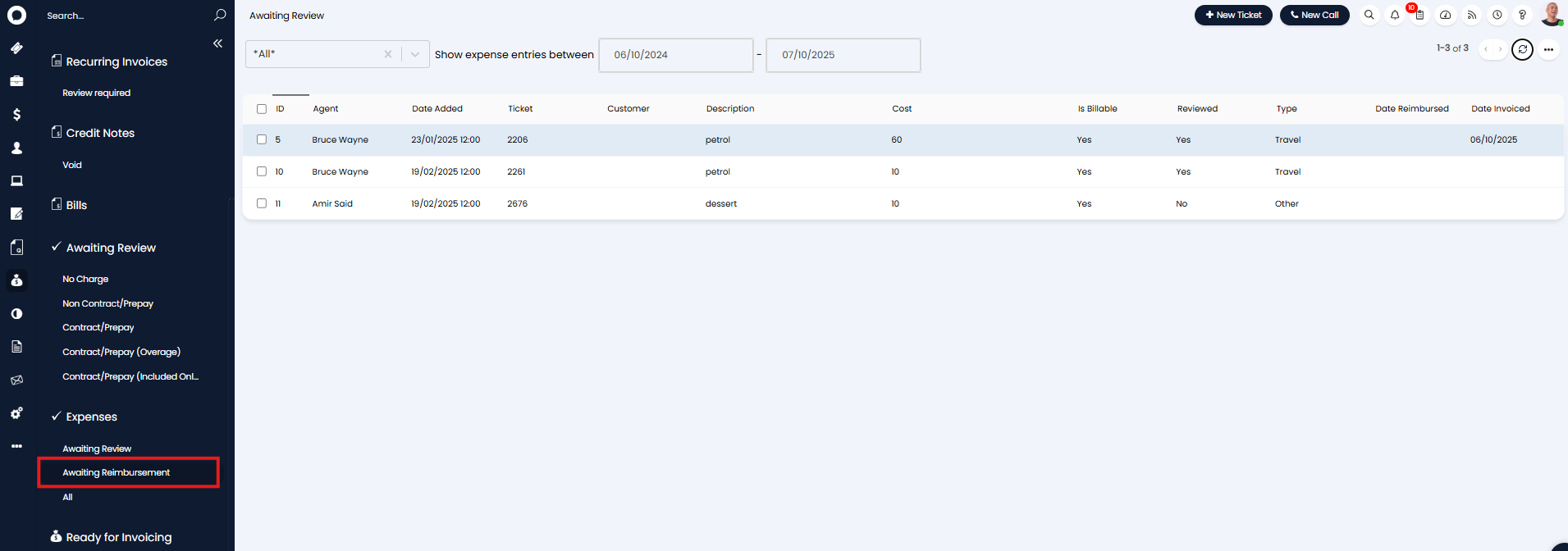
Fig 18. Awaiting Reimbursement area
All expenses will appear here until they are marked as 'reimbursed'.
To mark an expense as reimbursed select each expense in the list to mark, hover over the 'Edit' button on the page and select 'Mark Expense as Reimbursed'.
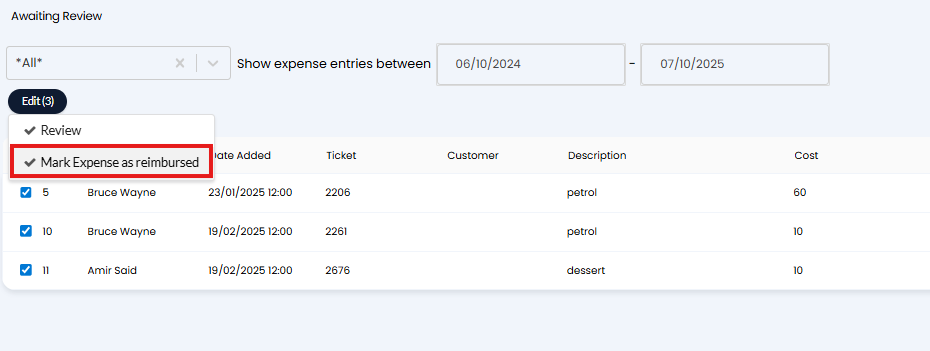
Fig 19. Mark expenses as reimbursed
When used, you can choose the date the expense was reimbursed.
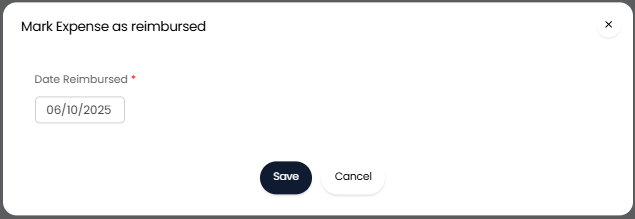
Fig 20. Choose date to reimburse expense
Once marked as reimbursed the expense entry will be removed from the 'Awaiting Reimbursement' area as no further action is needed.
Tracking Expenses
If you log expenses for tracking purposes rather than invoicing purposes you can create a report in your Halo instance to track the expenses that have been logged. Expense data is stored in the table 'Expense'. For a basic example expense report see the below example.
Data source for the report:
EXDescription as [Description],
(select uname from uname where exunum = Unum) as [Agent who Logged the expense],
EXAmount as [Cost],EXDateAdded as [Date added],
EXDateInvoiced as [Date invoiced],
EXDateReImbursed as [Date Reimbursed],
exreviewed as [Reviewed?],(select uname from uname where exreviewedunum = Unum) as [Reviewed by]
from EXPENSE
join uname on exunum = unum
Report results using the above query:
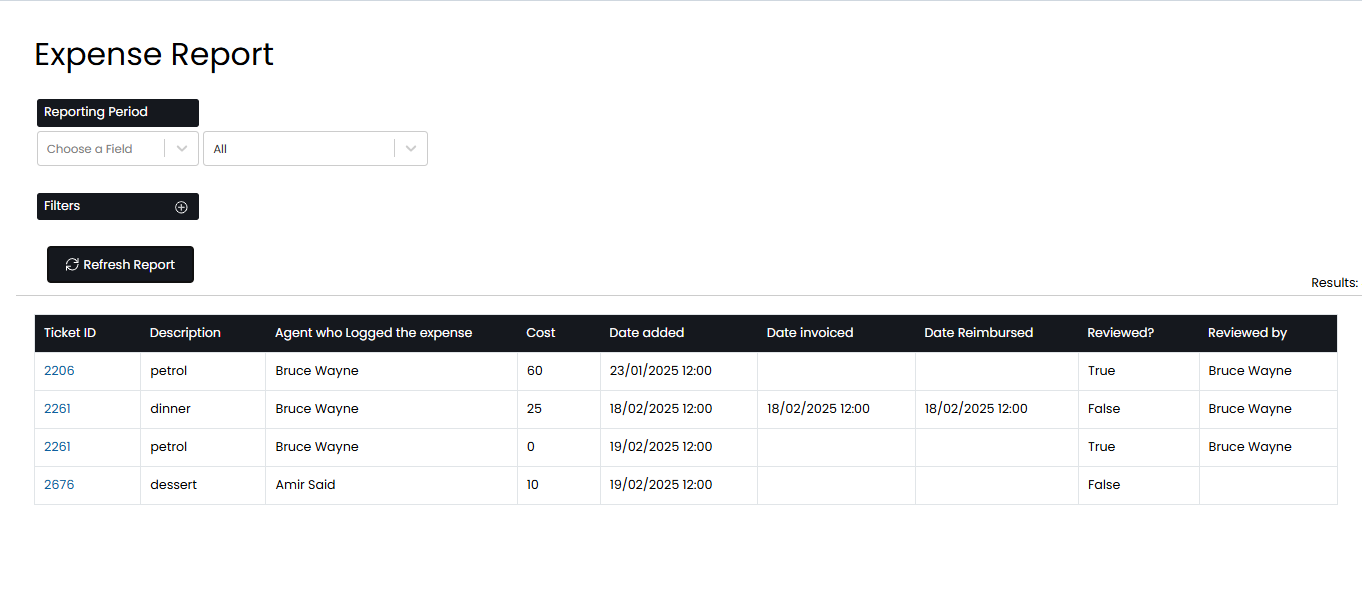
Fig 21. Expense report example
Auditing Expenses
The "Audit Log" tab of a Ticket will show where expenses have been added and changed on a Ticket. This is a useful feature if invoicing for expenses in order to ensure they are accurate.
To enable the Audit Log, enable "Display the Auditing Tab" in Configuration > Tickets > Ticket Types > "Forms" tab > "Agent Ticket Details Form" section.
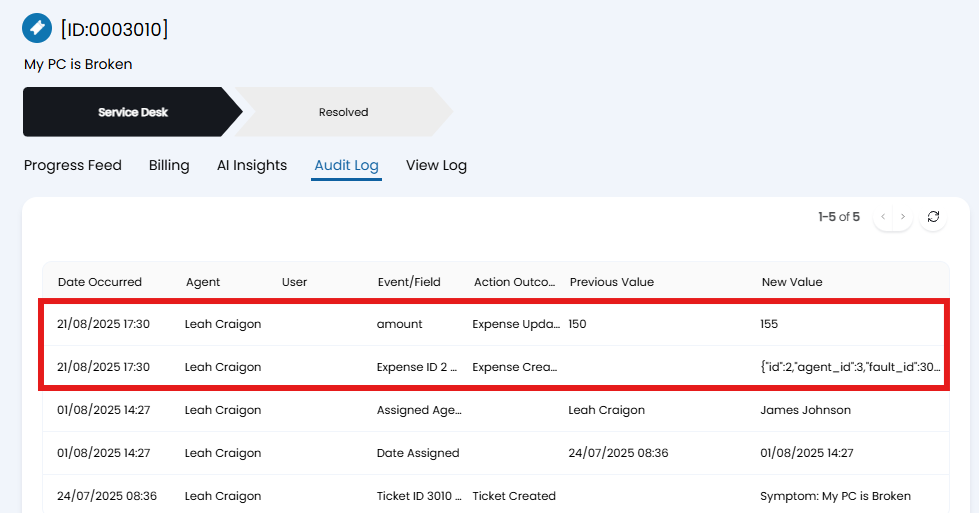
Fig 22. Audited expenses
Export Expenses to CSV
Expenses can be imported to a CSV file. Useful if you need to import this data into another tool. To do this hover over the three dots in the top right hand side in the 'Expenses' area and select the option 'Export to CSV'. This will download a CSV document containing expense information for expenses on the current page.
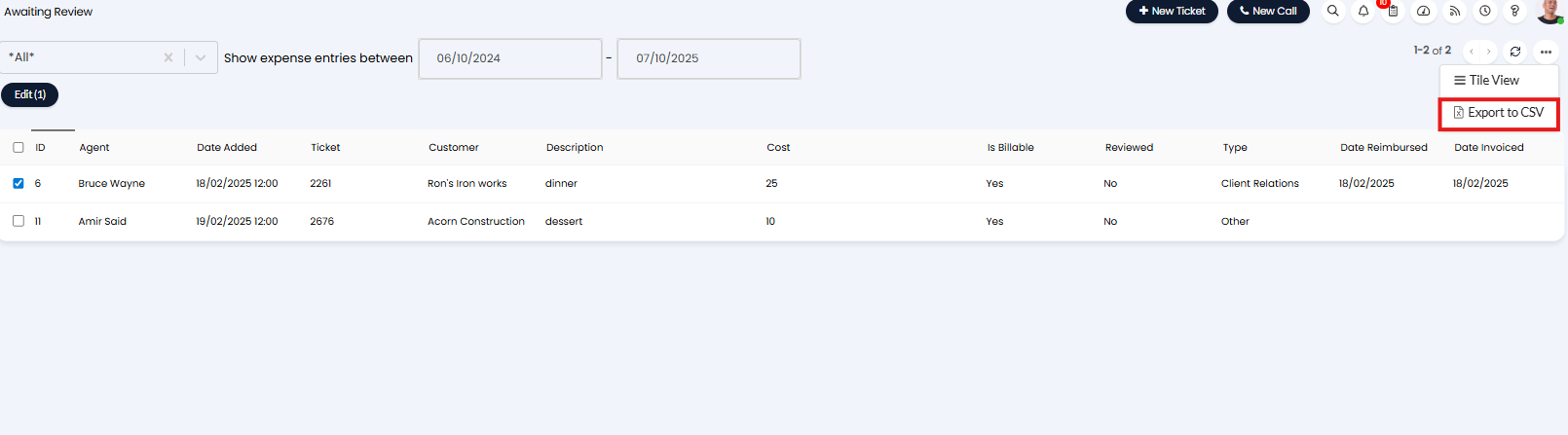
Fig 23. Export to CSV