Down Payments
- Project
- billing
- invoicing
- down payments
- deposit
In this guide we will cover:
- Setting a Down Payment Product
- Creating a Down Payment Invoice
- Improved Method of Creating a Down Payment Invoice
Down payments in Halo allow you to take down payments/deposits for work (projects) without having the revenue recognised yet, deferring the revenue. The payment can be taken for a chosen percentage/lines of an invoice, but the value of this payment will be paid into your deferred revenue account (in your accounting tool). Then, the revenue can be recognised from Halo at a chosen time, moving the revenue into your standard income account.
Setting a Down Payment Product
Within Configuration > Sales Orders, set a product to use as down payments. This is the product ID that will be used on the down payment invoice, meaning down payments can easily be reported on and synced to accounting integrations.

Fig 1. Choosing a product to use for down payment records.
If enabled, down payments are treated as deferred revenue. This is enabled in Configuration > Billing > General Settings.

Fig 2. Enabling deferred revenue.
Creating a Down Payment Invoice
Within a sales order, click the "Create Invoice" button. This popup will then appear to set the date invoiced and the invoice method.
Select "Invoice a percentage of the Order and merge into one Line", and choose the percentage to invoice for. This will be the amount of the down payment.
Mark this invoice as "This is a down payment invoice", and set a description.
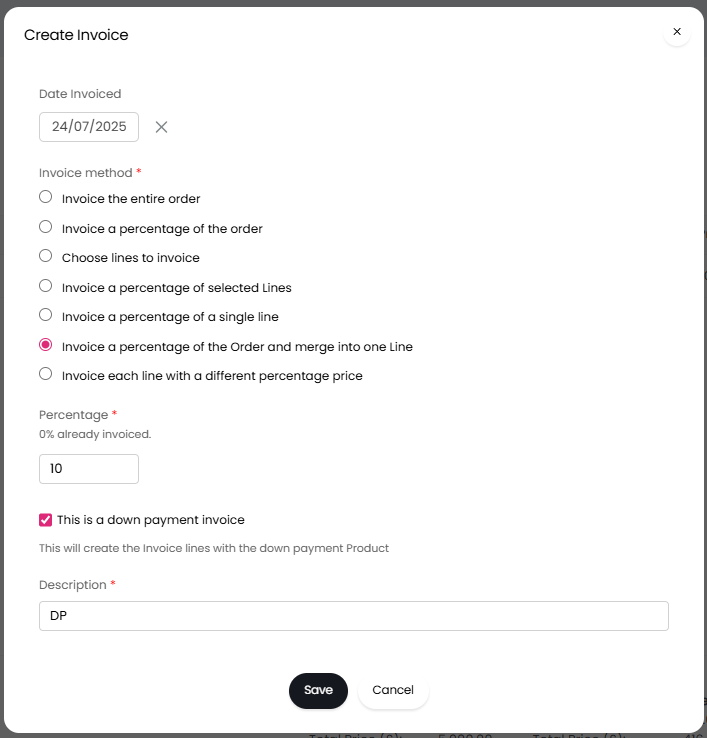
Fig 3. Setting the down payment percentage.
Click "Save" to generate the invoice. The description will be added as a line title, and the products underneath by the percentage set above.
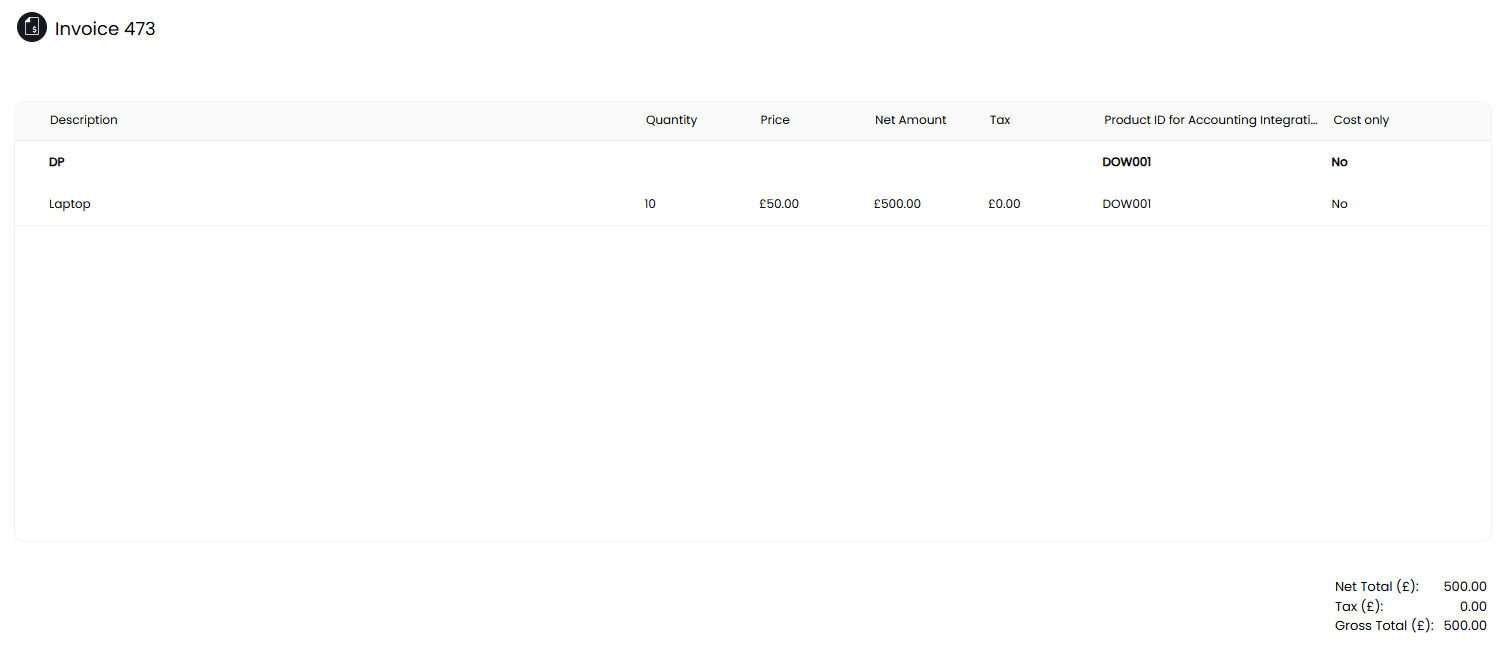
Fig 4. Down payment invoice.
Improved Method of Creating a Down Payment Invoice
In Configuration > Billing > General Settings, enable deferred revenue, and set the Customer/Product to use.
Note: If you are using QuickBooks Online, you will need to also set the item used for down payment invoice lines in the "Syncing to QuickBooks Online" tab against your QuickBooks Online Company. The accounts code attributed to this line will be determined by the item chosen here. This item should be assigned your deferred revenue accounts code.
There is the additional option for deferred revenue to be linked back to the same customer. Then, enable "Allow creation of down payment invoices from sales orders".
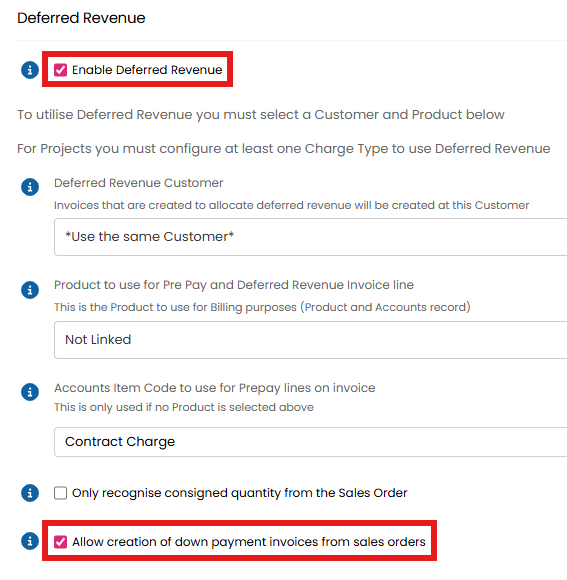
Fig 5. Deferred revenue configuration.
On a Sales Order, a button to "Create down payment Invoice" will show.
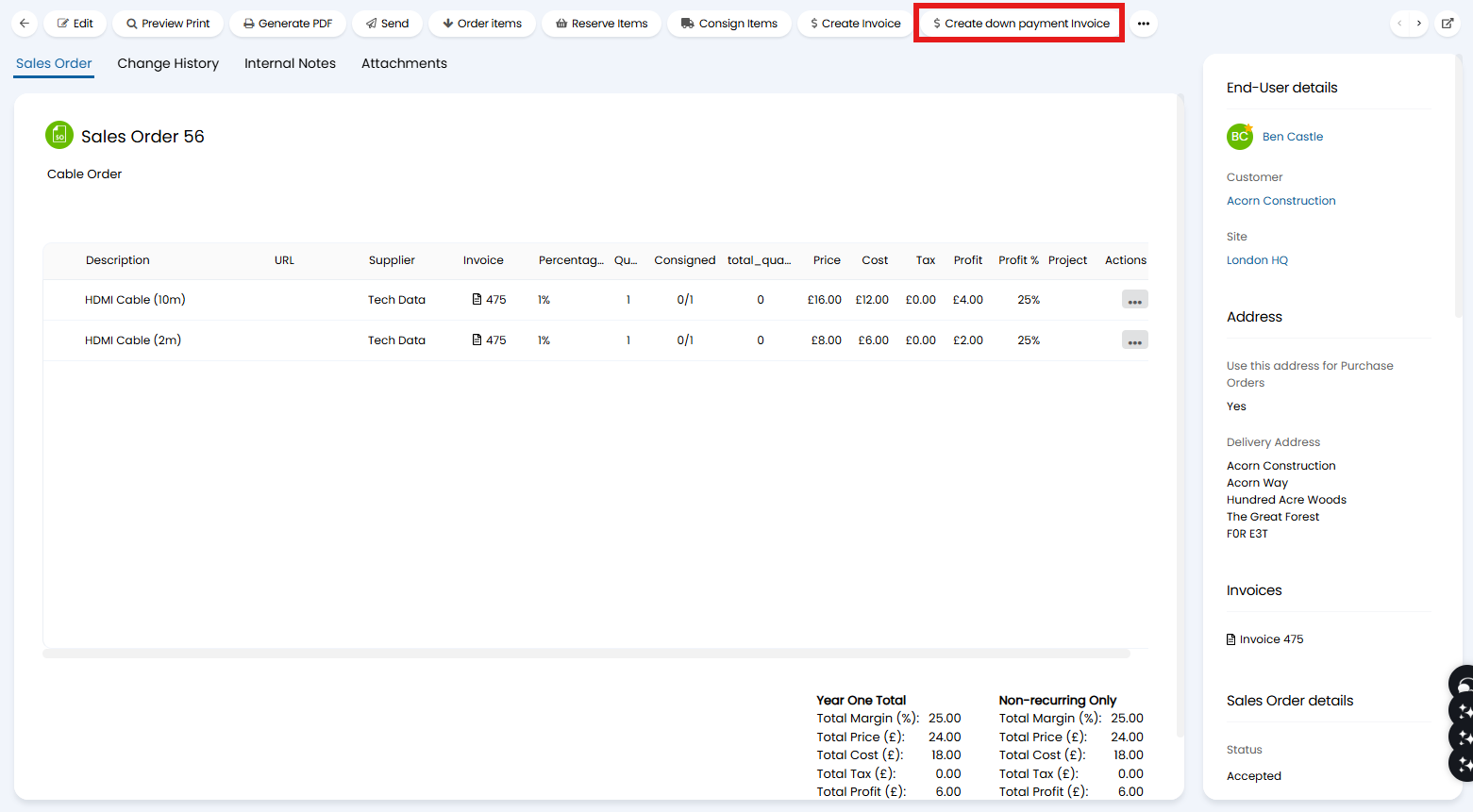
Fig 6. Create down payment Invoice button.
Clicking this will allow you to choose any of the following methods to make a down payment, including the ability to set a different percentage per line.
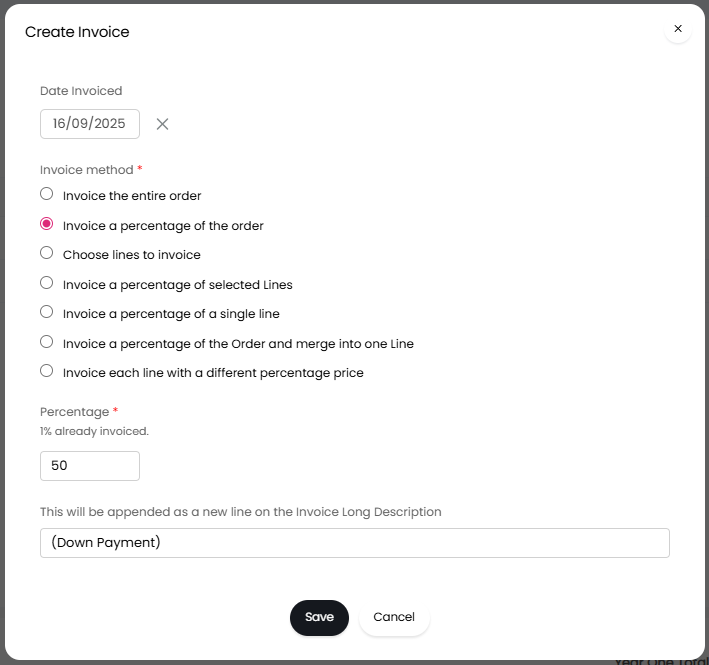
Fig 7. Choosing an invoice creation method.
The lines are linked to the Down Payment Product.
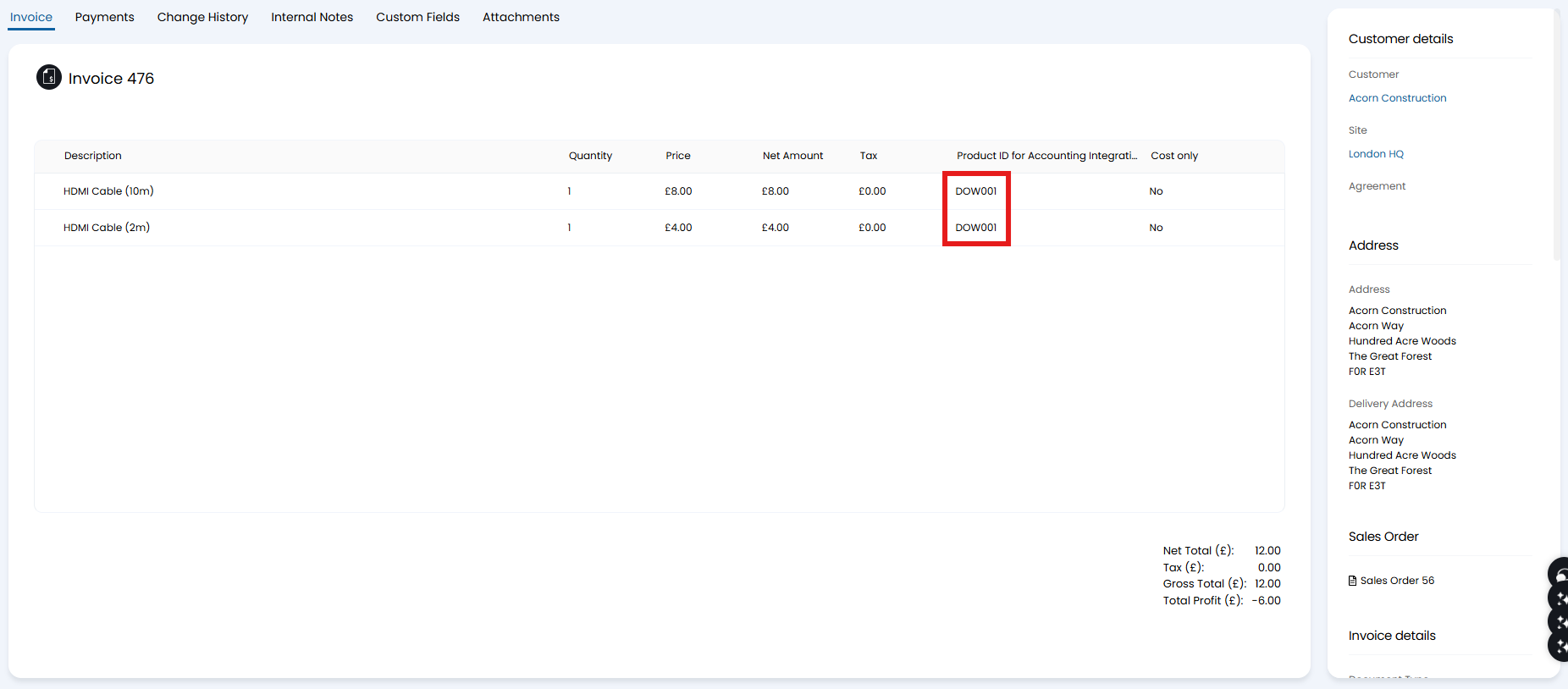
Fig 8. Lines linked to the down payment product.
The long description also shows the extra description that was added in Fig 7, as shown in this PDF Template.
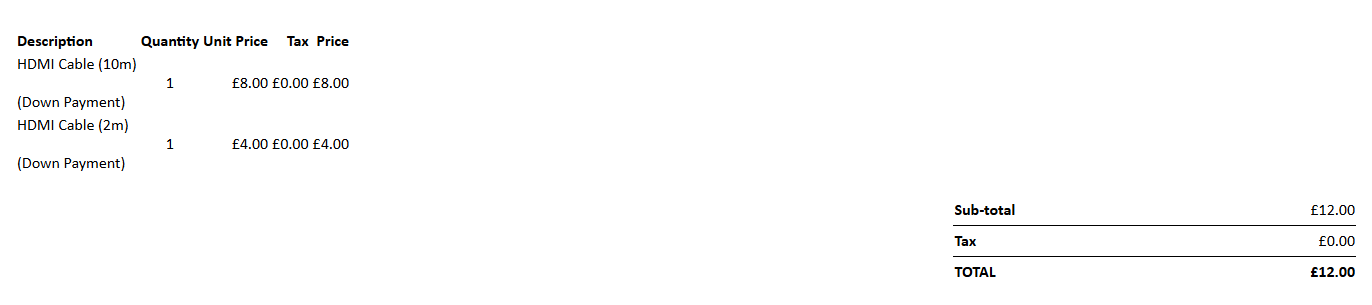
Fig 9. Invoice PDF with extra long description phrase.
A section for "Deferred Revenue" will show in Ready for Invoicing, with a list of "Downpayments (from Sales Orders). Invoices created above using down payments will show here, and can be generated once the revenue is no longer deferred.
If integrating with an accounting integration, both the initial down payment invoice and the deferred payment invoice will be synced to your accounting tool.
Example:
The concept here is the initial "Down Payment Invoice A" will be synced using the "Down Payment Product B". In your accounting integration, you can then track how many invoices have "Product B" on them, to see the total deferred revenue.
Once the "Deferred Revenue Invoice C" has been created, it will sync to your accounting integration with the intended Products, alongside a minus quantity of the "Down Payment Product B". As this process occurs, your accounting integration will then show the number of "Product B" go down, and the number of regular Products go up, which will show your true revenue.
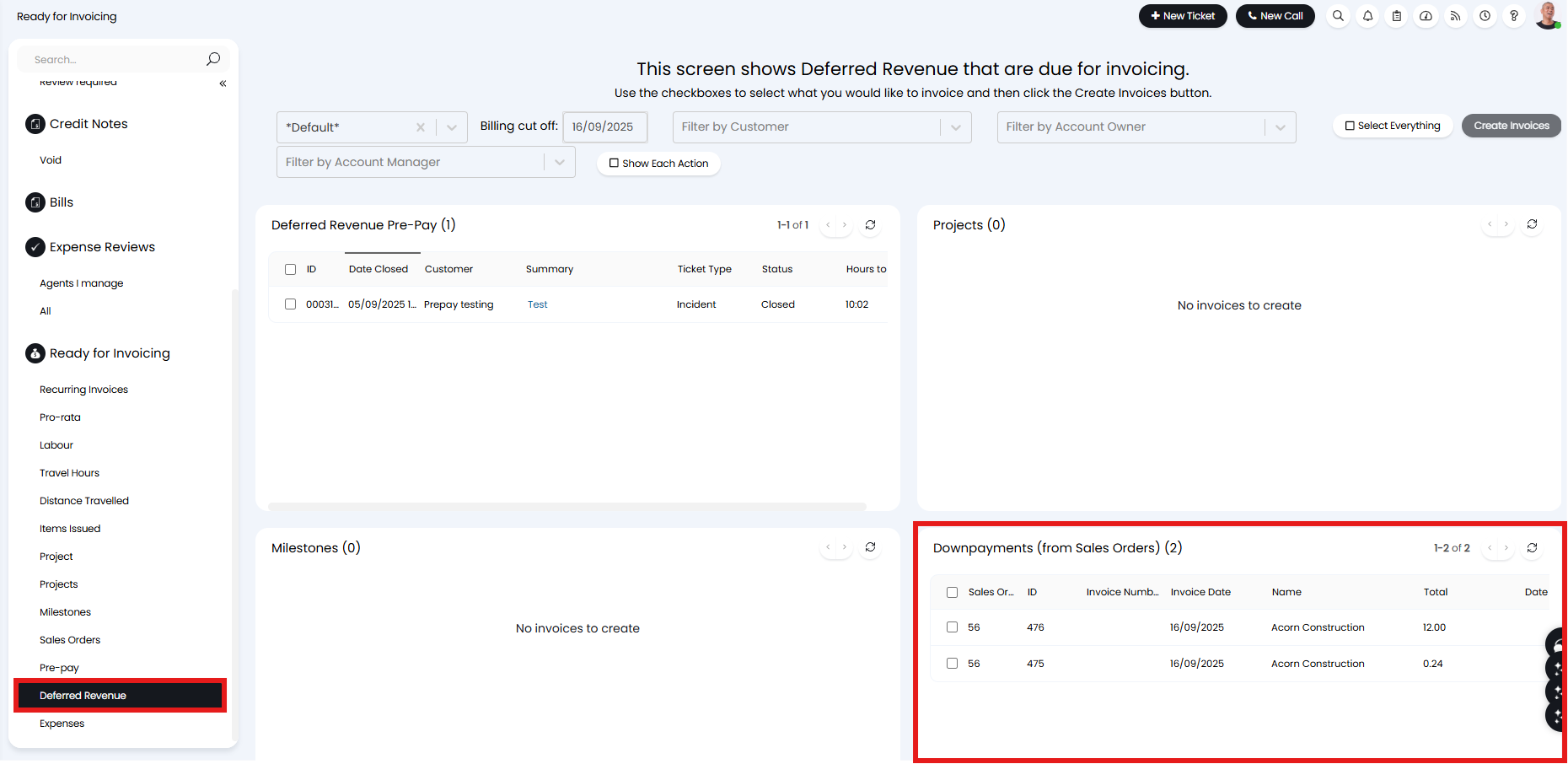
Fig 10. Deferred Revenue in RFI.