QuickBooks Online Integration
- Quickbooks Online
- Quickbooks
- QBO
- Invoices
In this guide we will cover:
- What is the QuickBooks Online Integration?
- Enabling the Module
- Connecting to QuickBooks Online
- Tax Rates
- Customer Imports
- Product/Item Imports
- Suppliers
- Syncing to QuickBooks Online
- Automatic Sales Tax
- Avalara and QuickBooks Online
Related Guides:
What is the QuickBooks Online Integration?
The QuickBooks Online Integration allows tax rates, customers, sub customers, products and suppliers to be imported from QuickBooks into Halo. It also allows customers, products, suppliers, invoices, purchase orders, credit notes, bills and payments to be synced to QuickBooks Online from Halo, so each time one of these entities is created/updated in Halo, changes get pushed into QuickBooks. A two-way sync is supported for products, suppliers, customers, and credit notes allowing changes to these entities in either Halo or QuickBooks to sync to the other tool.
The integration also supports automatic sales tax in QuickBooks Online for US QuickBooks Online users. Tax can be added to invoices in Halo using the tax calculations in QuickBooks Online.
This allows you to seamlessly pass data between the tools to optimise your account management.
Enabling the Module
To enable the QuickBooks Online integration, go to Configuration > Integrations > Billing, and enable the module using the plus icon in the top right hand corner of the menu icon. Once the module has been enabled, click the menu icon to begin configuring it.
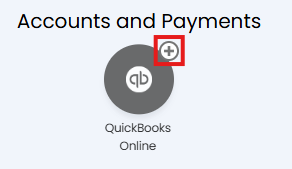
Fig 1. Enable the integration module
Various settings are available within the integration module, the settings here will impact your whole Halo instance/all connected QuickBooks tenants. We recommend re-visiting these settings after you have connected all your QuickBooks tenants.
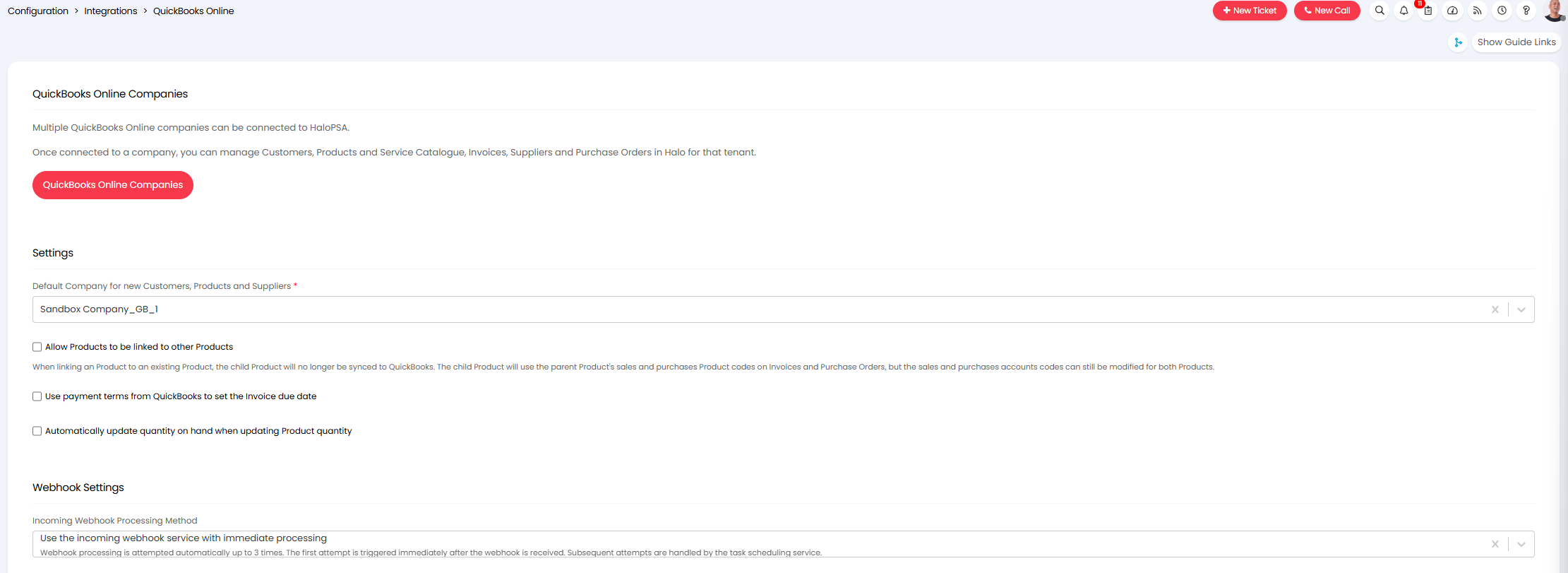
Fig 2. QuickBooks Online Integration Settings
Default Company for new Customers, Products and Suppliers - Choose the default QuickBooks Online tenant new customers, products and suppliers will sync to. This provides a default but a different tenant can be chosen on creation.
Allow Products to be linked to other Products - Allows multiple products to be linked to one "main" product with one QuickBooks Online ID. When linking an Product to an existing Product, the child Product will no longer be synced to QuickBooks. The child Product will use the parent Product's sales and purchases Product codes on Invoices and Purchase Orders, but the sales and purchases accounts codes can still be modified for both Products.
Use payment terms from QuickBooks to set the Invoice due date - When enabled, the payment term for the customer in QuickBooks Online will be used as the invoice due date for the invoice in Halo. This will override any invoice due date set in Halo.
Automatically update quantity on hand when updating Product quantity - When enabled, when the quantity of a product in Halo is updated, the quantity on hand of the linked product in QuickBooks online will be updated too. Keep in mind product quantity syncing will also be dependent on the setting "Don't sync quantity on hand to QuickBooks Online" against each connected QuickBooks Online tenant.
Incoming Webhook Processing Method - For information on this setting does see the section 'Webhook Syncing Options' of this guide.
Note: If you would like either of the Beta settings above enabled please contact our support team for assistance. (You are not required to be on a Beta instance for these settings to work).
Connecting to a QuickBooks Online Tenant
You are required to connect to your QuickBooks Online account before you can proceed with any further configuration. Start the authorisation process by clicking the "QuickBooks Online Companies" button.

Fig 3. QuickBooks Online companies
Add in QuickBooks Online tenants to begin configuring the integration. As QuickBooks Online is a multi-tenanted integration, you can configure multiple QuickBooks Online companies in Halo in order to split up the QuickBooks Online companies for different customers. To begin configuring a tenant click new in the top right corner of the screen.
Choosing an Authentication Type
You will have an option to choose an authentication type for the integration.
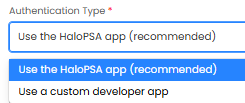
Fig 4. Authentication Type
Use the Halo app (recommended) - This is the recommended option and should be selected by all hosted customers. When this option is selected you will need to authenticate the integration by logging into your QuickBooks Online account.
Use a custom developer app - This option should only be selected if you are unable to authenticate successfully using the Halo app method. As this option does not support webhooks. On-Prem customers that do not allow their Halo instance to communicate with our API will need to use this authentication method. When this option is selected you will need to authenticate the integration using a client ID and secret.
Note: The 'Halo app' method will be selected by default.
Click "connect" and you will be redirected to the QuickBooks Online login screen. Once logged in, you will be asked to choose which company you would like to connect to. Confirming this choice will redirect you back to the QuickBooks Online module in Halo, where you will now see the rest of the configuration options available.
When in the editor view within the "Details" tab, the top section of the module now displays the company which you are connected to and a disconnect button. Should you wish to change this, or remove Halo's access, use the disconnect button.
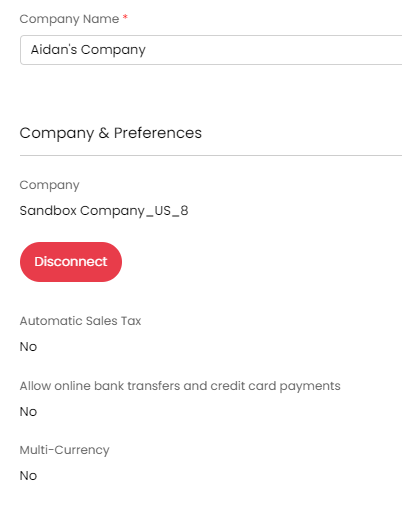
Fig 5. Disconnect button
Setting Connection Details
The 'Details' tab will show some account information taken from the connected QuickBooks Online account, as well as providing some additional settings.
Automatic Sales Tax (AST)
Here, you can see whether or not automatic sales tax has been activated for your QuickBooks Online account. This feature is currently only available to US QuickBooks Online users. When activated, all lines on an invoice in Halo will display zero tax until the invoice is synced to QuickBooks Online. At this point, QuickBooks Online calculates the tax for you and the total tax for the invoice will be added onto to the invoice in Halo. The lines on the invoice will remain as zero tax in Halo but the total tax for the invoice will be updated.
In some circumstances, QuickBooks Online' preferences will not show automatic sales tax as being enabled, even though it has been enabled for your QuickBooks Online account. This means that automatic sales tax won't be enabled in Halo, which will then cause issues when syncing invoices. If you believe that your company uses automatic sales tax but it has not been automatically enabled for you in Halo, speak to a member of the Halo support team who will be able to activate it for you.
If you are using AST please read the section 'Automatic Sales Tax' at the end of this guide.
Payments
Use the options 'Allow credit card payments'/'Allow online bank transfers' to control how payments can be made. This will allow each functionality within the QuickBooks Online side.
You can assign a QuickBooks Payment Method to a Halo Payment method. To do this head to Configuration > Billing > General Settings and click on the "Payment Method" button. Here you can create a new payment method and assign it to a QuickBooks Payment Method.
Note: This should only be used when one QuickBooks Company is in use as the Payment Methods will be used from the default company only
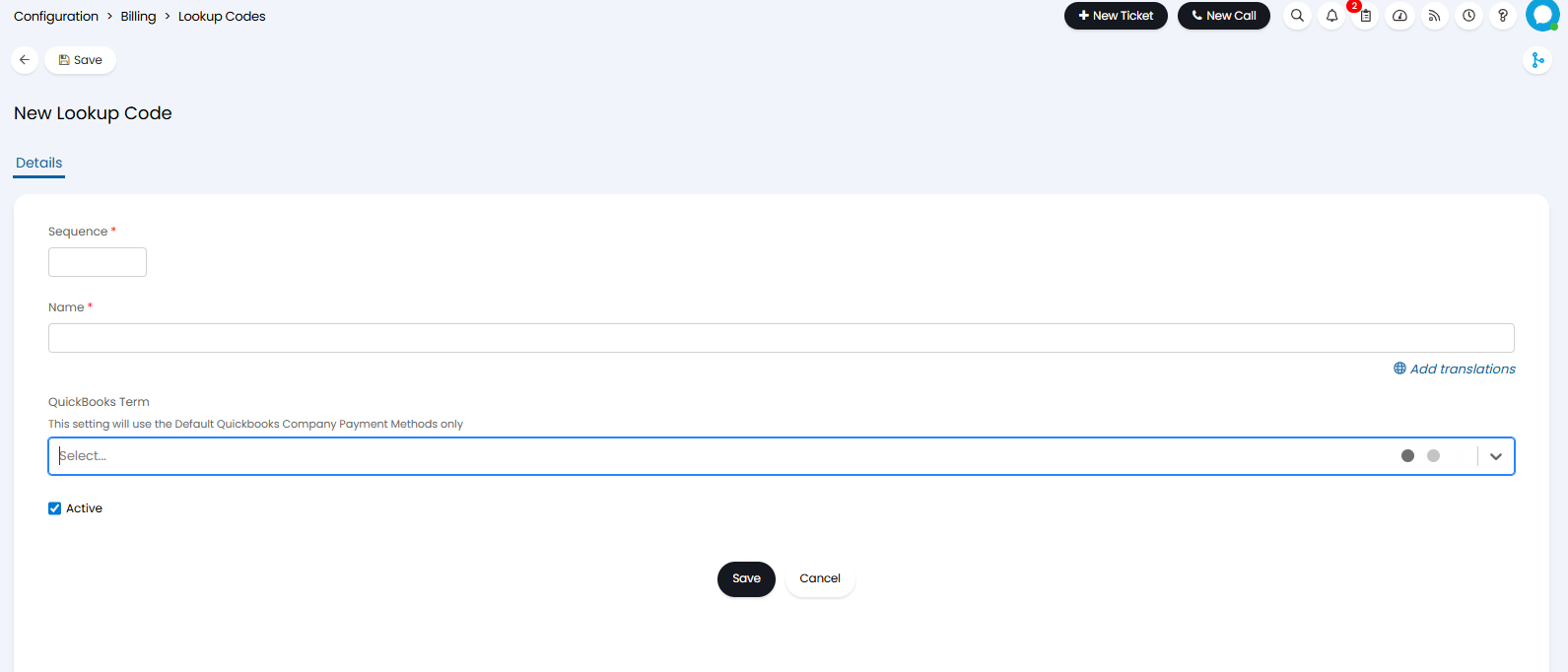
Fig 6. Linking Payment Methods
Closing Date
You will be able to enter a closing date for the integration under the 'Details' tab too. When populated, any changes made to invoices that have an 'Invoice Date' before this date, will not be pushed to QuickBooks Online. Allowing you to restrict which invoices are synced to QuickBooks Online. Useful in preventing historical invoices syncing over.
Tax Rates
To import tax rates, click the "Import Tax Rates" button under the Tax Rates tab.
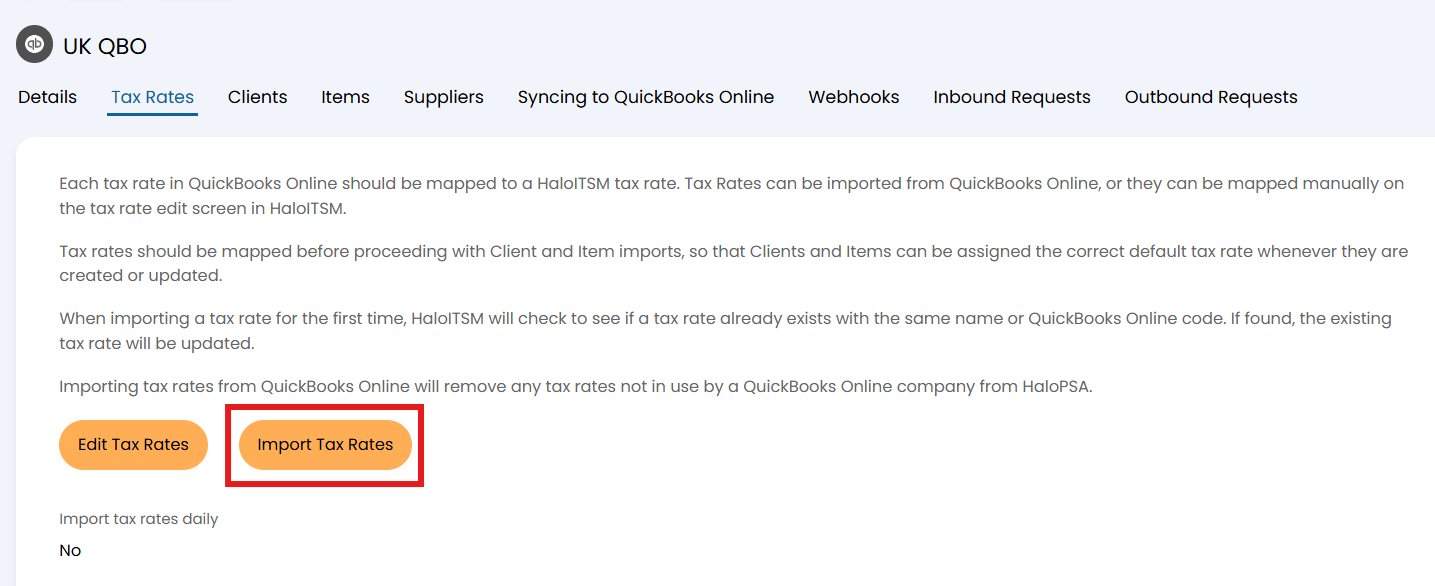 Fig 7. Import Tax Rate button
If successful, a popup will display showing how many rates have been imported.
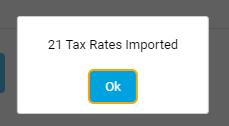
Fig 8. Imported tax rates
Imported tax codes are categorised as either Sales Tax or Purchase Tax based on their type in QuickBooks Online. Sales Taxes can only be used on Invoices and Purchase Taxes can only be used on Purchase Orders. Click the "Edit Tax Rates" button in Figure 7 to open the Tax Rates list. Here you can use the filter in the top-left of the to switch between the two Tax Rate types.
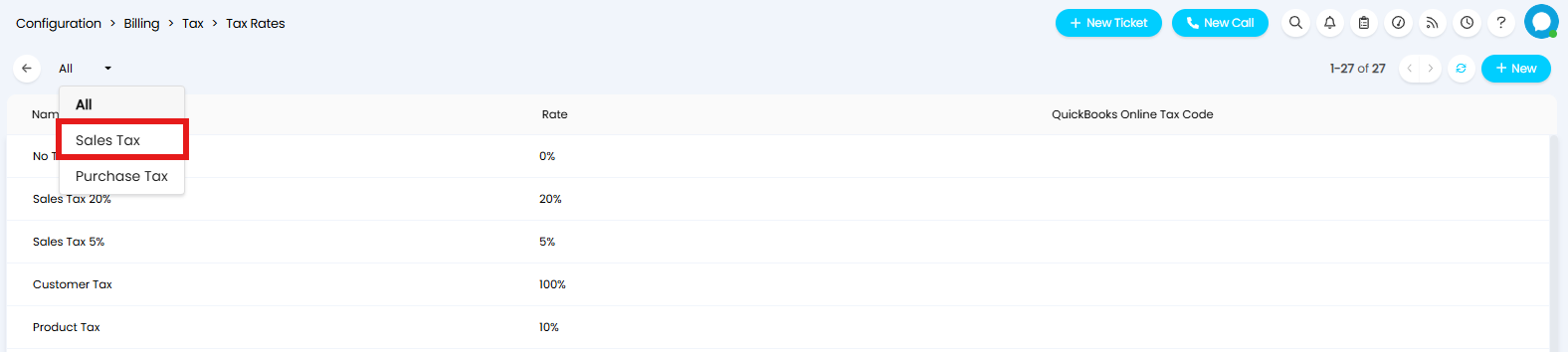
Fig 9. Tax Rate list with filter
The "No Tax" tax rate in Halo does not need to be mapped to a QuickBooks Online tax rate, this is pre-set to be associated with no tax in integrated tools.
If a QuickBooks Online tax code has multiple rates of the same type, it will be imported as a combined Halo rate with the individual rates linked to it. These linked rates cannot be used to sync to QuickBooks Online. Only Halo rates with an associated QuickBooks Online Tax Code (shown in the right-hand column above) are valid for syncing. If you need to select these rates on Invoices or Purchase Orders, disable "Show only QuickBooks Online Tax Codes in dropdowns" in Configuration > Billing > Tax Settings.
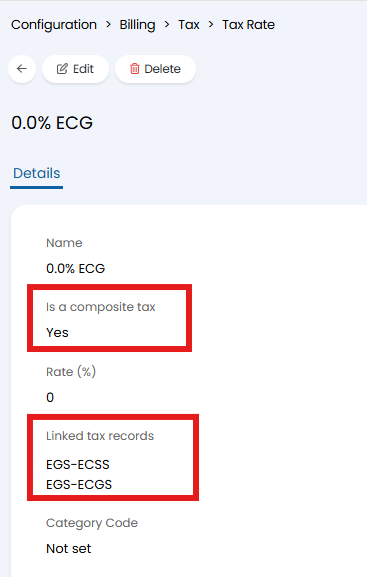 Fig 10. An example combined tax rate with QuickBooks Online Tax Code set
Tax rates may need to be imported twice for existing rates. Items may also need to be reimported, and any default tax codes set at the Tax, Client, Site, or Asset Group level may need to be reselected.
It is recommended that you go back through your tax rate list in Halo once complete to ensure that you do not have any tax rates in Halo that are not assigned to a QuickBooks Online tax rate. This may be the case if you already have tax rates in your database.
Note: An entry will be added in the "Outbound Requests" tab when tax rates are imported into Halo. This is useful when troubleshooting any issues/anomalies.
You can import tax rates from QuickBooks Online automatically on a daily basis, this will update any existing rates and create new rates. This is enabled using the setting "Import tax rates daily" under the "Tax Rates" tab. When enabled, the latest tax rates will be automatically imported during the daily task scheduler run. This helps to keep your tax rates up to date without having to re-import manually.
Accounts Codes
Accounts codes are not required to be imported, instead once your QuickBooks Online account is connected, accounts codes fields in Halo will become a live lookup on the accounts codes you have in QuickBooks Online.
From v2.256.7+ accounts codes can be imported into and stored in Halo so a live lookup is not required, beneficial if there are any outages on the QuickBooks Online end as this ensures your accounts codes are still accessible in Halo.
Importing Accounts Codes (v2.256.7+)
Before accounts codes can be imported ensure you enable "Store QuickBooks Online Account Codes in Halo" on the QuickBooks Online integration page.
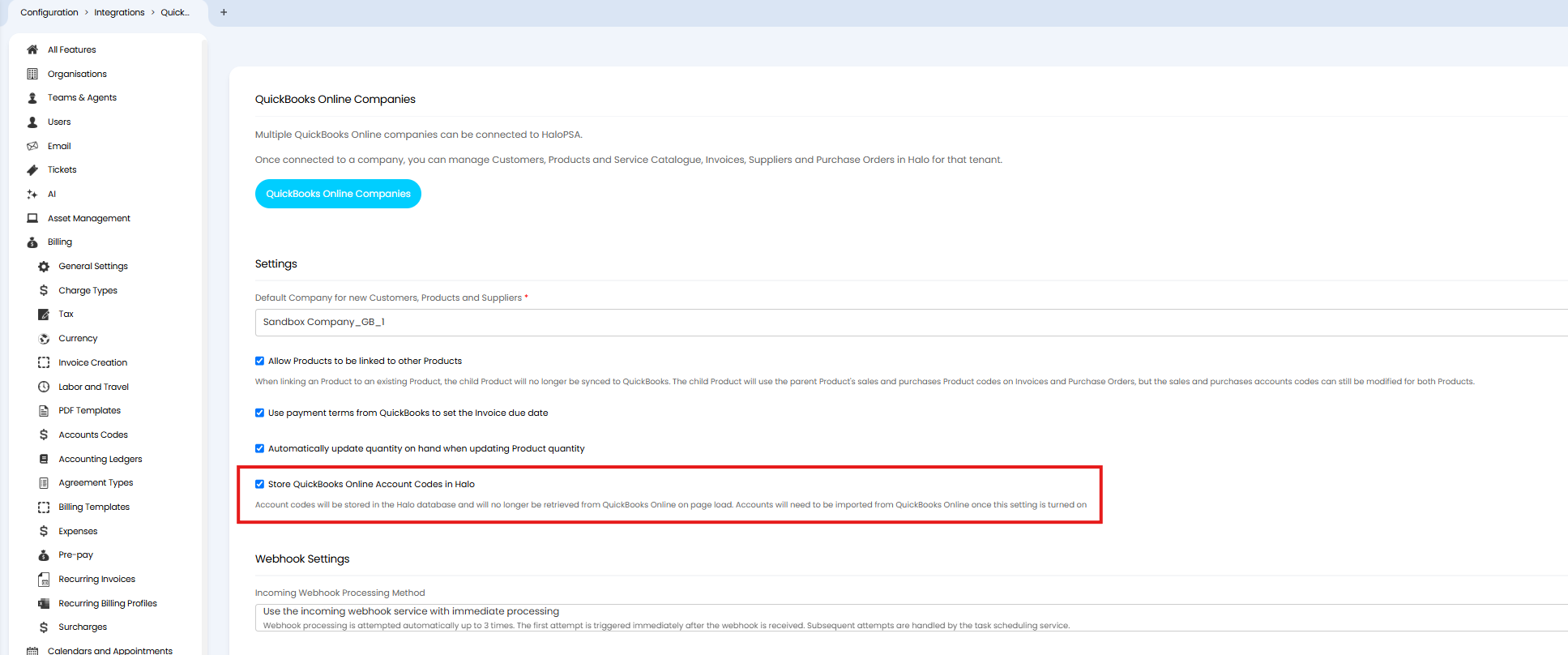
Fig 11. Enable the ability to store QuickBooks Online account codes in Halo
Now, head to the "Accounts Codes" tab within a connected tenant and use the "Import Accounts Codes" button.
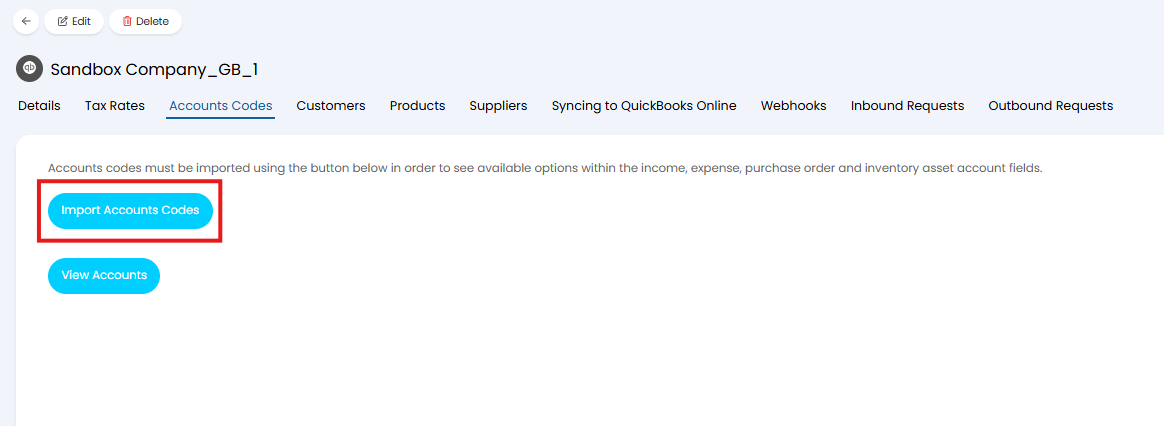
Fig 12. Import Accounts Codes
When used, accounts codes will be imported into Halo and can be viewed under Configuration > Billing > Accounts Codes.
Customer Imports
Now that tax rates have been configured, you can move onto importing customers. In order for invoices to sync, each customer in Halo must be assigned a QuickBooks Online ID, so you should ensure that all of your customers are imported from QuickBooks Online if you want to be able to sync their invoices across.
There is the ability to map sub customers in QuickBooks Online to the Sites in Halo, this is achieved via the mappings table found in the Customers tab of the integration.
IMPORTANT: This step of the integration is compulsory if you want invoices for a customer to be synced. If the customer already exists in your system, but is not assigned a QuickBooks Online ID via this import, their invoices will not sync.
Due to the requirement that a customer must have a name in Halo, only customers with a company name in QuickBooks Online can be imported.
IMPORTANT: It is not enough for a customer to have a first and last name in QuickBooks Online, as this is not the company name. The "Company name" field must be populated (Bosch in the below example).
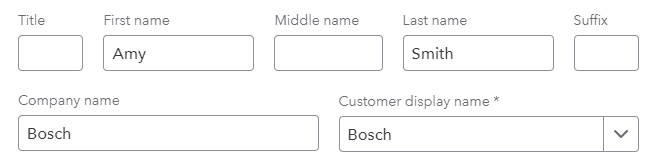
Fig 13. Company name
When importing, existing customer records in Halo will be updated if they have the same name in Halo as they do in QuickBooks Online. If they are being imported for a second time, then the record will be updated based on the QuickBooks Online ID that has been previously assigned to the record.
When you are happy, click the Import Customers button to open the importer screen, where your customers from QuickBooks Online will be listed for you to import.
Once you have imported at least one record, navigate to the customers view and open a customer that has been imported. On the Billing tab of this customer, you will find under billing settings that the customer has now been linked with a QuickBooks Online customer.
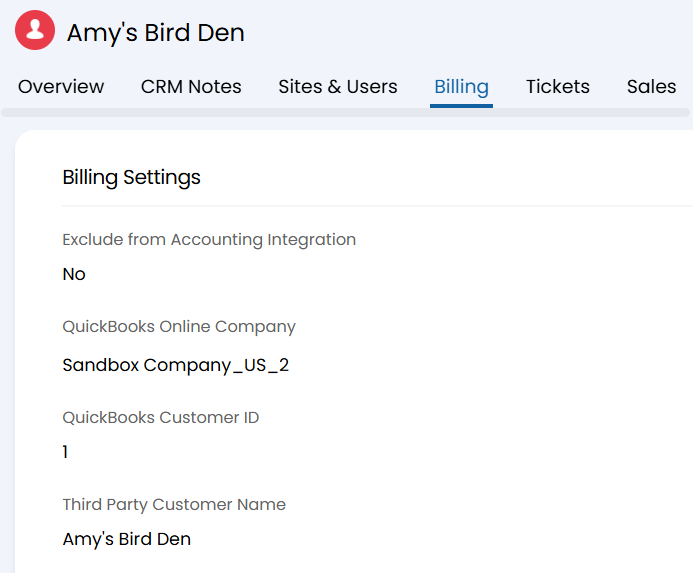
Fig 14. Billing configuration
You will also notice that the tax rates for this customer (The tax code options shown in the below screenshot will only be visible if the "Is Taxable" checkbox is checked on within the Billing Tab of the customer) have been set to Use Item/ Product Tax for all tax options (The use of Products/Items in this guide are interchangeable). This is due to the way QuickBooks Online handles tax. These values can be modified if you wish, but you must ensure that any tax rate you choose has been linked to a QuickBooks Online tax rate. Additionally you can set tax rates at the site level within the sites billing tab, if you wish to tax each site of that customer differently. The "Is Taxable" checkbox is also available on the site of a customer, and this can override the customer setting.
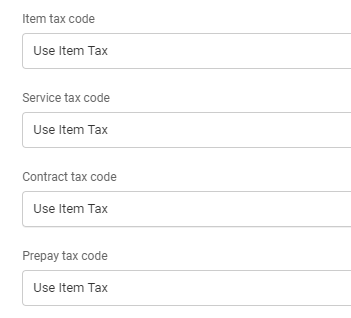
Fig 15. Tax code configuration
Product/Item Imports
Now that your customer list has been imported, you now need to import your products and services from QuickBooks Online. When syncing invoices to QuickBooks Online, every line on the invoice must be linked to an product that exists in QuickBooks Online. Therefore, you must ensure that all products and services that you want to sync to QuickBooks Online have been imported.
IMPORTANT: This step of the integration is compulsory if you want to use the item on an invoice. If the item already exists in your system, but is not assigned a QuickBooks Online ID via this import, the invoices sync will fail.
When importing, existing item records in Halo, will be updated if they have the same name in Halo as they do in QuickBooks Online. If they are being imported for a second time, then the record will be updated based on the QuickBooks Online ID that has been previously assigned to the record.
If an item is inclusive of tax in QuickBooks Online, then they will have their tax rates set to 0%. The tax rate fields against an item will remain adjustable, but changes to these fields will not be reflected in QuickBooks Online when syncing back.
Before importing, you must choose an item group that will be used for service products, inventory products and non-inventory products. This will allow Halo to differentiate between what is a service and what is an inventory item. This is particularly important when it comes to syncing items back to QuickBooks Online later, as an inventory item will display different fields to allow the sync to QuickBooks Online to be successful.
IMPORTANT: You must not select the same group for Service Products and Inventory Products. It is best practice to have this configuration to be unique product groups for each product type in QuickBooks Online, it is possible to have Service Products and Inventory Products using the same Product Group in Halo, although you must have asset inventory accounts for the Service Products in QuickBooks Online. Another important thing to consider is that Products exported to QuickBooks Online from an unmapped Product Group will be created in QuickBooks Online as Service Products.
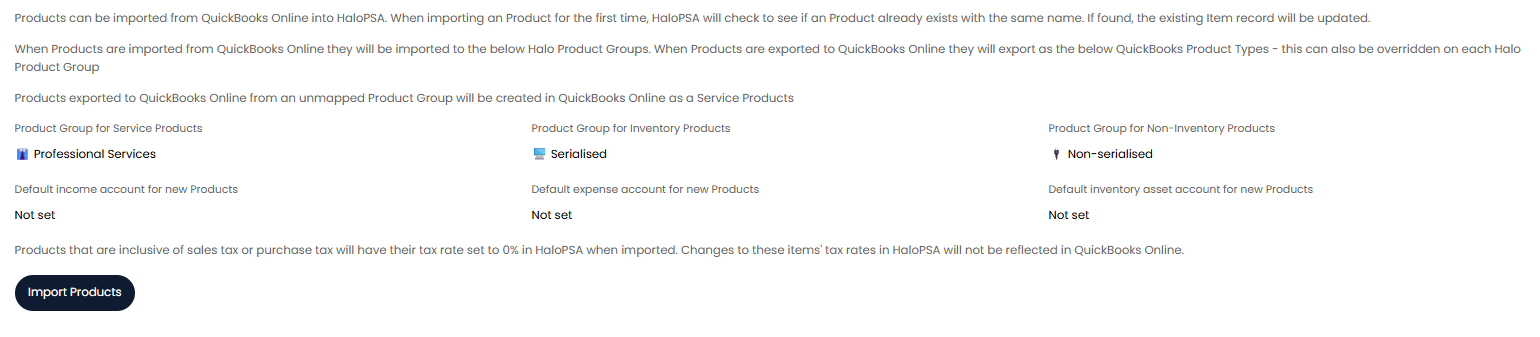
Fig 16. Product configuration
The various types of accounts can also have defaults set for new Products. Products will need to have an accounts code set in order to sync to QuickBooks Online, therefore we advise setting these defaults to ensure this is set and sync is successful even when technicians are not sure which accounts code to create an item with. When you are happy, click the Import Items button to open the importer screen, where your products and services from QuickBooks Online will be listed for you to import.
Once you have imported at least one product or service, navigate to the items view and open one of the items you have imported. Under billing settings, you will see that the item has now been linked to a QuickBooks Online item. Providing you have correctly setup your tax rates, you will see that the tax rates have also been set on the item.
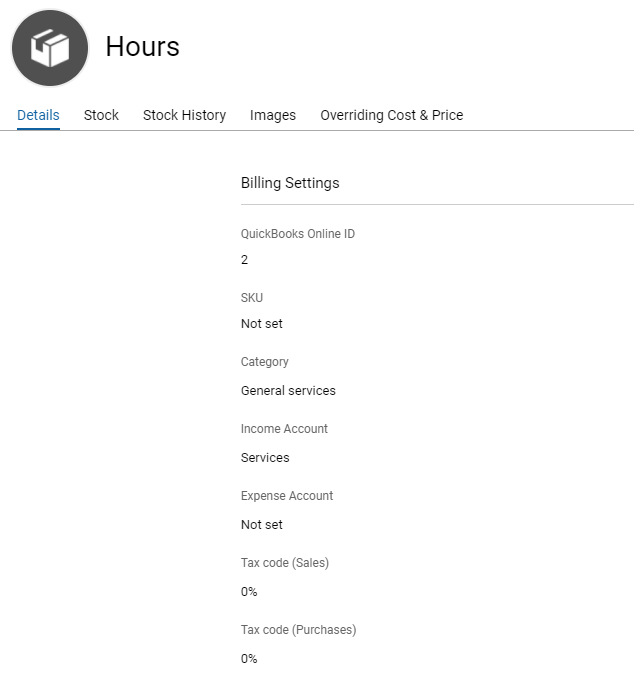
Fig 17. Tax rates on a product
For any service item which has been created, a charge rate will be created for you. Charge rates are configured in Configuration > Billing > Charge Rates. In the above example, the service item "Hours" has been created and linked to item code 2.
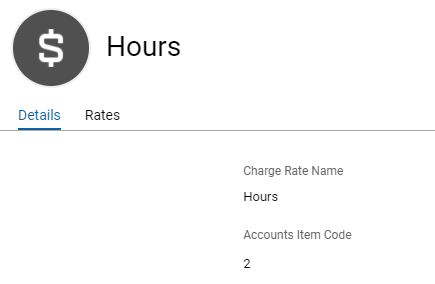
Fig 18. Charge rate
IMPORTANT: Any charge rate that you would like to use on actions that will eventually be synced on invoices to QuickBooks Online must be assigned to a QuickBooks Online product. If you have additional charge rates that are not linked to products, you can manually link these by populating the Accounts Product Code field with the QuickBooks Online item ID you want to link it to.
If there are any charge rates that have been created for service products that you don't want to use, then these can be safely deleted.
Suppliers
Suppliers can be imported from QuickBooks Online into HaloPSA. When importing a Supplier for the first time, HaloPSA will check to see if a Supplier already exists with the same name or accounts code. If found, the existing Supplier record will be updated. The name changes made in Halo will be synced to QuickBooks Online if Supplier is within the entities to sync.
Syncing to QuickBooks Online
Now that you have imported tax rates, customers and products, you are ready to enable syncing to QuickBooks Online. By enabling this feature, whenever you create or update a customer or item in Halo, the changes will be synced to QuickBooks Online. If the customer or item in Halo is correctly linked to a QuickBooks Online record, then the record will be updated in QuickBooks Online, otherwise a new record will be created.
Use the "Entities to Sync" field to set which Halo entities you would like to sync to QuickBooks Online. Once set, some additional options will appear.
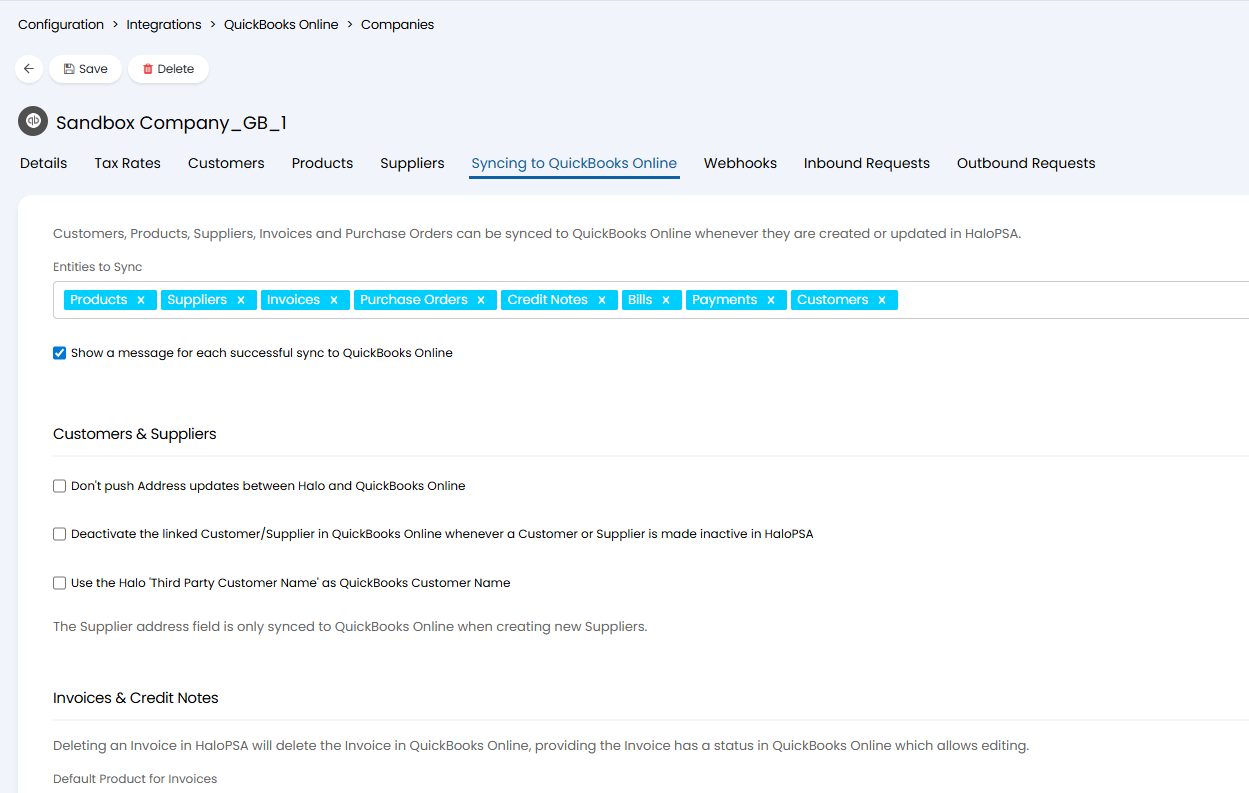
Fig 19. Syncing to QuickBooks Online
Don't push Address updates between Halo and QuickBooks Online - When enabled, changes to addresses in Halo will not be synced to QuickBooks Online.
Show a message for each successful sync to QuickBooks Online - When enabled, a pop up message will show each time a sync is attempted from Halo -> QuickBooks Online, informing you if the sync was successful or not.
Deactivate the linked Customer/Supplier in QuickBooks Online whenever a Customer or Supplier is made inactive in HaloPSA - When enabled, if a customer/supplier is made inactive in Halo, the linked supplier/customer in QuickBooks Online will be deactivated.
Use the Halo 'Third Party Customer Name' as QuickBooks Customer Name - Enable this if you would like customers in Halo and QuickBooks Online to match using the Halo "Third Party Customer Name" field. Useful when customer names in Halo are not the same as the customer's name in QuickBooks Online.
If you have Deferred Revenue enabled, you will also need to specify the "Deferred Revenue Accounts Code" here. For more information on Deferred Revenue please see the Down Payments guide.
Customer and Supplier Settings
Don't push Address updates between Halo and QuickBooks Online - When enabled, addresses against customers/sites will not sync between Halo and QuickBooks Online.
Invoices & Credit Notes Settings
As mentioned earlier in this guide, every item on an invoice must be linked to an item, otherwise the invoice will fail to sync correctly to QuickBooks Online. It can be difficult maintaining a fully synced item list, so to help with this, we have added an option to choose a default product for invoices and credit notes. This means that if you do accidentally add an item to an invoice which is not linked to a QuickBooks Online item, then the default item will be assigned to the line so that the invoice won't fail to sync. We recommend using a miscellaneous item for this field, which is a common piece of configuration in all accounts systems.
Note: Items can be matched based on name, if an item in Halo does not have a QuickBooks Online ID but matches an item in QuickBooks Online based on name, when the item is updated in Halo it will match to the QuickBooks Online item with the same name, updating the item in QuickBooks Online. Provided no items in Halo are already linked to the ID of the QuickBooks Online item with the matching name. QuickBooks Online ID matching takes precedence over name matching.
The email status for new invoices field is simply a default that will be set for all invoices, so this can be set to any of the available values.
There is an option to show a message whenever a sync is successful. It is highly recommended that you enable this feature, particularly when first using the integration, as it gives a good indication that the actions you are taking are working.
Example: with this feature enabled, if you try to sync an invoice for a customer who has not been correctly linked to a QuickBooks Online customer, then no popup will display, which will indicate to you that Halo has not tried to sync the invoice to QuickBooks Online.
Sync HaloPSA Invoice number to QuickBooks Online - See the section "Sync the Halo Invoice ID to QuickBooks Online" for information on this setting.
Sync Classes to Invoice/Credit Note lines - When enabled this will allow class information to be synced to QuickBooks Online when the invoice is created in Halo. Class information can be set against each product using the 'Class for Invoice reporting/tracking' against the product.
Don't include lines that are used to track costs only - Lines that have 'track cost only' enabled will not be synced to QuickBooks Online.
Include Invoice/Credit Note group header lines - When enabled, product group header lines will be synced to invoices and credit notes in QuickBooks Online.
QuickBooks Online Custom Field to use for Halo Invoice PO Number - Here you can select the field that the Halo purchase order number is saved to when syncing to QuickBooks Online. This only applies to invoices that are linked to a purchase order.
Void Invoices in QuickBooks Online when they are marked as void in HaloPSA - When an invoice is marked as 'void' in Halo this will be marked as 'void' in QuickBooks Online too.
Return Online Payment Link (If enabled and applicable) - When enabled the payment link from QuickBooks Online store the invoice payment link from QuickBooks Online against the Halo invoice, which can also be shown to the customer.
Override Tax amounts using Halo Tax totals - When enabled the tax on the invoice in Halo will override tax applied by QuickBooks Online. This is used when you have integrated a tax engine (Avalara) into Halo therefore Avalara has calculated the tax and added this to the invoice in Halo. As this will be the correct tax rate, this will need to remain when the invoice is synced to QuickBooks Online (primarily used by Canadian clients). In order for this to function only a single tax rate can be applied to an invoice, if any lines are taxable, they must all use the same tax rate (tax rate A and tax rate B cannot be used on the same invoice).
Always set the invoice tax code (v2.256+) - Only available to US instances, only applicable when not using AST. When enabled a tax code will always be synced to QuickBooks Online, even if the invoice contains no taxable items. If all the lines on an invoice have 0 tax the customer's default tax code will be synced to QuickBooks Online. If this is a site specific invoice, the site tax code will be synced. This will not apply additional tax to the invoice, but ensures a tax code is always synced to QuickBooks Online, used for reporting in QuickBooks Online.
Products Settings
Don't sync quantity on hand to QuickBooks Online - When enabled the number of items you currently have in stock will not be synced to QuickBooks Online. From v2.252+, this will be replaced by a dropdown. Where you can choose to sync the number of items you currently have in stock to QuickBooks Online using the total quantity, quantity on hand field, or not to sync quantity to Quickbooks.
Purchase Orders Settings
Purchase orders can be synced from Halo to QuickBooks Online. To enable this, add purchase orders to the 'entities to sync' field. When enabled each time a purchase order is created or updated in Halo this will create and update a purchase order in QuickBooks Online.
The purchase order statuses will also sync to QuickBooks Online, so when the status of the PO is updated in Halo the PO status will be updated in QuickBooks Online.
You must set a default item for purchase orders. If an item on the purchase order does not have a QuickBooks Online item linked to it this will be the item that it is linked to. It is best to set a generic item here.
- Account for Purchase Orders - Choose which account will be linked to the purchase order once it is synced over.
- Email Status for New Purchase Orders - This is the email status the purchase order will have once created in QuickBooks Online.
Webhooks
Under the 'Webhooks' tab you can enable various webhooks for the integration.
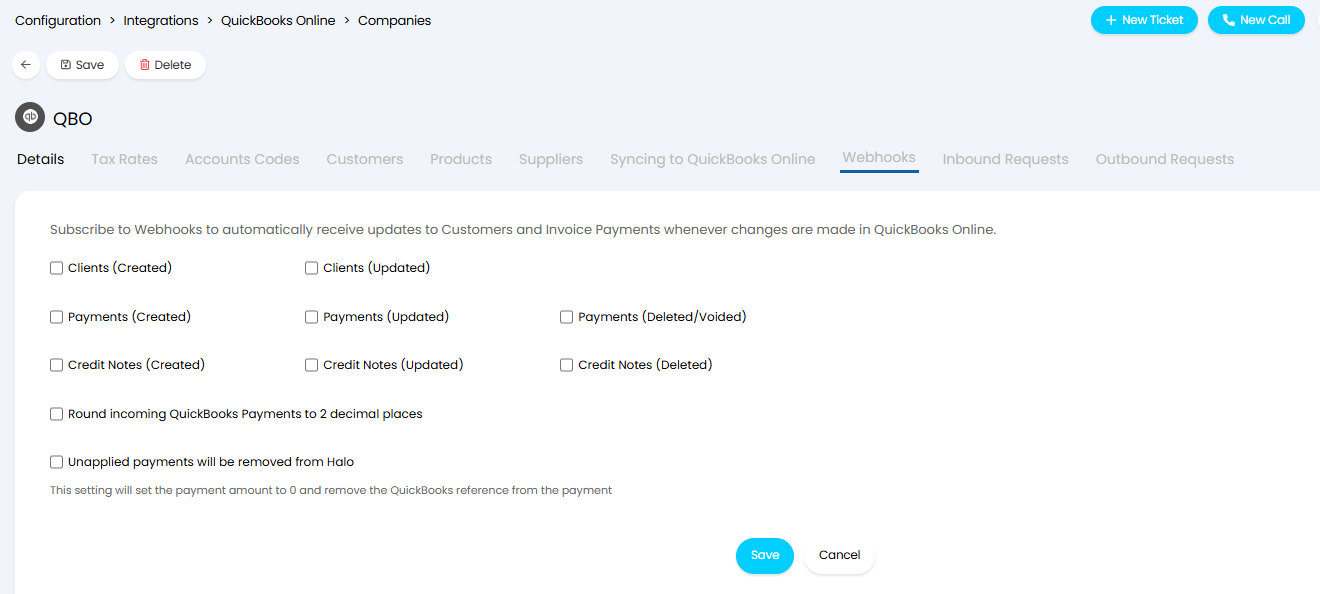
Fig 20. Webhook configuration
Enabling webhooks allows changes to be synced as soon as a client, payment, or credit note is created or updated.
There are some additional settings here too. When 'Unapplied payments will be removed from Halo' is enabled any payments against an invoice that are removed in QuickBooks Online will set the payment to 0 in Halo and remove the QuickBooks Online reference from the payment.
An webhook is available for deleted/void payments ("Payments (Deleted/Voided)") and deleted credit notes. If enabled, deleted payments or credit notes from QuickBooks Online will be removed from Halo.
Syncing Customers
When you are creating a new customer, there are some compulsory fields that must be completed for the sync to be successful. The two required fields are the first and last name of the main contact for the customer, which are denoted as mandatory by the red star against the field. These fields can be found under the Billing Settings heading on the Settings tab.
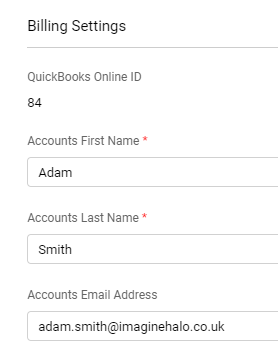
Fig 21. Billing settings on a customer
For US customers using this integration, you are also required to specify a default tax code. This field will also have a red star to indicate that it is mandatory.
If you are using Automatic Sales Tax you will also need to add a tax exemption reason against the Customer profile if the customer is not taxable (set under the Billing tab of the customer profile). If a (tax exempt) customer is created in Halo and this field is not set the customer will not sync to QuickBooks Online. For any tax exempt customers imported from QuickBooks Online, the tax status of the customer and reason for tax exemption will be set automatically.
WARNING: Failure to choose these fields will result in error messages from QuickBooks Online being given. The most common of these is a 6000 Business Validation error message. If you see this error, ensure that you have correctly populated all mandatory fields against the customer record.
Syncing Items
Like customers, items have compulsory fields that must be completed when you create them in order for the sync to be successful. Earlier in the configuration, you should have chosen an item group that will store QuickBooks Online inventory items. When creating a new item, if you assign it to this group, then the field will be created as an inventory item in QuickBooks Online. Items created in any other groups will be created as service items.
You can also use item groups as a way of excluding certain items from 3rd party accounting integrations. Once "Use for Items" is enabled, "Exclude from Accounting Integration" can be selected. This will exclude items from within that group from being synced. This can be useful if you use a catalogue integration and do not want these products syncing to your QuickBooks Online.
Note: When creating quotes/invoices in Halo, only items synced to the same QuickBooks Online instance as the customer will show when adding items.
All mandatory fields for the QuickBooks Online sync can be found under Billing Settings. If you are creating a new service item, the following fields are mandatory and will have a red star next to them:
- Income Account
- Tax Code (Sales)
- Tax Code (Purchases)
When selecting tax codes, picking a tax code that isn't linked to a QuickBooks Online tax code will result in an error when saving the record.
In addition to the fields listed above, inventory items also require you to specify the following fields:
- Inventory asset account
- Quantity on hand
- Inventory start date
Note: Default (income/expense/inventory asset) account codes for items can be set under the Products tab of the QuickBooks Online integration setup in Halo. This will ensure these fields are always populated when new items are created in Halo.
Syncing Invoices
Providing all steps of this guide have been followed, and every entity in Halo is correctly linked to an entity in QuickBooks Online, syncing invoices will be straightforward. All types of invoices can be synced to QuickBooks Online, whether it be for labour on tickets or an invoice created from a recurring invoice. We will only look at raising a basic manual invoice in this guide for simplicity.
When first adding an item to an invoice, the item code will be displayed on the invoice line.

Fig 22. New invoice with an item code
This is the first basic indication that the item you've added to the invoice has been successfully linked to a QuickBooks Online item. If no item code is shown, you can either edit the line and manually adjust the item code, or when the invoice is saved, if you have chosen a default item for invoice lines then the line will automatically be assigned the default item's code.
When saving the invoice, there are some common errors that can occur due to misconfiguration. If the error mentions tax rates not being specified or being invalid, then the item that is assigned to your invoice line is likely not assigned to a tax rate which has been linked to a QuickBooks Online tax rate. Likewise, if the error contains information about an invalid item on the invoice, then one of your items/charge rates has not been correctly linked to a QuickBooks Online item.
In these circumstances, you should revisit your configuration and check that these entities have been linked together correctly. Once you've made changes to your configuration, you should re-add the line to the invoice so that the changes take effect on the invoice. As long as one field/line is modified, then the changes will be synced across to QuickBooks Online.
Updates to invoices that have already successfully synced to QuickBooks Online will also be synced to QuickBooks Online, for example, if you wanted to increase the quantity of an existing invoice line.
The "Include Invoice Group/Bundle lines" setting in the "Syncing to QuickBooks Online" tab > Invoices, can be enabled to also sync over the name of a bundle into QuickBooks Online.
Should you wish to remove an invoice, deleting it from Halo will remove the invoice from QuickBooks Online. The deletion from Halo will also roll back any billing calculations, so tickets that were billed on the invoice will now re-appear in the ready for invoicing section.
You can choose to store the invoice payment link from QuickBooks Online against the Halo invoice, which can also be shown to the customer. This is done by enabling "Return Online Payment Link (If enabled and applicable)" within this tab.
Common Issues
If invoices are created in QuickBooks Online but do not have an invoice number then please use the below to resolve.
- Go to the Gear icon, then choose Account and Settings.
- Select the Sales tab.
- Click anywhere within the Sales form content section.
- Uncheck the box next to Custom transaction numbers.
- Click Save and then Done.
Sync the Halo Invoice ID to QuickBooks Online
Important: This feature should only be enabled if there is no possibility of a Halo Service Desk invoice ID clashing with an existing QuickBooks Online invoice ID. Custom transaction numbers must be enabled in QuickBooks Online to use this feature.

Fig 23. Sync invoice number option
When enabled the "ID" field on the Invoices in Halo, will sync over to QuickBooks Online.

Fig 24. ID in Halo
The third party invoice number represents the invoice number that would be pulled from QuickBooks Online.
If products are being synced, there is also the checkbox option (On version 2.150.1 or higher) 'Don't sync quantity on hand to QuickBooks Online' when this is enabled, it will stop the syncing of item quantities to QuickBooks Online for inventory types.
Symbols for Customers Not Synced to QuickBooks Online
When customers are not currently synced to QuickBooks Online, they will be marked with a cross symbol, this allows distinguishment between the customers that are synced and those who aren't. The customer list will display the following for those customers.
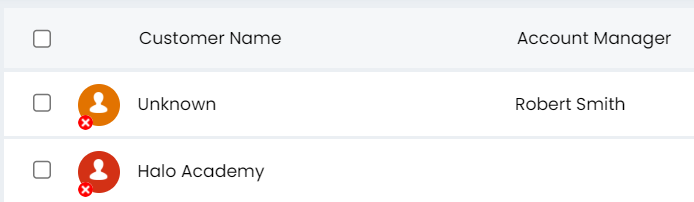
Fig 25. Non-synced customers
Webhook Syncing Options
When using webhooks to sync data from QuickBooks Online you can choose which method you use to process webhooks. In Configuration > Advanced Settings > Backend Monitoring, enable the below.

Fig 26. Enabling webhook services
Then back in the general page of the QuickBooks Online module, a dropdown with two additional methods of processing webhooks are now available. The default follows the previous behaviour.
1. Use the default webhook processing functionality
This is the default option. Each incoming webhook will be processed immediately, and failed webhooks will not be retried.
2. Use the incoming webhook service with immediate processing
This means the webhook service is in use for the integration. Each incoming webhook will be processed immediately, and any failed webhooks will then be automatically retried a further 2 times via the task scheduling service. This is the recommended option.
3. Use the incoming webhook service with delayed processing
The same as option 2, but webhooks are not processed immediately when they are received. Instead, they are automatically queued and picked up by the task scheduling service. This option is only necessary if option 2 is failing to process webhooks after 3 attempts due to rate limits, i.e. the webhook result is returning 429 too many requests.
Logic has been added to the task scheduler to retrieve webhook resource data in batches. This greatly reduces the number of requests made to the third-party API, thus reducing the chance of hitting third-party rate limits. This logic is always used for option 3, and is used before retrying webhooks when using option 2.

Fig 27. Webhook method options
Automatic Sales Tax
Automatic Sales Tax (AST) in QuickBooks allows your tax rates/charges on any sales you make to be calculated automatically using QuickBooks tax calculations.
Note: This feature is currently only available to US QuickBooks Online users.
If Automatic Sales Tax is enabled in your connected QuickBooks Online account, this will have implications on how tax is calculated in Halo and how it appears on invoices. You can see if AST is enabled under the 'Details' tab of you QuickBooks Online integration setup in Halo.
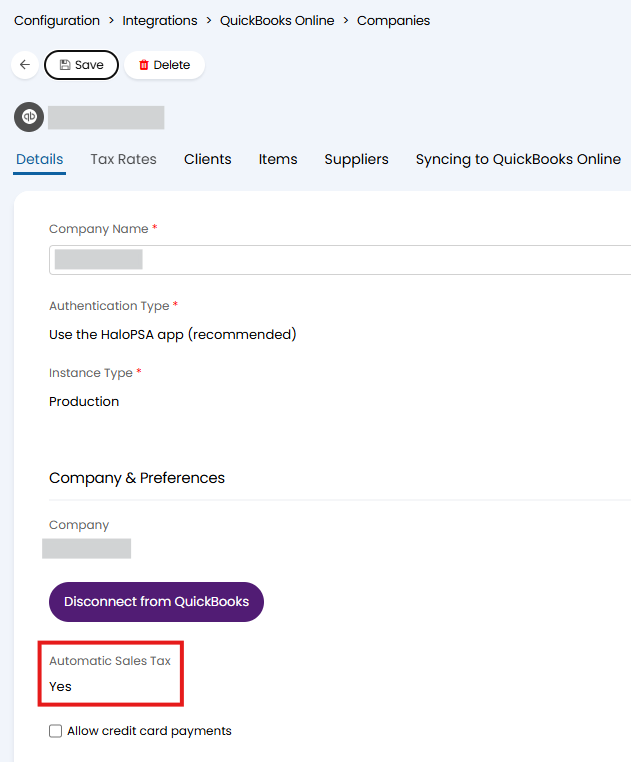
Fig 28. Automatic Sales Tax enabled
This field is not editable as this is set automatically based on the settings in the QuickBooks Online account connected.
For information on setting up and using AST in QuickBooks Online checkout: Set up and use automated sales tax in QuickBooks Online
For information on disabling AST in QuickBooks Online checkout: Turn off sales tax in QuickBooks Online.
Using Automatic Sales Tax on Invoices
When using AST, Halo will NOT complete any tax calculations on invoices. All tax calculations will be carried out in QuickBooks. Tax will only be applied to invoices after the invoice has synced to QuickBooks Online.
Once an invoice has synced to QuickBooks Online, QuickBooks Online will calculate and add the tax onto the invoice. This tax information will then be synced back to Halo, updating the invoice in Halo with the correct tax information.
The tax added from QuickBooks Online is not added per line, instead the tax total for the invoice is updated to contain the correct tax amount from QuickBooks Online.
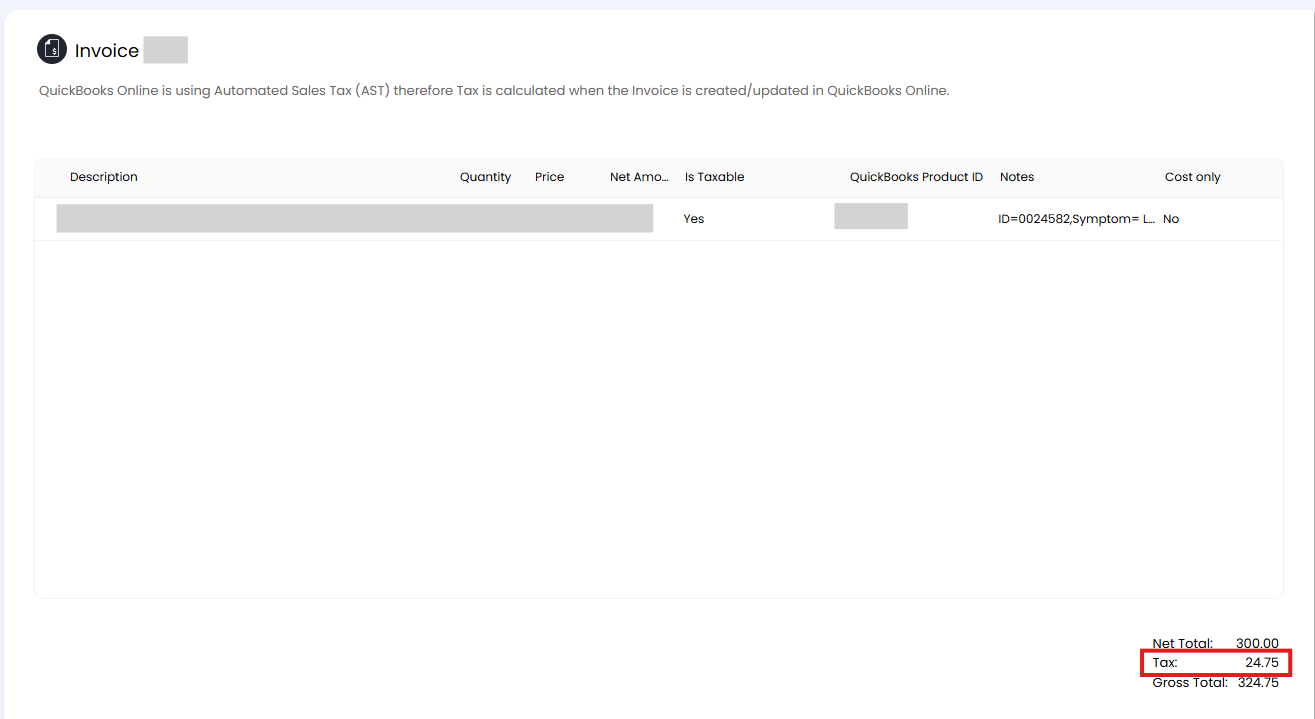
Fig 29. AST added to invoice
Remove Tax Column from Invoice PDFs
As tax is not added per line, you may wish to remove the 'Tax' column from your invoice PDF templates, as this column will always be empty. To do this head to Configuration > Billing > PDF Templates > edit Invoice PDF Templates > select a template > Details Table > remove the 'Tax' column using the icon highlighted in Figure 30.
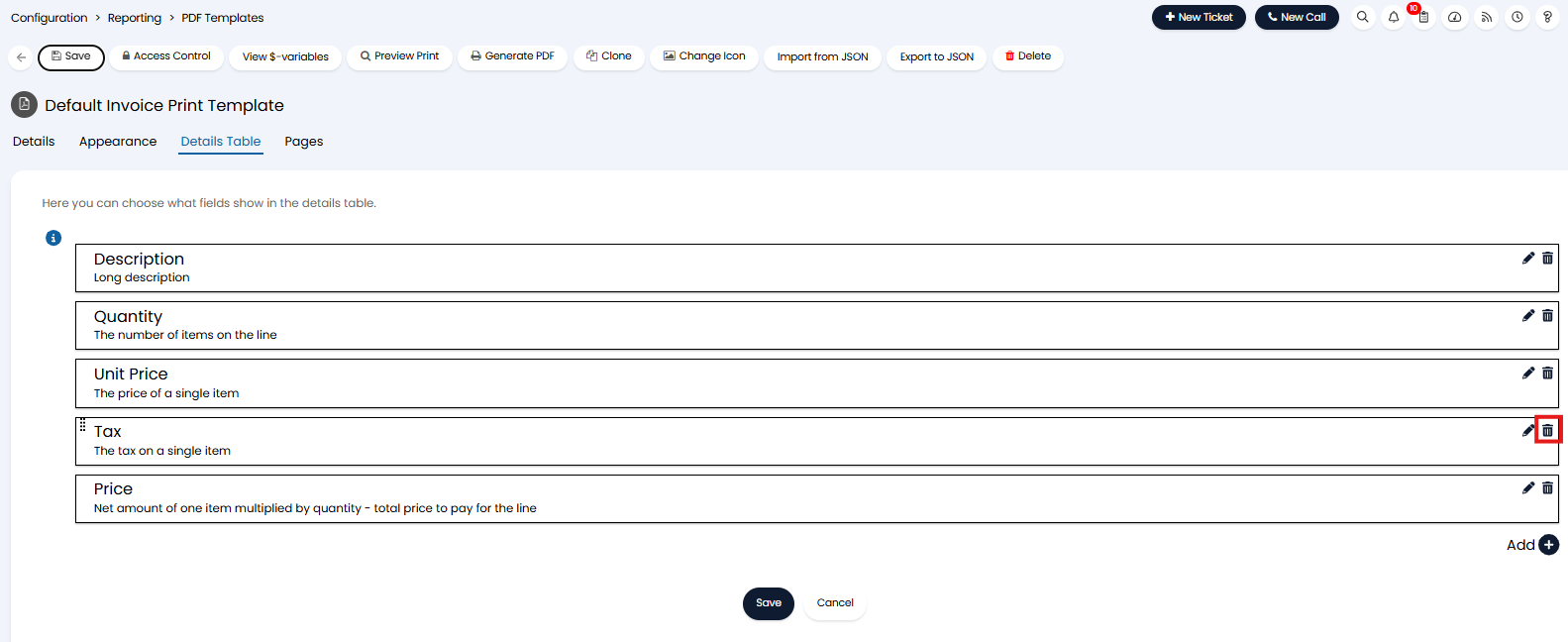
Fig 30. Remove tax column from PDF template
Ensure no other columns used on your invoice templates use a tax inclusive value (such as unit price +tax). The column description on the 'Details Table' tab will outline if the value returned includes tax.
This will only remove the tax column from PDFs, the tax column will be hidden from agents in the agent app by default.
Using Automatic Sales Tax with Quotes and Sales Orders
As quotes and sales orders do not sync to QuickBooks Online, QuickBooks Online cannot calculate and add the tax to these entities using AST.
Therefore there are two options you can use when processing quotes and sales orders from Halo to amend the tax:
- Remove visibility of tax on quotes and sales orders (recommended).
- Manually Enter a tax estimate.
Note: For both options ensure a disclaimer is added to your templates advising values shown are estimates of tax/exclusive of tax.
Remove Tax visibility on Quotes and Sales Orders
Use this option when you would like customers to not see any tax calculations/estimates on their quotes/sales orders. Useful when you would like to avoid giving misleading estimates, simplifying the quoting/sales process.
To hide tax on quotes and sales orders you will need to remove the 'Tax' column on your quote/sales orders. This is done in the same was as shown in the 'Remove Tax Column from Invoice PDFs' section of this guide. Also ensure none of the other columns included in the details table return values inclusive of tax.
You may also wish to remove the 'Tax' section from the quote/sales order total. By default this will show and return Halo's estimated tax value (even if the tax column is removed from the template).
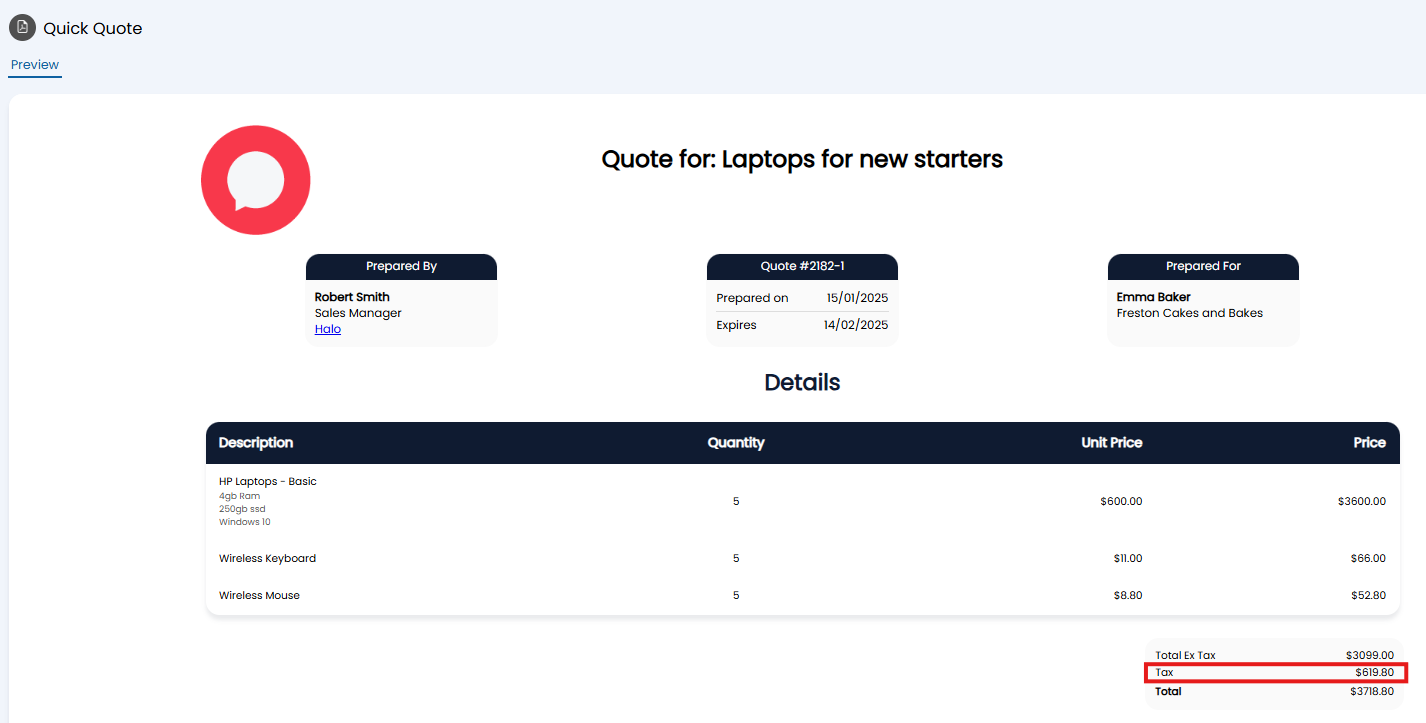
Fig 31. Tax section on invoice total
To remove this, within the PDF template head to the Pages tab > edit the page the totals are on. Within the 'Core Template HTML' look for the table row containing the variable $-QUOTETAXTOTAL (for quotes) or $-ORDERTAXTOTAL (for sales orders). Keep in mind this may differ if your PDF templates have already been customised.
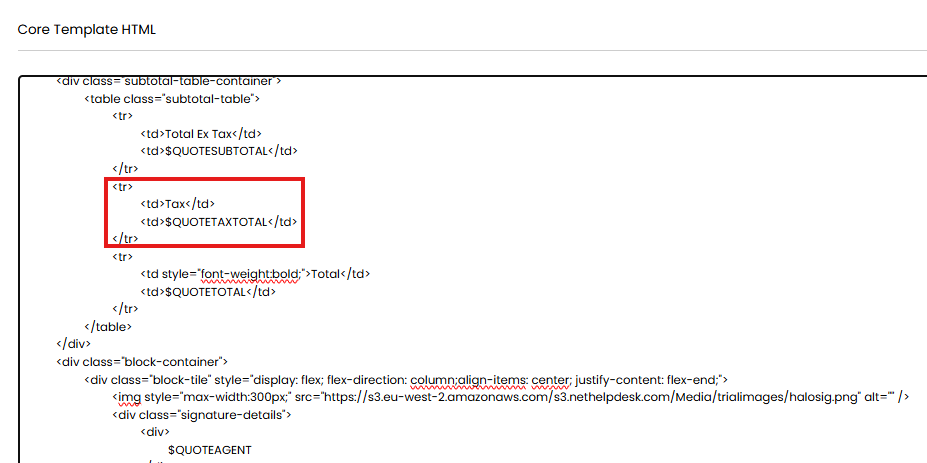
Fig 32. Tax total section on quote PDF
You can either remove the highlighted section, or adjust it to return a new value, such as stating tax will be added on the final invoice.
This will only remove the total from PDFs, the tax total cannot be hidden from agents in the agent app.
Manually enter a Tax estimate on Quotes
If you would like to include an estimate of tax on quotes, but would not like Halo to estimate this for you, you can have agents manually enter a 'Tax estimate' against each quote. This estimate can then pull through to the quote template to show to the customer.
A tax estimate can be entered in the 'Tax Estimate' field against quotes, this is only available when AST is enabled.
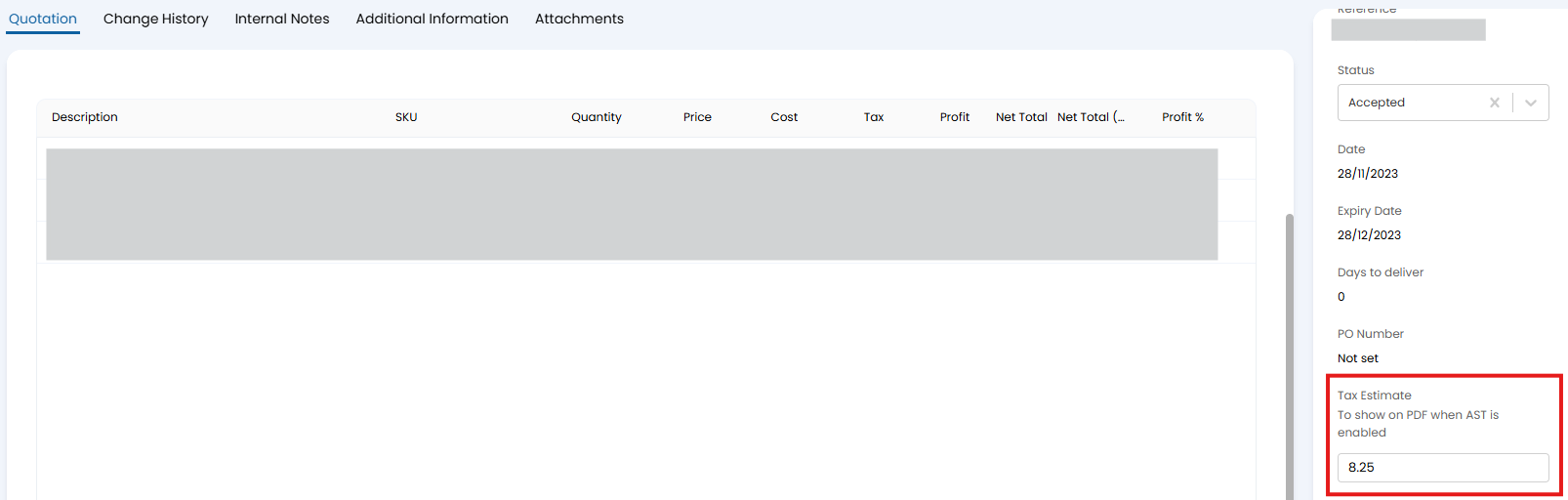
Fig 33. Tax estimate field on quote
The value entered here is pulled through with the variable $-QUOTETAXTOTALESTIMATE. Replace $-QUOTETAXTOTAL on your quote templates with this to use the entered tax estimate instead.
Determining if a Line is Taxable
Only lines that are marked as 'taxable' will be evaluated by AST. Therefore when using AST we recommend ensuring all items/products in Halo are marked as taxable as this ensures all lines are always evaluated by AST. Even if you do not expect an item to be taxable, when it is marked as taxable AST will evaluate the item, determine that is is not taxable and update the invoice accordingly.
When AST is enabled you can manually mark line items as not taxable using the setting 'No Tax Override' against an invoice line.
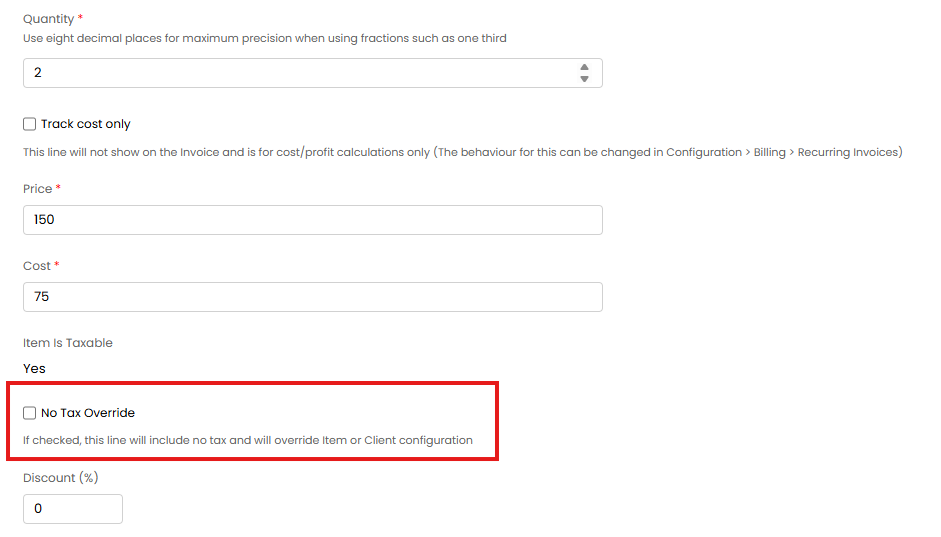
Fig 34. No Tax Override
When this is checked the line will be marked as not taxable, therefore when it is synced to QuickBooks Online no tax will be added, AST calculations will not be run on this line. This is used when you would like to override AST calculations.
Avalara and QuickBooks Online
If you are using Avalara to calculate tax this can either be integrated into Halo or into QuickBooks Online.
If Avalara is integrated into QuickBooks Online tax will be applied after the invoice has synced to QuickBooks Online.
If Avalara is integrated into Halo, tax will be applied to invoices in Halo. To have this tax remain on the invoice when it is synced to QuickBooks Online you will need to enable "Override Tax amounts using Halo Tax totals" under the "Syncing to QuickBooks Online" tab of the integration setup in Halo.
Whether you choose to integrate Avalara with Halo or QuickBooks Online will depend on if tax is applied based on information that is available in Halo or in QuickBooks Online.