Invoice Payments
In this lesson we will cover:
- Viewing Paid vs Unpaid Invoices
- Adding Payment Records to Invoices
- Payment Notifications
Viewing Paid vs Unpaid Invoices
Once an Invoice has been generated in Halo the Payment Status of this Invoice can be tracked.
The 'Invoices' section of the Invoices module in Halo organises Invoices into sub-sections based on their Payment Status.
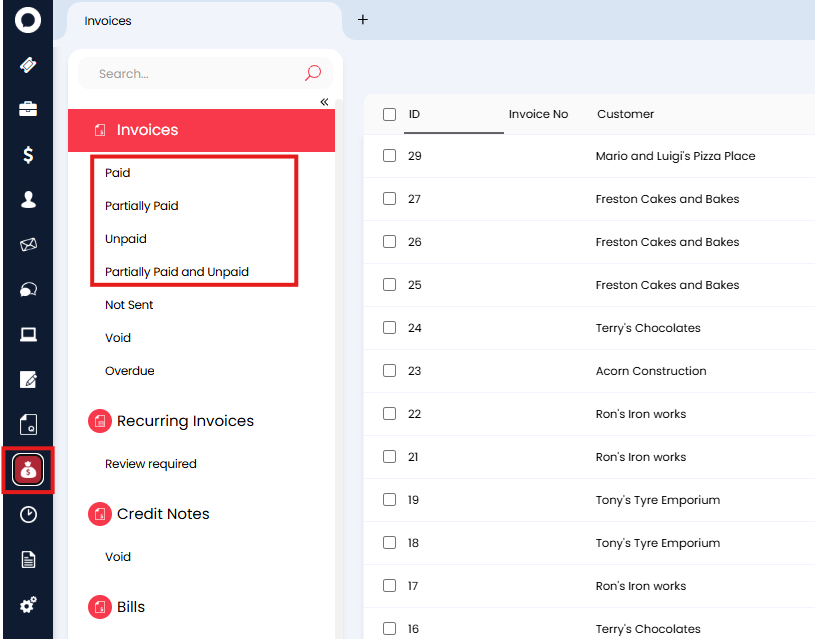
Fig 1. Sections of the Invoicing module organising invoices based on their paid status.
Paid: This will show all Invoices that have been fully paid.
Partially Paid: This will show all Invoices that have a Payment Record against them, but there is still an outstanding amount to be paid.
Unpaid: This will show Invoices with no payment record against them.
Partially Paid and Unpaid: This will show all Invoices that still require some payment.
Adding Payment Records to Invoices
Payment Records can either be added to Invoices manually or can be synced across from an integrated tool.
Adding Manually
To add a Payment Record manually, open the Invoice you would like to log a payment for and head to the 'Payments' tab.
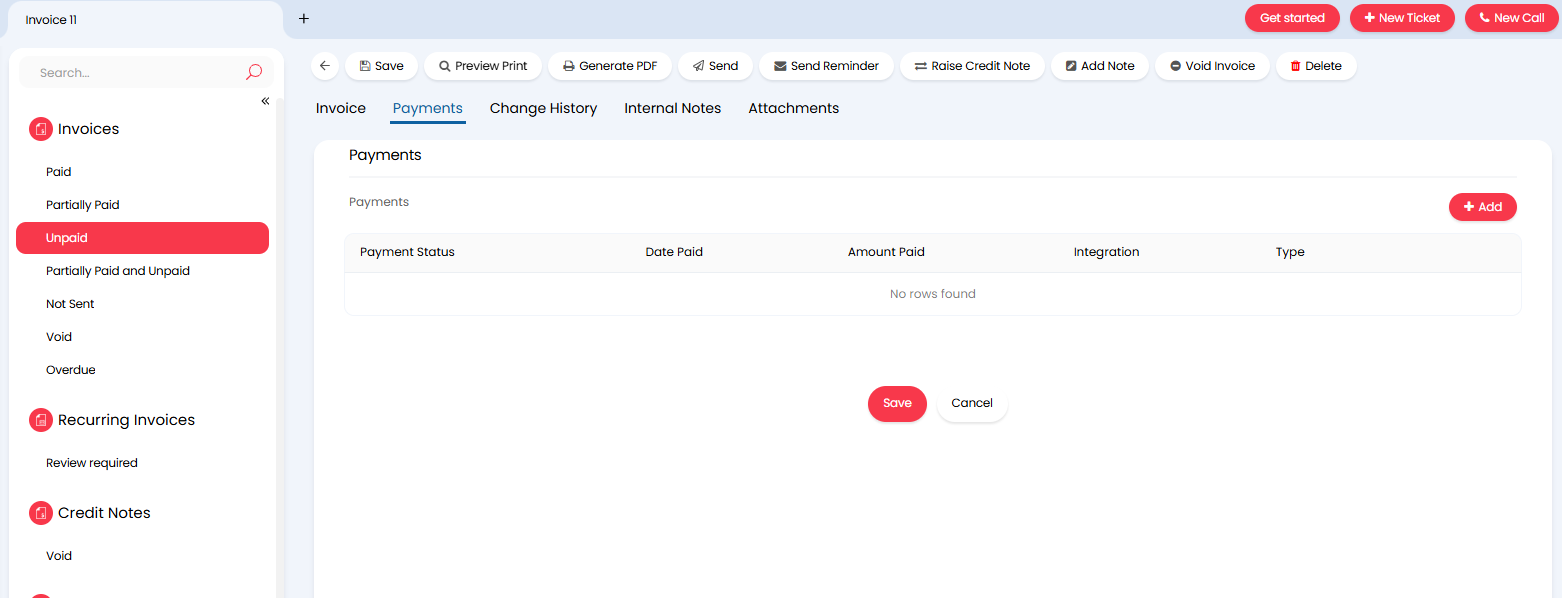
Fig 2. Payments tab against Invoice.
Here, add a payment using the 'Add' button. When adding you will need to enter the date paid and how much was paid.
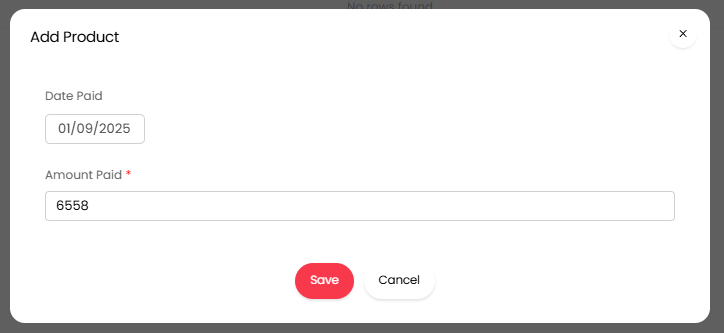
Fig 3. Add Payment record.
Note: By default, the 'Amount Paid' will default to the total outstanding value of the Invoice.
You can also add the Payment Method used and a Payment Reference for the Payment record. Allowing you to track how the payment was made and the reference for this.
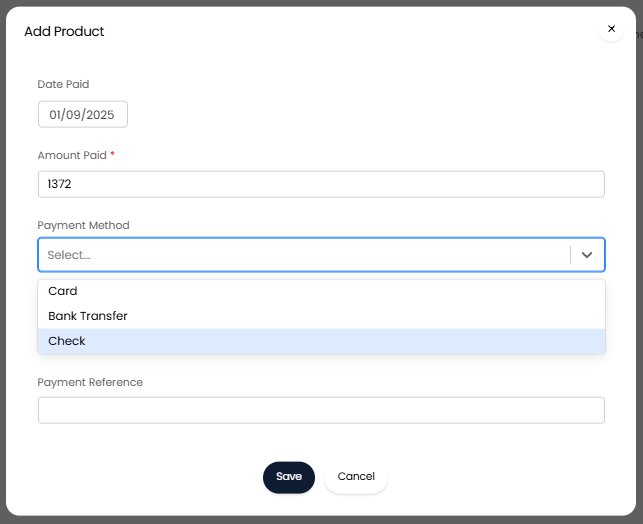
Fig 3. Adding a Payment record
Once a Payment Record is added, this will be visible in the Payments tab and can be amended if needed.
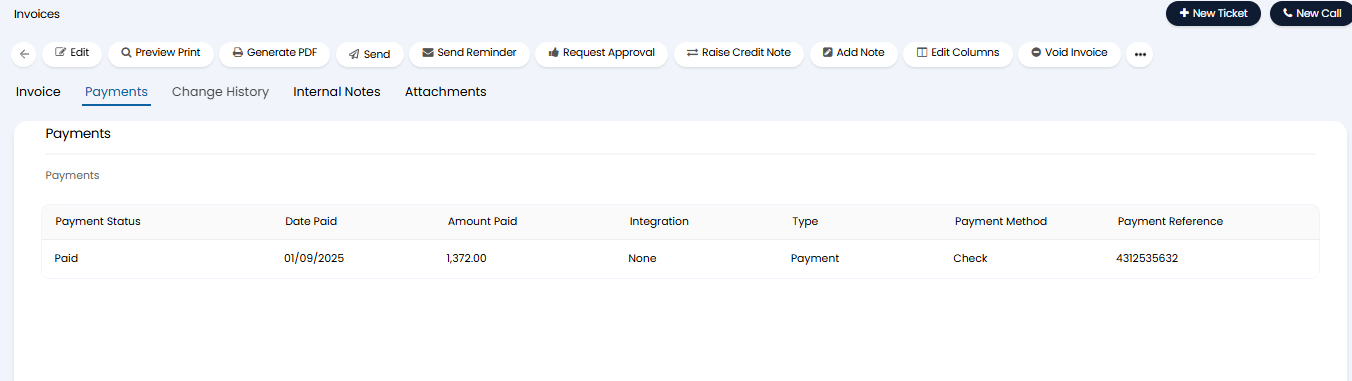
Fig 4. Saved Payment Record.
Once Payment Records have been added that total the value of the Invoice, the Payment status of the Invoice will update automatically to 'Paid' and the 'Date Fully Paid' will also update.
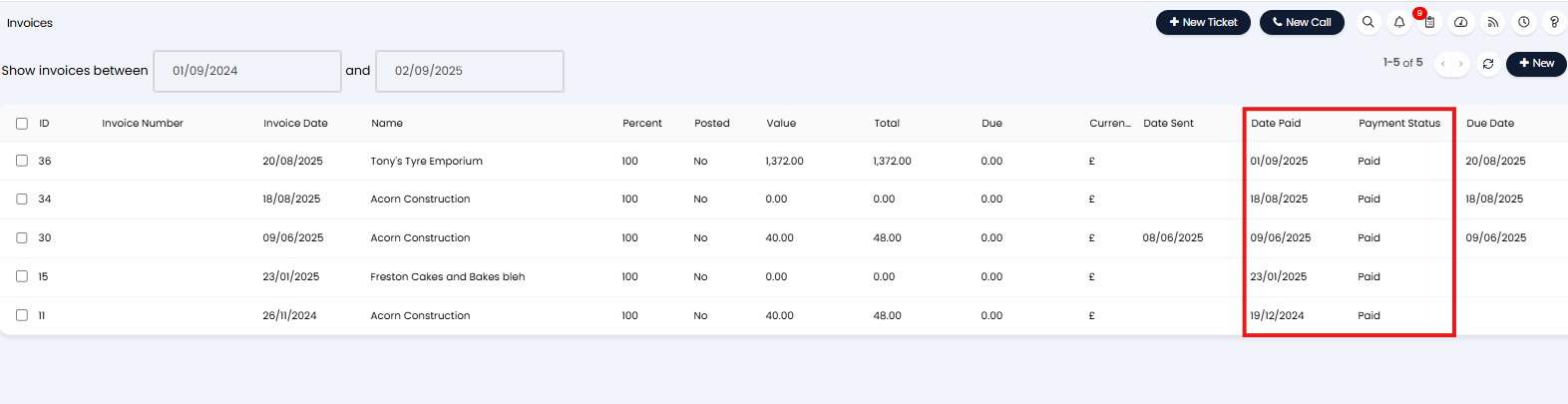
Fig 5. Invoice Payment Status and Date Paid fields updated.
Syncing Payments from an Integration
Selected integrations with Halo support the syncing of payments into Halo. This means when a payment in recorded in the integrated tool, this will sync across to Halo and add the payment record to the associated invoice in Halo automatically.
To check if the integration with your payment tool supports payment syncing you will need to check the dedicated guide for the integration. Some integrations that support payment syncing include:
Payments that have been synced from another tool will add a record to the Invoice in Halo as shown in figure x.
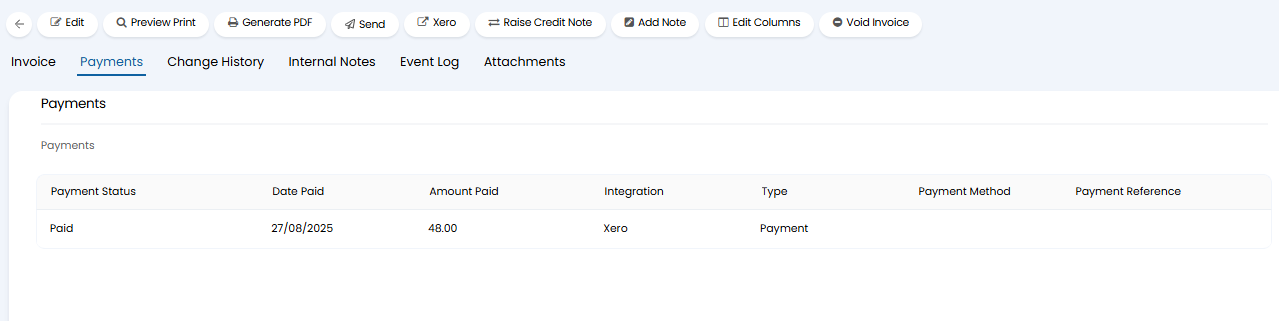
Fig 6. Payment record from integration (Xero).
Payment Notifications
A notification trigger is available for when an Invoice is paid, allowing you to setup a notification to alert you when an Invoice has been paid.
Head to Configuration > Notifications > Notifications > New, in the 'Event' field, choose 'Invoice Paid' then setup the rest of the notification as desired.
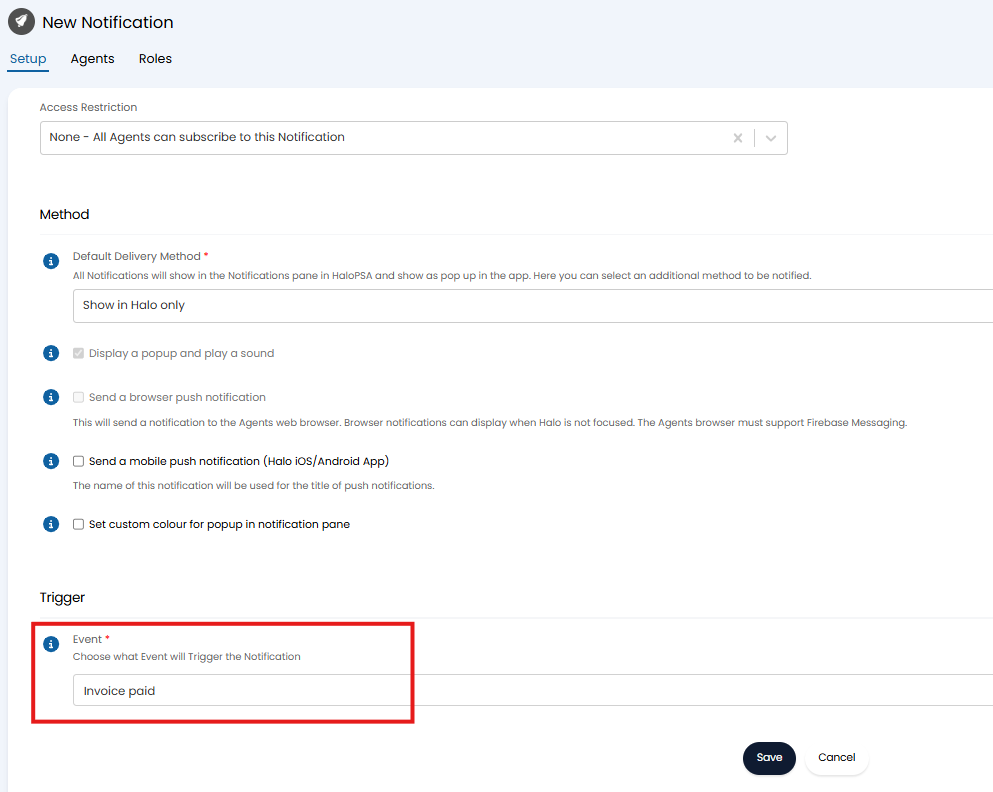
Fig 7. Invoice Paid notification.