Notifications
- notification
- notifications
- Trigger
- condition
- configuring notifications
- notification configuration
- event trigger
In this guide we will cover:
- Notification Configuration
- Notification Types in Detail
- Adding Agents to an Agent Notification
- List of Notification Triggers
- Setting up a Personal Notification
- Agent Level Settings
- Access Control
- Incomplete Timesheet Notifications
- Notification Acknowledgements
- Notifications on a Workflow Step
- Do Not Disturb Mode
Admin Guides:
Notification Configuration
To begin creating notifications, head to Configuration > Notifications > *Click on the notifications module*. Once viewing the list of notifications, you can click on new in the top right hand corner. This will take you to the notification creation screen.
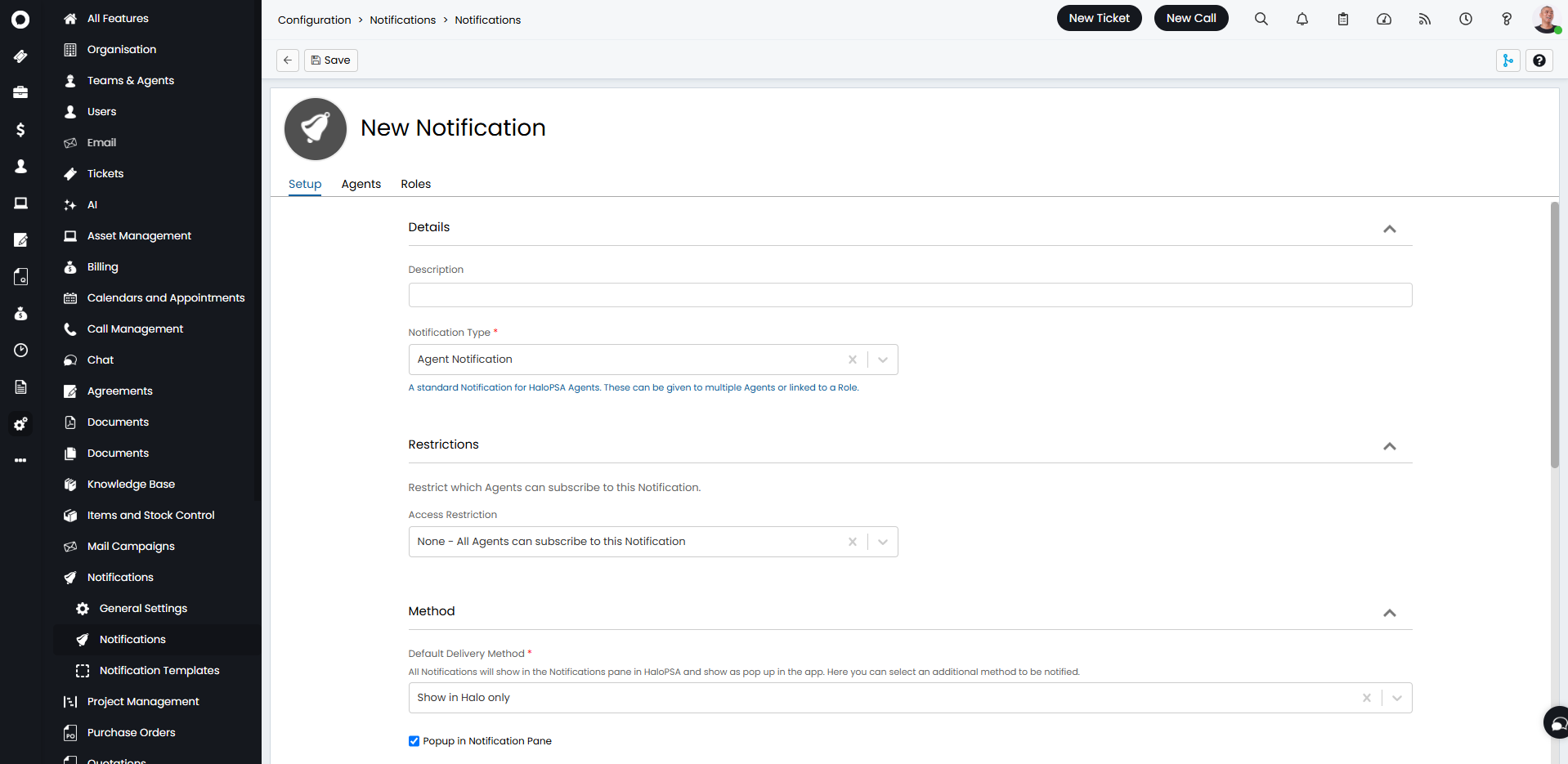
Fig 1. New notification.
Description: The name of the notification.
Enabled for Instances: If you have multiple Halo instances (a production instance and a UAT/Dev instance), here you can choose which instances the notification is enabled in. This allows you to sync changes between instances, without the risk of a synced notifications being triggered by a test environment.
Notification Type: The person, or entity receiving the notification, if "Agent Notification" is selected, this allows for multiple agents to be selected, it can also be set to a single agent type.
Access Restriction: Restrict which agents can access this notification. You can restrict by department or team, so if for example you wanted only the Human Resources team to be able to use this notification, you can restrict to that team. Now when an agent that is part of the human resources team goes to their preferences tab and looks to see what notifications they have, they will be able to checkbox on the restricted notification, no other agents outside of that team can add this notification to their list:
For example, Jennifer from the HR team can add this notification named: "Restricted to HR" to her list, as it is restricted to the HR team, but no other teams agents can add it:
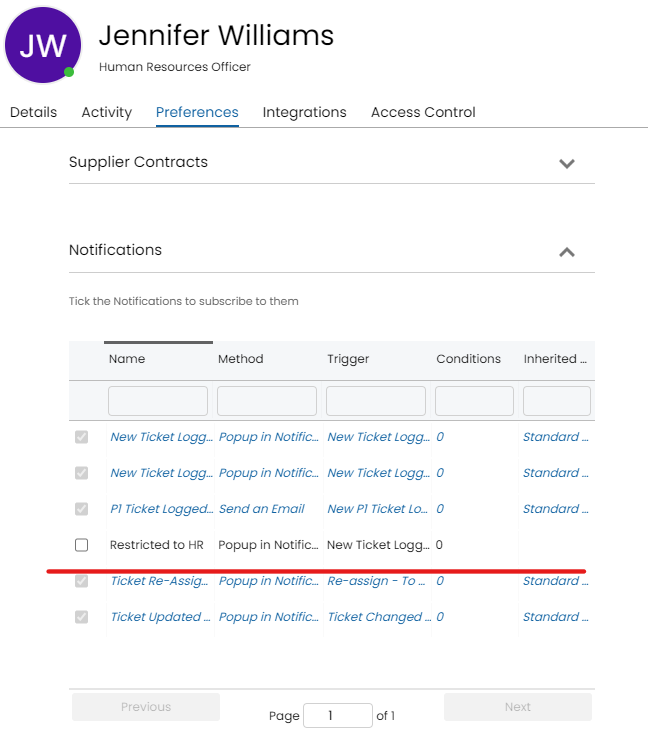
Fig 2. Agent's notifications.
Default Delivery Method: This can be email, SMS, browser notification or popup notification in the portal. The pop up option will appear within the pane of the bell icon in the top right hand side of the portal. Phone Call (via Twilio for SMS) or Agent's 1st/2nd/3rd contact preference are also available. Contact preferences can be set on the Agent's profile > Preferences tab > Notifications dropdown.
Event: Define which event will cause the notification to trigger, i.e. the assigned to recipients team, which means agents assigned to the notification, will be notified when their team/ teams have a new ticket logged against them, this also applies if the agent with the notification is assigned a ticket.
Unassigned for X Hours - Assigned to Recipients team can be set as an event to inform Agents when a ticket has been unassigned against their Team for a specified number of hours.
Criteria Table: There can be certain criteria which needs to be met for an event to trigger. For example, notifications can be sent to agents, triggered by new tickets being logged to their team, but only when the ticket is of a certain ticket type, i.e. change request - 3rd Party. Now the only notification for new tickets logged, will be sent to agents, if the ticket type is of the following type.
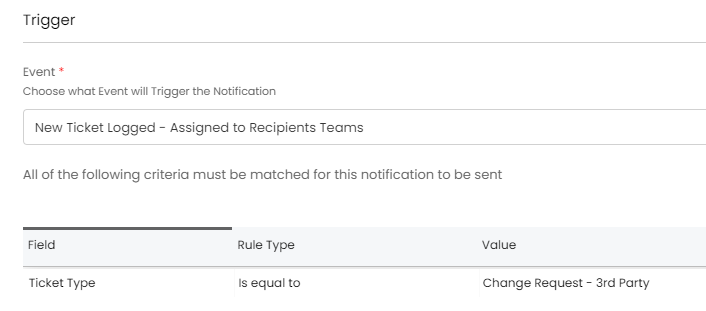
Fig 3. Event to trigger notification.
Notification Types in Detail
These are all of the types of notifications you can set globally as an administrator, these will trigger notifications by the configured method to the intended recipients.
Agent NotificationThis will notify any agents who are subscribed to this notification. Agents can be added via the agents tab, or roles can be added which will then add all the agents attached to that role onto the notification, they will display in the agents tab with "Inherited from Role" displayed, and the notification rows for each agent will show in blue.
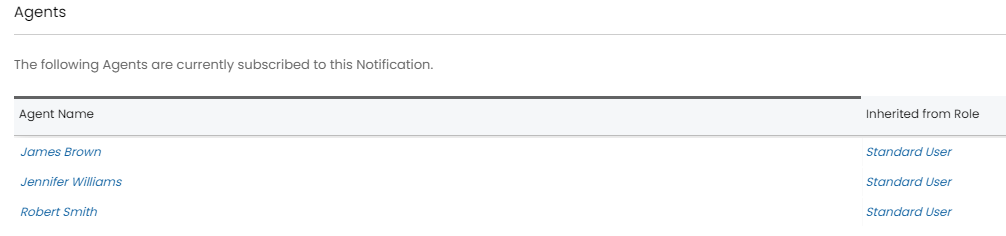
Fig 4. Table to determine agents subscribed to the notification.
This will notify a fixed agent of an event. These are often personal notifications.

Fig 5. Notify a Fixed agent.
Team Leader Notification
This will notify the Team Leader of any Team/Section within which a notification condition is set.
Team Notification
This will notify all Agents within a set Team.
Team Main Email Address (v2.244+)
This will send an email to the main email address of the Team which the Ticket belongs to. This email address can be set on the Details tab of each Team.
Agents on Shift Notification
This will notify all Agents currently on a Shift. When this option is selected a new "Shift Type" field will show, allowing you to restrict this Notification by Shift Type.
Account Manager
The account manager for the customer will be notified when this type is used. Account managers can be set from the details sidebar (Tab) of a customer.
Primary Agent
The Primary Agent for the customer will be notified when this type is used. Primary Agents can be set from the details sidebar (Tab) of a customer.
Secondary Agent
The Secondary Agent for the customer will be notified when this type is used. Secondary Agent can be set from the details sidebar (Tab) of a customer.
Department manager Notification
This does the same as above but for Department Managers, department managers can be added via a user role Configuration > Users > User Roles, set the department manager on a role and then assign users to the role, so that they inherit department manager from the role, alternatively departments and department managers can be configured in Configuration > Organisation > *Departments Tab*.
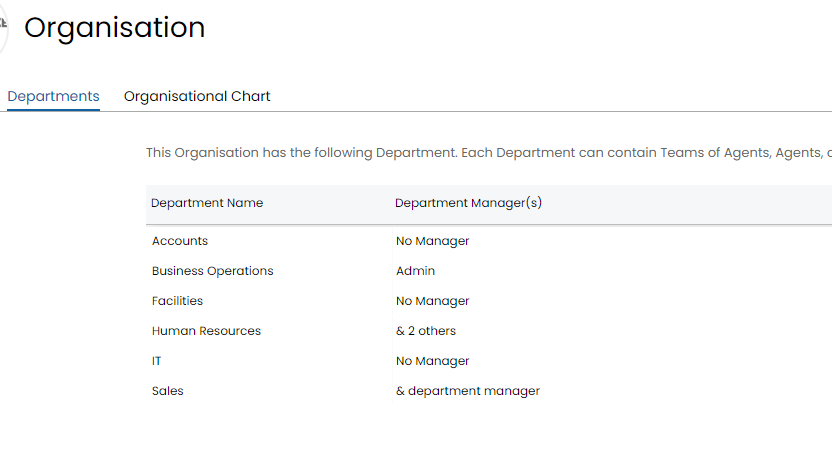
Fig 6. Departments tab under organisation.
This notifies all agents when triggered. Often used for high priority notifications or events.
Recipient/ Related User of a TicketWill notify the end user of a ticket if the ticket triggers an event.
End-User NotificationThis notifies a fixed end-user when triggered. The search button can be clicked on which will open a cleaner UI for selecting an end-user.

Fig 7. End user notification.
You can also filter the user recipients of end user notifications by things such as send to all subscribers at the tickets top level. This would pertain to all users at the same top level as the customer/site/user of the ticket.
Notifies a given email address, can be used for team email groups or monitoring services.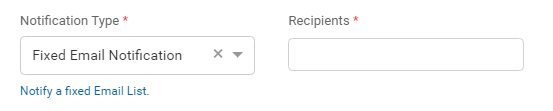
Fig 8. Fixed email notification.
Updates slack for the given channel integrated. "Slack integration must be enabled for this option to show.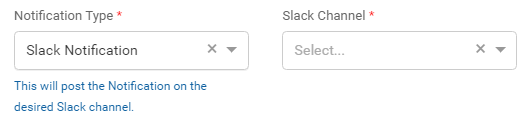
Fig 9. Slack notification.
The Mattermost integration also has a notification type that will be visible if the integration is turned on. Similar to slack, you can choose a channel that your Halo has been integrated with.

Fig 10. Mattermost notification.
Manager of the recipient of a TicketThis would send an email to the line manager of the user of a ticket, using the Active Directory Line Manager field. This notification type must be set to the email delivery method.
When this option is selected the site contacts can be used as the recipients of notifications, the site contacts can be configured in "Configuration > Users > Site Contact Types". Then they are added in the tab shown below within each clients sites.
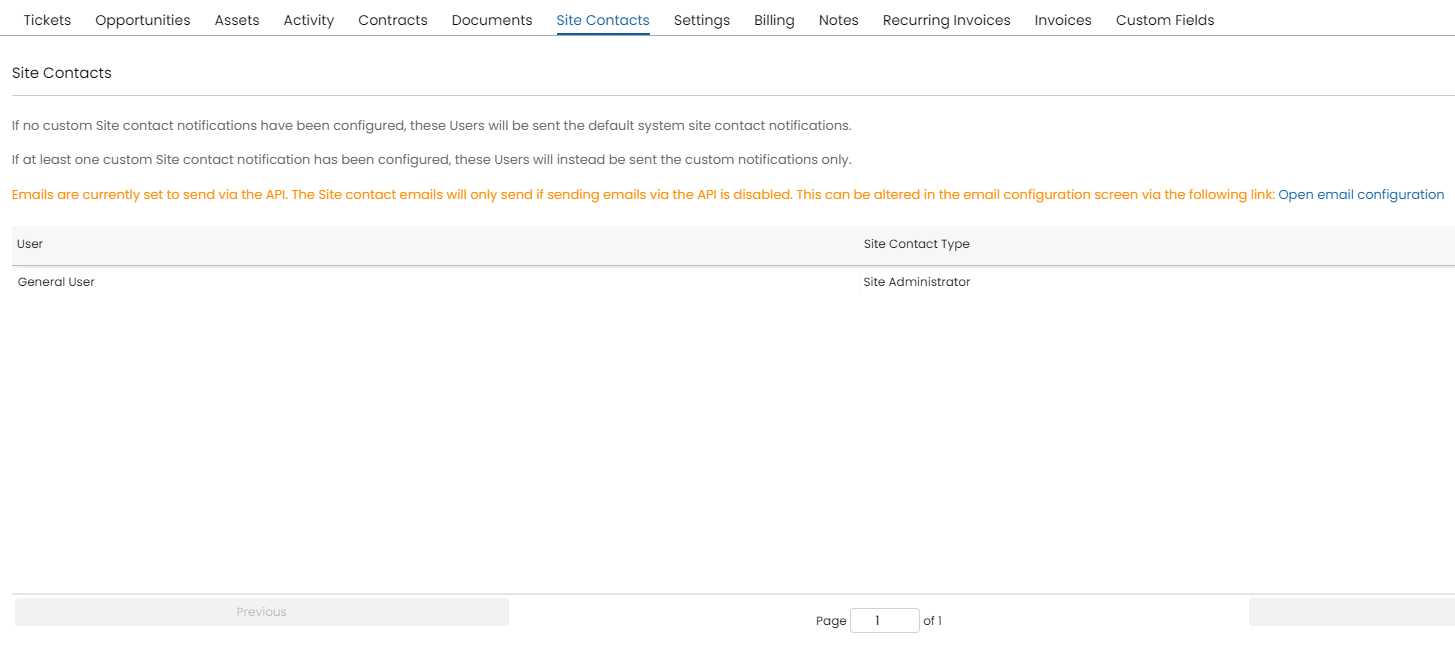
Fig 11. Site contact notification.
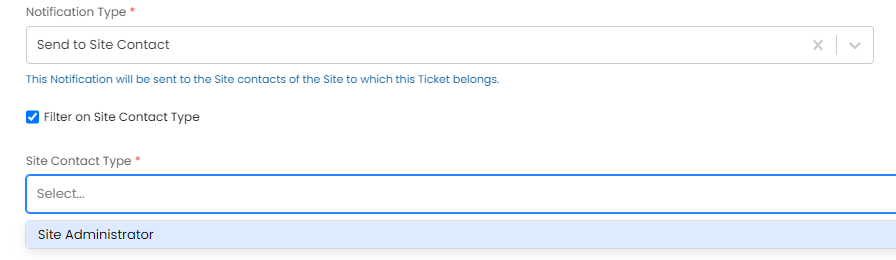
Fig 12. Site contact type.
The site contact type can also be filtered on, so that specific contact types will be notified i.e. "Site Administrator", which was previously added to the site contacts list in the example images above.
Asset Business Owner
This notification will be sent to the business owner of the Ticket's related Assets. When the notification is from a ticket event, it will notify the owners of all related assets/services. When the notification is from a device event, it will only notify that device's owners.
Asset Technical Owner
This notification will be sent to the technical owner of the Ticket's related Assets. When the notification is from a ticket event, it will notify the owners of all related assets/services. When the notification is from a device event, it will only notify that device's owners.
Service Business Owner
This notification will be sent to the business owner of the Ticket's related Service Catalogue. When the notification is from a ticket event, it will notify the owners of all related assets/services. When the notification is from a device event, it will only notify that device's owners.
Service Technical Owner
This notification will be sent to the technical owner of the Ticket's related Service Catalogue. When the notification is from a ticket event, it will notify the owners of all related assets/services. When the notification is from a device event, it will only notify that device's owners.
Ad-Hoc Notification
This is only supported for the "Action Added by Agent" event. You will need to add either "Ad-Hoc Notification Agents" or "Ad-Hoc Notification Team" to the field list of the action. If either of these fields is filled in, the notification will be sent to the specified agents or members of the specified team. This allows notifications, such as calls, to be manually triggered for any desired recipients.
Live Chat Notification
This will allow you to choose the Event trigger "New Live Chat Request (From User)". This setup will trigger a notification whenever a live chat is requested by a User, and will send to Agents in the Teams with permission to join the chat. Note: This Notification will only trigger when the system chat flow starts a live chat, it will not trigger when a live chat is started by a Virtual Agent.
Follower Notification (v2.250+)
This informs a follower of a Ticket if they are added/removed as a follower depending on the event selected.
Adding Agents to an Agent Notification
To add agents to an existing notification:
- Navigate into the notification.
- Click on the agents tab.
- Press the ⊕.
- Select the agent to add.
- Click "Save".

Fig 13. Add agents to a notification.
Agents can add themselves to notifications that they have access to. If "None - All Agents can subscribe to this Notification" is selected via the restrictions of a notification, then any agent can assign themselves to the notification, if team is set, then only the agents in the team can assign themselves.
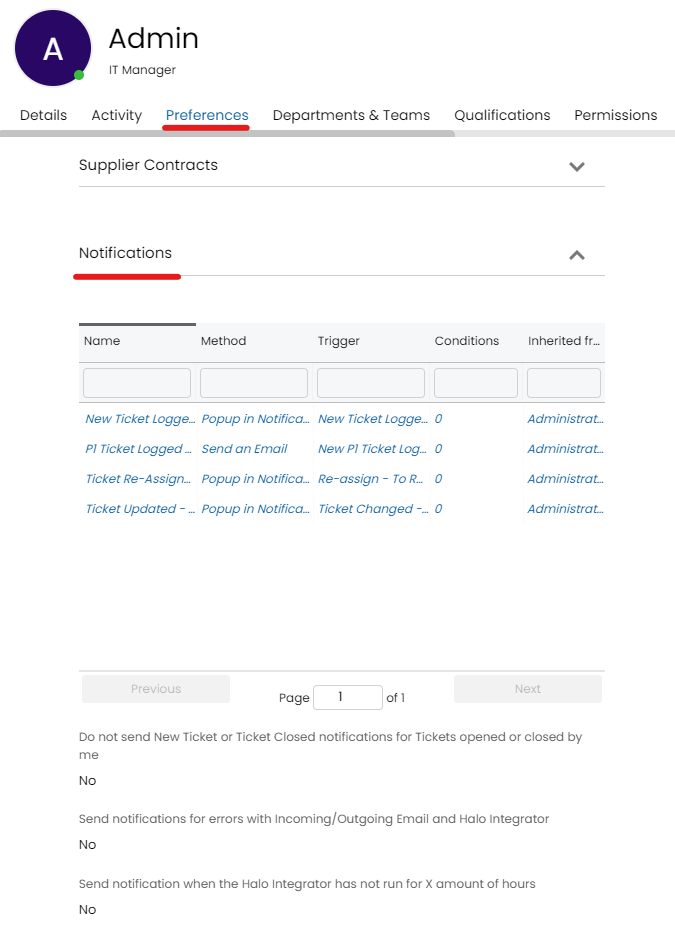
Fig 14. Notifications agent is subscribed to under preferences.
There are some checkbox settings under the general notifications tab
List of Notification Triggers
Each Notification is triggered by an event in Halo.
- New Ticket Logged
- Triggered when a new ticket is logged in the system.
- New P1 Ticket Logged
- Triggered when a ticket is logged in the system which has a priority level of 1 (aka the highest priority tickets).
- New OOH Ticket Logged
- Triggered when a ticket is logged outside of the working hours you have configured into the system.
- New Ticket Logged (Qualified)
- Triggered when a new ticket is logged that requires specific qualifications (see qualifications section under "Teams and Agents" configuration section).
- Ticket Updated by User
- Triggered when a user emails into a ticket to update it or updates the ticket from the portal.
- P1 Ticket Updated by User
- Triggered when a priority 1 ticket (see above) is updated by an end-user via email.
- OOH Ticket Updated by User
- Triggered when an out-of-hours ticket is updated by the end-user via email.
- Ticket Updated by User (Qualified)
- Triggered when a ticket requiring certain qualifications (See above) is updated by an end-user via email.
- Ticket Changed
- Triggered when the criteria set when selecting is updated.
- Re-assign
- Triggered when a ticket is re-assigned to the agent the notification is assigned to.
- Closed
- Triggered when a ticket is closed.
- Ticket Status Changed
- Triggered when the status of a ticket changes.
- Ticket Unassigned for X Hours
- Triggered when a ticket is in the "unassigned" queue for a number of hours of your choosing.
- No Actions for X Hours
- Triggered when no actions have been performed on a ticket for a number of hours of your choosing. You can choose to use normal or working hours using a drop down which shows when this event is chosen.
- No Actions for X Days
- Triggered when no actions have been performed on a ticket for a number of days of your choosing. You can choose to use normal or working days using a drop down which will display when this event is chosen.
- Priority Escalated
- Triggered when a ticket has it's priority increased, e.g. moving from P2 to P1, aka High to Critical.
- Estimate Exceeded
- Triggered when a ticket is exceeding the "estimated time" it should take (estimated time field must be on the ticket in question).
- 1st SLA Warning
- Triggered when the SLA of a ticket is under certain percentage of time left (this is set in the windows application, but will be defaulted to 75% of the time gone if you have never altered this value).
- 2nd SLA Warning
- Triggered when the SLA of a ticket is under certain percentage of time left (this is set in the windows application, but will be defaulted to 90% of the time gone if you have never altered this value).
- Ticket Deadline Warning
- Triggered when a ticket is nearing it's deadline ("Deadline" is a field you can add to tickets to ensure they are complete by a certain date).
- Ticket Deadline
- Triggered when a ticket has reached/breached it's deadline (see above).
- Change Ticket Starts in X Hours
- Triggered when change request is scheduled to start in the specified hours.
- Mention
- Triggered when an agent is @ mentioned.
- Feedback Added
- Triggered when a user leaves feedback.
- Ticket Date field in past by X hours
- Triggered when a date/time field is in the past by the specified number of hours.
- Ticket Updated by Agent
- Triggered when an agent updates a ticket with an action that has an outcome, or is a reply action from an integration. Note: This trigger condition will not be met by API agents or integrations that impersonate an agent.
- Ticket Budget threshold met
- Triggered when percentage set of budget has been used.
- Pre-Pay Threshold met
- Can set a pre-pay used percentage, the notification will trigger when the amount of pre-pay used surpasses this percentage (the notification will only trigger the first time the customer has surpassed the pre-pay threshold).
- Purchase order created/updated/deleted
- Three options, triggered when a notification has been created, updated of deleted.
- Quote Status Changed
- Triggered when the status of the quotation is changed. This will send anyone who is subscribed notifications for every quotation, not just their own.
- Ticket Budget threshold met
- Triggered when the budget threshold against a ticket has been met (used typically for projects). An accompanying 'Budget used %' field will be visible to choose what minimum percentage the notification will trigger at, this will trigger once when the 'budget used' has been met or surpassed. To have this only apply to one particular budget types/ticket type, set this in the criteria.
- Ticket Deleted
- Triggered when a ticket is deleted. Either any ticket, one assigned to you, or one assigned to your team.
- Action added by Agent
- Triggered when a selected action is used by an agent. "Assigned to Me" and "Assigned to My Teams" options are available here. Action custom fields can be used as criteria if using this trigger for a runbook.
- Rule Matched
- Triggered when a selected ticket rule is applied.
- SLA Breached
- Triggered when a SLA on a ticket is breached.
- Ticket Changed
- A notification will be sent when changes to the ticket are made, but you must specify what type of changes trigger this notification in the criteria table.
- Document Uploaded by user
- Triggered when the end user of a ticket uploads an attachment to the ticket through the self-service portal.
- Document Uploaded to Ticket
- Triggered when an agent or user uploads an attachment to a ticket, either with or without the use of an action.
- Document Uploaded to Folder by User
- Triggered when a User uploads a document to a specific folder.
- Quotation created/updated/deleted
- Triggered when a quote is created, updated or deleted. You can specify what updates trigger this notification in the criteria table.
- Sales order created/updated/deleted
- Triggered when a sales order is created, updated or deleted. You can specify what updates trigger this notification in the criteria table.
- Product created/deleted
- Triggered when a product (item) is created or deleted.
- Stock Received/Removed
- Triggered when products have been received or removed from stock.
- Quote viewed by user
- Triggered when a user views a quote in the self-service portal
- Quote approved by user
- Triggered when a user approves a quote (either from the portal or email)
- Quote rejected by user
- Triggered when a user rejects a quote (either from the portal or email)
- Invoice paid
- Triggered when an invoice has been marked as fully paid. Any method of marking an invoice as being paid will trigger this notification.
- Invoice viewed
- Triggered when a user views an invoice in the self-service portal.
- Recurring Invoice Created
- Triggered when a recurring invoice is created.
- Recurring Invoice Updated
- Triggered when a recurring invoice is updated.
- Recurring Invoice Deleted
- Triggered when a recurring invoice is deleted.
- Asset Created
- Triggered when an Asset is created. From v2.248+, you can filter this event on the Asset's User.
- Asset Updated
- Triggered when an Asset is updated. From v2.248+, you can filter this event on the Asset's User.
- Asset Deleted
- Triggered when an Asset is deleted. From v2.248+, you can filter this event on the Asset's User.
- Article review due
- Triggered when a the days until an Article's review date is less than or equal to the interval chosen.
- CRM Note Created
- Triggered when a CRM note is added to a client or site
- CRM Note Updated
- Triggered when a CRM note against a client or site is updated
- CRM Note Deleted
- Triggered when a CRM note against a client or site is deleted
- Service Status Changed
- Triggered when the status of a chosen service changes. Choose the service this applies to by adding the name of the service in the criteria table.
- 1st OLA Warning
- Triggered when the OLA of a ticket is under certain percentage of time left, or a certain number of hours before the OLA ends (this requires OLA Events to be enabled, with notification warnings set in Configuration > Service Level Agreements > General Settings).
- 2nd OLA Warning
- Triggered when the OLA of a ticket is under certain percentage of time left, or a certain number of hours before the OLA ends (this requires OLA Events to be enabled, with notification warnings set in Configuration > Service Level Agreements > General Settings).
- 3rd OLA Warning
- Triggered when the OLA of a ticket is under certain percentage of time left, or a certain number of hours before the OLA ends (this requires OLA Events to be enabled, with notification warnings set in Configuration > Service Level Agreements > General Settings).
- Consignment Creation
- Triggered when a Consignment is created.
- Document edited on a Ticket (v2.242+)
- Triggered when the attachment on a Ticket is edited/changed.
- Document deleted on a Ticket (v2.242+)
- Triggered when the attachment on a Ticket is removed.
- Contract Expired (v2.244+)
- Triggered when the "End Date" of a contract (agreement) has passed.
- Contract Near Expiry (v2.244+)
- Triggered when the days until the "End Date" of a contract (agreement) is less than or equal to the interval chosen.
- Chat Message Received (v2.248+)
- Triggered when a new message has been added to a Microsoft Teams or Slack chat linked to a ticket. This only applies to chats received via these integrations. Choose which integration's chat messages you would like this to apply to.
- Follower Added (v2.250+)
- Triggered when a follower is added to a Ticket.
- Follower Removed (v2.250+)
- Triggered when a follower is removed from a Ticket.
- Client's Next Call Date (2.250+)
- Triggered when a client's next call date is today.
- Days before Client's Next Call Date (2.250+)
- Triggered when the number of days before a client's next call date is less than or equal to the number of days chosen.
Certain triggers can also be set to notify people other than the subscribed Agent.
- Assigned to Recipient: Notifies the Agent the Ticket is assigned to.
- Assigned to Recipients Teams: Notifies subscribed members of the Team the Ticket is assigned to.
- Unassigned: Notifies subscribed Agents when a Ticket is in Unassigned.
- All: Notifies subscribed Agents, regardless of who the Ticket is assigned to.
Using the Ticket Changed Trigger
When the trigger event 'Ticket Changed' is selected some criteria must be set to specify what type of changes trigger this notification. If no criteria is set the notification will not trigger.
When setting criteria first set the field you would like this to depend on. When adding, a following page will show, here you will need to set the change context.
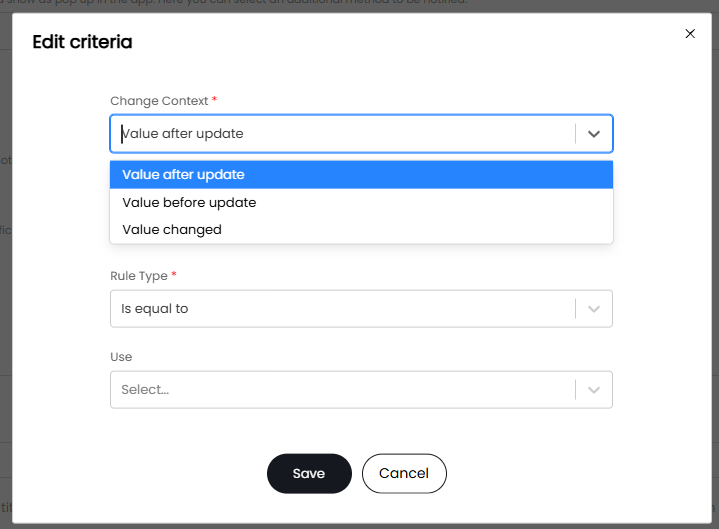
Fig 15. Ticket changed trigger criteria.
Value after update - When selected, if the value in the field has been changed to the value specified below the notification will trigger (this is how all conditions previously worked).
Value before update - When selected, if the value in the field previously was the value specified below before the change the notification will be triggered.
Value changed - When selected, if the value in the field has been changed to the value specified below the notification will be triggered. However, if the rule type is set to 'To any Value' the notification will trigger when there are any changes to the field.
Value before update and value after update can be used in conjunction to evaluate a specific change, that is the field previously has value x, and has been changed to value y.
Examples:
In the below Example the notification will only trigger when the customer was previously Terry's Chocolates and has been changed to Acorn Construction.
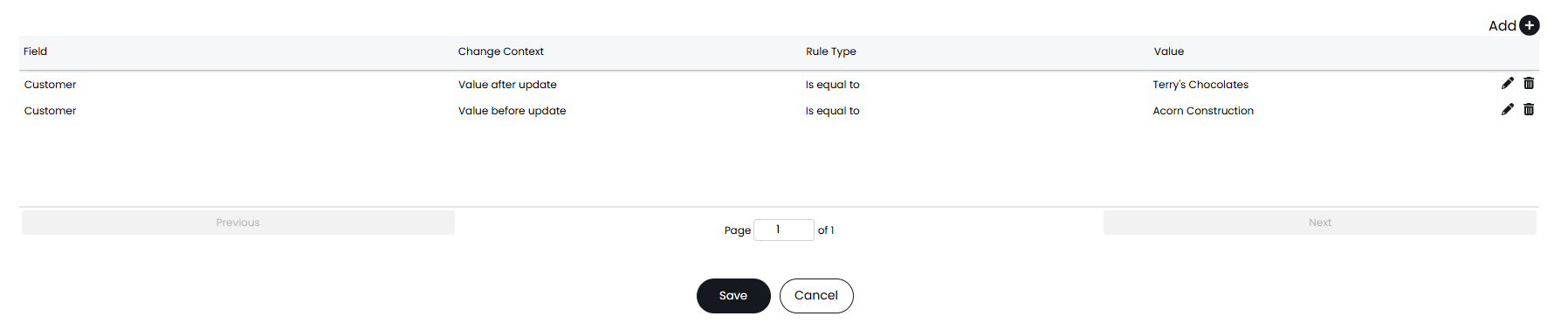
Fig 16a. Example ticket change trigger criteria 1.
In the below example the notification will trigger when any changes are made to the customer field.
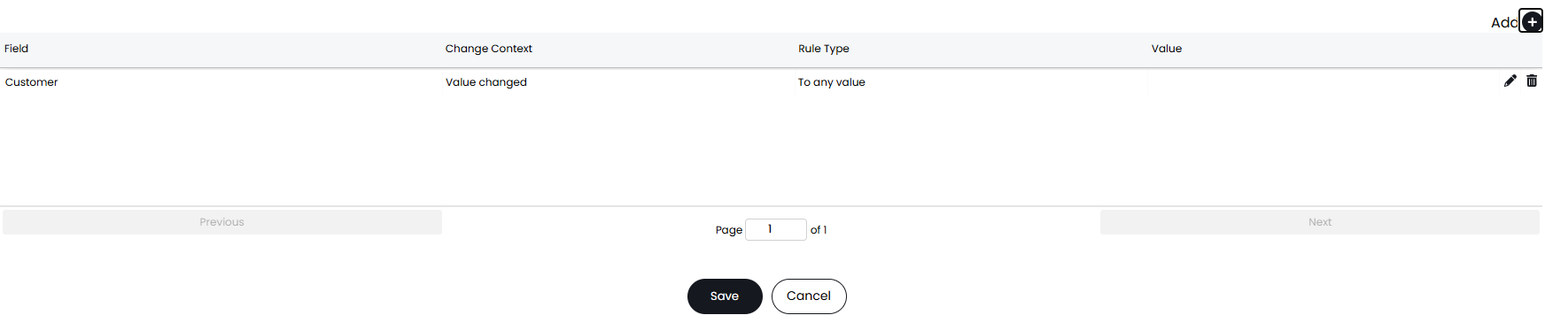
Fig 16b. Example ticket change trigger criteria 2.
Setting up a Personal Notification
Clicking on your initials icon (or profile picture if you have configured one) and then "My Account" takes you to your agent's settings screen. Clicking preferences and heading down to notifications brings you to the list of your Notifications.
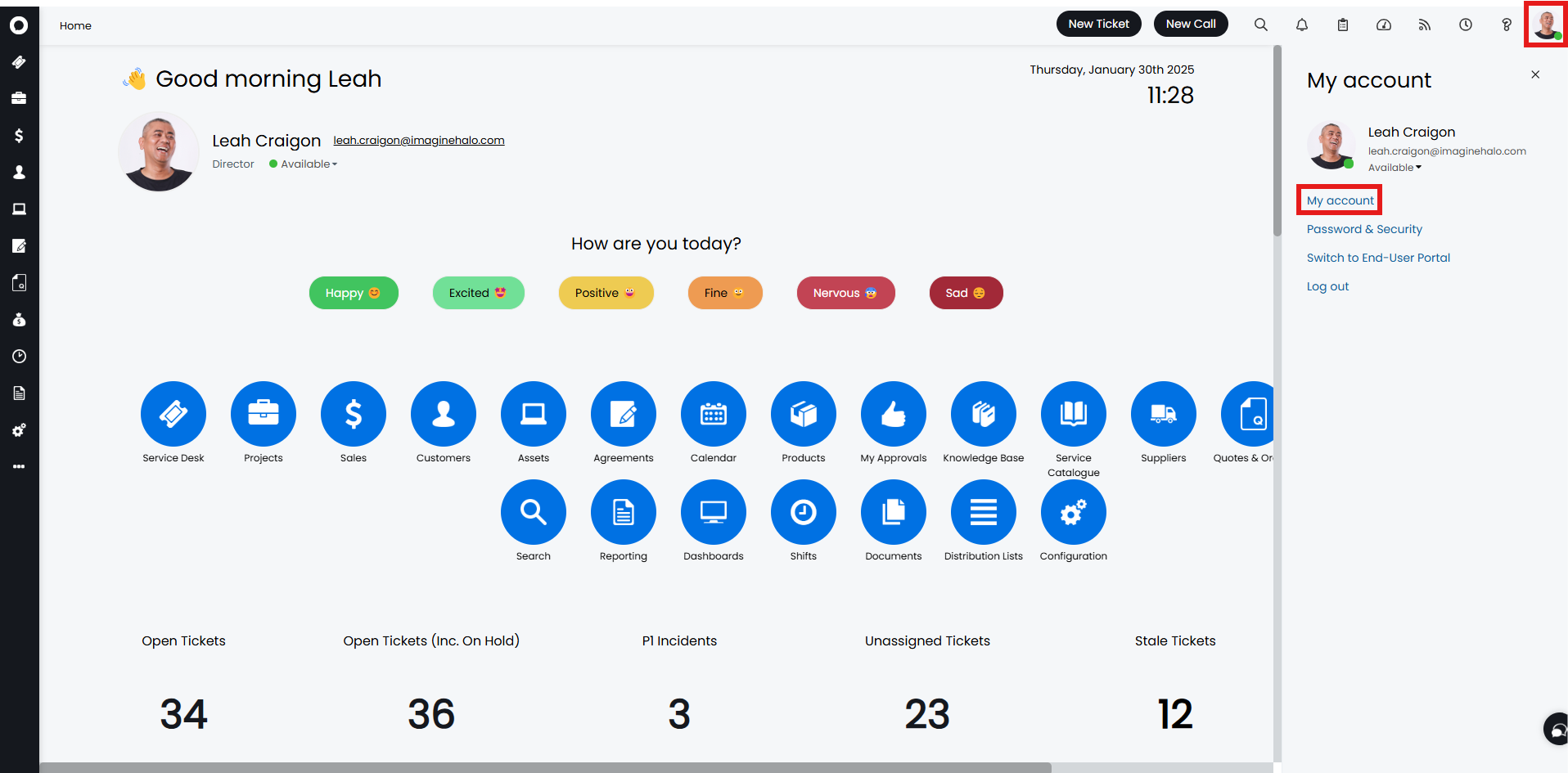
Fig 17. My account.
The upper part of this notifications configuration is designated to notifications that can be subscribed to by agents. These are notifications that exist in the system already and will notify the agent by the method shown in the second column. The third column displays the trigger that will cause these to send. Any conditions should be stated in the "Name" to avoid confusion.
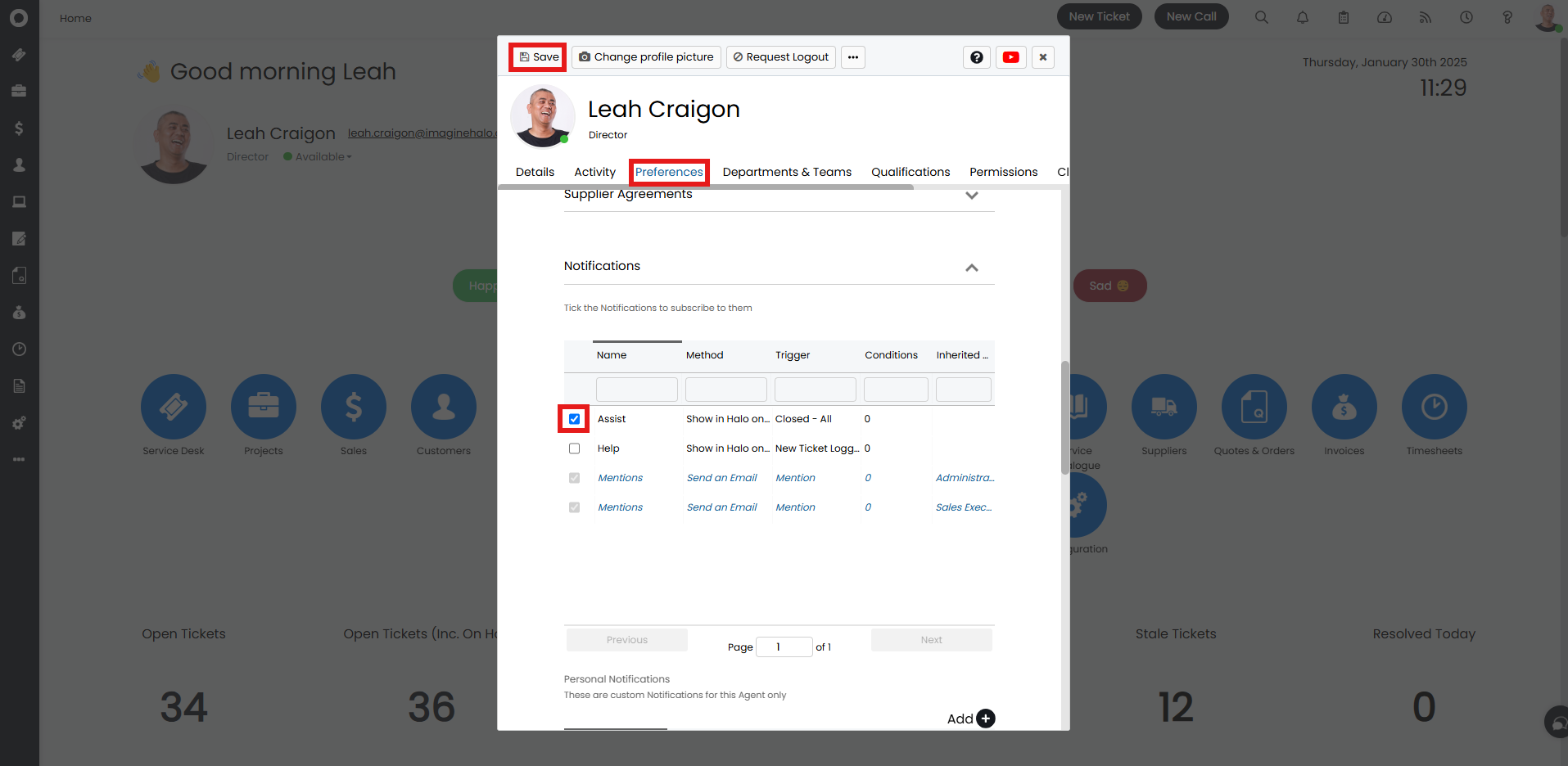
Fig 18. Subscribed notifications.
The second option is the personal notifications. This must be created by administrators on behalf of the agent, and these are custom notifications for this agent only. The agent will be able to edit them if they have permission to edit their preferences and notifications, as well as having access control granted to the notification.
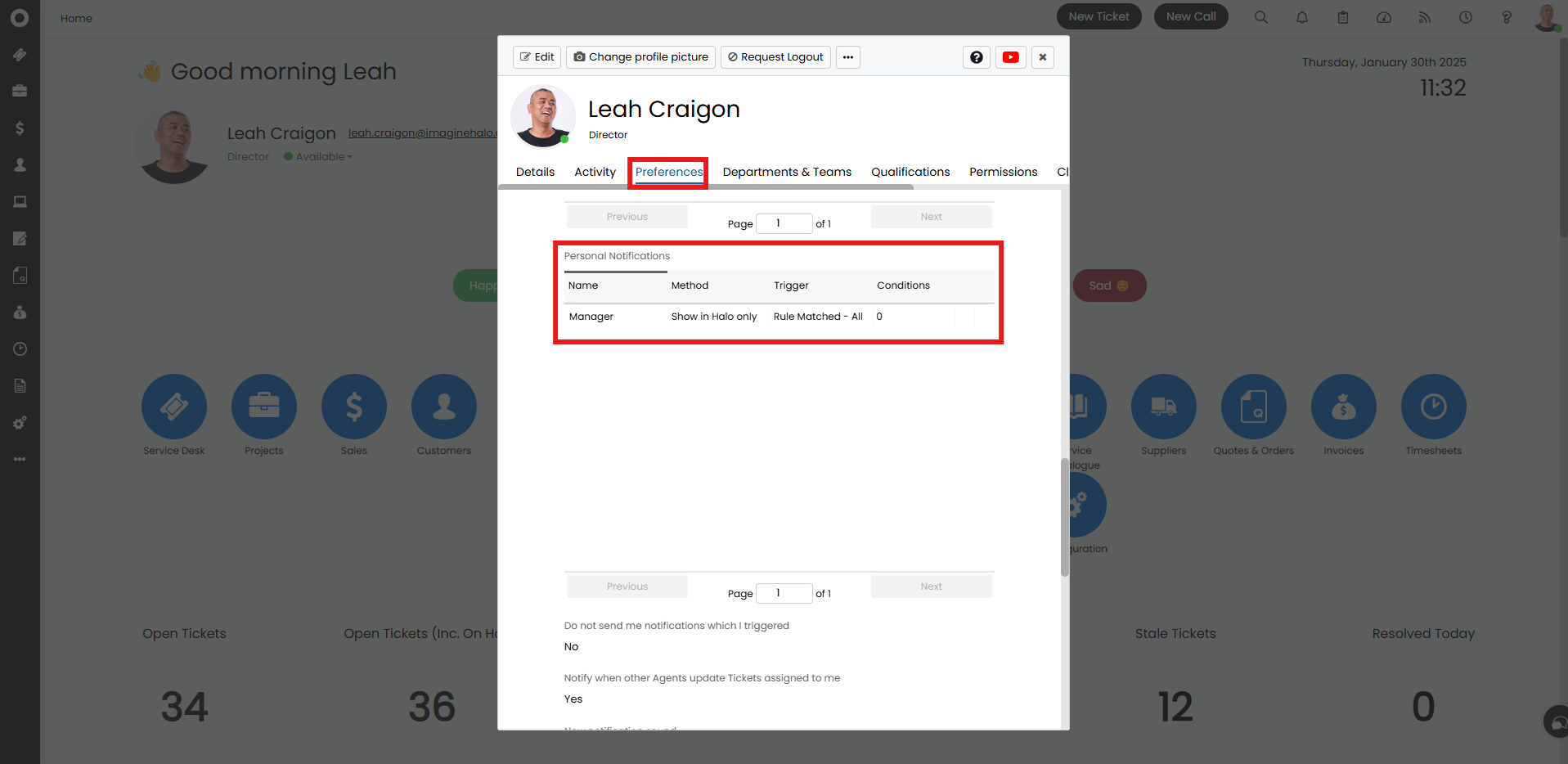
Fig 19. Personal notifications.
Conditions
These take the form of any ticket level field that can be associated with a ticket and the values these hold. This allows you to customise your notifications at a granular level. You can select a wide variety of fields here to create conditions with. This includes the team the ticket is assigned to, to any category value associated with the ticket. This also includes ticket level custom fields, and much more.
Agent Level Settings
In addition to personal notifications, there are checkbox options for some system defaults, which are configured per agent. The first option is to turn off your own notifications
Do not send me notifications which I triggered: When checked, if you create a new ticket and assign yourself, you will not be notified of this.
Send notifications for errors with Incoming/Outgoing Email and Halo Integrator: When checked on, emails will be sent to your agents email account notifying you when there are errors with Incoming/Outgoing Email or the Halo Integrator.
Send notification when the Halo Integrator has not run for X amount of hours: When checked, you can receive a notification when the halo integrator has not run, you can define how many hours after it has stopped running until you receive a notification, as shown below
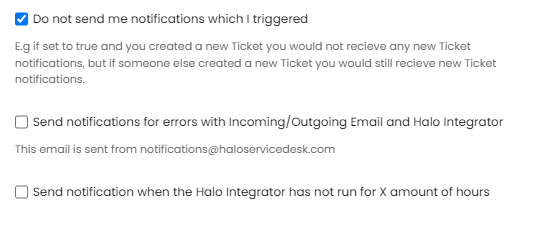
Fig 20. Do not send me notifications which I triggered setting.
Defining the hours from when the Halo integrator last ran
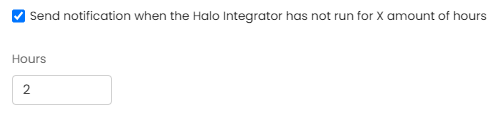
Fig 21. Setting to send notification when the integrator has not run for a set amount of hours.
Notifying An Agent of All Tickets
Setting on the option (Configuration > Notifications > General Settings):

Fig 22. Allow notifications to send outside of team and department permissions.
Agents can get notified for tickets that are not assigned to a team or department that they are member of. When checked, agents that have a notification for i.e. Event: "New ticket logged - All" will receive all notifications regardless of team and department.
SLA Notifications
To enable SLA notifications go to Configuration > Service Level Agreements > General Settings:
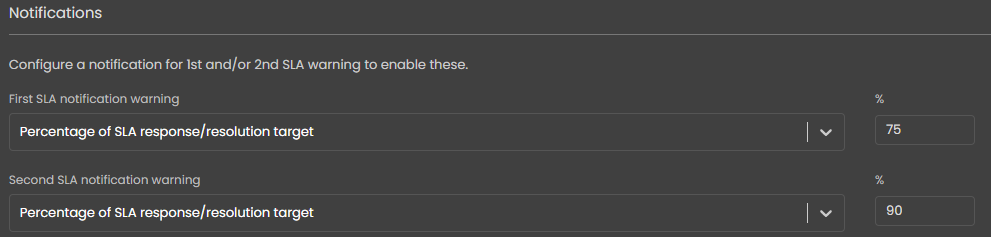
Fig 23. SLA notifications
The dropdown can be set to "Percentage of SLA response/ resolution target" met, or for the number of "Hours before resolution target" is met.
Then head to notifications and configure 1st SLA warning and 2nd SLA warning notifications, there should be two separate notifications, the triggers are 1st SLA Warning and 2nd SLA Warning.
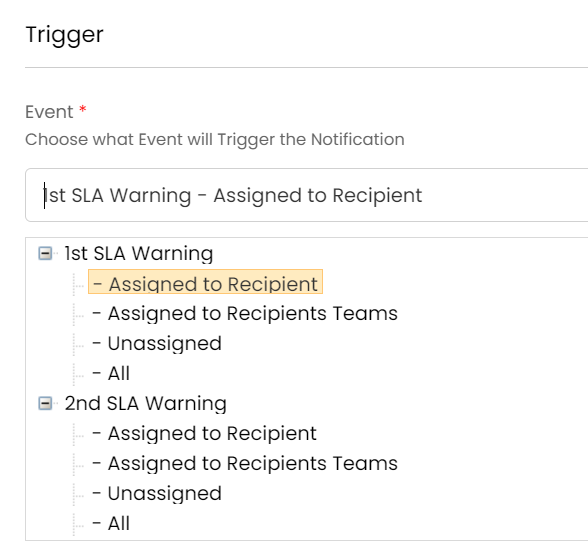
Fig 24. Notification to trigger when 1SLA warning is hit.
Access Control
Access control can be set on non-administrator agents by either role, agent, team or department.
In Configuration > Notifications > Notifications, select the notification and click the "Access Control" button at the top.
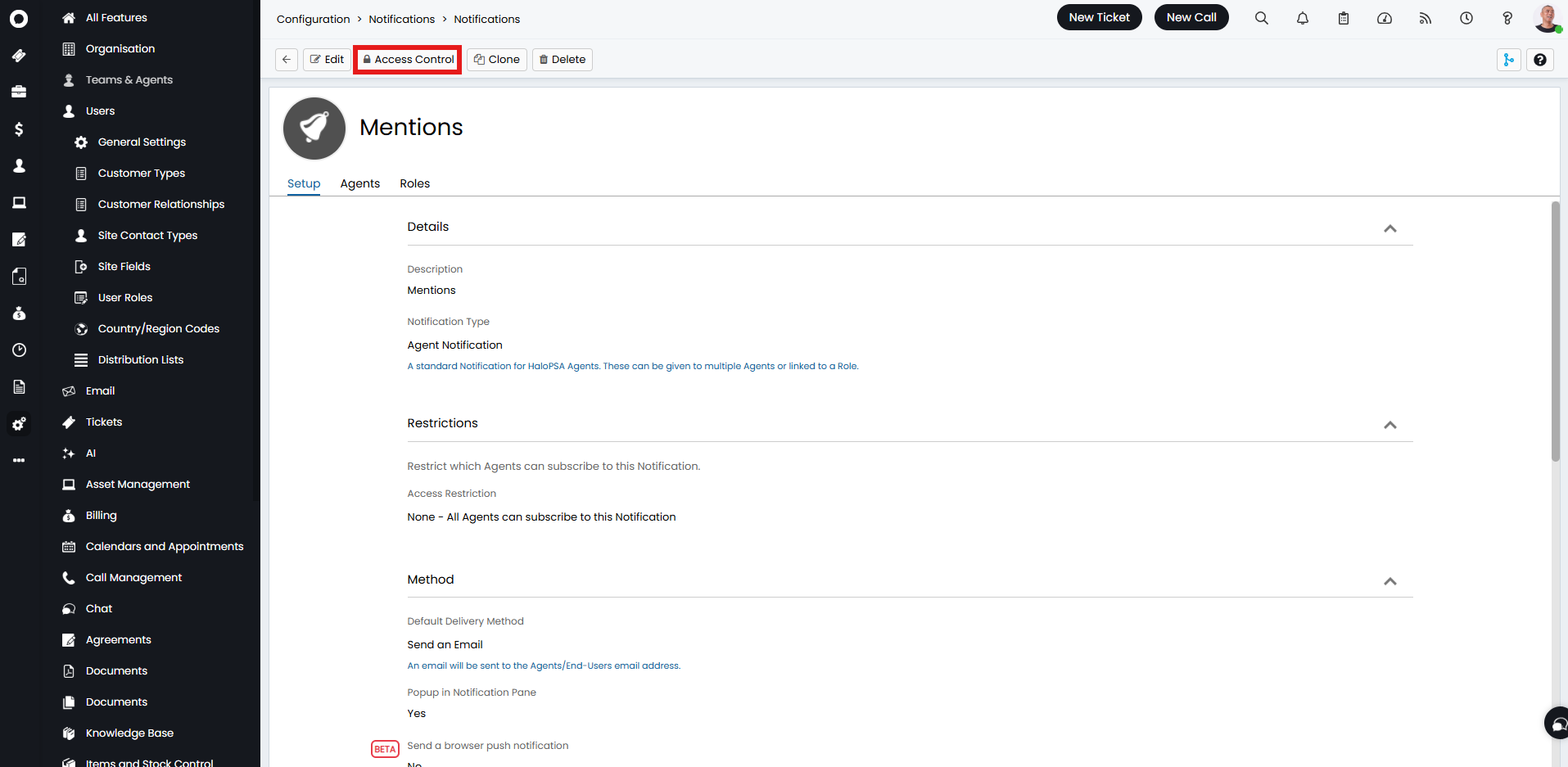
Fig 25. Access Control on a notification.
Criteria for access can then be set. Administrators have Owner access automatically, but this allows other agents to be assigned owner or read and modify access.
The "None (Remove)" option can be used to remove access you have previously given. Changing to this option will make the row disappear and remove the access from that agent/group of agents.
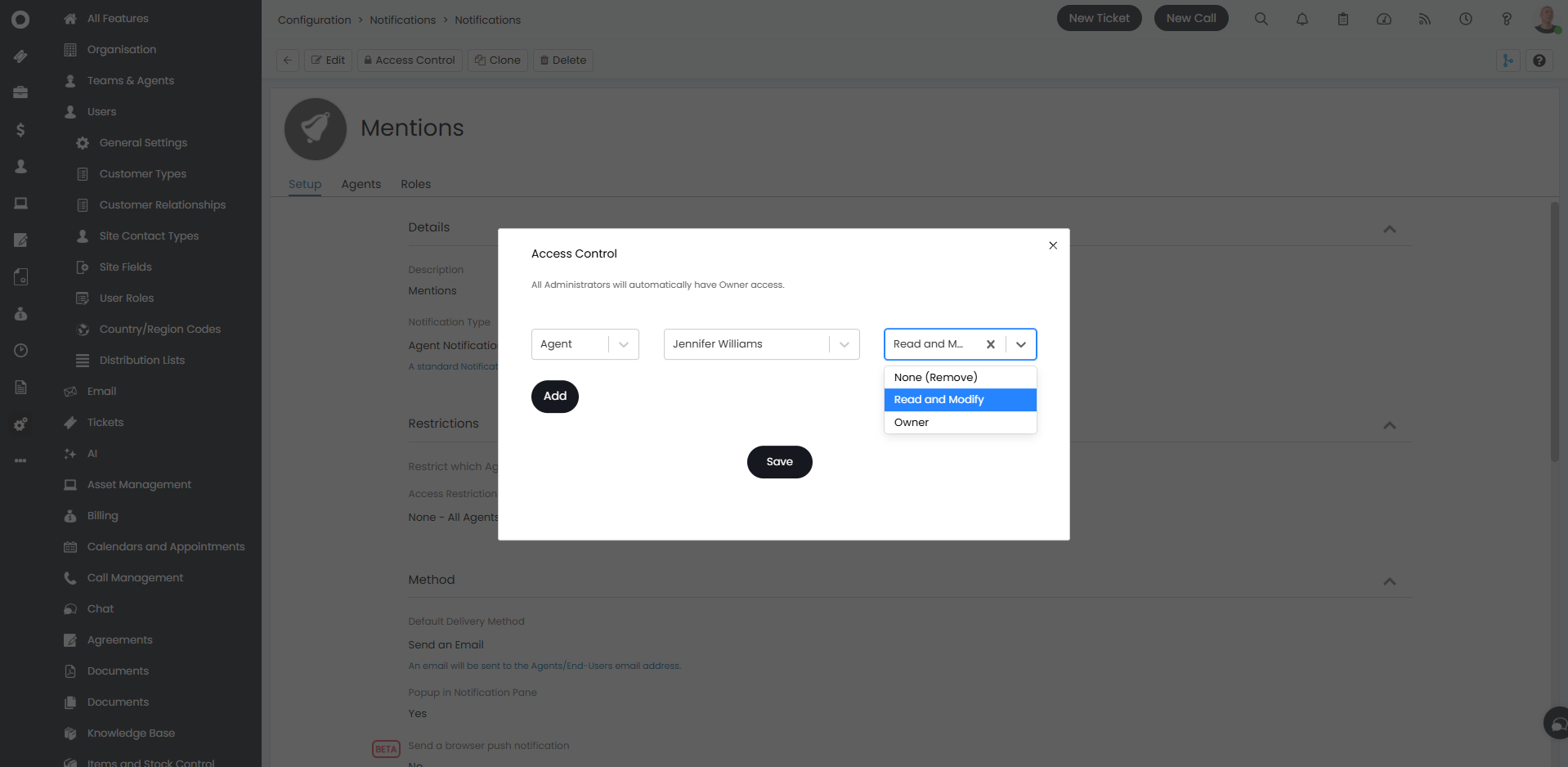
Fig 26. Setting access control.
Agents will then be able to see the notifications they have access to in My Config > Notifications.
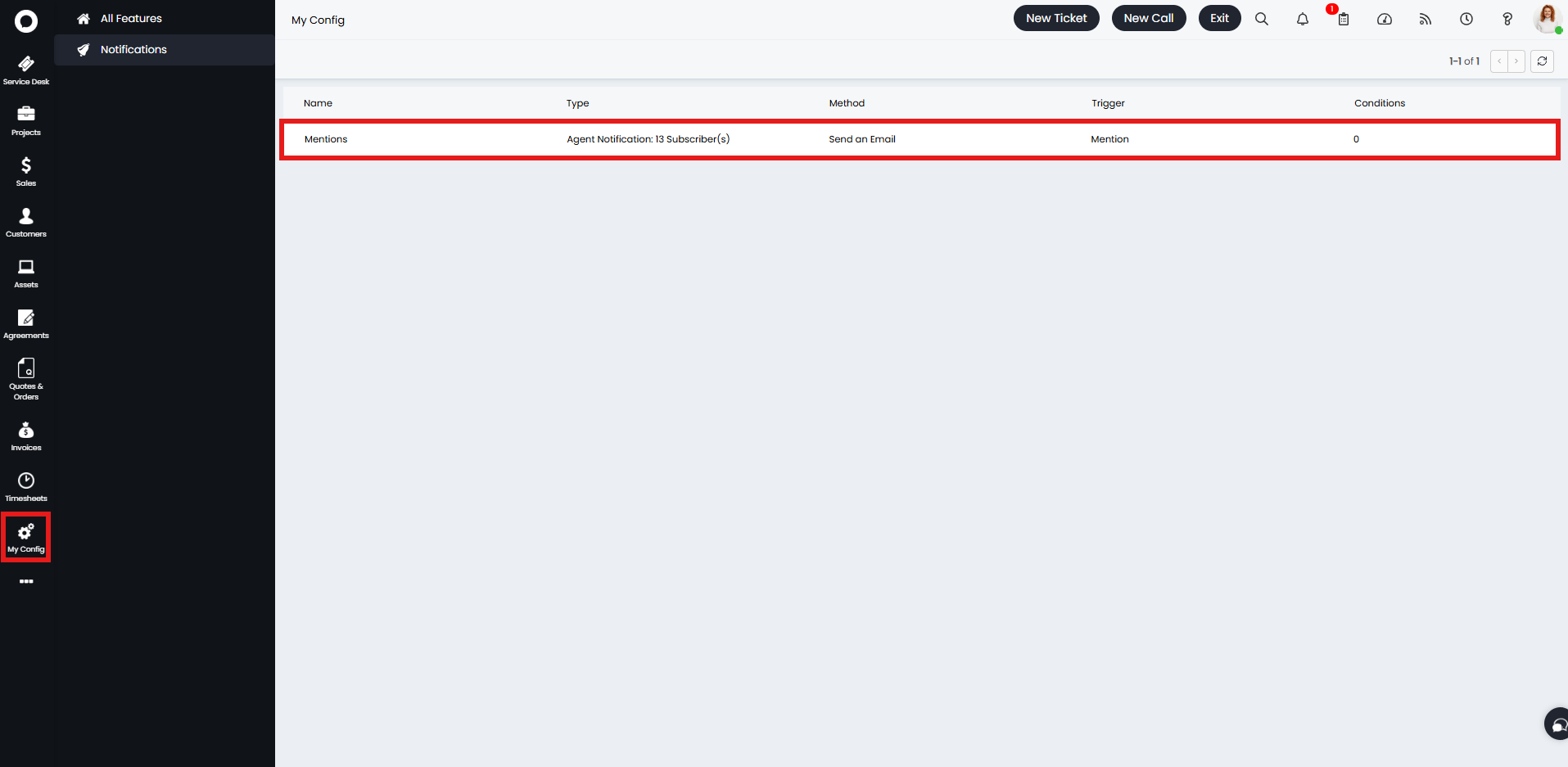
Fig 27. Notifications in My Config.
Incomplete Timesheet Notifications
Notifications can be configured to send to agents and/or their managers if their timesheets are not complete by a certain time. These notifications can only send out once a day.
First, in Configuration > Time Management, "Enable Incomplete Timesheet notifications".
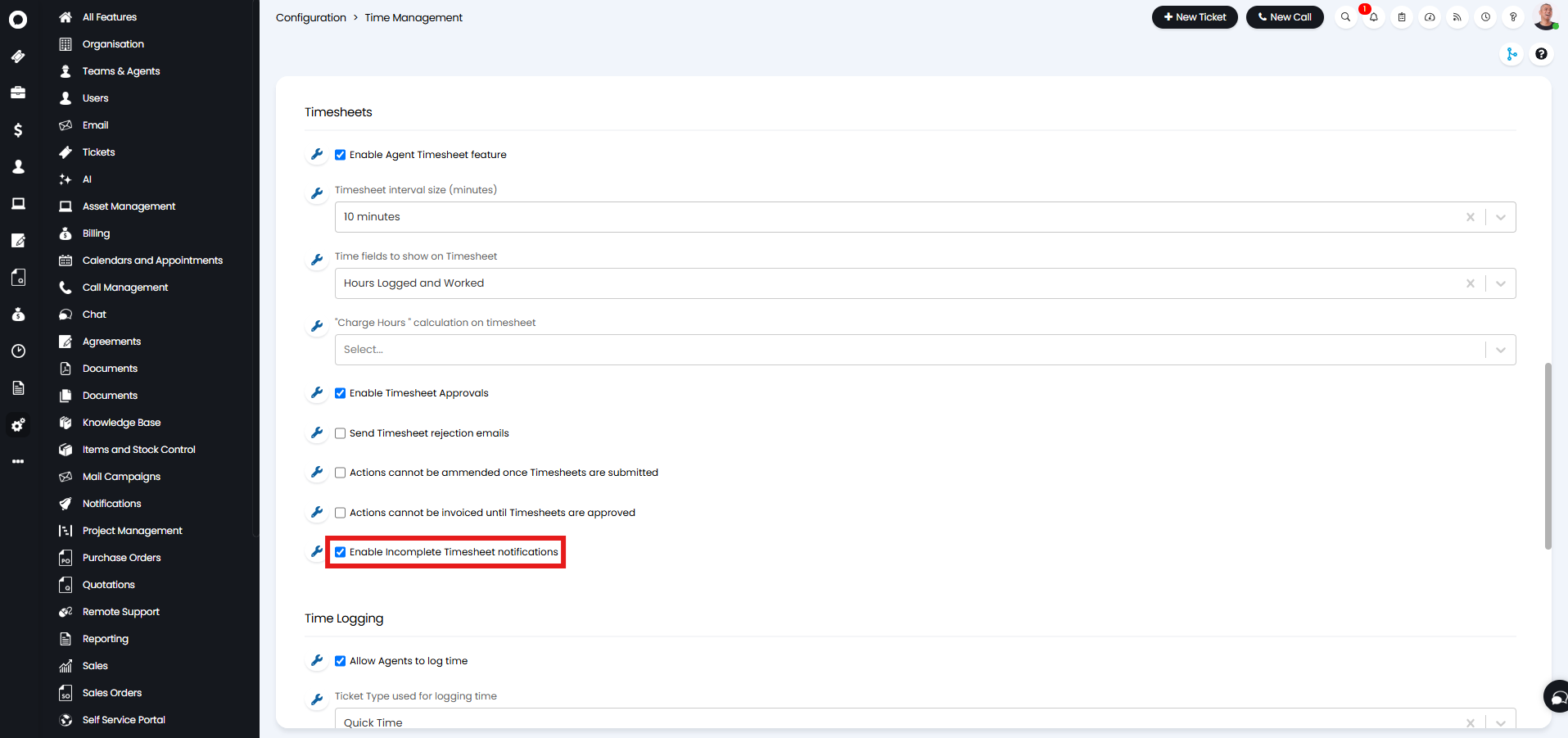
Fig 28. Enabling incomplete timesheet notifications.
Then in Configuration > Teams & Agents > Agents, select the agent you wish to enable this for.
There are two options:
- "Send notification email when my Timesheet is incomplete", which will enable it for that agent to get notifications sent to themselves for their own incomplete timesheets.
- "Send notification email when Agents I manage have incomplete Timesheets", which will send that agent notifications when the agents they manage have incomplete timesheets.
Enabling either of these options will cause the two settings underneath to show - "Incomplete Timesheet Threshold (%)" and "Time to send incomplete Timesheet notification(s)".
The percentage field is where you set how much of the timesheet is considered "complete". The maximum is 100%, which would mean the full target hours would need to be reached for the notification to not be triggered.
The time field is where you set when the notifications will go to that agent. Since this is set per agent, they can be different between agents.
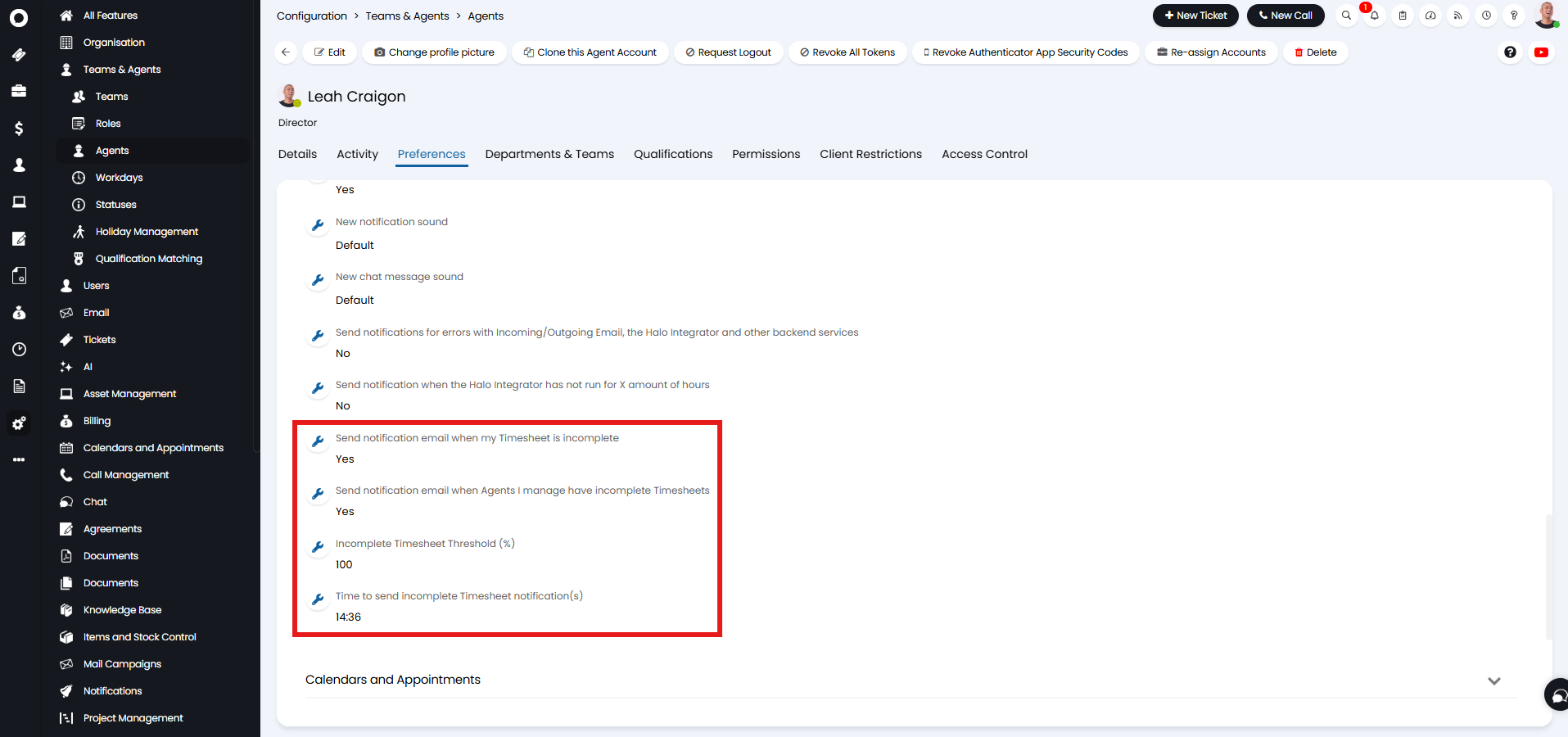
Fig 29. Enabling incomplete timesheet notifications per agent.
This email will then be sent to your agents at that time, with what percentage their timesheet is complete based on their target hours.
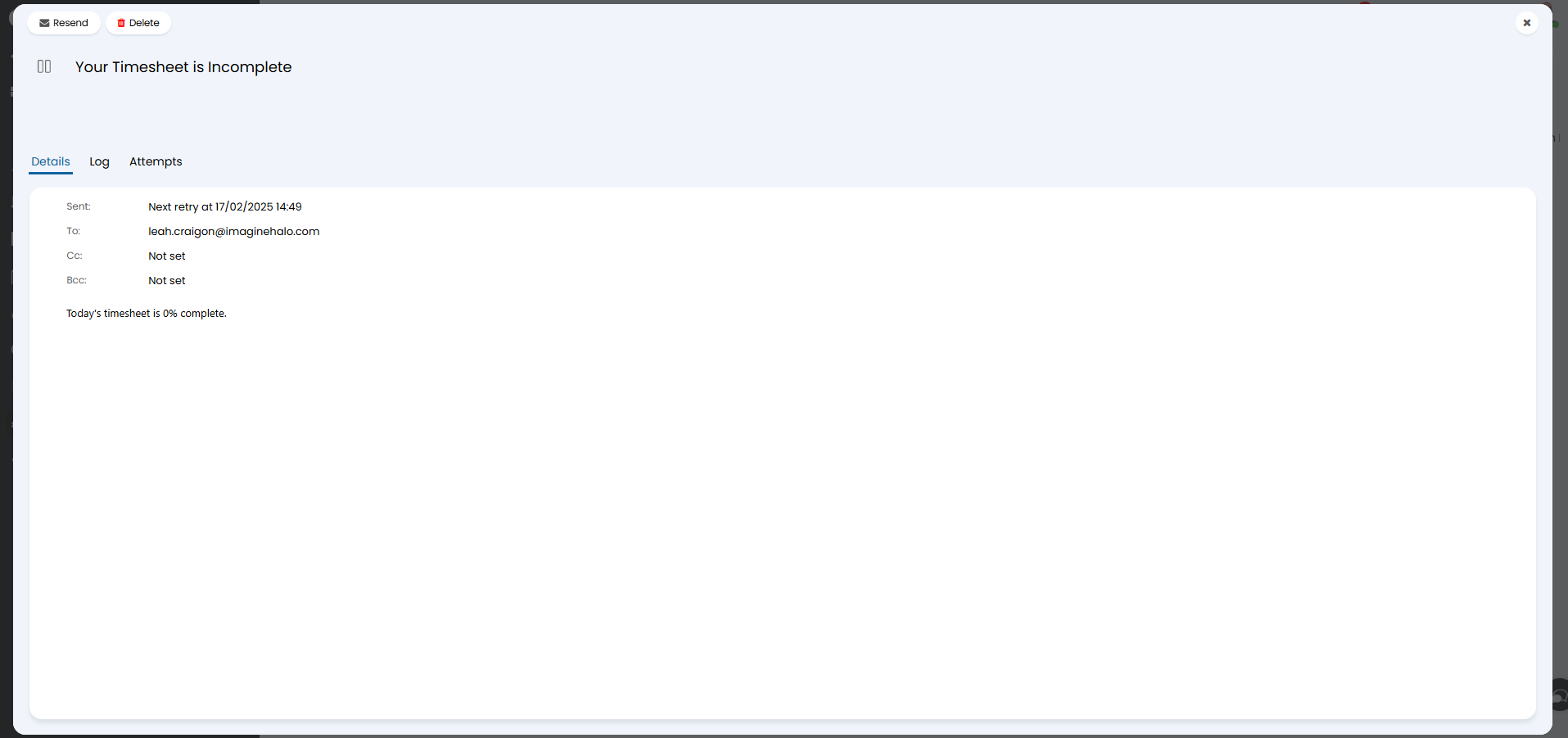
Fig 30. Incomplete timesheet email.
It will also send them an in-app notification in the notifications pane.
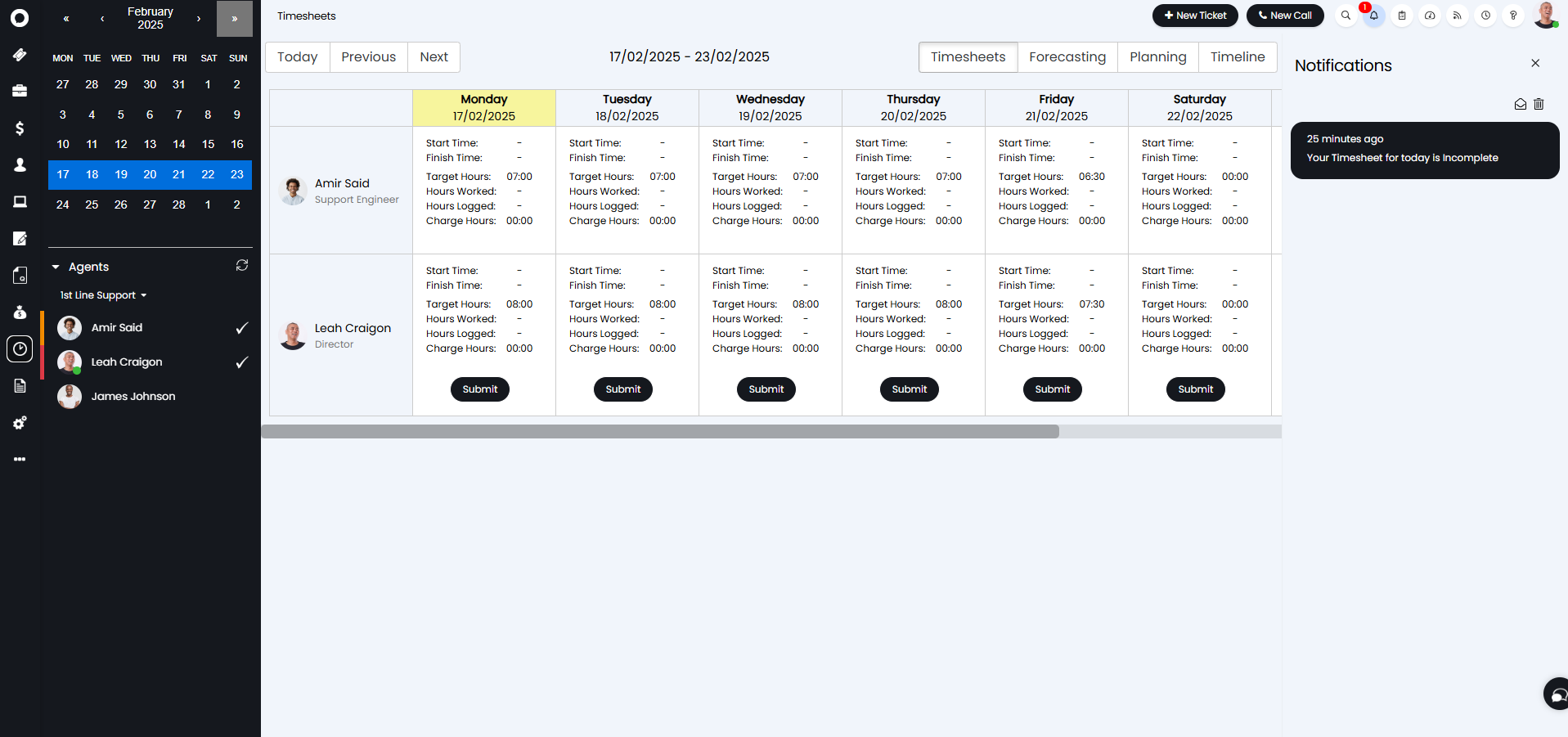
Fig 31. Incomplete timesheet in-app notification.
Notification Acknowledgements
All notifications can be acknowledged. The read status and read date of the notification are set when acknowledged.
For pop-up notifications in Halo, clicking on the notification marks it as read.
For email and text notifications, you need to include the $-NOTIFICATIONACKNOWLEDGE variable. This provides a link for the recipient to click that will acknowledge the notification and then take them to the entity that triggered the notification.
For calls, the notification is acknowledged by pressing a number that corresponds to an action. The action can either be an acceptance or rejection of the notification, 2 and 3, respectively, for the value of the read status.
To continue reporting this information, the setting "Keep a record in the database when deleting notifications" must be enabled in Configuration > Advanced Settings. From v2.253+, you can determine how long this record is kept by setting the number of days in the "Days to retain records" field.

Fig 32. Notification acknowledgement option.
Notifications on a Workflow StepOn workflow steps with the "Type" of "Action", a "Notifications" dropdown is now available. Notifications can be configured here, and these will trigger upon entering that workflow step.

Fig 33. Workflow notifications.
Do Not Disturb Mode
Agents can enable "Do not disturb" mode to prevent Notification pop-ups within Halo. In Configuration > Notifications > General Settings, enable "Allow Agents to toggle "Do not disturb" on the notifications pane".
Agents can then toggle Do not disturb mode on or off from the Notifications pane. When activated, this will persist until the Agent next re-authenticates.
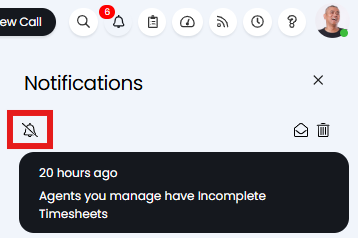
Fig 34. Do Not Disturb toggle.
When enabled, the Notification pane icon will show a crossed out bell, and the Notification count will change from red to white/black (to match light or dark mode).
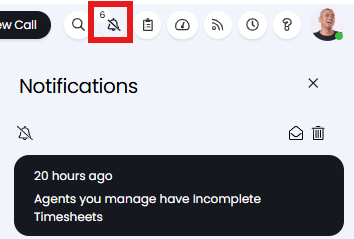
Fig 35. DND enabled.
Referenced by
- Creating Agreements and Contracts
- Customer, Site and User Records
- Notification Settings
- Notifications General Settings
- Operational-Level Agreements (OLAs) on Workflows
- Project Sales Process
- Service Level Agreements (SLAs)
- Service Status Monitoring
- Service/Application Availability Management
- SLA and OLA Notifications
- Slack Integration
- Using CRM Notes