Operational-Level Agreements (OLAs) on Workflows
- Time
- guide
- Performance
- workflow
- stage
- workdays
- service level agreements
- analyse
- steps
- stages
- targets
- workflows
- slas
- target
- operational level agreement
- opeational level agreements
- ola
- olas
- analysis
- timekeeping
- workday
- step
In this guide we will cover:
- What are OLAs?
- Configuring OLAs
- Reporting on OLAs
- Handling OLA Breaches
Related Guides:
What are OLAs?
Operational-Level Agreements are, at their very base, target times for certain parts of a Workflow, whether that be the Stages or individual Steps.
The main configuration for these will be on a per-Workflow level, with the magic happening in the "OLAs" tab (Formerly The "Targets" Tab).
Changes made to OLAs will be Config tracked, allowing changes to be synced between instances.
The workflow we will be looking at for this guide is this "Cover-all Workflow". This workflow acts as an all-in-one (rather broad) ticket processing flow, from start to finish:
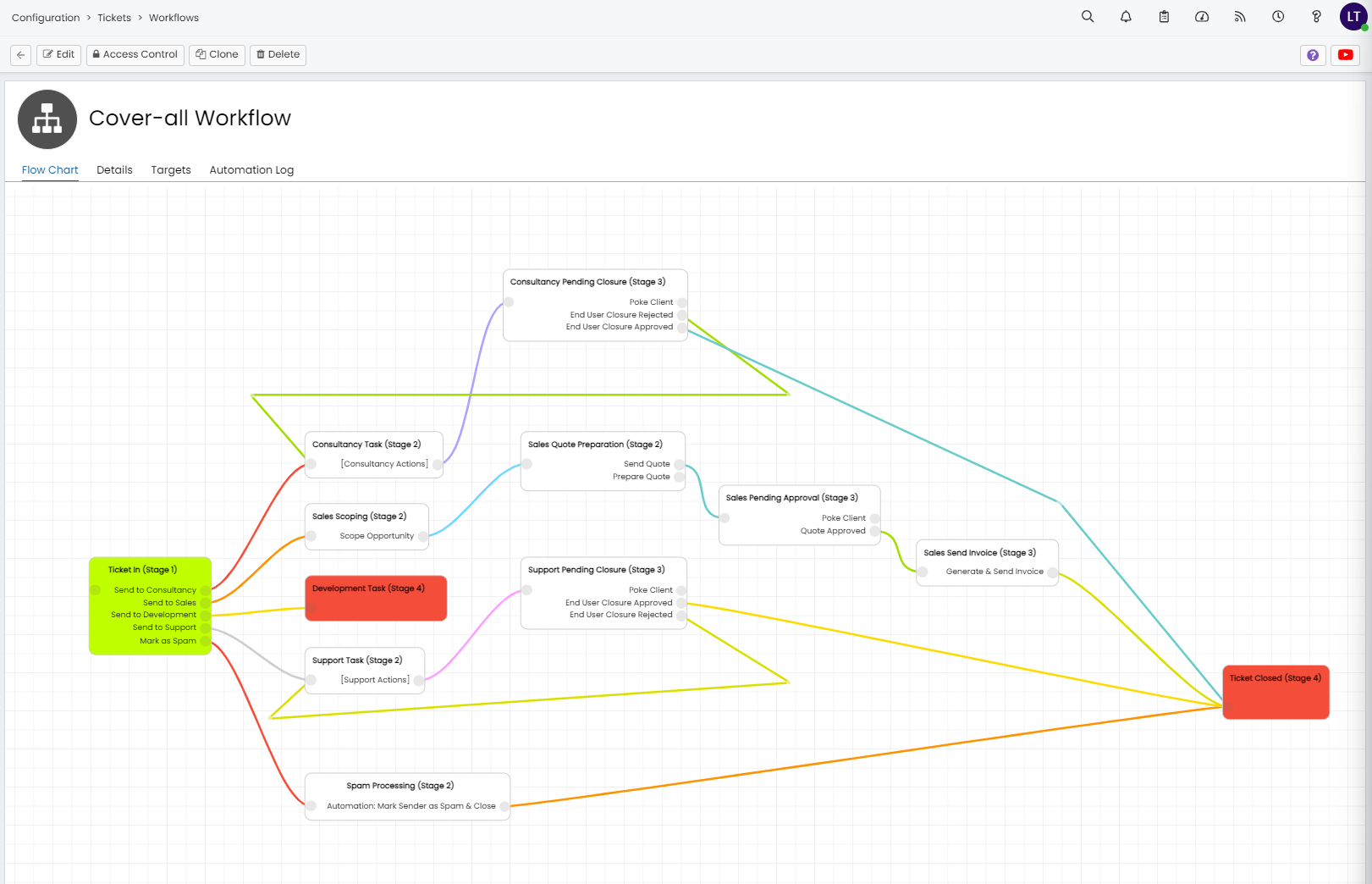
Fig 1. Workflow example
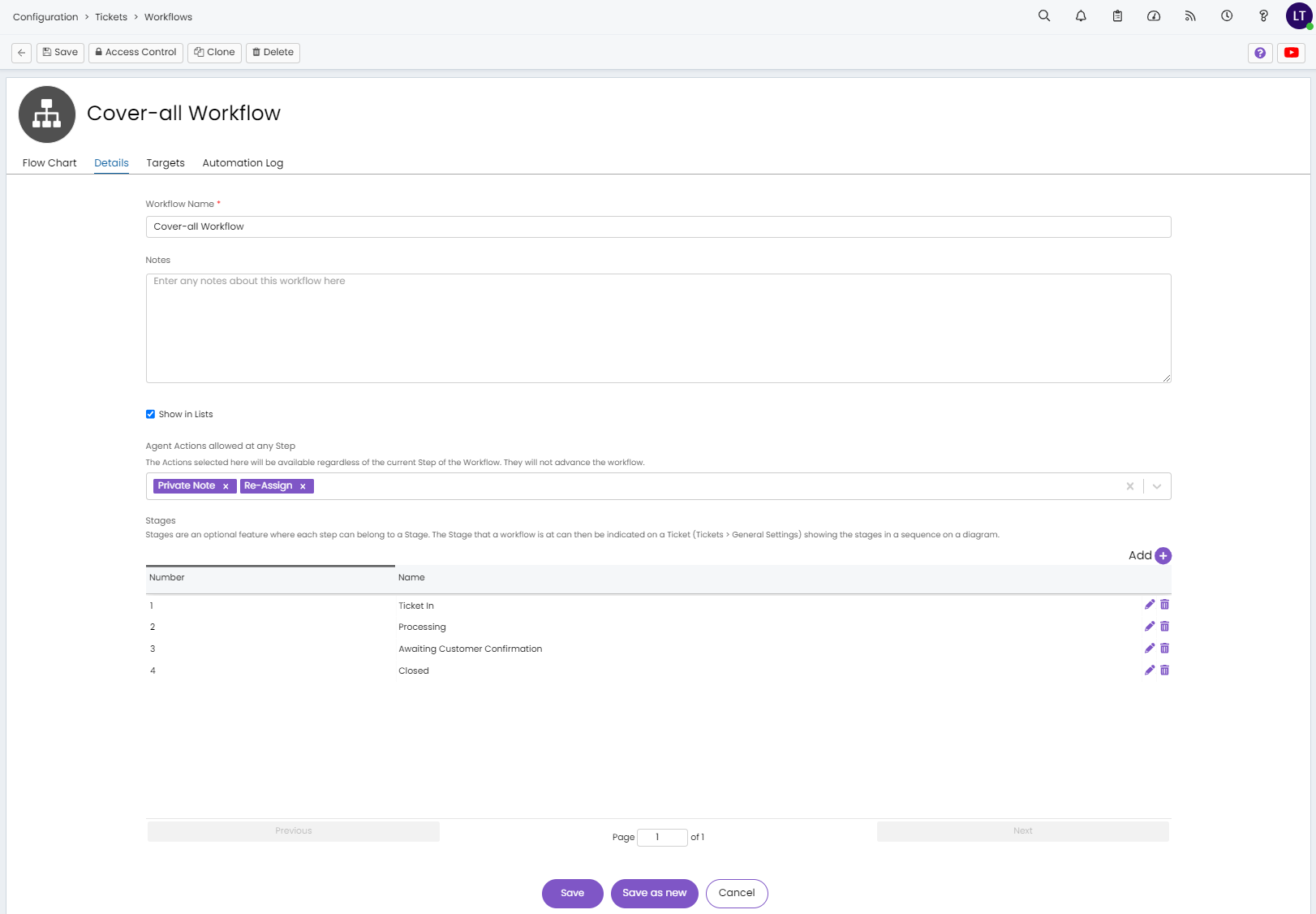
Fig 2. Details tab
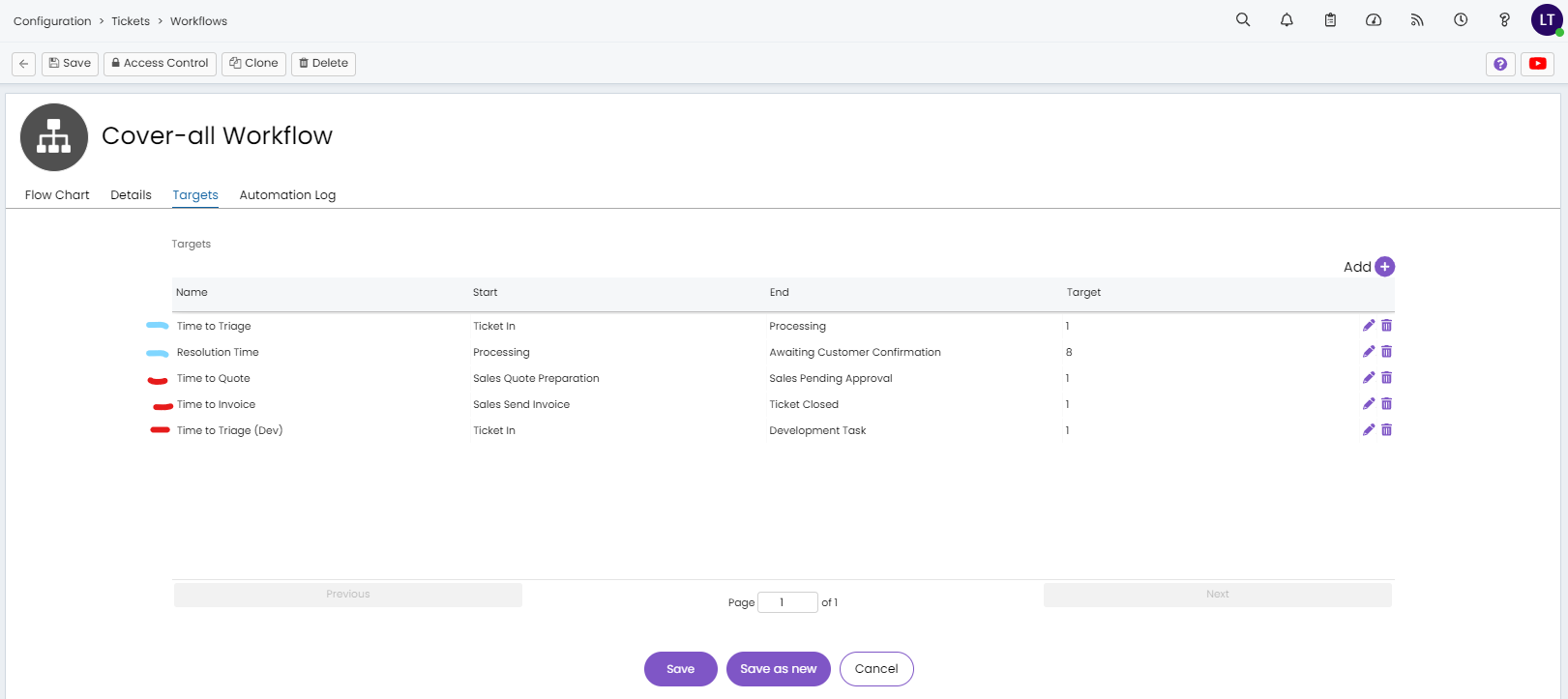
Fig 3. OLAs/Targets tab
Our Workflow above, as you can see from the Details tab, has 4 'Stages' associated with it. These are a higher level grouping for organising your various Steps in a Workflow. You can see which Steps belong to which Stages on each box on the Flow Chart tab.
Now, as you can see, a Stage can be placed anywhere throughout the workflow, and doesn't necessarily have to be in logical order, as we have Stage 4 coming straight from Stage 1 with our "Development Task" Step. However, it is advised that you keep these ordered, at least numerically, when using Targets.
Targets can be configured to regulate the time it takes to go from one Stage to another, or alternatively; one Step to another. These would act in a somewhat similar way to Service Level Agreements, in the way that they are guides for how quickly (or slowly) a process is expected to be completed. The only consequences associated with missing these Targets would be those that you configure yourself (using database lookups, for now). As insinuated, the Target data is only stored in the Database at the moment, so if you would like any functions to run off of it, a database lookup will need to be used to populate fields for such automations. The main use for this data would be for reporting purposes, with these four different bits of information being stored in the WorkflowHistory database table:
- Target number of hours
- Actual number of hours
- Target date
- Was the target met
As for the targets configured above, seen in the OLA's tab, the two marked in blue are based on Stages, whereas those marked in red are based on Steps.
A basic use case for these is seen here, with a simple-to-interpret Target Name for usability. These metrics would already be able to be calculated via reporting beforehand, however the SQL would be rather intricate if it needed constructing manually, involving all sorts of joins and subqueries to Actions or Audit. Now, with these Targets, there will be a solid metric that you can look for in the database for exactly the data you're after.
It is worth noting at this point that the Target times for each ticket will only tick down inside the Workdays configured inside that ticket's SLA. This also means that On-Hold time will not deduct from the target time. The above metric for "Actual number of hours" will follow the above behaviour, contrary to it's misleading name.
Configuring OLAs
First, you will want to take a look at your own Workflow's Flow Chart and Details and make sure that you have appropriate Stages associated with each Step, should you be wanting to track that data. If not, Steps alone will suffice.
Then, head to the OLA's tab and click the 'Add' button when adding an OLA you can choose whether to create a new one or apply a template, we will cover OLA templates in the next section.
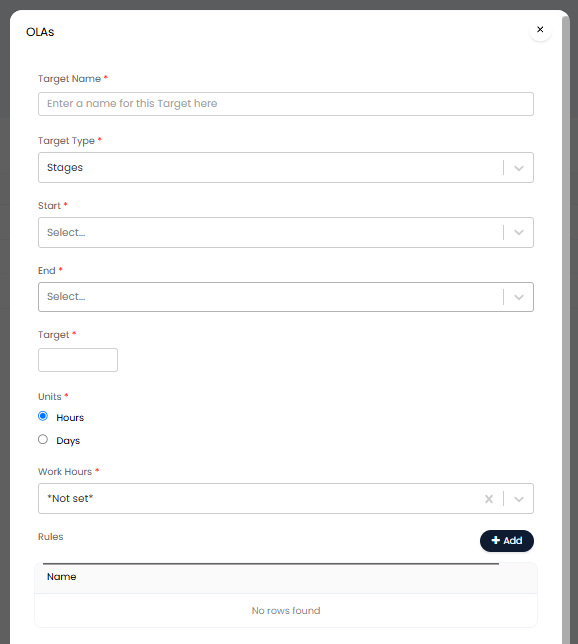
Fig 4. Adding new OLA
Target Type - Here, choose whether you would like the OLA to be based on workflow steps or stages. Only use stages is you have configured these against your workflow accordinly.
Start - Here, choose the step/stage you would like this OLA to begin on. When the ticket reaches this step/stage the timer for this OLA will begin.
End - Here, choose the step/stage you would like this OLA to end on. When the ticket reaches this step/stage the timer for this OLA will end.
Target - Here, enter the number of hours/days agents have to reach the end of this OLA.
Work Hours - The working hours selected here will determine when the OLA timer counts down. The OLA timer will pause outside of working hours/days.
OLA Rules
Rules can be added to the OLA to determine when the timer for this OLA counts down. Add rules in the rules table against the OLA.
The timer for this OLA will only count down/begin when the ticket meets the criteria in the rule. If at any point the ticket stops meeting the criteria in this rule, the OLA timer will pause, once it meets criteria again it will resume.
This can be used when the OLA should only apply in certain scenarios, for example emergency changes, where emergency change requests have a different OLA to normal change requests. An OLA for each type of change can be configured against the workflow, but each with a rule, determining when the OLA should be used. If at any point the ticket stops meeting the criteria for one OLA (an emergency change request has been updated to a normal change request) the 'emergency OLA' timer will pause and the 'normal OLA' timer will start.
Restrict when the OLA is used
OLAs can be restricted based on the team assigned to the ticket and the priority of the ticket. These restrictions are configured against the OLA.
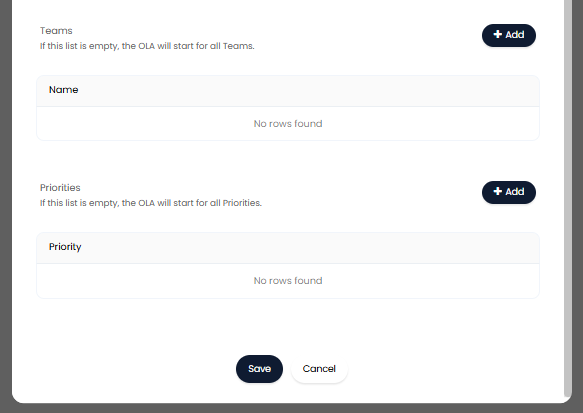
Fig 5. Restricting OLAs
When the 'Teams' and 'Priorities' tables are empty the OLA will begin for all teams and priorities. When an entry is added to the table the OLA will only begin for the specified team or priority. Allowing you to automatically apply team or priority specific OLAs.
OLA Templates
Templates can be created for OLAs to simplify configuration. If you have the same OLAs applied to multiple workflows rather than having to create each OLA against each workflow, you can create an OLA template and assign this to each workflow.
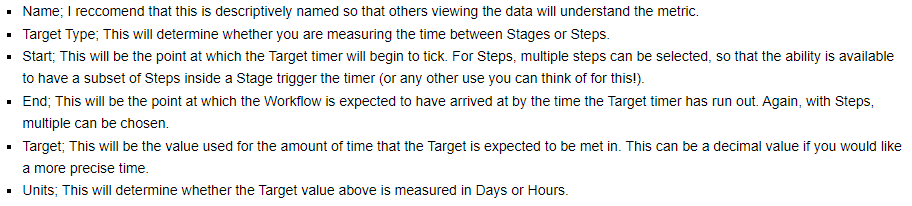
Create a new OLA template under configuration > tickets > service level agreements > general settings > configure OLA template. OLA templates are configured with the same options as new OLAs.
Once you have created the template apply it to the workflow under the OLAs tab > new > select add from template > choose your template.
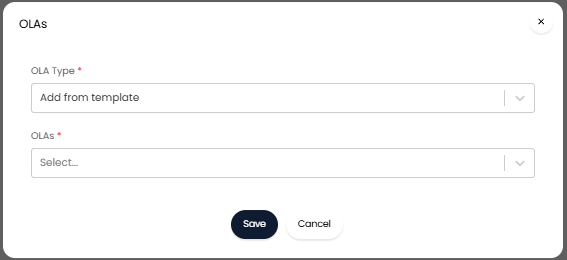
Fig 6. Add OLA from template
Reporting on OLAs
Now we have a Workflow with trackable Targets! Let's take a look at how to report on them.
The relevant database tables that can be reported on are: FaultOLA and FaultOLADates
Handling OLA Breaches
Just as you may want to configure notifications for SLA breaches, you may also want notifications configured to notify assigned Agents or team leaders about OLA breaches.
To set this up, first navigate to Configuration > Service Level Agreements > General Settings, and turn on the "enable OLA events" setting in the OLA Notifications section.
Turning on this setting will present you with the option to configure up to three thresholds for OLA breach. For example, in Figure x, I have set the first threshold to be at 50% of the OLA target, the second threshold to be 80% of the target, and the third threshold to be when the target is breached (100%).
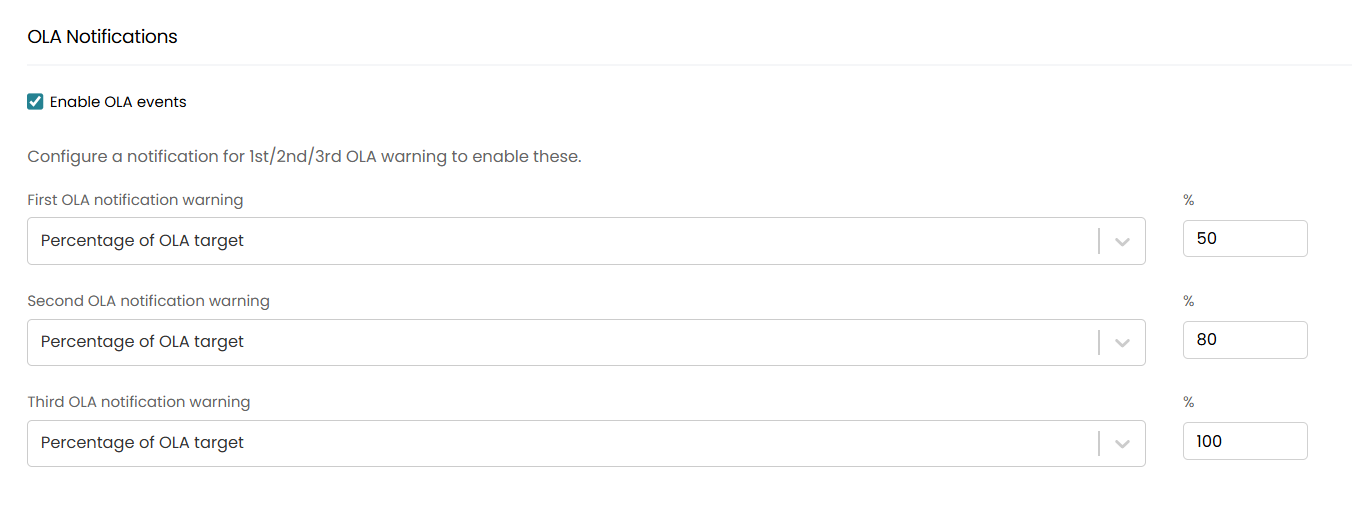
Fig 7. Configuring OLA events
Once configured, the events can now be used to trigger notifications.
To do this navigate to Configuration > Notifications > Notifications, and select "+ New" in the top right to create a new notification.
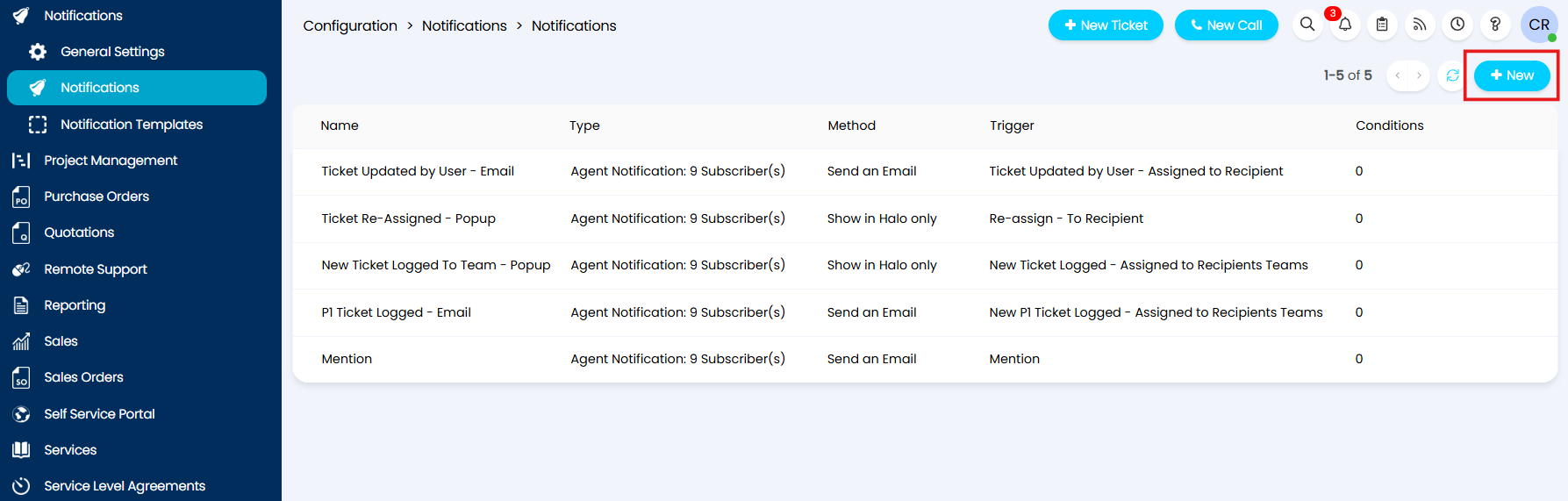
Fig 8. Creating a new notification
In the Event drop-drown, you will find the OLA events that can be used to trigger your notification.
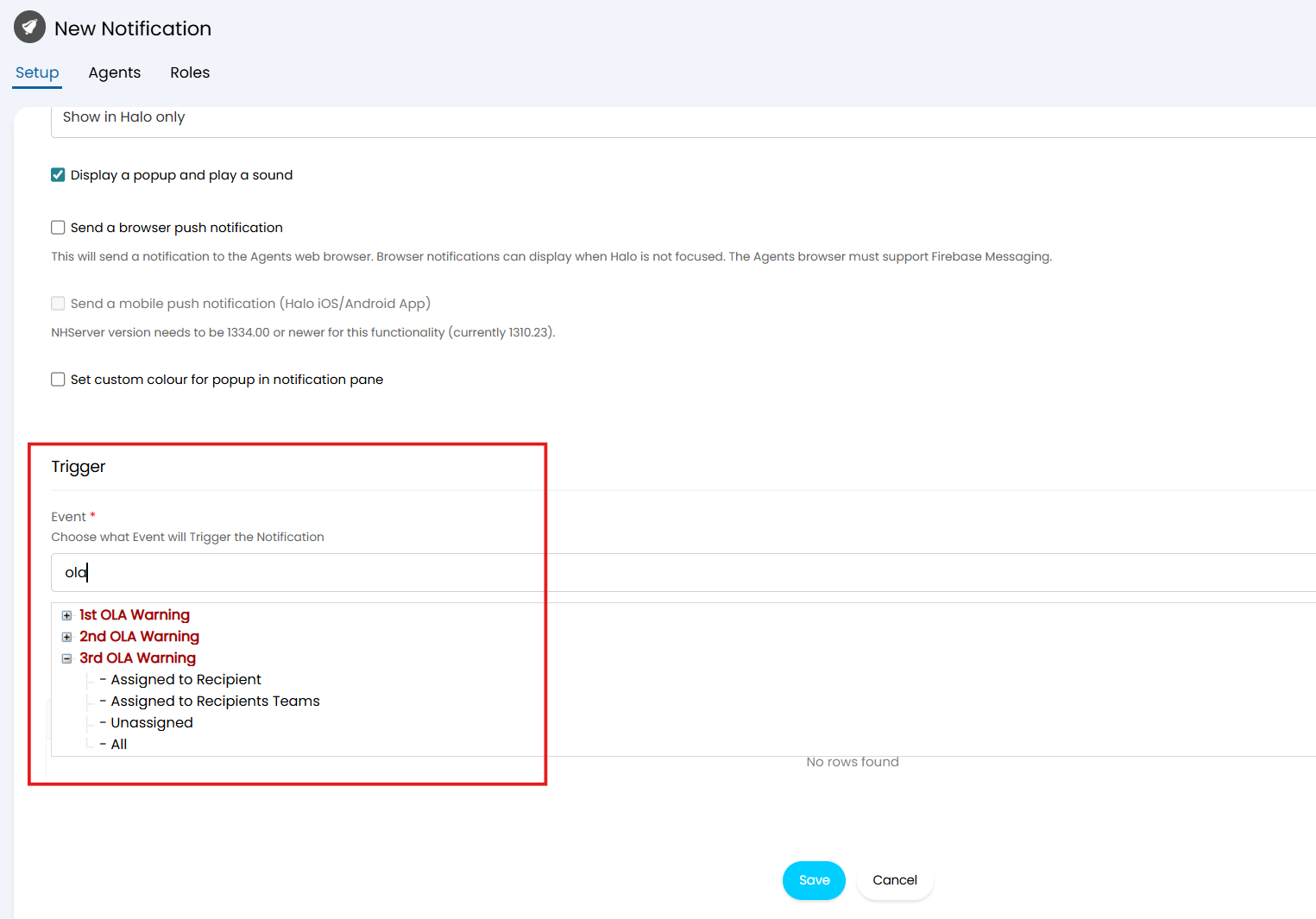
Fig 9. The OLA Event trigger options when creating a new notification.
Note: You will need to set up three separate notifications if you want a notification for each threshold.
For greater detail on creating notifications, please do refer to this guide: Notifications.
If you set the notification to "Show in Halo only" in the notification pane, then you can edit the notification template used by navigating to Configuration > Notifications > Notification Templates and editing the OLA warning templates (Figure 10).
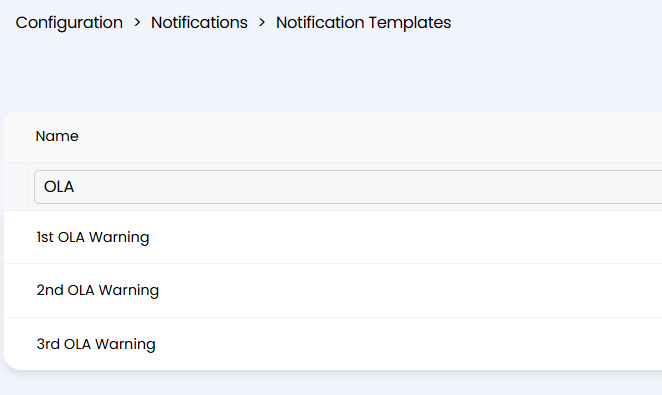
Fig 10. The OLA warning notification templates
If you want the notification to send an email you will have to create a new email template by navigating to Configuration > Email > Email Templates and selecting "+ New" in the top right. For information on creating email templates, please do refer to this guide: Email Templates.
From version 2.238+, two variables are available for use in the notification and email templates to enable more information to be provided on the OLA that breached the target. These two variables are $-OLADESCRIPTION and $-OLATARGET (without the dashes).
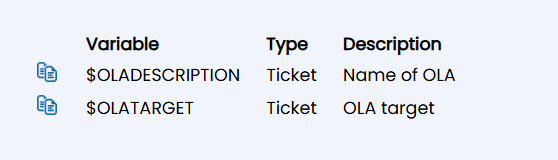
Fig 11. New OLA relevant variables for notifications
Note: you can find the list of variables available in your instance of Halo by navigating to YOURHALOURL/variables.