The Opportunity Workflow
In this guide we will cover:
- Modifying the Opportunity Workflow
- Adding The Chevron View to the Workflow Progress Visual Shown on Tickets
- Workflow Flow Chart
- Adding the Quick Action For Emailing a Quote
- Working Through The Ticket Using The Edited Workflow
Admin Guides:
Related Guides:
In this example, we are going to raise an opportunity against a new contact for a new Managed Service. We will look at the whole Sales flow, including quotation approvals and Project creation. We will also see how to slightly amend our workflow to include an additional action that will allow us to email the quotation for approval directly from the Opportunity.
Modifying the Opportunity Workflow
Let's take a look at our Opportunity workflow via heading to Configuration > Sales > Workflows > Opportunity Workflow:
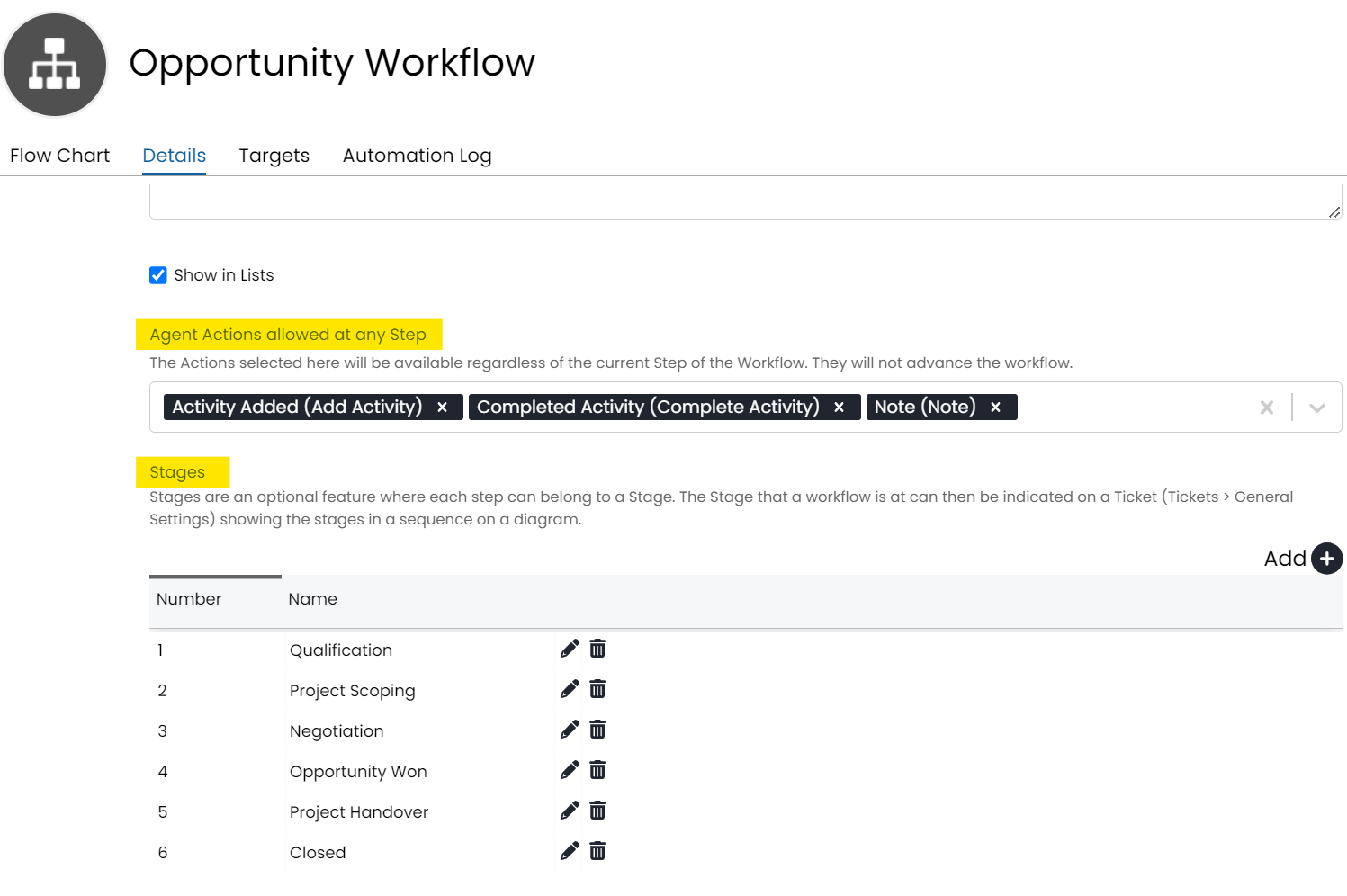
Fig 1. Opportunity Workflow Details
Adding the Chevron View to the Workflow Progress Visual Shown on Tickets
Configuration > Tickets > General Settings we can set the visual for the workflow stages in the ticket details:
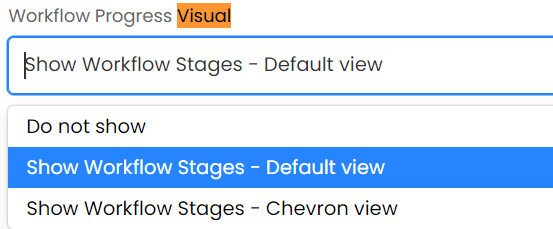
Fig 2. Workflow Progress Visual
The 'Agent Actions allowed at any Step' provide a list of Actions available to agents that will not progress the workflow but will always be available. This looks good - I always want my agents to schedule & complete appointments & I want the option to mark an Opportunity as lost at any point.
The Stages correspond to the visual progress bar of our opportunity:

Fig 3. Workflow Progress Visualisation Chevron View
Workflow Flow Chart
Workflows are built up via the flow chart section. Each 'Step' can be composed of multiple Agent Actions and linked to form logic pathways based on the agent Actions that have been selected.
Looking at our Opportunity Workflow:
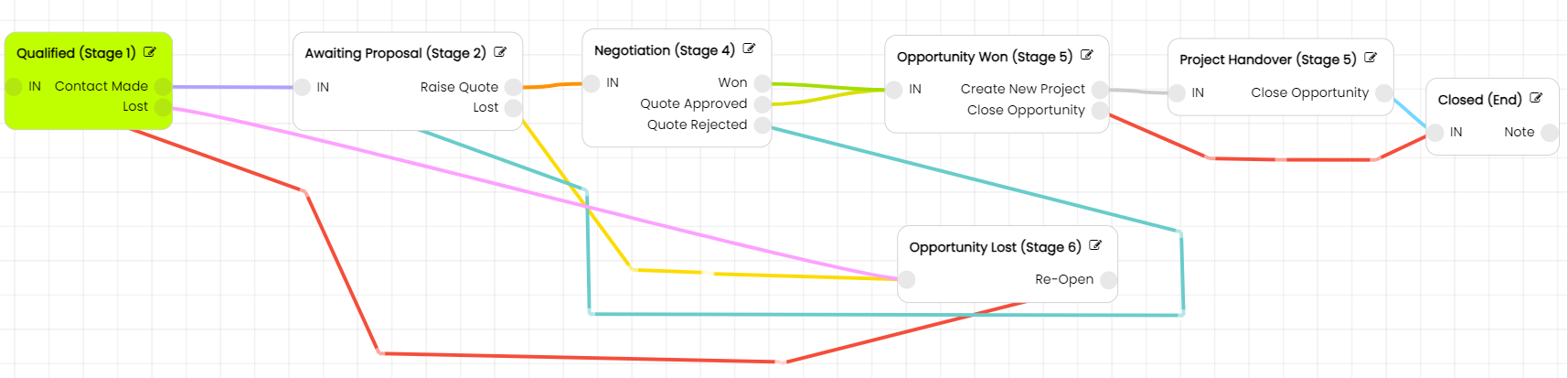
Fig 4. Opportunity Workflow flow chart
We can see we first qualify our Opportunity, then raise our Quote. I want to include an action on my Opportunity to send the Quote after it has been raised. To do this, I need to add a step into my workflow:
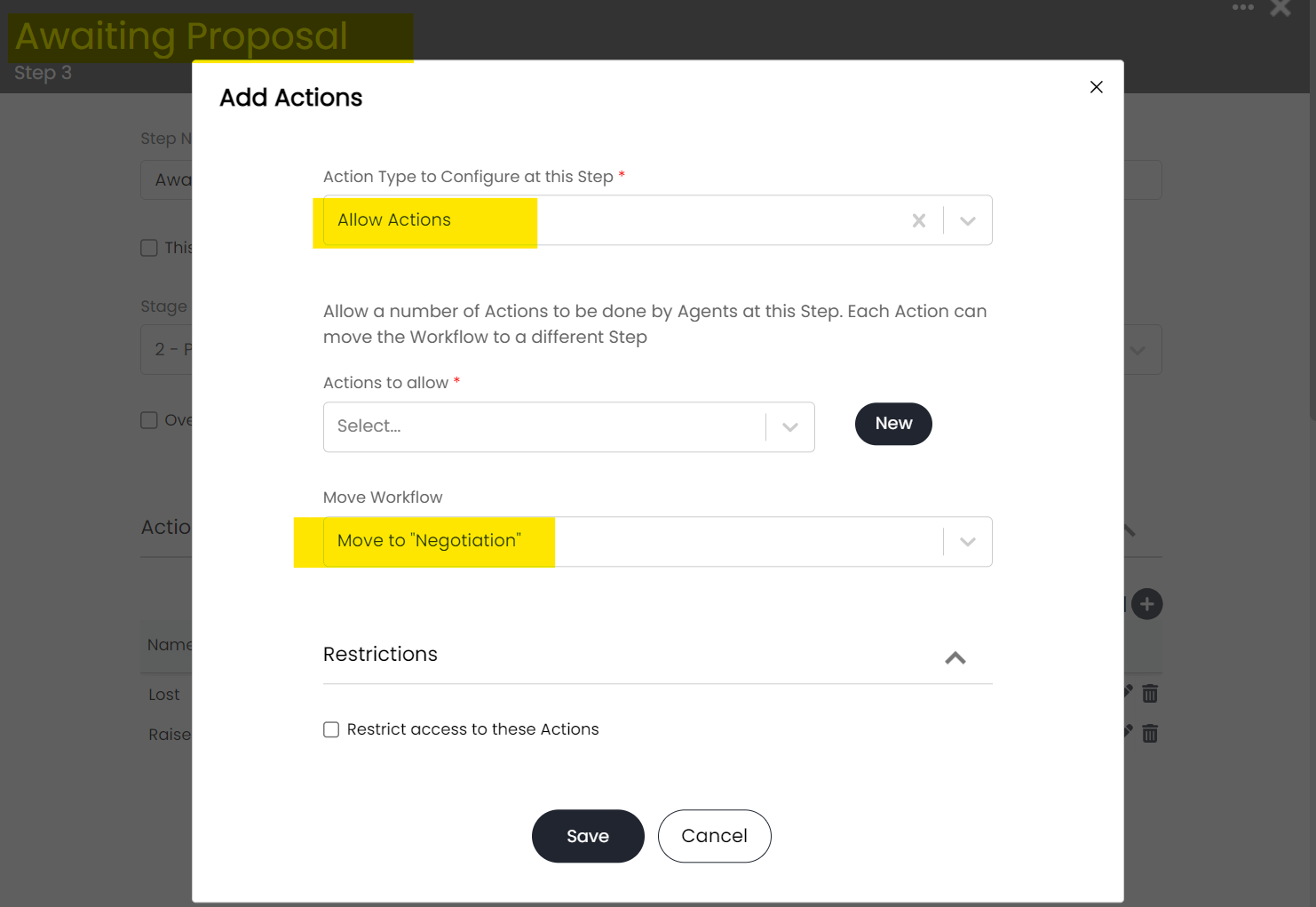
Fig 5. New workflow step Configuration
Automatically Progress the Workflow
Opportunity workflows can be progressed automatically based on various ticket activity including:
- When a quote is sent
- When a quote is accepted/rejected
- When a quote is revised
- When a sales order is raised
This is useful in managing the opportunity flow as they ensure the opportunity workflow only progresses when the required processes are complete. It also streamlines the sales process as progression will happen automatically, rather than agents doing this manually.
To setup automatic workflow progression edit the workflow step and add a new action. Here, the action type selected will determine what needs to be done in order to progress the workflow. Once you have selected the action type, choose which step the workflow should move to when this action has been completed.
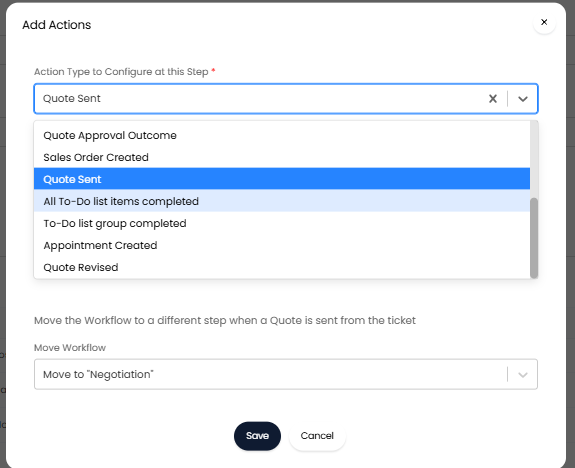
Fig 6. Configure automatic workflow progression
In the figure 6 example the 'Quote Sent' action type has been selected. This means when a quote is sent from the opportunity ticket the workflow will automatically progress to the stage 'Negotiation'.
Adding a Quick Action for Emailing a Quote
I want to create a new step and allow Agent Actions (this agent action will be the 'Send Quote' Action). The restrictions checkbox when checked, will allow you to restrict teams, agents or users, it can also be restricted to a certain team, agent or user. As I don't yet have the relevant action in my system, I will need to create one, which can be done directly from the workflow step via clicking 'New':

Fig 6. Workflow step Configuration
For our new Action, we will want to set a system use of 'Email Quotation' and specify this as a Quick Action - this means that the agent clicks one button and HaloPSA handles the rest. The action was created on a workflow so it has defaulted to a "Workflow Action", this can be changed to a "Generic Action" so it can be used anywhere:
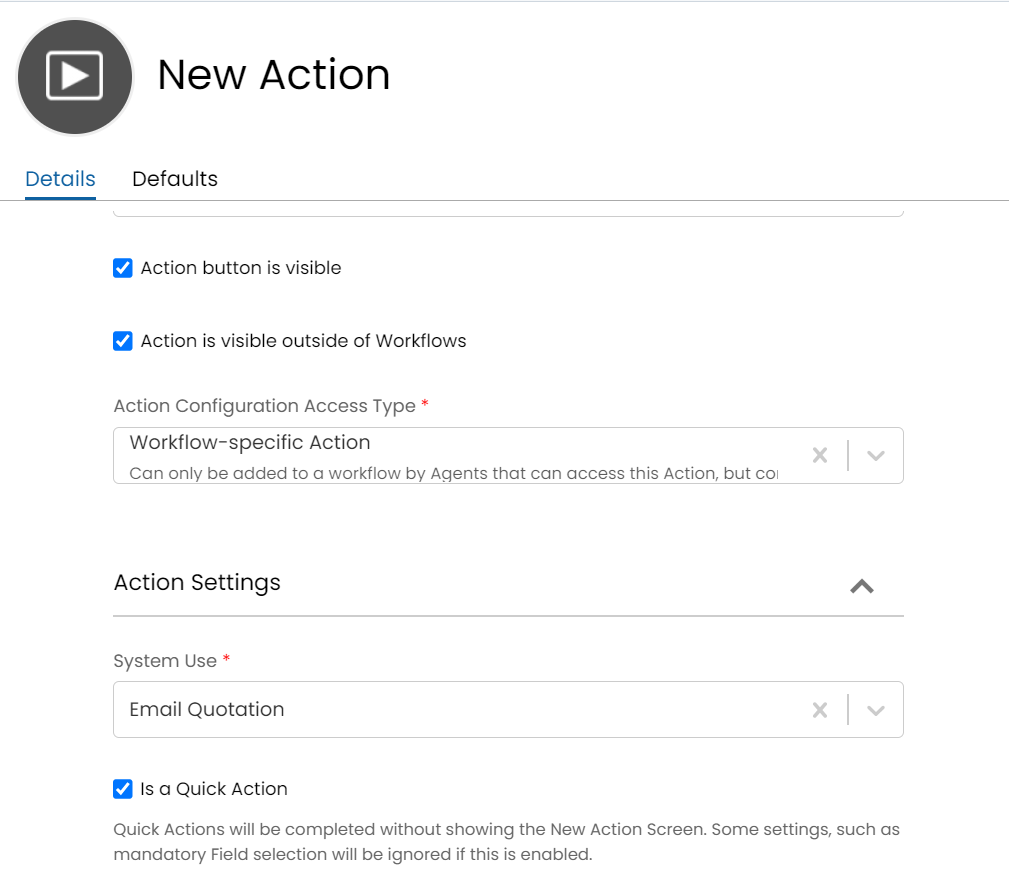
Fig 7. New Action screen
You'll also want to head into the Defaults tab and select 'Send email' as 'Yes' (so you actually send the Quote to the contact email address!).
Of course, clicking 'Send Quote' should move our workflow along to the relevant step, this can be handled via modifying the 'Move workflow' option:
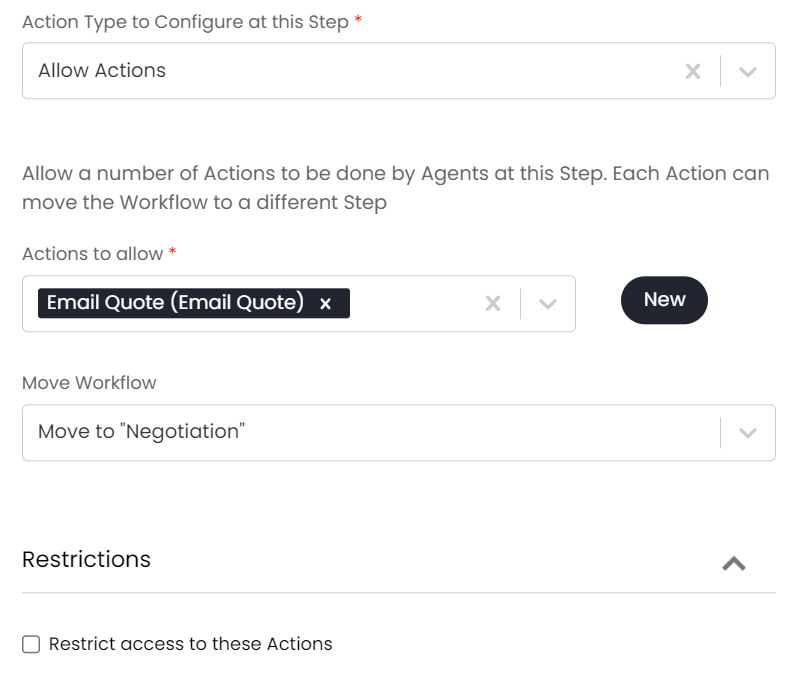 Fig 8. Connecting your workflow steps
The last change we will want to make will be to update our Raise Quote Action to leave us at the Awaiting Proposal Stage.
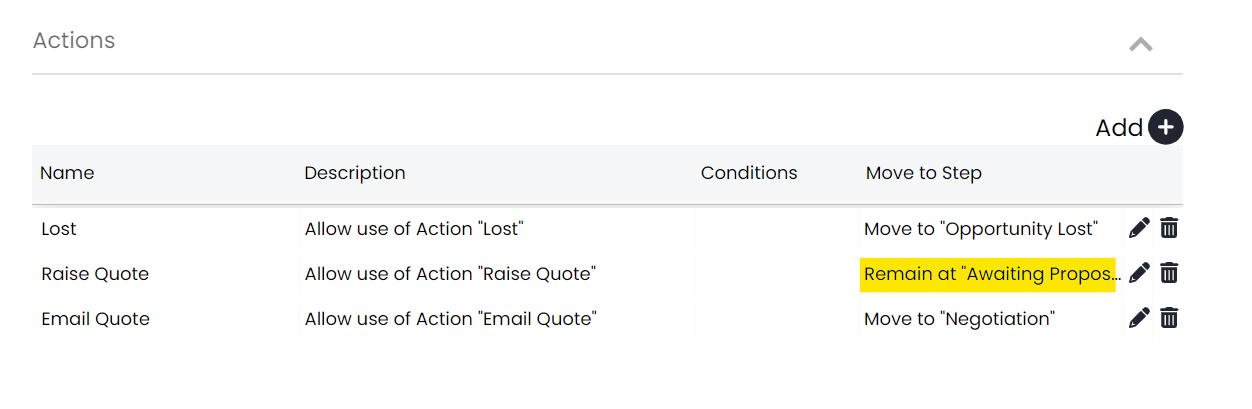
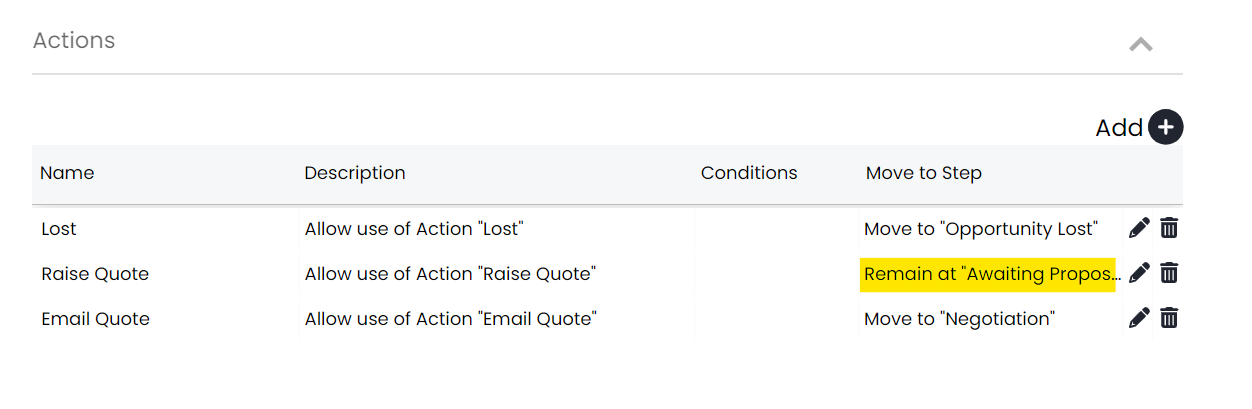
Fig 9. Modifying workflow step pathways
Working Through the Ticket using the Edited Workflow
The first thing we're going to want to do is raise our Opportunity - head into the CRM module and click 'New' to open the new Opportunity screen where you will want to fill out the relevant details:
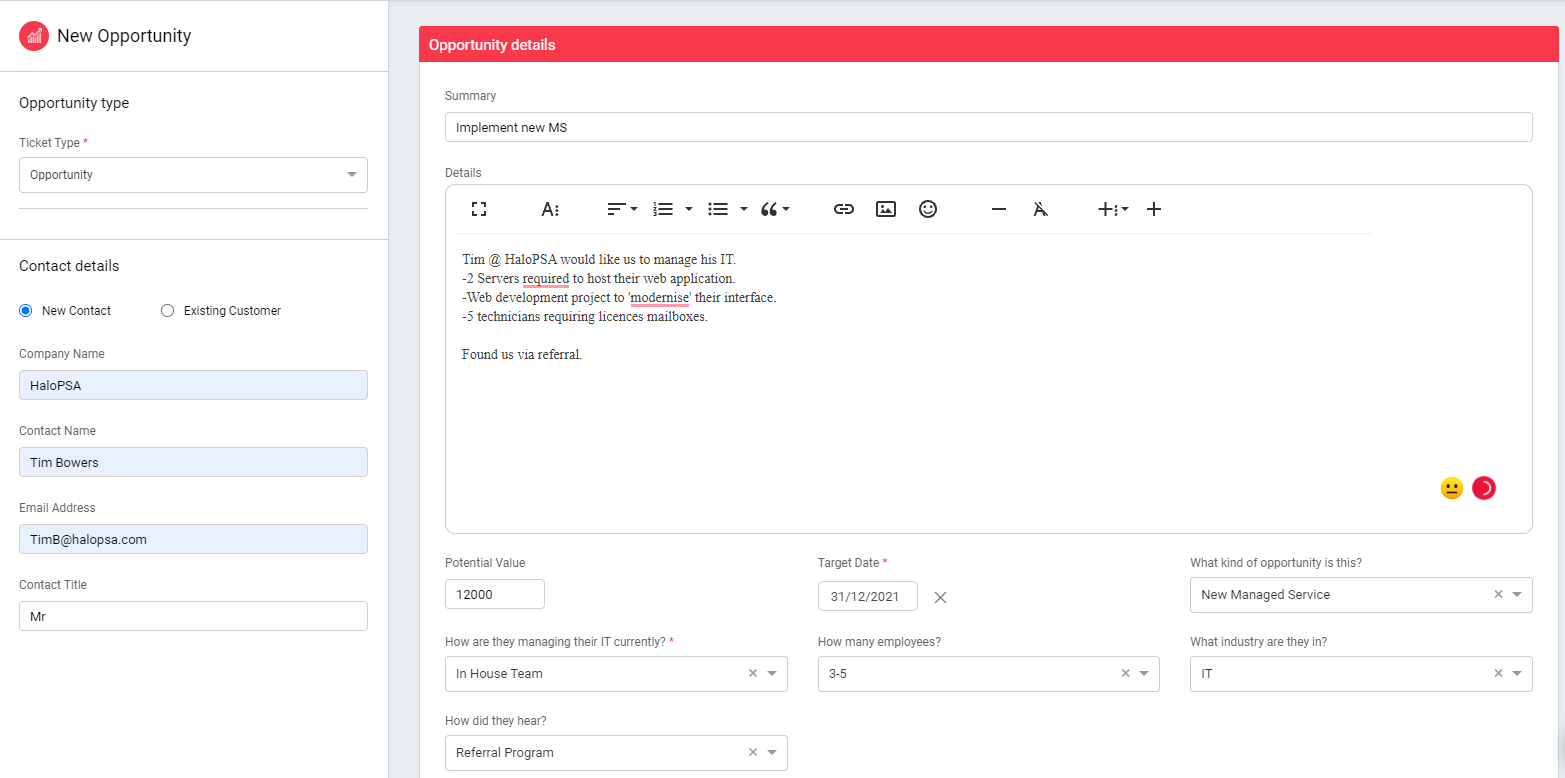 Fig 10. New Opportunity Screen
Once your Opportunity has been raised, the first action will be to qualify, where you can update any of the core fields input in the initial Opportunity form:
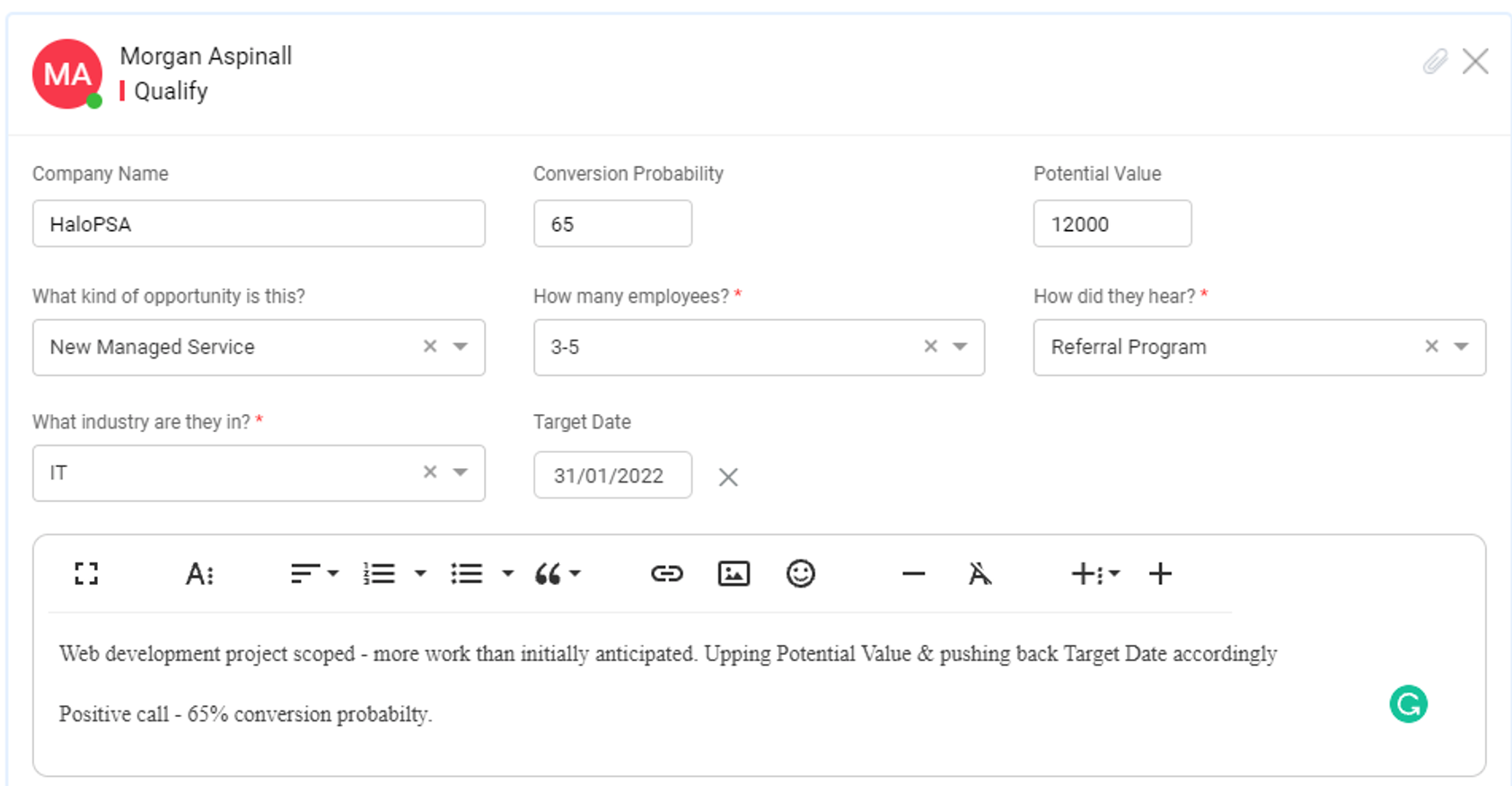
Fig 11. Qualifying your Opportunity
After saving this, you'll be able to raise your Quote which will then provide us with the next available action - to send the Quote (You must raise the quote first for the send quote action to become available):
Note: It is important to make sure you are using the right workflow, if you want it to be the default for that ticket type head to Configuration > Sales > Opportunity Types > *Click into the ticket type* > *go to the defaults tab and set the workflow to the opportunity workflow discussed above*
 Fig 12. Our workflow amendment in actions
After your quote has been approved, you will be given the option to raise a new project from this Opportunity, or close the Opportunity. In our example, this project would be for the Web development included as part of this sale.
When closing your Opportunity, you can provide a closure category (allowing you track Sales trends via reporting capabilities):
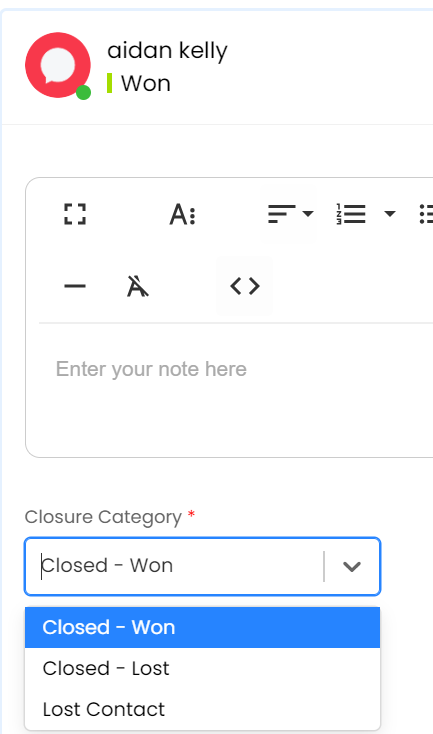
Fig 13. Opportunity Closure Categories