Email Templates
- message group
In this guide we will cover:
- Editing System Email Templates
- Custom Email Templates
- Message Groups
- Email Template Groups
Admin Guides:
Related Guides:
Email Templates are used to send a pre-formatted email. They are used as part of Email Automations and can be configured to be sent when completing an Action manually. $-Variables can be used within these Templates to populate information from within your database, allowing the information in the Template to change dynamically.
Note: Any variable written in this guide is written with a hyphen between the $ sign and the word. This is so there is no replacement of them if this guide is shared through any Halo action. When used, they should be used without a hyphen (-).
Editing System Email Templates
In Configuration > Email > Email Templates, you will find a list of System Email Templates. These are pre-made Templates that are used within various areas of the system for specific functionality.
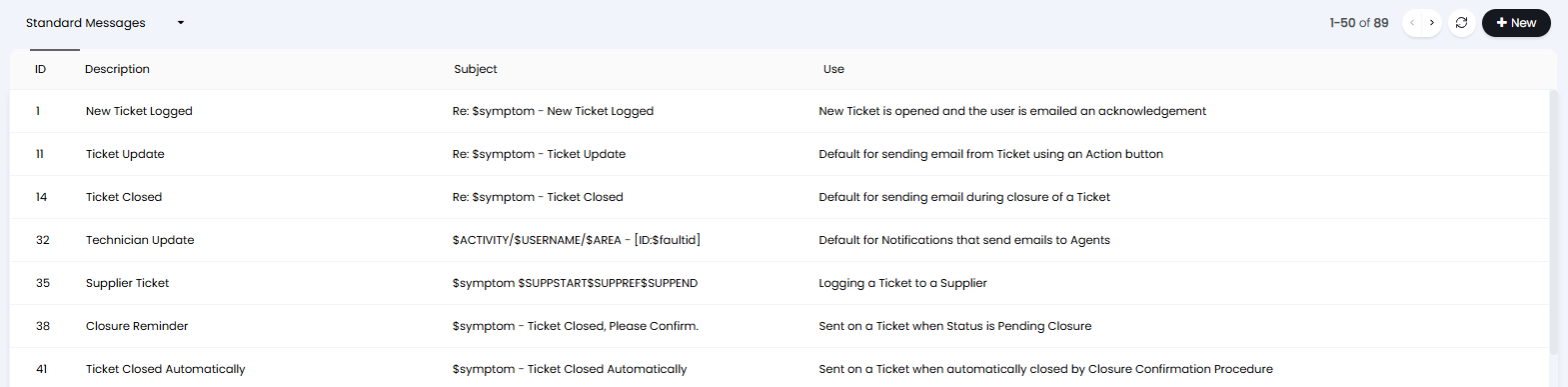
Fig 1. System Email Templates.
Select a Template to edit it. As it is a System Template, the "Template Description" and "Email template use" are pre-set, but this is only for internal reference.
You can edit the Subject and Body this Email Template will use, as well as view a list of Variables that can be used within.
Inputting a Variable will replace the Variable name with information attached to the dataset of the Ticket. Custom fields are included, use $-CF___ with the Field database name replacing the underscores. You can set a default value for the custom field to take. This value will show when the Custom Field is empty. To do this append the default in braces (curly brackets) using the format: {DEFAULT:____}.
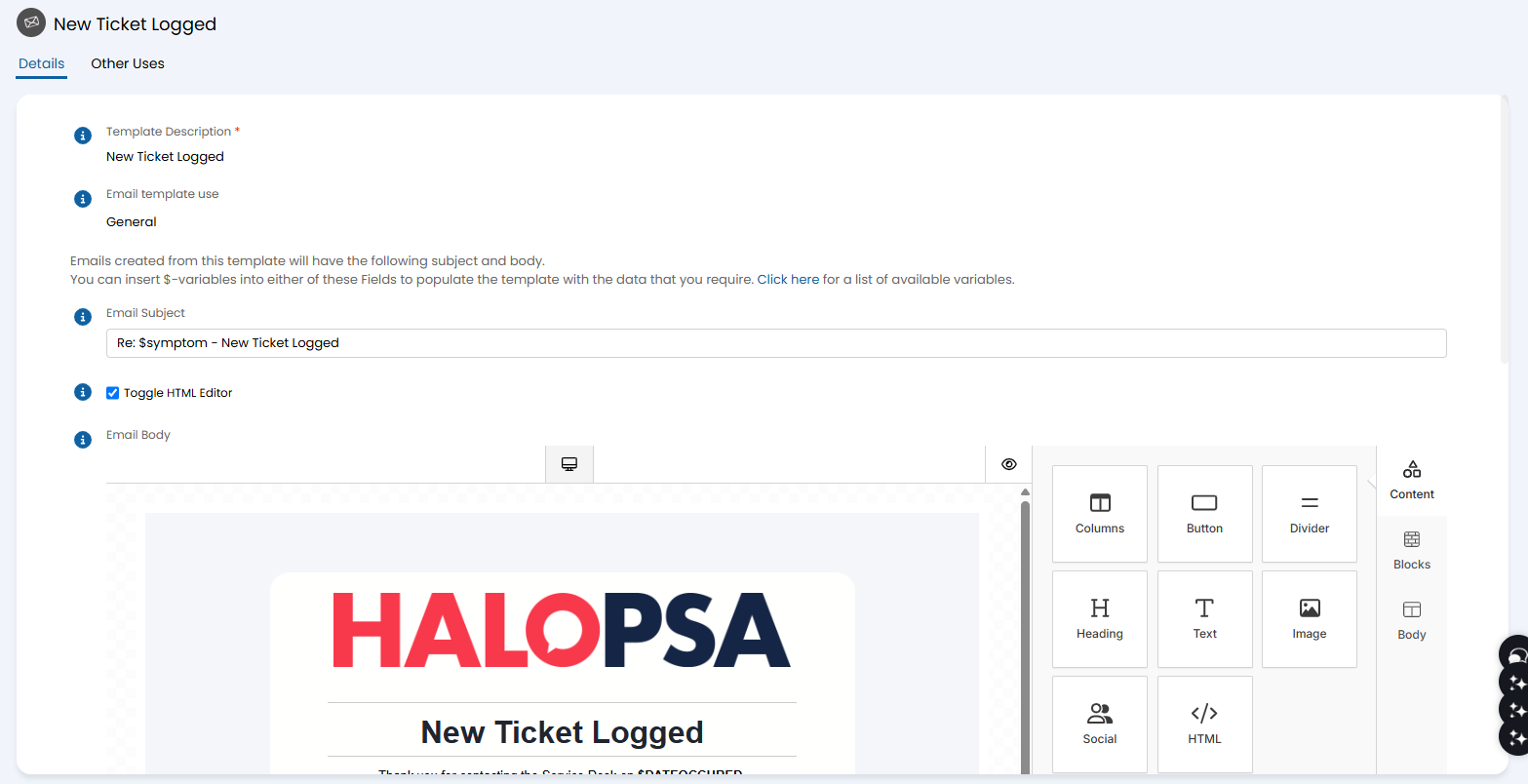
Fig 2. Editing an Email Template.
Whenever an Agent performs an Action that sends an email using this Template, the $-Variables will be replaced by the information relevant to the variable used.
The three most commonly used Email Templates are: "New Ticket Logged", "Ticket Update" and "Ticket Closed", which correspond to the automated Ticket Acknowledgement email, email sent when performing the "Email User" Action and the email sent when performing the "Resolve" Action, respectively.
You can edit the Email Template in the code view of the body by clicking "<>" (if not using the HTML Editor). You will need to click this again to switch back before saving.
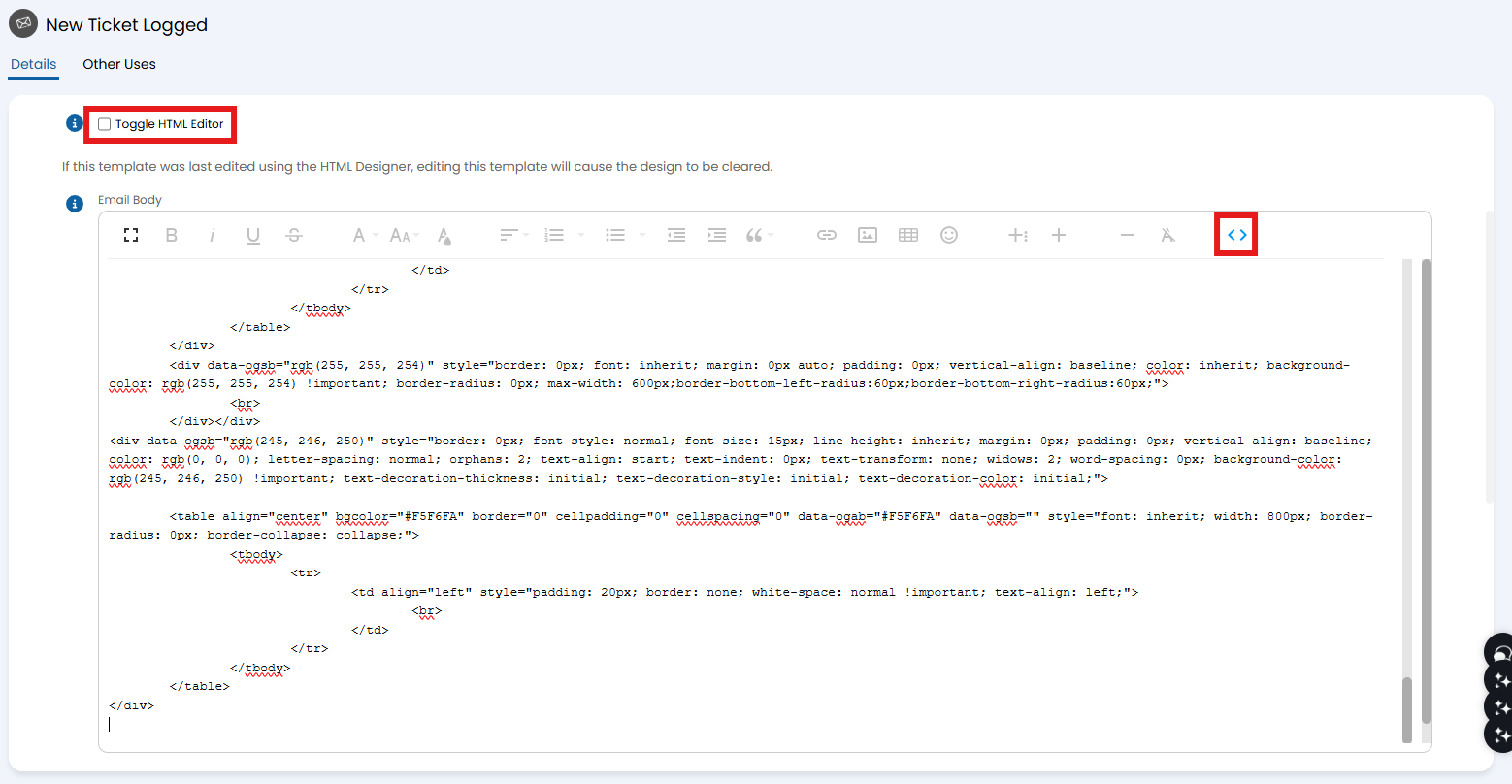
Fig 3. Code View Toggle.
Custom Email Templates
A custom Template can be created for other times you may want to send an email that are not covered within the built-in templates. Switching the dropdown to "Custom Templates" will show a list of any current Templates, and additional ones can be created here by clicking "New".
These Templates can be set anywhere that allows you to choose what Email Template is used, i.e. an Email Notification.

Fig 4. Custom Templates.
You can preview how these Custom Email Templates will look when sent. Choose a Template, then click the "Preview Template" button along the top.
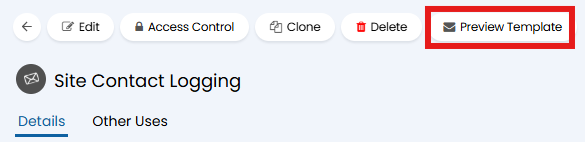
Fig 5. Preview button.
A popup will then show to enter a Ticket ID. If left blank, the latest Ticket will be used by default.
If "Allow multi-language email templates" is enabled in Configuration > Email > General Settings, an option to choose a language will also show.
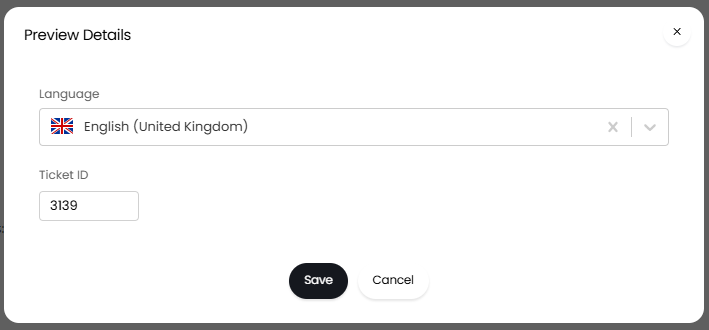
Fig 6. Selection popup.
After loading, another popup will show how the Template will appear, i.e. by completing the Variables used.
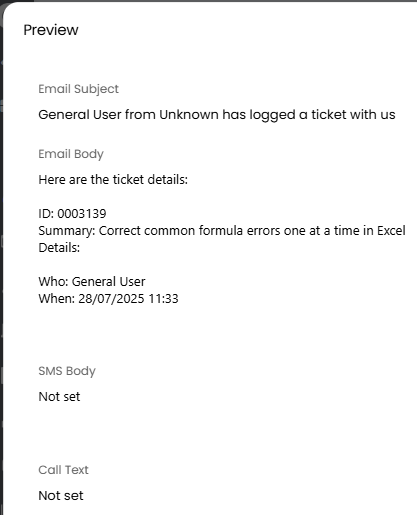
Fig 7. Previewed Template.
Message Groups
Message Groups are used for creating distinct Email Templates for a certain group, i.e. Important Customers or those who are Co-Managed.
In Configuration > Email > Message Groups, you will see the existing groups for the Standard or Custom Templates, and can create your own.

Fig 8. Creating a new message group
Copies of each default Email Template will be automatically created for the Message Group. This allows you to tweak your email templates per group and apply to the relevant Mailbox or Team to make use of.
When viewing Email Templates, you can then select your new Message Group to alter.

Fig 9. Changing the email templates depending on message group
The Message Group that will be used when sending an email to the End-User of a Ticket will be determined by the following hierarchy, in which the Message Group set against the End-User of the Ticket will override all other Mailbox override settings:
- End-User of the Ticket
- Site
- Customer
- Team assigned to Ticket
- Department
- Mailbox
- Organisation
Email Template Groups
You can configure Email Template Groups. These groups can be configured under Configuration > Advanced Settings > Email Template Groups, and associated to any existing or newly created templates.
For example below I have grouped my "New Ticket Logged" template in "Group 1"
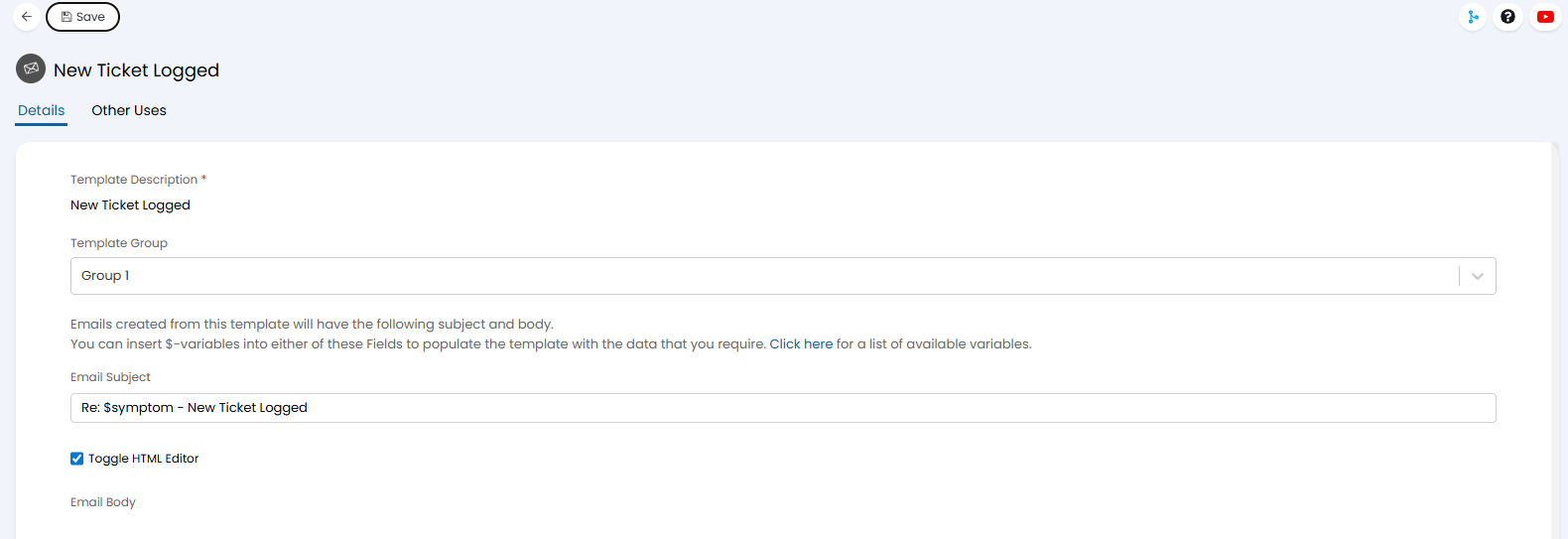
Fig 10. Configuring Email Template Groups.
This then shows in the Column Profile allowing you to order and filter by the group.

Fig 11. Template Groups.