Pipeline Stages
- workflow
- stages
- pipeline
- workflows
- pipeline stages
- workflow stages
In this guide we will cover:
- Enabling the Pipeline Feature
- Linking Workflow Steps to Pipeline Stages
- Pipeline Stage on an Opportunity Ticket
- Pipeline Stage in Lists
- Set the Pipeline Stage of an Opportunity using a Field
- Grouping by Pipeline Stage on Column Profiles
- Ticket Rules from Pipeline Stages
- Restricting Pipeline Stages
Admin Guides:
Related Guides:
Halo allows for Opportunity Workflow steps to be associated with a 'Pipeline Stage' so you can track what stage the sale is in separately to the workflow of the opportunity. Tracking these separately allows you to utilise the workflow to track the actions that are needed to take place to progress the sale (credit checks, raising quotes) and utilise the pipeline to track how close the sale is to completing. Pipelines help the sales team/agents prioritise their work and organise the status of their opportunities. Workflows help automate and execute the actions that need to be taken in order to progress and win a sale. As pipeline stages are associated with workflow steps, when the workflow of the opportunity progresses, the pipeline stage will update automatically. Similarly, when the pipeline stage is update the workflow step of the ticket will update too. Allowing you to easily and dynamically update opportunities
Enabling the Pipeline Feature
Pipeline Stages are enabled in Configuration > Sales > General Settings.
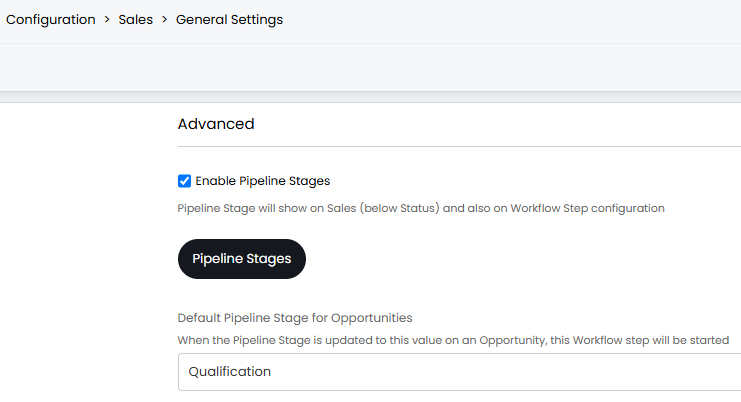
Fig 1. Enabling Pipeline stages in Configuration > Sales > General
Once enabled, you will find a 'Pipeline Stages' option appear directly below the checkbox. Clicking into this will return the list of Pipeline Stages and is where you can amend the list to fit your Sales Pipeline. An option is also present for setting the default Pipeline Stage for new Opportunities (Fig 1). From v2.244+, a "Default closure pipeline stage" can be specified for manually closed and merged Opportunities.
Linking Workflow Steps to Pipeline Stages
Once enabled, you will find an option present within your Workflow steps.
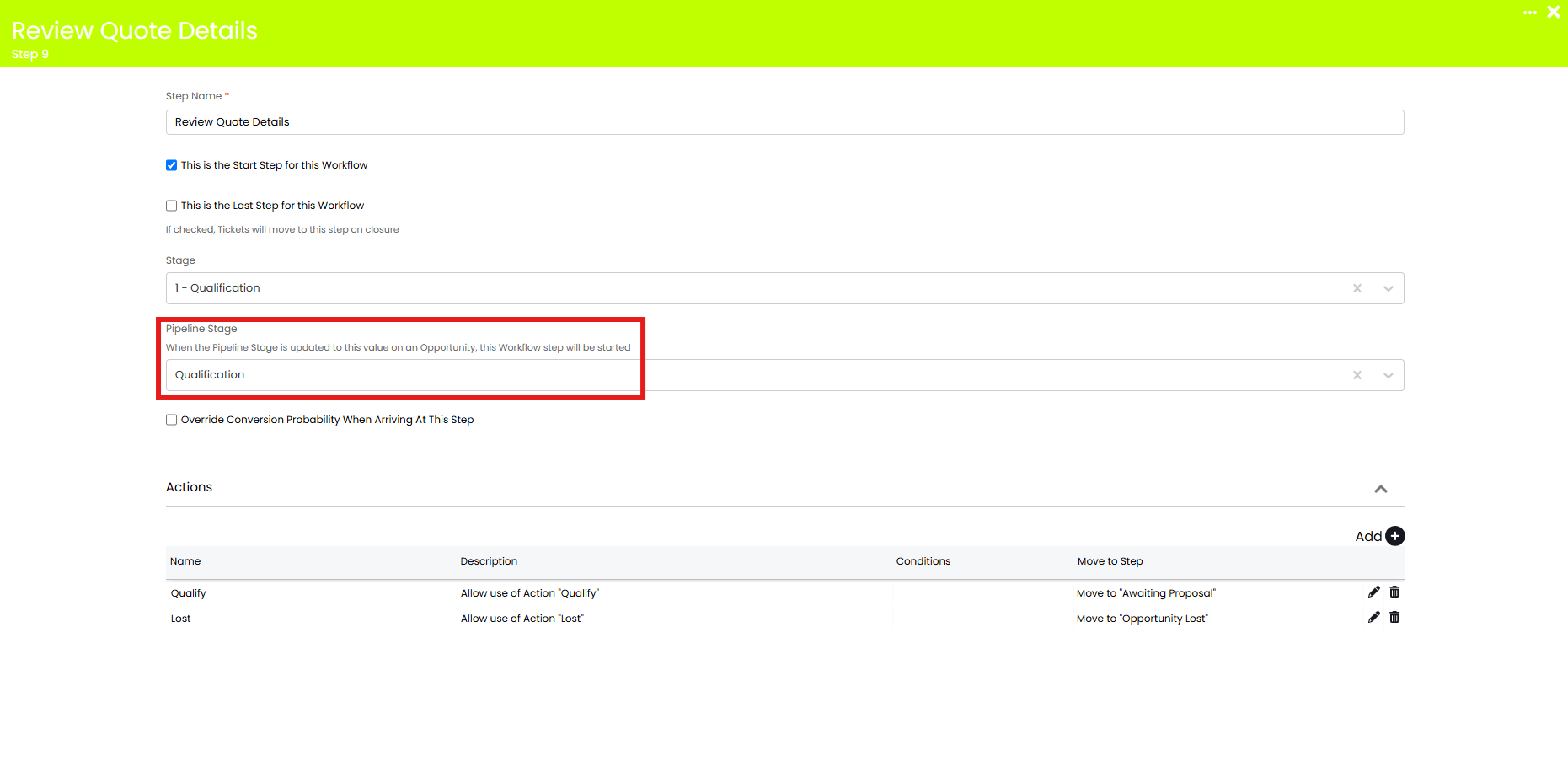
Fig 2. Pipeline Stage option within Workflow Step
This option will allow you to associate a given Workflow step with a Pipeline Stage.
Pipeline Stage on an Opportunity Ticket
You will also find that the "Pipeline Stage" will appear within an Opportunity's details, below the Status icon.
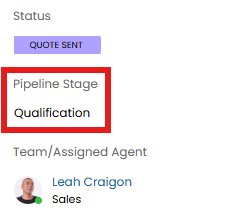
Fig 3. Pipeline Stages against an Opportunity
The syncing between Pipeline Stages and Workflow steps is two-way, i.e.: as you progress through the Workflow and move to a new step, the Opportunity's Pipeline Stage will be updated to the Pipeline Stage associated to the respective Workflow step, and updating the Pipeline Stage on an Opportunity will move it to the associated Workflow step:
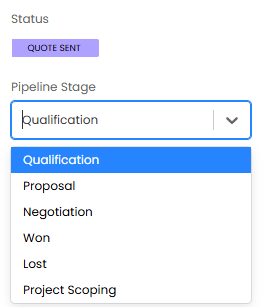
Fig 4. Editing the Pipeline Stage on an Opportunity
Pipeline Stage in Lists
Depending on the use case your Halo was deployed with, you may have a "Pipeline View" ready made in your instance. For MSPs using Halo, this can be found in the "My Lists" view within the sales area.
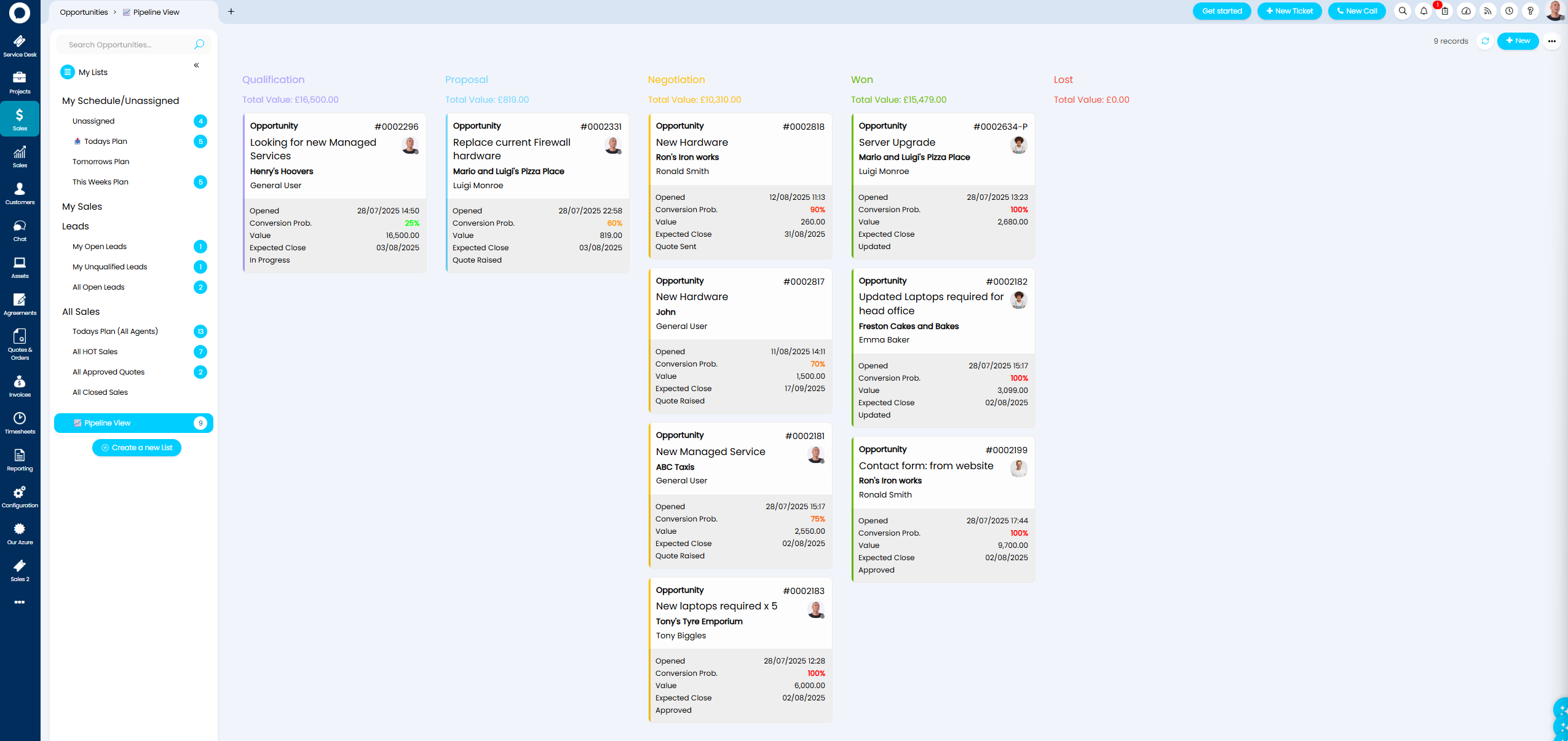
Fig 5. Pipeline view
The pipeline view organises your open opportunities based on the pipeline stage they are in. Allowing agents to easily see which opportunities are near completion over others, helping them prioritise their time.
If you do not yet have this view in your instance this can be created. Within "My Lists" there will be an option to "Create a new list" at the bottom. Click this and set it up as shown in Figure 6.
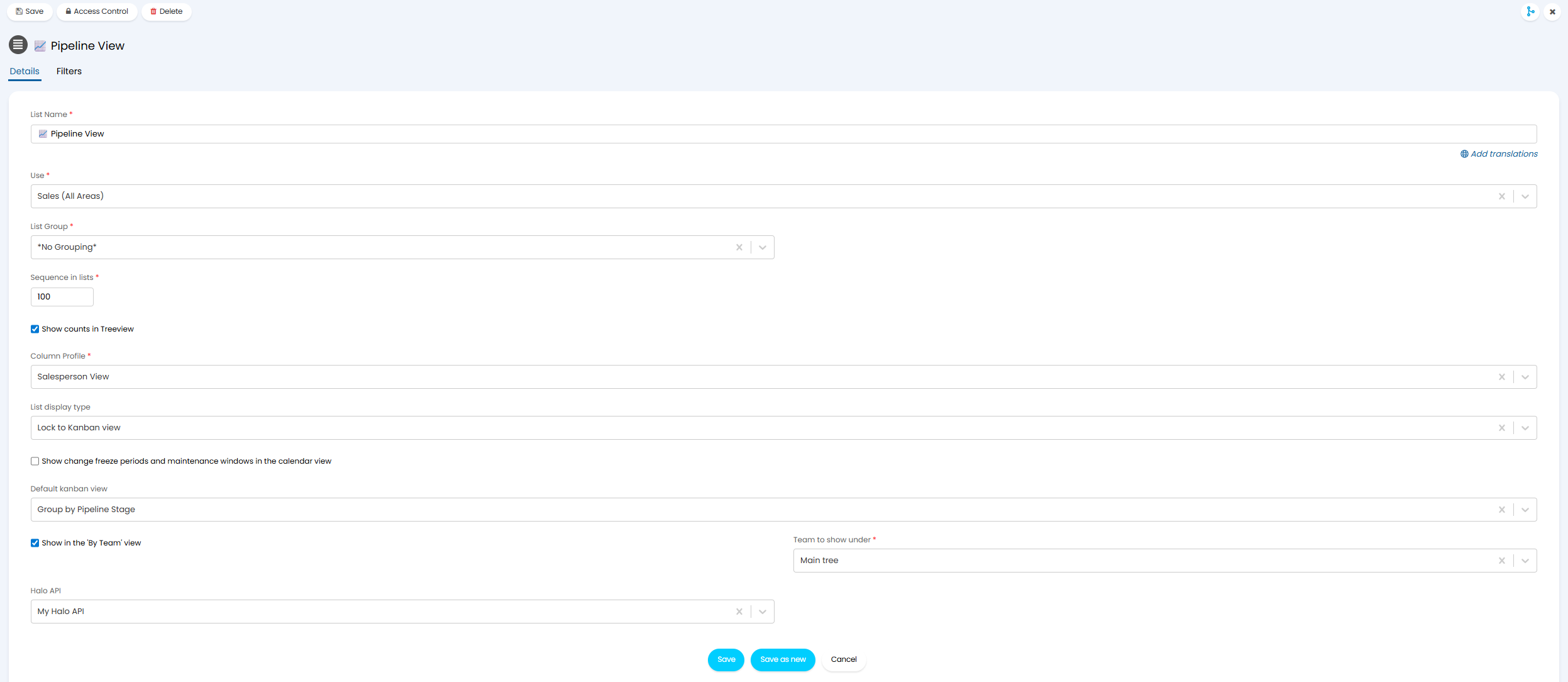
Fig 6. Configuring the Pipeline List Details Tab
You can lock the list "List display type" to i.e. "Lock to Kanban view".
The filters Tab on the new list can be configured to change which tickets show here.
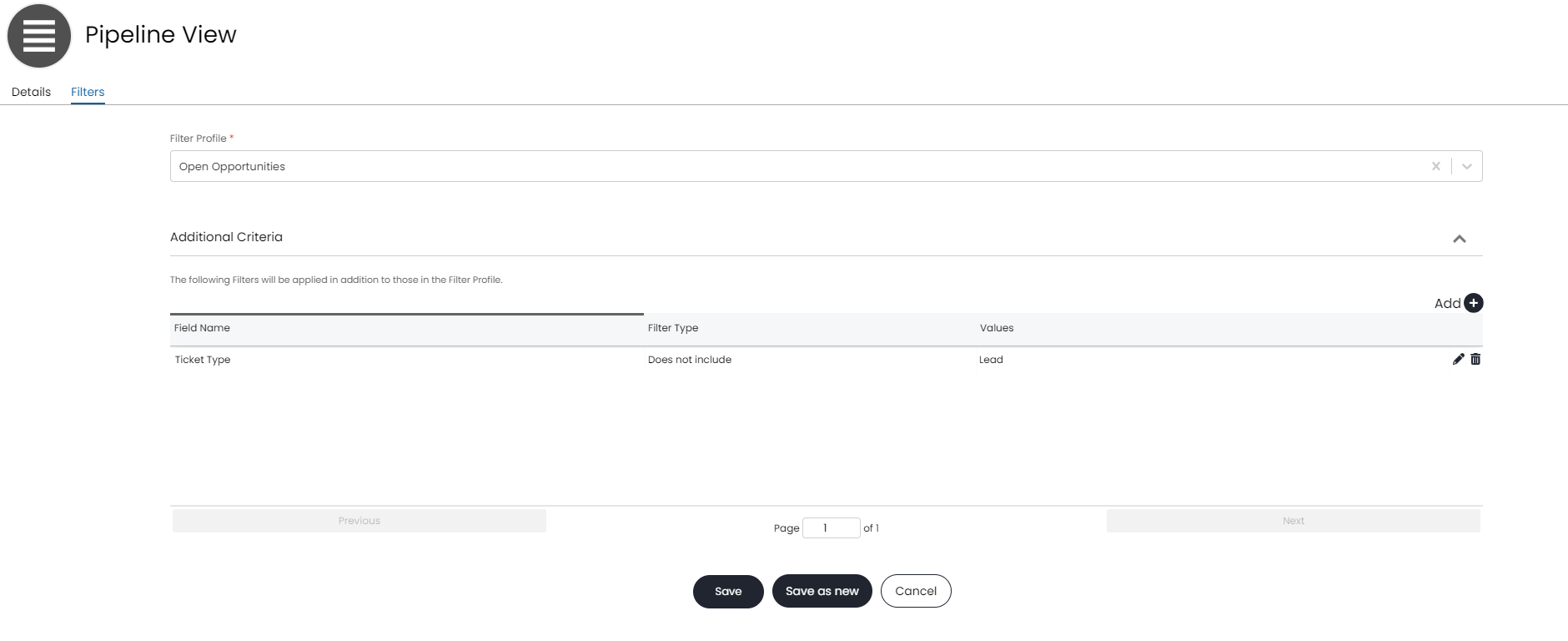
Fig 7. Adding Filters To Your List
Set the Pipeline Stage of an Opportunity using a Field (v2.244+)
From v2.244+ you can use a field (available against tickets and actions) to set the pipeline stage of a ticket. This allows sales agents to easily choose/set the pipeline stage an opportunity is in, without needing to progress the workflow. As pipeline stages are associated with workflow stages, when the pipeline stage is changed using a field, the workflow step will also update, allowing you to progress the workflow using the pipeline stage.
The following field can be added to ticket types (opportunities) and actions to set the pipeline stage:
- Pipeline Stage (Sales)
When added to the ticket type agents will be able to edit the pipeline from the ticket details and, if desired, set the pipeline when logging the opportunity.
Note: Agents will be able to set the pipeline stage from the ticket details without adding the field, but when the field is added you can configure additional visibility for this field.
When added to an action, agents will be able to edit the pipeline stage from an action.
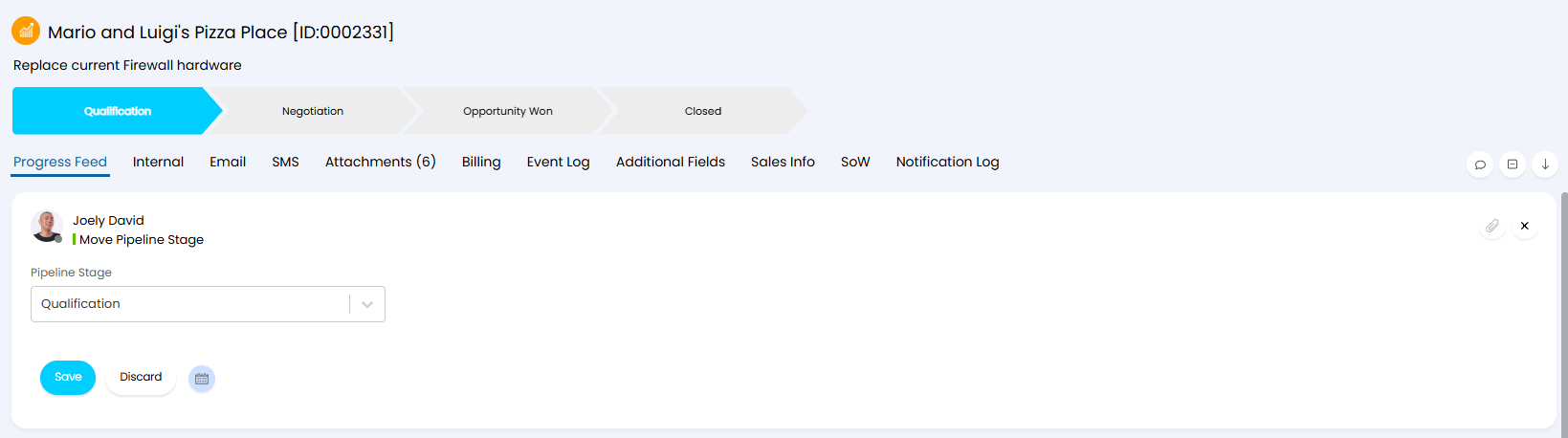
Fig 8. Set Pipeline Stage from Action
Customising where the Pipeline Stage field shows and who can Edit it
As the the pipeline stage of an opportunity is set using the "Pipeline Stage (Sales)" field, you can configure where this shows within the opportunity and who can edit this, in the same way you control access to other ticket fields.
Head to Configuration > Sales > Opportunity Types > select an opportunity type > Field List > edit the "Pipeline Stage (Sales)" field. Here you will have various settings to configure the visibility/edit access of the pipeline field.
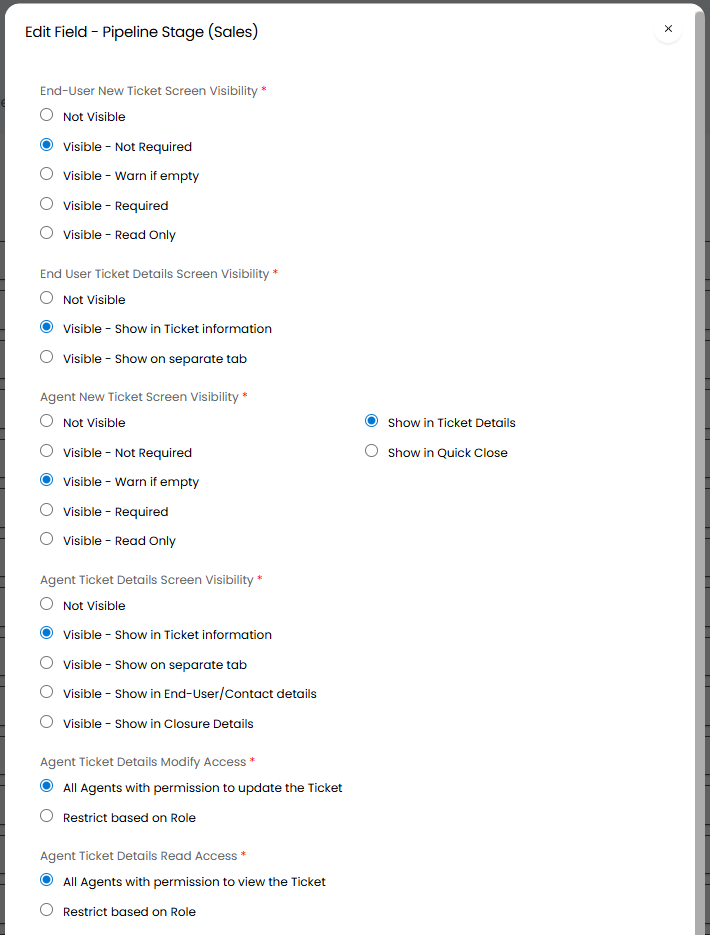
Fig 9. Settings to configure the visibility/edit access of the pipeline field
To restrict who can modify this field, if you would only like sales managers rather than sales agents to be able to adjust the pipeline, set "Agent Ticket Details Modify Access" to "Restrict based on Role" then choose the roles of the agents you would like to be able to modify the pipeline.
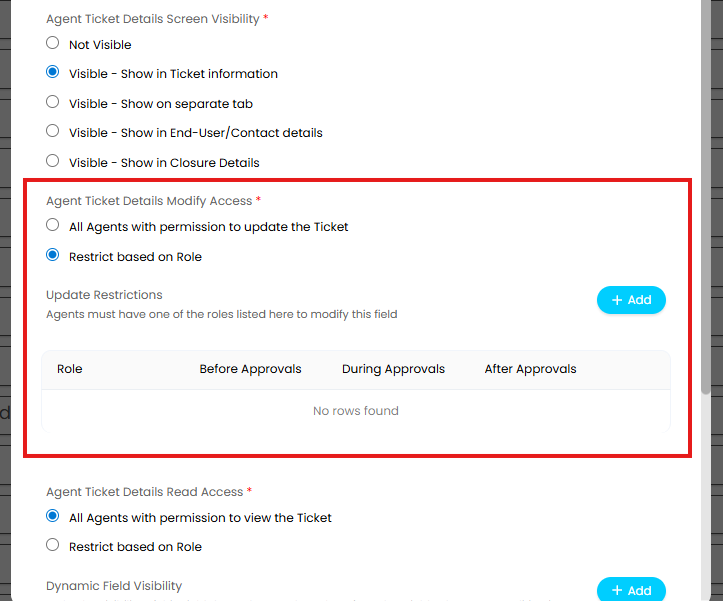
Fig 10. Set Modify access for the Pipeline
"Agent Ticket Details Screen Visibility" will control where the pipeline field will show within the opportunity.
"Agent New Ticket Screen Visibility" will control if the pipeline field will show when logging a new opportunity and if this is mandatory.
For more information on configuring field visibility see our guide here.
Ticket Rules from Pipeline Stages
Pipeline stages can be used as criteria for ticket rules. This can be useful for if you wish to add extra criteria for something to trigger, rather than just the workflow stage moving.
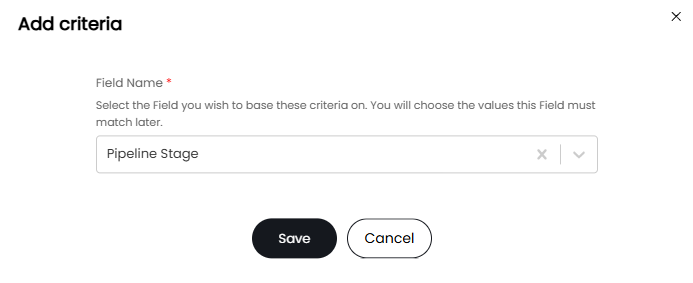
Fig 11. Selecting the Pipeline Stage ticket rule criteria
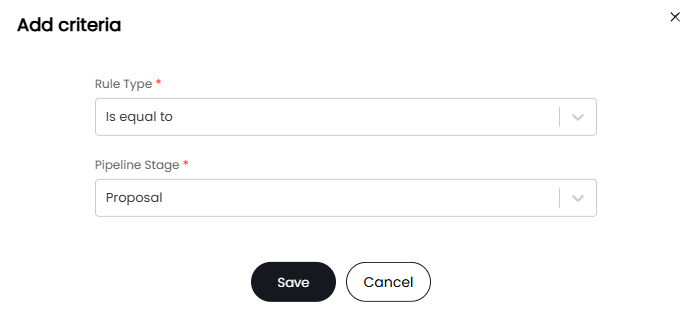
Fig 12. Selecting the rule type and stage
This configuration has given the criteria shown in the table in Figure 12. Outcomes can then be set on the ticket rule as usual, and the rule will be triggered once the ticket reaches that pipeline stage and any other criteria set is met. In this example, I may want to assign the ticket to a certain agent if the opportunity was categorised as an upsell during the proposal stage.
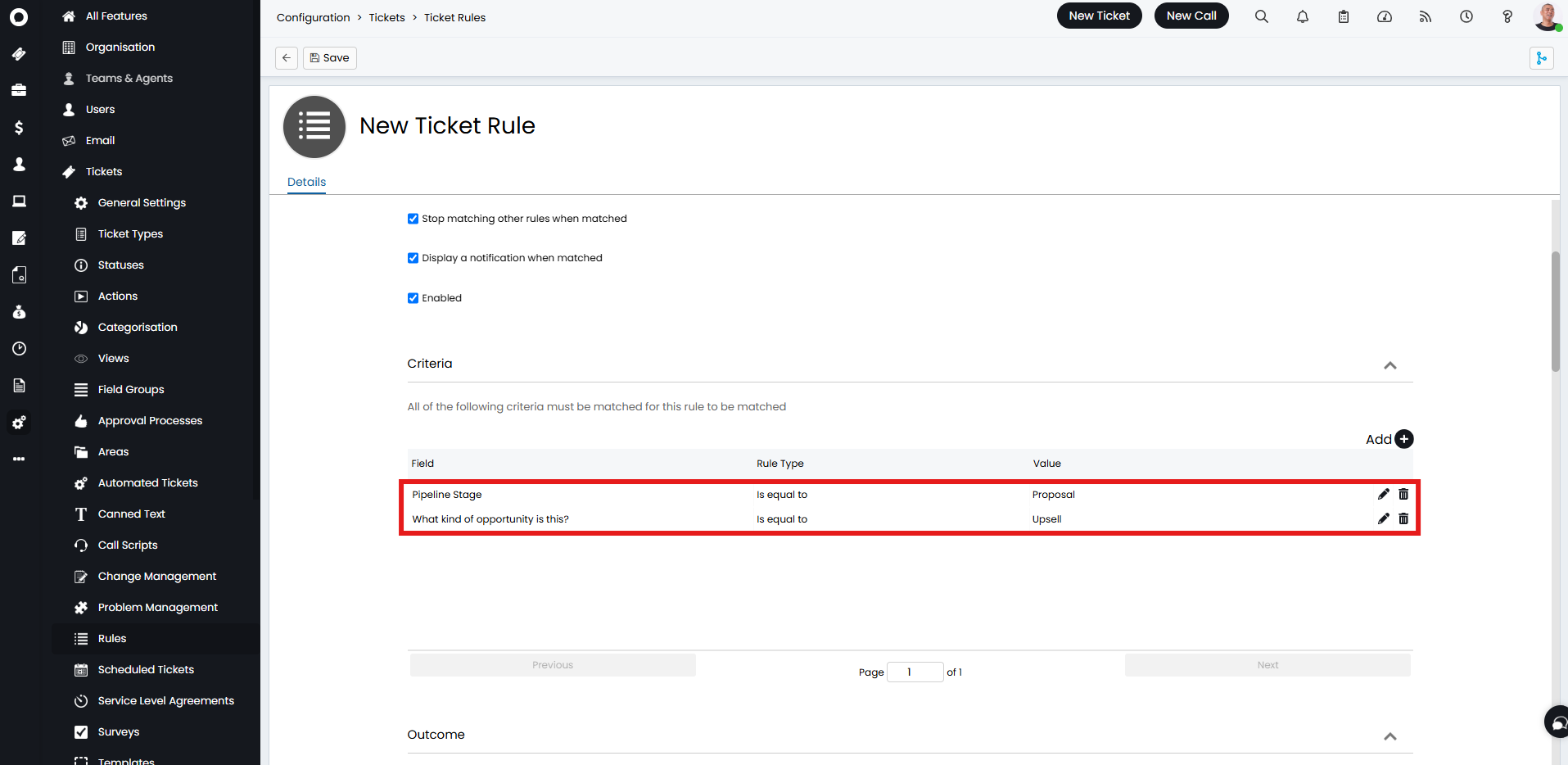 Fig 13. Pipeline stage criteria on a ticket rule
Restricting Pipeline Stages
Pipeline Stages can be restricted per Opportunity Type (this option will not show on Ticket Types). Navigate to Configuration > Sales > Opportunity Types > Allowed Values tab, and disable "Allow All Pipeline Stages". In the table that appears below, set the Pipeline Stages you wish to allow.
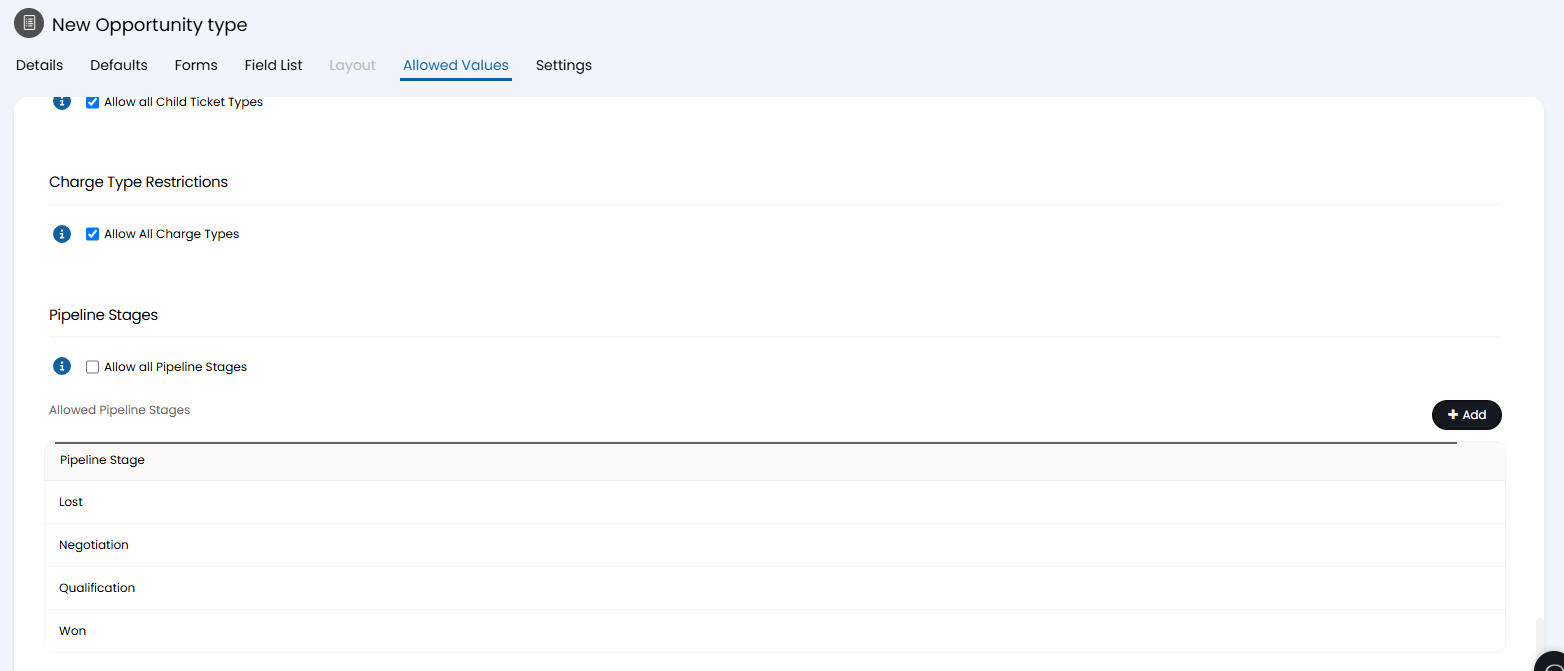
Fig 14. Restricting allowed Pipeline Stages