Tracking Opportunities
In this guide we will cover:
- Column Profiles
- Opportunity Lists
- Opportunity List Groups
- Kanban Pipeline Views
- Using the Next Call Date to Manage Follow Ups
Related Guides:
Once Opportunities are logged in the system, tracking their progress and value becomes essential for any effective sales operation. This guide walks through the key features available to sales teams and sales managers for monitoring and managing their pipeline, from individual deal status to overall pipeline health.
This guide focuses on CRM-specific applications, but if you are interested in learning more about the broader application of these features then the relevant guides are linked in the "Related Guides" section above.
Column Profiles
Opportunities often contain a large number of fields that are essential for storing valuable information on your Prospects and Accounts. It is therefore important that there is a way of viewing a 'snapshot' of your current Opportunities with the most important fields and their values visible for each one - the most effective way for doing this is by using Column Profiles.
There are two areas of Halo where Column Profiles can be created, configured and edited. If an Agent has administrative access, they can navigate to Configuration > Sales > Views and scroll to the "Column Profiles" section.
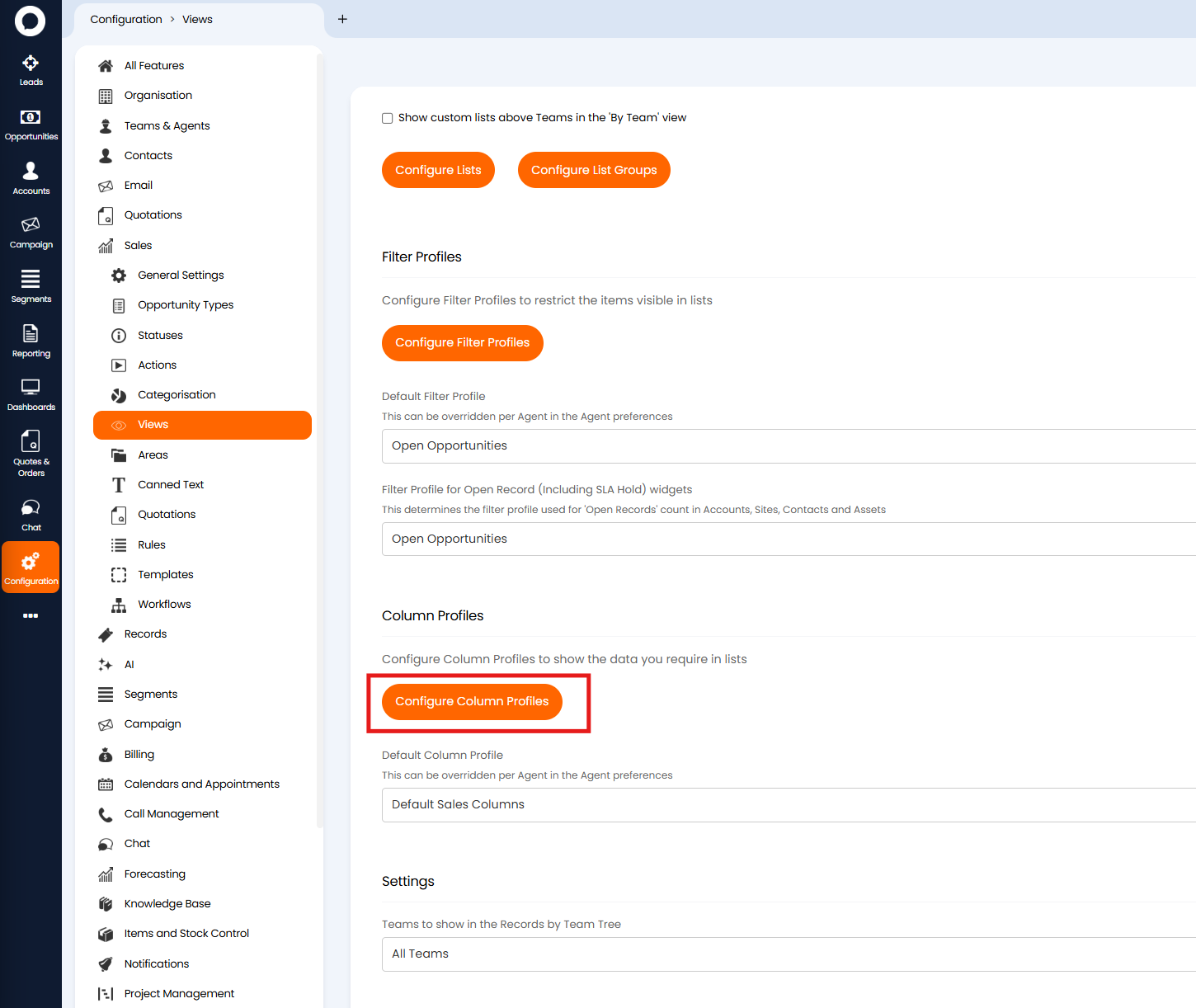
Fig 1. Column Profile configuration area for Halo Administrators
Once you click into "Configure Column Profiles", you can view all Column Profiles created for Sales use and create new ones using the "+ New" button in the top right corner.
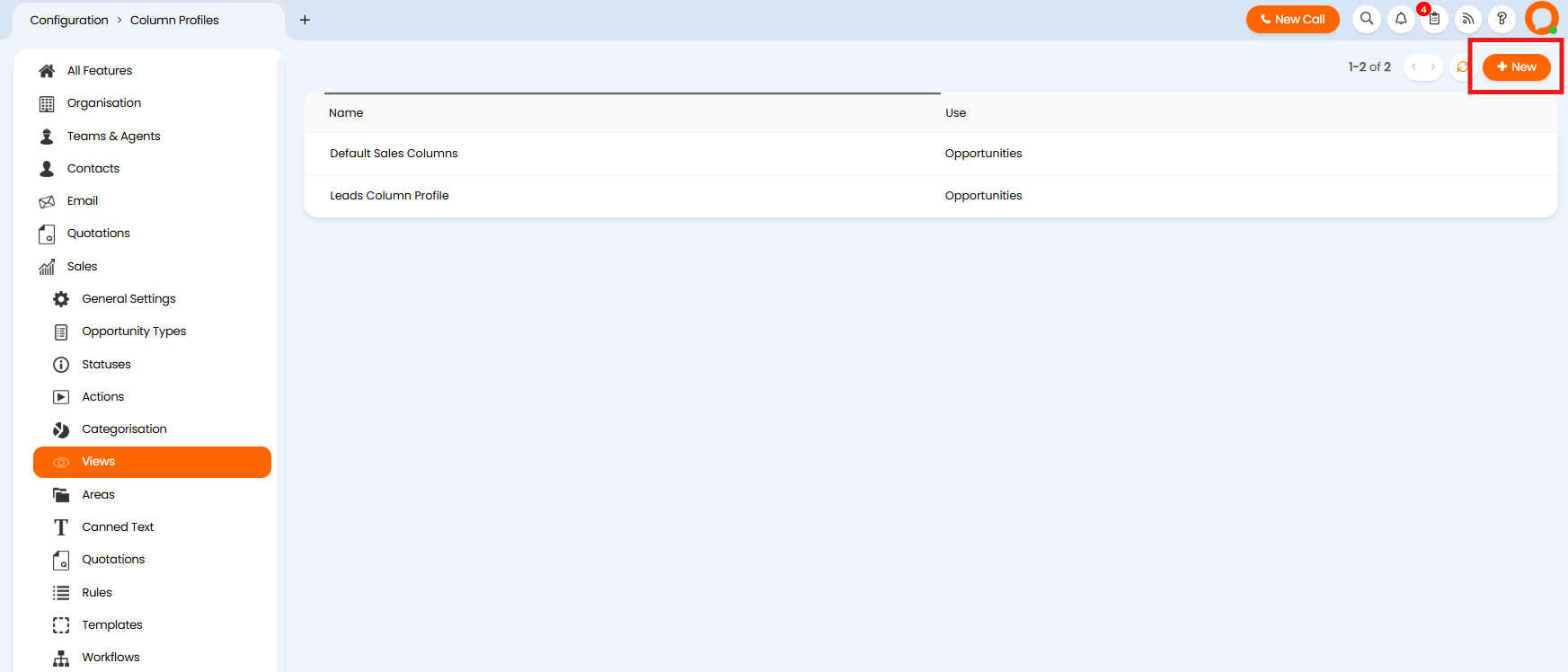
Fig 2. Viewing existing Sales Column Profiles and how to create new Profiles
Alternatively, if an Agent does not have administrator access but they would like to create a new Column Profile, then they can do so from within any Opportunities area.
To edit or make new Column Profiles, they can hover over the 3 dots to the right of the new Opportunity button and select "Edit Columns".
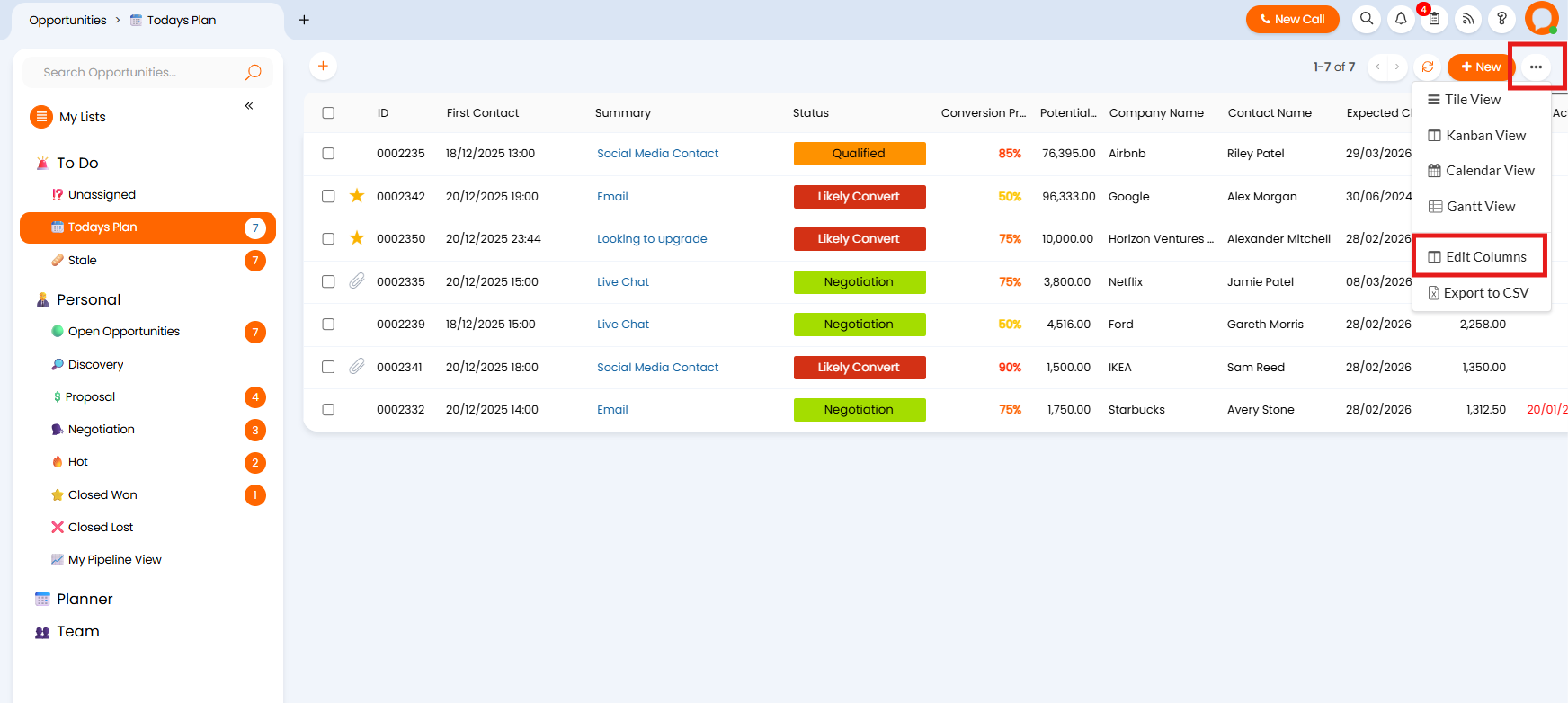
Fig 3. The option for editing and creating Column Profiles without needing Configuration access.
Selecting "Edit Columns" brings up the Column Profiles available to that Agent, where you can select one and "Edit" or "Use" the Profile, or create a "New" Profile.
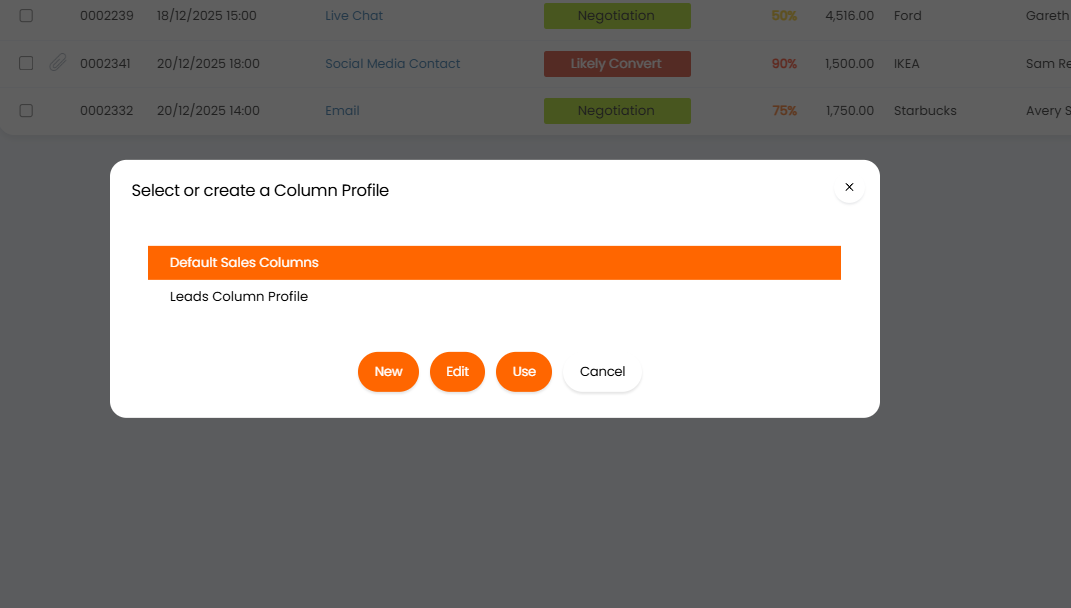
Fig 4. The Column Profile options that show when an Agent selects the "Edit Columns" button show in Figure 2
When configuring a Column Profile, all Opportunity level fields will be available to add in as a column. Allowing you to pick and choose which information about the opportunity you would like to see in the column profile, at a glance.
Within the "Columns" section of the configuration page you can move the existing columns around to change the order using the dotted symbol that appears on the left of the field when hovering over it, and you can add in new columns by selecting the "Add" button.
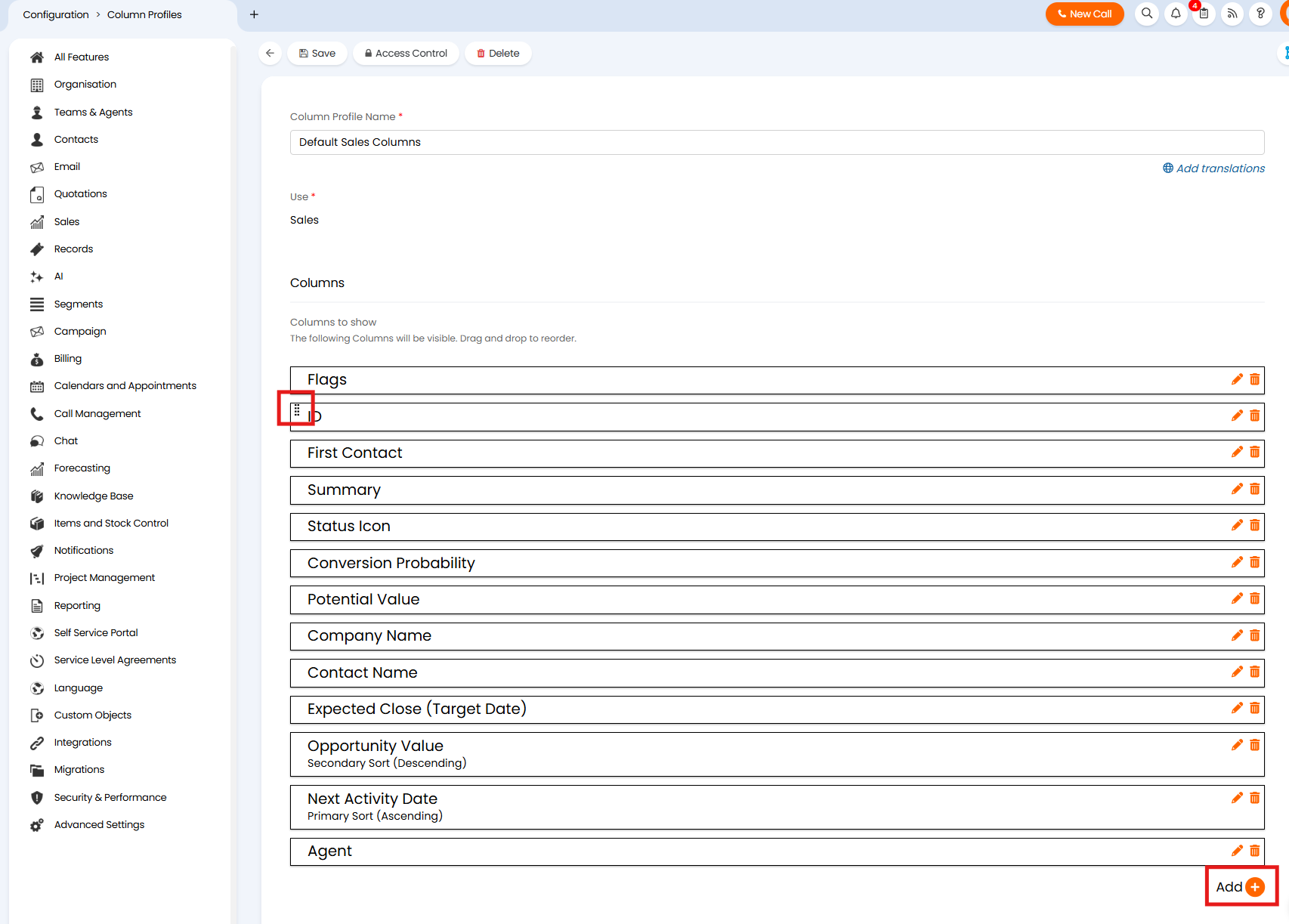
Fig 5. Editing the columns list of a Column Profile
When you select "Add", it brings up all Opportunity level fields that have not already been selected for a column, for example I can choose to add "Pipeline Stage".
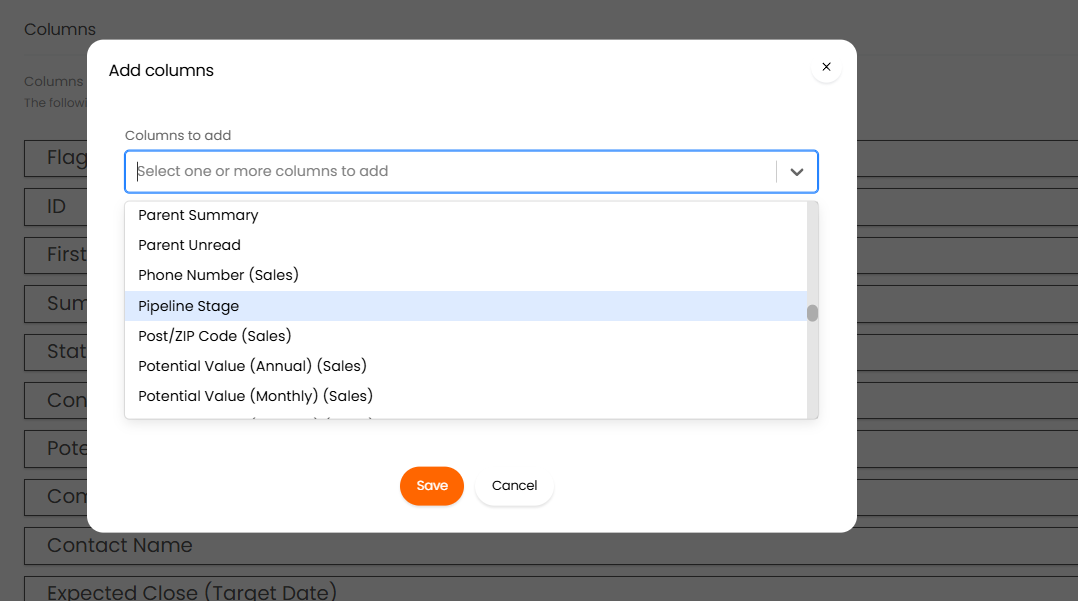
Fig 6. Choosing Pipeline Stage from the list of Opportunity fields to add to a Sales Column Profile
Now when I am viewing my Opportunities, I can clearly track the Pipeline Stage for each of them in addition to the rest of the data.
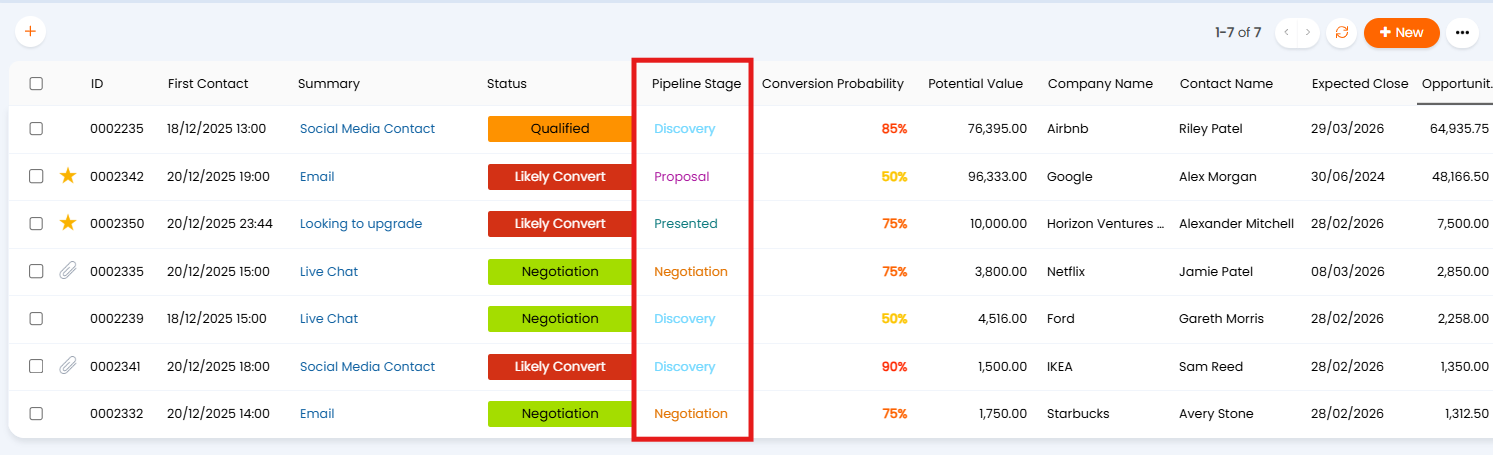
Fig 7. Tracking the Pipeline Stage of Opportunities using Column Profiles
Displaying Totals and Averages in Column Profiles (Aggregations) (v2.250+)
From v2.250+ totals/averages can be included in your column profiles to display a total/average for a group of opportunities/leads.
This can be leveraged to show the total potential value of a particular agent's leads, or the average opportunity value for all opportunities in the 'Qualified' pipeline stage, for example. Allowing you to easily see metrics for current opportunities/leads at a glance.
In the Figure 8 example, opportunities are being grouped by their pipeline stage.

Fig 8. Opportunities grouped by Pipeline Stage
In order to show a total/average for these groups, edit the column profile that is being used > edit the column you would like a total/average to be calculated for.
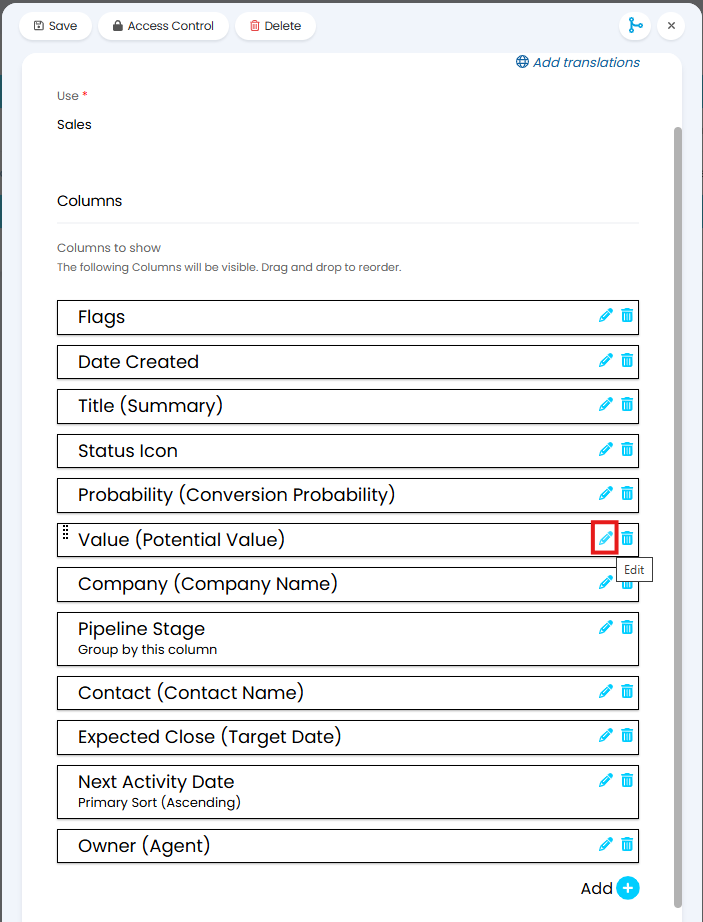
Fig 9. Edit column
Then use the "Aggregations" field to choose the total/average you would like to be calculated using the values in this column. Keep in mind this will only be an option on columns for fields that are of type "integer".
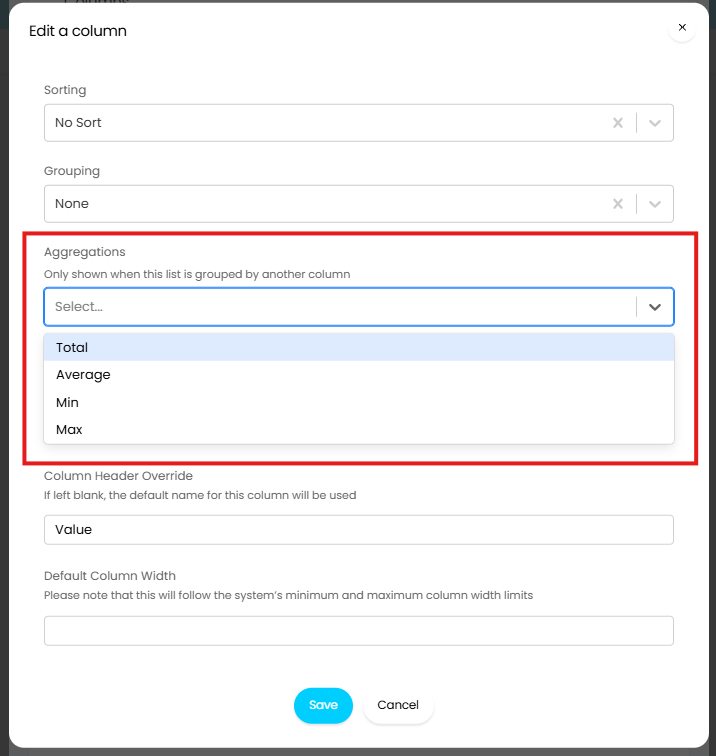
Fig 10. Aggregation for this column
Note: Multiple aggregations can be selected to show here.
Once chosen and saved, and additional row will show for each group of opportunities to show the total/average.

Fig 11. Column profile showing average potential opportunity value for each pipeline stage
Note: In order for totals/averages to show the opportunities/leads must have a grouping. If a grouping is not used in the column profile aggregations will not show.
Opportunity Lists
In Halo, you can create custom Lists to display your Opportunities in a way that works best for you. By grouping and filtering Opportunities using specific criteria, Lists make it easier to stay organised and maintain clear visibility across your pipeline.
As with Column Profiles, there are two areas of Halo where you can create and edit Opportunity Lists. If an Agent has administrator access to Configuration, they can navigate to Configuration > Sales > Views and scroll to the "Lists" section.
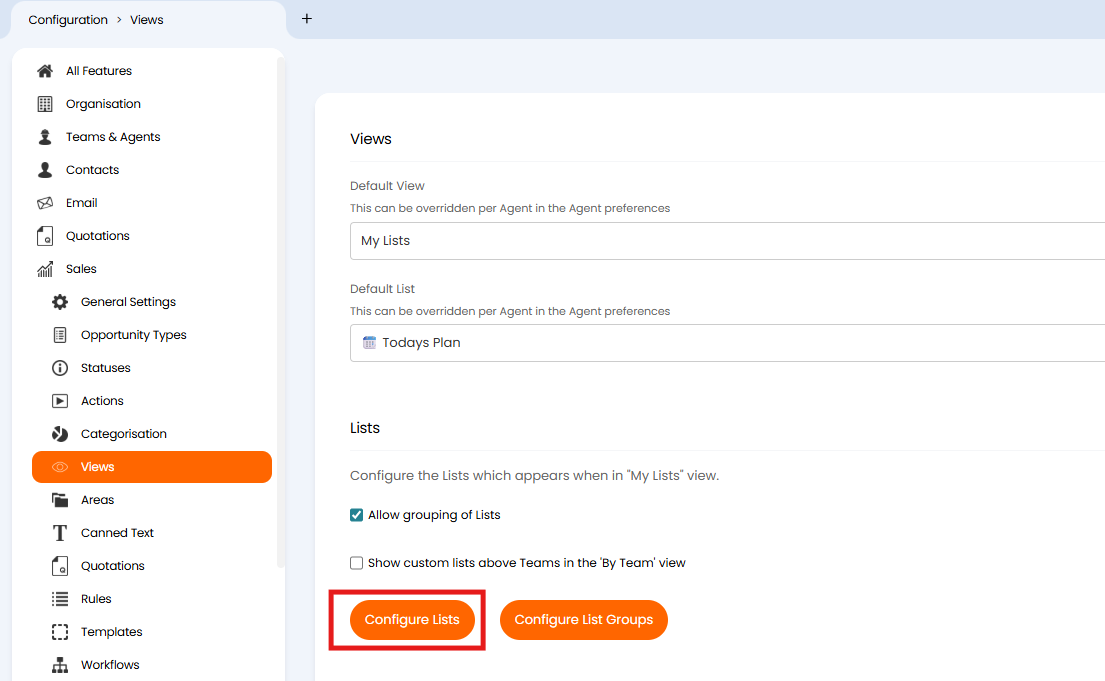
Fig 12. The area of Configuration for configuring Opportunity Lists in Halo
When the "Configure Lists" button is selected, they will see all Lists in the system for Sales use and can create new ones by selecting the "+ New" button in the top right corner.
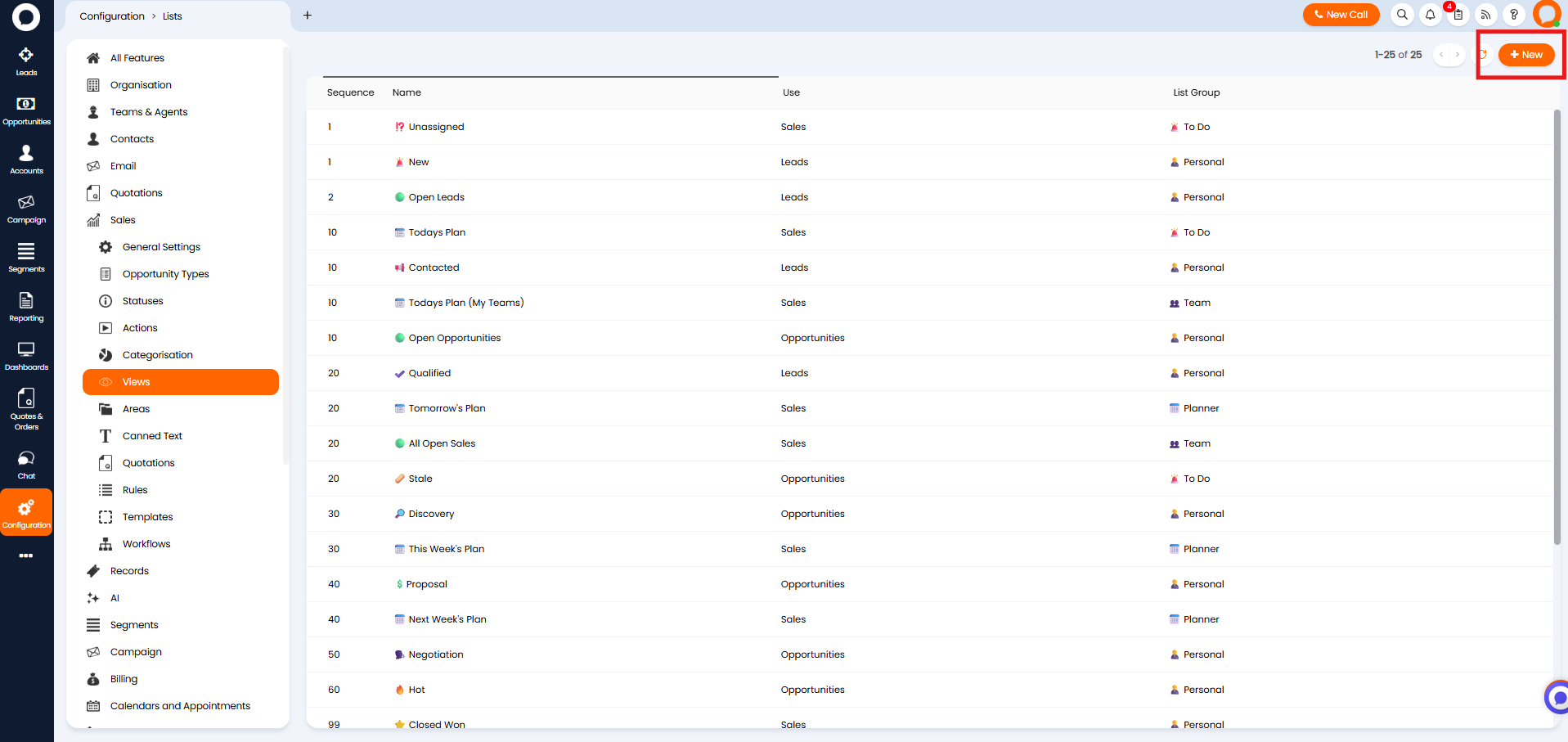
Fig 13. Lists configuration area
Alternatively, if an Agent does not have administrator access then they can create and edit Opportunity Lists from directly within the Opportunities areas.
To edit a List, as illustrated in Figure 14, the Agent can simply can right-click (Secondary-click) on any Opportunity List and the options to either edit or view that specific List will appear.
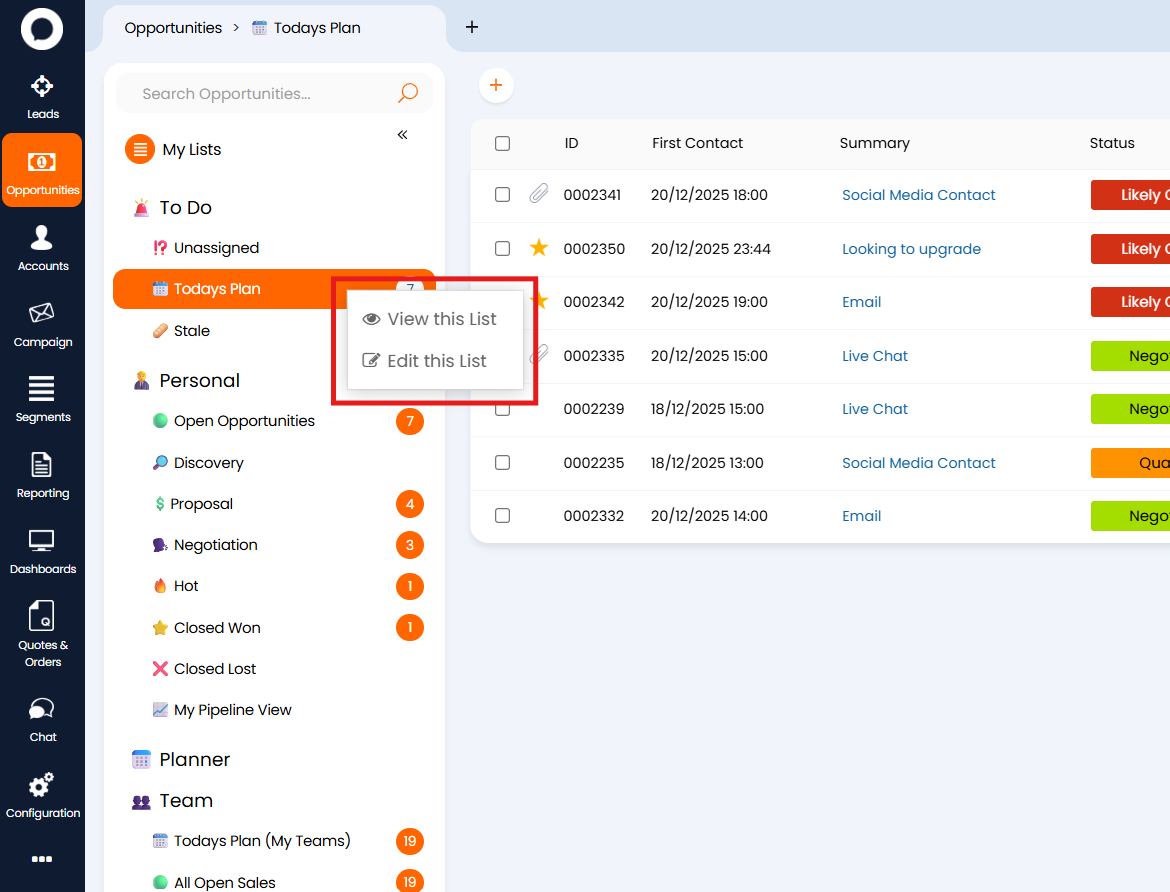
Fig 14. The options available when a secondary-click is made on any Opportunity List
To create a new List, you can select the "Create a new List" button that sits at the bottom of the My Lists section.
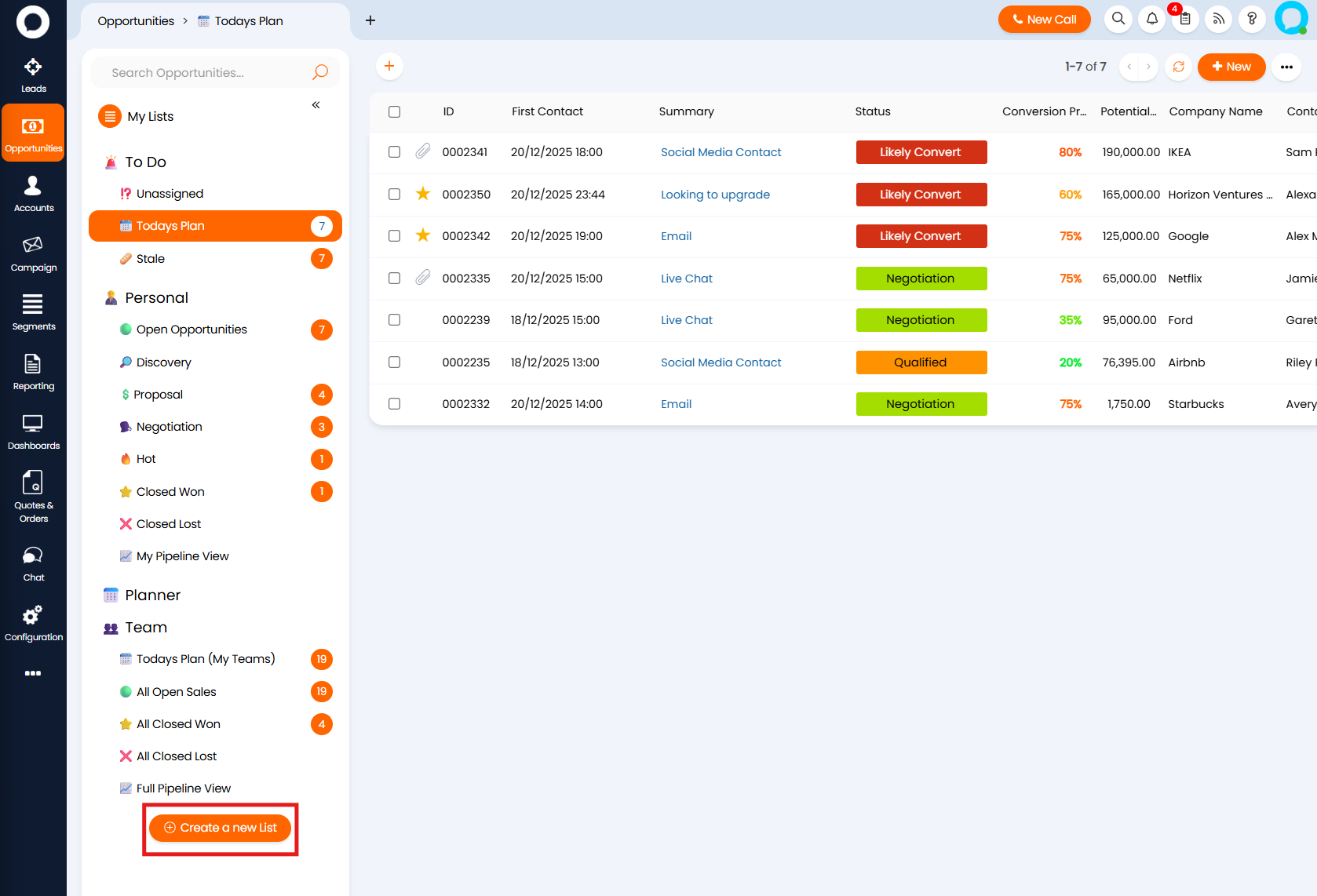
Fig 15. The option to create a new Opportunity List from the Opportunities area
When creating a new List or editing an existing one, you are presented with the screen demonstrated in Figure 16.
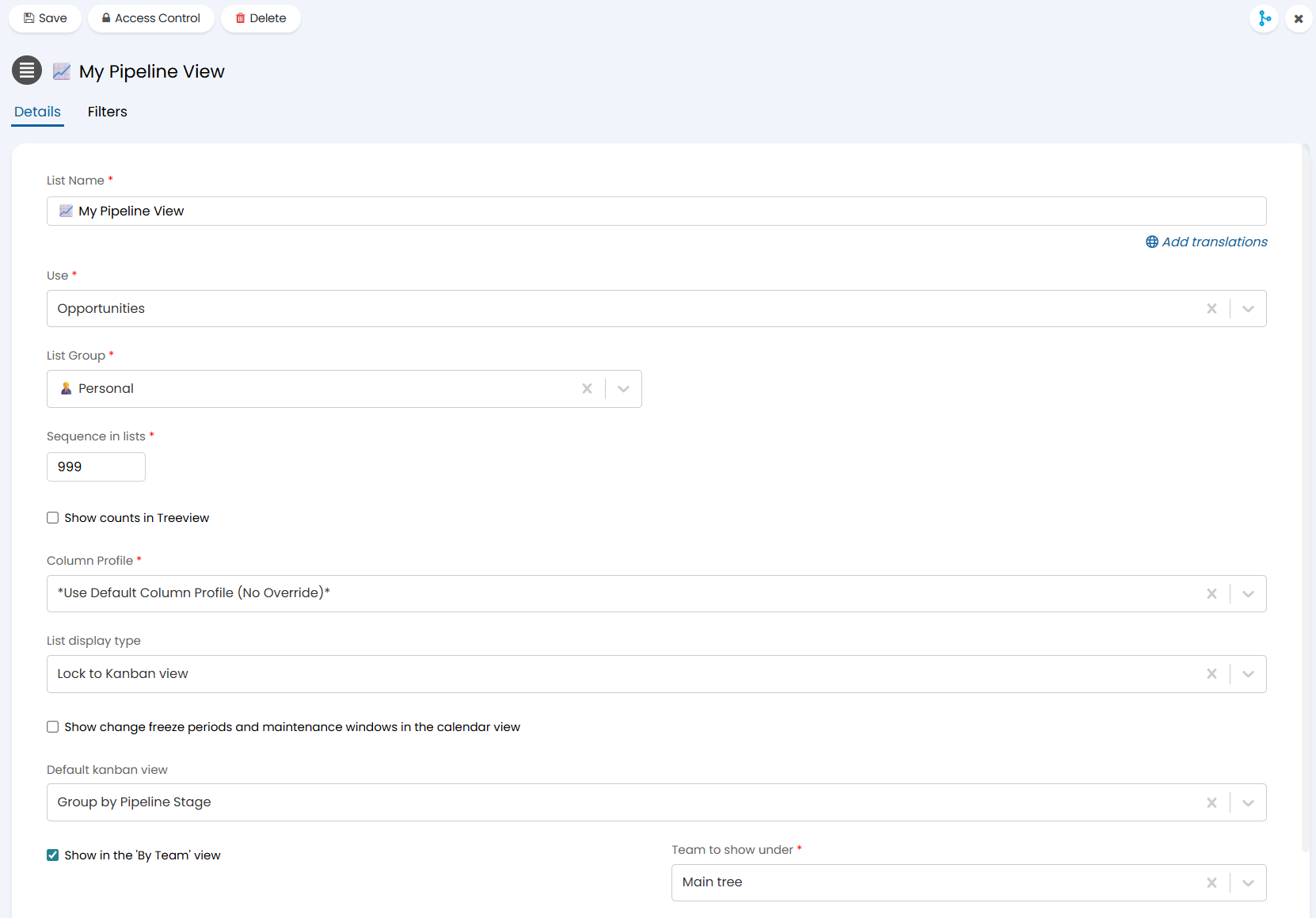
Fig 16. The Details tab of the configuration screen for an Opportunity List
There are two tabs on the configuration screen of a List - the Details tab and the Filters tab.
The configuration options on the Details tab mainly dictate the appearance of the List and the settings perform the following functions:
- List Name: The name of the List in the Opportunities area.
- Use: For what purpose the List will be used - this should be set to Opportunities (Sales in some instances) if you want to use it for Opportunities.
- List Group: You are able to group Lists to organise the Area further - more on these later.
- Sequence in lists: Dictates the order of the Lists when being viewed in the Area.
- Column Profile: Setting a Column Profile here locks the column view of the Area when being viewed by this List, this standardises the view for all Agents.
- List display type: Allows you to lock the view of the Area when being viewed by this List to Table, Tile, Calendar, Kanban, Task, Agent.
- Show change freeze periods and maintenance windows in the calendar view: This is not a CRM specific feature, but if you would like to learn more about this aspect of Change Management then please do refer to this guide: Maintenance Windows.
- Default Kanban View: Allows the option to default the grouping for the Kanban view - you can either group by Status, Workflow Stage, Pipeline Stage.
- Show in the 'By Team' view: Sets the List to show not only in the My Lists view but also when viewing Opportunities by Team.
- Team to show under: (Only appears if the previous setting is enabled) Sets where the List will show when viewing Opportunities by Team.
The Filters tab is where you can then customise the criteria for the List, including the Filer Profile that will be used and the Opportunity-level criteria, as displayed in Figure 17.
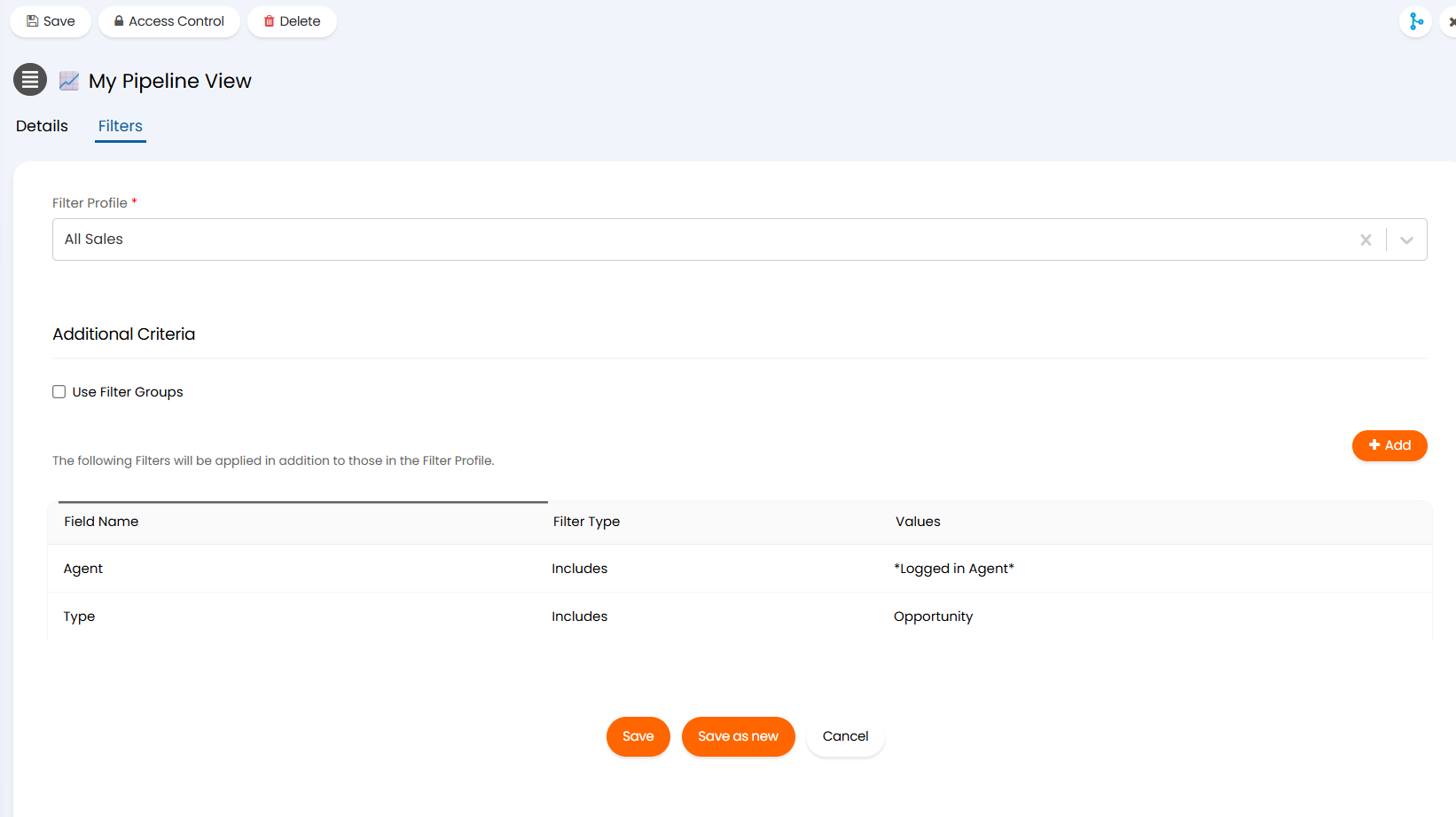
Fig 17. The Filters tab of an Opportunity List configuration screen
The advantage of utilising Opportunity Lists is that you can create a more tailored and specific view of your Opportunities than the set views, such as "Opportunities by Agent" or "Opportunities by Team", will provide for your team. This promotes better organisation and visibility of the Opportunities area, leading to greater productivity and greater overall pipeline management.
Note: when you create a new List, be aware that the Access Control for that List will be set to only the Agent that created the List. If other Agents want to use or edit the List, they will need to be given access control.
Opportunity List Groups
As briefly mentioned earlier, List Groups are a way of organising the Lists in your Opportunities area. This functionality becomes especially beneficial once you have a large number of Opportunity Lists that all provide a needed view but make the Area feel slightly 'cluttered'.
To create a new List Group, navigate to Configuration > Sales > Views and locate the "Lists" section. Once located, ensure you have enabled the "Allow grouping of Lists" checkbox and then select the "Configure List Groups".
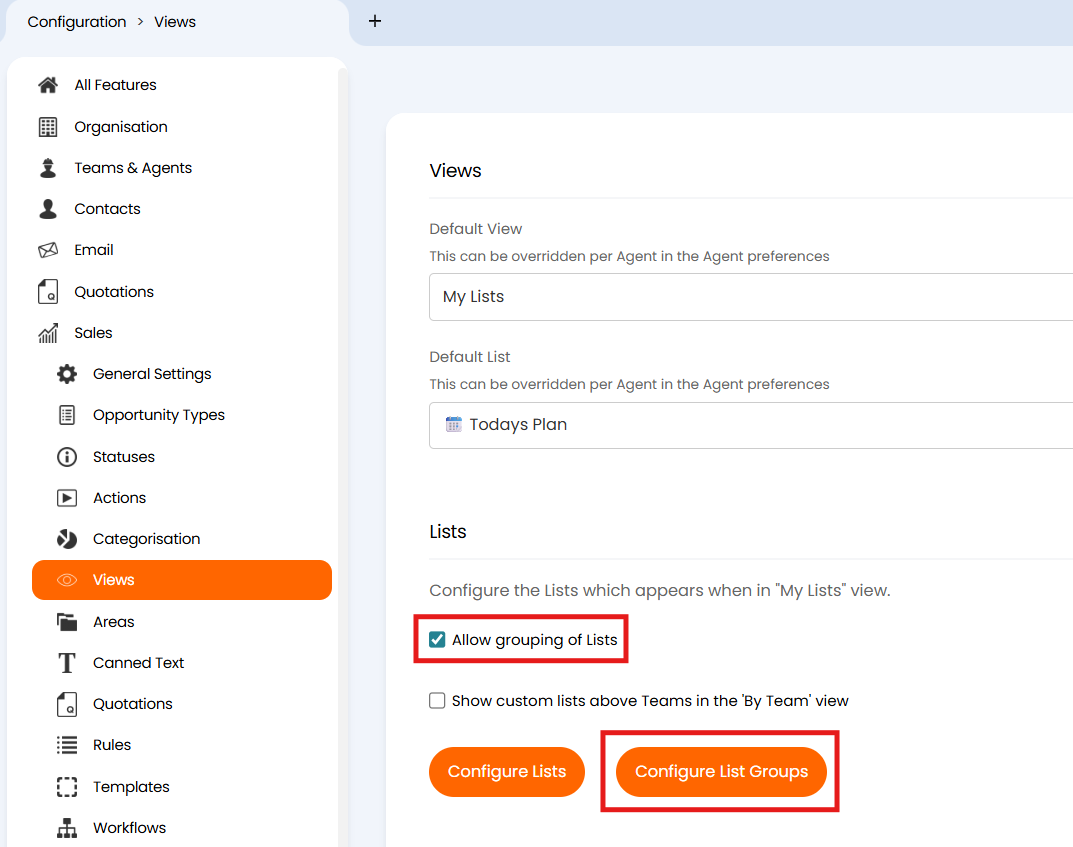
Fig 18. Enabling List Groups
Once you have selected the "Configure List Groups" button, you will be able to view the existing List Groups and create a new one by selecting the "+ New" button in the top right corner.
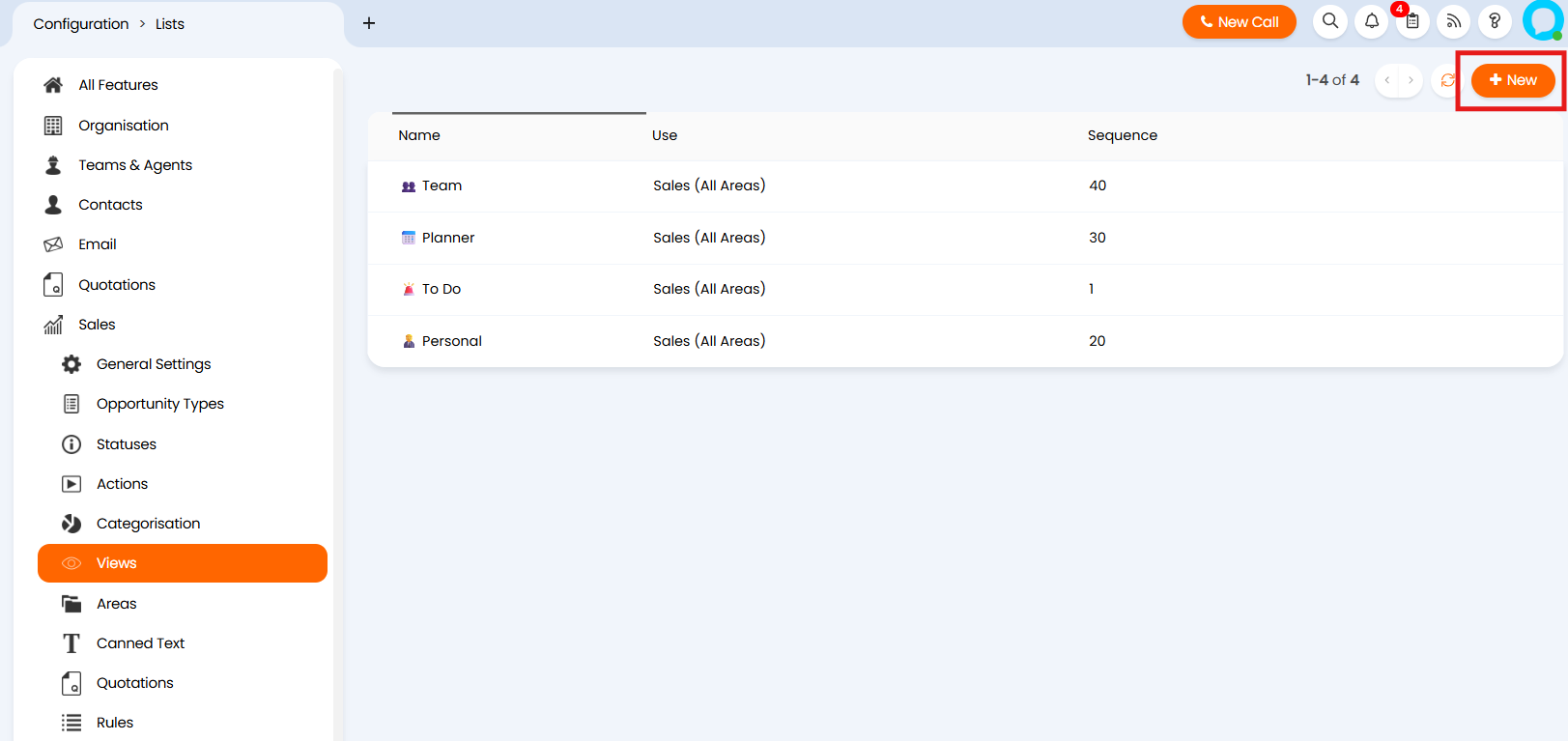
Fig 19. The Configuration area for List Groups
When you edit an exiting List Group or create a new List Group, you will see four settings.
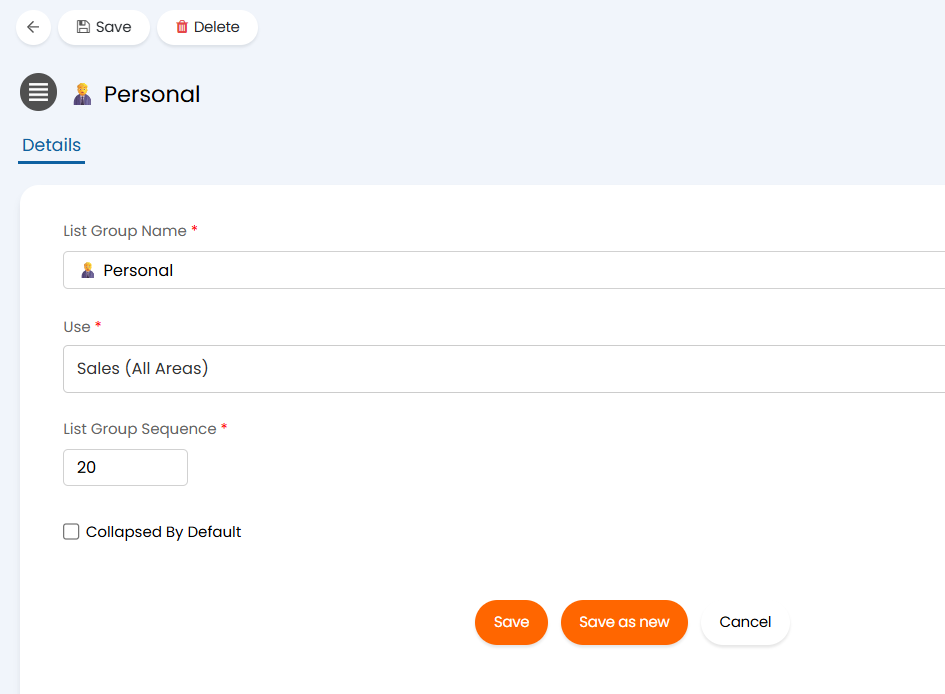
Fig 20. Editing a List Group
These four settings provide the following functions:
- List Group Name: The name of the List when being viewed in an Opportunity area.
- Use: For which purpose the List Group will function - if you want it to group Opportunity Lists then it should be set to Opportunities/Sales.
- List Group Sequence: Dictates the ordering for the Groups.
- Collapsed By Default: Will set the Group to be collapsed by default - useful if the Group contains a large number of Lists.
Once configured, the List Groups will be visible in their relevant Areas.
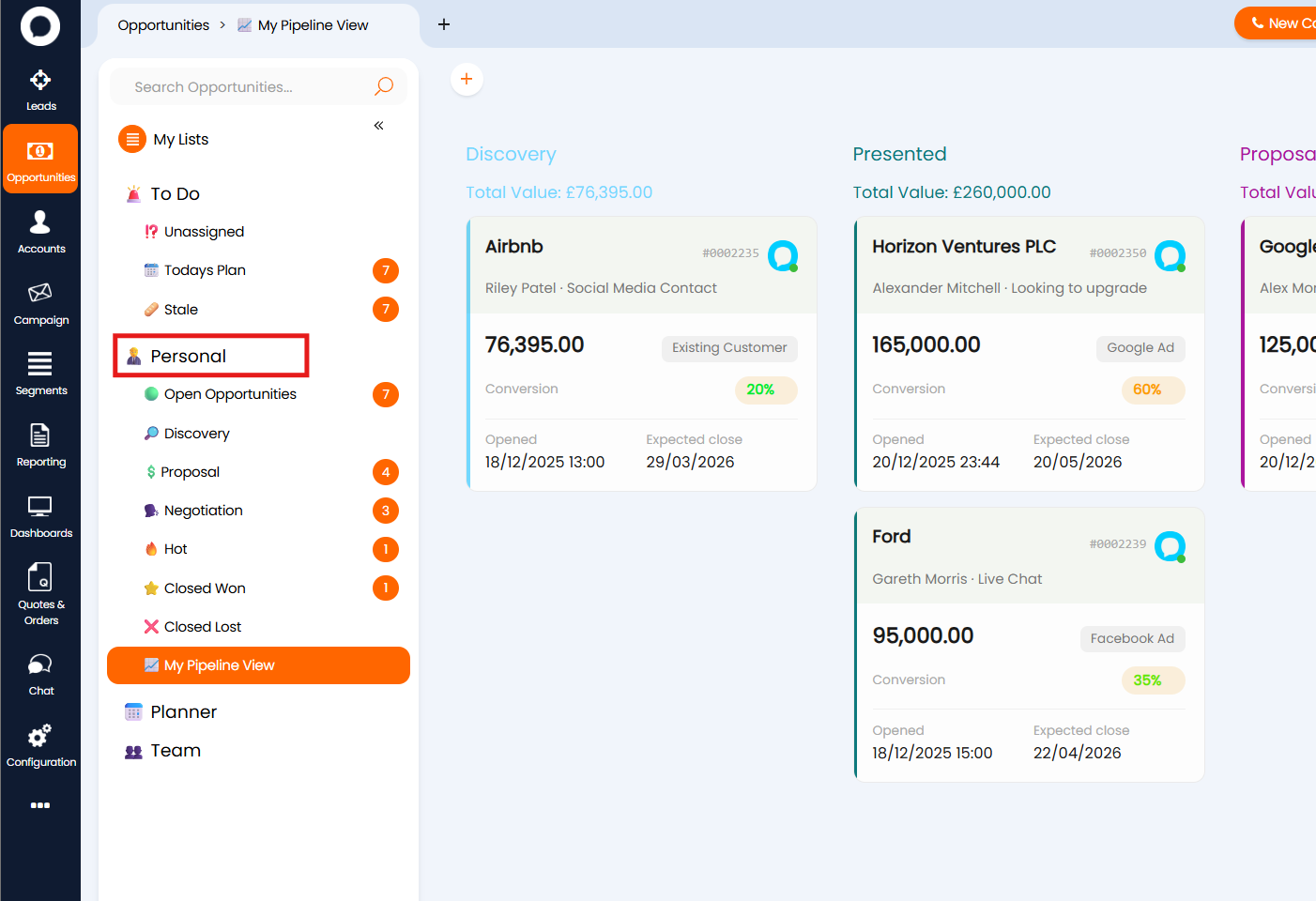
Fig 21. List Groups in the Opportunities Area
You can add Lists to List Groups by setting the List Group on the List itself.
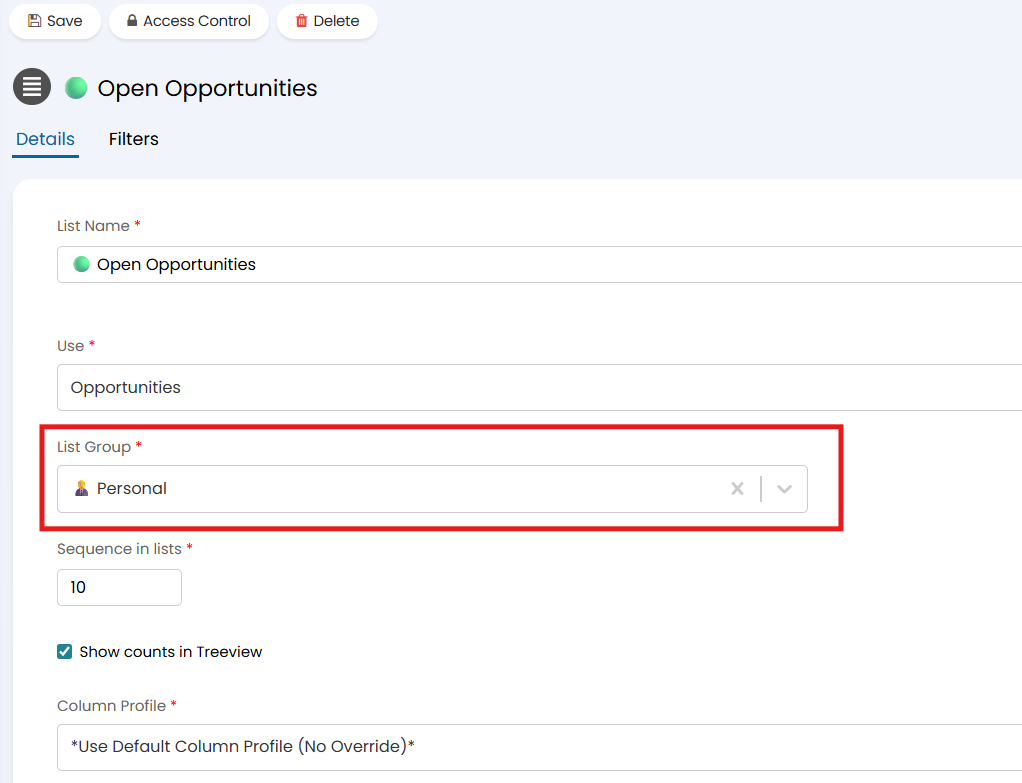
Fig 22. Setting the List Group for an Opportunity List
Kanban Pipeline Views
Particularly for a larger sales team, viewing lists of Opportunities in a table format can be cognitively exhausting, which can lead to a reduction in the quality and efficiency of pipeline management due to important details being missed. Therefore, being able to view Opportunities in a format that provides visual clarity on the health of your pipeline becomes extremely important - this where Kanban views play an important role.
As mentioned briefly earlier, on an Opportunity List you can select the "List display type" for which one of the options is "Lock to Kanban view" which sets your List to display the Opportunities in Kanban view by default, there is then also a setting to choose the grouping for that Kanban view.
Out of the box, you will have the "My Pipeline" List in your environment that has a Kanban view grouped by Pipeline Stage.
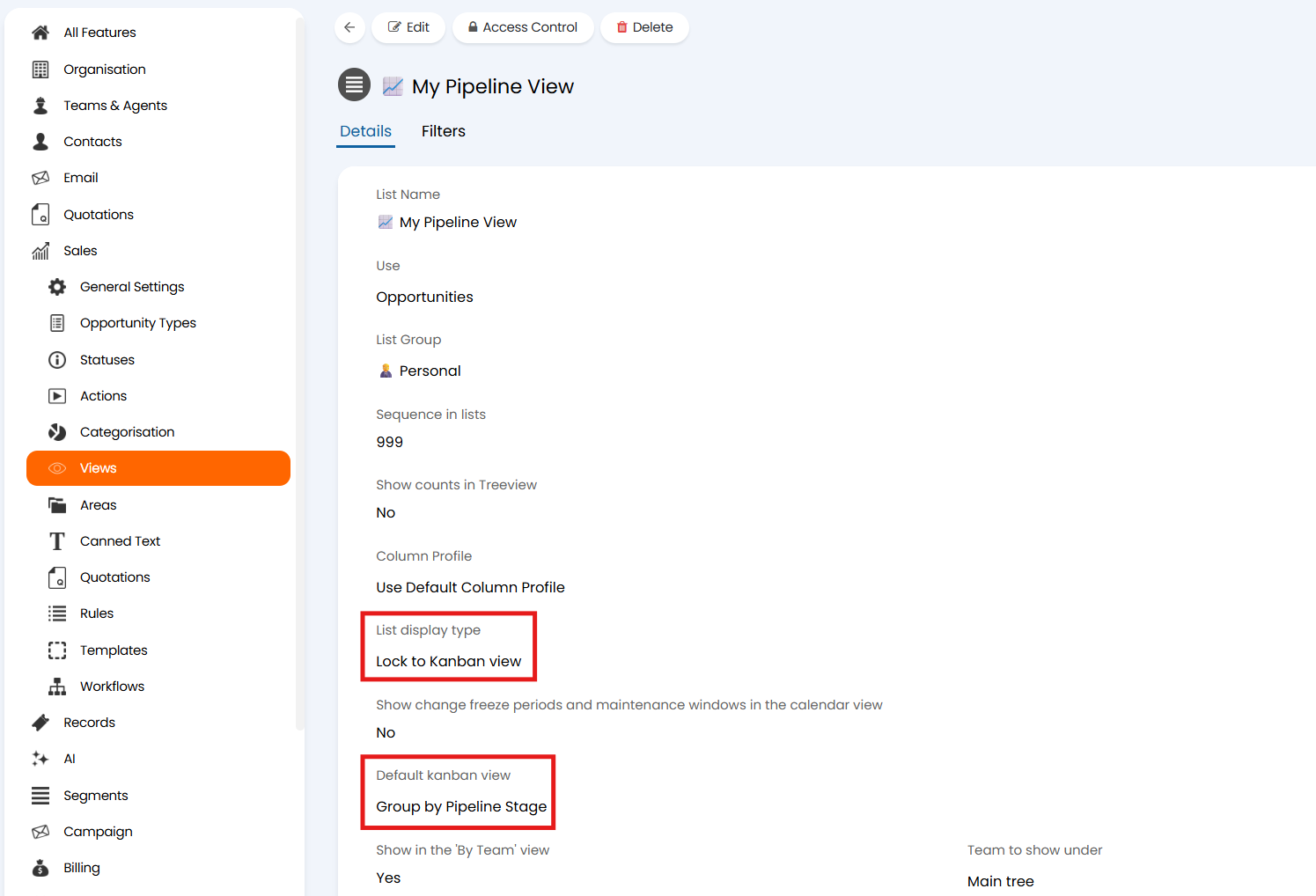
Fig 23. The My Pipeline List configuration in CRM Trials
This List setup truly shines when viewing Opportunities, with each one displaying its key information at a glance, neatly organized within its respective Pipeline stage.
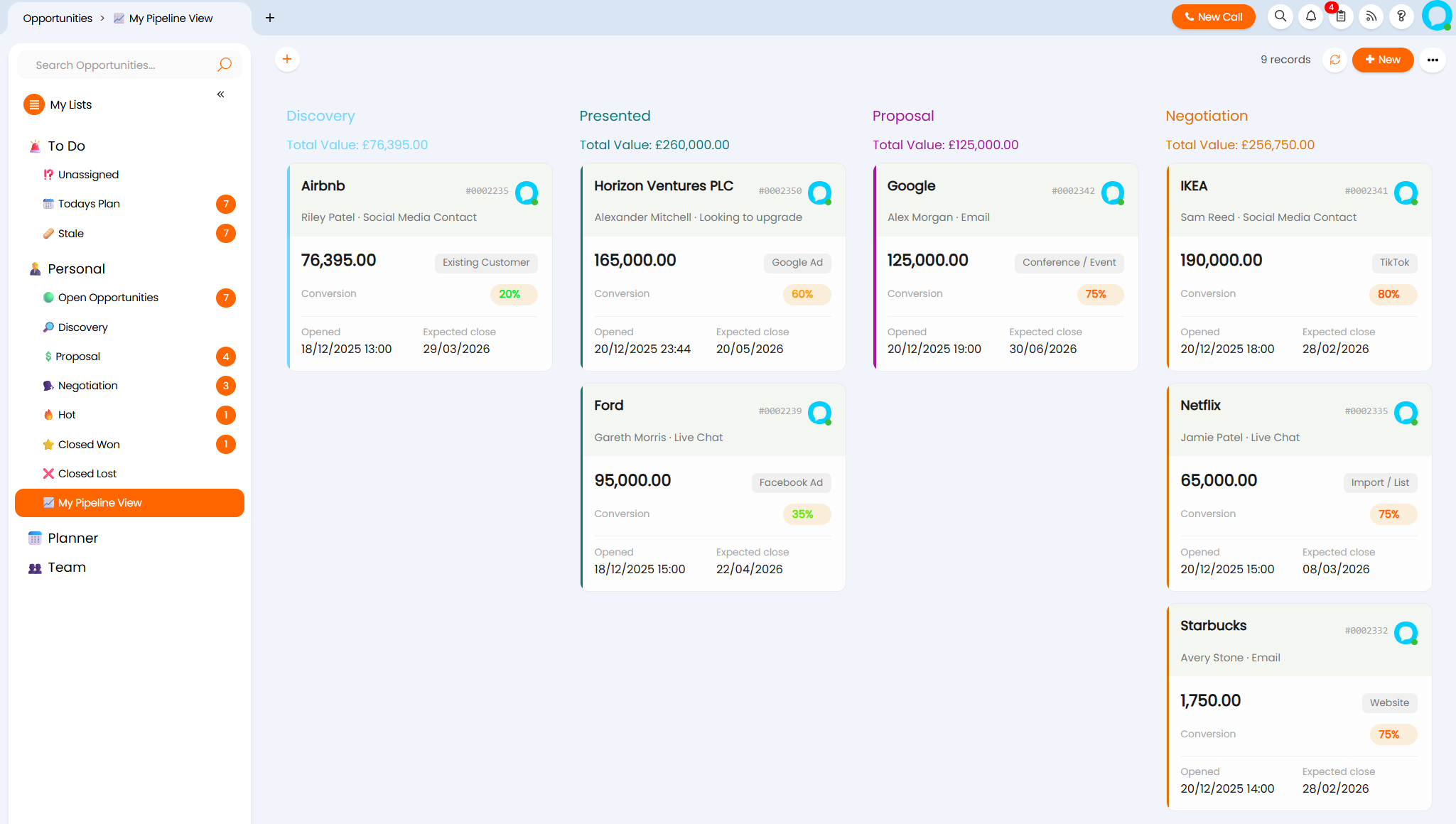
Fig 24. The My Pipeline List in CRM Trials
Note: Only Halo instances on version 2.230+ will display the Total Value in money format when the Opportunity Kanban view is grouped by Pipeline Stage.
The Kanban 'cards' that you can see in Figure 20 are editable and can be configured within the Column Profile. To do this, locate the Column Profile configuration and scroll down to the "Kanban Card Layout" section.
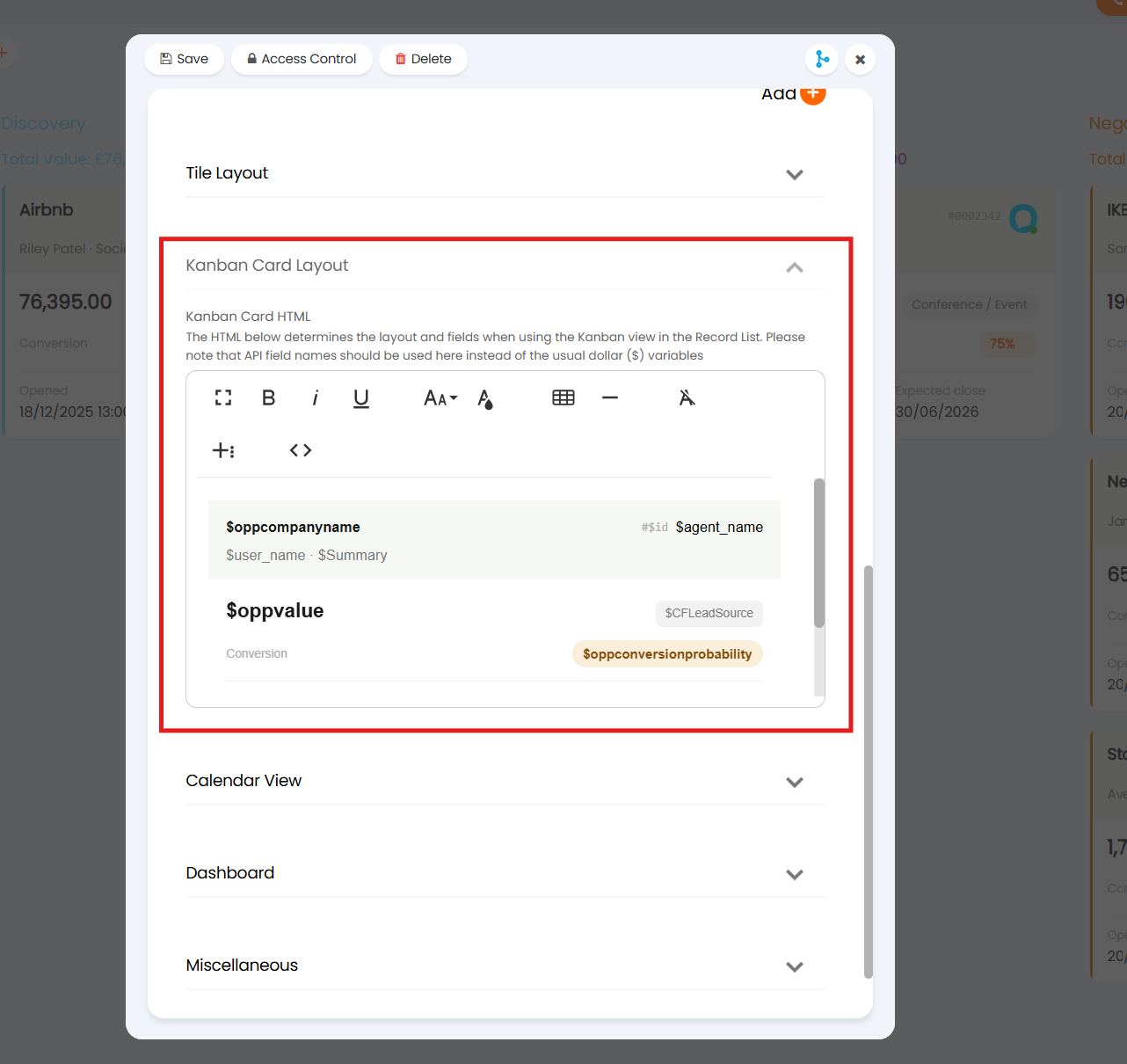
Fig 25. The Kanban card configuration for Column Profiles
Being able to edit this allows you to customise the card to display the information most relevant and useful for your sales team.
Using the Next Call Date to Manage Follow Ups
Against each account a 'Next Call Date' field is available, allowing you to track when you are next due to have a call/make contact with the account. Providing your sales team an easy way to manage when they need to follow up with an account. This can be set and managed both from the account and from opportunity tickets for that account (for information on accounts see our guide here).
In order to make this field available ensure you have call plan enabled under Configuration > Users > General Settings.
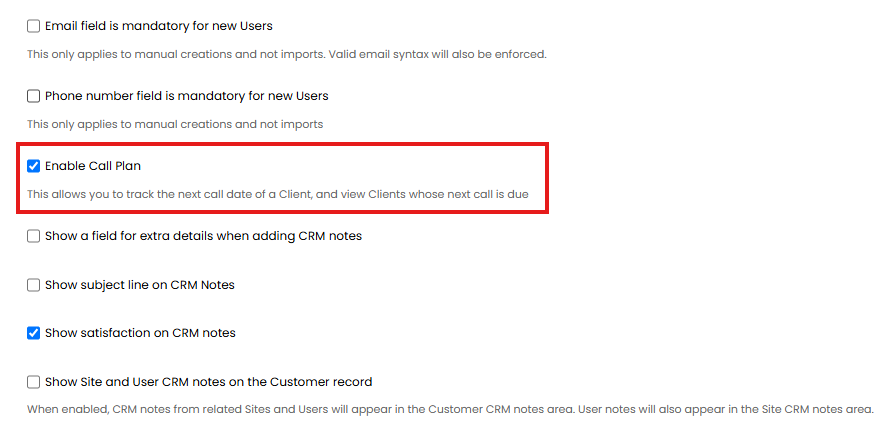
Fig 26. Enable Call Plan
Once enabled the call plan field will be available against customers and accounts.
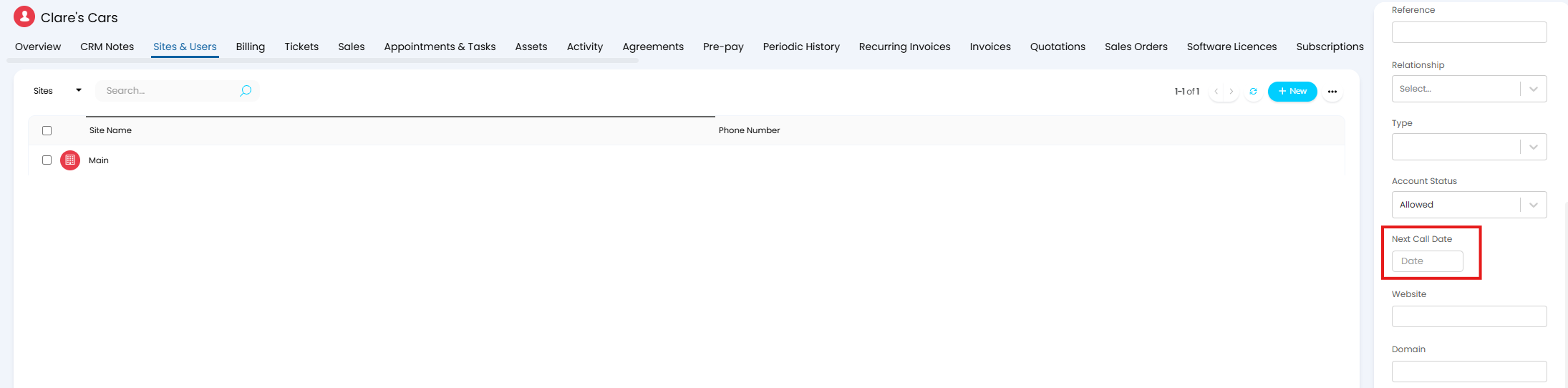
Fig 27. Next Call Date Field
This can be populated directly against the account profile as shown in Figure 27, or can be set whilst working on an opportunity ticket for this account.
Setting this field on an opportunity will update the call date against the account. From v2.251+ notifications and ticket views (column and filter profiles) can then be configured based on this next call date, making it easier for agents to track/know when a follow up needs to be made.
Add the Next Call Date Field to an Opportunity
To add this field to an opportunity head to Configuration > Sales > Opportunity Types > select a type > Field list > add the "Next Call Date (Customers)" field to the ticket.
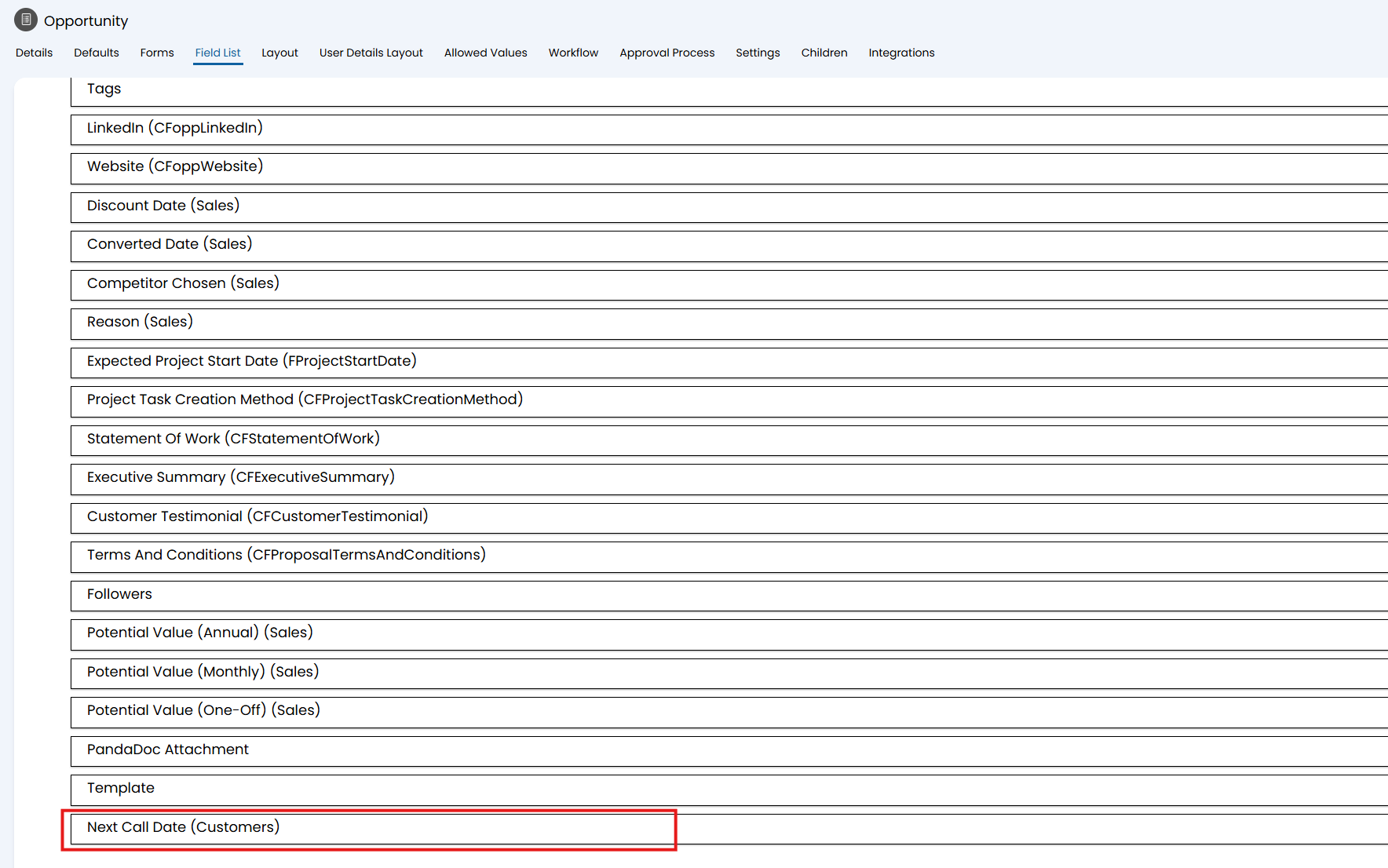
Fig 28. Next Call Date field on opportunity type
This field can also be updated using actions, simply add the field to the field list for the action you would like to update it using.
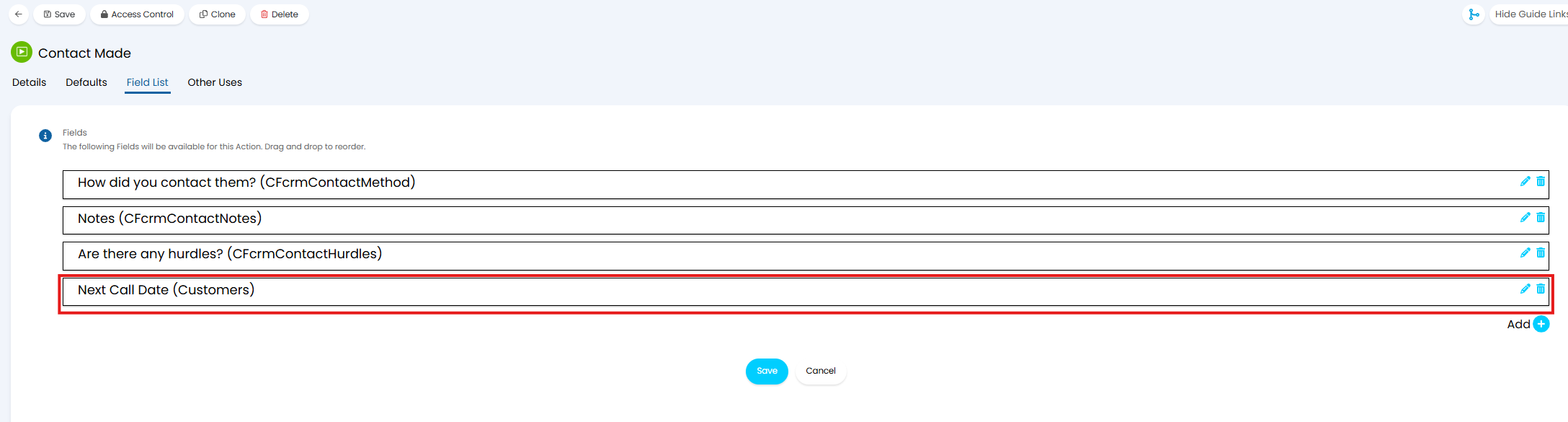
Fig 29. Next call date field on action
Now, agents can update the next call date when this action is used.
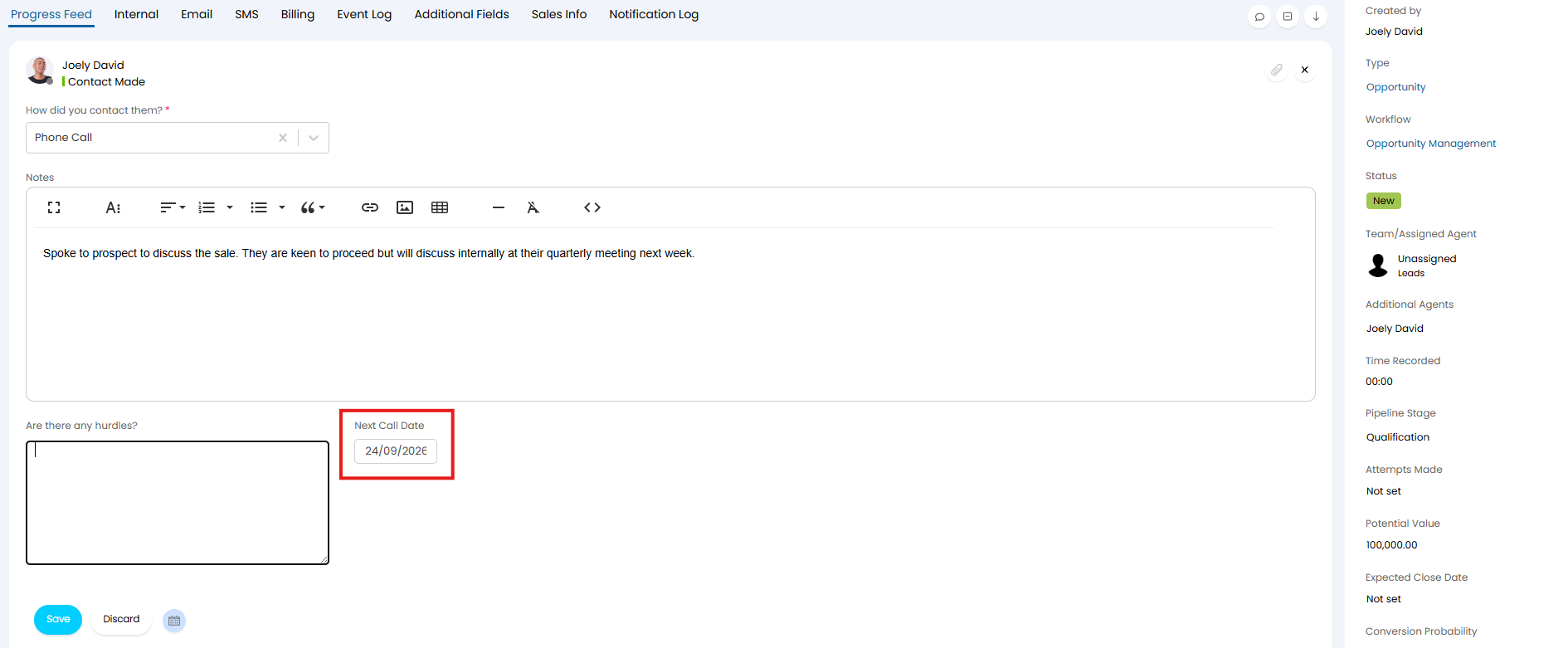
Fig 30. Updating Next Call date on Ticket
Trigger a Notification Based on Next Call Date (v2.251+)
From v2.251+ notifications can be created to notify agents when the next call date is approaching, prompting them to follow up on their leads on time.
Notifications are configured under Configuration > Notifications > Notifications > New. The following triggers are available based on next call date.
- Client's next Call Date
- Days before Client's Next Call Date
In the Figure 31 example recipients will be notified the day before an accounts next call date.
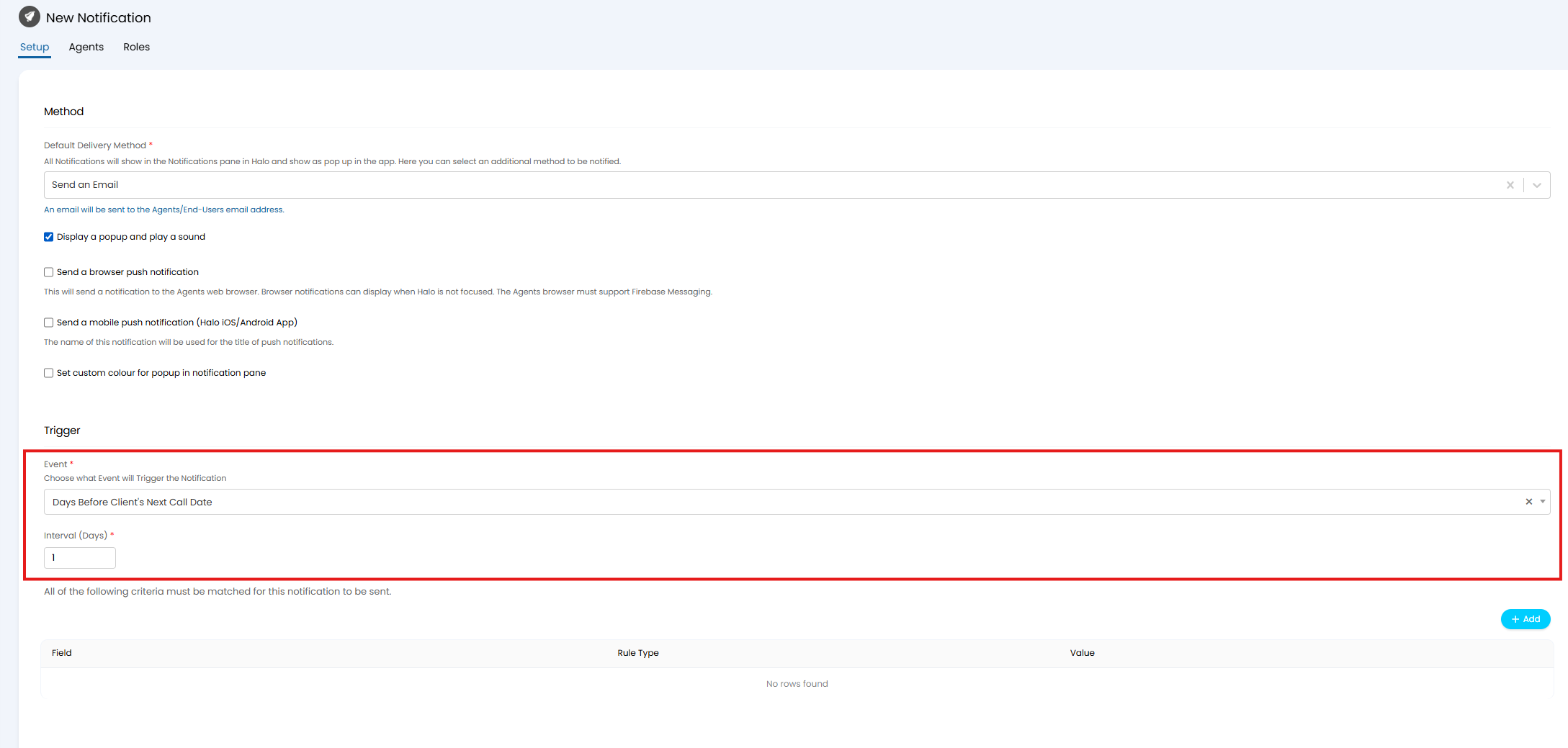
Fig 31. Notification set to trigger the day before a client's or account's next call date
Use Next Call Date in Opportunity Views (v2.251+)
From v2.251+ the next call date can be used in column profiles and filter profiles for opportunities, allowing agents to see, at a glance, their upcoming followups.
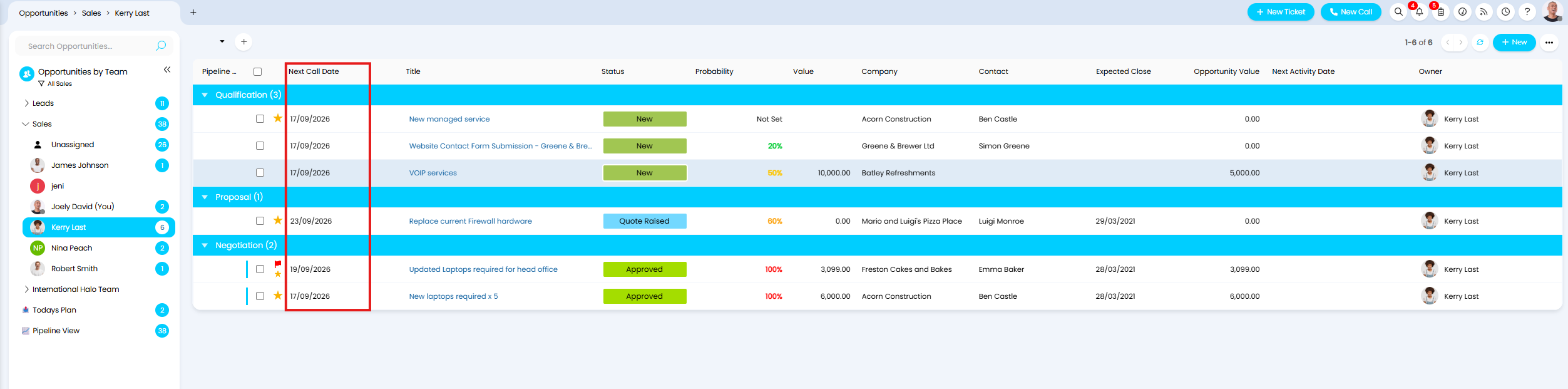
Fig 32. Next Call Date in Column Profile
This can help your agents organise and prioritise their workload, as they can easily see which leads need following up first
For information on creating an customising column profiles see our guide here.