Ticket Views
- status
- view
- columns
- team
- column
- ticket type
- views
- service desk
- area
- column profiles
- knban
In this guide we will cover:
- Default Views (Agent Preference, Global Setting, Ticket Areas)
- Tickets Viewing Options (By Team, By Ticket Type, All Tickets)
- Custom Ticket Lists (My Lists)
- Configure Tickets By Team View
- How To get The "Add More Teams" Button To Display
- Column Profiles
- Mentioning Agents Directly From The Ticket List
- Editing Values in table view (v2.250+)
Associated Admin Guide:
What are Ticket Views?
Ticket views are used to organise tickets within an area, allowing agents to easily find the tickets they need in this area. The view you select will determine how tickets are grouped together.
Options are specified in detail below.
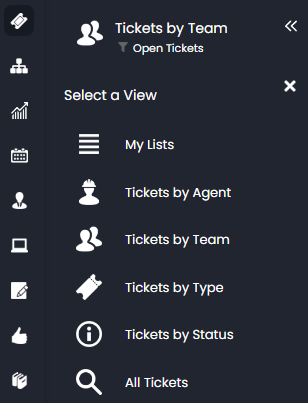 Fig 1. Picking a View
From here you can select the ticket view you wish to have on an ad-hoc basis. You can also specify a default view in a few different locations.
The first is in your agent preferences:
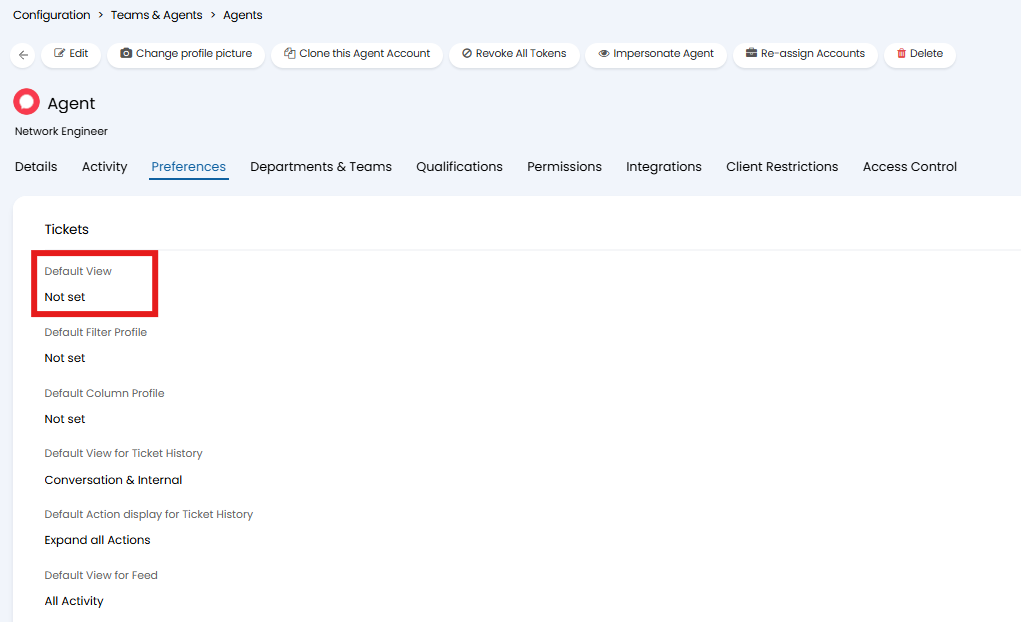 Fig 2. Agent Default View
The second location is the setting to specify a default view globally for all agents Configuration > Tickets > Views.
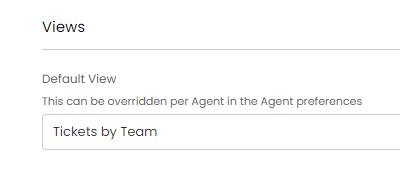 Fig 3. Global Default View
Tickets Viewing Options
The third is by Ticket Area. This allows you to have different views for different ITIL ticket types, as you may wish to have different views for change control to the ones you have for Service Requests (for example). In order for Agents to use their own configured view selected at Agent level, they must set the following default view for the ticket area:
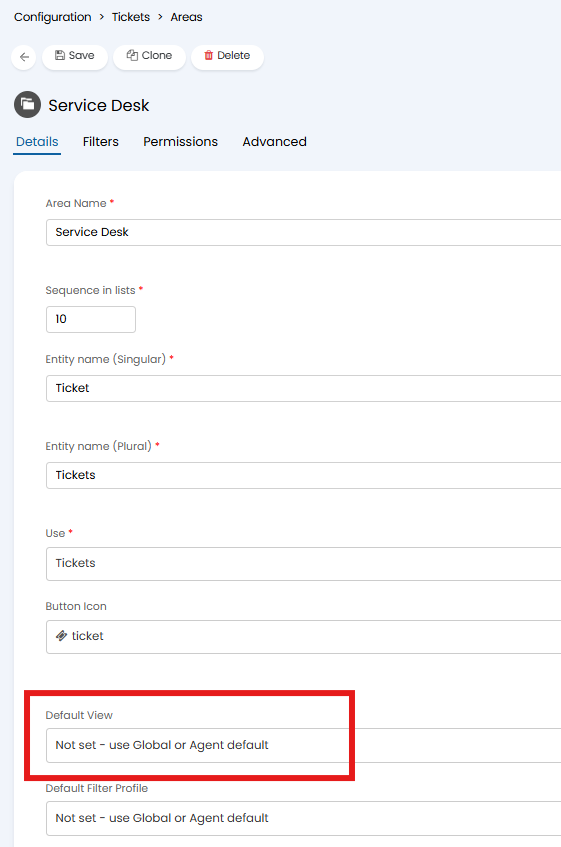 Fig 4. Area Default View
Tickets by Team shows all of the Teams the logged in Agent has access to. This will also take into account any Area restrictions you have in place, as some areas may be restricted to only show specific teams.
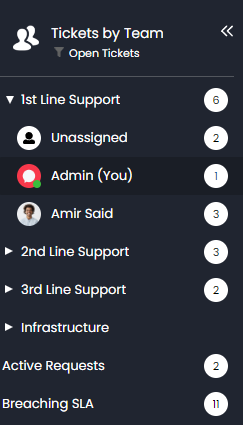
Fig 5. Tickets by Team
Tickets by Ticket Type will show your Tickets grouped by their Ticket Type. The filter profile will be applied to this, so you will need to Filter for All Tickets if you want to also show Closed on On SLA Hold tickets.
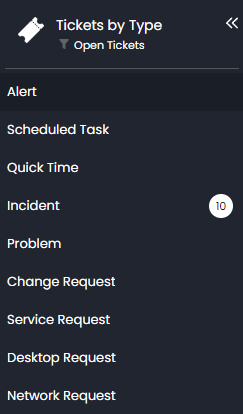
Fig 6. Tickets by Ticket Type
When using the Tickets by Status view the Filter Profile is ignored, as closed tickets will still show here despite the filter being set to closed.
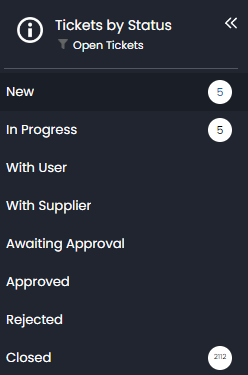
Fig 7. Tickets by Status
Tickets by Agent will show a list of agents and the tickets assigned to them. When this view is selected you will be taken to the tickets assigned to you by default. Agents will only be able to see the other agents they share a department with.
Note: The "Tickets by Agent" view is only available when "Agent Visibility Restriction" is set to "Agents must share a department to see each other".
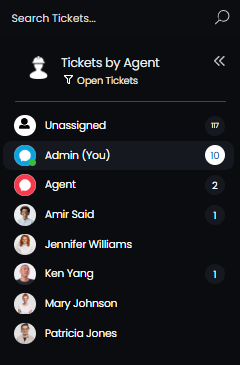
Fig 8. Tickets by Agent
You can group agents together based on the status they have, using "Group Agents by their Status in the Treeview" under Configuration > Tickets > Areas > select and area > Details tab. You can make these grouping display with the status above by also enabling "Show a visible grouping for Agents in the Treeview based on their status".
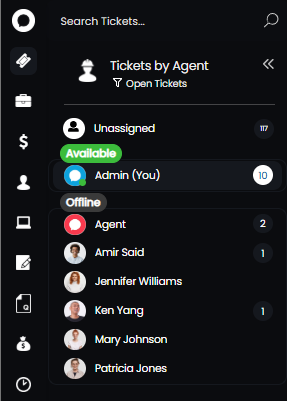
Fig 9. Grouping Agents Together Based on Status
The final view is All Tickets. This will show all tickets, regardless of Type, Agent, Team etc, however it still applies the Area level restrictions, so if you are in the Incidents Area which applies filters to only show tickets of an ITIL type of Incident, it will not show all tickets.
The way to get around this is to create a catch all area which does not apply any restrictions, and applying a default view of All Tickets to it. This will then allow you to always access a long list of tickets with no area restrictions.
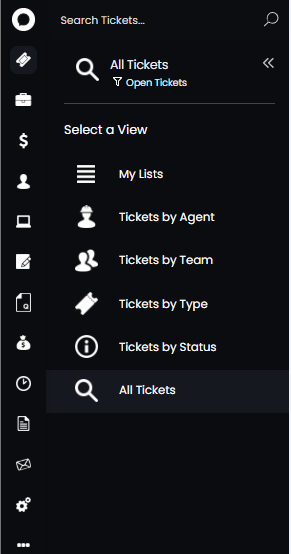
Fig 10. All Tickets Area
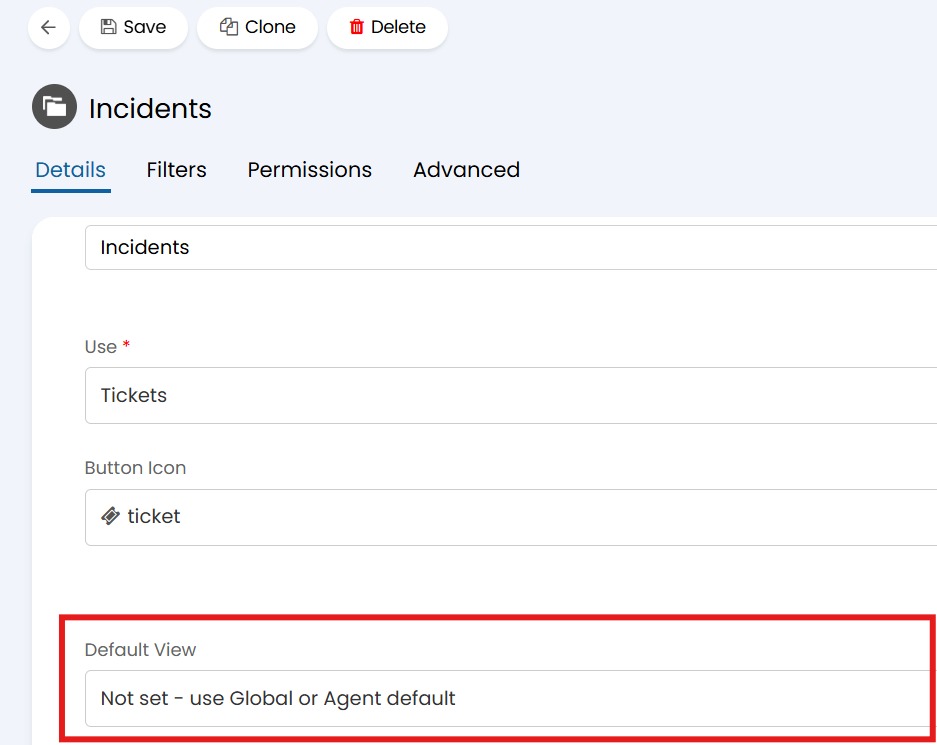
Fig 11. Default View for All Tickets Area
Custom Ticket Lists
Lists are ways to create custom subsets of tickets of a certain criteria.
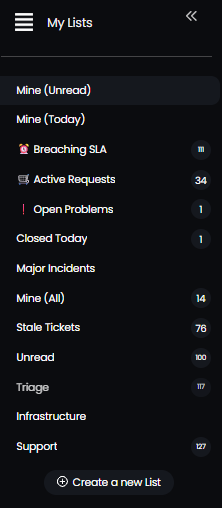
Fig 11. My Lists
You can set which lists you would like to show in your "My Lists" area by using the "Configure Lists" button in Configuration > Tickets > Views.
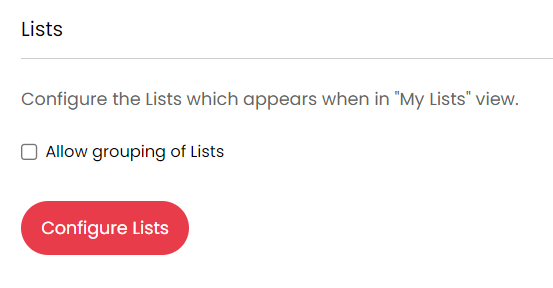
Fig 12. Configure My Lists
List Setup Screen
To create a new list click the "Configure Lists" button in Configuration > Tickets > Views, or "Create a New List" at the bottom of the "My Lists" view on a ticket (Figure 11).
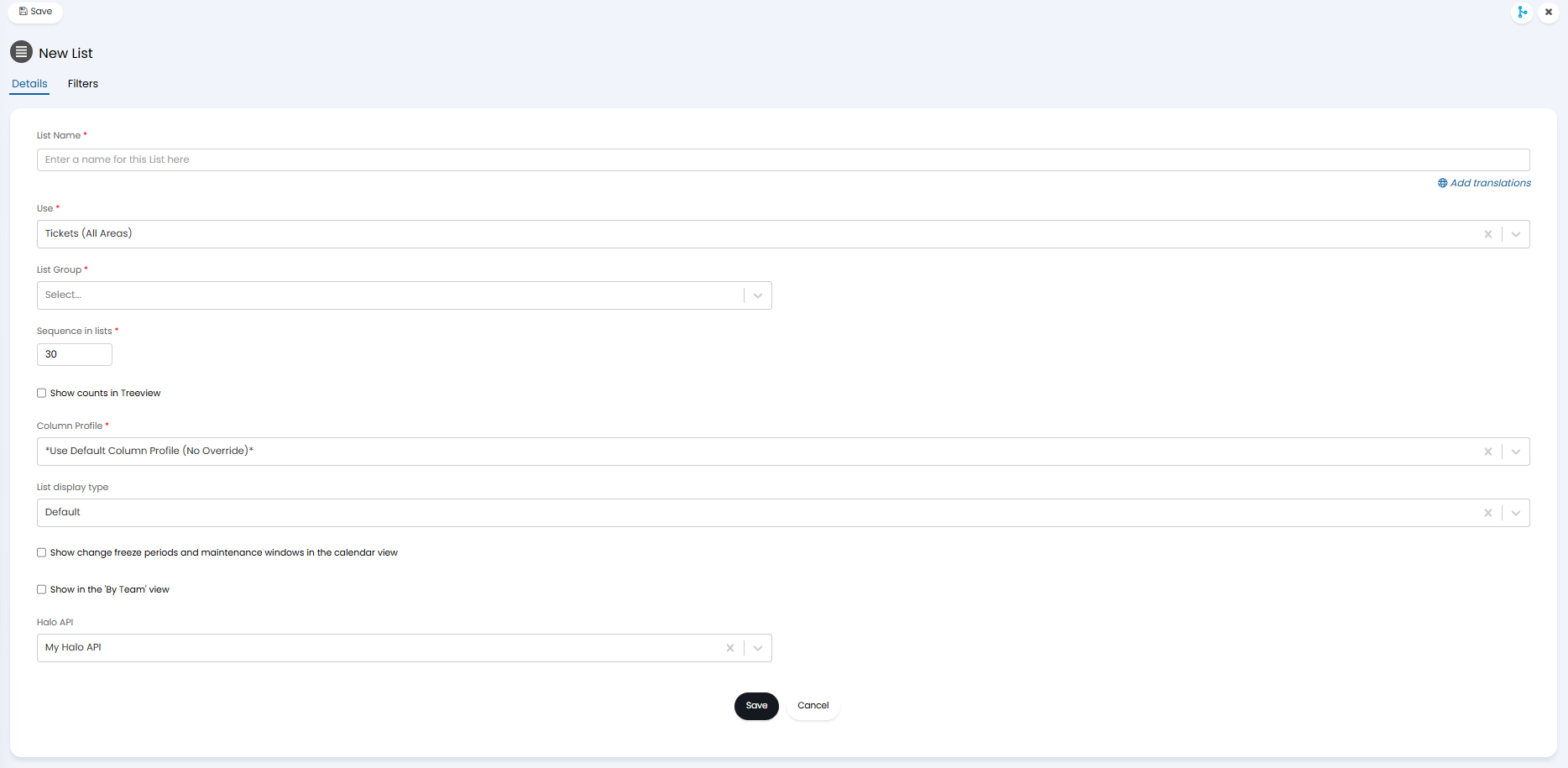
Fig 13. New List Setup Screen
- List Name: Name of the list.
- Use: This is to determine which areas the list will be displayed in Halo.
- Sequence: This determines the order in which the lists are displayed, 1 before 2 etc.
- Show Count in Treeview: This allows you to determine whether or not the number of tickets in the list is displayed.
- Column Profile: This allows you to override the Column Profile when the list is selected.
- List Display Type: This allows you to specify whether to lock the use to Table/Tile/Calendar view.
- Show in the 'By Team' View: When checked this allows you to add this list to the Tickets by Team View.
- By default, these lists will show at the bottom (under the team dropdowns). These lists can show above the teams by enabling "Show custom lists above Teams in the 'By Team' view" in Configuration > Tickets > Views.
- Halo API: This is an advanced option that allows you to view tickets from other instances of Halo using the API.
Within the "Filter" tab, then add the criteria for which tickets will appear in this list.
From v2.248+, you can choose to filter Tickets that have passed the 1st or 2nd SLA warning threshold. This is useful for monitoring and intercepting Tickets before they breach SLA. From v2.250+, the filter "Is a Prospect" is available. This filter allows you to create dedicated lists for Tickets belonging to prospective or existing Customers, which is particularly useful for Sales Tickets.
If using "user reply count" (available from v2.250+) as criteria for ticket list filters. Keep in mind counts will only begin after your instance moves to v2.250+, this means user replies received on tickets before your instance was on v2.250 will not be counted.
You can filter by the mailbox that created the ticket within the list filters. In the below example, tickets created from mailbox 1 and 2 will be excluded from this list.
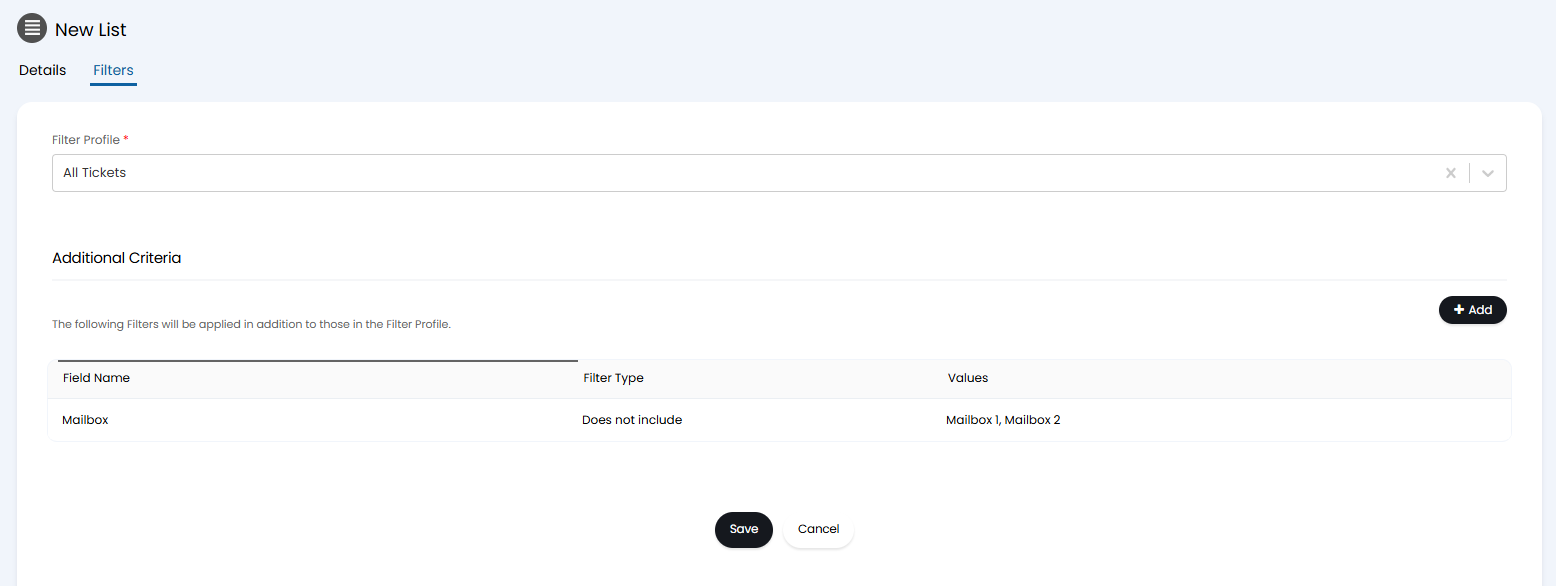
Fig 14. Filter tab
If you right click on an existing List in the Ticket Area (Figure 11), you will be able to edit the profile and "Save as New". If the Agent has the permission "Can Configure List Access Control", they will be able to specify whether to copy the Access Control when using this button. Prior to this version the Access Control will be copied automatically.
Determine who Can use a List
To control which agents can see/use a list, you can configure access control for this list once you have saved it.
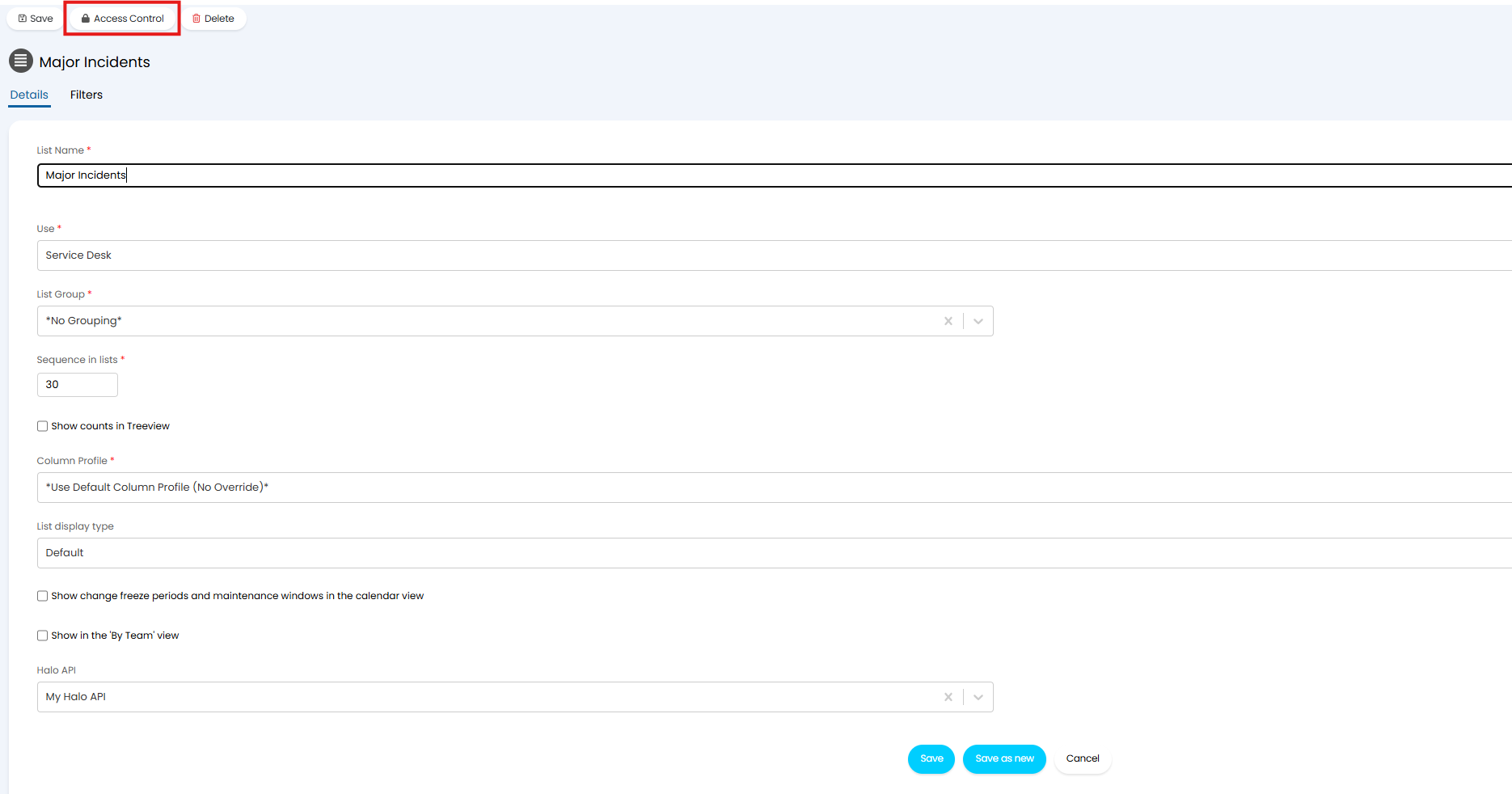
Fig 15. List Access Control
In order for an agent to be able to see/use a list view they will need to have at least read only access control.
If an agent is granted read and modify access control they will be able to see/use this list, as well as edit it (adjust the filters).
When saving a list for the first time the agent creating it will be given owner access automatically.
Configure List Groups
There is also an option to allow grouping of lists, when checked on, there will be an option to add lists to groups, and also a button to configure groups.
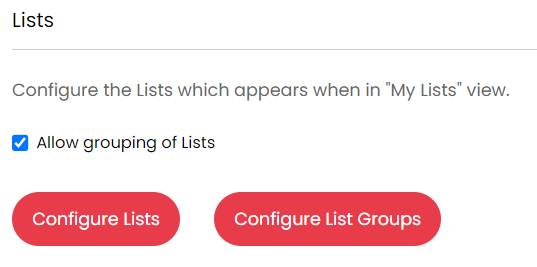
Fig 16. Grouping of Lists
Groups appear like this below, where "High Priority Requests" and "Breaching SLA" are lists within the group "High Level". Groups collapse or expand by clicking on them.
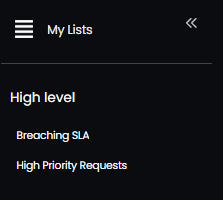
Fig 17. Group View
Adding Lists to a Group
When creating a new list, the list can be added to a group, to add existing lists to a group, you can right click on the list and then click "Edit list".

Fig 18. Adding a List to a Group
Adding an OR condition
You can add your filters as an 'OR' condition. To do this, first select the "Use Filter Groups" checkbox. Once selected, click "Add" to create your conditions.
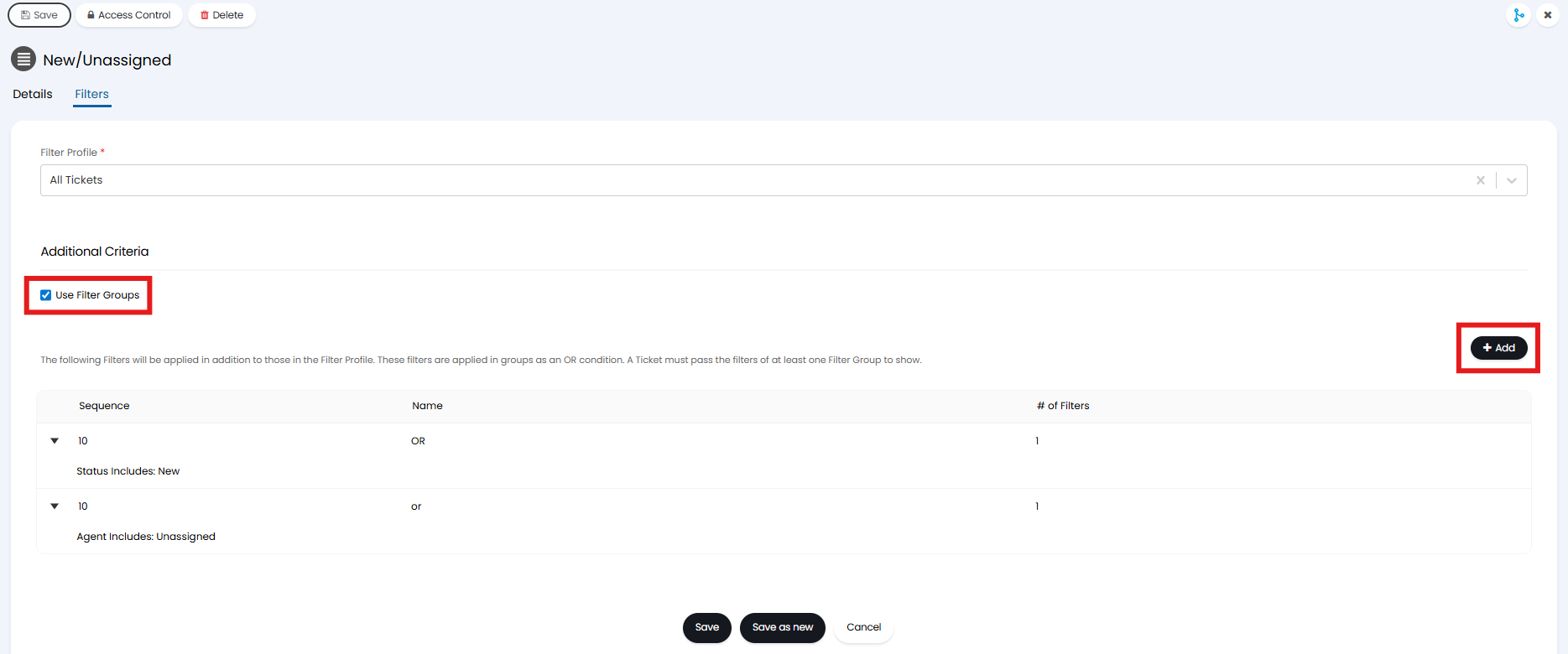
Fig 19. Use Filter Groups checkbox
Anything included within the same line will be added as an 'AND', to create an 'OR' condition you will need to create a new line for each. In the Fig 19 example 'New status' and 'Unassigned Agent' are on different lines, so will be treated as an 'OR'. This will show 'New' or 'Unassigned' tickets in the list.

Fig 20. List showing Unassigned and/or New tickets
Configure Tickets By Team View
This can be edited under Configuration > Tickets > Views and under the settings drop down.
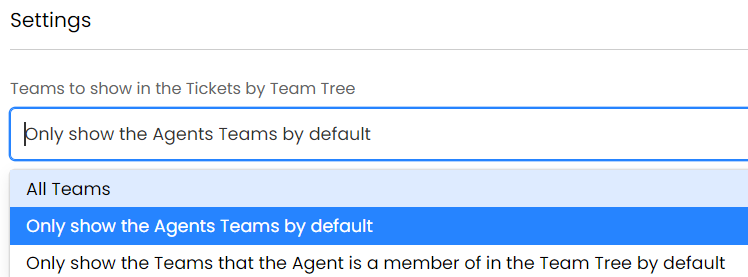
Fig 21. Changing The Teams View
How To get The "Add More Teams" Button To Display
If the option "Only show the agents Teams by default" is selected, then the teams visible in that ticket area can be altered as there will be a button "Add More Teams" which will be visible on the "Tickets By Team" Tree.
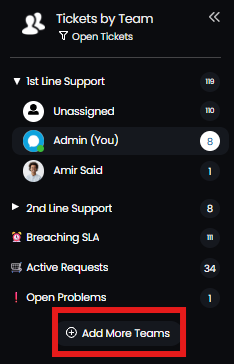
Fig 22. Adding or Removing Teams in The Teams Tree
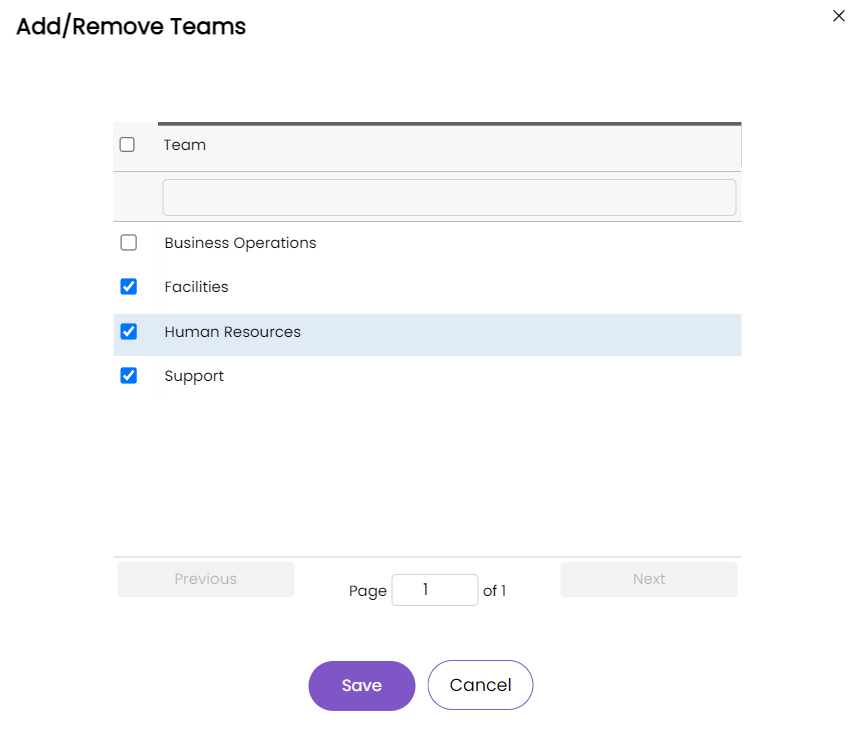
Fig 23. Adding or Removing Teams in The Teams Tree
Column Profiles
Once a ticket view is selected, you will see a list of tickets. The information shown about the tickets here is controlled by the column profile.
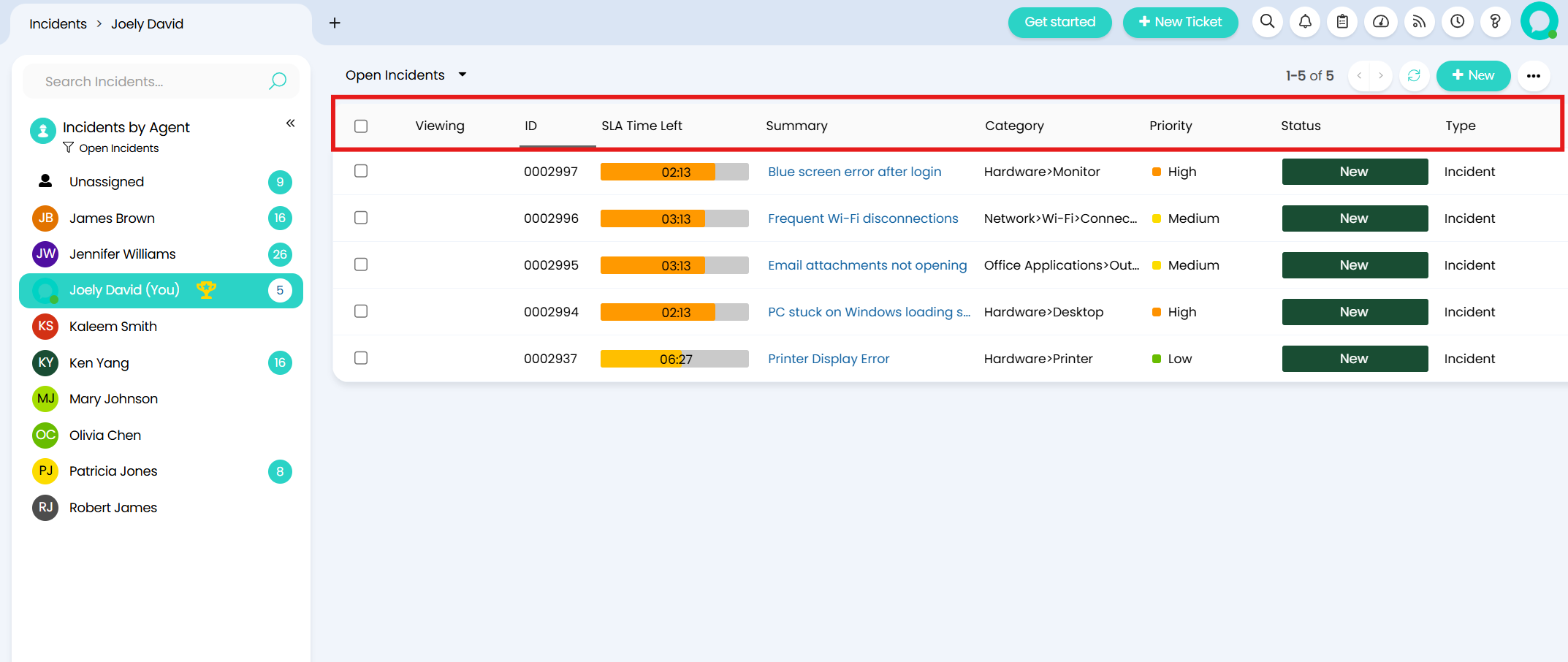
Fig 24. Columns set by the column profile
Column profiles can be customised and defaulted for agents. Agents can also choose their own column profile (if allowed).
Display types can also be chosen when viewing tickets in a list, including Tile, Kanban, Calendar and Gantt. These change how ticket information is displayed here.
For information on column profiles and display types, checkout Column Profiles.
Mentioning Agents Directly From The Ticket List
There is an option to mention agents from the ticket list screen. To do so, head to a list and right click on a ticket.
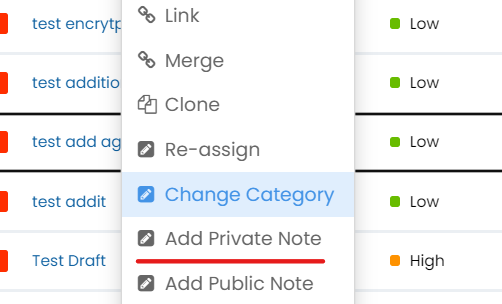
Fig 25. Adding Note From Ticket List Screen
Then click private note or public note and mention the agent.
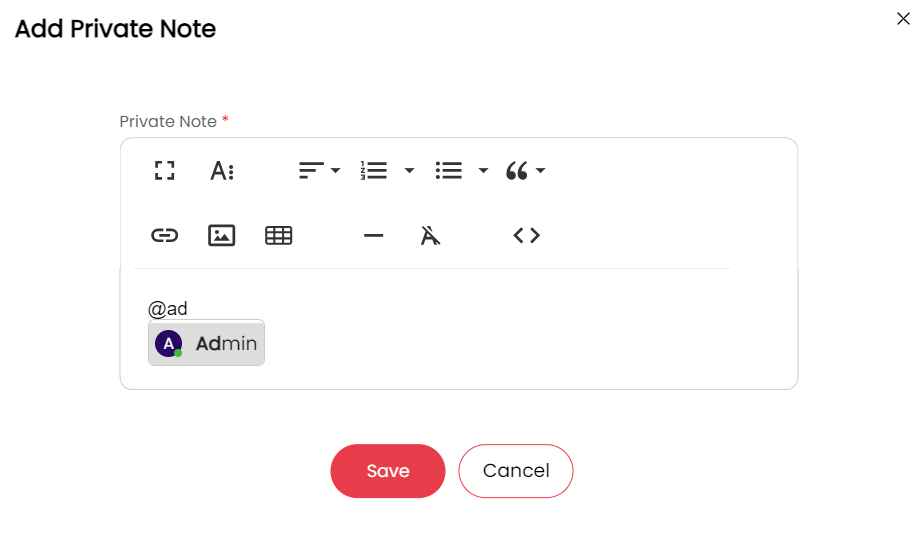
Fig 26. Mentioning An Agent
Editing Values in table view (v2.250+)
To quickly make adjustments to Ticket fields you can enable the setting "Allow inline editing of Tickets values in table view" in Configuration > Tickets > General Settings. With this enabled, Agents will be able to select "Edit Values" under the three dot menu at the top right of Ticket areas. Agents will then be able to use the Text or dropdown fields to change the values of certain fields. Once any changes have been made, click "Save" to set the new field values against the Ticket.
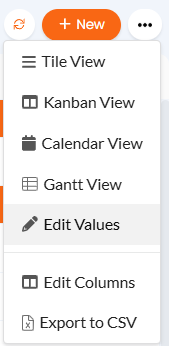
Fig 27. Edit Values
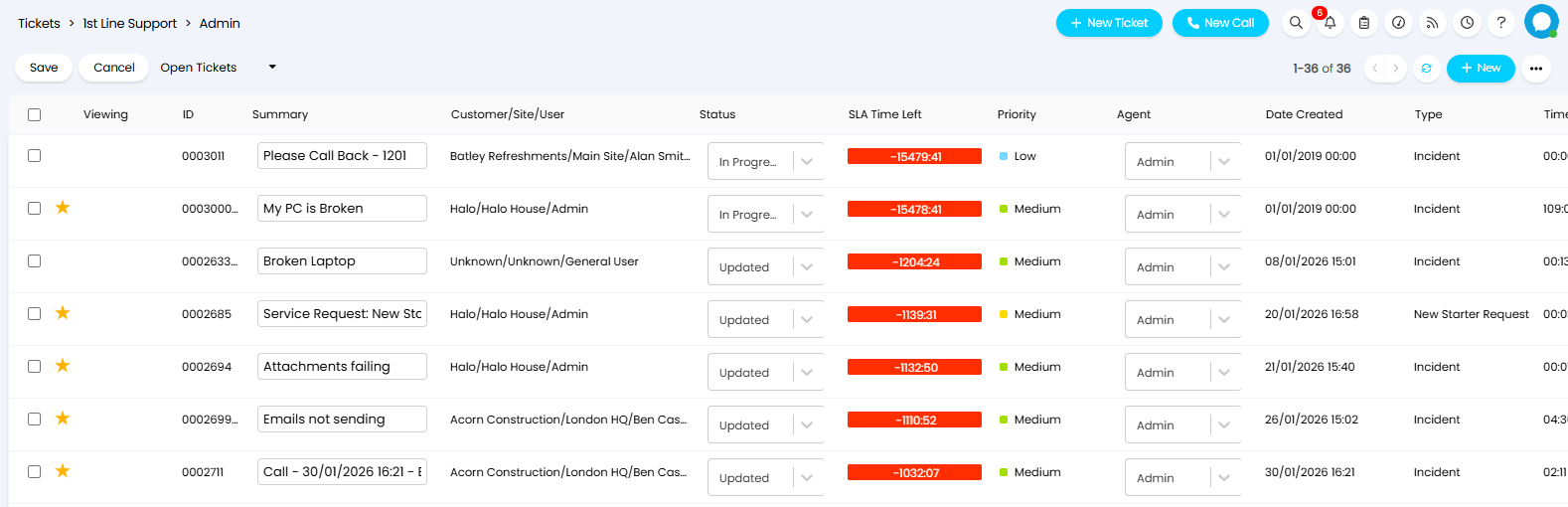
Fig 28. Editing Ticket Values