Access Control
- Permissions
- access control
- configuration access
In this guide we will cover:
- What is Access Control?
- Setting Access Control
- How Access is Shown
- Reassigning Access Control
What is Access Control?
Access control is a method of administrator agents allowing non-administrator agents the ability to view, or view and edit, areas within the configuration. This allows agents to be able to edit certain areas that may be relevant to them without having to ask an administrator to do it for them.
- Active Directory
- Assets
- Asset Workflows (v2.250+)
- Approval Processes
- Approval Process Rules
- CABs
- Canned Texts
- Canned Text Groups
- Chat Profiles
- Column Profiles
- Custom Objects
- Composite Reports
- Custom Fields
- Custom Tables
- Dashboards
- Database Lookups
- Event Management Rules
- FAQ Lists
- Field Groups
- Filter Profiles
- Groups (v2.251+)
- Languages
- Lists
- Message Groups
- Notifications
- Qualifications
- Reports
- Report Data Sources
- Report Groups
- Roles
- Scheduled Tickets
- Service Level Agreements (SLAs)
- Services
- Software Release Products
- Suppliers
- Templates
- Ticket Actions
- Ticket Rules
- Ticket Types
- Virtual Agents
- Workdays
- Workflows
Setting Access Control
To set access control initially, an administrator will need to go to the configuration of the specific entity. Once other non-administrator agents have "Owner" access granted, they will be able to do the same for other agents.
Let's look at ticket types as an example. To grant access, go to Configuration > Tickets > Ticket Types and select a ticket type. At the top of the screen there is an "Access Control" button.
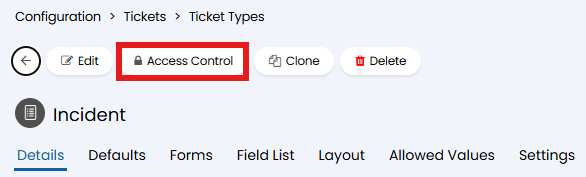
Fig 1. "Access Control" button on a ticket type.
The following popup will then show, which is where the agents can be added to access control.
Click "Add" to do this.
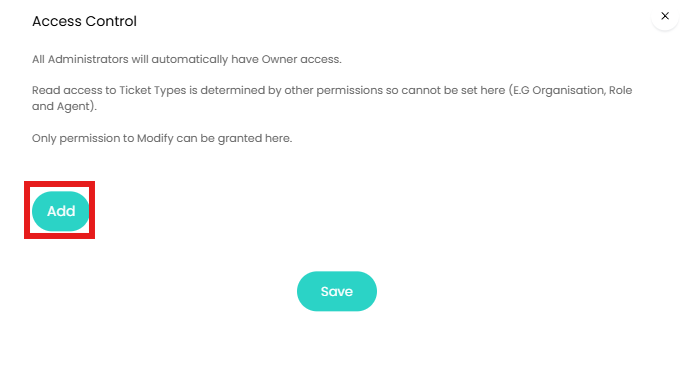
Fig 2. Adding access control.
You will be presented with the option to grant access to a particular role, agent, team, or department.
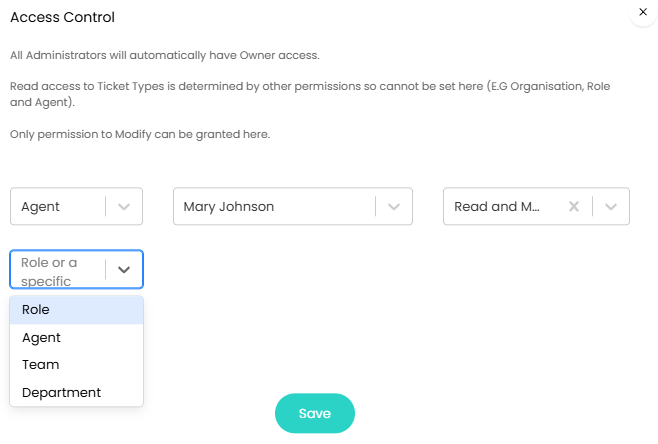
Fig 3. Setting access control.
You can remove department from this drop-down to improve performance by disabling the "Allow access control to be based on department" checkbox in Configuration > Advanced Settings.
From v2.256+, if you have enabled Multi-tenancy you will have an additional option to grant Access Control to an Organisation. This is particularly useful for allowing different organisations access to their areas of configuration specific to their organisation.
You can then select whether they have "Read and Modify" or "Owner" access. With "Owner" level access, the agents will have the ability to delete the ticket type and grant other people access control.
If you want to remove access from agents, change the dropdown to "None (Remove)".
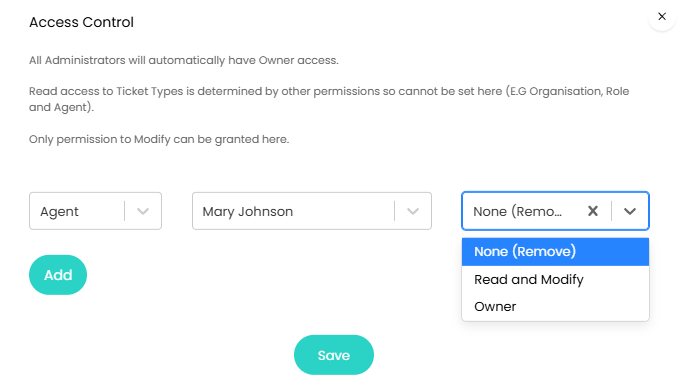
Fig 4. Removing access control.
How Access is Shown
The agent(s) that have been given access will then have the ticket type available to them in their "My Config" area. As seen below, they only have access to this one "Incident" ticket type, and not any others.
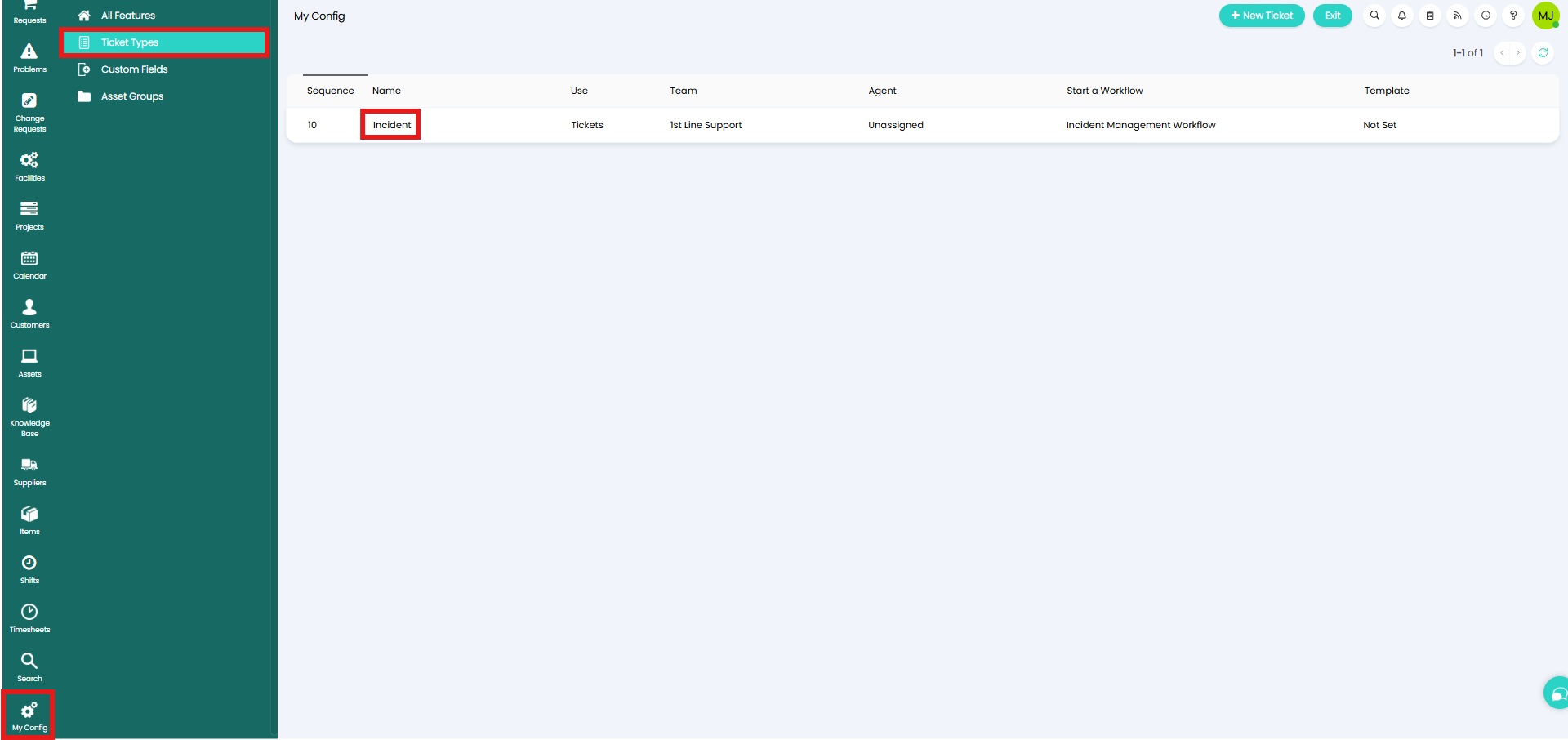
Fig 5. Ticket type available in "My Config".
Assigning Access Control
Access control assigned to an agent can be applied to another agent or role through this functionality, which can be useful for onboarding/offboarding team members. In Configuration > Teams & Agents > Agents, select an agent profile you wish to transfer the access control from.
In the "Access Control" tab, there are tables of what access that agent has. Note: Pay attention to the "Inherited From" column - only access that is specific to the agent ("Agent - Kaleem Smith") will be transferred to the other agent or role. Anything for roles, teams, or all agents will not be transferred over.
Click the "Re-assign Agent access control" button.
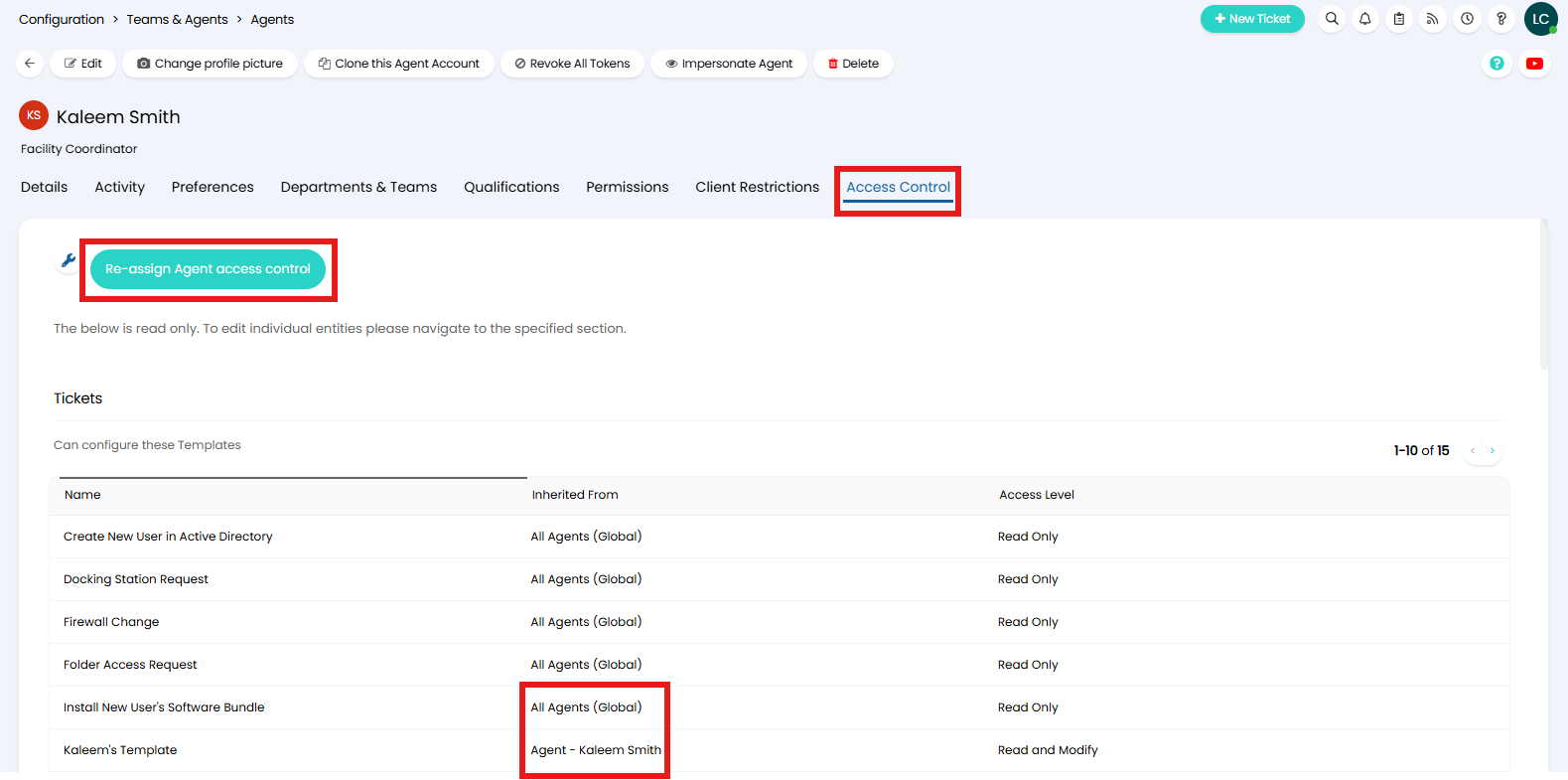
Fig 4. Access Control tab on an agent.
This popup will then show, where you can select if the access is assigned to another agent or a role. Here, I will be assigning it to a role.
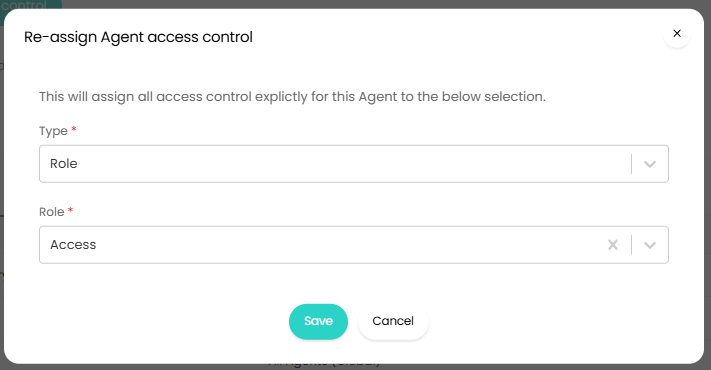
Fig 5. Assigning access.
Upon saving, the role now shows the agent-specific access. The template that Kaleem had specific access to has transferred, but the one he had "All Agents (Global)" access did not.
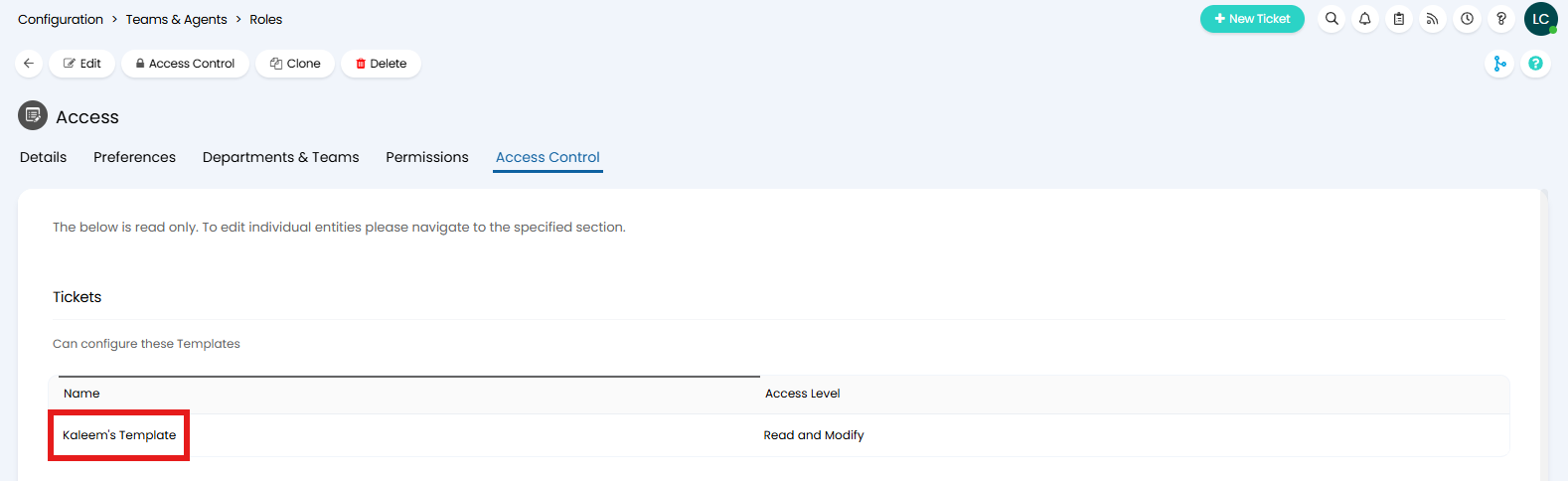
Fig 6. Result on the role.