Asset Management
- group
- import
- field
- Asset
- type
- modify
- merge assets
In this guide we will cover:
- Viewing Assets
- Asset Overview
- Configuring Assets
- Asset Fields and Custom Fields
Configuration Settings Guides:
- Asset Fields
- Asset Groups
- Asset Relationships
- Asset Statuses
- Asset Templates
- Asset Types
- General Settings (Asset Management)
Related Guides:
Viewing Assets
To view a list of your assets, you can open the "Assets" area, highlighted in the module bar on the left-hand side.
Clicking on the area that appears on the left (currently stating "All Assets" will show a dropdown of different view options for the asset lists.
- My Lists: Your own custom, configurable lists.
- Assets by Asset Type: Sorts assets into asset type, and you can view a type at a time.
- Assets by Asset Group: Sorts assets based on their assigned asset groups, and you can view a type at a time.
- Assets by Stock Location: Sorts assets based on their stock location. Only assets that have been serialised as stock will be shown in this view.
- Bookmarked: This will show the agent's bookmarked assets. Assets can be bookmarked by the "Bookmark" button at the top when viewing an asset, or within the mobile app.
- All Assets: All assets will show regardless of characteristics.
Asset groups or types can be made or edited by right clicking on the list of these when in that view, or within Configuration > Assets > Asset Groups/Asset Types.
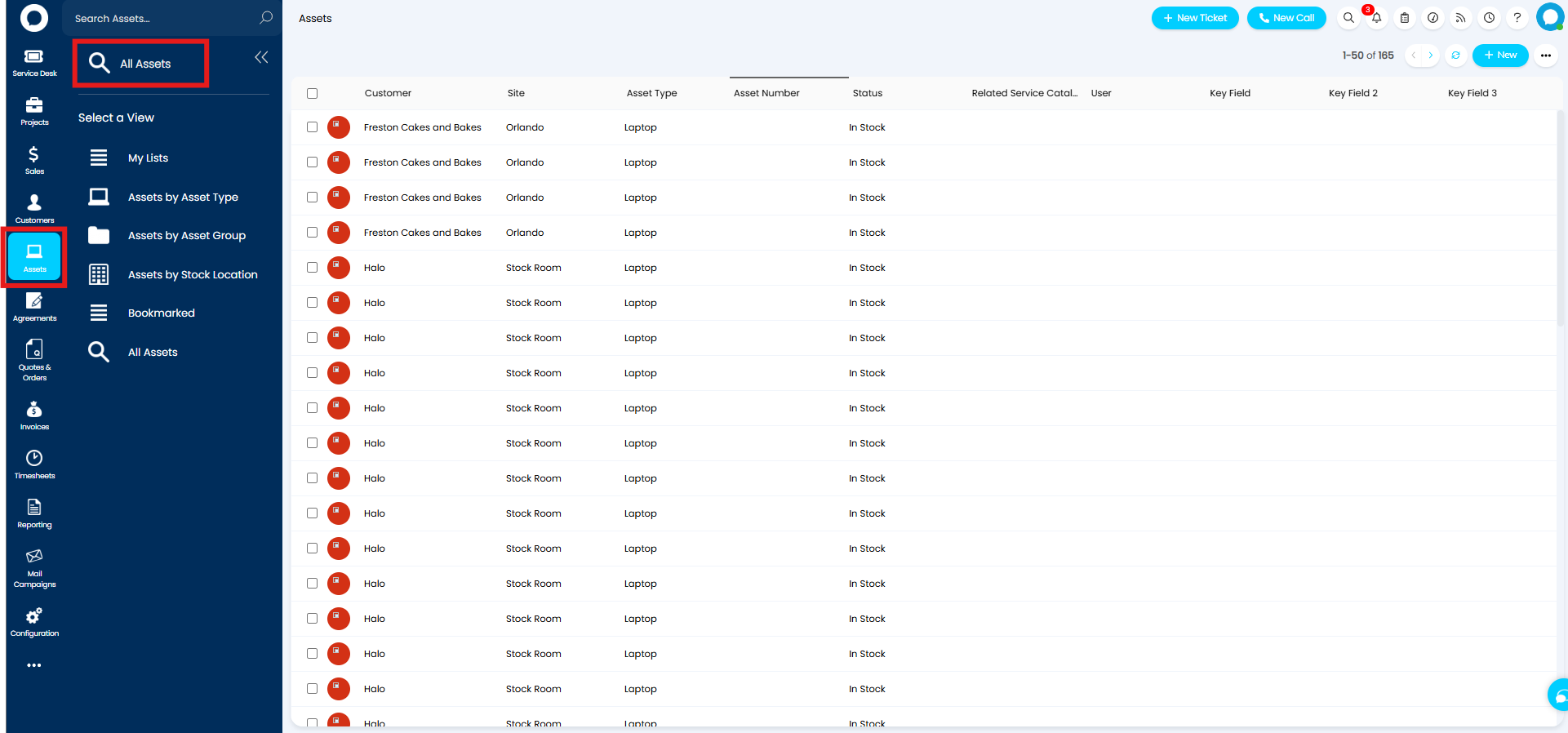
Fig 1. Assets list
Asset Overview
Clicking into an asset in this list will show something similar to the below.
Note: The "Details" on the right bar may also show as another tab instead.
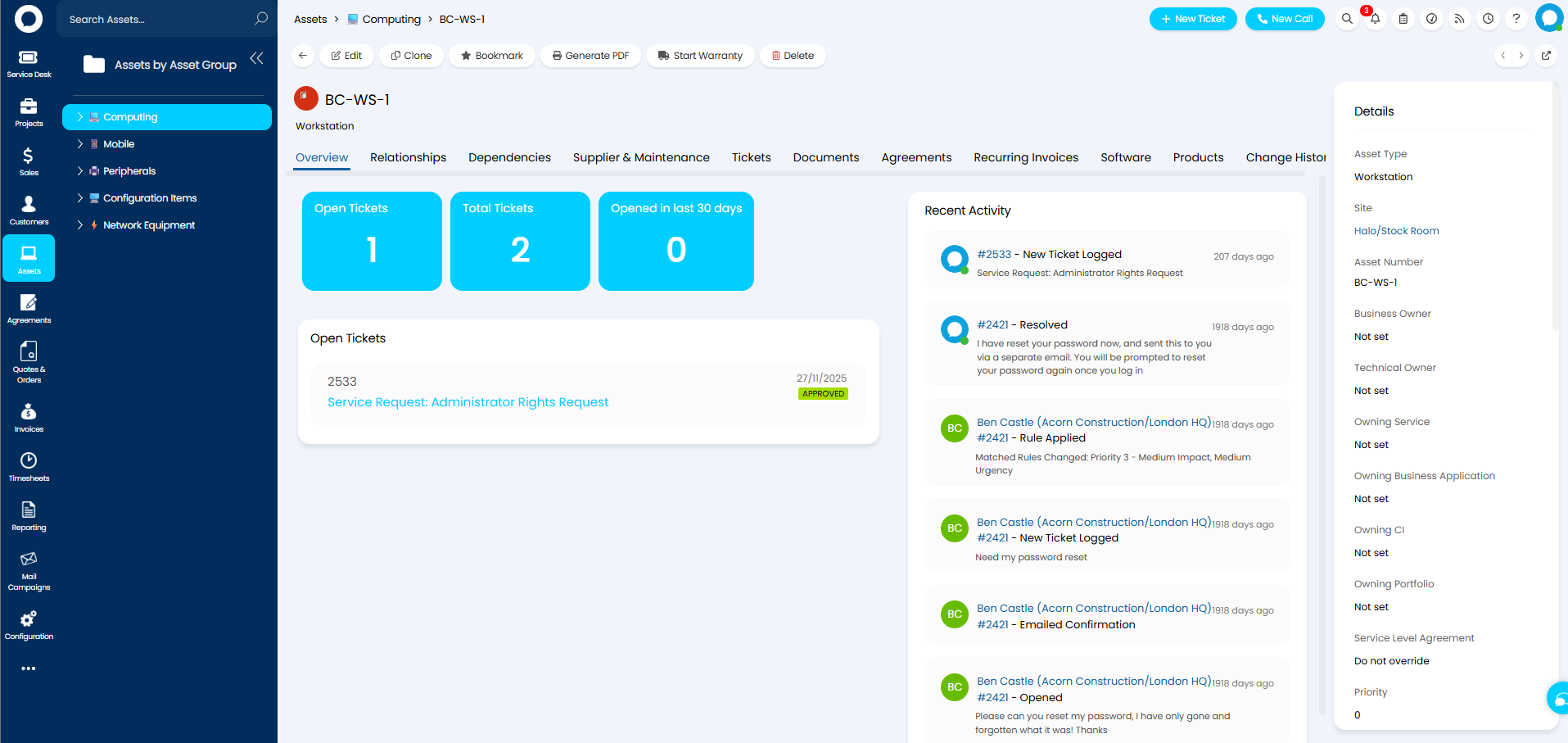 Fig 2. Asset overview
The "Overview" tab will appear as a dashboard, that will show tickets that have been linked to that asset, and the recent activity on those tickets. This helps keep track of any actions to do with the asset at a glance.
Clicking through the list of these tabs can also show information like the dependencies and relationships between assets, the supplier of the asset and their contract, and any software associated with the asset.
Within the Tickets tabs (this may be split into Incidents, Requests, Problems, Change Requests and Projects), you can view Tickets that are linked to the Asset.
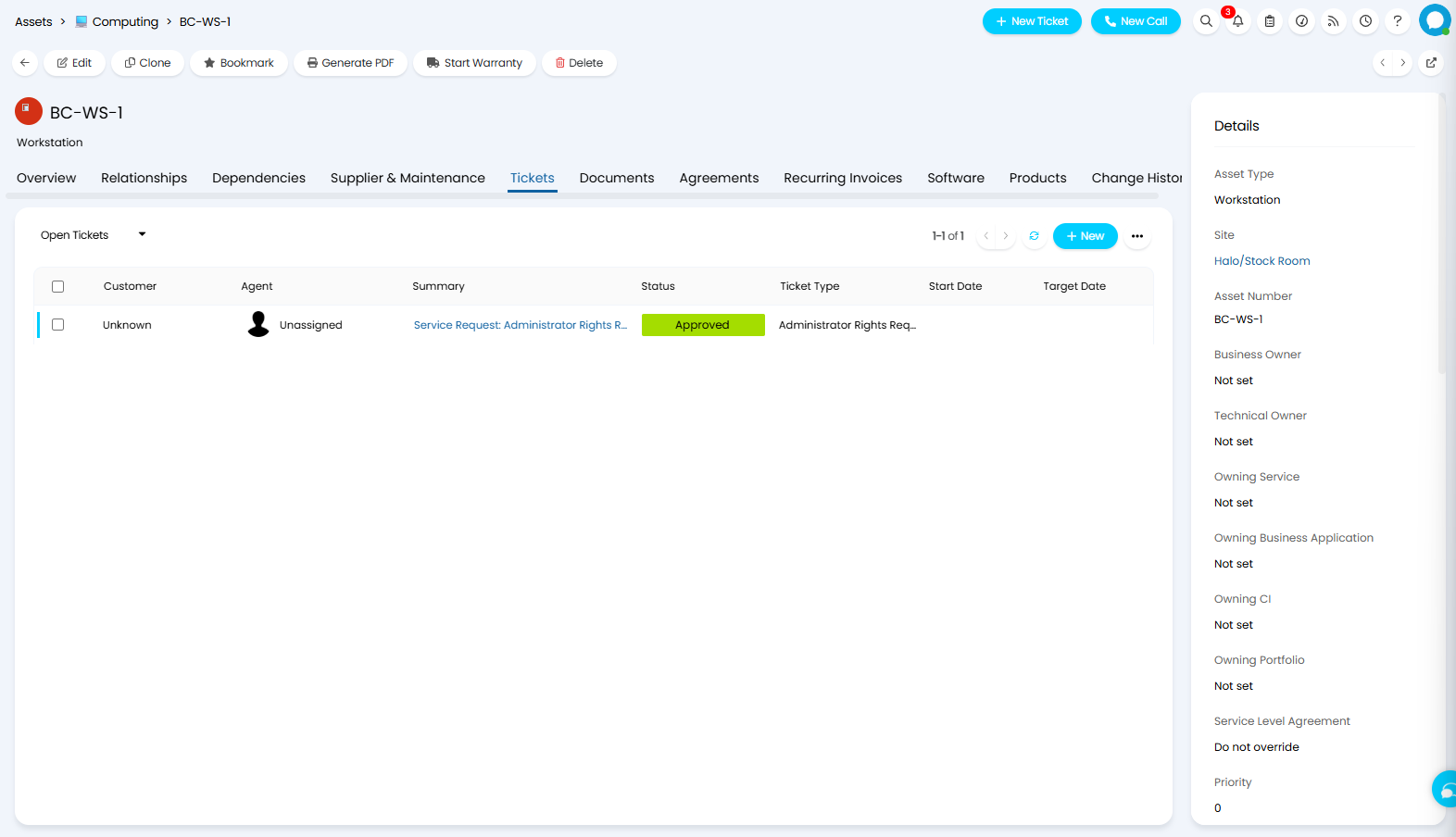
Fig 3. The Tickets tab of an Asset showing a current open Ticket linked to the Asset
From within this tab you can raise a Ticket by clicking the "+ New" button in the top right of the tab, and this will automatically link the new Ticket to the Asset.
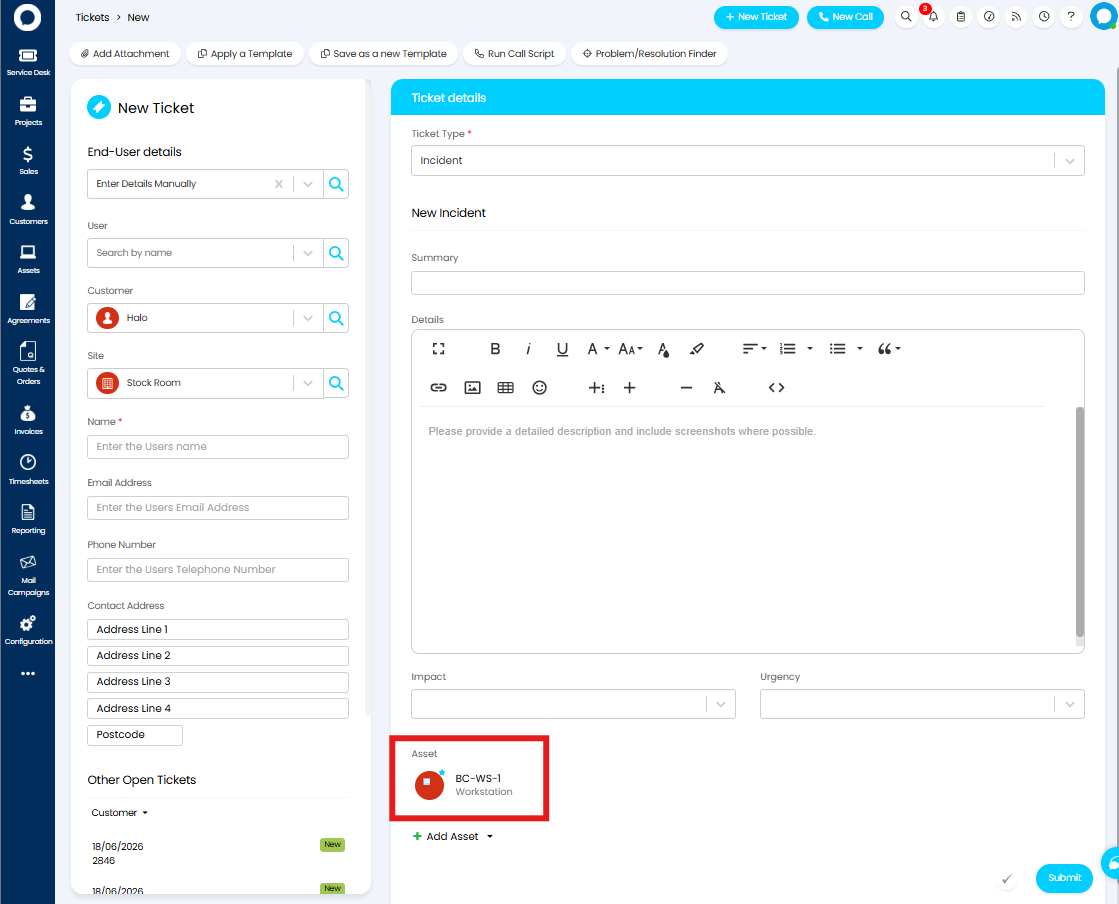
Fig 4. A new Ticket is automatically linked to the Asset when the Ticket is created from within the Asset itself
Note: As of version 2.230.1+, you can also raise Tickets from Assets from within the Self Service Portal. This provides Users with further autonomy and reduces the risk of an Asset being incorrectly linked to an Asset.
You can also see any changes that have been made to the asset in the "Change History" tab. This gives a quick overview of any details that have been edited by agents or integrations, and when this was done.
Along the very top of the page there is also a row of buttons. This is how you can edit the asset, bookmark it, or start an associated warranty.
"Access Control" can also be set here. This can allow agents who are not administrators to be able to view or edit the asset. For more information on this, check out the "Access Control" guide linked in the related guides at the top of the page.
Configuring Assets
Below shows the possible options to configure assets. The Configuration Settings guides for these areas are linked at the start of this guide, which details what each setting within them does.
Here is where you can create new Asset Groups, Types, Fields, Relationships, and Statuses - all of which can be set against your Assets to organise and manage them.
Asset Types, and Groups are covered in more detail in the guide linked here.
For more information on linking Assets, and Asset relationships see the guide linked here.
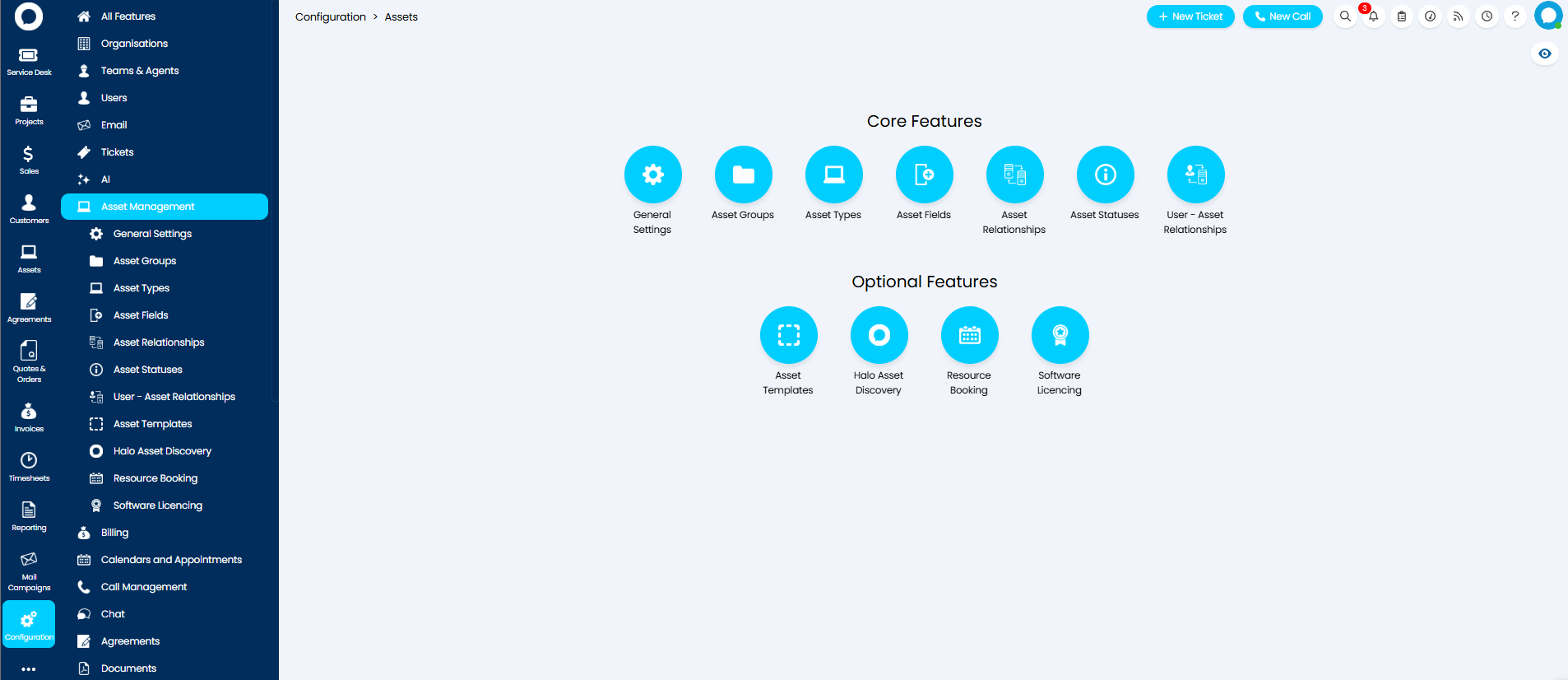
Fig 5. Asset Management configuration
Barcode Scanning
You can use barcode scanning to either create new assets or keep tracking of existing ones. For more information on enabling and using the Barcode Scanning functionality see our dedicated guide linked here.
Merging Assets
Assets can be merged together – useful when you notice duplicate assets in your Halo.
This functionality will need to be enabled under Configuration > Asset Management > General Settings, using "Allow merging of Assets".
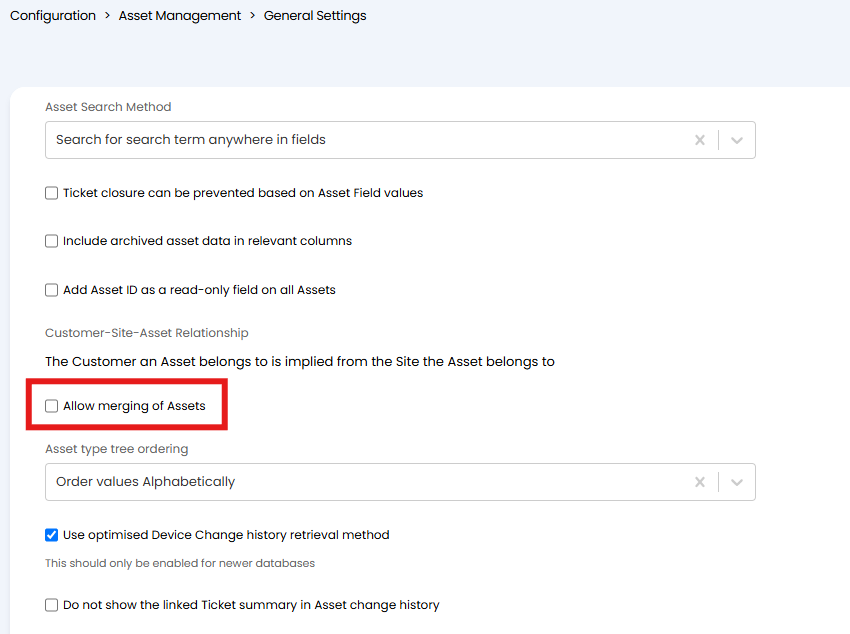
Fig 6. Enable asset merging
When enabled a button will become available against each of your assets to "Merge Asset".
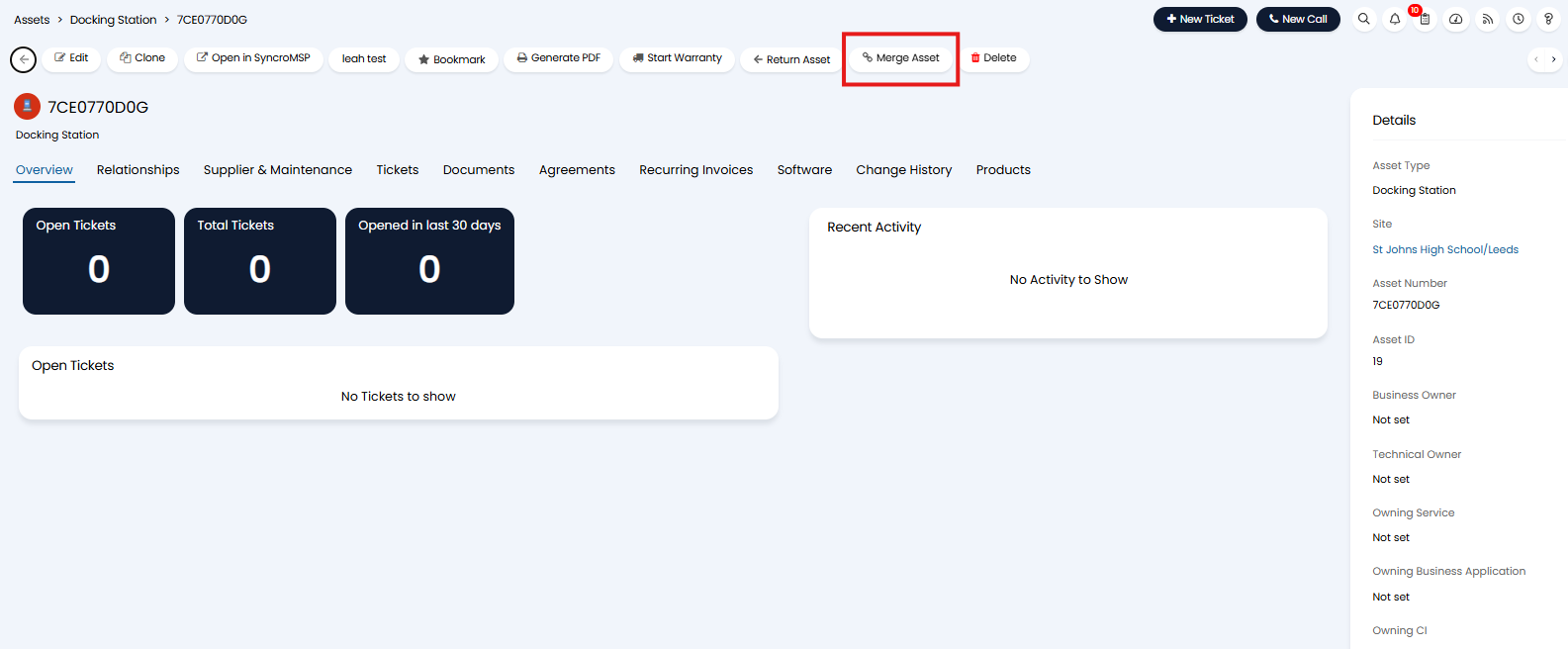
Fig 7. Button to merge asset
When used you will be able to select which asset to merge this asset into.
When merging data in the asset fields of the current asset will be added to the selected asset only if the selected asset does not have data in these fields already. If there is already data in the fields, this data will not be overridden and data in the fields of the current asset will be lost.
Entities linked to the asset (such as tickets, documents, contracts etc.) will be added to the selected asset along with the existing linked entities.
Asset relationships will not be merged. Only assets of the same type should be merged.
Asset Fields and Custom Fields
Asset fields are where you can create extra fields that will store data relevant to each asset, e.g. an IP address. On creating these fields, make sure you press "Add to all Asset Types" to ensure they show up on every asset.
For more information on asset fields, check out this guide: Asset Fields.
For custom field configuration, check out this guide: Custom Fields
When creating custom fields, make sure to set the "Entity" dropdown as "Assets".
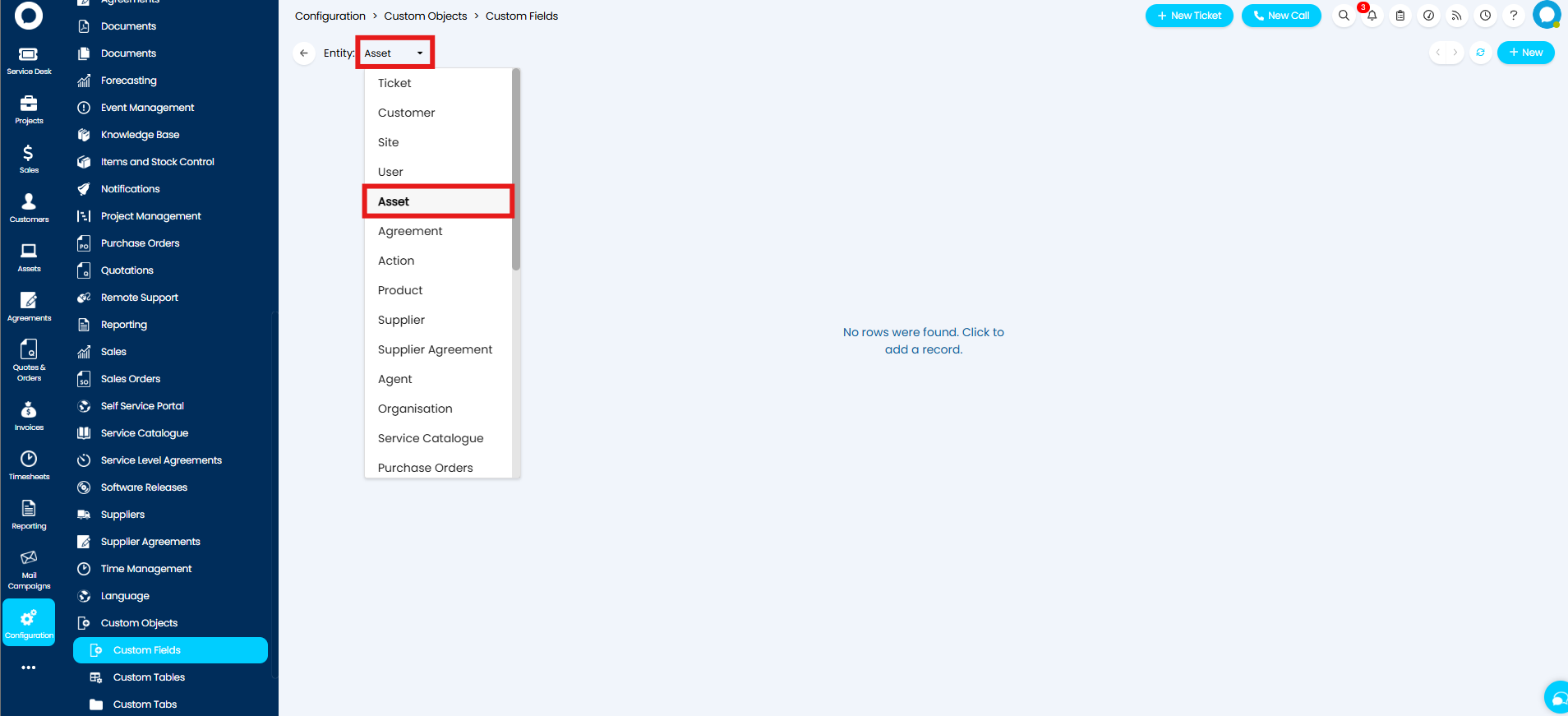
Fig 8. "Asset" entity in the custom fields dropdown
The Difference Between Asset Fields and Custom Fields for Assets
- Custom Fields for Assets provide more options within the configuration of the field itself, but cannot be added/removed per Asset Type.
- Asset Fields provide fewer configuration options within the Field, but can be added to specific Asset Types.
Access Control on Assets
Access control can be enabled in Configuration > Asset Management > General Settings > "Asset Permission Type".
Details of access control and asset access control can be found in the linked related guides.

Fig 9. Enabling access control on assets.