Asset Fields
- fields
- Assets
- asset fields
In this guide we will cover:
- Creating Asset Fields
- Creating Custom Fields for the Asset Entity
- Difference between Asset Fields and Custom Fields for Assets
- Control Who has Configuration Access to Asset Fields
- SQL Lookups
Admin Guides:
Related Guides:
Asset fields correspond to the different pieces of data you care to track against an Asset of a certain type. Similar to Ticket type fields, you can use system Asset fields or create your own Custom Asset fields to track whatever information is required.
Creating Asset Fields
Lets take a closer look at how asset fields are configured. First, it is important to understand Asset Fields versus Custom Fields against the Asset entity. Asset fields are created/amended via Configuration > Asset Management > Asset Fields.
Fig 1. Asset Field configuration.
The configuration around the field(s) is composed of specifying the field name/label, field type (text, single select, password etc.), system use (for specific functionality around opening an RDP address). You are also presented with the option to mark the field as mandatory.
Asset fields can be added to specific Assets types (via the field list tab against an Asset type), or added to all Asset types, using the button shown in Fig 2, this button is against the asset field.
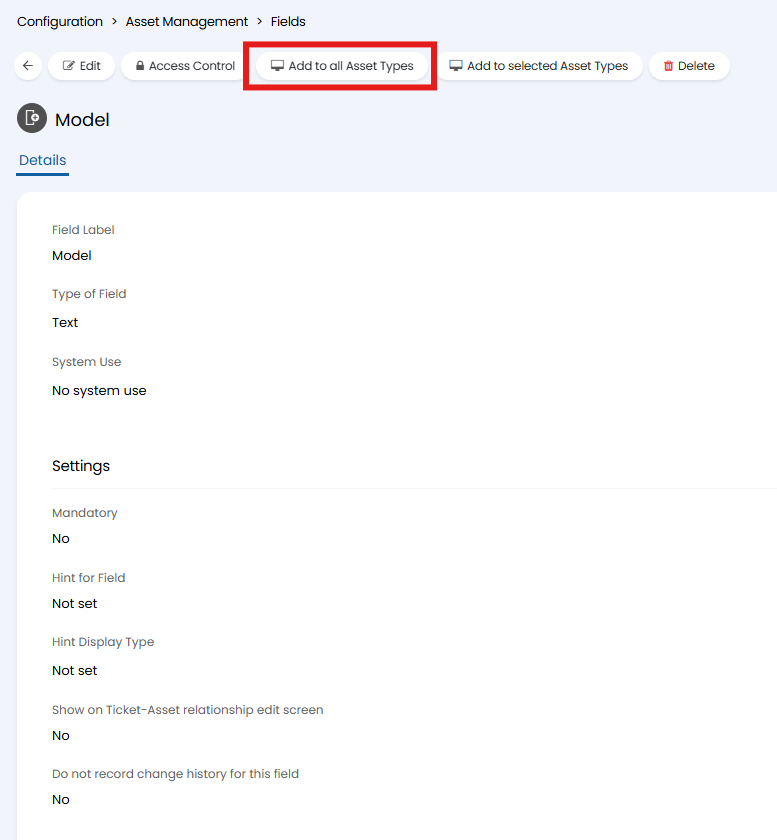
Fig 2. Option to add asset field to all asset types.
Set visibility of Asset Fields
Once fields have been added to an asset type, you can set who these fields are visible for. Head to Configuration > Asset Management > Asset Types > select an asset > Field List tab > edit a field using the pencil icon.
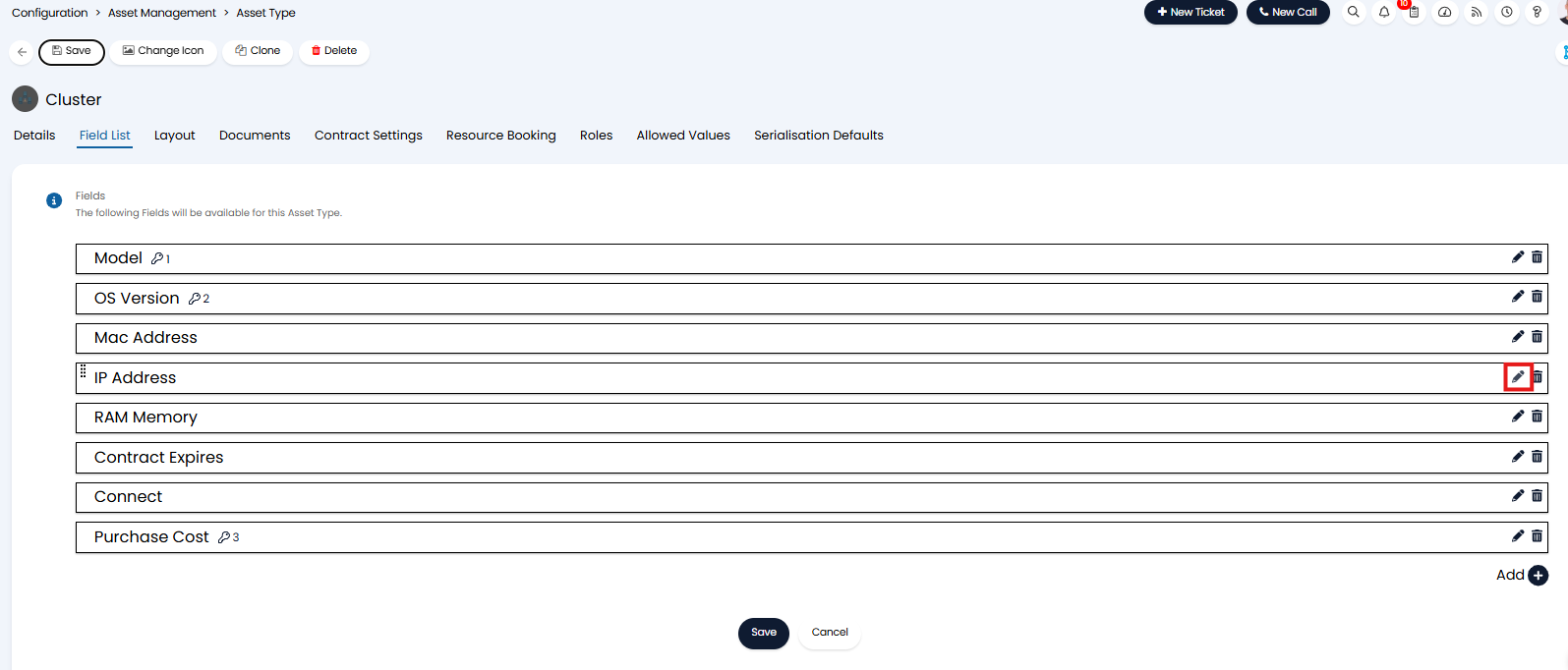
Fig 3. Edit field.
When editing you can set the 'Agent Asset details screen visibility' and 'User Asset details screen visibility' to determine if agents and/or users can see/edit this field when viewing an asset (respectively).You can enforce uniqueness for a visible field against an asset type by selecting the "This Field must be unique for each Asset of this Asset Type" checkbox.
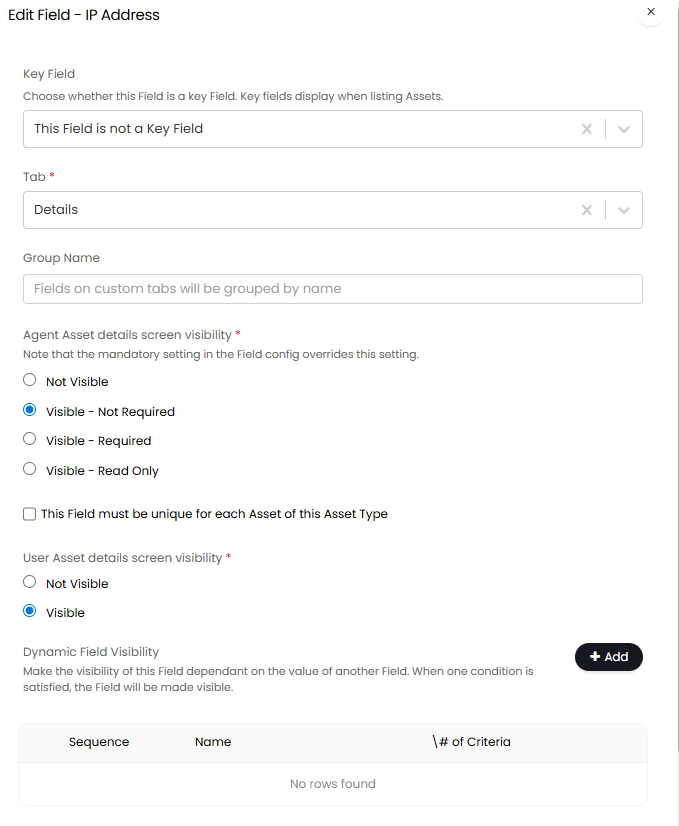
Fig 4. Field settings.
You can also use the Dynamic Field Visibility' table to have the field only show when set criteria is met. this criteria can be based on other asset fields. Dynamic Field Visibility can be set to 'Equals', 'Is Not Equal to', 'Empty' and 'Not Empty'.
Creating Custom Fields for the Asset Entity
Custom Fields for the Asset Entity are configured in a similar way to Custom Fields for all other entities - via Configuration > Custom Objects > Custom Fields.
Ensure you select 'Asset' as your entity:
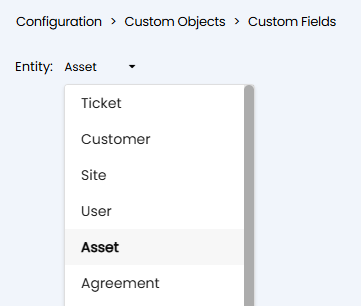
Fig 5. Selecting asset entity for custom fields.
You will find more options here against the type of field to be created (Rich Text, Single/Multiple Select, Custom Table etc.). Custom Fields for Assets will be added to all Asset types & will be displayed on either the 'Custom Fields' tab, or the manually created Custom Tab that you have selected against the Custom Field.
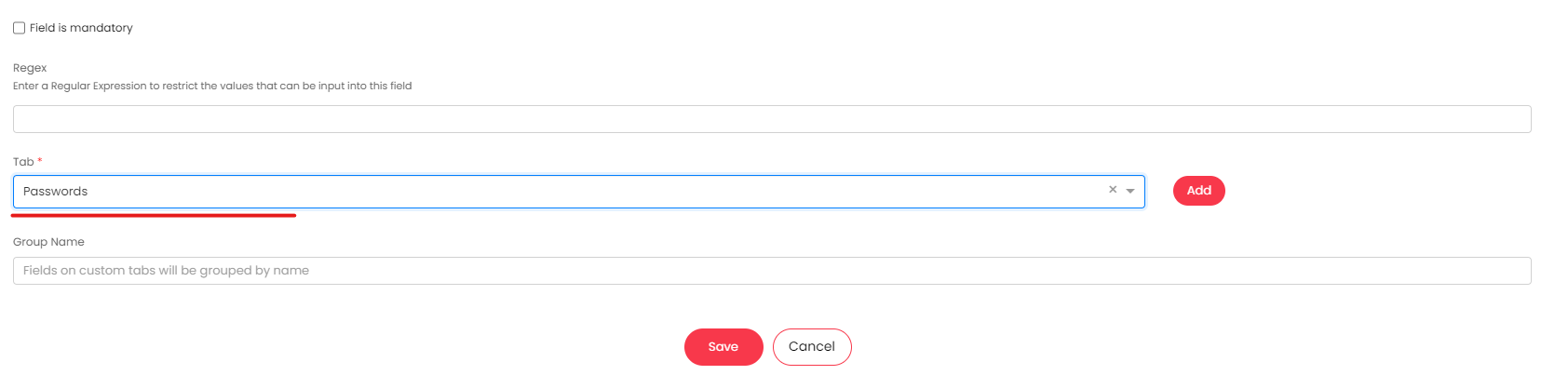
Fig 6. Custom tab selection within a custom field.
Difference between Asset Fields and Custom Fields for Assets
So the key differences between Asset Fields and Custom Fields for Assets are as follows:
- Custom Fields for Assets provide more options within the configuration of the field itself, but cannot be added/removed per Asset Type.
- Asset Fields provide fewer configuration options within the Field, but can be added to specific Asset Types.
Added Asset $-variables
These variables can be used to pull through information about an asset, these may be used, for example, on an email template that is used for suppliers.
$-ASSET_PARTSWARRANTYSTART - The asset's parts warranty start date.
$-ASSET_PARTSWARRANTYEND - The asset's parts warranty end date.
$-ASSET_LABOURWARRANTYSTART - The asset's labour warranty start date.
$-ASSET_LABOURWARRANTYEND - The asset's labour warranty end date.
Control Who has Configuration Access to Asset Fields
Access control can be granted for asset fields, allowing selected non-administrator agents to edit asset fields. On versions prior to this only agents with the administrator permission will be able to create and edit asset fields.
To give access control to an asset field, use the 'Access Control' button against the field.
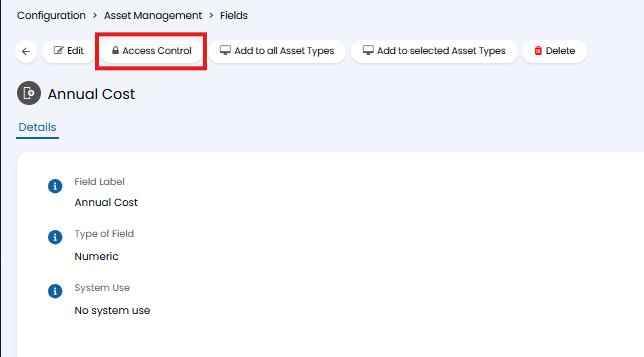
Fig 7. Access Control button
When used you will be able to choose the role/agent/team/department you would like to give the access control to, and then what level of access you would like them to have. In the figure 8 example all agents in the team 'Operations' will have read and modify access to the configuration of this asset field.
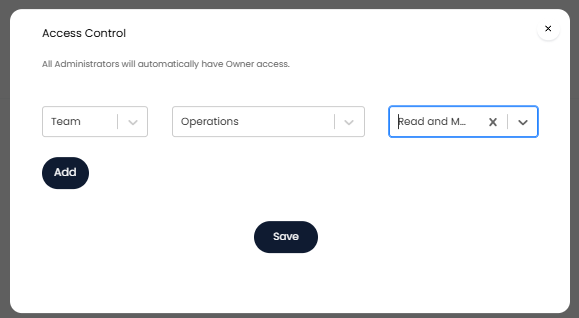
Fig 8. Access control example
This means these agents will be able to view and edit the configuration of this asset field. They will not be able to create any new asset fields.
SQL Lookups
SQL Lookups can be created with Asset Fields in a similar method to Custom Fields, using either Single Selection or Multiple Selection Fields.
- Type of Field: Single Selection or Multiple Selection.
- Lookup Type: Dynamic List
- Lookup Method: SQL
You can reference Asset Fields in the SQL by using $AF followed by the Asset Field name.
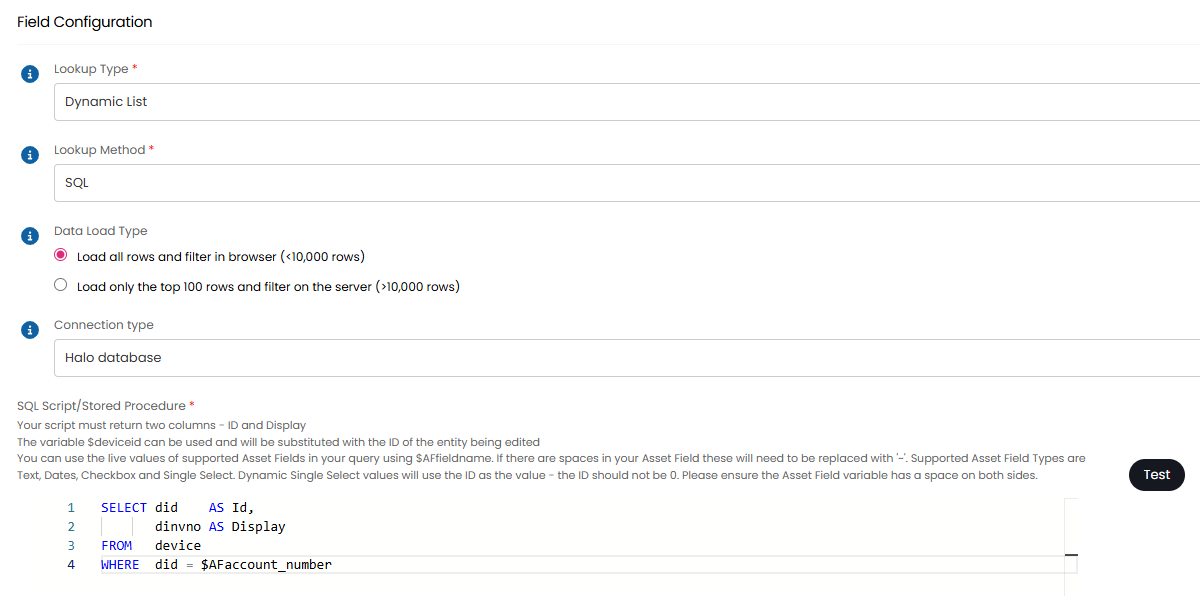
Fig 9. Asset Field Lookup.
Note: The character limit for the lookup SQL has been extended to 4000 characters.