Batch Updating Asset Fields
- Custom Fields
- Asset Management
- asset fields
- update asset fields in bulk
In this guide we will cover:
- Batch Updating Asset Fields
Admin Guides:
Related Guides:
Batch Updating Asset Fields
Asset fields can be batch updated together when viewing a list of assets. This is useful for keeping assets up to date as their technology changes, for instance which software is installed or who owns it.
In the Assets area, select the checkboxes to the side of the assets you want to update. If you want to update everyone within an asset group, type, etc, enter the view of that group and select the checkbox at the top that is in line with the column headers.
Note: If using the right-aligned checkboxes as part of the 2025 UI, you will need to hover over the row to see the checkbox.
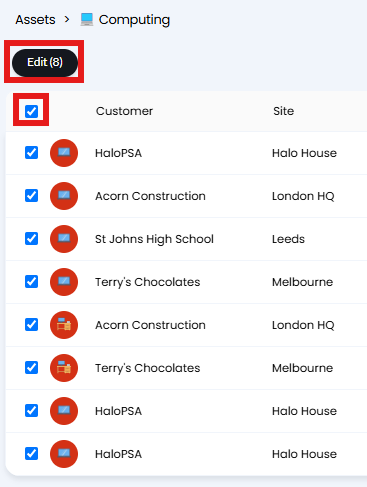
Fig 1. Bulk selecting assets.
Hovering over the "Edit" button will show the following dropdown. Select the "Batch Update" option here.
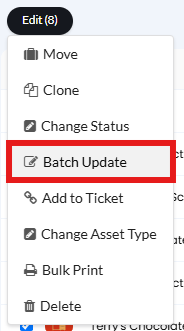
Fig 2. "Batch Update" option.
The following popup will then show, where you can add fields to a table to update. Click the "Add" button.
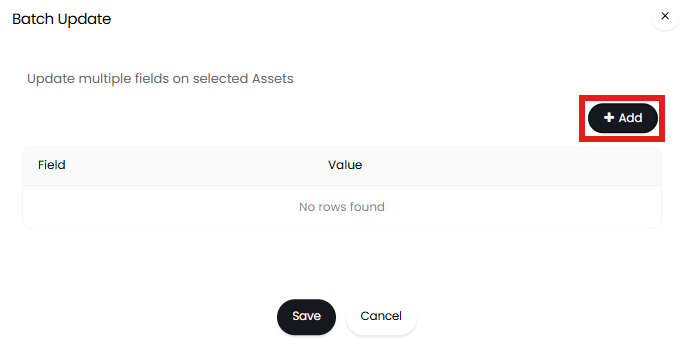
Fig 3. "Add" button on a Batch Update.
Another popup will then show to choose a field. Fields are added one at a time, but you can select multiple before saving.
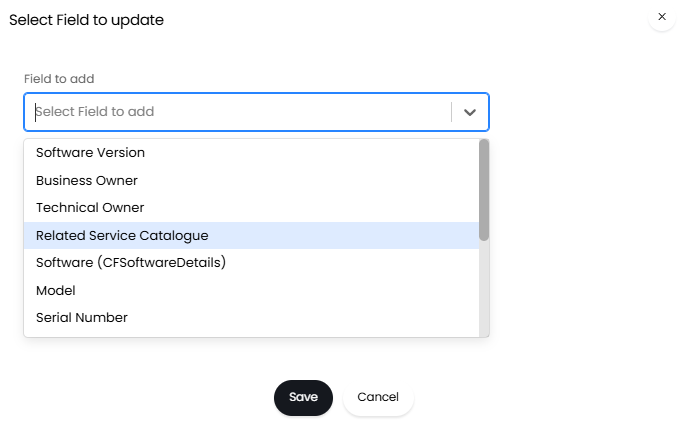
Fig 4. Selecting a field to batch update.
Two fields have been added below - one system (Purchase Cost) and one custom (Software). Custom asset fields can be updated with this method.
The new value the fields will be updated to will be shown in the "Value" column.
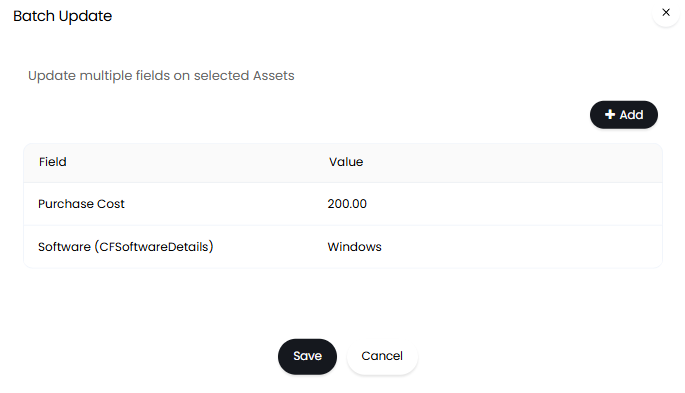
Fig 5. Multiple fields added into the update table.
The two values appear "Not set" before updating.
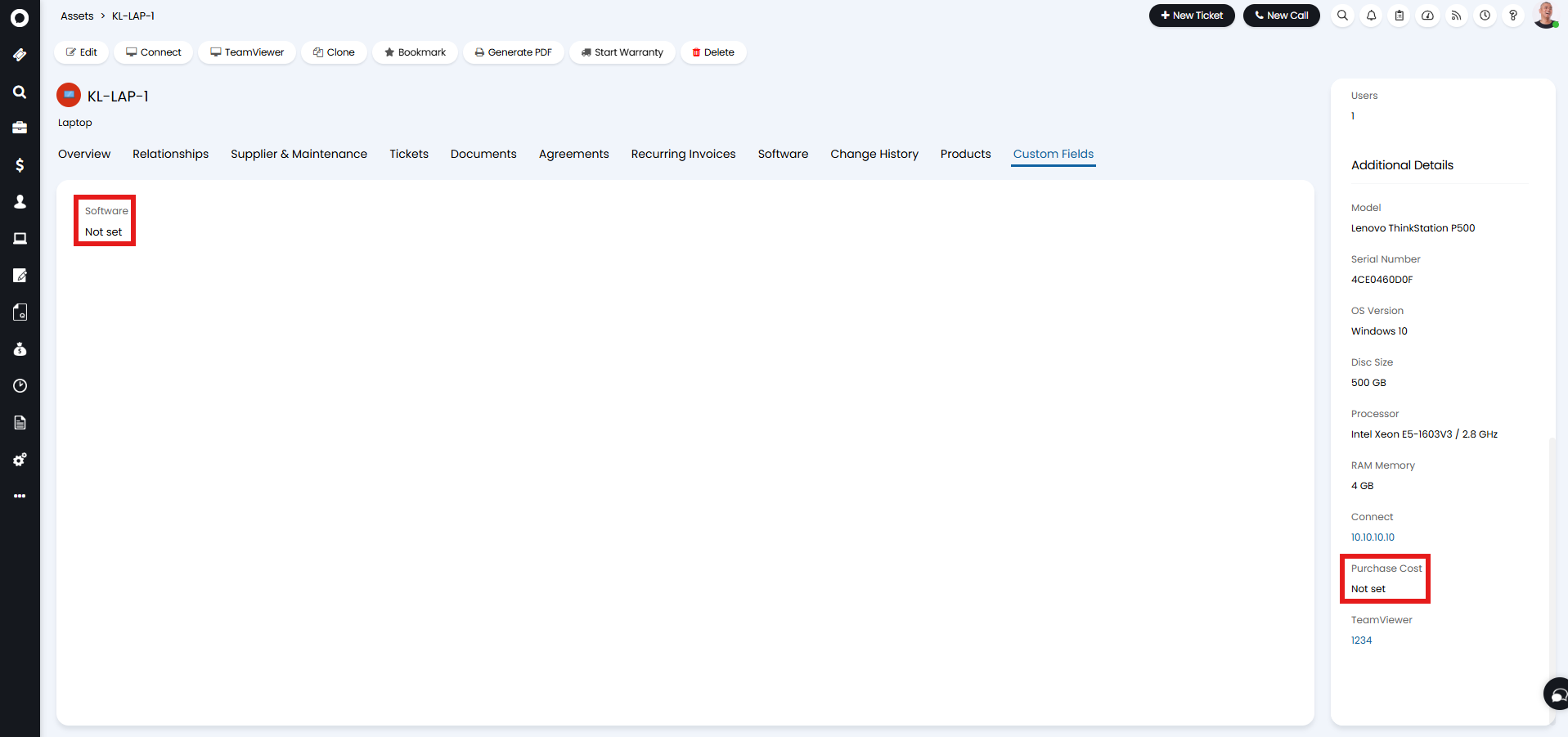
Fig 6. Values not set on an asset.
Upon clicking "Save", the fields have been updated.
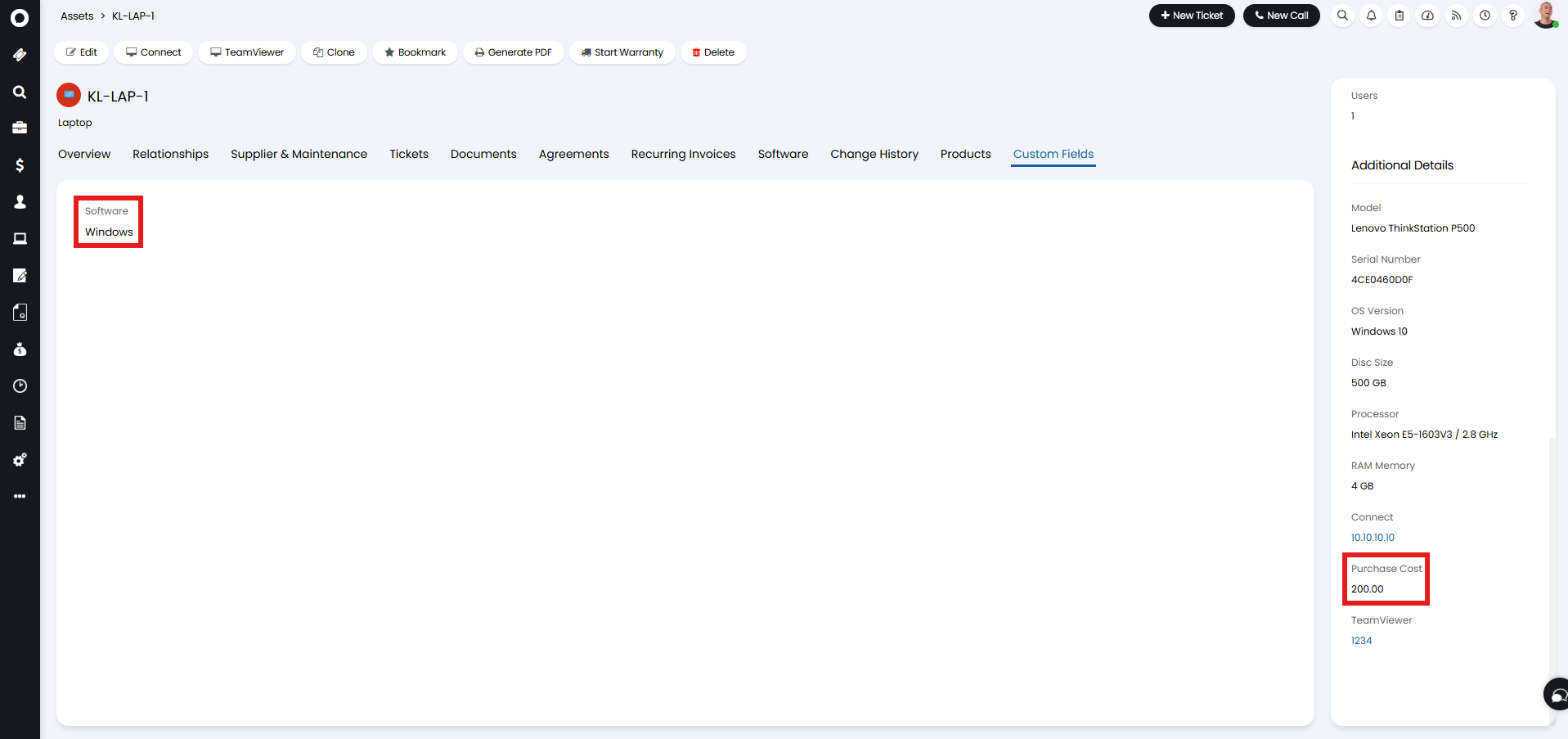
Fig 7. Updated values on an asset.