LogicMonitor Integration
- integration
- Alerting
- logic monitor
- logicmonitor
In this guide we will cover:
- What is the LogicMonitor Integration?
- Connecting to LogicMonitor
- Asset Import
- Alert Processing
- Halo Integrator
What is the LogicMonitor Integration?
LogicMonitor can be integrated with Halo to import and manage assets, as well as create alert tickets matched to the asset.
Connecting to LogicMonitor
Create a ‘Halo’ User in LogicMonitor.
Enable the integration module in Halo, by navigating to Configuration > Integrations > Asset Management and Alerting.
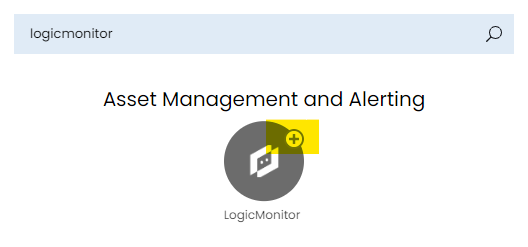 Fig 1. Enabling the module
Under the Halo User, there will be an ‘API Tokens’ Section (guide here). In this section, you will need to retrieve the Access Key and Access ID, and input them into the below Halo fields (found in LogicMonitor Integration section).
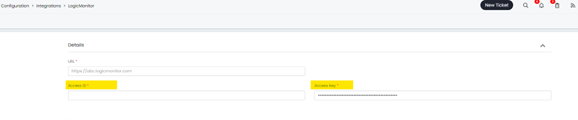 Fig 2. Entering the details
Next, you will need to input your LogicMonitor URL into the Halo URL field.
Asset Import
You will need to map your assets in the ‘Asset Imports’ section in the Halo LogicMonitor Integration page.
To map assets, first choose a matching field (we recommend serial number as this will be unique to each asset).
Also choose a default site in Halo for any assets that are imported. LogicMonitor Alerts created with webhooks will now match the Site from the Device if not matched using halo_customer_name or halo_customer_id properties.
Then you will need to determine how assets imported from LogicMonitor are assigned an asset type in Halo.
Determine an Asset's Type
When assets are imported from LogicMonitor a new asset in Halo will be created, as all assets in Halo must have an asset type we will need to configure how the type of new assets created from LogicMonitor are determined. This is done using the 'Determining an Asset's type' field.
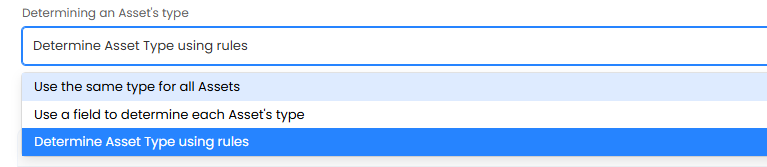
Fig 3. Field to set how an Asset's Type is determined
Use the same type for all Assets
If you would like all imported assets to have the same asset type when imported set the 'Determining an Asset's type' field to be 'use the same type for all Assets' then set the 'Asset Type' field to be the asset type you would like assets from LogicMonitor to be.
Use a field to determine each Asset's type
If you would like all imported assets' types to be determined by a particular field, set the set the 'Determining an Asset's type' field to be 'Use a field to determine each Asset's type'. Then in 'Field for determining an Asset's type' choose the field you would like the type to depend on. The field you choose must contain the name of the desired asset type, if this name can be matched to an existing asset type in Halo, it will be assigned this asset type. If the name is not the same as an asset type in Halo, a new asset type will be created. Note that the names must be identical in order to match. This setting is used if you have a field in LogicMonitor that already determines an asset's type and you would like the types to be consistent between Halo and LogicMonitor. You will still need to populate the default asset type and group fields as assets that do not have the selected field populated will be imported as the default asset type.
In the Figure 4 example new assets will be assigned to an asset type in Halo based on their 'deviceTypeName' field. If the data in the deviceTypeName field matches the name of an asset type in Halo this asset will be created under the matched asset type. If a match cannot be made a new asset type will be created, under the asset group 'Network Equipment'. If the asset does not have the 'productType' field populated the asset will be created under the default asset type, 'Workstation'.

Fig 4. Using field to determine asset's type example
Determine Asset type using rules
If you would like asset types to be determined by asset rules set the set the 'Determining an Asset's type' field to be 'Determine asset type using rules'. Now you will be able to set asset's types based on rules, These rules are based on field values, and if matched will assign an asset to the chosen asset type. When creating a rule first add criteria for the rule, select the Halo field that you would like to base the criteria on, then set the rule type and the outcome needed in the field to match the rule. If an asset matches this rule it will be imported as this asset type.
If an asset is imported that does not match any of these rules, it will be created under the default asset type. Alternatively, if you would like to not import assets that do not match these rules, set the 'Default Asset type' to 'Don't import assets that do not match any rules'.
Once you have setup how asset types are determined, set up the field mappings in the "Field Mappings" table.
Field Mappings
In the field mappings table you can map Halo asset fields to LogicMonitor fields.

Fig 5. Add new Field Mapping
When creating a mapping choose the type of LogicMonitor field you would like to map, such as if it is a standard property or auto property. This filters the results in the "LogicMonitor Field" selection, making it easier to choose.
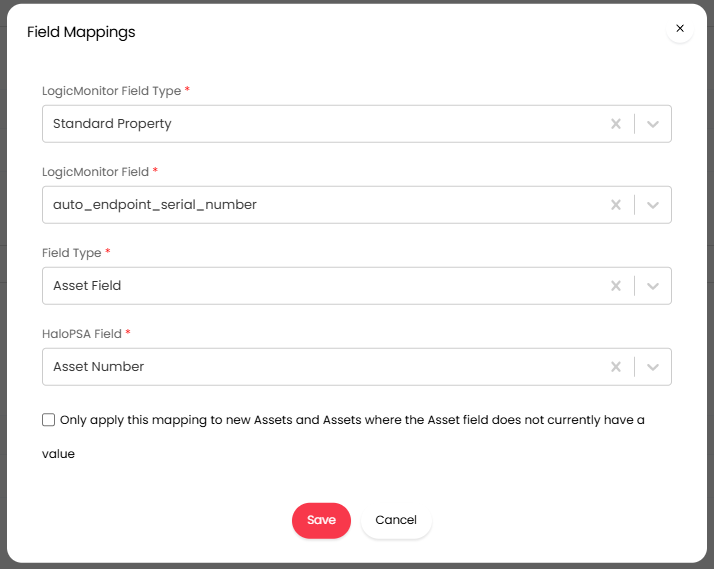
Fig 6. Example Field Mapping
Note: Custom properties in LogicMonitor can be imported into Halo.
Field Type - This will be the type of Halo field the data will be imported into. See our guide on Asset Fields if you are unsure on the difference between asset fields and custom fields in Halo.
Now choose the Halo field to map this to.
Only apply this mapping to new Assets and Assets where the Asset field does not currently have a value - When this is enabled if the Halo field already has data within it, different to the data in the mapped LogicMonitor field, the field data will not change. Fields will only be populated when they contain no data or when new assets are being created.
Once mappings are complete, hit "Import Assets".
Alert Processing
Tick "Enable alert processing".
You will now need to create a webhook within LogicMonitor to sent to Halo. To set this up in LogicMonitor, you will need to create a custom HTTP delivery (guide: https://www.logicmonitor.com/support/alerts/integrations/custom-http-delivery)
You will need to set up the HTTP method to be ‘Post’ and the URL will need to be ‘HTTPS’ NOT HTTP. The URL will be https://{Your instance Domain}/api/notify/LogicMonitor. The URL, Username and Password can be found in your Halo LogicMonitor Integration Page.
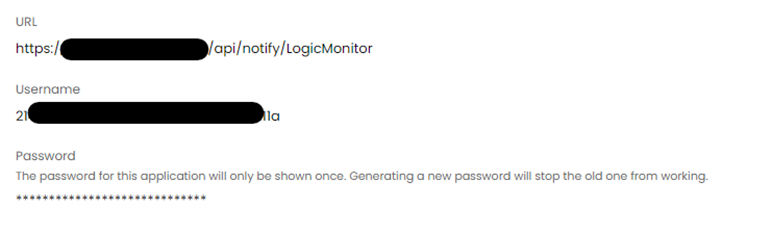 Fig 7. LogicMonitor details
In the ‘Alert data’ section of the custom HTTP delivery setup, you will need to choose ‘Raw’ and the format is ‘JSON’. Then, copy and paste the Custom HTTP Method Raw data from your Halo integration page. (Custom properties can also be added to the body of the JSON and used to match Halo Customer Name and ID with the following format halo_customer_name and halo_customer_id).
 Fig 8. HTTP Method
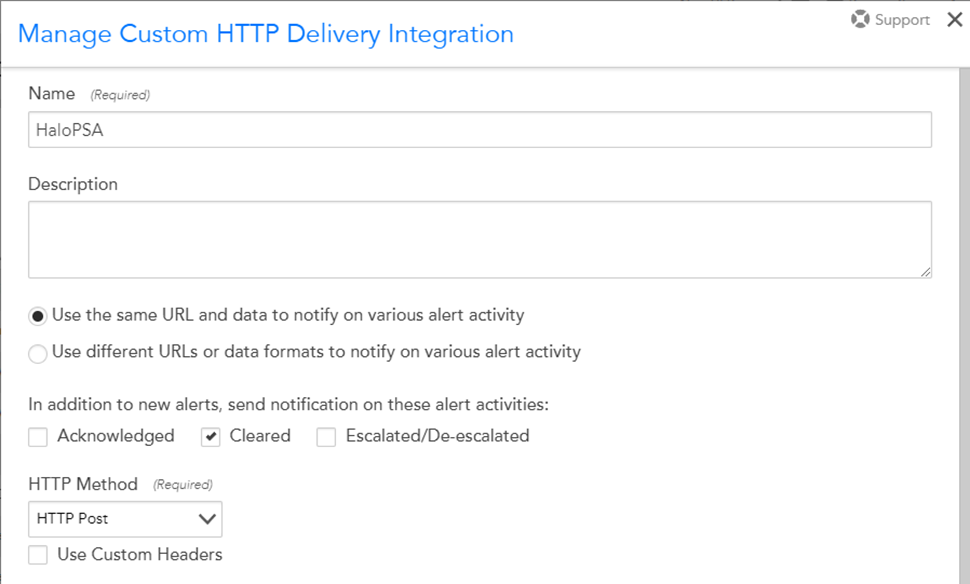 Fig 9. HTTP settings
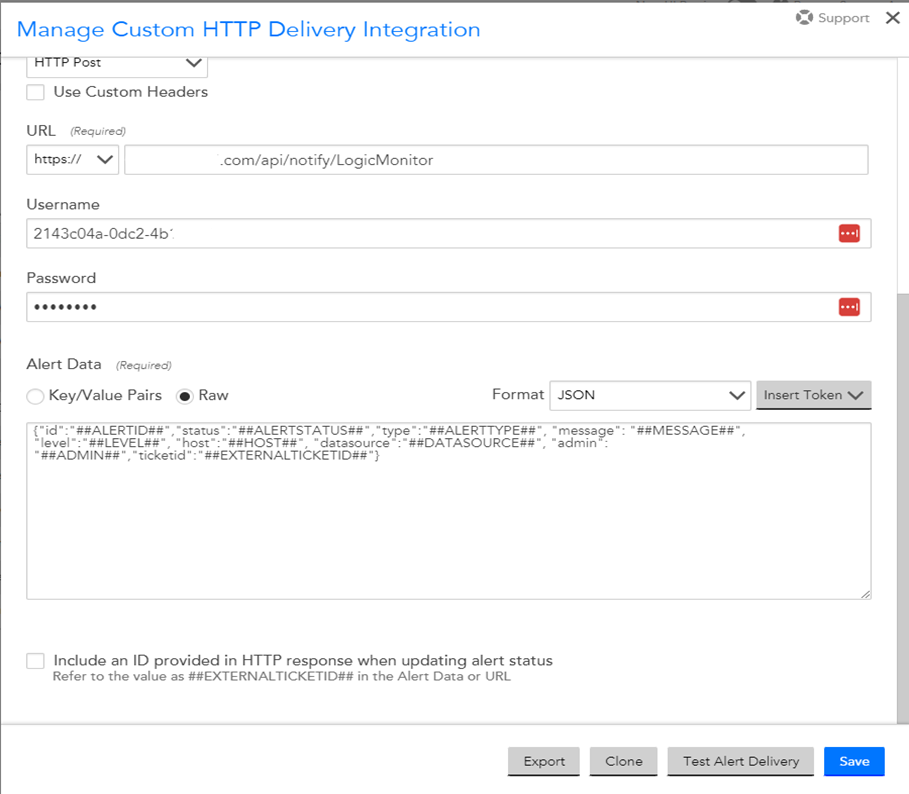 Fig 10. HTTP settings.
After setting up your custom HTTP Delivery in LogicMonitor you must then include the method as a contact method for a recipient in an escalation change which is itself referenced by an alert rule in LogicMonitor.
Finally, you can choose the status for alerts created in Halo, that are cleared in LogicMonitor – usually this is "Closed".
Halo Integrator
You can also enable the Halo Integrator to automatically sync the assets.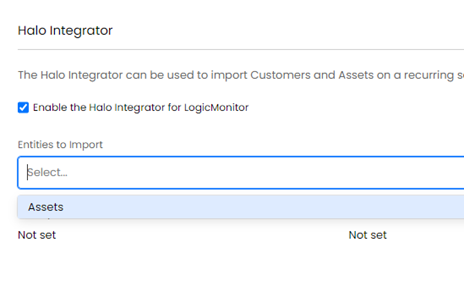
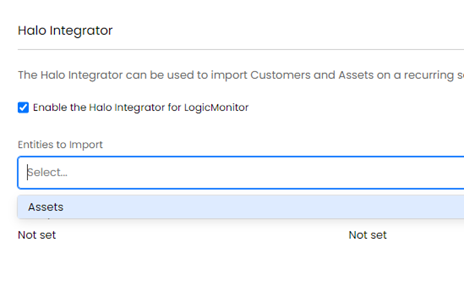
Fig 11. Enabling the integrator