Qualys Integration
- asset integration
- qualys
In this guide we will cover
- How to connect to the Qualys integration
- How to import assets using the Qualys integration
Connecting to Qualys
First ensure the module is enabled. Head to configuration > integrations, use the '+' symbol to enable the integration.
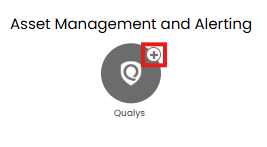
Fig 1. Enable module
Now click into the module to begin configuration.
To connect to Qualys you will need to enter your connection details under the 'Qualys Details' section of the integration page.
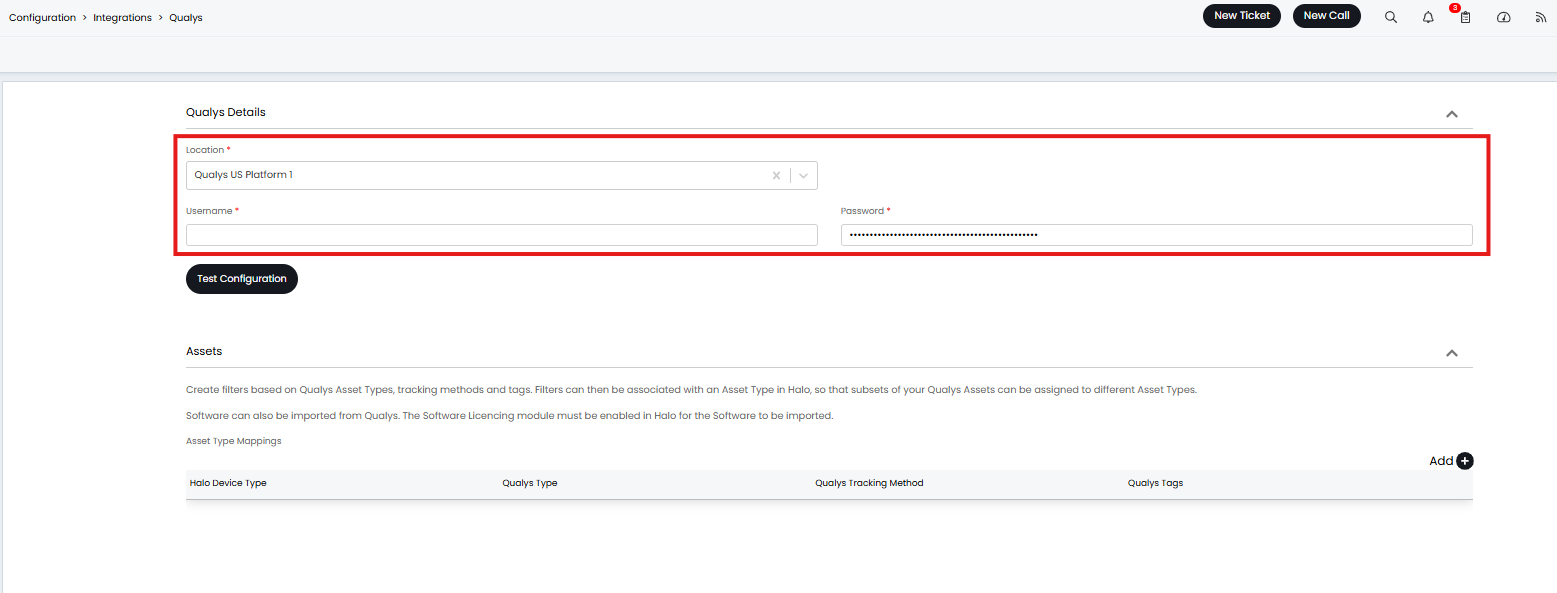
Fig 2. Qualys connection details
Location - Enter the location your Qualys instance is hosted in.
Username - Enter the username of the Qualys user you would like to connect to the integration with.
Password - Enter the password for the Qualys user's account you are connecting with.
The user you connect with will be the user authenticating the connection, this user must be an Administrator in Qualys.
Importing Assets
Before assets can be imported you will need to configure which assets are imported and where they are imported to.
Asset Type mappings
Asset type mappings must be configured to determine what Halo asset type assets from Qualys are imported in as.
When creating a mapping choose the Halo asset type and Qualys asset type you would like to be associated. Filters can be added to the mapping based on the Qualys Tracking Method and Qualys Tags too. These filters will restrict which Qualys assets are imported as this Halo asset type.
In the figure 3 example all Qualys assets that have the type 'Host' and have the Qualys Tracking Method 'IP' and have the tag 'Windows' will be imported as the Halo asset type 'Laptop'.
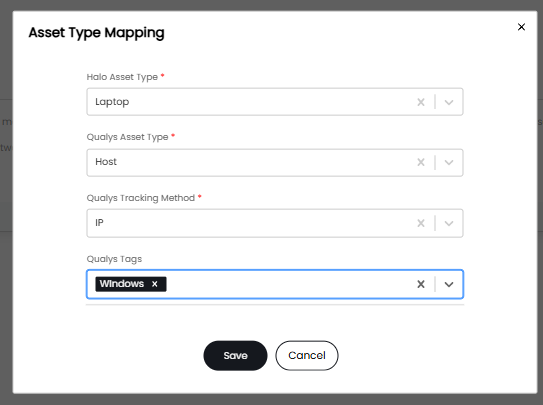
Fig 3. Asset type mapping example
Assets must meet all criteria in the mapping to be imported as the chosen Halo asset type. Any assets that do not meet criteria in the mapping table will not be imported.
Asset Field Mappings
Mappings can be configured to ensure data from Qualys fields are imported into a chosen Halo field. Create a mapping by adding to the 'Field mappings' table.
Field Type - This will be the type of Halo field the data will be imported into. See our guide on Asset Fields if you are unsure on the difference between asset fields and custom fields in Halo.
Now choose the Qualys and Halo field you would like to map together. If you would like data from the Qualys field to create a new field in Halo select '*Create new field during the next import*' under 'HaloPSA Field'.
Only apply this mapping to new Assets and Assets where the Asset field does not currently have a value - When this is enabled if the Halo field already has data within it, different to the data in the mapped Qualys field, the field data will not change. Fields will only be populated when they contain no data or when new assets are being created.
In the figure 4 example when assets are imported a new Asset field will be created in Halo and data from the 'processorName' field will be imported to this field. The field that is created will share the same name as the Qualys field and be assigned to assets imported from Qualys.
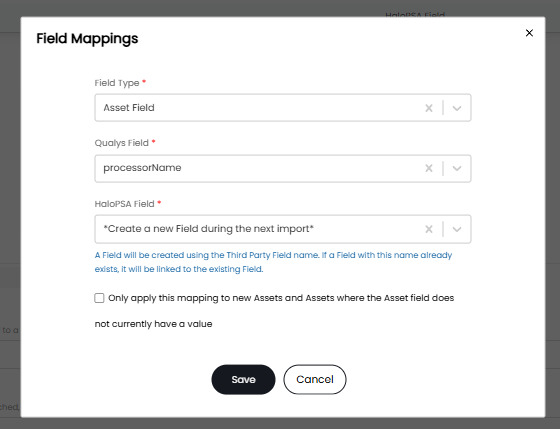
Fig 4. Asset field mappings example
Asset sites
Qualys does not have a concept of asset sites therefore assets will be imported to the same site as their linked user. If an asset is not linked to a user it will be imported to the site chosen in the 'Default Site for New Assets' field. "Asset Site Allocation" will determine if Assets are assigned to the User's Site or to the default Site.
User matching
Assets will be linked to a user in Halo based on their last logged on the last logged in user data from Qualys. The 'User Matching Type' field determines how frequently the asset's linked user can change.
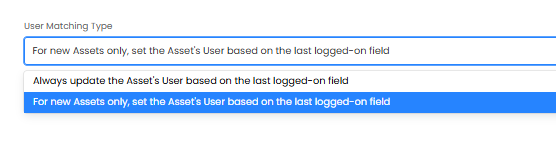
Fig 5. 'User Matching Type' field
For new Assets only, set the Asset's user based on the last logged-on field - When this option is selected an asset's linked user will only be set when a new asset is being created from the sync. Any assets that already exist and are being updated by the sync will not have their linked user updated.
Always Update the Asset's User based on the last logged-on field - When this option is selected an asset's linked user will be updated after every sync. This ensures the linked user in Halo is always the same as the user set in the Qualys 'last logged-on' field.
Asset Matching field
This field is used to match Assets to existing records. If matched, the record will be updated. By default, the Qualys ID will always be checked first. It is best to set the unique identifier of the asset as the asset matching field.
Begin the Import
Once your setup is complete use the 'Import assets' button to begin the import. When selected an import preview screen will appear displaying all the assets that will be imported, hit 'start' to begin the import.
Importing assets on a schedule
To have assets be imported/updated from Qualys automatically you will need to enable the Halo integrator for the application. This is done using the checkbox shown in figure 6.
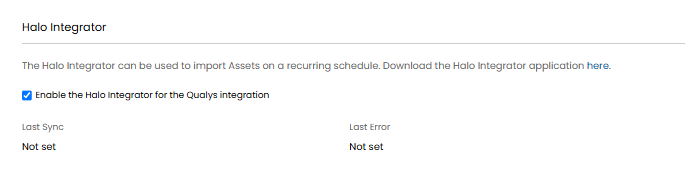
Fig 6. Enable the Halo integrator
Once enabled assets will be imported from Qualys on a daily basis.