Connectwise RMM Integration Guide
- integration
- connectwise
- integrator
- RMM
- Connectwise RMM
In this guide we will cover:
- What is the ConnectWise RMM Integration?
- Connecting Halo to ConnectWise
- Site Imports
- Asset Imports
- Alerting
- Syncing Data
What is the ConnectWise RMM Integration?
The ConnectWise RMM Integration can be used to connect your Halo instance to your ConnectWise asset management tool; allowing you to sync sites and assets from ConnectWise into Halo. The integration also supports alerting, allowing alerts from ConnectWise to automatically be created in Halo as tickets. Allowing you to manage alerts from Halo.
Important: If you are setting up the integration for the first time, as ConnectWise RMM now sits inside the Asio platform, you will need to use v2 of the integration. To configure this connection, please use this guide: ConnectWise RMM Integration (Asio Platform).
Connecting Halo to ConnectWise
In Halo, head to Configuration > Integrations and enabled the ConnectWise RMM integration module using the '+' icon.
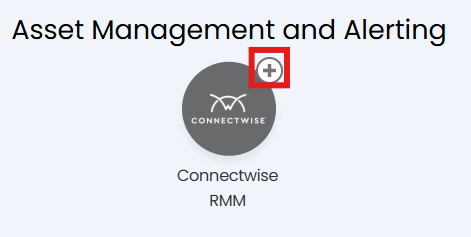
Fig 1. Enabled integration module.
Once enabled, click into the module to begin configuration.
A username, password and API key from ConnectWise are required to authenticate the integration.
Obtain credentials from ConnectWise
In ConnectWise RMM, navigate to Settings > Admin > Integration > PSA Integration and select "Other Authorized Vendors" from the dropdown. Ensure you have access to the below.
- API Token: This should be entered into Halo later.
- Integrator User: Enter a Username for the integration user.
- Integrator Password: Enter a Password for the integration user.
- Confirm Integrator Password: Re-enter the password.
- Callback URL: This is your Halo URL followed by
"/api/notify/ConnectWiseRMM". Example:https://yourhalo.com/api/notify/ConnectWiseRMM. - Callback Method: Set this to "GET".
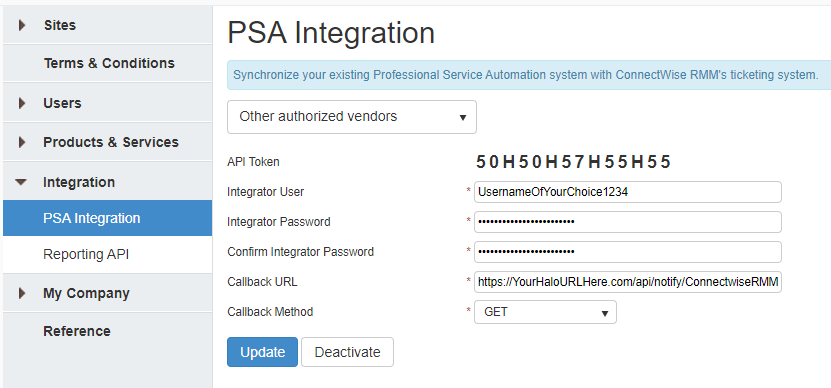
Fig 2. API integration.
Now you have your credentials, in Halo, go to Configuration > Integrations > ConnectWise RMM.
Enter your ConnectWise RMM URL, up to and including ".net", as well as the username and password you created above.
Copy the API Token from ConnectWise RMM into the "API Key" field.
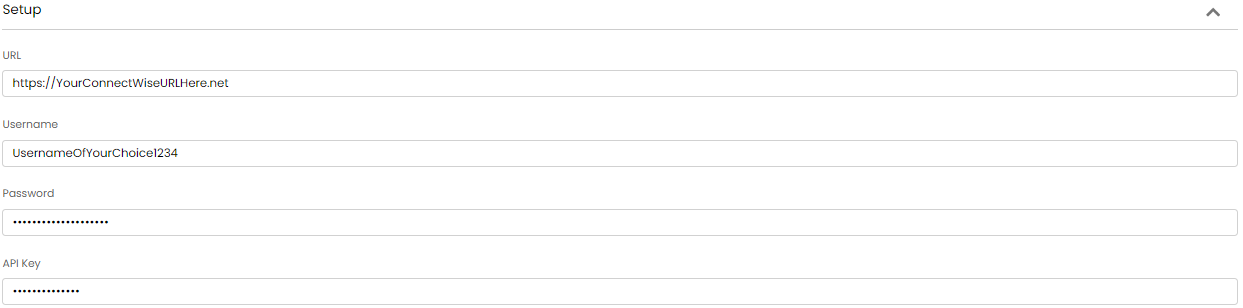
Fig 3. ConnectWise RMM credentials.
Now you will need to configure how sites and assets are imported into Halo.
Site Imports
If your sites already exist in your Halo instance use the mappings table to map the Halo site to the corresponding ConnectWise site. This will ensure the correct site is updated when a site import is complete.
If your sites do not yet exist in Halo and you would like to import these from ConnectWise you will need to set the "Default Customer".
Default Customer - Any newly created sites will be created under this customer.
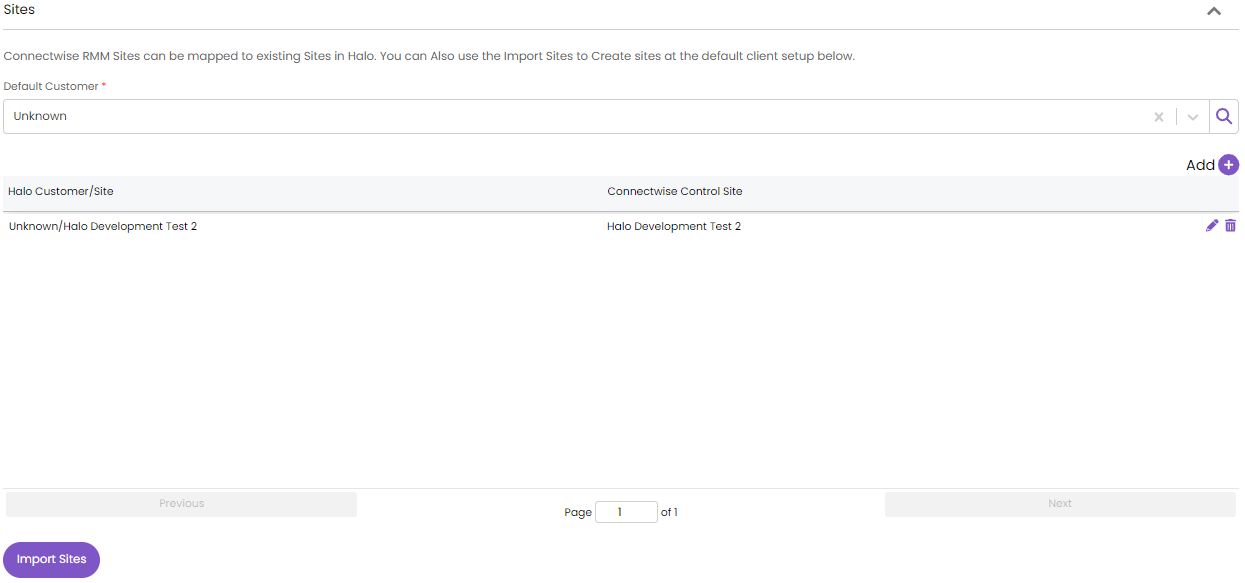
Fig 4. Sites configuration.
Once mappings/default Customer is complete use the 'Import Sites' button to import your sites.
Asset Imports
In the "Assets" section, map asset types together. For each asset type mapping you can map the fields within this type. This ensures when assets are imported, they are created as the correct type, and allows you to control which fields asset data is imported into.
Note: As field mappings are set per asset type this allows you to customise mappings at the asset type level.
To create a mapping use the "Add" button.
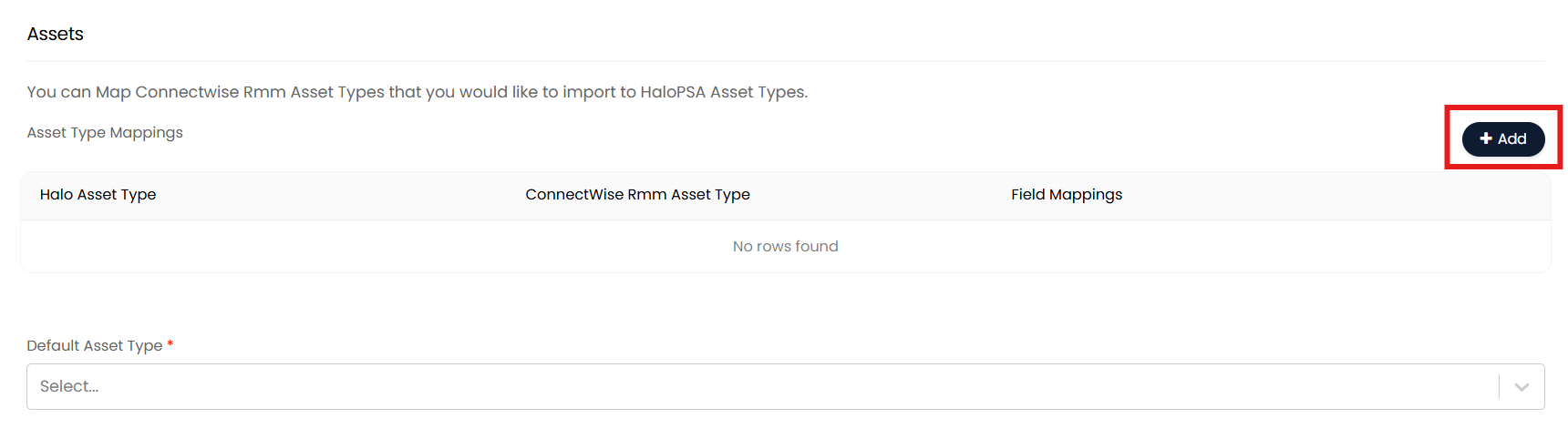
Fig 5. Add asset mapping.
When adding a mapping choose which Halo and ConnectWise asset type to map. Then you will be given the option to add field mappings for these types.
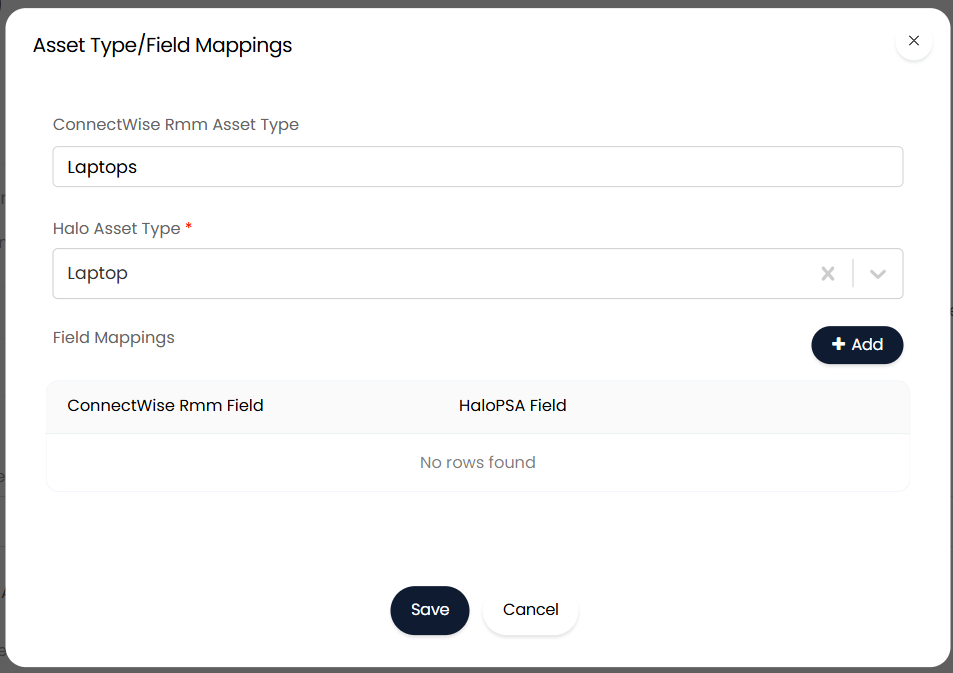
Fig 6. New asset type mapping.
When adding a field mapping choose the ConnectWise and Halo field you would like to map together. If you would like data from the ConnectWise field to create a new field in Halo select '*Create new field during the next import*' under 'HaloPSA Field'.
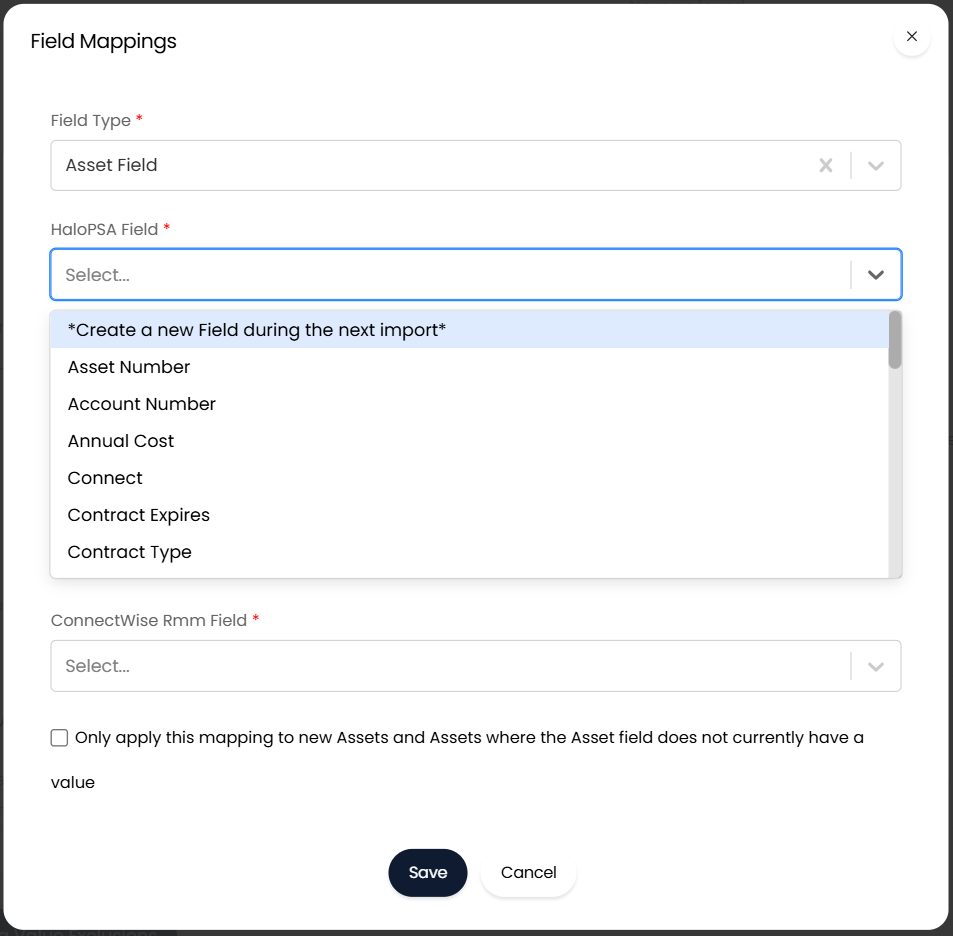
Fig 7. New field mapping.
Field Type - This will be the type of Halo field the data will be imported into. See our guide on Asset Fields if you are unsure on the difference between asset fields and custom fields in Halo.
Only apply this mapping to new Assets and Assets where the Asset field does not currently have a value - When this is enabled if the Halo field already has data within it, different to the data in the mapped ConnectWise field, the field data will not change. Fields will only be populated when they contain no data or when new assets are being created.
Once you have completed your mappings there are some additional asset import settings.
Default Asset Type - Determine the asset type assets will be created as if they are not mapped.
Do not update Asset Types - When enabled, asset imports will not update the type of an asset if the asset already exists in Halo. Useful if you would like to change asset's types in Halo after they have been imported.
Do not update Asset Types - When enabled the asset type of the asset in Halo will not be updated when asset syncing/imports next run. This allows you to adjust asset type mappings or manually change an asset's type in Halo without the asset type being changed by a ConnectWise sync.
Asset Matching Field - This field is used to match assets to existing records. If matched, the record will be updated. This should be the unique identifier of the asset.
Asset Matching Value Exclusions - Here you can set assets to not be matched using the matching field if the matching field contains a certain value. For example, if two assets have the matching field set to be 'None' they would match even though they are separate assets. By adding the value 'none' to the matching value exclusions list you can ensure the assets are matched using their ConnectWise ID instead.
Once you have completed mappings and considered the above settings, use the "Import Assets" button to import assets.
Alerting
Alerts from ConnectWise can automatically log tickets in your Halo instance, allowing you to manage alerts from Halo. Alerts are processed using webhooks, meaning tickets will be logged almost instantaneously after the alert occurs.
In the "Alerting" section, enable alert processing, when enabled additional fields will appear to specify ticket type and assigned user that will be used to log tickets created from alerts. We recommend creating a dedicated alert ticket type, or using the out-of-the-box 'Alert' ticket type for this. The user assigned to the ticket will be the user the assets that triggered the alert belongs to, or the general user of the customer the asset is under. If neither can be matched the user selected in the 'New Alert User' field will be the user assigned to the generated ticket.
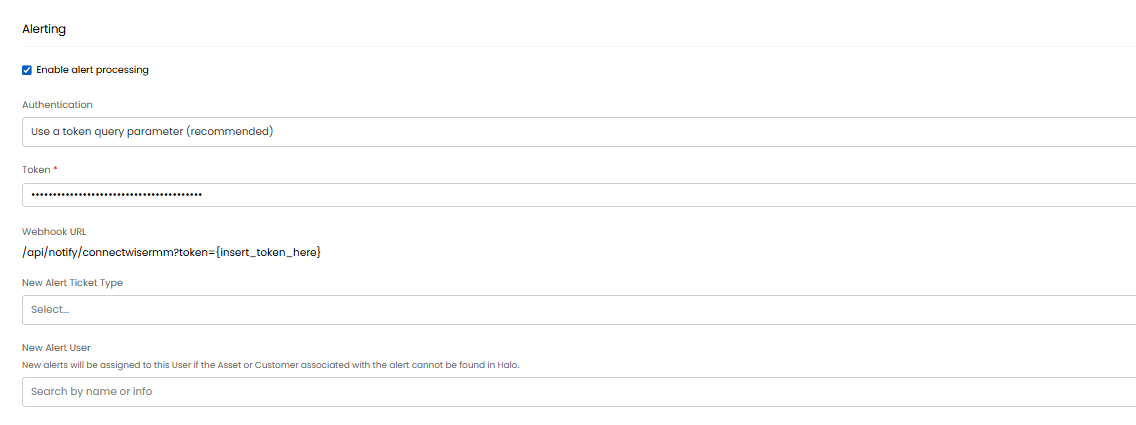
Fig 8. Alerting setup.
Now you will need to configure a webhook in ConnectWise to trigger the alert.
You can add a level of authentication to the webhook using the "Authentication" field.
- Use a token query parameter - When this option is selected you will need to generate a token for the webhook created in ConnectWise. Then enter this token in the 'token' field in Halo. You will also need to include this token as a parameter in the Webhook URL, this parameter will be checked by the Halo API before the webhook is processed. This will prevent any other webhooks sent to this endpoint being processed, adding an additional layer of security.
- No authentication - When selected no webhook authentication will take place, a token for the webhook does not need to be generated but this is a less secure method.
Once this is set head to ConnectWise and create a webhook, the trigger for the webhook will determine when a ticket is created in Halo, so configure a webhook that is triggered each time a chosen event/alert occurs. The URL for the webhook will follow the format:
If you are using authentication for the webhook your webhook URL will follow the format:
- https://YOURHALOURL/api/notify/connectwisermm?token={insert_token_here}
Once you have created the webhook a ticket in Halo should create each time the webhook fires.
Processing alert Tickets
When an alert ticket comes int Halo the ticket will be assigned to the general user at the site the asset belongs to. The ticket will also contain the ConnectWise RMM Ticket ID, allowing agents to see the corresponding ticket in ConnectWise.
When ConnectWise RMM tickets have a status of NOC Completed this will automatically close the linked ticket in Halo. When tickets are closed in this was this will ignore the Halo setting "A Ticket must be assigned before being closed" (Config > Tickets > General Settings) allowing alert tickets to be closed without needing to be assigned.
Site and Asset syncing
You can also enable the Halo Integrator to activate automatic scheduled syncing. If you don’t have a Halo Integrator, contact Halo Support. Selecting this option allows you to choose which entities (Sites, Assets, or both) to sync. If "Deactivate Assets in Halo when deleted in ConnectWise RMM" is enabled, any assets deleted in ConnectWise RMM will be deactivated in Halo during the next integrator sync.
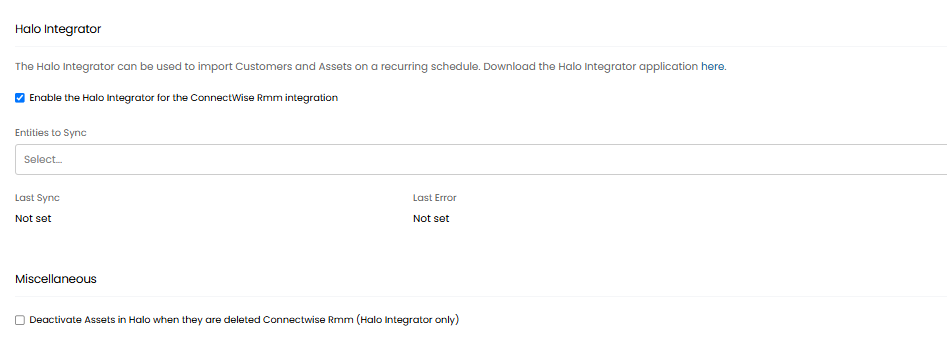
Fig 9. Alerting.
Syncing Data
Click "Activate" on the ConnectWise RMM page. You should see a message: "Ticketing API Configured Successfully."
In Halo, click "Import Sites". A list of ConnectWise RMM sites should appear. Click "Start" in the top right to begin the import. Once sites are imported, click "Import Assets" to sync assets from ConnectWise RMM to Halo.
Your ConnectWise RMM integration is now active! If the Halo Integrator is enabled, data will continue to sync on the scheduled interval.
Note: The ConnectWise RMM API can take up to several minutes/hours to update with new data so new devices/sites may not appear for an extended period.