ConnectWise RMM Integration (Asio Platform)
- Alerting
- connectwise
- Asset Management
- RMM
- Connectwise RMM
- asset integration
- RMM integration
In this guide we will cover:
- What Is The ConnectWise RMM v2 Integration?
- Switching To v2 & Connecting
- Configuring The Integration
- Sites
- Assets
- Alerting
- Enabling The Halo Integrator
What Is the ConnectWise RMM v2 Integration?
ConnectWise RMM is now built natively into the Asio platform, instead of having its own separate API. With the previous API being deprecated, a second version of Halo's integration with ConnectWise RMM has been built to account for those who are now using the Asio version of ConnectWise RMM, and for those remaining who will eventually be upgraded to the Asio version.
The integration can be used to connect your Halo instance to your ConnectWise RMM; allowing you to sync sites and assets from ConnectWise into Halo. The integration also supports alerting, allowing alerts from ConnectWise to automatically be created in Halo as tickets and be managed from within Halo.
Important: Switching to the v2 integration is a one-way switch and cannot be reversed. Once you have made the switch and upgraded to v2, any mappings previously set in the integration will be wiped and will need to be reconfigured. As such, please make a note of your current mappings before switching to v2 if you would like them to remain the same.
Switching to v2 and Connecting
Navigate to Configuration > Integrations and locate the ConnectWise RMM integration module. If you are setting the integration up for the first time, enable the module by selecting the '+' icon that appears when hovering over the module.
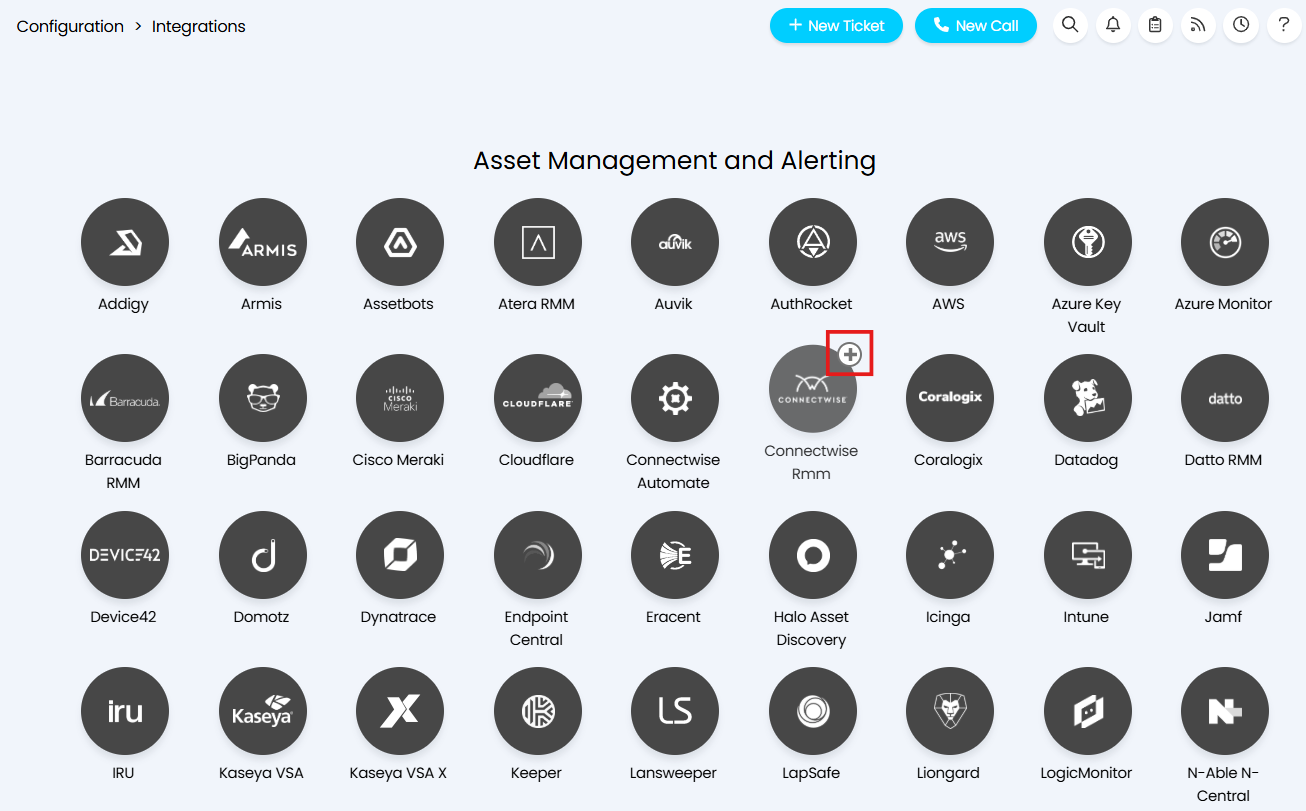
Fig 1. Enabling the ConnectWise RMM integration
Once inside the integration module, you will notice an API version field and then a button to "Switch to v2". Use this button to upgrade to the new version of the integration.
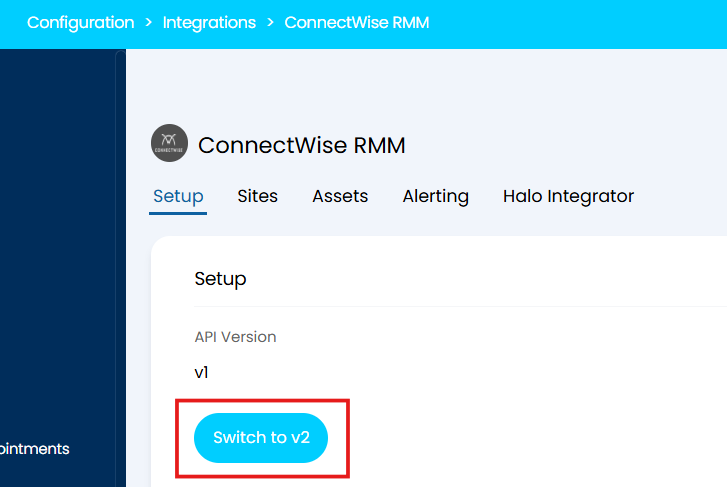
Fig 2. Switching to v2 of the integration
Please note that the switch to v2 cannot be reversed. Any mappings set up in the integration will be wiped, please make a note of them to ensure you can set them up easily after the switch. A reimport of sites and assets will be required post-switch - asset matching will occur using the asset import identifier field, if this field is not populated, or is not re-mapped post-switch, then the matching will fail and duplicates will be created.
When "switch to v2" is selected, a modal screen will appear asking for confirmation of the switch.
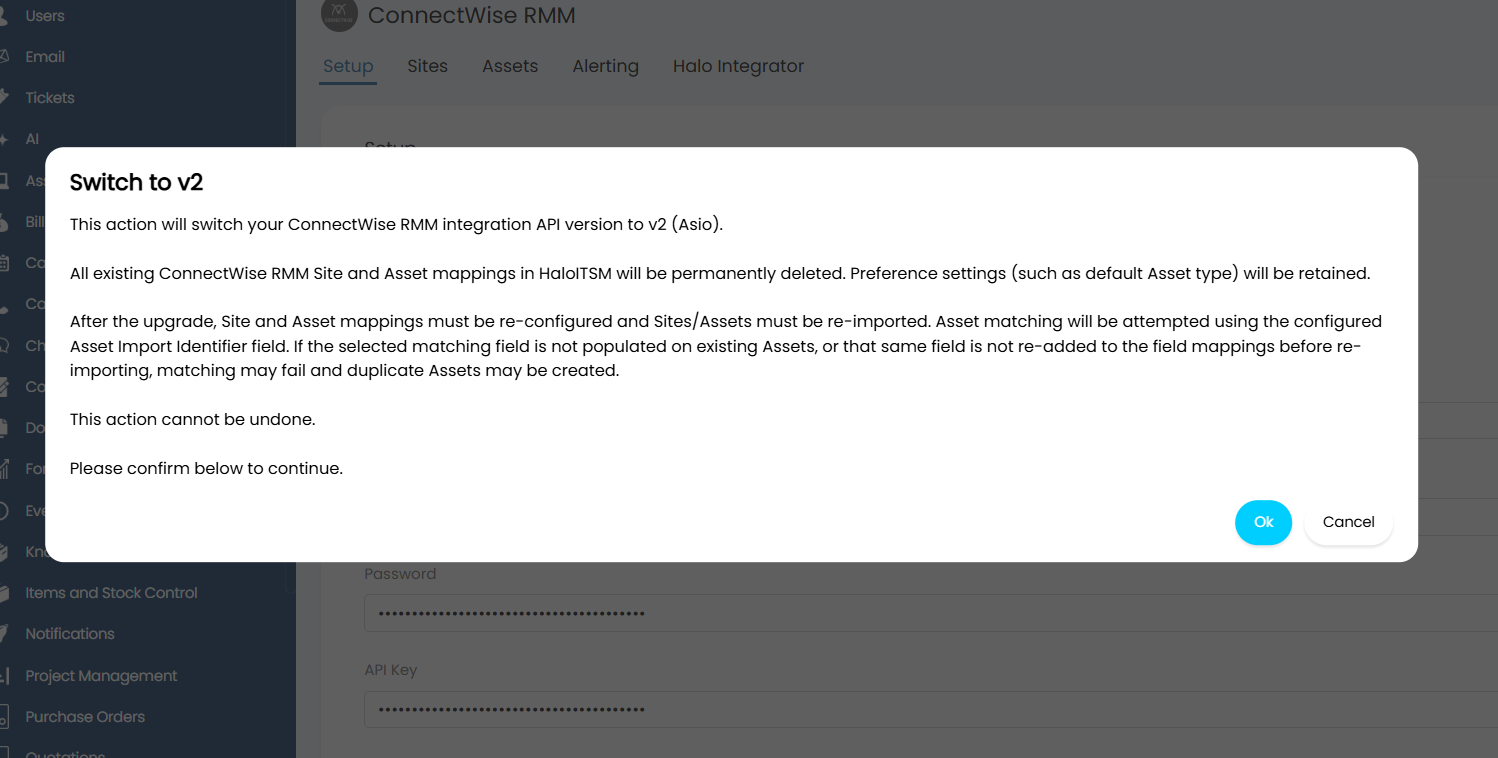
Fig 3. Confirming the switch to ConnectWise RMM v2 integration
Once you have upgraded to v2, the API version should contain the value "v2" and you should see a Client ID field and an API Key field.
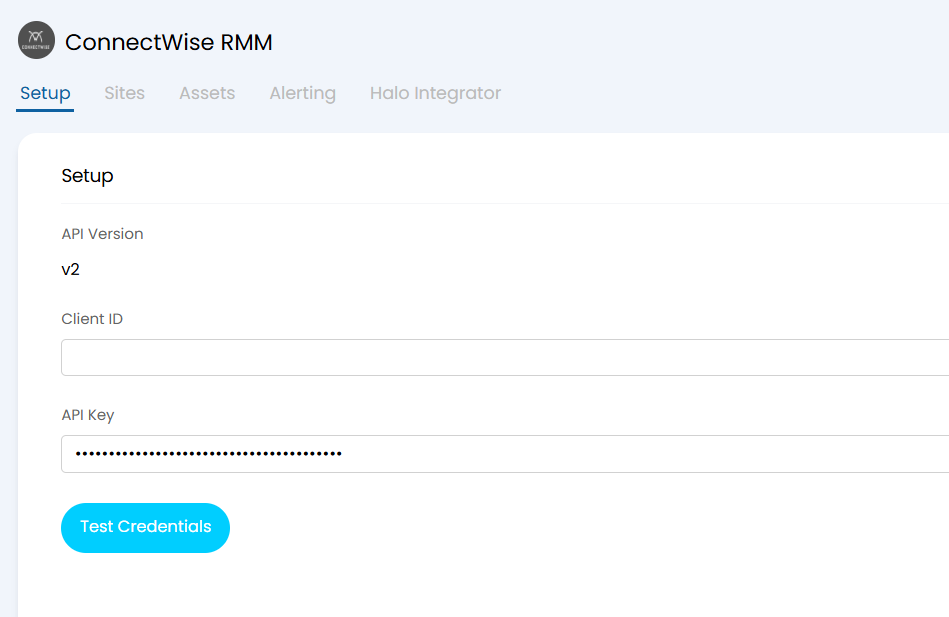
Fig 4. The Setup screen post-switch to v2
To generate credentials for your integration, you will need to create API access credentials in ConnectWise Asio.
To do this, follow the steps outlined in this guide: Generating API Credentials.
The scopes that you will need to give to the API access are the following:
- platform.sites.read
- platform.devices.read
- platform.tickets.read
- platform.tickets.update
- platform.tickets.create
Once you have created your API access, you can enter the Client ID in the Client ID field in Halo, and the API Key/Secret in the API Key field.
Select "Test Credentials". If the connection is successful, the remaining tabs of the integration will be accessible, and the test credentials button will change to say "Disconnect from ConnectWise RMM".
Configuring The Integration
Sites
Within the Sites tab, mappings can be set up to map ConnectWise RMM Sites to existing sites in Halo.
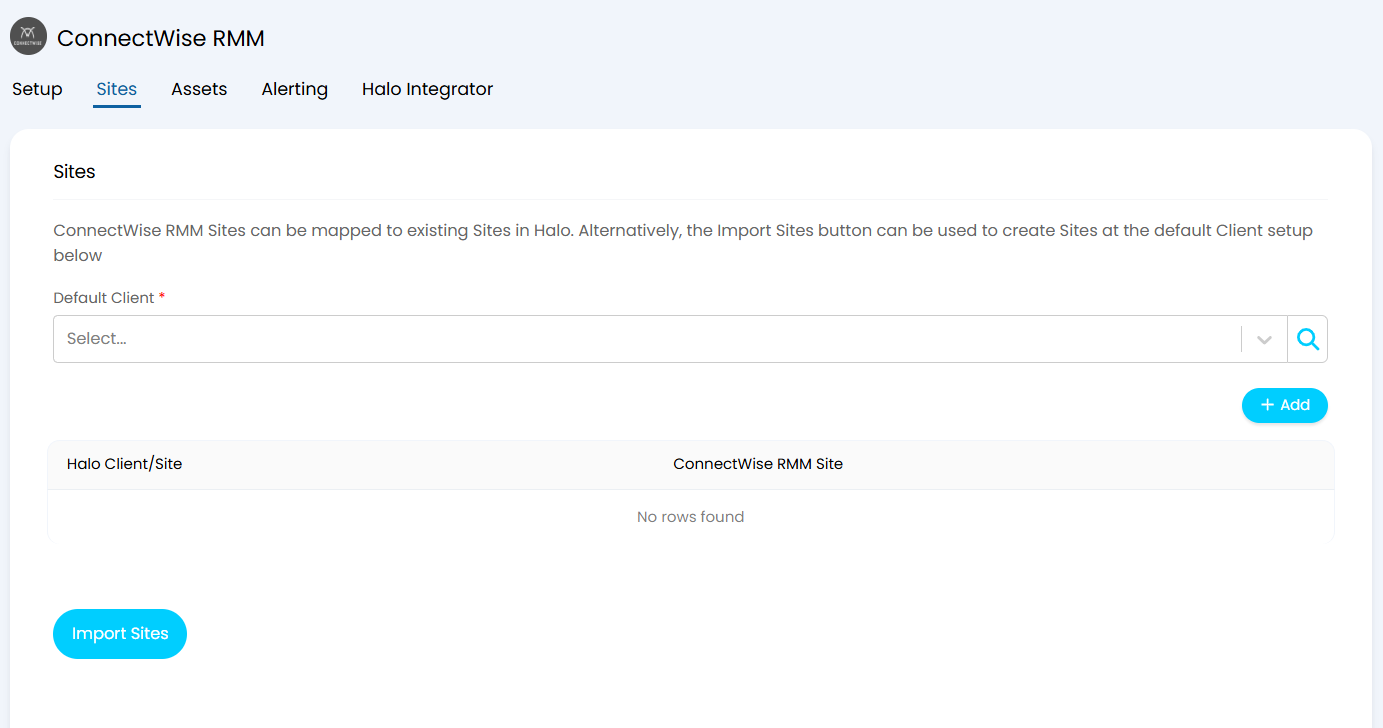
Fig 5. The Sites tab in the ConnectWise RMM v2 integration
Default Client: This field is mandatory. It sets the 'catch-all' client against which any Sites that do not match a client in Halo will be imported.
Below the Default Client field, you have the site mappings table. To add in a new mapping, select the "+ Add" button at the top right of the table.
Selecting this will call a modal screen where you can configure your mapping.
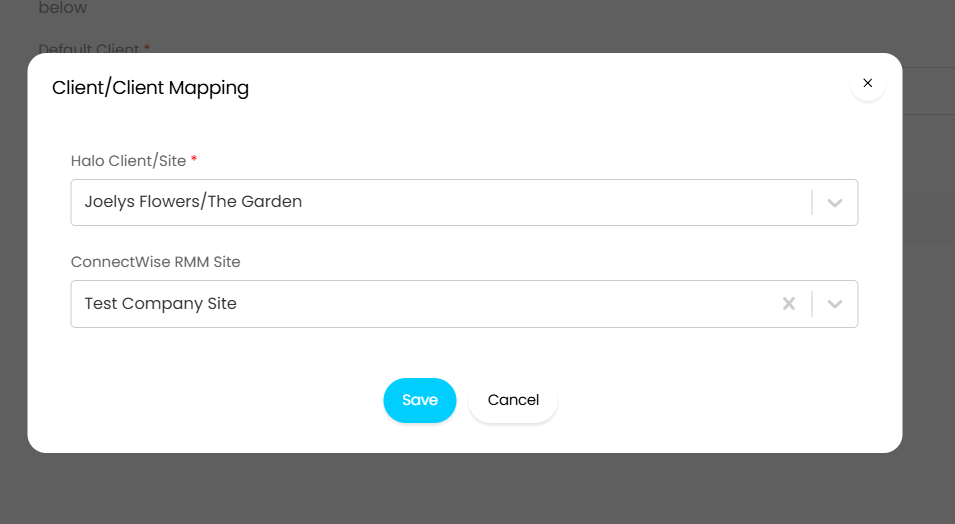
Fig 6. Setting up a site mapping
Configure a mapping for each site that will be imported from ConnectWise RMM.
Once all of your mappings are saved, select the "Import Sites" button to import via your mappings.
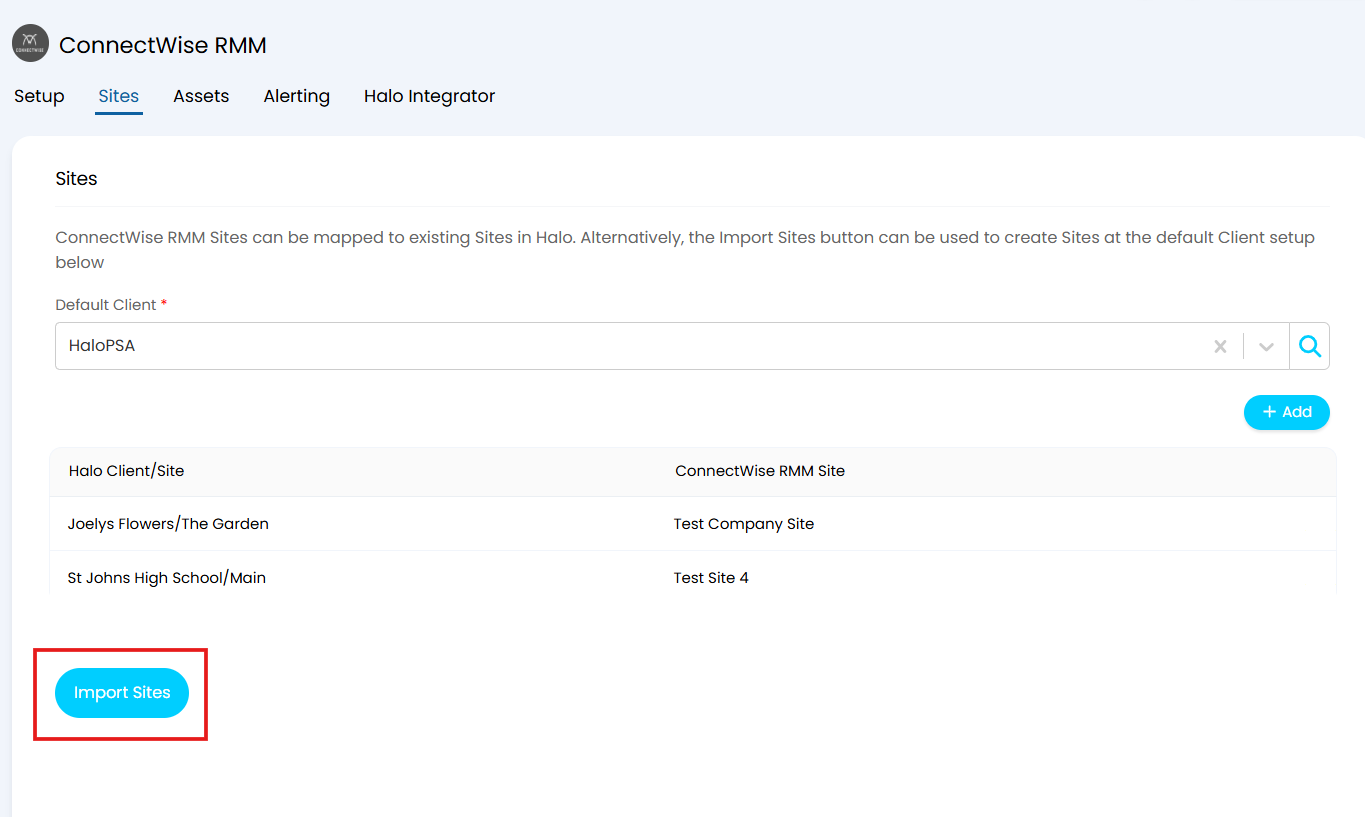
Fig 7. Import your sites once your mappings are created
Note: If your sites do not yet exist in Halo and you would like to create them via ConnectWise RMM, you can select "Import Sites" without creating any mappings. This will import all ConnectWise RMM sites in as new sites in Halo and create your mappings for you.
Ensure you have imported your Sites into Halo before moving onto your asset import, this is important for ensuring assets import against the correct sites.
Assets
Once your sites have been imported, you can move on to configuring the Assets tab.
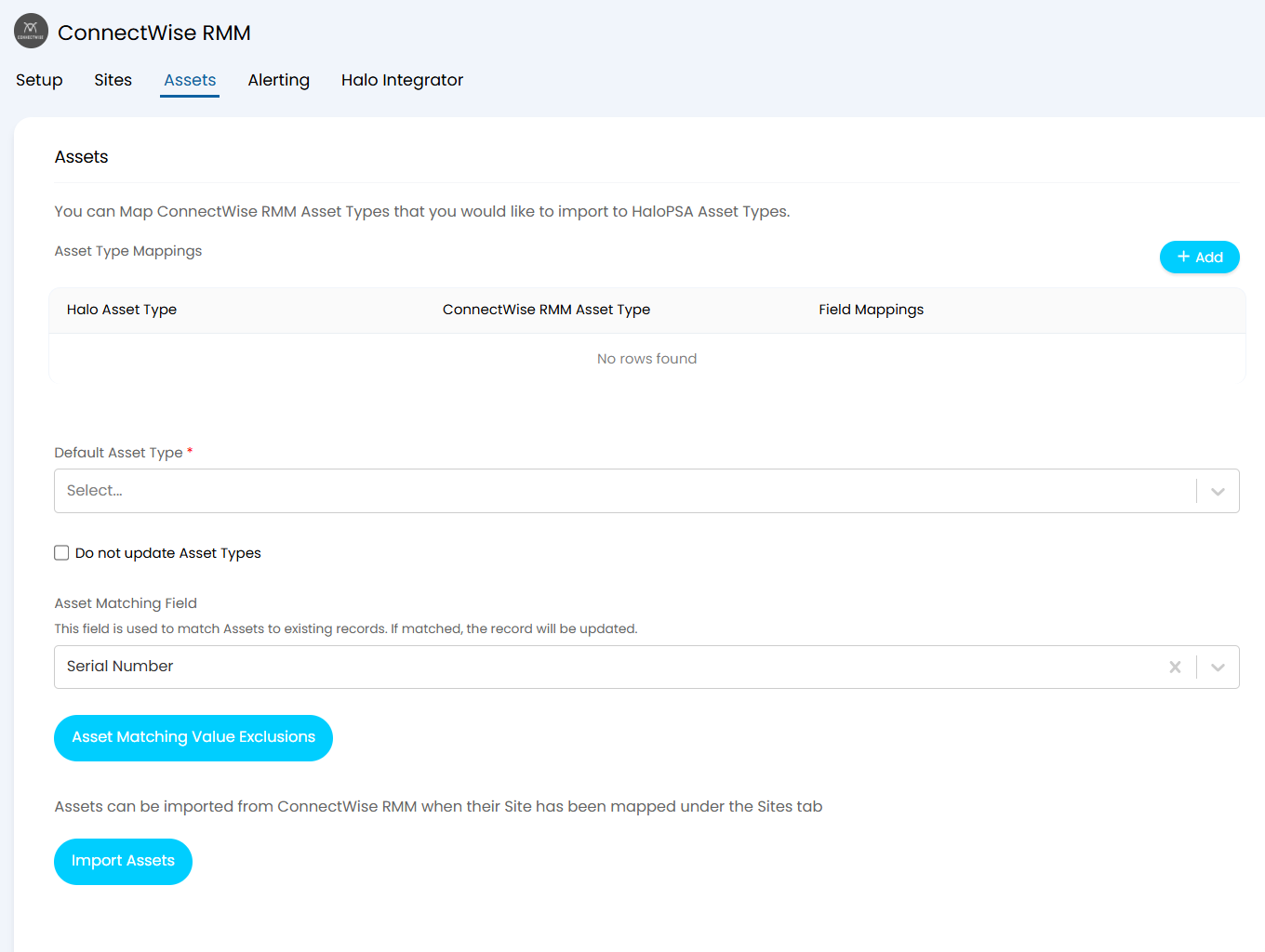
Fig 8. The Assets tab in the ConnectWise RMM integration
As you can see from the screenshot in Figure 8, the mappings table is where you map both your asset types and your asset fields, meaning the field mappings are done per asset type.
To create a new mapping, select the "+ Add" button at the top right of the table. This brings up the modal window where you first set your asset type mapping before configuring the field mapping table, see Figure 9 for reference.
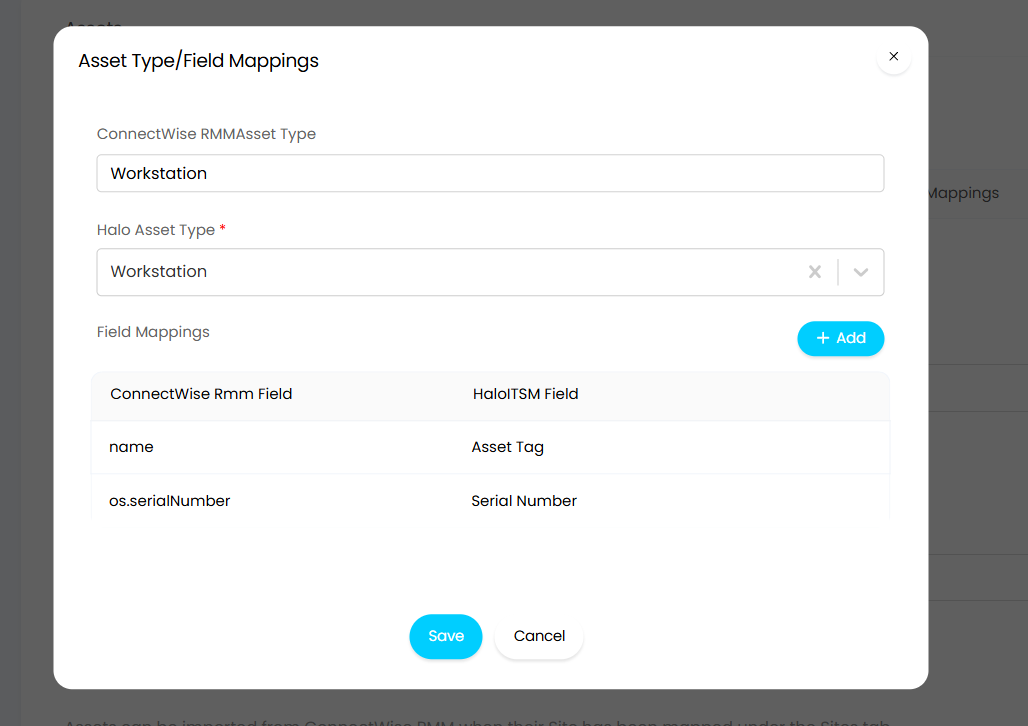
Fig 9. Creating a new Asset type/field mapping
When creating a new field mapping, there is a checkbox setting which you can enable if you wish to only apply the mapping to new assets of that asset type or to assets where the field is empty. This is important to enable if you have important data in that field for current assets and that data would be overridden by the RMM import.
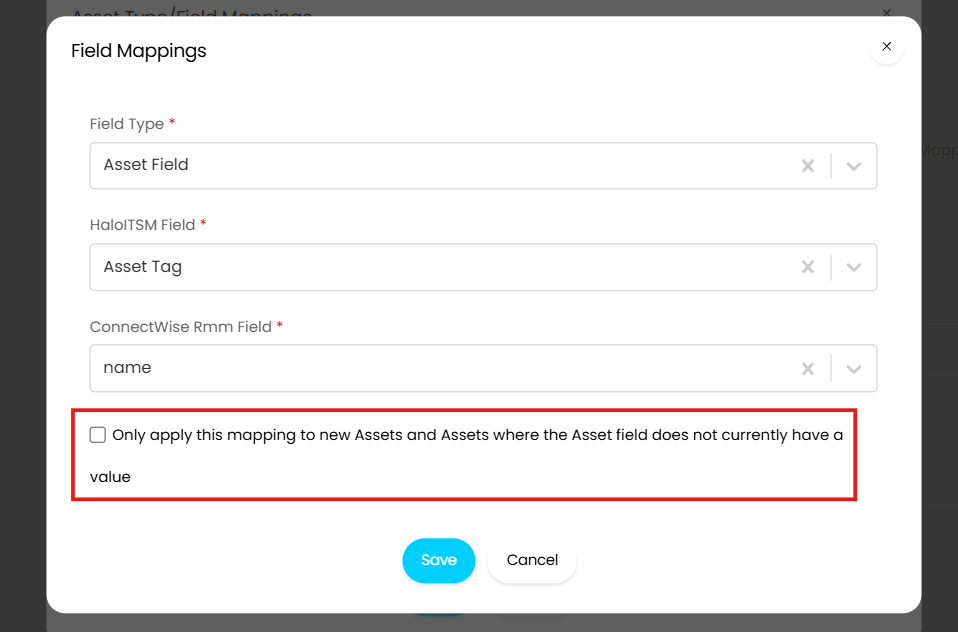
Fig 10. The setting to only apply the field mappings to new assets or assets where the field is empty
If you would like to import in data from ConnectWise that you do not currently have a field for in Halo, when creating a field mapping you also have the option to create a new field upon import.
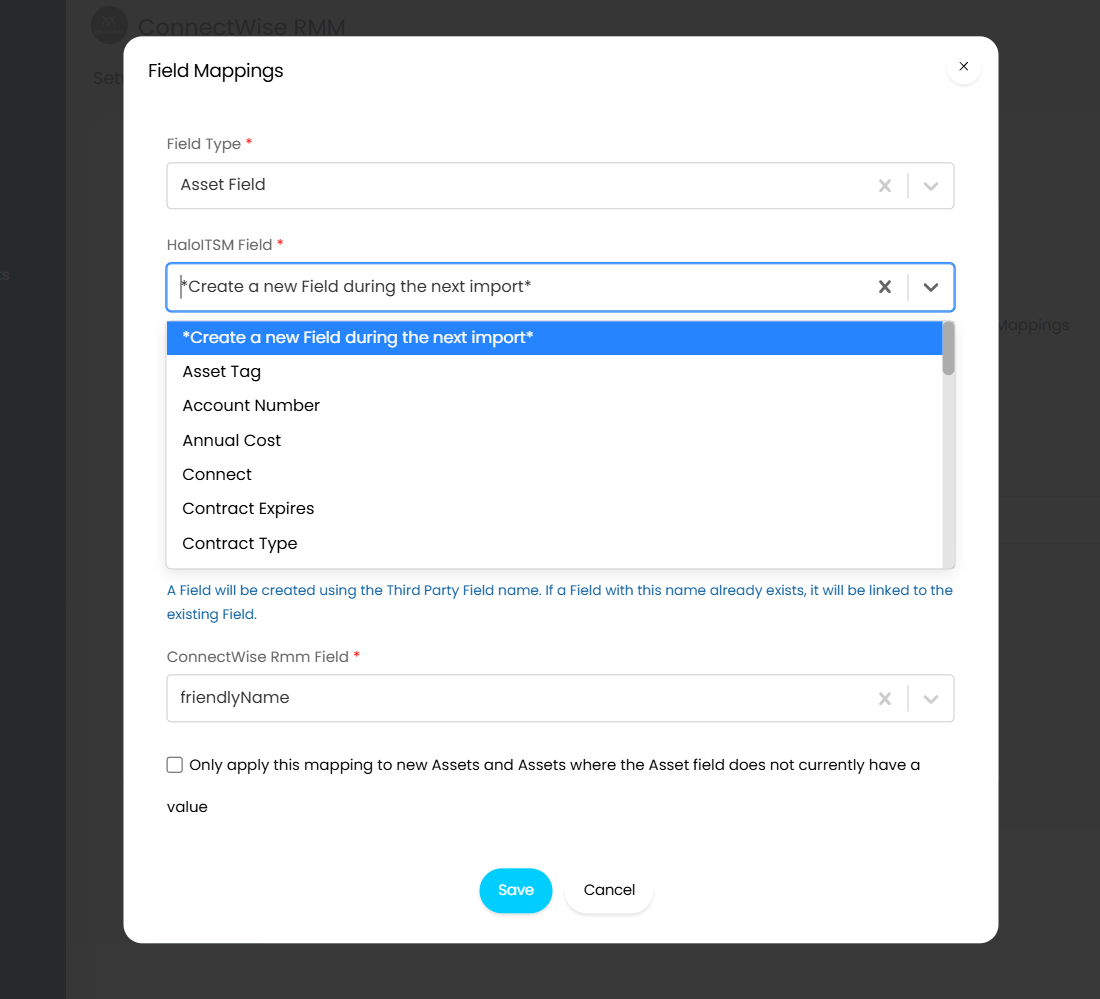
Fig 11. Creating a new asset field when importing in a field from ConnectWise RMM
Once you have configured the mappings table, you can set the remaining fields before then importing your assets.
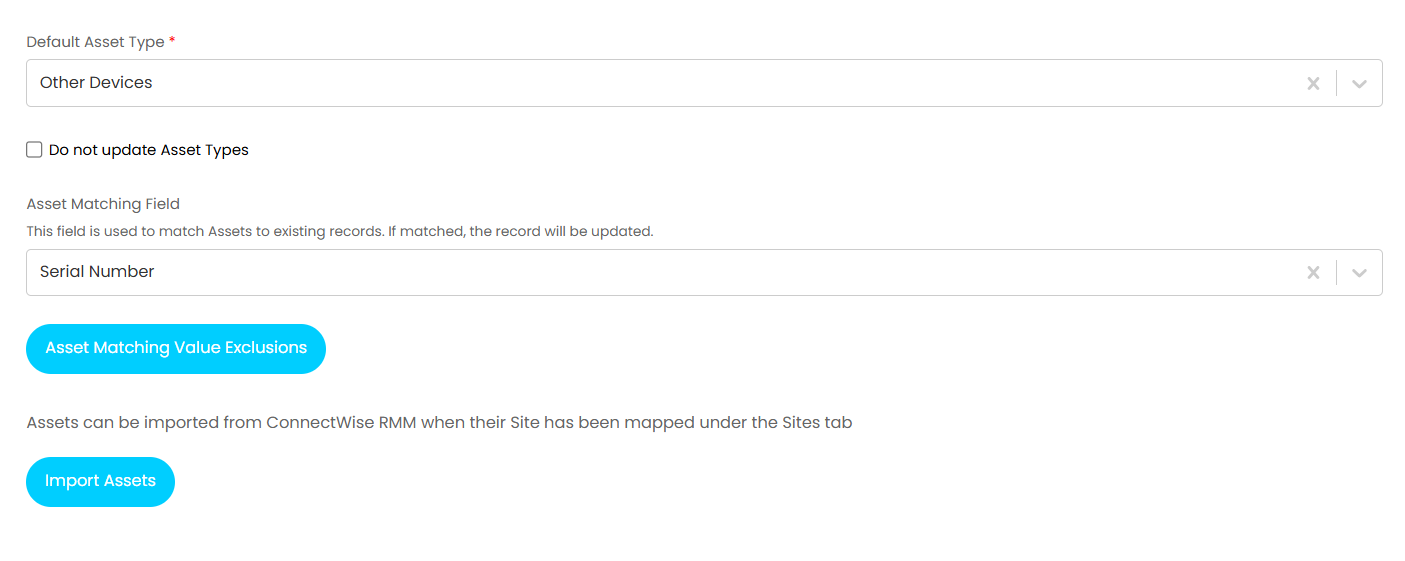
Fig 12. Import settings for assets
Default Asset Type: This field is used a catchall. It will set the asset type of any newly imported asset if their ConnectWise type does not match an asset type in Halo.
Do not update Asset Types: Enabling this checkbox ensures that an asset's asset type is not changed by the import if that asset already exists in Halo and it's asset type would be changed by the mappings.
Asset Matching Field: This is the field used to match imported assets to existing assets in Halo. If an asset matches, then the existing one will be updated instead of a new one being created. It is best to set here a field that will have unique values per asset.
Asset Matching Value Exclusions: Here you can set assets to not be matched using the matching field if that matching field contains a certain value. For example, if two assets have the matching field set to be 'None', they would match even though they are separate assets. By adding the value 'None' to the matching value exclusions list you can ensure the assets are matched using their ConnectWise ID instead.
Select the "import Assets" button to import your assets.
Alerting
In contrast to the v1 integration which brought alerts into Halo via webhook, the v2 integration brings them in on a schedule via the Halo Integrator.
To enable alerting from ConnectWise RMM, turn on the "enable alert processing" checkbox. Once you turn this on, the remaining configuration will become visible.
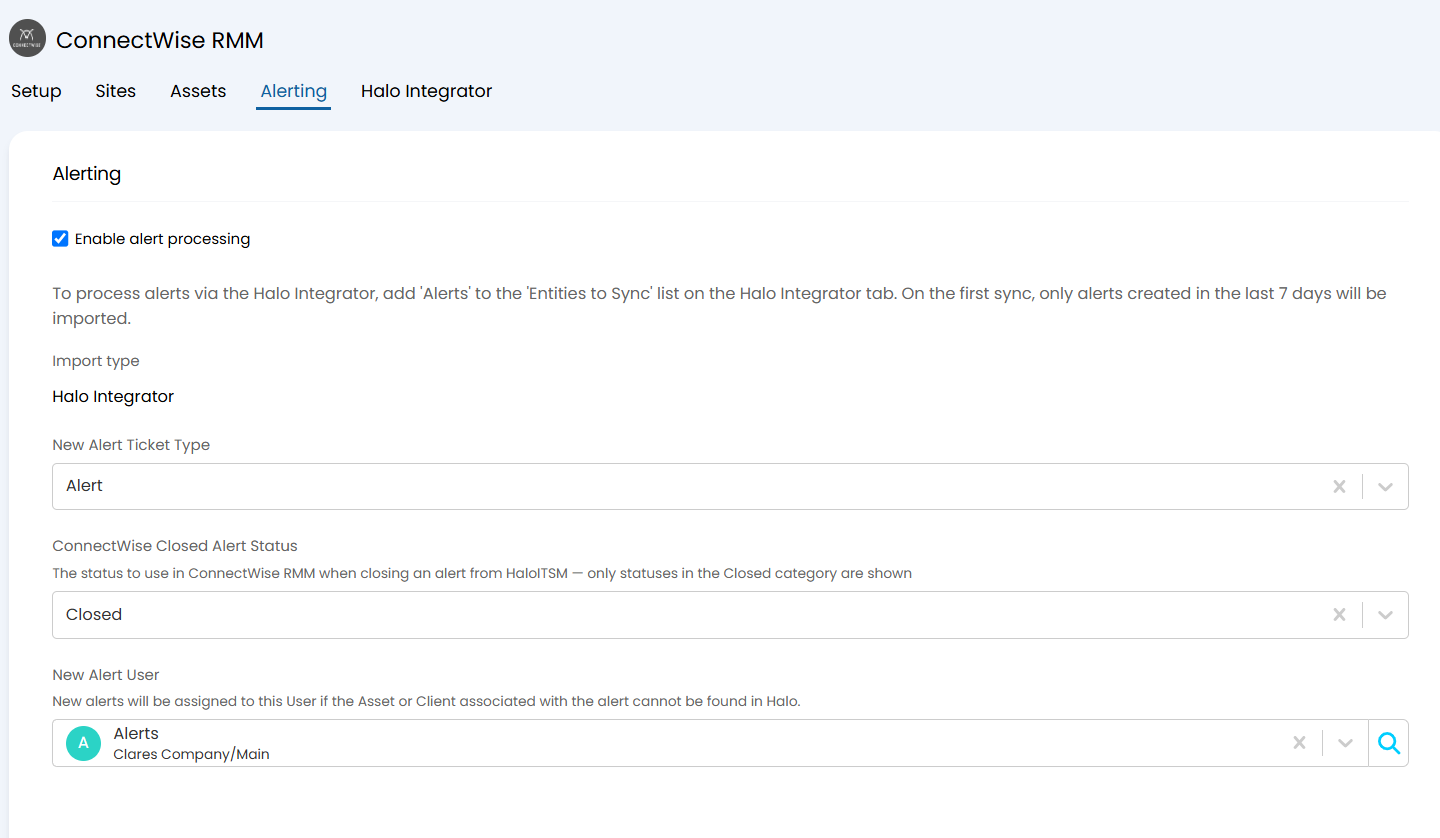
Fig 13. Configuring the alerting tab in the ConnectWise RMM integration
New Alert Ticket Type: The ticket type you set here will be used for any new alerts imported into Halo from ConnectWise RMM.
ConnectWise Closed Alert Status: This is the status that the alert in ConnectWise RMM will move to once it is closed in Halo. The only statuses that will show here are the statuses in ConnectWise in the closed category.
New Alert User: The user that the new alert ticket will be put against when the ticket is created in Halo in the event that the asset or client associated with the alert cannot be matched in Halo.
Halo Integrator
In this tab you can enable the import of sites, assets, and alerts to run on a scheduled Halo Integrator sync.
To enable the Halo Integrator for this integration, turn on the setting "Enable the Halo Integrator for the ConnectWise Rmm integration".
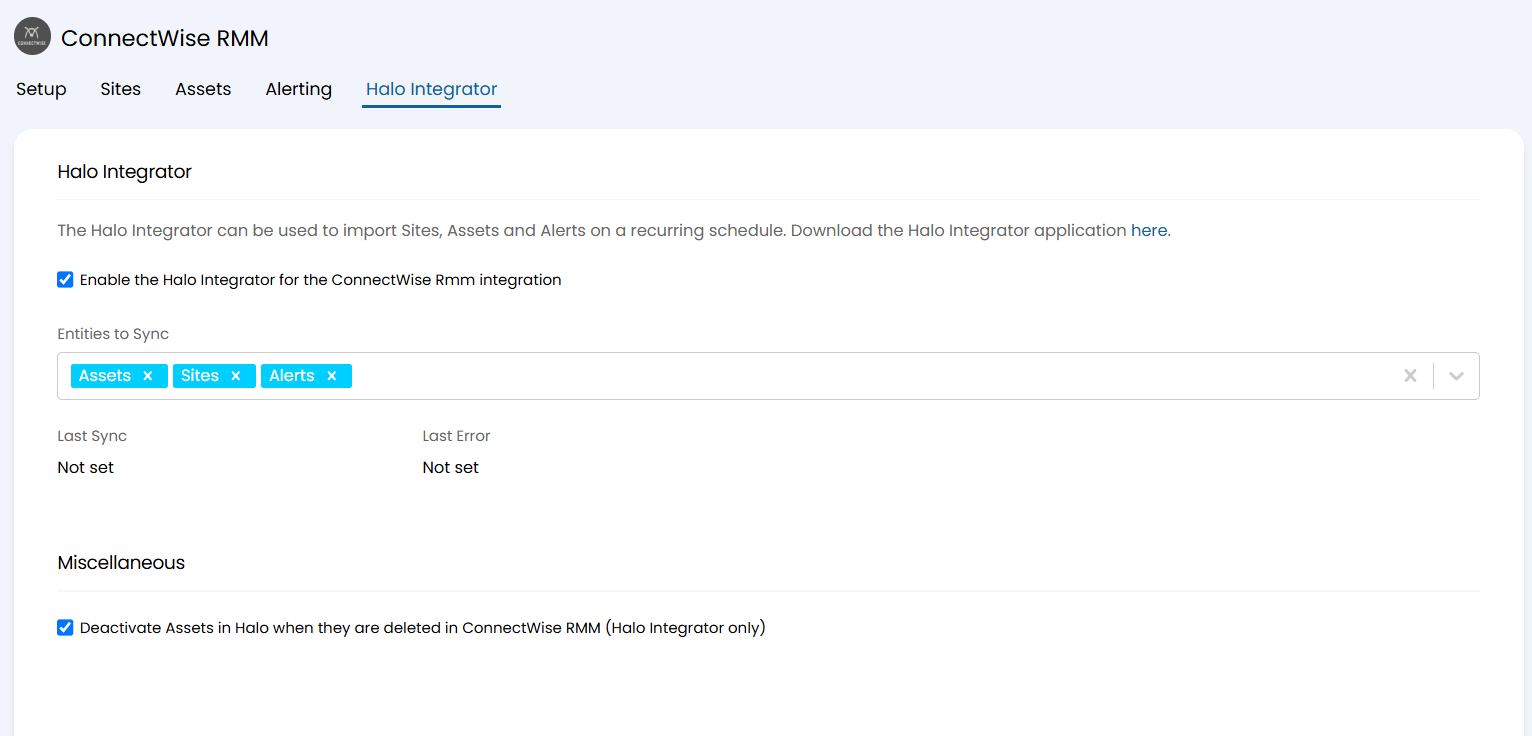
Fig 14. The Halo Integrator tab of the ConnectWise RMM integration
Once the integrator has been enabled, you choose the entities that you want to sync: assets, sites, and/or alerts.
Assets and sites will sync once every 24 hours, alerts will sync every 15 minutes.
Beneath this field, you can see when the integration last synced and the last error to result during a sync.
In the Miscellaneous section you can then enable assets to be deactivated in Halo when they are deleted in ConnectWise RMM.
Note: This setting only applies to those assets imported by the Halo integrator, not those imported manually.