Zabbix Integration
In this guide we will cover:
- What is the Zabbix Integration?
- Connecting Halo to Zabbix
- Determine how Assets/Hosts are Imported
- Import Hosts Manually
- Alerting
- Import/Update Assets (Hosts) on a Recurring Schedule
What is the Zabbix Integration?
The Zabbix integration can be used to import Hosts (and their inventory) from Zabbix into Halo. Alerting can also be integrated into Halo, to have alerts in Zabbix automatically log tickets in Halo. When alerts are closed in Zabbix, this will automatically close off the associated ticket in Halo. Allowing you to manage your alerts from Halo. This guide covers the setup of the integration and the configuration steps required on the Halo side.
Connecting Halo to Zabbix
First ensure the integration module is enabled, head to Configuration > Integrations and enable the Zabbix module using the "+" icon.
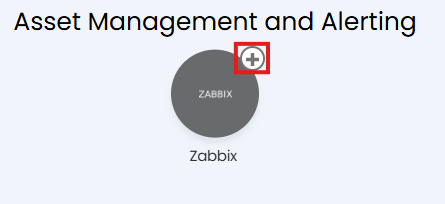
Fig 1. Enable integration module
Then, click into the module to begin configuration.
In order to connect your Halo instance to your Zabbix instance you will need to complete the credentials shown in Figure 2.
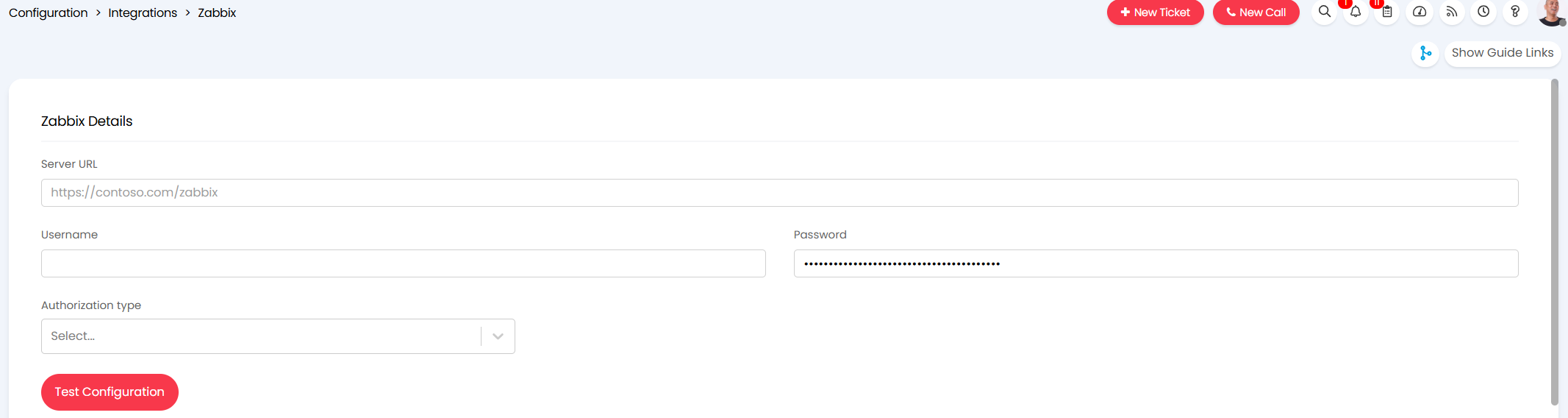
Fig 2. Zabbix integration credentials
Server URL - Enter the URL of your Zabbix instance here.
Username - Enter the username of the account you would like to authenticate the connection with. The account chosen must at least have access to read Hosts and Inventory in Zabbix.
Password - Enter the password of the account you would like to authenticate the connection with.
Authorization type - Choose the authentication method to use here.
- Send Token as an auth property - Choose this if your Zabbix server is on version 7.0 or below.
- Authorization header - Choose this if your Zabbix server is on version 7.2 or above.
Once you have entered your credentials you can use the "Test Configuration" button to test the connection.
Determine how Assets/Hosts are Imported
Determine Asset Types
Assets in Halo are the equivalent of Hosts in Zabbix. Every asset in Halo must have an asset type, therefore you will need to map Halo asset types to Zabbix Host types.

Fig 3. Asset type mappings
Add a mapping by adding an entry to the asset type mappings table. When mapping simply choose the asset (device) type in halo to map to and type the associated Zabbix type.
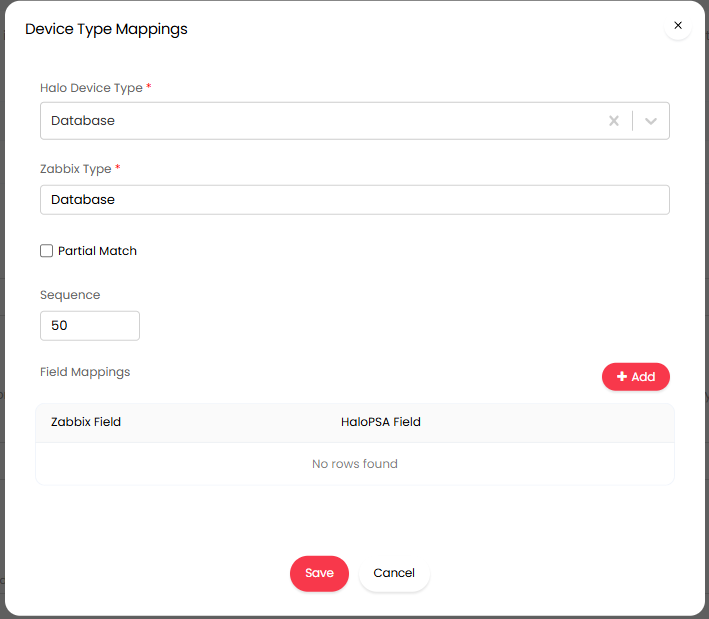
Fig 4. New Asset type mapping
Ensure the string you enter here is identical to the string in the Zabbix Host type field (this is also case sensitive). Partial matching can also be enabled, using "Partial Match", to assist with mapping when the string entered is not identical to the the string in the Zabbix host type field (but to ensure consistency enter identical matches where possible).
You can then map Zabbix fields (inventory) to Halo asset fields for this asset/Host type. This is done using the "Field Mappings" table.
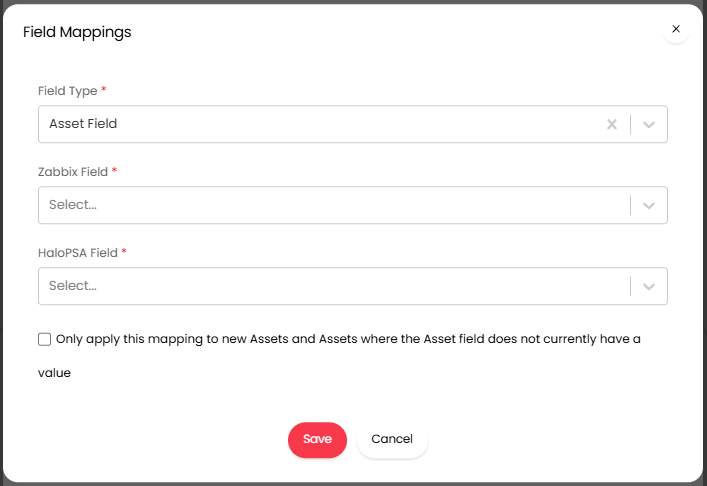
Fig 5. New Field Mapping
Simply choose the Halo field and Zabbix (inventory) field you would like to map together.
Field Type - This will be the type of Halo field the data will be imported into. See our guide on Asset Fields if you are unsure on the difference between asset fields and custom fields in Halo.
Only apply this mapping to new Assets and Assets where the Asset field does not currently have a value - When this is enabled if the Halo field already has data within it, different to the data in the mapped Zabbix field, the field data will not change. Fields will only be populated when they contain no data or when new assets are being created.
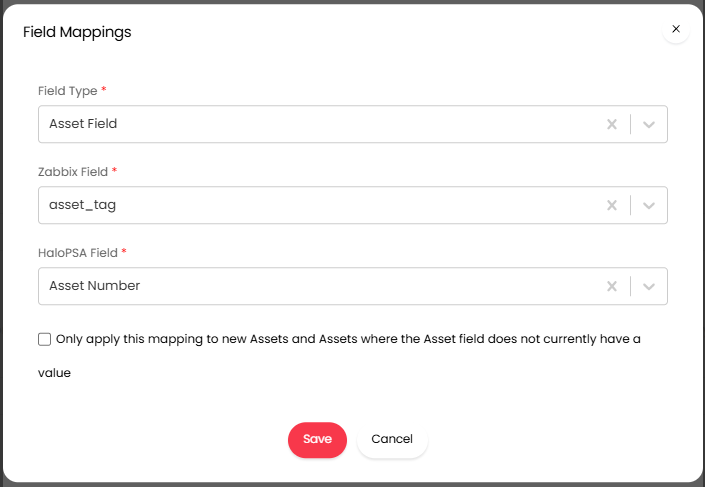
Fig 6. Example asset mapping
Note: Ensure you configure field mappings for each of your asset/Host types.
Once you have mapped your asset/Host types set the "Default Asset Type " field.
Default Asset Type - Assets will be created as the type chosen here if they cannot be matched to a type in the mappings table.
Don't update Asset Type of existing Assets - When enabled, the integration sync will not update the asset type of existing assets already in your Halo. Enable this when some assets in Halo do not follow the type mappings set here in you would not like their types to be changed. This can be useful when making changes to assets after the initial import.
Determine the Site of Imported Assets
When importing Hosts into Halo the site they are created under in Halo will be determined by the site address fields in Zabbix.
If the Site Address in Zabbix matches the format: Customer Name/Site Name, the Host will be created under the specified site/customer in Halo (provided they share the same name).
Alternatively, if the site address in Zabbix matches the first line of a site address in Halo, the Host will be created under this site.
There are some additional settings to control the site of imported assets.

Fig 7. Asset site settings
Default Site - Use this field to choose a site in Halo for assets to be created under if they cannot be matched to a site based on information in Zabbix.
Don't update Site of existing Assets - When enabled, the integration sync will not update the site of existing assets already in your Halo, only newly created assets will be assigned a site. Useful when the site of the asset in Halo (for existing assets) is different to the location of the host in Zabbix.
Set Asset Matching Field
Now you will need to determine how Hosts in Zabbix are matched to existing assets in Halo.

Fig 8. Asset Matching field settings
Asset Matching Field - Here choose the field is used to match Assets to existing records. This should be the unique identifier of the asset. If matched, the record will be updated. By default, the Zabbix ID will always be checked first. (assets will be assigned a Zabbix ID upon import).
Asset Matching Value Exclusions - Here you can set assets to not be matched using the matching field if the matching field contains a certain value. For example, if two assets have the matching field set to be 'None' they would match even though they are separate assets. By adding the value 'none' to the matching value exclusions list you can ensure the assets are matched using their Zabbix ID instead.
Import Hosts Manually
Now you are ready to import your Hosts into Halo, use the "Import Hosts" button to manually run the import. This will bring up a preview screen of the import, from which you can start the import.
Alerting
Webhooks are used to have alerts in Zabbix automatically create tickets in Halo. A ticket will be created almost instantly. The ticket created will contain information about the alert and can also be assigned to the user who the asset belongs to.
To use this functionality you will first need to enable "Enable alert processing" in the Alerting section of the integration setup in Halo. This will enable the Zabbix alerting endpoint for your instance.
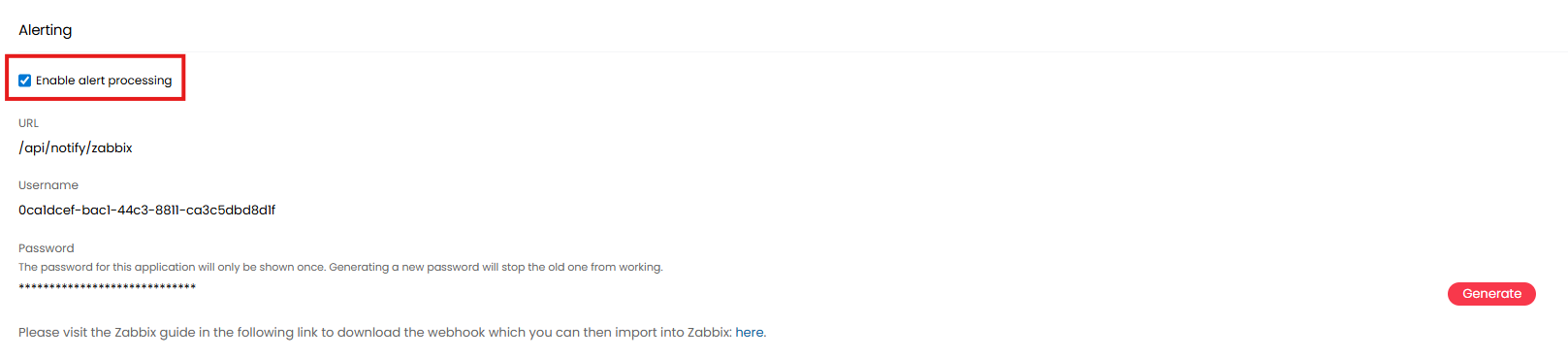 Fig 9. Enable alert processing
Now you will need to create a webhook in Zabbix that is triggered for each alert you want to create in Halo.
First download the YAML file attached to this guide, this contains the body required for the webhook? If you are reading this guide on our website, you will need to head to the copy of this guide on our Halo Portal (here) to download the YAML file.
Adjust the YAML file
Now you will need to edit the body of the file before creating the webhook.
First, edit the strings highlighted in Figure 10 so they contain the client ID (username), client secret (password) and the endpoint (URL) found on the integration setup page in Halo.
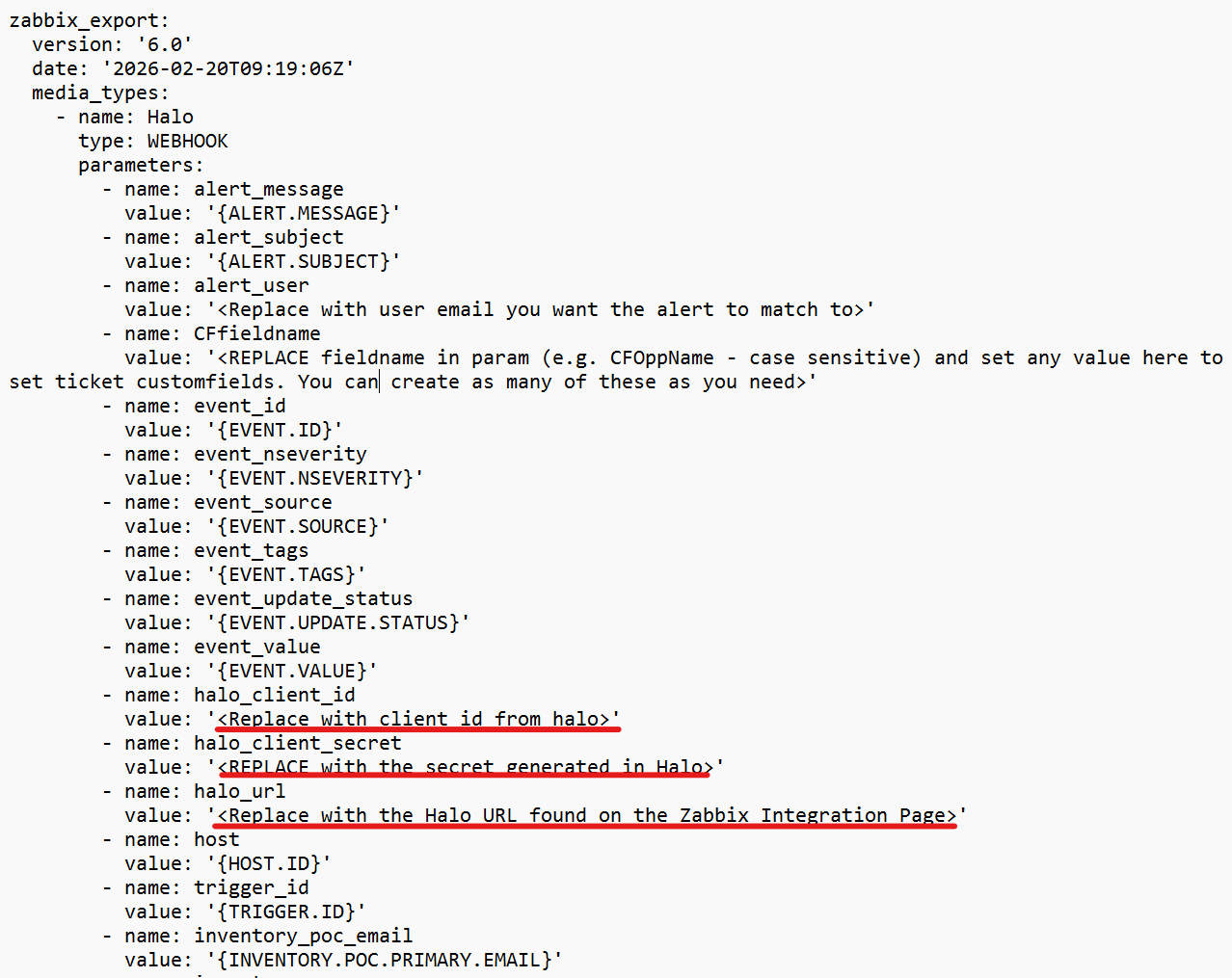
Fig 10. Values to edit YAML file
This will look similar to the Figure 11 example.
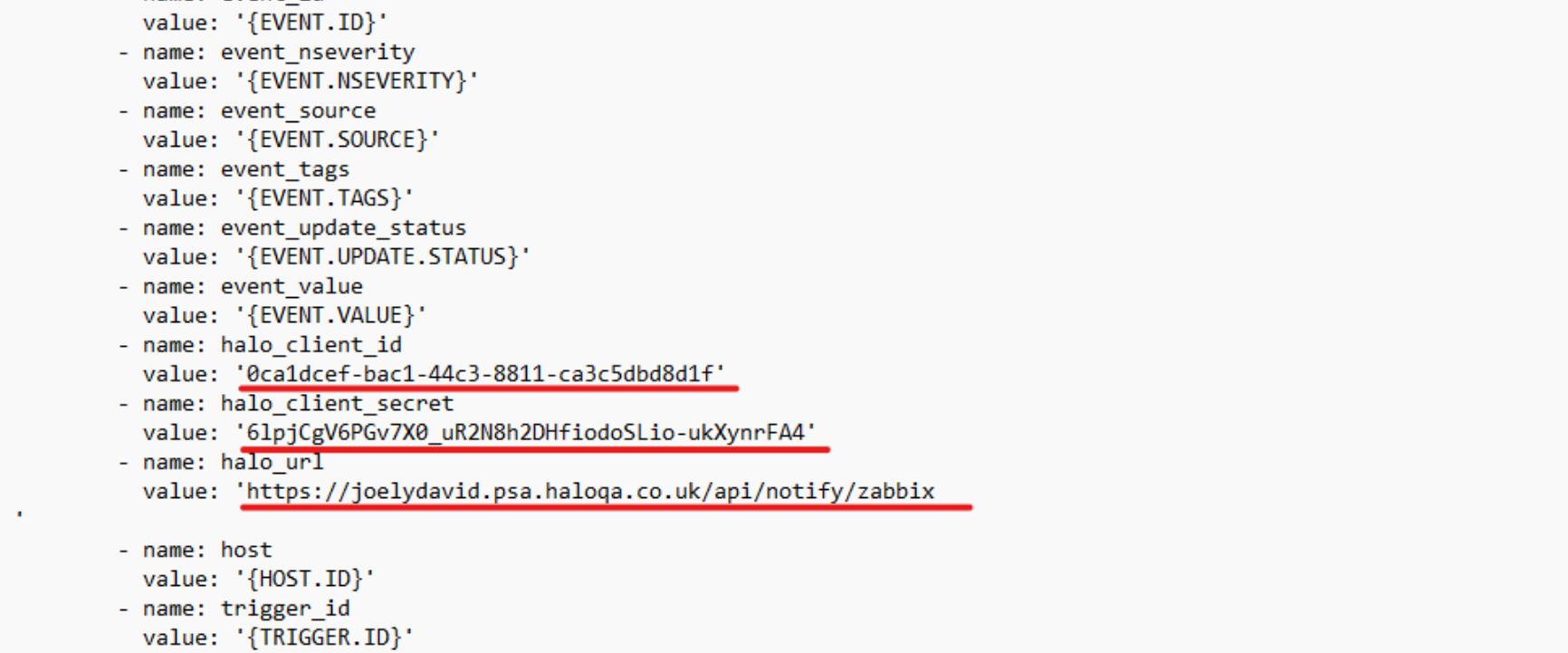
Fig 11. YAML file containing authentication values
You will also notice a custom field media type in the file ("CFfieldname"). This can be used to have data from Zabbix populate a custom field in Halo.
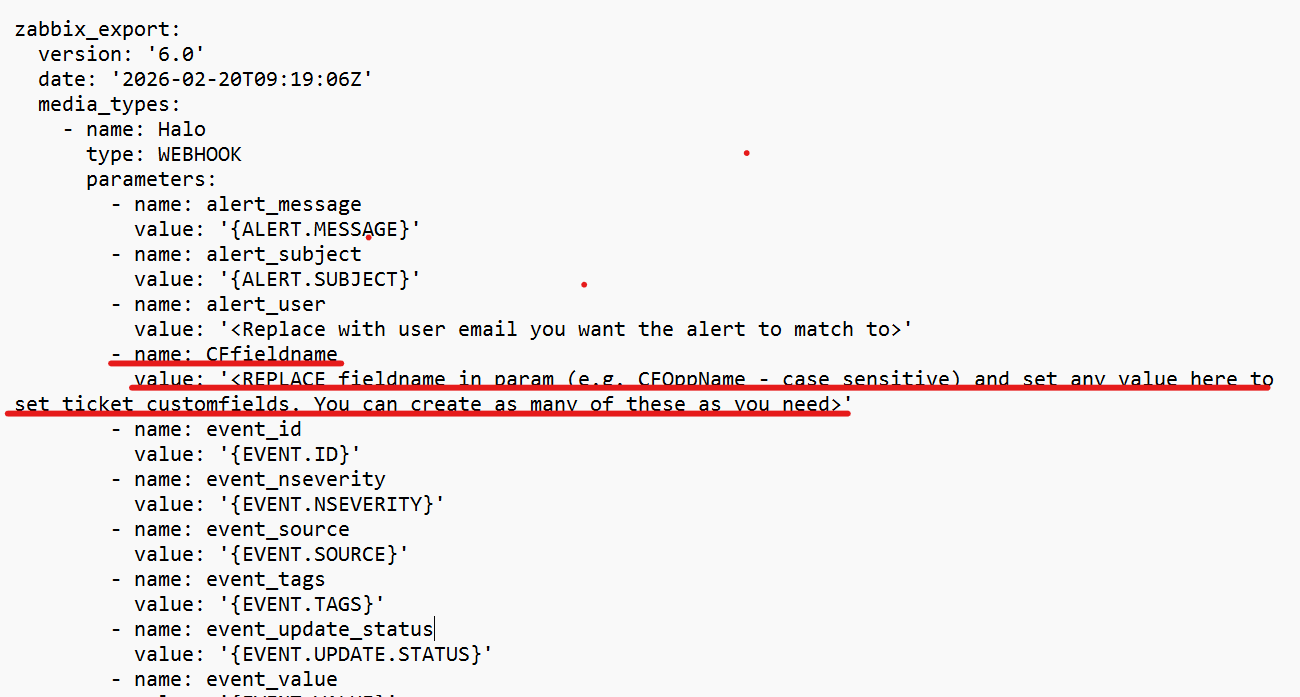
Fig 12. Custom Field media type
To do this, enter the name of the custom field in halo you want to populate, then set a Zabbix variable as the value. In the Figure 13 example the custom field "CFLinktoZabbix" will be populated with a link to the problem in Zabbix.
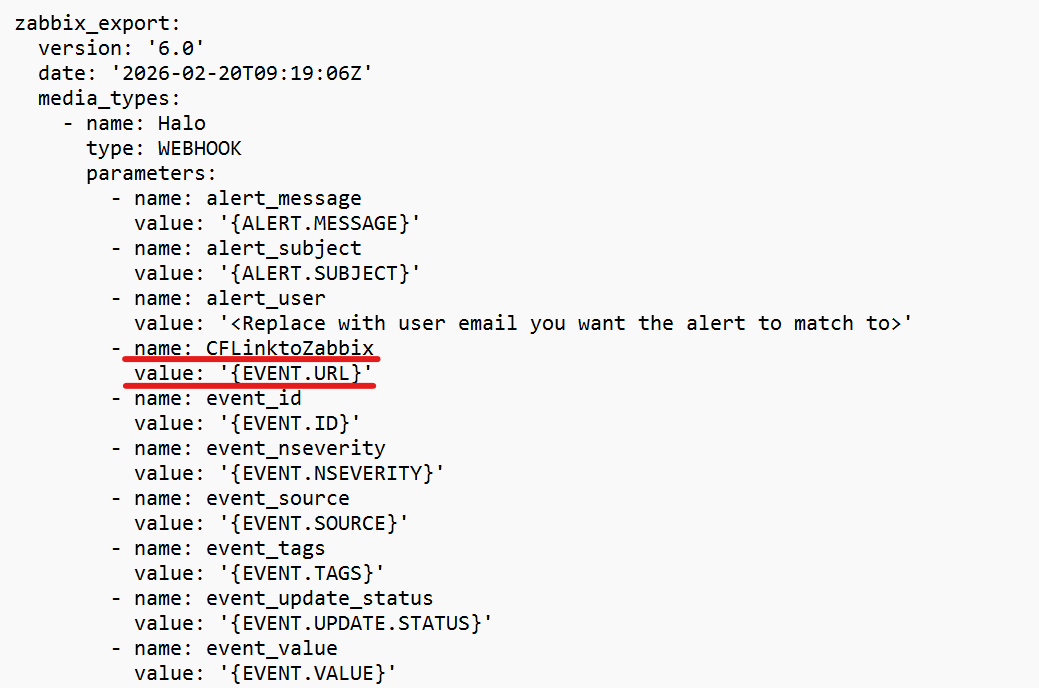
Fig 13. Custom Field example
Once your file is configured, navigate to media types in Zabbix and use "import" in the top right (as shown in Figure 14) to create a new media type using the configured YAML file.

Fig 14. Import button in Zabbix
Once created head back to Halo.
In Halo you will need to determine how alerts are created using settings shown in Figure 15.
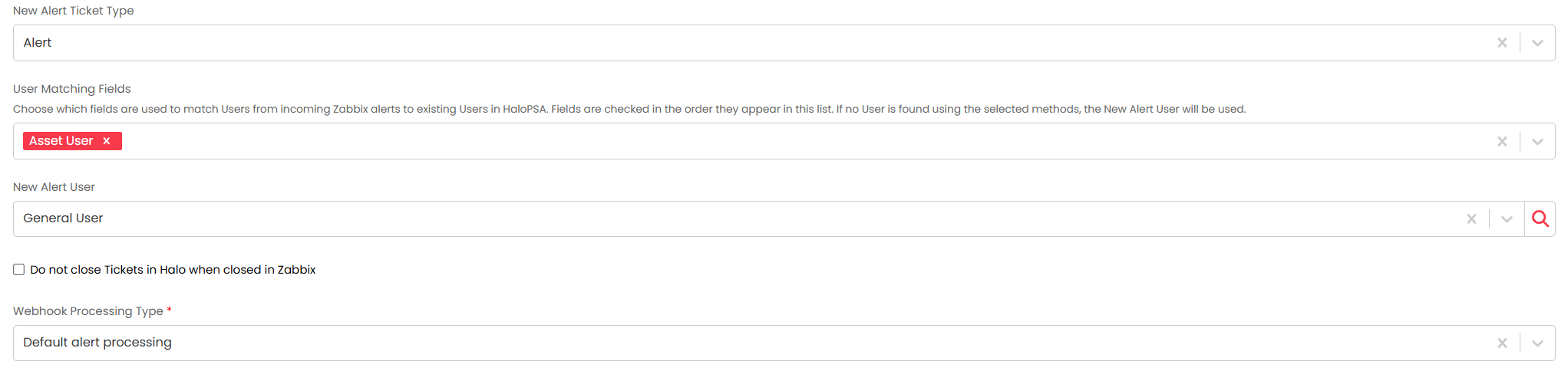
Fig 15. Alert settings in Halo
New Alert Ticket Type - Choose the ticket type alerts will be created as. You can use the "Alert" ticket type available out of the box, or you may eish to create a new ticket type for this.
Note: If you are importing data into any custom fields, ensure the custom fields are assigned to this ticket type.
User Matching Fields - Choose which fields are used to match users from incoming Zabbix alerts to existing users in HaloPSA. The matched user will be assigned the ticket in Halo. Fields are checked in the order they appear in this list. If no user is found using the selected methods, the "New Alert User" will be used. You do not need to edit the YAML file to setup user matching, as this is already set, you only need to set the user matching fields here.
New Alert User - Choose the user alerts tickets will be assigned to by default.
Do not close Tickets in Halo when closed in Zabbix - Enable this if you not like ticket in Halo to be closed when the associated alert is closed in zabbix.
Webhook Processing Type - Choose how you would like alert webhooks to be processed. Default alert processing requires webhooks to be sent to the /api/notify/zabbix endpoint. Event management processing is also available, this allows for more customisation around which events are processed and how, additional configuration is required if using Event Management. For more information on Event Management checkout our dedicated guide.
Now, when an alert is triggered in Zabbix a ticket will automatically be created in Halo. When this alert is resolved in Zabbix the ticket in Halo will automatically close.
Import/Update Assets (Hosts) on a Recurring Schedule
To have a regular sync of data from Zabbix into Halo, you will need to enable the Halo integrator for the integration. This is done using the setting in Figure 17.
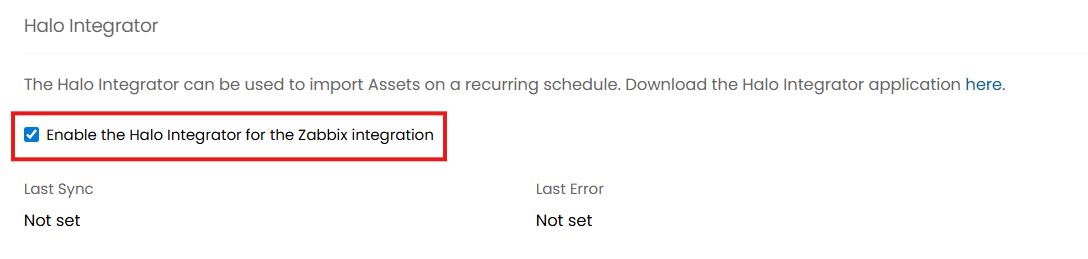
Fig 16. Enable the Halo integrator
This will import Hosts from Zabbix into Halo on a daily basis, creating new assets and updating existing ones.
Miscellaneous settings

Fig 17. Miscellaneous settings
Deactivate Assets in HaloPSA when they are deleted from Zabbix (Halo Integrator only) - When enabled, if any Hosts in Zabbix are deleted, the associated asset in Halo will be deactivated next time the integrator runs. This only occur when a sync is run using the Halo Integrator, not when running the import manually.