Asset Actions & Workflows
In this guide we will cover:
- Asset Actions (v2.248+)
- Asset Workflows (v2.250+)
- Applying and using an Asset Workflow (v2.250+)
Configuration Settings Guides:
Related Guides:
Asset Actions (v2.248+)
To create an Asset Action you will need to create an Asset Custom Button. Head to Configuration > Custom Objects > Custom Buttons, and change the entity in the top left to "Asset" by clicking on the arrow and then selecting it from the dropdown.
Now click the "New" button in the top right to create a button.
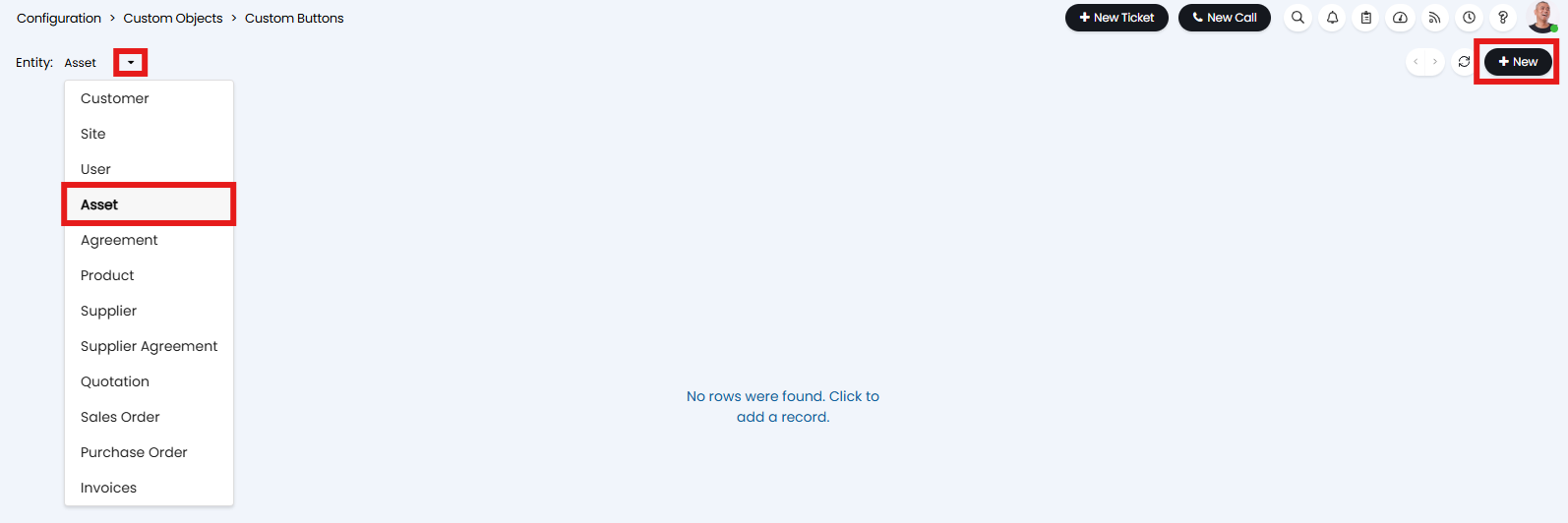
Fig 1. Asset Custom Buttons
To make your Custom Button into an Asset Action you will need to set the Button Use to "Open an Action Form".
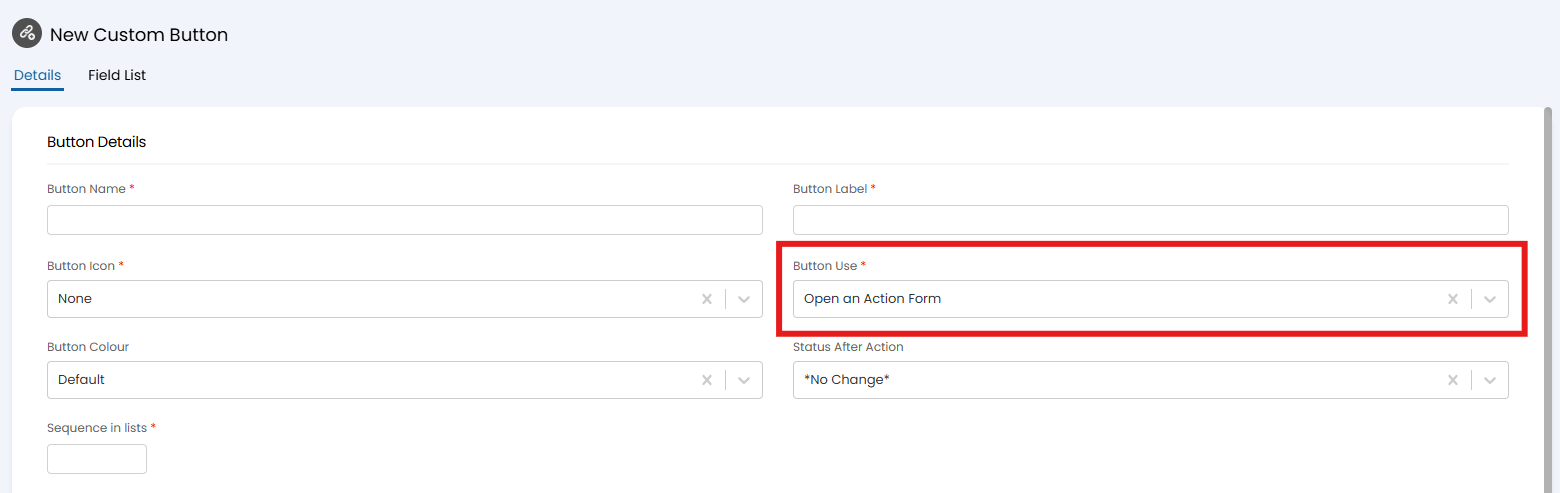
Fig 2. Asset Custom Buttons
Once selected you can set additional details, such as the status of the Asset after the Action is used, and the button icon.
Next you will need to add fields to the Action. To do this, head into the Field List tab, and click "Add". When you add a field you will need to select which type of field to add using the radio list, then use the dropdown to select a field to add.
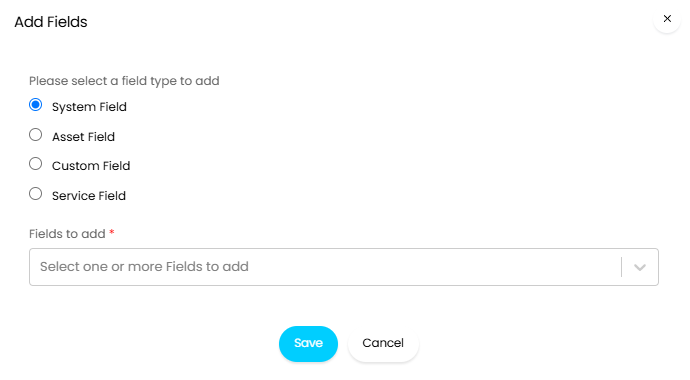
Fig 3. Adding fields to an Asset Button
Once added, these fields can then be edited using the pencil icon to determine the Agent Action visibility. This allows you to make specific fields mandatory or read-only.
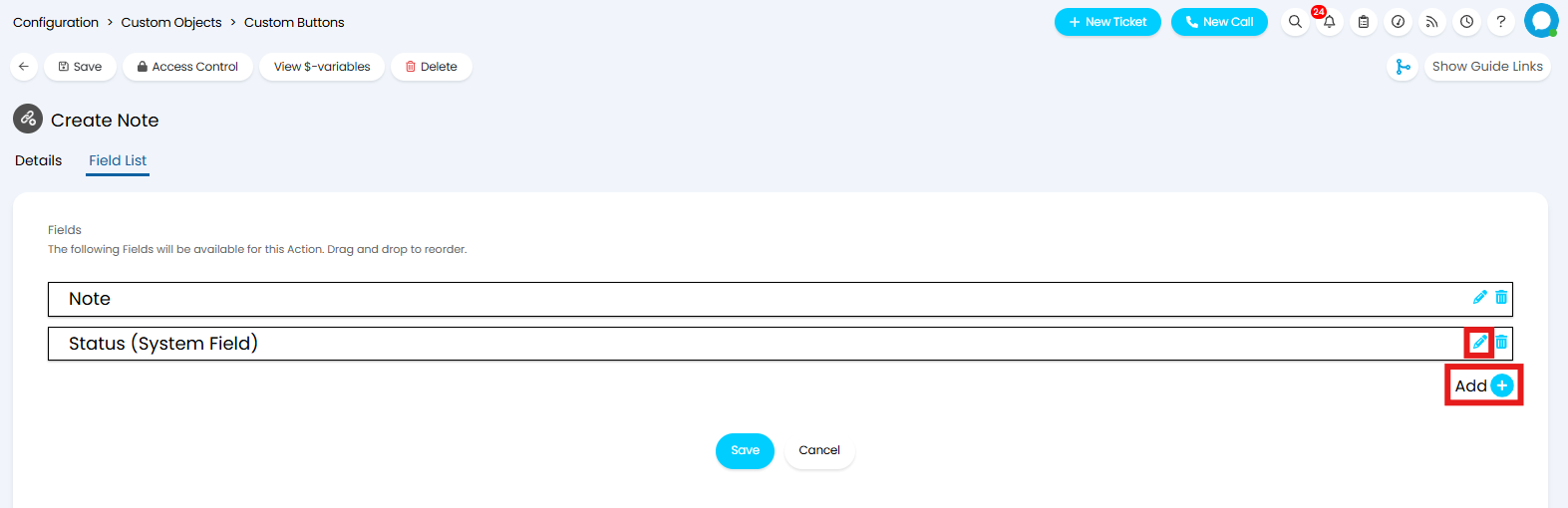
Fig 4. Asset Action Field List
The fields added to the Field List will only show on Assets where the field is visible. The Action can still be used on Assets with the field hidden, but these fields will not show on the Action form.
When the Asset Action is used, a modal window will open showing the fields. These can be used to update the fields on the Asset.
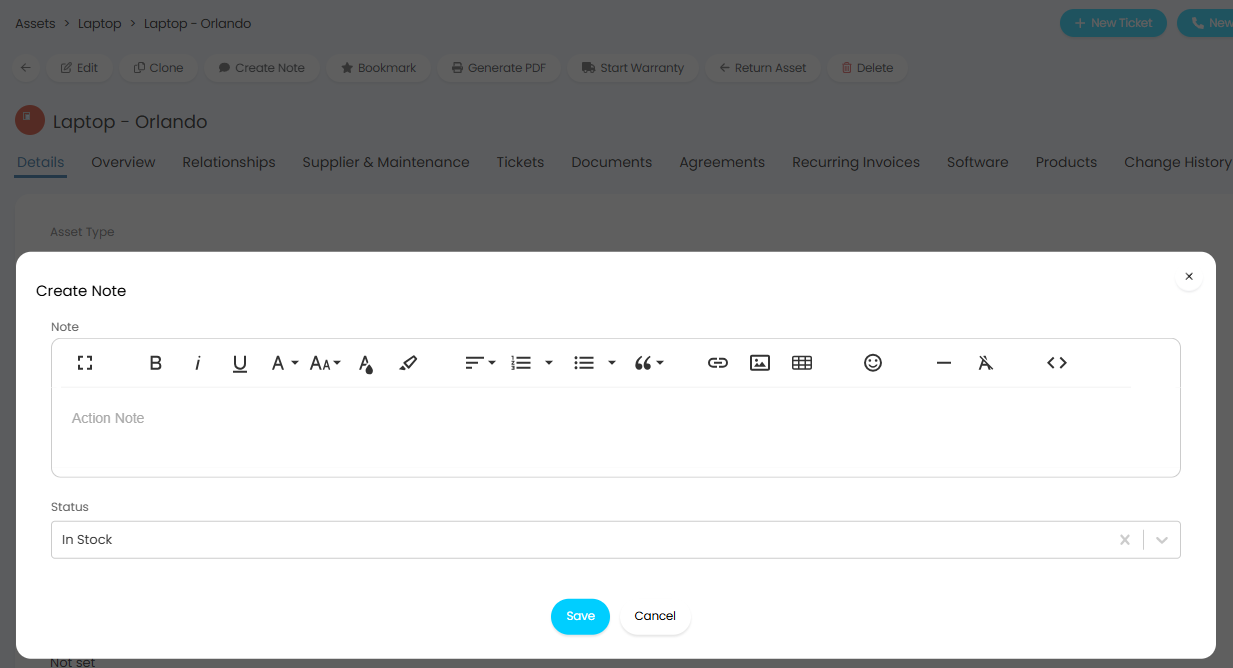
Fig 5. Using an Asset Action
These Actions will then show in the Action History tab of the Asset.
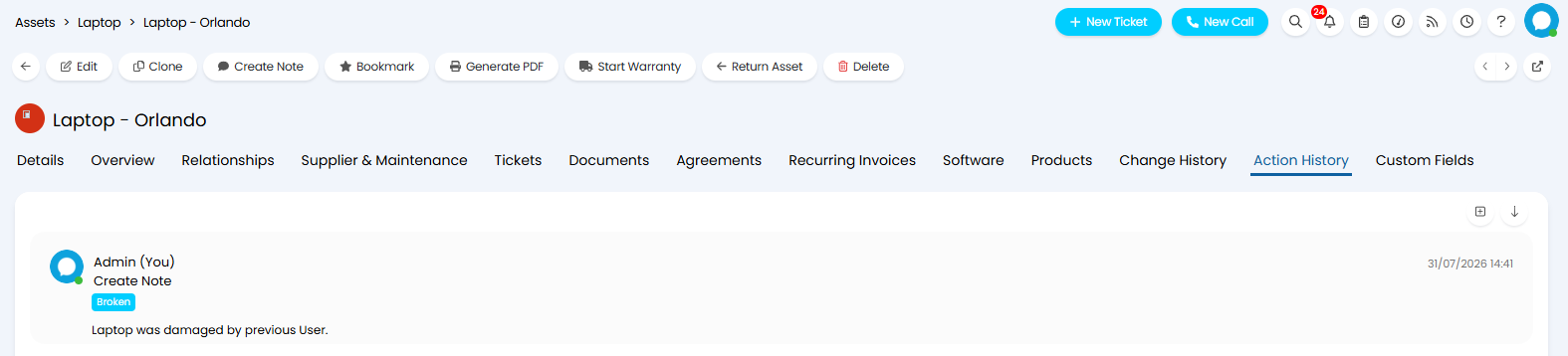
Fig 6. Action History tab on an asset
Asset Workflows (v2.250+)
Asset Workflows can be used to determine the order in which Actions show on an an Asset, allowing set processes to be created. In Configuration > Asset Management, you will find the optional module "Asset Workflows". If not already enabled, enable Asset Workflows by hovering over the module and clicking the "+" icon.
Now click into the module to view existing, or create new Asset Workflows.

Fig 7. Creating an Asset Workflow
When creating a new Workflow, you will need to set a name, and set the Workflow to active, by checking "Show in lists". You can create stages for your Workflow by adding to the "Stages" table, and setting a stage name and sequence. Alternatively these can be created directly on the Workflow.
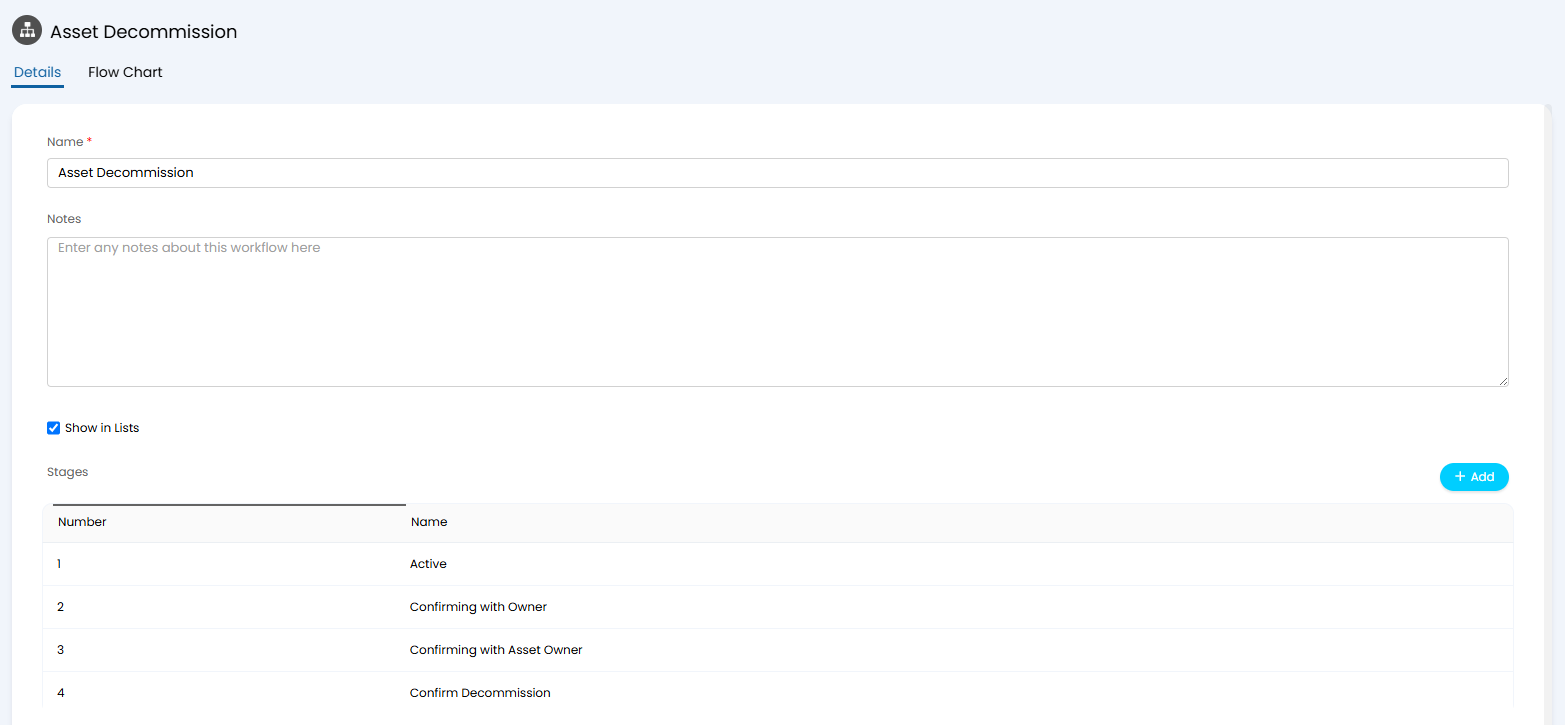
Fig 8. Details tab
In the Flow Chart tab you can configure the Workflow itself. When you click into this tab the first step may automatically open. If this does not happen, you can edit or add a new step by using the pencil icon on the step, or by clicking "Add a Step".
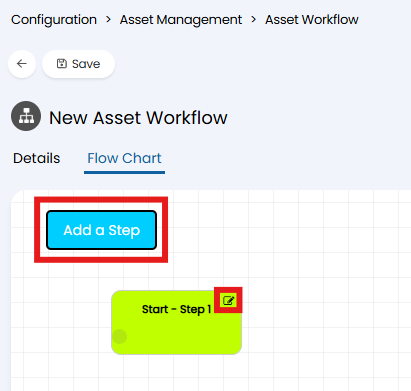
Fig 9. Adding a step to an Asset Workflow
When creating a step you will need to determine the name, and step "Type". Here you can also set the corresponding stage, or have the step create a new stage automatically.
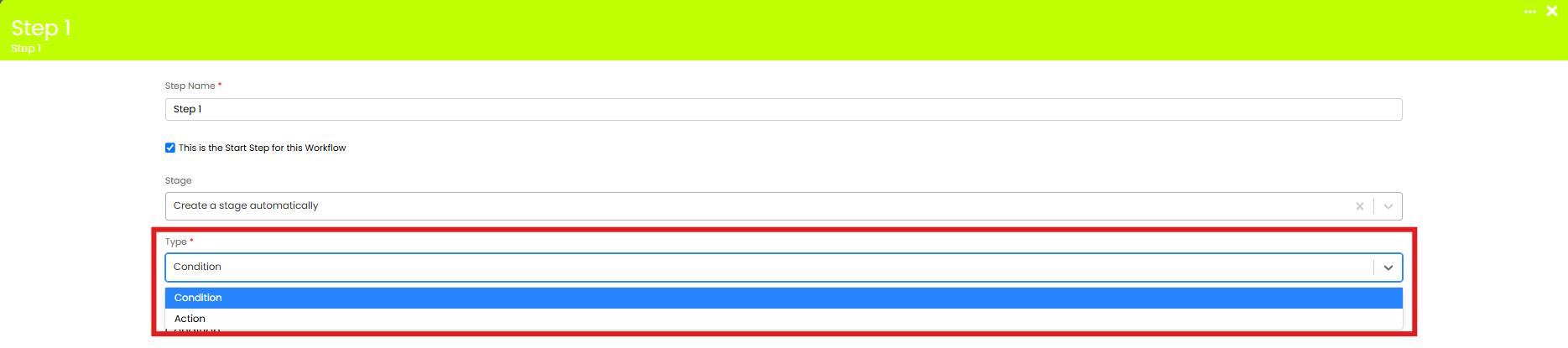
Fig 10. Step Type dropdown
Condition
A condition step allows you to direct the flow based on specified criteria. When selected, and "Condition" table will show where the criteria can be specified.
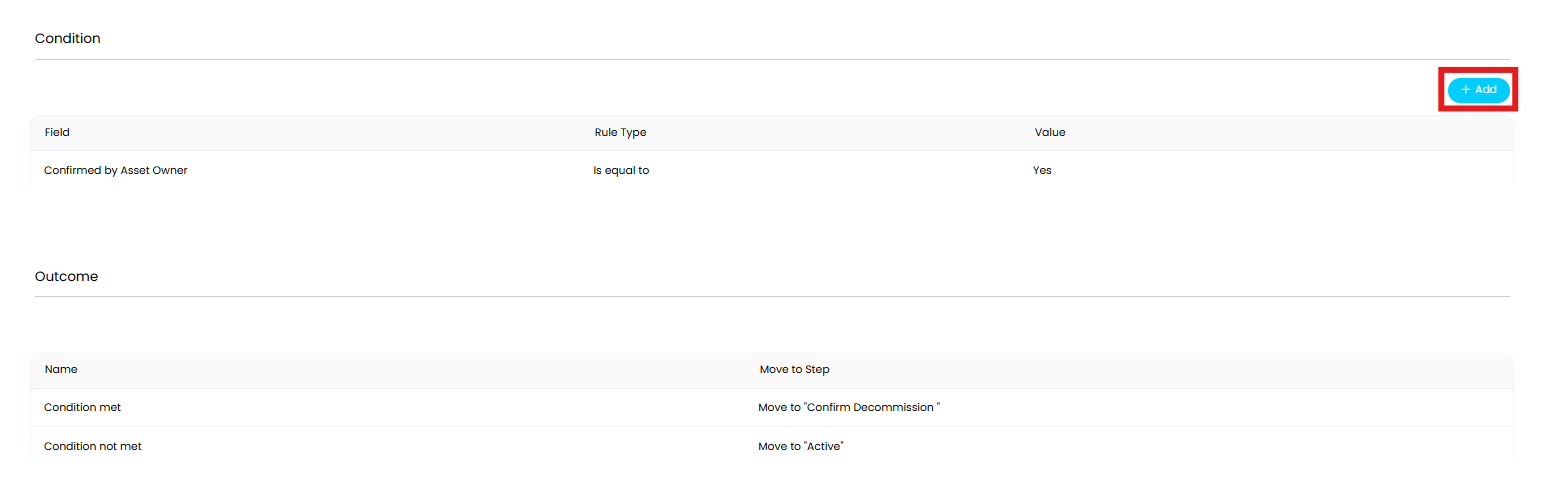
Fig 11. Adding Conditions to a step
By default the workflow will move onto a new step for each outcome. However, if you already have a step you would like the workflow to move to, hover over the line in the Outcome table, and click the pencil icon to choose where to direct the Workflow if the condition is met vs not met.
Actions
Workflow Actions can be used to start an Automation, or to allow use of an Asset Action. Click "Add" on the Actions table, and select the Action Type you would like to allow.
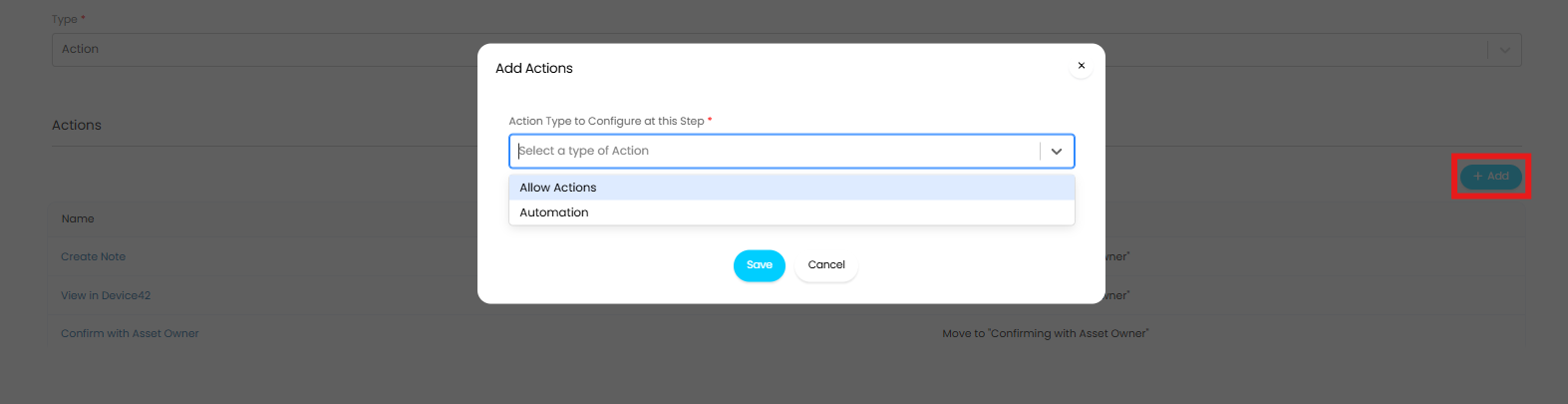
Fig 12. Adding Actions to a step
Automation
When adding an automation you will be able to select a Runbook and trigger. You can also restrict the start of a Runbook based on conditions added to the "Conditions to evaluate prior to queuing the automation" table. Finally use the "Move Workflow" dropdown to choose where the workflow should go once the automation is complete.
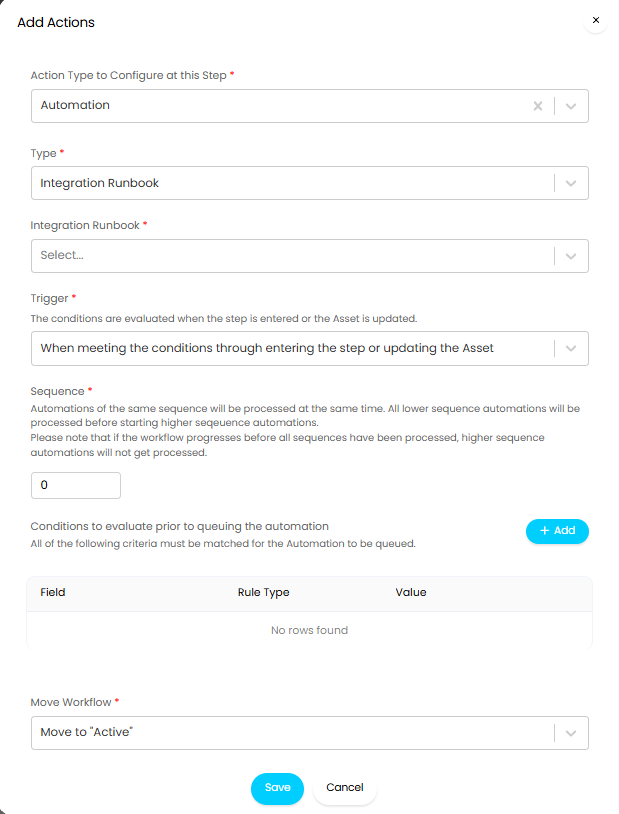
Fig 13. Automations
Actions
When allowing the use of an Action at this step, you will need to select the Action you would like to allow, and use the "Move Workflow" dropdown to choose where the workflow should go once the automation is complete. To restrict who can see this Actions, select "Restrict access to these Actions", and add to the restrictions table. This means you can control which Agents can action an Asset at each step of the workflow.
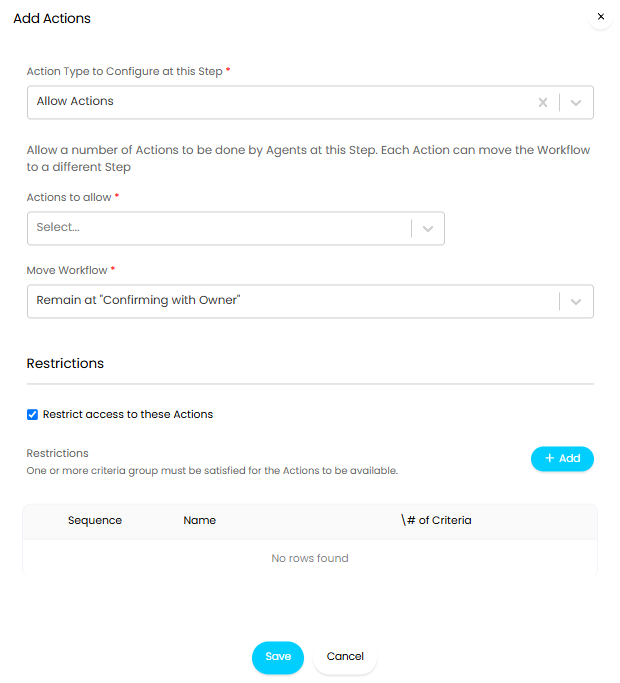
Fig 14. Adding Actions
Restricting which Fields can be edited per step (v2.253+)
From v2.253+, in the "Fields" section of a Workflow step, when "Restrict which Fields can be edited at this step" is enabled, fields can be added ti the "Allowed Fields" table. Only the fields with access granted in this table can be edited by agents, automations, or integrations at this step.
When adding fields to the table you will be able to choose of it is a System, Asset, Custom, or Service Field, which field to allow access to, and who can update the field (Actions & Automations, Integrations, or all).
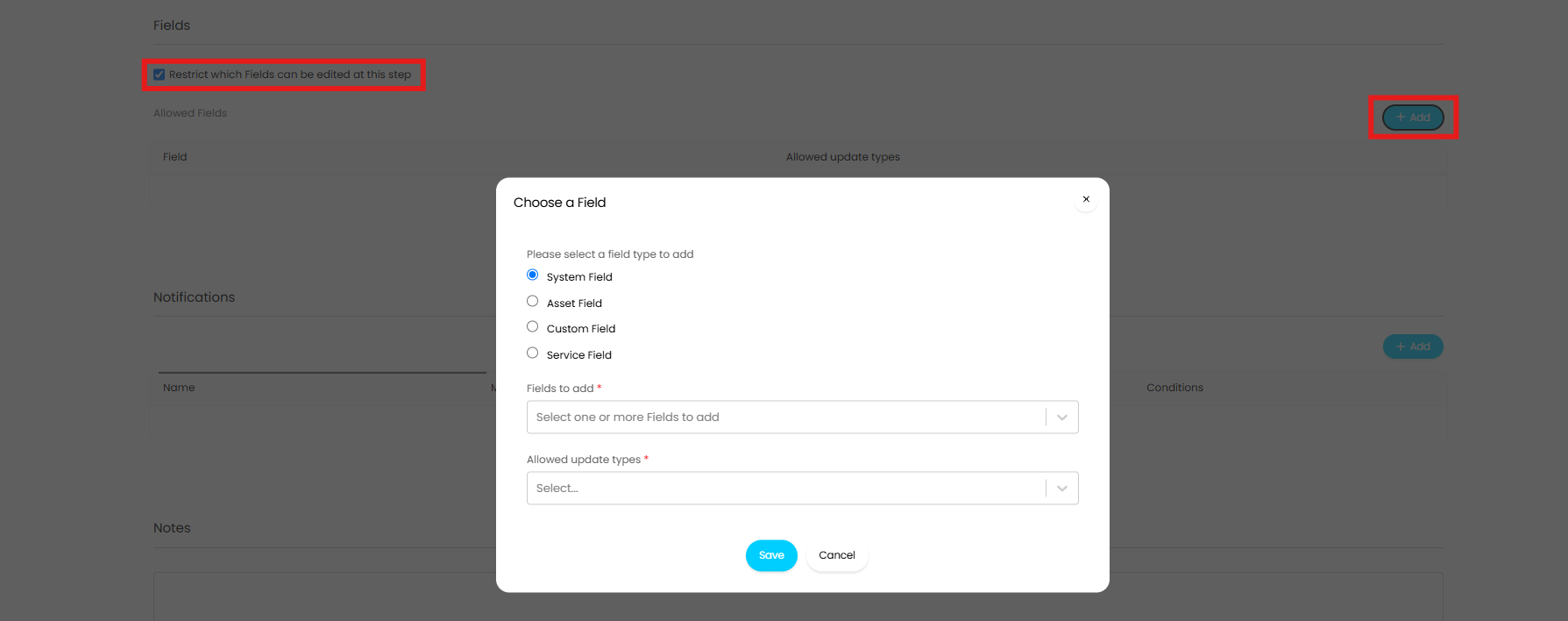
Fig 15. Restricting Fields
Workflow Notifications (v2.253+)
Notifications can be triggered when a particular Workflow step is reached. In the Notifications section on a Workflow step, add to the table to create a new notification. Notifications created here will always have the set event "Workflow Step Started", however additional criteria can be added to restrict when the notification is triggered. More information on configuring Notifications can be found here.
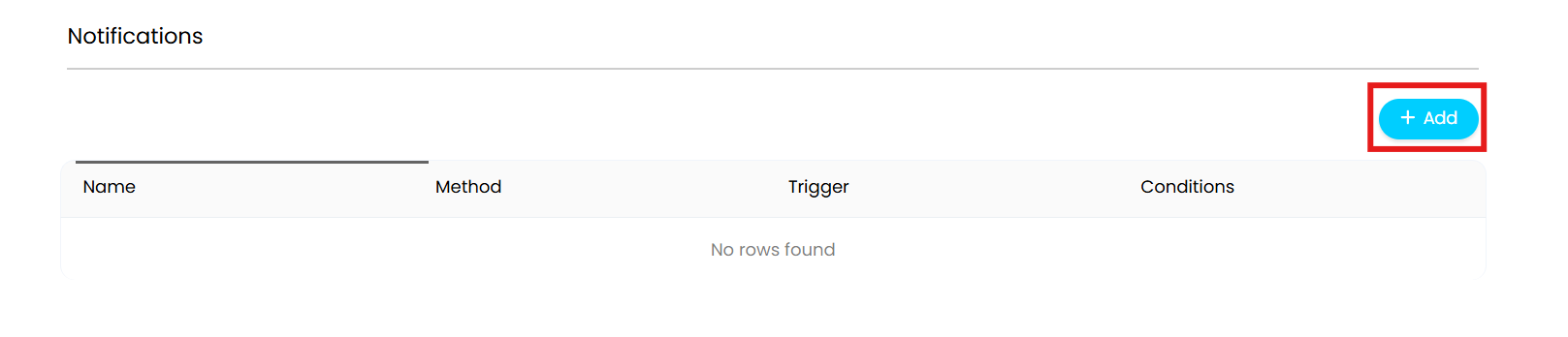
Fig 16. Workflow step Notifications
This is useful for notifying the relevant Agents of certain events within a Workflow, such as an Asset being decommissioned.
Applying and using an Asset Workflow (v2.250+)
Once you have created and saved your Asset Workflow it can be set against an Asset Type. Head to Configuration > Asset Management > Asset Types, and click into the Workflow tab. Change "Start a Workflow" to the Workflow you would like this Asset Type to use. Here you can also determine if you would like to "Show the workflow progress on Assets", and "Change workflow when assets are changed to this asset type".
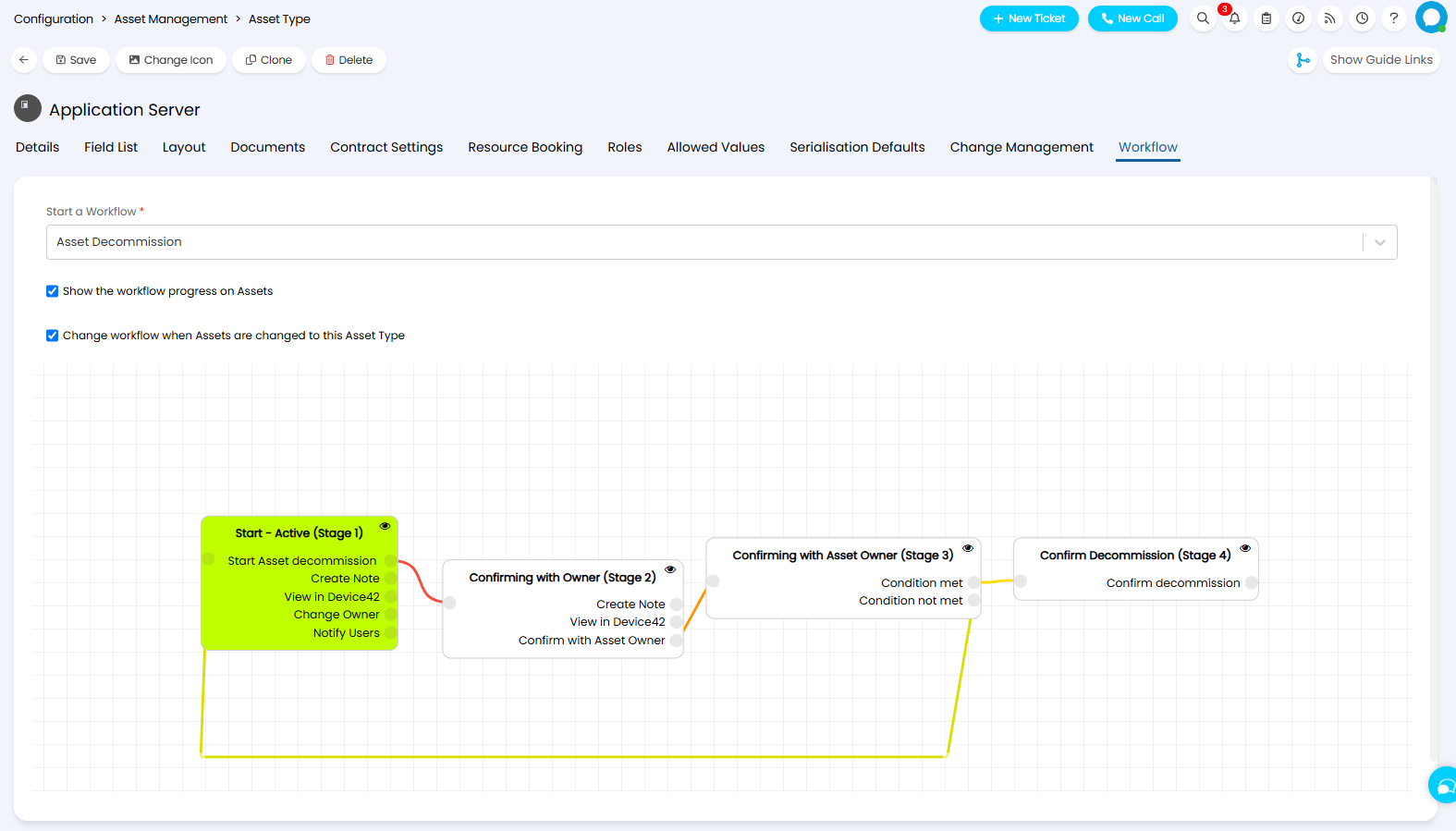
Fig 17. Starting a Workflow from an Asset Type
All newly created Assets of this Type will now start on this Workflow.
Alternatively, you can manually set or change the Workflow against an Asset itself. In the Details tab, you will find the "Workflow" dropdown. Here you can manually set the Workflow to use for this Asset.
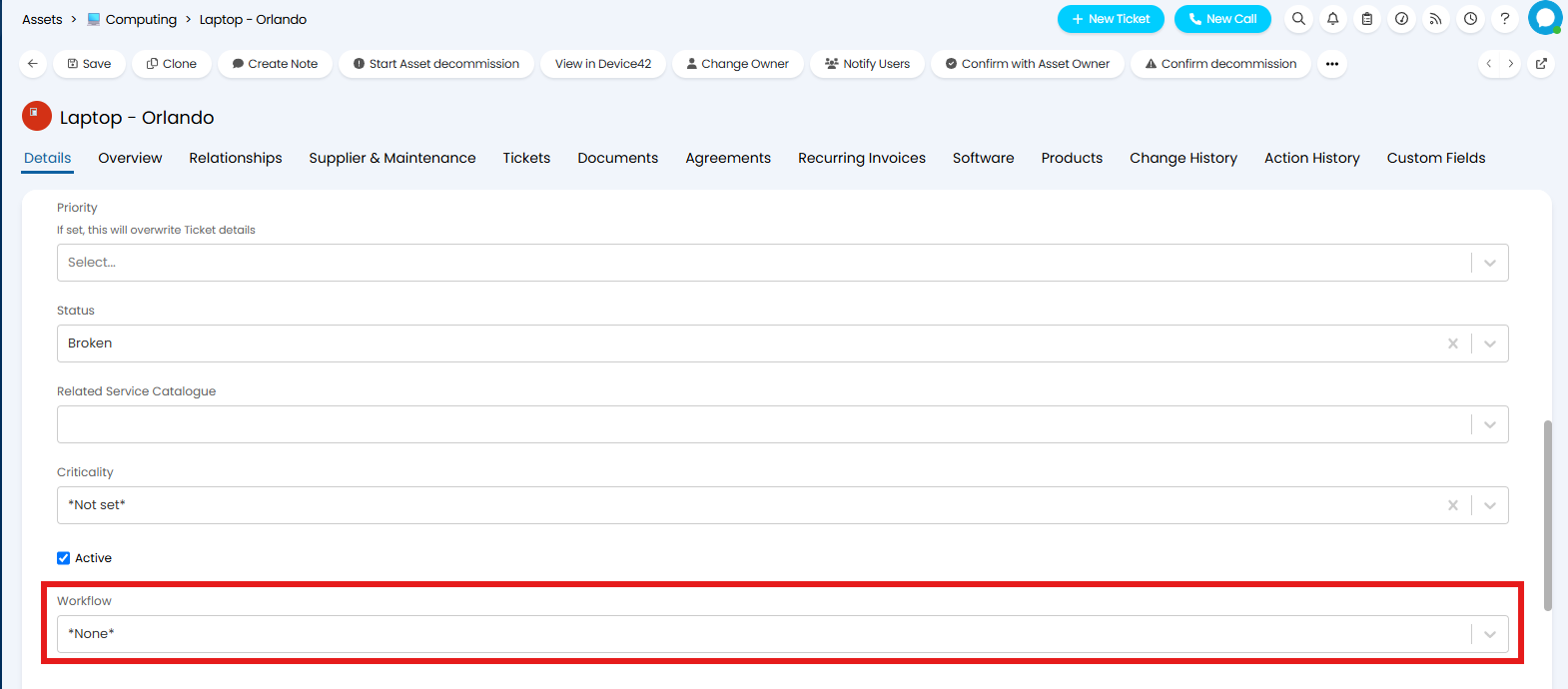
Fig 18. Adding Actions
You will now see the available Actions along the top of the Asset record.
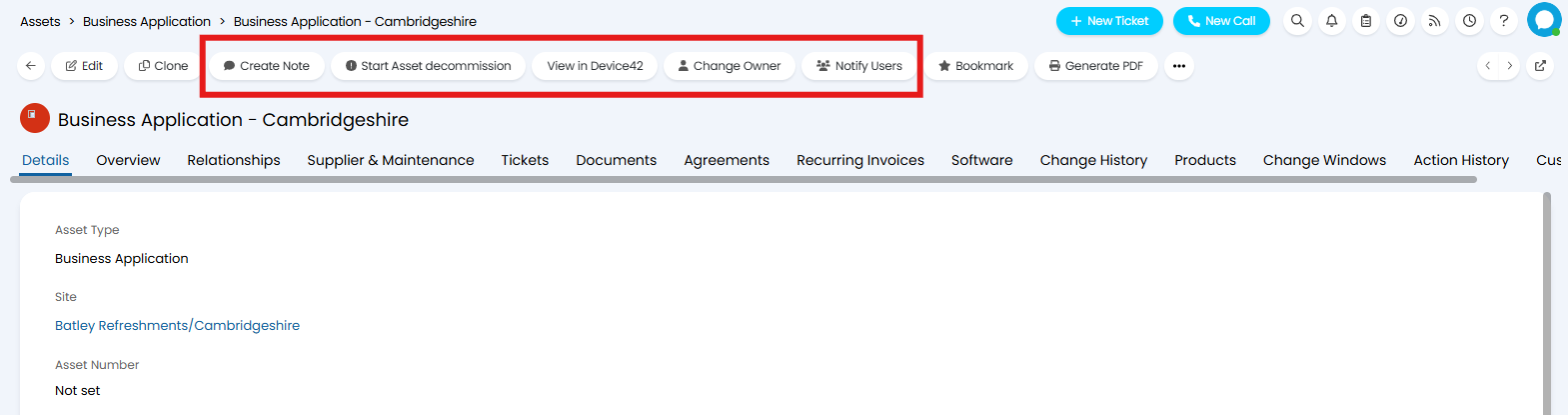
Fig 19. Asset Actions
The Actions and automations performed on the Asset will be visible in the "Action History" tab
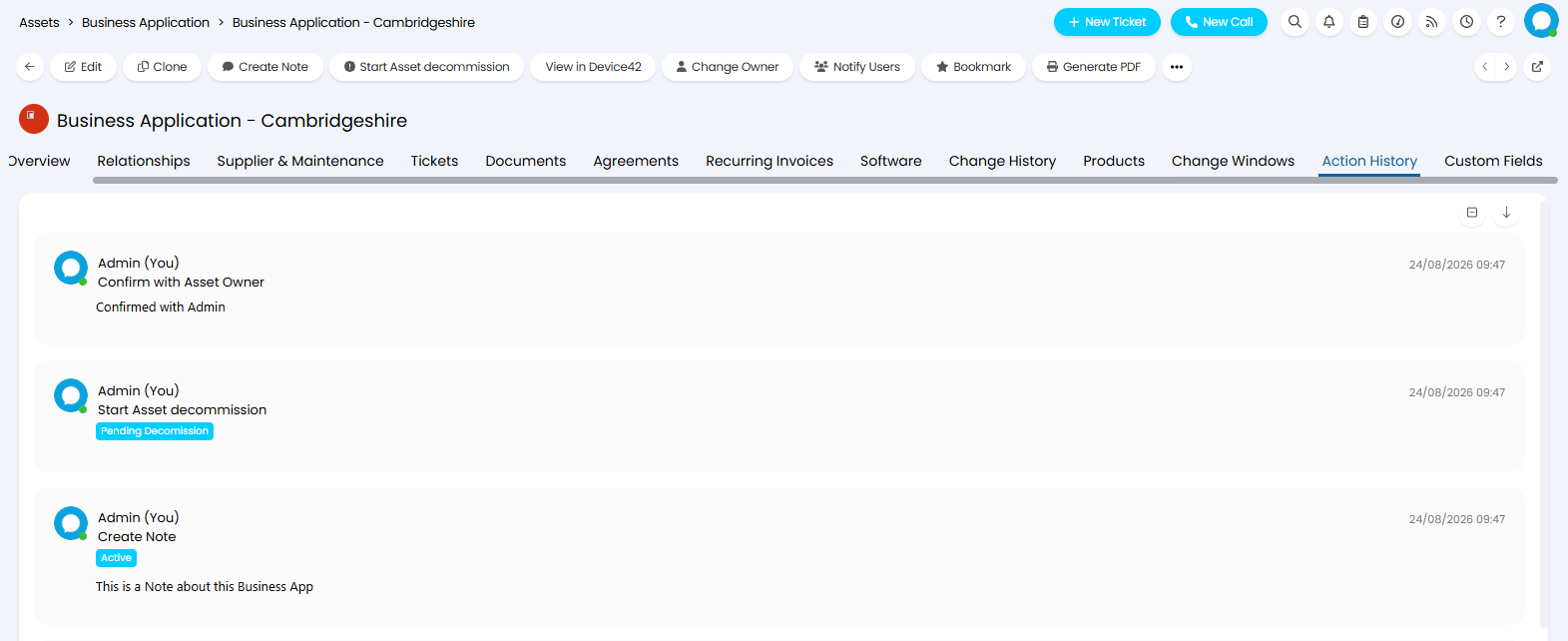
Fig 20. Action History