Asset Type & Asset Import - CSV/XLS/Spreadsheet Method
- Assets
- Importing Assets
- Imports
In this guide we will cover:
- How to Import Asset Types using CSV/XLS/Spreadsheet Method
- How to Import Assets using CSV/XLS/Spreadsheet Method
- Finding additional fields to Import
Admin Guides:
This guide covers how to import Asset Types and Assets into your Halo instance using an XLS/CSV file. Details of the asset can be specified in the file to have the asset created in Halo with the specified properties. Useful when migrating data from another asset tool that we do not integrate with, into Halo.
CSV/XLS files can be used to both create assets and update existing asset data.
How to Import Asset Types using CSV/XLS/Spreadsheet Method
All Assets in Halo must have an Asset Type, therefore your Asset Types must be created before you can create or import Assets. In this section we will cover how to import Asset Types.
Navigate to Configuration > Asset Management > General Setting. Head to the Imports section and set the "Unique identifier for Assets" and "Secondary Matching Field for Assets". The fields specified here will be used to match imported records to existing records, allowing existing Assets to be updated rather than duplicated. The Secondary Matching Field will be used to match records when no matches are found with the Unique Identifier.
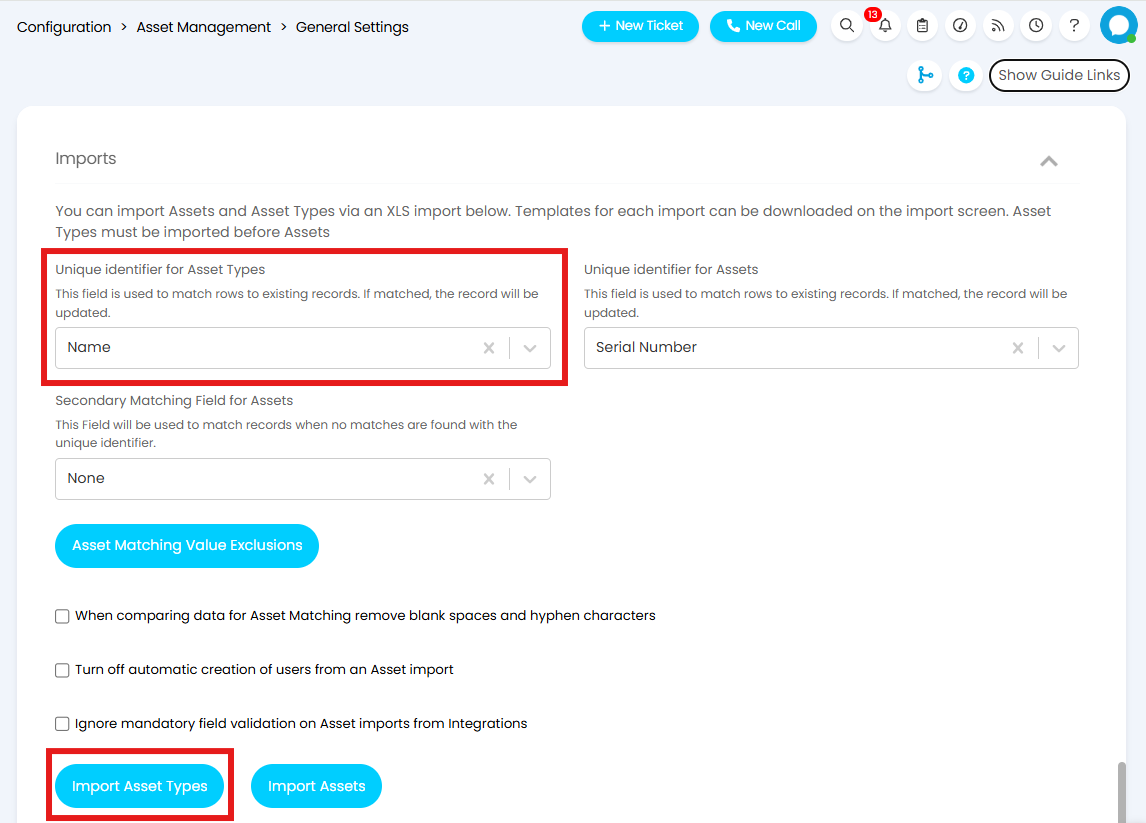
Fig 1. Unique Identifier for Asset Types
Next you will need to configure your XLS file ready to be imported. Click the "Import Asset Types" button shown in Figure 1 to open the import screen. If open, close the File Explorer, and click "Download Samples" to download the XLS templates.
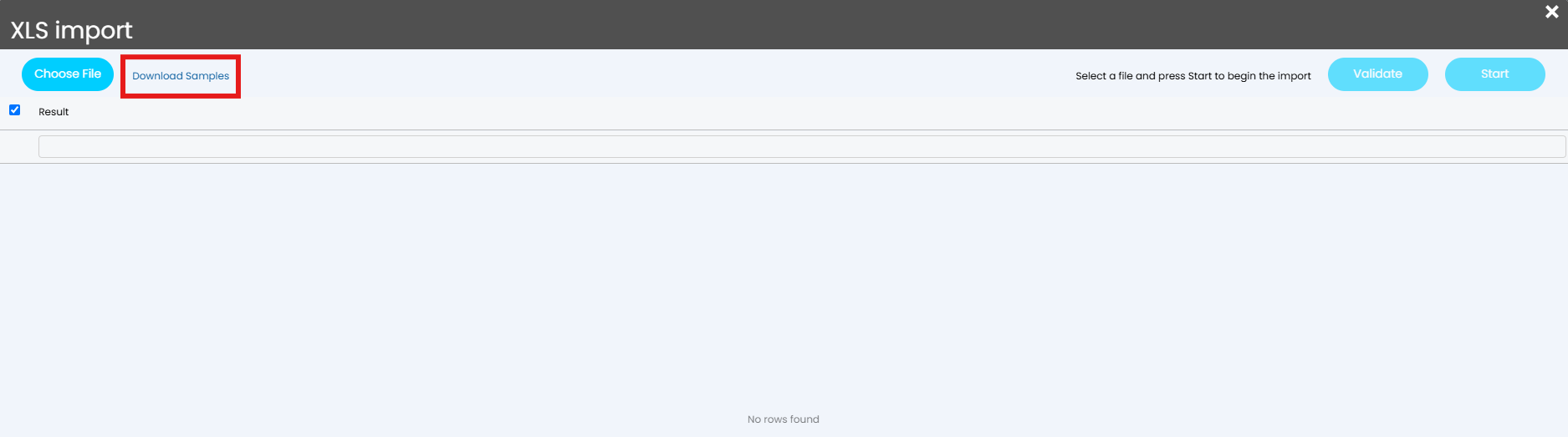
Fig 2. Download Samples option
This will download a folder called "importspreadsheetsweb".
Opening this folder will show the sub-folder "ExampleSpreadsheets" which when opened will show all available XLS templates.
Within this folder locate and open the XLS file titled "Asset Types".
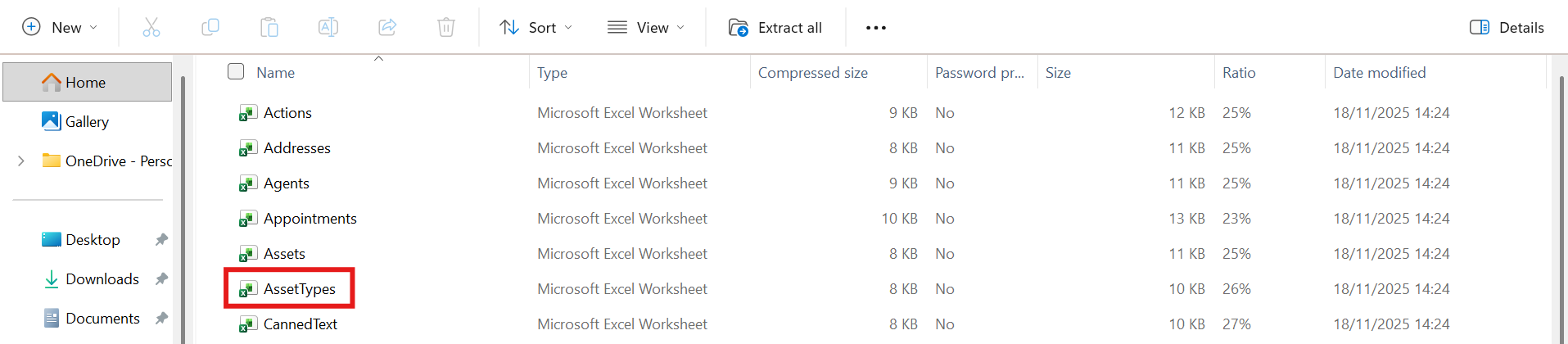
Fig 3. Asset Types XLS template
Click into the "IMPORT DATA" sheet and, without changing the blue column headings, remove the example data.
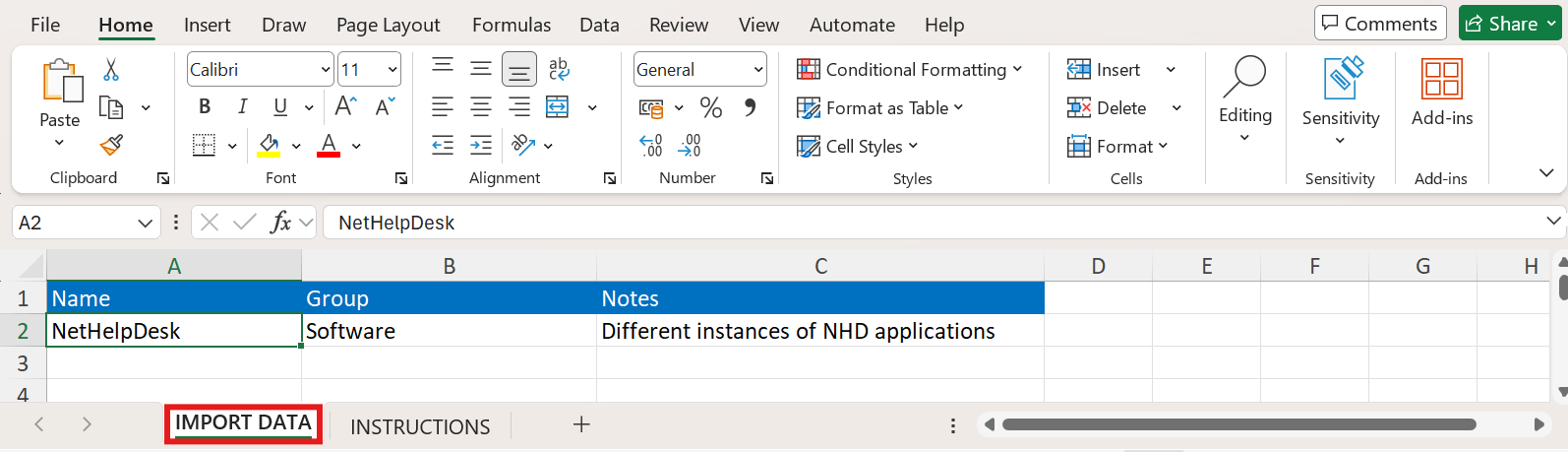
Fig 4. Import Data sheet
You can now enter your Asset Type data in the relevant column.
Important! You must ensure the Unique identifier for your Assets is included in this file in order for existing records to be matched. If the unique identifier is not present a new record will be created for every Asset.
Once you have entered all the Asset Type data, save your spreadsheet with an identifiable name.
In Halo, return to Configuration > Asset Management > General Settings, and click "Import Asset Types".
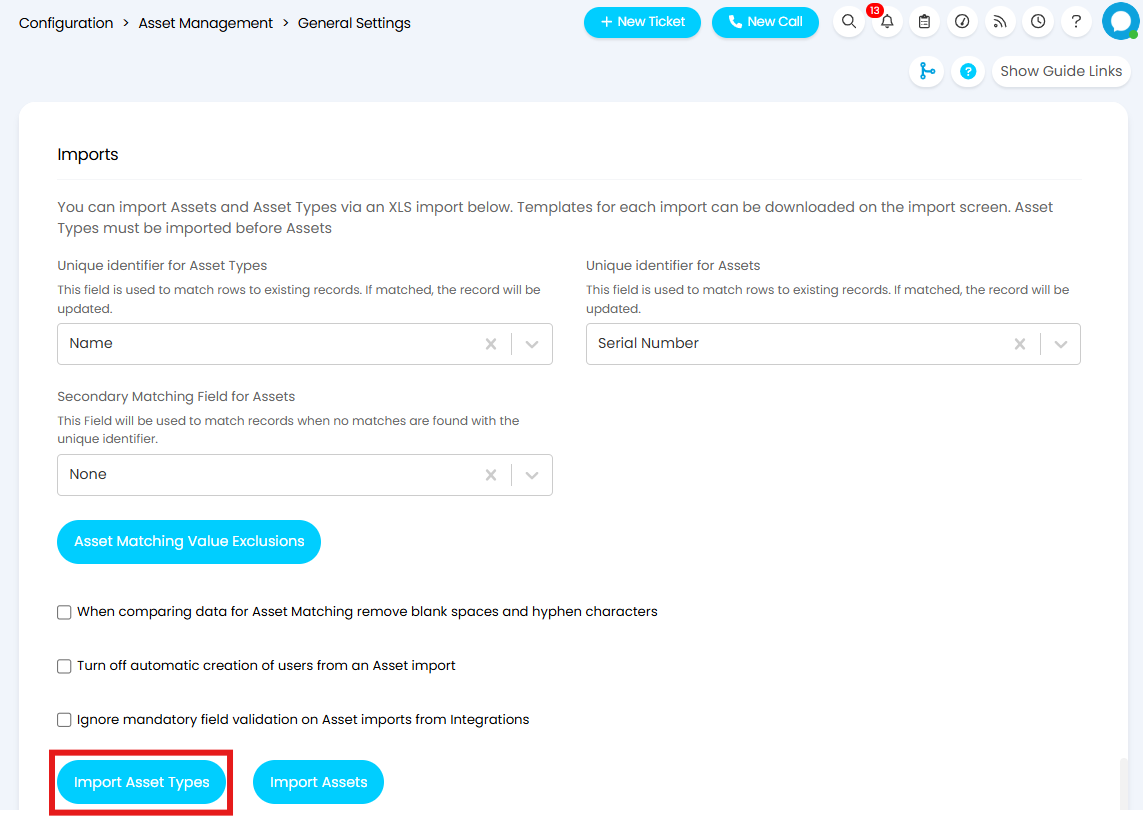
Fig 5. Import Asset Types button
If your File Explorer does not open automatically, click "Choose File".
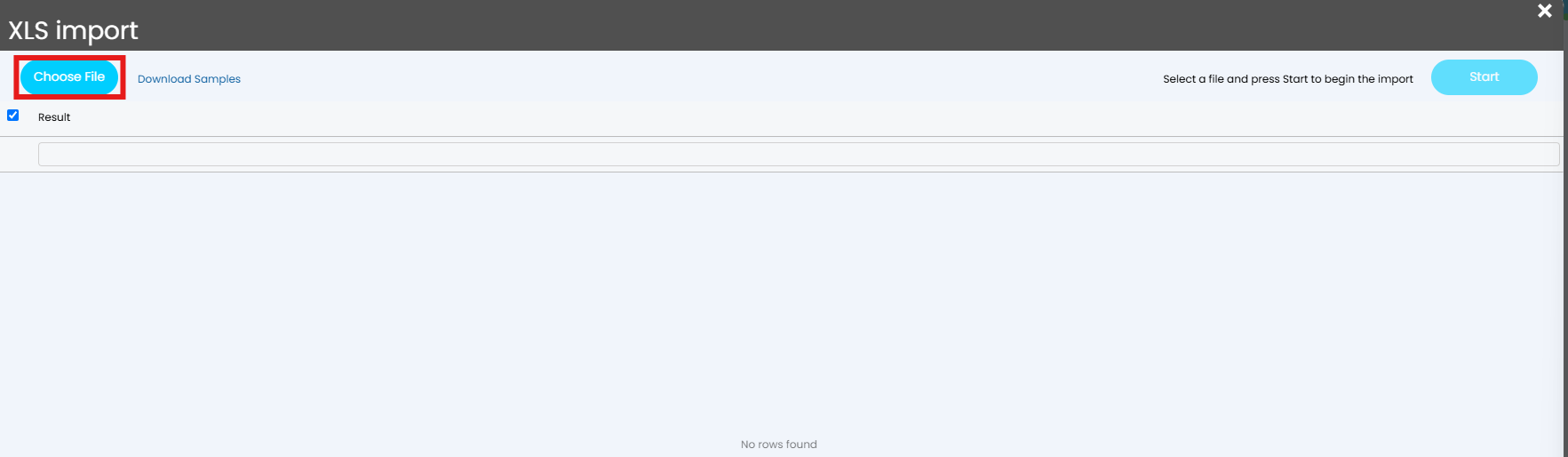
Fig 6. Choosing a file
Once you select your file, the data will show on the import screen. Check you are happy with the data, then select the rows you would like to import using the checkboxes, or select them all using the checkbox on the top left. Then click "Start" to run the import.

Fig 7. Importing values
You will now see any new records in the Asset Types Module in Configuration.
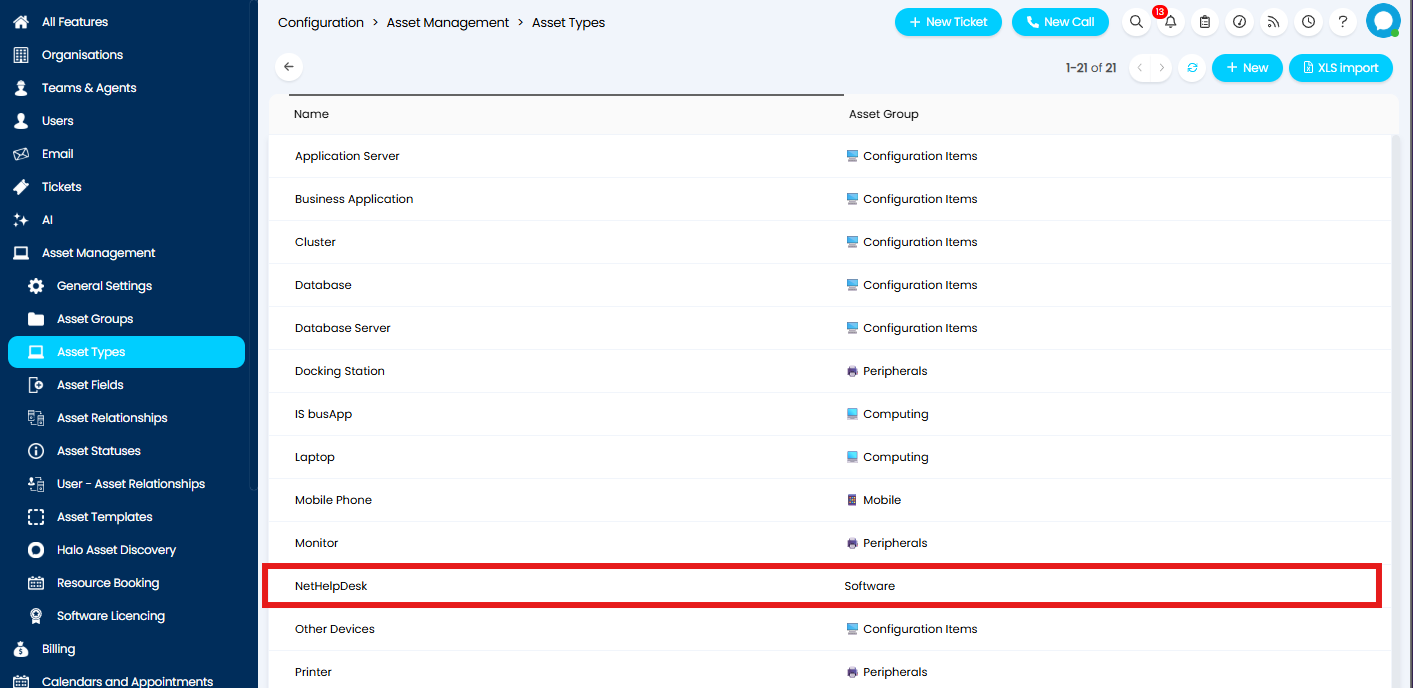
Fig 8. Imported Asset Types
How to Import Assets using CSV/XLS/Spreadsheet Method
In this section we will cover how to import Assets using a CSV/XLS file.
Navigate to Configuration > Asset Management > General Settings. Head to the Imports section and set the "Unique identifier for Assets" and "Secondary Matching Field for Assets". The fields specified here will be used to match the assets being imported to existing records, allowing existing Assets to be updated rather than duplicated. The Secondary Matching Field will be used to match records when no matches are found with the Unique Identifier.
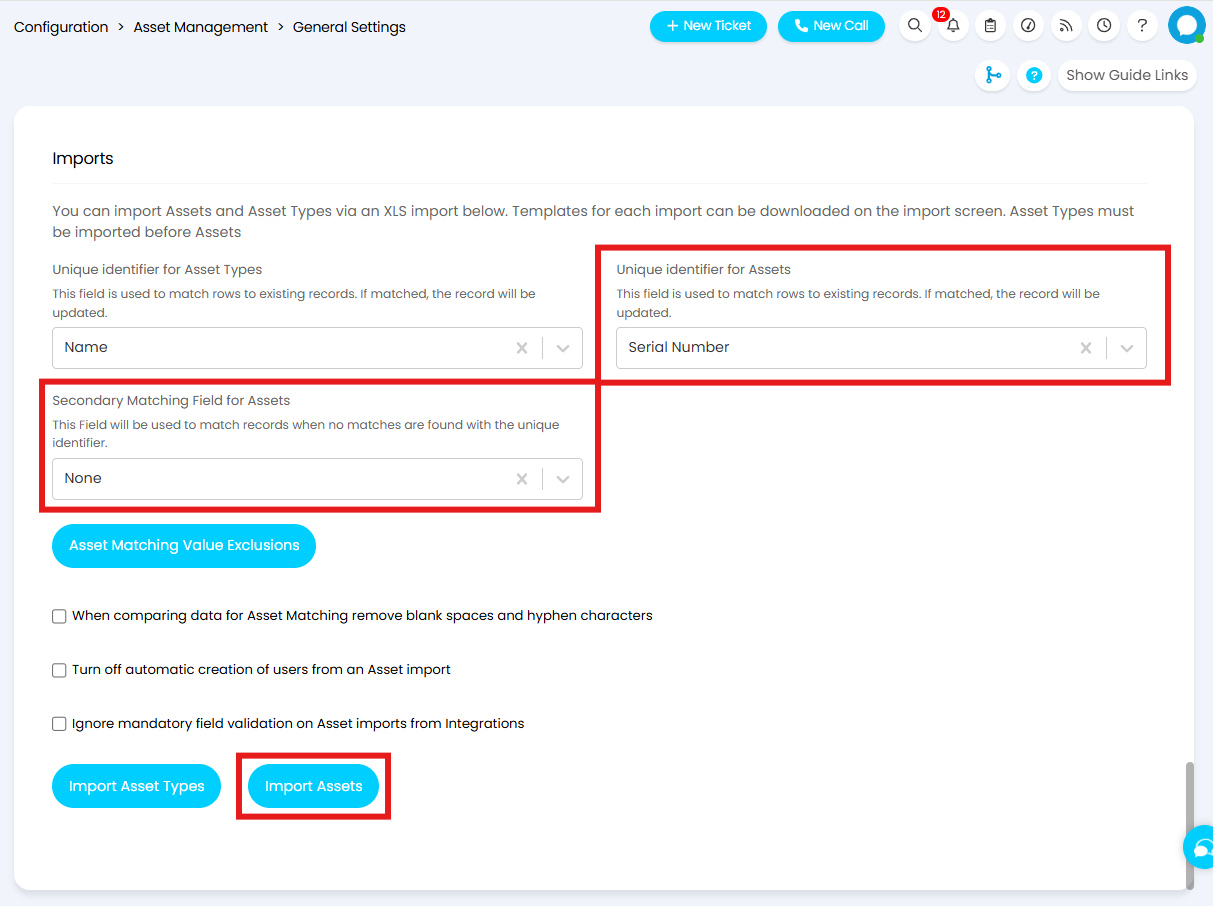
Fig 9. Import Assets button
When comparing data for Asset Matching remove blank spaces and hyphen characters - If trying to match on an asset using i.e. the serial number, if there are any spaces or hyphens in the inputs, these will be disregarded during the matching process.
Turn off automatic creation of users from an Asset import - If there are import rows with users attached, that do not exist in Halo, the default behaviour is to create this user under the client and site specified on the import. Checking this setting on will stop the user being created and will import the asset under the client and site specified on the row.
Next you will need to configure your XLS file ready to be imported. Click the "Import Assets" button shown in Figure 9 to open the import screen. If open, close the File explorer, and click "Download Samples" to download the XLS templates.
Fig 10. Download Samples button
This will download a folder called "importspreadsheetsweb".
Opening this folder will show the sub-folder "ExampleSpreasheets" which when opened will show all available XLS templates.
Within this folder locate and open the XLS file titled "Assets".

Fig 11. Assets XLS template
Click into the "IMPORT DATA" sheet and, without changing the blue column headings, remove the example data.

Fig 12. Import Data sheet
You can now enter your Asset data in the relevant columns.
Important! You must ensure the Unique identifier for your Assets is included in this file in order for existing records to be matched. If the unique identifier is not present a new record will be created for ever Asset.
For the import to sync correctly, the Customer Name, Site, and Device Type (Asset Type) must already exist within Halo. These first three columns must be filled in, the other columns are not mandatory.
You can then fill in any notes relating to the Asset, SLA's, warranty, supplier etc. The SLA, priority and Supplier chosen will also need to exist within Halo or this information will not be pulled in.
Once you have entered all the Asset data, save your spreadsheet with an identifiable name.
In Halo, return to Configuration > Assets > General Settings, and click "Import Assets".
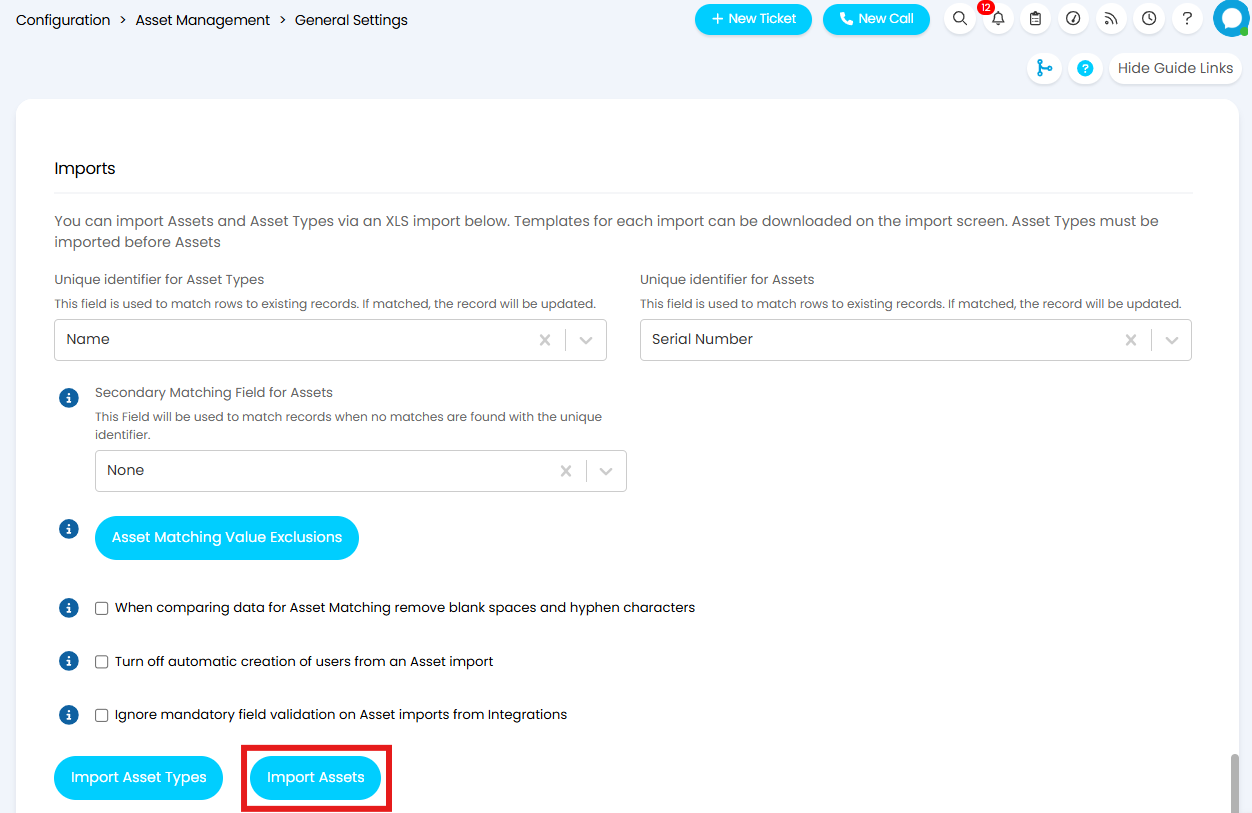
Fig 13. Import Assets button
If your File Explorer does not open automatically, click "Choose File".
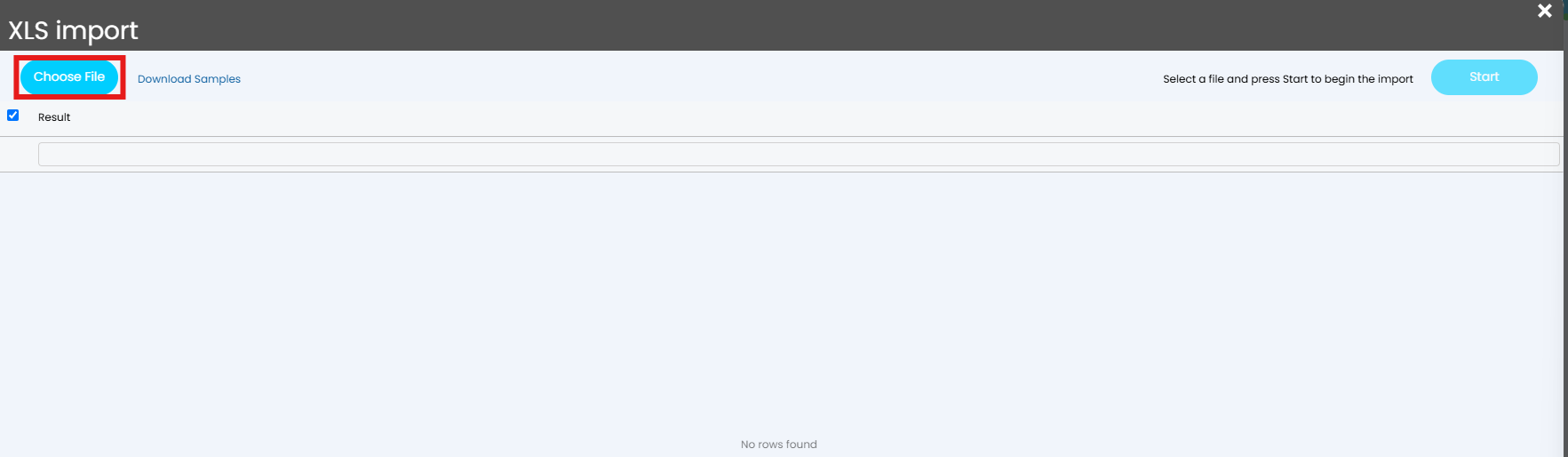
Fig 14. Choosing a file
Once you select your file, the data will show on the import screen. Check you are happy with the data, then select the rows you would like to import using the checkboxes, or select them all using the checkbox on the top left. Then click "Start" to run the import.

Fig 15. Importing values
Within Halo, you should now be able to see the Asset you've imported with all of the relevant fields.
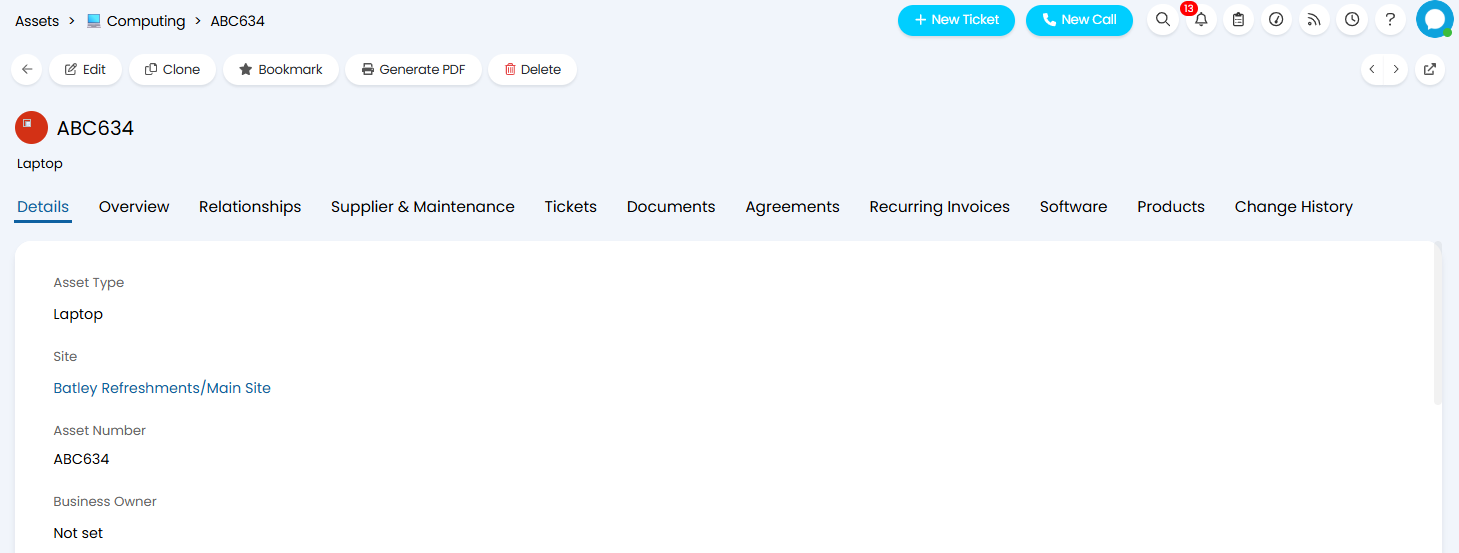
Fig 16. Imported Asset
Finding Additional fields to Import
The Template provided will contain key fields used during an import, however, not all system fields will be present on this template. Any custom fields you have created will also not be on the template, therefore, if you wish to populate/update these fields, you will need to ammend the template to include these field names.
The column names used on the template do not directly reflect the names of fields as they appear in Halo's UI. Therefore, if you would like to add any additional fields to the template, you will need to find the 'template column name' for the field (this is usually the API field name) and use this as the column name.
The way in which 'template column names' are found will differ depending on the type of field you are adding to the template. In this section we will run through how to find the aliases for each type of field.
Asset fields
To import specific Asset Fields to your spreadsheet, you will need to add columns with the Asset Field name to import, prefixed with "AF" as the Column Header. For example, "AFAccount Number".

Fig 17. Asset Field on spreadsheet
Note: Asset Fields and Custom Fields for Assets are different fields configured in different areas. Asset Fields provide fewer configuration options within the Field, but can be added to specific Asset Types. See the guide linked here for information on the differences between these fields.
Custom Fields
Similarly to Asset fields, Custom Fields can be imported via the Spreadsheet. To do this add the Custom Field name to import, prefixed with "CF" as the Column Header. For example, "CFAssetExtraDetails" (As custom fields do not contain spaces):

Fig 18. Custom Field on spreadsheet
Note: Asset Fields and Custom Fields for Assets are different fields configured in different areas. Custom Fields for Assets provide more options within the configuration of the field itself, but cannot be added/removed per Asset Type. See the guide linked here for information on the differences between these fields.
System Fields
If there is a particular field you would like to populate upon import you can add this to the spreadsheet. To find the correct 'template column name' for this field you will need the JSON name of the field. To find this, simply append "&showfieldnames=true" on your URL. This will display your instance with the JSON field names in braces (curly brackets) above the field.
Note: This method may not work for all fields. If you are unable to import to a certain field in Halo please contact Support for assistance.
In the below example I am looking to set the "Business Owner" for my Asset.
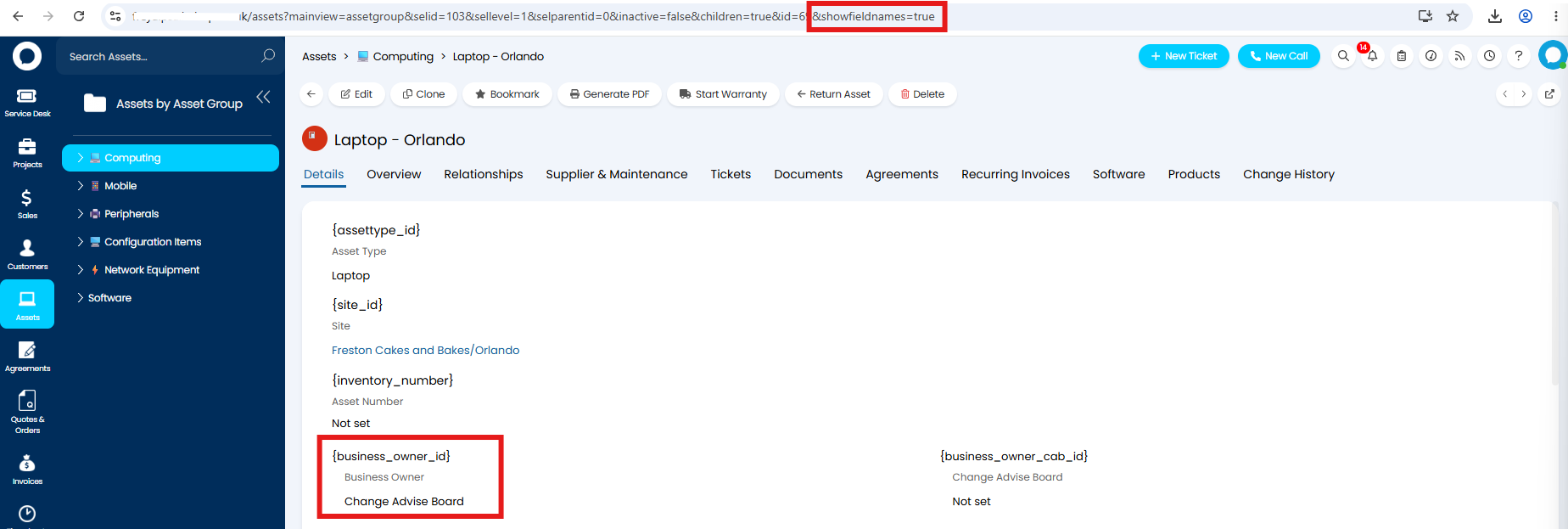
Fig 19. JSON field name
Copy the value between the brackets and paste this as a column header.

Fig 20. Adding the Business Owner field to the import spreadsheet
Run the import as normal, and the field will update to the specified value.
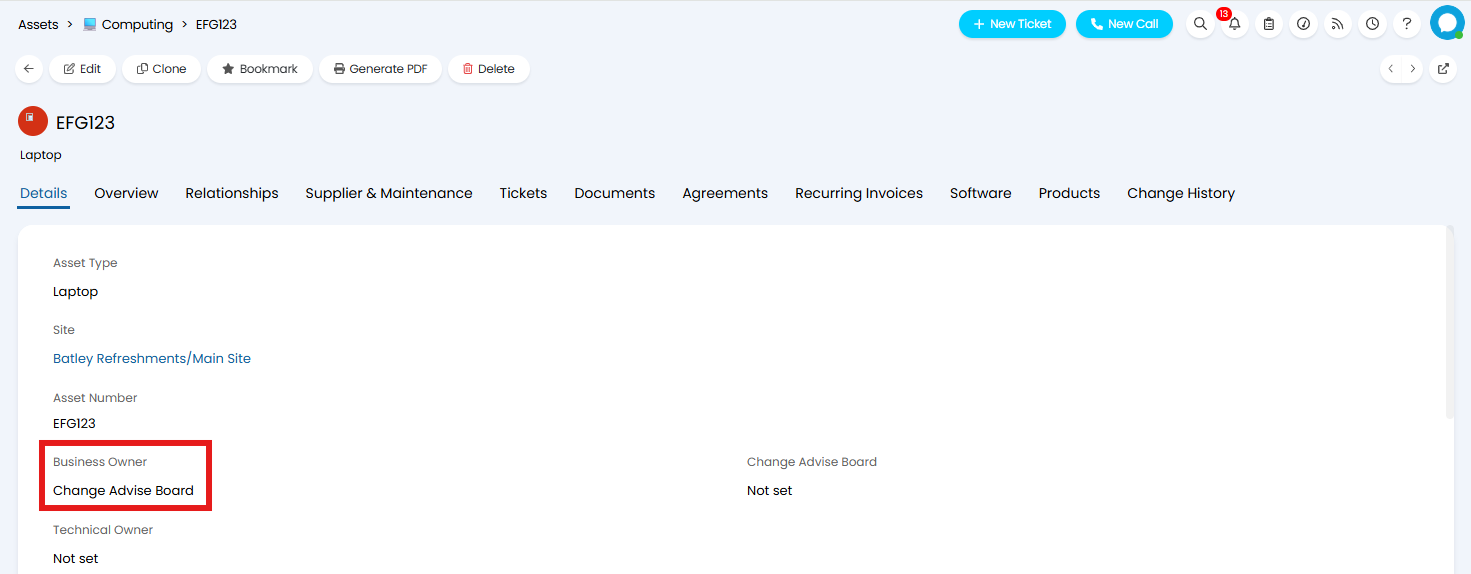
Fig 21. Imported Business Owner field
Alternative method for finding System Fields and Field Values
If using the JSON name does not successfully import the values to the field, or if you need to know the format for the value you are importing into a field, you can use the Developer Console to find the correct header name. First locate the field in Halo, before editing the field you will need to open the Developer Console which can be accessed by clicking function (fn) and f12. Now edit the field, setting the value to the value you would like to import, and view the changes in the Network tab of the Developer Console.
In the below example I am looking to set the "Status" for my Asset.
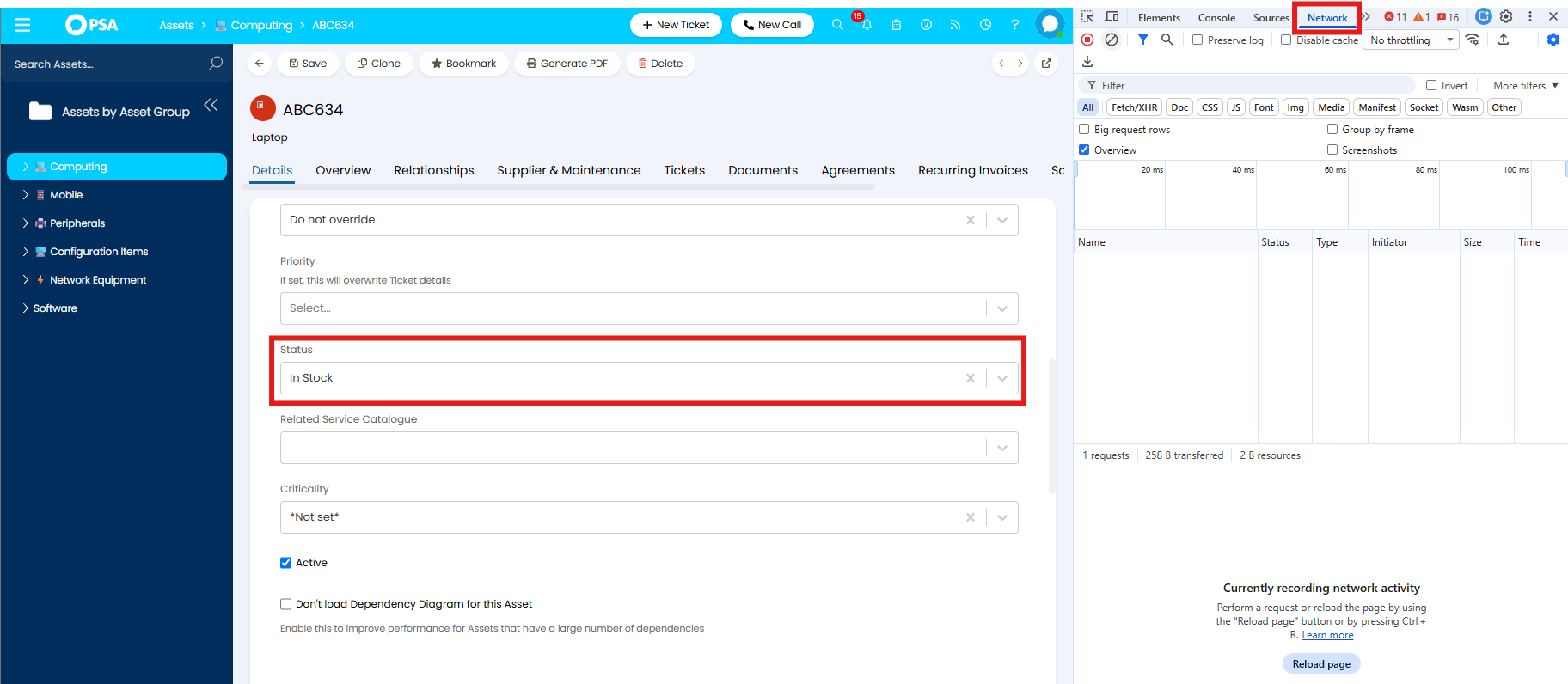
Fig 22. Network tab
When I click "Save" additional entries will show. Select the entry with the entity name, in this case "Asset", as this is the entity being updated. Click the "Payload" tab and expand the section.
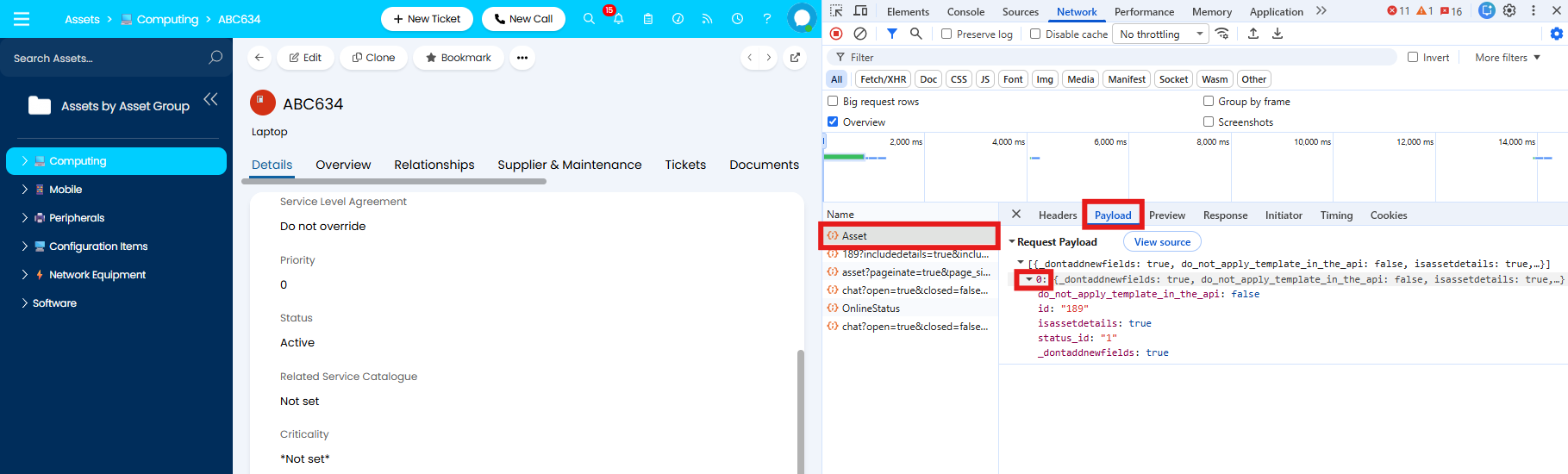 Fig 23. Payload from editing the Status field
Extract the name of the field that has changed. This will be the column header in your spreadsheet.
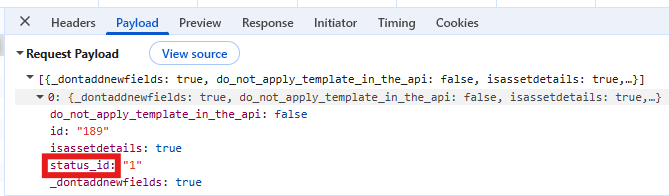
Fig 24. Status in the Dev Tools
To work out the value you need to enter under this column, look for the value shown in the payload after the field name.
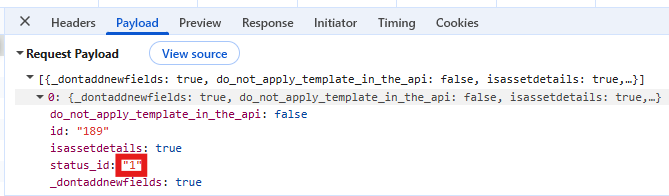
Fig 25. Status set to "Active" in the Dev Tools
Add the field name as a new column header on your spreadsheet, and fill in the values accordingly.

Fig 26. Adding the Status field to the spreadsheet
Run the import as normal, and the field will update to the specified value.
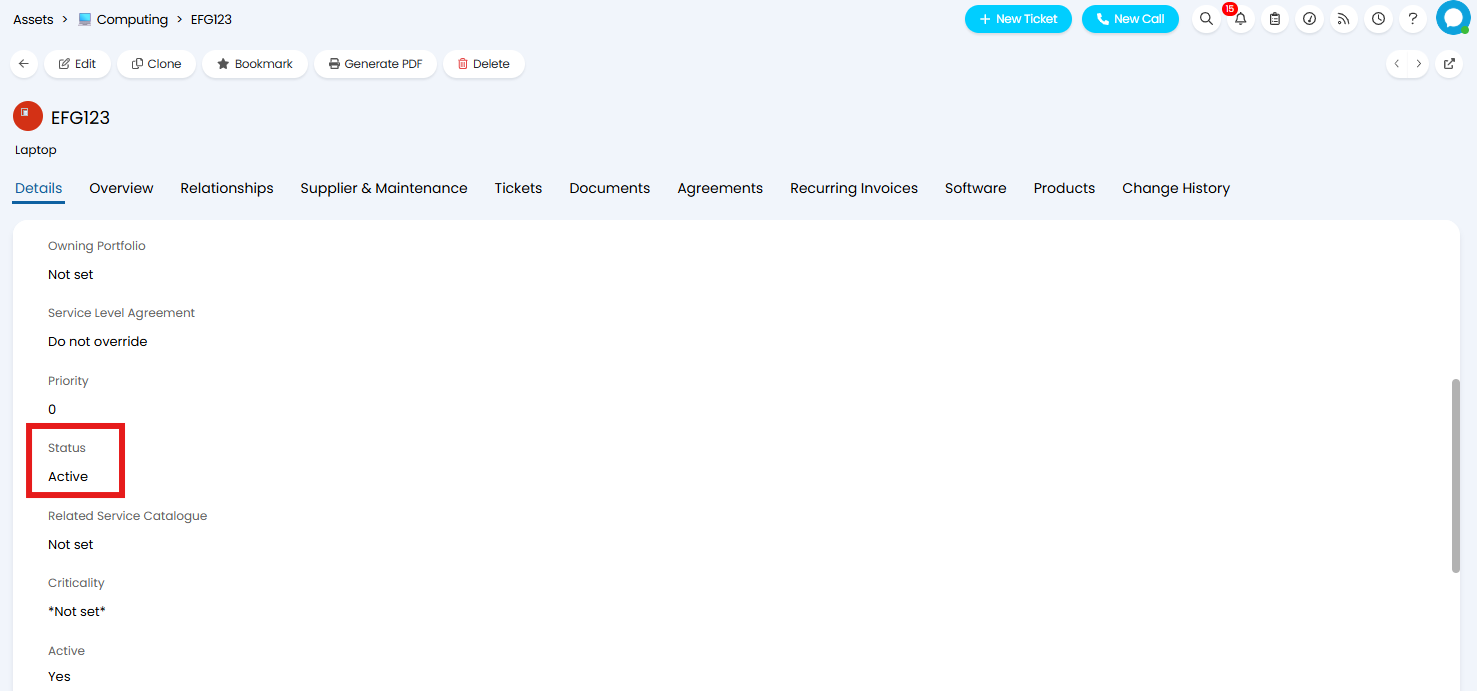
Fig 27. Imported Status