Supplier Contacts/Users
- Suppliers
- Users
- supplier users
In this guide we will cover:
- Creating Supplier Users
- Importing Supplier Users
- Logging to Supplier Users
- Supplier Portal Access
Configuration Settings:
Related Guides:
Supplier users can be used as contacts of a ticket, and can be given access to tickets they are assigned as the supplier to, allowing them to leave notes and converse easily without emailing. When logging to a supplier, you can also select a supplier user to email, either in addition to or instead of the main supplier email address.
Creating Supplier Users
Supplier users can be created manually within the suppliers area. Navigate to a supplier > "Supplier Users" tab, and click the "New" button in the top right. This will bring up the new user screen like when creating regular users against a customer, but instead this user will be associated with a supplier.
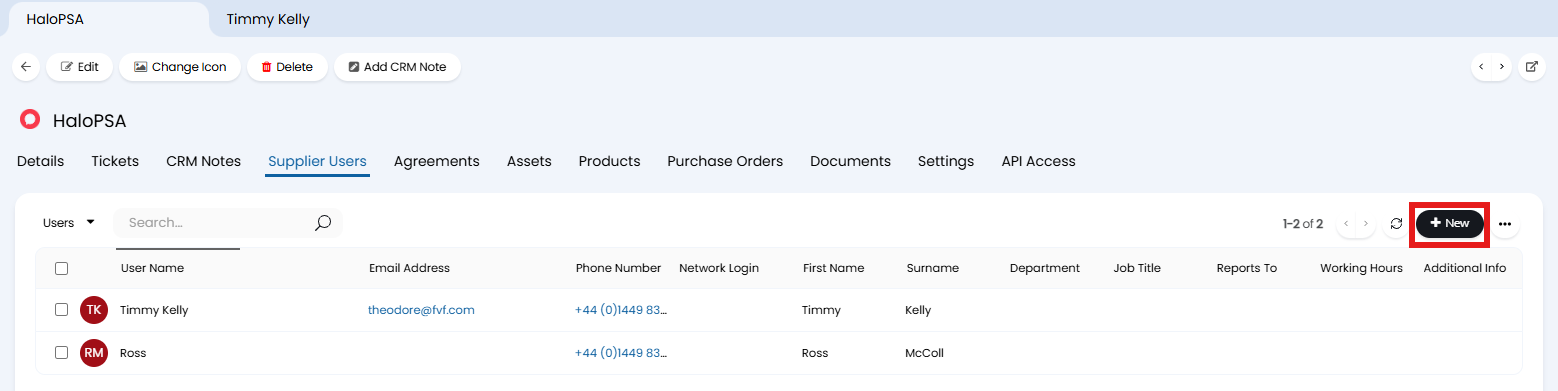
Fig 1. Creating a new supplier user.
Importing Supplier Users
Supplier users can be created via import using the "Users" import spreadsheet. Replace "CustomerName" with "SupplierName", and remove the "SiteName" column. You can also add a "web_access_level" column set to "6" if you wish to import the supplier portal access permission, or "3" for "No Access".

Fig 2. Supplier user import spreadsheet example.
The above spreadsheet will import the user like below.
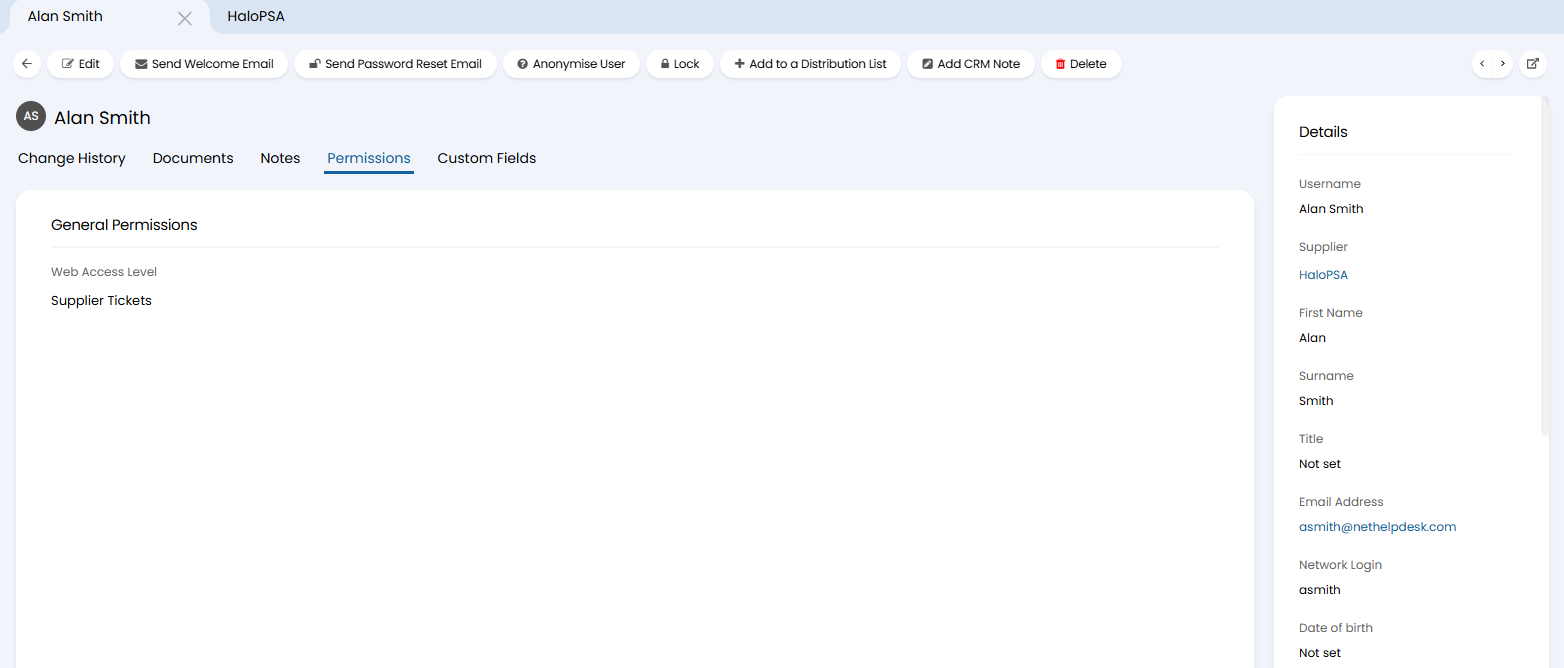
Fig 3. Imported supplier user.
Logging to Supplier Users
When logging to a supplier, you can also select if you will log it to a supplier contact as well. Selecting a contact will auto-populate their email address in the "To" field.
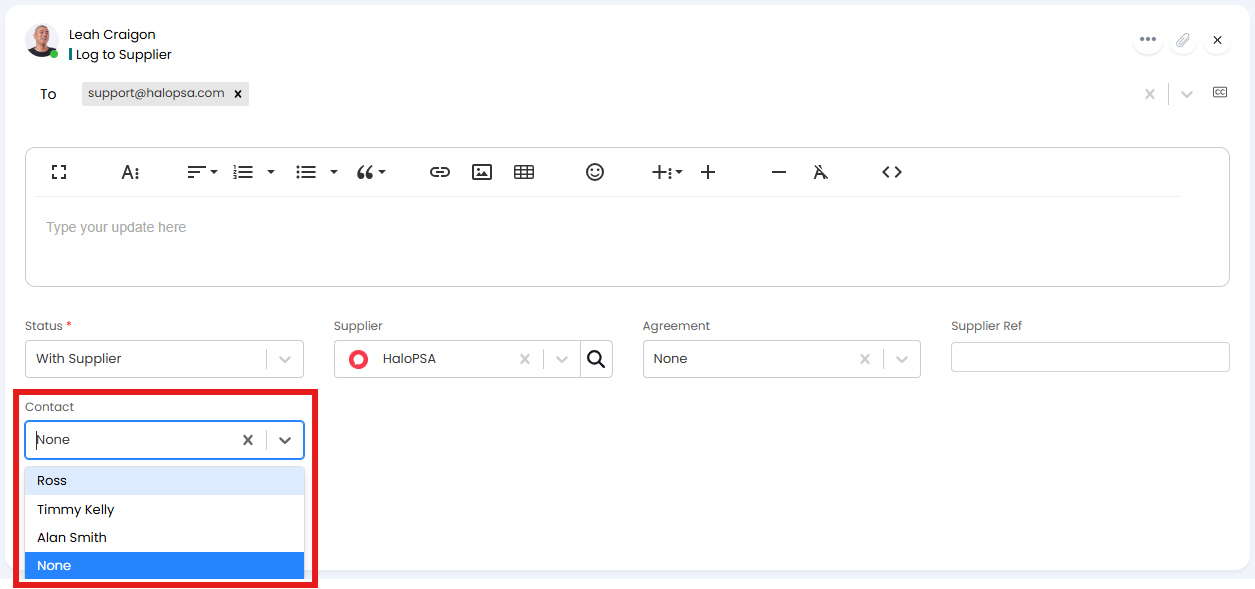
Fig 4. Logging to a supplier user.
Supplier Portal Access
Supplier users can access the portal if given the "Supplier Tickets" web access level permission. This will allow them to log into the end-user portal with their Halo credentials (sent through the welcome/password reset emails).
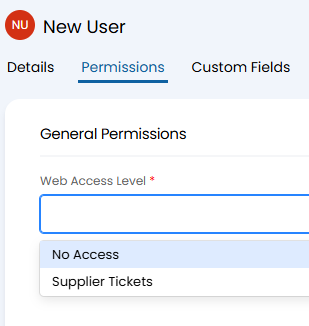
Fig 5. Setting supplier web access level.
Upon logging in, they will see the below screen. The only tile they will have access to is "My Issues and Requests".
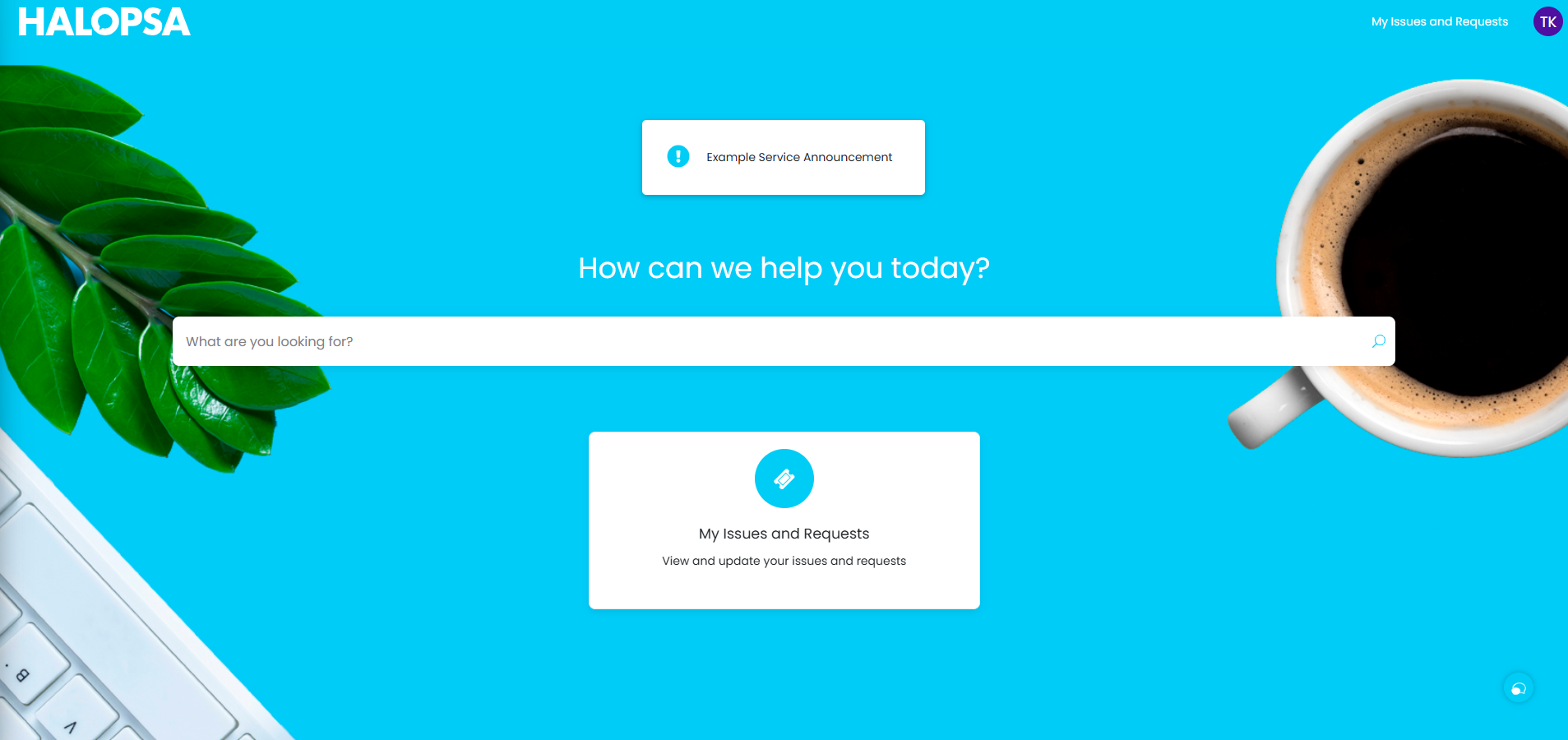
Fig 6. Portal home page when logged in as a supplier user.
Clicking into this will bring up a ticket list similar to what regular users can see. Tickets that are associated with that supplier will be visible in this list, alongside the ID of the ticket, the supplier reference, and supplier status.

Fig 7. Ticket list for a supplier user.
Clicking into the ticket will show the below. Suppliers will see limited information on the ticket (i.e. no user actions, no summary), and will only see the supplier reference and status within the details at the side.
They will then have the option to "Add Note" to the ticket.
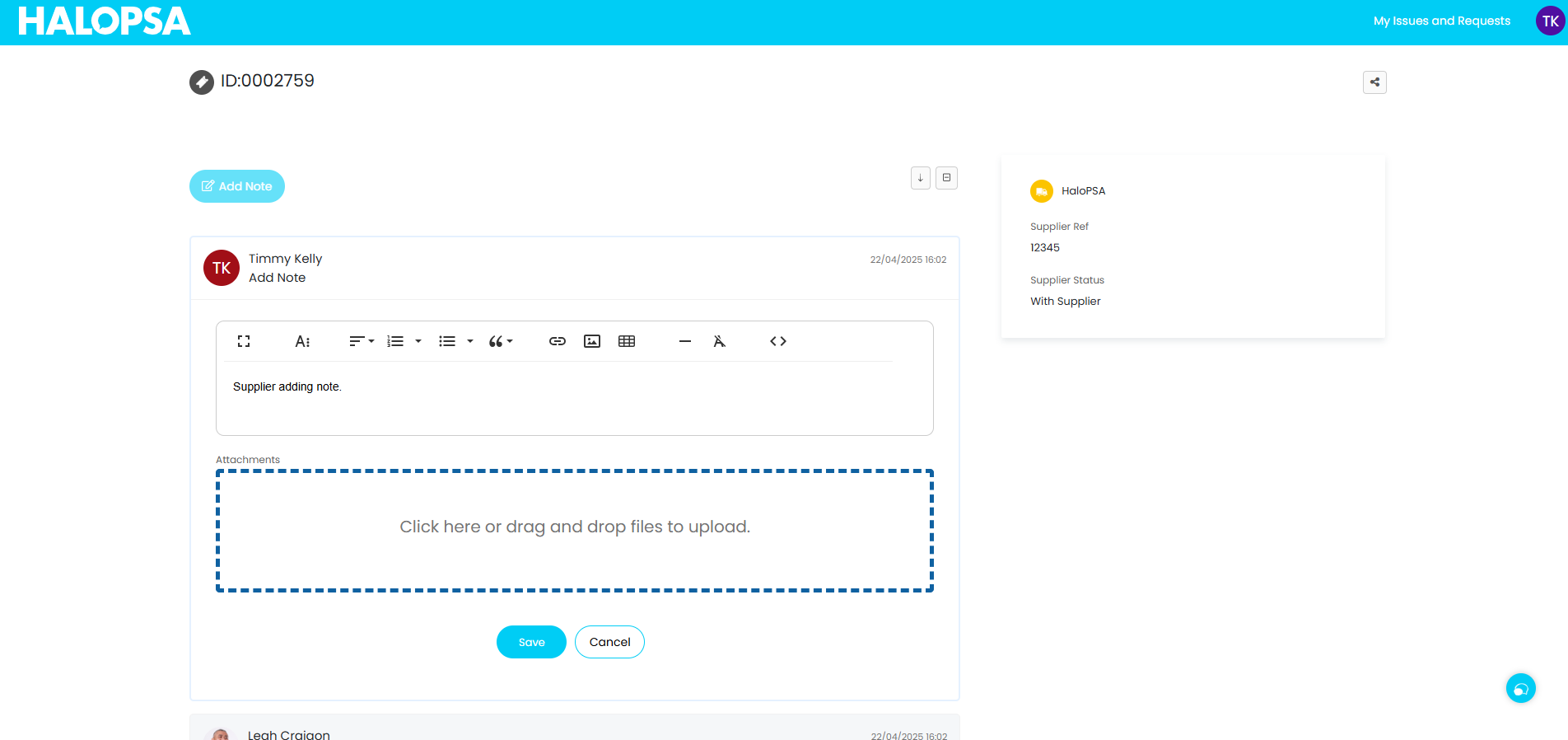
Fig 8. Supplier adding note to a ticket.
Notes will then show similar to a private note on the ticket within the agent portal. Notes will be counted as a supplier update, and will update the status of the ticket accordingly.
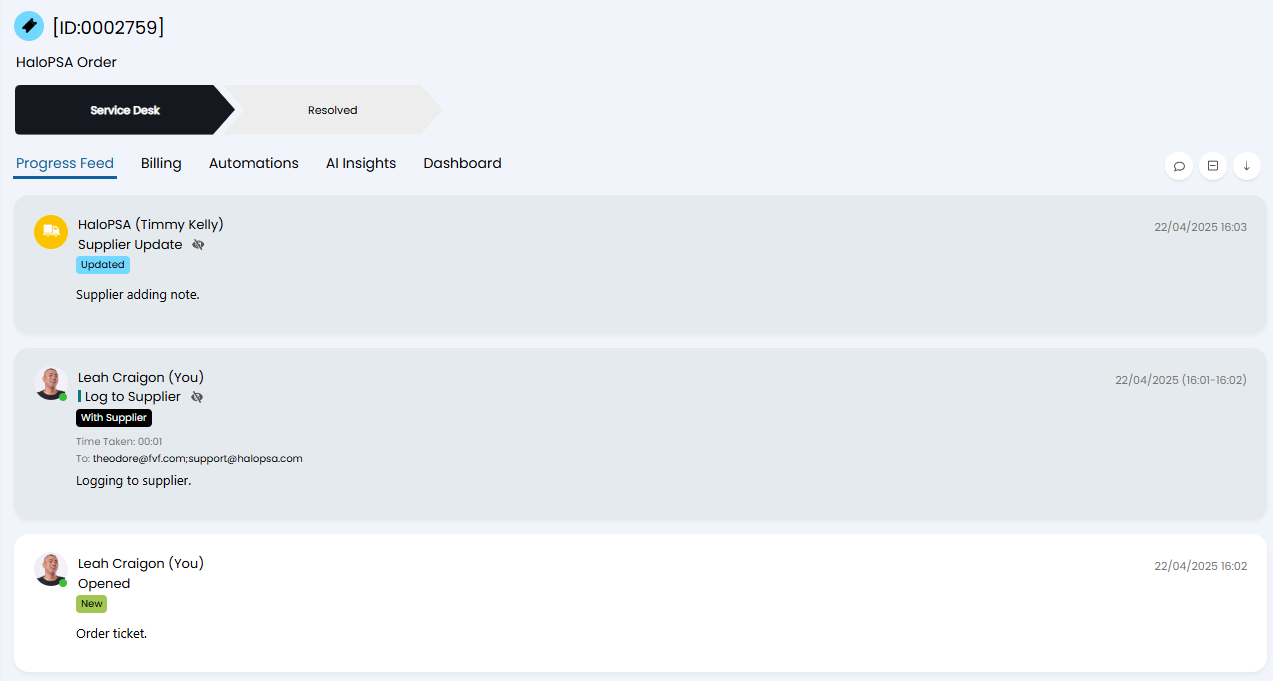
Fig 9. Supplier note appearing on the agent portal.