Suppliers
In this guide we will cover:
- Enabling Suppliers
- Creating Suppliers
- Viewing Supplier Profiles
- Tickets with Suppliers
- Associating a Supplier (Items, Contracts, Assets, Documents, Purchase Orders)
- Contacting a Supplier via the API
- Allow Supplier Contacts to Access the Portal
Admin Guides:
Related Guides:
Enabling Suppliers
Enable the module (Configuration > Suppliers) by clicking the "+" symbol.
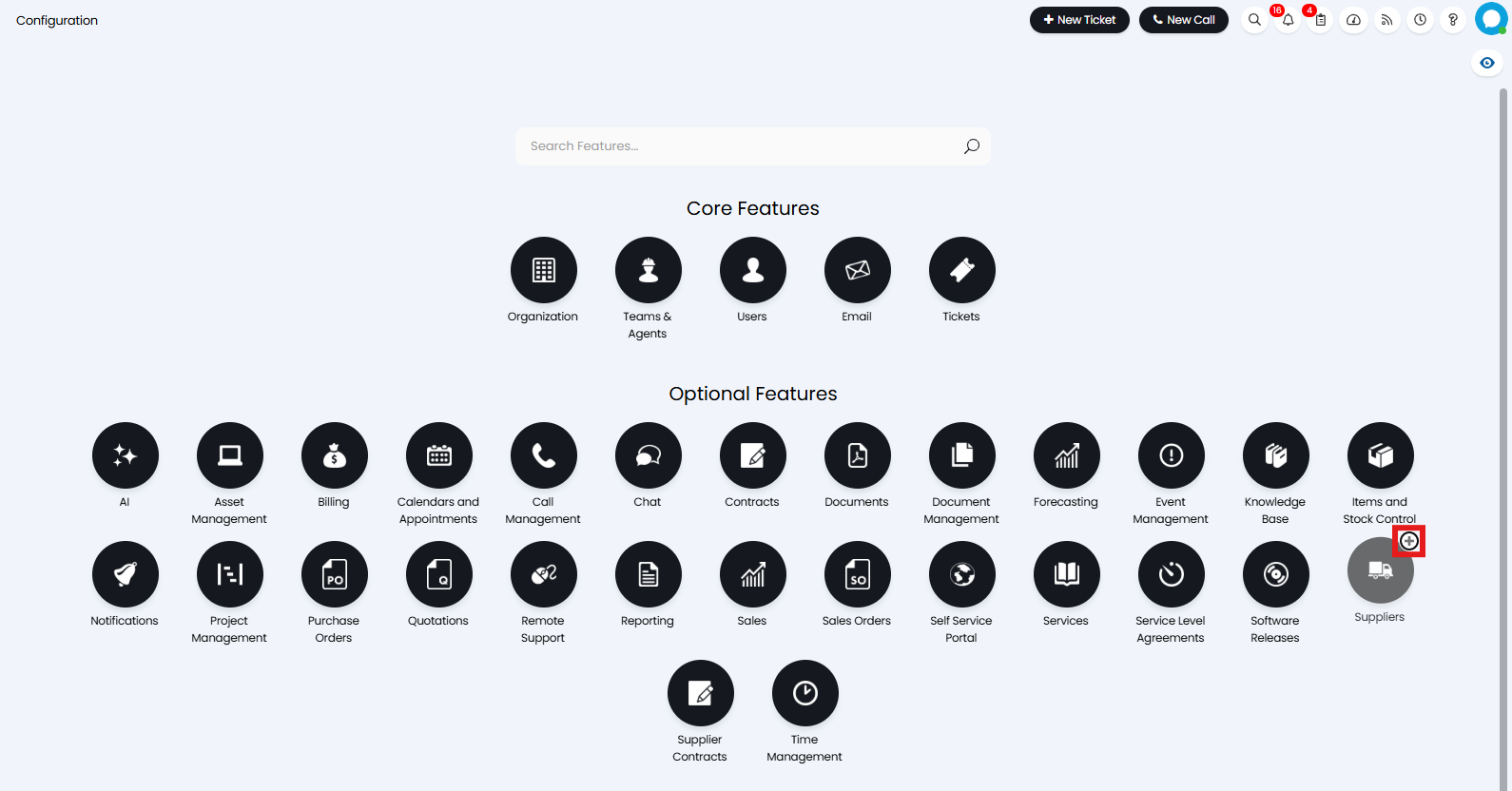
Fig 1. Suppliers Module
Creating Suppliers
Now that the suppliers area is available, click into it.
Note: The suppliers area may show in the overflow (ellipse button).
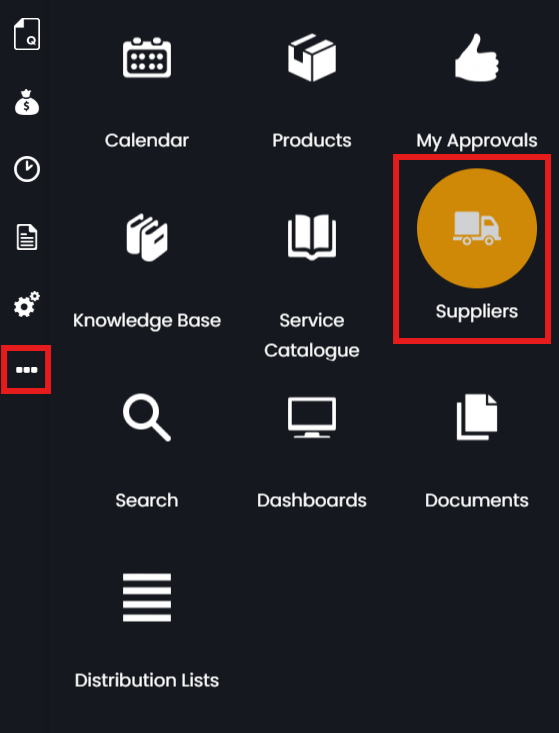
Fig 2. Overflow menu with the Suppliers module
New suppliers can be added by using the "New" button in the top right hand side of the screen, or through an XLS import in Configuration > Suppliers > "Import Suppliers". This works the same way as asset imports, which the guide for has been linked at the top.
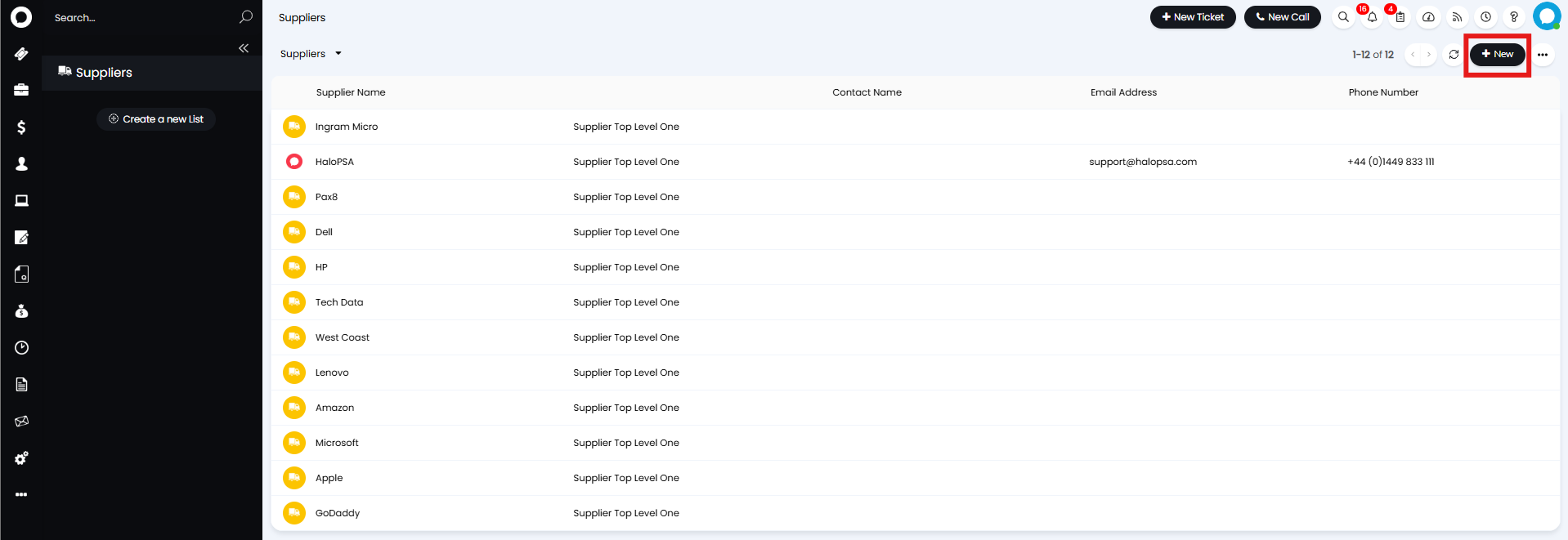
Fig 3. New supplier button
This will open a new page in the "Details" tab, where you can enter information about your supplier, such as their name and contact information.
The bottom of this screen shows the "Supplier Portal" configuration. Here is where the login details for a supplier's website can be stored.
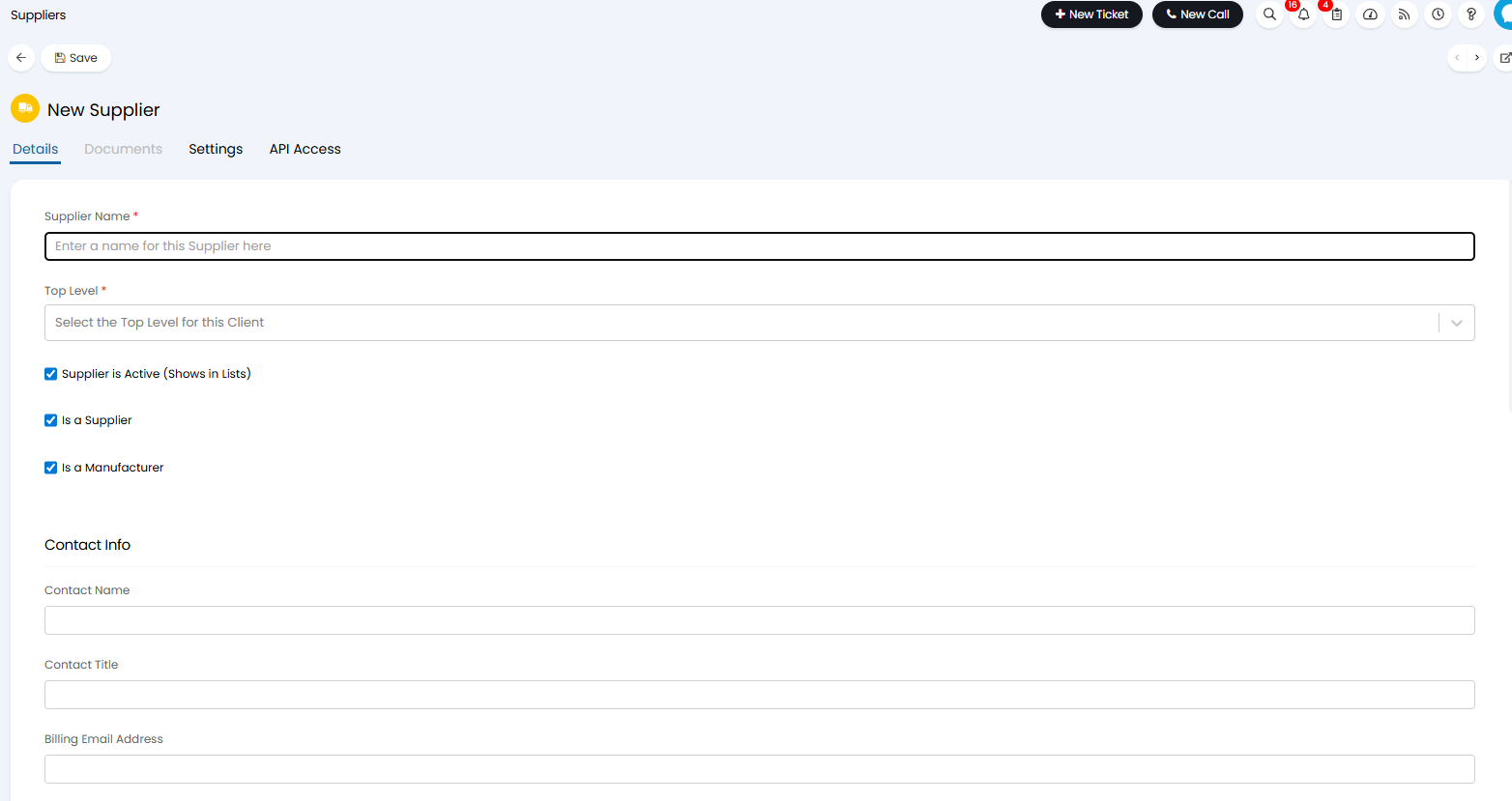
Fig 4. Details tab of a supplier
In the "Settings" tab, you can set email defaults for that supplier. The "Domain Name(s)" field is where you can set the email domain that your supplier uses when emailing you. This is used as a matching field.
Note: Multiple domains cannot be used here.
"Email Start Tag" and "Email End Tag" is what a supplier reference is added between when emailing them from Halo, and allows supplier reference and your own ticket ID to be used to match the emails going back and forth.
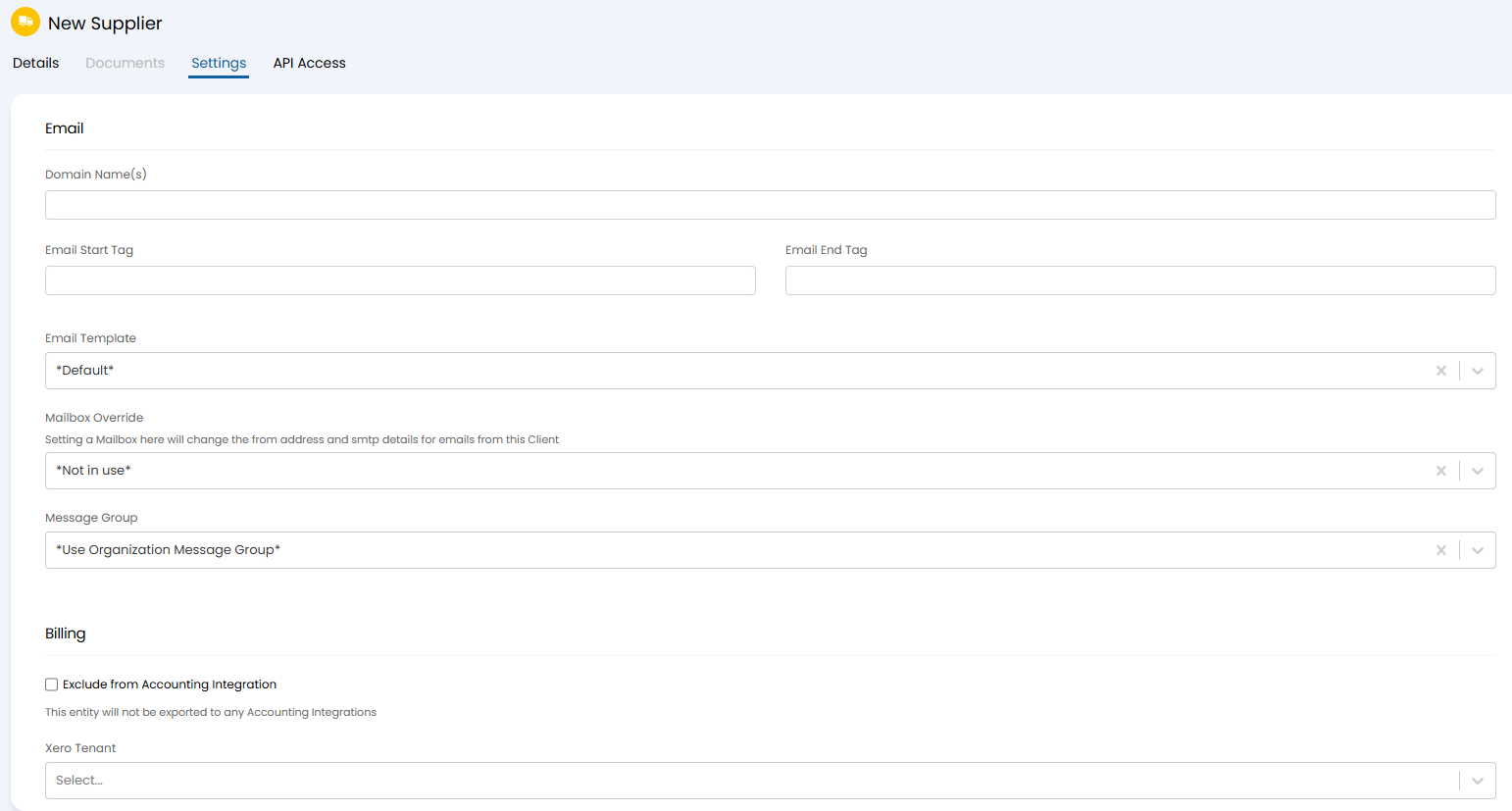
Fig 5. Settings tab on a supplier
"Email Template" allows a template to be set when emailing the supplier. "Default" will use the "Supplier Ticket" template which can be found in Configuration > Email > Email Templates. It can be edited, or the dropdown can be changed to use another template.
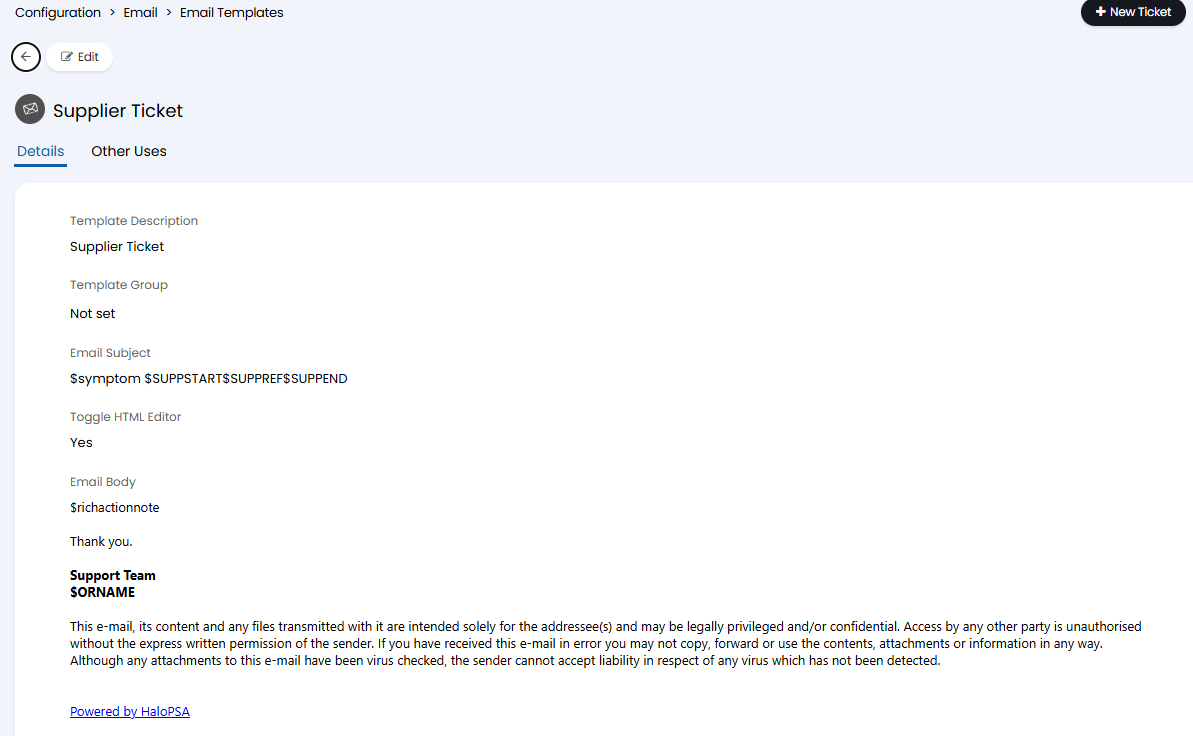
Fig 6. "Log to Supplier" default email template
There are also default email templates for other supplier uses, contained in Configuration > Email > Email Templates.
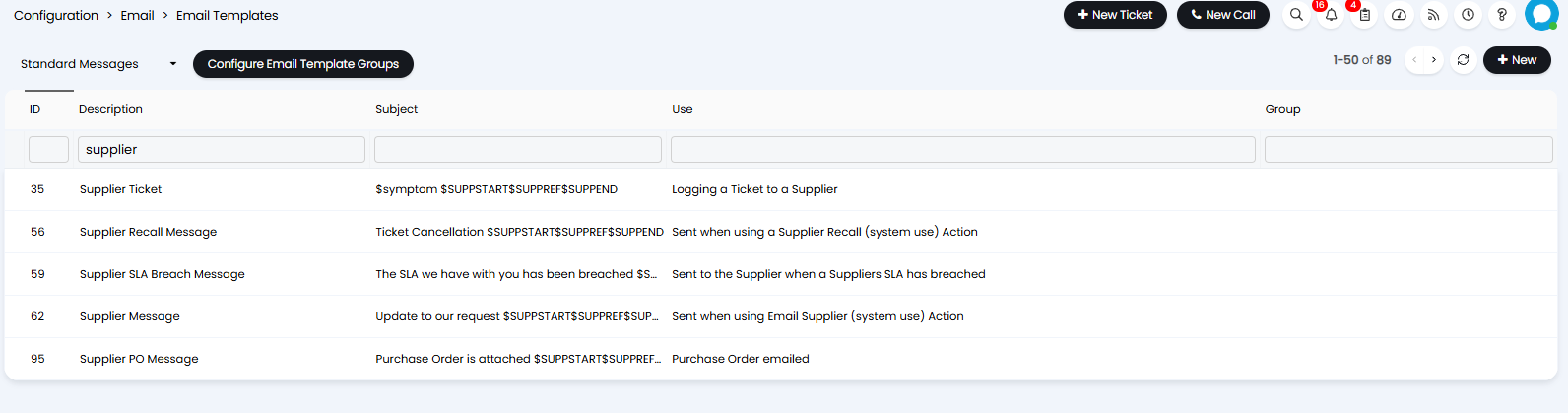
Fig 7. Supplier default templates
A mailbox and message group override can also be set in the "Settings" tab if wished.
Viewing Supplier Profiles
Column Profiles and Lists
When viewing suppliers in the Suppliers module you will have a table view, showing key details about each supplier. Useful for reviewing at a glance. The columns that show here can be customised by using the "Edit Columns" button, or in Configuration > Suppliers > Configure Column Profiles > New.
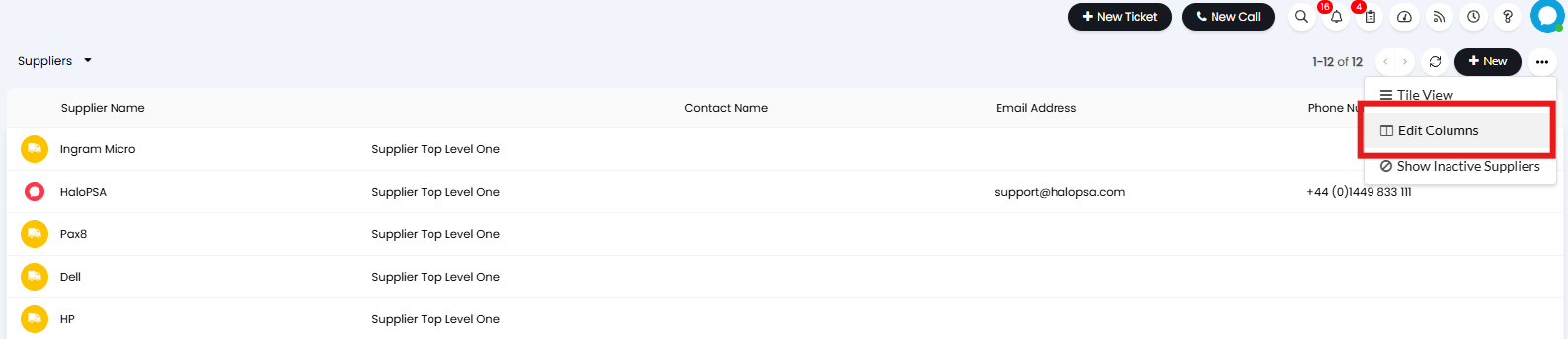
Fig 8. Edit Columns button in suppliers
When editing simply choose the columns that you would like to show and save this as a new column profile.
You can also create a custom list that, when selected, only shows suppliers that meet certain criteria. Useful when you have a lot of suppliers and need a way of filtering the list.
Use the "New List" button in the left hand pane, and configure a list in the same way you would a custom ticket list.
The default lists and column profiles can be set in Configuration > Suppliers. You can also default the view to be table view.
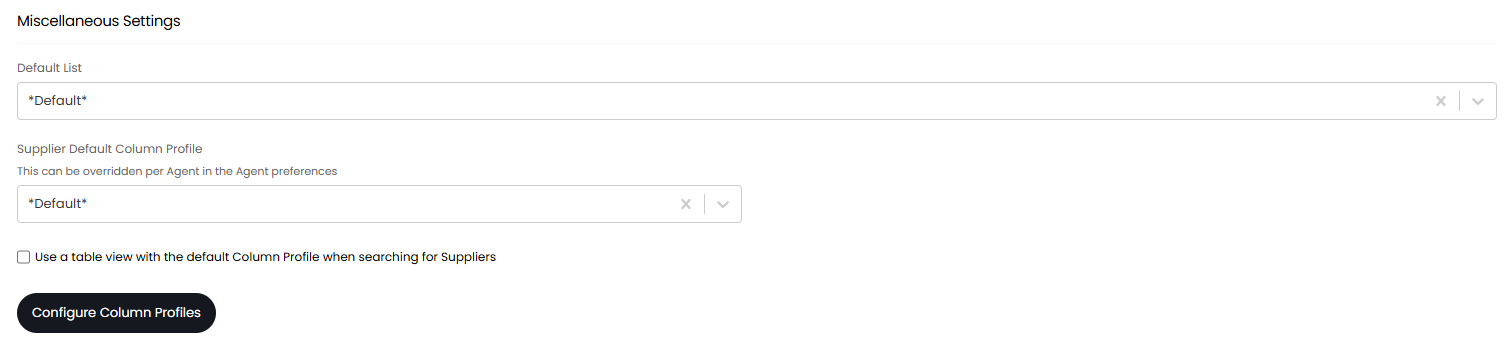
Fig 9. Setting default list and column profile
Defaults can also be set per agent, which will override this.
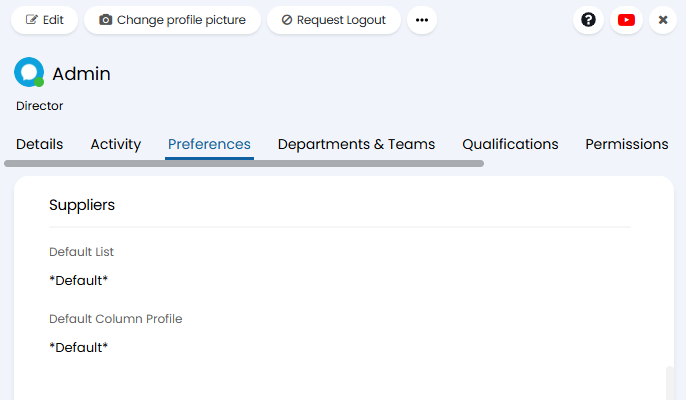
Fig 10. Supplier preferences per agent
Customise Supplier Tabs
The tabs that show under supplier profiles can be customised.
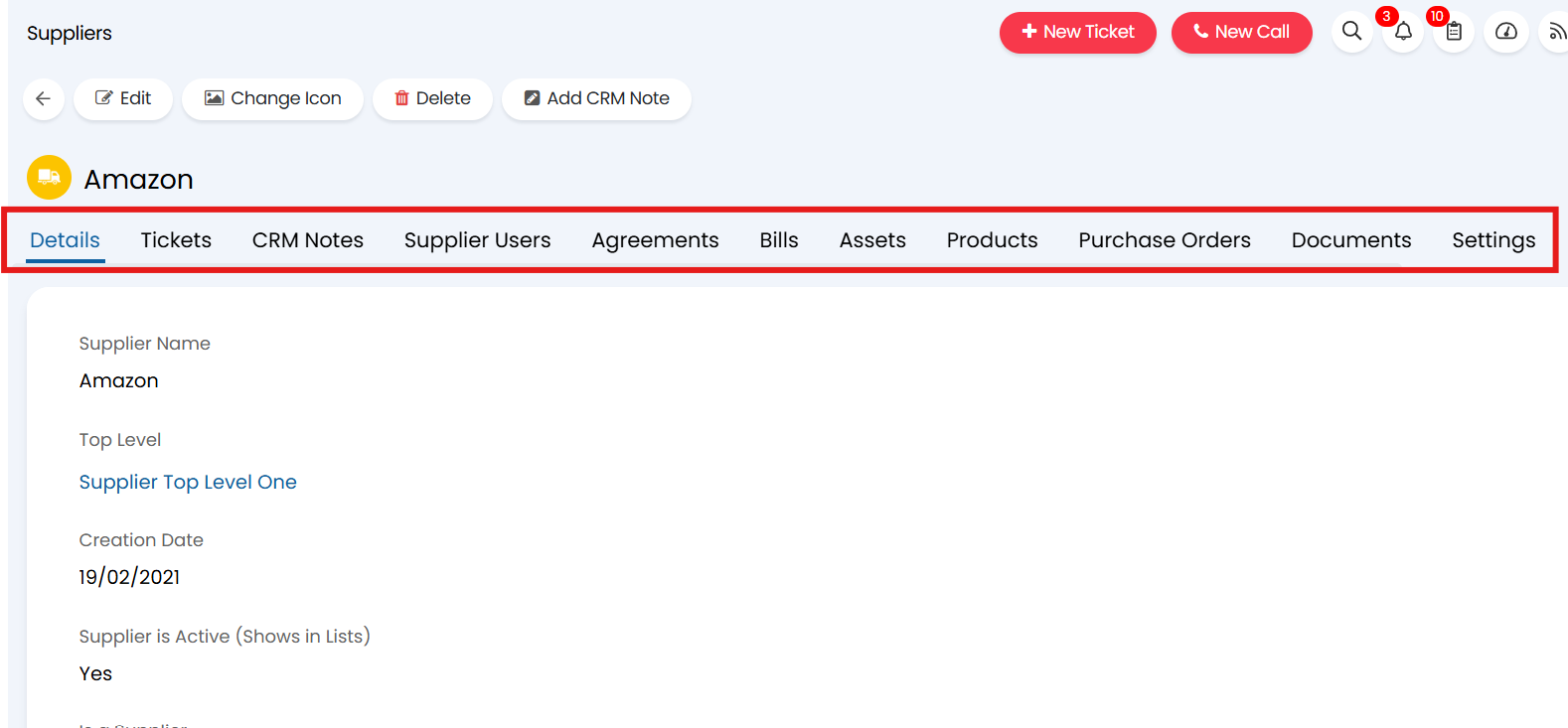
Fig 11. Tabs within a supplier profile
This can be useful if you do not use all these features and want to streamline supplier profiles.
To do this, head to Configuration > Advanced Settings > Screen Layout Profiles > Change the entity to "Suppliers" > make a new profile. Once you have given the profile a name head to the "Tab Layout" and select "Custom" in the tab layout field.
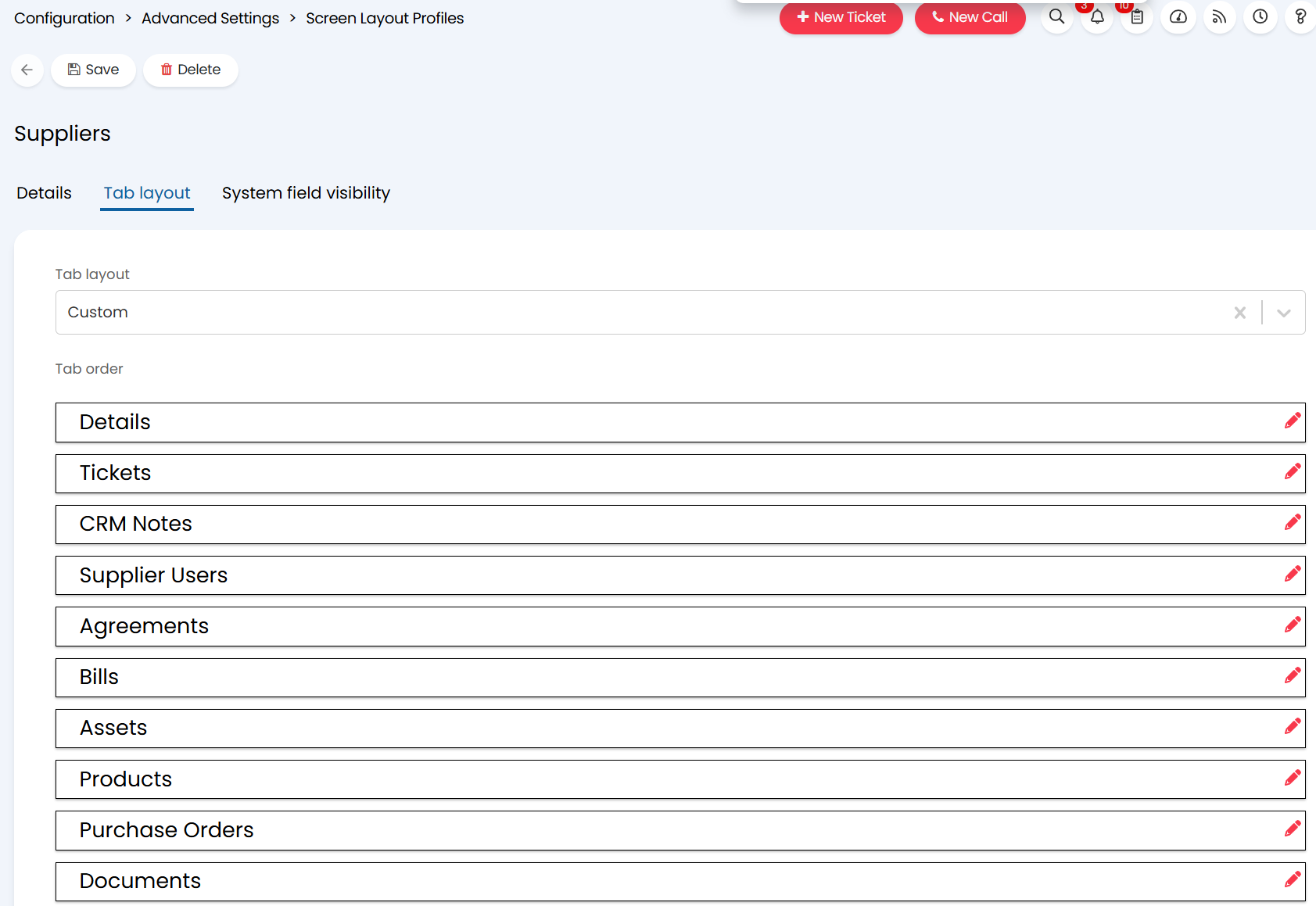
Fig 12. New Screen Layout profile for suppliers
Now you will see all available tabs (Figure 12). Edit a tab to hide/show it. Save the profile once you only have the desired tabs set to show.
From v2.246+, you can reorder and hide fields on the Details tab of a Supplier by heading into the Screen Layout Profile, and selecting the Details Screen Layout tab.
Once you have created your Screen Layout Profile , head to Configuration > Advanced Settings and use the "Default Supplier Details screen layout" field to set this screen layout profile to be the default used for all Suppliers.
Note: The screen layout profile used can be overridden per agent in their preferences.
Now, this screen layout profile will be applied to all your suppliers and you will only see the chosen tabs.
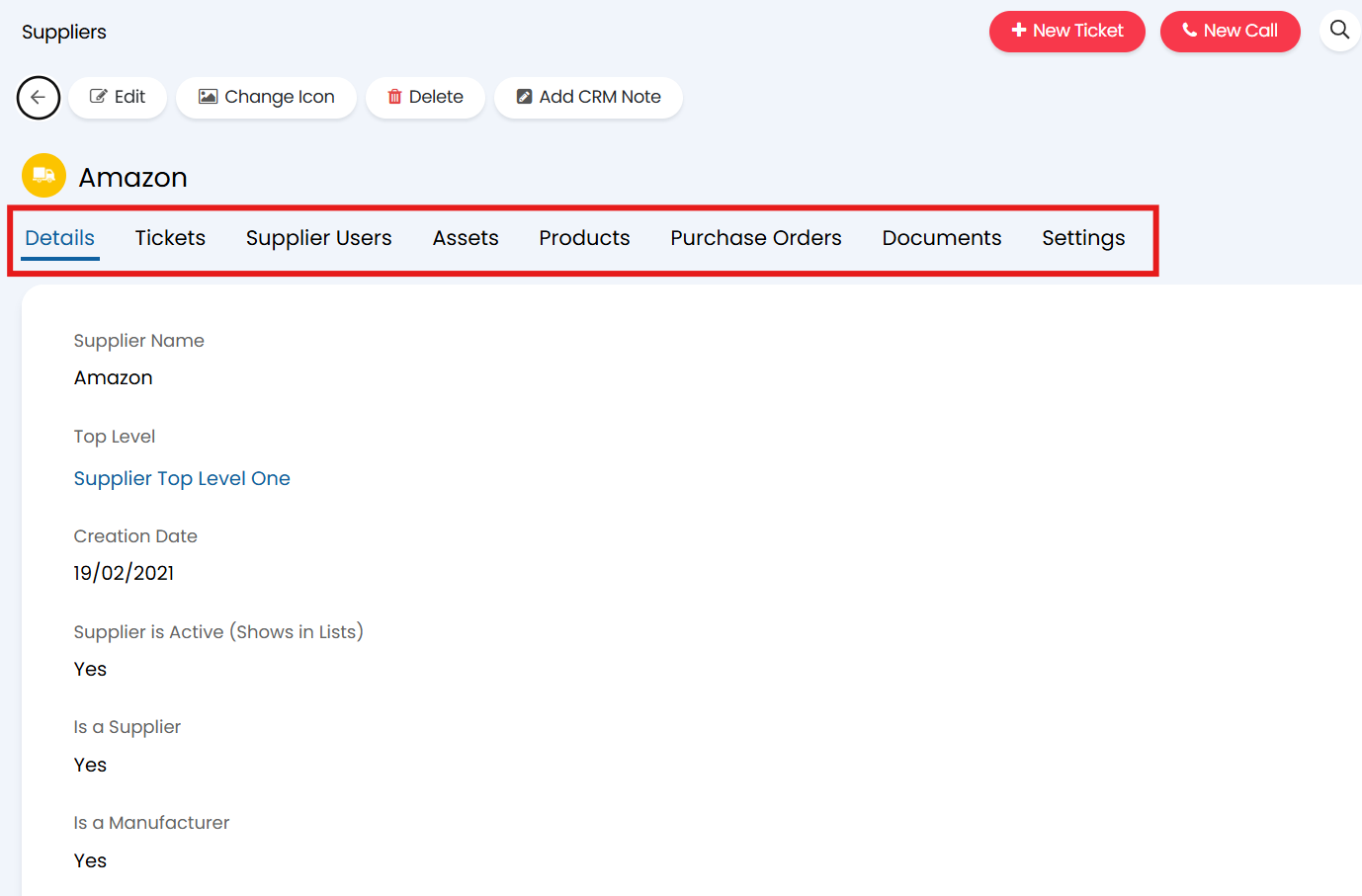
Fig 13. Customised supplier Tabs
Note: Screen Layout profiles are also used to control which system fields show within a supplier, such as "Is a Manufacturer", "Fax Number", "Web site" etc. Head to the System Fields visibility tab (figure 12) to adjust this.
Logging a ticket to a Supplier
When issues arise with assets you may need to log the issue with the supplier of the asset, typically if the asset is still under warranty.
This is done using an action with the system use 'Log to supplier'.
A supplier reference can be set on the action if not already in the supplier details tab.
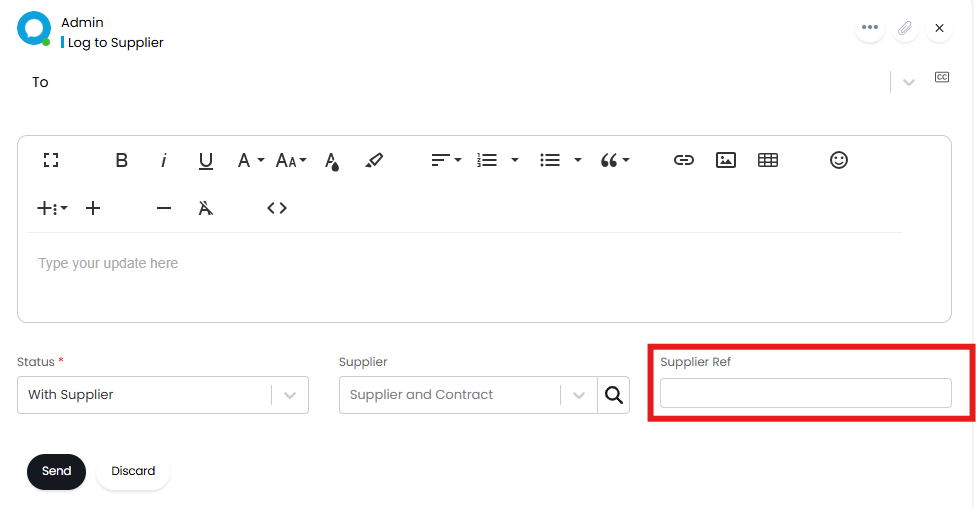
Fig 14. Supplier Ref field.
Hovering over the Supplier set in the "Supplier" field of an action will show a Supplier contact information widget. From v2.248+ this widget will also contain the supplier's address (if set).
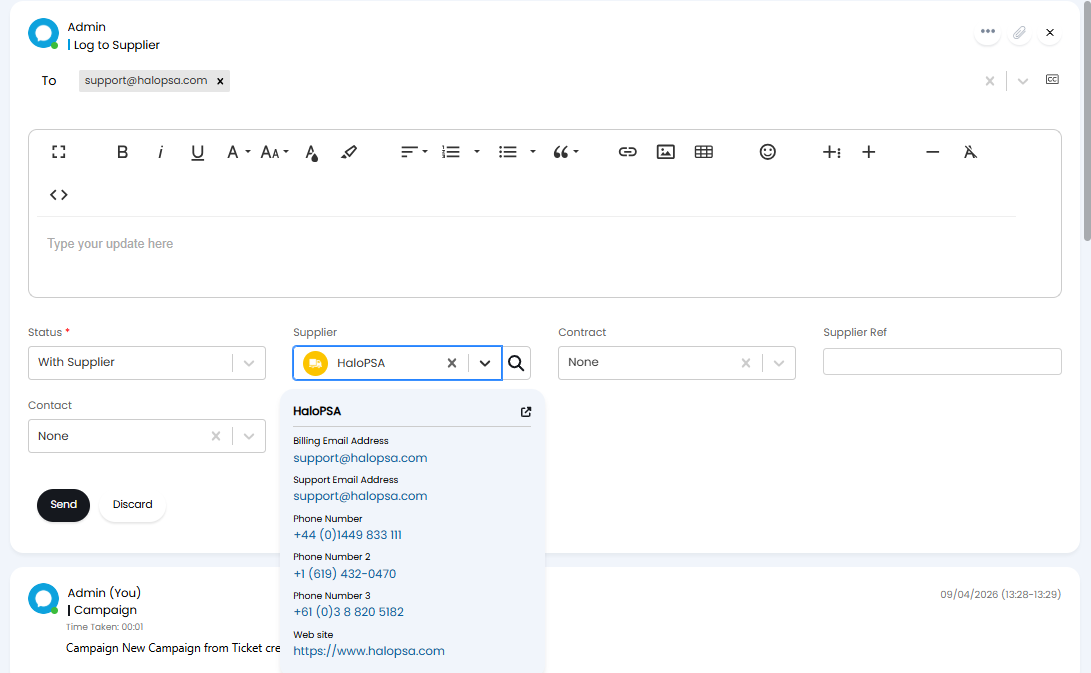
Fig 15. Supplier contact widget
This widget can be disabled/enabled in Configuration > Suppliers, by deselecting the "Show a widget with Supplier information when hovering over a Supplier Field on an Action" checkbox.
Upon sending, the preview screen shows that the supplier reference is put in the summary between whatever was set as the email start and end tags on the supplier.
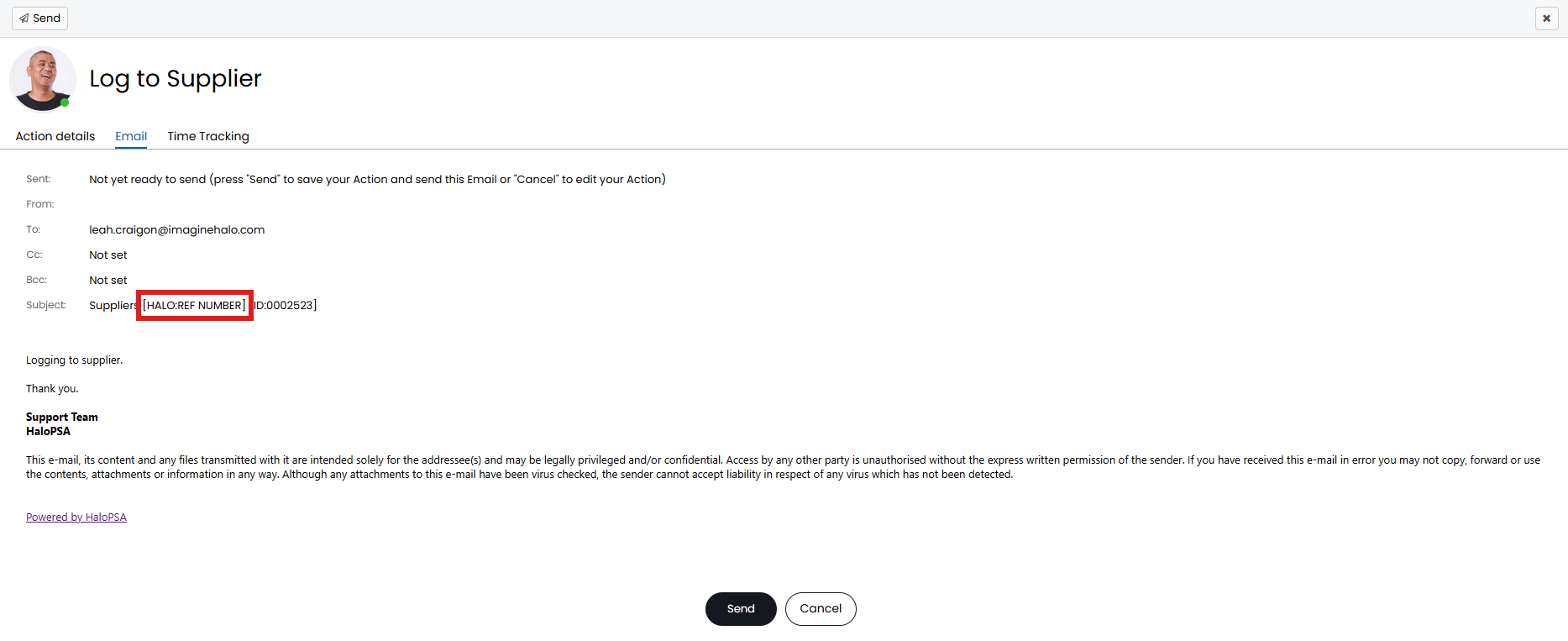
Fig 16. Supplier reference in the email summary.
Upon logging to the supplier, the supplier SLA will start if one is set against the supplier agreement. This agreement can be selected when using the logging action, and will show in the supplier details.
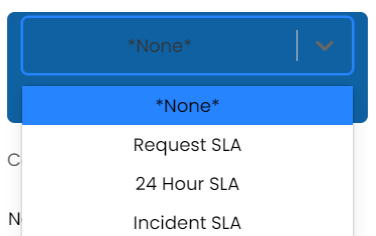
Fig 17. Supplier SLA
After logging the supplier details will be visible within the ticket details.
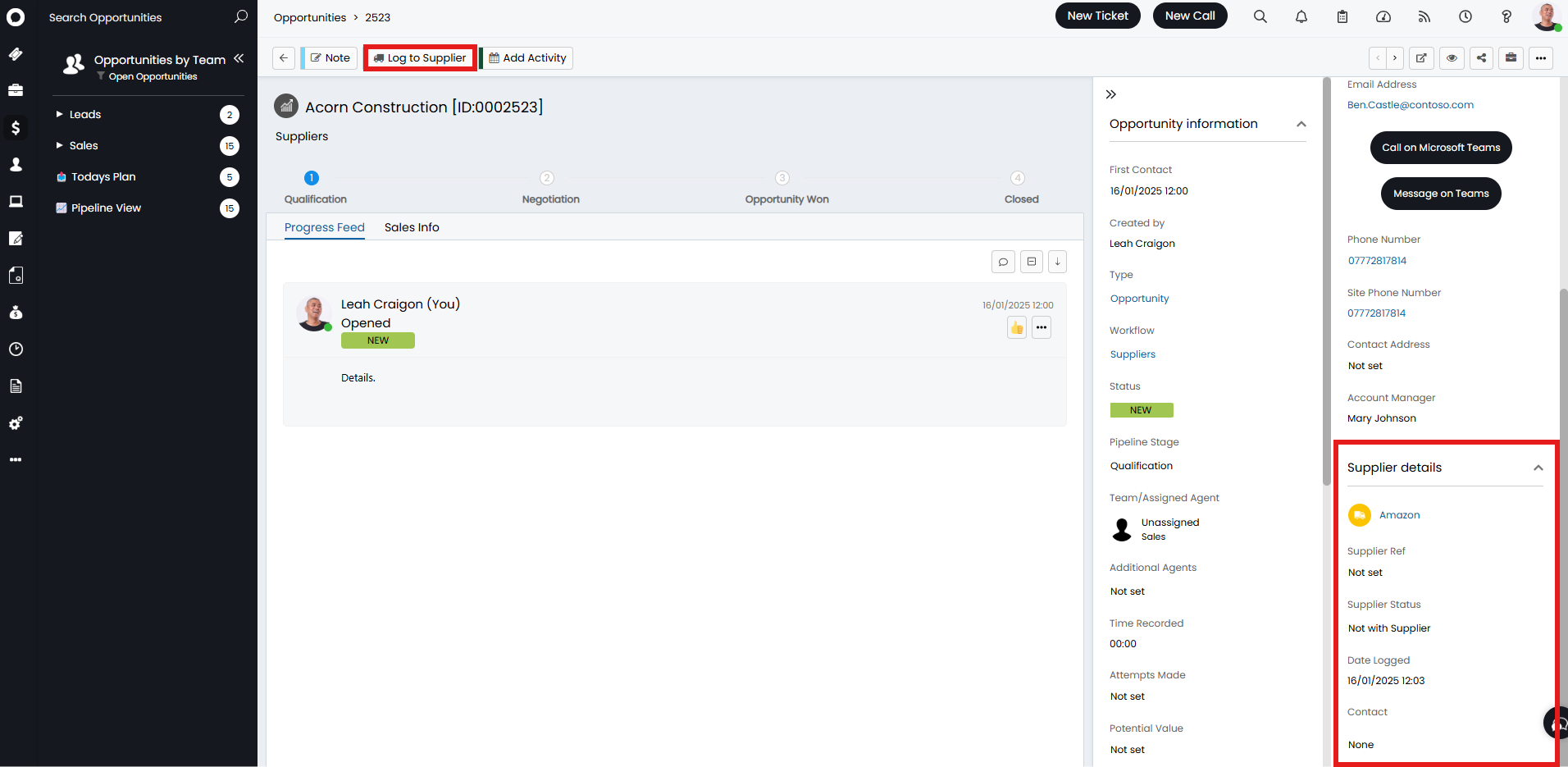
Fig 18. Supplier details and Log to Supplier action button
Now the ticket is logged with the supplier you can mail the supplier back and forth on the ticket using an action that has the "Email Supplier" system use.
This button will only appear after the log to supplier action has been used.
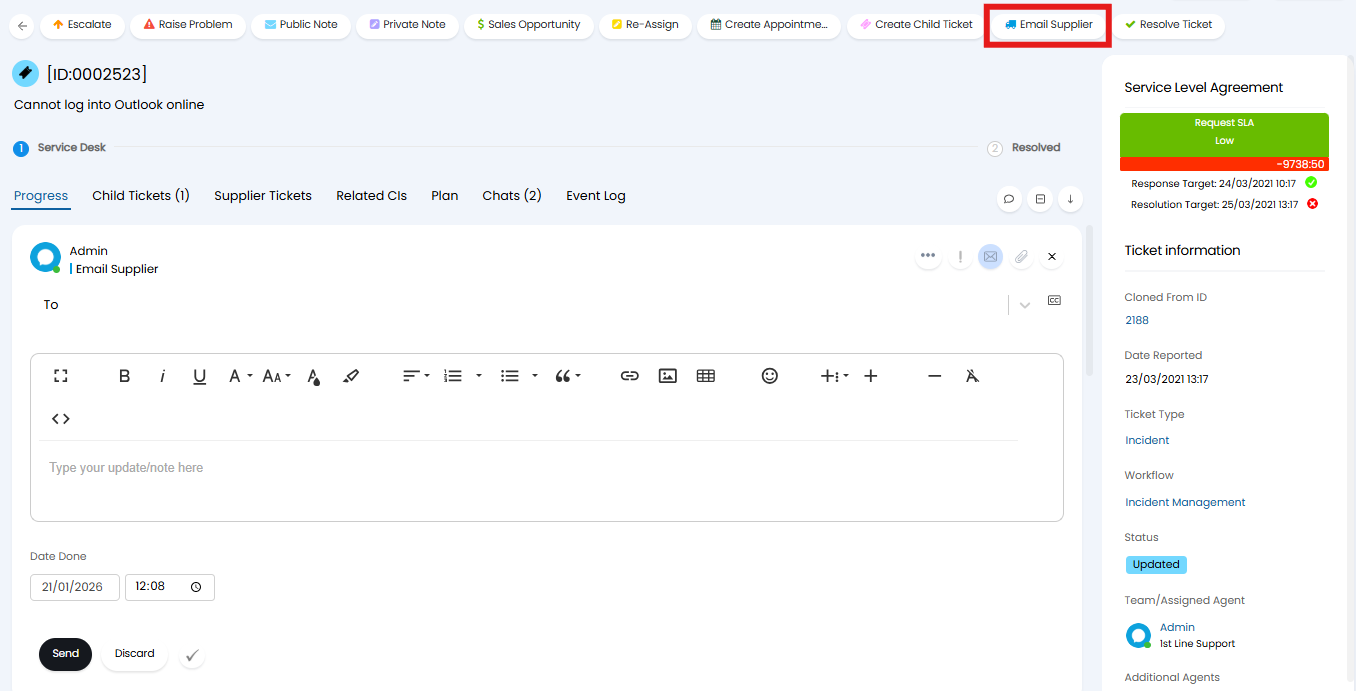
Fig 19. Email Supplier action button
Once the issue is resolved, you can end supplier communications using the 'Recall from supplier' action. The supplier will remain associated with the ticket, unless the ticket is logged to a different supplier.
If you would like the supplier to be de-associated with the ticket once the 'recall from supplier' action has been used. Head to configuration > tickets > general settings > enable 'Clear the Supplier from Supplier Recall Actions'.
To enable a tab on Tickets which shows all the other tickets logged to that Supplier, head to Configuration > Tickets > Ticket Types, choose the relevant Ticket Type, and head to the Settings Tab. Under the Related Activity section, enable the "Show other Tickets for the Supplier in a tab" checkbox.
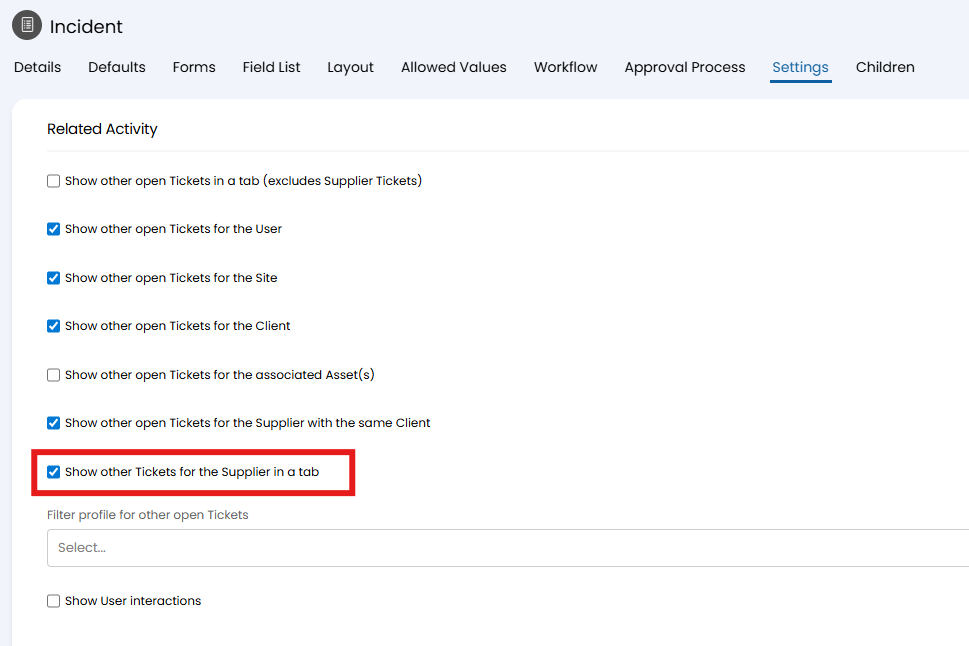
Fig 20. Show other Tickets for the Supplier in a tab
You will now find a Supplier Tickets Tab which shows other Tickets logged with the same supplier.
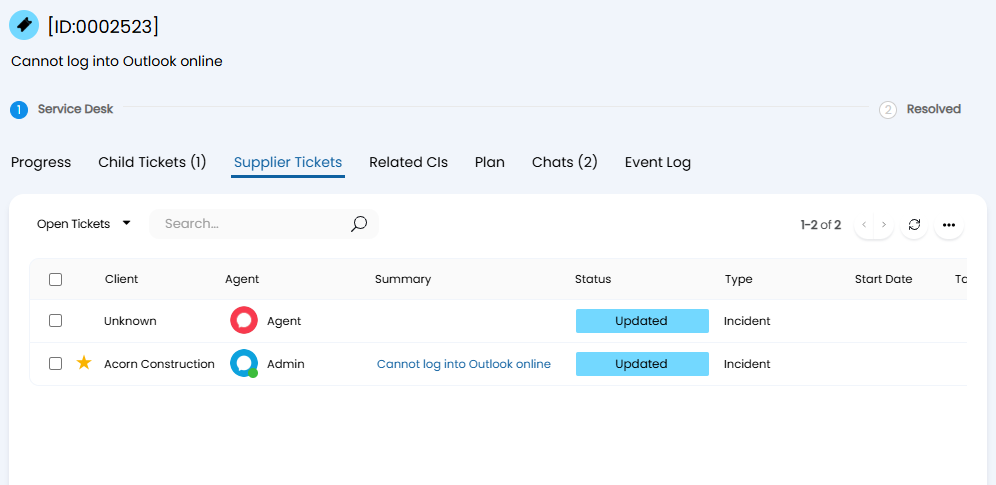
Fig 21. Supplier Tickets Tab
Supplier emails on a Ticket which is Closed or Pending Closure can follow the Ticket Type configuration for User updates on closed Tickets. To set this, enable "Treat Supplier email updates as User email updates on closed Tickets" in Configuration > Email > General Settings.
Associating a Supplier
A default supplier can be set against an item in the "Details" tab.
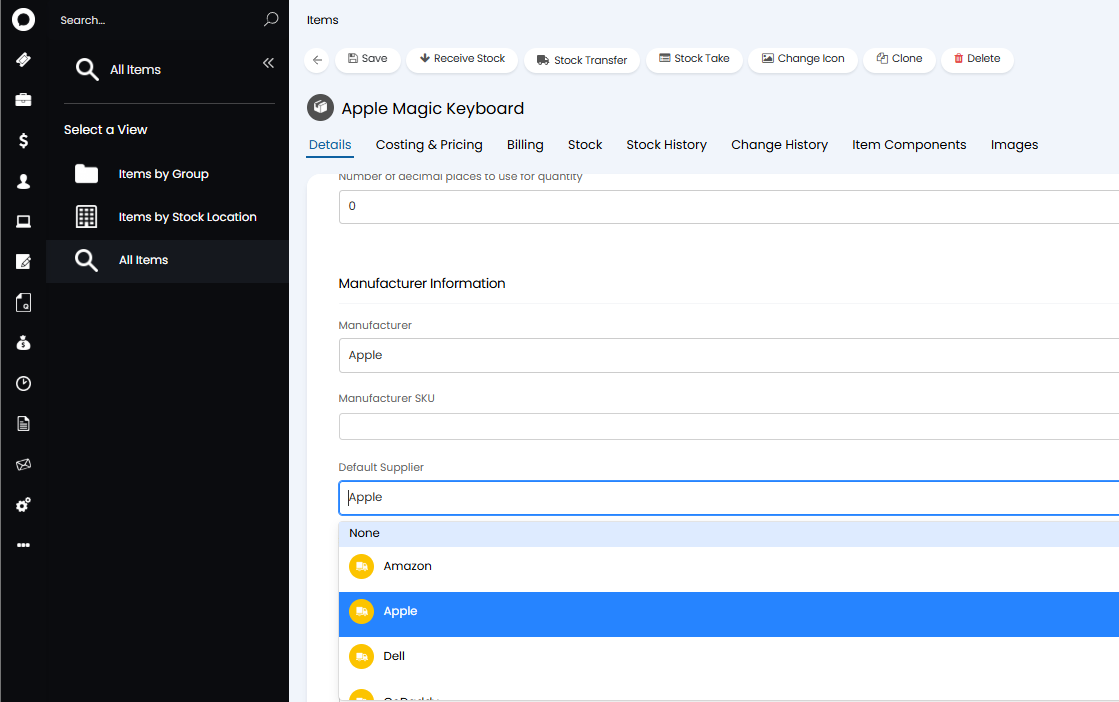
Fig 22. Default Supplier dropdown
Alternatively, the tabs in the supplier configuration can be used to associate the supplier with different entities. This works in a similar way to customers.

Fig 23. Supplier tabs
CRM Notes
The CRM Notes tab on a supplier can be used in the same way as customer CRM notes. Here, you can add notes of your relationship with your supplier or notes from calls with them, allowing you to easily reference their reliability overall, and if you still want to continue with their services.
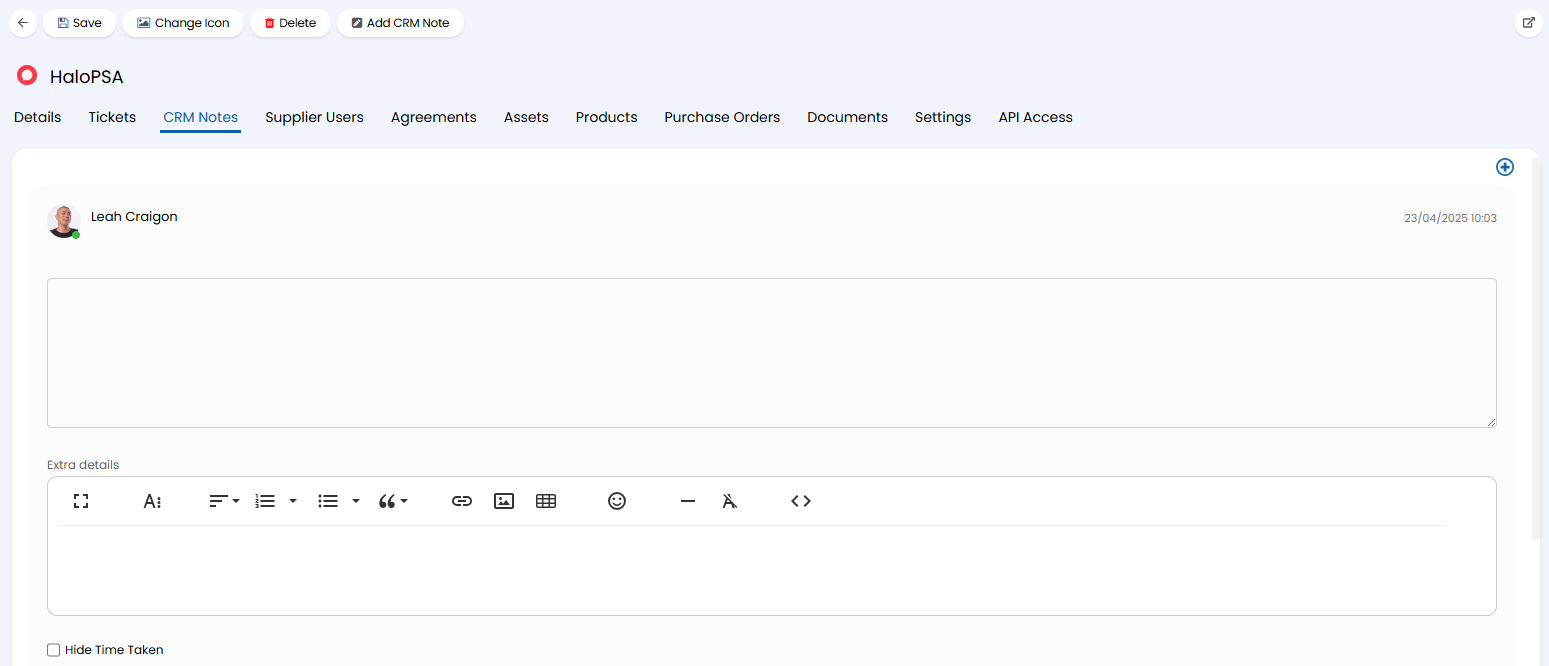
Fig 24. Adding a CRM note to a supplier
Supplier Users
"Supplier Users"/"Contacts" are users for the supplier with associated contact details. For a full explanation of how to set these up, check out the "Supplier Contacts/Users" guide.
Agreements
In the "Agreements" tab, contracts/agreements can be made against the supplier. This allows you to set a supplier SLA, contacts, and a start and end date.

Fig 25. Agreements tab
Upon creation, additional configuration can be added to the agreement. Assets and Configuration Items can be linked in the corresponding tabs, as well as linking software licences.
You can also upload documents, such as a signed PDF of your supplier's contract or warranty information of the relevant assets.
Additionally, any ticket associated with this agreement will be show in the "Tickets" tab.
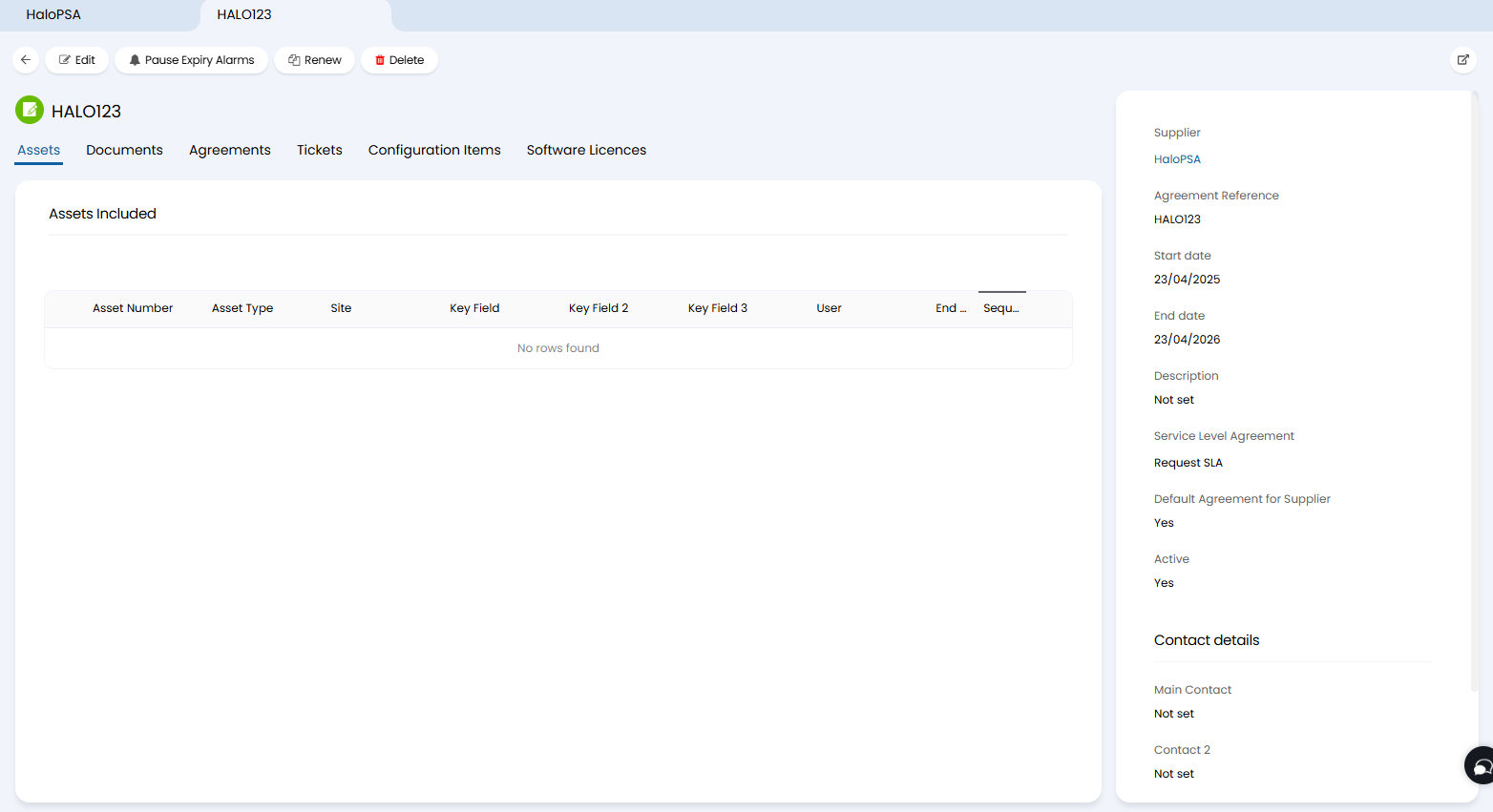
Fig 26. Tabs on an agreement
Bills
In the 'Bills' tab you will be able to see all the bills that are due for this supplier.
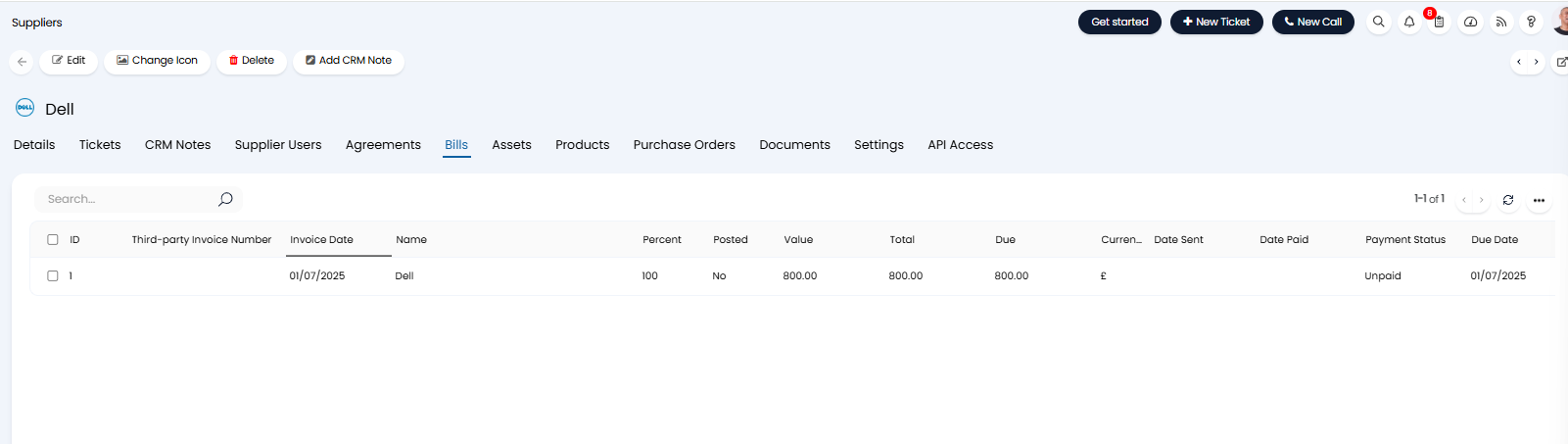
Fig 27. Supplier Bills
Assets
Assets can be linked to a supplier and viewed in a list within the corresponding tab.
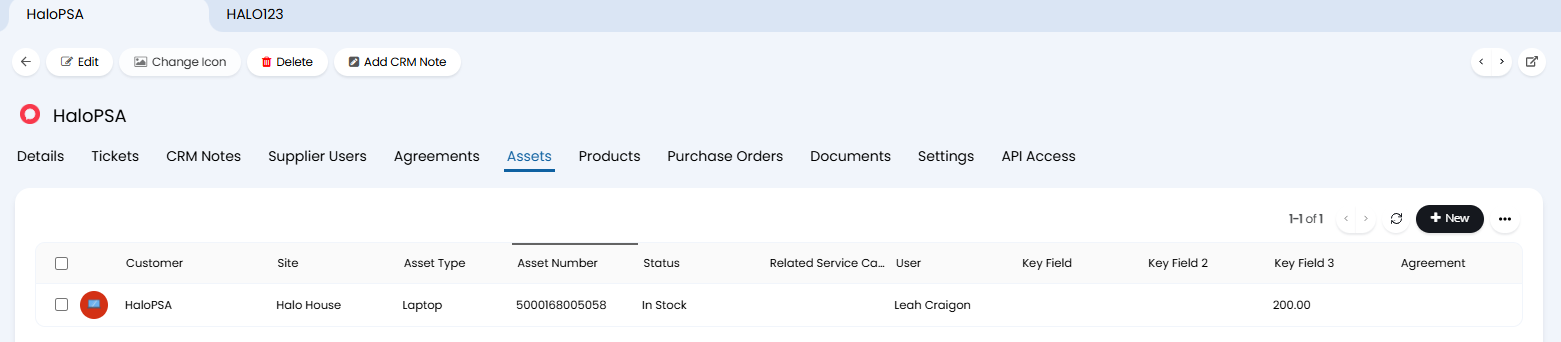
Fig 28. Assets tab
To link an asset to a supplier, you can set the supplier against the asset in the "Supplier & Maintenance" tab.
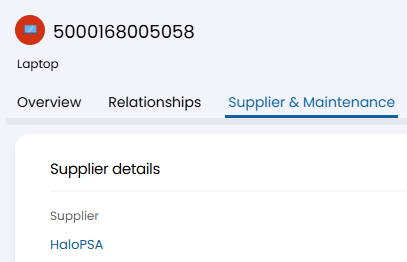
Fig 29. Linking an asset to a supplier
Products
"Products" can be used to create and link products or items that are supplied to you via that supplier. You can associate a product to a supplier within the "Manufacturer Information" on the "Details" tab.
Associating products with a supplier can also be used to restrict which products can be added to a purchase order (Configuration > Purchase Orders > "Restrict Items added to POs to the Items against the Supplier").

Fig 30. Products tab
Purchase Orders
"Purchase Orders" will show you purchase orders that have been associated with that supplier, and this can be filtered to show either ones assigned to only the agent viewing the tab, or all agents.
Purchase orders can also be restricted to only show items associated with the supplier - Configuration > Purchase Orders > "Restrict Items added to POs to the Items against the Supplier".

Fig 31. Purchase orders tab
Documents
"Documents" allows upload and storage of files that may be relevant to that supplier, allowing easy access. This may be warranty for a certain product provided by that supplier, or a PDF of the signed contract.
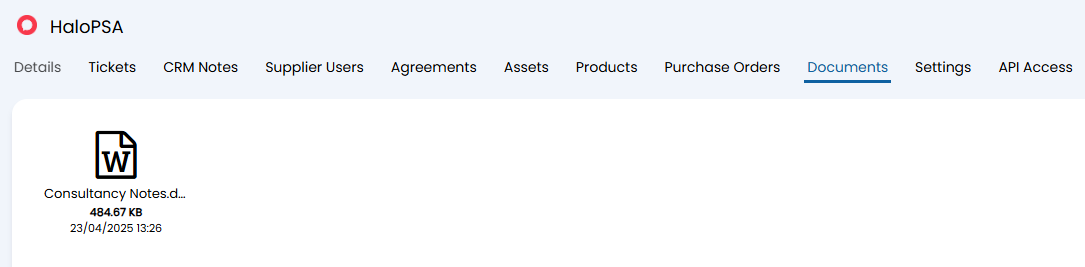
Fig 32. Documents tab
Contacting a Supplier via the API
Contacting a supplier through the API allows you to send communications from your Halo instance directly to the application the supplier uses (to manage queries/requests) e.g. Hubspot. Bypassing the need for email processing in the communication process.
If your supplier also uses Halo you can communicate with them through the API using our setup outlined here: Syncing Tickets Between Instances.
If your supplier does not use Halo you can still communicate with them through the API, through the use of runbooks. A custom runbook to post a communication to the supplier's application will need to be created, but in this article we will run through how to set the runbook to be used automatically when a particular supplier is chosen.
Once you have created your runbook head to the supplier profile > settings tab. Here, add the applicable runbook in the 'Runbook to use instead of email when contacting Supplier' field.
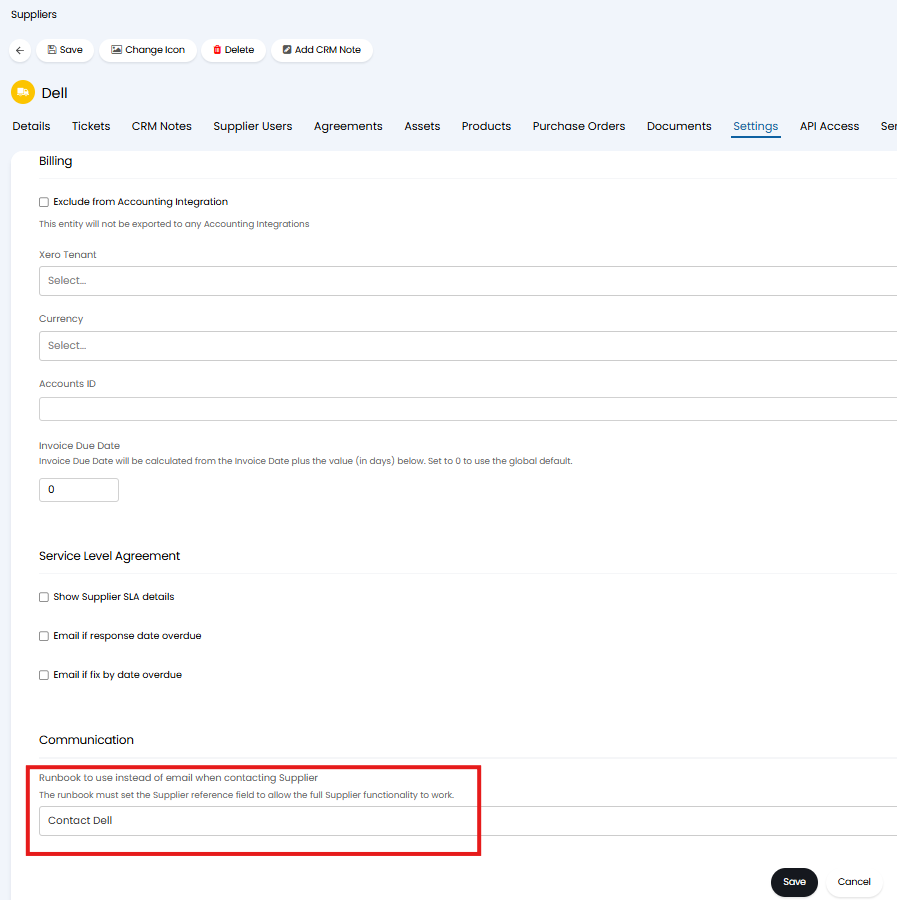
Fig 33. Runbook to use to contact this supplier
When this field against the supplier is set each time an action with the system use 'log to supplier' or 'email supplier' is used for this supplier this runbook will be used to post a request to the supplier's application rather than then being sent an email.
In the Figure 34 example, we can see the 'Log to supplier' action has been used to log a query to the supplier 'Dell'. As a runbook has been set against Dell the email field has been replaced with 'Sending Runbook'.
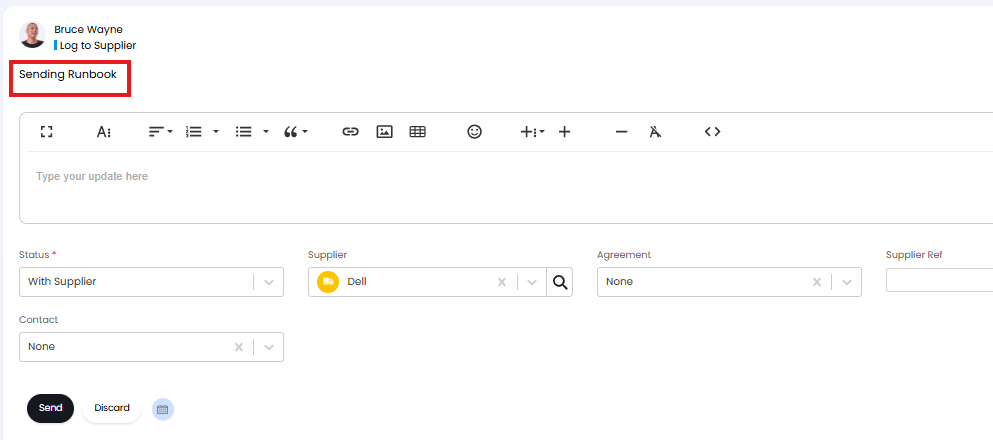
Fig 34. Log to supplier action
If this same action is used but for another supplier that does not have a runbook set against their profile, an email will be sent instead.
Similarly, once the ticket has been logged to this supplier, if a follow up action is used to email the supplier, the API will also be used to contact them.
Allow Supplier Contacts to Access the Portal
Supplier contacts in Halo can be allowed access to the end user portal. Allowing them to read and leave notes on tickets that have been logged to their supplier. Supplier contacts can also be allowed access to Knowledge Base Articles and the documents stored against their supplier in Halo.
For more information checkout Allow Suppliers to use the Portal.