Syncing Tickets Between Instances
- Sending requests across instances
- syncing halo instances
- syncing Halo tickets
- sync actions
- connecting Halo instances
- send tickets to suppliers
- supplier API access
In this guide we will cover:
- Connecting instances
- Determine how Tickets and actions are synced (mappings)
- Action Configuration
- How to Pass tickets and updates between Instances - Worked Example
- Troubleshooting
The functionality outlined in this guide is available as of v2.184+ of Halo. For functionality prior to this version see our article Sending Requests Across 2 Instances.
What is Ticket Syncing between Halo instances?
It is possible to send requests across two instances of Halo (without using the HaloCRM > ITSM integration). This allows you to have a ticket raised on one instance and escalate/send this ticket to another instance. Updates can then be passed between these two instances, allowing agents working from separate instances of Halo to support a user on a single ticket.
This functionality uses the API to send data between instances, by-passing all of the processes that get carried out when an email comes in, such as ID: tag matching, therefore the system will not try to incorrectly match onto tickets in either system, as this matching only occurs at email level and not API level.
Who should use this?
This is useful for ITSM customers who receive support from an MSP who also uses Halo. This allows users to raise tickets in their internal Halo portal, the internal team can then escalate/send this ticket to the MSP when required. When they send this ticket across, the MSP will be able to work on this ticket in their instance, sending across actions to update the original ticket in the internal (ITSM) instance. The user can then view updates from the MSP by viewing the ticket in their internal Halo portal.
This is useful for PSA customer's who provide support to external companies who also use Halo, perhaps supporting the company's internal IT team with complex issues. This allows the external company to send the ticket that has been logged in their instance to your instance. You can then work on the ticket and communicate with the user from your instance but the user will still be able to access the ticket from their company's portal, they will not have to use your Halo portal. You can also communicate with other agents from the external company on this ticket, without the user seeing these communications and email the user directly from your ticket when required. An alternative to you requiring agent licences and a Co-managed IT setup in the customer's instance.
This is useful for CRM customers who would like to send tickets from their CRM instance to another (ITSM) instance, such as when queries would need to be escalated from CRM to ITSM.
This is also useful for any customers who use a supplier that also use Halo. This allows you to send tickets to the supplier and have the supplier be able to work on the ticket from their instance of Halo, sending updates back to you. The end user of the ticket can communicate with the supplier through the original ticket they raised, or the supplier can contact them directly.
Connecting instances
We will walk through the setup using an HaloITSM instance (instance A) who receive support from an MSP (instance B) as an example. Tickets will need to be synced between the company using HaloITSM and the MSP using HaloPSA.
To do this, you will need to first, ensure that the suppliers module is enabled in both Halo instances. This is achieved by going to the configuration area and clicking the "+" sign on the suppliers module.
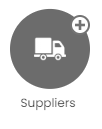
Fig 1. Enable suppliers module
Once enabled, you will need to create a supplier record for the instance you want to connect. So in this example, the instance belonging to the MSP will be the Halo instance we need to send tickets to. When correctly connected, the tickets will go to the MSP's instance from the company's instance, meaning that a new ticket is created in the MSP's instance.
Within the instance of the company (A) head to the suppliers module and create a new supplier, you could call this something that represents the entity (MSP) you are sending tickets to. Complete the contact information (although not required) then head to the 'API Access' tab.
Here, you will need to enable 'Allow Access' to you Halo API, this will allow the MSP to post ticket updates back to the ticket in your instance.
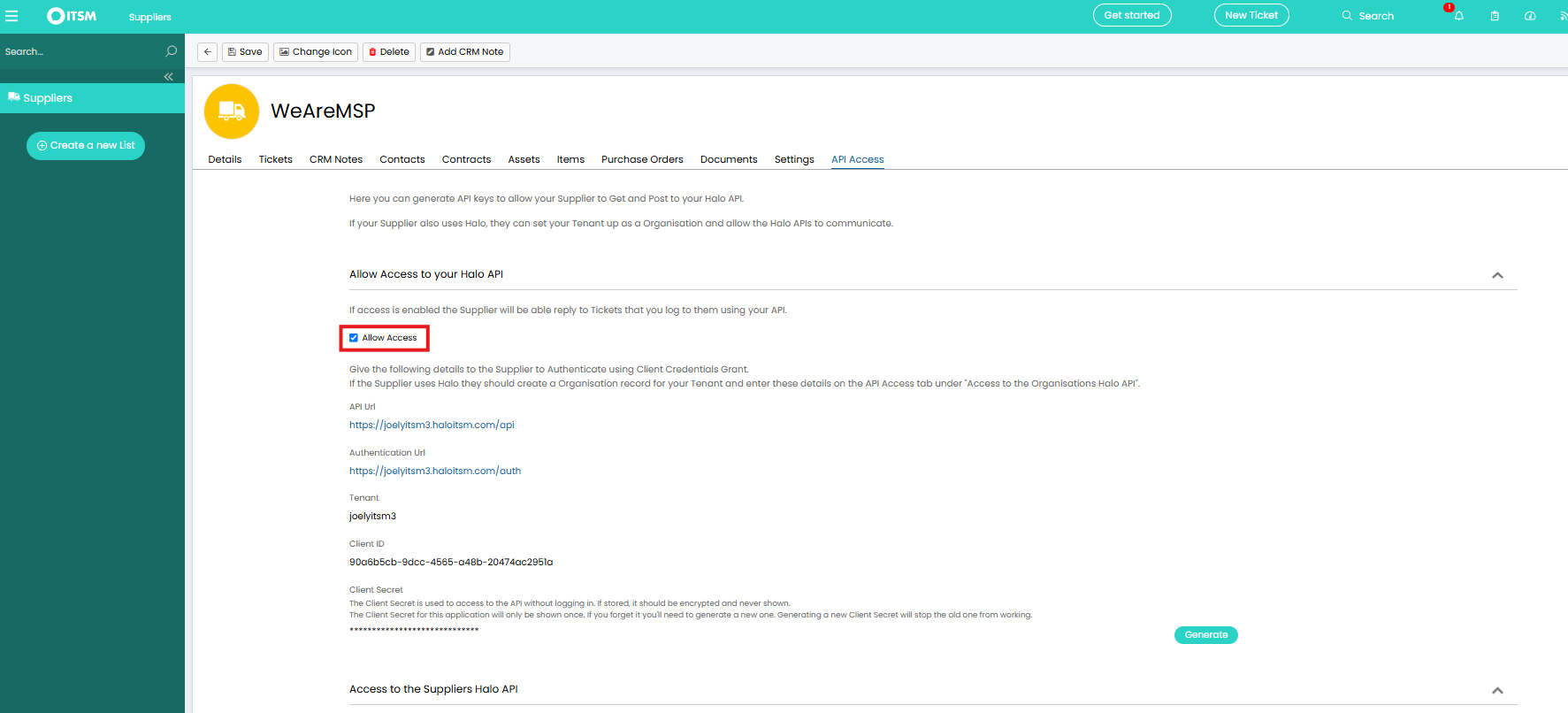
Fig 2. API access against supplier profile
When API access is enabled you will see authentication details appear on the screen here, these will need to be copied into the MSP's instance.
Head to the MSP's instance (B) and create a new customer profile, call the customer something that represents the company receiving support and complete any other details against the customer profile you would like. Then head to the 'API Access' tab against the customer profile and enable 'Allow Access' to your API. This will allow the customer to send you a ticket via the API post updates to these tickets.
Note: If you cannot see the 'API Access' tab against the customer profile you will need to enable this tab to show in your customer screen layout profiles. To do this head to configuration > advanced settings > screen layout profiles > change entity to organisation/customer > tab layout > set API Access tab to show.
Once enabled complete the fields in the 'Access to the Suppliers Halo API' section, complete the fields here with the authentication details from the supplier profile created in company's (A) instance (seen in figure 2).
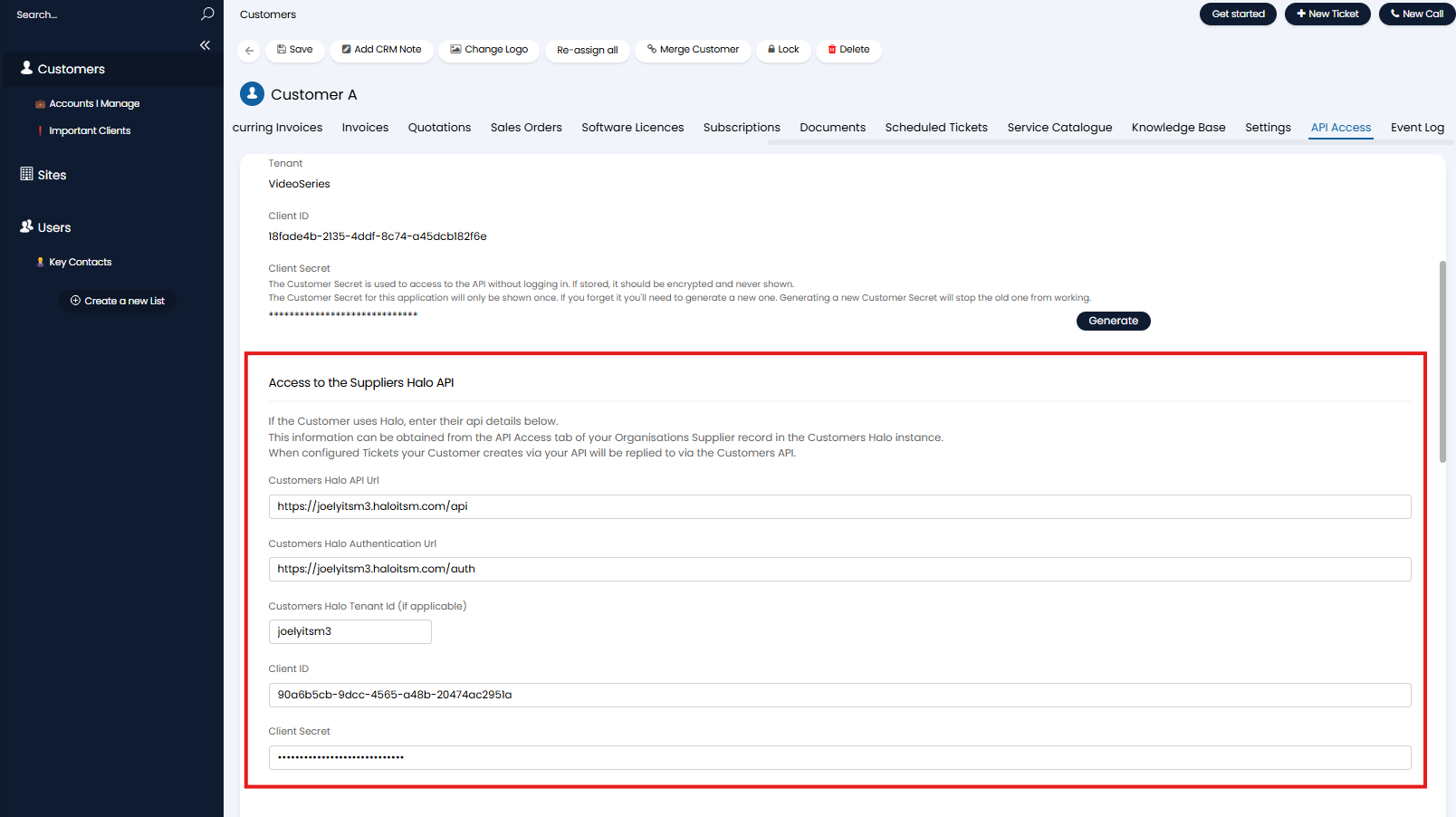
Fig 3. Fields to complete with authentication details
Once complete hit 'Authenticate connection' to check you have connected successfully. If the check fails, ensure you have completed the authentication fields correctly.
To locate the Tenant ID of your instance go to the following url: https://{yourhaloinstance}/api/instanceinfo
From here you will be able to see the "tenant_id" parameter, which should be given as the tenant id input shown in Figure 3.
Note: Ensure you are not in edit mode when copying the 'Client ID' from the supplier profile.
Now copy the authentication details from the customer profile in the MSP's (B) instance, into the supplier profile setup in the company's instance (A). And authenticate connection.
In summary, here we are creating a customer profile in one instance, and a supplier profile in another. Each need to allow API access then have the authentication details from the other instance entered.
Note: The instance that tickets are being sent to must be the 'supplier', tickets can only be created in instances that you have a 'supplier' relationship with. So in this example tickets can be created in the MSP's instance but not in the company's instance.
Add Agents to Customer profile
The Customer profile created in the MSP's instance (B) will need to have the agents in Customer A's instance added as end users. This will allow the ticket to be created under the correct customer when customer A sends tickets to the MSP.
Customer A has the following agents in their instance:
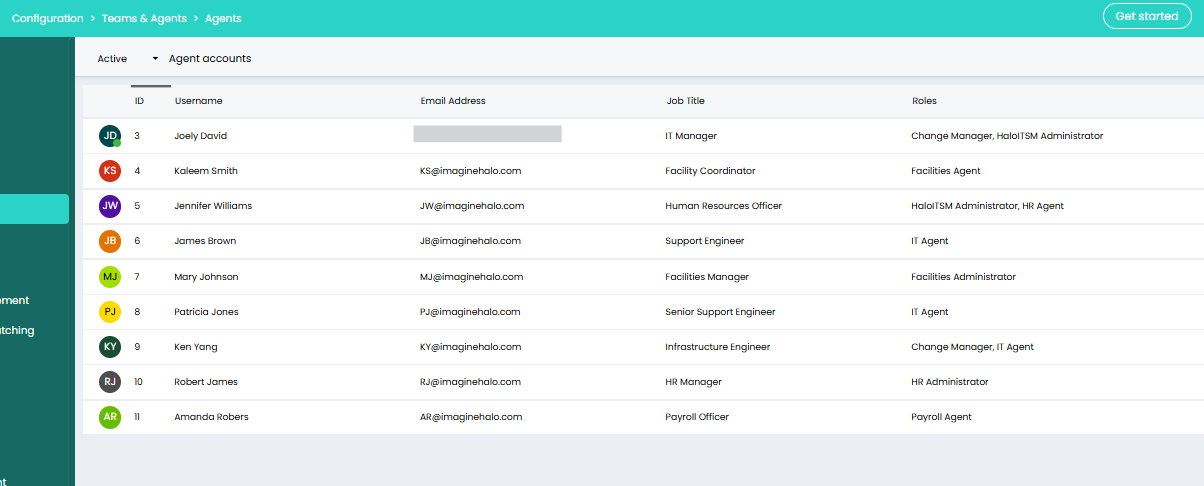
Fig 4. Agents in customer A's instance
Therefore I will add these as end users in the MSP's instance as follows:
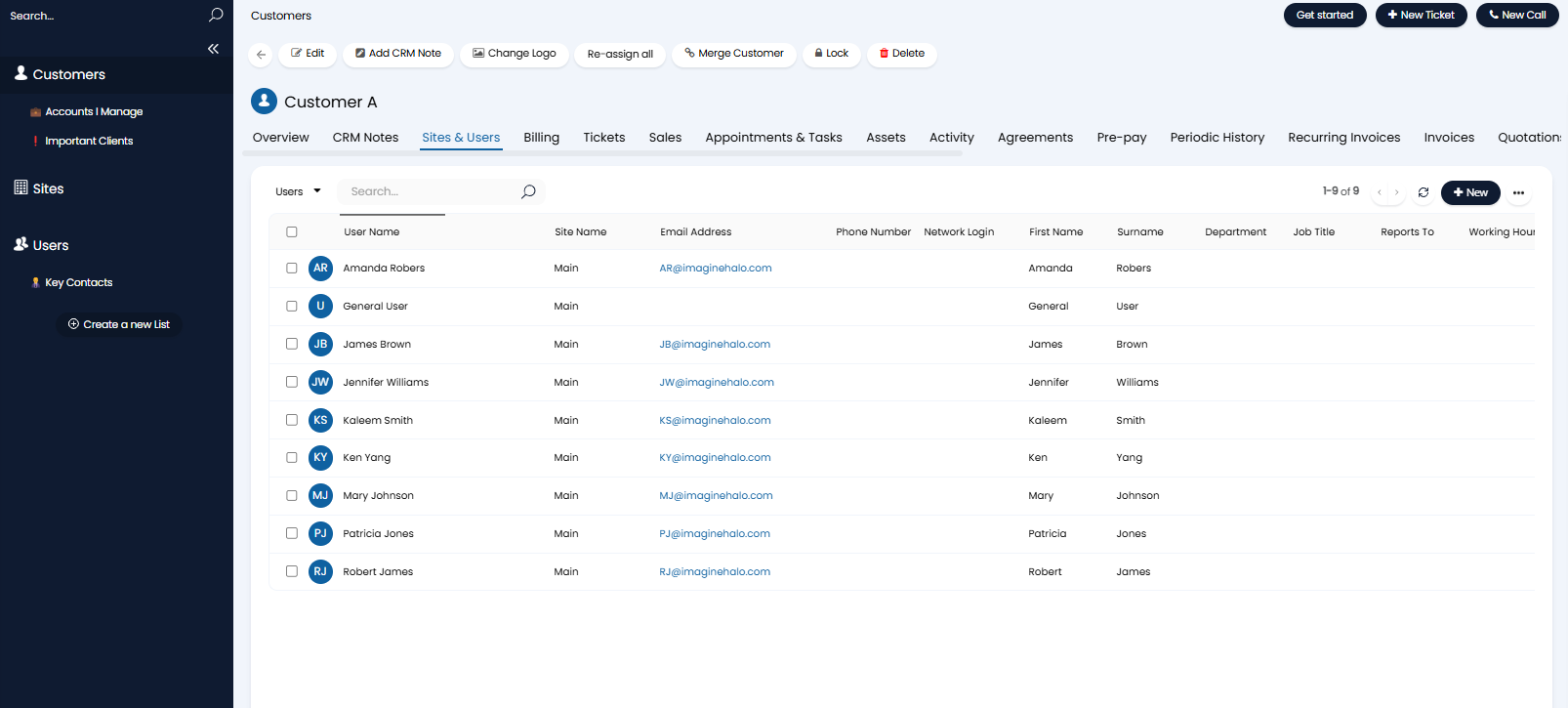
Fig 5. Users against Customer A in MSP instance
Now when one of these agents escalates a ticket to the MSP the ticket will be matched to the correct customer, this is required for the sync.
Determine how Tickets and actions are synced (mappings)
Once connected the profiles in both instances will show some additional configuration settings, under the section 'Inbound settings'.
The 'Inbound settings' determine how tickets and actions are synced. Each customer/supplier profile will need to have the inbound settings configured as this controls how incoming requests are processed.
Inbound Settings
Status Mappings
In the 'Status Mappings' you can map ticket statuses. Map a status in your instance to a status the linked instance uses, this will ensure when the ticket status changes in the linked instance the status of the ticket in your instance will change accordingly.
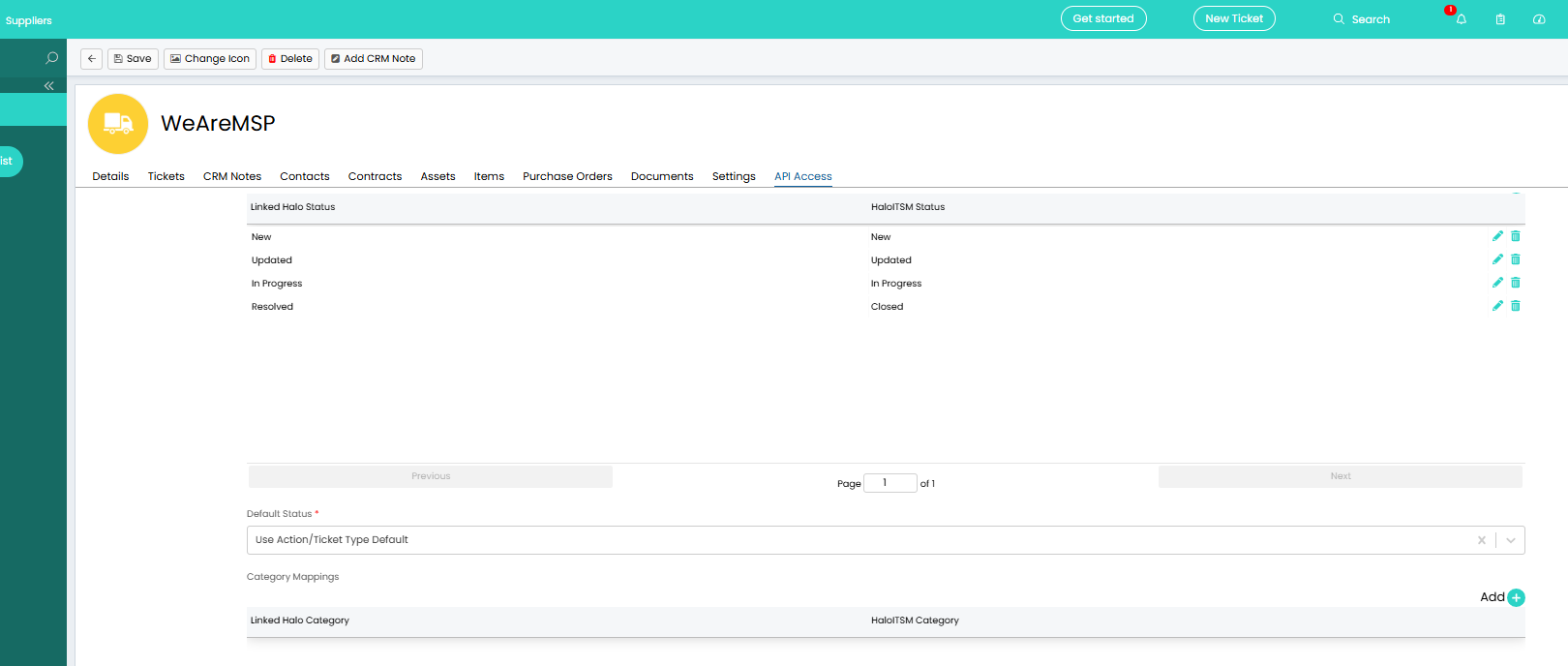
Fig 6. Status mappings
For example, in Figure 6 I have mapped so that when the ticket in the linked instance has the status 'Resolved' the ticket in my instance will change to the status 'Closed'. If the ticket changes to a status in the linked instance that is not mapped, the status of the ticket in my instance will not change.
You will also need to set a default status, tickets that have been sent to your instance will have this status when created, if the initial status is not mapped. Using 'Action/Ticket Type Default' will result in the ticket being assigned a status based on the action or ticket type level default configured in your instance.
Category Mappings
In the 'Category Mappings' you can map ticket categories. Map a category in your instance to a category the linked instance uses, this will ensure when the ticket category changes in the linked instance the category of the ticket in your instance will change accordingly.
Field Mappings
In the 'Field Mappings' you can map ticket fields. Map a field in your instance to a field the linked instance uses, this will ensure when a field against the ticket is updated in the linked instance the field against the ticket in your instance will change accordingly. This only applies to fields against the ticket type, not action fields. Field updates can also only be synced through the use of an action, changing a field manually on the ticket will not update the linked ticket. Only fields of the same type can be mapped together, e.g. a date field in one instance cannot be mapped to a text field in another. At present only custom fields, the summary, start date and target fields can be mapped. More field mappings may become available in future versions.
Note: If you would like the summary of the tickets in each instance to be the same ensure you map the summary fields together.
Actions Mappings
In the 'Action Mappings' table you can map ticket action. Map an action in your instance to an action the linked instance uses, this will ensure when an action is used against the ticket in the linked instance the mapped action will be added to the ticket in your instance.
'Note' fields against actions will be mapped automatically but if your actions contain other fields that you would like to update the linked ticket, you will need to map these fields in the 'Field mappings' table.
Important: You should not map two email actions together. Doing this will result in the same email attempting to be sent from both instance, when this happens the action will not be able to sync between instances as it times out. Instead an email action should be mapped to a note action in other instance, this will allow the body of the email to be synced/be visible in the other instance.
Action restrictions against the ticket will still apply. That is, if a mapped action is not present/allowed by the ticket's workflow the action will not be able to be added to the ticket. The agent completing an action on the linked ticket will receive an error as the action will not be able to be sent to the ticket in the other instance.
The default action will be the action that is used when an action is added to the linked ticket that is not mapped, but bear in mind this action still needs to be available on the ticket workflow to be added to the ticket. We recommend setting this to be a generic action that is hidden from the user (such as Internal Note).
Inbound settings - Customer profile only
Additional settings will also appear against the customer profile, in this example this is the profile the MSP has set up for the customer in their instance.
Ticket type mappings can be configured here to determine what ticket type tickets are created as in your instance when the customer sends you a ticket. The default ticket type will be used when the ticket that is sent across does not have a mapping.
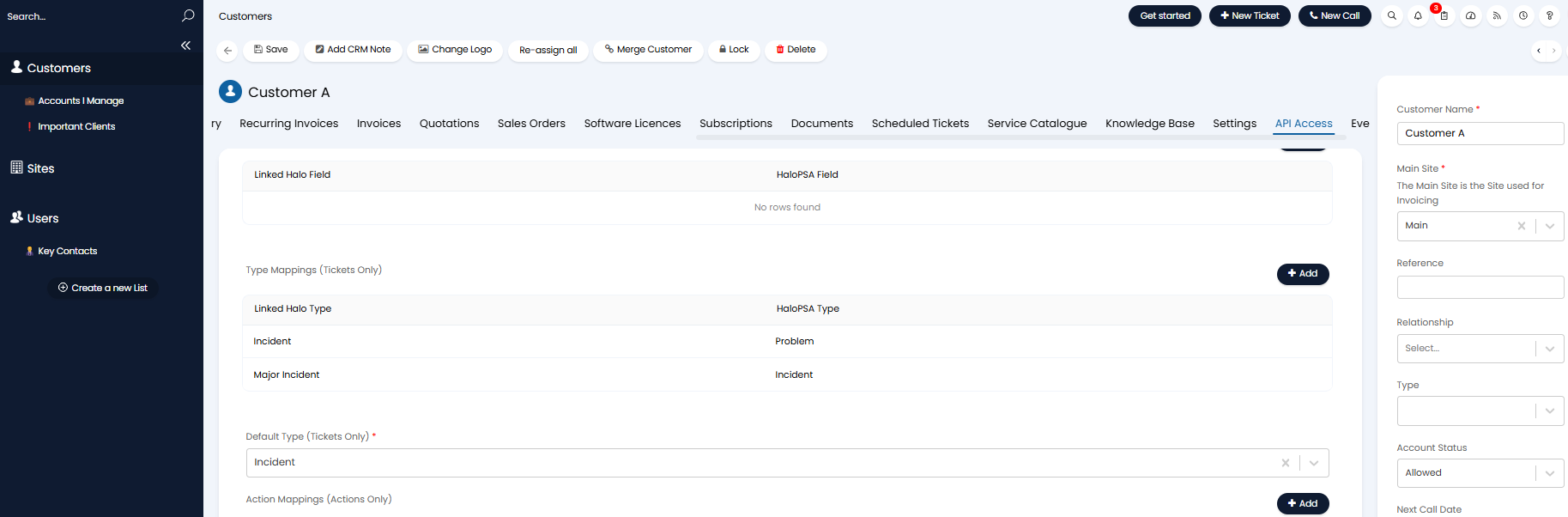
Fig 7. Ticket type mappings against customer profile in MSP's instance
These settings are only found against the customer profile as tickets can only be sent to (created in) the supplier's instance (or in this example, the MSP's). So you only need to configure inbound ticket type mappings against the customer profile in the MSP's instance as the MSP cannot send ticket to be created in the customer's instance.
Outbound Settings
Under the 'outbound settings' section of the API access is a setting to determine if attachments are synced. As this is an outbound settings this determines if attachments sent out from this instance will be synced to the linked instance.
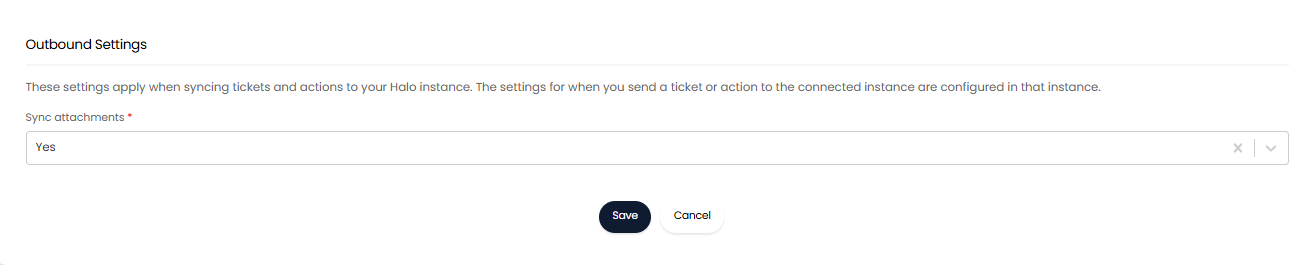
Fig 8. Sync attachments
Set this to 'Yes' in the instance you would like to send attachments from.
To send an attachment from one instance to another, add the attachment to an action then sync the action to the linked instance. Attachments can only be synced using an action, just adding an attachment to a ticket will not trigger a sync.
Action Configuration
Now your mappings have been configured you will need to configure your actions to determine which actions will be sent to the linked instance and which actions are visible to end users.
For each action that you would like to be synced with the linked instance you will need to set 'Send to Connected Halo Instance' against the action. The option chosen here will depend on if the action is being synced to the supplier's (MSP's) instance, or the customer's (Client's) instance.
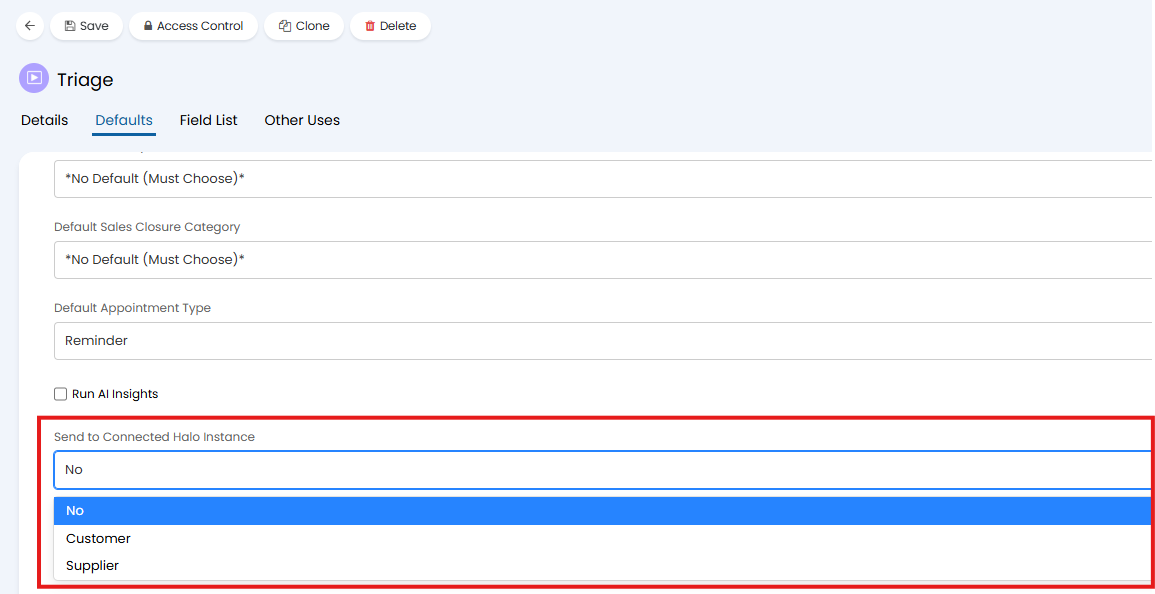
Fig 9. Field to ensure action is sent to connected Halo instance
The field of the same name "Send to Connected Halo Instance" can also be added to actions, to see if the action is due to sync or not.
We will go through how to configure key actions to achieve core functionality of this feature.
Action to send the ticket to connected instance
An action with the following configuration will need to be configured to send a ticket to a connected instance. You will only need to create this action in the instance you are sending tickets from:
- System use = Log to supplier
- Send an email = Yes
- Field list must contain the field - 'Supplier', 'Note' field is recommended
This action will need to have the 'Supplier' field added to it so you can choose the correct instance to send the ticket to. The action will not actually send an email, but must be configured to do so.
You can use the out-of-the-box action 'Log to supplier' but we recommend creating a new one if you are sending the ticket to an instance that is not actually a supplier instance to avoid confusion amongst technicians. For ease, clone the existing 'Log to supplier' action, re-name this and remove all fields except 'note' and 'supplier'.
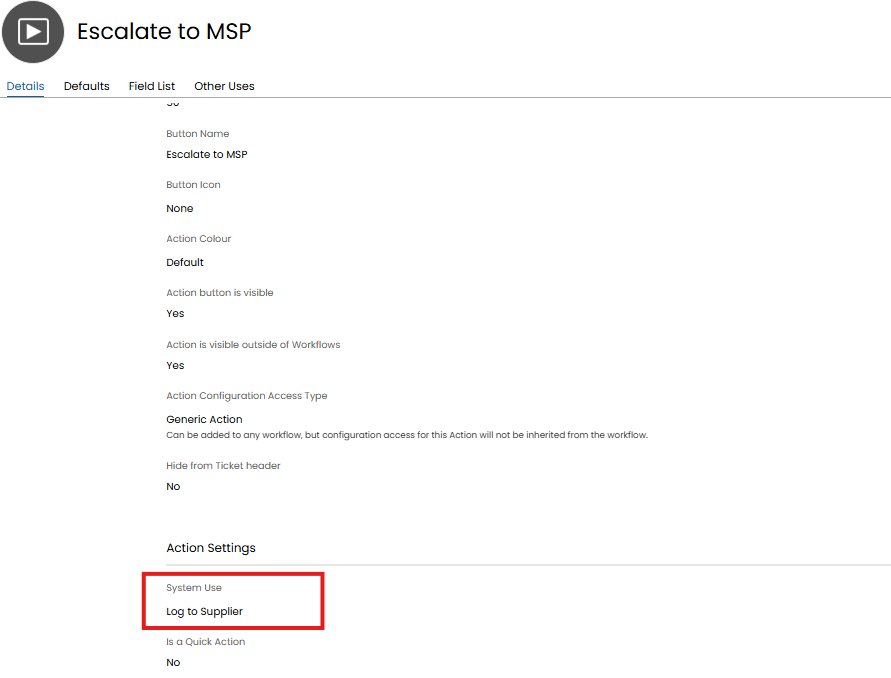
Fig 10. Action to send ticket to supplier's (MSP's) instance
When this action is used, the email template associated with the action will be applied and sent to the MSP's instance (as a note, not as an email). By default the template with ID 35 'Supplier Ticket' will be used. You can change the template used using the 'Email Template' field on the action.
Once this action is created ensure it is added to the relevant workflows. A mapping does not need to be created for this action against the customer profile.
Action to send internal updates between instances
Two actions will need to be configured to send private notes between instances. The configuration of each action will differ slightly for each instance.
Action in MSP's (supplier's) instance
An action with the following configuration will need to be configured to send an update/note from the supplier's (MSP's) instance to the company's instance:
- System use = None
- Send an email = No
- Hide from user = No
- Send to Connected Halo Instance = Yes
- Field List can contain the field 'Send to Connected Halo Instance' and any other desired fields.
Note: In order for this action to send across to the linked instance it must not be hidden from the user. This means that this action will be visible in the supplier's/MSP's end user portal.
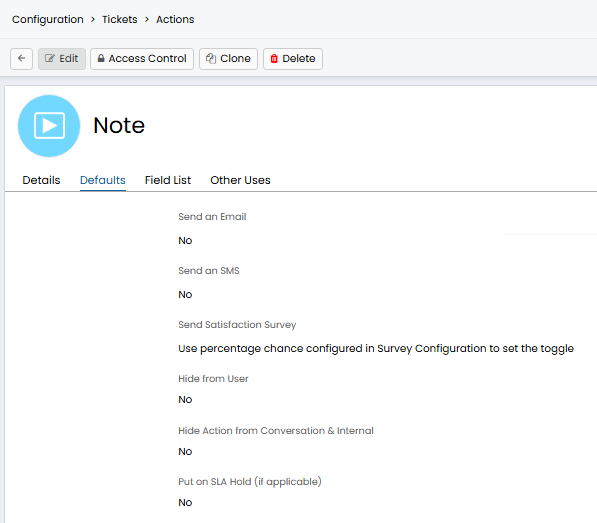
Fig 11. Internal Note action
Now, you will need to map this action to an action in the company's instance (we recommend an internal note action). The action this one is mapped to should not be set to send to a connected Halo instance (Send to Connected Halo Instance = No) otherwise a 'loop' of syncs can occur.
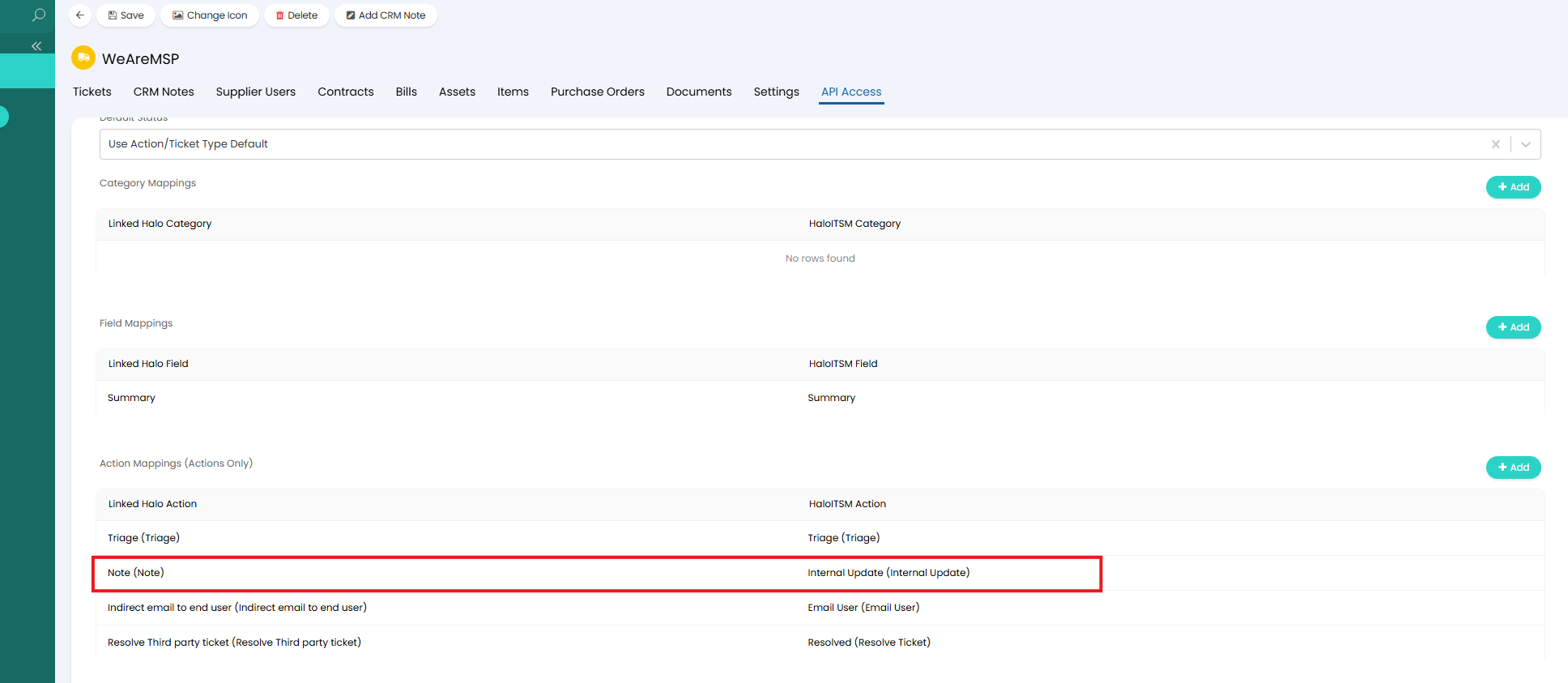
Fig 12. Map Action in MSP's instance to send a note, to action in Customer A's instance
Action in the company's instance
An action with the following configuration will need to be configured to send an update/note from the company's instance to the supplier's (MSP's) instance:
- System use = None
- Send an email = No
- Hide from user = Yes or No
- Send to Connected Halo Instance = Yes
- Field List can contain the field 'Send to Connected Halo Instance' and any other desired fields.
Note: This action does not need to be set to be visible to the ends user, however, as this is an internal, private, note we recommend setting Hide from user = Yes.
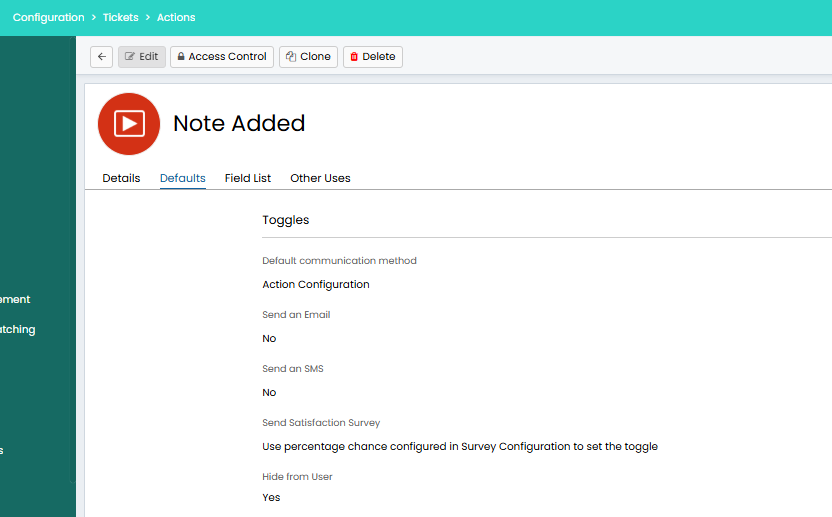 Fig 13. Private Note action in ITSM (company) instance
Now, you will need to map this action to an action in the MSP's instance (we recommend an internal note action). The action this one is mapped to should not be set to send to a connected Halo instance (Send to Connected Halo Instance = No) otherwise a 'loop' of syncs can occur.
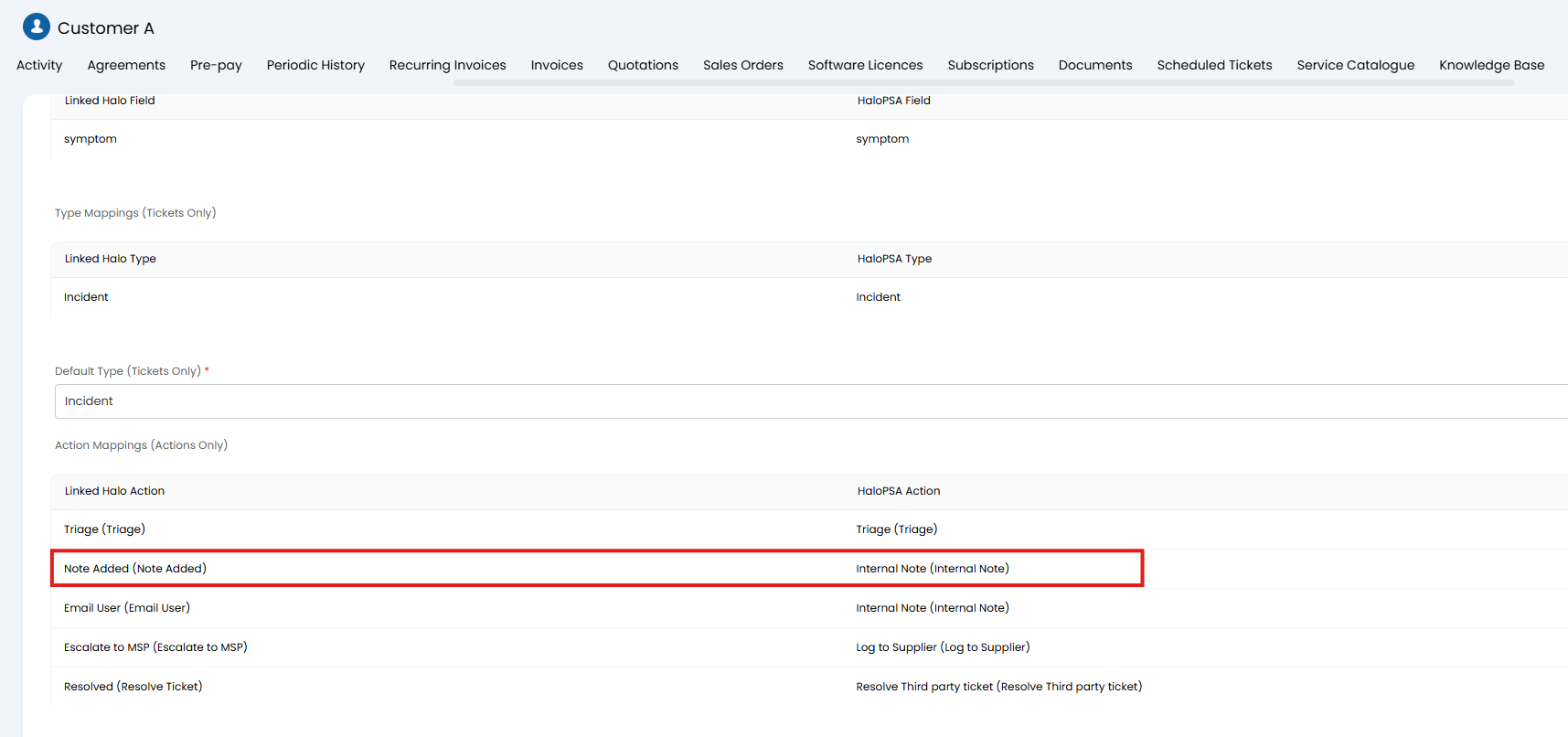
Fig 14. Mapping note action to an action in MSP's instance
Ensure both actions are added to their respective workflows. Additionally, if the action contains additional/custom fields that you would like to sync across, ensure these fields are added to the field mappings in both instances.
Action to communicate with the end user of the ticket using the Company's Mailbox
In order for the MSP to be able to send an indirect email to the end user of the ticket, from company A's mailbox, using company A's email templates, create an action with the following configuration. This action will need to be created in the suppliers (MSP's) instance:
- System use = No system use
- Send an email = No
- Send to Connected Halo Instance = Yes
- Field list must contain 'Send to connected instance' field, and any rich text field such as 'Note'
We recommend naming the action something like 'Indirect email to end user'.
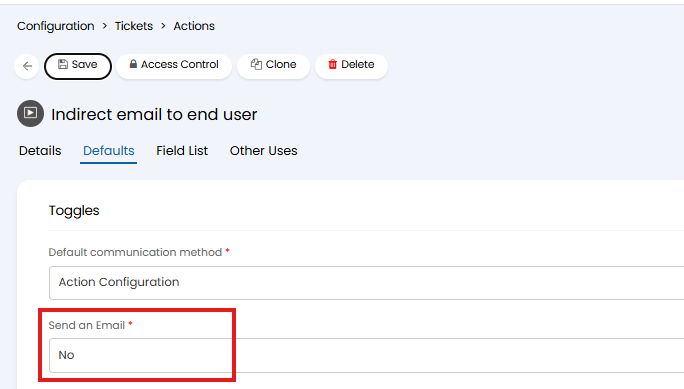
Fig 15. Action to indirectly email the end user
Now, you will need to map this action to an action that sends an email from the company's instance.
To map the actions, head to the supplier profile (used for the MSP) in the company's instance (A). Here, map the action we just created to an action that will send an email to the end user of the ticket, such as 'email user'.
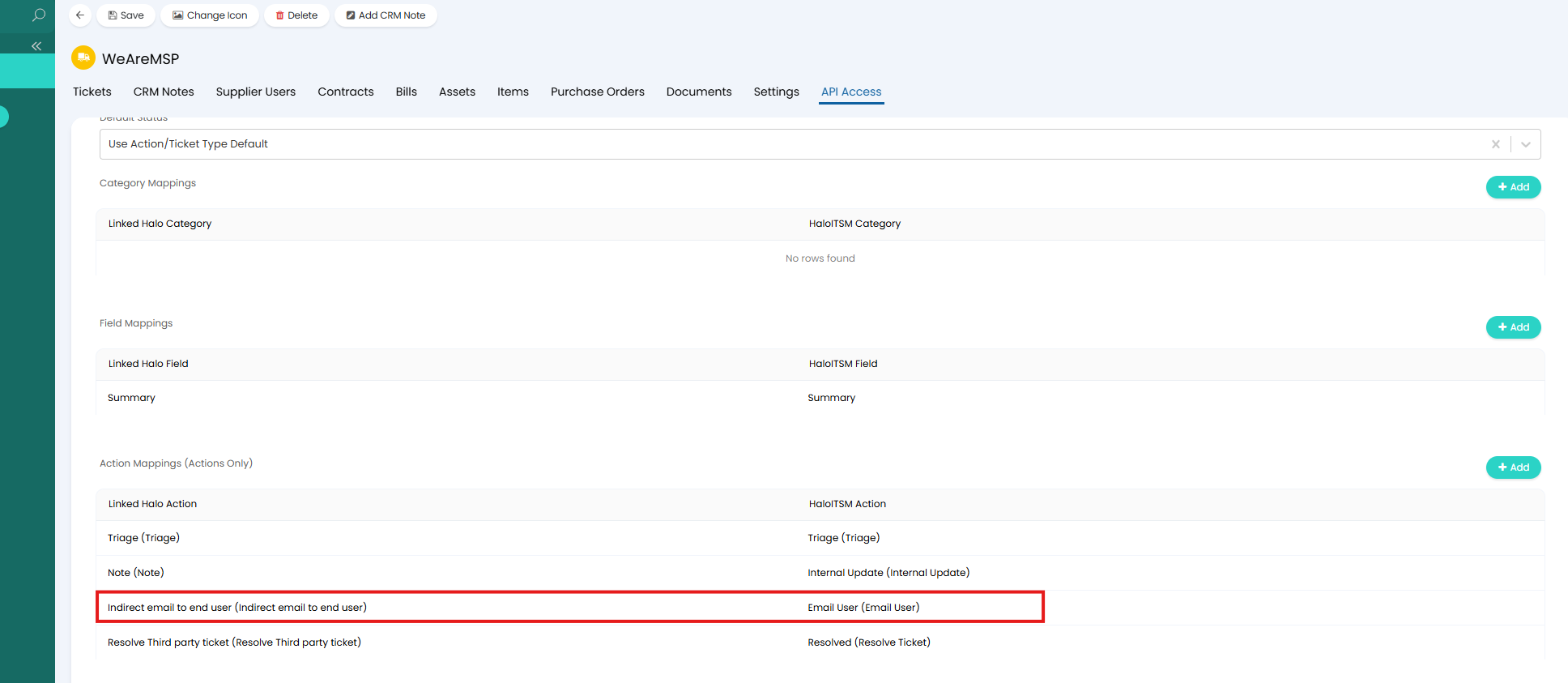
Fig 16. Mapping actions
By completing this mapping this will ensure that when the action 'Indirect email to end user' is completed on the ticket in the MSP's instance (B) the action 'email user' will be created on the ticket in the company's instance (A). Sending an email to the end user of the ticket containing any notes the MSP entered in the 'Note' field on their action. By default the email template used for the email user action will pull through the rich text note from the MSP's action.
The email action you choose must have the setting 'Send an email when this action is created using the Supplier/Organisation API connection' enabled against it.
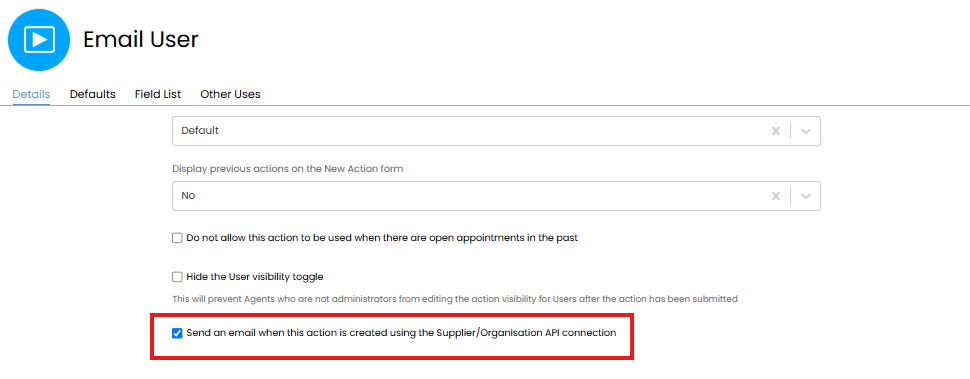
Fig 17. Setting to allow action to send an email when created through API
This setting will allow the action to send an email automatically when it has been created using the customer/supplier API connection.
Action to Resolve/Close ticket
To prevent the end user of the ticket being sent two closure conformation emails you will need to create a new action to close the ticket, this action will need to be created in the MSP's instance. The action will need to have the following configuration:
- System use = No system use
- Status after action = Closed/Resolved (depends on your closure procedures)
- Send an email = No
- Send to Connected Halo Instance = Yes
- Field list can contain any
We recommend calling this action something like 'Resolve Third party ticket'.
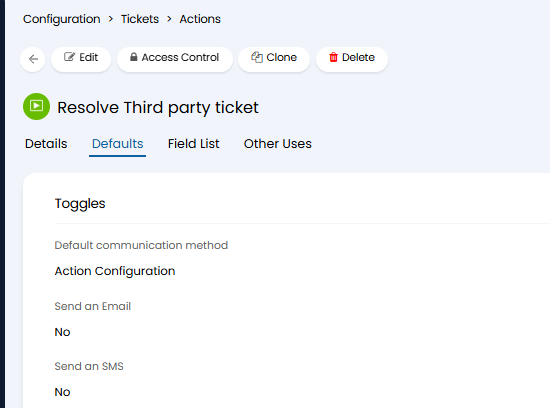
Fig 18. Action to Resolve ticket
Once created you will need to map this action to the resolve/close action in customer A's instance. This will ensure when this action is completed on the MSP's ticket, the ticket in customer A's instance will be closed too, with the closure conformation email sent from customer A.
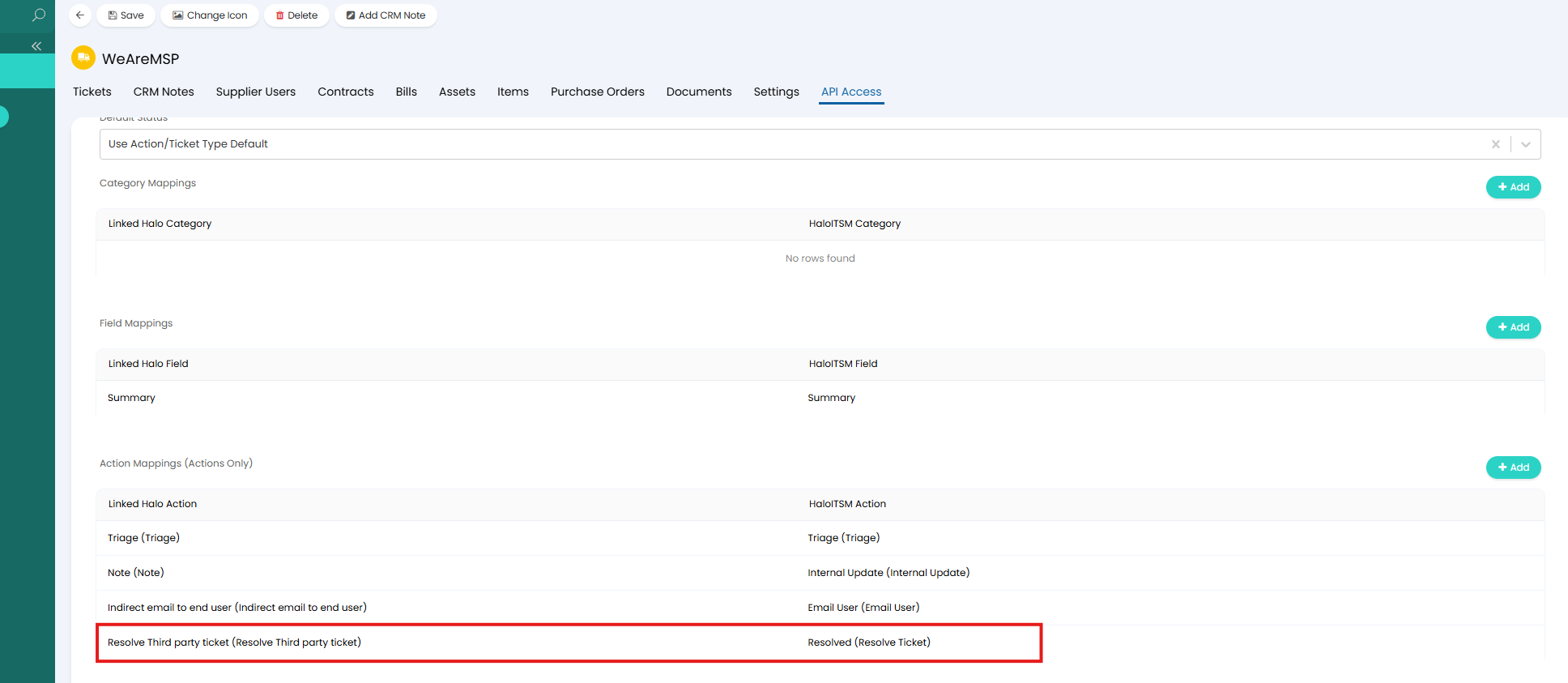
Fig 19. Map closure action that does not send email to closure action that does send email
Map these actions in the MSP's instance too. This will ensure if customer A closes the ticket, the MSP's ticket is closed off too.
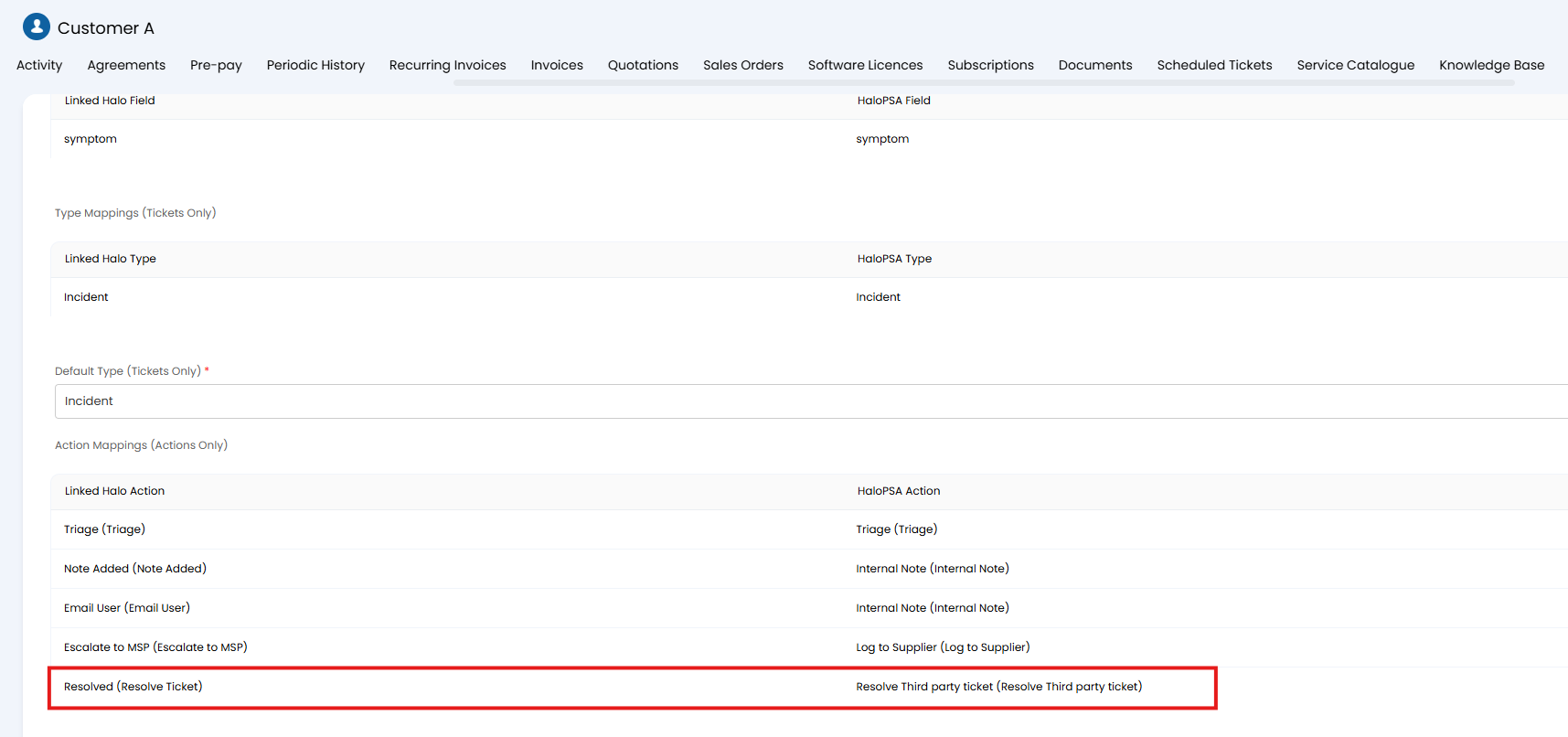
Fig 20. Map closure actions in MSP instance
How to Pass tickets and updates between Instances - Worked Example
Step 1 - User logs ticket
An end user has logged a ticket to report their issue and this has been triaged
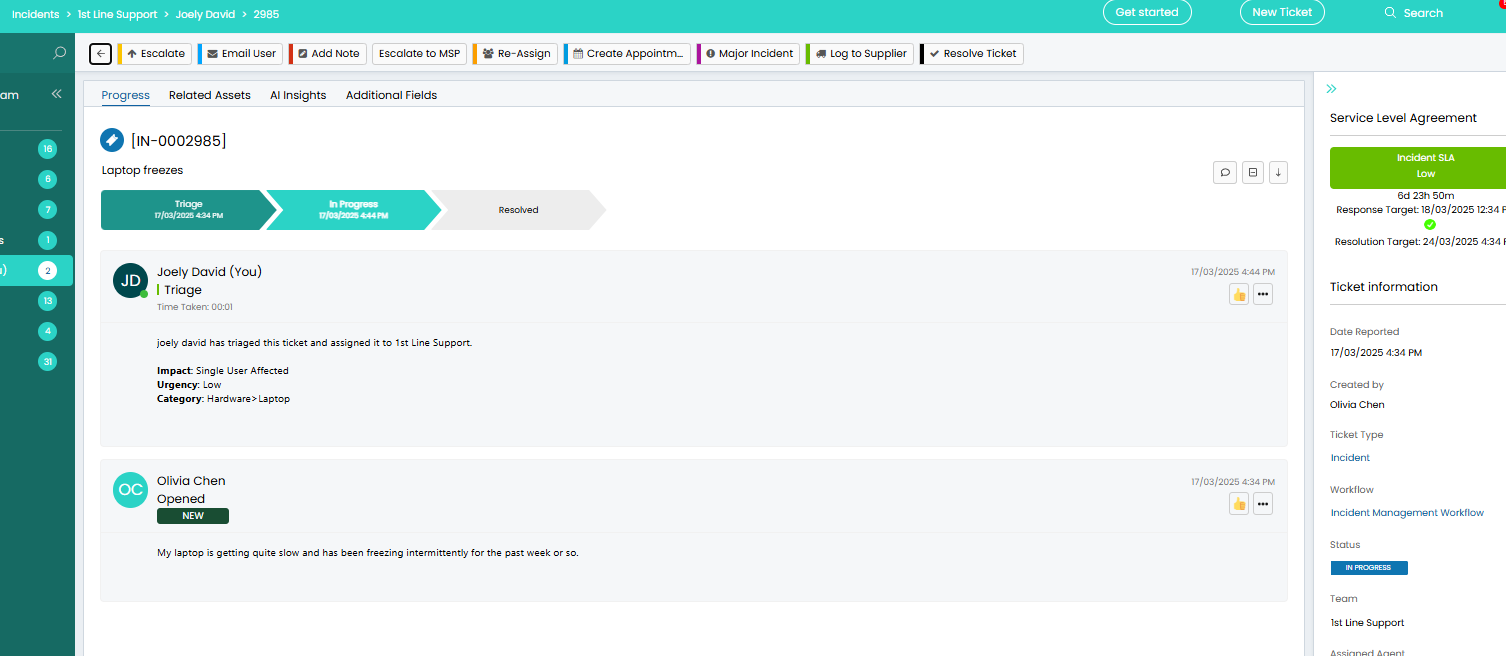
Fig 21. New ticket logged
Step 2 - Send ticket to Linked instance
The agent has decided the ticket needs to be escalated to the MSP so they are using the action previously created to send this ticket to the MSP's instance. They have chosen the instance they would like to send this ticket to using the 'supplier' field, once a supplier is chosen here you will be able to see the instance URL the ticket is being sent to. The 'Supplier Ref' field MUST be left blank in order for the ticket to be synced across.
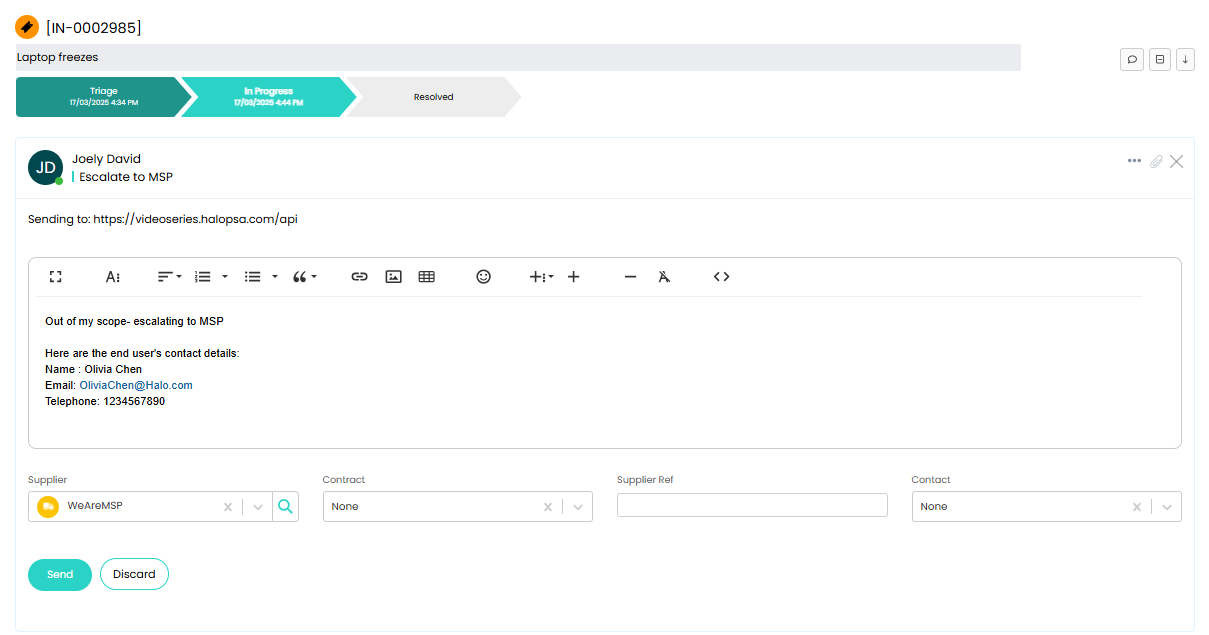
Fig 22. Sending ticket to connected instance
Step 3 - Viewing Ticket in MSP's instance
Once this action is complete a ticket will be logged in the MSP's (supplier's) instance. The note on the ticket will contain the note from the 'Escalate to MSP' action, along with content from the email template associated with the action.
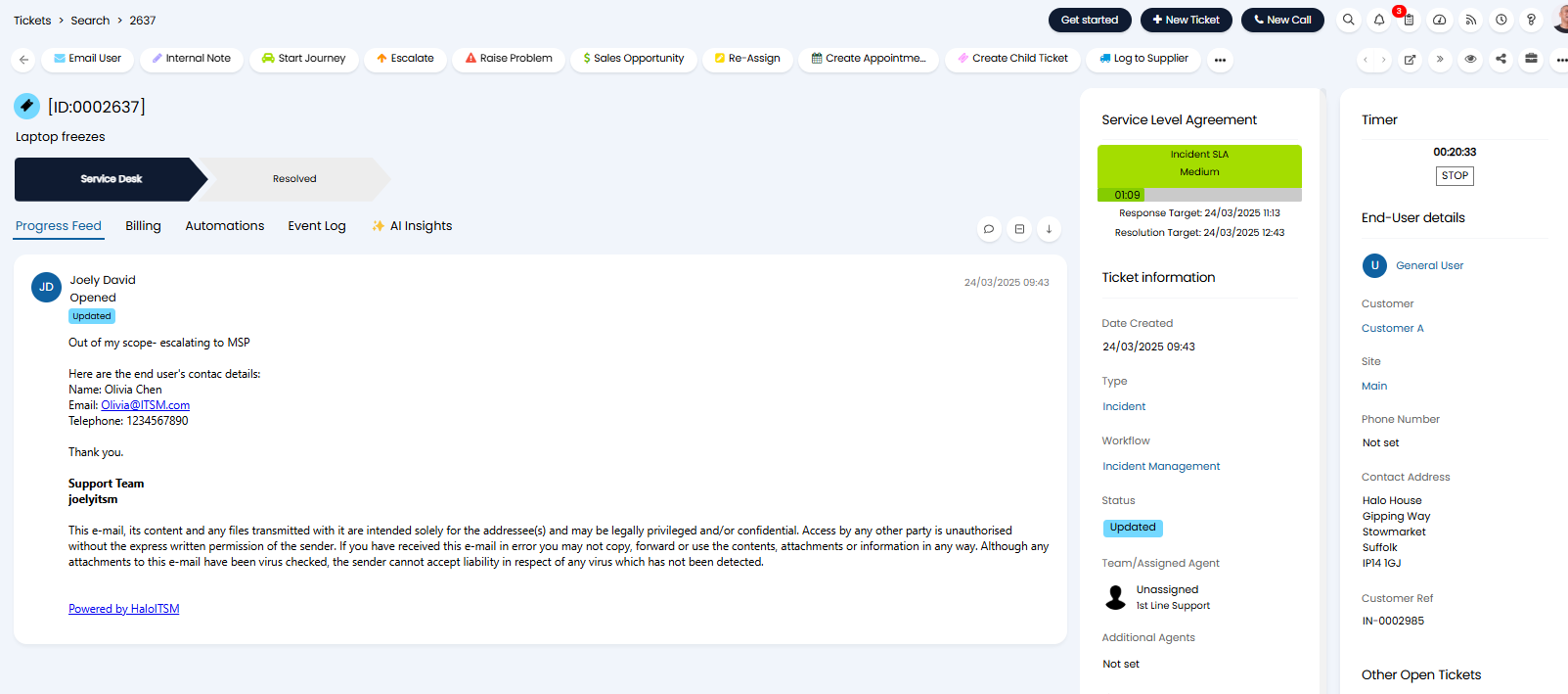
Fig 23. Ticket created in MSP's instance
Step 4 - Send update back to original ticket
Now the ticket has been created in the other instance an update can be added to the ticket here, this update can be synced back to the original ticket.
Before an update can be sent ensure the end user/customer of this ticket is the customer you have set up the API connection with as the update will be sent to the instance based on the customer assigned to the ticket. However, the correct customer should be matched automatically provided the agent who sent/escalated the ticket is a user under this customer in the supplier's (MSP's) instance.
To send an update, complete the action created eariler to send updates to the connected instance. If you have the 'Send to Connected Halo Instance' field on the action, this should default to 'Customer', if this has defaulted correctly, the action will be sent to the connected instance. Ensure this action is mapped to an action in the company's instance.
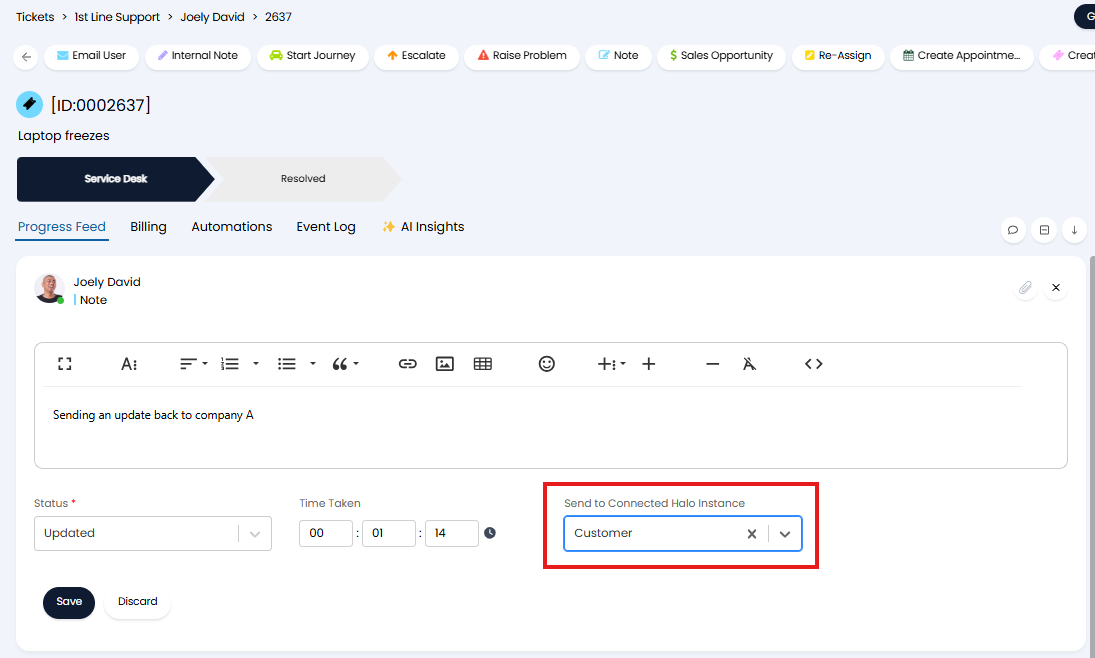
Fig 24. Action to send update from Supplier (MSP) to company A instance
Once this action is saved it will be sent to the ticket in company A's instance almost instantly.
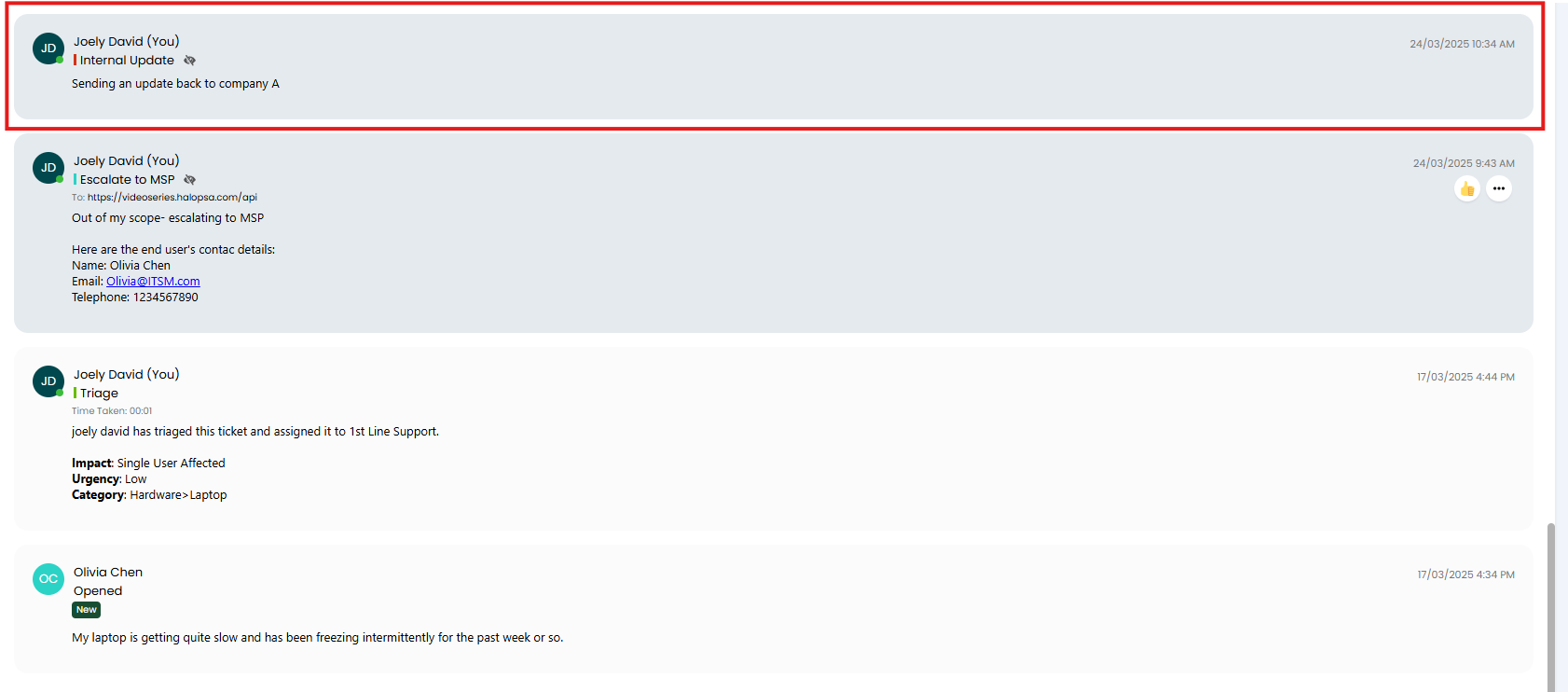
Fig 25. Update in company A's instance
Here, the action 'Internal Update' has been added to company A's ticket is this is the action mapped to the MSP's 'Note' action.
The action on company A's ticket will appear as being completed by the agent in the MSP's instance (in this example the agent profile in company A and the MSP's instance has the same name).
Step 5 - Company send update to MSP
Company A can send an update back to the MSP in the same way, ensuring 'Supplier' has been populated in the 'Send to Connected Halo Instance' field.
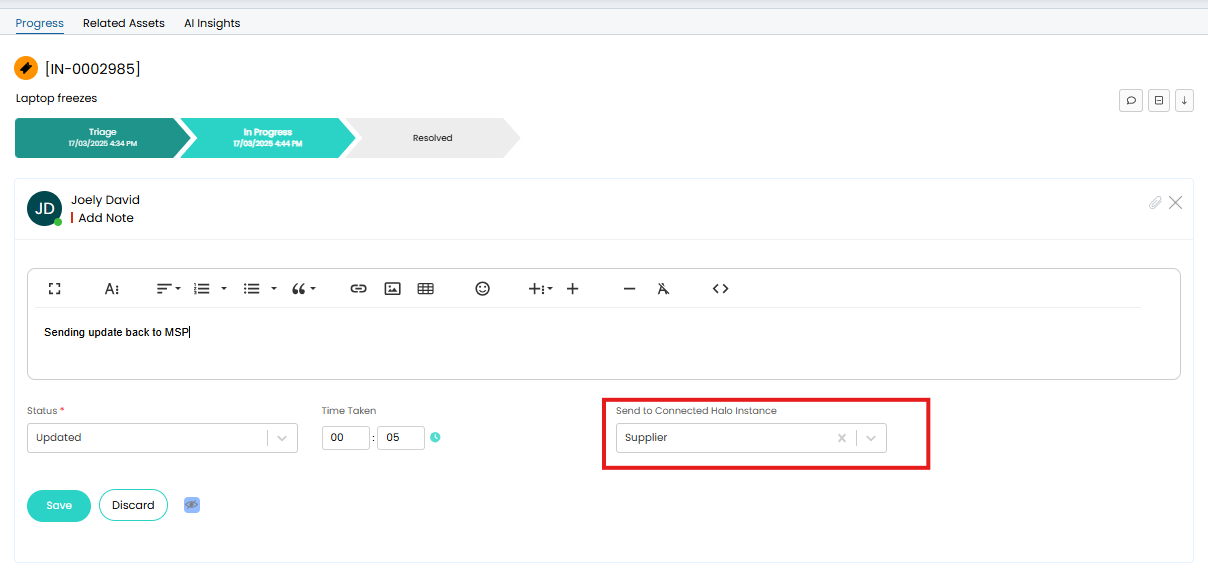
Fig 26. Send update back to MSP
Step 6 - MSP Contact end user indirectly via company
For the MSP to contact the end user of the original ticket they can use the action configured earlier 'Indirect Email to end user'. When completing this action enter the information/query you would like to send to the end user in the note field of the action and ensure to set ' 'Send to Connected Halo Instance' as Customer.
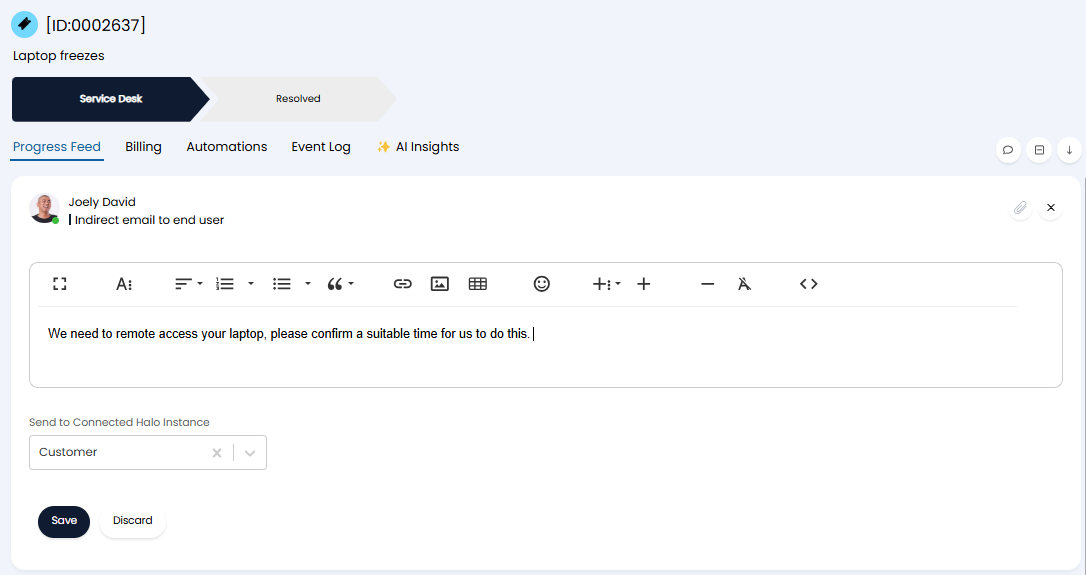
Fig 27. Indirect email to end user action
Using this action will send an email to the end user of the original ticket, but using the email template and from the mailbox of company A. In the MSP's instance this action will just show as a note on their ticket (they will not even see the user's email address). However, in the company's instance email details will be visible.
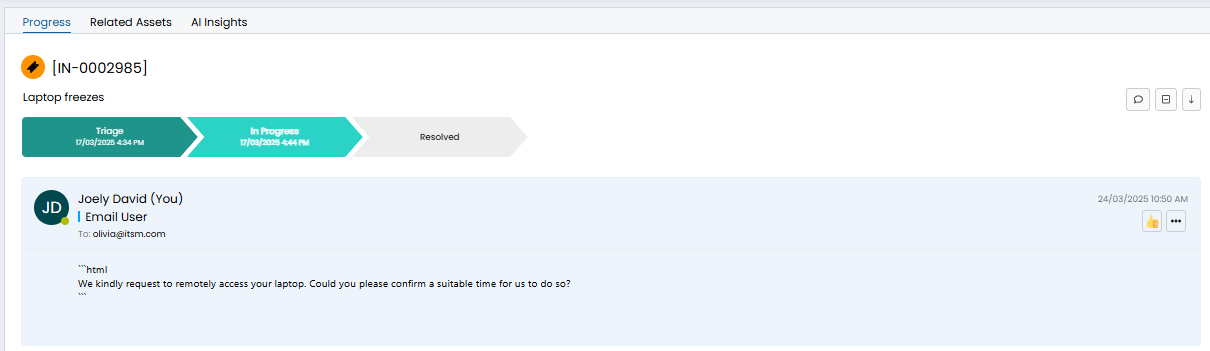
Fig 28. Email user action sent on company A's ticket
Editing this action we can see the note from the MPS's ticket has been added into company A's email template.
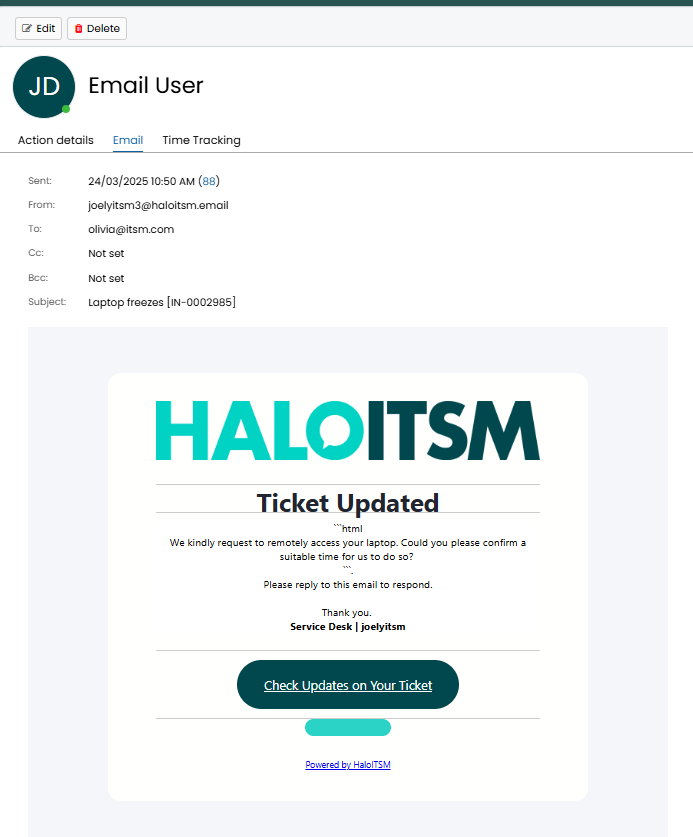
Fig 29. Email template used
Step 8 - Ticket Resolved
Once the ticket is resolved either the MSP or company A can use their resolved/closed action to close off the ticket. When the action is completed in once instance this will close the ticket in the linked instance too. Ensure the closure actions and setup outlined earlier are used to prevent the end user receiving two closure conformation emails.
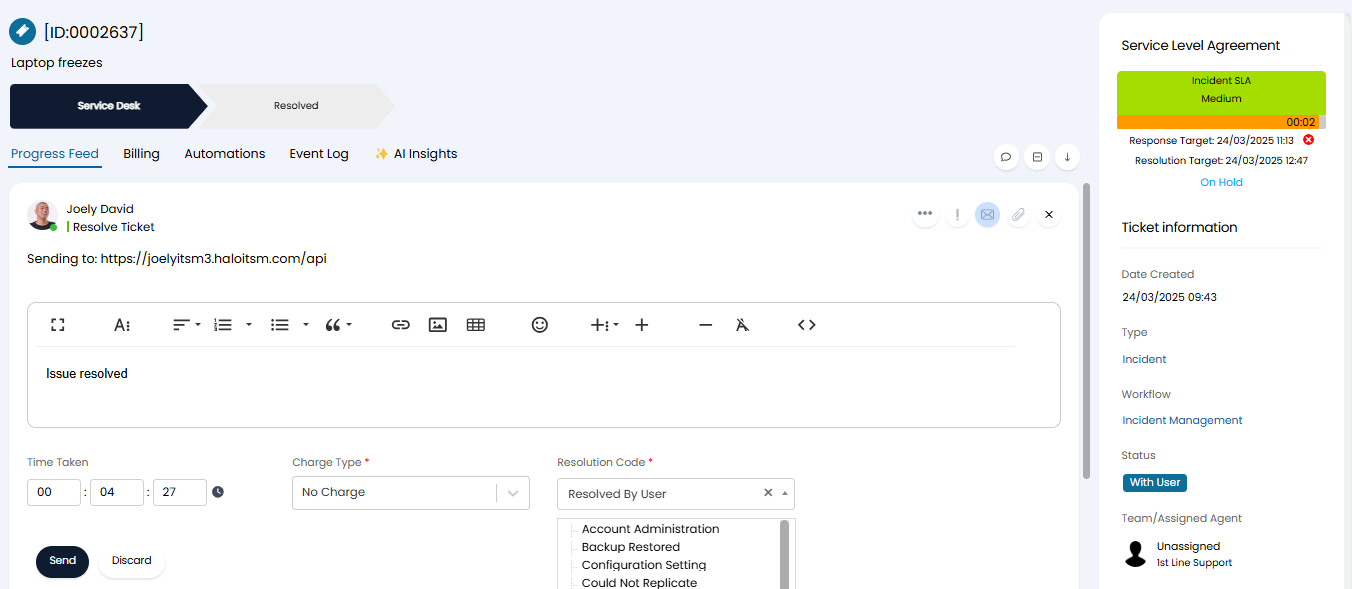
Fig 30. Ticket resolved in MSP (supplier) instance
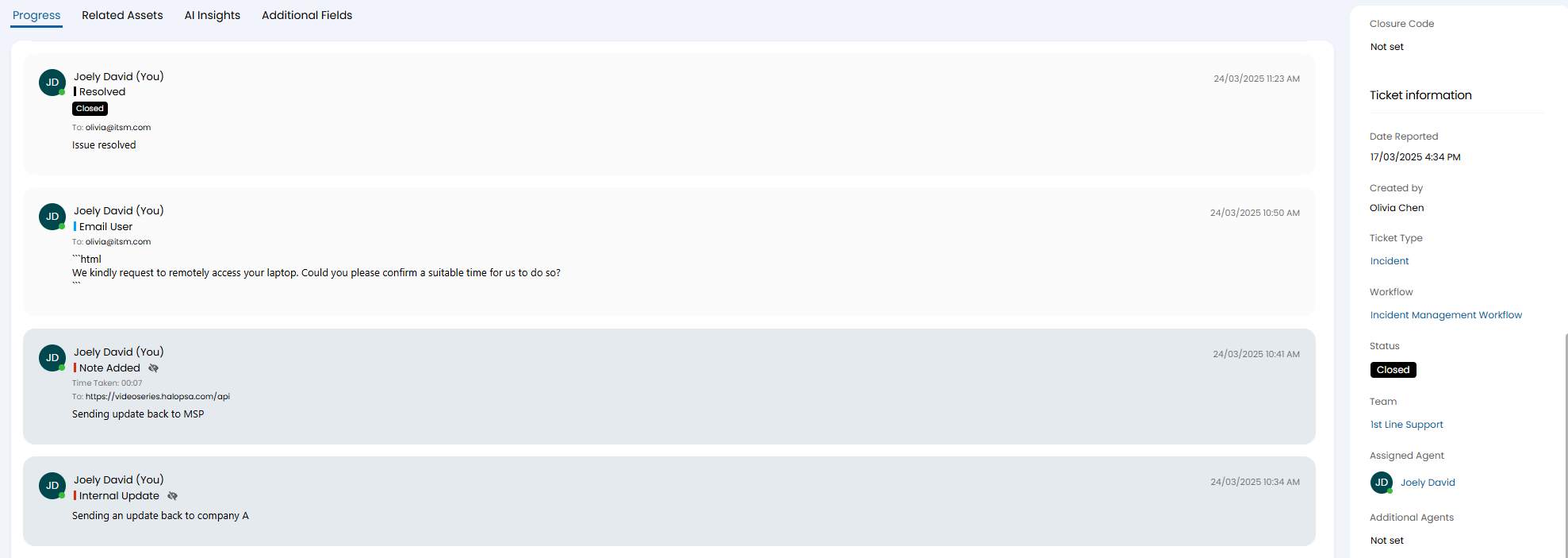
Fig 31. Ticket closed in linked instance automatically
Step 9 - Ticket from Portal
All the public actions against the ticket in company A's instance will be visible to the end user from company A's portal. In the figure 32 example we can see internal notes between agents are not visible, the action to escalate the ticket to the MSP is also not visible. However, communications to the user are.
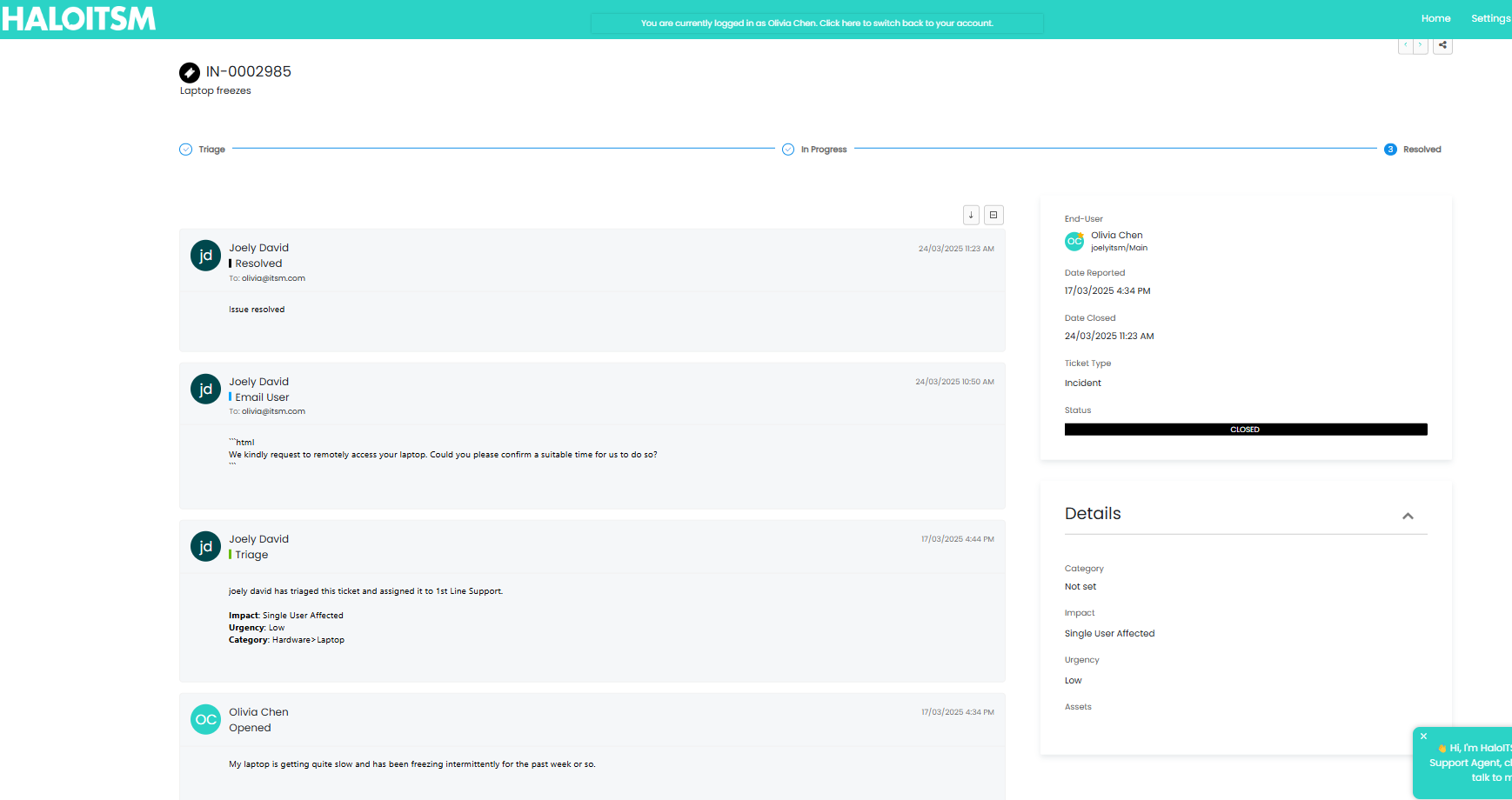
Fig 32. Ticket in company A's portal
Troubleshooting
Here are some errors you may experience when setting up this functionality, along with resolutions.
Error | Error image | Resolution |
| Timeout error | 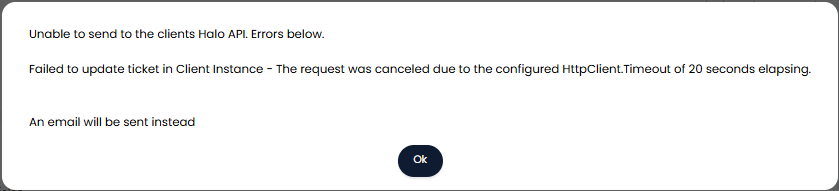 | This error occurs when you have two actions that are both set to send an email mapped together. The request times out as an email is attempting to be sent from both the current instance and the linked instance. To resolve this head to the customer/supplier mappings in the instance you are sending this action to and re-map this action to an action that does not send an email. This will result in an indirect email being sent. See the sections 'Action to email user directly. and 'Action to communicate with the end user of the ticket using the Company's mailbox' for more information on syncing email actions. |
| Failed to update ticket in Client's Instance - BadRequest - You do not have access to this action at the moment | 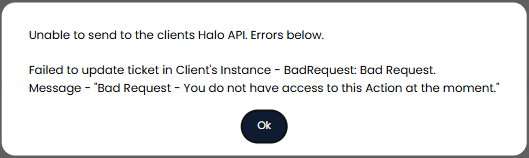 | This error occurs when the action you are completing is mapped to an action that is not present/allowed on the linked ticket's workflow. Head into the instance you are attempting to sync the ticket to > head to the customer/supplier profile > action mappings > re-map this action to an action that is allowed on the ticket workflow. Alternatively add the mapped action to the workflow of the ticket. |
| Tags around rich text note for email/strange email formatting | 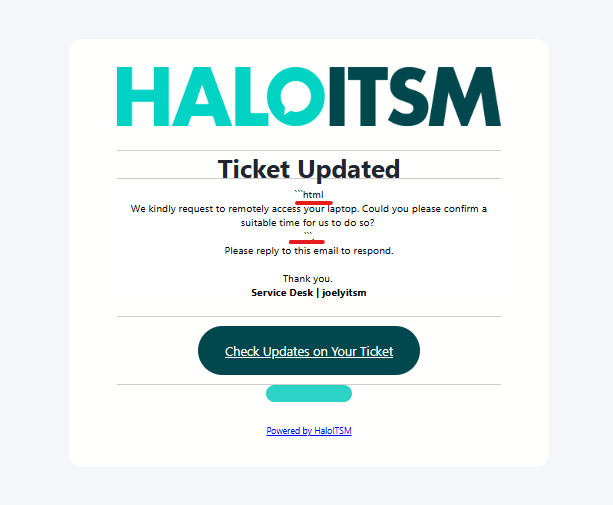 | This can occur when the action is configured to make improvements to the action note using AI, either the action the note was completed on, or the action that is actually sending the email. To resolve this edit the action > see the 'AI' section under the action details and adjust the AI prompt. Update the prompt to tell it to return only HTML with no markdown. Alternatively, disable AI improvements for the action. |
| Failed to Update ticket in Supplier's Instance- Badrequest - An action must be associated with a ticket_id | 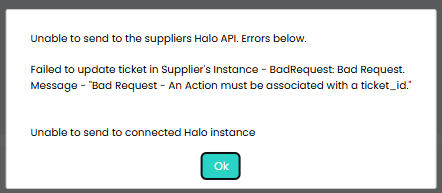 | This error occurs when attempting to send a ticket to a linked instance when the 'Supplier Ref' field is populated. To resolve, ensure the 'Supplier Ref' field is empty when saving the action. |
| No error but action does not sync to linked ticket | Synced actions will contain the URL and endpoint of the linked instance, if this is not present against the action it has not synced. | Sync will not occur when the action you have carried out is not mapped to an action in the linked instance. To resolve this head into the instance you want to sync this action to > head to the customer or supplier profile > action mappings, here map the action you were trying to complete to an action in this instance. Sync will also not occur if you actions are configured incorrectly. For example, if you are completing a private note action, the action that is completed in the supplier's (MSP) instance must be set to be visible to users. If you are attempting sync from Supplier instance -> Customer instance this may fail if the ticket in the supplier instance is assigned to the incorrect customer. Check the customer assigned to the ticket has a valid API connection set up. See the section 'Connecting instances' of this guide for more information on this. |
| Failed to log to Supplier's Instance - BadRequest - This functionality is not supported | 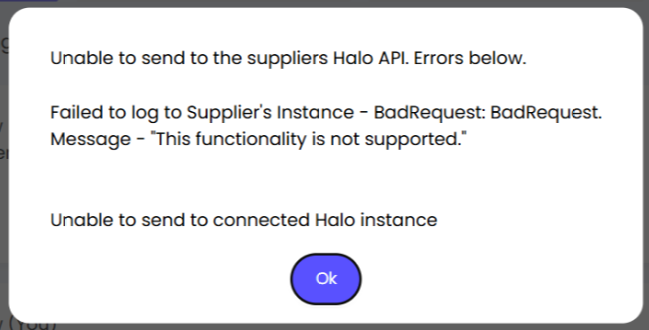 | This error occurs when the credentials entered against each supplier and/or customer profile to allow API access are incorrect. Ensure the supplier profile contains the credentials against the customer profile in the connected instance. Refer to the section 'Connecting Instances' of this article for more information on this. |