HaloITSM Integration
When set-up, this integration allows you to send tickets to the other instance and manage the updates from it.
In this guide we will cover:
- How to Setup the HaloITSM/HaloCRM integration
Important: A new and improved integration method is available for integrating Halo instances. See our guide here for this method.
Disclaimer: This integration is intended for integrating instances of HaloITSM (Halo used by internal IT and enterprise solution teams) with instances of HaloCSM (Halo used by customer service teams). When setting up the integration 'HaloCRM' labels may still be used/visible in the agent app.
How to Setup the HaloITSM/HaloCSM integration
To start, head to 'Configuration' in your HaloCSM instance, then head to Configuration > Integrations > find, the HaloITSM integration and ensure it is enabled.
Fig 1. Halo ITSM integration module
On your HaloITSM instance, head to Configuration > Integrations > HaloCRM and enable this integration module.

Fig 2. HaloCRM (CSM) integration module
The integration works by setting up an API connection on both instances which can automatically send messages to the respective instance.
They can be set up in any order. In this example we will set-up the API connection on HaloITSM and then add the credentials to HaloCSM. Then I’ll do this again the other way round.
Next, in your HaloITSM instance head back to the Integrations page and select "HaloITSM API".
Fig 3. API module
Click this, then ‘view applications’. We will need to create a new application – so, press ‘new’ in the top right corner and on the new application screen you’ll be presented with some prompts.
First, give it a name (we suggest HaloCSM but it’s up to you!).
For authentication method, select CLIENT ID AND SECRET.
Copy the Client ID
Copy the Client Secret
Set the Login Type to 'Agent' and then select an Agent, or create an application identity.
Next, to go the ‘permissions’ tab and select ‘all’, then save the application.
Next, head to the HaloITSM integration in your HaloCSM instance and add the details you just copied as well as your HaloITSM URL.
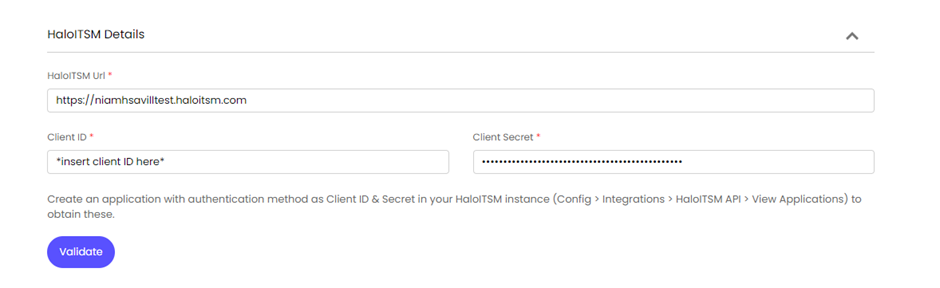
Fig 4. Connection details in HaloCRM instance
Press ‘validate’ and this will be saved automatically.
Repeat the steps for the other instance. API applications must be set up and validated on both sides in order for the integration to work.
On the HaloCSM side, you will need to select the outcomes of the integration. This means, selecting a ticket type to log with and status and priority mappings.
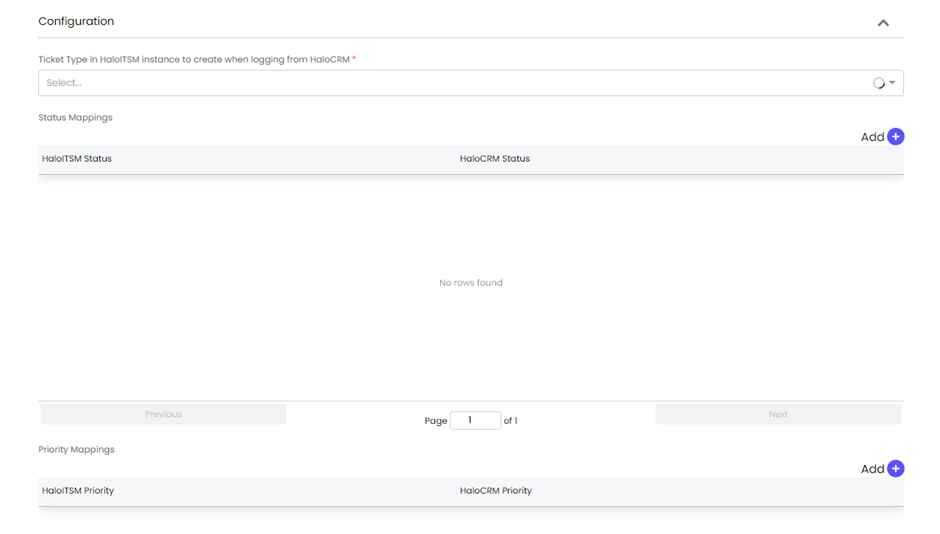
Fig 5. Integration configuration in HaloCRM
Once happy, you'll need to create an action that triggers the integration to work.
Head to Configuration > Processes > Forms > Actions and create a new action called ‘Send to ITSM’ (or similar).
This action will need to have the system use of ‘Create Ticket in HaloITSM’.
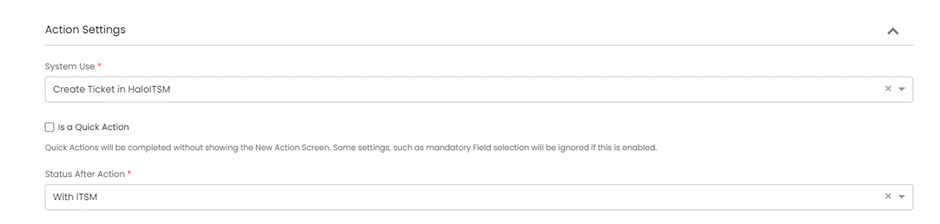
Fig 6. Action to trigger sending the ticket to ITSM instance
By default, there will be a summary and notes field added to the action to send over information.
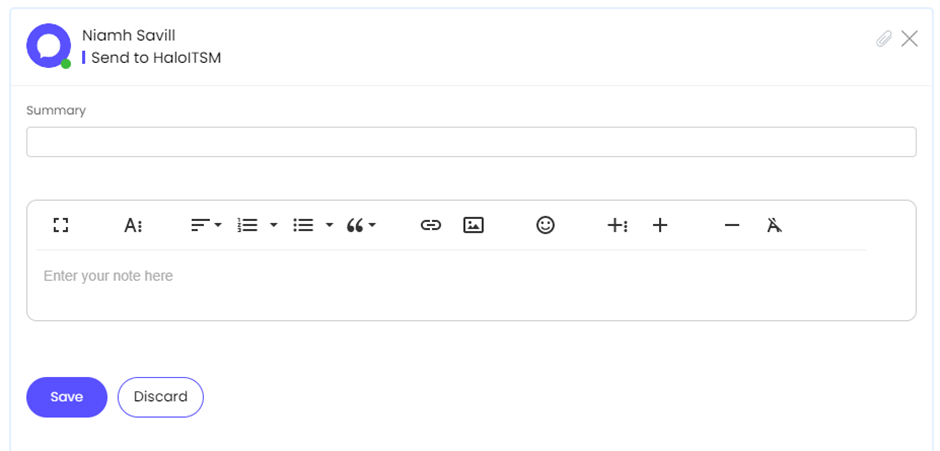
Fig 7. Action created in use
Save this configuration.
You will need to add this action to the necessary workflow or ticket type if you have any restrictions on the ticket types for available actions.
Next, head back to your ITSM instance and do the same thing. For the system use on the ITSM side, set to ‘no system use’. The field list should be the same.
On both actions, ensure the checkbox shown in Figure 8 is enabled.

Fig 8. Setting to send action to linked Halo instance
This can be done under the defaults tab.
The integration should now be ready to go!