Jira Service Management Integration
- jira
- jira service management
- jira software
- service management
- jira requests
In this guide we will cover:
- What is the Jira Service Management Integration?
- Enabling the Module
- Connecting to Jira Service Management
- Syncing to Jira Service Management
- Syncing Back to Halo (Webhooks)
- Linked Tickets
What is the Jira Service Management Integration?
The Jira Service Management integration allows a two way sync between Halo and Jira Service Management. New tickets logged in Halo can be sent to Jira and new requests logged in Jira can be sent to Halo. Updates t requests/tickets in both tools can be sent back to the other.
Enabling the Module
The integration needs to be enabled from the integration configuration area, but the credentials and field mappings are configured per customer/supplier. To enable Jira Service Management hover over the module and click the plus sign (+) in the top right.
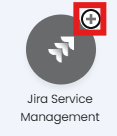
Fig 1. Enabling the module
Connecting to Jira
Once the integration is enabled, a Jira Service Management tab will appear on the Customer and Suppliers details page. Here you can enter the credentials for their instance of Jira Service Management. These credentials must be validated before setting up any of the mappings.
To obtain an API token click "Edit" follow the link found on under the Jira Service Management tab in Halo. This link will only show when editing the page.
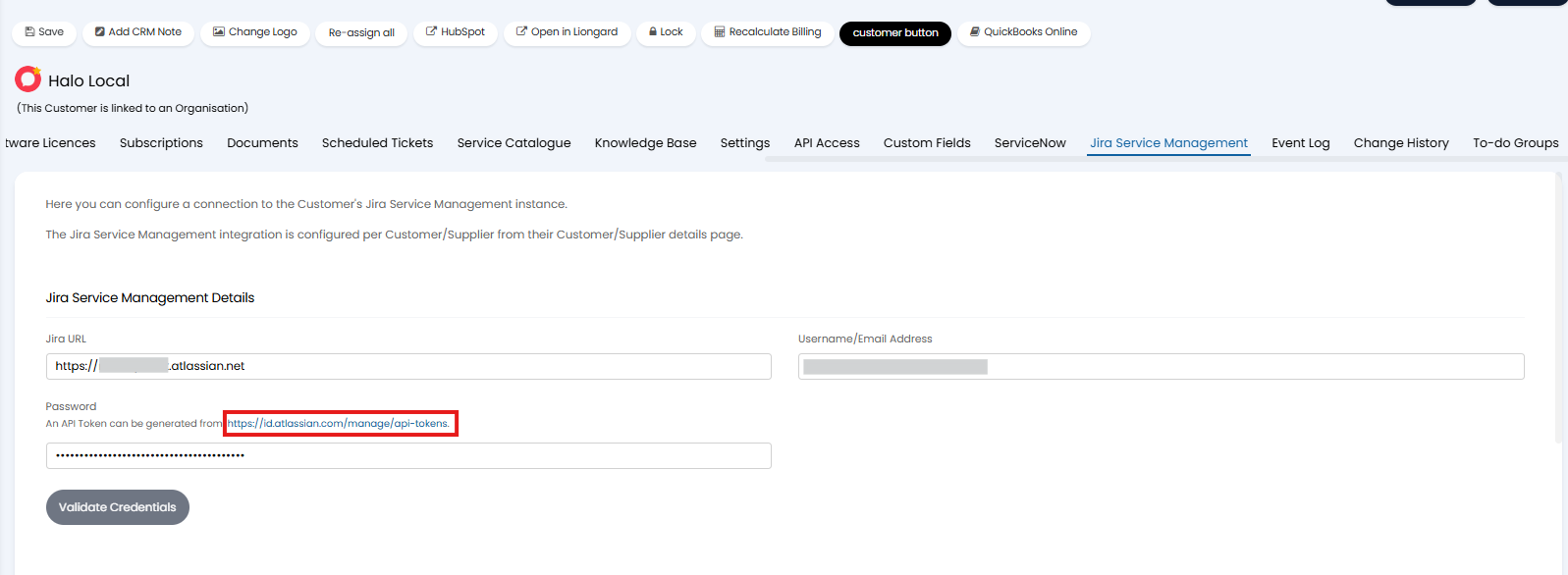
Fig 2. Credentials page. Link to obtain API Token highlighted
When creating the API token, you must use the "Create API token" option.
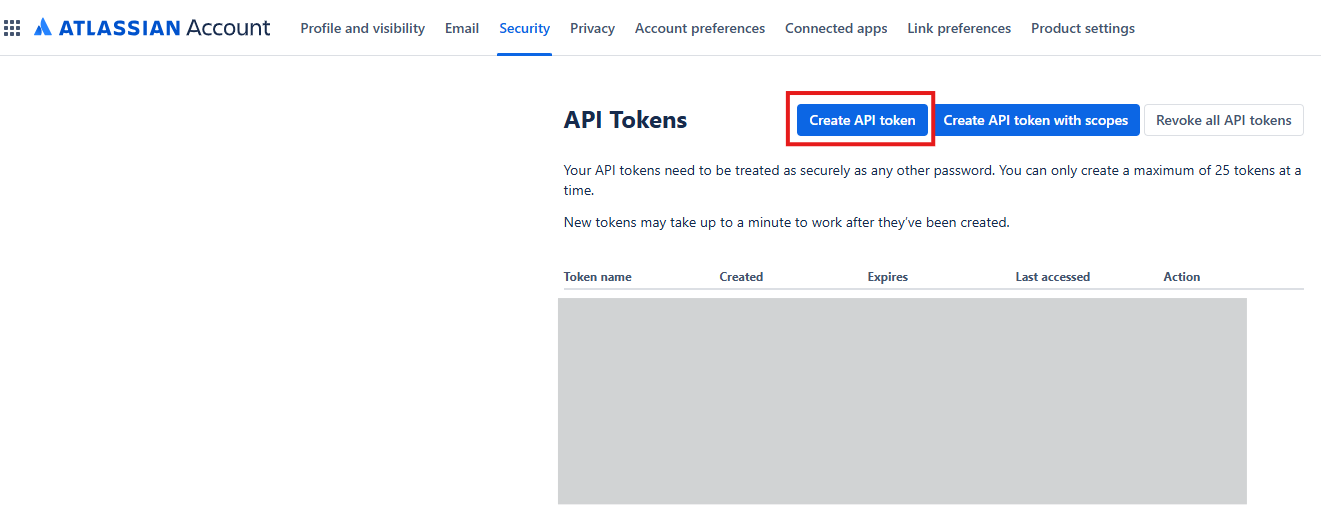
Fig 3. Create API Token in Jira
The API token generated will inherit the permissions of the user that generates it. For ease of setup have an admin user generate the key, this will allow webhooks in Jira to be created with the click of a button in Halo (as only admins can create webhooks).
Otherwise, the minimum permissions the user needs is as follows:
- Access to the Jira Service Management App
- Browse (view) the project
- Create issues in the project
- Edit issues in the project
- Assign issues in the project
- Resolve issues in the project
- Add comments in the project
- View comments in the project
Note: Permissions in Jira are configured per project, note per user, therefore the user will need access to the project(s) you would sync with Halo.
Now head back to Halo and fill in the API details you have generated, including your Jira URL, Username/Email, and the API Key (this will need to go in the "Password" field). Once you have enetered these details, click "Save" followed by the "Validate Credentials" button.
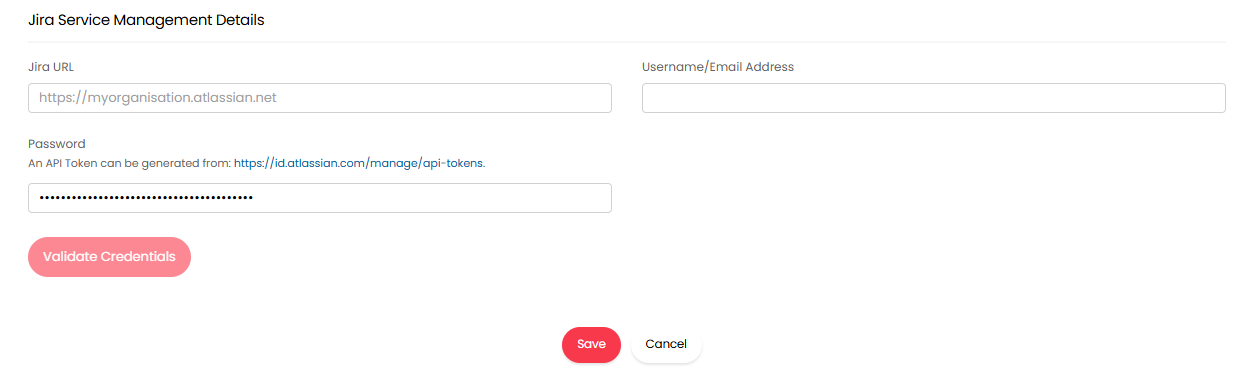
Fig 4. Connecting to Jira Service Management
Once validated, a new section will become available on the Jira Service Management tab of the Customer or Supplier. Here you can configure mappings for request type, priority, and status, as well as a default reporter and service desk for the requests.
Default Status After Jira Update - Here, you can set the default status tickets will be moved to when an update is received from Jira. If the issue in Jira has a status that is mapped to a Halo status the mapped status will always be used, otherwise the Halo ticket will move into the status chosen here.
Note: Status is not synced outbound from Halo to Jira.
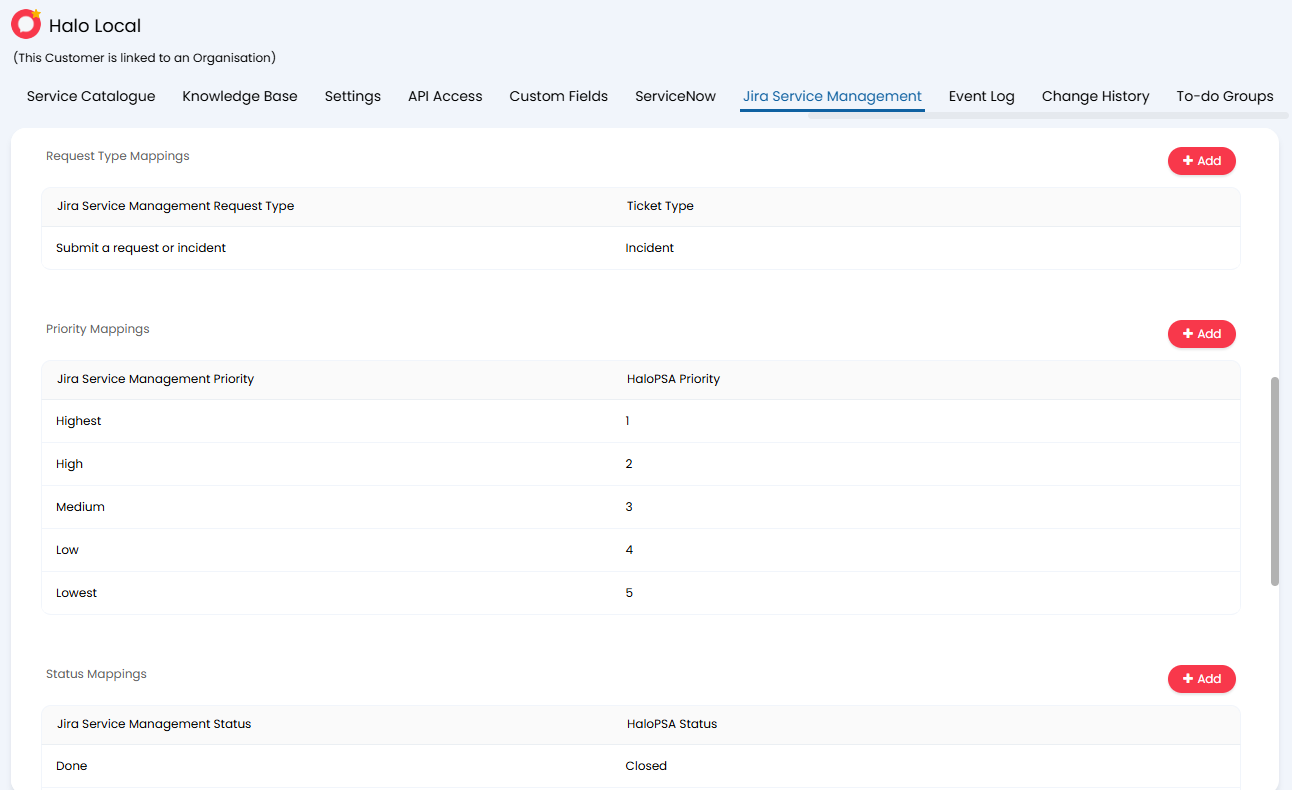
Fig 5. Mappings
Syncing to Jira Service Management
Customers
To sync requests, you can create an action with the system use 'Send ticket to Jira Service Management'. This will send the current ticket to the Jira Service Management instance of the customer the ticket is assigned to, if the quick action checkbox is selected, the ticket will automatically send to Jira when the action button is clicked. Only one incident may be linked to a ticket at a time. If the 'Send ticket to Jira Service Management ' is used again on the same ticket, the existing link will be overwritten.
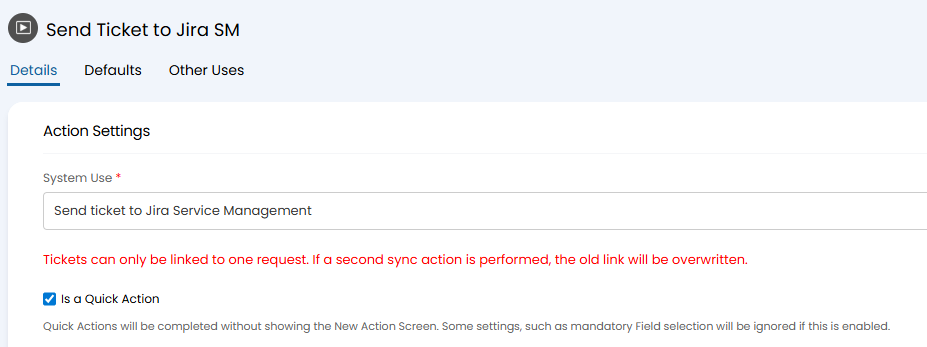
Fig 6. Sending to Jira Service Management System Use
Note: Only the first note on the ticket posts to Jira Service Management
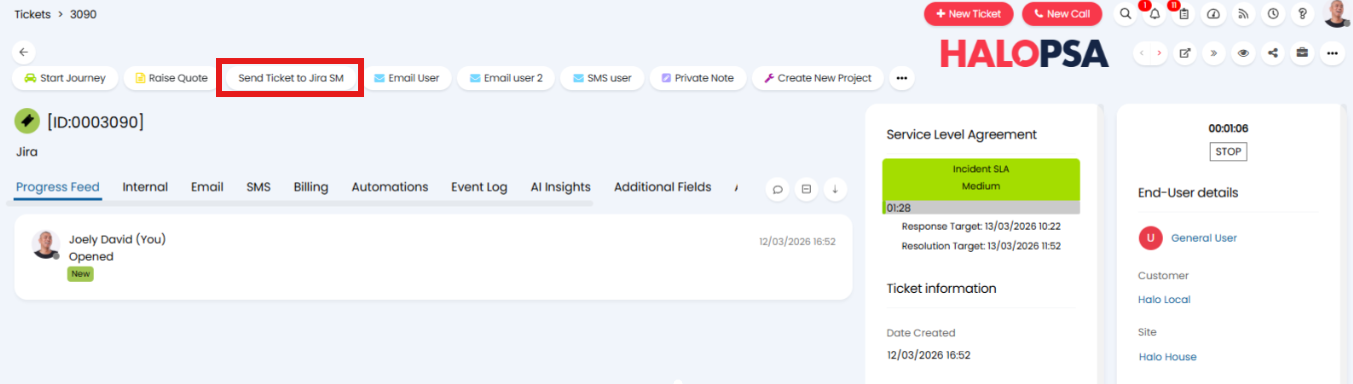
Fig 7. Syncing to Jira
After the Request is sent over, there will be a Jira Service Management ID displayed on the ticket information, which is hyperlinked to the ticket on Jira.
The user of the Change Request will try to match on the email of the ticket in Halo but will fall back to the default user if there is no user with that email in Jira Service Management.
To send an action to the Jira Service Management request, you can create an action with the note and 'Sync to Jira Service Management' fields, this option is used so the sync to Jira can be decided per action. This is the recommended approach if you are using a generic close action for all customers, some of which may not be connected to Jira.
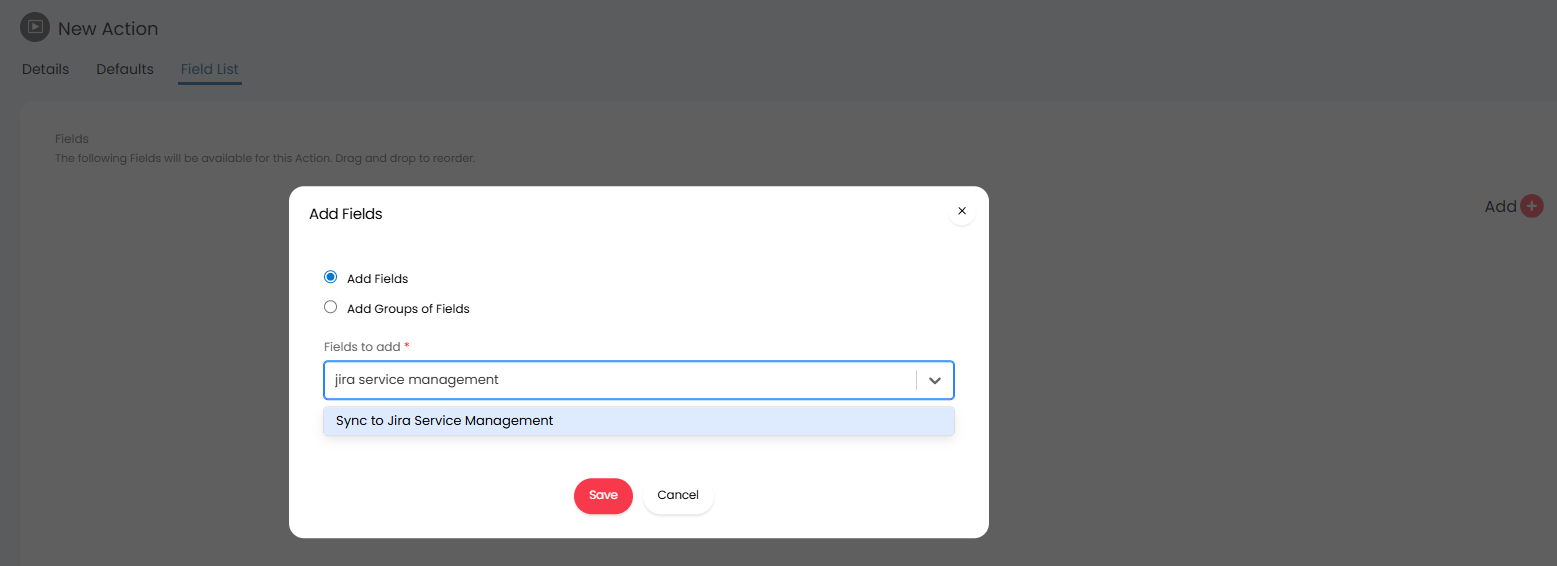
Fig 8. Sync option on an action
Each "Send Update to Jira" action has a checkbox option when using the field "Sync to Jira Service Management" on the field list of the action.
This can also be set as a default on an action. If checked, the action will be sent to the linked request as soon as it is saved, there is no checkbox on the action.
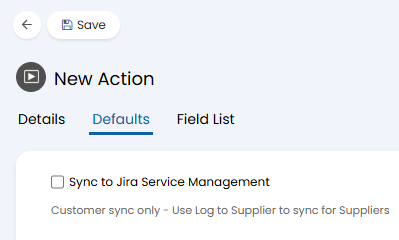
Fig 9. Syncing option
Note: The options "Send attachments to Jira", and "Send to Jira" do not work with the Jira Service Management Integration, this is for the Jira Software integration.
It is Recommended to Have two actions for sending updates: Update Jira Ticket, Private Update Jira Ticket. If the action is set to private it will be private in Jira Service Management.
Note: The action field posted to Jira must be the "Note" Field, Private Note does not work.
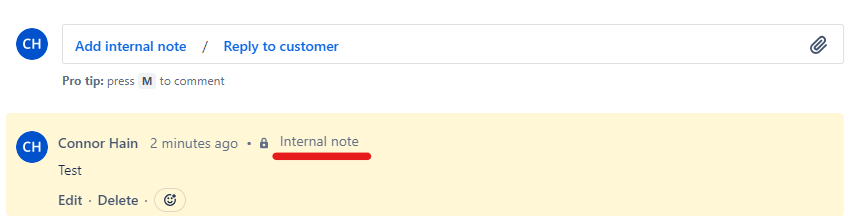
Fig 10. Action in Jira
Using the action Update Jira Ticket.
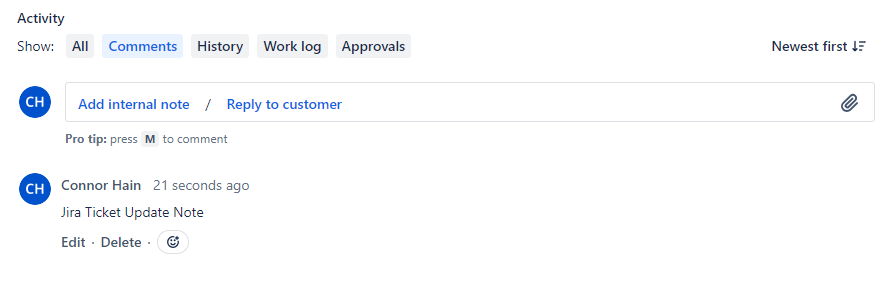
Fig 11. Jira ticket
No other updates to the ticket in Halo will be synced to the incident in Jira Service Management.
Suppliers
The suppliers function similarly to the customers, except instead of requiring the specific Jira Service Management system use and field, the request will be created when using the 'Log to Supplier' system use if the selected supplier is connected to Jira Service Management. Similarly, actions can be sent to the request by using the 'Email supplier' system use if the supplier linked to the ticket is connected to Jira Service Management.
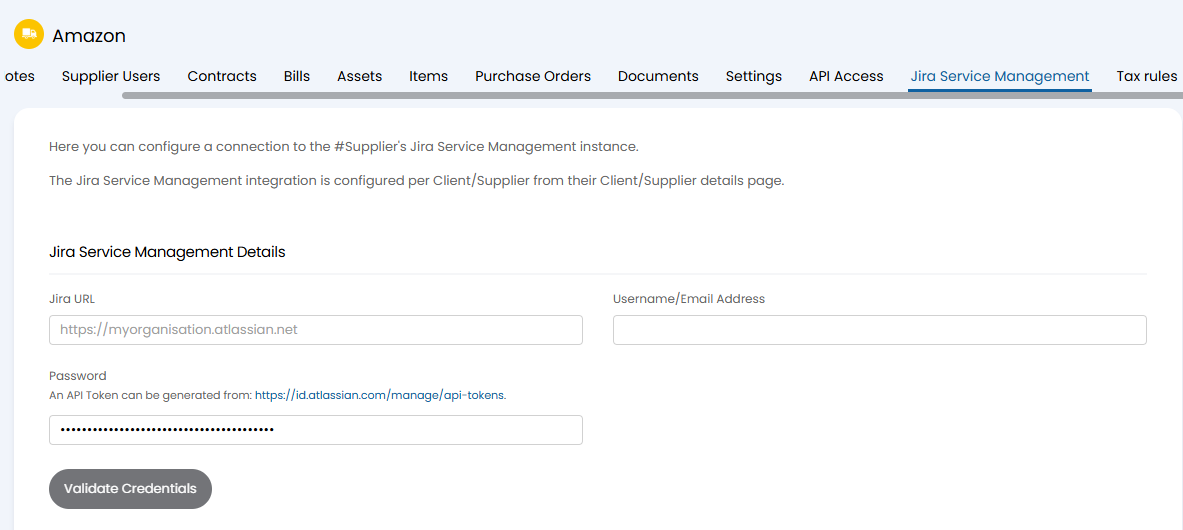
Fig 12. Jira tab on a supplier
Syncing Back to Halo
Webhooks in Jira are used to create tickets in Halo and sync updates to requests from Jira back to Halo.
You must first allow webhooks to be processed for each customer in Halo. Head to the customer profile in Halo > Jira Service Management tab > Webhooks section and enable "Allow Jira webhooks to be processed by Halo".
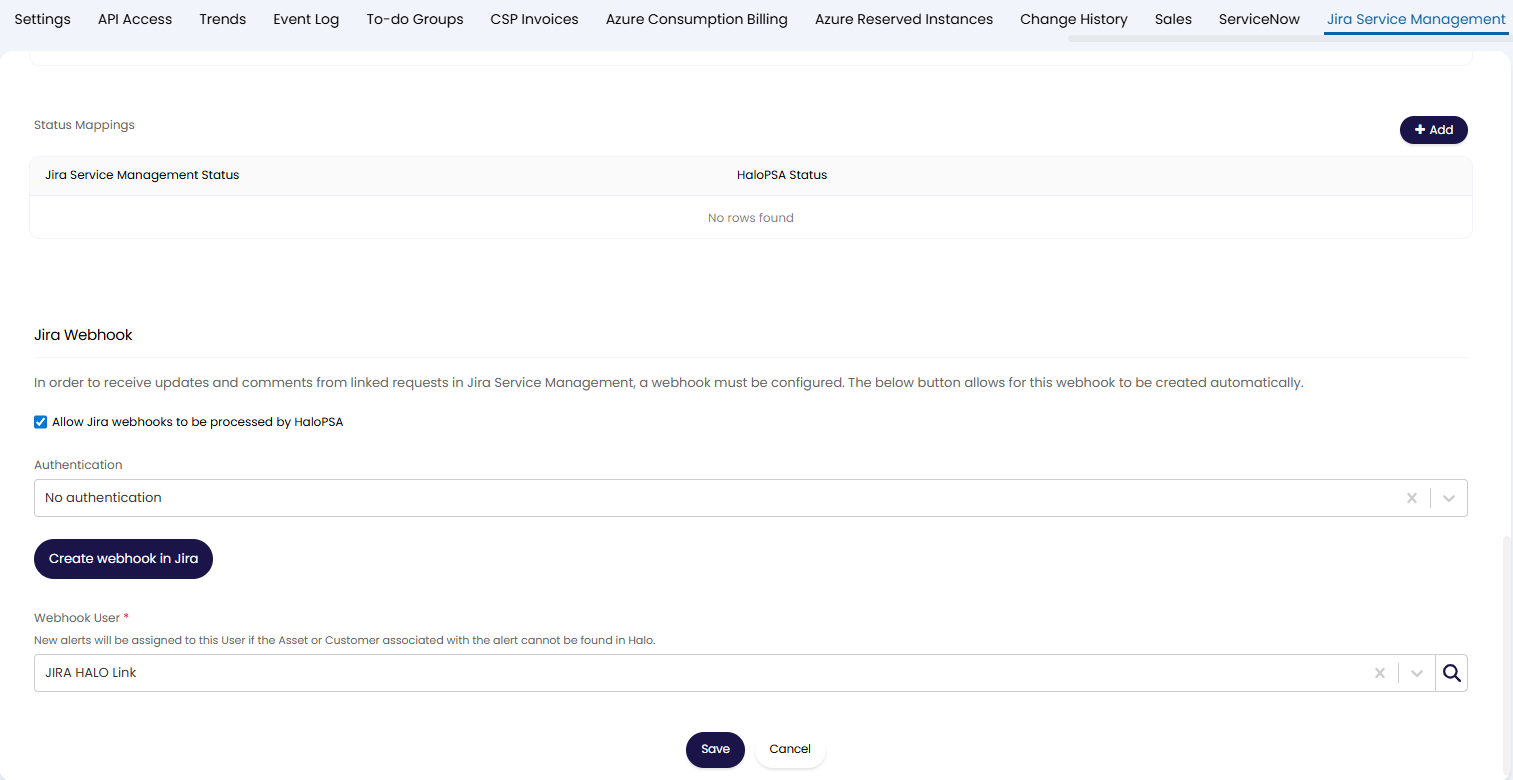
Fig 12. Webhooks configuration for customer
When enabled, choose which authentication method you would like webhooks to require.
If using "Signature validation", you will need to generate a secret in Jira an enter it here.
Then choose the "Webhook User". This will be the user new requests will be assigned to if they cannot be matched to a user in Halo.
Webhook Creation
Click the "Create webhook in Jira" button to automatically create the webhook in the customer's Jira instance. This will create a webhook called "Halo Jira Service Management Integration".
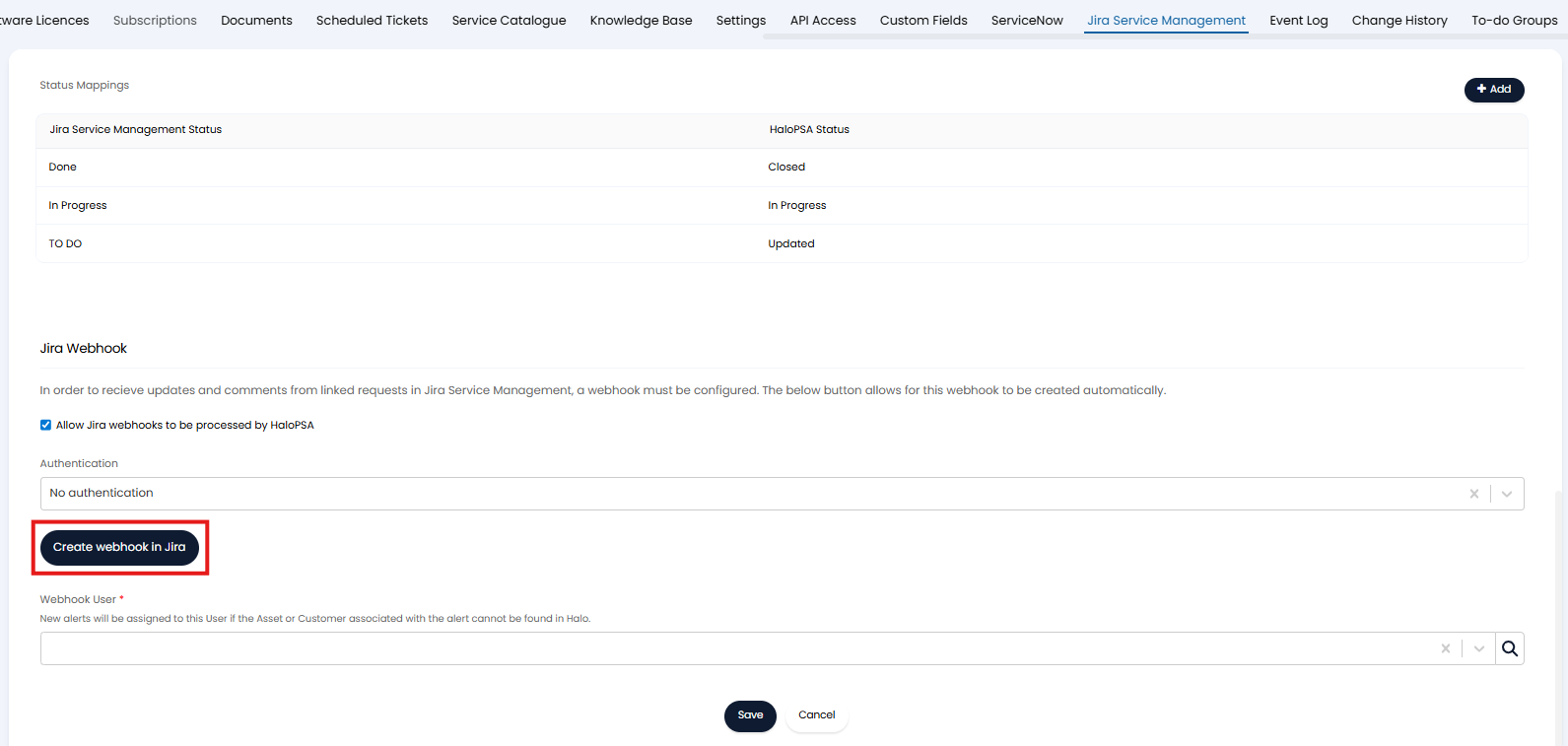
Fig 14. Create webhook in Jira
To check if the webhook has created successfully, in Jira, head to settings (top right) > System > WebHooks, look for a webhook called "Halo Jira Service Management Integration".
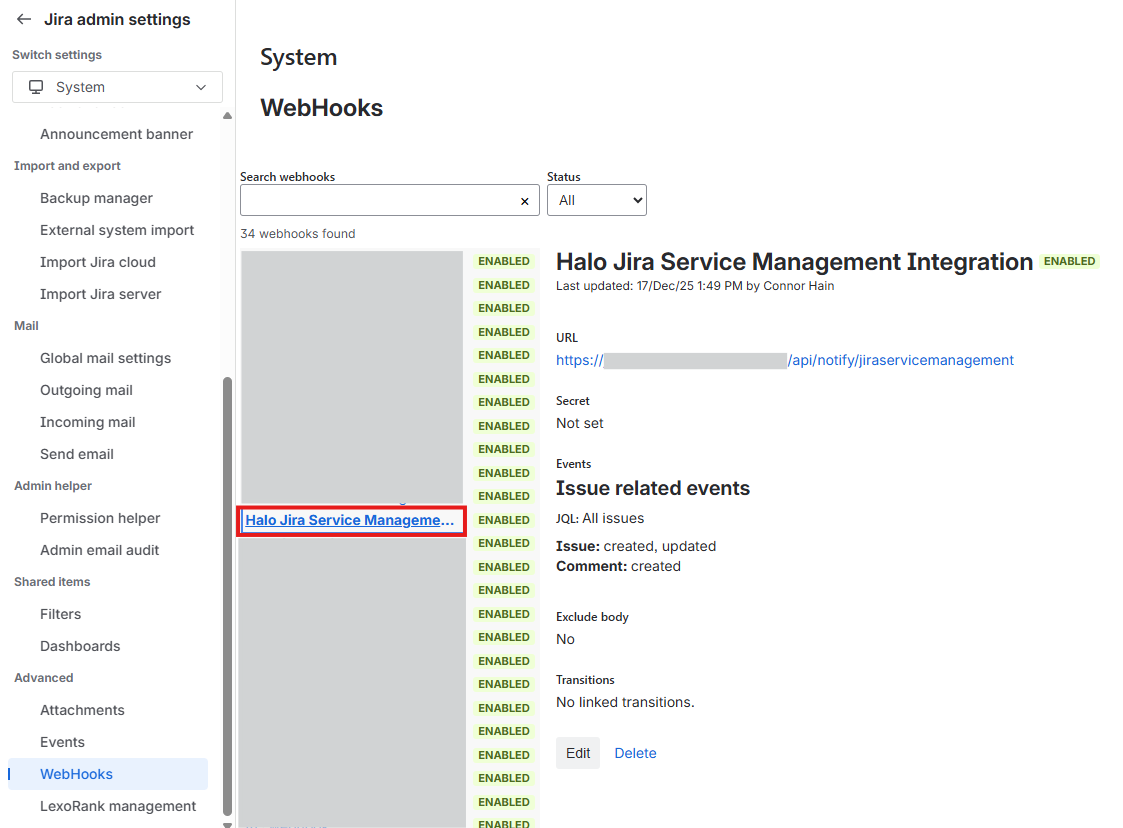
Fig 15. Webhook created in Jira
This will only work if the user who has generated the API key to connect to the customer's Jira is an administrator. If the user was not an administrator the webhook will not create and you will need to create the webhook manually. To manually create the webhook it will need to be configured as shown in figure 16.
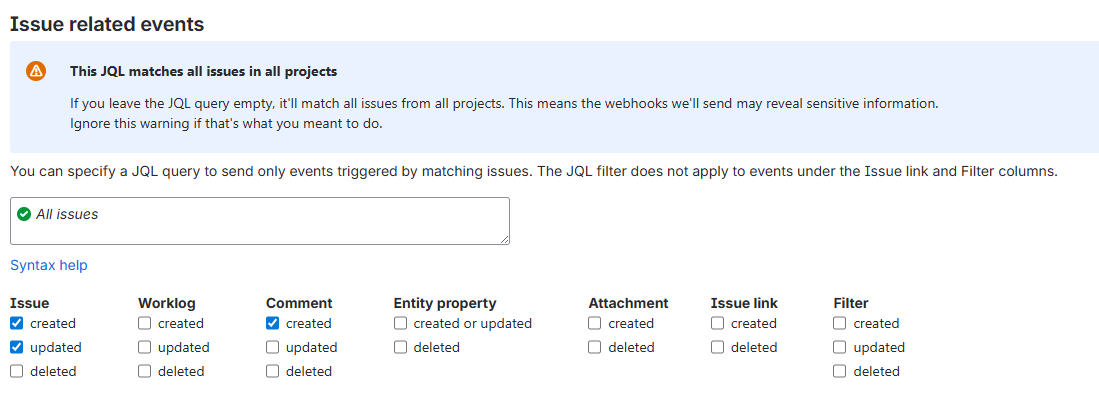
Fig 16. Webhook configuration
The URL for the webhook will follow the format https://YOURHALODOMAIN/api/notify/jiraservicemanagement.
Now, when new requests are raised in Jira these will be created as tickets in Halo. The ticket type it is created as will be determined by the Request Type Mappings in Halo.
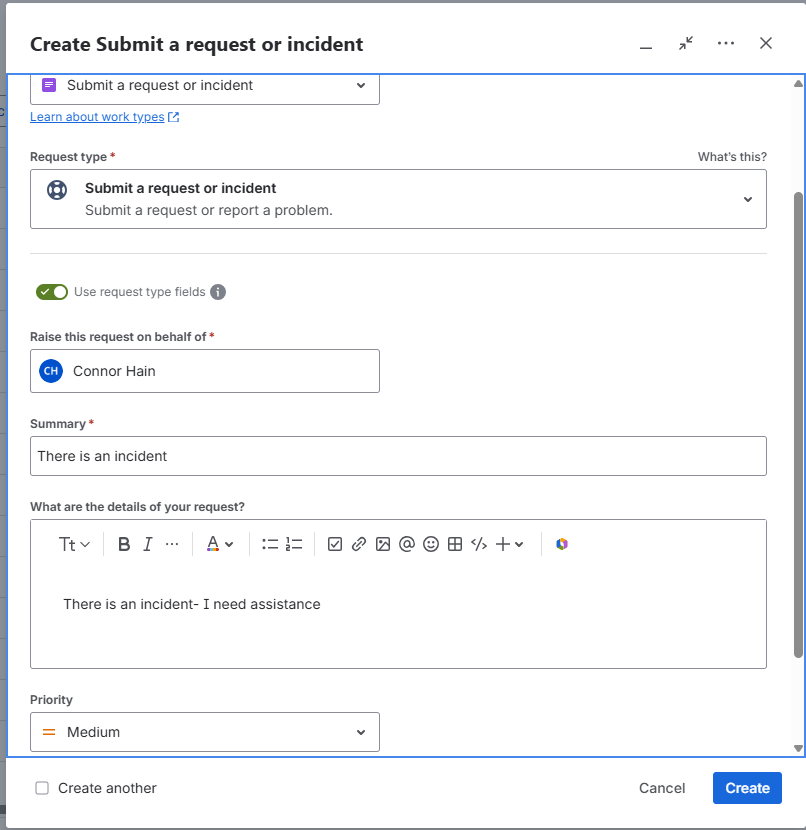
Fig 17. Request raised in Jira
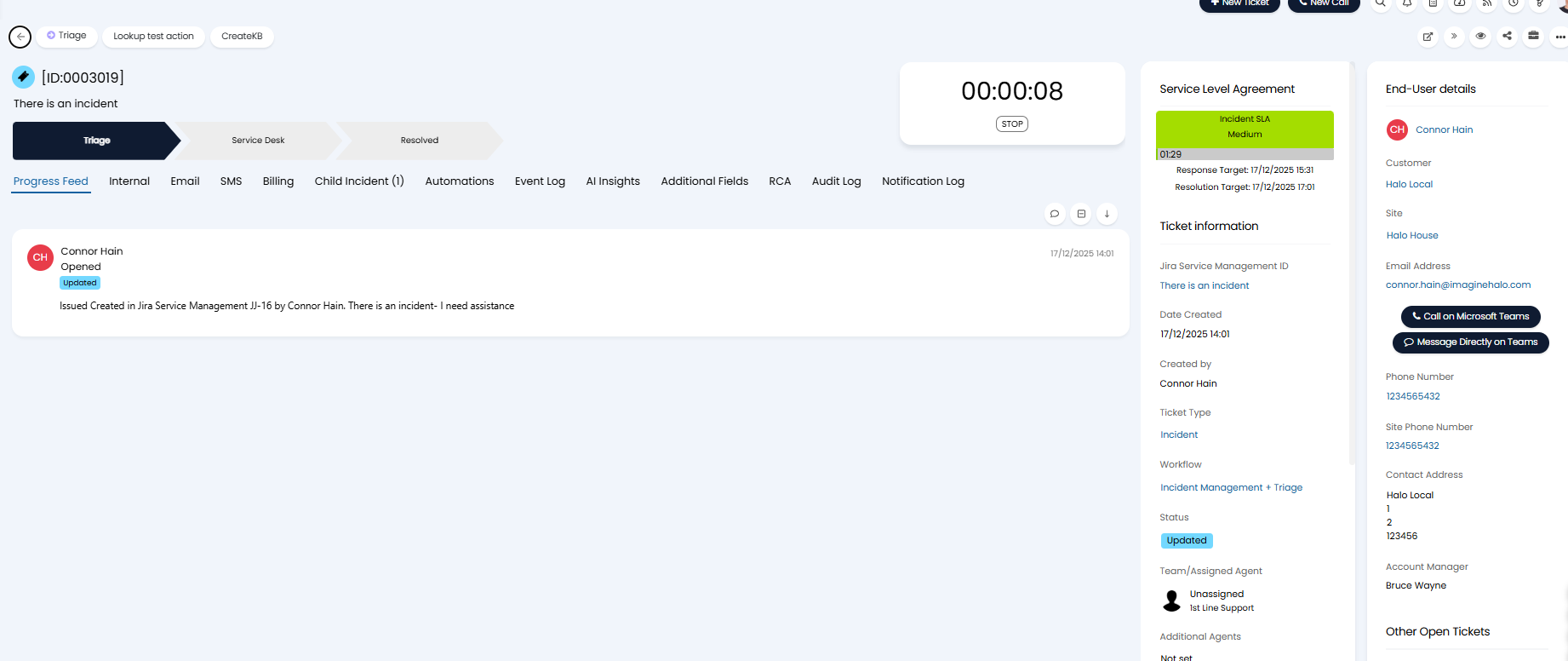
Fig 18. Ticket logged in Halo
When comments are added to requests in Jira, these will be synced to the ticket in Halo. The ticket in Halo must be linked to a Jira request for this sync to be successful. Links are established by creating a ticket/request in one tool from the other.
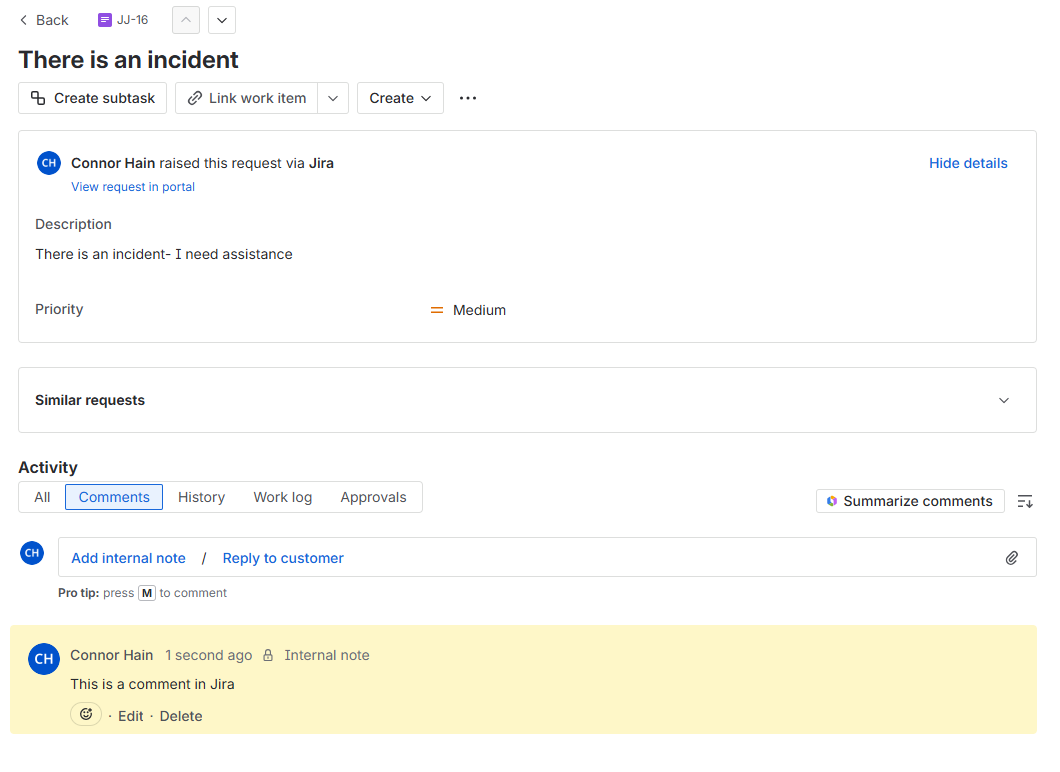
Fig 19. Comment added to request in Jira
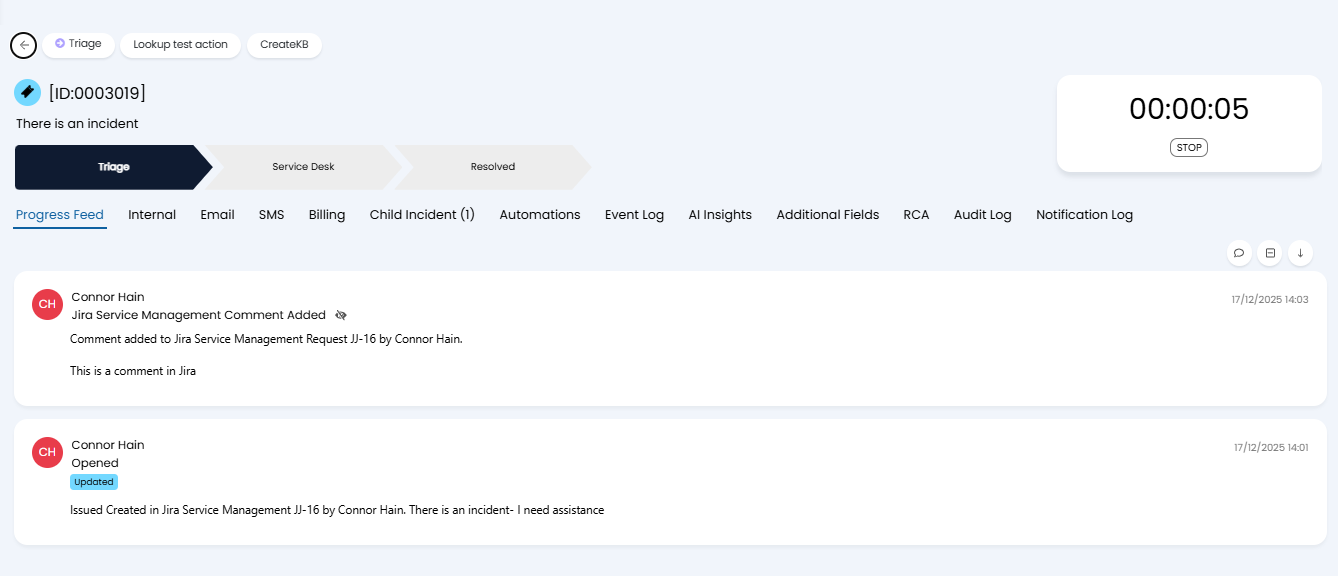
Fig 20. Comment synced to ticket in Halo
If the Ticket created in Jira did not successfully create in Halo (i.e it was assigned to a client which doesn't sync to Halo). Ticket Updated Webhooks will be unable to update a Ticket as no existing Ticket can be matched.
From v2.244+, If you create a custom checkbox field in Jira with the exact name "Send to Halo" (case sensitive) and select this, a Ticket Update Webhook will be sent to Halo as normal. This checkbox will act as an override, allowing Halo to create a new Ticket in the system which future Ticket Updated Webhooks can match on.
Restrict when the Webhook is Triggered
By default, the webhook will trigger for all issues that are created and updated in Jira, sending a request to Halo. However, only requests that match to a ticket in Halo will actually update a ticket.
If you would like to restrict when requests are sent you can add a JQL filter to the webhook. This can be used to only have the webhook trigger for issues are created for a selected project, issues created of a certain type, etc.
In the figure 21 example we have configure a filter such that the webhook will only trigger for issues created and updated under the project with the name "Project 1".
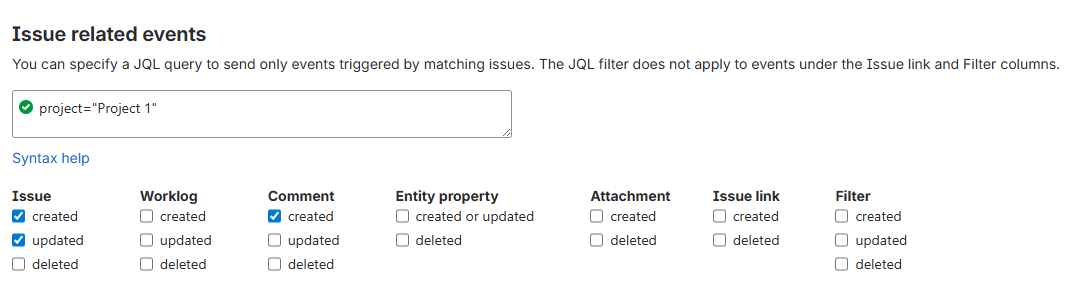
Fig 21. Webhook set to trigger when issues and comments are created under Project 1
For more information on configuring JQL filters checkout: https://support.atlassian.com/jira-service-management-cloud/docs/use-advanced-search-with-jira-query-language-jql/.
Considerations when Creating Tickets in Halo from Jira
When a ticket is created the summary of the request will be used as the summary of the ticket and the priority will be synced across. No other fields will be synced.
Ensure the following criteria are met for tickets to be successfully created in Halo from Jira:
- Ensure the request type being logged is mapped to a Halo ticket type
- Ensure there are no mandatory fields on the Halo ticket type attempting to be logged (excluding priority)
- Ensure the "Priority" field is added to the request type in Jira, and set.
- Ensure you have completed priority mappings
Considerations when Updating Tickets in Halo from Jira
Only tickets that are linked to Jira requests can have comments synced. To link a ticket to a request you will need to create the ticket from Jira, or create the request from Halo, this will establish a link.
Comments added to requests will be synced, updates to the priority and status fields will sync. Other fields will not sync across.
Suppliers
Creating and updating tickets from Jira for suppliers can be configured the same way. Simply create the webhook using the button in Halo and this will create the required webhook in the supplier's Jira instance.
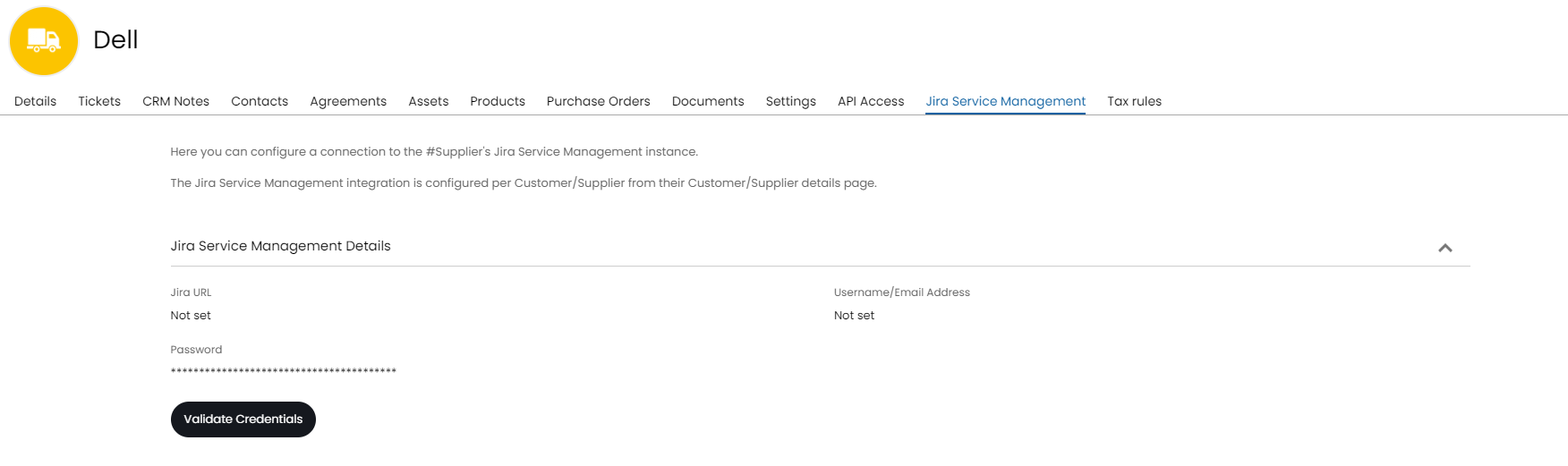
Fig 22. Suppliers
For more information on suppliers, check out this guide: Suppliers in Halo. For example you may want to configure certain actions with the "Log to Supplier" system use to include the checkbox.
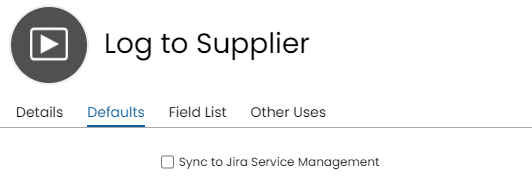
Fig 23. Sync option on log to supplier action
Linked Tickets
Tickets that are linked to Jira will show a tab that outlines details of the linked ticket such as its ID, Type, Title, and who it is assigned to.
You can see the current status of the Jira ticket here as well, without having to change the Halo status through mapped statuses. This information is also stored in the "ELThirdPartyStatus" column in the "ExternalLink" table.

Fig 24. Status on the ticket